 INSTALLATION INSTRUCTION
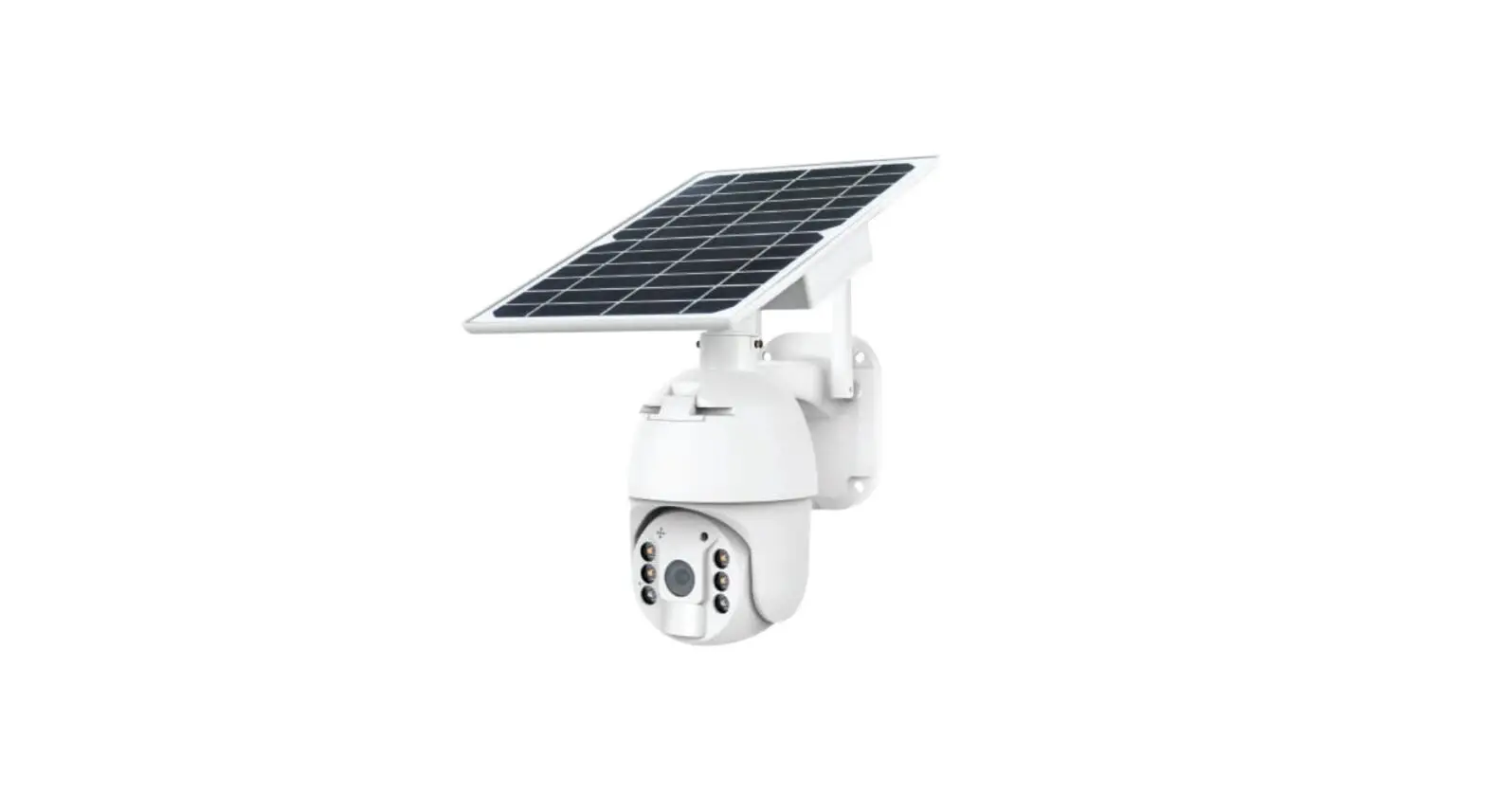
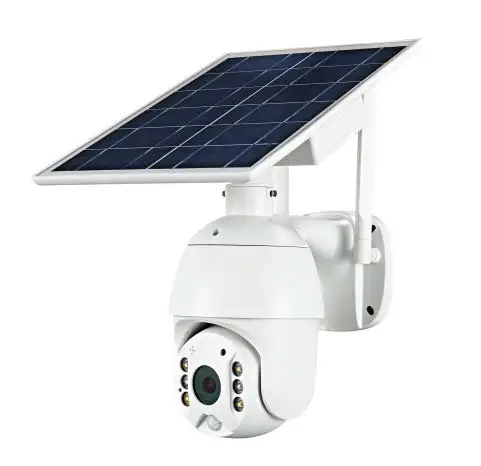
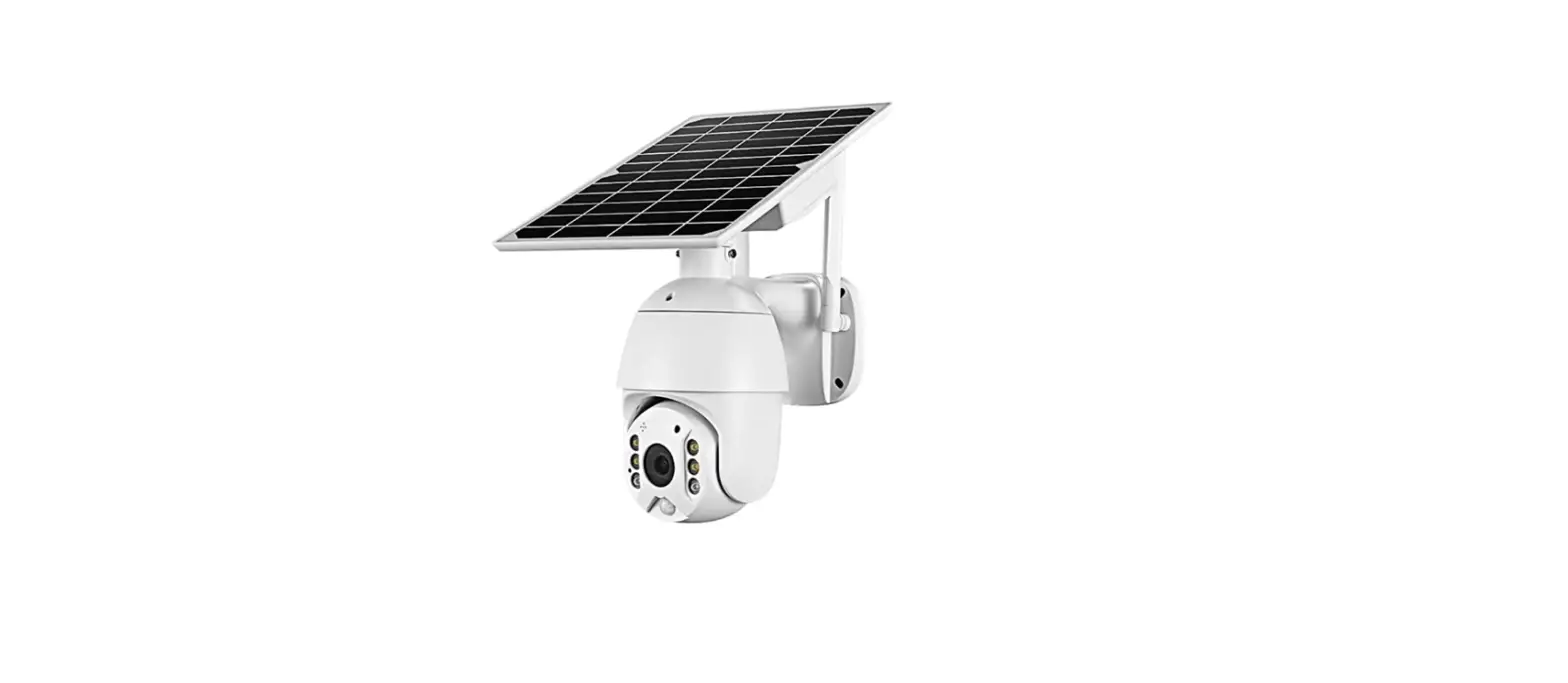
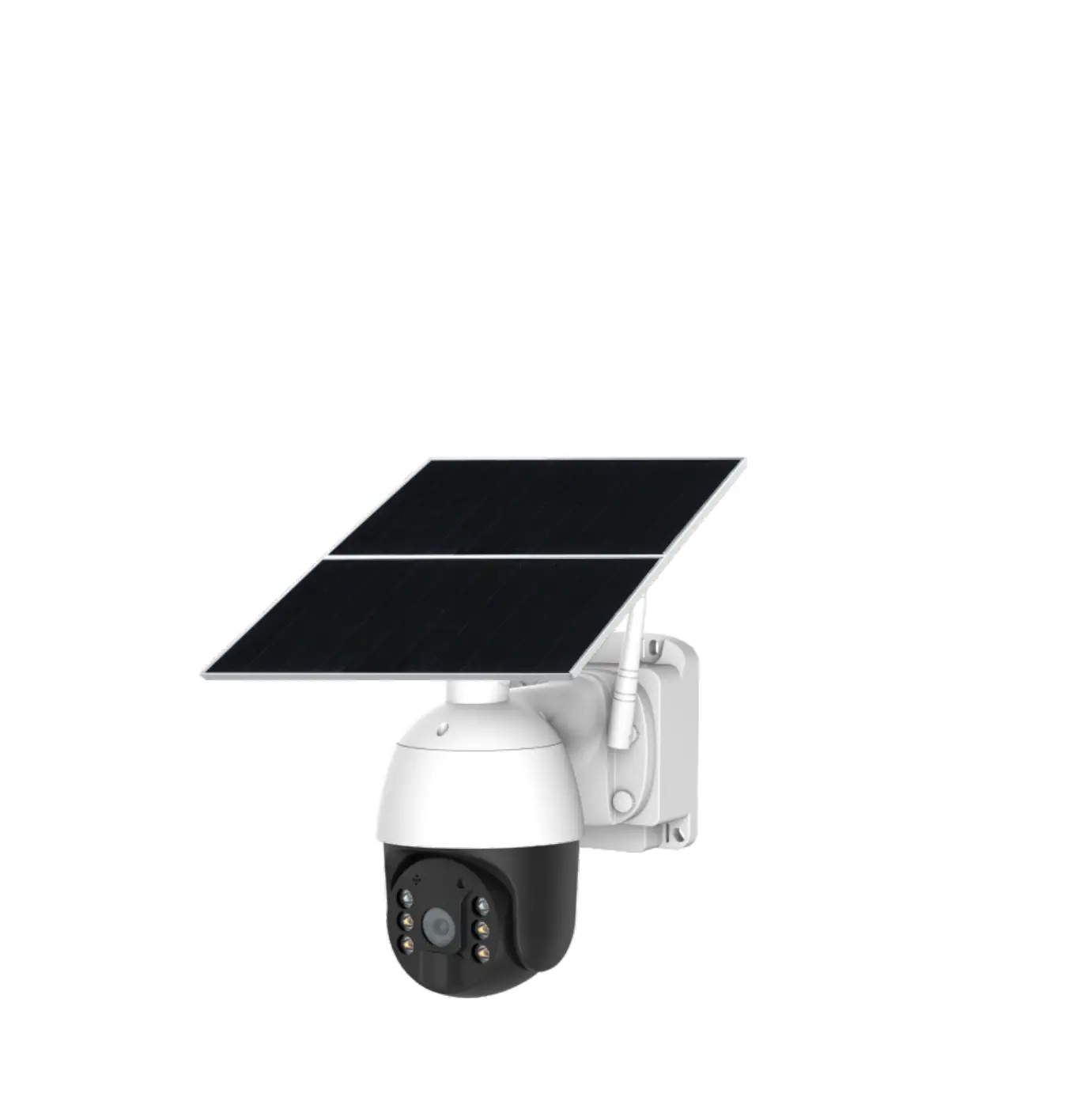
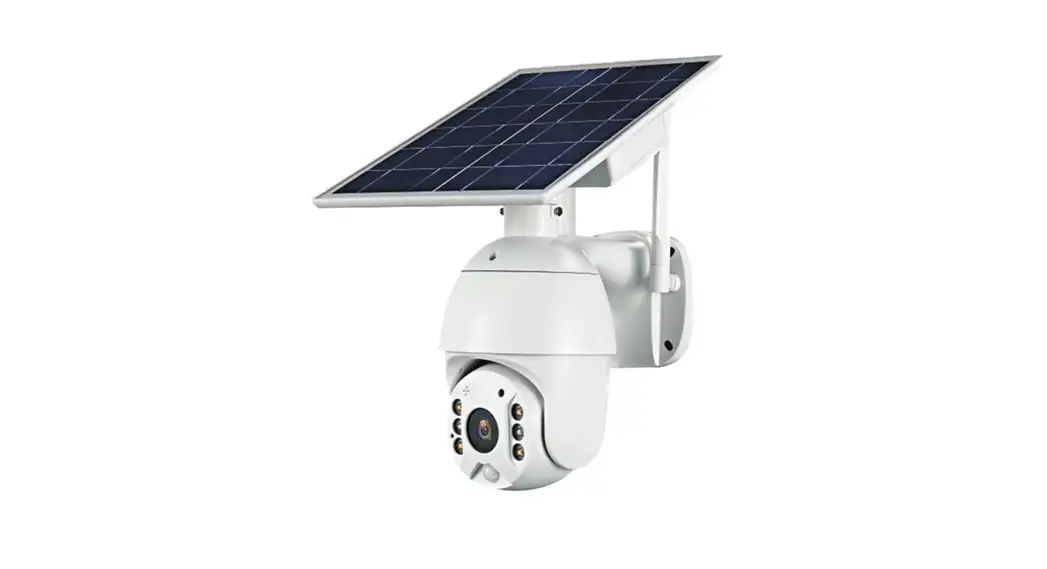
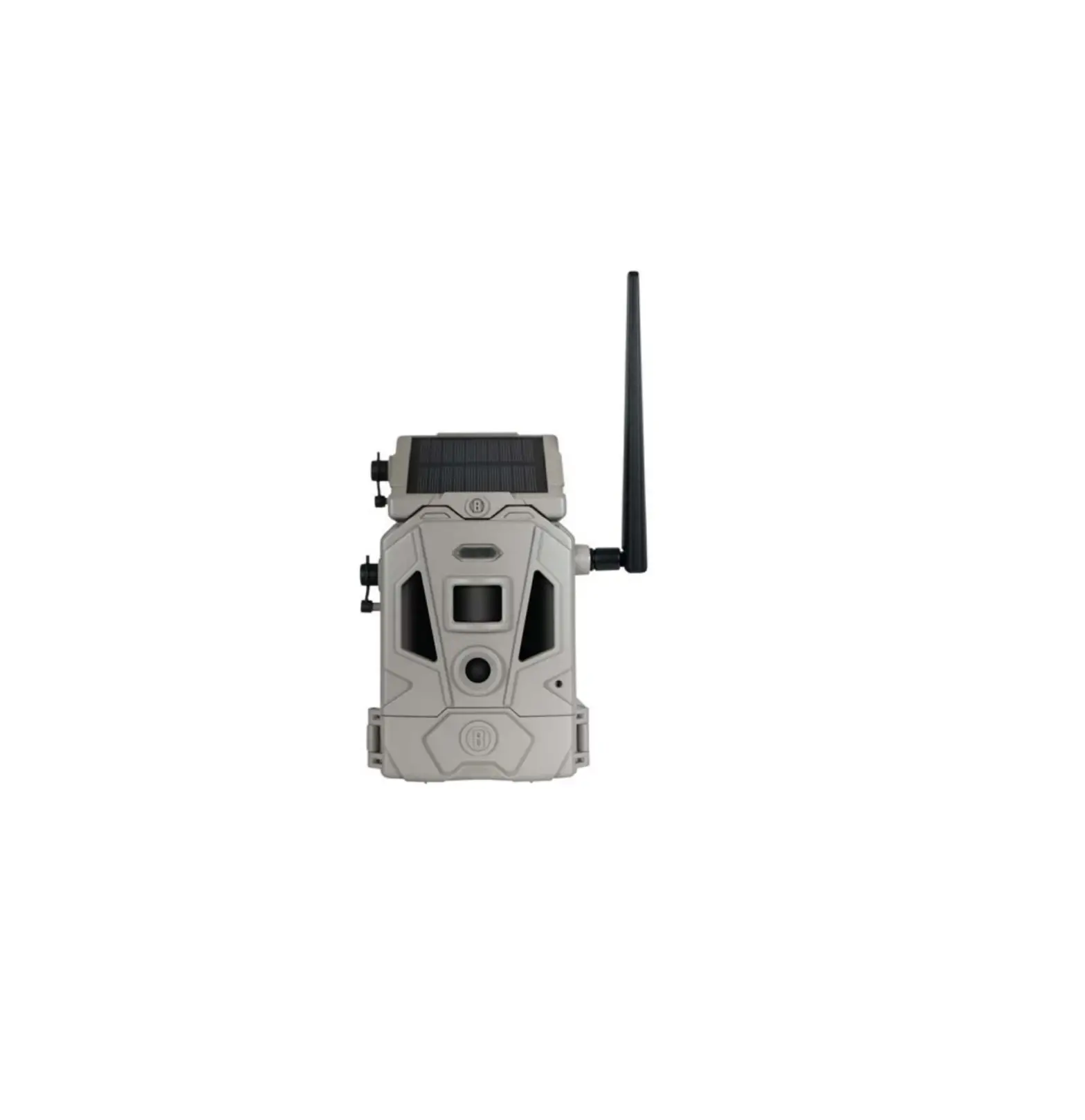
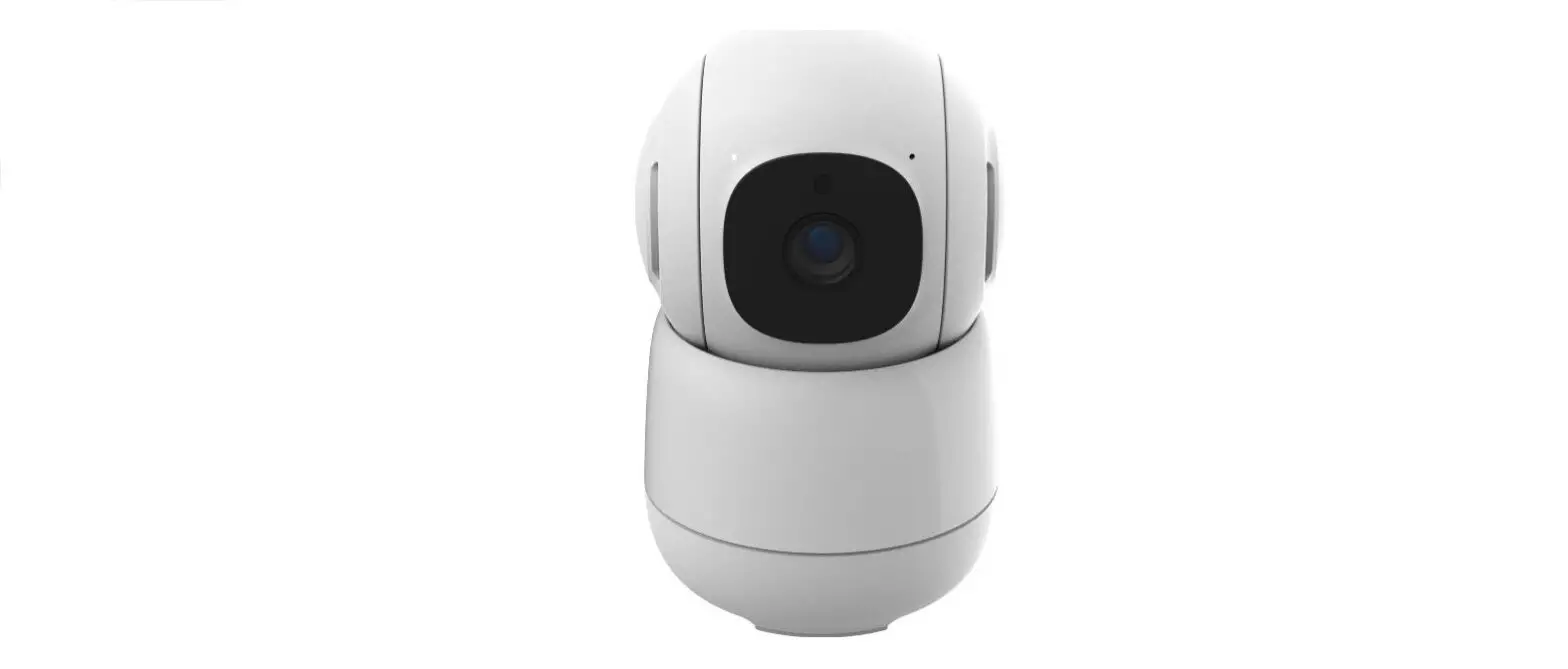
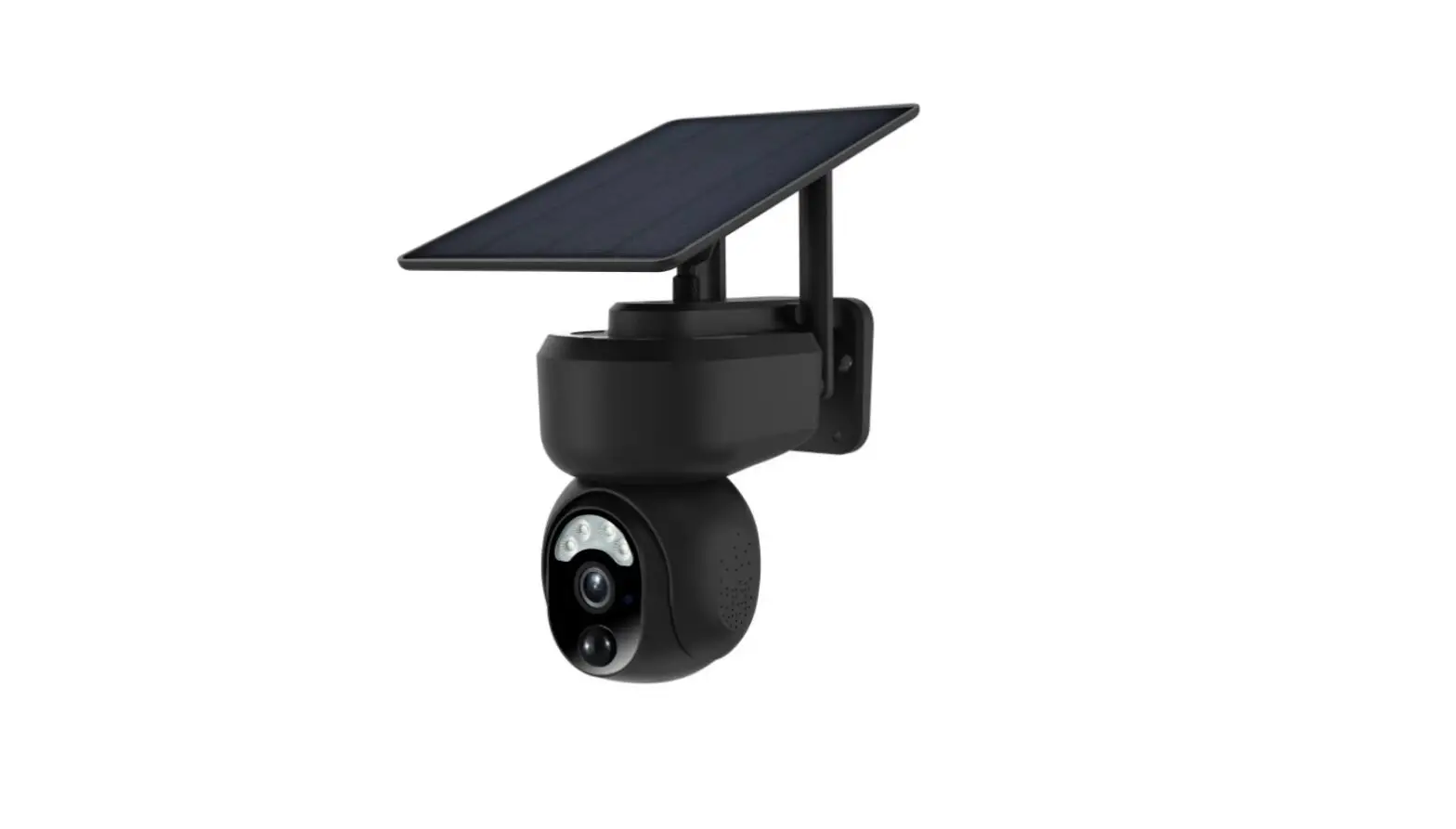
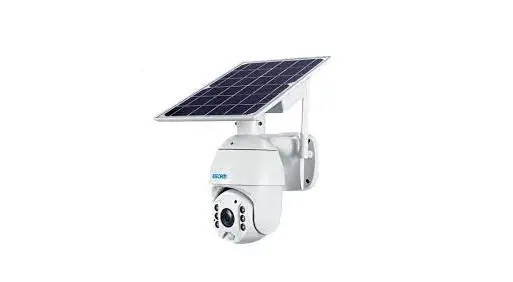
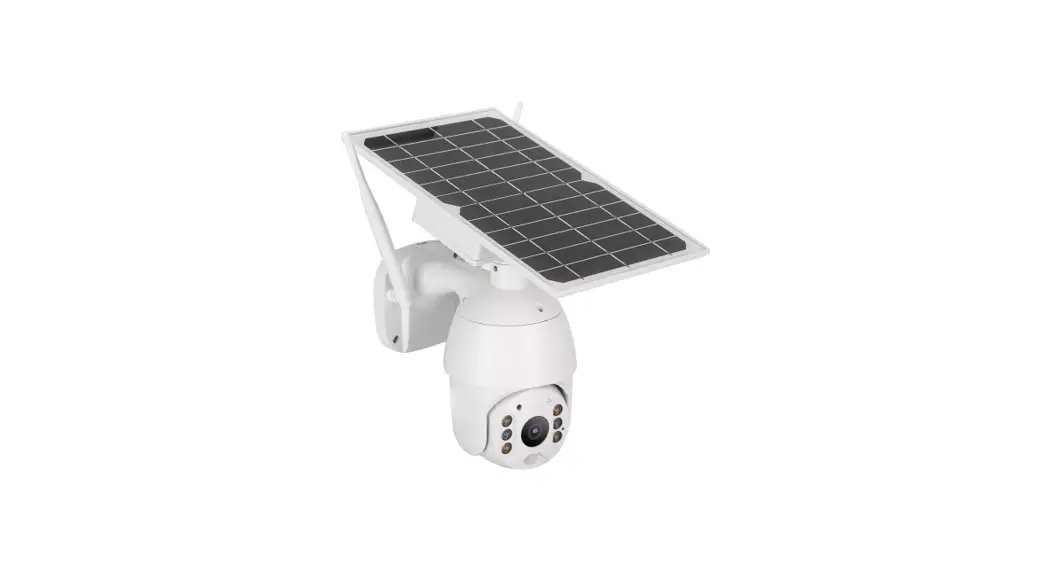
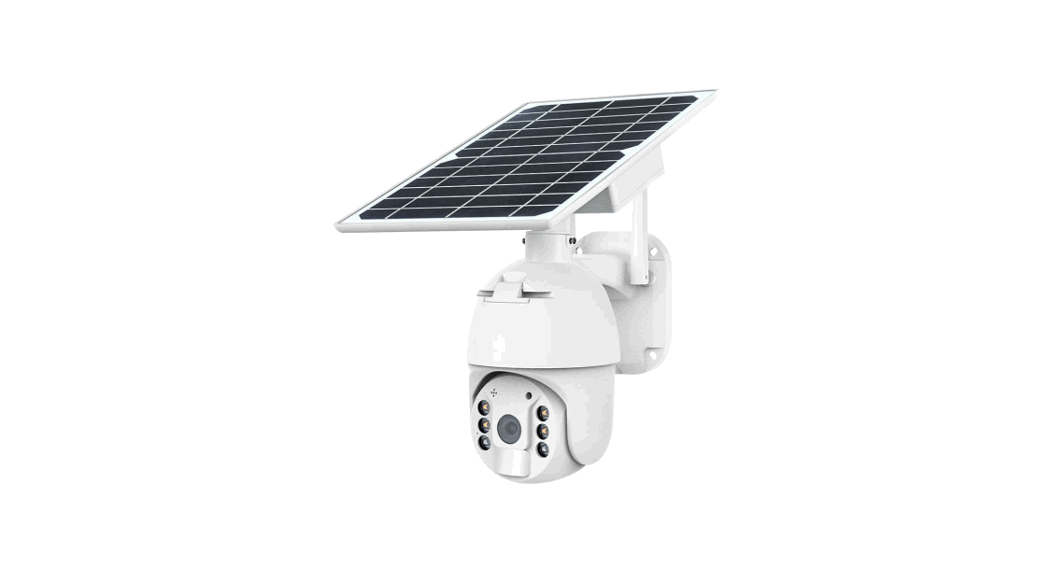
PTZ SOLAR CAMERA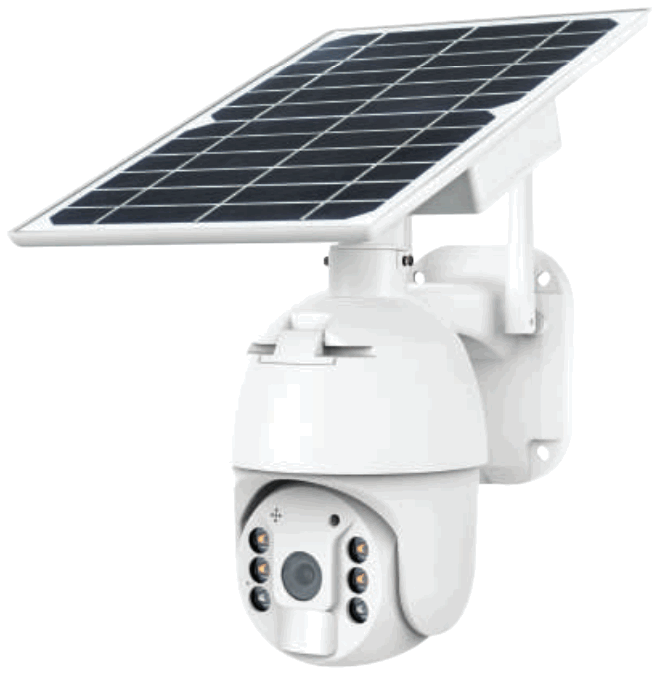 WEEE Number: 80133970
INTRODUCTION
Thank you for sleeking and buying V-TAC product. V-TAC will serve you the best. Please read these instructions carefully before staring the installing and keep this manual handy for future reference. If you have any another query, please contact our dealer or local vendor from whom you have purchased the product. They are trained and ready to serve you at the best.
IN CASE OF ANY QUERY/ISSUE WITH THE PRODUCT, PLEASE REACH OUT TO US AT: [email protected] FOR MORE PRODUCTS RANGE, INQUIRY PLEASE CONTACT OUR DISTRIBUTOR OR NEAREST DEALERS.
V-TAC EUROPE LTD. BULGARIA, PLOVDIV 4000, BUL.L.KARAVELOW 9B
SAFETY WARNING
- Do not allow the bakeries or beery compartment to get wet prior to or during installation while your wireless camera is weatherproof and safe to use outside.
- Do not exert external force or throw on the pts. camera.
- PTZ camera should be stored in cool/dry place. Always make sure the environment is clean before installing the lamp.
- Do not discard the PTZ camera with regular trash. PTZ camera are made with electronic components and should be properly disposed at designated locations with unified treatment like traditional electronic equipment.
NOTE:
1. This device requires Wi-Fi Frequency 2.4Ghz
2. Operating frequency (maximum transmuted power) 2400MHz -2483.5MHz (20dBm)
PACKAGING LIST

- Solar Panel (1pc)
- PTZ Camera (1pc)
- Screw kit (1pc)
• Hexagon Spanner (1pc)
• Screw Driver (1pc)
• Screws (8pcs)
• Tapping Screw (4pcs)
• USB Charging Screw (1pc) - User Manual (1pc)
- Position paper (1pc)
PRODUCT DIAGRAM
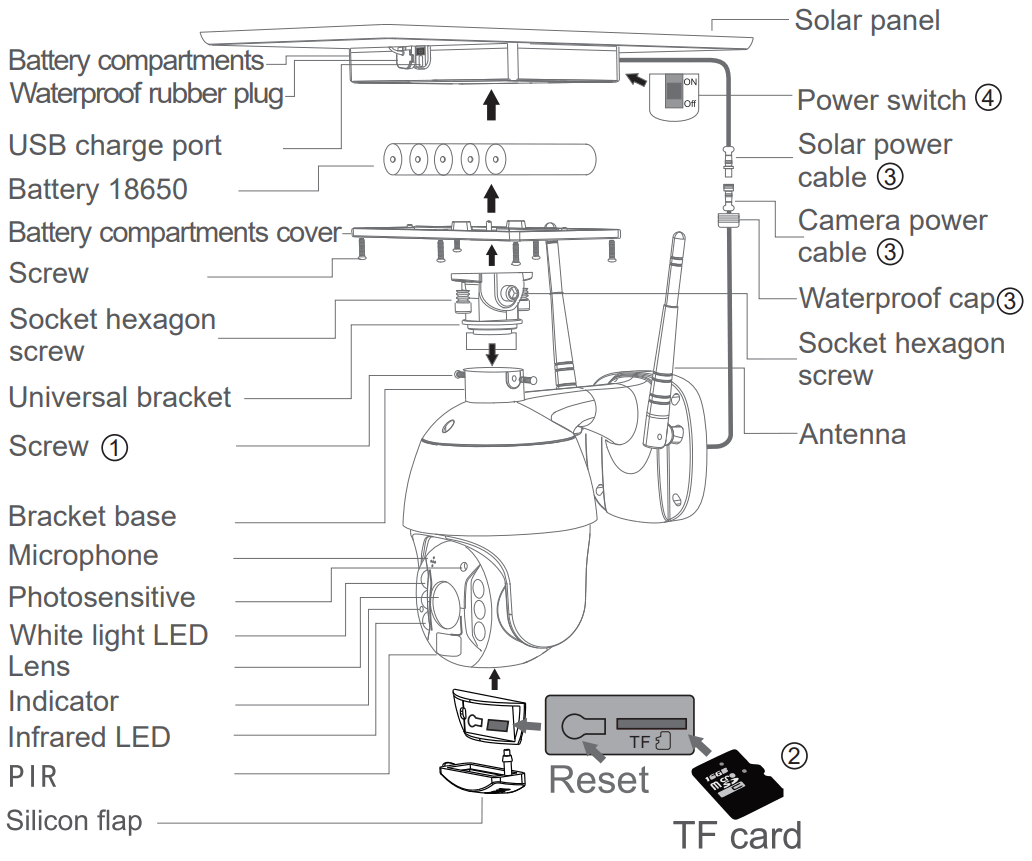
PROCESS
- Solar panel: connect panel to camera, fix a suitable angle with screws
- SD card installation: open the silicon flap and insert the SD card, then make sure to close the slicon flap to avoid rain leakage
- insert TF card, then whitening the screws.. Power cable connect the cables between the panel and camera, then whitening the waterproof cap.
- Panel power-on: Remove the rubber of panel, make sure it is power on. Then put the rubber back to the panel.
INSTALLATION
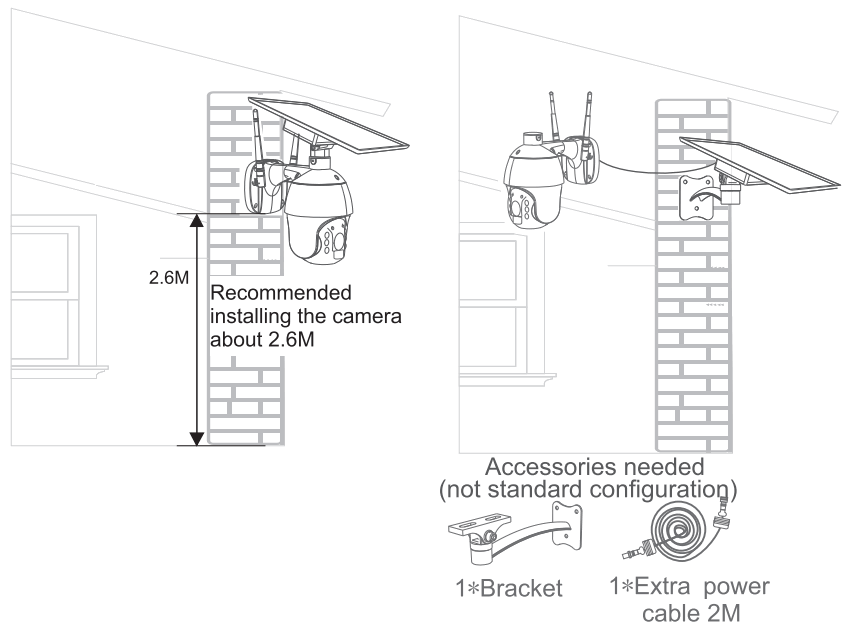
APP INSTALLATION
Step 1: Disconnect the power supply and install the lamp.
Step 2: Turn the power ON to test the lamp.
Step 3: Enable WI-FI and bluetooth on your phone device.
Step 4: Scan the given QR code, or download “V-TAC Smart Light” from the App Store (iOS) or the Google Play Store (Android).
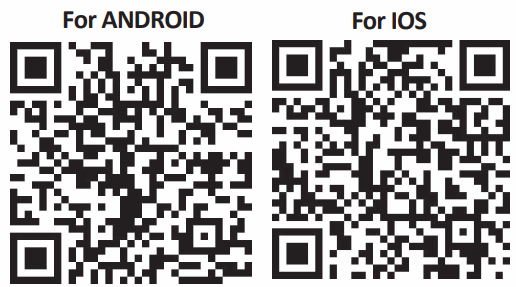
https://itunes.apple.com/cn/app/v-tac-smart-light/id1406697927?l=en&mt=8
https://play.google.com/store/apps/details?id=com.vtac.smartlight
Step 5: Open the V-TAC Smart Light app and tap on register for creating a new account.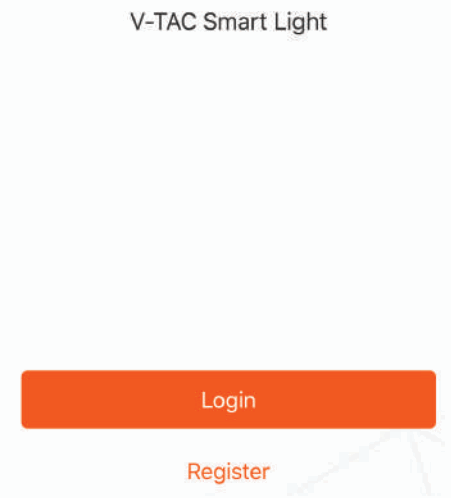
Step 6:
A) Mobile Number: Select the country, then enter your mobile number. Once done, tap ‘Next’.
B) E-Mail: Enter your email id and tap on ‘Next’.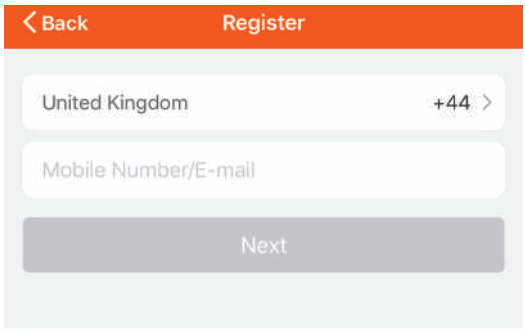
Step 7: Enter the verification code which will be sent to your mobile number/emai id, then assign a new password to your account and tap on “Confirm”.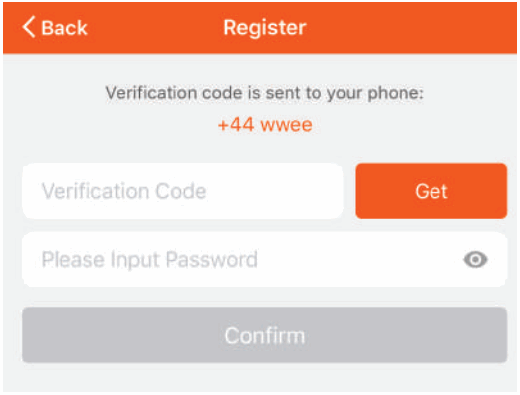
Step 8: Tap on ‘Add Device’ or the + sign.
Make sure the lamp is switched on.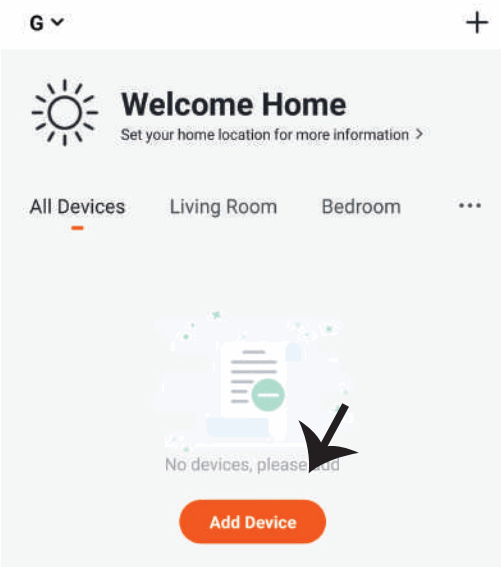
Step 9: Choose ‘Camera & Lock’ to start pairing the lamp to the app.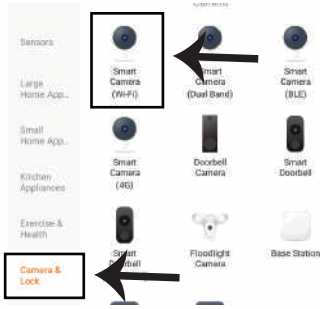
Step 10: You have 2 options to connect the device in the app
- QR Code on the camera with your mobile phone and ear successfully pairing, it will prompt “Added successfully”
- Or Choose the “next step” and follow the below screenshots
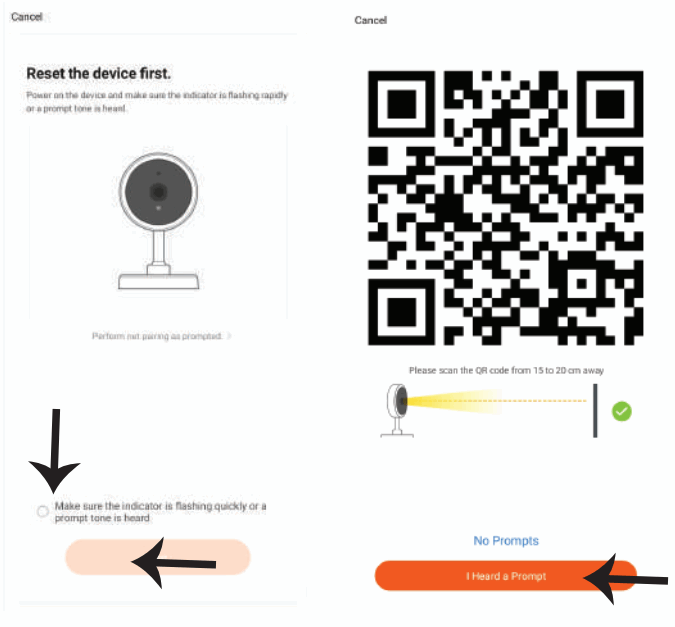
If you have any questions about the app using, you may got to category “me” to find the “Help Center” and check if you have the same issues.
If not, you can report the issue to our customer service and then your problems will be handled and answers will be given soon if you provide as much information as you can.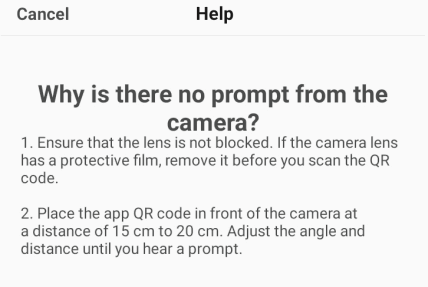
Step 11: Once you have successfully completed step 10, you will be redirected to below page, where the App searches, registers and animalizes the device(lamp) (ref image below).
Step 12: Once your device is successfully added, rename the device to your preference.
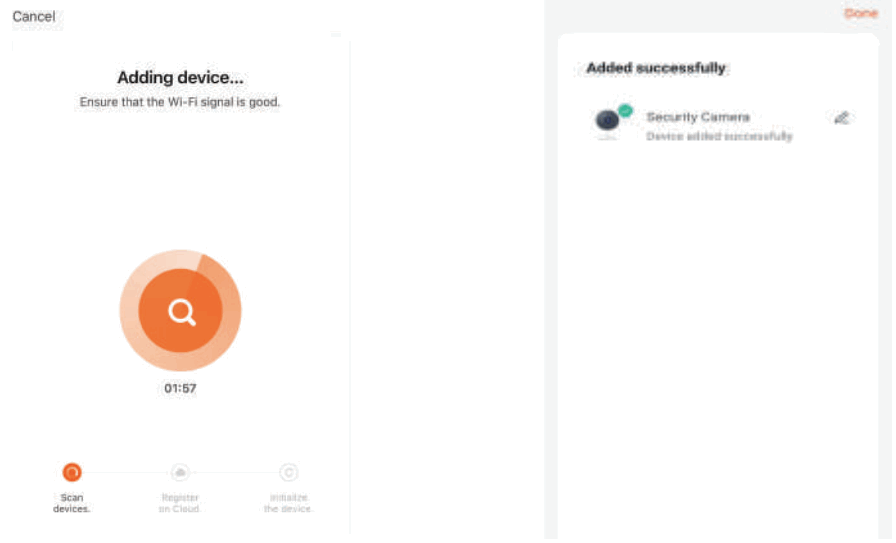
Step 13: Aver successfully pairing the pts. camera with the app, you can start controlling mulled features of the pts. camera through your mobile – speak, rotting the camera, and more.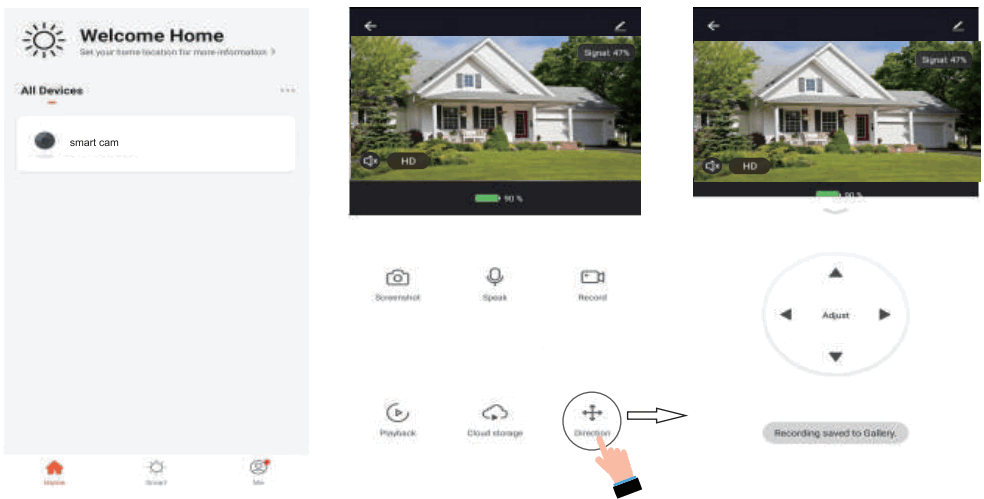
ALEXA SETTINGS
Step 1:Install the Amazon Alexa app via the App Store(iOS) or the Play Store (Android) and register. If you already have an existing account with Amazon Alexa, please proceed to logging in.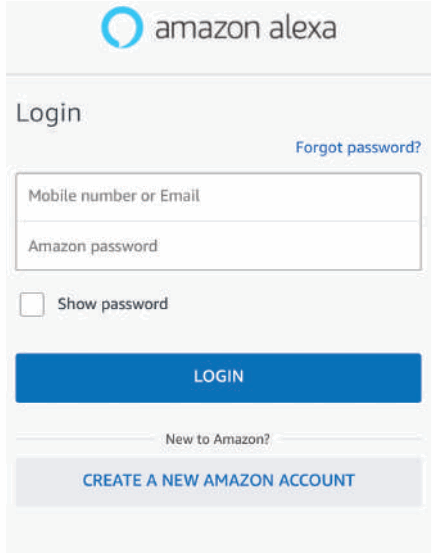
Step 2: Once you are on the Amazon Alexa home page, tap on the lower right icon –– where the arrow is pointed–– to add a new device and skill.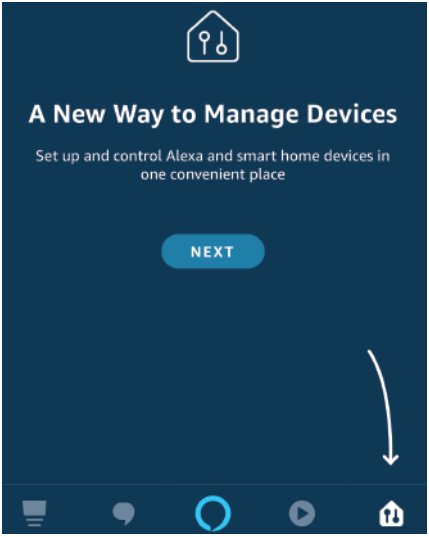
Step 3: Tap on setings and tap on “skills and games” as shown below.
Step 4: Search for ‘V-TAC Smart Light’ on the “Skills & Games” page as shown below. 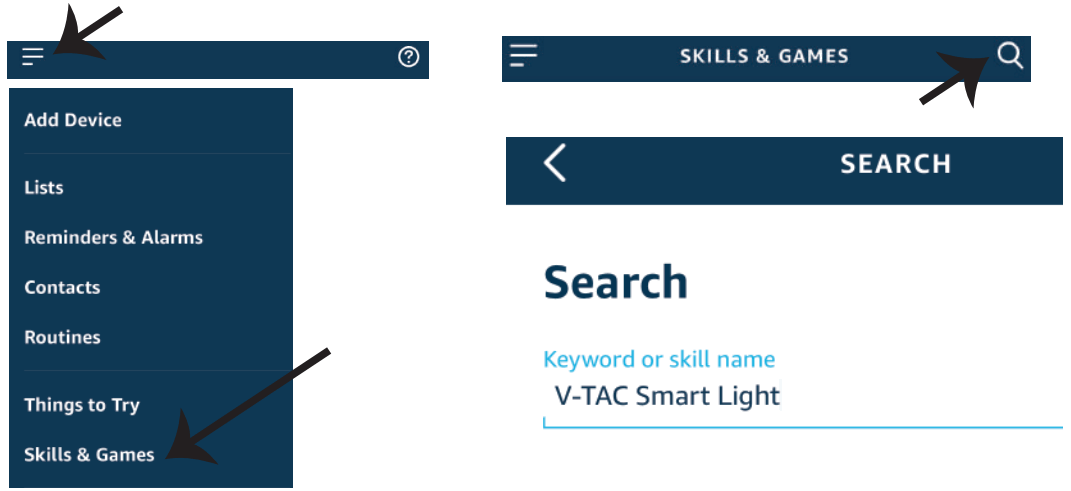
Step 5: Enable the Skill.
Step 6: Enter your V-TAC Smart Light login ID and password and tap on “Link Now”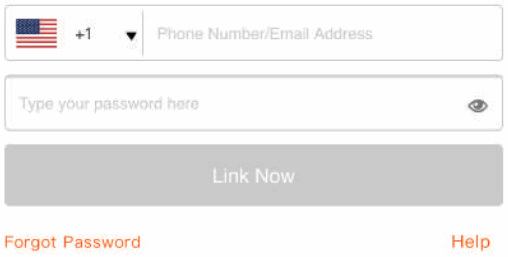
Step 7: Once you tap on Link Now, you will be redirected to a new page requesting for authorization(Ref Image below).
Tap on “Authorize”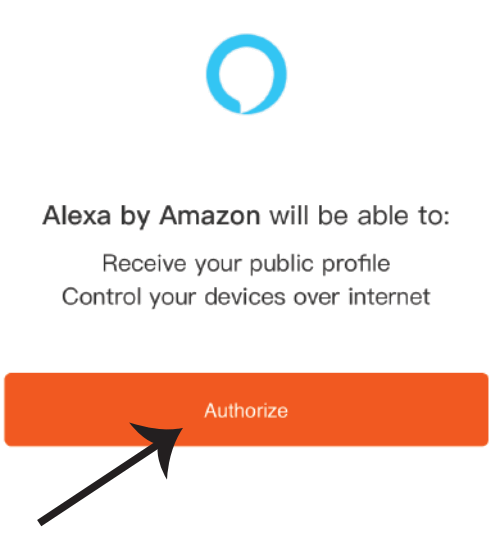

Step 9: Discover your smart device on Alexa. Once you have enabled the skill
A) You can use voice command ”Alexa discover devices” to the Alexa device which you have.
B) To add device manually on home page tap on and tap on Add device , select the device which you are adding and tap on discover device. 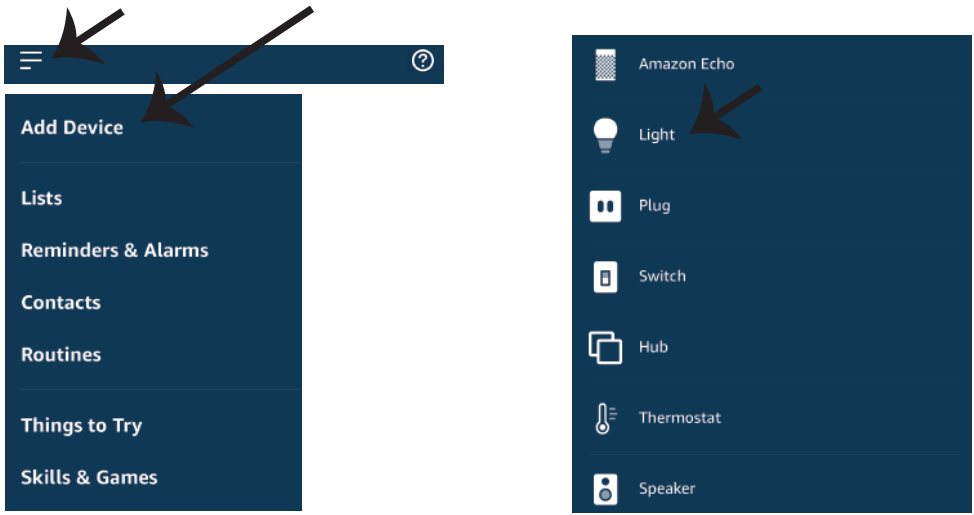
Note: Discovering the device must be done every time the device’s name is changed on the app.
ALEXA Commands
Now, you can control your smart device using voice commands on Alexa.
Below are a few commands you can use:
- Alexa, turn on/off bedroom light.
- Alexa, set bedroom light to 50 percent.
- Alexa, set bedroom light to green.
- Alexa, set bedroom light to warm white.
THINGS TO REMEMBER BEFORE STARTING INSTALLATION:
- V-TAC Smart Light App & Amazon Alexa App
- Make sure you have Amazon Alexa Device(including Echo, Echo Tap, or Echo Dot)
- Smart Device – Lamp
- Stable WiFi network
GOOGLE HOME SETTINGS
Step 1:
a&b) Install the Google Home app via the App Store (iOS) or the Play Store (Android) and register.
If you already have an axing account with Google Home, please proceed to logging in.
c) Create a New Home/Choose from the excising home if any.
d) Power ON the Google Home device and connect it to the App.(Then Proceed to step 2)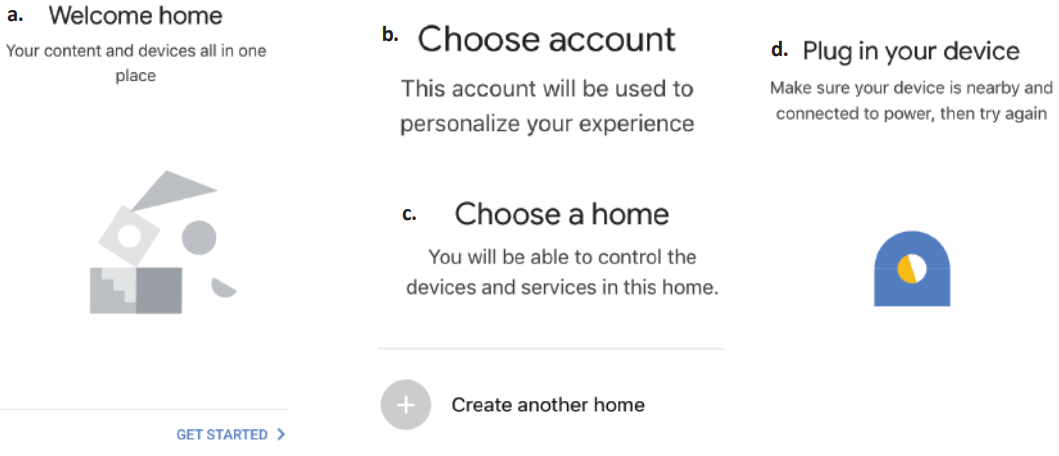
Step 2: Once you are on the Google home page, tap on the Add “+” icon– to add a new device and skill. And then tap on Set up device as shown in below image.
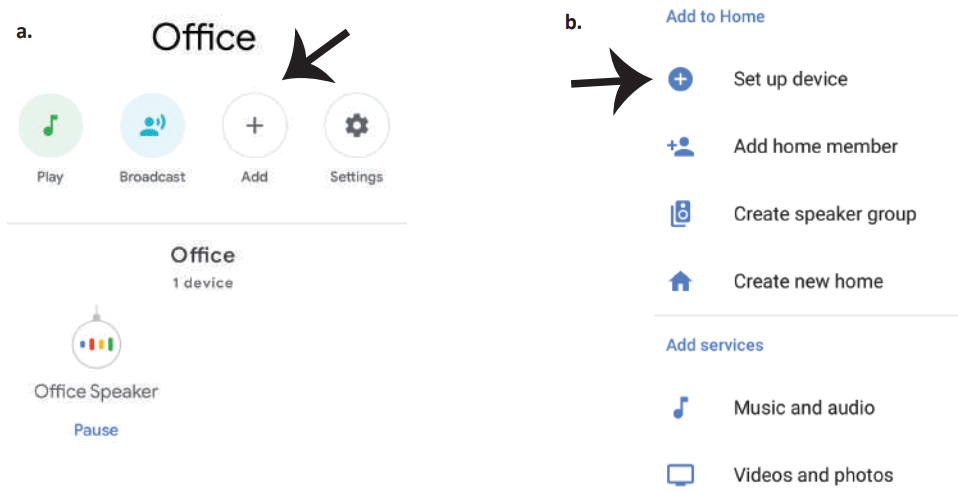
Step 3: Make sure the Smart Bulb is paired with V-TAC Smart Light app before staring step 3. Tap on the arrow second as highlighted in the below image.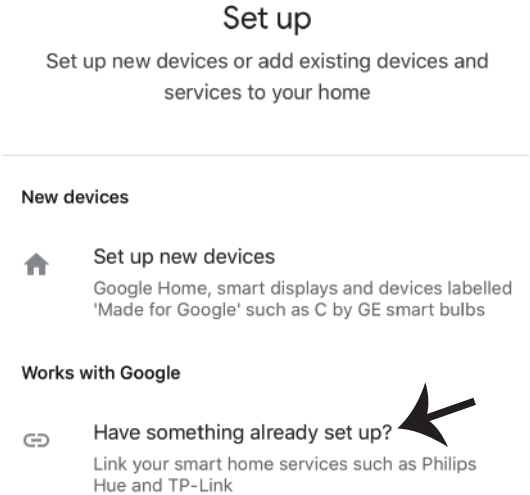
Step 4: Type “V-TAC Smart Light” on the search bar and tap on the icon of “V-TAC Smart Light”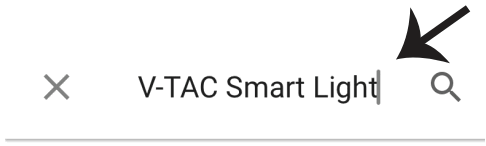
Step 5: Sign In with your V-TAC Smart Light Login credentials to Link the Smart Light device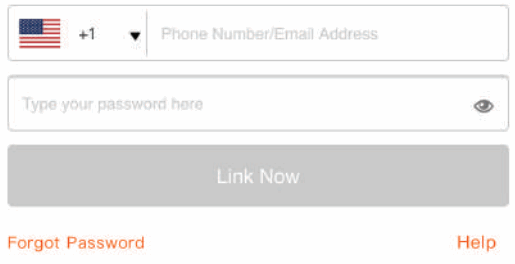
Step 6: Tap on Authorize in order to proceed to linking the device.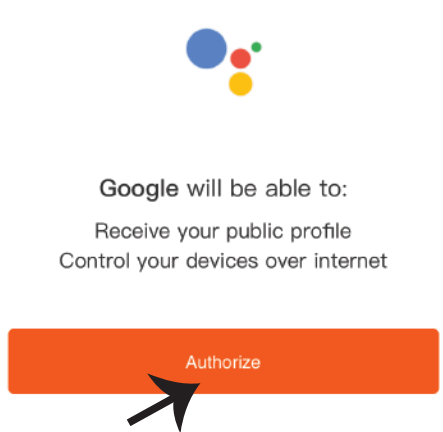
Step 7
a. Account will now be linked, please stay on the page you will be redirected in few seconds to select the device to add to your home.
b. Select the device and tap on Next as show in image b.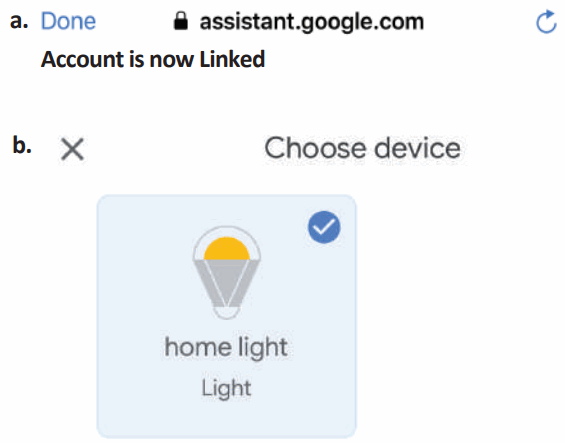
Step 8: Select the Home where you would like to add the Smart Light under. (Or) you can create a New home in order to add the Smart Light to it.
Step 9: You have successfully added Smart Light device to your Google home App.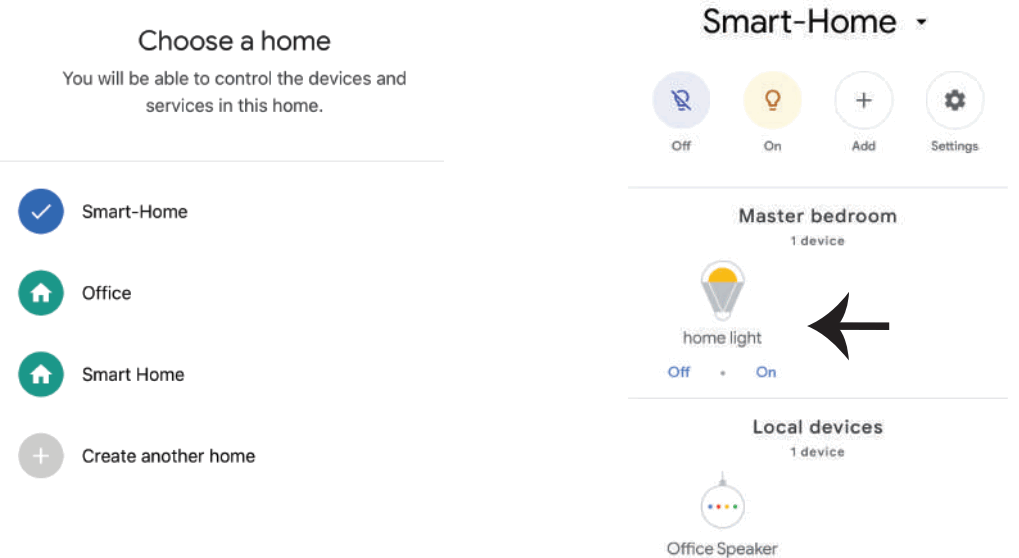
Step 10:
a. You can turn the Lamp On/OFF by taping on On/Off options as shown below. (OR) You can tap on the Smart Lamp.
b. You will be redirected to page(as shown in image b) where you can control the lights “Power and Dimming functionality”.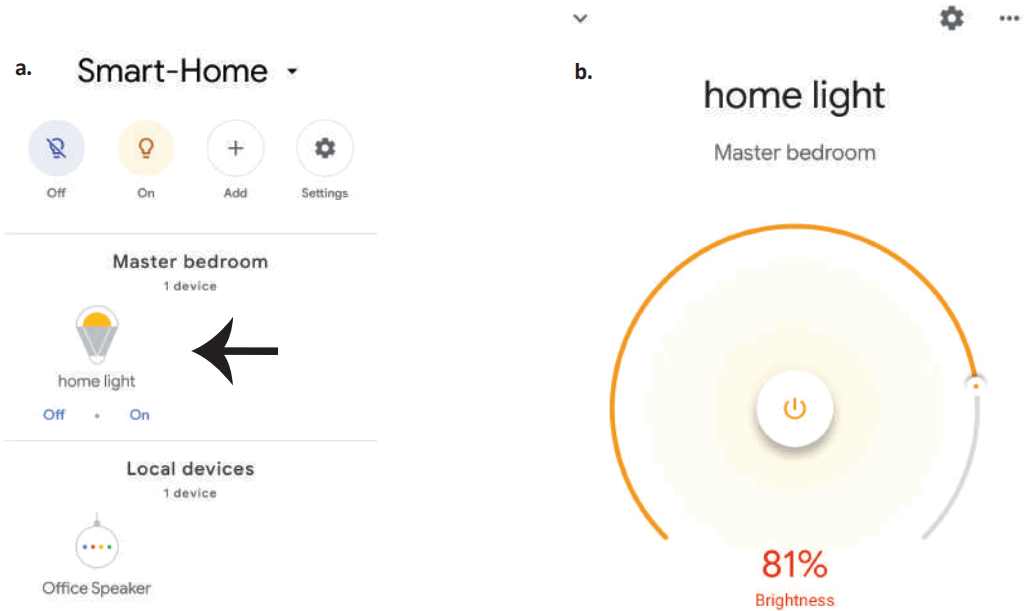
Google Commands:
Now, you can control your smart device using voice commands on Google Home.
Below are a few commands you can use:
- Ok, Google, turn on/off bedroom light.
- Ok, Google, set bedroom light to 50 percent.
- Ok, Google, set bedroom light to green.
- Ok, Google, set bedroom light to warm white.
THINGS TO REMEMBER BEFORE STARTING INSTALLATION:
- V-TAC Smart Light App & Google Home App
- Make sure you have Google Home Device
- Smart Device – Lamp
- Stable WiFi network
This marking indicates that this product should not be disposed of with other household wastes.
Caution, risk of electric shock.

 http://vtac.store/vt11024-g
MULTI-LANGUAGE MANUAL QR CODE
Please scan the QR code to access the manual in mullet languages.
 TAC.EU