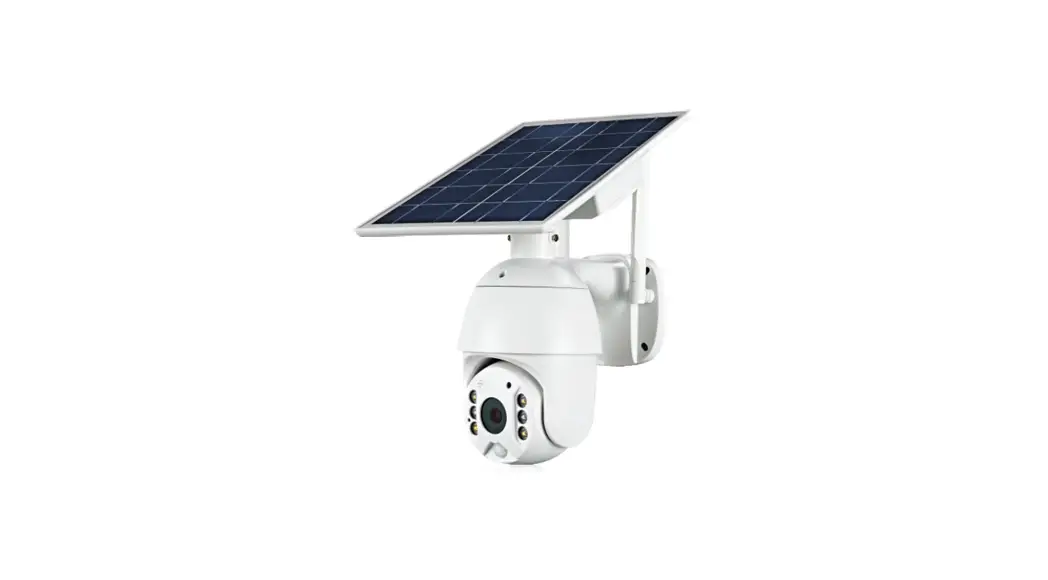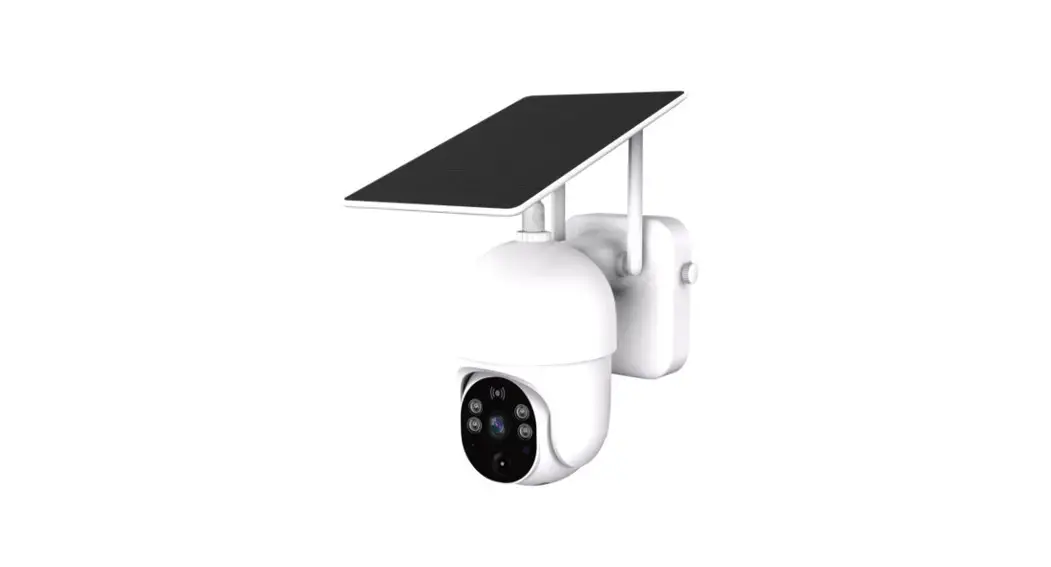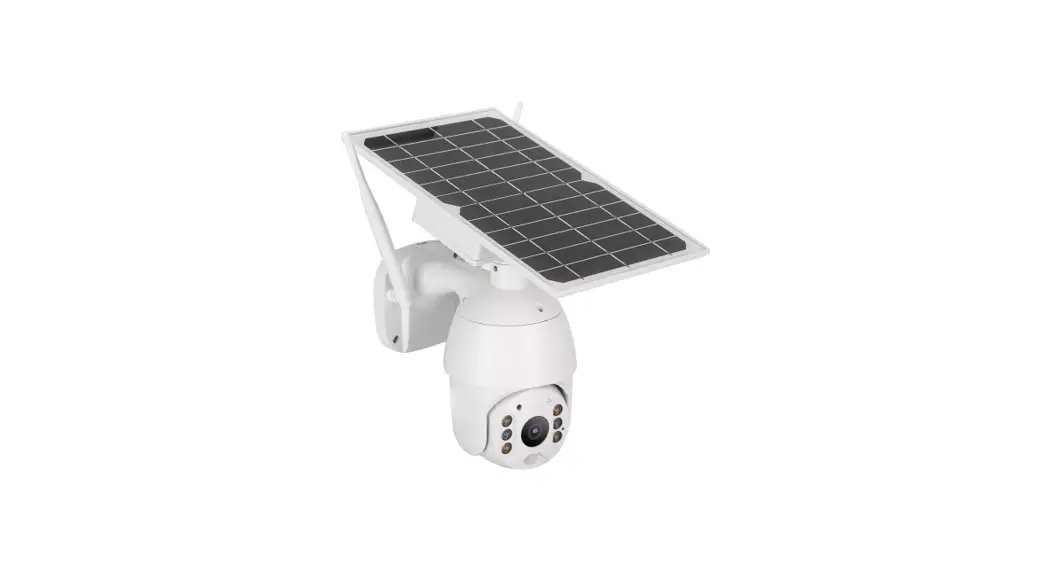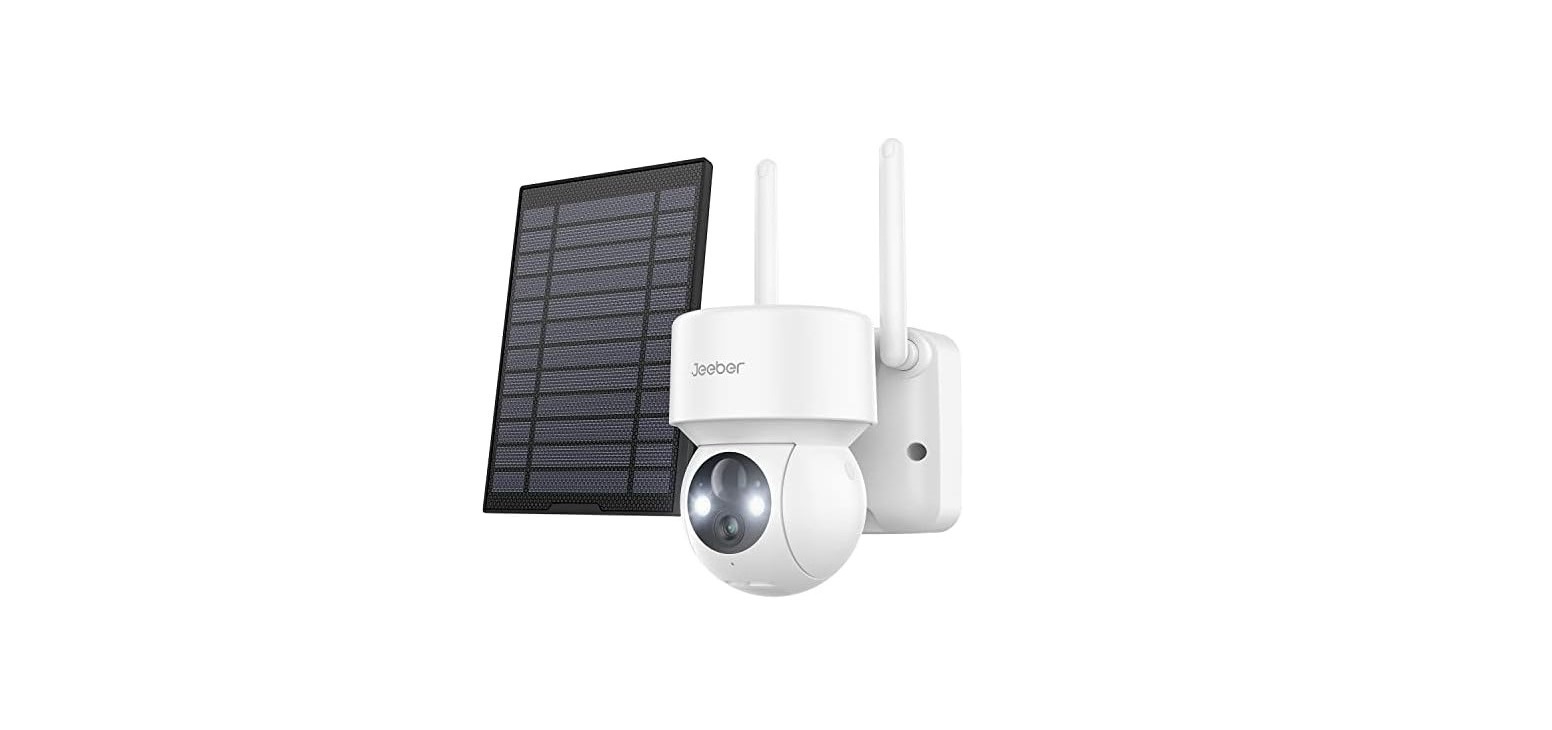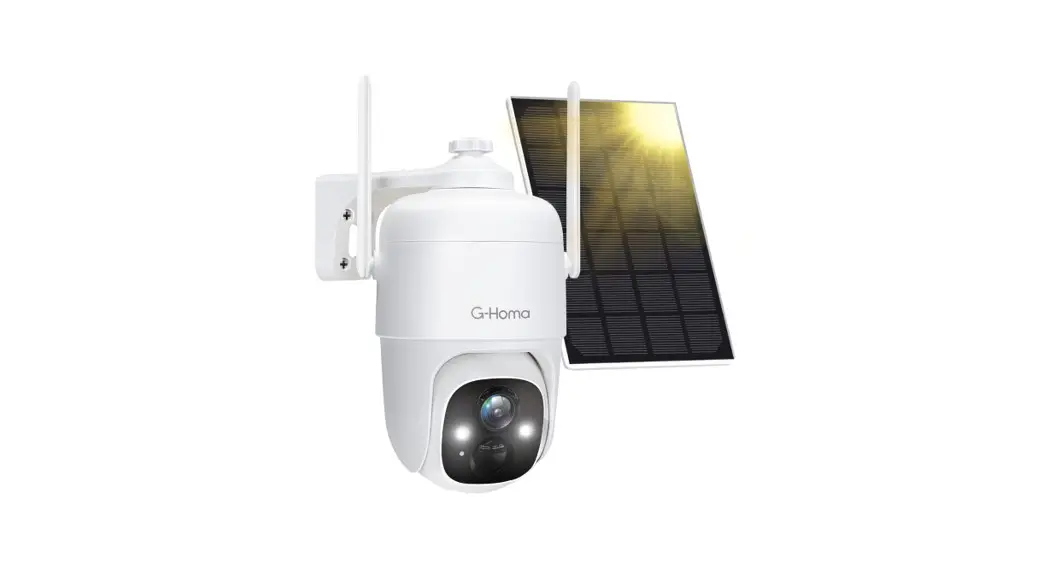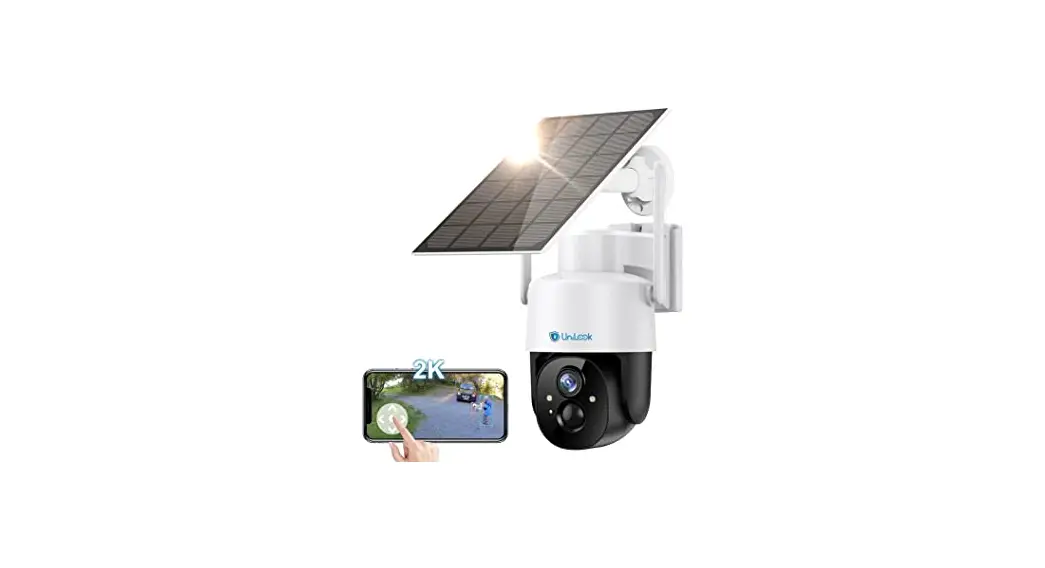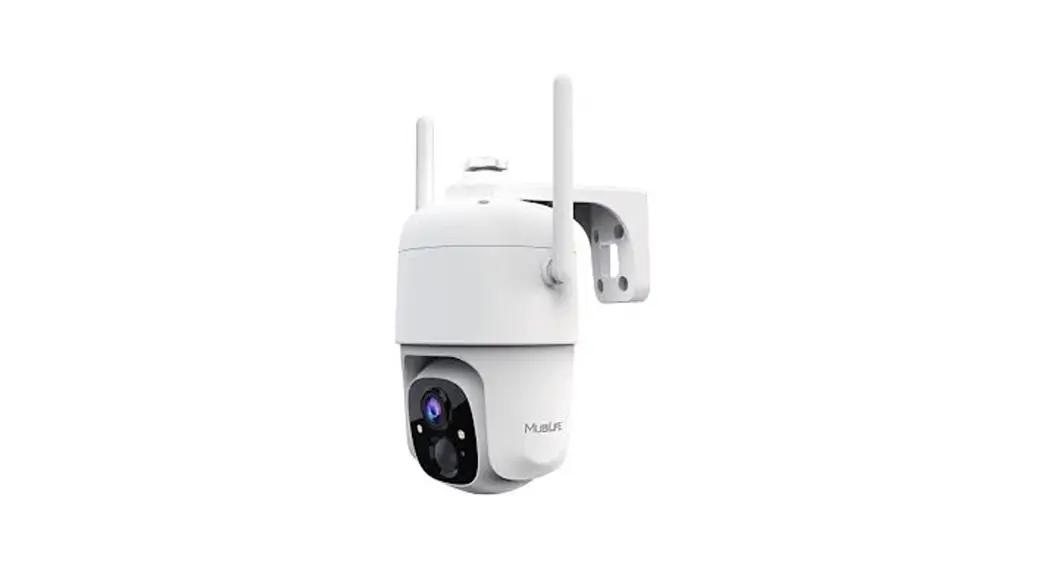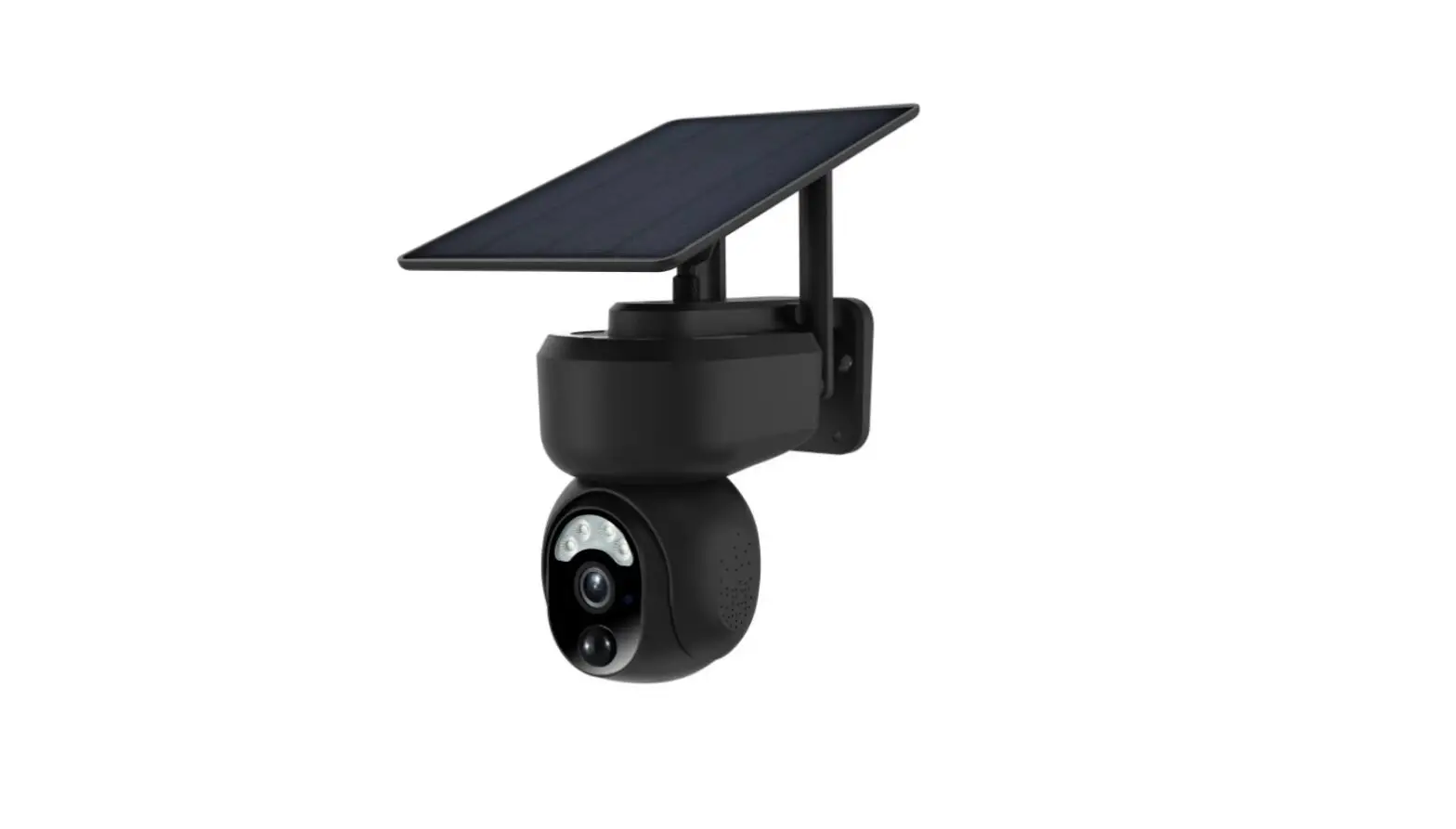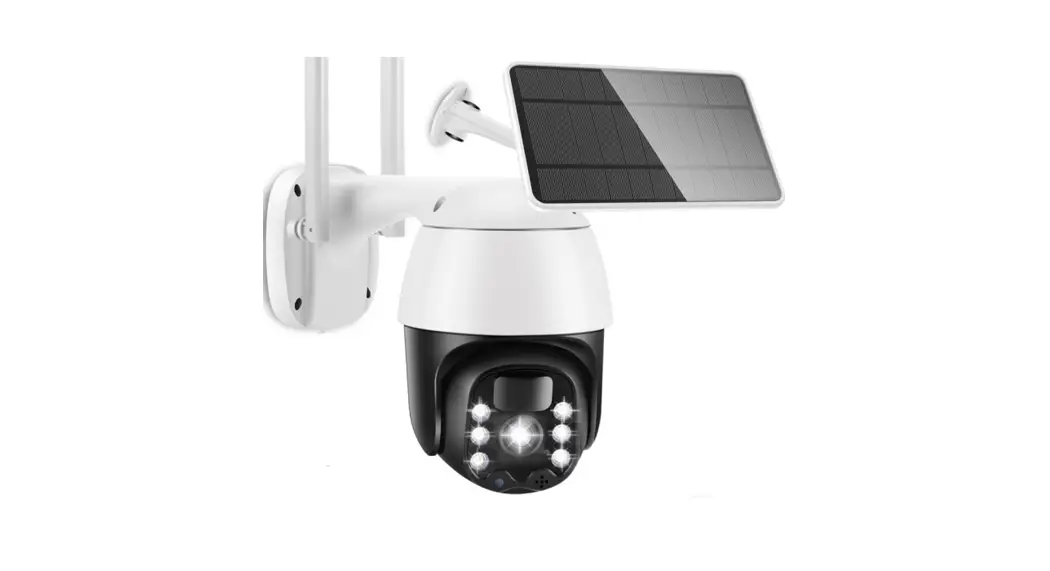

Solar Battery Powered
PTZ Alert Camera
User Manual
V1.3
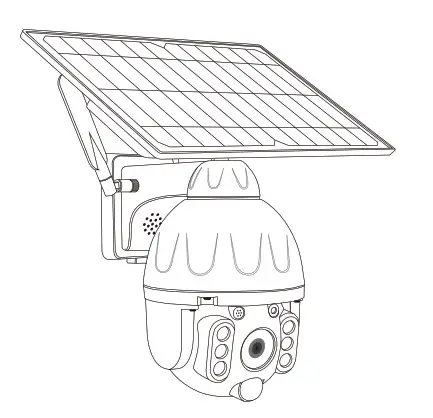
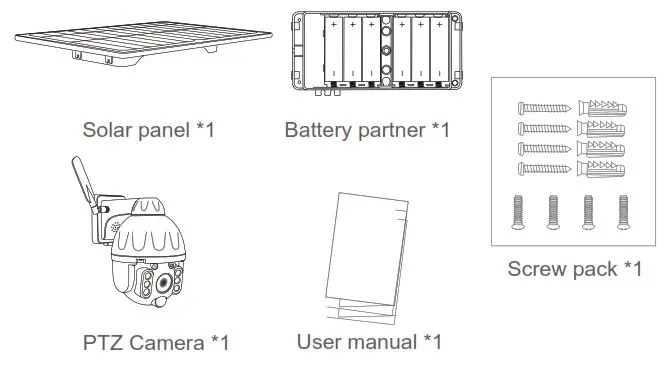
PRODUCTS & PACKING LIST
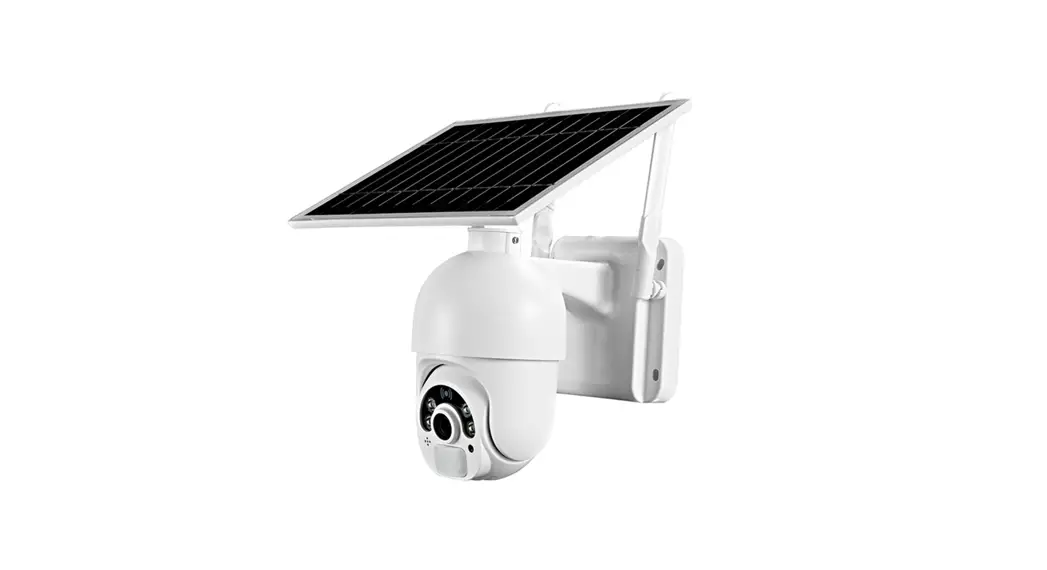
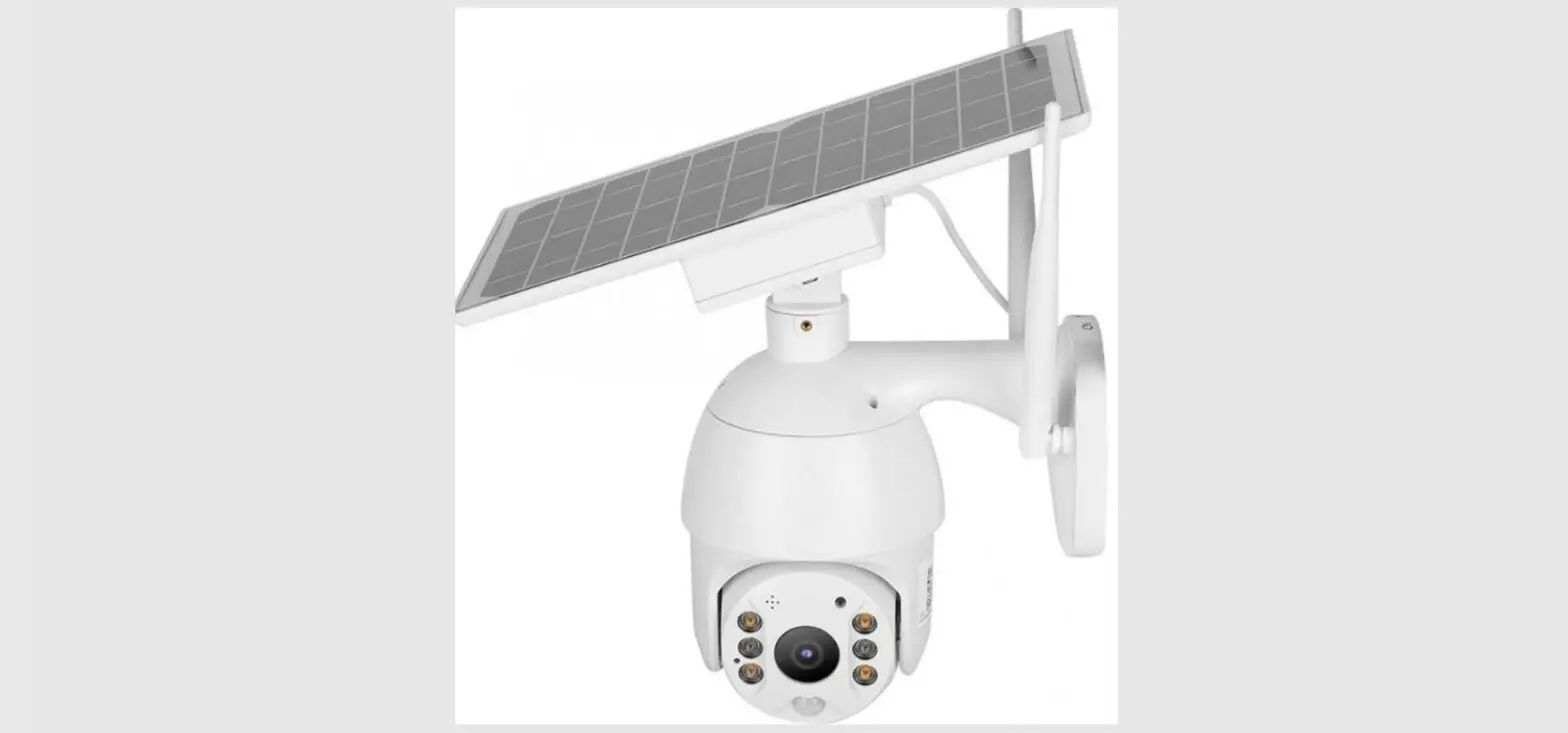
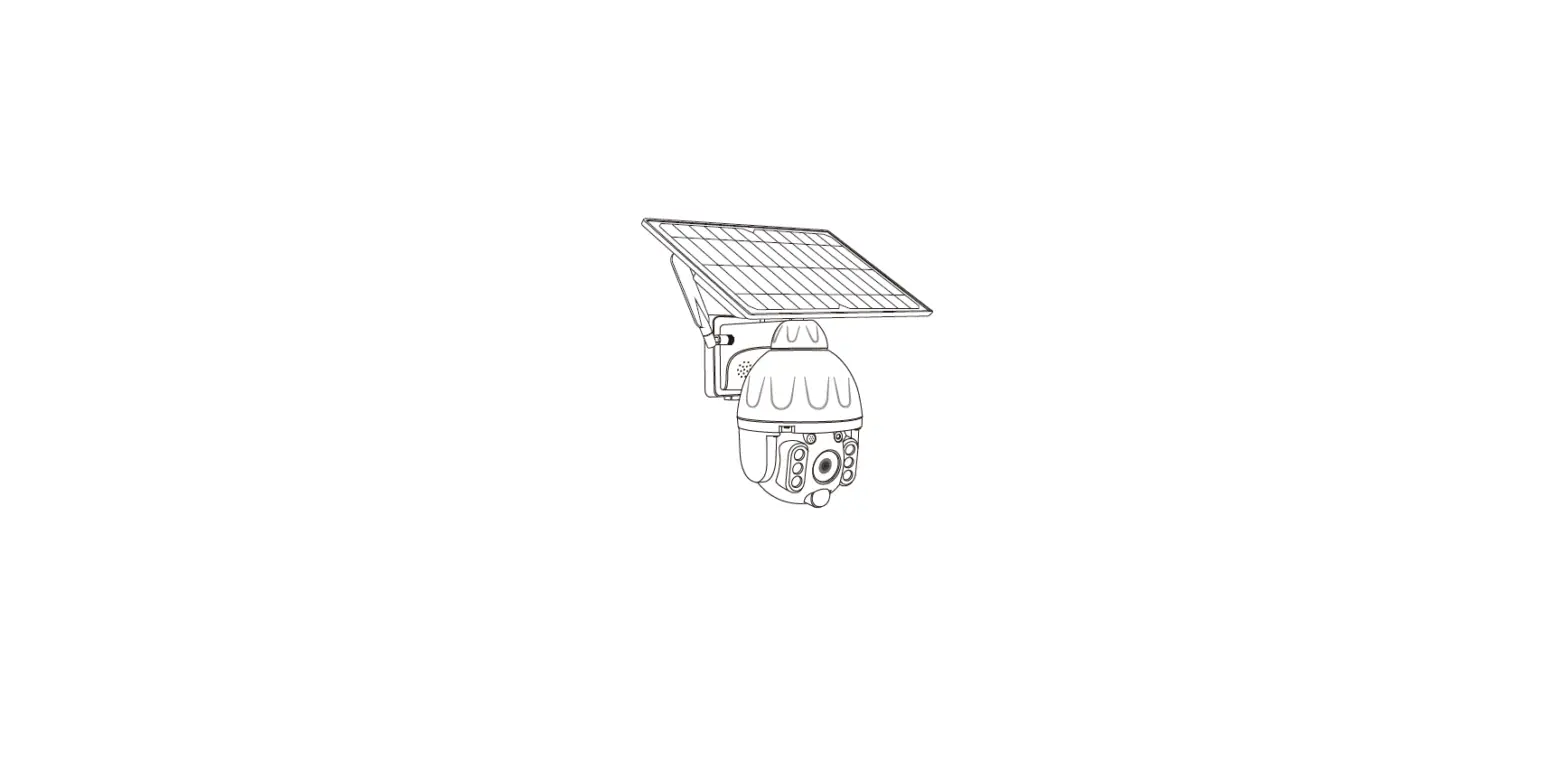
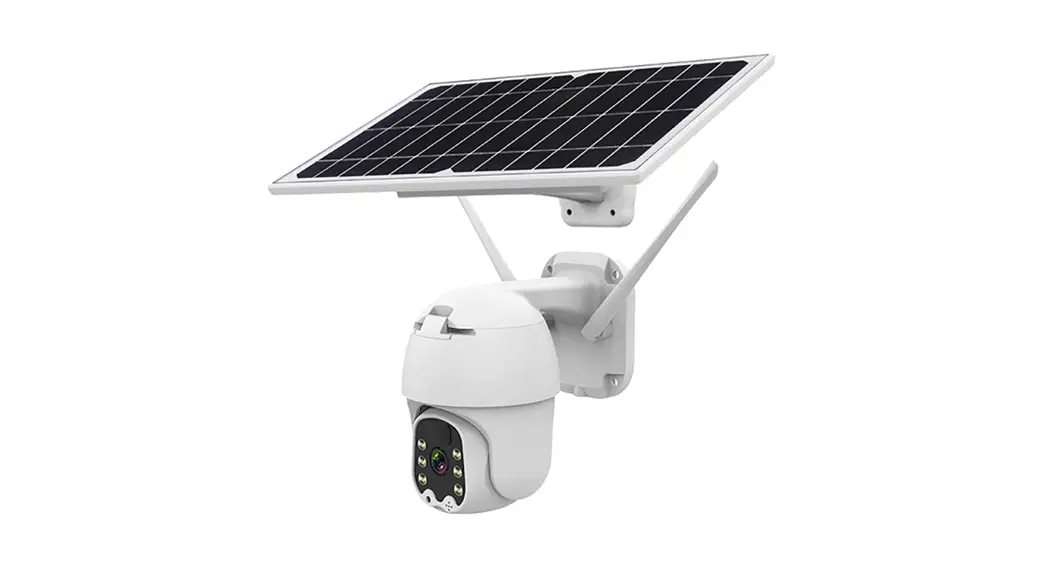
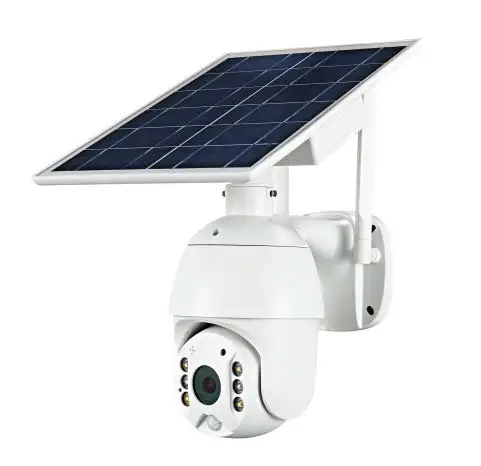
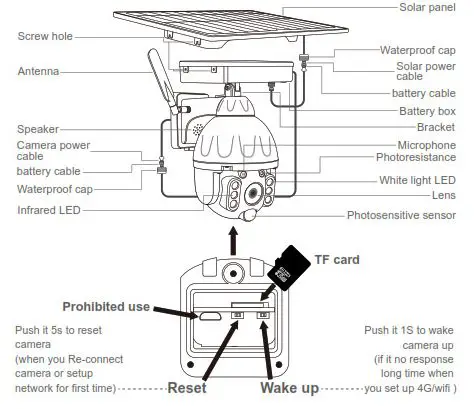
- Product Diagram:

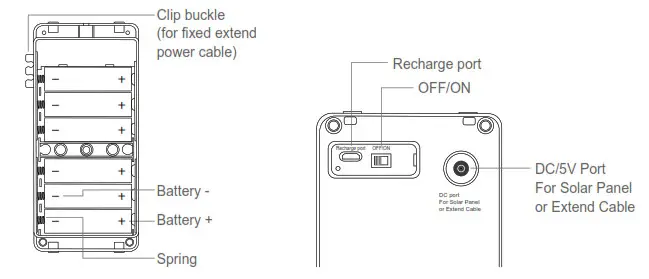
- Battery partner:

- Packing list:

INSTALLATION METHOD
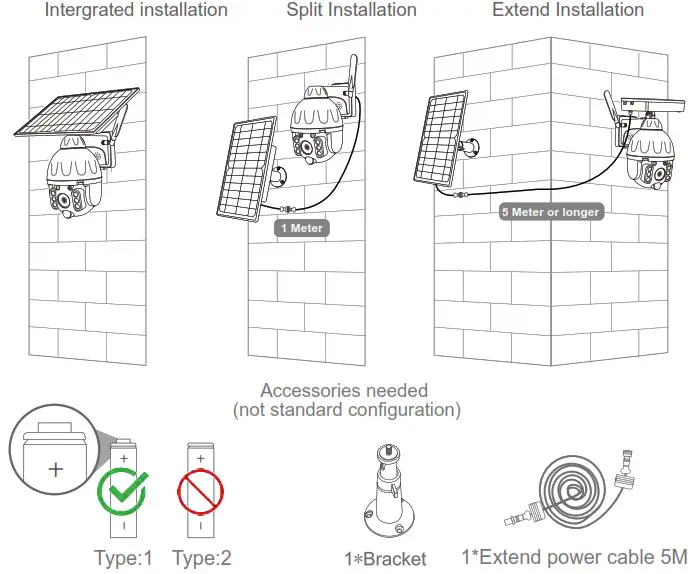
ATTENTION :
Fully charge the battery when using the camera for the first time.
APP REGISTRATION
- Search and download “Tuya” in major application markets or scan the QR code below to download the APP.


https://smartapp.tuya.com/tuyasmart
ACCOUNT REGISTRATION AND LOGIN
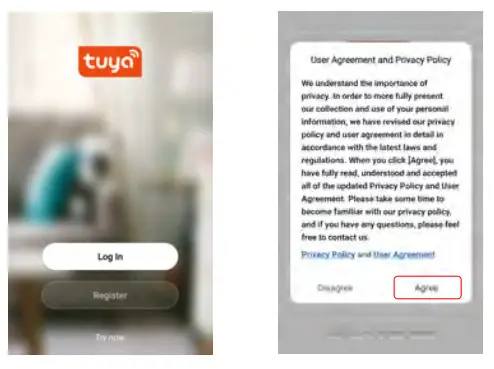
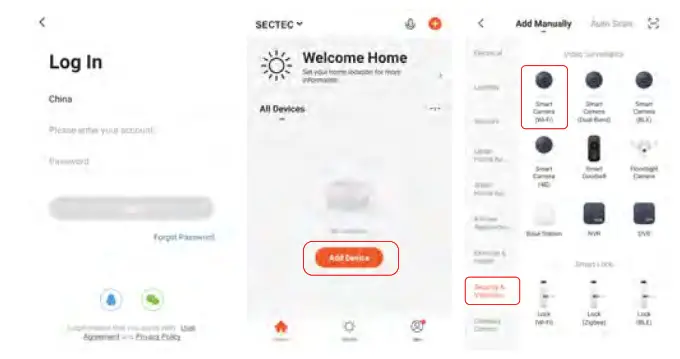
- Once you download the APP to your smartphone, you may enter the first page which you can log in with your existing account or register.
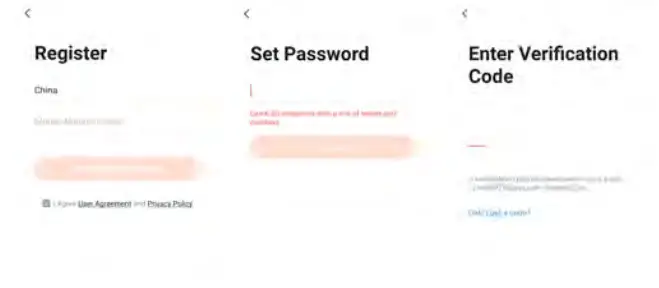
* If you are a new user of Smart Life and don’t have an account, please choose register first and follow the below screenshots to complete the registration.
- If you have an existing account, there are two ways to login, one is with an SMS verification code, the other one is with a password. In case you forget the password, you may choose the login SMS verification Code or you can choose forgot password to reset it by Entering Verification Code which is sent to your mobile via message.

CONNECTING THE CAMERA TO YOUR MOBILE DEVICE
- Connect the mobile device to your 2.4GHz Wi-Fi, then log in to Tuya. click ‘Add Device’on the Home of the App, select “Security & Video Surveillance”, “Smart Camera”, click “Next”.

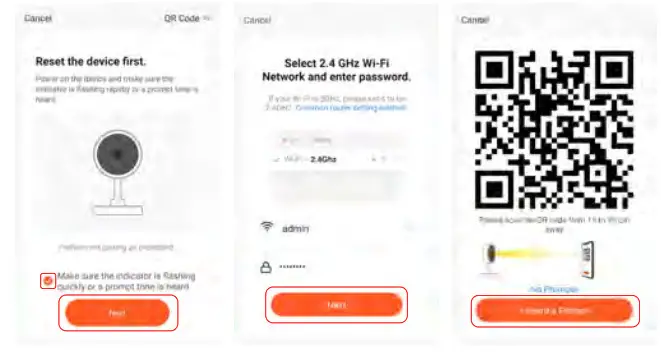
- Make sure the indicator is flashing quickly or a prompt tone is heard click “Next”. Enter Wi-Fi account and password, click “Next”. Hold the mobile phone screen in front of the camera, the distance between the two should be 15 to 20 cm, Try not to shake the mobile phone during the scanning.

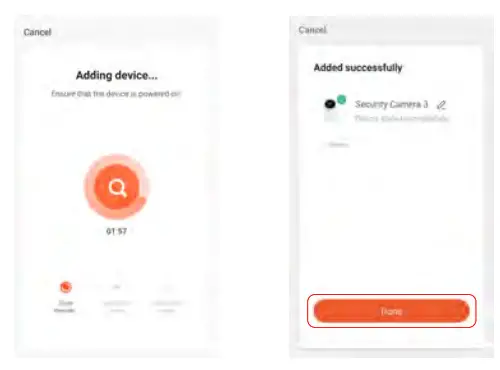
- When you hear ‘Connect Router’, click “I Heard a Prompt”, and wait for connecting, Device added successfully, you can choose the device name and room scene.

FUNCTIONS INTRODUCTION
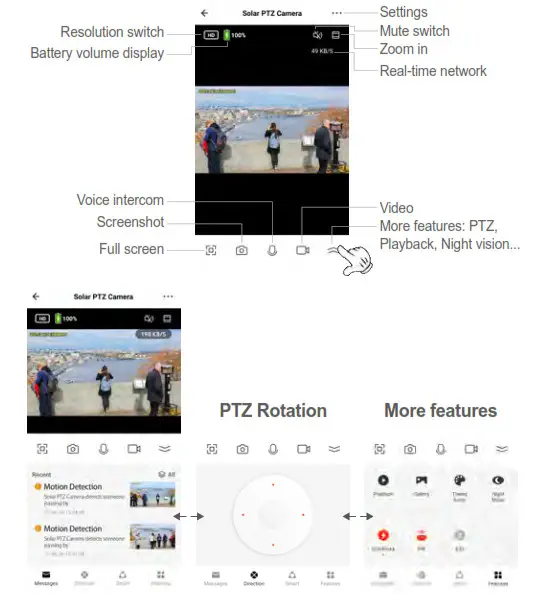
Notes about PIR detection
* User can change the PIR detection sensitivity in device settings. we recommend setting sensitivity at “Disabled” or “Low” to reduce false alerts and save the battery power in noisy environments.
*Shut down: shut down PIR detection.
*Low: delay 7 seconds PIR detects a moving.
*Medium: delay 5 seconds PIR detects a moving.
*High: delay 1 second PIR detects a moving.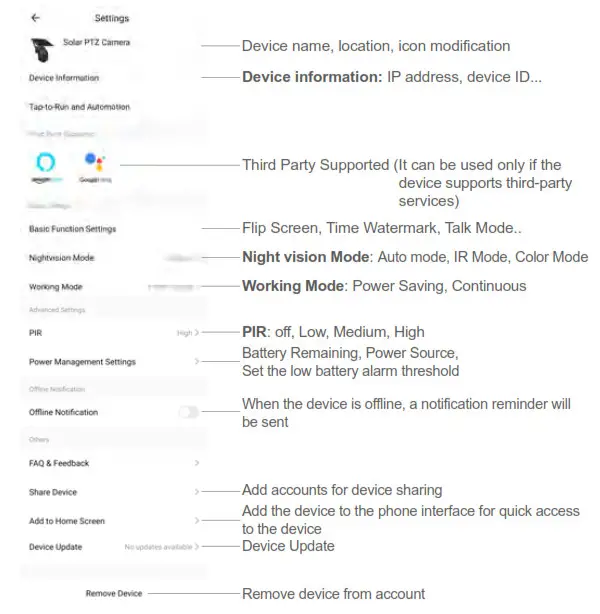
FAQ:
After the configuration is done, our device will be shown on Smart Life APP which enables you to surf smart living easily. If you have any questions about App use, you may go to the category” me” to find the” Help Center” and check if you have the same issues. If not, you can report the issue, and then your problems will be handled and answers will be given soon if you provide as much information as you can.
SAFE BATTERY HANDLING AND USAGE
During the installation of the battery, the positive and negative poles of the battery should not be reversed to avoid fire.