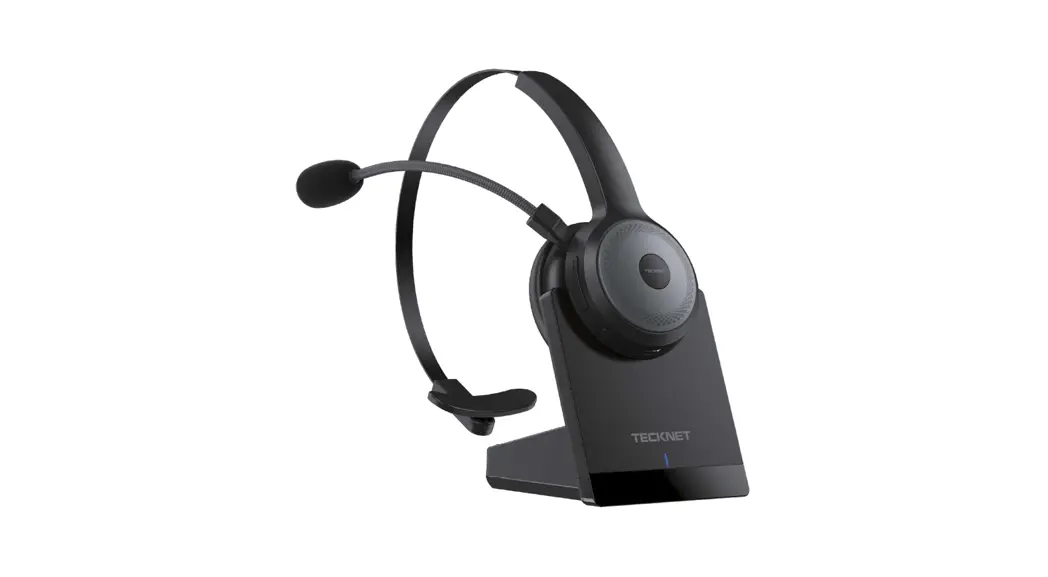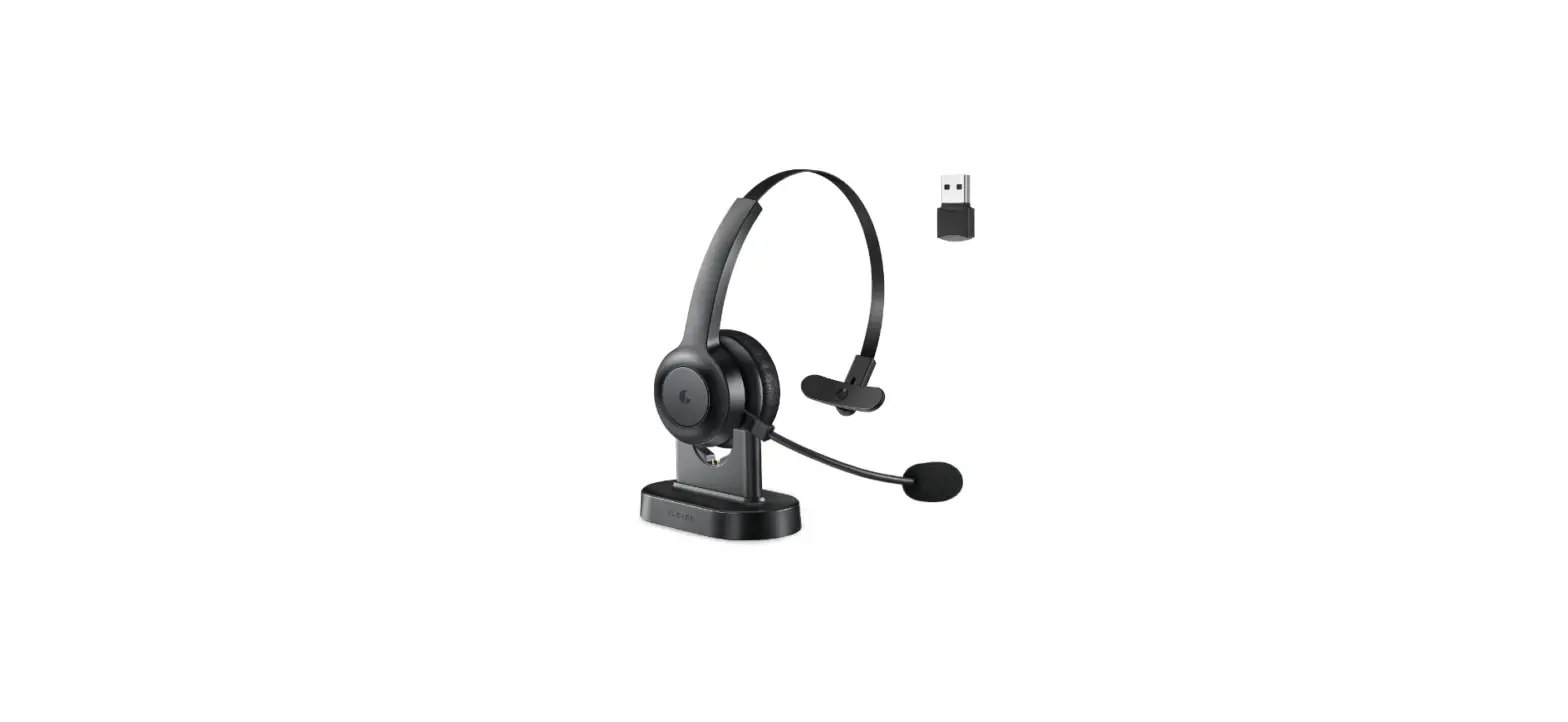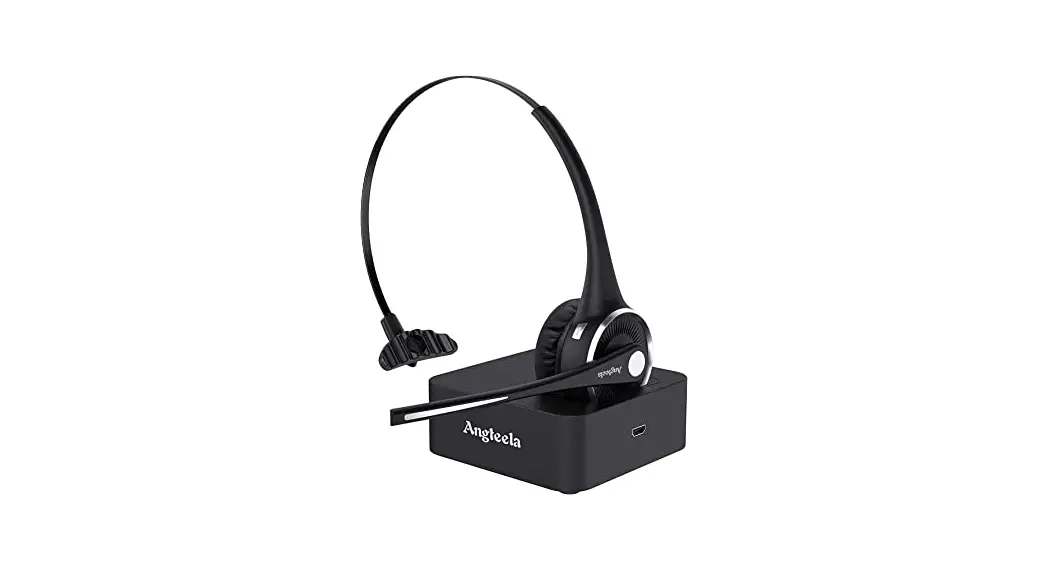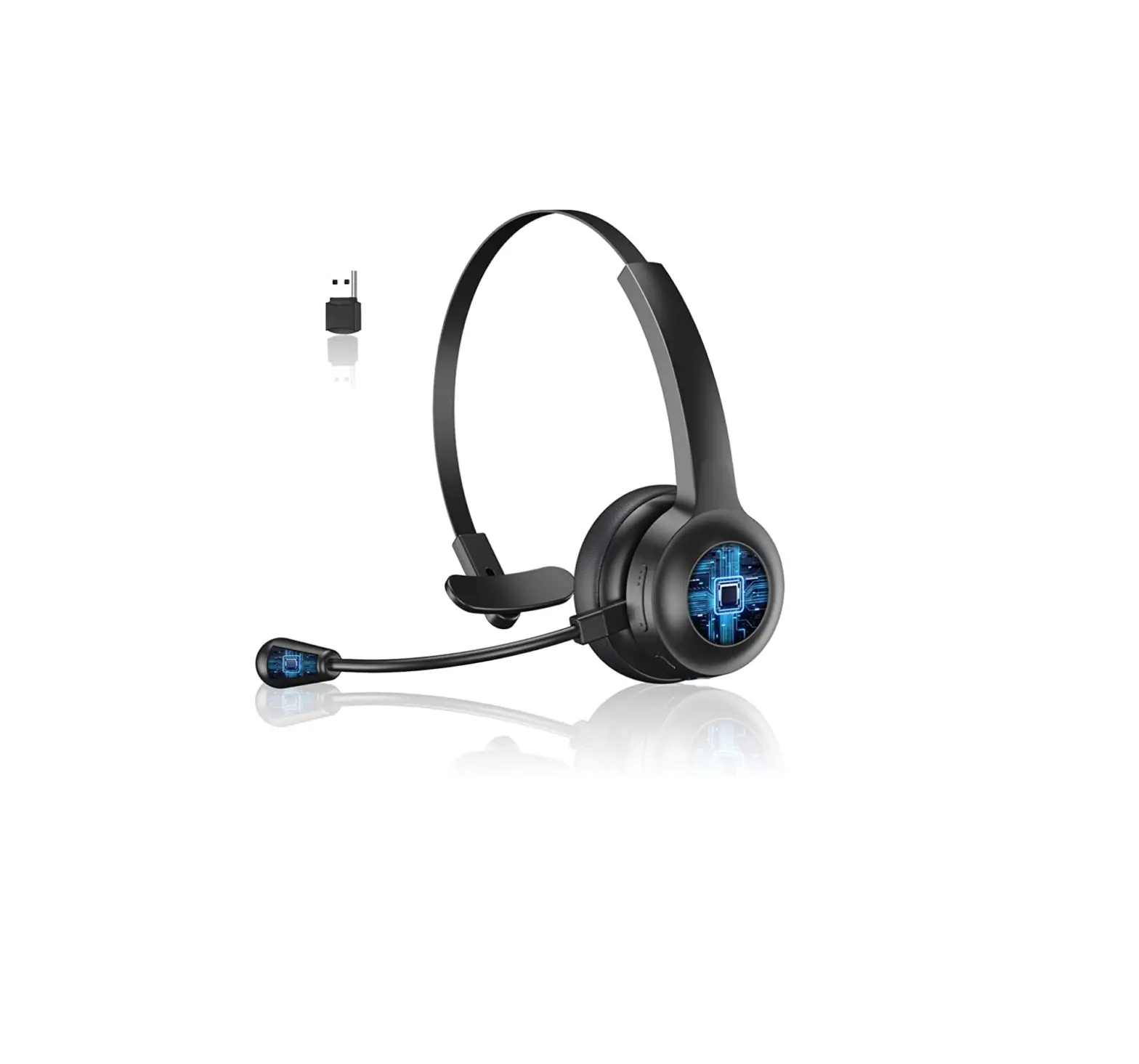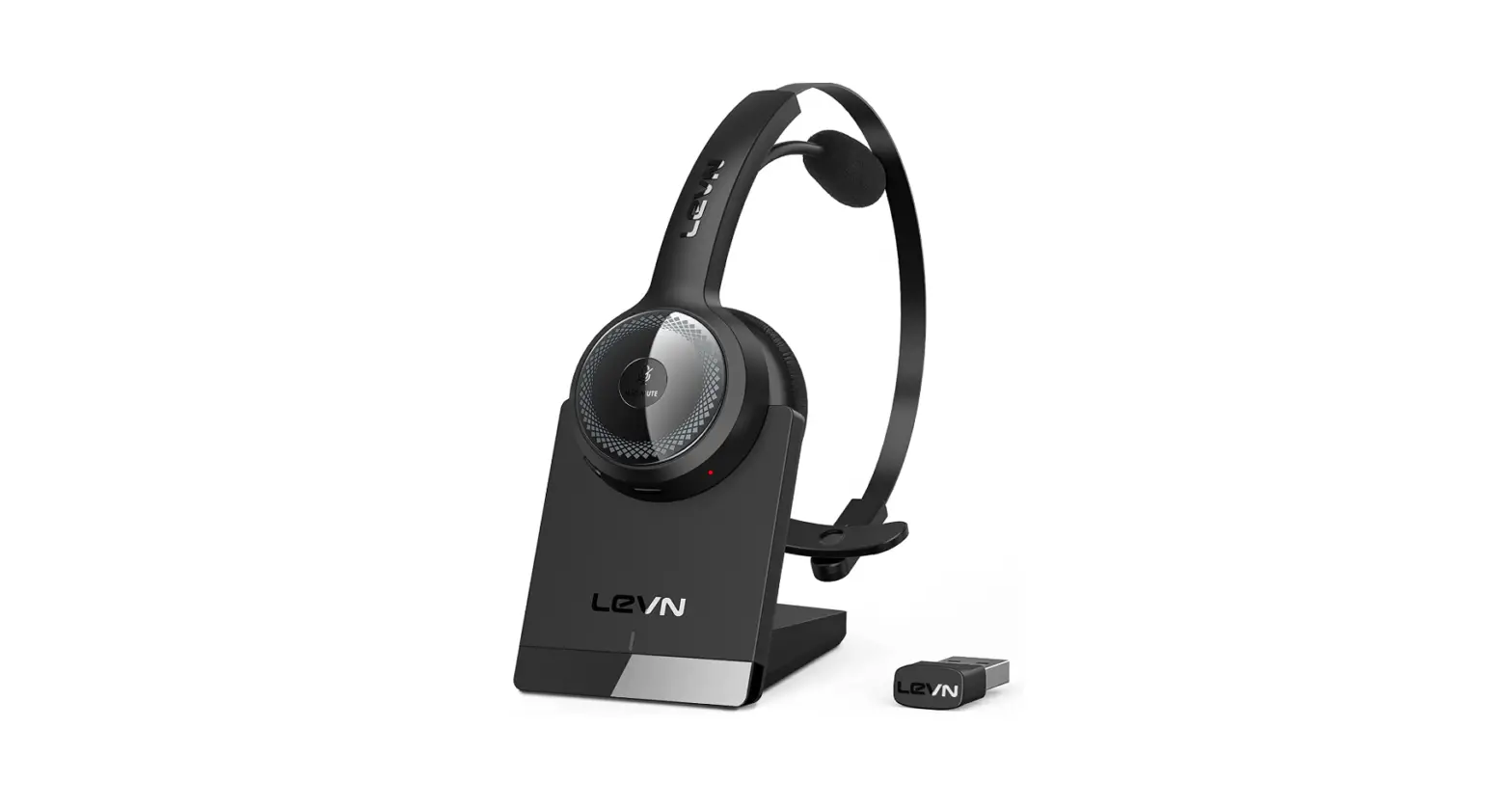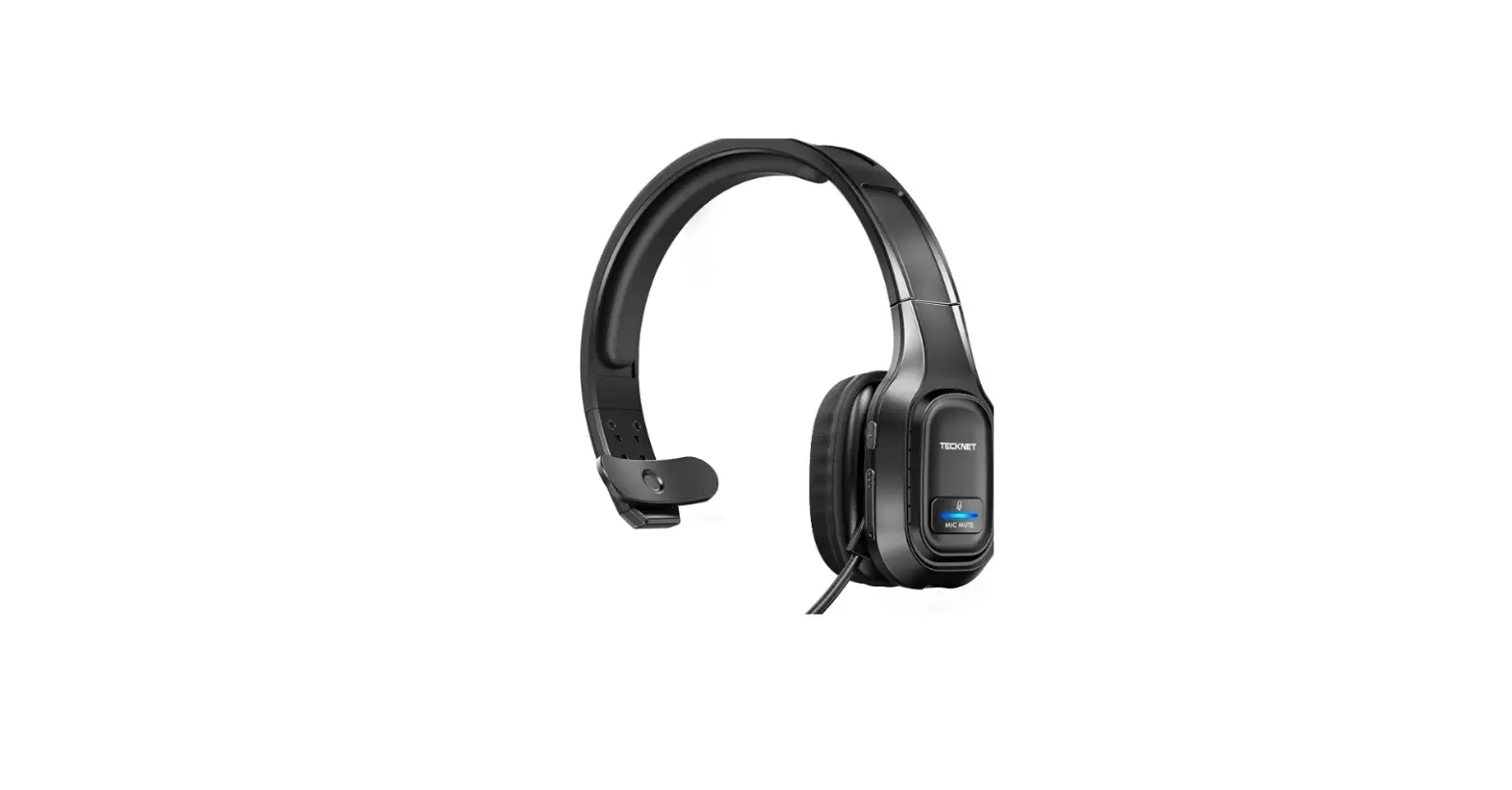

TECKNET Bluetooth Trucker Headset with Microphone Headphones
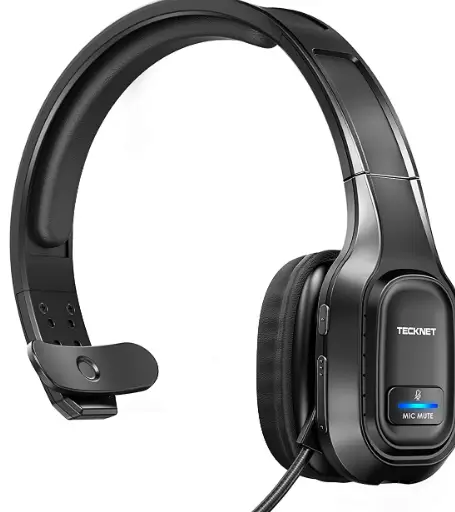
Specifications
- DIMENSIONS: 3.07 x 2.24 x 7.52 inches,
- WEIGHT: V, BLUETOOTH VERSION: 5.0,
- TALK-TIME: Up to 30 Hours,
- CHARGING TIME: 2 hours,
- MANUFACTURER: Tecknet
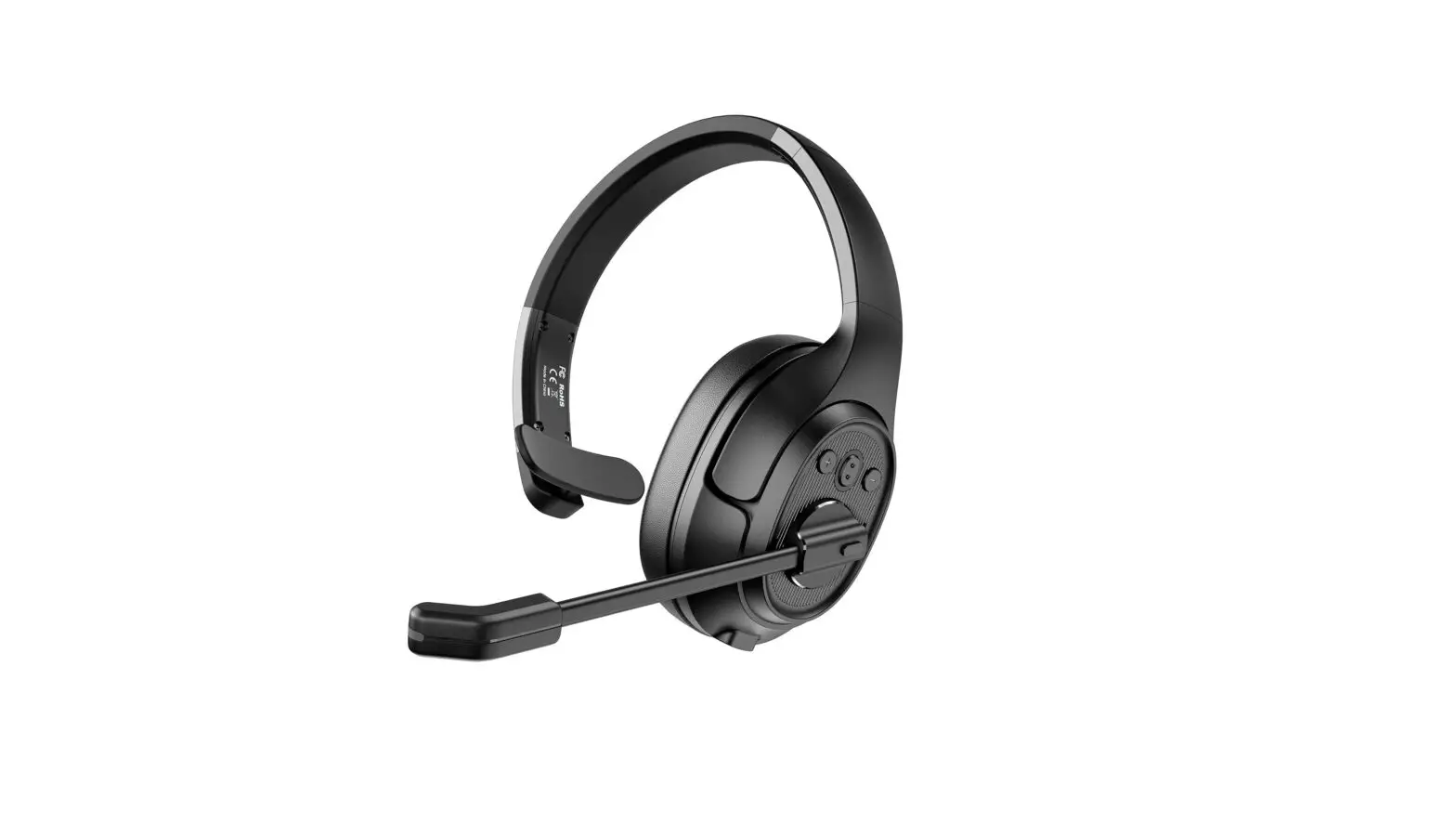
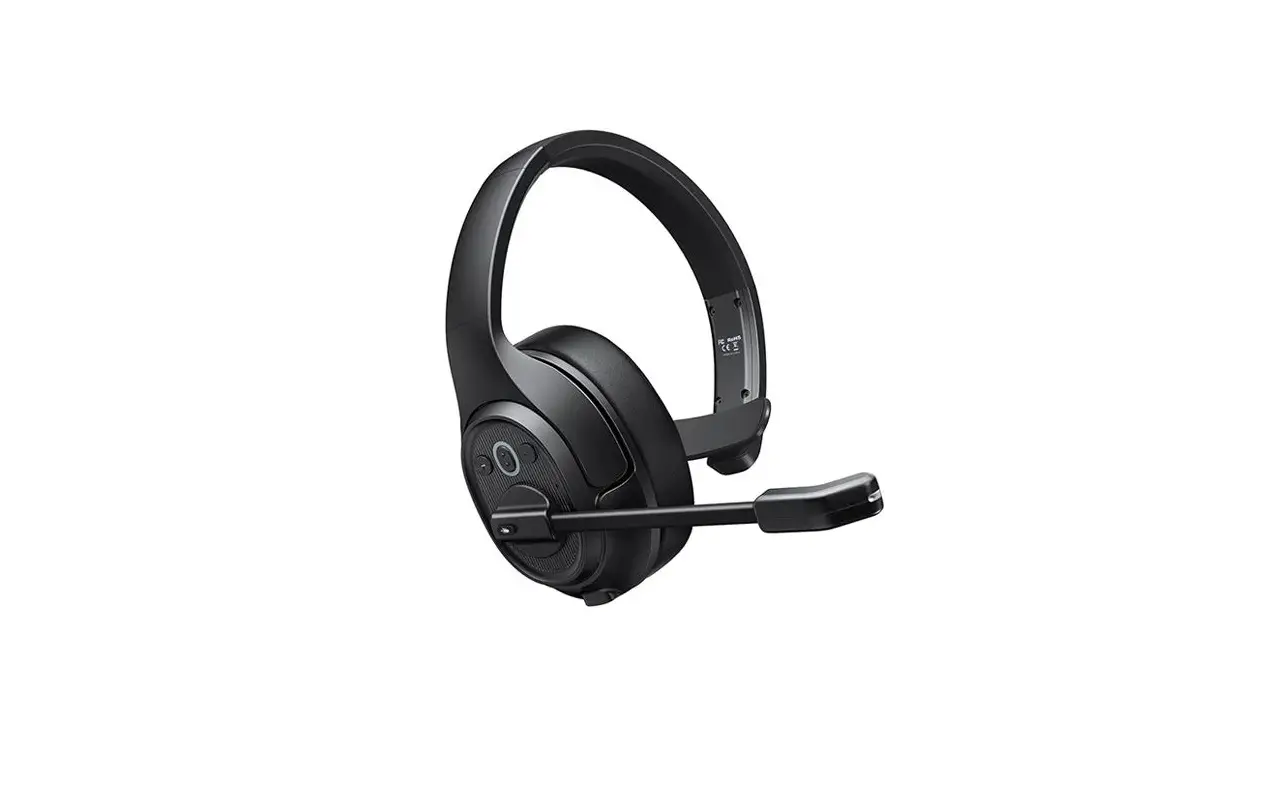
Tecknet is a manufacturer of wide range of consumer electronics ranging from electronics, computers, smart homes appliances, car accessories, and other related products. The Tecknet Bluetooth Trucker Headset are one of the top-rated trucker headsets. They are perfect for anyone who wants to use them on their left or right ear as they have the ability to rotate 270 degrees. They have some impressive features including noise cancellation, long battery life and comfortable design.
DESIGN
The design of these headphones is comfortable and the headset is padded with memory foam. The earmuffs of these headphones are soft and breathable and designed in a way that doesn’t press against the ears allowing them to be worn for long periods of time. The headband of these headphones is also adjustable which makes it easy for them to fit different head sizes.
SOUND QUALITY
These headphones feature noise cancellation. The sound quality of these headphones is good as well. They also have a built-in microphone which is also of good quality ensuring that the transmitted audio is clear and crisp.
BATTERY LIFE
The battery life of these headphones is also good. They offer a talk time of up to two days, 32 hours to 36 hours and a standby time of up to 4 days.
What’s in the Box?
- Tecknet Trucker Headset x 1
- Base x 1
- USB Cord x 1
- User Manual x 1
Tecknet Bluetooth Headphones Overview and Controls
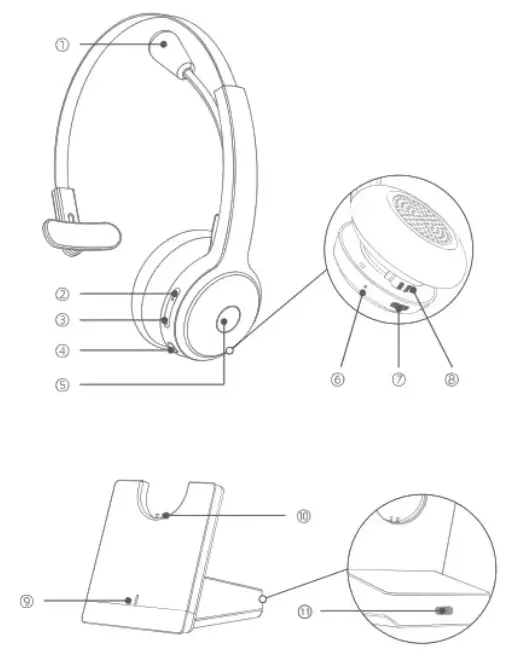
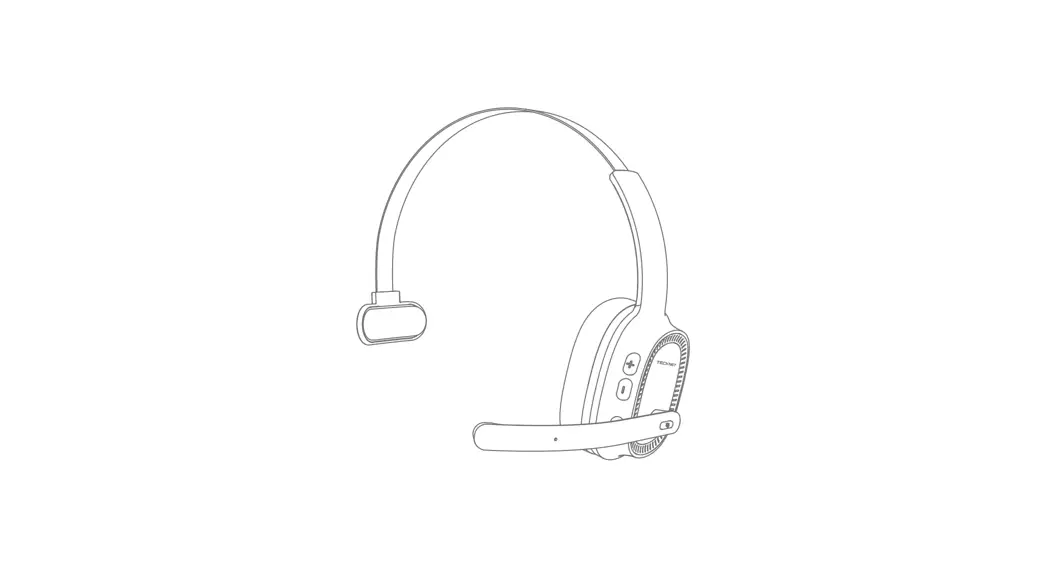
- Digital Microphone
- Volume +
- Volume -
- Multi-function Button (MFB)
- Mute Button
- Headset LED Indicator
- Type-C Charge Port
- Base Charging Contacts
- Base LED Indicator
- Charging Pins
- Type-C Charge Port
- How to turn ON the Headset?
Press the MFB and hold for 2 seconds. - How to turn off the Headset?
Press the MFB and hold for 3 seconds. - How to enter pairing mode?
Press the MFB and hold for 2 seconds. - How to Play/pause a track?
Press the MFB once. - How to Redial a call?
Press the MFB twice. - How to Voice Dial?
Press the MFB and hold for one second. - How to Answer a Call?
Press the MFB once when a call is incoming. - How to Hang up a Call?
Press the MFB once. - How to Reject a Call?
Press the MFB and hold for 1 second when a call is incoming.
How to connect to your device using Bluetooth?
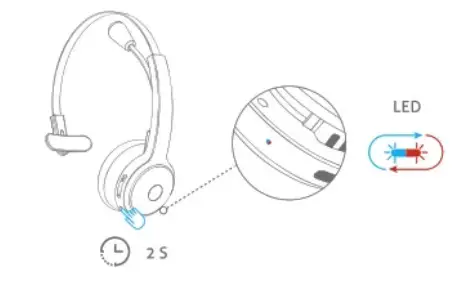
- While the headphones are powered off, Press the MFB button and hold for 2 seconds. The LED indicator will flash red and blue light alternatively and the headphones will enter pairing mode.

- Turn on the Bluetooth of your device. In the Bluetooth Devices list of your device look for “TK-HS003” and connect to it. The LED indicator will slowly flash blue light now.
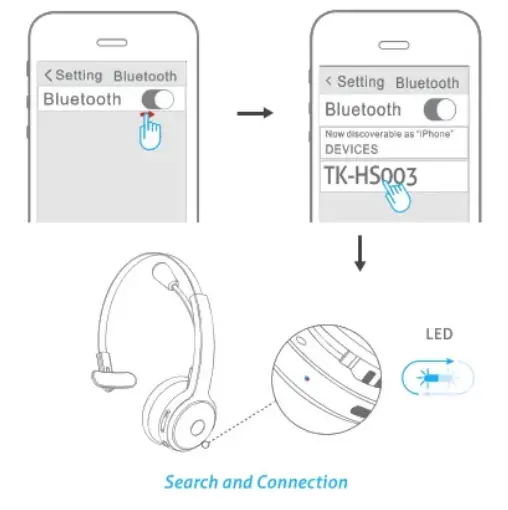
Make sure the Bluetooth of your device is of version 3 or higher.
How to connect to your device via the Base?
- Take the provided USB Type C cable and connect the base to the USB port of the computer or laptop. The base will enter pairing mode and the power supply mode. You will see a notification of the “TK-HS003 USB audio” setup.

- Turn the power on of the headset and enter the pairing by the previously mentioned steps. The headset will be connected to your computer or laptop when:
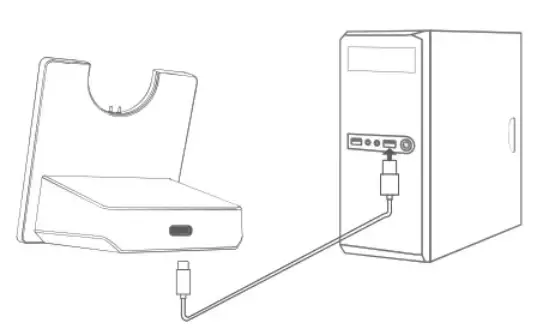
- Base LED will be solid blue.
- Headset LED will be slowly flashing blue.
How to connect to two devices?
- First of all, pair the first device using the previously mentioned steps. Then turn off the Bluetooth of your first device.

- Click the MFB and hold for 2 seconds to enter pairing mode again. The LED will flash red and blue lights alternatively.

- Turn on the Bluetooth of second device and look for “TK-HS003” in your device and connect to it. The LED indicator will change to blue and will flash slowly.

- Turn on the Bluetooth of your device and connect to the headphones again. Now the headphones are connected to both the devices.
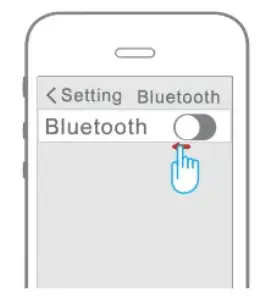
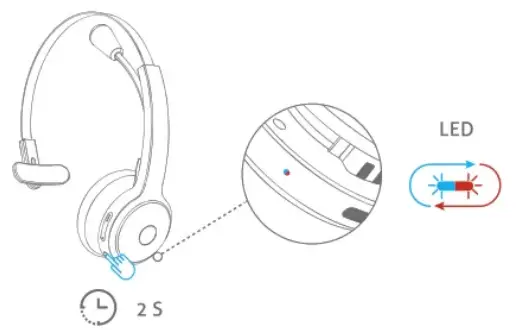
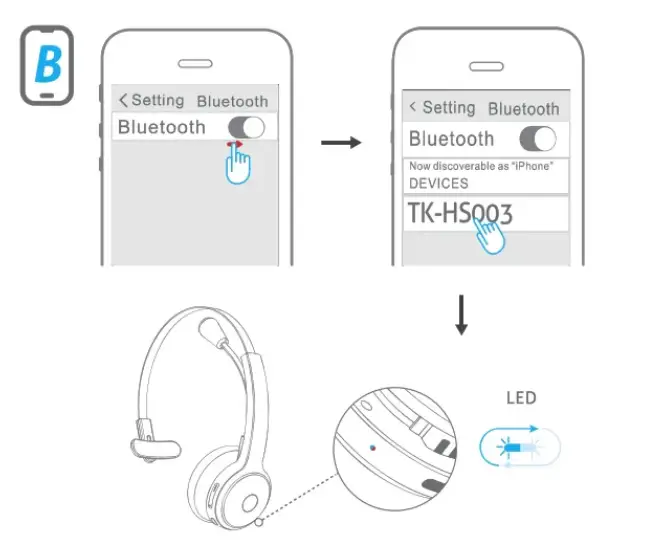
You can play audio on one device only at a time. If you want to switch between devices simply pause the audio from the first device and play on the second device.
How to charge the Headset?
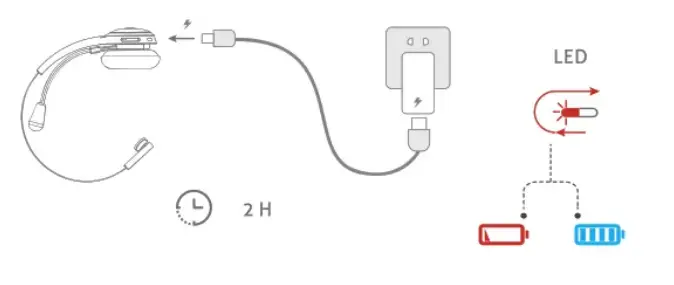
You can charge the headset by using two methods:
Method 1:
- Charge the headset when the LED flashes red light.
- Connect the Type C side to your headset and the other side to your PC pr wall charger. The LED will indicate solid red light while charging.
- The headset will be fully charged in about 2 hours and the LED will turn on when the headset will be fully charged.
Method 2:
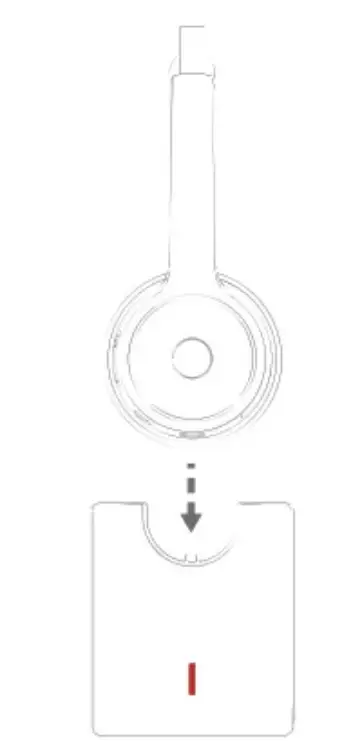
- Using the charging base. Turn on the base and connect to computer or laptop. The LED will flash red light twice and then slowly flash blue light.
- Place the headset on the charging base. The LED will be solid red while charging and will go off once completely charged.
- Turn off the charging base and unplug from the computer and the LED will go off.
PROS
- Comfortable to Wear
- 270 degrees rotation
- Good Battery Life
- Good Noise Cancellation
CONS
- Sound Quality could be improved
VERDICT
These headsets are a good option for people who wish to have noise cancellation as well wish to be aware of their surroundings. If you are looking for truck headsets that have a good battery life and are comfortable to use, these are a good choice for you.
FREQUENTLY ASKED QUESTIONS
- Are these headphones capable for a call center job?
Yes, they are a good choice for call center as they have noise cancellation features and provide loud and clear audio - Will this work with discord calls?
Yes, they will work with discord calls - Does this work with Cisco softphones?
Yes, they work with Cisco softphones completely fine. - How is the bass with these?
If you are concerned about the bass, these headphones are a good buy as their bass is pretty good. - Can I use this headset with my iPhone 7+?
Yes, you can simply turn on the Bluetooth of your iPhone to connect the headphones.