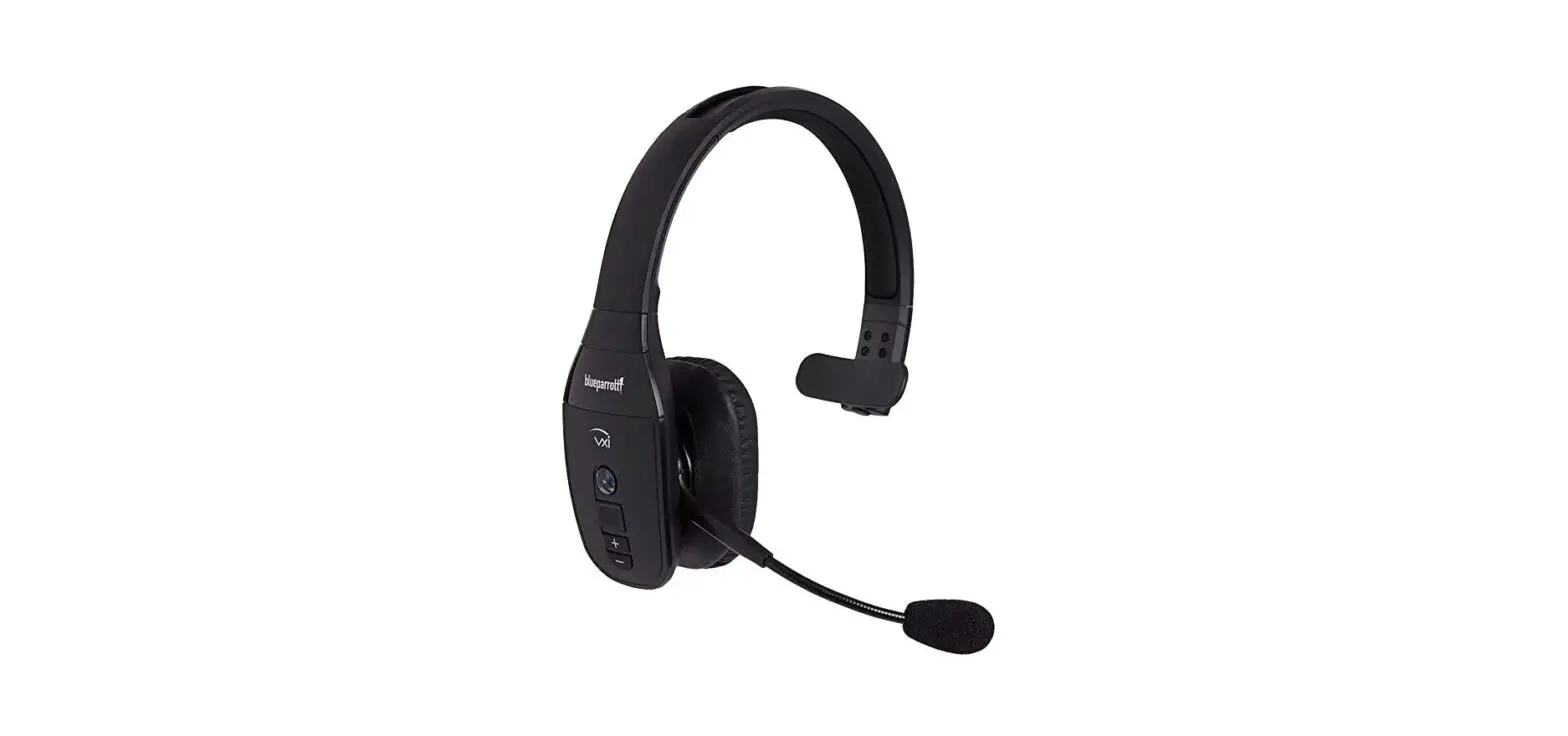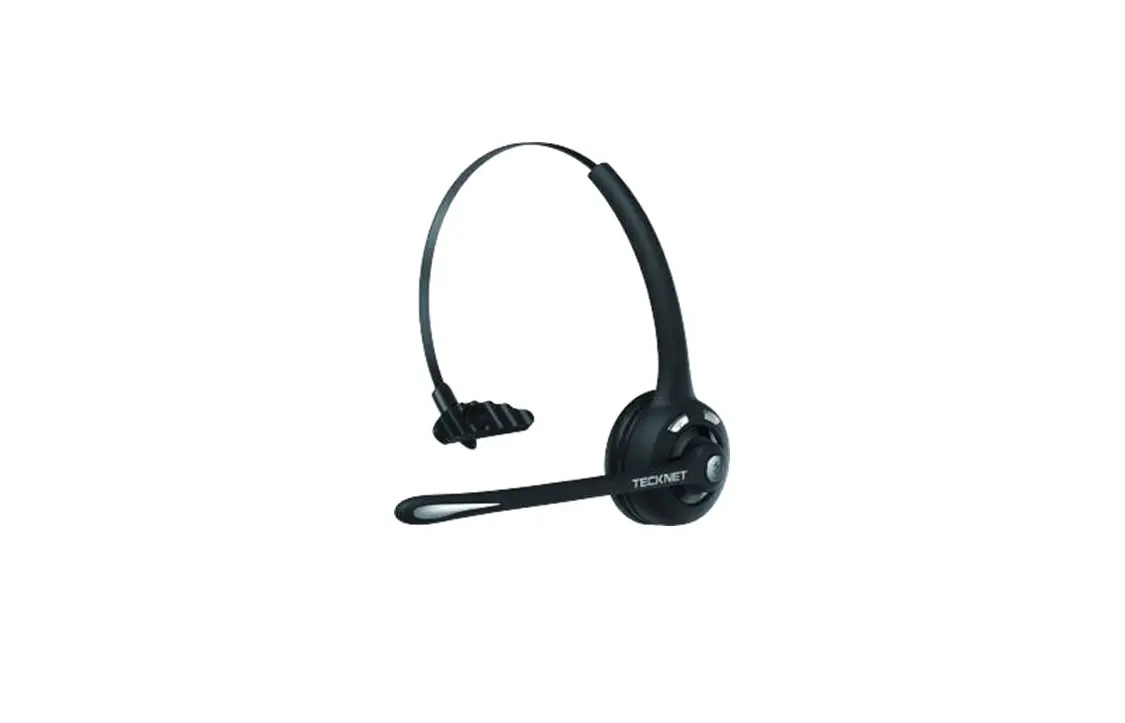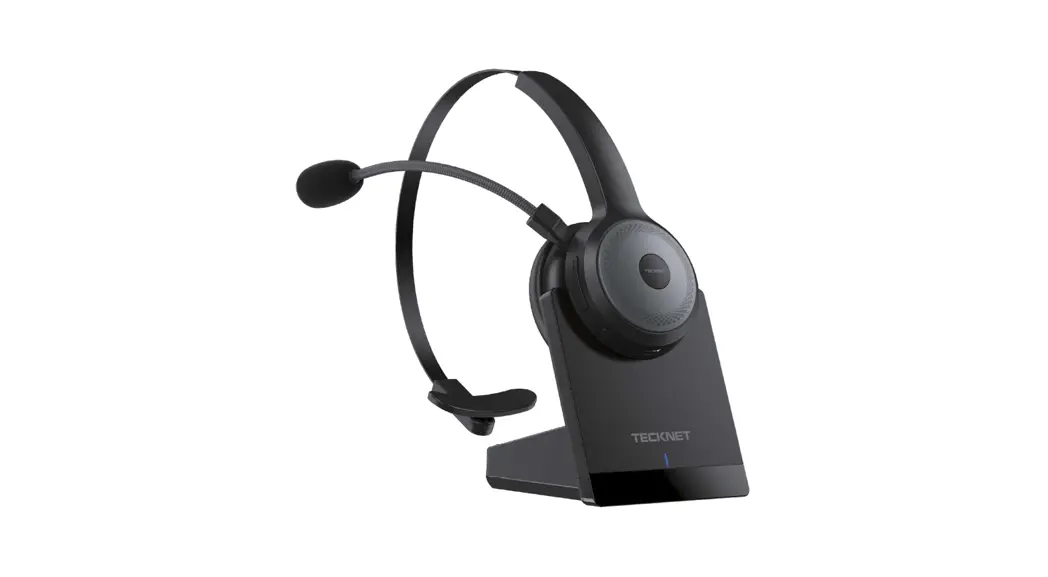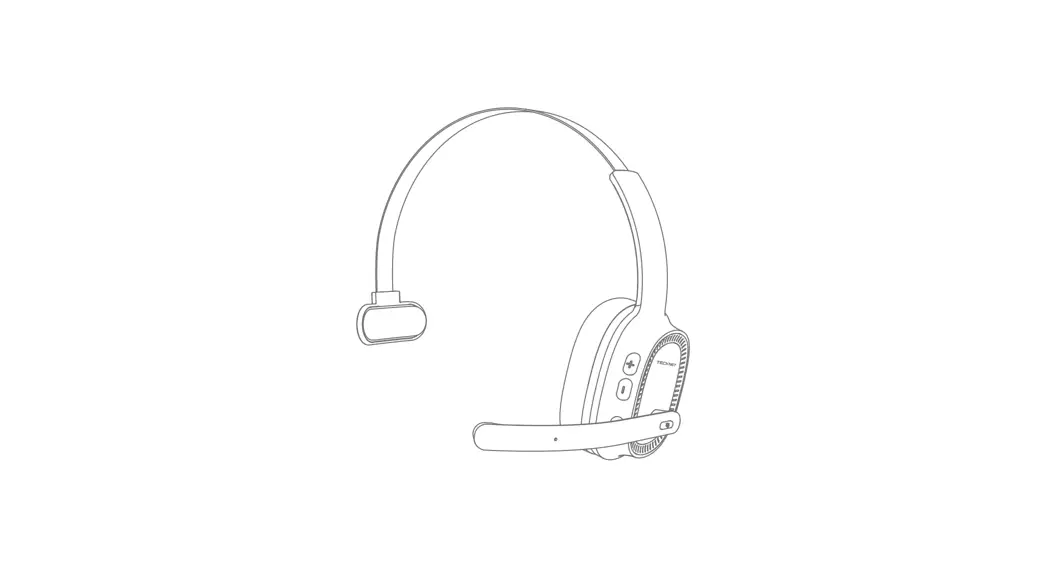

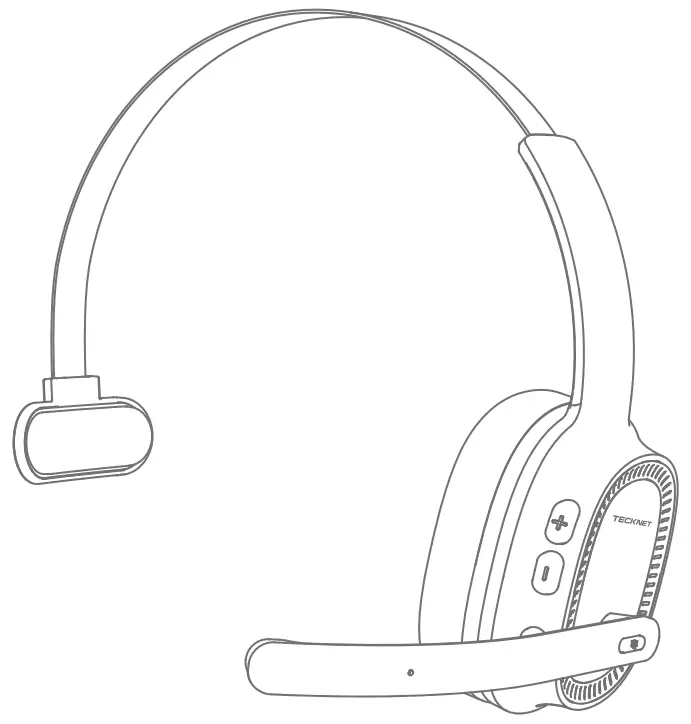
TK-HS010 Wireless Headset
User Manual
TK-HS010
User Manual
TK-HS010 Wireless Headset
Thank you for purchasing TECKNET Wireless Headset. Please read this User Manual thoroughly before use of the product and retain it for future reference. If you have any problem using this product, please contact us by email at [email protected].
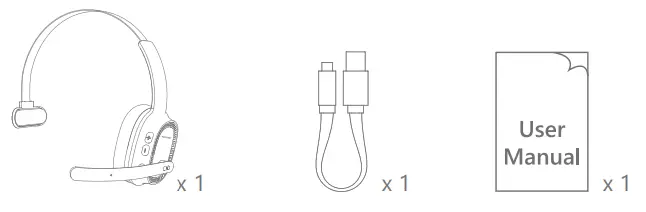
Package Contents
Product Overview
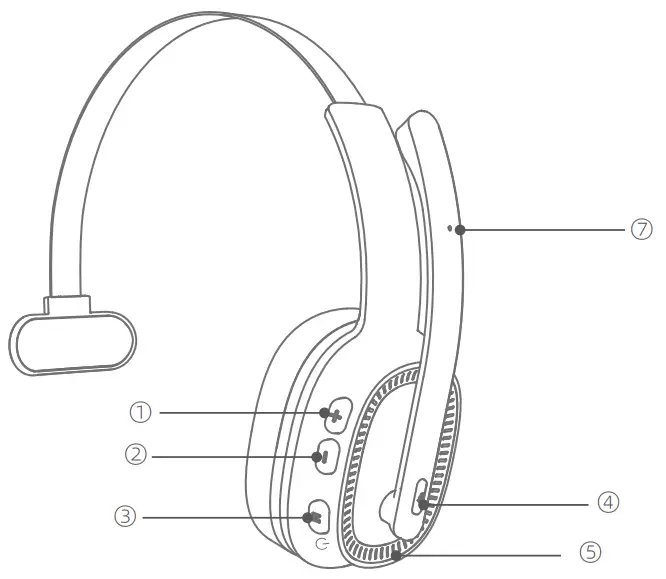
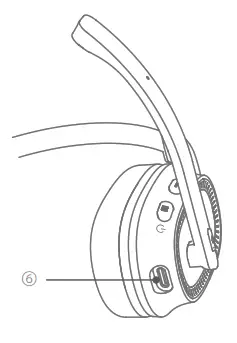
① Volume +
② Volume –
③ On/Off Button & MFB
④ Mute Button
⑤ LED Indicator Light
⑥ USB-C Charging Port
⑦ Microphone* MFB: Multifunction Button
Specifications
- Wireless Connection: BT
- BT Version: V5.2
- Wireless Frequency Band: 2.4 GHz
- Supported Protocols: HSP, HFP, A2DP, AVRCP
- Operation Range: 10 meters
- Charging Time: approx. 2 hrs.
- Input: DC 5V
 0.5A
0.5A - Battery Voltage: 3.7V
 0.5A
0.5ACharging the Headset
- When the LED indicator flashes RED, please charge the headset.
- Connect the USB-C end of the charging cable to the headset and the USB-A end to a booted PC, charger, or power bank. The LED indicator lights in steady RED.
- Charging is completed in about 2 hours. The LED indicator lights in steady BLUE when the headset is fully charged.
Notes:
- If the headset will not be used for a long haul, fully charge the battery at least once every 2 months.
- It is not recommended to use the headset while charging.
- When the battery is low, you will hear “Battery Low” once every 30 seconds.
BT Pairing Methods
- Turn on Bluetooth on your phone.
- Press and hold the On/Off Button for 2 seconds to power on the headset. You will hear “Power on. Pairing”, and the LED indicator flashes blue and red alternately.
- Search and tap to connect to “TK-HS010” on the Bluetooth device list of your phone. Then you will hear “Your headset is connected”. The LED indicator will flash blue every 10 seconds after paired. The phone shows that “TK-HS010” is connected.
Note:
The headset can also be connected to a computer by following the above steps.
To Pair with 2 Mobile Devices
You may pair the headset with 2 mobile devices (e.g. phones or tablets) by the following steps:
- Follow the above pairing guide to connect the headset to device A, then switch off the Bluetooth function of device A.
- At this point, the headset automatically enters pairing mode.
- Search and click to connect to “TK-HS010” on the Bluetooth device list of device B.
- After the headset is paired with device B, switch on the Bluetooth function of device A and tap “TK-HS010” to reconnect to the headset. Now the headset is connected with two devices.
Note:
When the headset is paired with two devices, music can only be played from one. If you want to play music on the other connected device, pause or stop playing the music on the previous one. If you want to answer a new call from the other connected phone, hang up the current call on the previous one.
Operations Instructions
| Button | Function | Operation Instructions |
| On/Off Button & MFB | Power on | Press and hold the On/Off Button for 2 seconds. |
| Power off | Press and hold the On/Off Button for 3 seconds. | |
| Answer a call | Short press the MFB to answer an incoming call. | |
| Hang up a call | Short press the MFB to hang up a call. | |
| Cancel dialing | Short press the MFB to cancel dialing. | |
| Reject a call | Press and hold the MFB for 2 seconds to reject an incoming call. | |
Audio switching | During a call, press and hold the MFB for 2 seconds to switch between the headset and the phone speaker. | |
| Redial a call | Double press the MFB to dial the last number dialed. | |
| Play/Pause | Short press the MFB to play/pause music. | |
| Call waiting | To answer a new call and hang up the current call, short press the MFB. | |
| To answer a new call and keep the current call, double press the MFB. |
| Button | Function | Operation Instructions |
| On/Off Button & MFB | Call waiting | To keep the current call and reject the new call, press and hold the MFB for 2 seconds. |
| To alternate between calls, double press the MFB. | ||
| Voice assistant | Press and hold the MFB for 2 seconds to activate the voice assistant on your phone. (Only in the non-calling state) | |
| Mute Button | Mute the microphone | Short press the mute button to mute or unmute the microphone. |
| Volume + | Volume up | Press the Volume + button. (When the volume reaches the top level, you will hear an alert.) |
| Next track | Press and hold Volume +for 2 seconds. | |
| Volume – | Volume down | Press the Volume – button. |
| Previous track | Press and hold Volume – for 2seconds. | |
| Clear pair record | Press and hold the Volume – and MFB for 5 seconds to clear the pair record in the headset. When it is cleared, the headset will not be reconnected automatically and you need to establish the connection again. |
LED Indicator Light
| Mode | LED Indicator Light |
| Power on | Red & Blue light flash alternately |
| Power off | Red light turns on for 1 second |
| Pairing mode | Red & Blue light flash alternately |
| Connected standby mode | Blue light flashes once every 10 seconds |
| Disconnected | Red & Blue light flash alternately |
| Playing Music | Blue light flashes once every 10 seconds |
| Talking | Blue light flashes once every 10 seconds |
| Pair record cleared | Red & Blue light flash alternately |
| Low battery | Red light flashes slowly |
| Charging | Steady Red light |
| Fully charged | Steady Blue light |
| Incoming Call | Blue light flashes |
Voice PromptStatus Voice Prompt Power on Power on Power off Power off Pairing mode Pairing Headset connected Your headset is connected Status Voice Prompt Headset disconnected Your headset is disconnected Low battery Battery Low Mute the Mic Mute on Unmute the Mic Mute off Clear pair record Clear matching record
FAQs
– A: Yes, but extremely low battery or poor power quality may cause electrical noise. We do not recommend frequent use in this way as it will shorten the battery life.
– A: 1. Make sure to use the headset within the effective operation range (10 meters).
– 2. Keep the headset away from electromagnetic interference devices such as microwave ovens, base stations, etc.
– 3. If the battery of the headset is low, please fully charge it before use.
– A: 1. When the headset is paired with your device successfully, it will reconnect to the paired device automatically within 10 minutes every time it powers on. If the reconnection failed, please try pairing again. It will power off if reconnection failed over 10 minutes.
– 2. When the headset goes out of operation range, you will hear “Your headset is disconnected”. It will reconnect automatically after entering the operation range.
– 3. To avoid reconnection failure, keep the headset away from electromagnetic interference devices such as microwave ovens, base stations, etc.
– A: Some devices may require a password for pairing. Try entering 0000, 8888, 1111, or 1234.
– A: Any charger, car charger, power bank, PC, etc. with DC 5V/above 500mA output.
– A: Check if the headset is in low battery state (red light flashes slowly). If it is, recharge the headset. Turn on the headset again after it is fully charged (steady blue light). If this does not help, you may contact our customer service for more support.
– A: 1. Turn off the power of the headset, and then turn it back on. Pair the headset with your device again.
– 2. Try to clear the pair record of the headset. Then pair the headset with your device again.
– 3. If the above method does not help, you may contact our customer service for more support.
– A: When the headset is not connected over 10 minutes or the battery is too low, the headset will power off automatically.
– A: Use a soft cloth to wipe off dust. Do not use any detergent to clean the headset.
IMPORTANT SAFETY INSTRUCTIONS-CAREFULLY FOLLOW THESE INSTRUCTIONS.
- RETAIN THESE INSTRUCTIONS – This sheet contains important safety and operating instructions.
- Before using the product, read all instructions and caution markings on the product, accessories, and device.
- This appliance is not intended for use by persons (including children) with reduced physical, sensory or mental capabilities, or lack of experience and knowledge, unless they have been given supervision or instruction concerning use of the appliance by a person responsible for their safety.
- Children should be supervised to ensure that they do not play with the appliance.
- Keep the product away from the fire to avoid an explosion.
- Do not place the product in or near an inflammable, explosive, or hazardous object.
- Do not operate the product with a damaged cord or plug.
- Do not operate the product if it has been damaged in any way.
- Do not disassemble the product. Disassembly may result in a risk of safety hazards.
- Do not throw or shake the product.
- Do not place the product in or near water, rain, excess moisture, or extreme heat.
Limited 12-Month warranty
What this warranty covers.
Shenzhen Unchain Technology Co., LTD. (Manufacturer: “Unchain”) warrants to the original purchaser of this TECKNET product that the product shall be free of defects in design, assembly, material, or workmanship.
What the period of coverage is.
Unchain warrants the TECKNET product for 12 Months.
What will we do to correct problems?
Unchain will repair or replace, at its option, any defective product free of charge (except for shipping charges for the product).
What is not covered by this warranty?
All above warranties are null and void if the TECKNET product is not provided to Unchain for inspection upon Unihan’s request at the sole expense of the purchaser, or if Unchains determines that the TECKNET product has been improperly installed, altered in any way, or tampered with. The TECKNET Product Warranty does not protect against acts of God such as flood, earthquake, lightning, war, vandalism, theft, normal-use wear and tear, erosion, depletion, obsolescence, abuse, damage due to low voltage disturbances (e.g. brownouts or sags), non-authorized program, or system equipment modification or alteration.
How to claim the warranty
Please contact retailers or visit TECKNET website or email [email protected] for more information. To extend the warranty period, please visit TECKNET website and register your TECKNET products within 90 days of purchase.
Disclaimer
Every effort has been made to ensure that the information and procedures in this guide are accurate and complete, no liability can be accepted for any errors or omissions and we reserve the right to make any changes without further notice to any products mentioned herein.
Correct Disposal of This Product
( Waste Electrical& Electronic Equipment )
This Marking shown on the product or its literature, indicate that it should not be disposed with other household wastes at the end of its working life.
To prevent possible harm to the environment or human health from uncontrolled waste disposal, please separate this from other types of wastes and recycle it responsibly to promote the sustainable reuse of material resources. Household user should contact either the retailer where they purchased this product, or their local government office, for details of where and how they can take this item for environmentally safe recycling.
Business users should contact their supplier and check the terms and conditions of the purchase contact. This product should not be mixed with other commercial wastes for disposal.
SIMPLIFIED EU DECLARATION OF CONFORMITY
Hereby, Shenzhen Unchain Technology Co., Ltd. declares that the product type TK-HS010 is in compliance with Directive 2014/53/EU.
The full text of the EU declaration of conformity is available at the following internet address: https://eu.tecknetonline.com
FCC Statement
Operation is subject to the following three conditions:
(1) This device may not cause harmful interference, and
(2) This device must accept any interference received, including interference that may cause undesired operation.
(3) This device has been evaluated to meet general RF exposure requirement. The device can be used in portable exposure condition without restriction.
Note:
This equipment has been tested and found to comply with the limits for a Class B digital device, pursuant to part 15 of the FCC Rules. These limits are designed to provide reasonable protection against harmful interference in a residential installation. This equipment generates, uses and can radiate radio frequency energy and, if not installed and used in accordance with the instructions, may cause harmful interference to radio communications. However, there is no guarantee that interference will not occur in a particular installation. If this equipment does cause harmful interference to radio or television reception, which can be determined by turning the equipment off and on, the user is encouraged to try to correct the interference by one or more of the following measures:
Reorient or relocate the receiving antenna.
Increase the separation between the equipment and receiver.
Connect the equipment into an outlet on a circuit different from that to which the receiver is connected.
Consult the dealer or an experienced radio / TV technician for help.
 line.com