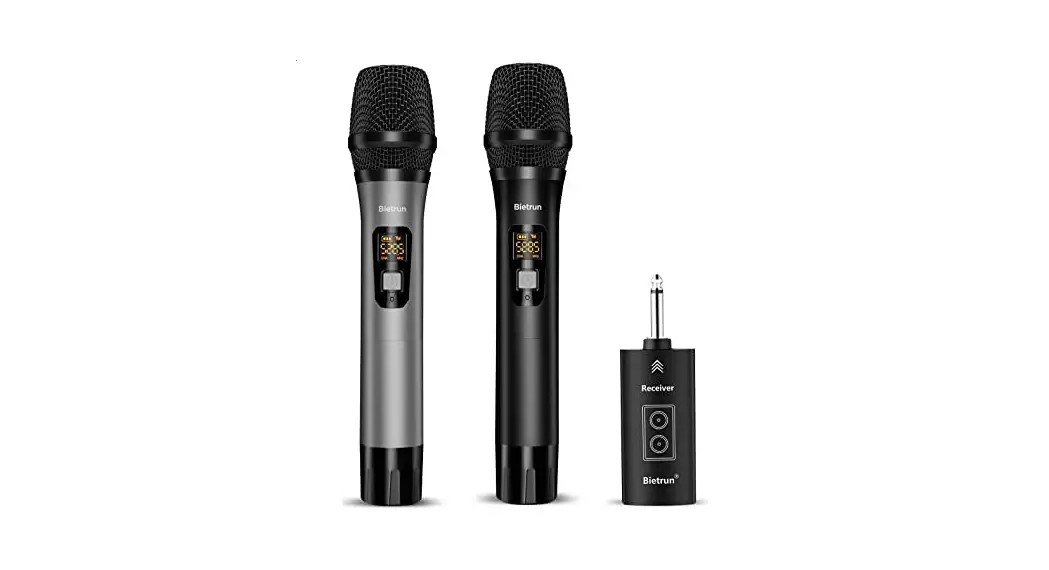

BIETRUN WXM 25 USB Multi-Function Wireless Microphone System
User Manual
If you have any questions, please feel free to contact us.
E-mail: [email protected]
Product introduction
This wireless microphone adopts a UHF frequency band for transmission, which has the characteristics of long transmission distance, strong anti-interference ability, low delay, clear sound quality Simple operation, and debugging.The whole machine has extremely low power consumption and long battery life and can be widely used in recording, live broadcasting, conferences, online teaching, and other occasions
Product Features
- 2C communication protocol, digital audio transmission, high signal-to-noise ratio, low noise;
- UHF frequency band wireless transmission, get rid of the trouble of cable entanglement, good anti-interference performance,
- One-key power on/off, channel switching, volume control, simple operation,
- The working status is displayed on the LED screen, the power, volume and the frequency band adjustment are clear at a glance;
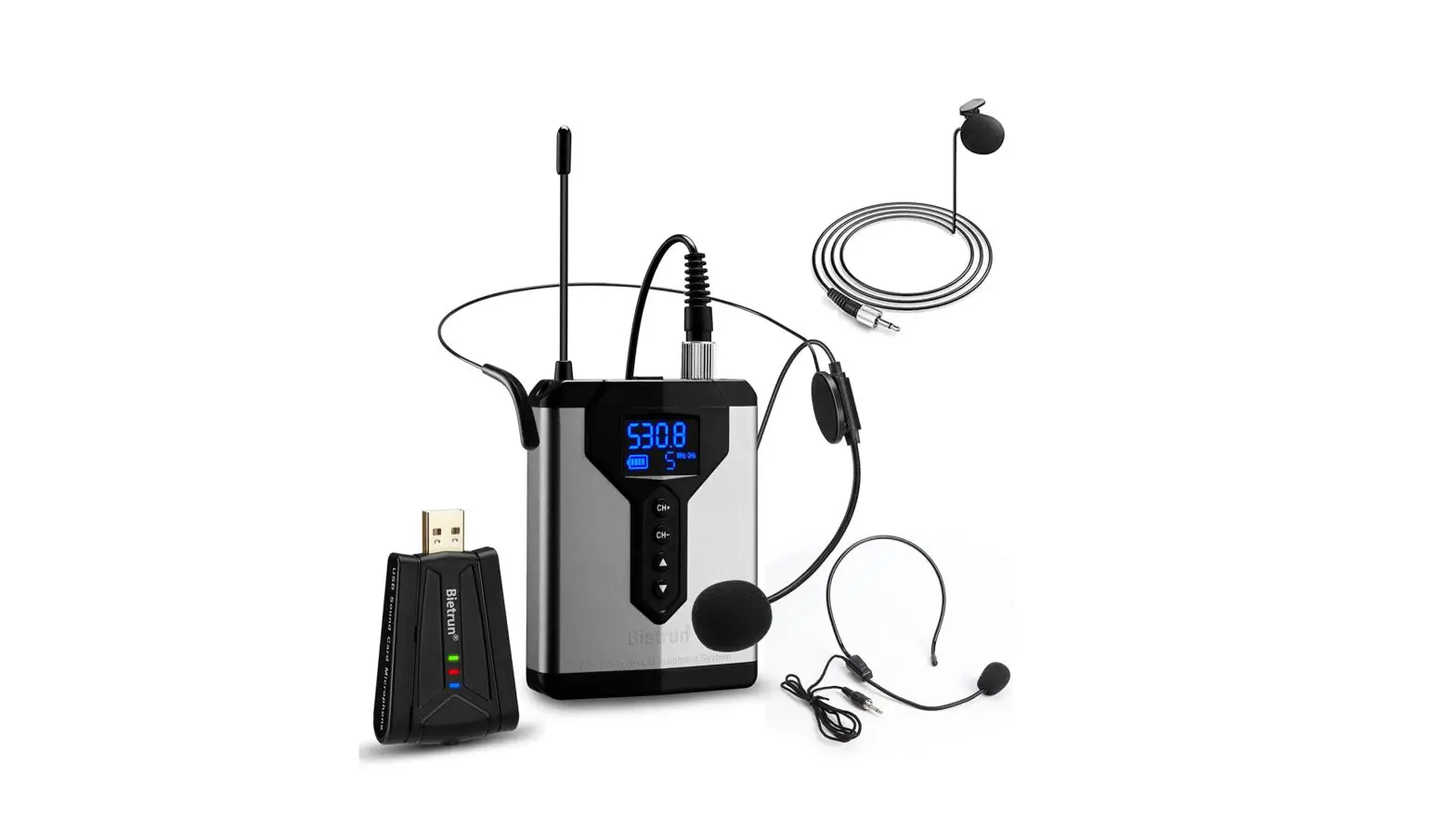
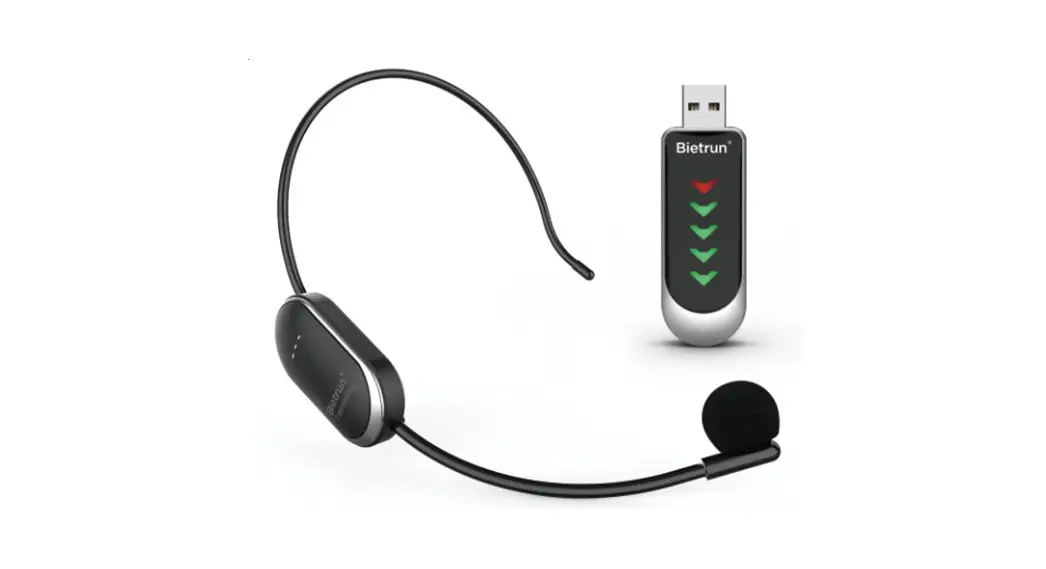
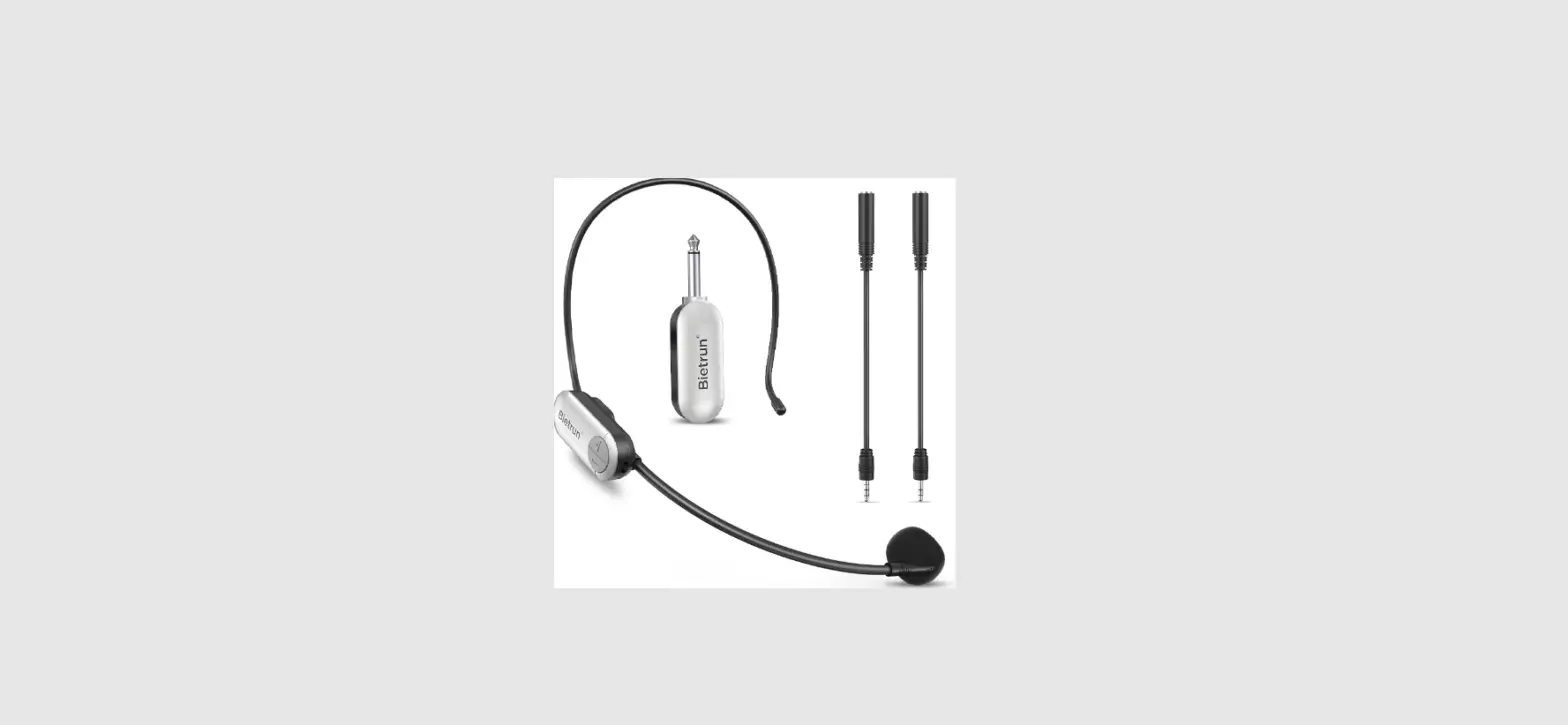
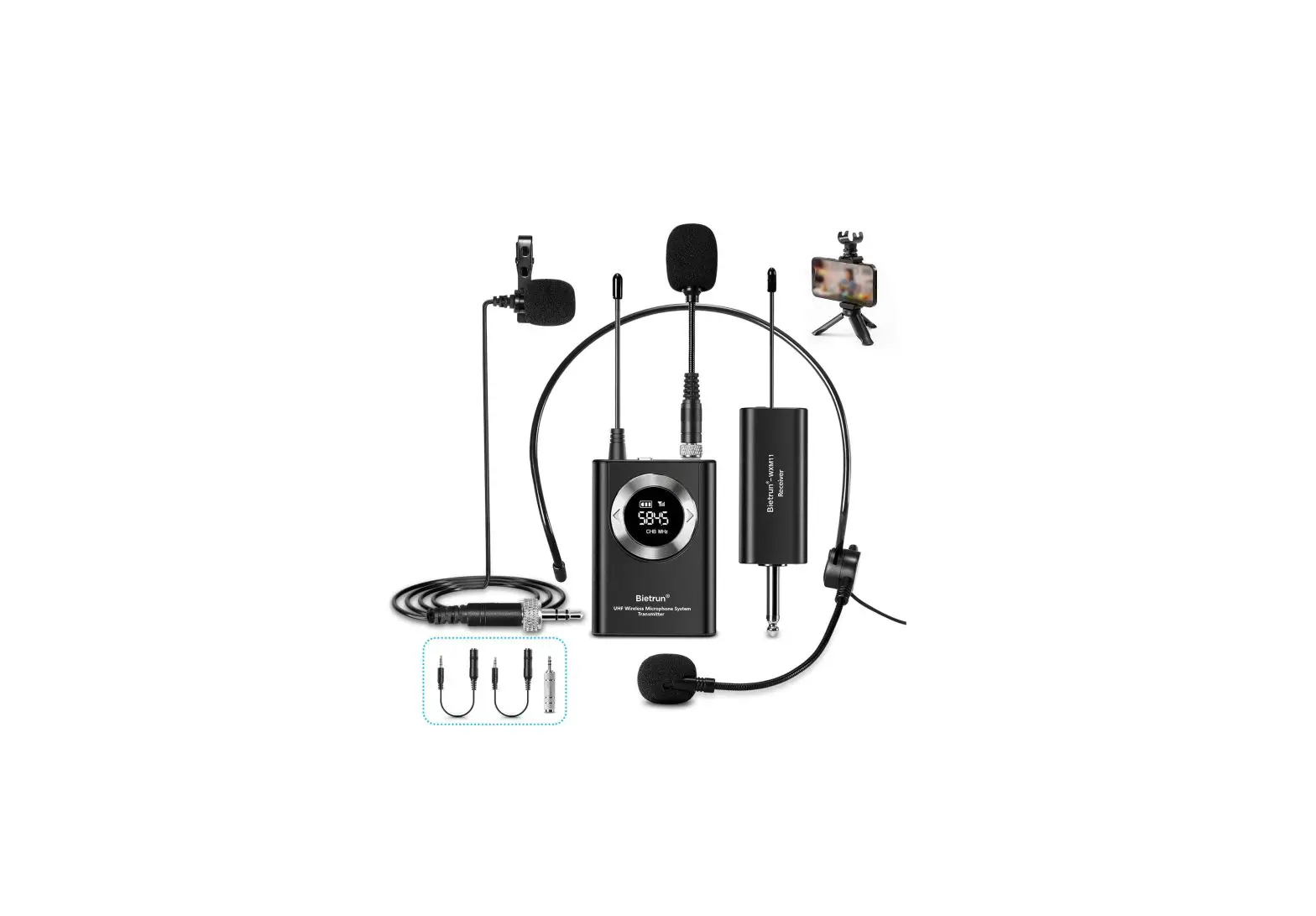
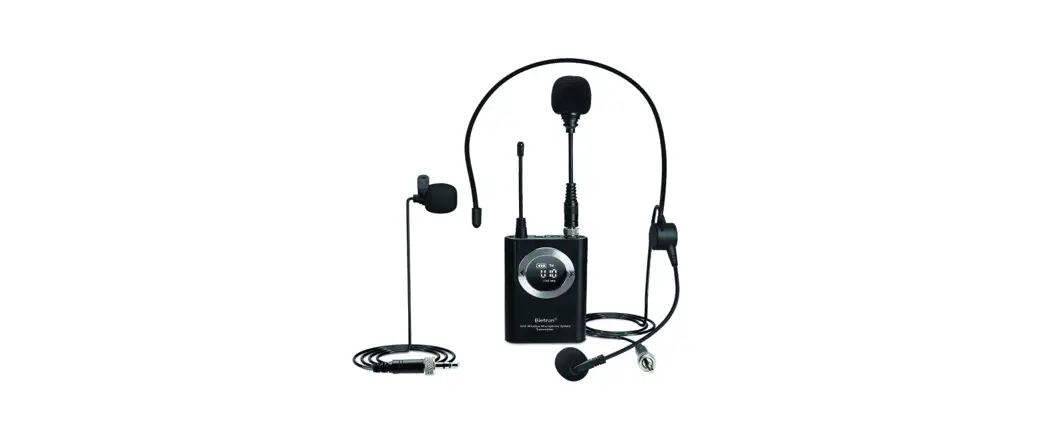
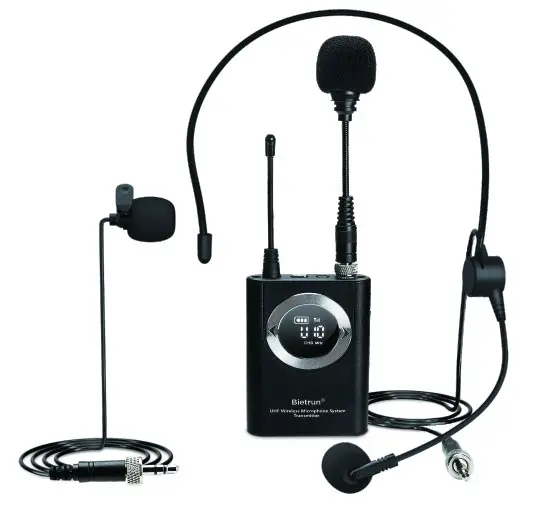
- Equipped with three kinds of microphones: Headset/Lavalier/Handheld, which will meet different use occasions;
- Support Windows7/8/10, Apple Mac OS;
- Support recording software and live broadcast software of some third-party platforms
Product Description
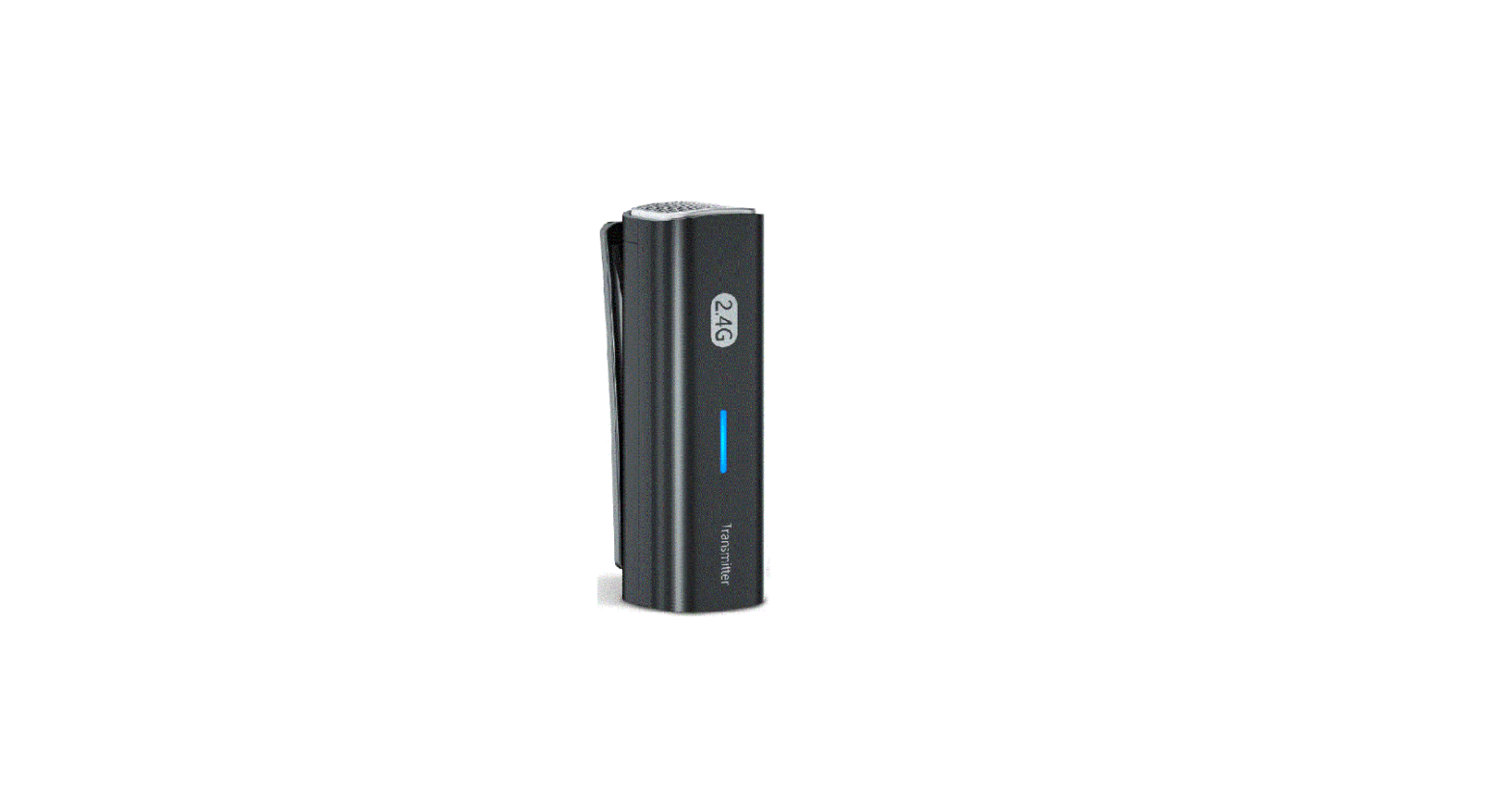
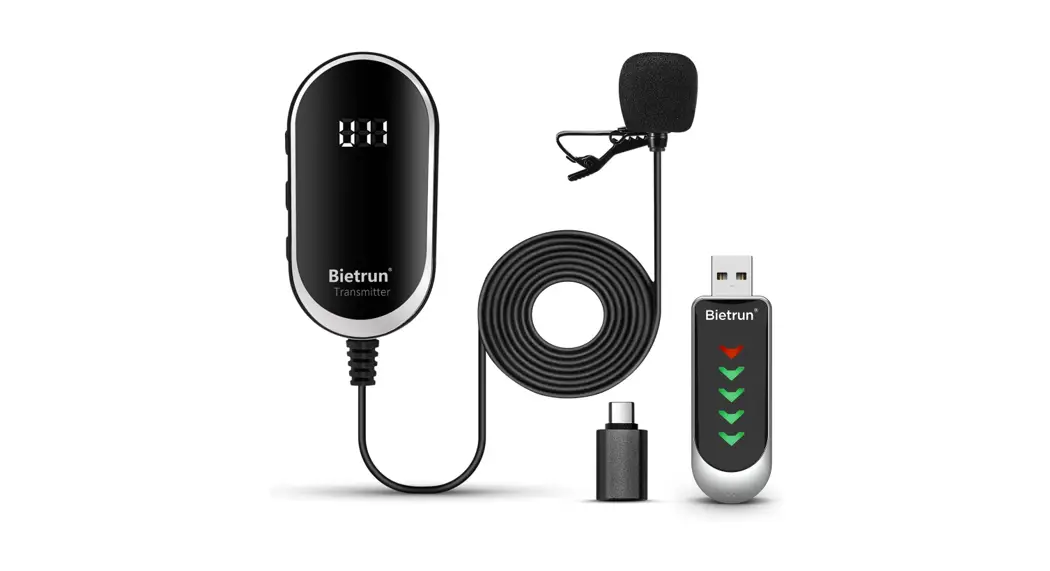
Transmitter
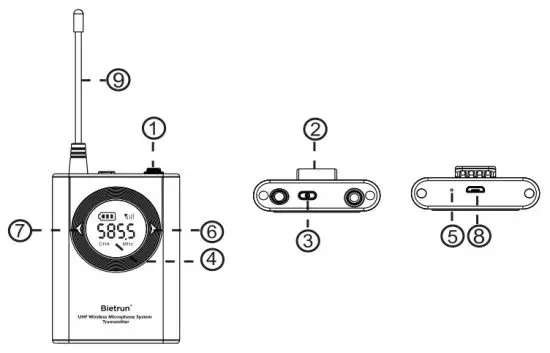
| Serial NO. | Part Name | Function Description | Notes |
| 1 | Microphone interface | (1)You can plug in a headset/lavaher/in-line microphone to pick up sound signals (2)The microphone interface adopts a nut structure to make the connection firmer | (1)The microphone should be right towards the mouth as much as possible, and the distance from the mouth should be as short as possible (2)Tighten the microphone interface as much as possible |
| 2 | Waist clip | Suitable for clamping on the waist or other suitable positions | |
| 3 | Power button/ mode switch | (1)Power On/Off: Long press the button for 3 seconds to turn on/off. (2)In the power-on status, short press to perform frequency adjustment mode (screen displays between 572.5-586.5) and volume adjustment mode (screen displays between U00-U10) | The initial boot volume defaults to U06 The initial boot channel defaults to 577.5 |
| 4 | Display screen | Display transmitter’s working status, including power, volume level, channel switching | Battery Power display: The battery symbol on the display is “  “-if it displaying 3 bars represents the power is about 100%-70% of power; displaying 2 bars represents about 70%-40% of power; displaying 1 bar represents about 40%-10% of power: when “ “-if it displaying 3 bars represents the power is about 100%-70% of power; displaying 2 bars represents about 70%-40% of power; displaying 1 bar represents about 40%-10% of power: when “ ” is displayed and keep flashing, it means that the power is less than 10%, please turn off and charge the transmitter in time ” is displayed and keep flashing, it means that the power is less than 10%, please turn off and charge the transmitter in time |
| Serial NO. | Part Name | Function Description | Notes |
| 5 | Charging indicator | The indicator is red when charging, and it goes out after full charged | Full charge time is about 2.5 hours |
| 6 7 | Volume and control | Channel Power-on state (1)When UXX is displayed: press the  key to increase the volume; press the key to increase the volume; press the  key to decrease the volume, the adjustment range is U00_uic key to decrease the volume, the adjustment range is U00_uic(2)Short press the power button to display XXX.X: press the button to increase the current channel press the button to decrease the current channel, the adjustment range is 572.5-586.5 MHz | (1)Generally, there is no need to adjust the frequency (2)When there is interference in the same frequency band with other devices or large environmental interference, you can short press this button to change and adjust the transmitter frequency. When the frequency is adjusted, the orange indicator light of the receiver will flash. After the frequency is paired, the orange light will return to a steady light. (3)Under special circumstances, you can press and hold the ) button for 10 seconds to repair |
| 8 | Charging port | Micro USB port, also there is an external DC 5V power supply to charge the transmitter. | (1)Please full charge when the transmitter cannot be turned on (2)Charge it at least once a month to ensure battery alive. |
| 9 | Transmitter antenna | Perform transmitter and receiver signal transmission |
Receiver
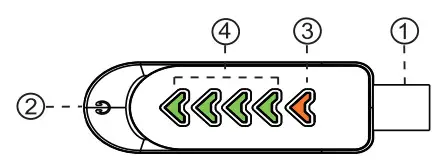
| Serial NO. | Part Name | Function Description | Notes |
| 1. | USB plug | (1)It can be plugged into the USB port of the computer, and the USB device’s identification name is: Bietrun (2)After connecting the TYPE-C converter, insert it into the USB port of the mobile phone to use. | When connecting to the computer for the first time, the device will automatically detect the driver and install it. You can use it after the computer prompts that the installation is successful. |
| 2. | 3.5 mm Headphone output | Connect headphones to monitor the reception effect. | |
| 3. | Power on and connection indicator | A steady orange light indicates that the transmitter is connected normally, and a flashing orange light indicates that the receiver is ready to be paired. | The orange light also means the USB power supply is normal. |
| 4. | Pick-up indicator | When the transmitter picks up the sound, 4 green lights will dynamically indicate according to the sound level. | When the green light is off, please check if the transmitter volume is adjusted to U00, U00 is in silent mode. |
How to connect s use
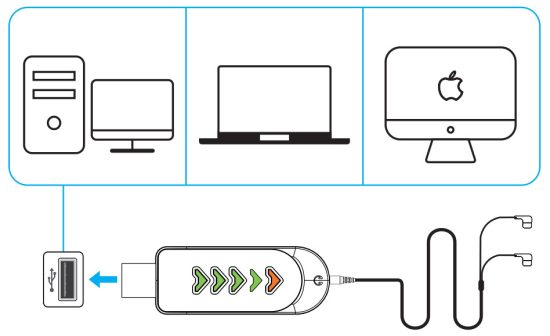
- Connect computer
After the receiver is plugged into the US8 port of the computer, you need to set Bietrun as the default microphone input device in the computer audio settings f the computer uses other third-party audio software to collect microphone signals and set Bietrun as the default microphone input device as well. The computer system or audio software will receive digital audio simultaneously, and the 3.5 jack of the receiver can monitor at the same time. Notes
Notes
(1)The computer USB port connection needs to be good and reliable
(2) Bietrun cannot be used as an audio output device for computer systems - Connect Android device
The receiver is connected to mobile devices such as Android phones or tablets via a TYPE.C converter for recording or live streaming Notes:
Please make sure that the Android system version of your phone or tablet is 10.0 or higher Due to the Android system’s limitations, some versions can not record and you need to use third-party software to record
 Notes
Notes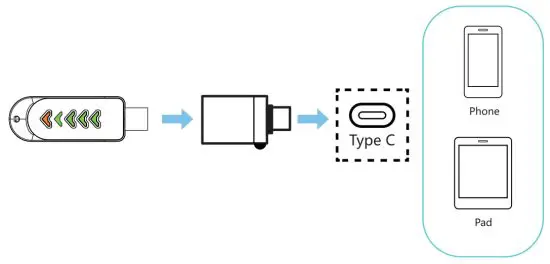 Notes:
Trouble Shooting
| Serial NO. | Breakdown | Elimination |
| 1 | The receiver cannot be turned on. | Check whether the USB port Is plugged in properly. the orange light flashes or keeps on indicating that the boot is normal. |
| 2 | The transmitter cannot be turned on or C flashes indicate that the battery is low. | Please charge it for more than 2.5 hours to make sure the transmitter is fully charged before turning It on. |
| 3 | The transmitter can not charge. | (1)Check whether the power adapter is powered on. (2)Check whether the charging cable and the charging plug of the machine are inserted in place. |
| 4 | The sound is intermittent, and the receiver’s orange light flashes. | (1) Shorten the distance between the receiver and the transmitter, (2)Adjust the receiver to the visible range as much as possible; (3) Try to switch channels: |
| 5 | No sound, the receiver only lights up orange. | (1)Check whether the transmitter Is turned on; (2)Check if the transmitter volume is adjusted to U00, U00 is in silent mode. |
| 6 | The sound is small, both the orange light and the green right of the receiver are on. | (1)Increase the volume of the transmitter; (2)Shorten the distance between the microphone and the mouth. |
| 7 | There is no sound when connected to the computer, and the orange and green lights of the receiver are both on. | Check whether Bietrun is set as the default microphone input device in the audio settings of the computer. |
Product Parameters
| Wireless Frequency | 572.5MHz-588.5MHz | Type of Microphone | Condenser microphone | |
| Audio Signal | Digital sampling 48KHz | Way of Pairing | Paired by Factory default | |
| Frequency Response | 50Hz-18KHz | Power Supply | Receiver | USB supply |
| Use Time | About 10-11 hours | Transmitter | Built-in 800mAh polymer lithium battery, DC3.7V | |
| Working Frequency | 15 frequencies | Wireless Distance | Outdoor environment 30M(98.4FT) | |
Package Content
1x Headset Mic
1xLavalier Mic
1xHandheld Mic
1x Transmitter
1x Receiver
1TYPE-C Converter
1x0SB Charge Cable
1x User Manual
This device complies with part 15 of the FCC Rules. Operation is subject to the following two conditions: (1) This device may not cause harmful interference, and (2) this device must accept any interference received, including interference that may cause undesired operation.
FCC Warning Statement
Changes or modifications not expressly approved by the party responsible for compliance could void the user’s authority to operate the equipment. This equipment has been tested and found to comply with the limits for a Class B digital device, pursuant to Part 15 of the FCC Rules. These limits are designed to provide reasonable protection against harmful interference in a residential installation. This equipment generates uses and can radiate radio frequency energy and, if not installed and used in accordance with the instructions, may cause harmful interference to radio communications. However, there is no guarantee that interference will not occur in a particular installation. If this equipment does cause harmful interference to radio or television reception, which can be determined by turning the equipment off and on, the user is encouraged to try to correct the interference by one or more of the following measures:
- Reorient or relocate the receiving antenna.
- Increase the separation between the equipment and receiver.
- Connect the equipment into an outlet on a circuit different from that to which the receiver is connected.
- Consult the dealer or an experienced radio/TV technician for help. The device has been evaluated to meet general RF exposure requirements.