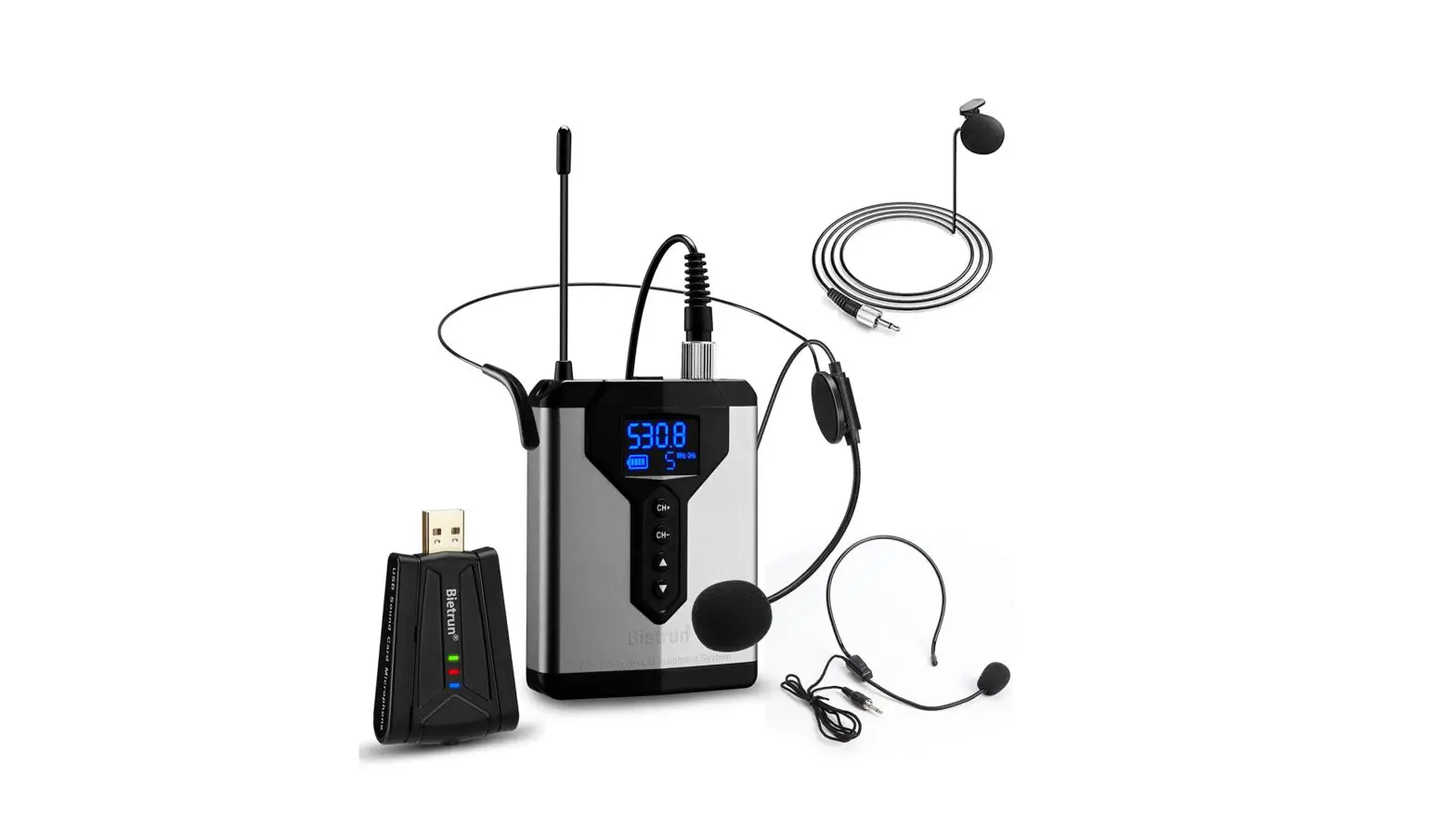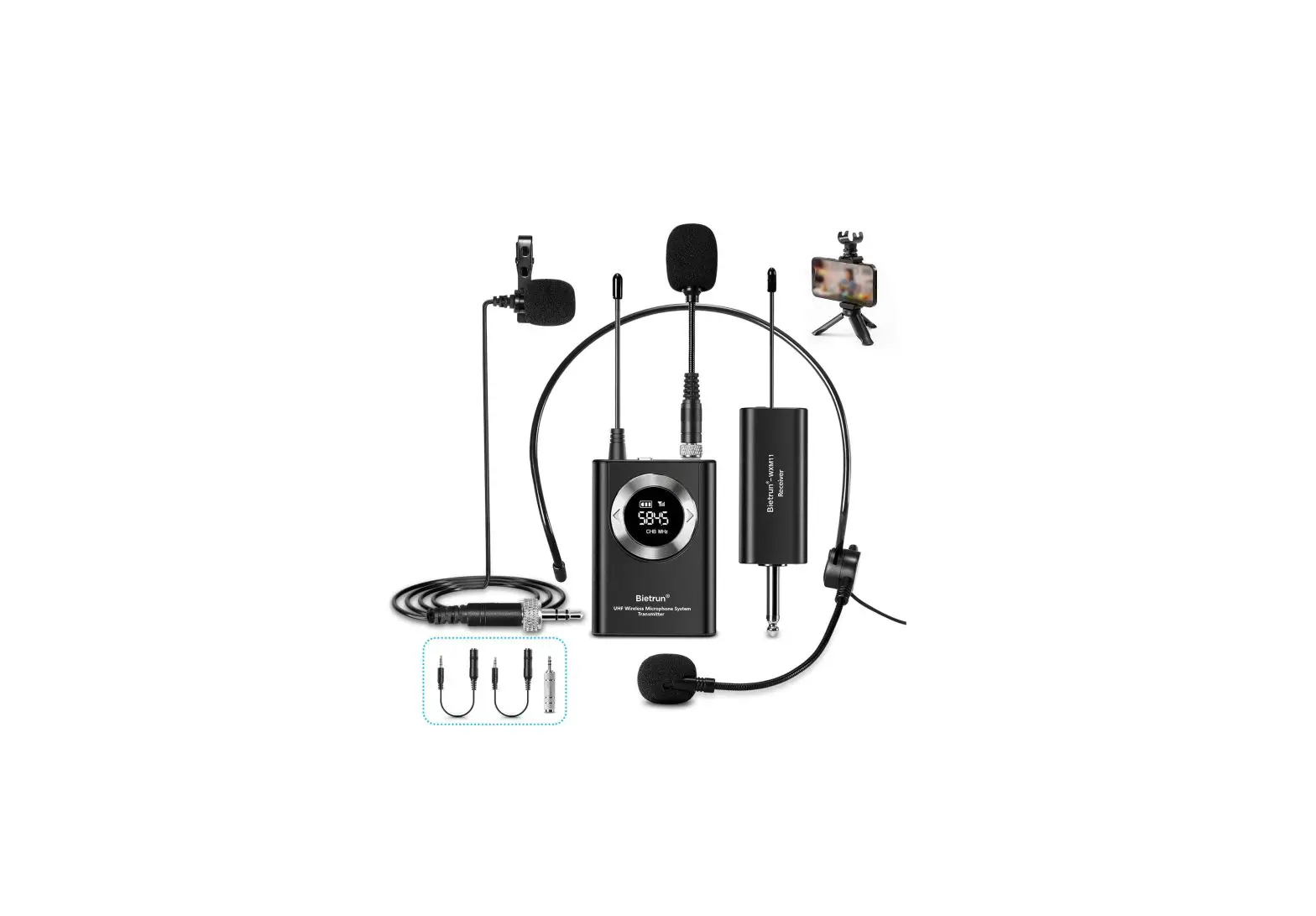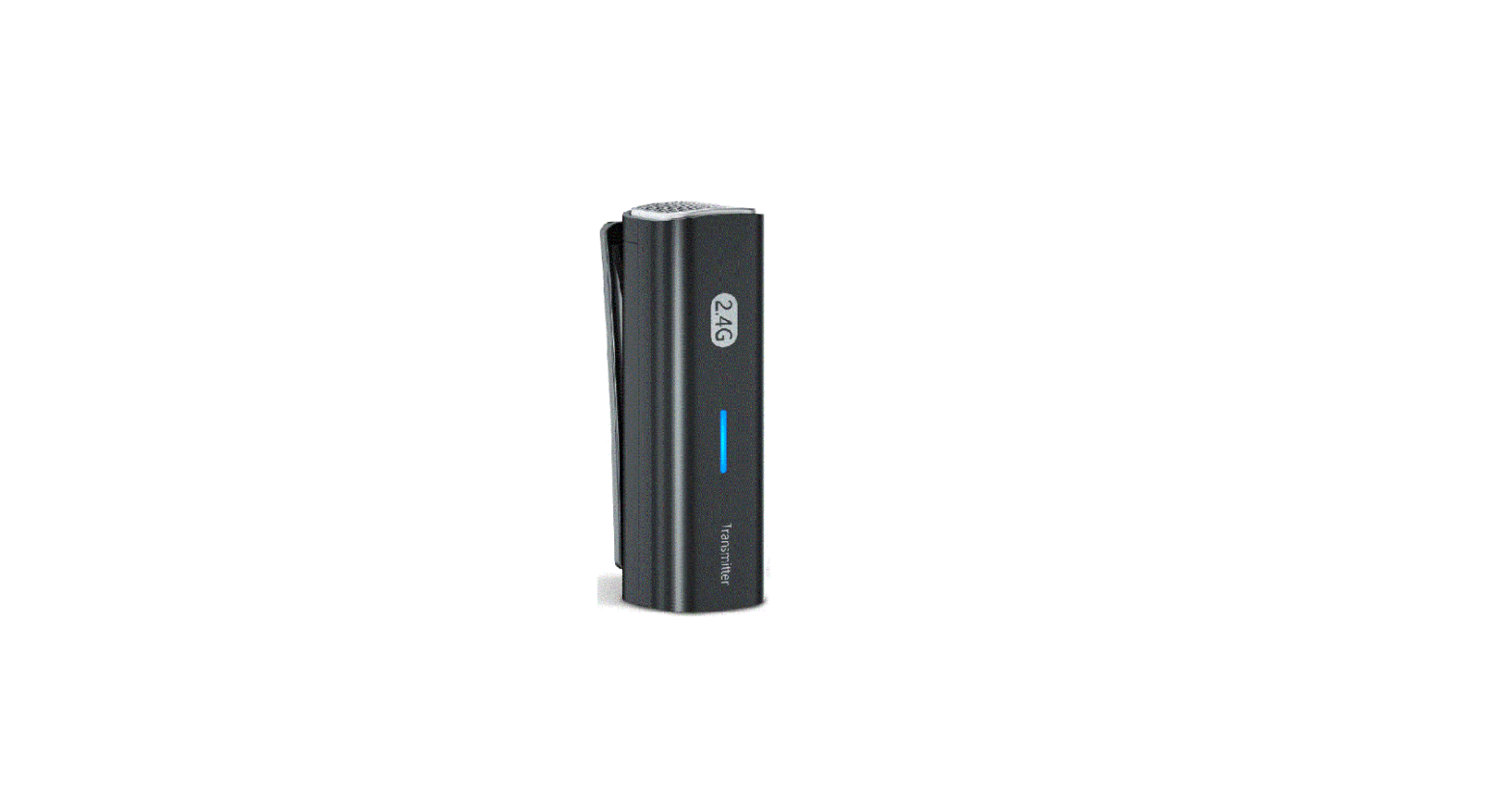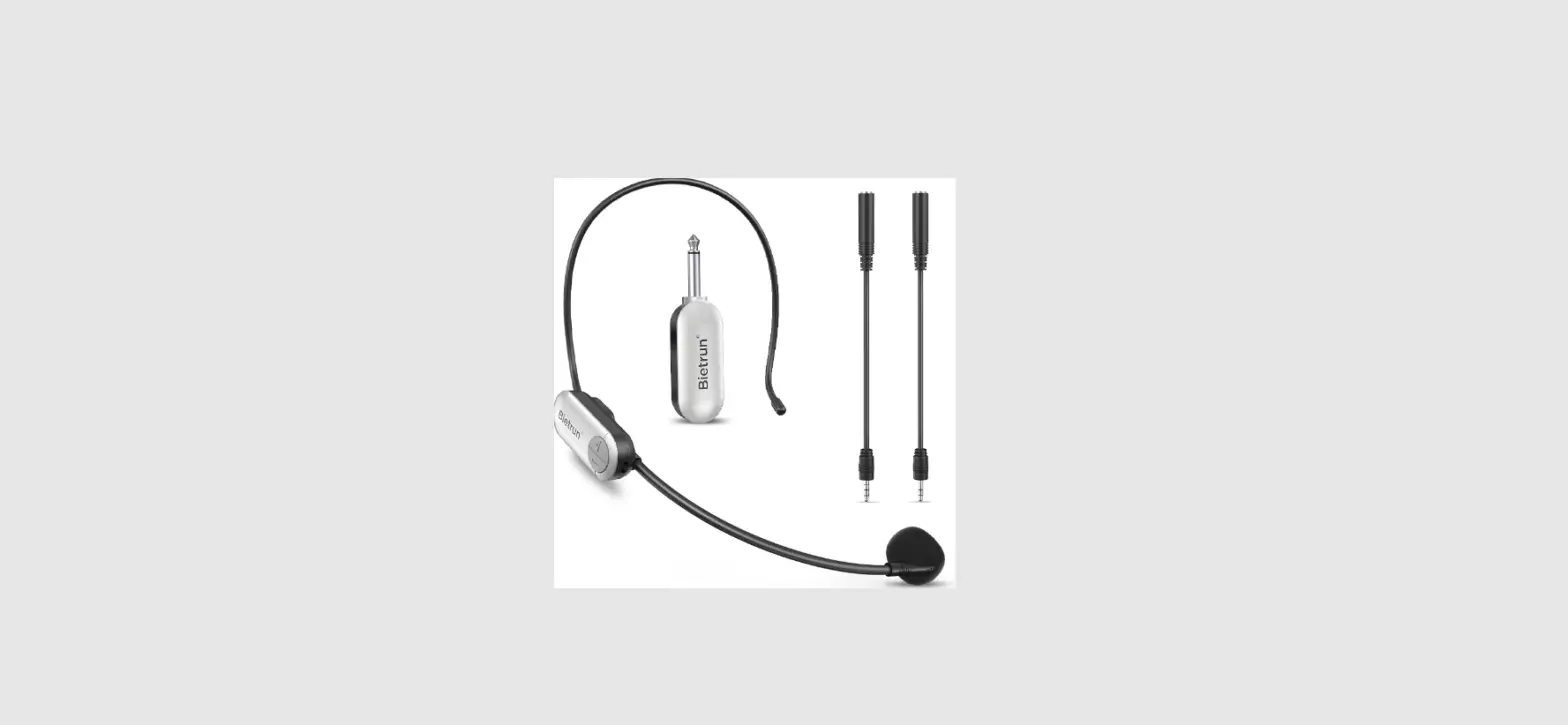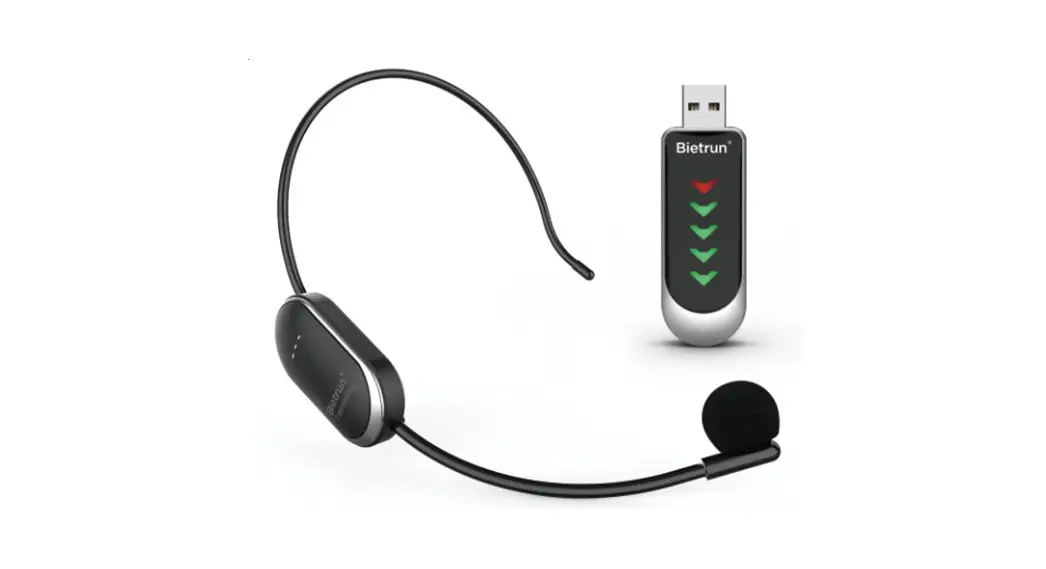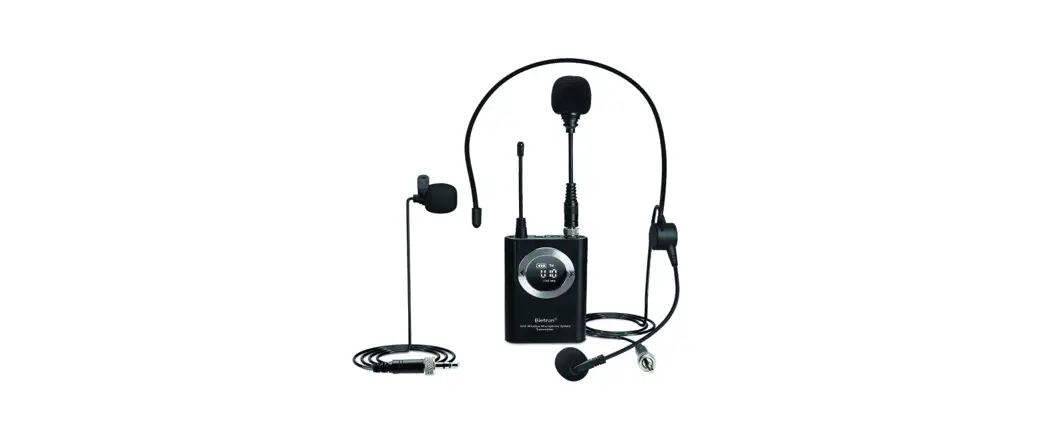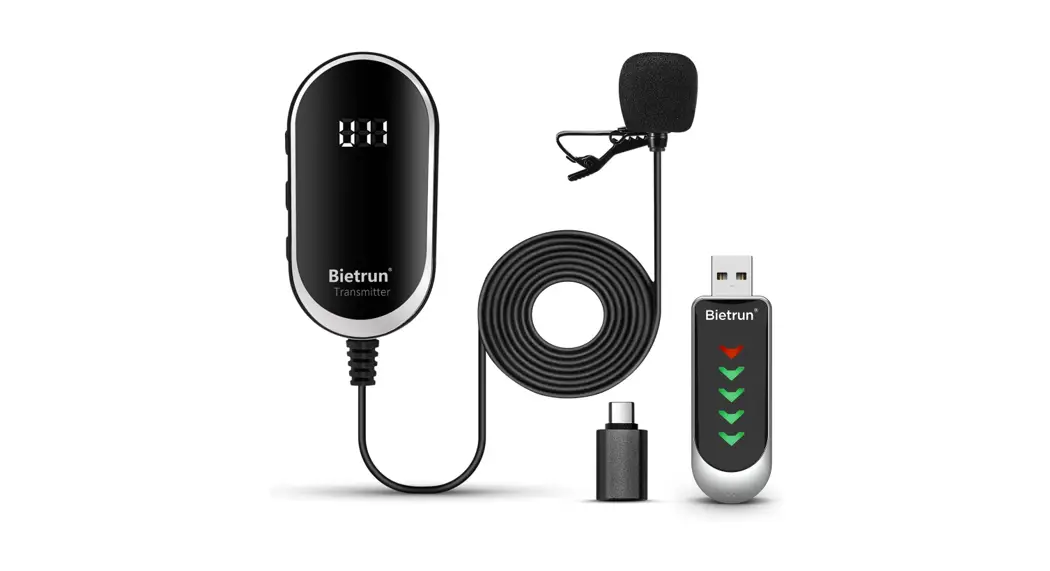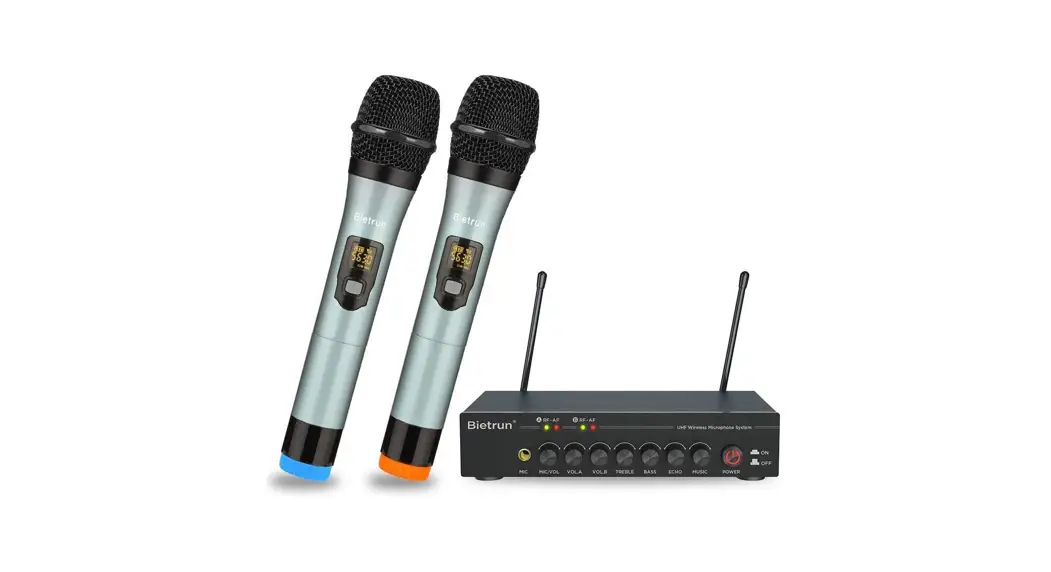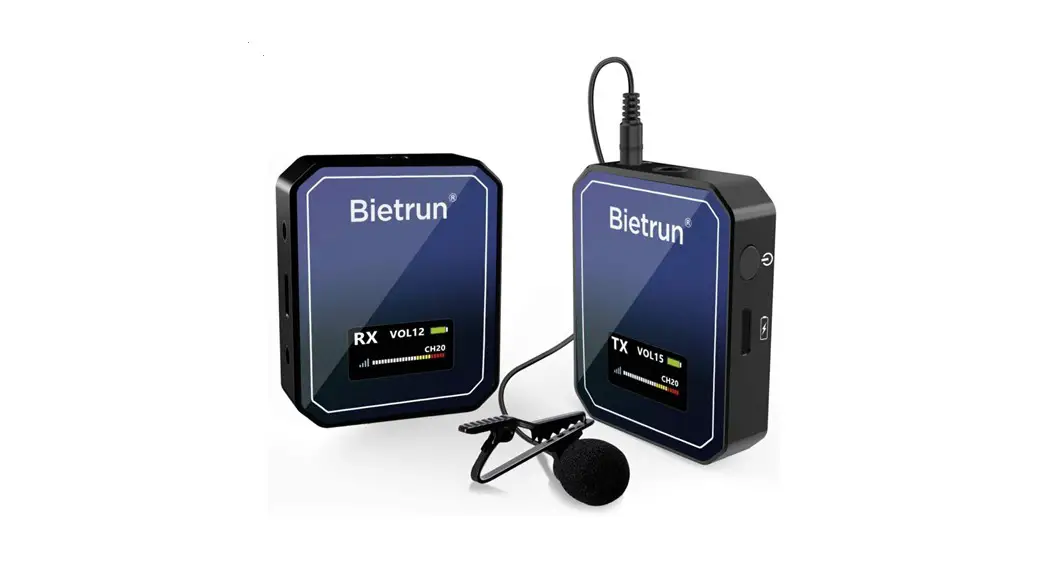

Professional Camera Wireless Microphone Set
User Manual
Product Information
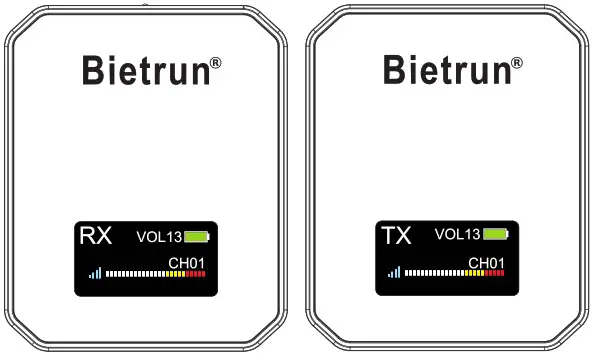
- This pickup adopts UHF frequency band transmission, which has the characteristics of multi-channel, long transmission distance, strong anti-interference ability, short delay time, low power consumption, clear sound quality, and simple operation.
- The product has a built-in high-performance polymer battery, which is more convenient to carry, and is widely used in education, performance, entertainment, audio/video recording, etc.
Attention
- Please read and follow all warnings before use, operate this product according to instructions, and keep this manual for further reference
- Non-professionals do not disassemble this product privately
- If you haven’t used this product for a long time, please charge this product before using it to activate it
- Please use the charging cable provided with this machine and make sure the charging voltage is 5V.
- This product is not waterproof, please do not sprinkle water on the product or use the product in water.
- This product has a built-in battery, please do not put it in the fire, so as not to cause fire or burning
Feature introduction
- Multi-channel UHF segment wireless transmission, stronger anti-inter ference performance, more reliable transmission
- Advanced automatic frequency matching technology, multi-channel selection, just keep the channel consistent to use it
- Built-in high-performance polymer battery, can last 4 hours effectively
- Built-in LCD liquid crystal display, so that the receiver and transmitter are easy to see and control
- Wide range of use, suitable for education, performance, entertainment,audio/video recording, etc.
Product description
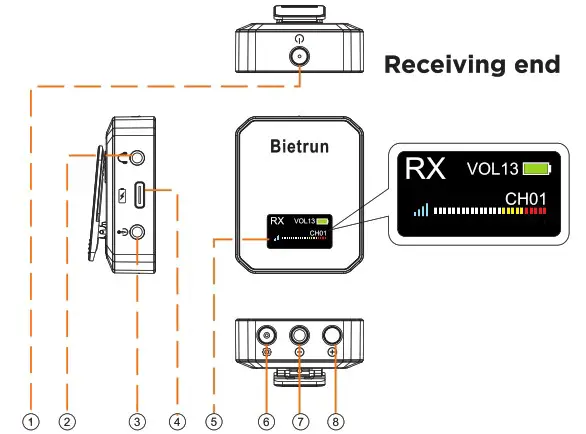
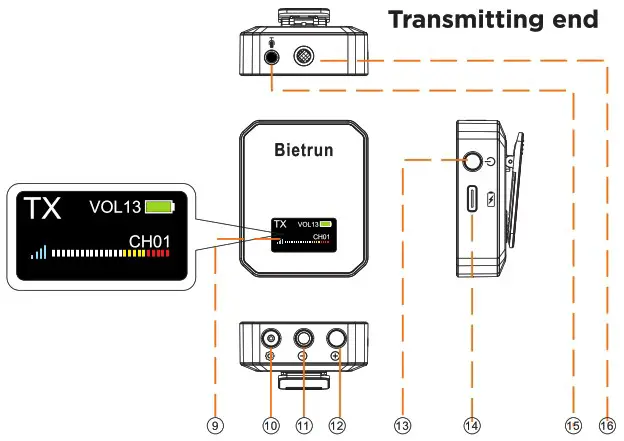
| Serial NO. | Part Name | Function Description | Notes |
| 1 and 13
| Power and Bluetooth butter | 1. Long press the power button for 2 seconds to turn it on. and enter the default working state (default channel CHO1, default volume level 13), and long press the power button for 2 seconds to turn it off 2. Short press to enter mute mode when power on, short press again to release mute mode | When unable to power on, please charge this product |
| 2. | Receive! monitor port | After inserting the earphones, you can monitor the current sound pickup effect in real time | |
| 3. | Receiver recording port | 3.5mm interface, applicable to devices such as mobile phones, cameras. Pads, computers, etc. | |
| 4 and 14 | Charging port | 1. It can be charged with conventional computer USB ports, powerbanks, USB charging heads, etc. It is recommended to use DCSV 1A power supply equipment to charge this unit 2. Built-in charging protection circuit, can be connected to a computer or charger for a long time 3. Choosing a 5V 1A charger generally can be fully charged in 3H, too small current will extend the charging time | 1. Please charge this product in the off state 2. The battery cursor Jumps when Charging, and the battery Icon shows 100% after charging is completed 3. Due to the characteristics of the battery, if you do not use the machine for a long time, charge it at least once a month to protect the battery life |
| 5 and 9 | Display screen | 1. Receiver working status, including volume, battery status, channel, signal, level information 2. After power on, without any key operation, the display will enter the power saving mode after “30 seconds” with backlight, and the display backlight will turn off. Press any key to re-highlight the display backlight | 1. When the battery power icon turns from green  to red to red  ,it means that the power is about to run out, please charge the product in time ,it means that the power is about to run out, please charge the product in time2. When the signal icon turns from light blue.  to gray to gray  , it means that the receiver and transmitter are not connected. Please check if the channels of the receiver and transmitter are the same , it means that the receiver and transmitter are not connected. Please check if the channels of the receiver and transmitter are the same |
| 6 and 10 | Set key | 1. Short press the key on the  LCD display to indicate the character jumping to enter the channel adjustment, short press again to cancel the channel adjustment LCD display to indicate the character jumping to enter the channel adjustment, short press again to cancel the channel adjustment2. When this product and other equipment have interference in the same frequency band or large environmental interference, you can press this button to switch channels. this machine comes with 50 channels | 1.This function can be used after changing the channel at the same time as the transmitter 2.No need to switch channels when there is no interference |
| Note: The setting method of the receiver and transmitter is the same. When setting the channel, you must ensure that the channel “CH’ — numbers of the two devices are the same, otherwise the devices will not be able to pair and connect, which will affect the use. | |||
| 7 and 11 | Volume-/channel- | 1. Short press the key  to decrease the volume, long press to adjust the volume steplessly. When the volume prompt character displays VOLOO. it means that the volume has been adjusted to the minimum. to decrease the volume, long press to adjust the volume steplessly. When the volume prompt character displays VOLOO. it means that the volume has been adjusted to the minimum.2. When adjusting the channel. short press the key to switch the channel, long press to adjust it steplessly, when the channel is adjusted to CH01, the channel has been adjusted to the lowest level | 1. When the volume is adjusted to VOLOO, it means that the volume is at its lowest, and pressing this key again is invalid 2. When the channel Is adjusted to CHO1, it means that the channel is the lowest, and pressing this key again is invalid |
| 8 and 12 | volume+/channel+ | 1. Short press the key  to Increase the volume, long press to adjust the volume steplessly. when the volume prompt character displays VOL15, it means that the volume has been adjusted to the maximum. to Increase the volume, long press to adjust the volume steplessly. when the volume prompt character displays VOL15, it means that the volume has been adjusted to the maximum.2. When the channel is adjusted, short press the key again to switch the channel, long press for step-less adjustment, when the channel isadjusted to CHSO. the channel has been adjusted to the highest | 1. When the volume is adjusted to VOL15, it means the volume is the highest, and pressing this key again is invalid 2. When the channel is adjusted to CHSO. It means that the channel is the highest, and pressing this key again is invalid |
| 15. | Microphone input | External microphone input to the transmitter | Support lavalier microphone, headset microphone. gooseneck microphone |
| 16. | Built-in microphone | The sound is output to the receiver |
Device connection
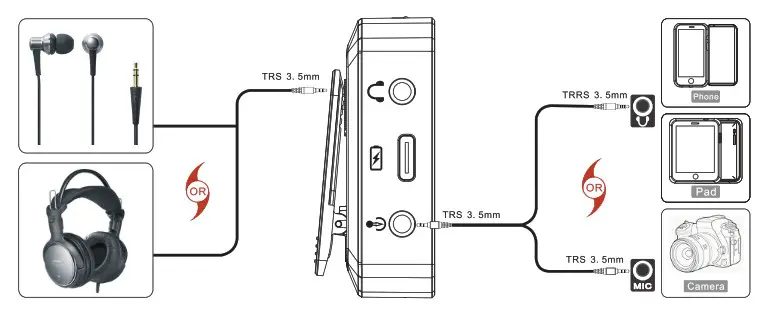
- Receiver, 3.5mm earphone monitor, volume recording interface and device connection diagram (mobile phone, Pad, camera, computer)
 1.1 Insert the receiver into the card slot on the shoe of the camera
Note:
1) There are two types of audio cables, one is three-section to three-section 61 cable, and the other is three-section to four-section cable. Please select the 7 cable according to the device interface an
2) Some mobile phone outputs are Type-C or Lightning output ports, which the need to be used with a mobile phone converter to convert to a 3.5mm headphone jack
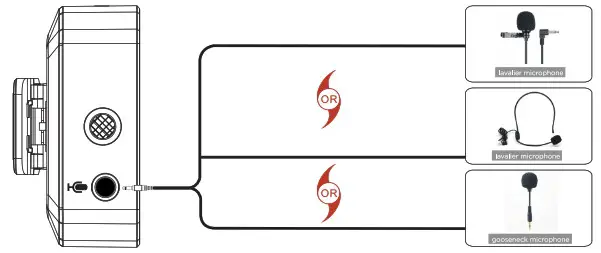
3) If your mobile phone has a lightning or Type-C interface, you need to ap convert the lightning or Type-C interface to a 3.5mm trr for connection. Please purchase from an official certified store according to the nature of the interface The transmitter is connected to a 3.5 microphone input port, supports lavalier microphones, headset microphones, and gooseneck microphones. ,
Remarks: This product comes standard with a lavalier microphone Note:
Note:
Please choose a single-channel 3.5mm connection plug, DO NOT USE TRS or TRRS plugs, otherwise it may not be able to pick up the sound or the sound pickup effect is not good
 1.1 Insert the receiver into the card slot on the shoe of the camera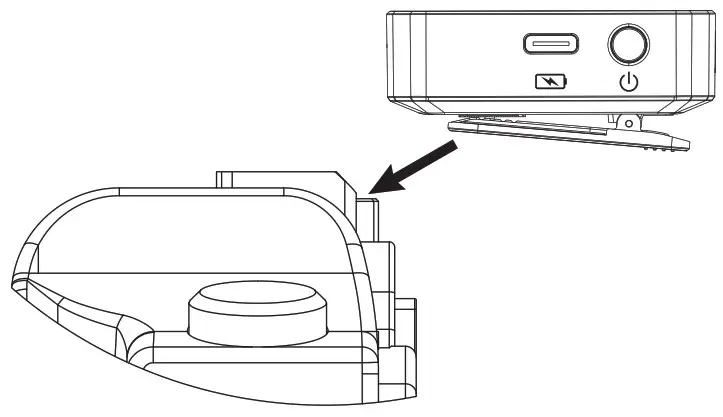
 Note:
Note: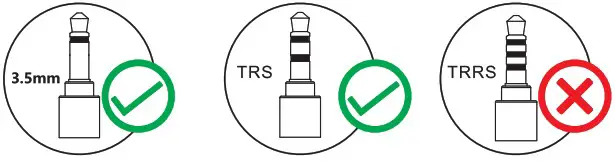
Save function after shutdown
- The channel function of this product is related to machine memory, and the channel set before the last shutdown will be remembered when the machine is turned on.
- The volume has no memory function. Please adjust the volume appropriately according to the scene when it is turned on.
How to fix problems
| Cannot be turned on | 1. Check whether the battery is exhausted 2. The built-in battery of this product has a dormant function. If it is not used for a long time, first charge it to activate the product |
| Not charging | 1. Check whether the power adapter is powered on 2. Check whether the cable and the charging plug of the machine are inserted in place. |
| No sound | 1. Check whether the volume of the transmitter and receiver is adjusted to VOLOO 2. Check whether the transmitter and receiver are muted 3. Check whether the transmitter and receiver are in the same channel CH•’ 4. Check the signal according to the above device connection guide. Check whether the signal input and output wiring Is correct |
| The recording sound is too small | 1. Adjust the volume of the transmitter; 2. Adjust the volume of the receiver: 3. Adjust the direction and distance between the transmitter microphone and the mouth. |
| Intermittent sound | 1. Shorten the distance between the transmitter and the receiver, and there should be no obstacles between the transmitter and the receiver. 2. There may be wireless interference in the use environment, change the channel to avoid peripheral wireless signal interference |
| Weak signal | 1. Check whether the transmitter and receiver antenna signal connections are normal 2. Check if there is signal interference around, change the channel to avoid external wireless signal interference |
Product parameter
| Input parameters | 5V/1A | Frequency range | UHF segment |
| Type of battery | polymer | Frequency bandwidth | 20Hz-20KHz |
| Battery capacity | 650mAh | Transmission distance | About 20in |
Packing list
1x Receiver
1x Transmitter
1x User manual
1x Camera cable
1x Smartphone cable
1x Lavalier microphone
1x One for two Type-C charging cable
FCC Warning Statement
Changes or modifications not expressly approved by the party responsible for compliance could void the user’s authority to operate the equipment. This equipment has been tested and found to comply with the limits for a Class B digital device, pursuant to Part 15 of the FCC Rules. These limits are designed to provide reasonable protection against harmful interference in a residential installation. This equipment generates uses and can radiate radio frequency energy and, if not installed and used in accordance with the instructions, may cause harmful interference to radio communications. However, there is no guarantee that interference will not occur in a particular installation. If this equipment does cause harmful interference to radio or television reception, which can be determined by turning the equipment off and on, the user is encouraged to try to correct the interference by one or more of the following measures:
- Reorient or relocate the receiving antenna.
- Increase the separation between the equipment and receiver.
- Connect the equipment into an outlet on a circuit different from that to which the receiver is connected.
- Consult the dealer or an experienced radio/TV technician for help.
This device complies with part 15 of the FCC Rules. Operation is subject to the following two conditions: (1) This device may not cause harmful interference, and (2) this device must accept any interference received, including interference that may cause undesired operation.
The device has been evaluated to meet general RF exposure requirements.