AQP DASHCAM M3 Full HD 1080P Car Camera Owner’s Manual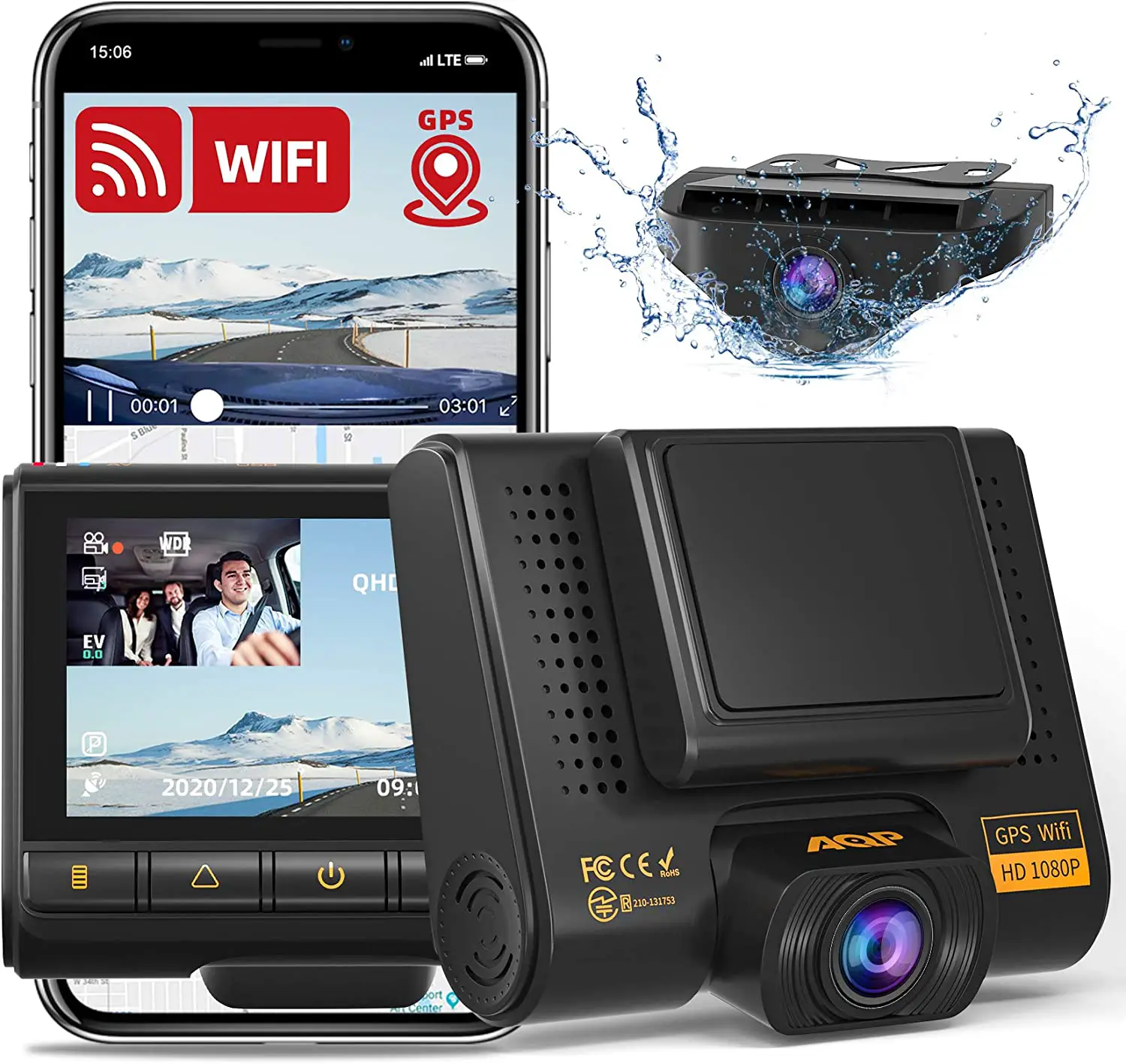
Package Contents
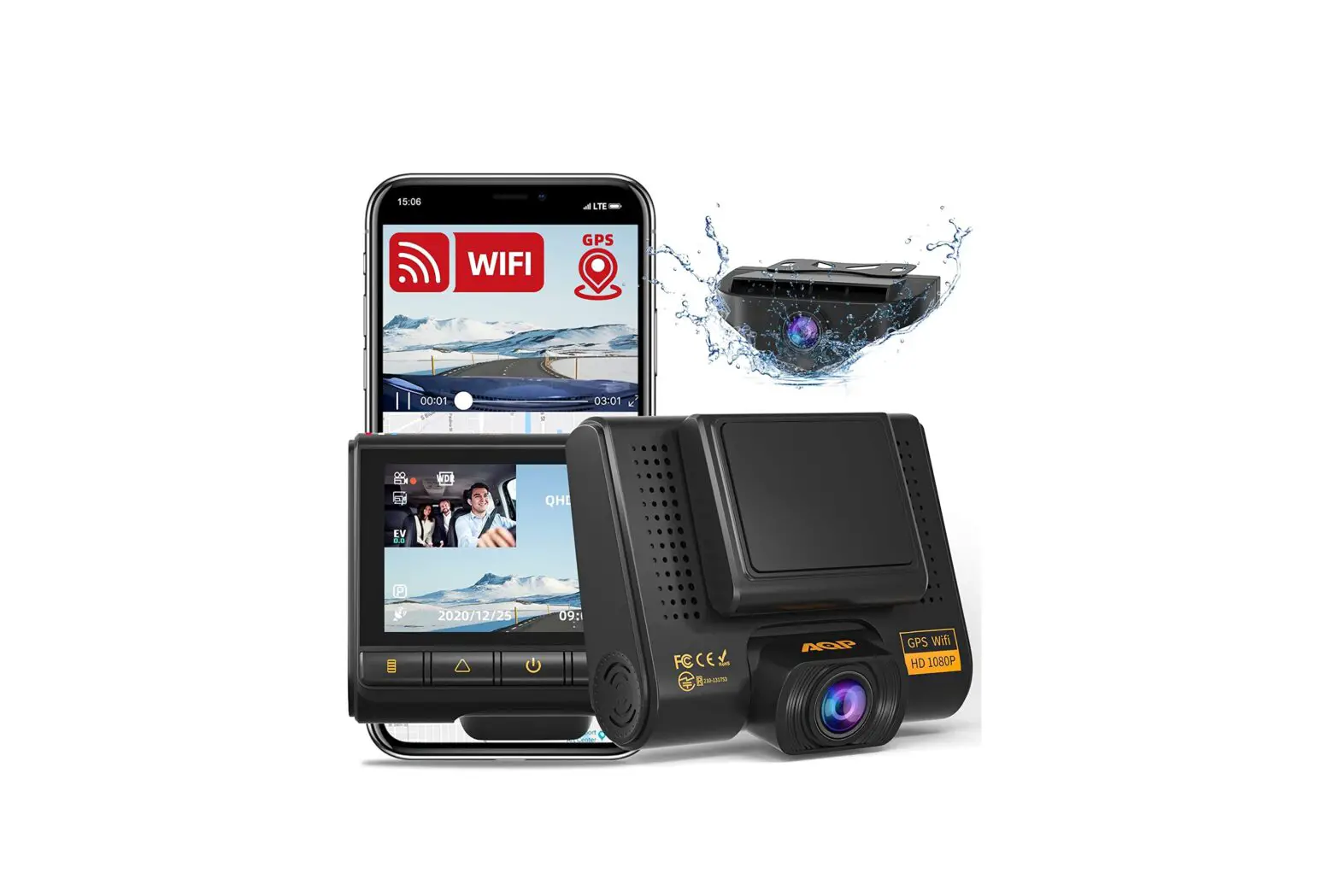
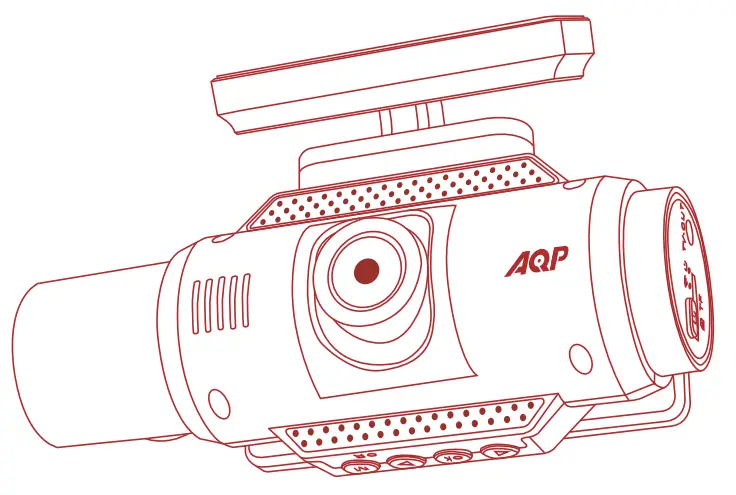
- AQP M3 Dash Cam

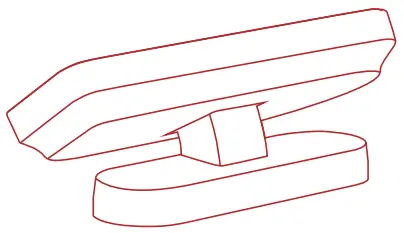
- GPS Module

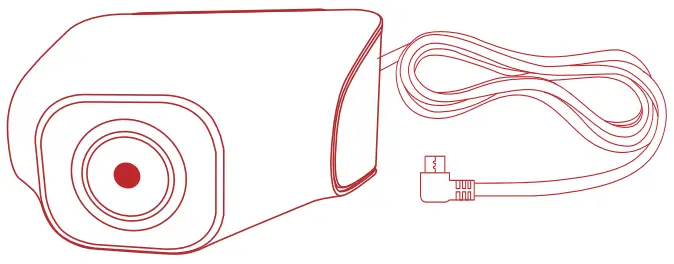
- Rear camera

- Trim Removal Tool

- 2-Port USB Car Charger + Cable (10ft)

- 2*3M Adhesive Mount

- Owner’s Manual

- After sales card






Safety Instructions
Please read and understand all instructions before using this product. If damage is caused by the failure to follow the instructions, the warranty does not apply.
- Keep these instructions.
- Do not drop, puncture or disassemble this product.
- This product shall not be exposed to dripping or splashing.
- Avoid long exposure to direct sunlight, which may cause damage.
- Exposing this product to open flames may cause explosion.
- Use original accessories only.
- Do not install this product where it will block the driver’s view of the road or the deployment of the airbag.
- Keep your attention on the road. Do not operate the controls of this product while driving.
- Ensure the camera lens is kept clean and there is nothing to block the lens.
- Set up time and date accurately before using this product.
- Do not use the charger if the cord is damaged or broken.
- Remove this product from your vehicle when not in use for a long period.
- Keep out of reach of children.
- Use clean, soft cloth to clean. Do not use any corrosive cleaner/oil to clean.
- The Company is NOT responsible for the loss of any data/ content during operation.
At a Glance
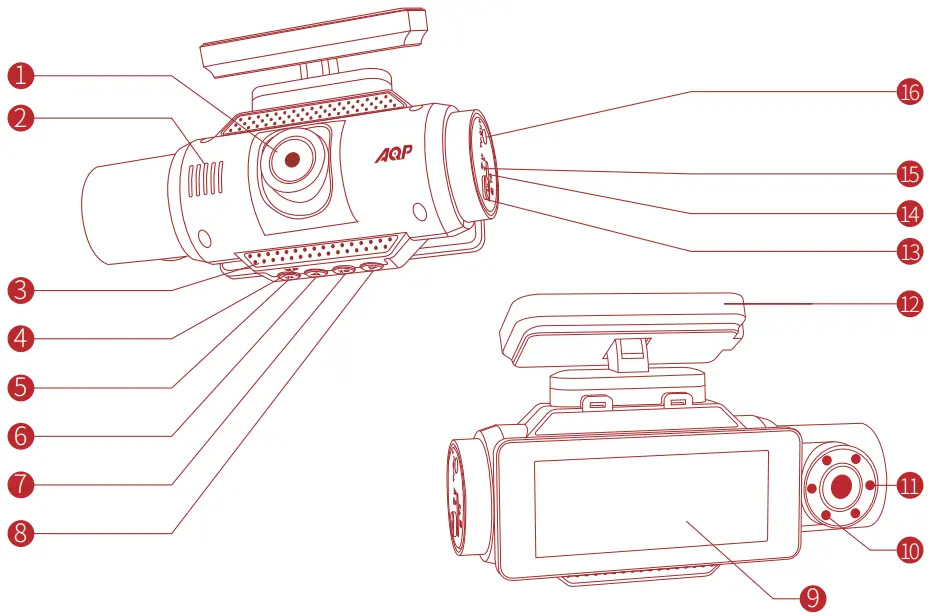
- Camera lens
- Microphone
- Air vent
- Reset button
- Menu button
- Next track
- Confirm button
- Previous piece
- LCD screen
- Rear face lens
- IR light
- GPS module
- Switch button
- TF card slot
- LED indicator
Charging indicator: red, charging is always on, and fully on and off.
Recording indicator: blue, steady on in preview state. Flashing during recording, flashing every second.
WIFI indicator: Orange, blinking when not connected when WIFI is turned on, flashing once per second, connection is successful, and it is always on. - TV-Out
Inserting Memory Card
 Do not remove or insert microSD / TF card when this product is powered on, which may damage the card.
For reliable operation, use a Class 10 microSD / TF card. For a 64GB/128GB card, format it before using. It is recommended to format the card regularly.
| Card Capacity | 3840*2160 30fps | 2560*1440 30fps + 1920*1080 30fps | 1920*1080 30FPS+ 1920*1080 30fps |
| 32GB | 177min | 217min | 355min |
| 64GB | 354min | 434min | 710min |
| 128GB | 708min | 869min | 1420min |
The above data is for reference only. It is subject to actual usage.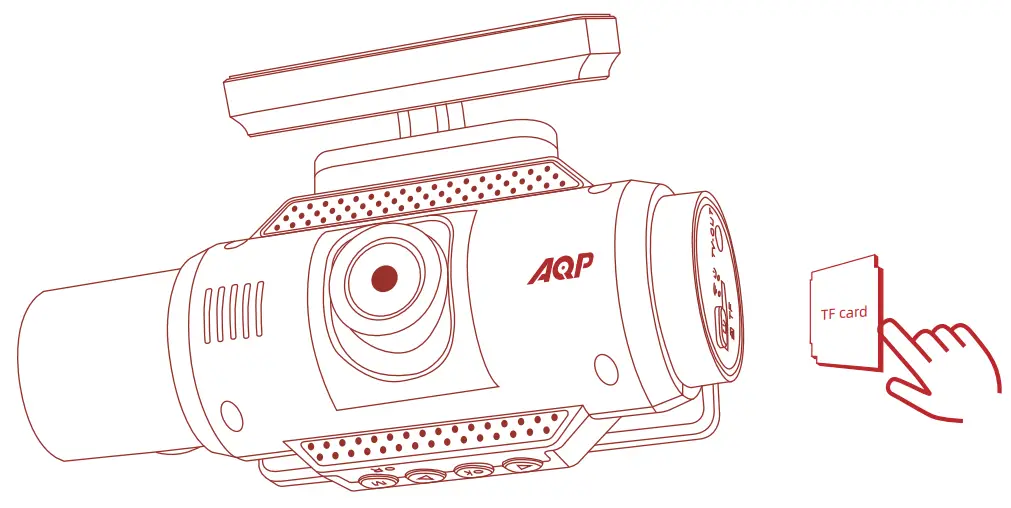
- Insert the metal contacts towards the back (One side of front camera) of the driving recorder. Please press hard and click.
- To remove the card, gently push its top edge inward until it clicks, and then pull it out of the slot.
Installing Your DashCam
- Never install this product while driving.
- Install this product near the rear-view mirror to obtain the best open-field view. Do not install in a location that will obstruct your required driving view.
- Make sure that the lens is within the wiping range of the windscreen wiper to ensure a clear view even when it rains.
- Do not touch the lens with your fingers. Finger grease may be left on the lens and will result in unclear videos.
- The mount is adhesive and may be destroyed if it is removed from the windshield.
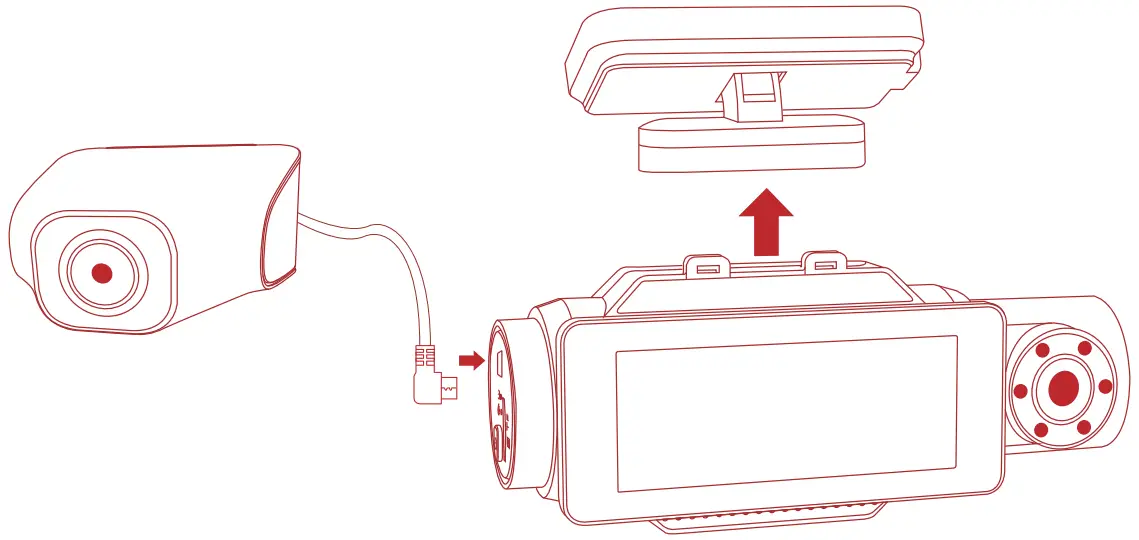
- Attach the DashCam onto the mount.

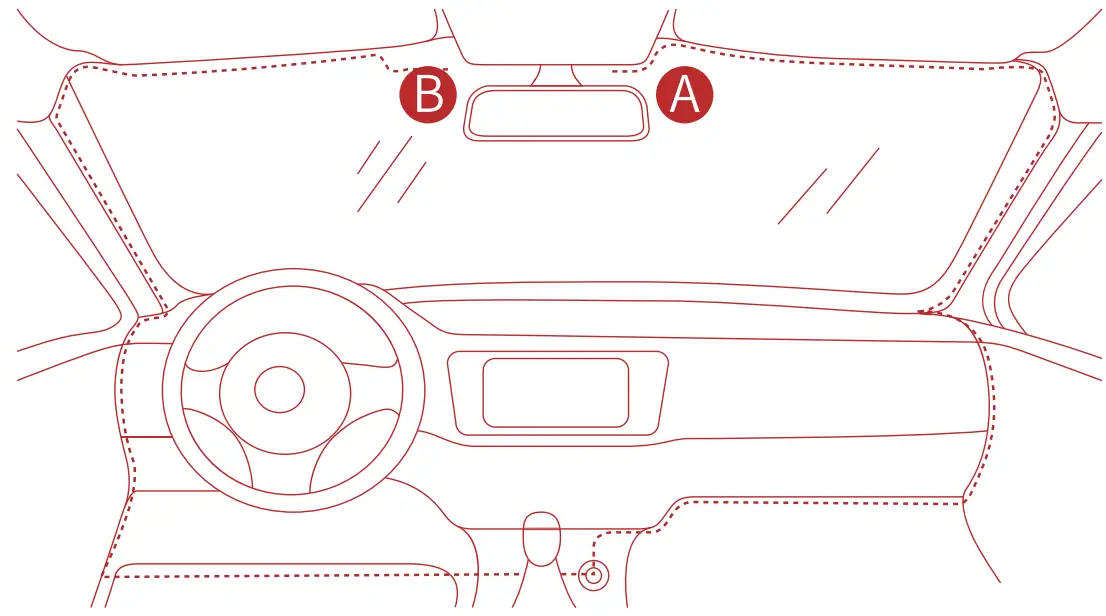
- Select a location (A or B) on the windshield behind the rear-view mirror, clean with clear water and make it fully dry.
- Remove 3M adhesive sticker and firmly affix the mount onto the windshield.
- Use the crowbar to press and hide the charging cable into the seams and weather strips around the edge of the dashboard.
- Adjust the lens viewing angle to ensure that it is aligned with the road ahead.

Connecting to Power
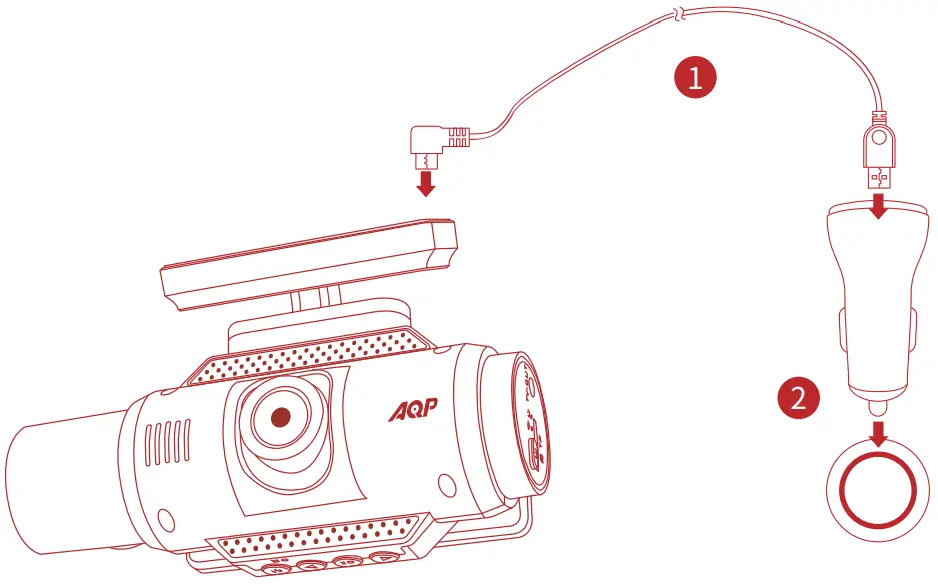
- Connect the car charger and DashCam by using the charging cable.
- Plug the other end of the car charger to your vehicle’s cigarette lighter socket.

- Once the car engine is started, DashCam will automatically power on and start recording. Once the car engine is shut down, DashCam automatically saves the recording and turns off within 3 seconds.
Downloading AQPCAM App
Search “AQPCAM” in App Store or Google Play to Download.


Connect DashCam with Smartphone
When successfully connecting with your smartphone via built-in Wi-Fi, you can save and playback the driving recording videos on your smartphone. You can also change settings of the DashCam via AQPCAM app.
 After successful connection, please set up on the mobile phone.
- Android phones do not have access to the Internet data while connecting to DashCam’s Wi-Fi. iOS devices can still work normally
- Click Menu button twice and select “WiFi”> “On” to enable WiFi on DashCam.
- Enable WiFi on your smartphone, find “NVT_CARDV******” on the list and connect it, enter password (initial password:12345678) if required.
- Follow the instructions on your smartphone to complete the connection.
Using Your DashCam
As a driver, you have full responsibility to drive safely and adhere to all applicable traffic regulations.
Record Videos
- When connected to a car charger, DashCam automatically starts recording,
The red dot on the upper left corner of the screen blinks, the current recording ,Upper right corner duration is displayed, and the current date and time is displayed.
 - Press the
 button to start recording or stop recording. When the recording is stopped, long press to turn on WiFi, long press to turn on or off recording
 is displayed, and the current date and time is displayed.
 to turn on WiFi, long press
  to turn on or off recording
Protect the Current Recording
By default, DashCam uses a sensor to automatically detect accidental collisions and protect the video file with duration of 30 seconds, and is displayed. This indicates that those recordings have been locked and will not be overwritten by new video clips.
To protect the current recording manually, tap  ,Press
 to unlock
Playback Videos
The DashCam stops recording while viewing videos or settings.
- Press the button to pause/start shooting, when the shooting mode is paused, long press the
 button to enter the photo mode, and long press the button again to switch to the playback mode. The playback icon is displayed in the upper left corner of the screen, long press the button again to return to the shooting interface.
 - Select a video to playback
Touch Button Function 
SLohnogrtpprreessss::pTouwrneroonn/ /ooffffthe screen Sspthaeotvurtsp(mreessn:um) ,eRneucsotradtiunsg(staittucsh (mannuu)a,Vl ildoecok)p,rPehvoietwo Lor ngiepwre(sms:eNnoun) e, Video playback (menu)
ssthaotrutsp/(revosidose: moisetnautussta(eStuwsit(cuhpwbaaccrdk asenrldecfiotirotnh)fi,l VPihdoetoopprreevviieeww Ltoantg przess:mLonn)g, pVridesso: pvildaeybo prkev(piewevsotautsus /ev) ideoStatus / photo preview (on / offWiFi) , Video playback (rewind)
sL(zhooormt poreusts),: vmideenoupsltaaytubiesawc(dko(nwenxtsefilleec)tion) , photo preview porenvgiepwre(sosp: evnid/eoclopsre videostsaotund/ )v,ivdiedoeostpaltauysb/apchkoto
(fast forward)
Sp(shtaorrtt vpirdeesos:rmewceo(nrudisntga)t,uvsid(ceoonsfitarmtu)s, v(sidtoepo vpirdeevoierwecstoartduisng), L(phlaoytobpapcerkev/iepmaeunspeh)oto recording), video playback view status
(sownigtchrmsos:de), puhostotpurse(vsiwewitc(hswmitecnhum), oviddee)o, vpidreeo playback (switch mode)

System Setup
To adjust DashCam’s settings, tap
| Menu Options | Description | Available Options |
| Video | Adjusting parameters of taking video | QHDP30 |
| Resolution Dual-lens Recording | Set a desired video resolution. | FHD PF3H0D+PFH30D+PFH30D+PF3H0D P30 |
| Dual-lens Recording | Enable dual lens or single lens | Off/On Off/ |
| Loop Recording | Set the duration of each recording video clip. | 1Minute/3Minutes/5Minutes |
| WDR | Wide Dynamic Range | Off/On |
| G Sensor | Sensitivity for gravity helps to detect vibration and shock while driving and makes DashCam to respond appropriately | Off/Low/Medium/High |
| Exposer | Adjust exposure compensation value according to the environment | +0.-05//3-1//3-2/.0-2//+32/.0-1/.0+5//-34/ / +4/3 / +1.0 / +2/3 / +1/3 |
| Motion Detection | When the machine is working, it will start shooting videos if the motion is detected (It is recommended to turn off this function, which may generate a large number of recording files) | Off / On |
| Record Audio | Recording sound while recording video | Off / On |
| Date Stamp | Presentation date stamp when taking video or pictures | Off / On |
| Parking Guard | Parking guard eatures, File will be locked | Off / On |
| Setup | ||
| WIFI | Use Use WiFi to connect Mobile Apps | Off/On |
| Date/Time | Time/date modification | YY/MM/DD |
| Auto Power Off | Time setting of automatic shutdown after pausing video | Off/1Minutes/3Minutes/5Minutes |
| Backlight | The screen turns off automatically, but will record normally | Off/1Minute/3Minutes/5Minutes |
| Beep Sound | Beep sound setting | Off/On |
| Language | Choose the language that is right for you | 10 languages |
| Frequency | Choose the appropriate frequency according to local specifications | 50HZ/60HZ |
| GPS | Turn on or off GPS positioning | Off/On |
| Time zone Setting | Choose the local timezone | UTC/GMT+12:00 ~ -12:00 |
| Speed Unit | Current speed display unit | Speed Unit:KM/H / Speed Unit:MPH |
| Format | Clean up all videos and photo files | All date will be deleted:Cancel/Ok |
| Default Setting | Return to the original state | Return menu setting to defaults:Cancel/Ok |
| Version | Version number of current product | M3_20200630 |
Specifications
 Specifications are subject to change without notice.
- Screen: 3.16″ IPS (376×960)
- Camera sensor: Front facing Lens Sony Exmor IMX 307
- Rear facing Lens AHD1080P
- Camera lens: wide-angle lens 170°/150°/150°
- Chipset: Novatek NT96670
- Power input: 5V = 650MA
- Max video resolution: Front/rear 3840*2160 / 30FPS (1080P)
- 30FPS(1920*1080)
- Video clip format: NTSC/PAL
- Wi-Fi: 2.4GHz Band
- Battery capacity: 200mAh
- Operating temperature range: -10℃-55℃
- Storage temperature range: -20℃-70℃
- Weight: Approx 132g
- Size: 122*50*69mm / 4.8*1.9*2.7 in
FAQ
- Can not record?
- Check if the memory card is inserted properly and there is enough free capacity.
- Check the battery level.
- Blurred image?
- Use a clean, soft lens-cleaning cloth to gently clean the lens.
- Malfunction or crash?
- Short press the Reset button by using a sharp object to restart the machine.
- Blank screen?
- The screen saver is activated. Change settings to “Off” if required.
- Fail to view and playback videos on your smartphone?
- Check on your smartphone whether Wi-Fi is successfully connected to the DashCam.
- Worry about the memory card is full?
- Continuous loop recording allows to overwrite the old unlocked files.
- Will my data be used when my smartphone is connected with DashCam?
- No. Data will be used only if you share the saved videos via social apps.
Notice
 This product complies with the radio interference requirements of the European Community. Operating Frequency Range: 2400-2483.5 MHz; Max Output Power: 15 dBm
 This product is designed and manufactured with high quality materials and components, which can be recycled and reused.
 This symbol means the product must not be discarded as household waste, and should be delivered to an appropriate collection facility for recycling. Follow local rules and never dispose of the product and rechargeable batteries with normal household waste. Correct disposal of old products and rechargeable batteries helps prevent negative consequences for the environment and human health. Removal of the built-in battery invalidates the warranty and may destroy the product.
Always bring your product to a professional to remove the built-in battery.
FCC Caution:
Any changes or modifications not expressly approved by the party responsible for compliance could void the user’s authority to operate this equipment.
This device complies with part 15 of the FCC Rules. Operation is subject to the following two conditions: (1) this device may not cause harmful interference, and (2) this device must accept any interference received, including interference that may cause undesired operation.
This device and its antenna(s) must not be co-located or operating in conjunction with any other antenna or transmitter.
NOTE: This equipment has been tested and found to comply with the limits for a Class B digital device, pursuant to Part 15 of the FCC Rules. These limits are designed to provide reasonable protection against harmful interference in a residential installation. This equipment generates, uses and can radiate radio frequency energy and, if not installed and used in accordance with the instructions, may cause harmful interference to radio communications.
However, there is no guarantee that interference will not occur in a particular
installation.
If this equipment does cause harmful interference to radio or television reception, which can be determined by turning the equipment off and on, the user is encouraged to try to correct the interference by one or more of the following measures:
- Reorient or relocate the receiving antenna.
- Increase the separation between the equipment and receiver.
- Connect the equipment into an outlet on a circuit different from that to which the receiver is connected.
- Consult the dealer or an experienced radio/TV technician for help
To maintain compliance with FCC’s RF Exposure guidelines, This equipment should be installed and operated with minimum distance between 20cm the radiator your body: Use only the supplied antenna.
FCC ID: 2AUAA-M3
Apple and the Apple logo are trademarks of Apple Inc., registered in the U.S. and other countries. App Store is a service mark of Apple Inc., registered in the U.S. and other countries. Google Play and the Google Play logo are trademarks of Google Inc.
“Android” is a registered trademark of Google Inc. in the United States and other countries.
“iOS” is a registered trademark of Apple Inc. in the United States and other countries.
 12-month limited warranty
 Lifetime technical support
 Email: [email protected]