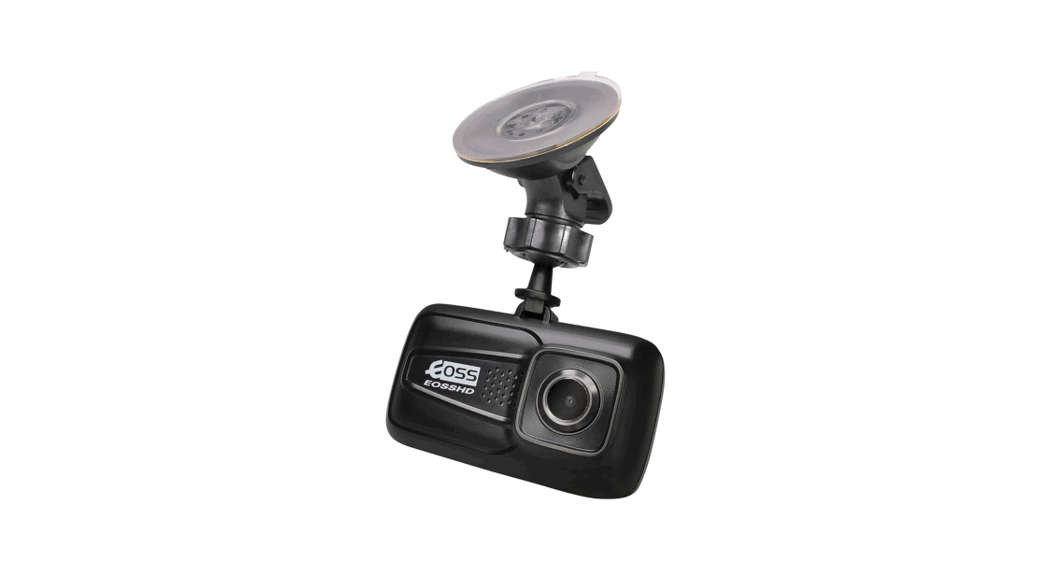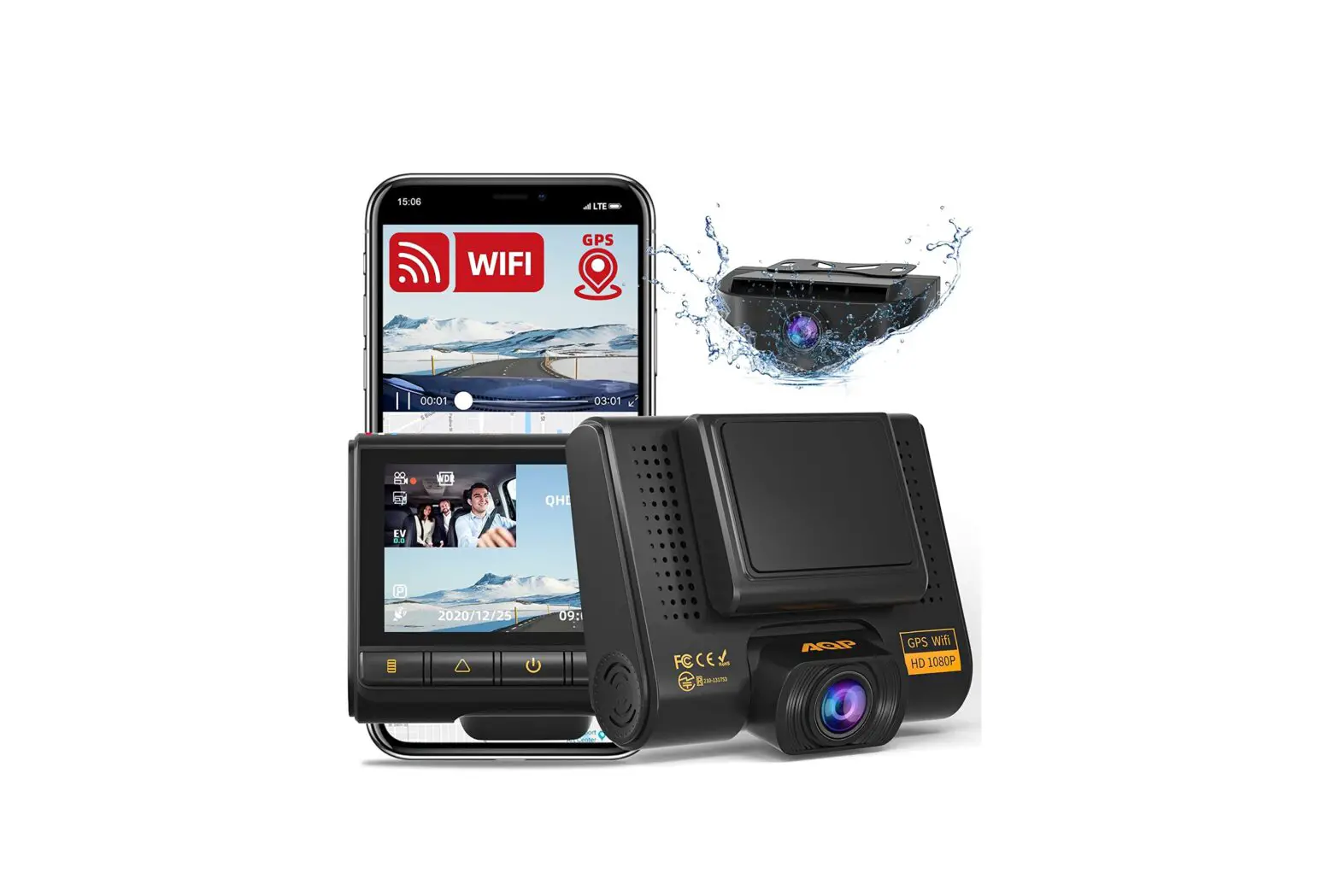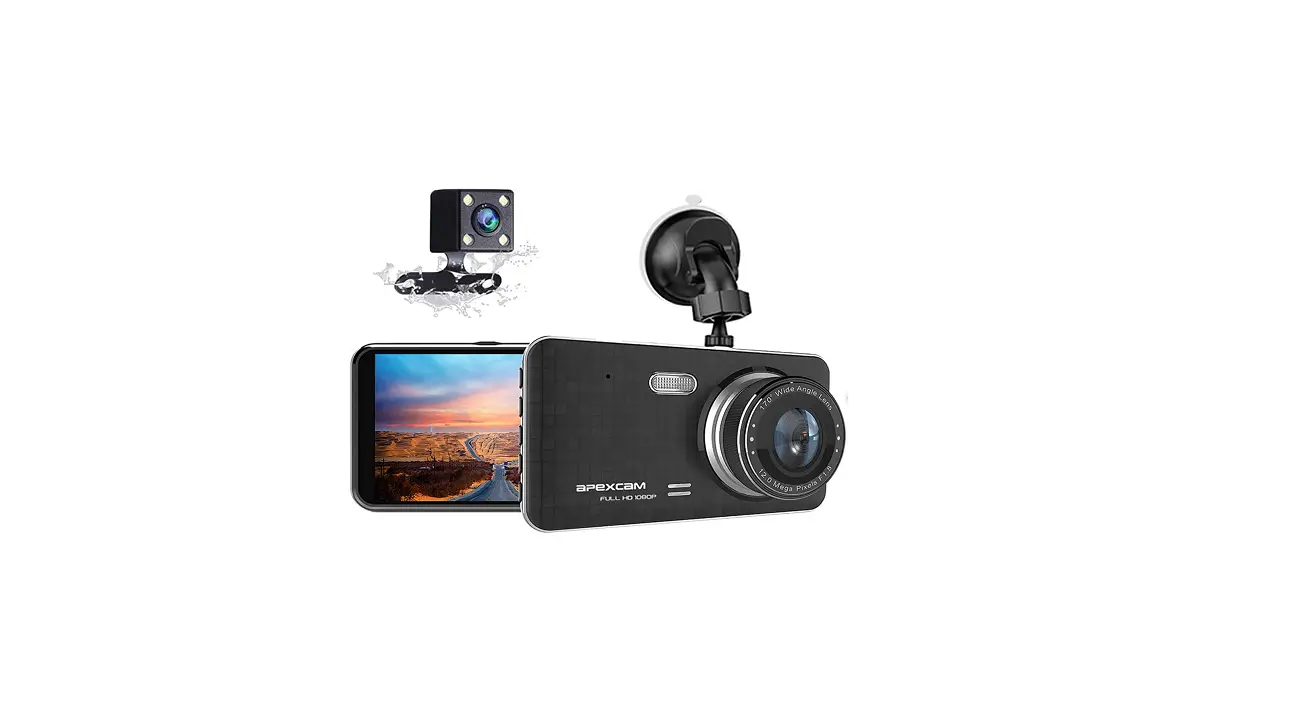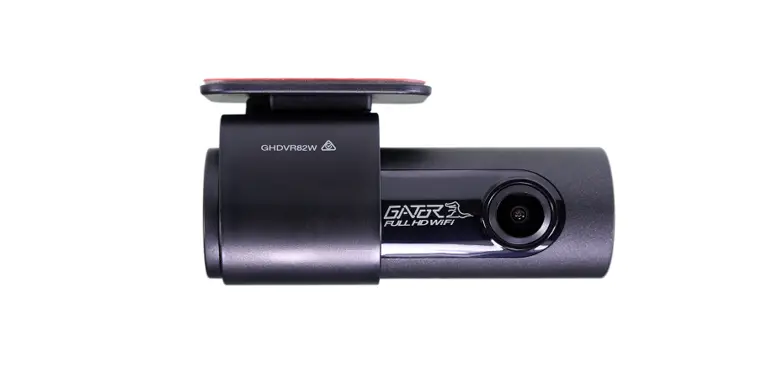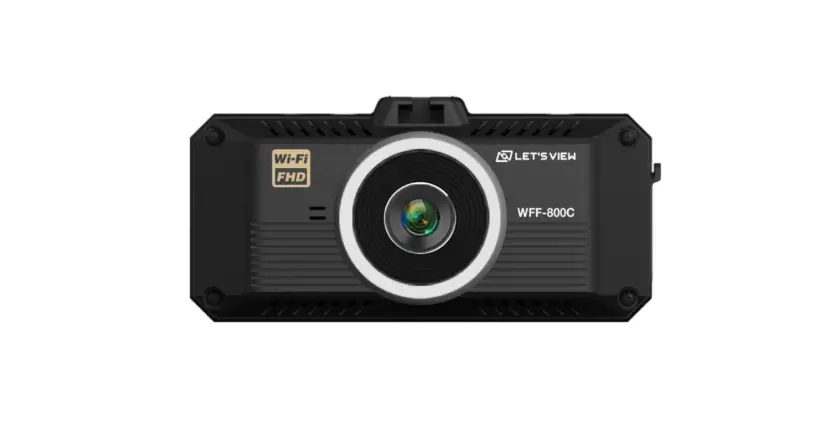
Let s View WFF-800C 1080p Full HD Car Dashcam User Manual
FCC Statement
This device complies with part 15 of the FCC Rules. Operation is subject to the following two conditions:
- This device may not cause harmful interference, and
- this device must accept any interference received, including interference that may cause undesired operation.
This equipment has been tested and found to comply with the limits for a Class B digital device, pursuant to part 15 of the FCC Rules.
These limits are designed to provide reasonable protection against harmful interference in a residential installation. This equipment generates, uses and can radiate radio frequency energy and, if not installed and used in accordance with the instructions, may cause harmful interference to radio communications. However, there is no guarantee that interference will not occur in a particular installation.
If this equipment does cause harmful interference to radio or television reception, which can be determined by turning the equipment off and on, the user is encouraged to try to correct the interference by one or more of the following measures:
- Reorient or relocate the receiving antenna.
- Increase the separation between the equipment and receiver.
- Connect the equipment into an outlet on a circuit different from that to which the receiver is connected.
- Consult the dealer or an experienced radio/TV technician for help.
This device should be installed and operated with minimum 20 cm between the radiator and your body.
Changes or modifications not expressly approved by the party responsible for compliance could void the user’s authority to operate the equipment.
Product information
 Full HD(FHD) Dashcam Front & Rear
- Front : Full HD 1920 X 1080p 30 frame
- Rear : Full HD 1920 X 1080p 30 frame
 Wi-Fi
Wi-Fi
- (Front & Rear) Video check to see in real time
- Store and change the settings
 Advanced Driver Assistance System(ADAS)
- Lane departure warning system(LDWS)
- Forward collision warning system(FCWS)
- Front vehicle start alarm(FVSA)
 GPS embedded
- GPS embedded offers navigation information support such as Time / Location / Speed / Direction.
 Various recording
- Provide normal (infinite loop)/ event/ manual recording
 Voice recording & guidance
- Assist voice recording with guidance
Component
Component: Here are components from us.
Please check to see them carefully as follows.
Body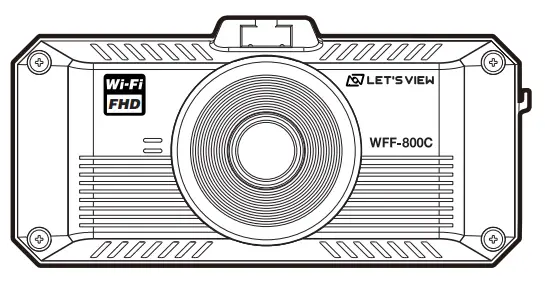
Cradle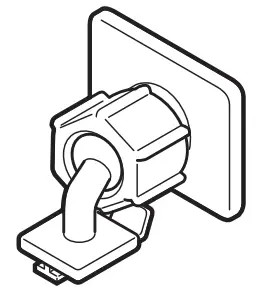
Rear camera / Cable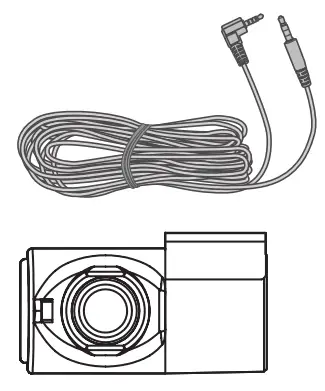
Micro SD card(Adapter)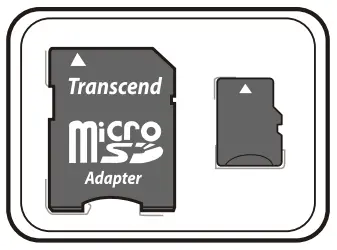
Cable clip(3EA)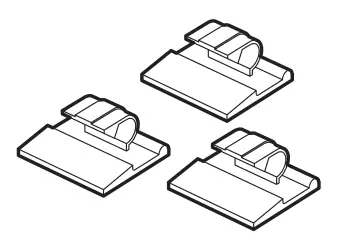
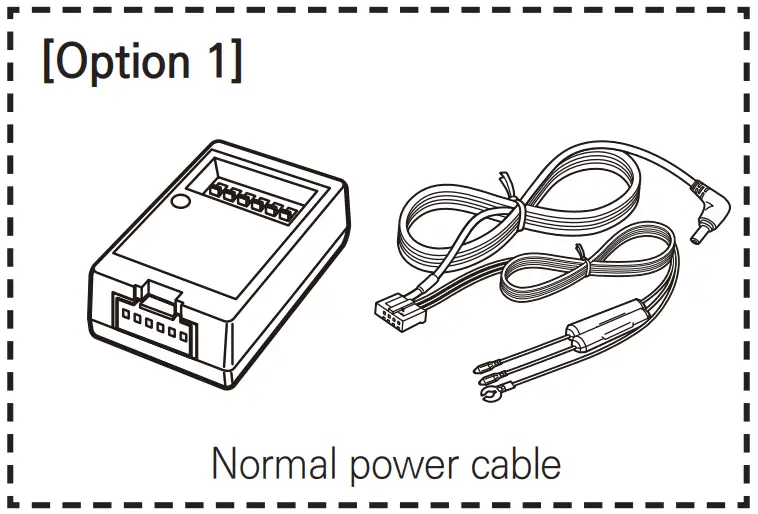
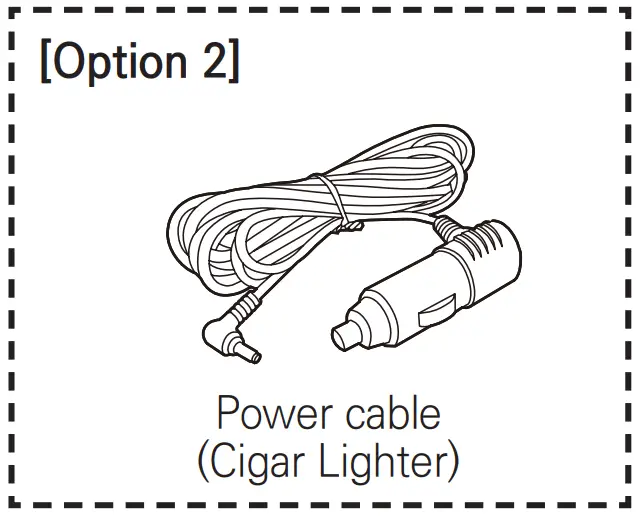
 [Guide]
- Components are subject to change for its feature and quality improvement without further notice.
Name and feature of each part
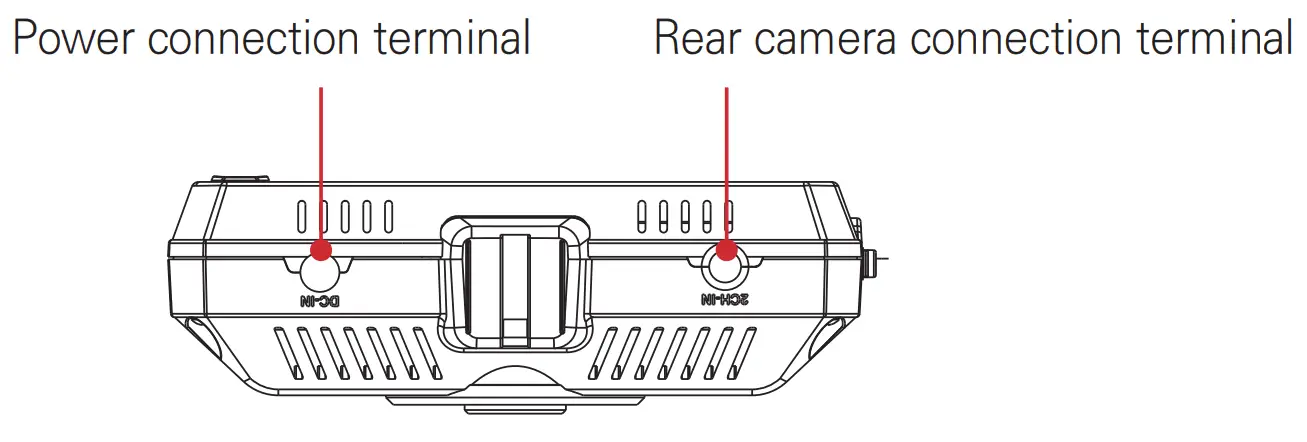
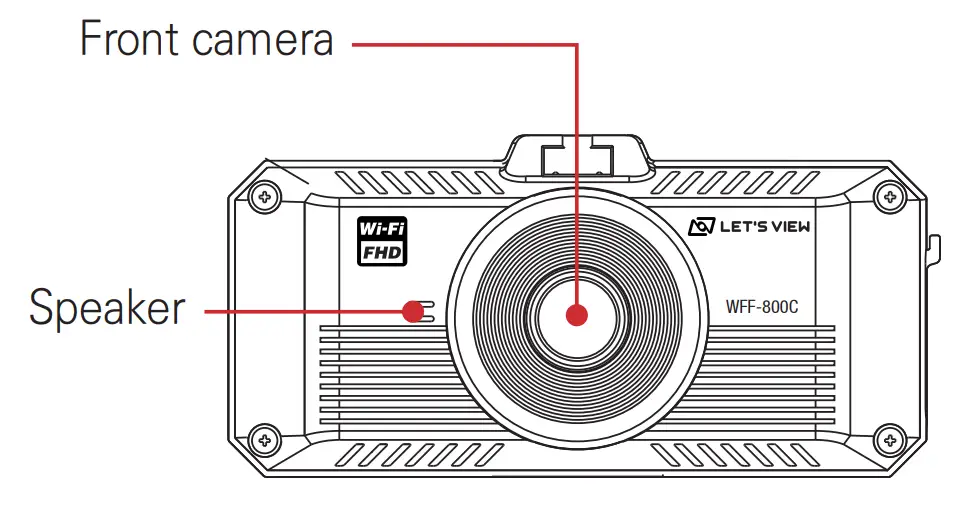
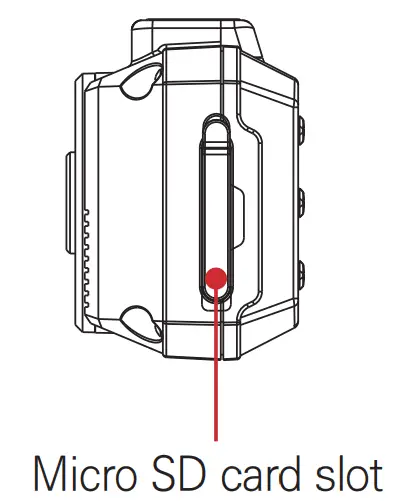
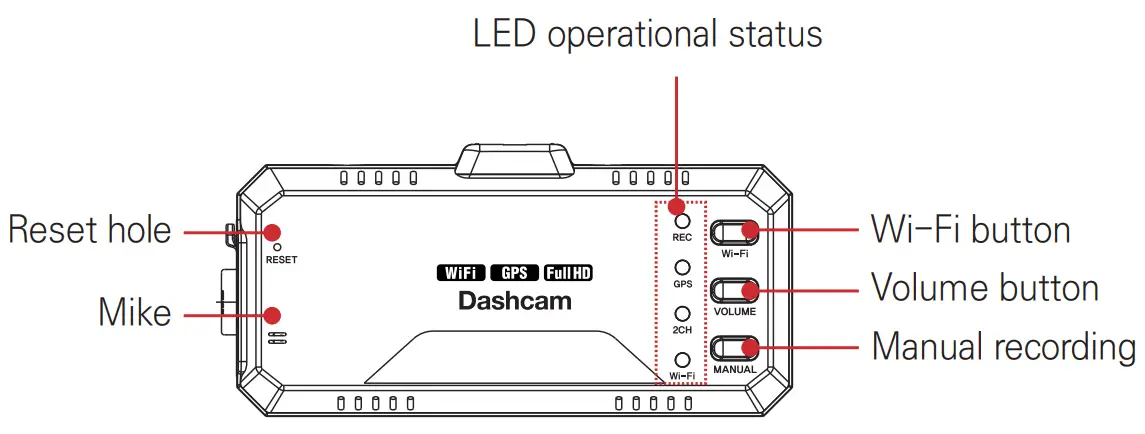
Specification
| Item | Content |
| Model | WFF-800C |
| Size (mm) | 97(W)mm x 47(H)mm x 33(D)mm |
| SD card capacity | Micro SD card 8GB~64GB |
| Recording mode | Normal (Infinite loop) Normal (Infinite loop) + Event Parking recording (Front & Rear Motion detection + Event recording) |
| Image sensor | Front : Sony sensor IMX307(2M Pixel) Rear : Sony sensor IMX323(2M Pixel) |
| Angle of view | Front : 140 (D) X 115 (H) X 60 (V) Rear : 127 (D) X 103 (H) X 54 (V) |
| Resolution | Front : Full HD (1920X1080) Rear : Full HD (1920X1080) |
| Frame per second | 1CH : Front : 30fps@max (Full HD) 2CH : Front : 30fps@max (Full HD) Rear: 30fps@max (Full HD) |
| Input power | 12~24V |
| GPS | GPS embedded |
| Wi-Fi | Smartphone playback & setting |
| Operating temperature / Storage temperature | -10℃ ~ +60℃ / -20℃ ~ +70℃ |
| SD card format | Support for SD card format on device |
| Backup power | Super cap embedded |
| Firmware update | Support for SD card update |
| Cut off low voltage on parking mode | Support from power cable for additional accessories |
Voice guidance
| Case | Comment |
| Normal (Infinite loop) recording | Start constant recording. |
| Event recording | Start event recording. |
| Manual recording | Start manual recording. |
| SD card format | Format SD card. |
| Without SD card | Insert SD card. |
| SD card error | SD card error. |
| GPS connection | GPS connected. |
LED behavior
| LED | Color | LED display | Status |
| REC | Green | Flicker slowly | Normal (Infinite loop) recording |
| Green | Flicker fast | Manual/ Event/ Motion recording | |
| Red | On | ETC (Format, Error, End) | |
| GPS | Green | On | GPS connection |
| Red | On | ETC (Format, Error, Disconnection) | |
| 2CH | Green | On | Rear camera connection |
| OFF | Off | Rear camera disconnection | |
| Red | On | ETC (Format, Error) | |
| Wi-Fi | Green | On | Wi-Fi connection |
| Red | On | ETC (Format, Error, FW update) | |
| Green | Flicker slowly | Wi-Fi connection, but not connected to smartphone |
Folder and file
Micro SD card folder
- The recording file is created on [INFINITE], [EVENT] folder in micro SD card automatically after filming.


| Folder name | Description |
| INFINITE (Normal recording) |
|
| EVENT (Event / Manual recording) |
|
| CAPTURE (Photo) |
|
File type
- Example(File name)

- Category
NNF: Normal (Infinite loop) recording
NEF: Event/ Manual recording

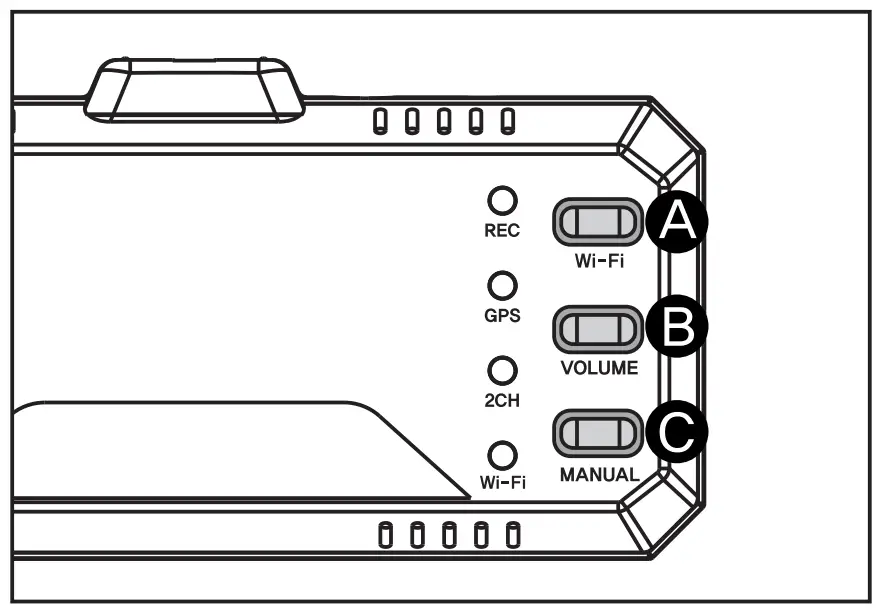
| Wi-Fi ON / OFF | A. Press button shortly. It can set Wi-Fi ON/ OFF. |
| Volume | B. Press button shortly to adjust volume. (3 -> mute -> 1 -> 2 -> 3) |
| Manual recording | C. Press button shortly for manual recording. |
How to connect smartphone
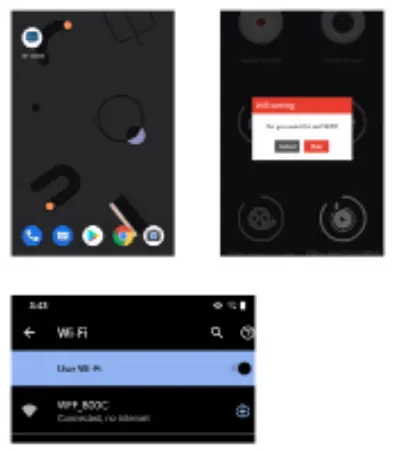
- After opening application, it can connect to Wi-Fi by touching menu.
- Setting value(Name) is ‘WFF-Unique ID’ and it can change later on (Unique ID means the original number combined MAC address of Wi-Fi module).
[Guide]
- It can delay recording in real time and playback according to smartphone.
- In case of Wi-Fi disconnection, please check to see Wi-Fi signal or its setup.
Button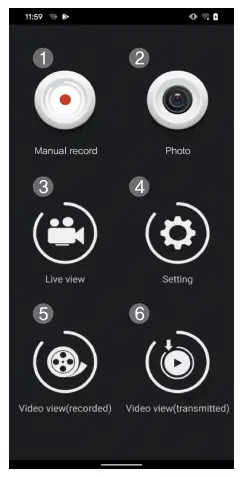
- Manual record : It can record in an urgent situation.
- Photo : It can take photo.
- Live view : It can check to see recording in real time.
- Setting : It can set preference.
- Video view(recorded) : It displays recording video on APP.
- Video view(transmitted) : It displays transmitted recording video on APP.
[Guide]
- Video view(recorded) files are stored in the Micro SD card.
- Video view(transmitted) files are stored in the mobile app, after you have chosen the selected files ‘to transmit’ from Video view(recorded) folder.
Video view (Live view)
Live view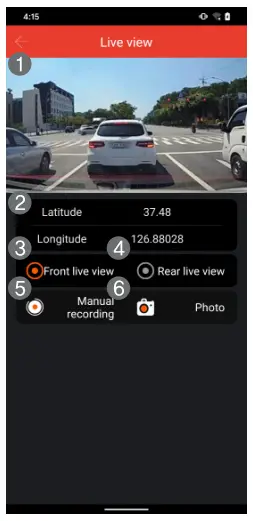
- Live view : It can check to see recording in real time.
- Latitude/ Longitude : It can display latitude/ longitude.
- Front live view : It can display the front recording in real time.
- Rear live view : It can display the rear recording in real time.
- Manual recording : If it is necessary.
- Photo : It can take photo
Video view (Recorded)
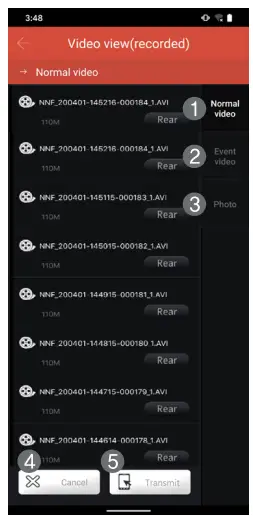
[Guide]
- For front camera video, please click away from button.
- For rear camera video, please click button.
Video view (Transmitted)
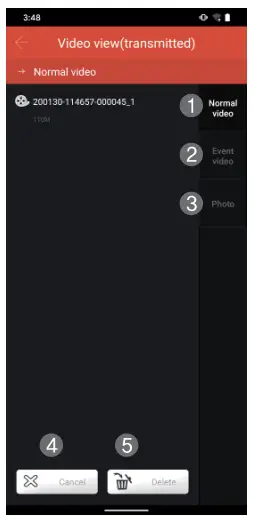
- Normal video : It can play normal (infinite loop) files(transmitted).
- Event video : It can play event video or manual recording files(transmitted).
- Photo : It can see photo files(transmitted).
- Cancel : It can cancel ‘Delete mode’.
- Delete : It can delete the files on smartphone
Setting (Normal recording)
Normal (Infinite loop) recording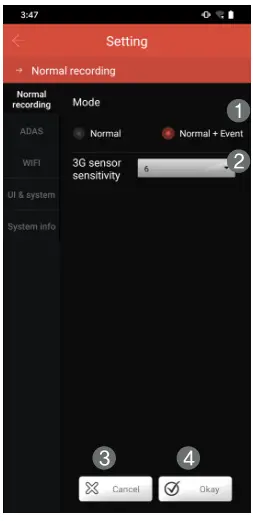
- Normal recording : Normal recording -> Mode select
Normal : It cannot store event recording separately.
Normal + Event : It can store event recording separately. - 3G sensor sensitivity : It can set sensitivity on event recording while driving (Sensitivity level: 1~10).
- Cancel : It can cancel ‘Setting’.
- Okay : It can store ‘Setting’.
Setting (ADAS)
ADAS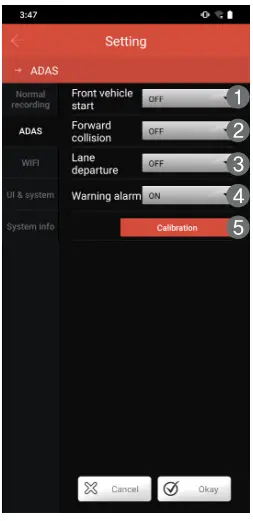
- Front vehicle start : Alarm tells when front vehicle moves ahead on stop(for 3 seconds over).
- Forward collision : Alarm tells when analyzing speed setup over and the front video.
- Lane departure : Alarm tells when detecting lane departure (It works the required speed over).
- Warning alarm: It can set alarm ON / OFF.
- Calibration : It can set calibration for ADAS, for example, bonnet, horizontal line, car model.
Setting (Wi-Fi)
Wi-Fi 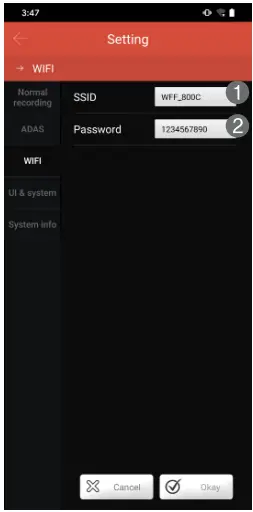
- SSID(Service Set Identifier) : It can specify service identifier (Special characters are not allowed and can modify at most 32 characters).
- Password : It can enter password for Wi-Fi connection (It should set at least 8 characters and at most 32 characters).
Setting (UI & System)
UI & System 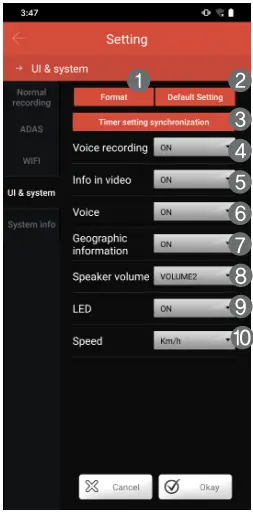
- Format : All files are deleted on SD card and it is impossible to restore them.
- Default setting : It can set default value.
- Timer setting synchronization : It can synchronize dashcam timer with smartphone time.
- Voice recording : It can set voice recording or be set on silent.
- Info in video : It can set/ cancel recorded info(Time/ Speed) on video file.
- Voice : It can set voice guidance.
- Geographic information : It can set geographic information.
- Speaker volume : It can adjust volume. All off is set to silent.
- LED : It can set LED operation on device.
- Speed : It can set speed.
Setting (System info)
System info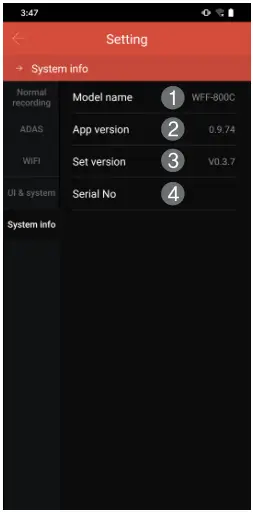
- Model name : It displays model name.
- App version : It displays app version.
- Set version : It displays set version.
- Serial No. : It displays serial number