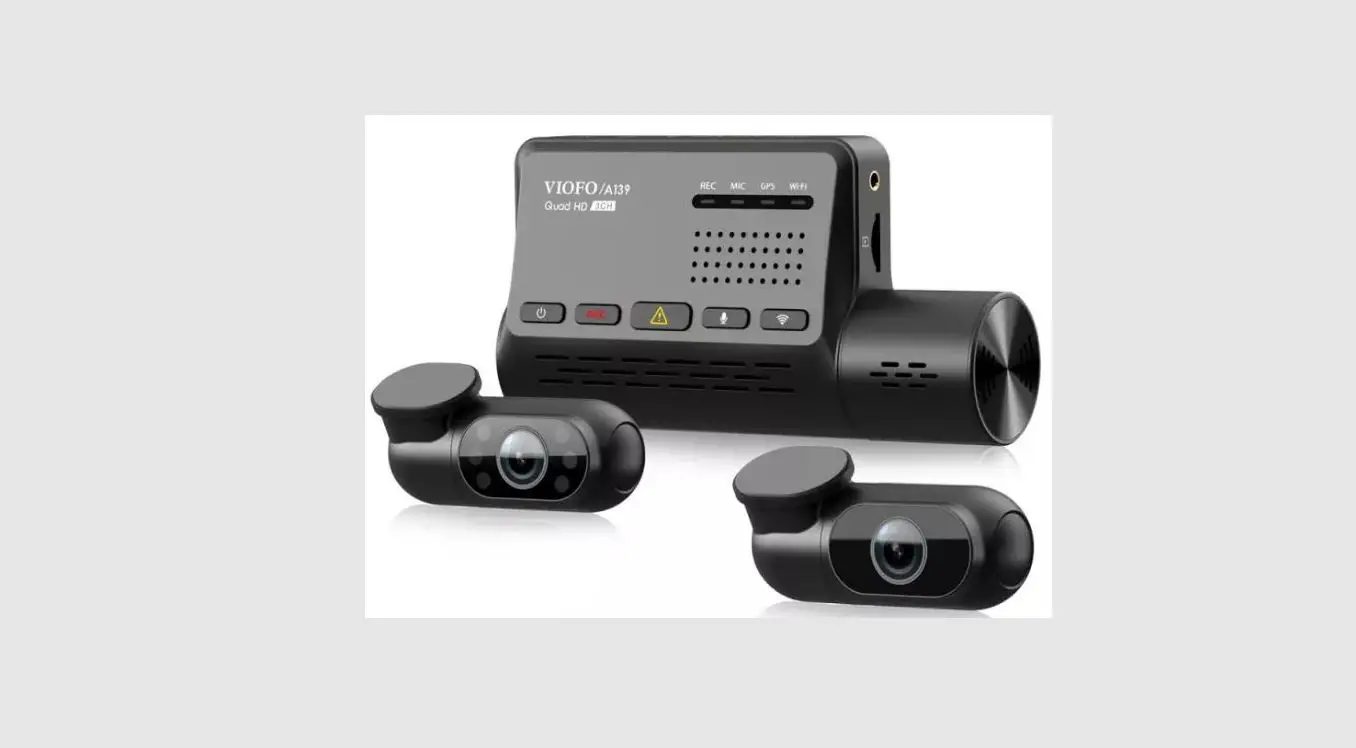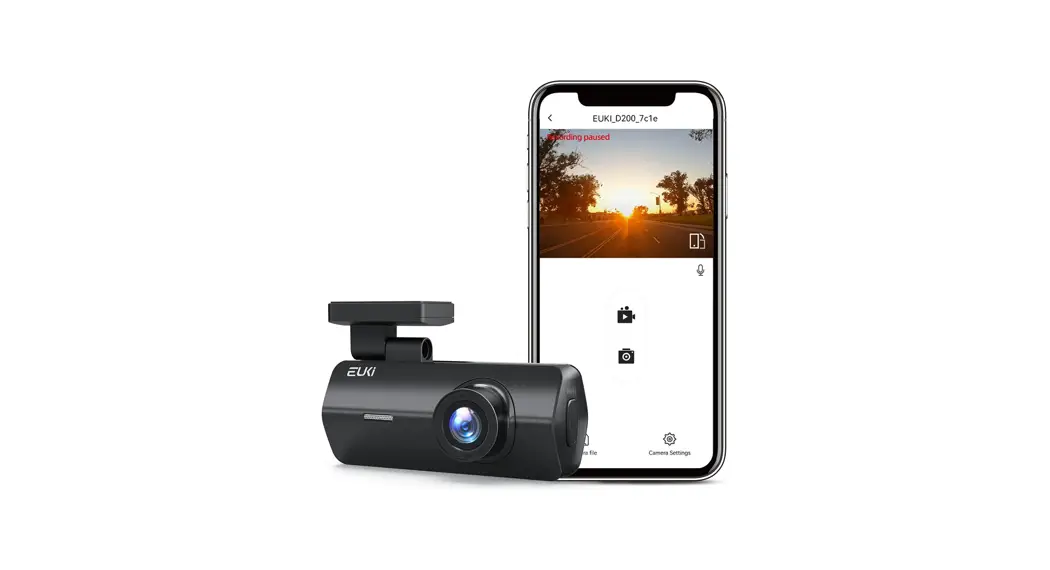
 A170LKXLPVL
Dash Cam 1080P Car Camera
User Guide
APP Installation
We recommend that you take the following actions to connect WiFi:
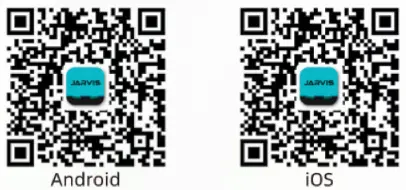
- Scan the following QR code and download the dedicated app larvisCam” from Google play store or apple store.
 https://www.6zhentan.com/app/jarvis/index.html
If you have any other questions, don’t hesitate to reach us directly! we will do our best to help you asap.
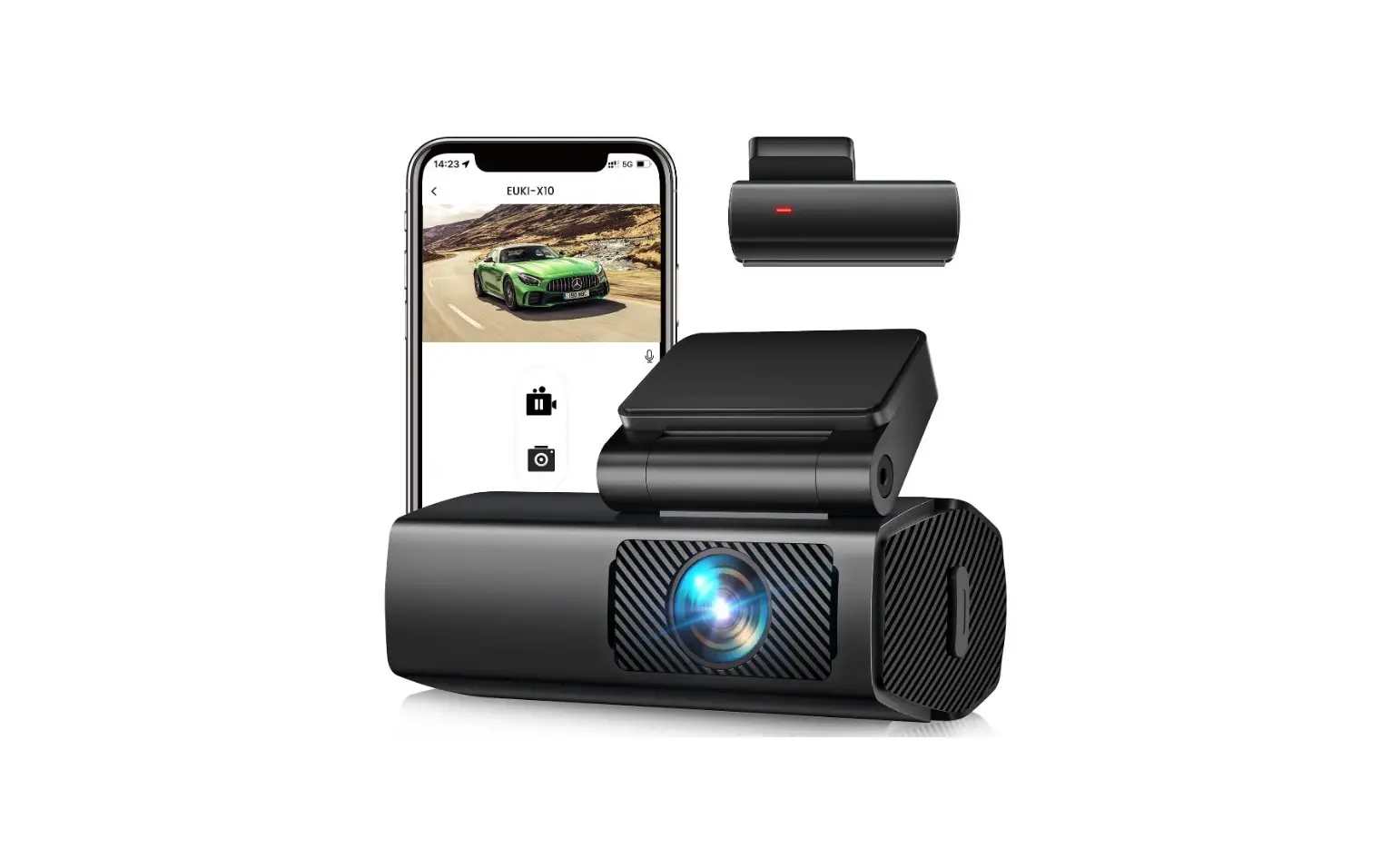
Our Email: [email protected] - Open the mobile phone WiFi settings,turn off cellular data and bluetooth, connect to the machine WiFi (EUKI_Xl O_XXXXX) and enter the password 12345678.
- After the WiFi connection is stable, open the jarvisCam app and add a new camera by wifi connection.
Introduction of the App
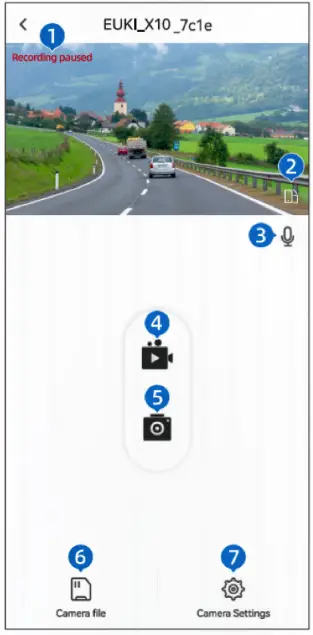
- App Interface
 1. Recording/Pause State
2. Frullscreen
3. Mic
4. Start / stop recording
5. Take a picture
6. Camerafiles
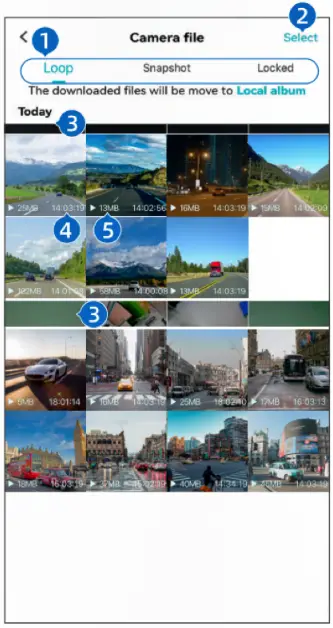
7. Camera settings - Camera Files
 1. File type
2. Select
3. Date
4. Time
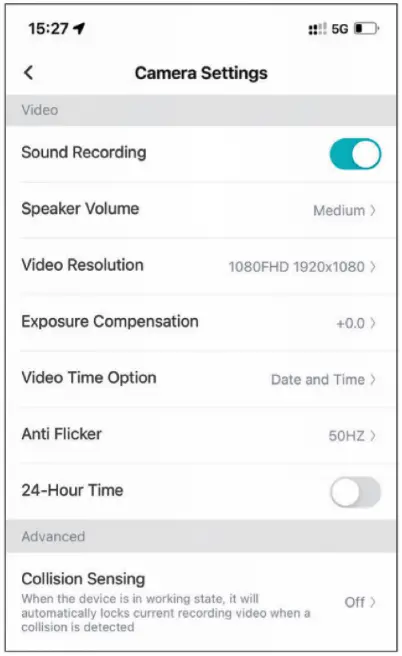
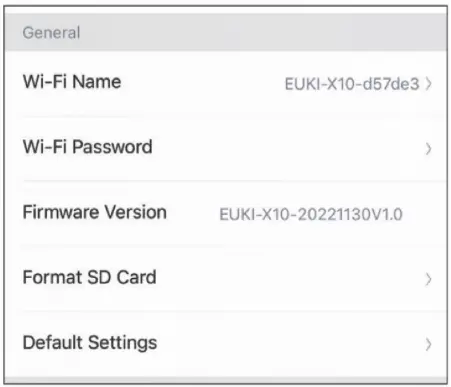
5. File size - Camera Settings
 1. Recording/Pause State
 1. File type