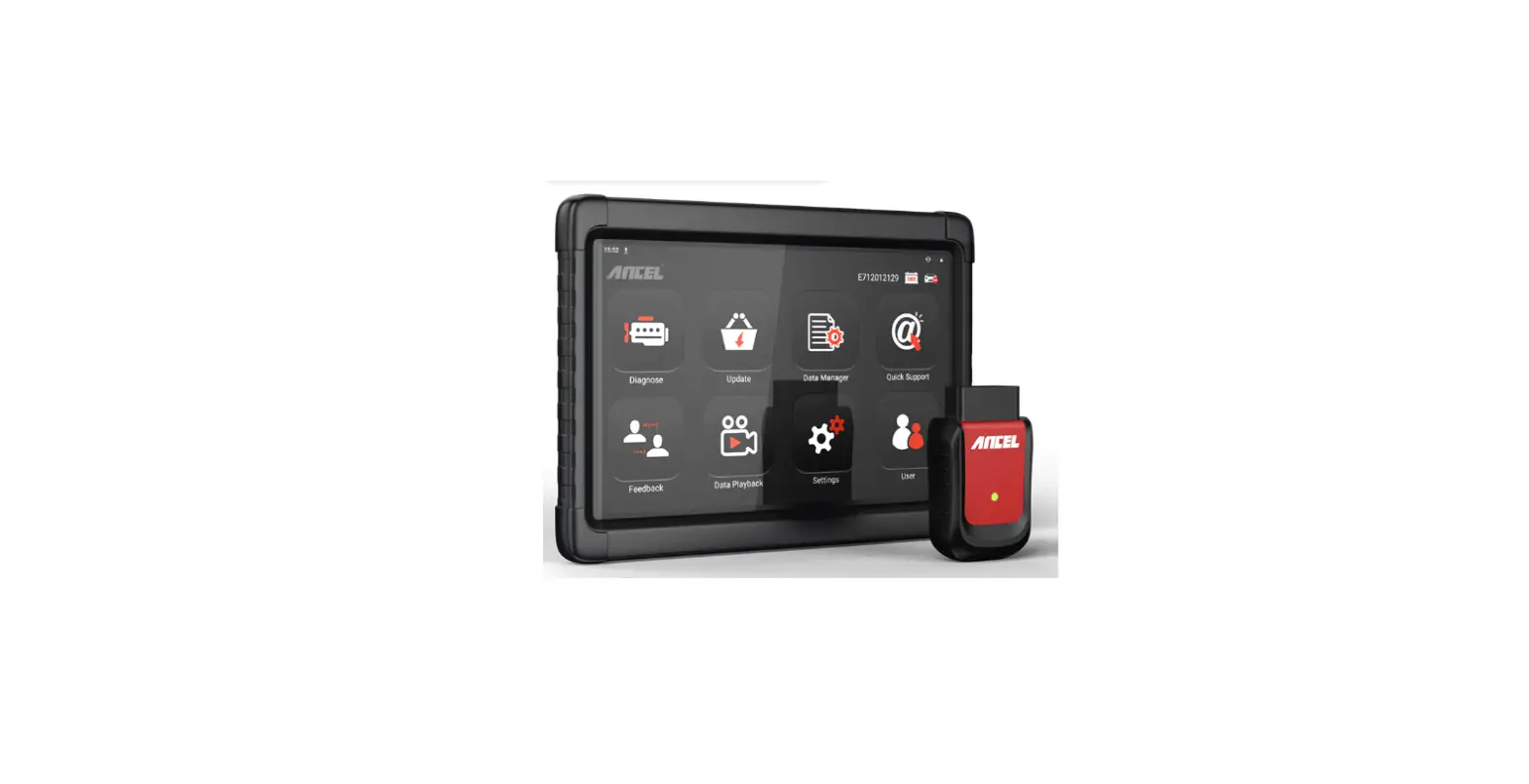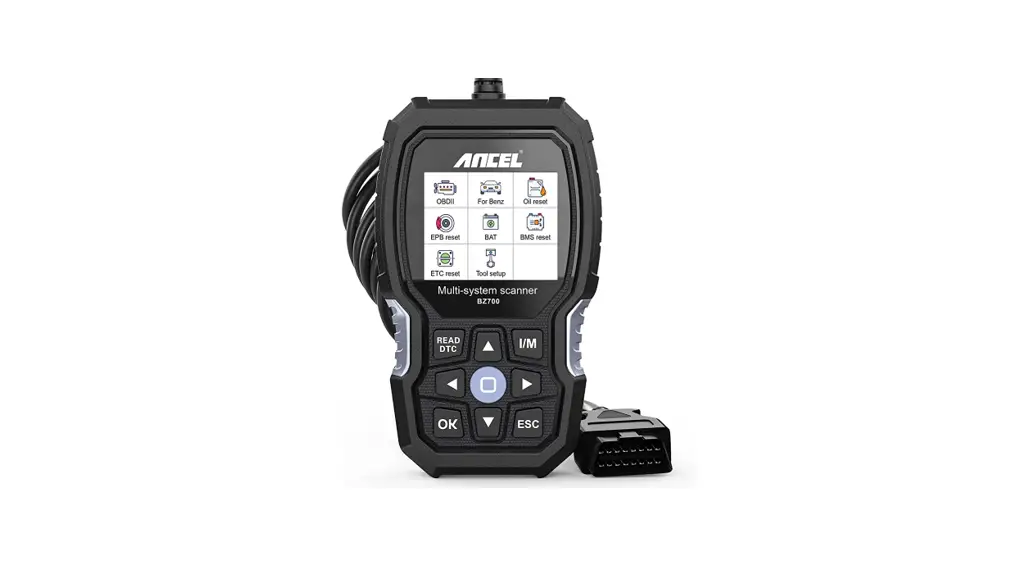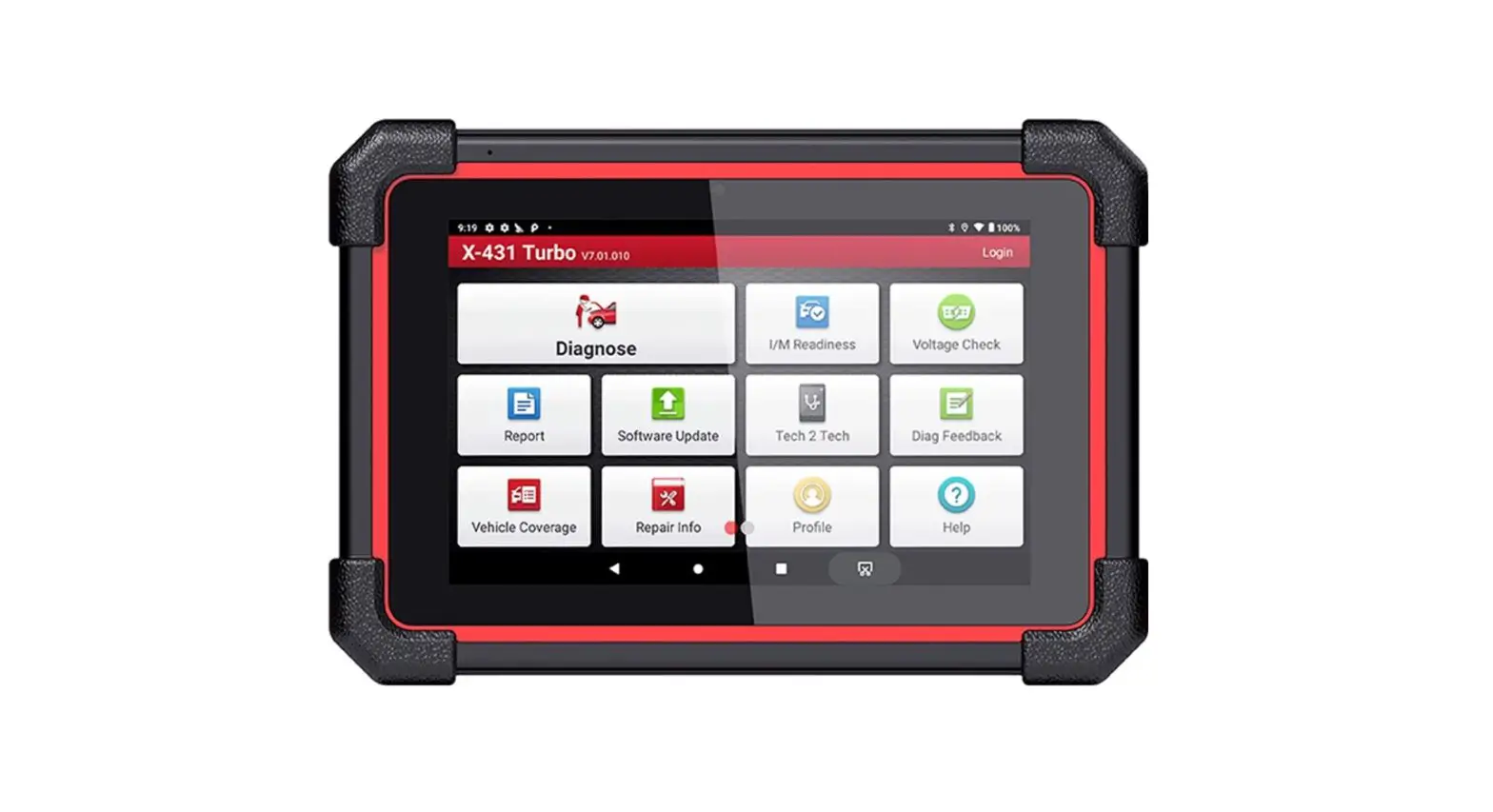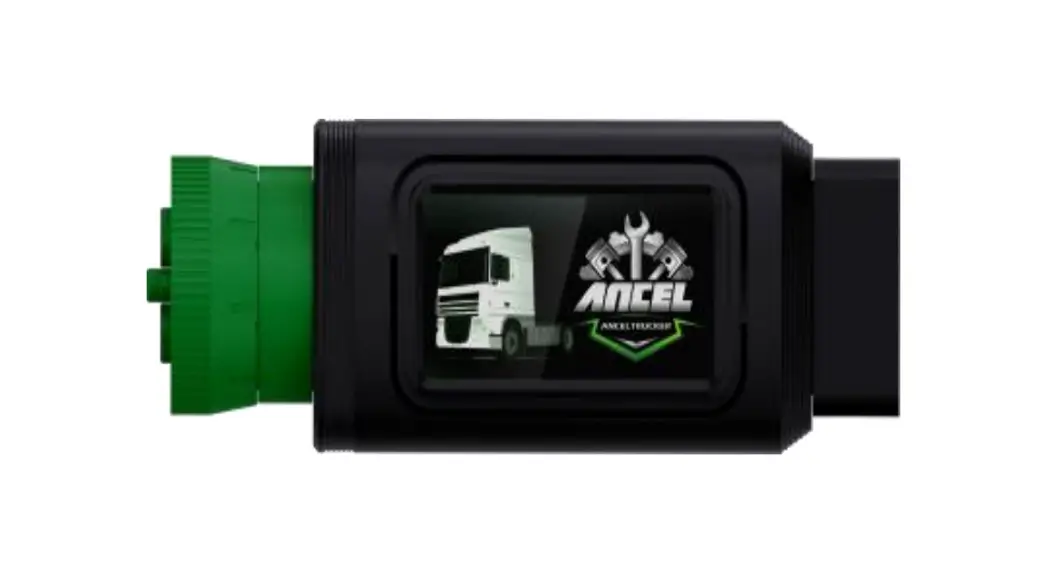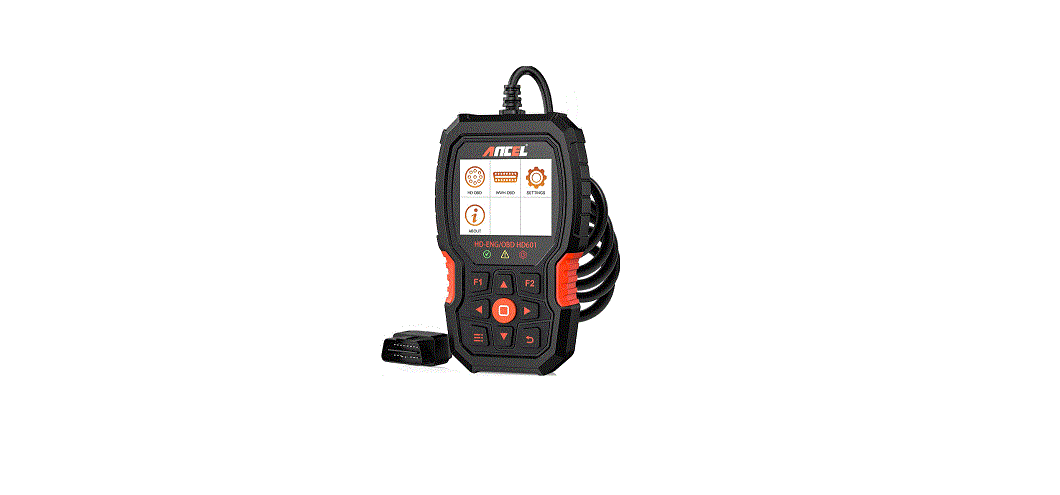

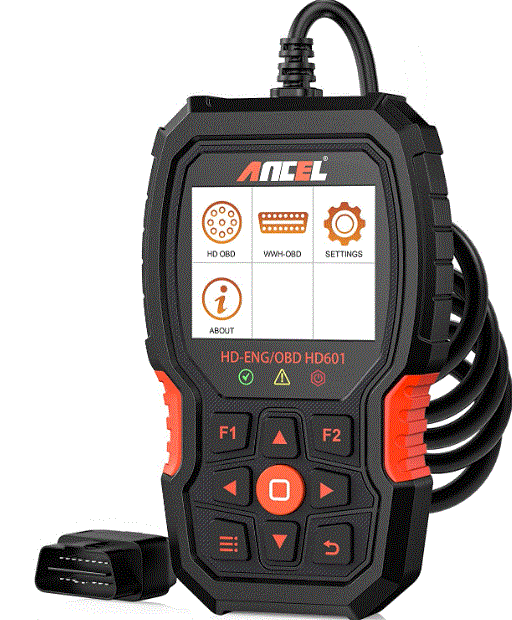
ANCEL HD601 Full System Heavy Duty Truck Scan Tool
INSTRUCTION
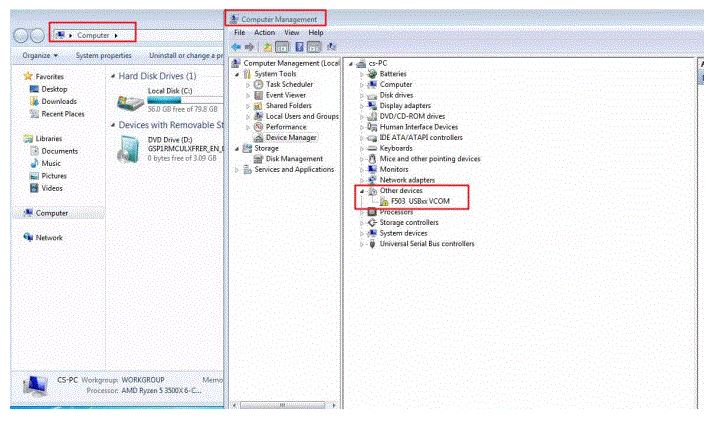
- HD601 enters the [upgrade mode], connect to the computer via USB, and see F503 USBxxVCOM in the Other devices of the computer device manager.

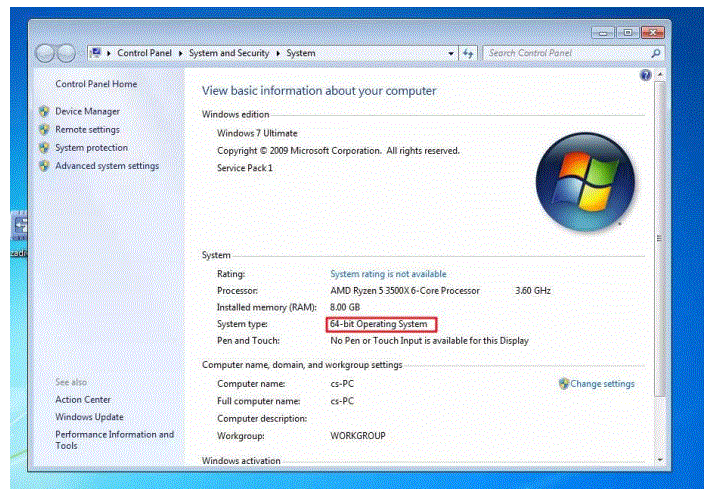
- Check your operating system is 32bit or 64bit.

- If the computer is 32bit, choose the HD601_driver_Win32bit file; If it is 64bit, choose theHD601_driver_Win64bit file.
- Run“Step_one.bat”
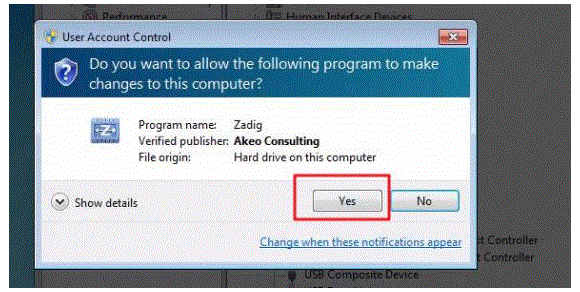
- Return to the previous folder and runzadig-2.3.exe.

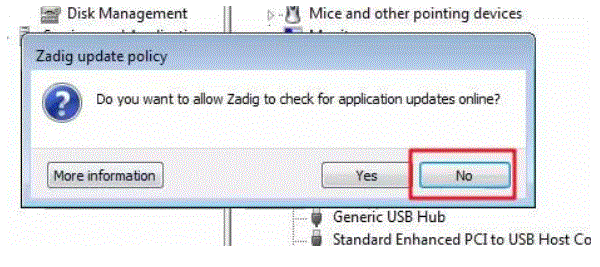
- If prompted to upgrade the software, select [No];

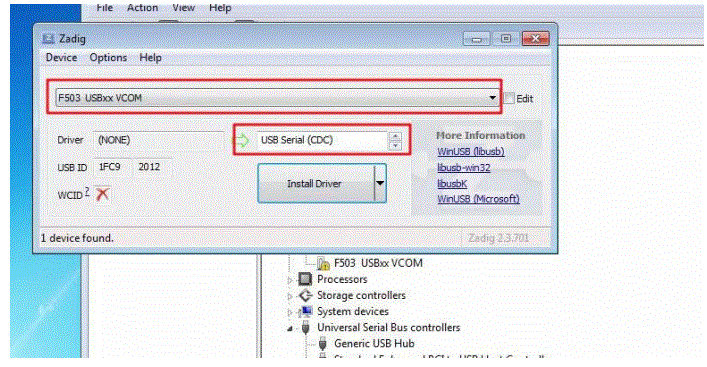
- Select F503 USBxx VCOM and USB Serial(CDC), click Install Driver.

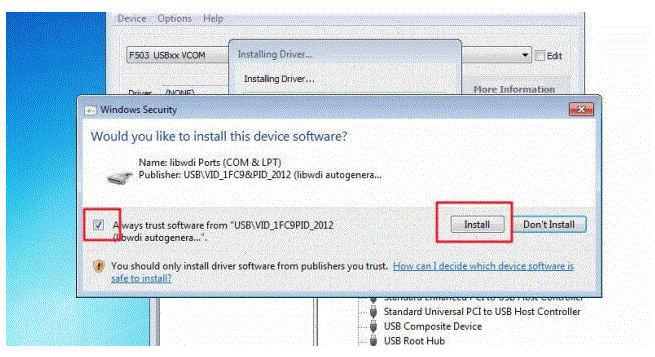
- Check [Always allow this software], click Install, and wait for the installation to complete.

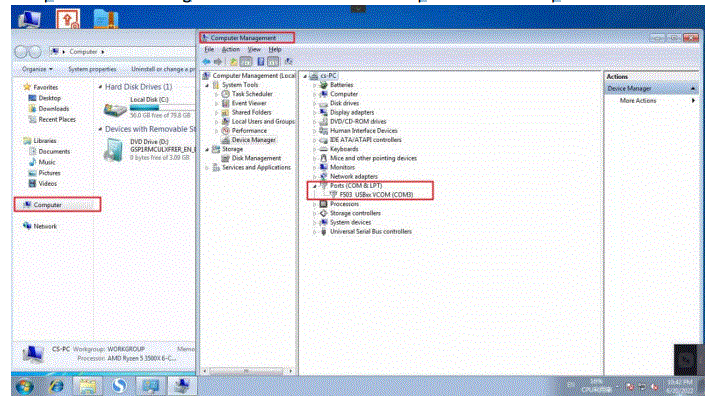
- After the installation, you will see F503 USBxx VCOM(COMx) under the Ports of thecomputer device manager. The number of the COM depends on the computer.