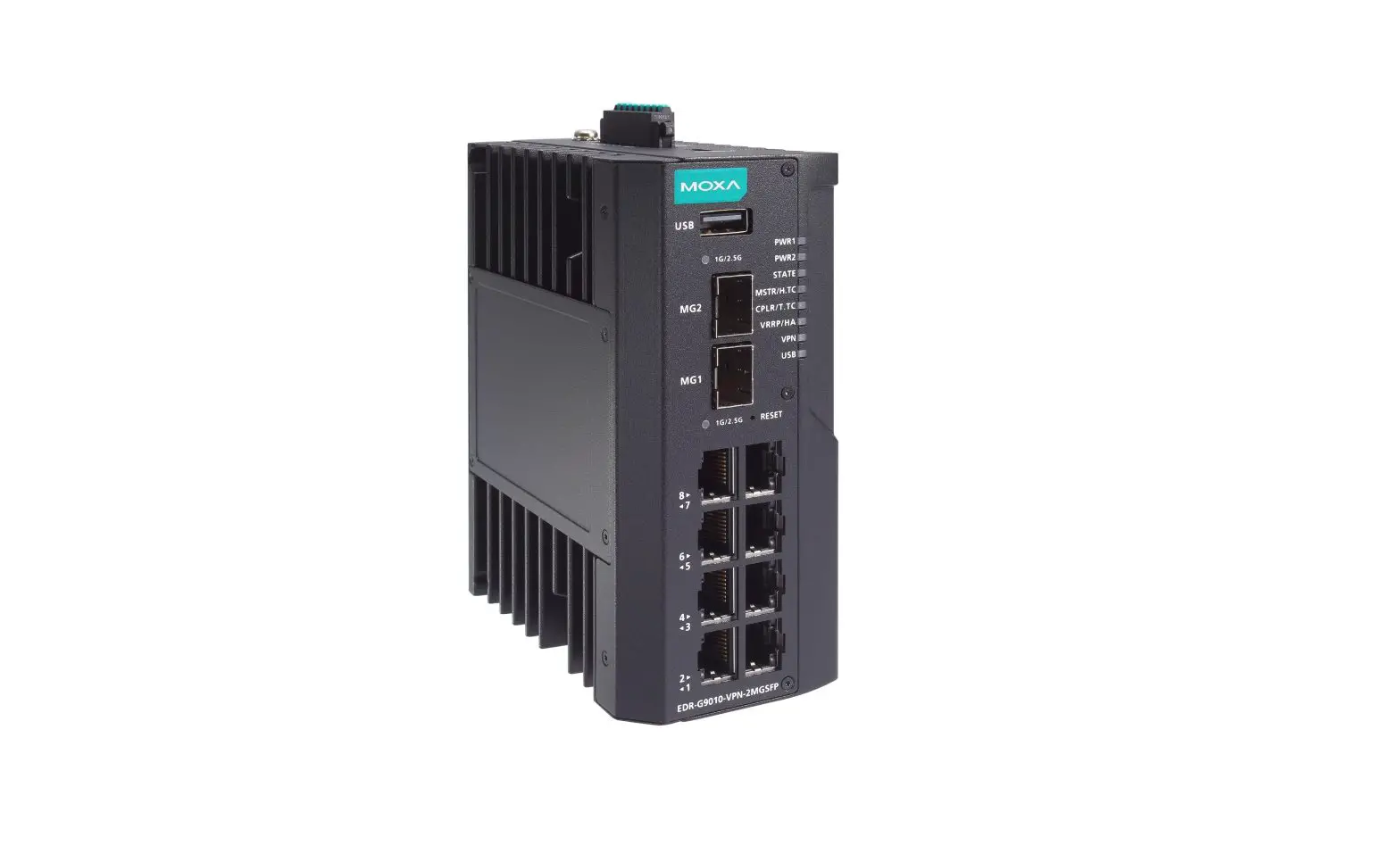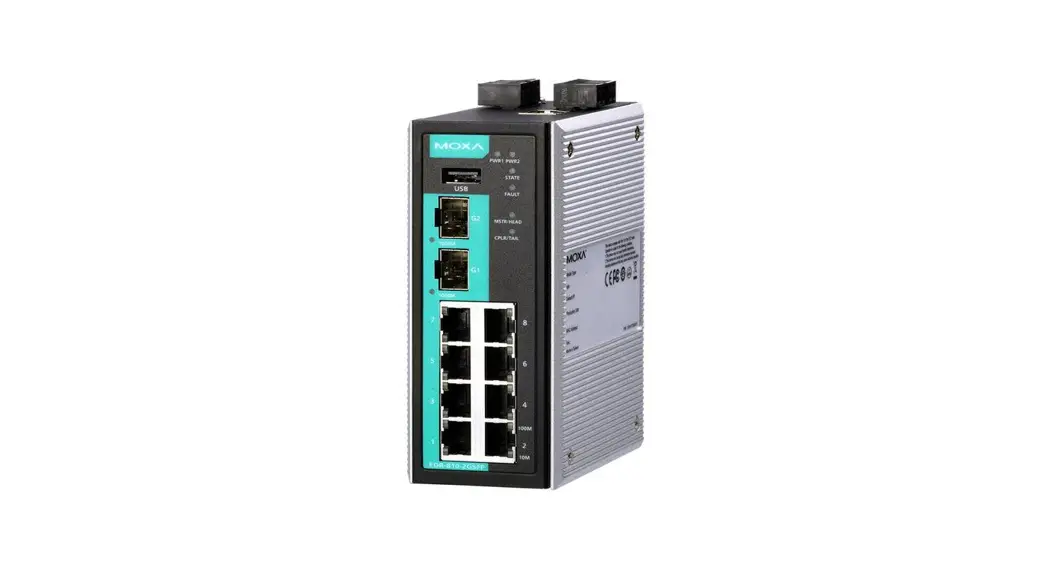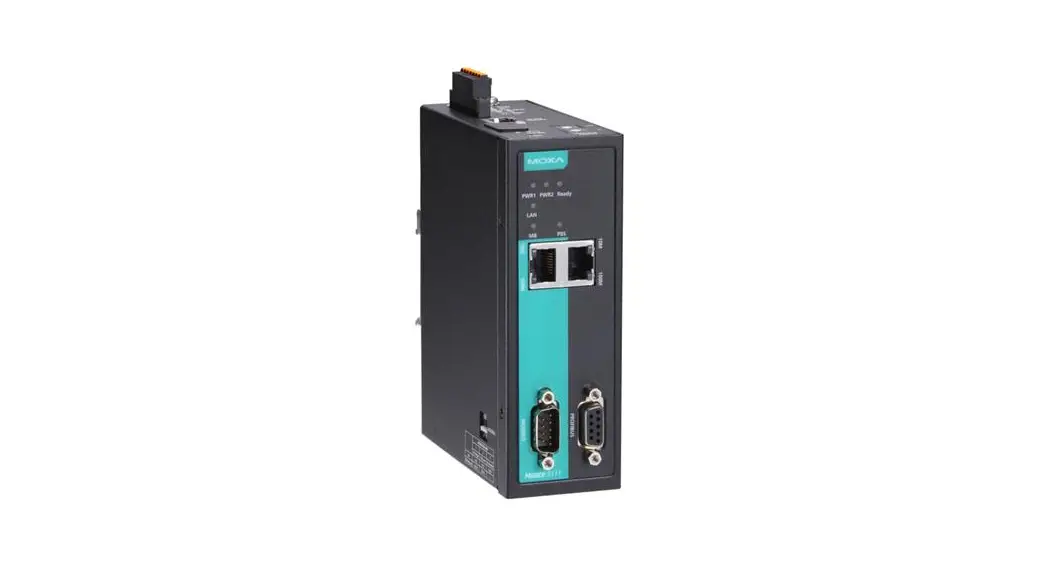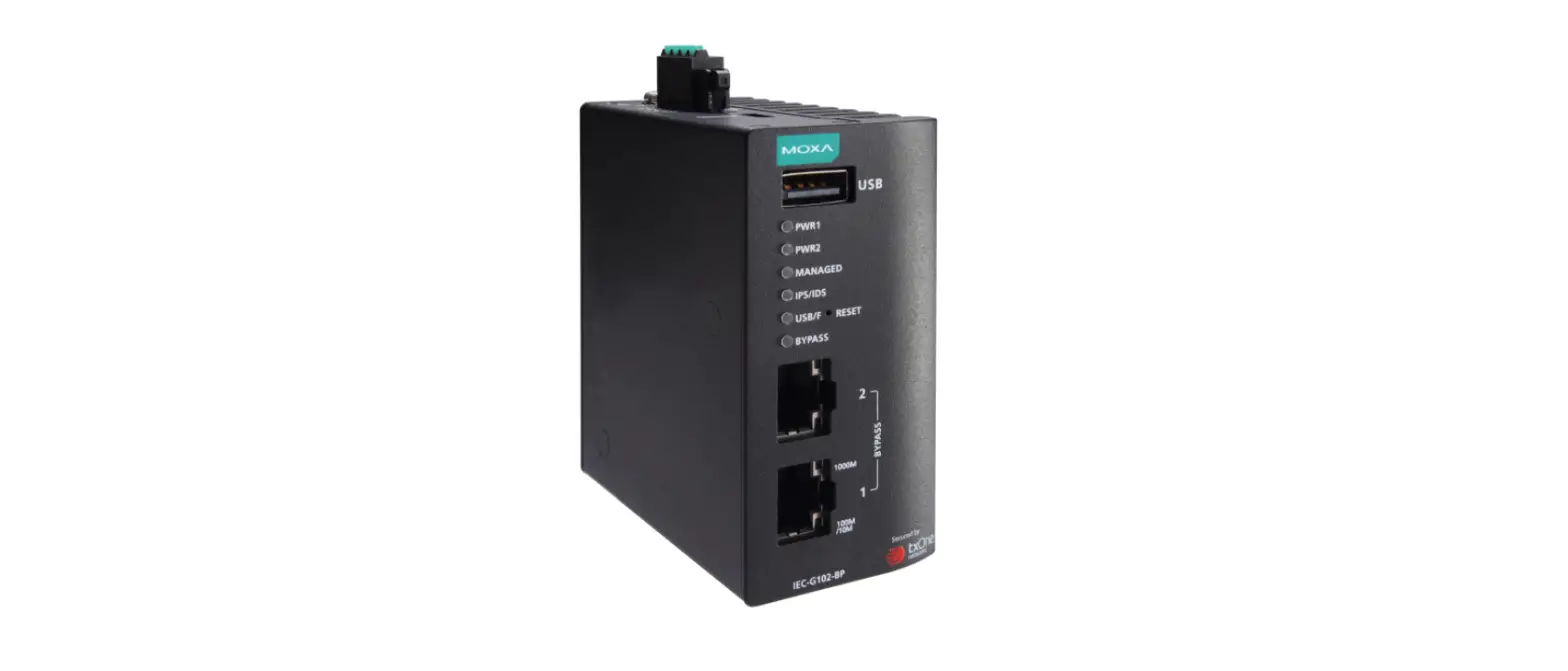

MOXA IEC-G102-BP Series Network Security Appliance
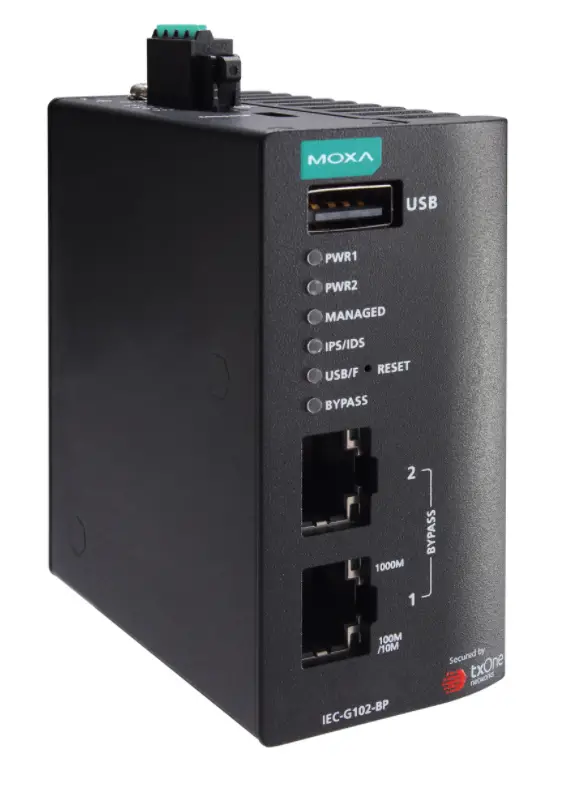
Package Checklist
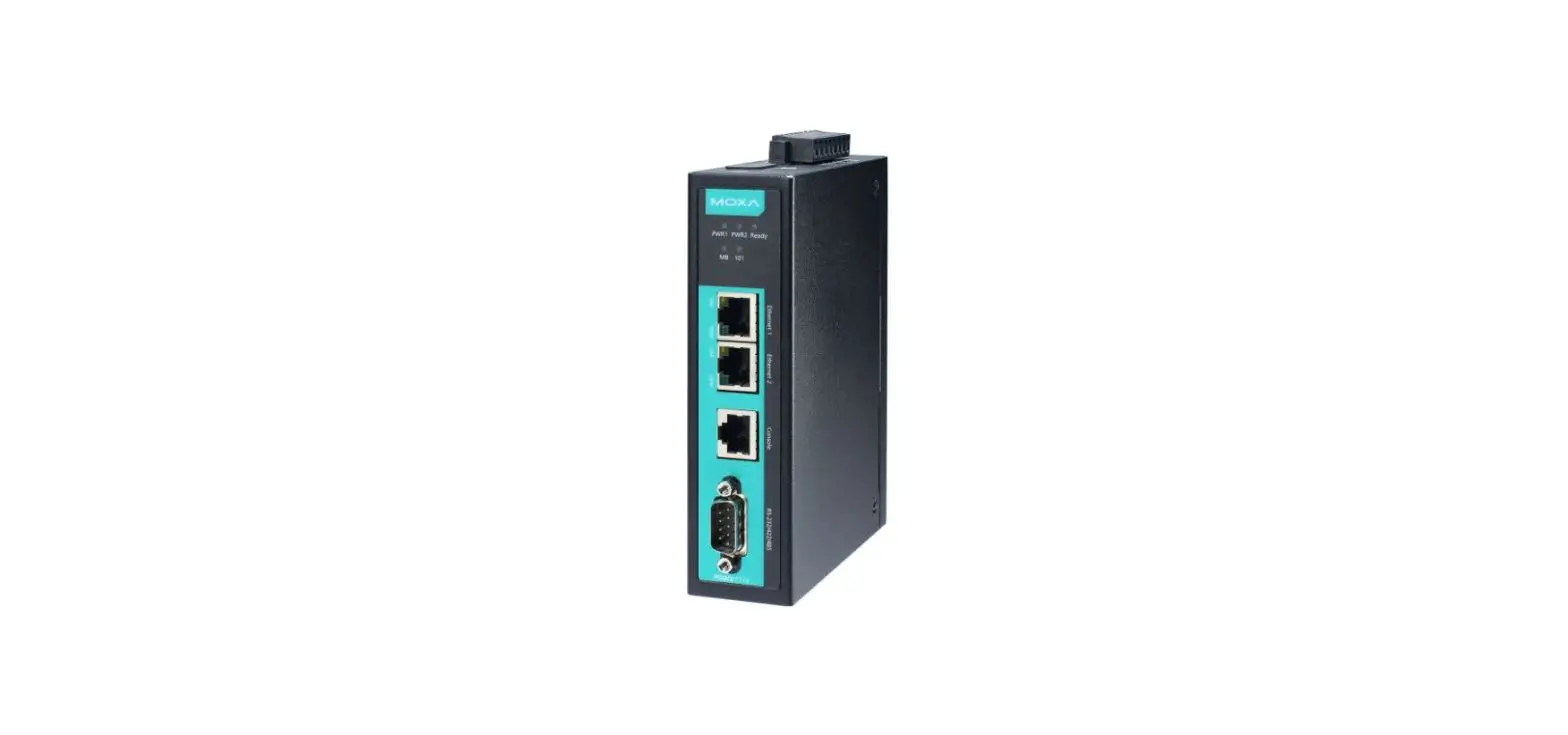
The IEC-G102-BP Series, which is an industrial next-generation IPS, is
shipped with the items listed below. If any of these items are missing or
damaged, please contact your customer service representative for
assistance.
- 1 Industrial next-generation IPS
- 1 USB-C to DB9 cable
- Quick installation guide (printed)
- Warranty card
Features
Advanced Industrial Networking Capability
- MAC and IP addresses policy enforcement
- IPS/IDS to monitor and prevent cyberthreats
- Virtual Patch mitigates the manual effort of having to patch devices for vulnerabilities
- Industrial Protocol Whitelisting ensures the safety of industrial equipment
- Efficient industrial device identification and network traffic analysis
- Hardened hardware for -40 to 75°C operating temperature (T model)
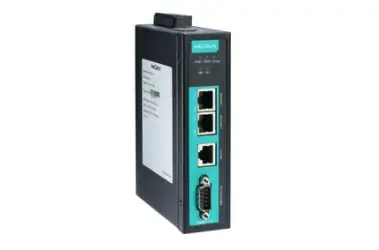
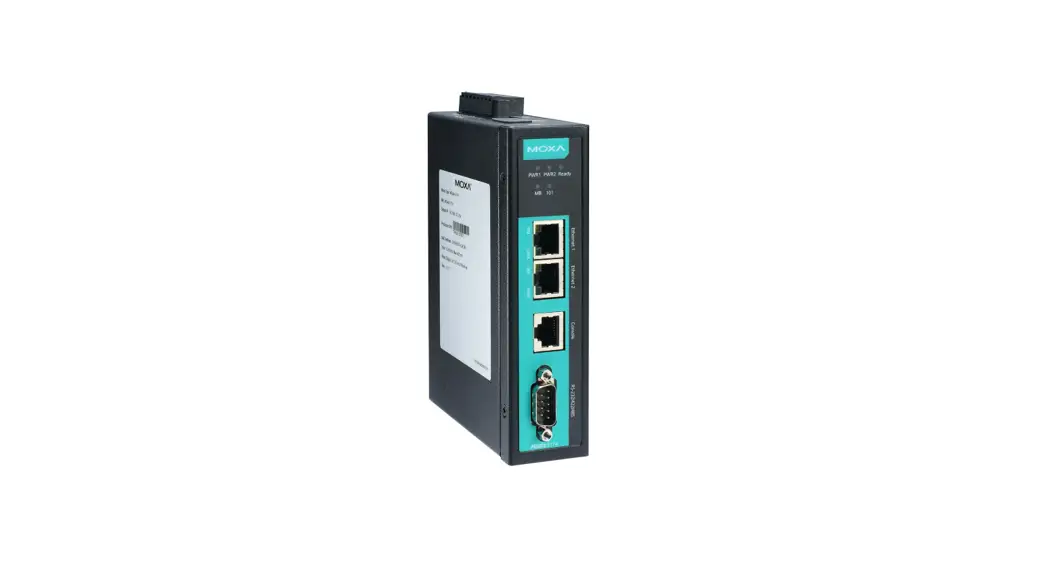
Panel Views of IEC-G102-BP Series
Front Panel: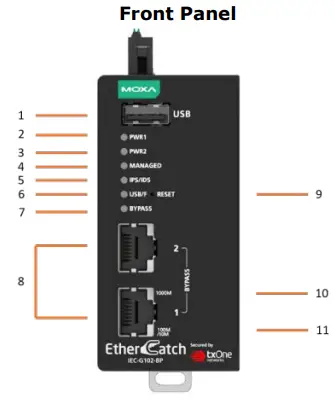
- USB port for ABC-02-USB
- Power input PWR1 LED indicator
- Power input PWR2 LED indicator
- MANAGED status LED indicator
- IPS/IDS state LED indicator
- USB mount status and FAULT
LED indicator - BYPASS status LED indicator
- 10/100/1000Mbps copper port
- RESET and REBOOT button
- 1000Mbps copper port speed LED indicator
- 10/100Mbps copper port speed LED indicator
Top Panel:
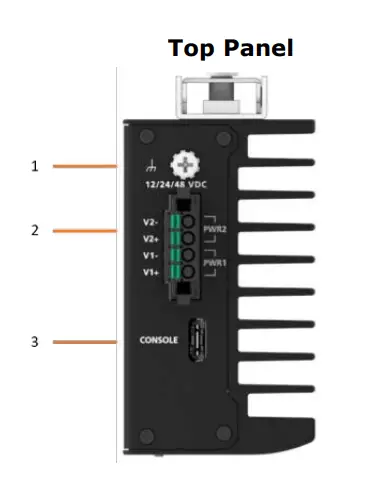
- Grounding screw
- 4-pin terminal block with latch for two power inputs
- Type-C serial console port
Rear Panel: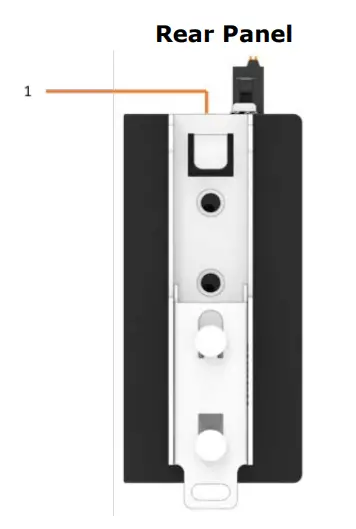
- DIN-rail mounting kit
Mounting Dimensions
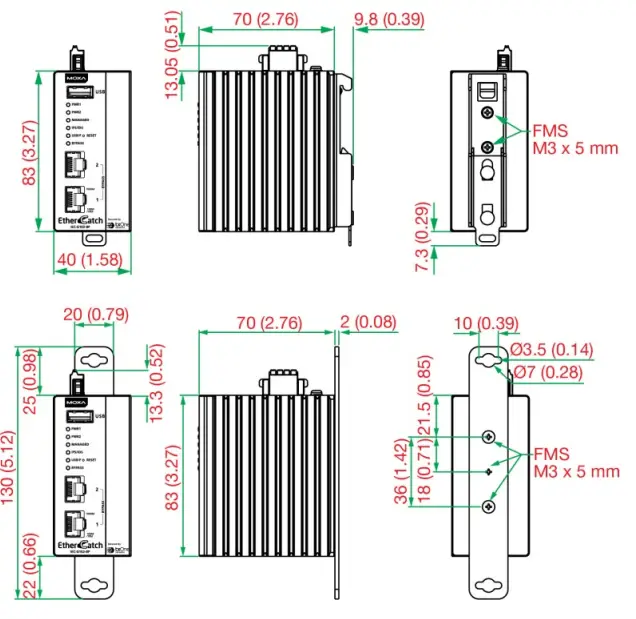
DIN-rail Mounting
In the package, the metal DIN-rail mounting kit is fixed to the back panel
of the IEC-G102-BP Series. Mount the IEC-G102-BP Series on the
corrosion-free mounting rail that adheres to the EN 60715 standard.
Suggested Installation Method
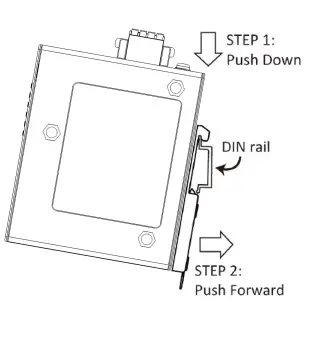
STEP 1:
Insert the upper lip of the DIN-rail kit into the mounting rail.
STEP 2:
Press the IEC-G102-BP Series towards the mounting rail until it snaps into place.
Suggested Removal Method
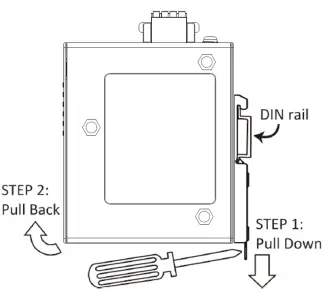
STEP 1:
Pull down the latch on the DIN-rail kit with a screwdriver.
STEP 2:
Slightly pull the IEC-G102-BP Series forward and lift up to remove it from the mounting rail.
Wall Mounting
For some applications, you will find it convenient to mount the IEC-G102-BP Series on the wall, as shown in the following illustrations.
STEP 1: Remove the aluminum DIN-rail attachment plate from the rear panel of the IEC-G102-BP Series, and then attach the wall mount plates with M3 screws, as shown in the below figure.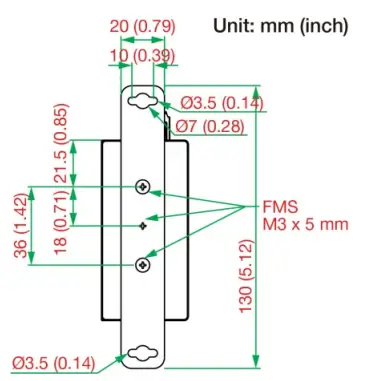
STEP 2: Mounting the IEC-G102-BP Series on the wall requires two screws. Use the IEC-G102-BP Series with wall mount plates attached, as a guide to mark the correct locations of the 2 screws. The heads of the screws should be less than 6.0 mm in diameter, and the shafts should be less than 3.5 mm in diameter, as shown in the figure on the right.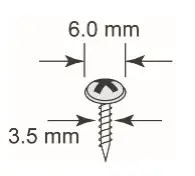
Wiring Requirements
WARNING
Do not disconnect modules or wires unless power has been switched off or the area is known to be non-hazardous. The devices may only be connected to the supply voltage shown on the type plate. The devices are designed for operation with a Safety Extra-Low Voltage. Thus, they may only be connected to the supply voltage connections and to the signal contact with the Safety Extra-Low Voltages (SELV) in compliance with IEC950/ EN60950-1/ VDE0805.
ATTENTION
This unit is a built-in type. When the unit is installed in another piece of equipment, the equipment enclosing the unit must comply with fire enclosure regulation IEC 60950-1/EN60950-1 (or similar regulation).
ATTENTION Safety First!
Be sure to disconnect the power cord before installing and/or wiring your IEC-G102-BP Series. Calculate the maximum possible current in each power wire and common wire. Observe all electrical codes dictating the maximum current allowable for each wire size. If the current goes above the maximum ratings, the wiring could overheat, causing serious damage to your equipment.
Please read and follow these guidelines:
- Use separate paths to route wiring for power and devices. If power wiring and device wiring paths must cross, make sure the wires are perpendicular at the intersection point.
NOTE: Do not run signal or communications wiring and power wiring through the same wire conduit. To avoid interference, wires with different signal characteristics should be routed separately. - You can use the type of signal transmitted through a wire to determine which wires should be kept separate. The rule of thumb is that wiring sharing similar electrical characteristics can be bundled together.
- You should separate input wiring from output wiring.
- We advise that you label the wiring to all devices in the system.
- This product is intended for installation in Restricted Access Location.
WARNING Hot Surface. Do not touch.
Grounding the IEC-G102-BP Series
Grounding and wire routing help limit the effects of noise due to electromagnetic interference (EMI). Run the ground connection from the ground screw (M3 type) to the grounding surface prior to connecting devices.
ATTENTION
This product is intended to be mounted to a well-grounded mounting surface such as a metal panel.
Wiring the Redundant Power Inputs
The IEC-G102-BP Series has two sets of power inputs—power input 1 and power input 2. The top and side views of the terminal block connector are shown below.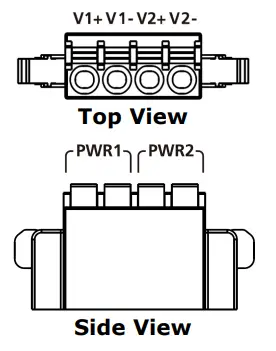
- STEP 1: Use a small flat-blade screwdriver to press a wire locker.
- STEP 2: Insert a positive/negative DC wire into the V+/V- terminals respectively.
- STEP 3: Release the wire locker, and check whether the wire is fixed.
The power cord adapter should be connected to a socket outlet with an earthing connection. The power cord and adapter must comply with Class II construction.
This product is intended to be supplied by a UL Listed Power Adapter or DC power source marked ‘L.P.S’ or ‘Limited Power Source’, rated 12 to 48 VDC, 0.605 A (min.), and Tma 75°C (min.). If you require further assistance, please contact your Moxa representative.
Communication Connections
Each IEC-G102-BP Series has two types of communication port:
- 1 TYPE-C console port (RS-232 interface, baudrate: 115200)
- 2 10/100/1000BaseT(X) Ethernet ports
TYPE-C Console Port Connection
The IEC-G102-BP Series provides one TYBP-C console port located the top on panel. Please connect the Moxa EtherCatch to a PC COM port using a TYPE-C to DB9 connection cable, and then launch a console terminal software, e.g. Moxa PComm Terminal Emulator, to access the IEC-G102-BP Series console configuration utility.
TYPE-C to DB9 Cable Wiring
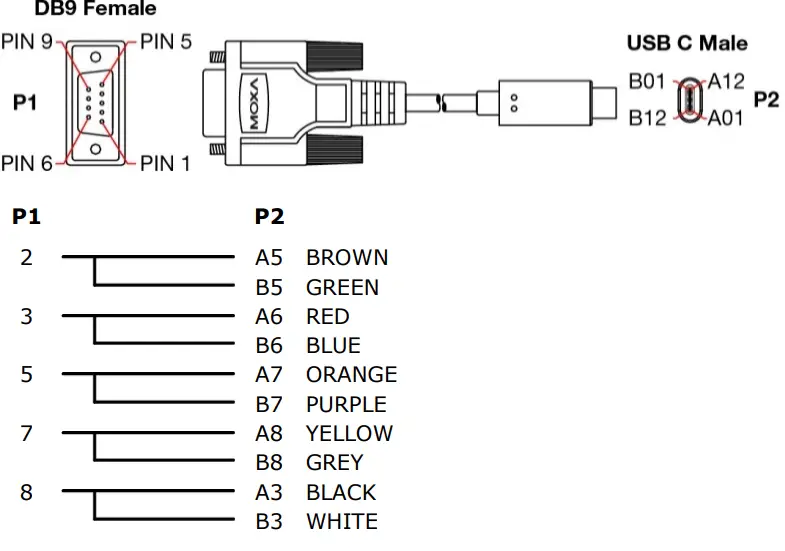
PIN Definition
| Description | P1 | P2 |
| TXD | 2 | A5, B5 |
| RXD | 3 | A6, B6 |
| GND | 5 | A7, B7 |
| CTS | 7 | A8, B8 |
| RTS | 8 | A3, B3 |
10/100/1000BaseT(X) Ethernet Port Connection
The 10/100/1000BaseT(X) ports located on the IEC-G102-BP Series front panel are used to connect to Ethernet-enabled devices. Most users will
choose to configure these ports for Auto MDI/MDI-X mode, in which case the port’s pinouts are adjusted automatically depending on the type of Ethernet cable used (straight-through or cross-over), and the type of Ethernet cable used (straight-through or cross-over), and the type of device (NIC-type or HUB/Switch-type) connected to the port. No matter which case you are connecting, we share pinouts for both MDI (NIC-type) ports and MDI-X (HUB/Switch-type) ports.
10/100Base T(x) RJ45 Pinouts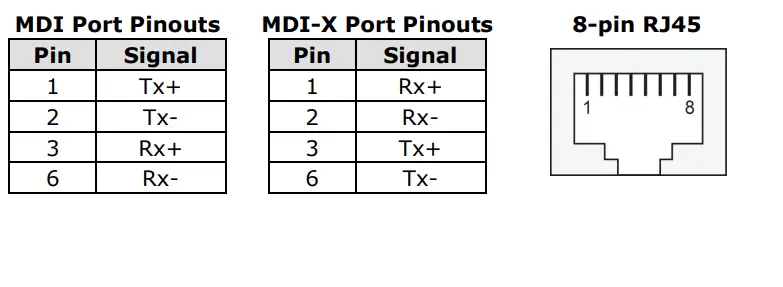 1000BaseT RJ45 Pinouts
| Pin | MDI | MDI-X |
| 1 | BI_DA+ | BI_DB+ |
| 2 | BI_DA- | BI_DB- |
| 3 | BI_DB+ | BI_DA+ |
| 4 | BI_DC+ | BI_DD+ |
| 5 | BI_DC- | BI_DD- |
| 6 | BI_DB- | BI_DA- |
| 7 | BI_DD+ | BI_DC+ |
| 8 | BI_DD- | BI_DC- |
The reset button has two features:
- Reboot system: Press and hold the reset button for between 2 and 10 seconds. The MANAGED LED will begin to blink every second, which means the system is rebooting.
- Reset to factory default: Press and hold the reset button for more than 10 seconds. The MANAGED LED will begin to blink every half-second, which means the system is resetting itself to factory default.
NOTE: DO NOT power off the device when loading default settings.
LED Indicators
The front panel of the IEC-G102-BP Series has several LED indicators. The function of each LED is described in the following table:
| LED | Color | State | Description |
| PWR1 | Amber | On | Power is being supplied to power input P1 on the main module. |
| Off | Power is NOT being supplied to power input P1 on the main module. | ||
| PWR2 | Amber | On | Power is being supplied to power input P2 on the main module. |
| Off | Power is NOT being supplied to power input P2 on the main module. | ||
|
MANAGED |
Green | On | The IEC-G102-BP Series is managed by Security Dashboard Console. |
| Off | The IEC-G102-BP Series is NOT managed by Security Dashboard Console. | ||
|
Blinking | 1. When MANAGED LED is blinking every 1 second, the IEC-G102-BP Series is rebooting the system. 2. When the MANAGED LED is blinking every 0.5 second, the IEC-G102-BP Series is resetting to factory defaults. | ||
| IPS/IDS | Green | On | Intrusion Detection and Prevention System is enabled. |
| Off | Intrusion Detection and Prevention System is disabled. |
| LED | Color | State | Description |
| USB/F | Green | On | An ABC-02-USB has been detected. |
| Blinking | USB data transmitting. | ||
| RED | On | Hardware or system fault. | |
| BYPASS | Amber | On | Hardware BYPASS is enabled. |
| Off | Hardware BYPASS is NOT enabled. | ||
| 1000M | Green | On | Ethernet link up. |
| Off | Ethernet link down. | ||
| Blinking | Data is being transmitted. | ||
| 10/100M | Green | On | Ethernet link up. |
| Off | Ethernet link down. | ||
| Blinking | Data is being transmitted. |
Specifications
| Input Current | 0.605 A @ 12 V 0.297 A @ 24 V 0.143 A @ 48 V |
| Input Voltage | 12/24/48 VDC, dual power input |
| Power Consumption | 7.26 W (max.) |
| Operating Temperature | -10 to 60°C (14 to 140°F), standard models -40 to 75°C (-40 to 185°F), wide-temp. models |
| Storage Temperature | -40 to 85°C |
 Moxa - Support