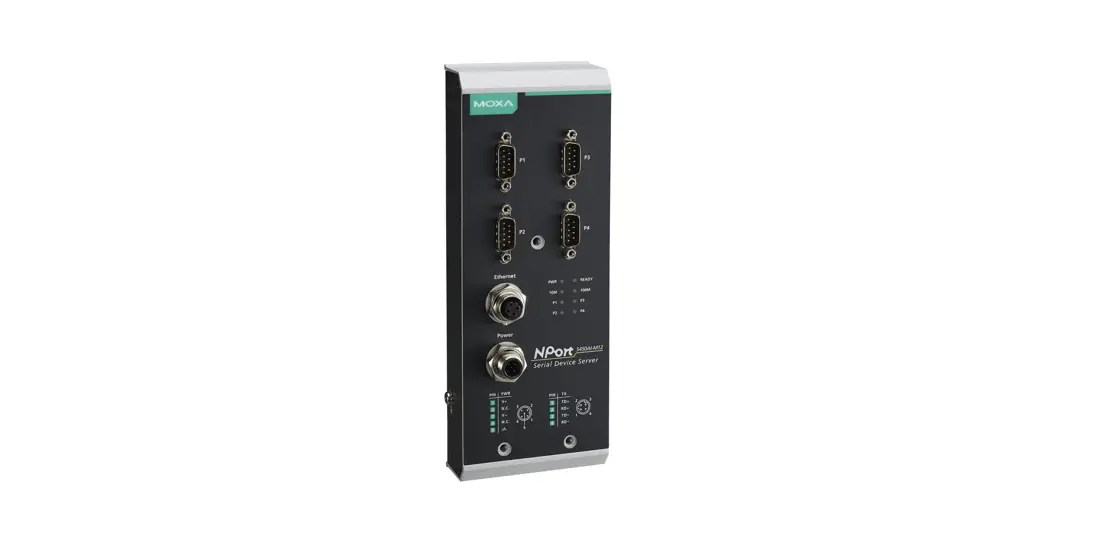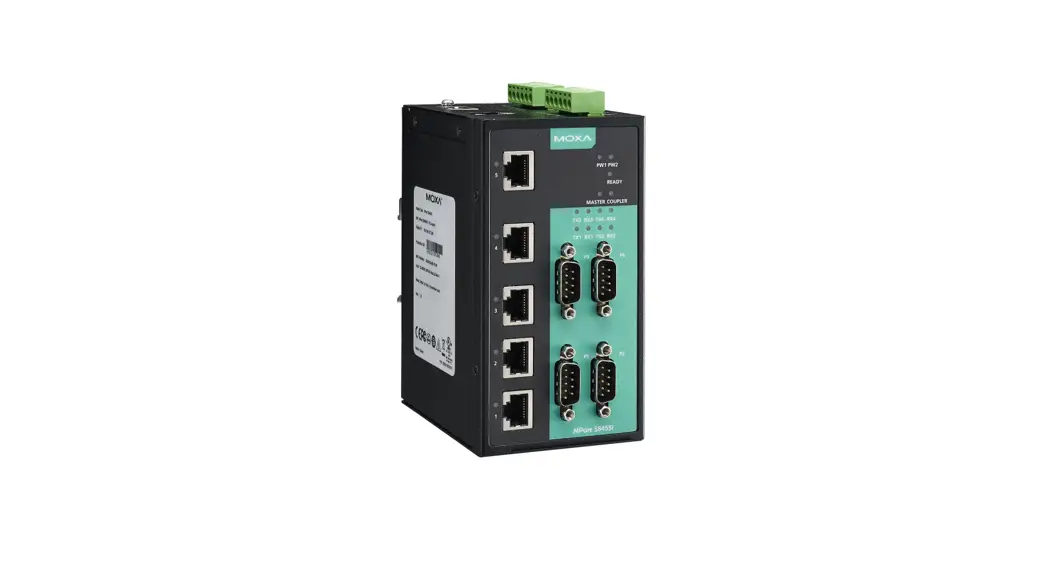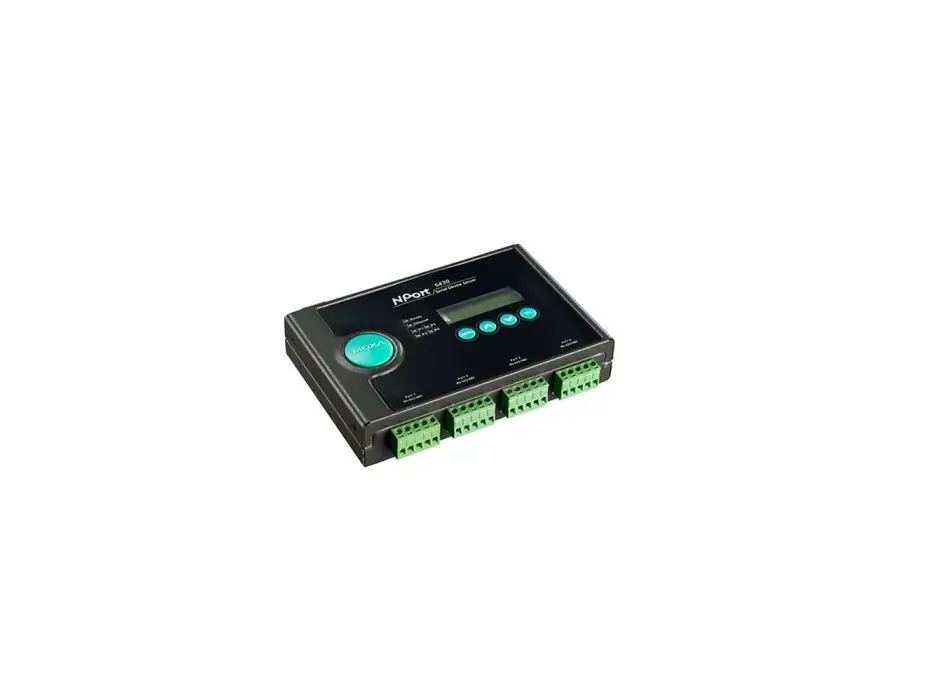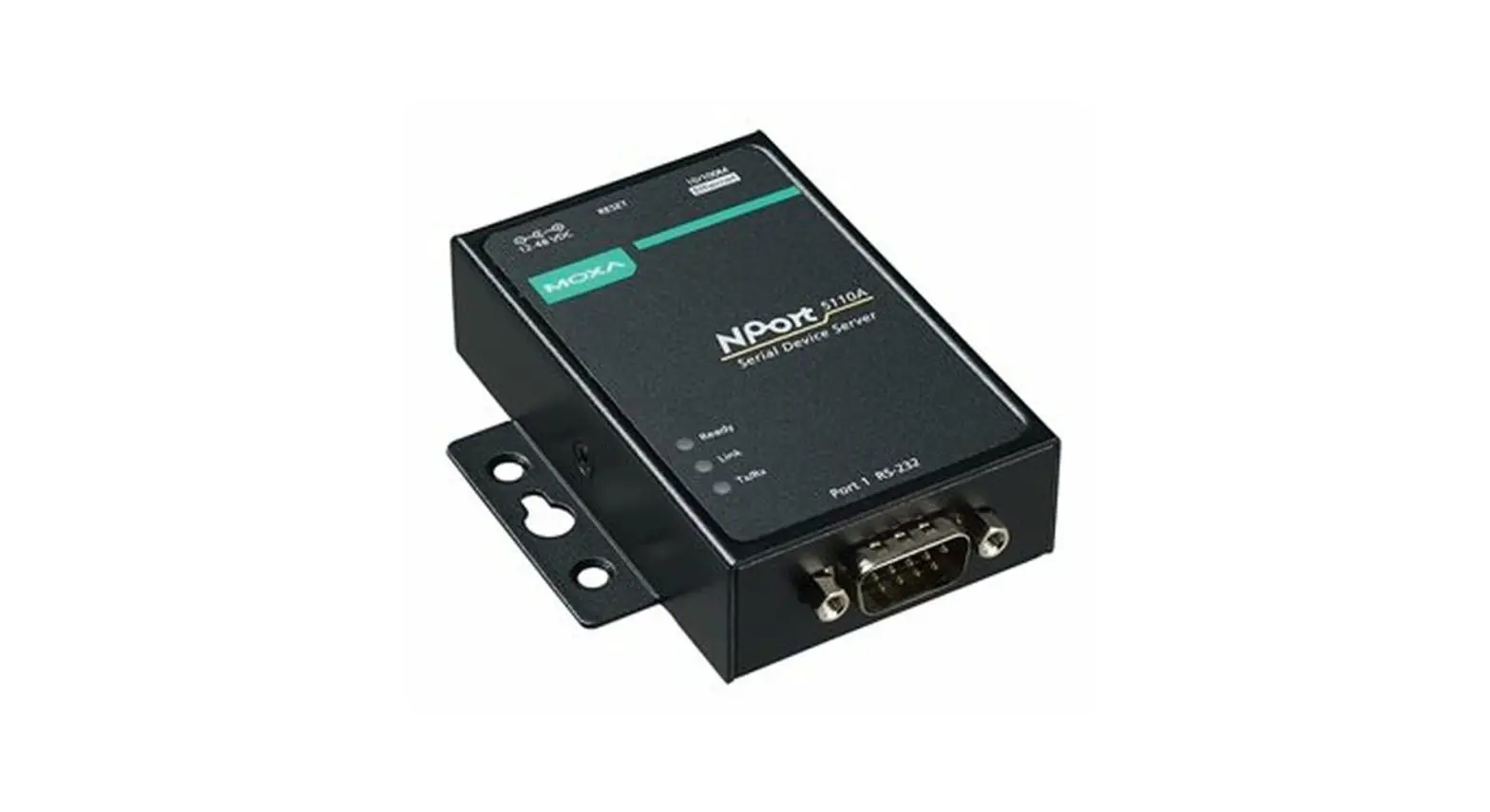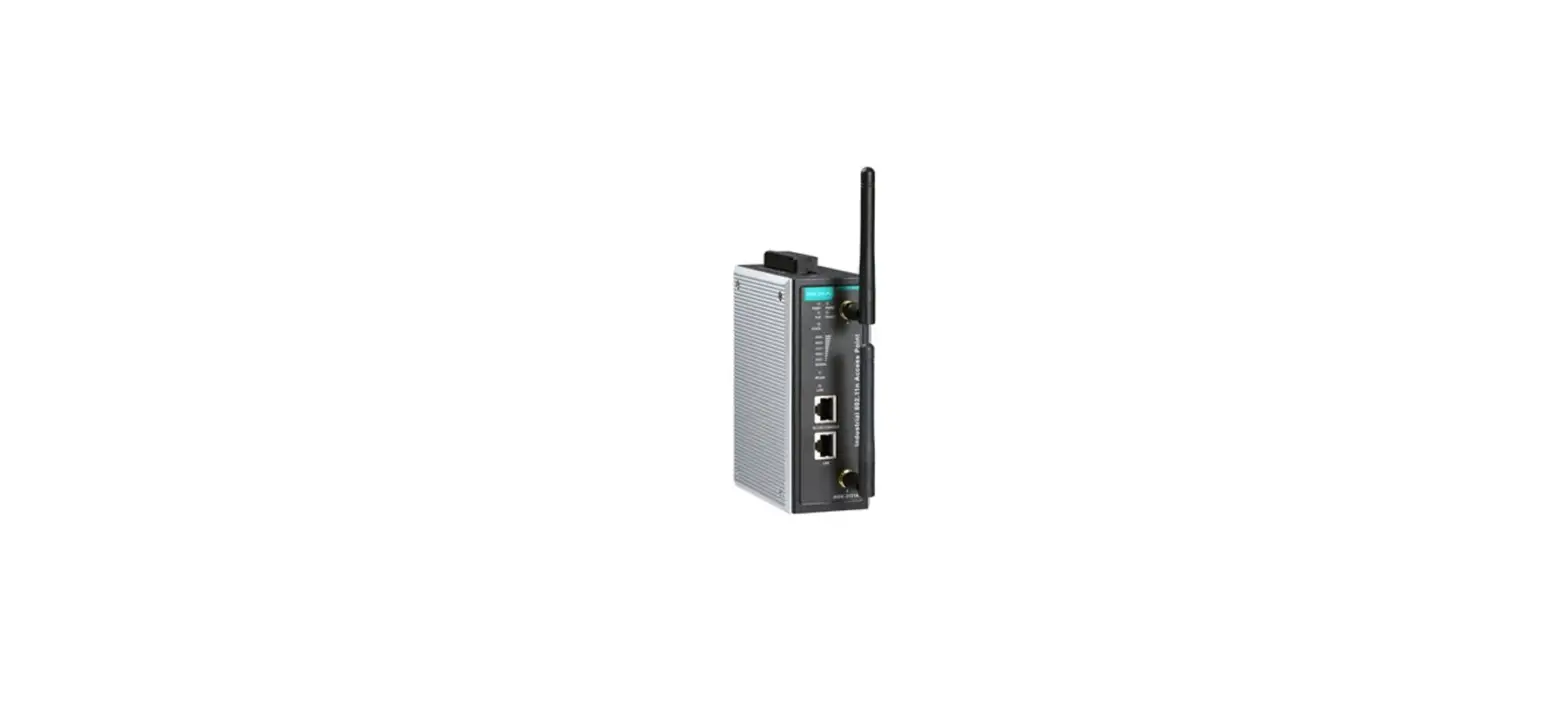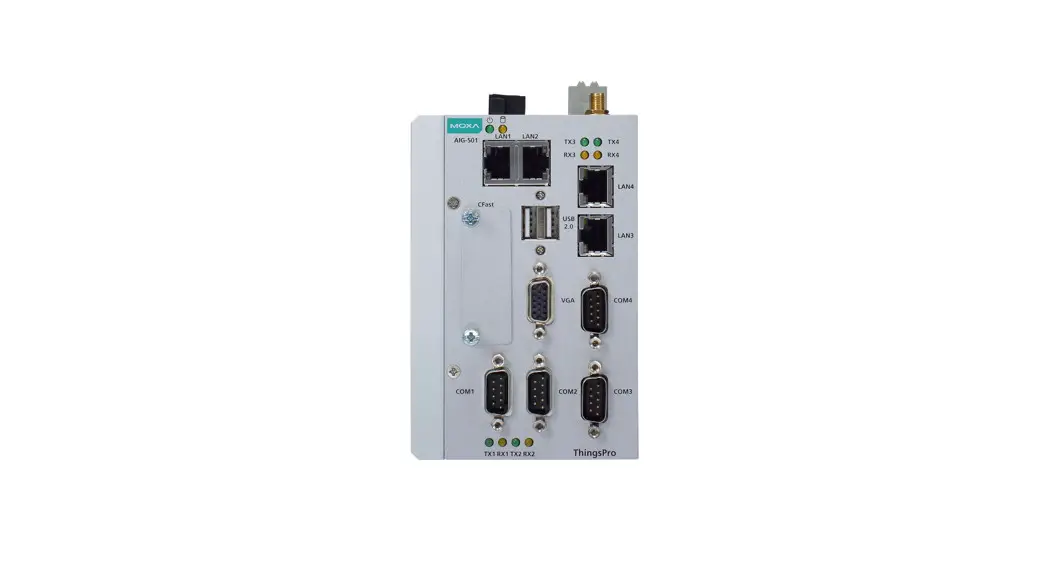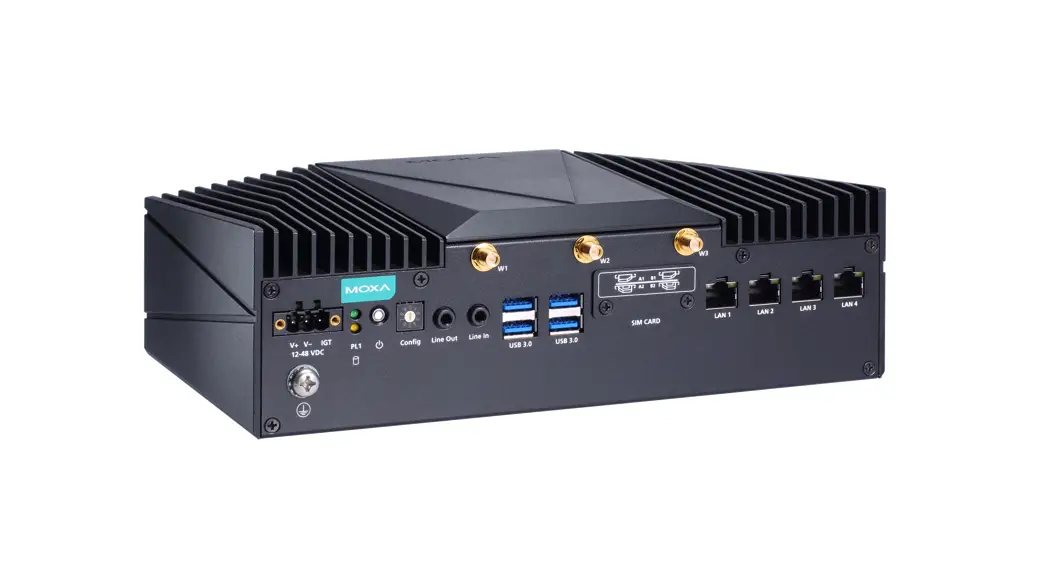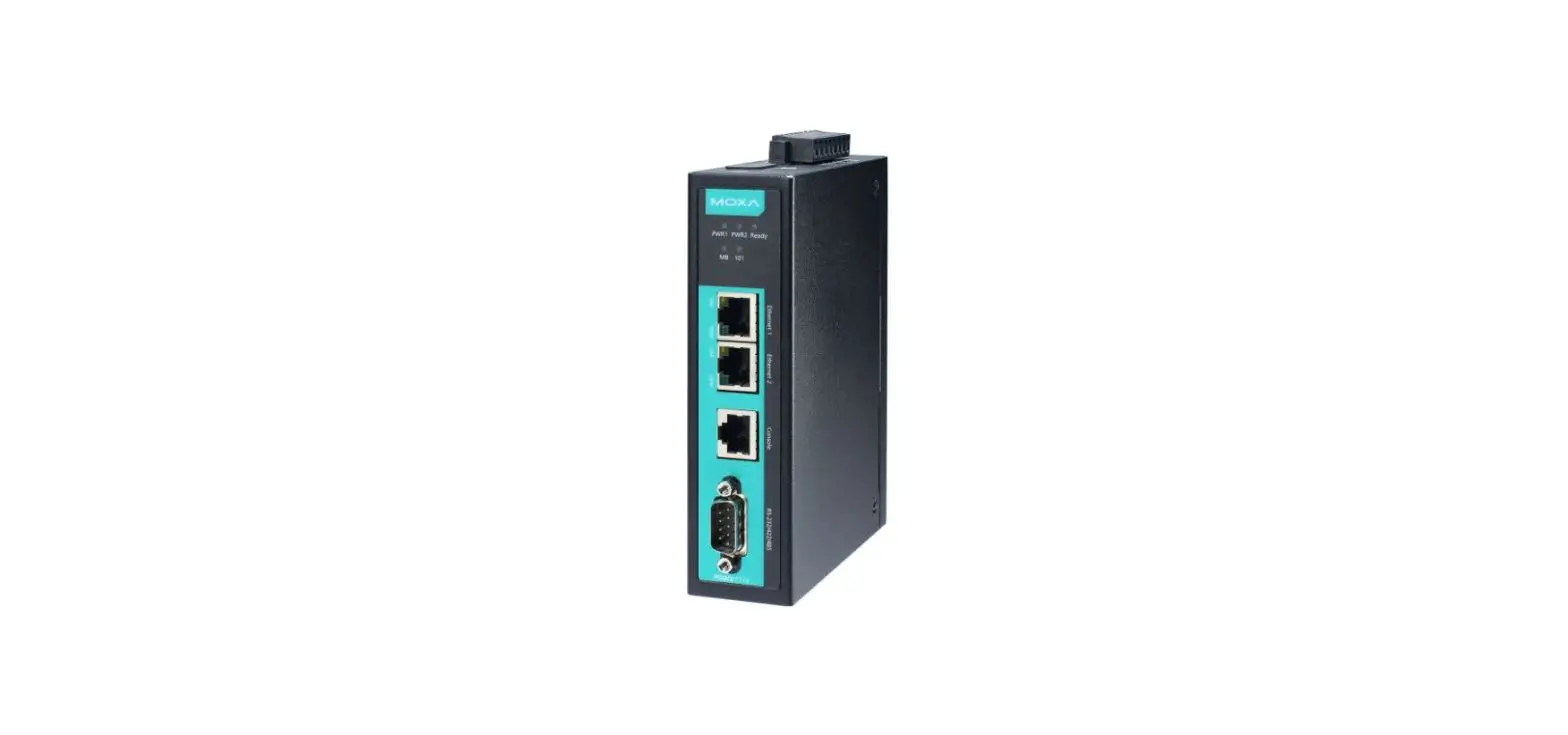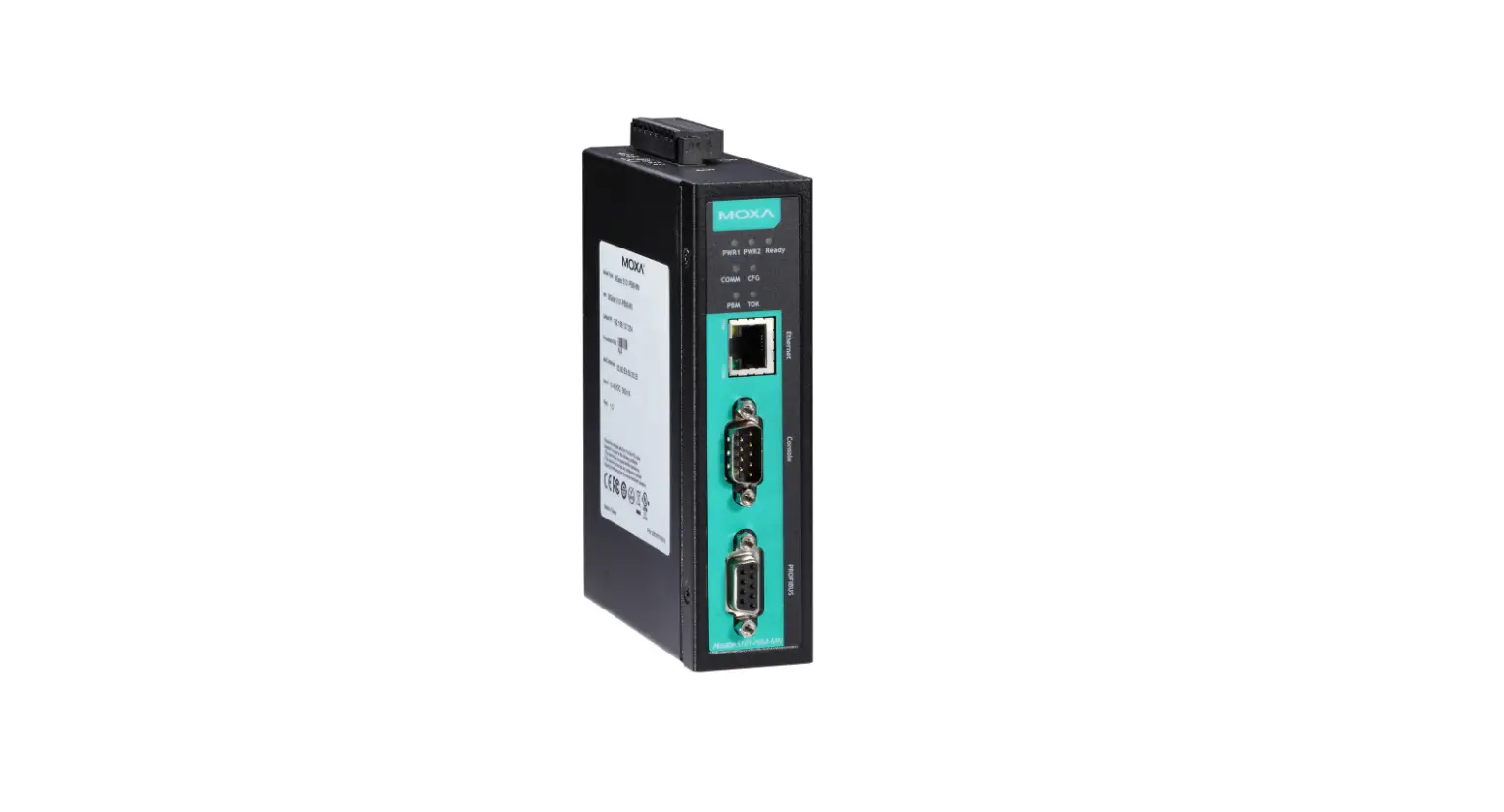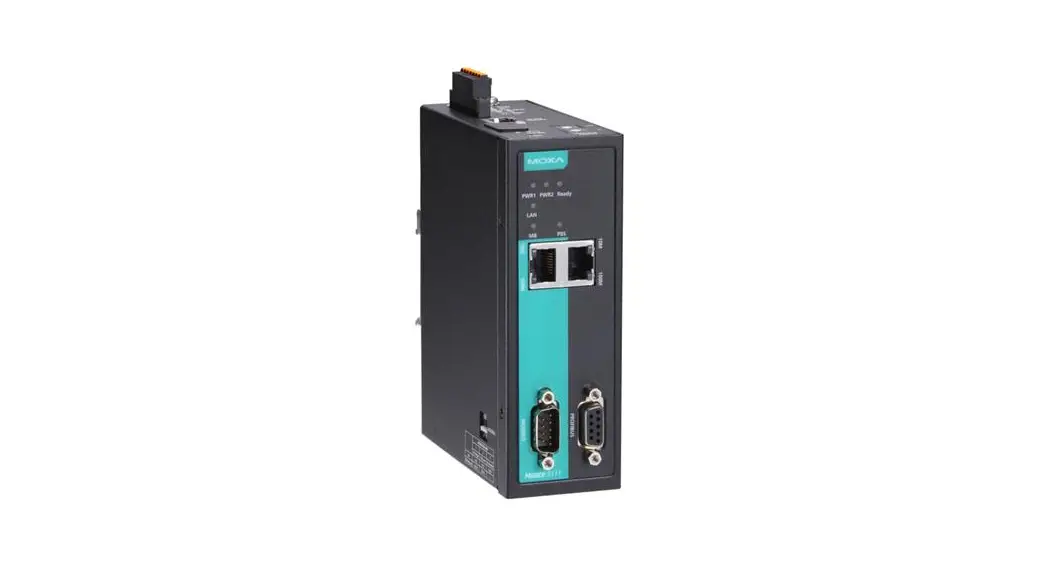

The Security Hardening Guide for the MGate 5000 Serie
Moxa Technical Support Team
[email protected]
About Moxa
Moxa is a leading provider of edge connectivity, industrial computing, and network infrastructure solutions for enabling connectivity for the Industrial Internet of Things (IIoT). With over 30 years of industry experience, Moxa has connected more than 71 million devices worldwide and has a distribution and service network that reaches customers in more than 80 countries. Moxa delivers lasting business value by empowering industries with reliable networks and sincere service. Information about Moxa’s solutions is available at www.moxa.com
Introduction
This document provides guidelines on how to configure and secure the MGate 5000 Series. The recommended steps in this document should be considered best practices for security in most applications. It is highly recommended that you review and test the configurations thoroughly before implementing them in your production system in order to ensure that your application is not negatively impacted.
General System Information
2.1 Basic Information AbBasic Information About the Device
| Model | Function | Operating System | Firmware Version | |
| MGate | 5101 Series | PROFIBUS-to-Modbus TCPGateway | Linux | v2.2 |
| MGate | 5102 Series | PROFIBUS-to-PROFINET Gateway | Linux | v2.3 |
| MGate | 5103 Series | Modbus RTU/ASCII/EtherNet/IP-to-PROFINET Gateway | Linux | v2.2 |
| MGate | 5105 Series | Modbus RTU/ASCII/TCP-to-EtherNet/IP Gateway | Linux | v4.3 |
| MGate | 5109 Series | Modbus RTU/ASCII/TCP-to-DNP3 serial/TCP Gateway | Linux | v2.3 |
| MGate | 5111 Series | Modbus/PROFINET/EtherNet/IP-to-PROFIBUS Gateway | Linux | v1.3 |
| MGate | 5114 Series | Modbus RTU/ASCII/TCP/IEC101-to-IEC104 Gateway | Linux | v1.3 |
| MGate | 5118 Series | CAN-J1939-to-Modbus/PROFINET/EtherNet/IP Gateway | Linux | v2.2 |
| MGate Series | W5108/W5208 | IEEE 802.11 a/b/g/n wireless Modbus/DNP3 Gateway | Linux | v2.4 |
| MGate | 5217 Series | Modbus-to-BACnet/IP gateway | Moxa Operating System | v1.2 |
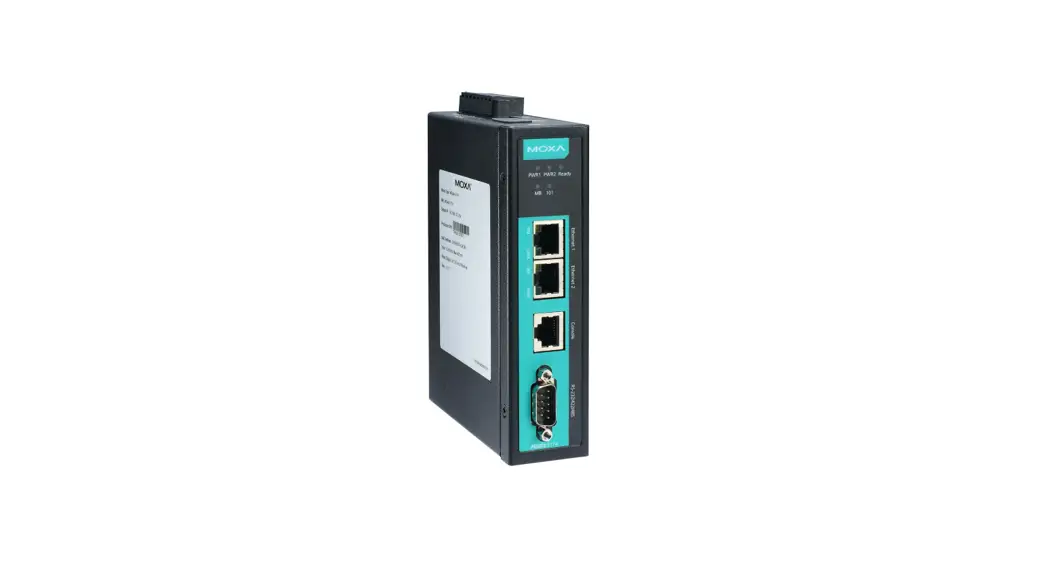
The MGate 5000 Series is a protocol gateway specifically designed to allow industrial devices to be directly accessed from a network. Thus, legacy Fieldbus devices can be transformed into different protocols, which can be monitored and controlled from any network location or even the Internet.
To harden the security of the operating system, the following open-source HTTPS libraries are included and periodically reviewed for cybersecurity enhancement.
- Linux models: OpenSSL v1.1.1b
- Moxa Operating System models: embed TLS v2.7.
2.2 Deployment of the Device
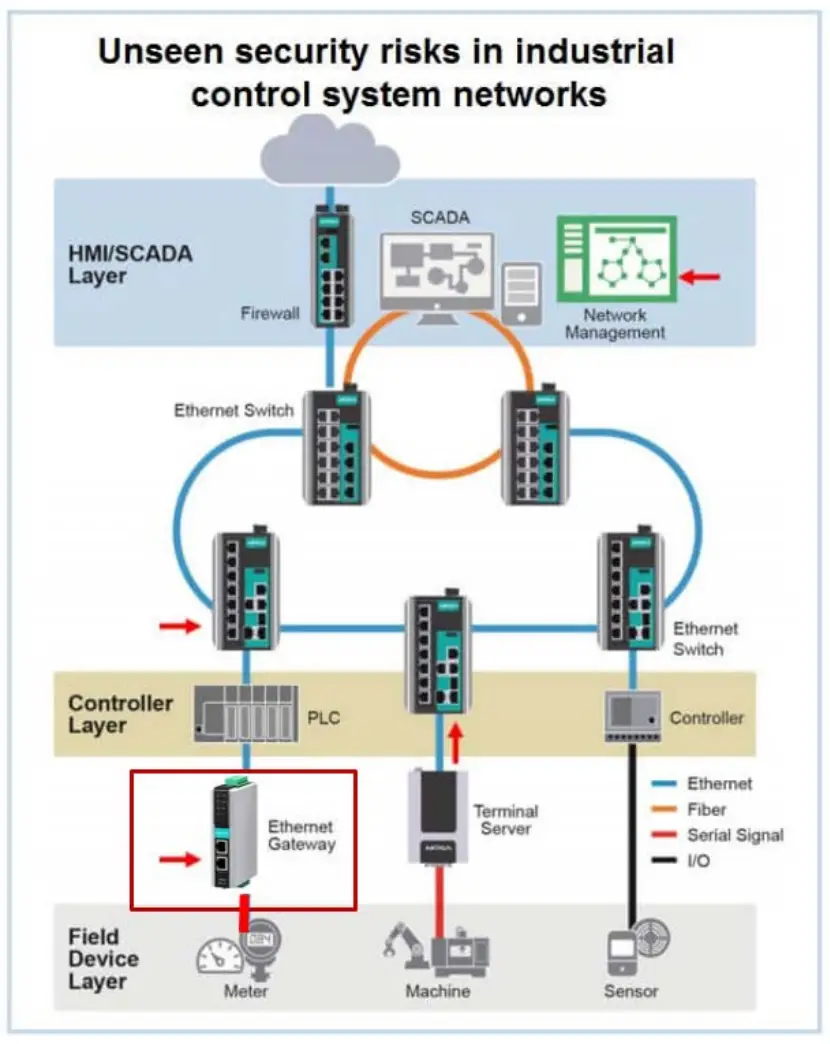
You should deploy the MGate 5000 Series behind a secure firewall network that has sufficient security features in place to ensure that networks are safe from internal and external threats.
Make sure that the physical protection of the MGate devices and/or the system meets the security needs of your application. Depending on the environment and the threat of the situation, the form of protection can vary significantly.
Configuration and Hardening Information
For security reasons, account and password protection are enabled by default, so you must provide the correct account and password to unlock the device before entering the web console of the gateway.
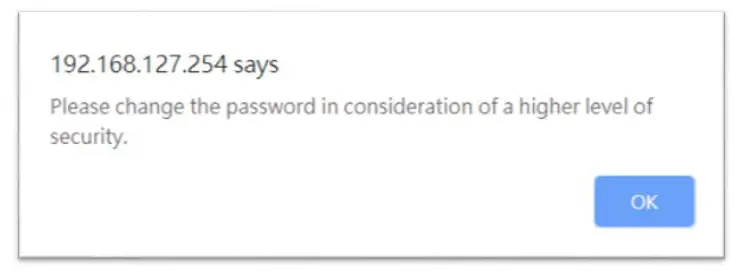
The default account and password are admin and moxa (both in lowercase letters), respectively. Once you are successfully logged in, a pop-up notification will remind you to change the password to ensure a higher level of security.
3.1 TCP/UDP Ports and Recommended Services
Please refer to the table below for all the ports, protocols, and services that are used to communicate between the MGate 5000 Series and other devices
| Service Name | Option | Default Settings | Type | Port Number | Description |
| DSC (Moxa Command) | Enable/Disable | Enable | TCP | 4900 | For Moxa utility communication |
| UDP | 4800 | ||||
| DNS client | Enable/Disable | Disable | UDP | 53 | Processing DNS and WINS (Client) data |
| SNMP agent | Enable/Disable | Enable | UDP | 161 | SNMP handling routine |
| HTTP server | Enable/Disable | Enable | TCP | 80 | Web console |
| HTTPS server | Enable/Disable | Enable | TCP | 443 | Secured web console |
| Telnet server | Enable/Disable | Disable | TCP | 23 | Telnet console |
| DHCP client | Enable/Disable | Disable | UDP | 68 | The DHCP client needs to acquire the system IP address from the server |
| Syslog client | Enable/Disable | Disable | UDP | 514 | Sending the system logs to the remote Syslog server |
| Email client | Enable/Disable | Disable | TCP | 25 | Sending system/config event notifications |
| SNMP trap client | Enable/Disable | Disable | UDP | 162 | Sending system/config event notifications |
| Service Name | Option | Default Settings | Type | Port Number | Description |
| NTP client | Enable/Disable | Disable | UDP | 123 | Network time protocol to synchronize the system time from the server |
| Modbus TCP client/server | Enable/Disable | Enable | TCP | 502,7502 | 502 for Modbus communication; 7502 for priority Modbus communication |
| EtherNet/IP | Enable/Disable | Enable | TCP, UDP | 2222, 44818 | 2222 for EtherNet/IP implicit messaging 44818 for EtherNet/IP explicit messaging |
| PROFINET | Enable/Disable | Enable | UDP | 34963 | 34963 for PROFINET protocol communication |
| DNP3 | Enable/Disable | Enable | TCP, UDP | 20000 | 20000 for DNP3 protocol communication |
| IEC-104 | Enable/Disable | Enable | TCP | 2404 | 2404 for IEC-104 protocol communication |
For security reasons, you should consider disabling unused services. After initial setup, use services with stronger security for data communication. Refer to the table below for the suggested settings.
| Service Name | Suggested Setting | Type | Port Number | Security Remark |
| DSC (Moxa Command) | Disable | TCP | 4900 | Disable this service as it is not commonly used |
| UDP | 4800 | |||
| DNS client | Disable | UDP | 53 | Disable this service as it is not commonly used |
| SNMP agent | Disable | UDP | 161 | Managing the MGate via HTTPS the console will be more secure |
| HTTP server | Disable | TCP | 80 | Disable HTTP to prevent plain text transmission |
| HTTPS server | Enable | TCP | 443 | Encrypted data channel with a trusted certificate for MGate configuration |
| Telnet server | Disable | TCP | 23 | Disable this service as it is not commonly used |
| DHCP client | Disable | UDP | 68 | Assign an IP address manually for the device |
| Service Name | Suggested Setting | Type | Port Number | Security Remark |
| Syslog client | Enable | UDP | 514 | A service for sending important system events for a diagnosis of the MGate’s status |
| Email client | Enable | TCP | 25 | A service for sending important system events for a diagnosis of the MGate’s status |
| SNMP trap client | Enable | UDP | 162 | A service for sending important system events for a diagnosis of the MGate’s status |
| NTP client | Disable | UDP | 123 | Disable this service as it is not commonly used |
| Modbus TCP client/server | Enable | TCP | 502, 7502 | Make sure you add your Modbus devices’ IP addresses to the “Accessible IP list” |
| EtherNet/IP | Enable | TCP, UDP | 2222, 44818 | 2222 for EtherNet/IP implicit messaging; 44818 for EtherNet/IP explicit messaging |
| PROFINET | Enable | UDP | 34963 | 34963 for PROFINET protocol communication |
| DNP3 | Enable | TCP, UDP | 20000 | 20000 for the DNP3 protocol communication |
| IEC-104 | Enable | TCP | 2404 | 2404 for the IEC-104 protocol communication |
| BACnet/IP | Enable | UDP | 47808 | 47808 for BACnet/IP protocol communication |
For console services, we recommend the following:
| HTTP | Disable |
| HTTP | Enable |
| Telnet | Disable |
| Moxa Command | Disable |
To enable or disable these services, log in to the HTTP/HTTPS console and select System Management  Misc. Settings Console Settings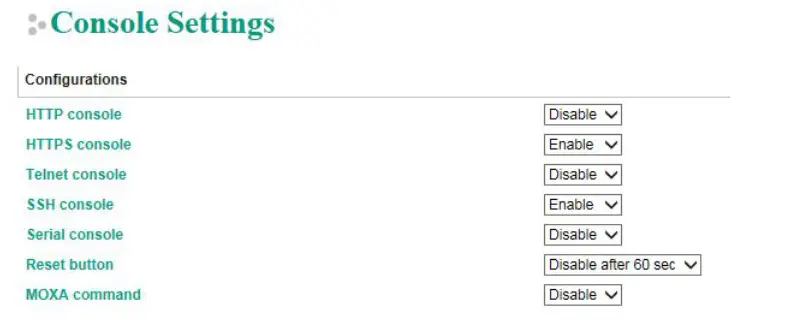
To disable the SNMP agent service, log in to the HTTP/HTTPS console and select System Management SNMP Agent, then select Disable for SNMP.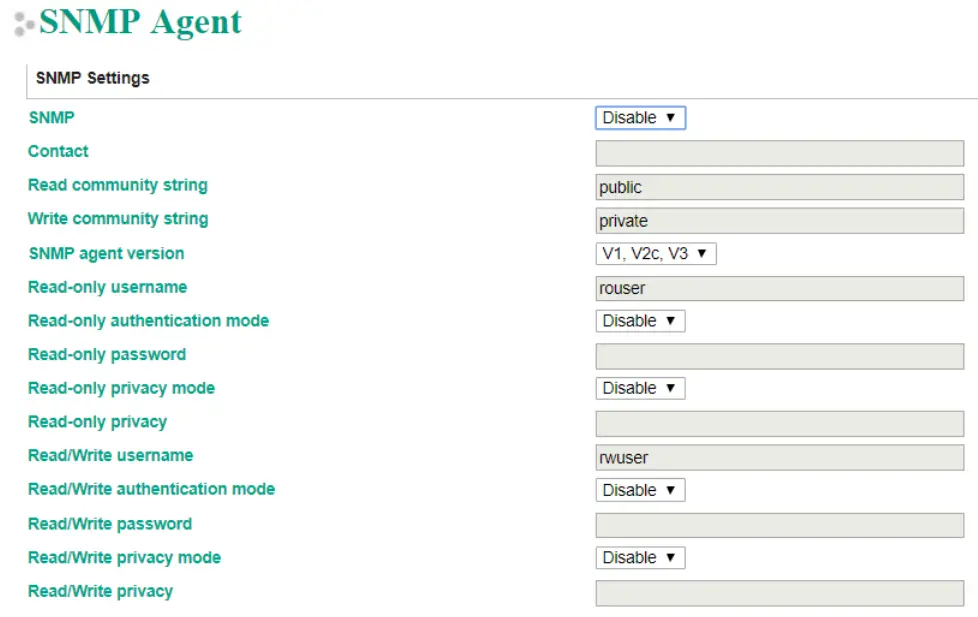
To disable the NTP service, log in to the HTTP/HTTPS console, select Basic Settings, and keep the Time server setting empty. This will disable the NTP service.
Note For each instruction above, click the Submit button to save your changes, then restart the MGate device so the new settings will take effect.
3.2 HTTPS and SSL Certificates
HTTPS is an encrypted communication channel. As TLS v1.1 or lower has severe vulnerabilities that can easily be hacked, MGate devices use TLS v1.2 for HTTPS to ensure
data transmissions are secured. Make sure your browser has TLS v1.2 enabled. 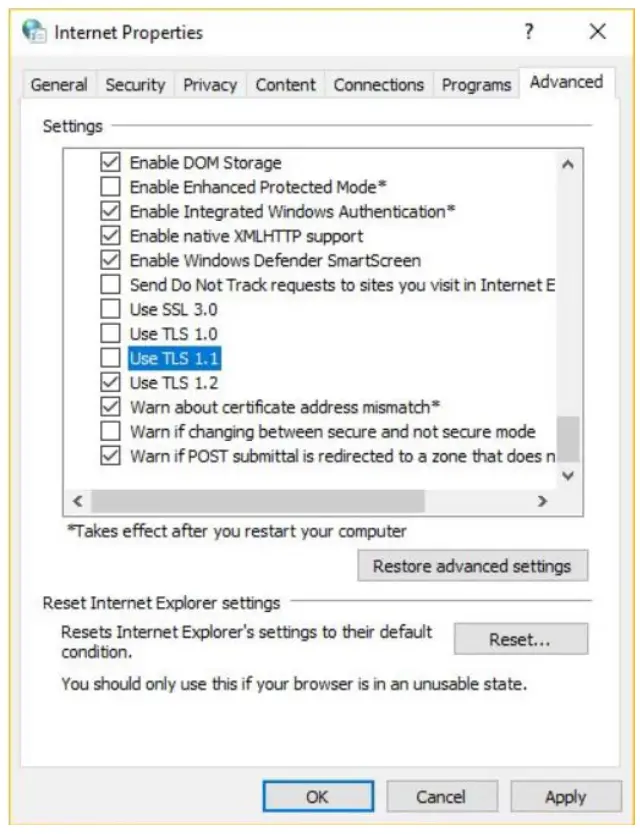
In order to use the HTTPS console without a certificate warning appearing, you need to import a trusted certificate issued by a third-party certificate authority.
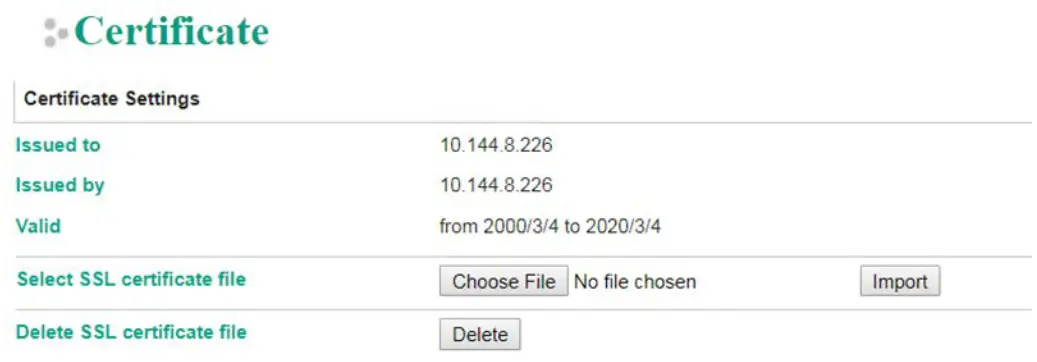
Log in to the HTTP/HTTPS console and select System Management Certificate. You can generate an up-to-date valid certificate by importing a third-party trusted SSL certificate or generating the “MGate self-signed” certificate.
3.2.1 Behavior of the SSL Certificate on an MGate Device
MGate devices can auto-generate a self-signed SSL certificate. It is recommended that you import SSL certificates that are either certified by a trusted third-party Certificate Authority (CA) or by an organization’s CA.
The length of the MGate device’s self-signed private keys is 1,024 bits, which should be compatible with most applications. Some applications may need a longer key, such as 2,048 bits, which would require importing a third-party certificate. Please note that longer keys will mean browsing the web console will be slower due to the increased complexity of encrypting and decrypting communicated data.
3.2.2 MGate Self-signed Certificate
If a certificate has expired, you can regenerate the MGate self-signed certificate with the following steps.
Step 1: Delete the current SSL certificate issued by the MGate device.
Step 2: Enable the NTP server and set up the time zone and local time.
Step 3: After restarting the device, the MGate self-signed certificate will be regenerated with a new expiration date.
3.2.3 Importing a Third-party Trusted SSL Certificate
Importing the third-party trusted SSL certificate can improve security. To generate the SSL certificate through a third party, follow these steps:
Step 1: Create a certification authority (Root CA), such as Microsoft AD Certificate Service
(https://mizitechinfo.wordpress.com/2014/07/19/step-by-stepinstalling-certificate-authority-on-windows-server-2012-r2/)
Step 2: Find a tool to issue a certificate signing request (CSR) file. You can get one from a third-party CA company such as DigiCert (https://www.digicert.com/easycsr/openssl.htm.
Step 3: Submit the CSR file to a public certification authority to get a signed certificate.
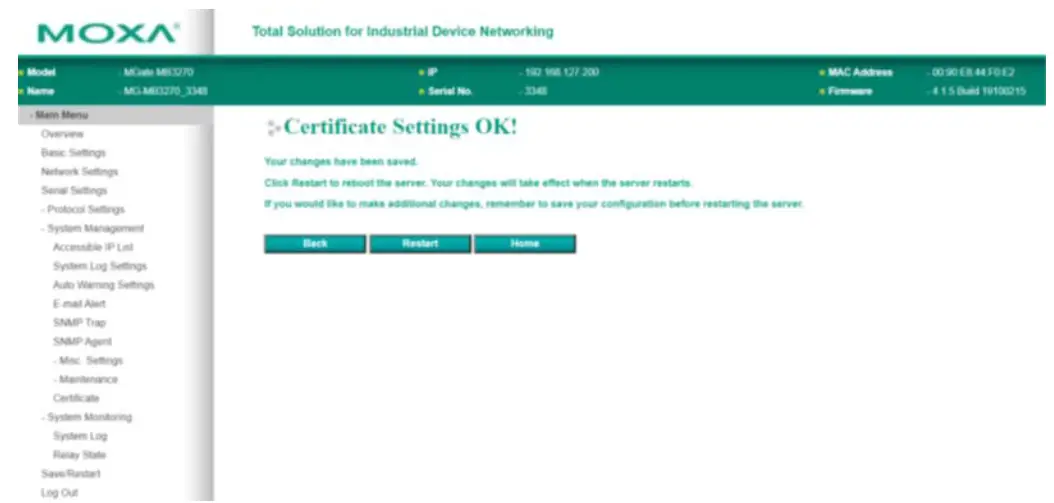
Step 4: Import the certificate to the MGate device. Please note that MGate devices only accept certificates using a “.pem” format.
Note The maximum supported key length for MGate devices is 2,048 bits.
Here are some well-known third-party CA (Certificate Authority) companies for your
reference (https://en.wikipedia.org/wiki/Certificate_authority):
- IdenTrust (https://www.identrust.com/)
- DigiCert (https://www.digicert.com/)
- Comodo Cybersecurity (https://www.comodo.com/)
- GoDaddy (https://www.godaddy.com/)
• Verisign (https://www.verisign.com/)
3.3 Account Management
The MGate 5000 Series provides two different user levels, admin and user, with a maximum of 16 accounts. With an administrator account, you can access and modify all settings through the web console. With the user account, you can only view settings.
The default administrator account is admin, with the default password moxa. To manage accounts, log in to the web console and select System Management Misc. Settings Account Management. To change the password of an existing account, double-click the name of the account. You can change the password on the page that opens. 
To add a new account, log in to the HTTP/HTTPS console and select System Management Misc. Settings Account Management. Click the Add button, then fill in the Account name, User level, New password, and Retype password to generate a new account. 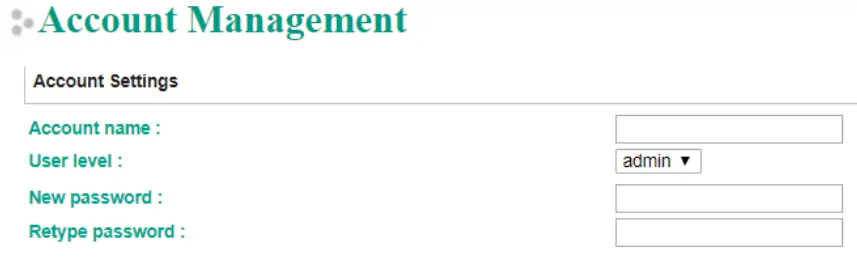
Note We suggest you manage your device with another “administrator level” account instead of using the default “admin” account, as it is commonly used by embedded systems. Once the new administrator-level account has been created, it is suggested that the original “admin” account should be monitored for security reasons to prevent brute-force attacks.
To improve security, the login password policy and account login failure lockout can be configured. To configure them, log in to the HTTP/HTTPS console and select System
Management Misc. Settings Login Password Policy. 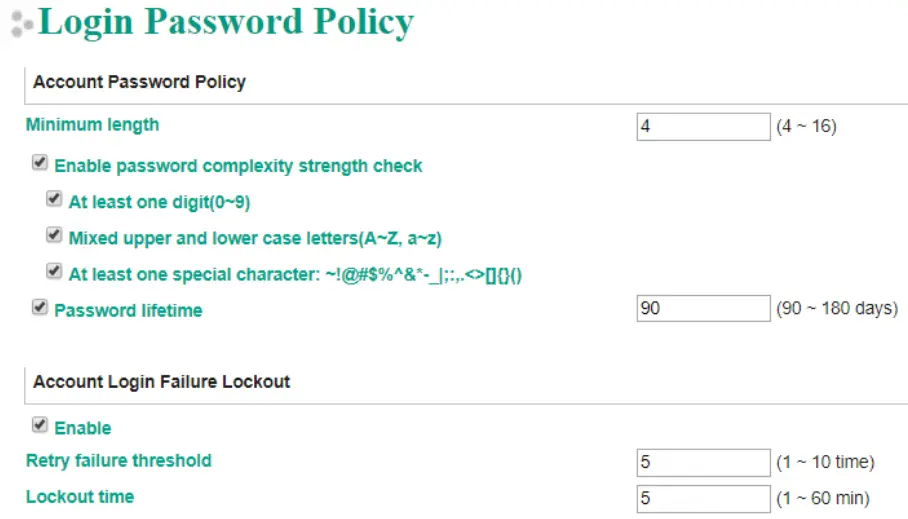
You should adjust the password policy to require more complex passwords. For example, set the Minimum length to 16, enable all password complexity strength checks, and enable the Password lifetime options. Also, to avoid a brute-force attack, it’s suggested that you enable the Account login failure lockout feature.
For some system security requirements, a warning message may need to be displayed to all users attempting to log in to the device. To add a login message, log in to the HTTP/HTTPS console and select System Management Misc. Settings Notification Message, and enter a Login Message to use. 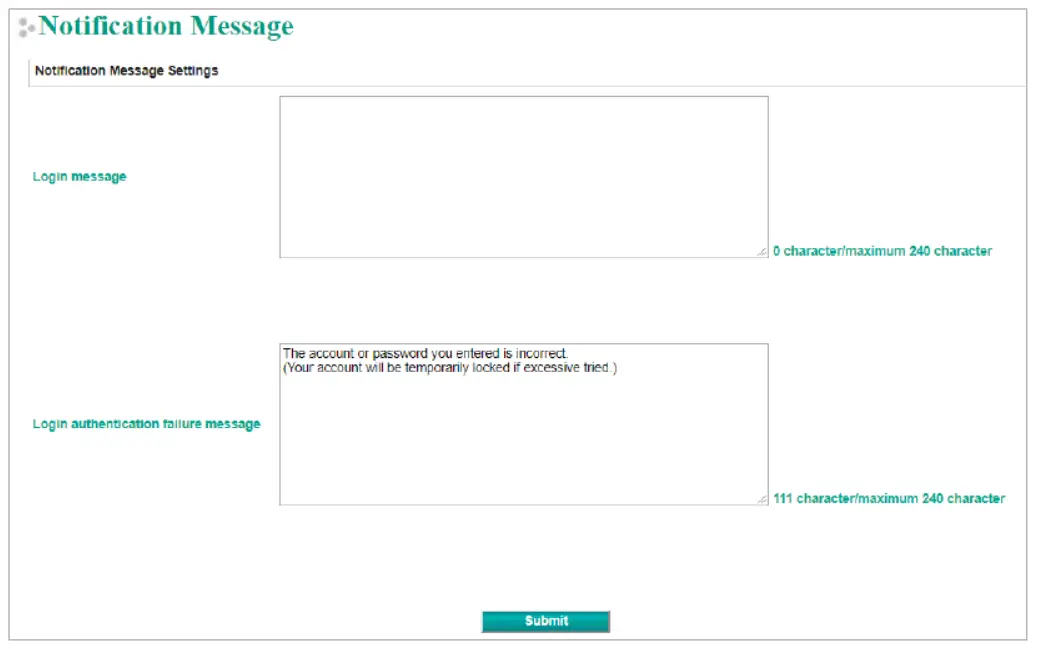
3.4 Accessible IP List
The MGate 5000 Series can limit access to specific host IP addresses to prevent unauthorized access to the gateway. If a host’s IP address is in the accessible IP list, then the host will be allowed to access the MGate 5000 Series. To configure this, log in to the HTTP/HTTPS console and select System Management Accessible IP List. The different restrictions are listed in the table below (the checkbox Apply additional restrictions can only be activated if Activate the accessible IP list is activated)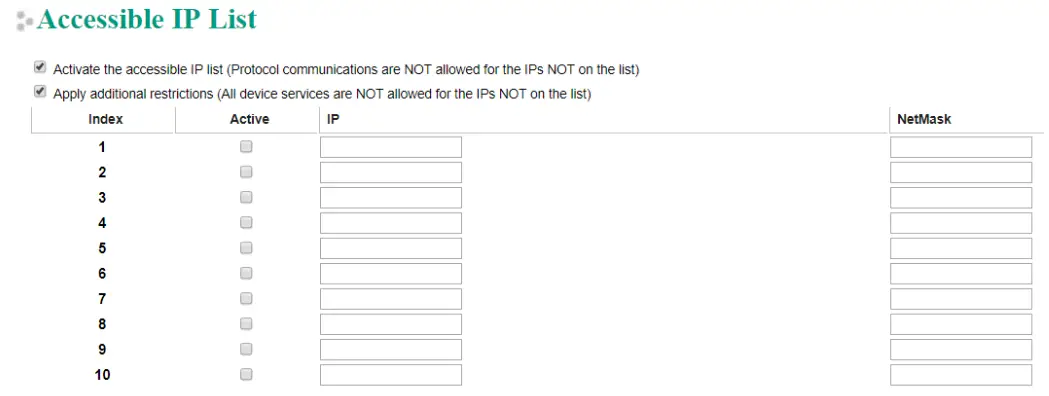
| Activate the accessible IP list | Apply additional restrictions | IP is in the list and Active is checked | IP is not in the list OR Active is not checked |
 | – | All protocol communication and services* are allowed for the IP. | Protocol communication is not allowed, but services* are still allowed for the IP. |
| | All protocol communication and services* are allowed for the IP. | All services* are not allowed for the IP. |
*HTTP, HTTPS, TELNET, SSL, SNMP, SMTP, DNS, NTP, DSU
You may add a specific address or range of addresses by using a combination of an IP address and a netmask as follows:
- To allow access to a specific IP address: Enter the IP address in the corresponding field, then enter 255.255.255.255 for the netmask.
- To allow access to hosts on a specific subnet: For both the IP address and netmask, use 0 for the last digit (e.g., “192.168.1.0” and “255.255.255.0”).
- To allow access to all IP addresses: Make sure that Enable the checkbox for the accessible IP list is not checked.
Additional configuration examples are shown in the following table:
| Desired IP Range | IP Address | Netmask |
| Any host | Disable | Enable |
| 192.168.1.120 | 192.168.1.120 | 255.255.255.255 |
| 192.168.1.1 to 192.168.1.254 | 192.168.1.0 | 255.255.255.0 |
| 192.168.1.1 to 192.168.255.254 | 192.168.0.0 | 255.255.0.0 |
| 192.168.1.1 to 192.168.1.126 | 192.168.1.0 | 255.255.255.128 |
| 192.168.1.129 to 192.168.1.254 | 192.168.1.128 | 255.255.255.128 |
 WARNING
Ensure that the IP address of the PC you are using to access the web console is in the Accessible IP List. If your PC’s IP address is not listed in the Accessible IP list, your PC will not be able to access the gate.
3.5 Logging and Auditing
These are the events that will be recorded by the MGate 5000 Series. The SD card access failure event and protocol events vary for the different MGate 5000 models.
| Event Group | Summary |
| System | System cold start, system warm start, SD card access failure |
| Network | DHCP/BOOTP gets IP/renew, NTP connect failed, IP conflict, Network link down |
| Configuration | Login failed, IP changed, Password changed, Firmware upgraded, SSL Certificate imported, Configuration imported/exported, Configuration changed, Clear event logged |
| Protocol | Protocol communication logs |
To configure this setting, log in to the HTTP/HTTPS console and select System Management System Log Settings. Then, enable the Local Log for recording on the gate 5000 device and/or Syslog for keeping records on a server. You should enable system log settings to record all important system events to monitor device status and check for security issues. 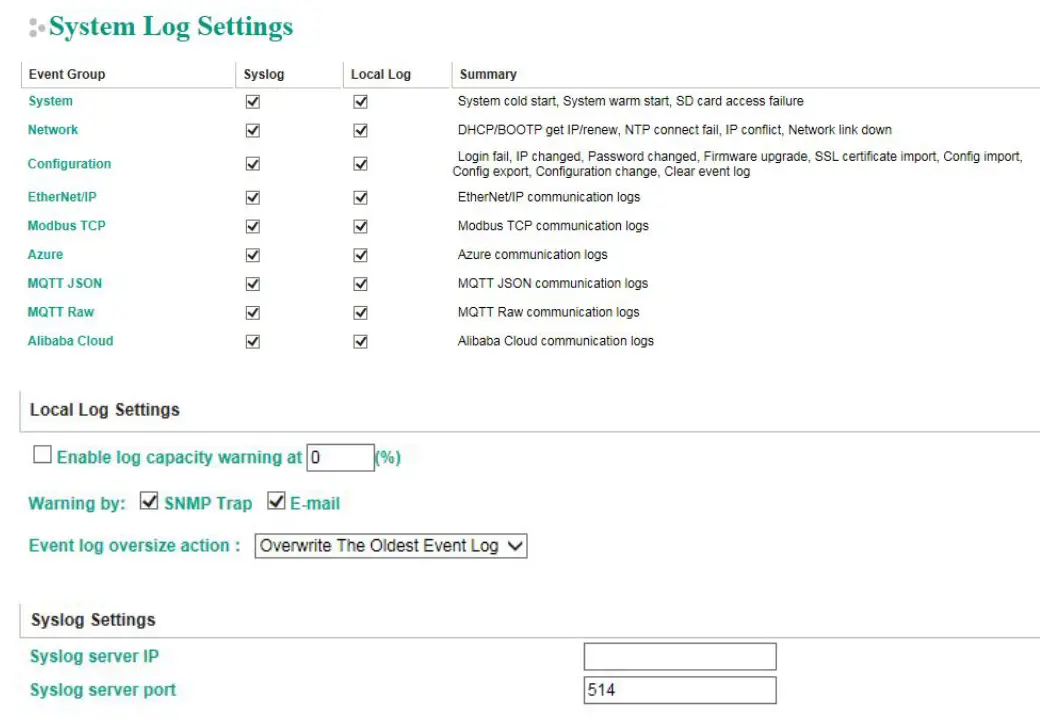
To view events in the system log, log in to the HTTP/HTTPS console and select System Monitoring System Log.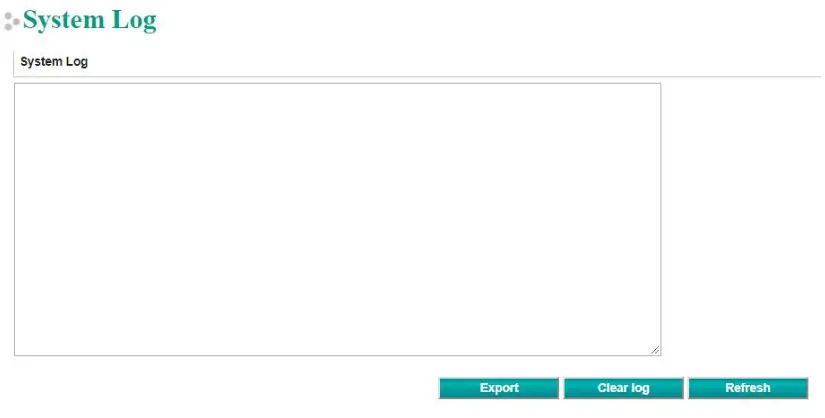
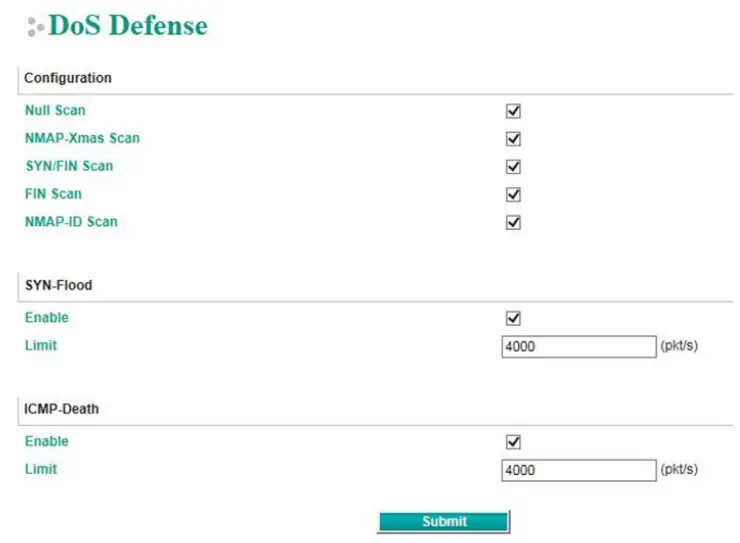
3.6 DoS Defense
You can enable and configure a number of features to enable DoS Defense in order to protect against denial-of-service (DoS) attacks.
Note This function is not supported in the MGate 5217 Series.
Patching/Upgrades
4.1 Patch Management Plan
For patch management, Moxa generally releases version enhancements with thorough release notes annually.
4.2 Firmware Upgrades
The process for upgrading firmware is as follows:
- Download the latest firmware for your MGate device from the Moxa website:
 MGate 5101 Series:
https://www.moxa.com/en/products/industrial-edge-connectivity/protocolgateways/modbus-tcp-gateways/mgate-5101-pbm-mn-series#resourcesMGate 5102 Series:
https://www.moxa.com/en/products/industrial-edge-connectivity/protocolgateways/profinet-gateways/mgate-5102-pbm-pn-seriesMGate 5103 Series:
https://www.moxa.com/en/products/industrial-edge-connectivity/protocolgateways/modbus-tcp-gateways/mgate-5103-series#resourcesMGate 5105 Series:
https://www.moxa.com/en/products/industrial-edge-connectivity/protocolgateways/modbus-tcp-gateways/mgate-5105-mb-eip-series#resources MGate 5109 Series:
https://www.moxa.com/en/products/industrial-edge-connectivity/protocolgateways/modbus-tcp-gateways/mgate-5109-series#resourcesMGate 5111 Series:
https://www.moxa.com/en/products/industrial-edge-connectivity/protocolgateways/modbus-tcp-gateways/mgate-5111-series#resourcesMGate 5114 Series:
https://www.moxa.com/en/products/industrial-edge-connectivity/protocolgateways/modbus-tcp-gateways/mgate-5114-series#resources MGate 5118 Series:
https://www.moxa.com/en/products/industrial-edge-connectivity/protocolgateways/modbus-tcp-gateways/mgate-5118-series#resourcesMGate W5108/W5208 Series:
https://www.moxa.com/en/products/industrial-edge-connectivity/protocol- gateways/modbus-tcp-gateways/mgate-w5108-w5208-series#resourcesMGate 5217I Series:
https://www.moxa.com/en/products/industrial-edge-connectivity/protocolgateways/modbus-tcp-gateways/mgate-5217-series#resources - Moxa’s website provides the SHA-512 hash value for you to double-check if the firmware is identical to the one on the website.

- Log in to the HTTP/HTTPS console and select System Management
 Maintenance Firmware Upgrade. Click the Choose File button to select the proper firmware and click Submit to upgrade the firmware.
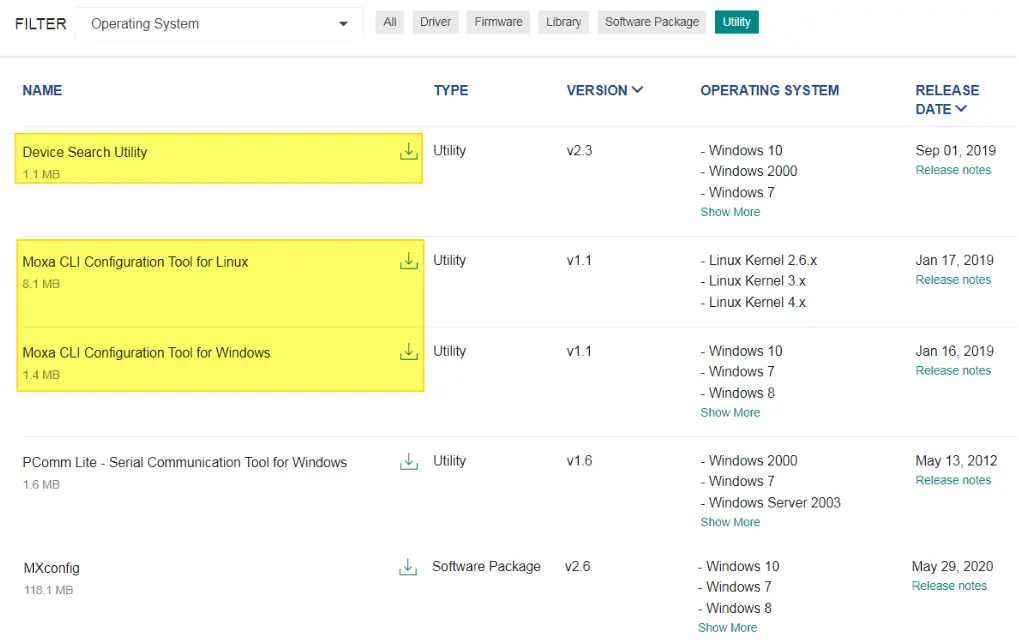
- If you want to upgrade the firmware for multiple units, then download the utility Device Search Utility (DSU) or MXconfig for a GUI interface, or the Moxa CLI Configuration Tool for a CLI interface.
 MGate 5101 Series: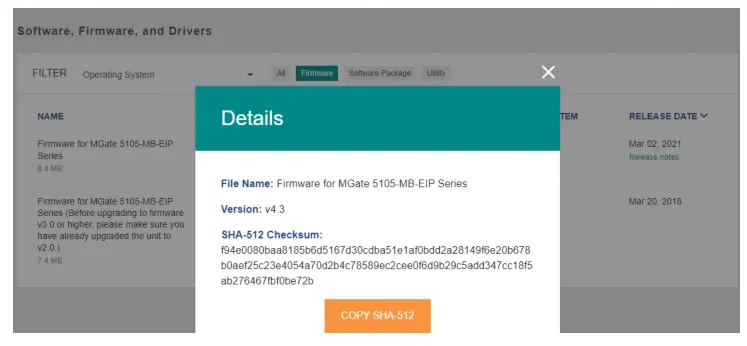

Security Information and Vulnerability Feedback
As the adoption of the Industrial IoT (IIoT) continues to grow rapidly, security has become one of our top priorities. The Moxa Cyber Security Response Team (CSRT) takes a proactive approach to protect our products from security vulnerabilities and help our customers better manage security risks. You can find the latest Moxa security information here: https://www.moxa.com/en/support/product-support/security-advisory
References
 Moxa - Your Trusted Partner in Automation
 Certificate authority - Wikipedia
-
Step by Step : Installing Certificate Authority on Windows Server 2012 R2 | Just a random "Microsoft Server / Client Tech" info..
 Cybersecurity Breaches Stop Here | Comodo Cybersecurity
-
SSL Digital Certificate Authority | Encryption & Authentication | DigiCert.com
-
Domain Names, Websites, Hosting & Online Marketing Tools GoDaddy
 IdenTrust – Part of HID Global
-
Security Advisories
-
Verisign is a global provider of domain name registry services and internet infrastructure - Verisign
 Moxa - Your Trusted Partner in Automation
 Certificate authority - Wikipedia
 Step by Step : Installing Certificate Authority on Windows Server 2012 R2 | Just a random "Microsoft Server / Client Tech" info..
 Cybersecurity Breaches Stop Here | Comodo Cybersecurity
 SSL Digital Certificate Authority | Encryption & Authentication | DigiCert.com
 Domain Names, Websites, Hosting & Online Marketing Tools GoDaddy
 IdenTrust – Part of HID Global
 Verisign is a global provider of domain name registry services and internet infrastructure - Verisign