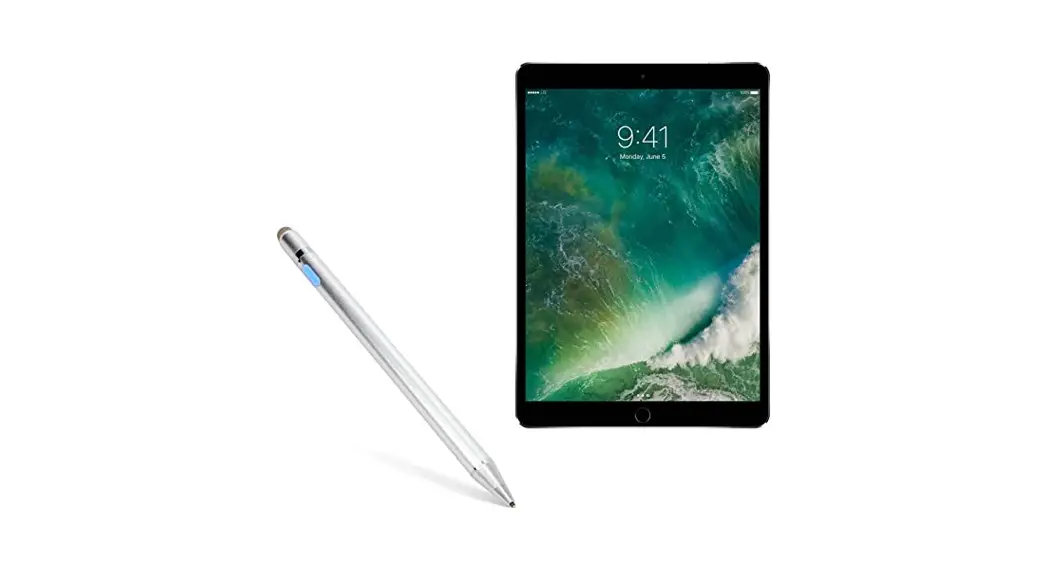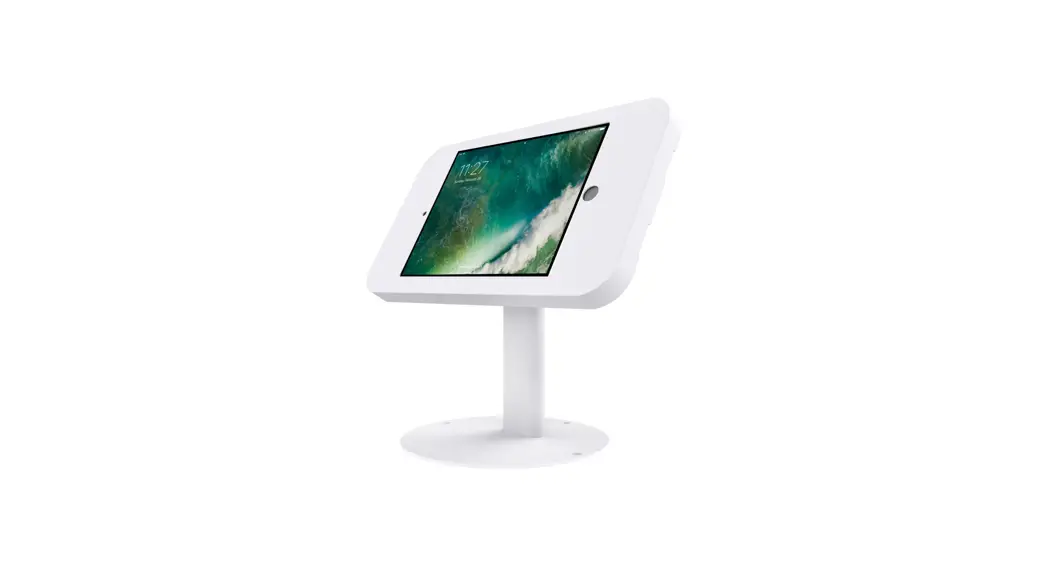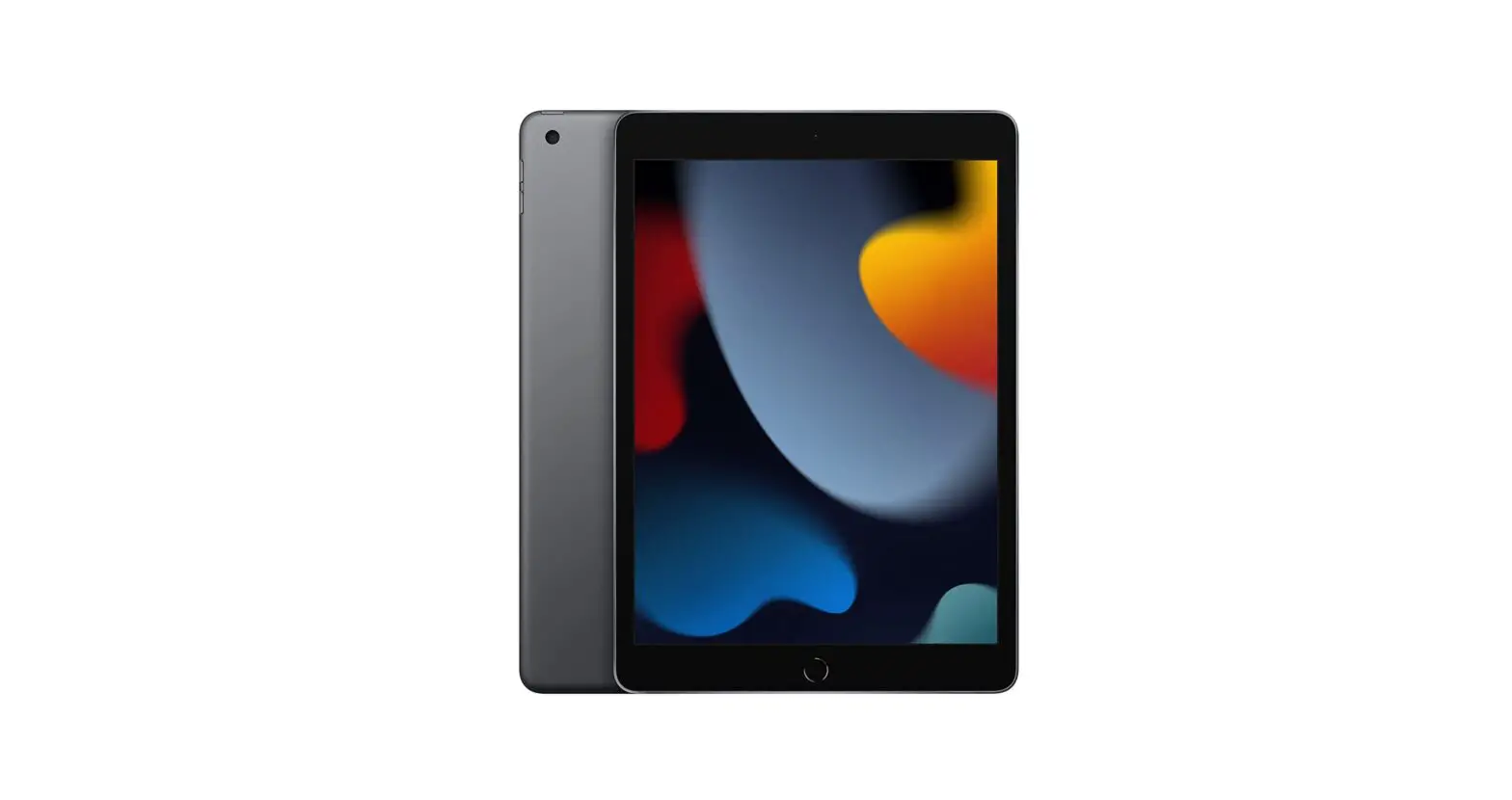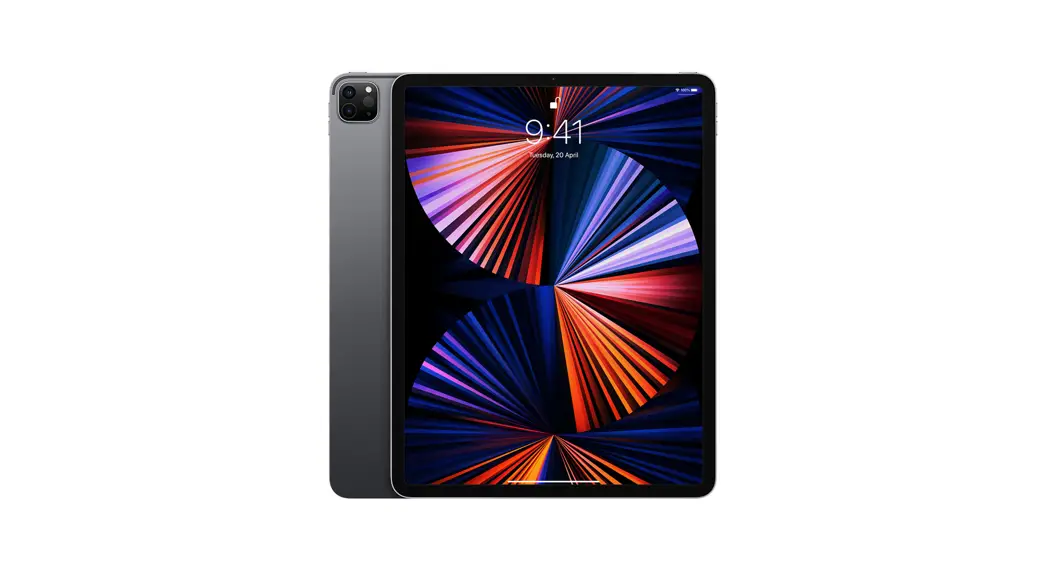

 iPad 7th Generation Manual
How to access Code@Home Curriculum
Power and Charge
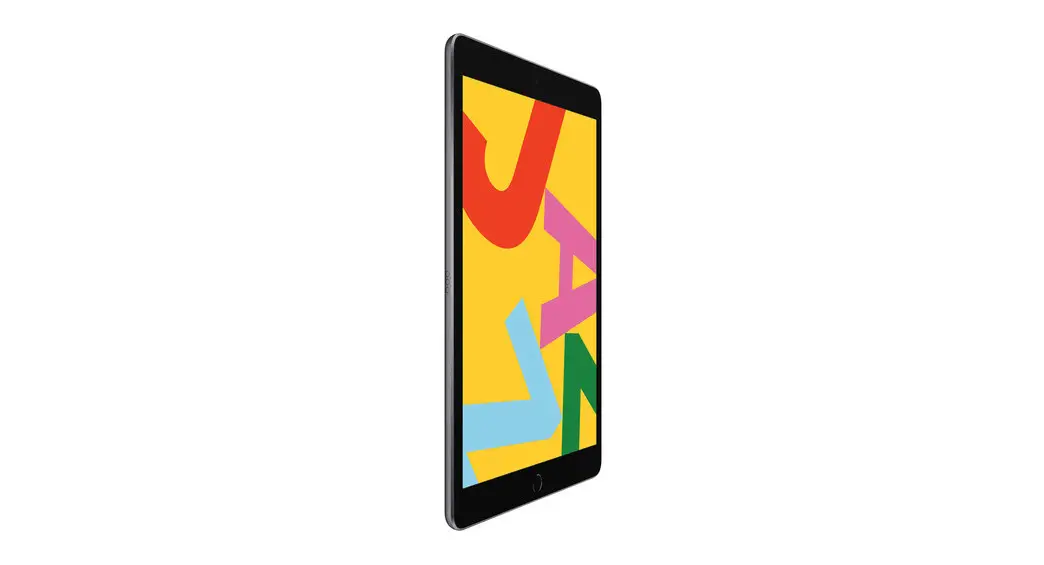
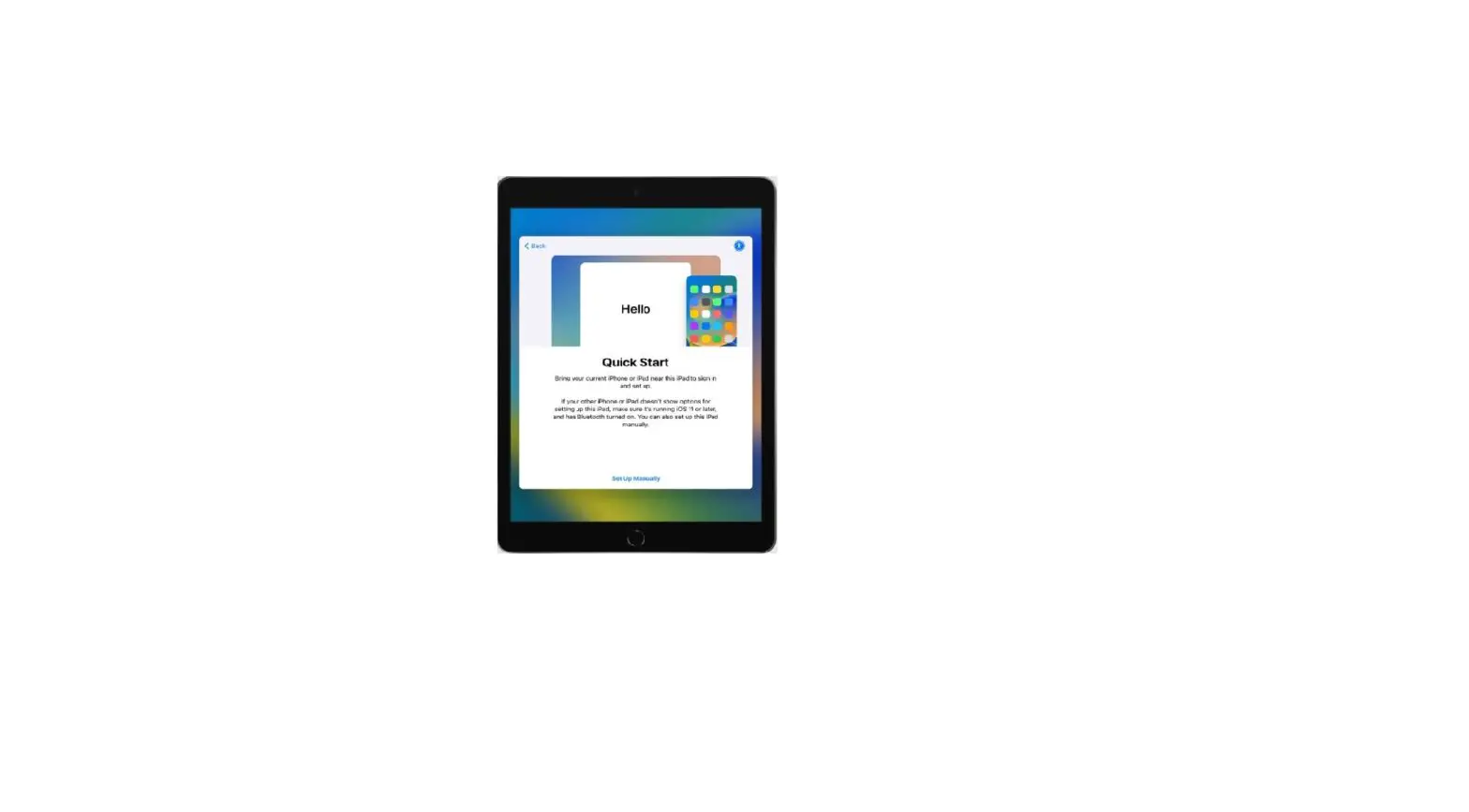
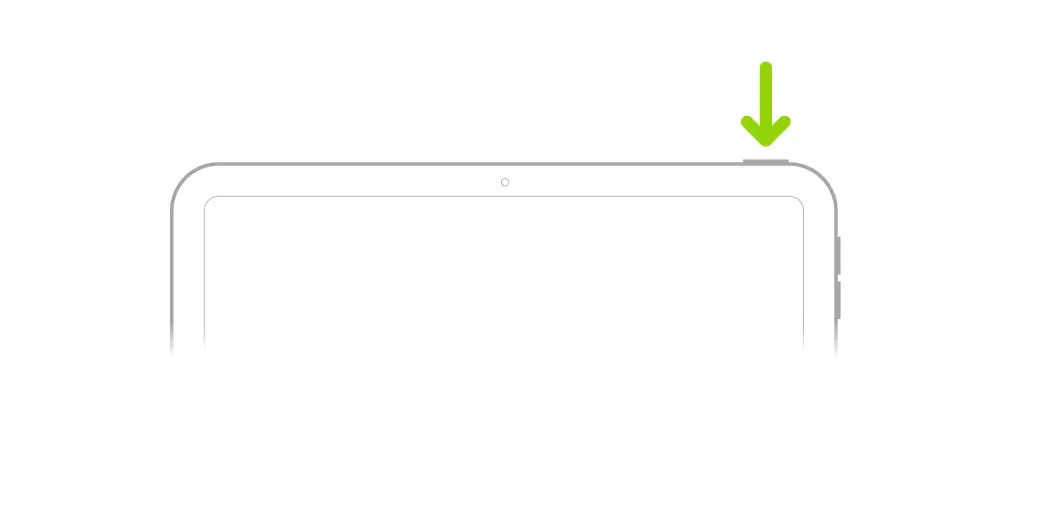
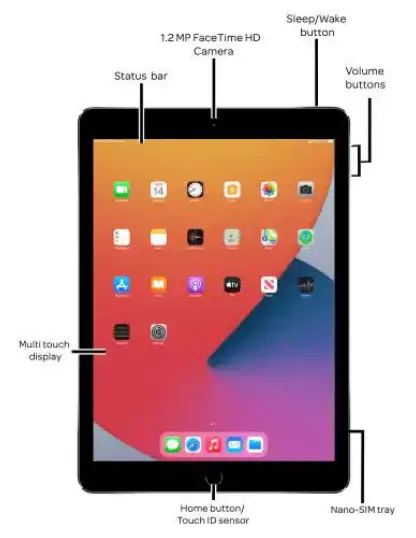
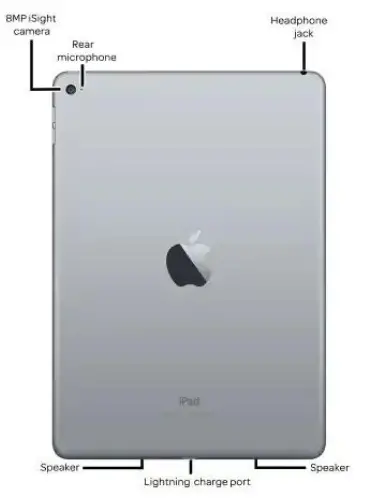
- To power up the device, gently press and hold the power button located in the top right corner (screen turned face up).
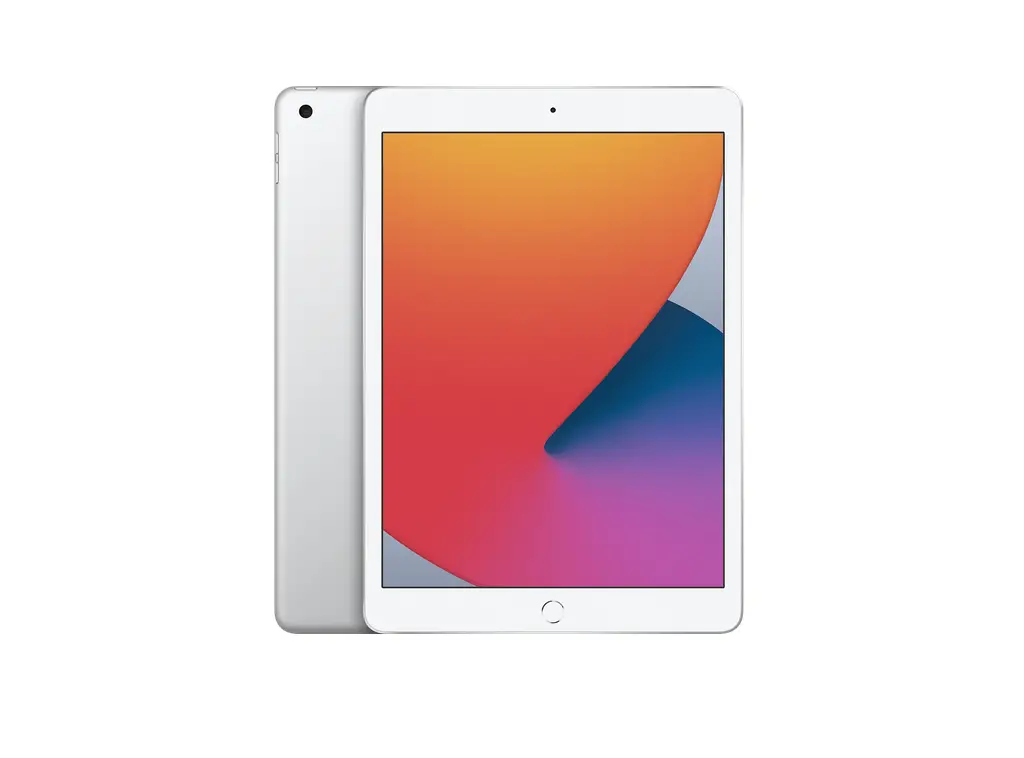
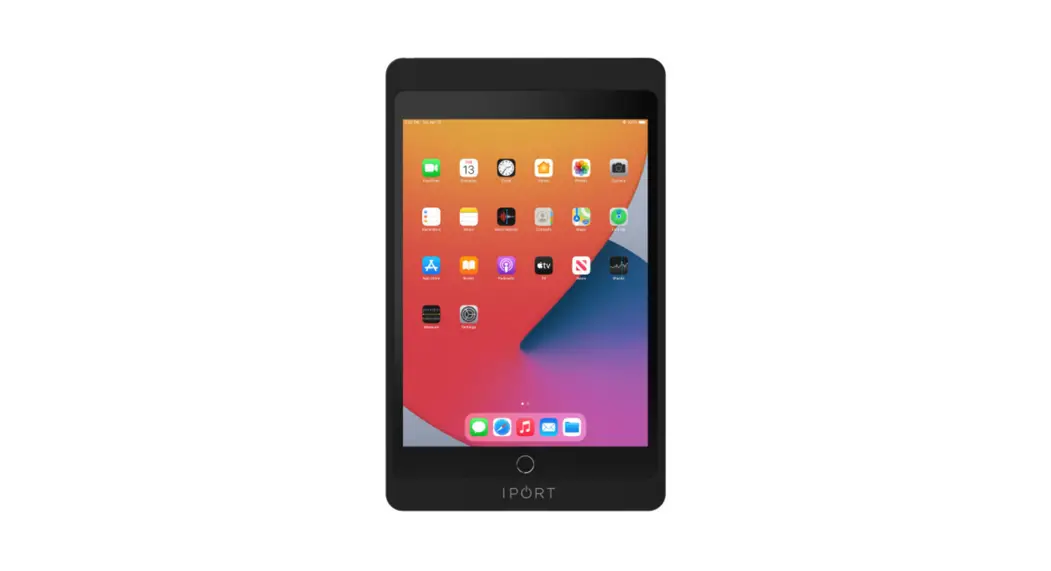
- To unlock the device, press the home button.
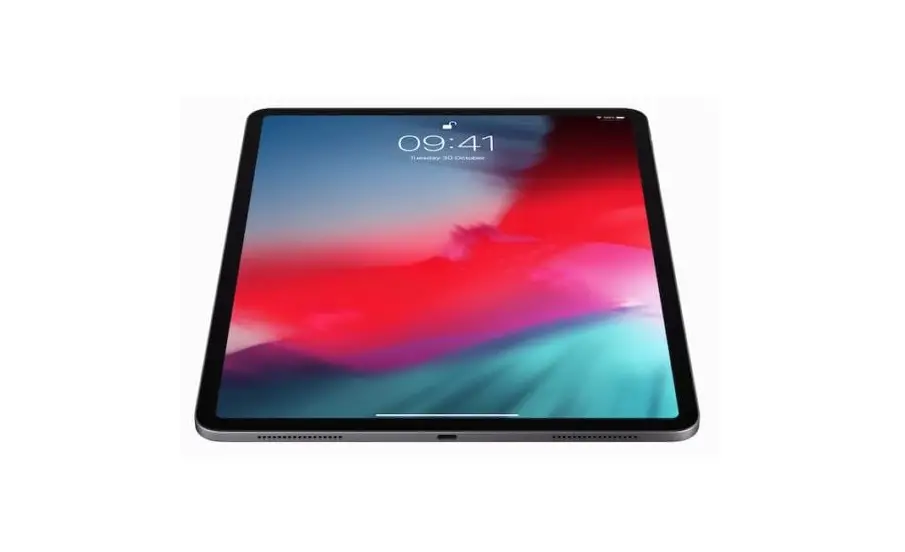
- To charge, use the power adapter and inset in the bottom of the device between the speakers.
Available at these locations
Dr. Roberto Cruz Alum Rock Branch Library
Educational Park Branch Library
Hillview Branch Library
Seven Trees Branch Library
Tully Community Branch Library
Connect to a Wi-Fi network
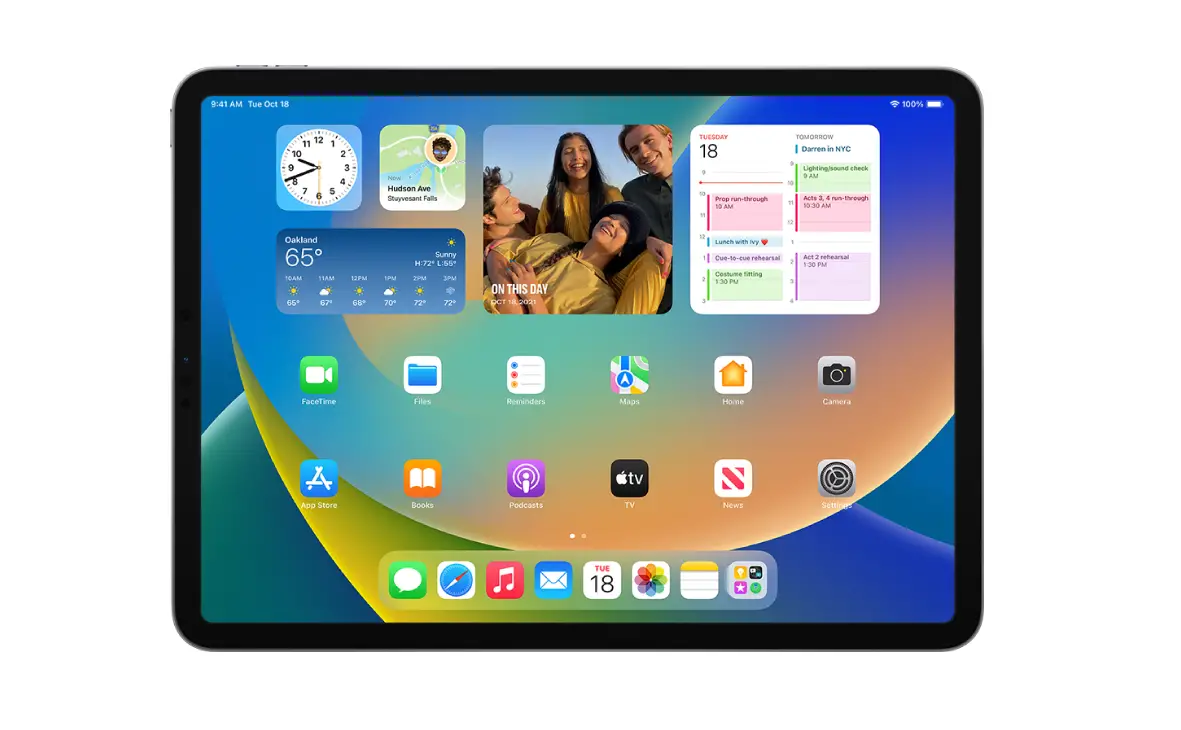
From the Home screen, go to Settings > Wi-Fi.
Turn on Wi-Fi. The device will automatically search for available Wi-Fi networks.
Tap the name of the Wi-Fi network that you want to join.
Before you can join the network, you might be asked to enter the network’s password or agree to terms and conditions.
After you join the network, you’ll see a blue checkmark next to the network and the connected Wi-Fi icon in the upper corner of your display. If you don’t know the password to the Wi-Fi network, contact your network administrator.
Sending an item using AirDrop
To use AirDrop you must turn on Wi-Fi and Bluetooth.
To turn on AirDrop;
- From the Home screen, navigate to Settings > General.
- Tap AirDrop.
- Select an AirDrop setting:
• Receiving Off: AirDrop is turned off.
• Contacts Only: AirDrop is discoverable only by people in contacts.
• Everyone: AirDrop is discoverable by everyone.
To send an item;
- Open the item (ex: image) then tap Share or the Share button.

- Tap the AirDrop button.

- Tap the profile picture of a nearby AirDrop user that will receive the item.


Note:
The recipient also has to have Wi-Fi and Bluetooth turned on.
Their AirDorp setting should be set to be discoverable by Everyone.
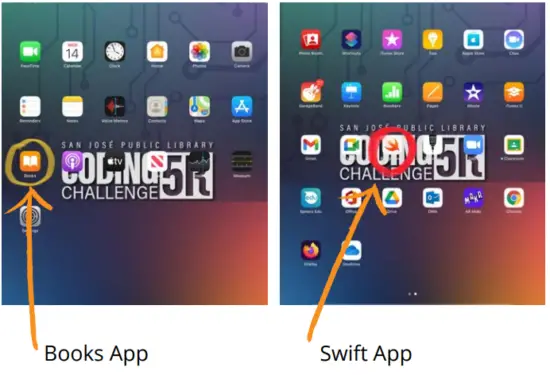
From the Home screen of the iPad, locate the Books app and Swift.
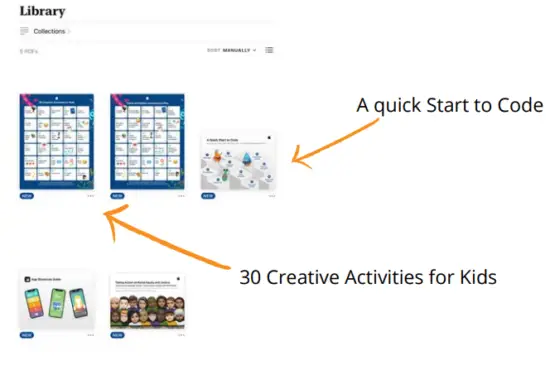
Here you will locate
- A Quick Sart to Code
- 30 Creative Activities for kids (Spanish and English)
Please note:
This iPad is part of our Mobile Device Management (MDM) environment. SJPL has access to location awareness on the device. You can log into your iCloud account from this device, however, any app
purchased or data downloaded will be wiped out upon return of the device. The San Jose Public Library is not responsible for apps, music, or data purchased and stored on borrowed devices.
References
 SJ Access: Free Internet & Tech Devices | San Jose Public Library
-
If you need help with your Wi‑Fi password - Apple Support
-
Use captive Wi-Fi networks on your iPhone, iPad, or iPod touch - Apple Support
-
Dr. Roberto Cruz Alum Rock Branch Library | San Jose Public Library
-
Educational Park Branch Library | San Jose Public Library
-
Hillview Branch Library | San Jose Public Library
-
Seven Trees Branch Library | San Jose Public Library
-
Tully Community Branch Library | San Jose Public Library
 SJ Access: Free Internet & Tech Devices | San Jose Public Library
 If you need help with your Wi‑Fi password - Apple Support
 Dr. Roberto Cruz Alum Rock Branch Library | San Jose Public Library