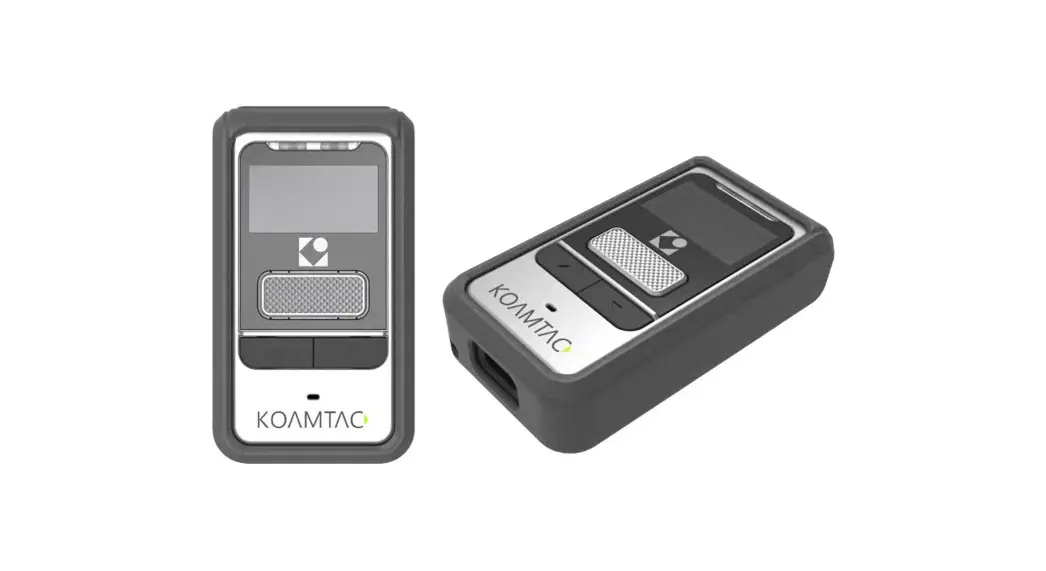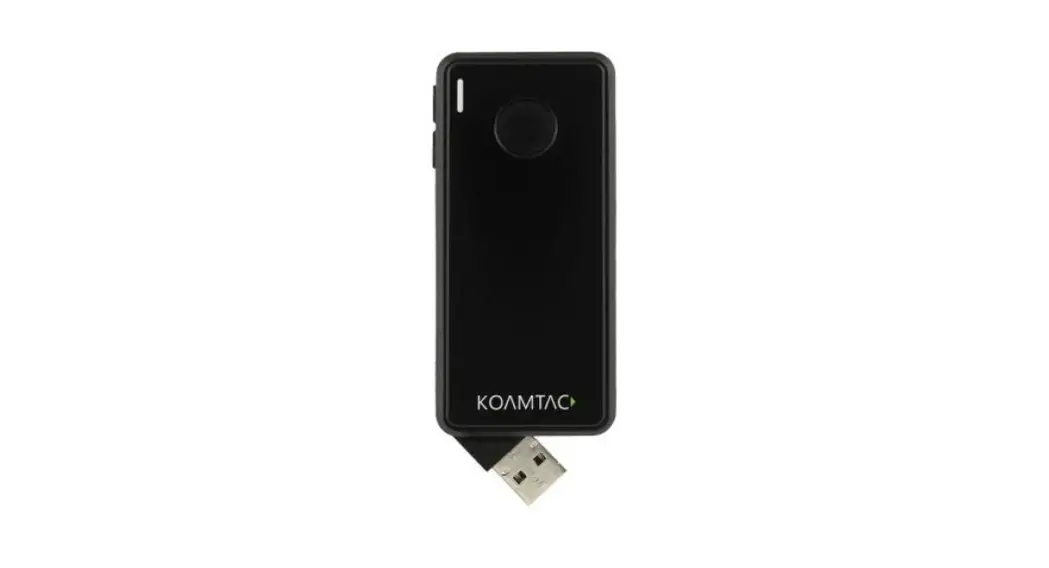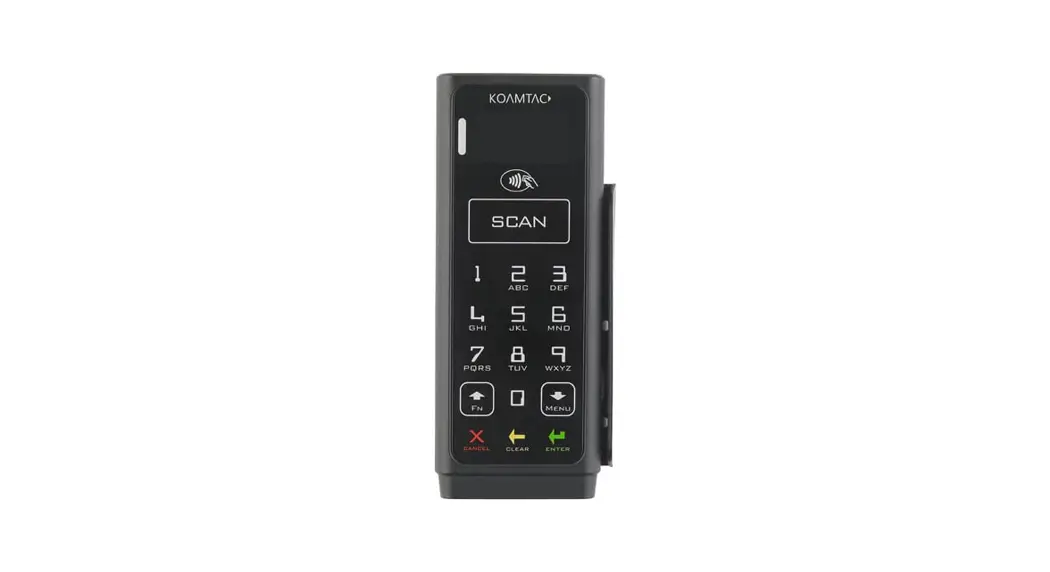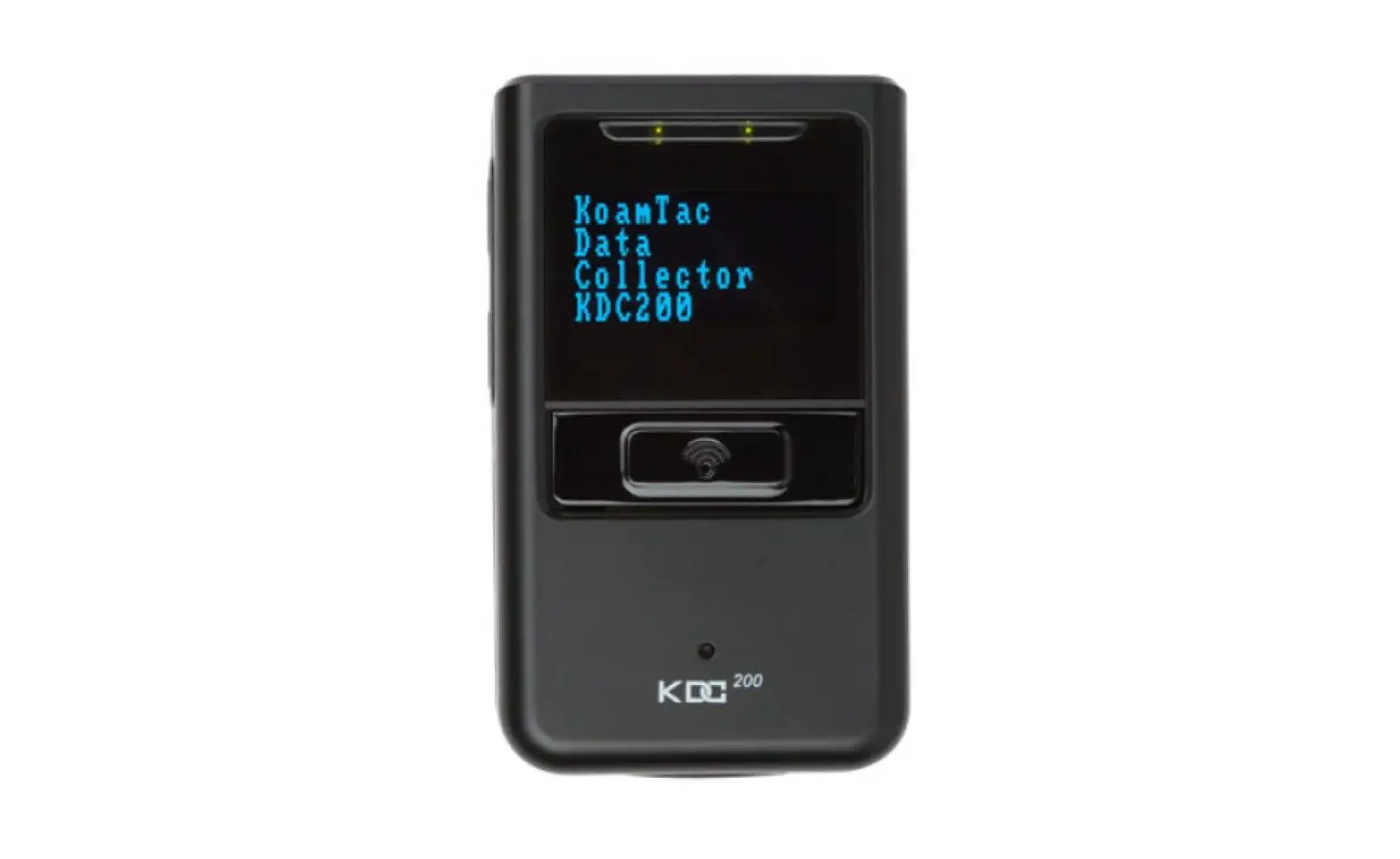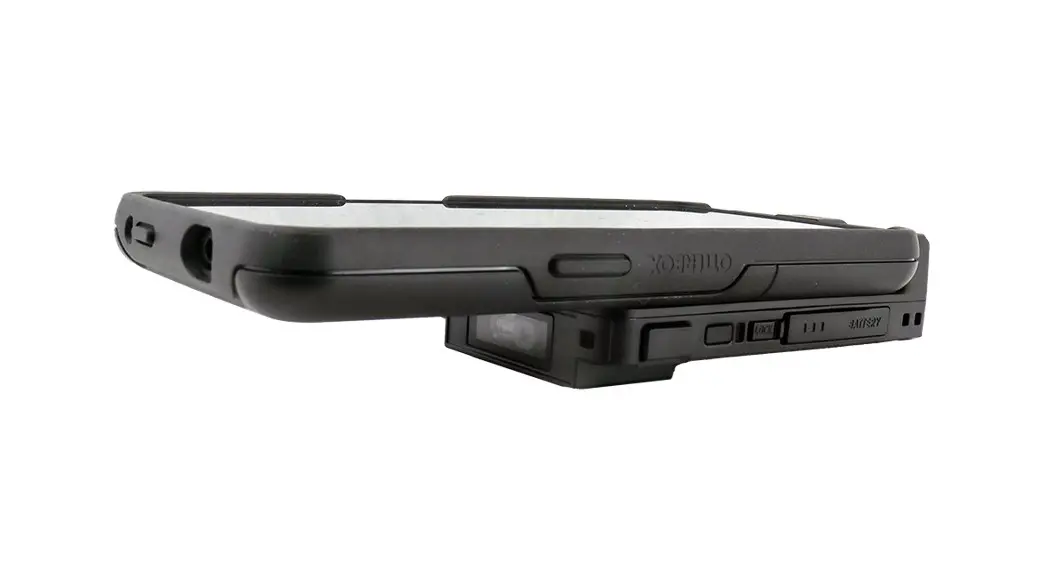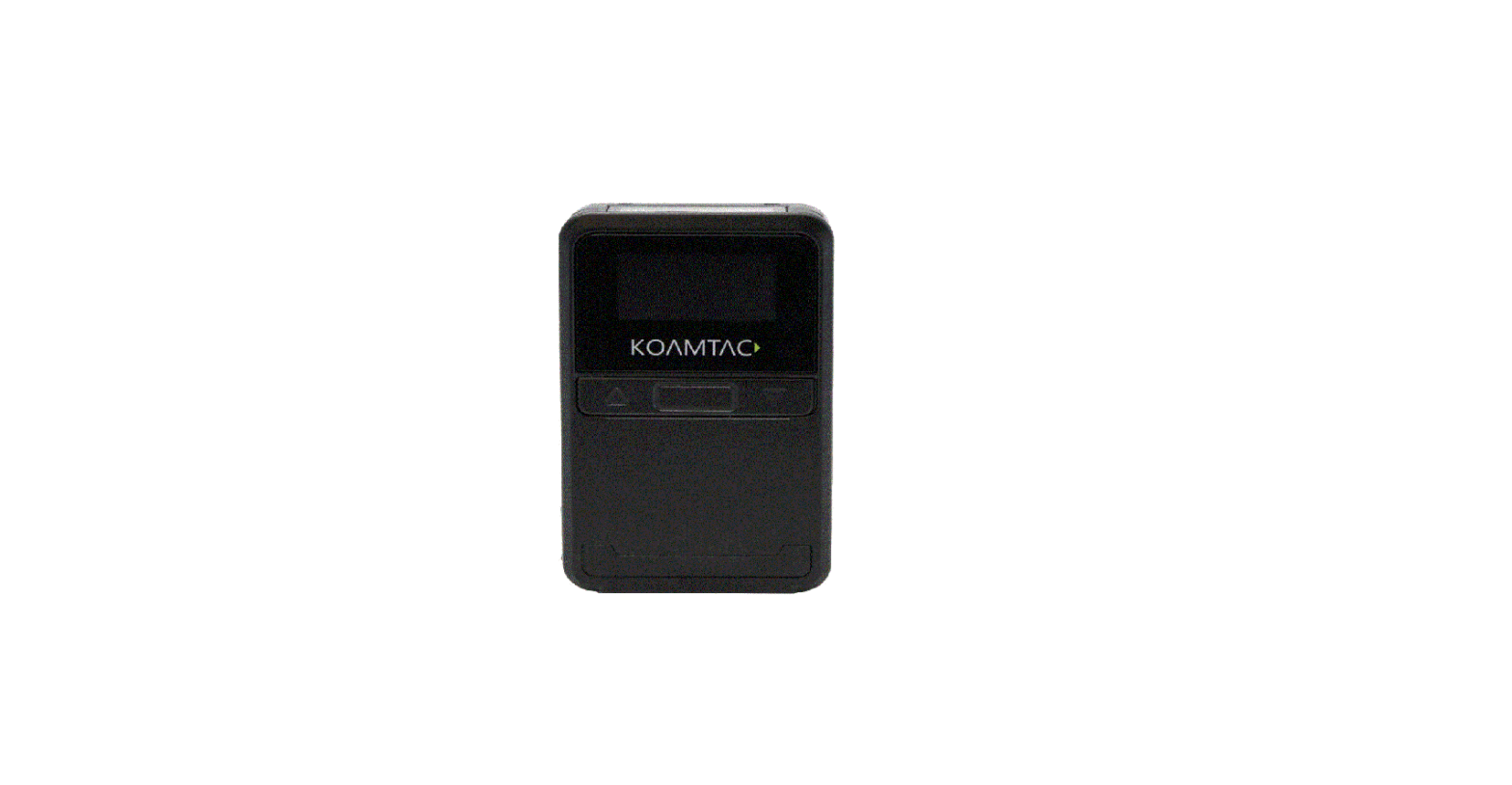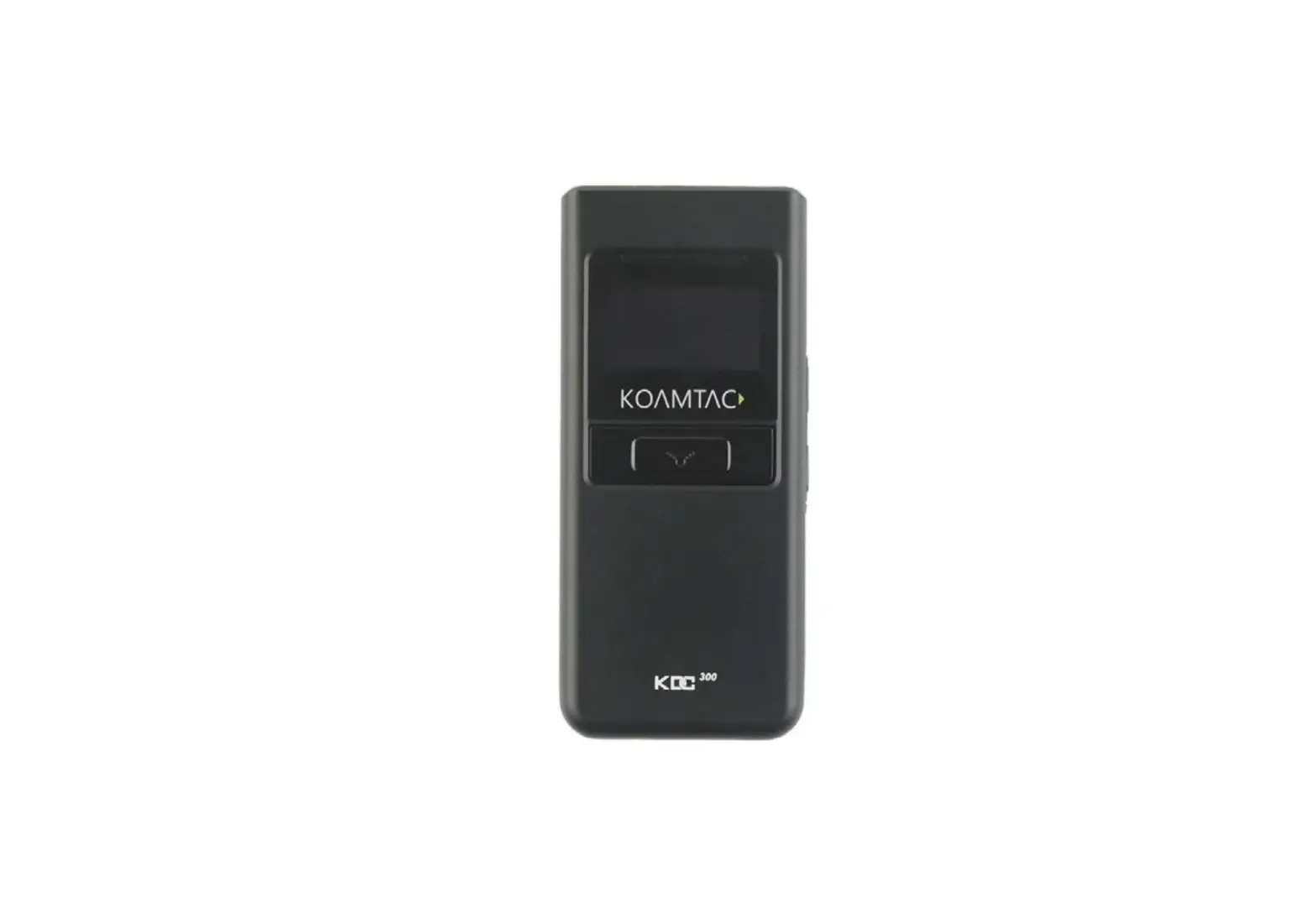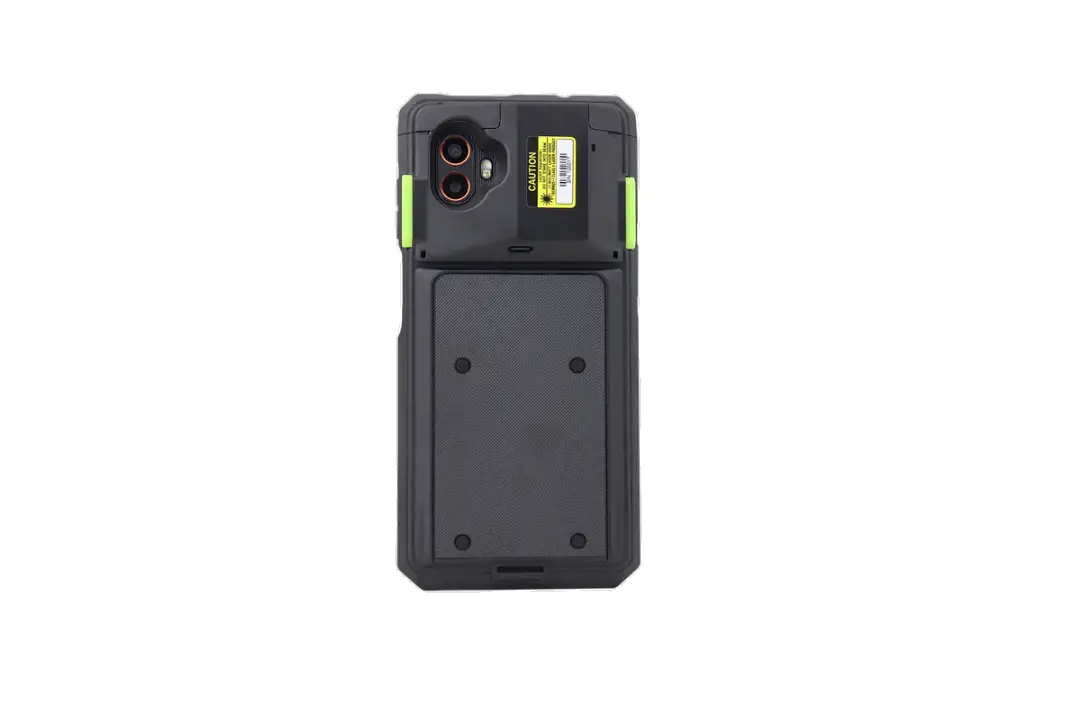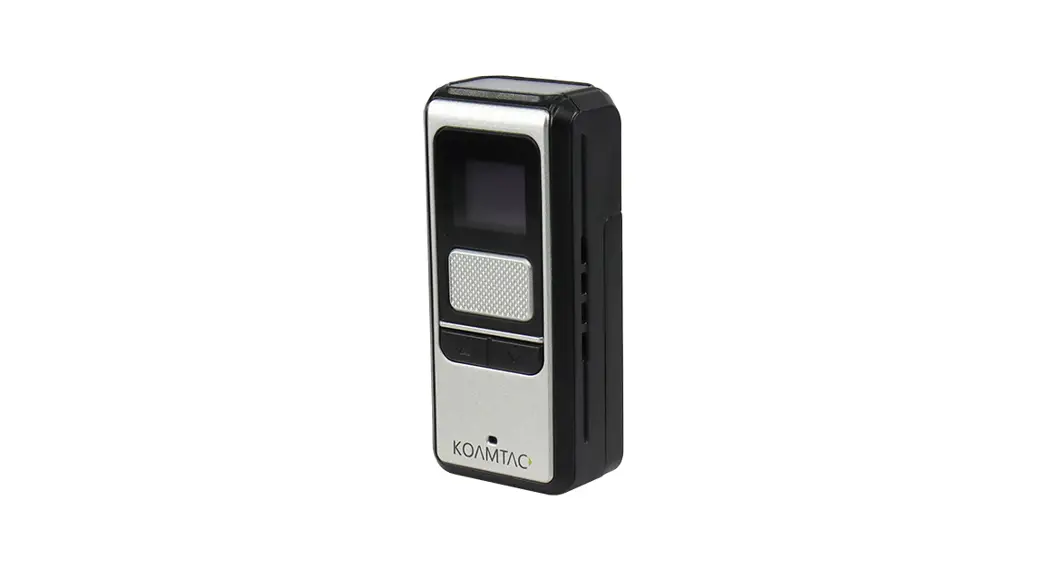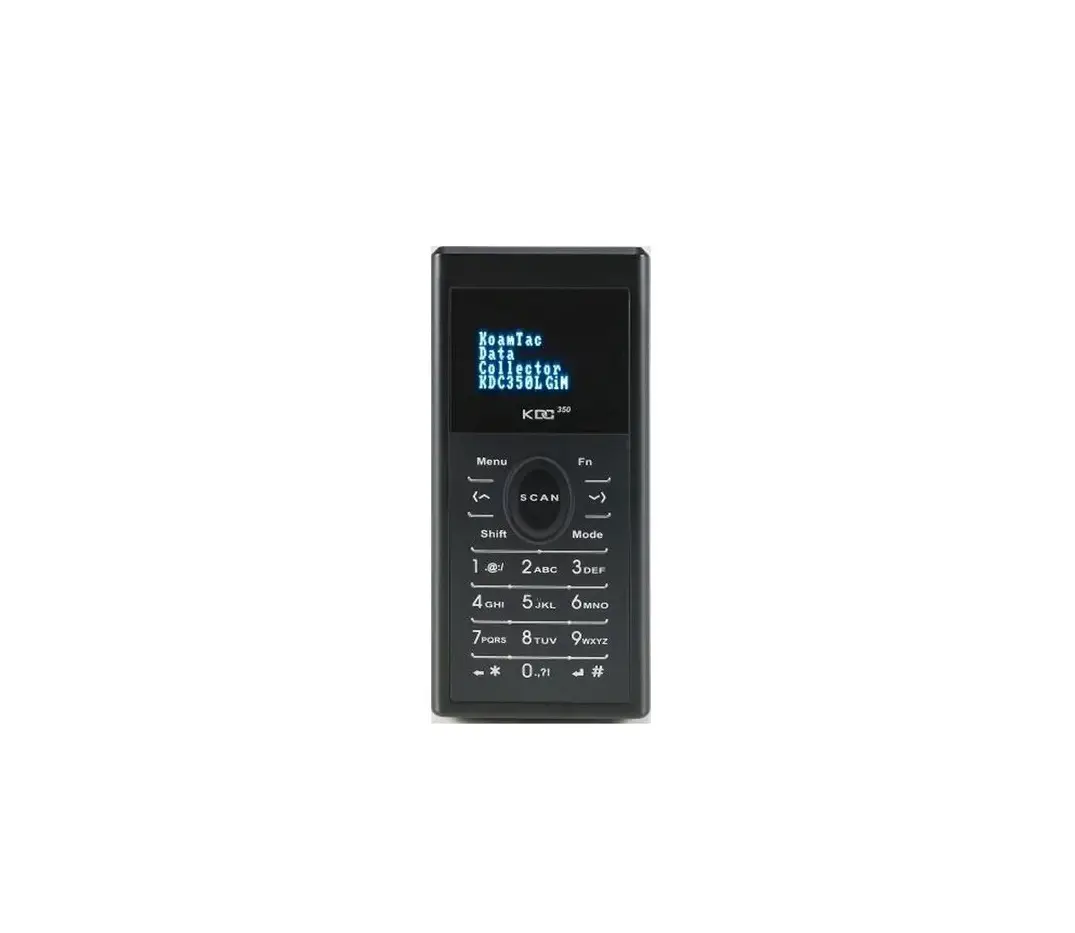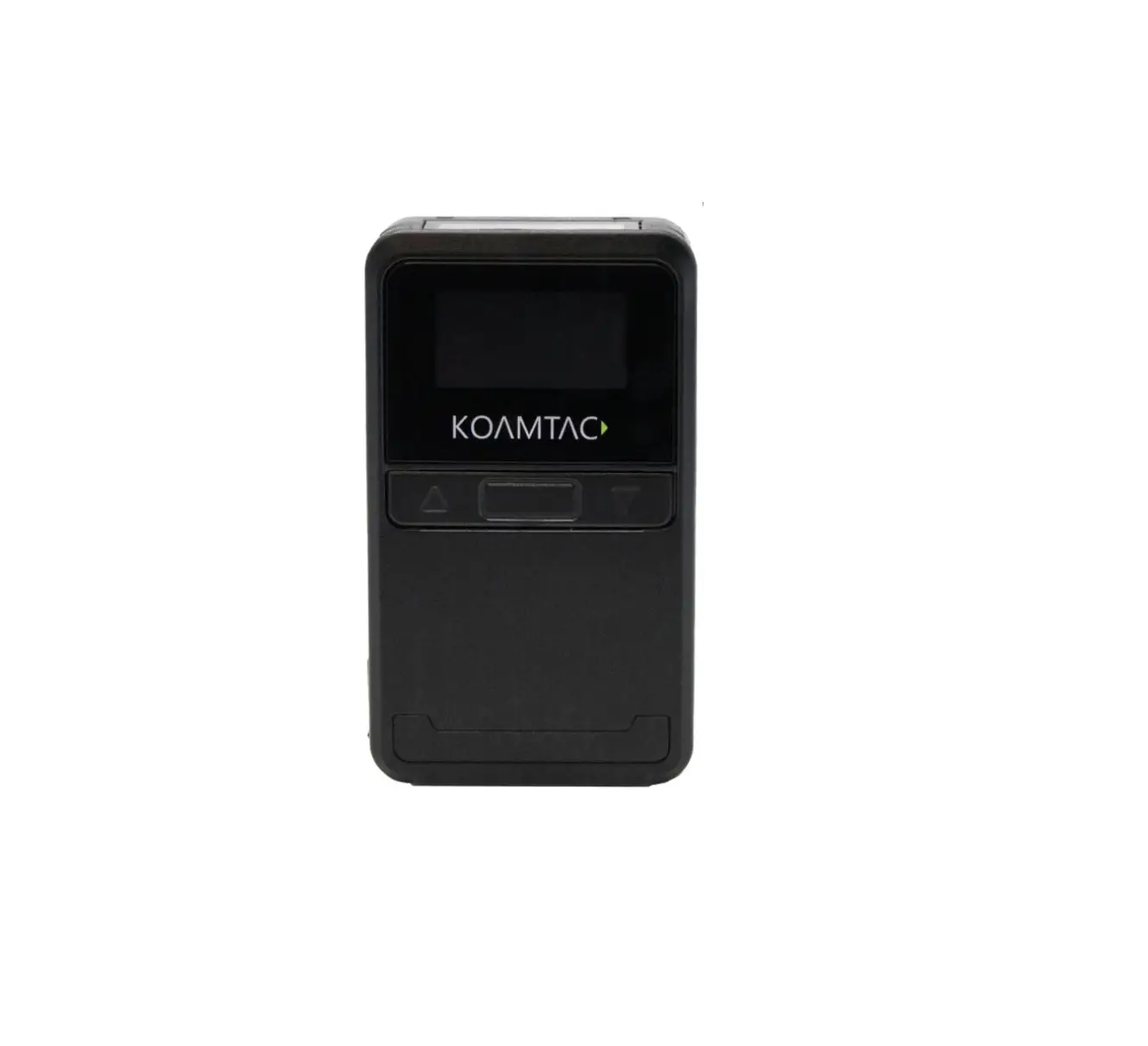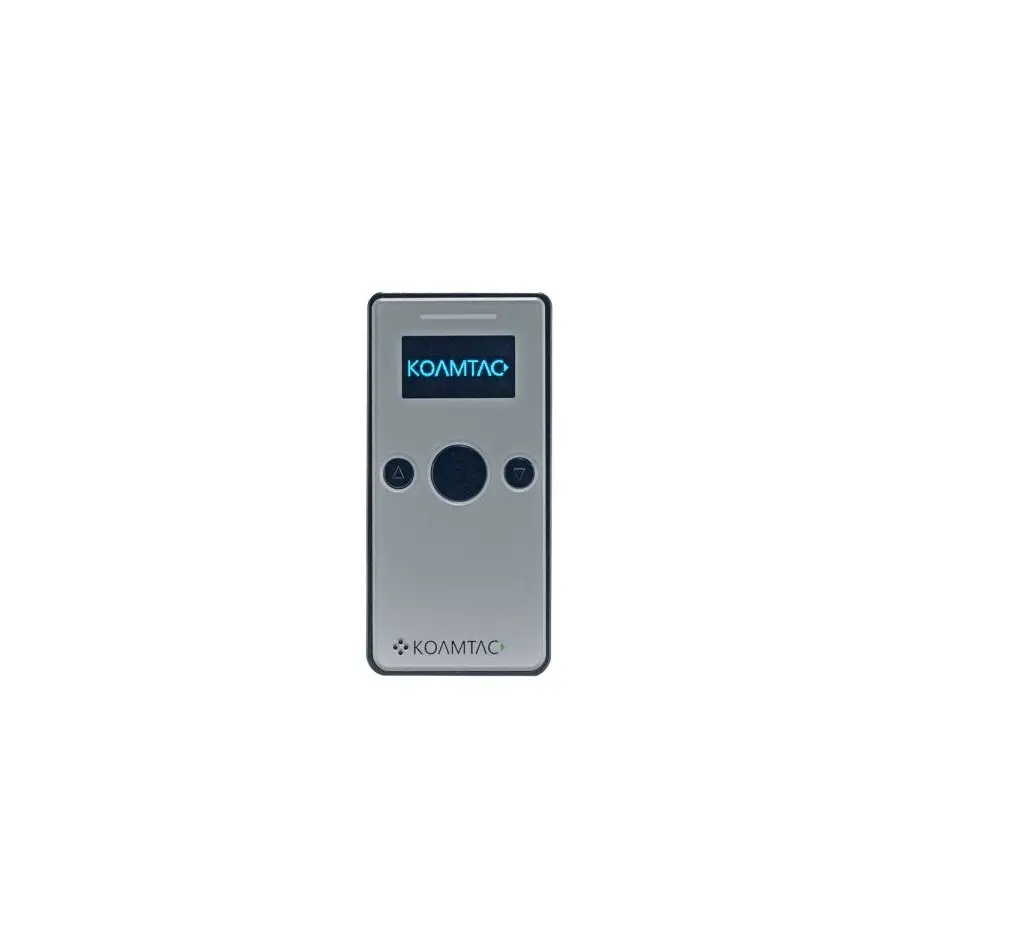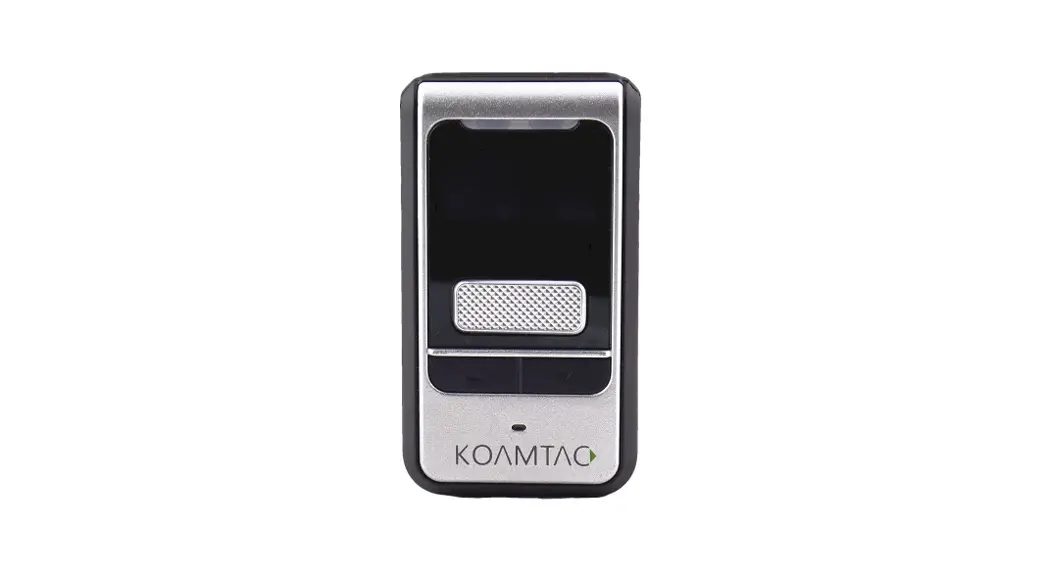
 KDC80 Wearable Barcode Scanner
User Guide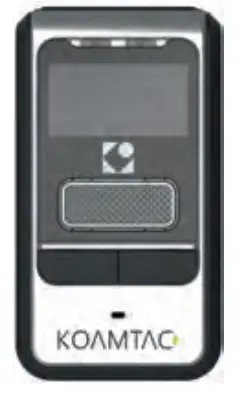
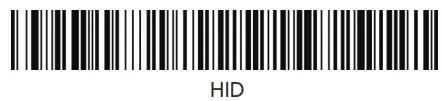
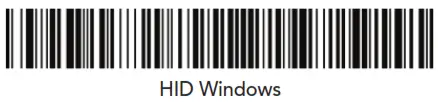
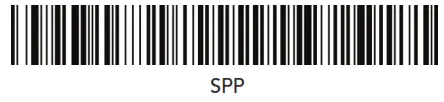
pairing Barcodes
 |  |  |
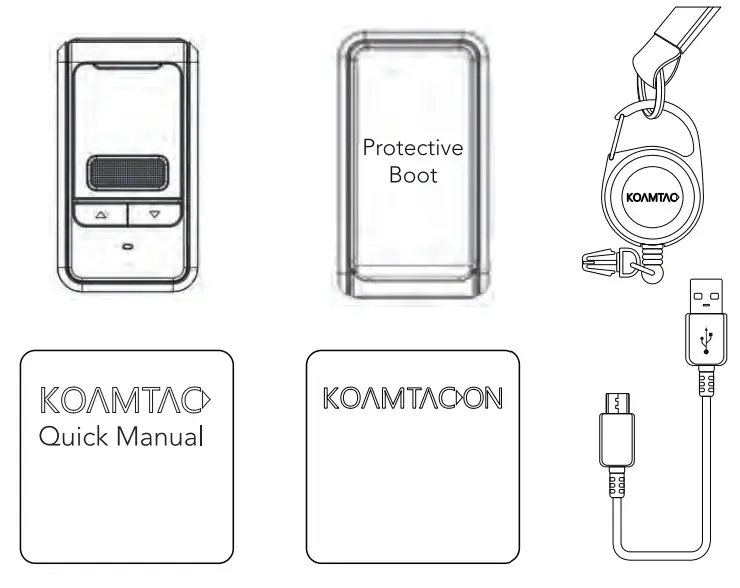
What’s in the Box?
| KDC80 | Type-C USB cable |
| KDC®Lanyard | Protective Rubber Boot |
| Quick Manual | KOAMTACON Guide |
Basic Operation
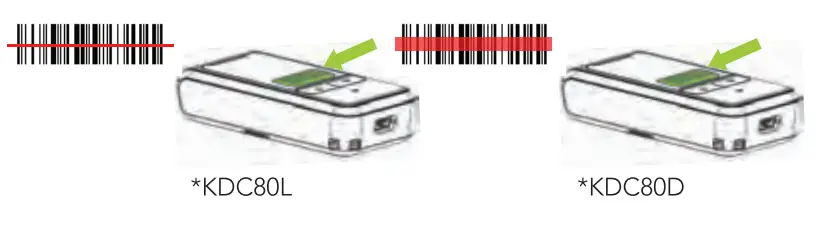
- Press the SCAN button on the KDC80 and aim directly at the barcode using the red line as a guide.

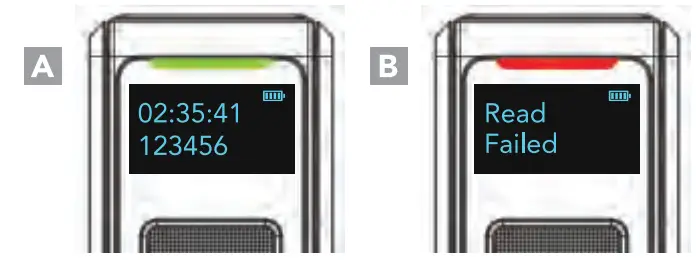
- A successful scan (A) will sound 1 beep, show a green LED, and display the scanned info on the screen. An unsuccessful scan (B) will sound 5 beeps, show a red LED, and display “Read Failed” on the screen.

Powering On/Off
Power On
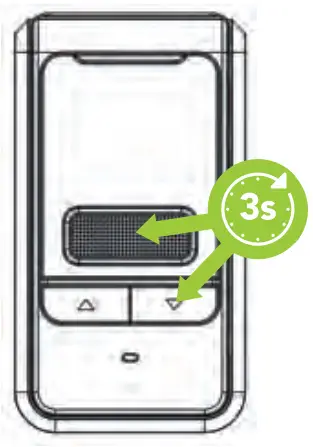
Press and hold the SCAN and DOWN buttons for 3 seconds.
Power Off
Press and hold the SCAN and DOWN buttons for 3 seconds again.
 Bluetooth Profiles Explained
 Bluetooth Profiles Explained
 Allows one-way Bluetooth communication with an Android or Jo’s host device. The KDC only transmits data to the host device.
 Allows two-way Bluetooth communication. The KDC transmits data to the host device and the host can transmit data back to the KDC.
 Allows one-way Bluetooth communication with a Windows PC. The KDC only transmits data to the Windows PC.
HID inputs data directly into an application. SPP requires the KOAMTAC KTSync app or integration of the KOAMTAC SDK to input data into an application.
Pairing & Connecting
- Navigate to the Bluetooth setting on the host PC, Mac, Smartphone, or Tablet.
- Ensure that Bluetooth is enabled on the host device and search for devices.
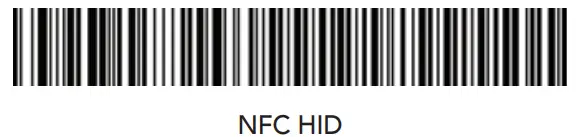
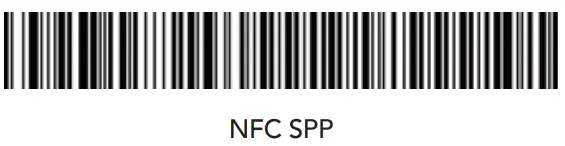
- Using the KDC, scan the pairing barcode that corresponds to your desired Bluetooth profile. If you are unsure which Bluetooth profile is right for you, please refer to the previous panel.
- Check the list of available Bluetooth devices on your host device. In iOS, the application will need to search devices.
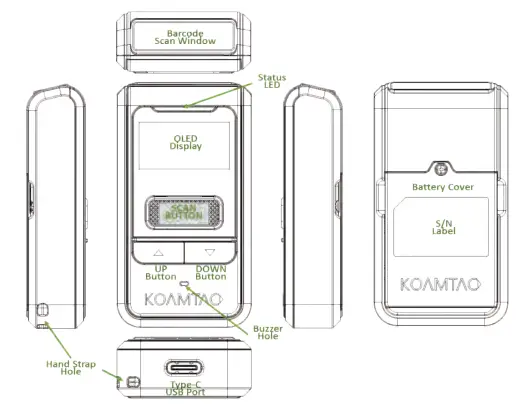
- From the list, select the KDC80 listed by serial number in brackets that match the serial number found on the back of the KDC80.
- In HID Mode, KDC80 Is ready to use.
- To complete the connection in SPP Mode, launch KTSync or your application and select KDC80 to connect.
Pairing via NFC (Android Only)
This feature applies only to Android host devices and is available for HID or SPP pairing profiles only.
- The default connection mode is SPP. To pair in SPP mode, approach the NFC antenna area on the back of the host device with the KDC to complete pairing.
- If HID mode is preferred, scan the HID Mode barcode first, then approach the NFC antenna area on the back of the host device with the KDC to complete pairing.


KDC80 Diagram
Using Keyboard Wedge
Keyboard wedge allows you to use your KDC as a keyboard. The HID profile works as a keyboard wedge by default. When using SPP, KTSync provides a keyboard wedge function when the KTSync keyboard is enabled. Please refer to the KDC Reference Manual for detailed instructions to enable KTSync Keyboard.
- Ensure that the KDC is connected to the host using the HID profile or the KDC is connected via the KTSync keyboard using SPP.
- Open any application on the host device that contains a text field you want to populate.
- Tap the text field in the application.
- Scan any barcode with the KDC.
- The barcode data will then populate in the text field.
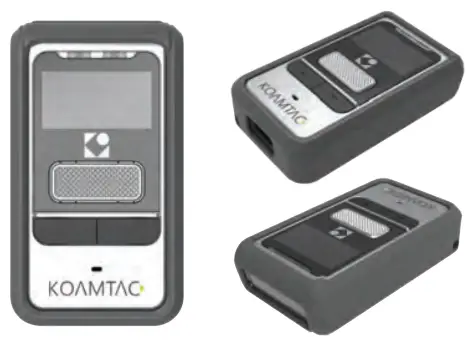
KDC80 Protective Boot
KTSync & SDK
KTSyncs is a program that communicates with the KDC via Bluetooth or USB. It enables users to read and store data. KTSync is compatible with iOS, Android, Windows, and Mac. It also supports wedging and uploading data from the KDC.
For more information about KTSync, please visit: www.koamtac.com/support/downloads/applications
The Software Development Kit (SDK) is the perfect solution for creating a custom application to collect data utilizing your KDC. The KOAMTAC SDK covers all major development platforms: Android, iOS, Mac OS X, Windows, Xamarin, and Cordova. Developers may take advantage of the complimentary SDK and enjoy the full benefits of the KOAMTAC Developer Program.
For more information regarding the KOAMTAC Developer Program or to request the latest SDK, visit: www.koamtac.com/support/downloads/sdk or e-mail [email protected].
Specs
Physical Characteristics
Size: 1.3″ x 2.4″ x 0.6″ (34 mm x 62 mm x 16 mm)
Weight: KDC8OL: 1.2 oz (35 g); KDC8OD: 1.0 oz (30 g)
Scan Range (20mil Code39)
1.97″ to 17.72″ (50 mm to 450 mm)
Electrical Characteristics
Battery: 200mAh Lithium-polymer
Charging: Type-C USB connector
Interfaces
Bluetooth® Low Energy V5.0, HID/SPP
Type-C USB: USB Flash Memory (Windows),
USB HID, USB Serial (Android with OTG cable / Windows)
Functionality
Memory Flash: Program 1MB / User Data 5MB
Memory RAM: 256KB
Can store more than 250,000 barcodes (EAN-13)
KOAMTACON
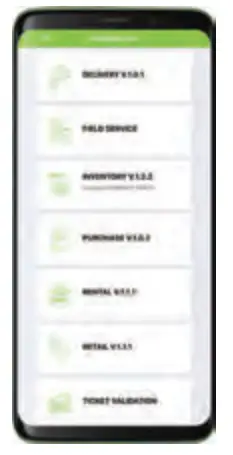
The first application suite of its kind, KOAMTACON is a data collection cloud suite designed specifically to be used with KDC/SKX devices.
With apps ranging from ticketing to warehouse management, KOAMTACON has you covered. It’s never been so easy to collect data via barcodes.
KOAMTACON is:
- Simple to maintain
- Easy to use
- Cloud-based
- Compatible with any device
For more information please visit: www.koamtacon.com
Specs
Wedging & Synchronization
Store to a file or transfer to an application
Keyboard wedge function
Add-on prefixes and suffixes
Barcode option selection
User Environment
IP Rating: IP42
Drop Spec: 5 ft (1.5 m) with protective boot
Operating Temperature: 14’F to 122’F (-10*C to 50’C)
Storage Temperature: -4’F to 140’F (-20’C to 60`C)
Humidity: 5% to 95% (non-condensing)
OS Support
Android, iOS, Mac OS X, Windows
Regulatory Conformance
CE, FCC, KC, J-MIC, VCCI, SRRC, RoHS Compliant
Laser Safety: IEC60825-1 (Class (KDC80 Laser Model)
LED Safety: IEC62471:2006 (KDC80 CCD Model)
MG_KDC80_20220614
868380
116 Village Blvd, Ste 305, Princeton, N) 08540
+1 609-256-4700p
1+1 609-228-4373 f
[email protected]
www.koamtac.com
 Koamtac Applications for Mac, PC, and mobile data management