
SECOMP 14.02.5045 USB 3.2 Gen 1 Hub
DEAR CUSTOMER
Thank you for purchasing this product. For optimum performance and safety, please read these instructions carefully before connecting, operating or using this product. Please keep this manual for future reference.
INTRODUCTION
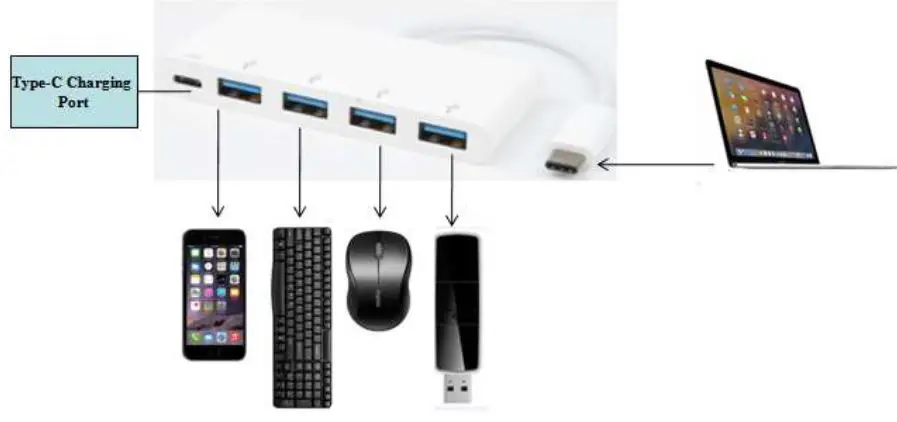
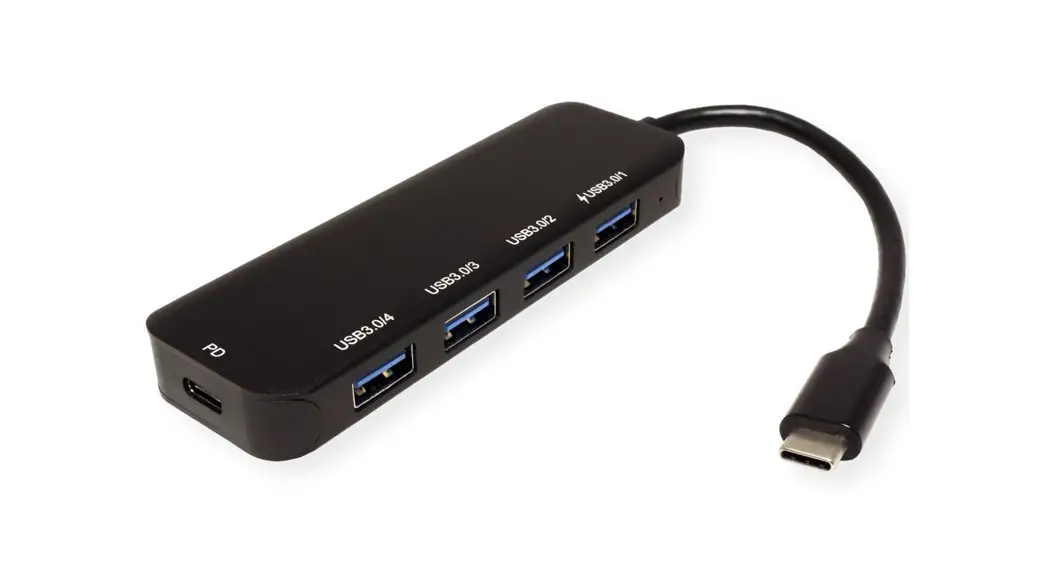
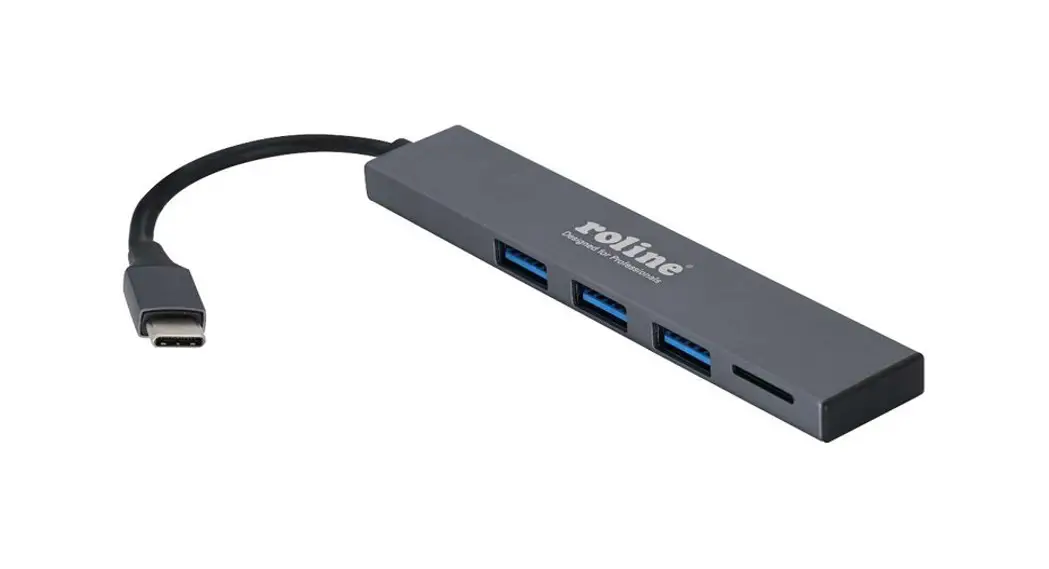
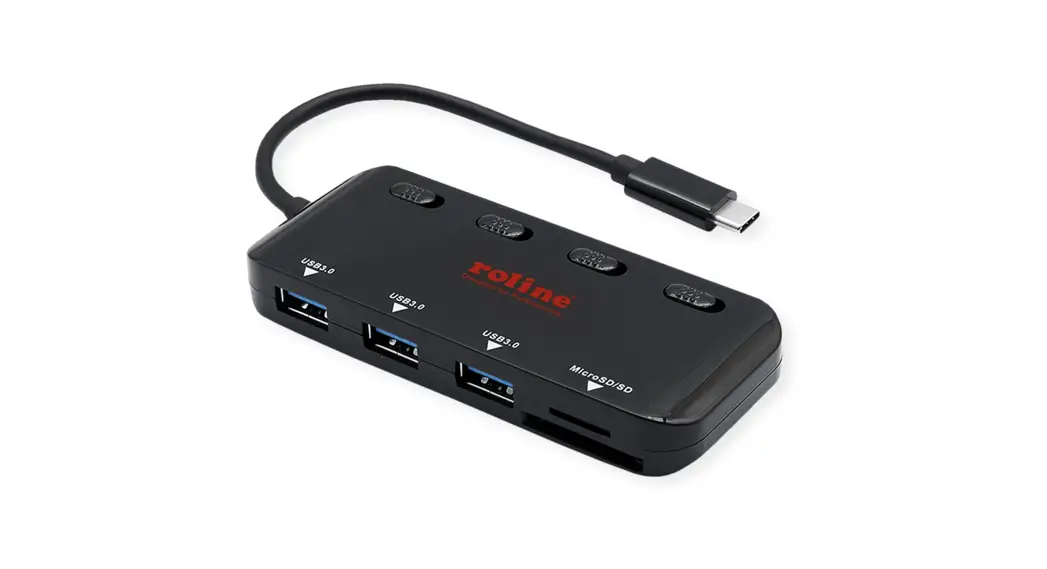
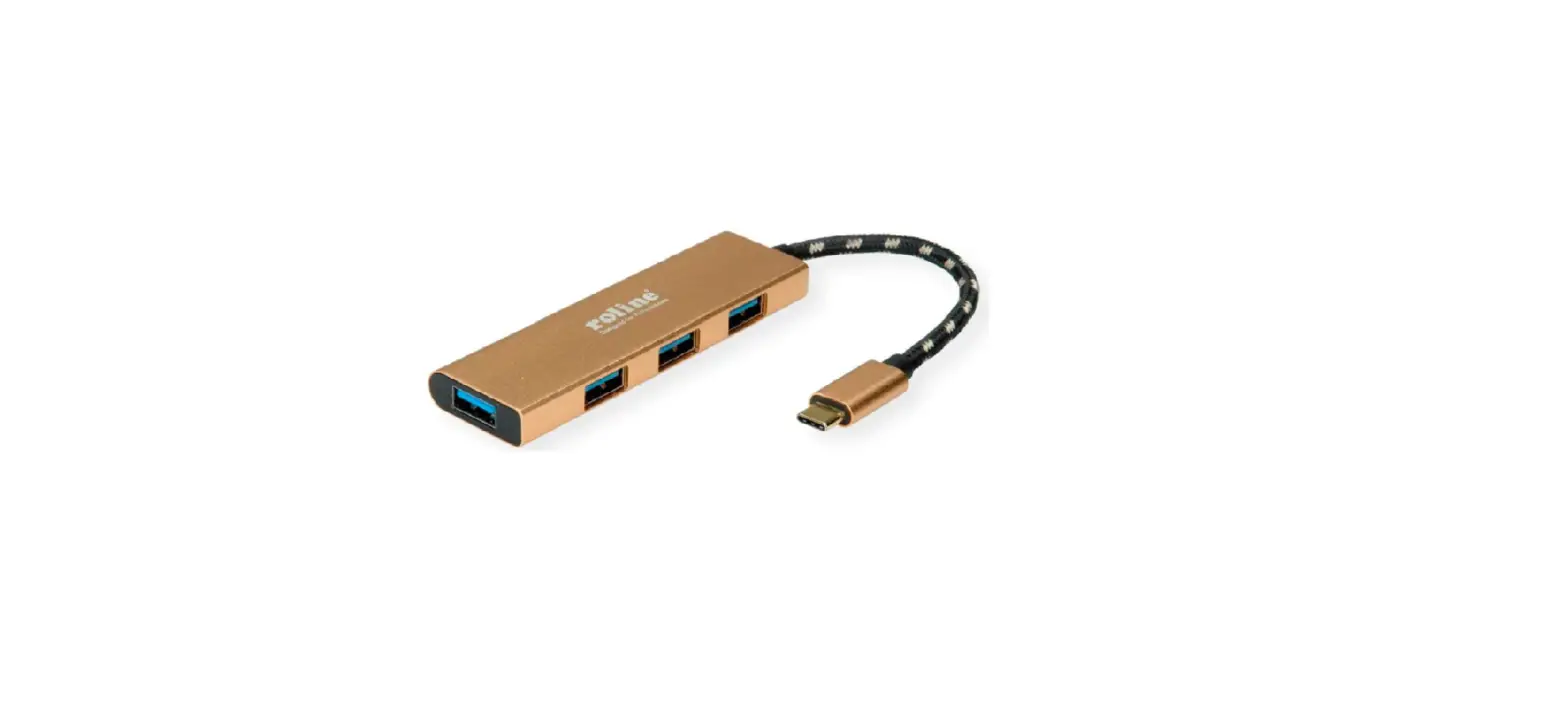
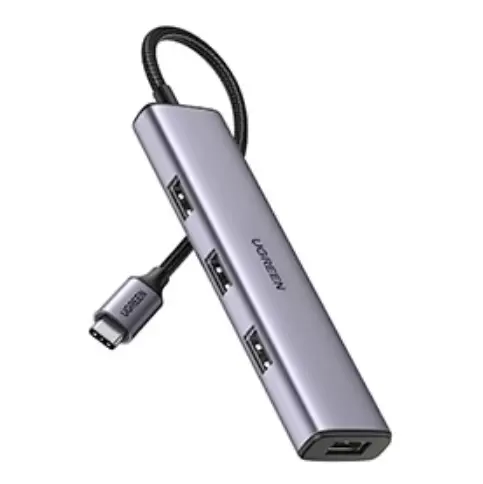
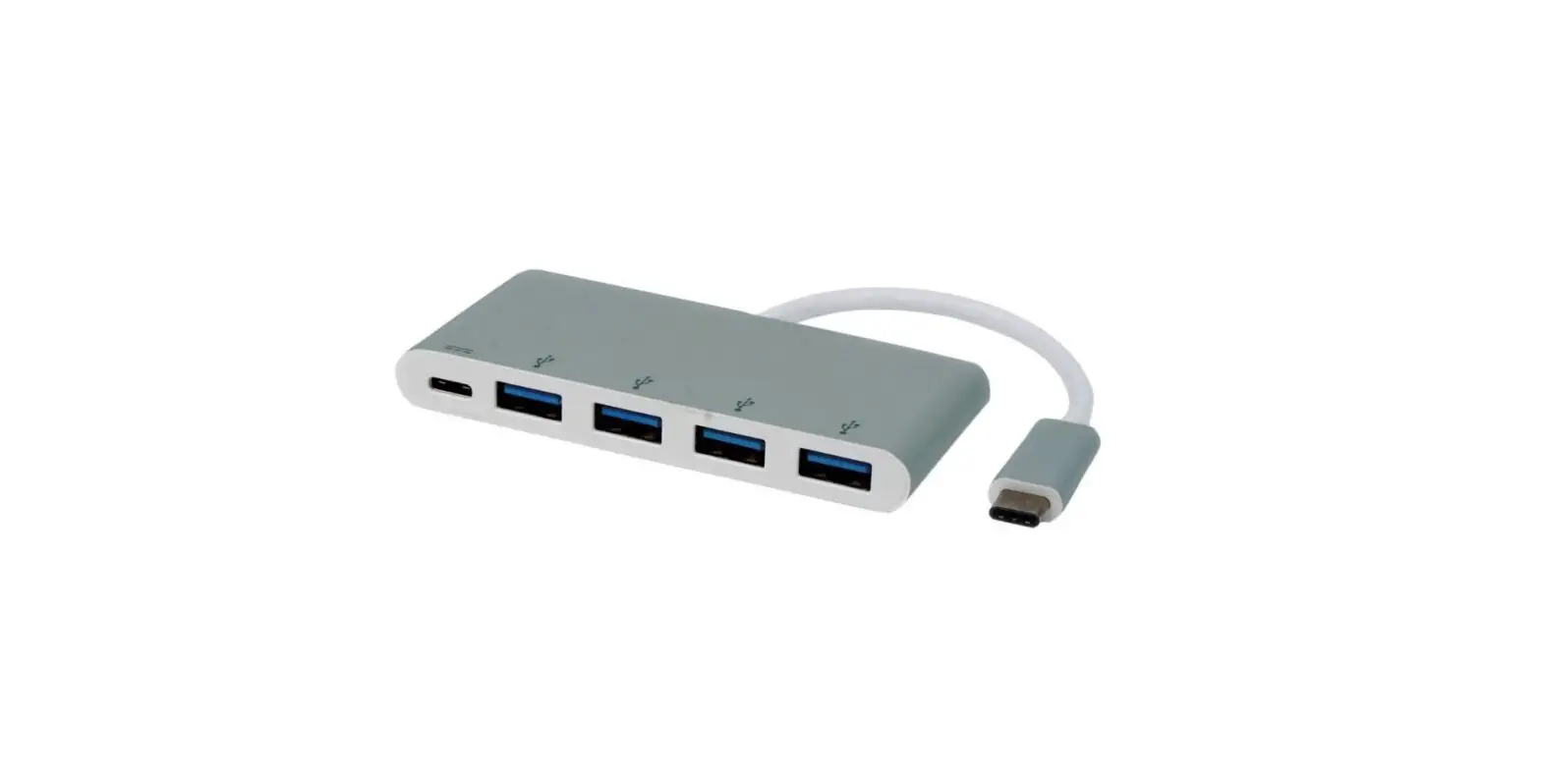
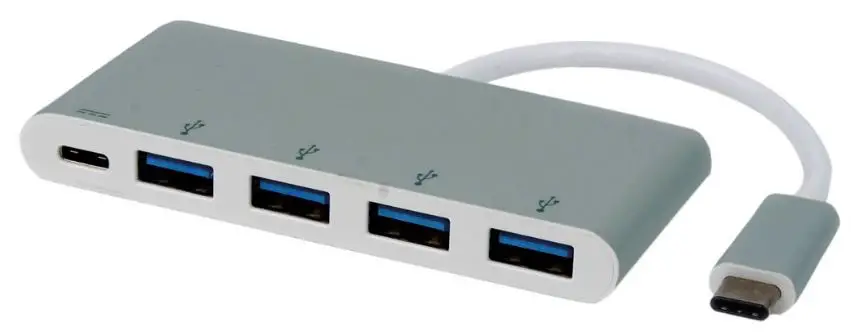
This is a USB-C to USB 3.2 Gen 1, 4 Ports bub with USB-C charging. The four USB 3.2 Gen 1 ports allow you to connect four USB devices to a host computer or another hub and the USB-C female port can charge the host computer.
FEATURES
- USB-C input, USB 3.2 Gen1 Output
- Among the 4 USB 3.2 Gen1 ports, one port supports BC 1.2. The power of this port can be up to 7.5W (5V/1.5A)
- Supports USB 3.2 Gen1 super speed (5Gbps) transmission.
- Downward compatible with USB2.0
- USB-C female charging port for USB-C supported devices
- Easy to use and carry
SPECIFICATIONS
| Input/Output | |
| Input | USB-C Male x1 |
| Output | USB 3.2 Gen1 Female x4 USB-C Female x1 (for charging) |
| Physical | |
| Weight | 40.5g |
| Size | 93x40x11 mm |
| Frequency | |
| Operating Frequency | 5Gbps transmission data |
| Power | |
| USB-C PD charging Port | 60W (20V/3A) |
| USB-A port | · Max 1.5A for BC1.2 port (only one port is connected) · Max 900mA per port for the other three ports (only one port is connected) · Max 1.5A when four ports are connected |
PACKAGE CONTENT
Before attempting to use this unit, please check the packaging and make sure that the following items are contained in the shipping carton:
- Main unit x1
- User Manual x1
OPERATION
- Connect the USB-C male port of this product to computer.
- Connect the four USB 3.2 Gen1 ports to USB devices.
- Connect the USB-C charging port. It can simultaneously charge the host computer and support this adapter.
Note:
- When connecting the USB-C male port of the adapter to Chromebook, the mouse which is connected to the USB 3.2 Gen1 port will not work immediately, but rather will have some second’s delay. This problem also occurs with other similar type-c adapters when they are connected to Chromebook.
- When plugging in or out the PD Adapter, the connected USB devices will get disconnected flashily and then reconnected in a few seconds. So, to prevent possible data loss or corruption, avoid disconnecting the PD Adapter from AC power while transferring data.