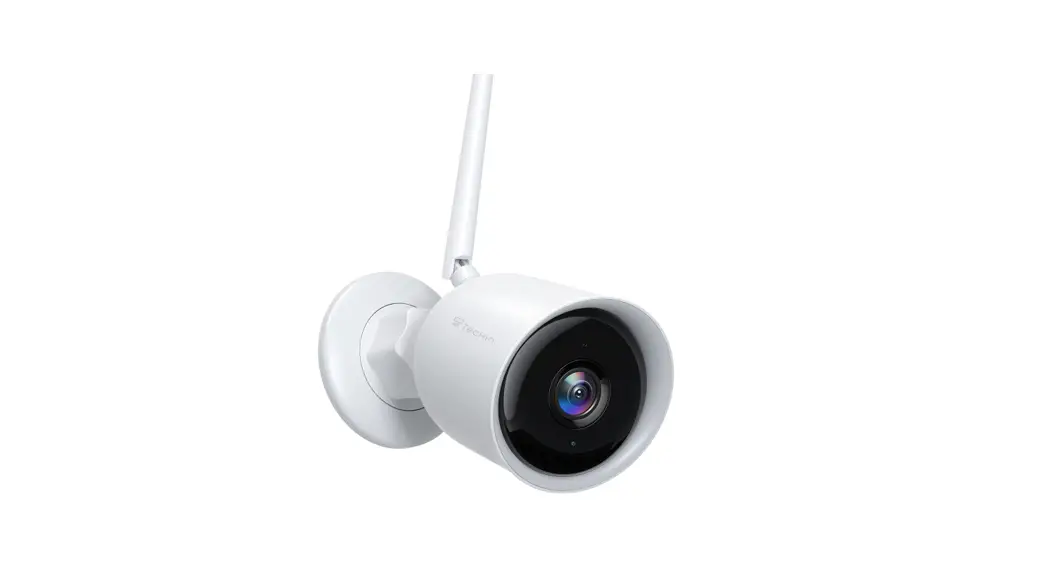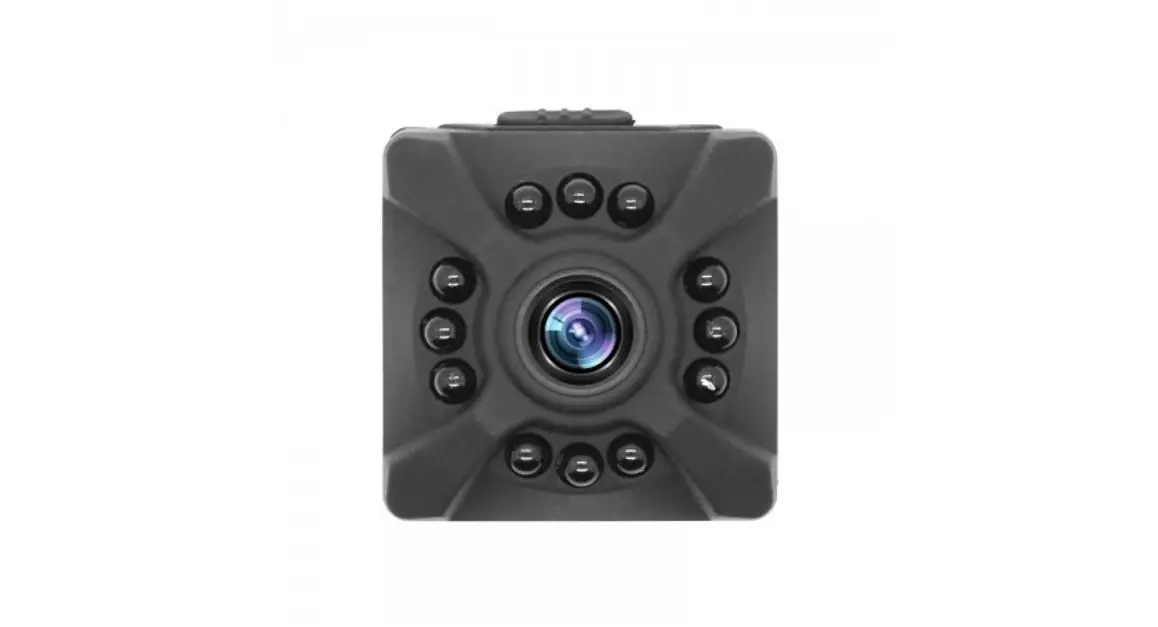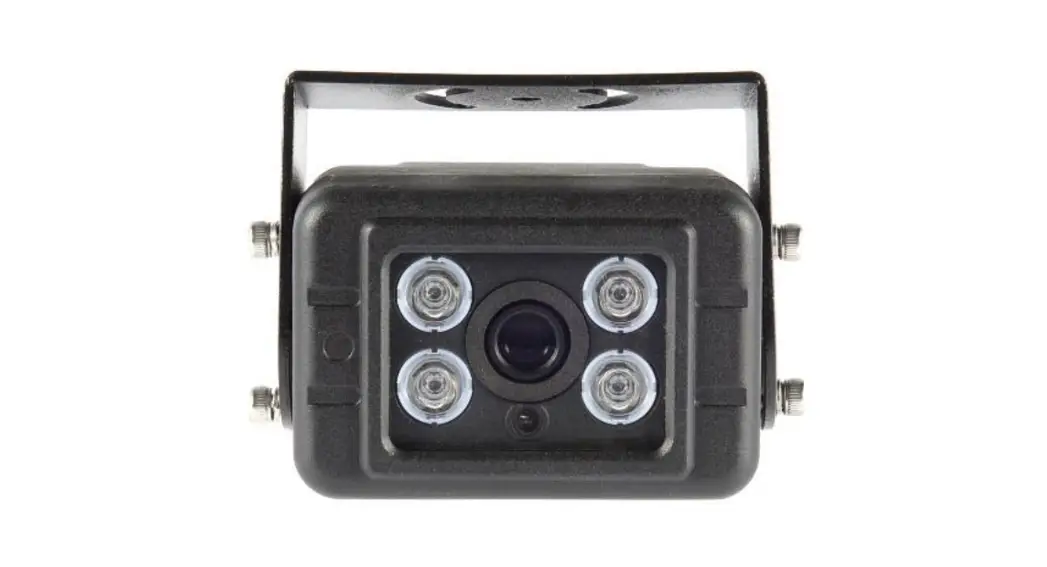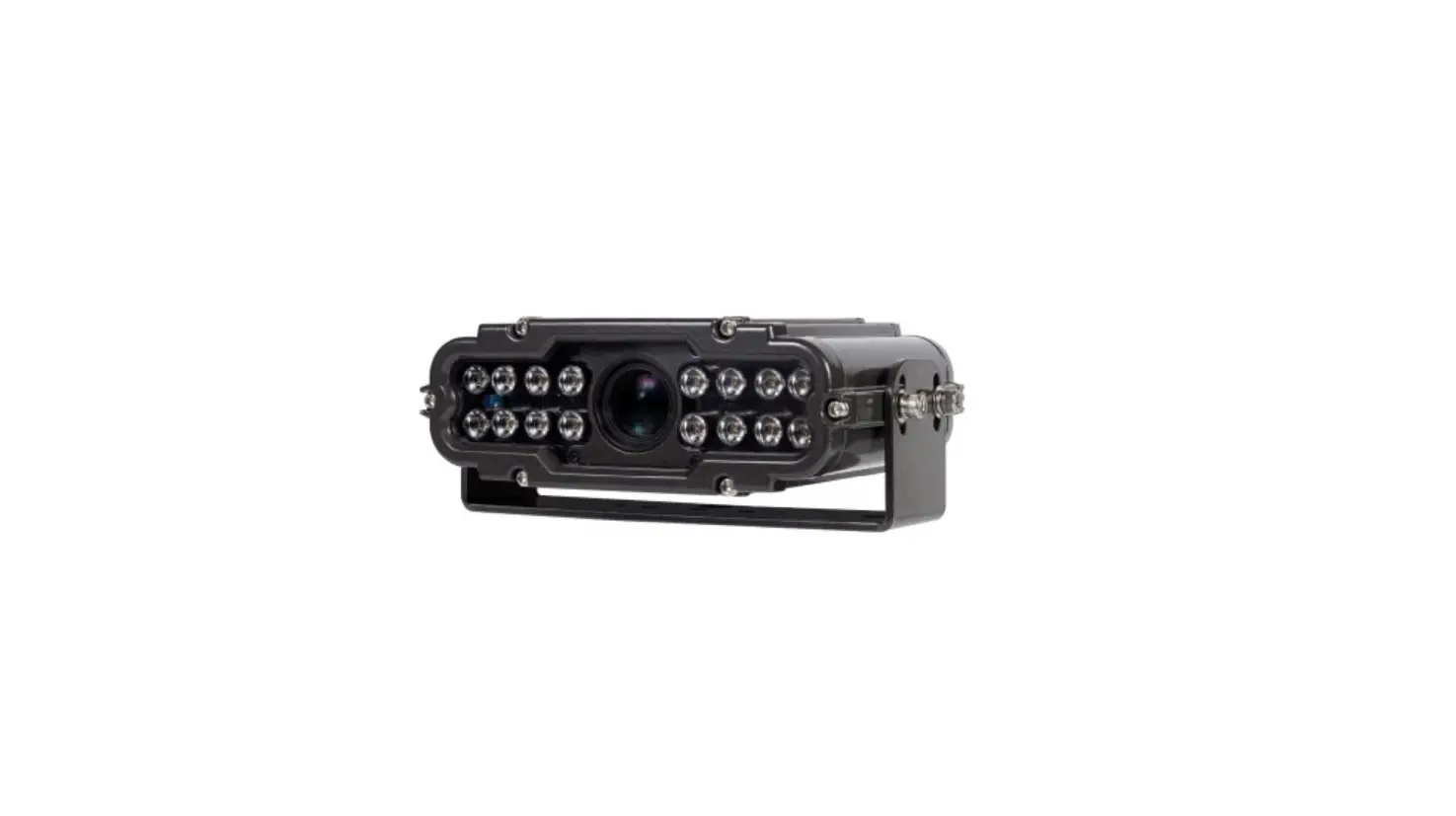

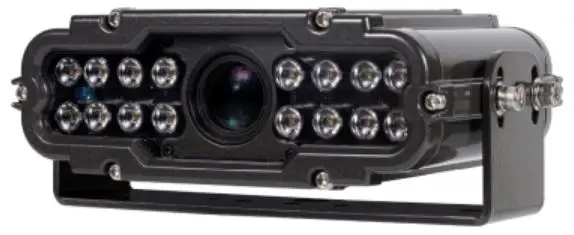
Tekdis Global Shutter Motorized Lens LPR Camera
Overview
GPCL1240MA4GN (Standard)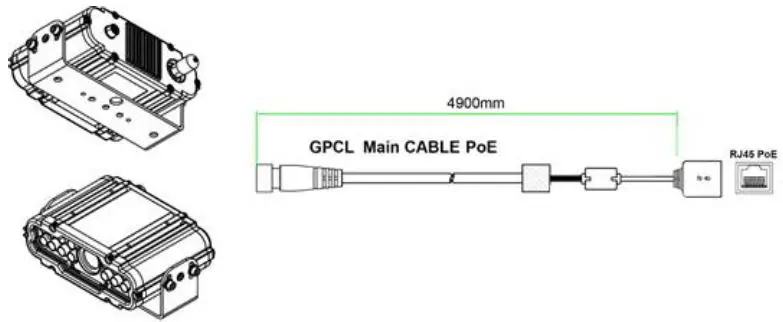
GPCL1240MA4GN (Mac Mount Bracket – Option)
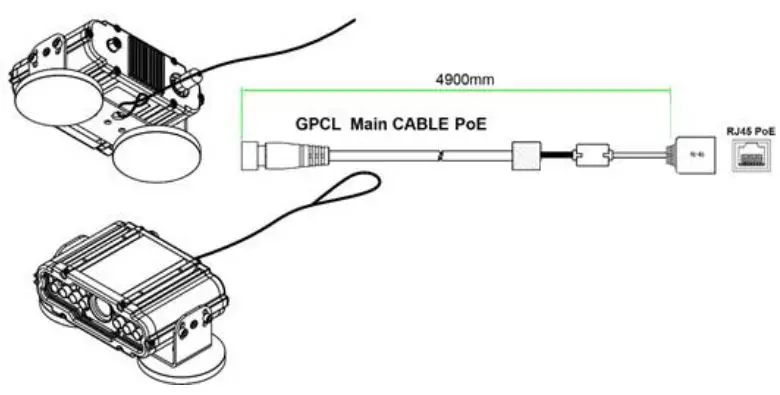
IP Installer
In order to have the camera viewable on the network, the IP address has to be assigned first. When a user double clicks the IP Installer Plus.exe file which software downloaded from the web page will help to search the IP camera and change the IP address easily.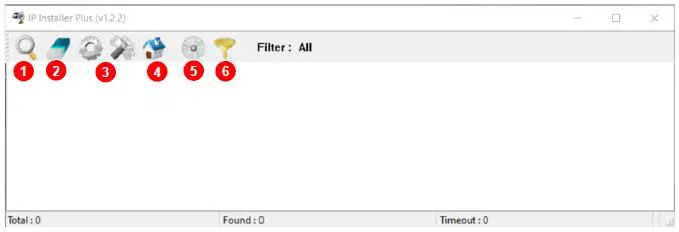
- 1 SEARCH: Enable to search IP cameras in the network and display the list of search cameras.
- ALL CLEAR: Displayed cameras are all cleared.
- IP SETUP: After Search, select the displayed camera and click “IP SETUP” to change the IP address, Gateway, and Net Mask.
- WEB: Go to the web viewer page for the selected camera.
- UPDATE: Firmware can be updated. Before updating, please load firmware from the PC.
- FILTER: Search the IP camera by MAC address or IP range.
Default IP Address
The factory default value of the IP camera is like below.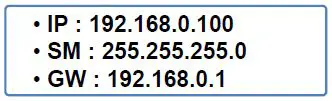
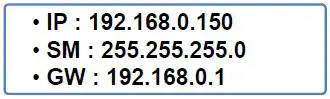
When you connect the IP camera and PC directly, please assign the IP address of PC by choosing any numbers from 2 to 254 except “100” as shown below.
AvailableOS: XP, VISTA, WIN 7/8/10/11(32/64bit)
LIVE VIEW
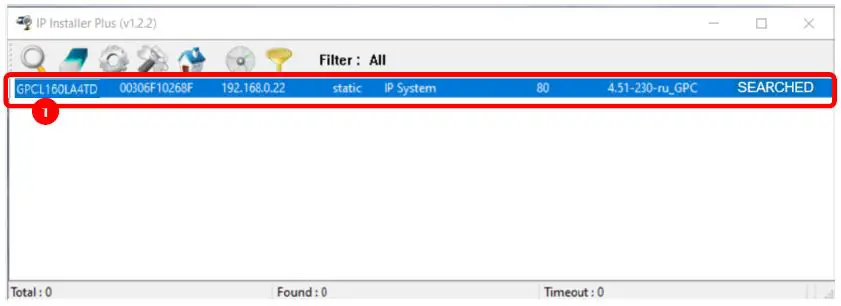
- Double-click the searched model.

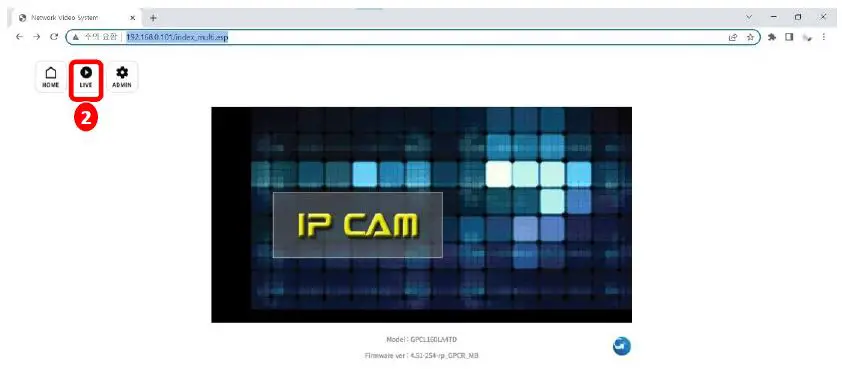
- Click ‘Live View’ to start monitoring the video streaming.

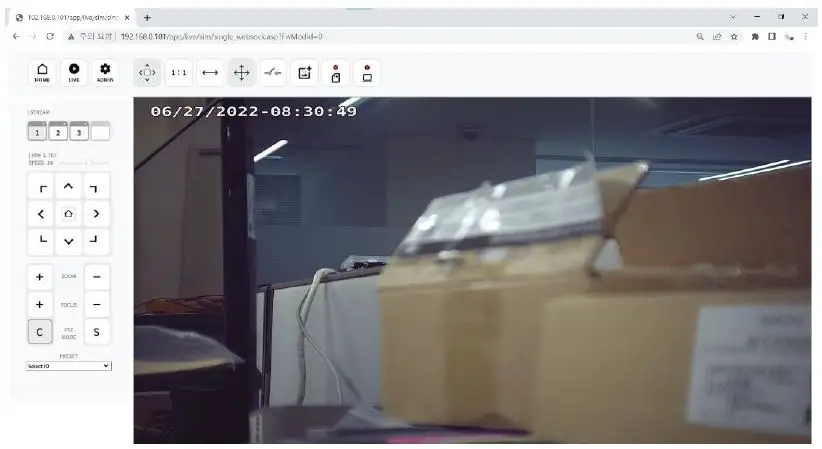
- Monitoring the video stream live.
WEB SETTING
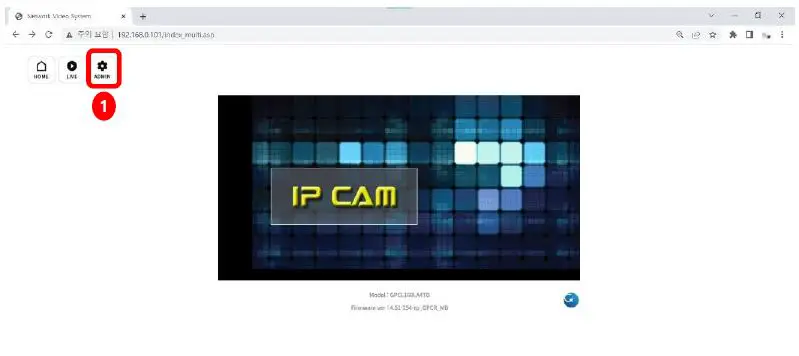
- Click ‘Admin’ to get into the camera setting.

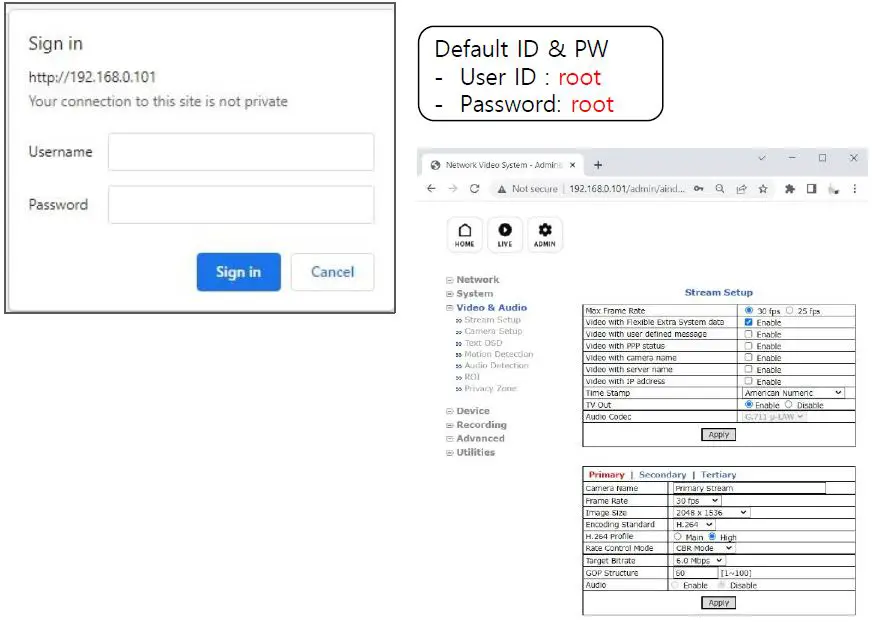
RECOMMENDED Video & Device/Camera Settings
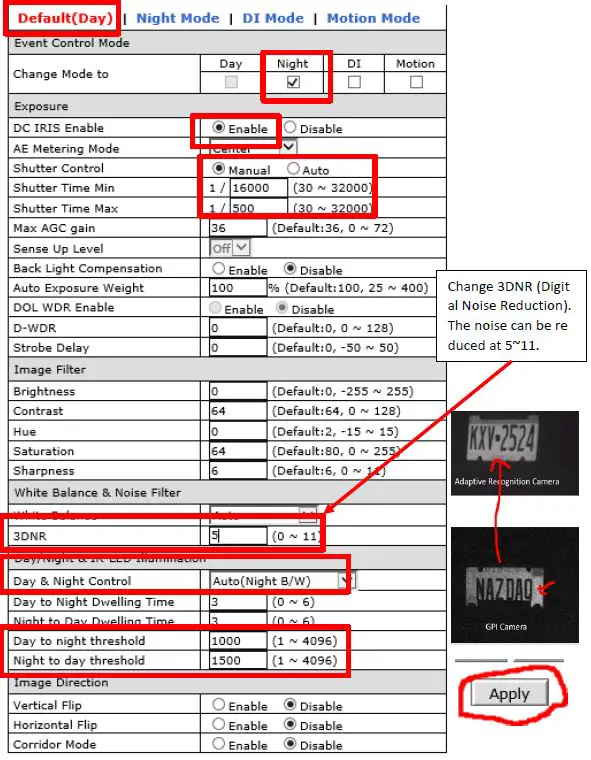
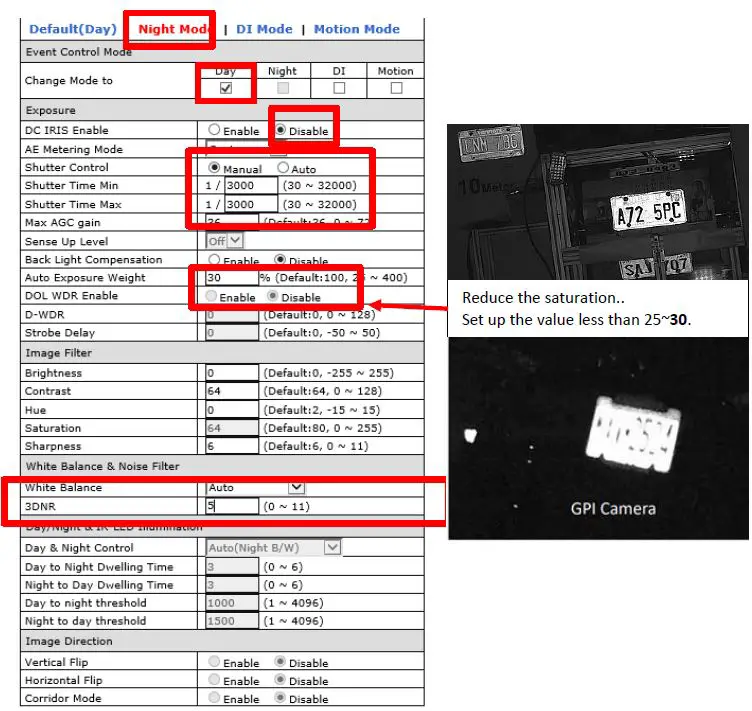
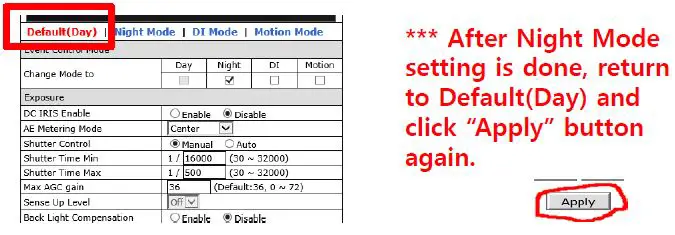
RTSP Connection
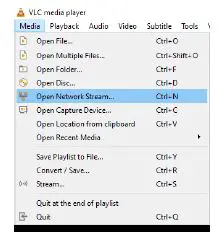
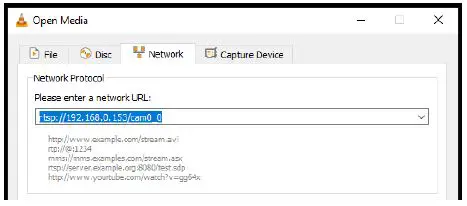
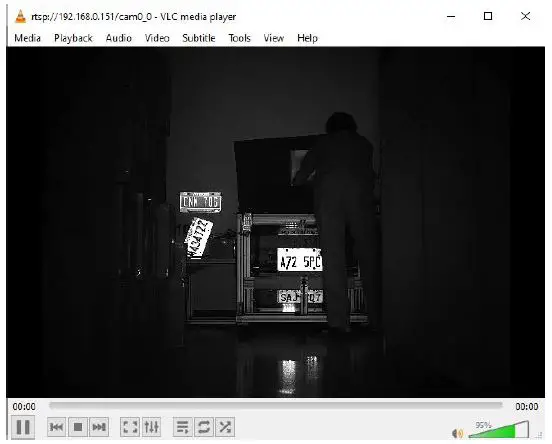
VLC Media Player
- Primary Streaming (h264, H265): rtsp://192.168.0.100/cam0_0
- Secondary Streaming (h264, H265): rtsp://192.168.0.100/cam0_1
- Tertiary Streaming (h264, H265): rtsp://192.168.0.100/cam0_2


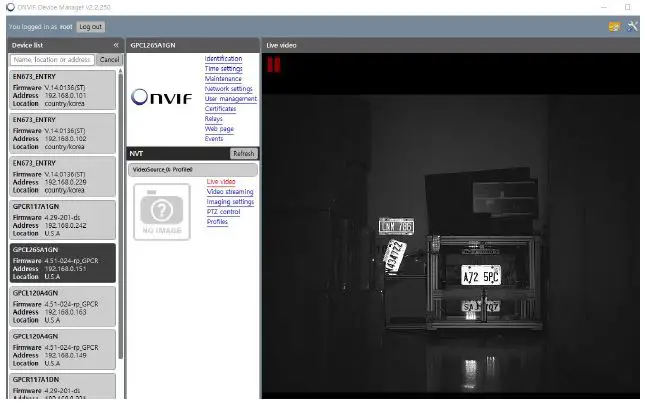
ONVIF Device Manager

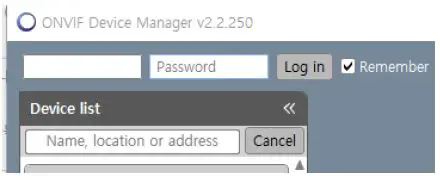
OnvifDevice manager (ID: root, Password: root)
Motorized Lens Control
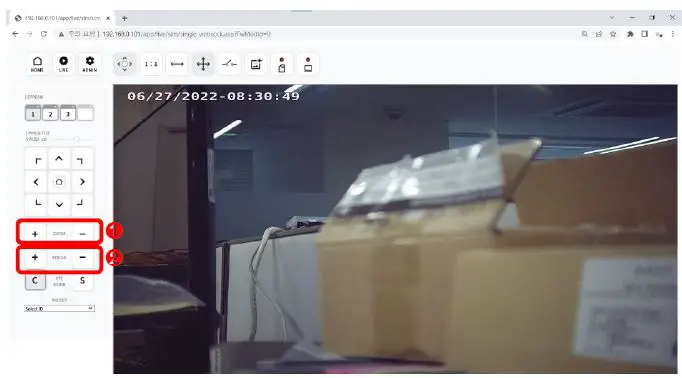
- Zoom “+”, “-” : Zoom in or Zoom out. Autofocusing takes 5 ~ 10 seconds.
- Focus “+” , “-” : Focusing manually. Far or Near
CGI command “Zoom” “Focus” Control
| Zoom IN(TELE) start | http://Camera IP/cgi-bin/fwptzctr.cgi?FwModId=0&PortId=0&PtzCode=0x0000010B&PtzParm=0x0000000F&RcvData=NO&FwCgiVer=0x0001 |
| Zoom IN(TELE) stop | http://Camera IP/cgi-bin/fwptzctr.cgi?FwModId=0&PortId=0&PtzCode=0x0000020B&PtzParm=0x0000000F&RcvData=NO&FwCgiVer=0x0001 |
| Zoom OUT(WIDE) Start | http://Camera IP/cgi-bin/fwptzctr.cgi?FwModId=0&PortId=0&PtzCode=0x0000010C&PtzParm=0x0000000F&RcvData=NO&FwCgiVer=0x0001 |
| Zoom OUT(WIDE) Stop | http://Camera IP/cgi-bin/fwptzctr.cgi?FwModId=0&PortId=0&PtzCode=0x0000020C&PtzParm=0x0000000F&RcvData=NO&FwCgiVer=0x0001 |
| Focus NEAR Start | http://Camera IP/cgi-bin/fwptzctr.cgi?FwModId=0&PortId=0&PtzCode=0x0000010D&PtzParm=0x00000000&RcvData=NO&FwCgiVer=0x0001 |
| Focus NEAR Stop | http://Camera IP/cgi-bin/fwptzctr.cgi?FwModId=0&PortId=0&PtzCode=0x0000020D&PtzParm=0x00000000&RcvData=NO&FwCgiVer=0x0001 |
| Focus FAR Start | http://Camera IP/cgi-bin/fwptzctr.cgi?FwModId=0&PortId=0&PtzCode=0x0000010E&PtzParm=0x00000000&RcvData=NO&FwCgiVer=0x0001 |
| Focus FAR Stop | http://Camera IP/cgi-bin/fwptzctr.cgi?FwModId=0&PortId=0&PtzCode=0x0000020E&PtzParm=0x00000000&RcvData=NO&FwCgiVer=0x0001 |
(OnvifDevice Manager)
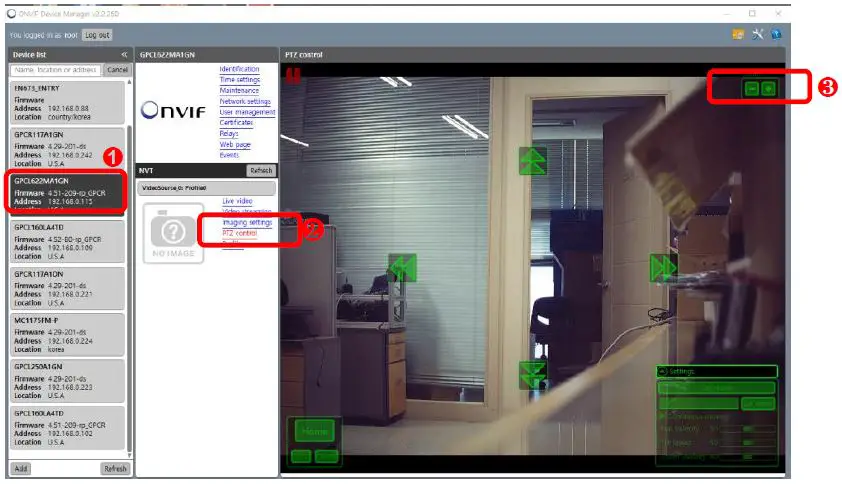
- Select the camera on OnvifDevice Manager.* OnvifDevice Manager Login Password: root/root.
- Click “PTZ Control” PTZ control icon will be overlaid on the display.
- Click Zoom In(+) or Out(-)
 Home - Identity Digital