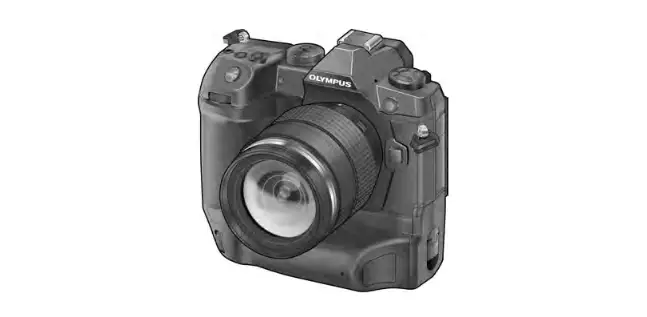
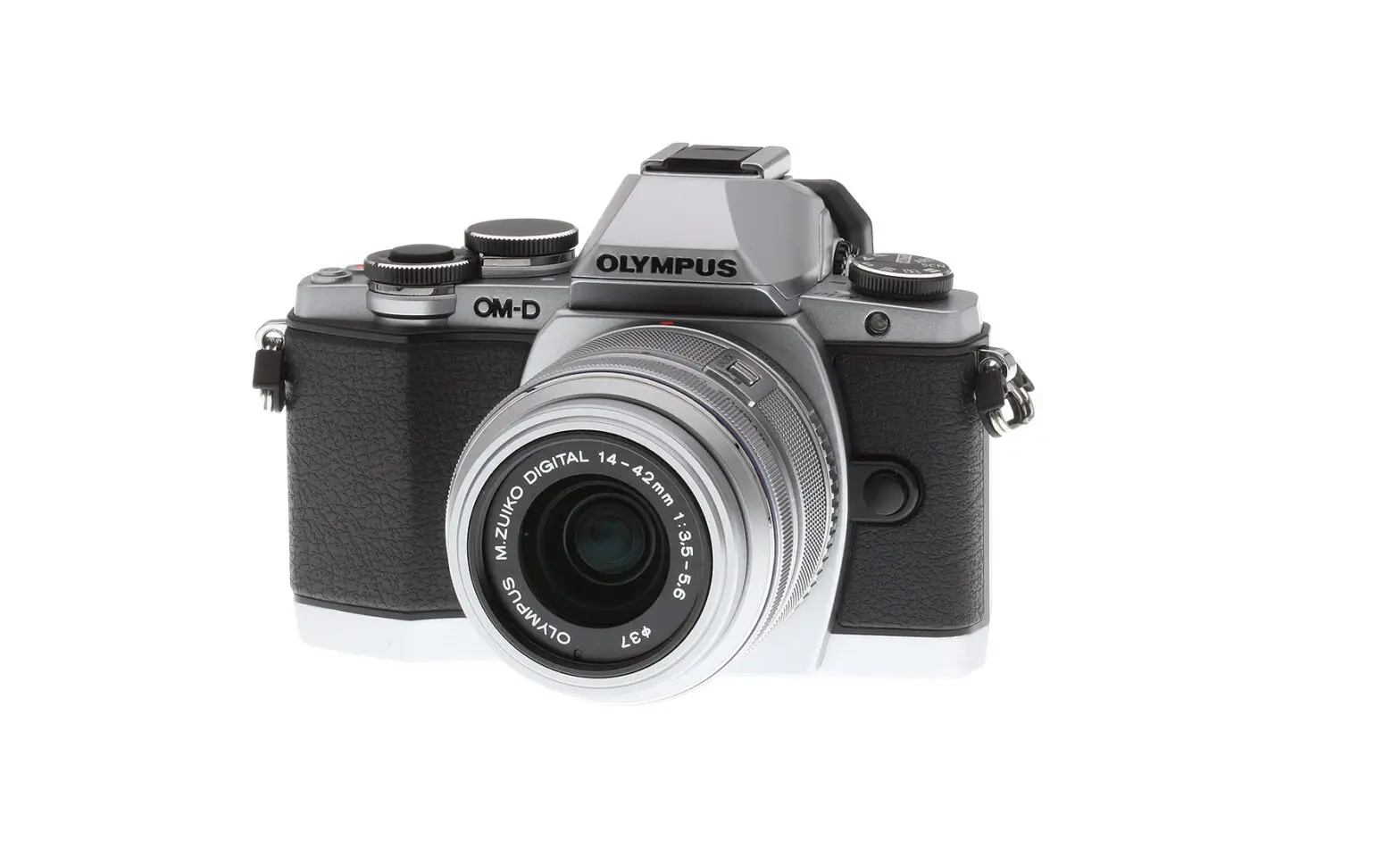
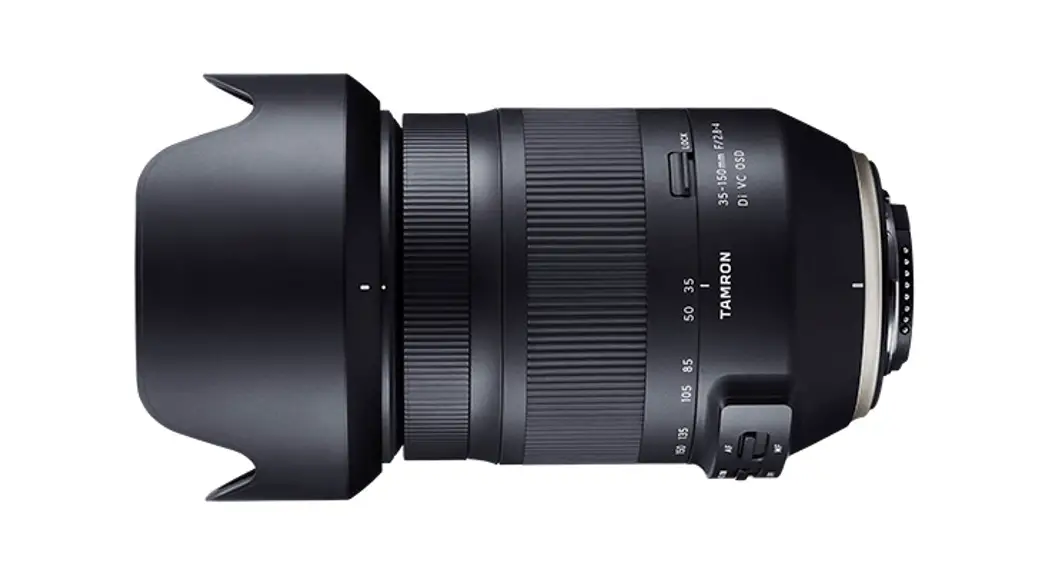
LM-EA9 Camera With the Lens
LM-EA9 User Manual
Firmware Upgrade
To upgrade the firmware of the LM-EA9 adapter, follow the below
steps:
- Go to https://techartpro.com/?page_id=5023 and download the
firmware upgrade software. - Ensure that the camera body has a power level of over 50%.
- Connect the USB cable to the USB dock on the back cap while
mounting on the adapter. - Open the software and select the firmware version on the
list. - Click on the Update button to start upgrading the
firmware.
Use of Camera Aperture Value
Setting the aperture value in a camera will enable the camera
body to record the lenses’ focal lengths, showing the correct focal
length in the EXIF data. Additionally, camera 3-axis stabilization
can work accordingly when recognition is done, with the data as
follows:
Setting Aperture Value
- After switching lenses, turn on the camera.
- Set the aperture on the camera body to the corresponding
aperture (listed above) for the desired focal length (e.g. F32 for
a 400mm lens). - Release the shutter/take a picture.
- Set the aperture on the camera body back to F2. Take another
picture and check the EXIF data. - Set the aperture on the lens to the desired working
aperture.
LM-EA9 User Manual
Warning & Precautions: · To prevent fire hazards or electric shock, do not expose the adapter to rain or moisture. · Avoid changing the lens in dusty or dirty environment. · When carrying the camera with the lens attached/shooting, hold both the camera and the lens at the same time. · Any dirt on the lens contact/mount adapter should be cleared with a blower blush or soft brush. Do not touch it by hand or use any organic solvent. Any dirt/damage on the lens contacts may interfere with the signal transmission between the lens and camera, resulting in malfunctions.
Firmware Upgrade 1. Download the firmware upgrade software on https://techartpro.com/?page_id=5023 2. Check the camera body to make sure the power is over 50%. 3. Connect USB cable to the USB dock on the back cap while mounting on the adapter. 4. Open the software; select the firmware version on the list. 5. Click the “Update” button.
Use of Camera Aperture Value Setting the aperture value in camera will make the camera body to record the lenses’ focal lengths, so correct focal length can be shown in the EXIF data. Also, camera 3-axis stabilization can work accordingly when recognition is done, with the data as follows:
· f/45 Parking position when camera is off infinity/unchanged (factory pre-set as unchanged)
· f/51 – Normal focus mode. Under this mode the focusing speed is faster but relatively some lens with ultra-fast lens, there will be focus hesitations.
· f/57 – Slower focus mode for ultra-fast lens use
Setting Aperture Value 1. After switching lenses, turn on the camera. 2. Set the aperture on the camera body to the corresponding aperture (listed above) for the desired focal length (e.g. F32 for a 400mm lens). 3. Release the shutter/take a picture. 4. Set the aperture on the camera body back to F2. Take a picture and check the EXIF data. 5. Set the aperture on the lens to the desired working aperture.