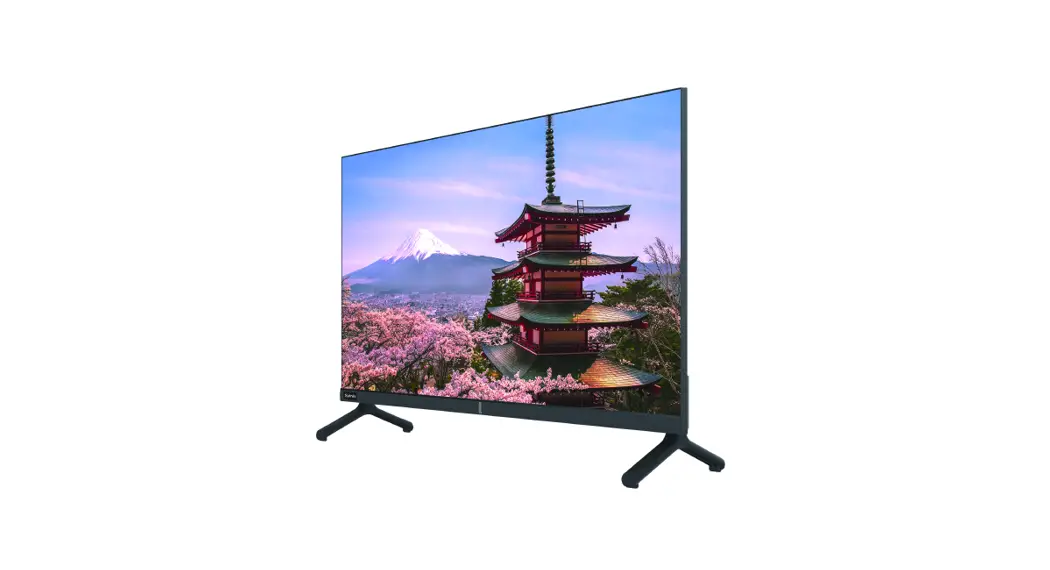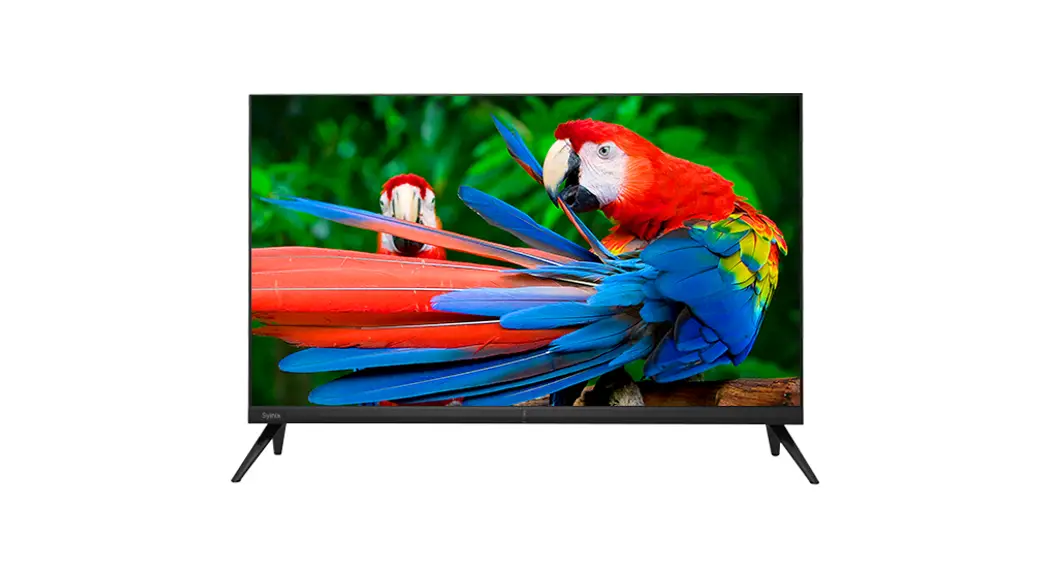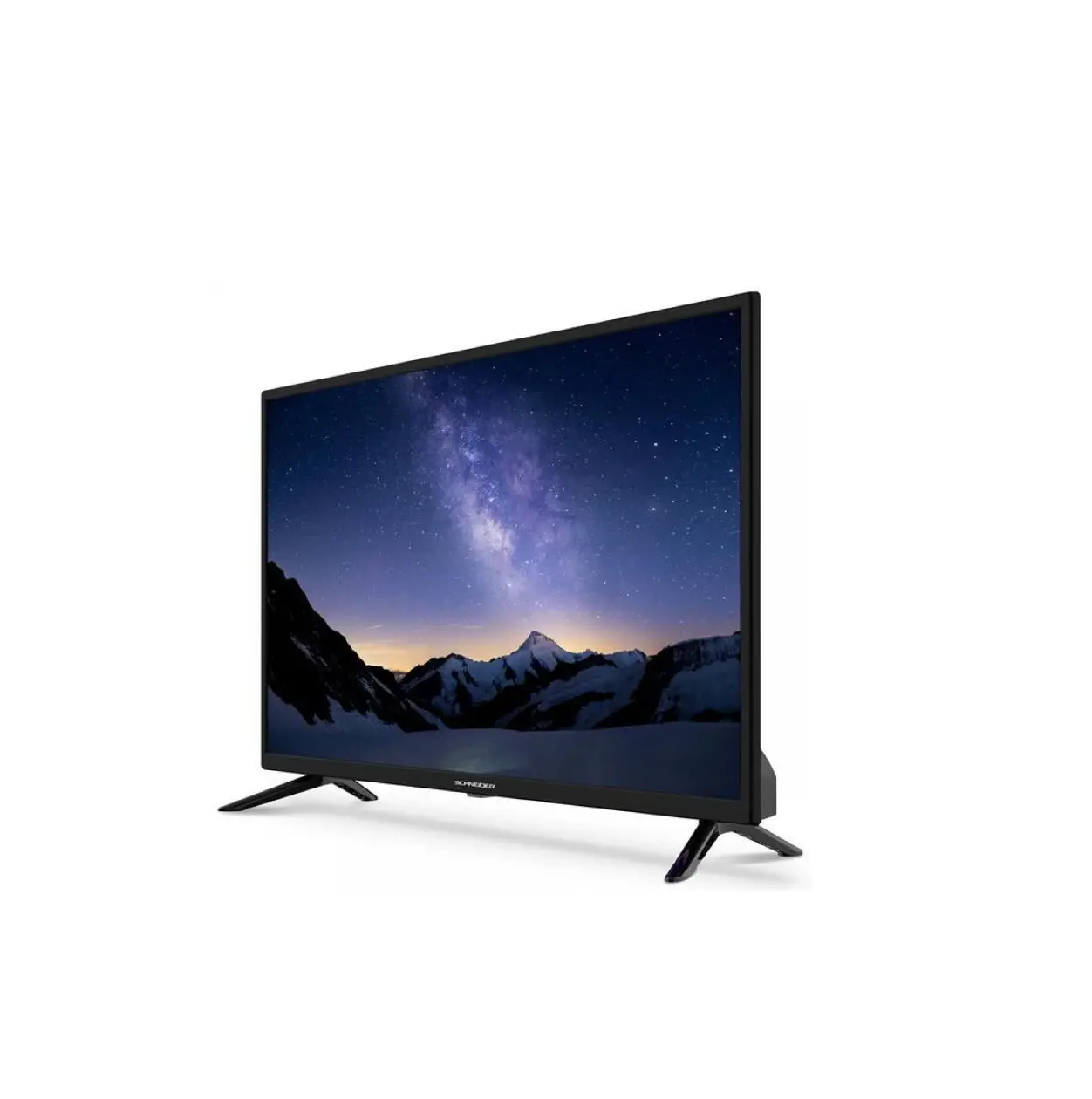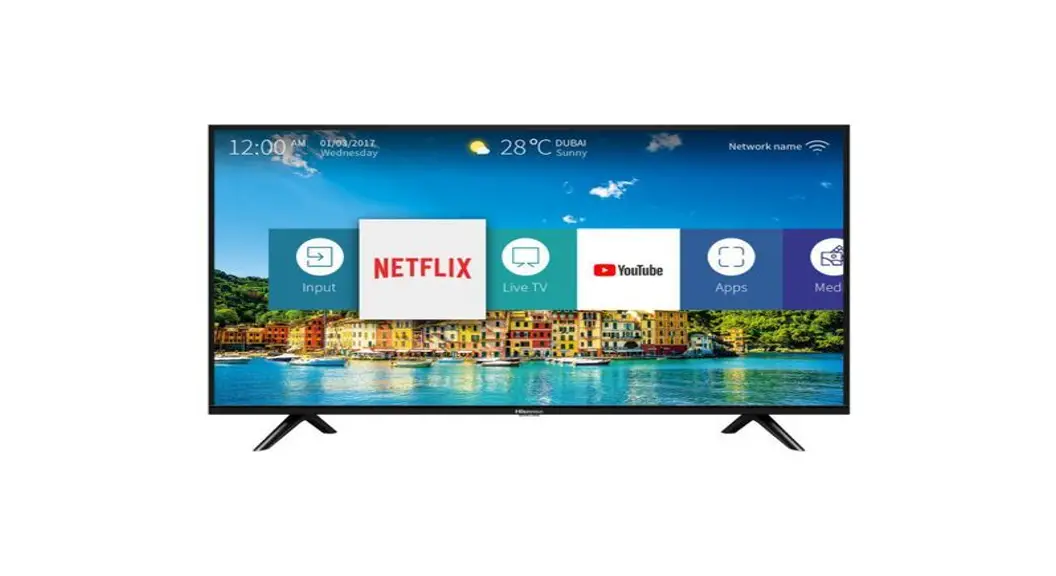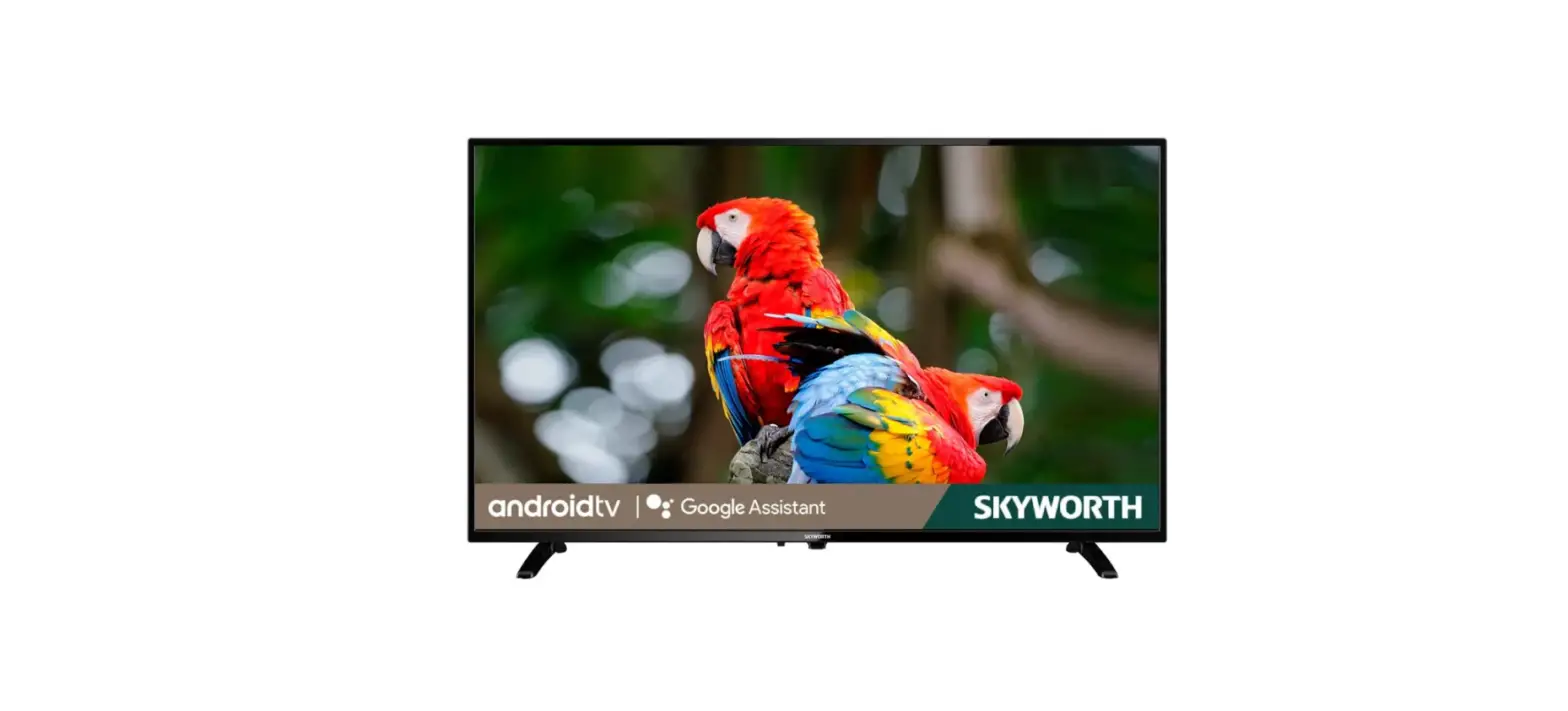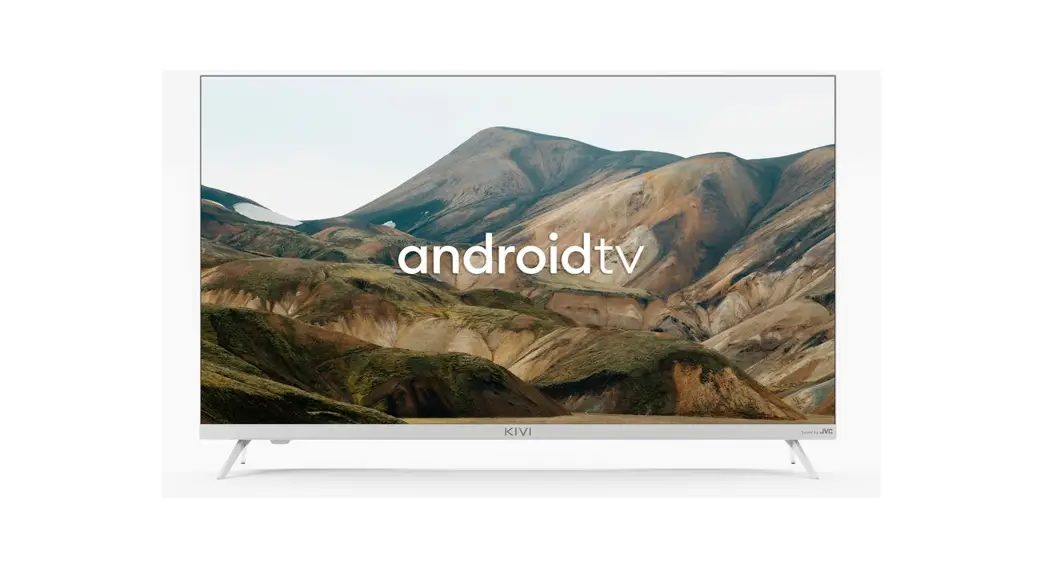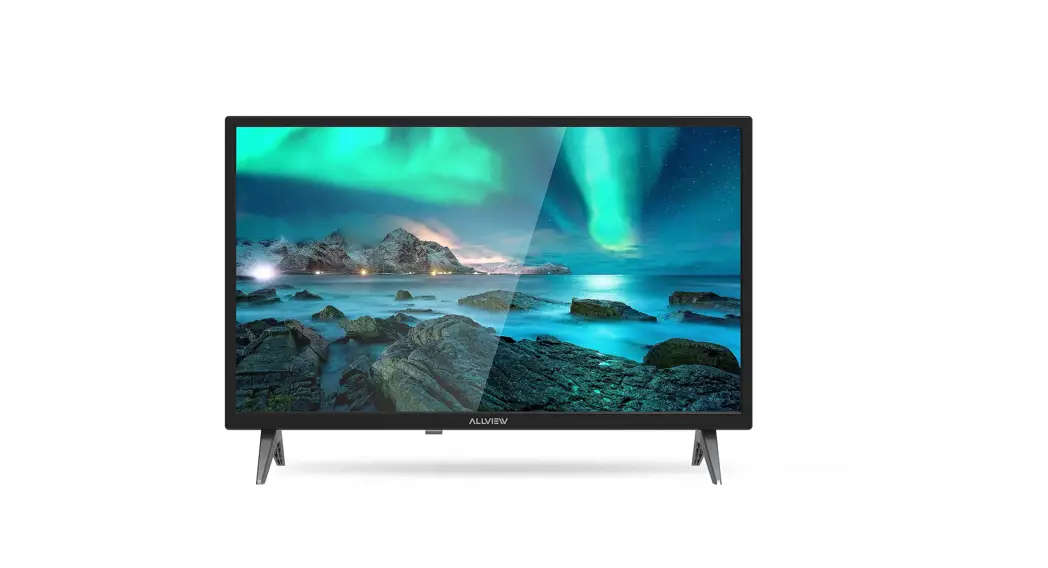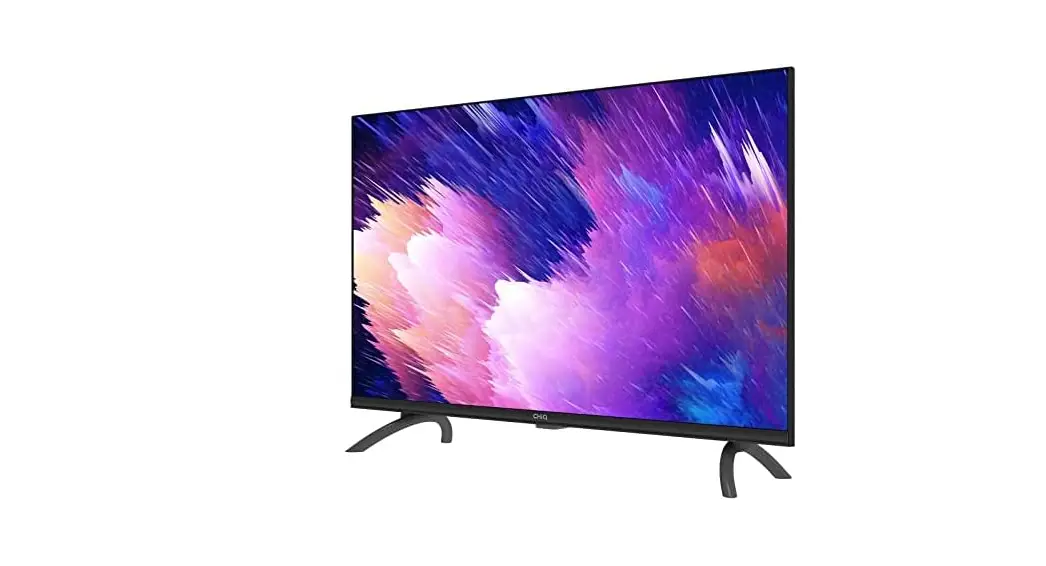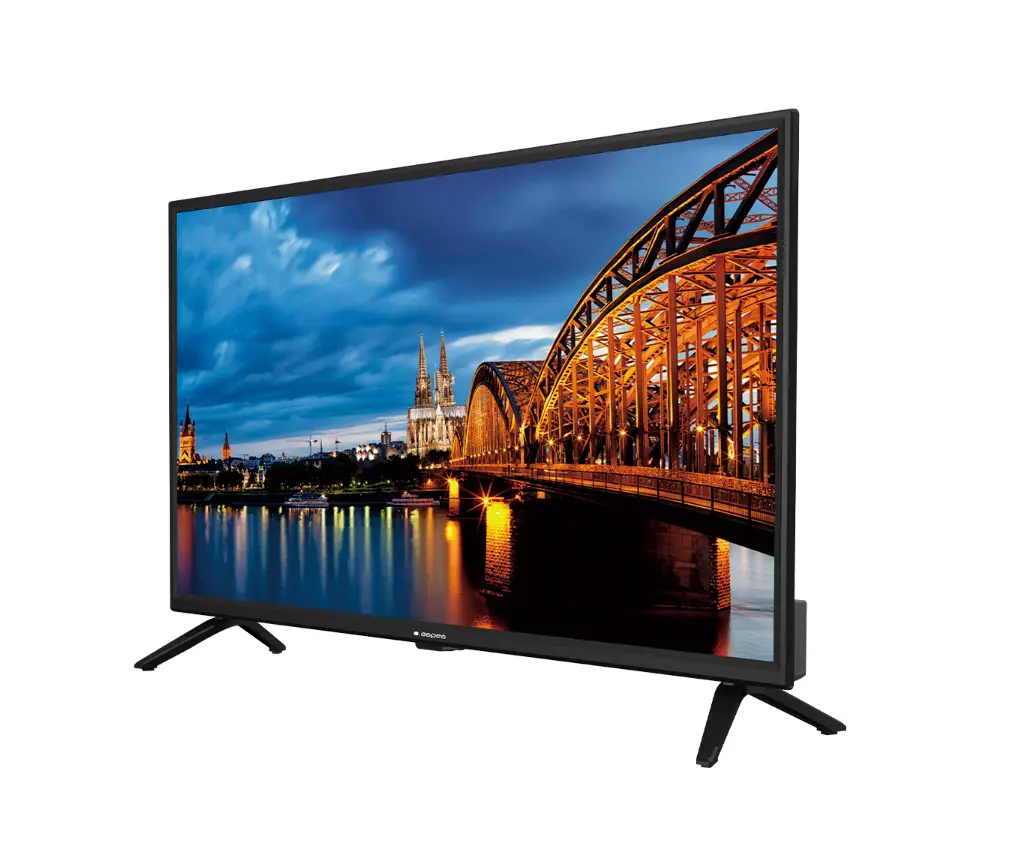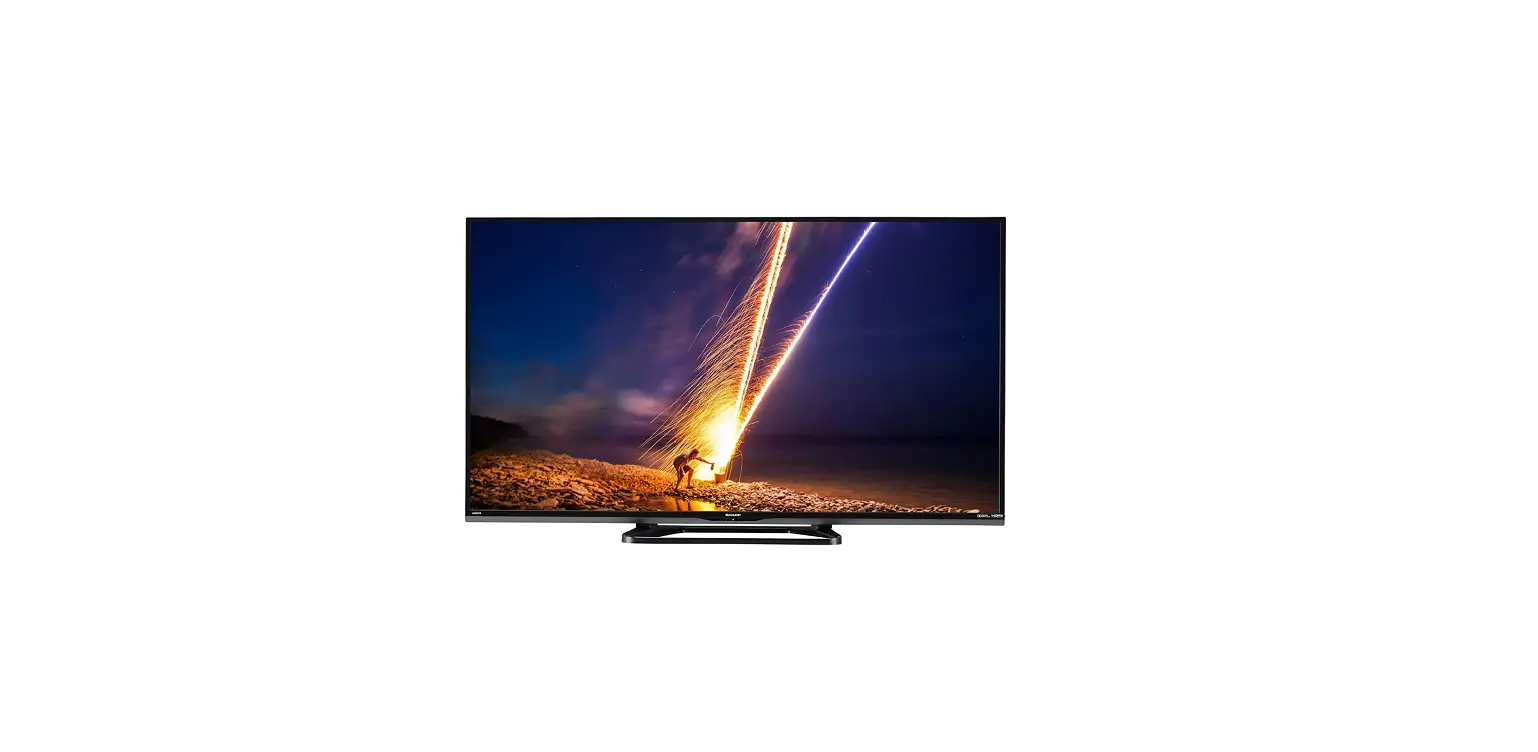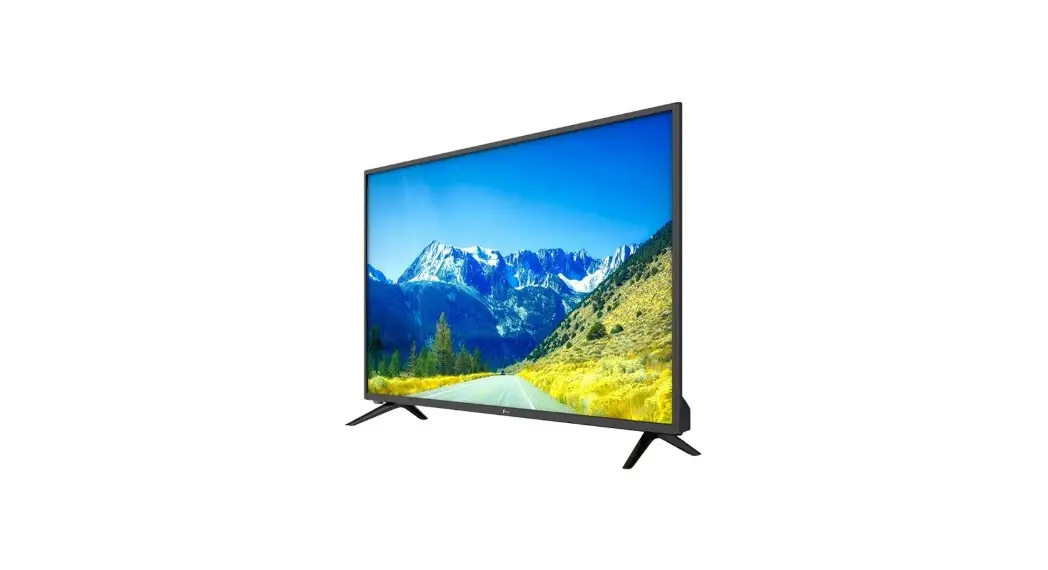
 32E1M/43E1M 32 Inch Smart LED TV
User Manual
LED(BACKLIGHTING) COLOR TELEVISION
Please read this instruction manual carefully before using it and save it for future reference.
Installation
- Install the TV in the room where direct sunlight does not fall on the TV. Total darkness or a reflection on the picture screen can cause eyestrain. Soft and indirect lighting is recommended for comfortable viewing.
- Allow enough space between the TV unit and the wall to permit ventilation.
- Avoid excessively warm locations to prevent possible damage to the cabinet or premature component failure.
- Do not install the TV in a location near heat sources such as a radiator, air ducts, or direct sunlight, or in a place somewhere like a close compartment and close area. Do not cover the ventilation openings when using the TV.
- The indicator light will last about 30 seconds to go out after cutting off the electricity, during this period, you cannot repower it on until the indicator light goes out.
 To prevent the spread of fire, keep candles or other open flames away from this product at all times.
 To prevent the spread of fire, keep candles or other open flames away from this product at all times.
Thanks a lot for your attention!
Warning
 | CAUTION RISK OF ELECTRIC SHOCK DO NOT OPEN |  |
CAUTION: TO AVOID THE RISK OF ELECTRIC SHOCK.
DO NOT REMOVE THE COVER (OR BACK).
NO USER-SERVICEABLE PARTS INSIDE.
REFER SERVICING TO QUALIFIED SERVICE PERSONNEL. This symbol is intended to alert the user to avoid the risk of electric shock, do not disassemble this equipment by anyone except qualified service personnel. This symbol is intended to alert the user to the presence of important operating and maintenance instructions in the literature accompanying the equipment. This equipment is a Class II or double insulated electrical appliance. It has been designed In such a way that It does not require a safety connection to electrical earth.
Caution
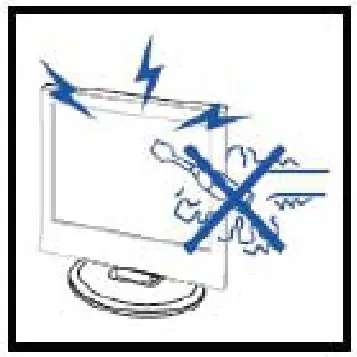 | 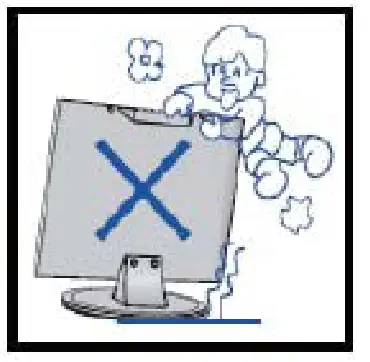 |
| Caution: High voltages are used in the operation of this product. Do not open the product’s cubing. Refer servicing lc qualified service personnel. | Caution: Never stand or push or lean on the product or its stand. You should pay special attention to children. |
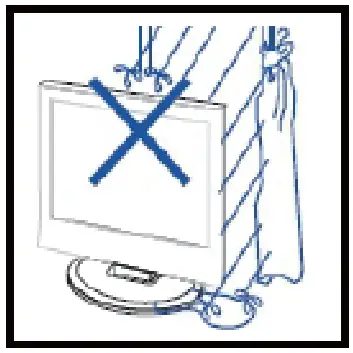 |  |
| Caution: To prevent fire or electrical shock hazards, do not expose the unit to rain or moisture. Do not place objects filled with liquids, such as vases, on the apparatus. | Caution: Do not place the main unit on an unstable cart stand, shelf or table. Serious injury to an individual, and damage to the television, may result if it falls. |
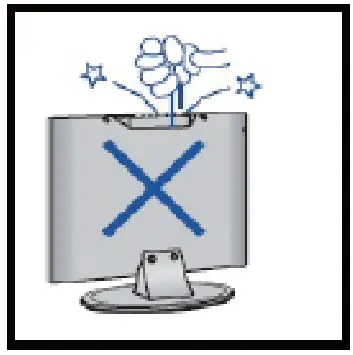 | 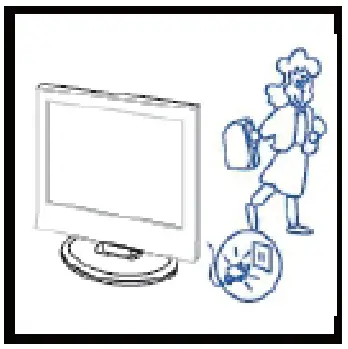 |
| Caution: Do not drop or push objects into the television cabinet slots or openings. Never spill any kind of liquid on the television receiver. | Caution: When the product is not to be used for a longer period of time, it is advisable to disconnect the AC power cord from the AC outlet. |
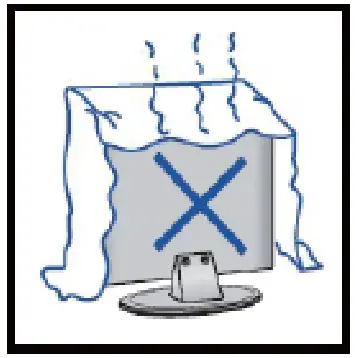 | 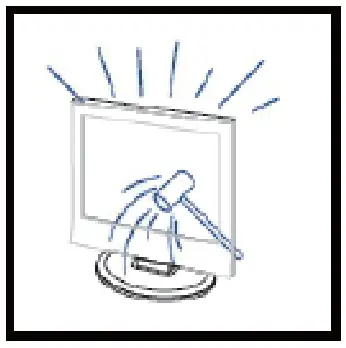 |
| Caution: Avoid exposing the main unit to direct sunlight and other sources of heat. Do not put the television receiver directly on other products which give off the heat: e. g. video cassette players amplifiers. Do not block the ventilation holes at the back cover. Ventilation is essential to prevent the failure of the electrical components. Do not squash the power supply cord under the main unit or under the other heavy objects. | Caution: The LED panel used in this product is made of glass, therefore it can break when the product is dropped or applied with impact. Be careful not to be injured by broken glass pieces in case the LED panel breaks. |
Functional Overview
Buttons on the TV
| Button | Description |
| Power | Press to turn the TV on and off or go into standby mode. |
| CH+, CH- | Press to change channels. Also used to select or adjust a menu item. |
| VOL+, VOL- | Press to adjust the volume level. Also used to select or adjust the menu items. |
| MENU | Press to display the “Setup” menu on the TV screen. |
| SOURCE | Press to select the TV or all the video input modes. |
TV Terminal Connections
| Connection | Function | Description |
 | COAX | Digital Coaxial output port. To connect the audio amplifier. |
 | HDMI | HDMI input port. To connect the equipment with HDMI output. |
 | Mini YPbPr | Mini YPbPr input port. To connect the equipment with video output components. |
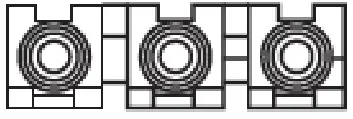 | YPbPr | YPbPr input port. To connect the equipment with video output components. |
| AV IN | AV input port-Video and Audio (L/R) input terminals. Audio (L/R) can be used as YPbPr Audio input. |
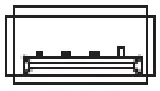 | USB | USB input port. To connect any USB output components. |
| Earphone | Earphone output terminal. To connect audio amplifier or other devices. |
 | DVB T2 | DVB T2 input socket. To connect the equipment with antenna output or wall antenna socket. |
 | DVB S2 | DVB S2 input socket. To connect the equipment with the antenna output of the satellite signal. |
The content shown here is indicative only. If there is inconsistency, the actual product shall govern. itel reserves the right to a final explanation.
Remote Control
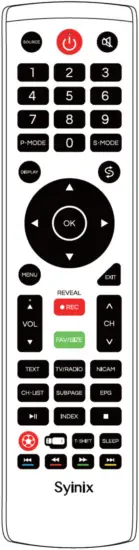
| Keys | Function |
Power(  ) ) | Switch between working and standby status. |
| SOURCE | Select the signal source. (only in TV mode) |
MUTE( ) ) | Turn on/off the sound. |
| Number keys(0-9) | Enter numbers or select a channel. |
| S•MODE | Switch the audio mode. |
| P•MODE | Switch the image mode. |
| DISPLAY | Show the information about the TV program. |
 | Return to the last watching channel. |
Cursor keys (    ) ) | Select items or adjust values. |
| OK | Confirm the operation. |
| MENU | Show the OSD menu. |
| EXIT | Exit menu. |
| VOL+/-(VOL / ) | Turn up/down the volume. |
CH+/-(CH  / / ). ). | Change program channel. |
 REC/REVEAL REC/REVEAL | REC: Record program. REVEAL: Displays the hidden text in Teletext mode. |
| FAV/SIZE | FAV: Display the favorite channels list. SIZE: Adjust text display size. |
| TEXT | Open Teletext mode. |
| TV/RADIO | If it is a DTV signal source, it functions by switching DTV & Radio programs |
| NICAM | If it is an ATV signal source, it serves a selection of the second audio to NICAM; and serves a selection of voice/language if it is a DTV signal source. |
| CH•LIST | Display channel list. |
| SUBPAGE | Display subpage in text. |
| EPG | Electronic channel instructions. |
 | Play/pause function in multimedia. |
| INDEX | Displays the index page in Teletext mode. |
 | Stop function in multimedia. |
FOOTBALL ( ) ) | Press this key, both picture mode and the sound mode will be switched to football mode. |
 | Press this key to skip to the USB signal source. |
| T•SHIFT | Timeshift in DTV mode. |
| SLEEP | Set the sleep time, and the device will switch to standby automatically at the specified time. |
Blue key(  ) ) | Special function key (Last file in multimedia). |
Red key ( ) ) | Special function key (Fast backward in multimedia). |
Green key ( ) ) | Special function key (Fast forward in multimedia). |
Yellow key ( ) ) | Special function key (Next file in multimedia). |
Note: The appearance of the remote control may be different from this diagram; please refer to the real object as the standard.
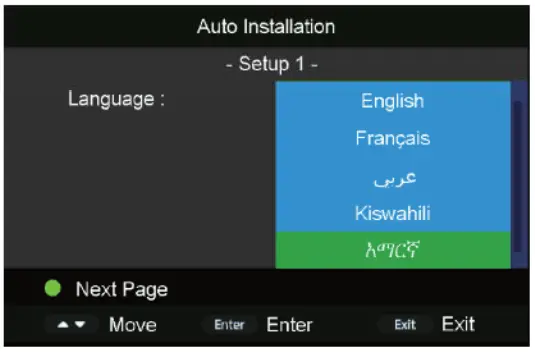
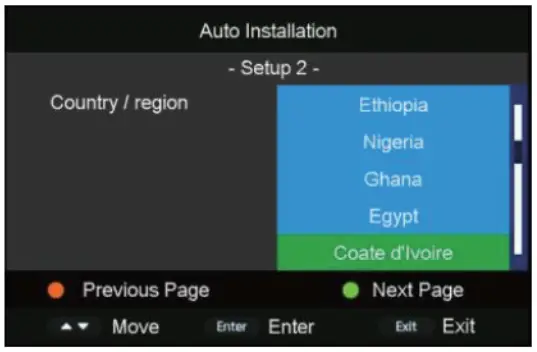
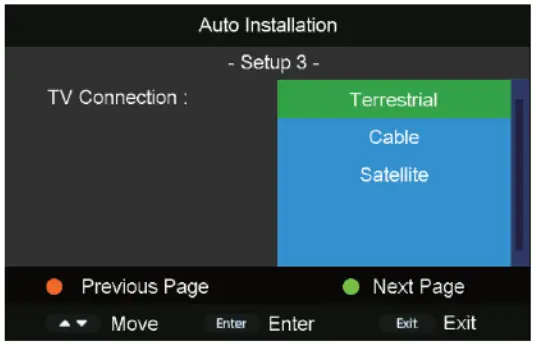
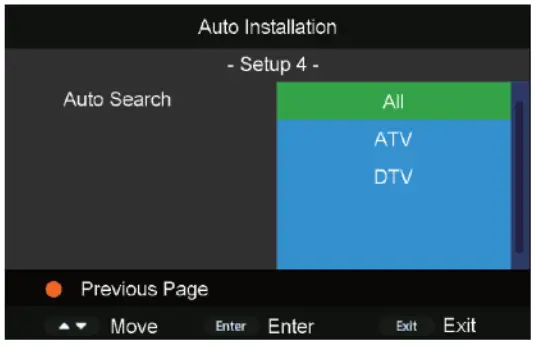
Installation Guide If this is the first time you are turning on the TV and there are no programs in the TV memory, the “Installation Guide” menu will appear on the screen.
- Select OSD language
Press the”/” and “Enter’ buttons to select the local language.
Press the “GREEN” button to go to the next page.
- Select the local country
Press the”/” and “Enter’ buttons to select the local country.
Press the “GREEN” button to go to the next page and the “RED” button to go to the previous page.
- Select the auto search channel
Press the”/” and “Enter’ buttons to select the auto search channel way.
Press the “RED” button to go to the previous page.

Note:
- The picture is provided for reference only since the information displayed may be different.
- Searching for a platform will take a long time, please be patient!
PICTURE
You can select the type of picture mode that best suits your personal preference. Press the “MENU” button to enter the OSD menu, then press” /” to select “Picture” in the main menu and select the item you want to change. Use the”/” button to select the desired setting.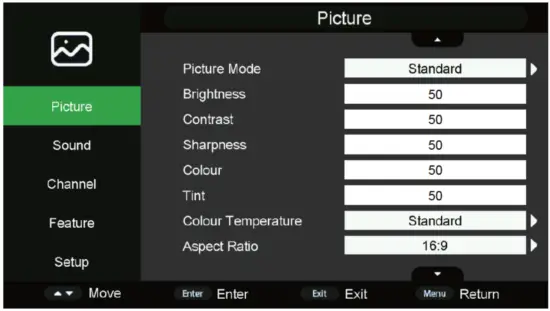 SOUND
SOUND
You can select the type of sound mode that best suits your personal preference. Press the “MENU” button to enter the OSD menu, then press ” /” to select “Sound” in the main menu and select the item you want to change. Use the” /” buttons to select the desired setting.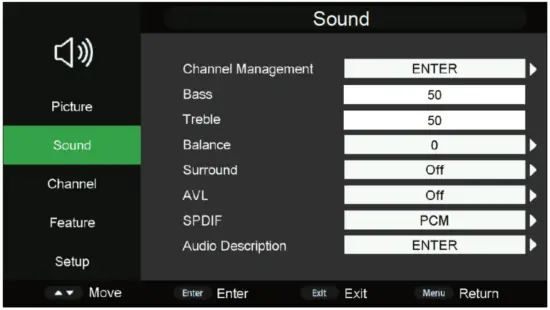 CHANNEL
Press the “MENU” button to enter the OSD menu. Then press the” /” and “/” buttons to select the “Channel” menu and to set the desired setting.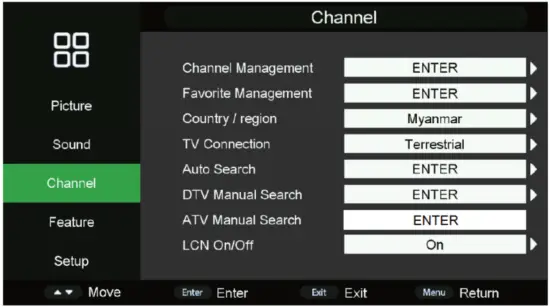
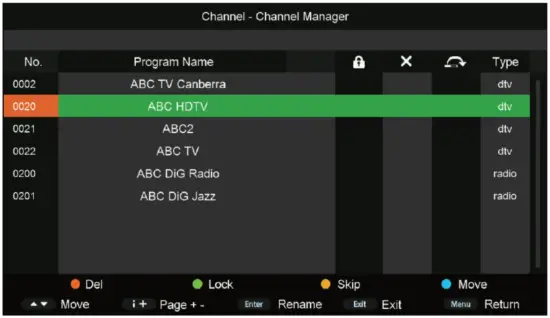
- Press” /” button to select “Channel Management”. Press the “ENTER” button to enter the sub-menu.
 a. Lock
Press the ”/” button to select the program and press the “GREEN” button on the remote control to lock the program. The default password is “0000”.
Note: These settings can be adjusted only when the “Lock Channel” is set to “On”.
b. Delete
Press the ”/” button to select the program and press the “READ” button on the remote to delete the program.
c. Skip
Press the ”/” button to select the program and press the ‘YELLOW” button on the remote to skip the program. Press the “YELLOW” button again to cancel the setting.
d. Move
Press the ”/” button to select the channel and press the “BLUE’ button to select, moving the channel to the position where you want to move by pressing the ” /” button. Then press the “BLUE’ button again to confirm. - Press the ” /” button to select “Favorite Management” and press the “ENTER” button to enter the sub-menu. Then you can add channels to the different favorite lists by pressing “RED”, “GREEN”, “YELLOW”, and “BLUE’ buttons.
You can call the favorite list by pressing the “FAV” button after setting. - Press the” /” button to select “Country/region” and press the “ENTER”. Then select your country.
- Press the ” /” button to select the “Auto search’ menu and press the “ENTER” button to enter the sub-menu. Then you can select the “Auto search” channel way.
NOTE: Searching for a platform will take a long time. Please be patient! - Press the ” /” button to select “DTV Manual Search” and press the “ENTER” button to enter the sub-menu. Then you can set the related parameters and press “Start’ to start searching.
NOTE: It is used only in DTV mode - Press the ” /” button to select “ATV Manual Search” and press the “ENTER” button to enter the sub-menu. Then you can set the related parameters.
NOTE: It is used only in ATV mode
 a. Lock
FEATURE
Press the “MENU” button to enter the OSD menu. Press ” /” to select “Feature” in the main menu and to select the item you want to change. Use “/” button to select the desired setting.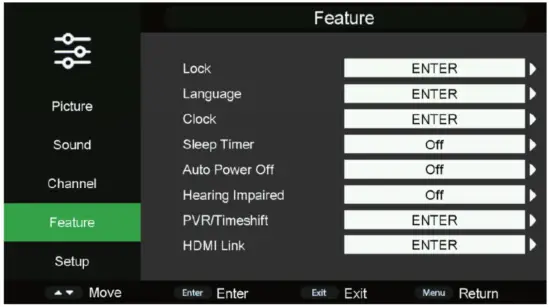 Press the” /“button to select “Lock” in the “Feature” menu and press the “ENTER” button to input the password, then you can see the sub-menu and set related parameters.
Note: The default password is “0000”.
SETUP
Press the “MENU” button to enter the OSD menu. Then press the ” /” and “/” buttons to select the “Setup” menu.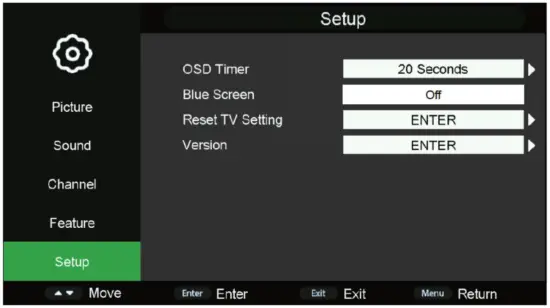
PVR Operation
(1). Press the “SOURCE’ and ” /“buttons to DTV source. Then press the “MENU” and ” /” buttons to select the “Feature” menu.
(2). Press the” /“and “/” buttons to select the “PVR/Timeshift” and press the “ENTER” button to enter.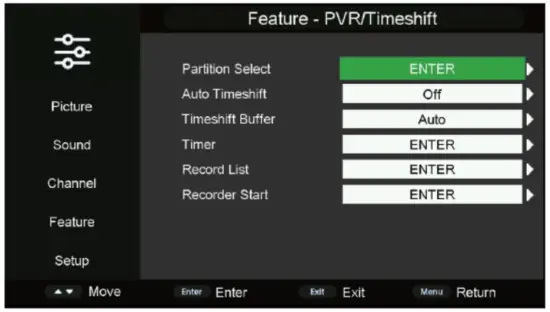
- Press the” /” button to select the “Partition Select” menu and press the “ENTER” button to enter the sub-menu as follow.

- Press the” /” button to select the ‘Timer’ menu and press the “ENTER” button to enter the sub-menu. Then you can press different colored buttons to do different operations according to instructions at the bottom of the OSD.

- Press the ” /“button to select “Record List” in the menu and press the “ENTER” button to enter the sub-menu as follow. You can press the” /” button to select the different options and use the ” ” buttons to play or pause the recorded tile.

- Press the ” /“button to select “Recorder Starr’ in the menu and press the “ENTER” button to start recording.

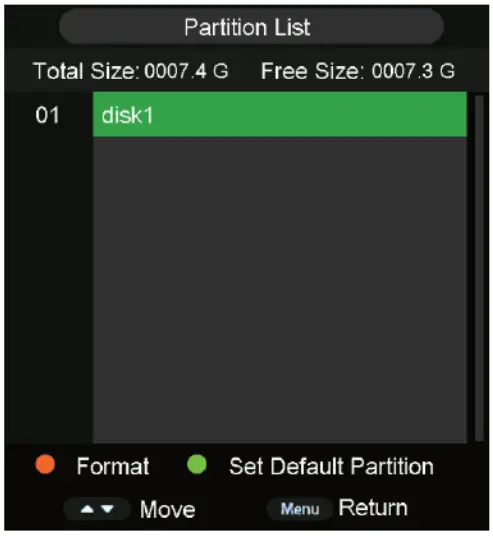
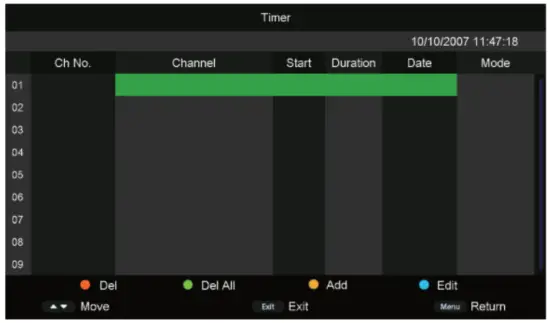
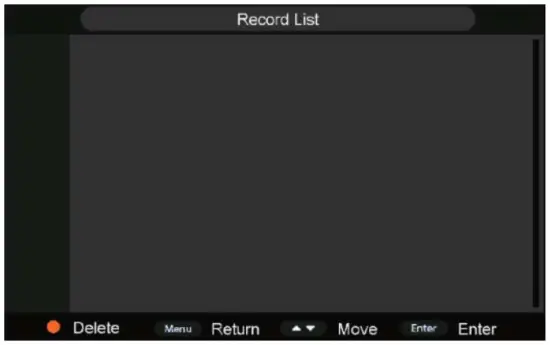
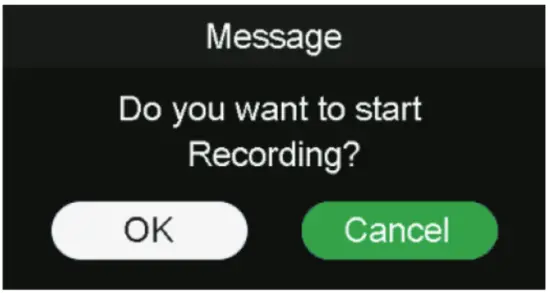
Note: The U disk may be formatted when in recording, please do not store important files.
i-Cast
TV Mirror
- Press the “SOURCE’ button on the TV remote control, then the TV goes into the i-Cast screen and waits for a connection with a cell phone. The cell phone screen will appear with a message to configure the device to connect to the TV.

- Select the “Mirroring” function of your cell phone screen, then the cell phone screen will project to the TV.
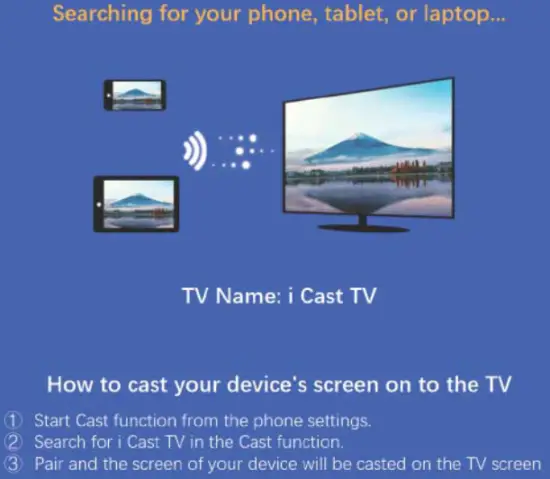
Note: Depending on the cell phone the message that appears on the phone screen will differ. 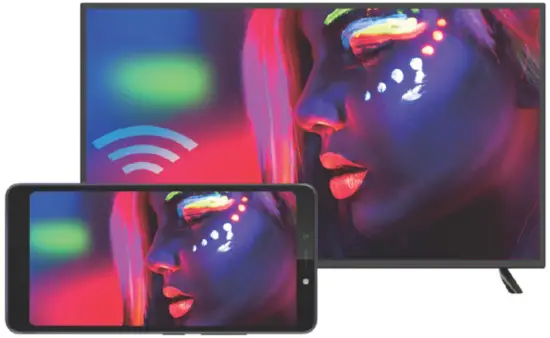
Trouble Shooting
Before consulting service personnel, check the following chart for possible solutions.
| PROBLEM | SOLUTION |
| TV will not turn on | •Make sure the power cord is plugged in. •The batteries in the remote control may be exhausted, replace the batteries. |
| No picture, no sound | •Check the cable between TV and antenna/external AV device. •Press the power button on the remote. Press the SOURCE button on the remote, then press the “ /“ button repeatedly to select the TV source. |
| Poor picture, sound OK | •Check the cable between TV and antenna/external AV device. •Try another channel, the station may have broadcast difficulties. •Adjust the brightness/contrast in the “Video” menu. Check that the unit is set to PAL/SCEAM |
| Audio noise | •Move any infrared equipment away from the TV. |
The TFT LED panel uses a panel consisting of sub pixels which require sophisticated technology to produce. However, there may be a small number of bright or dark pixels on the screen. These pixels will have no impact on the performance of the product.
If at any time in the future, you should need to dispose of this product please note that: Waste electrical products should not be disposed of with household waste. Please recycle where facilities exist. Check with your Local Authority or retailer for recycling advice. (Waste Electrical and Electronic Equipment Directive)
 If at any time in the future, you should need to dispose of this product please note that: Waste electrical products should not be disposed of with household waste. Please recycle where facilities exist. Check with your Local Authority or retailer for recycling advice. (Waste Electrical and Electronic Equipment Directive)