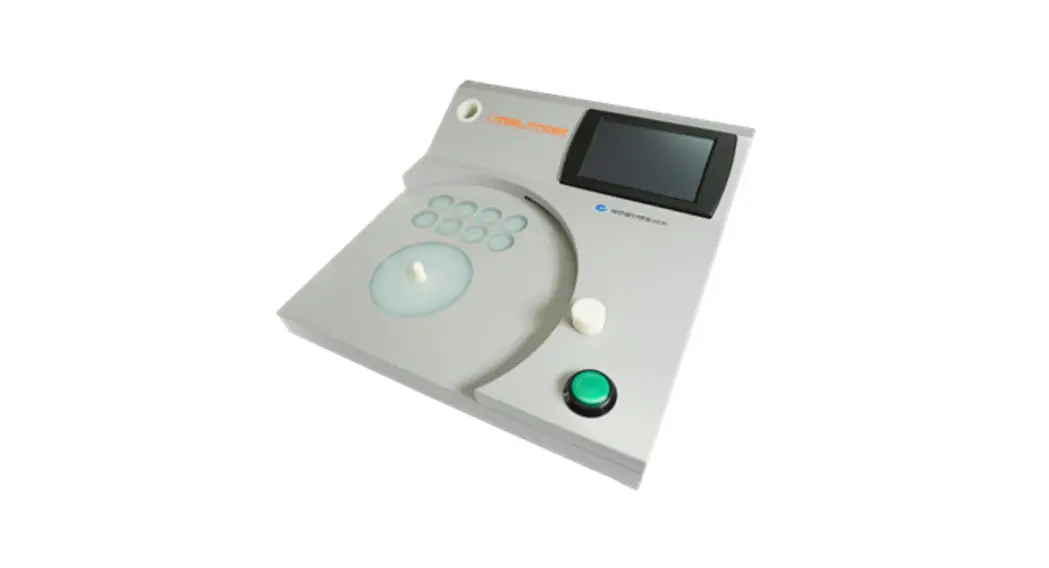

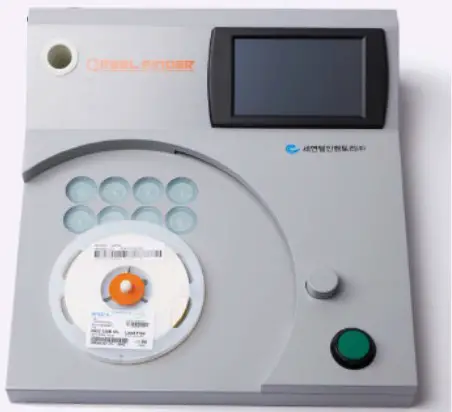
Registration Device User Manual
 CEYON TELLINVENTORY CO.,LTD.
< Copyright and Limitation on Liability Clauses >
All rights are reserved by Ceyon Tellinventor y Co., LTD. Any change or editing of this document, by electrical methods, mechanical methods, photocopying, recording, or reproducing through any other means without prior written permission from publisher, is restricted. Contact Ceyon Tellinventor y Co., LTD., if you have any questions about permission of reproduction or extraction.
Contents and images may change without notices.
Installation
- Registration Device Hardware Specifications
- User Program System Requirement
- User Program Software Installation
Registration Device
A. When using original barcodes
- Registration Device Practice
- Main Display
- Register
- Remaining Amount Measurement
- Tag Reuse
B. When managing its own P/N codes
- Registration Device Practice
- Main Display
- Mapping
- Register
- Remaining Amount Measurement
- Tag Re-using
Registration Device Hardware Specifications
| Hardware | Spec |
| POWER | DC12V / 10A |
| COMM | TCP/IP |
User Program System Requirement
| System | Requirement |
| OS | WindowsCE 6.0 |
※ Registration device and user program will be updated automatically.
Registration Device (A)
Registration Device Practice
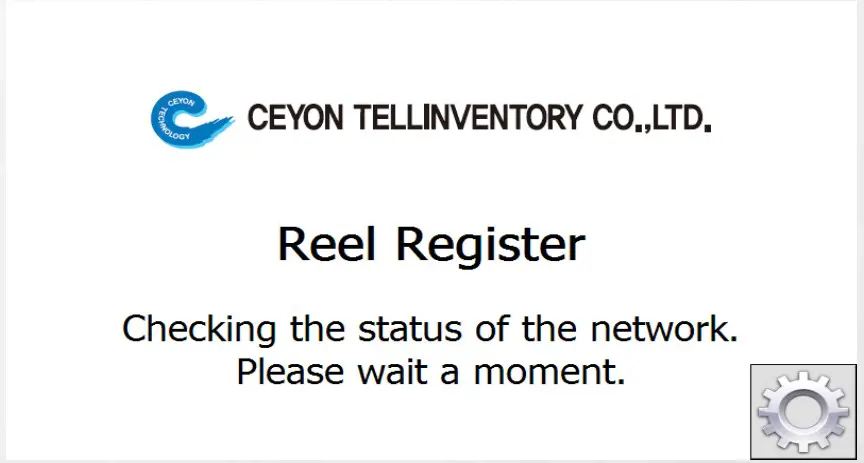
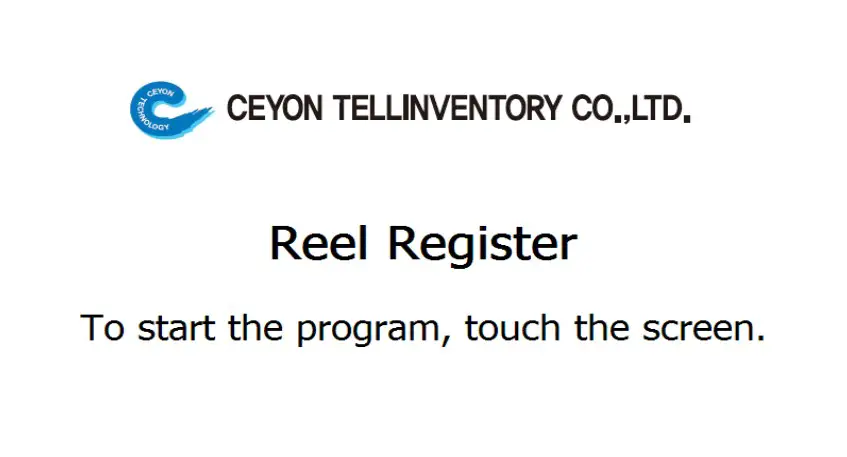
When registration device program is on, following display appears. After network check, when you click on the following display, it pr oceeds to registration device’s main display.
 Main Display
 Main Display
This is a main display when using the original barcodes. When you touch the Manu box you wish to proceed, it moves to the next screen accordingly.
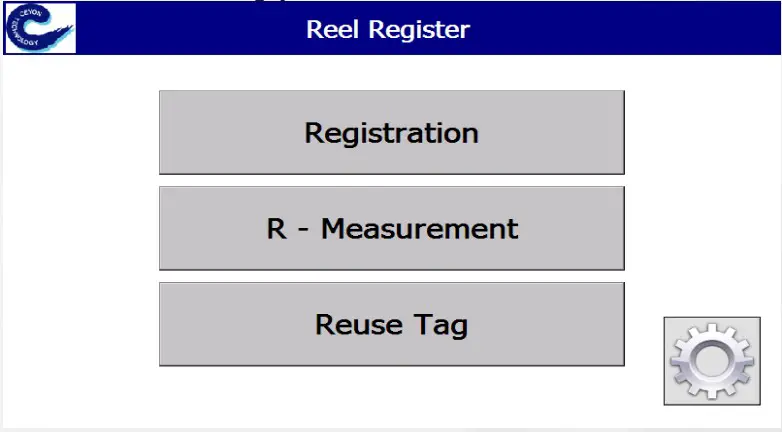 ※ Configuration precautions – After minimum set up is completed, you may use without further change.
- Registration: When registering information of stick or reel
- R-Measurement: when measuring reel’s remaining amount
- Reuse Tag: when initializing published tags
- Configuration: communication setting of registration device program
Register
Click on the reel type of your choice and its material registration screen will appear.
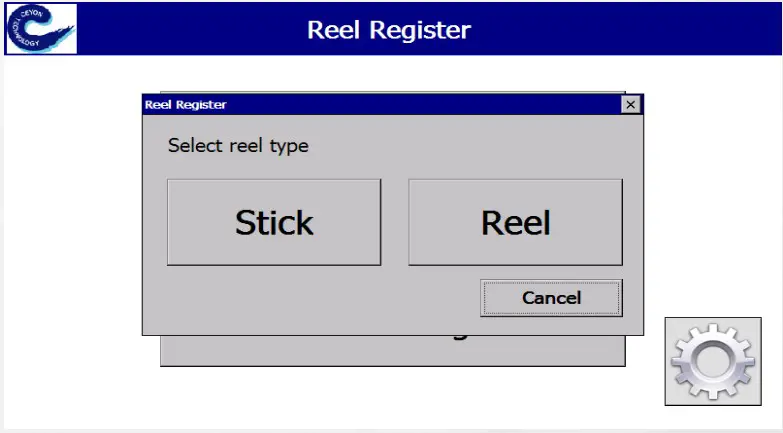
- Stick: when material is in stick shape
- Reel: when material is in reel shape
- Cancel: go to main display
Stick Information Registration
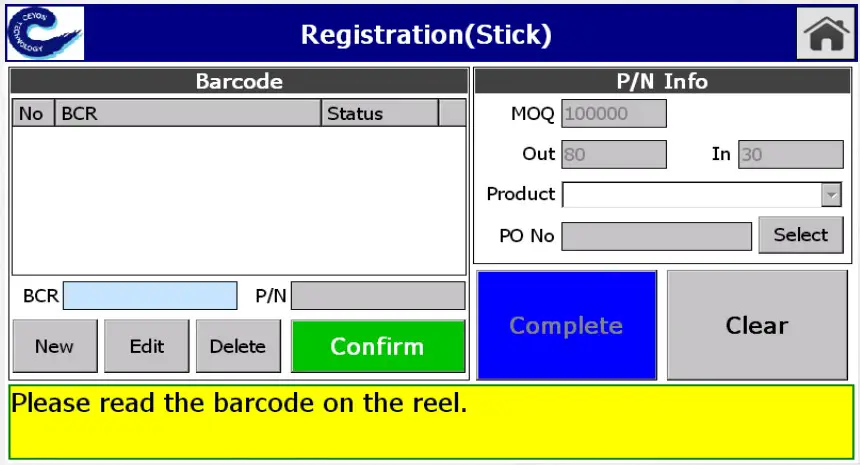
▪ How to register stick information
- Plug in an initialized tag into a stick, and put in a registration device.
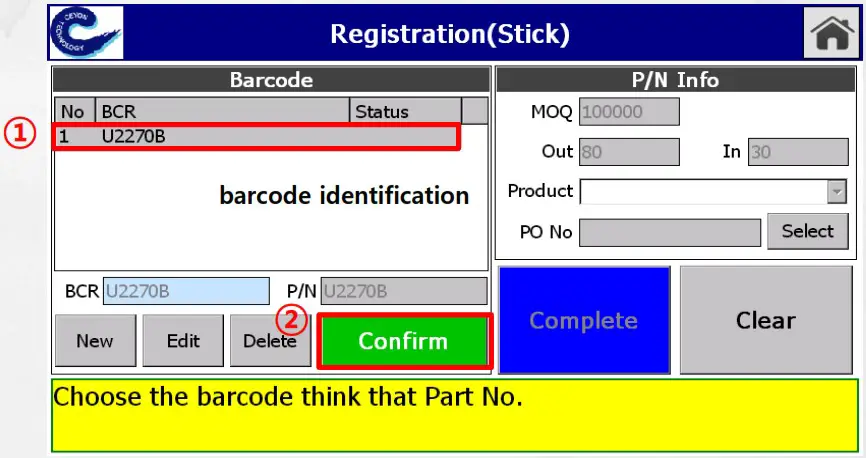
- After identifying the barcode, its information will be displayed.
a. When registering a new barcode
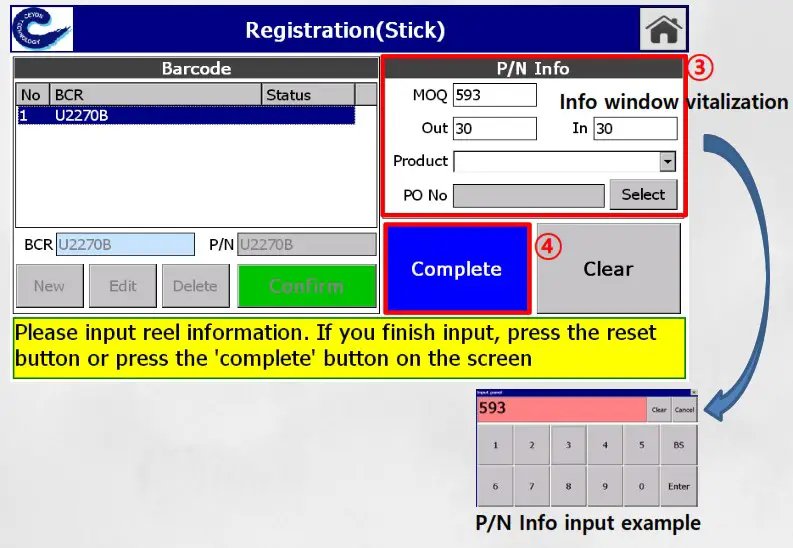
→ After clicking on “Confirm”, P/N Info display will be vitalized. Put in MOQ and select product item, and when you click on “Complete”, registration is completed.
b. When a barcode is already registered
→It will show as “Registered” on status, and remaining amount entering window will appear. After entering remaining amount, click on “OK” button and the registration is completed. - When “Remove” message appears, remove the stick and you may measure by inserting the other stick.
- You may go back to the main display by clicking on home button.
▪ Stick information registration (example display of a new barcode registration)
Stick Information Registration Exceptions
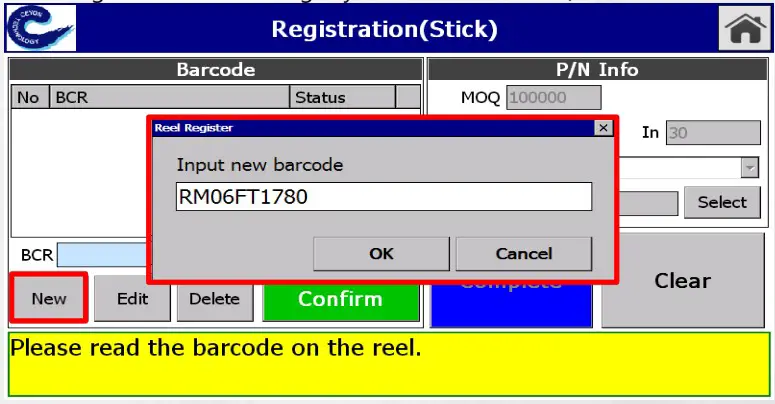
I. When barcode is damaged and incapable of auto-registration
When barcode is not attached
Register by manually entering the barcode information. On registration display, touch on “NEW” for manual input and you may also modify or delete the barcode information. (Reattaching barcode is highly recommended.)
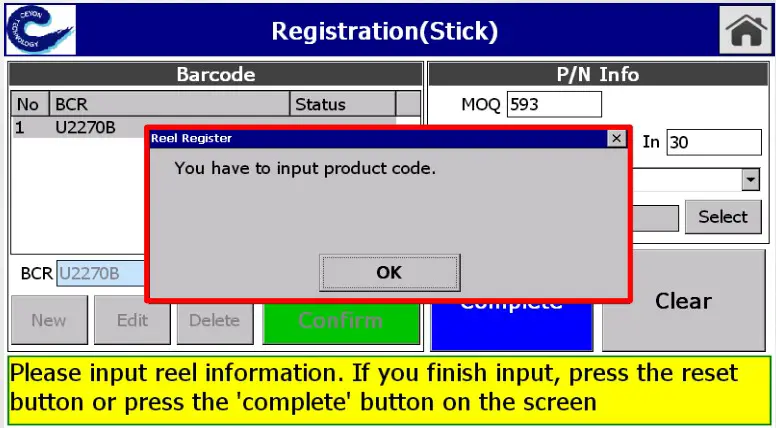
II. When not all of P/N Info is entered
When manually entering P/N Info, please do not miss any in formation.
Stick Information Registration Exceptions
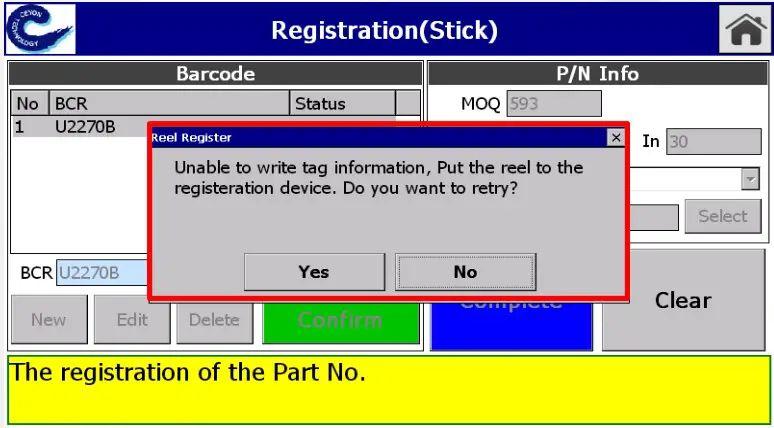
III. When tag reading is failed
This is a display when it fails to read the tag.
a. Remove stick from the registration device and plug bac k in.
b. When the error continues after procedure I, attach a new tag and try again.
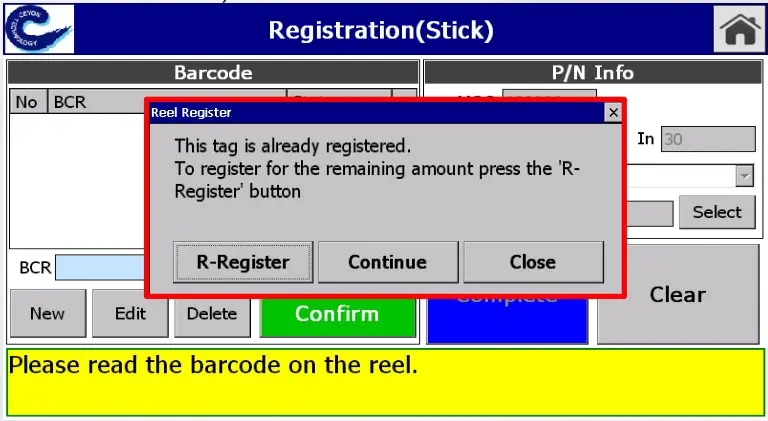
IV. When a stick with a registered tag is inserted
When you insert a stick with a tag that is already registered, you can modify its residual quantity. Pleas refer to the next page. (Refer to Manual 3.1.2)
Remaining Amount Modification of Stick
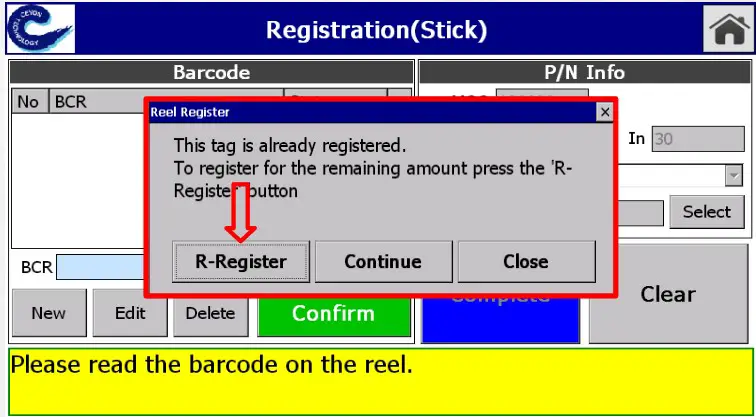
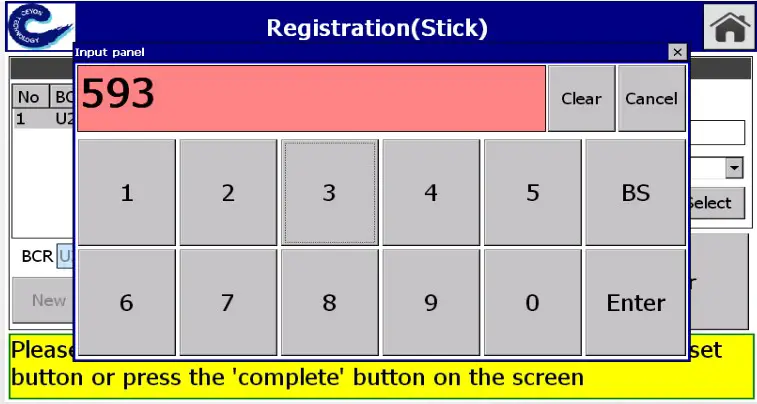
▪ How to modify remaining amount of a stick
- Insert a stick with a register ed tag into a registration device.
- When a pop-up message saying “ This tag is already registered” appears, click on “R-Register ” button.
- After entering the remaining amount, click on “Enter ” and “Ok” in order and it will be updated.
Reel Information Registration
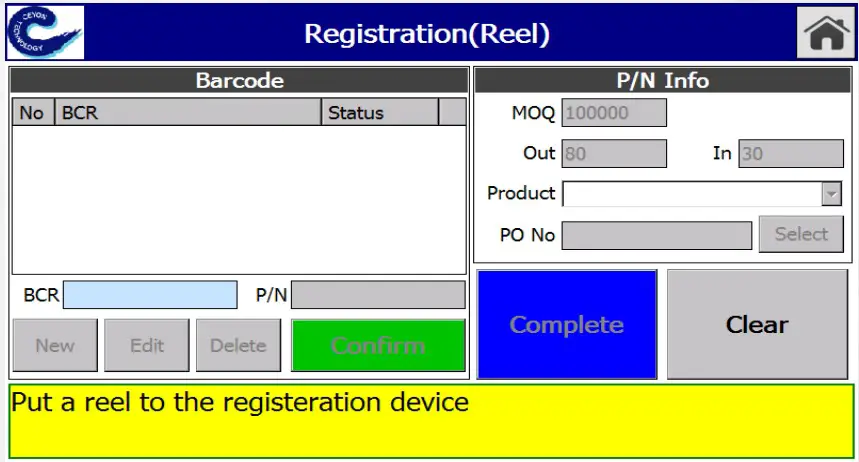
▪ How to register reel information
- Plug in an initialized tag into a reel, and put in a registration device.
- After identifying the barcode, its information will be displayed.
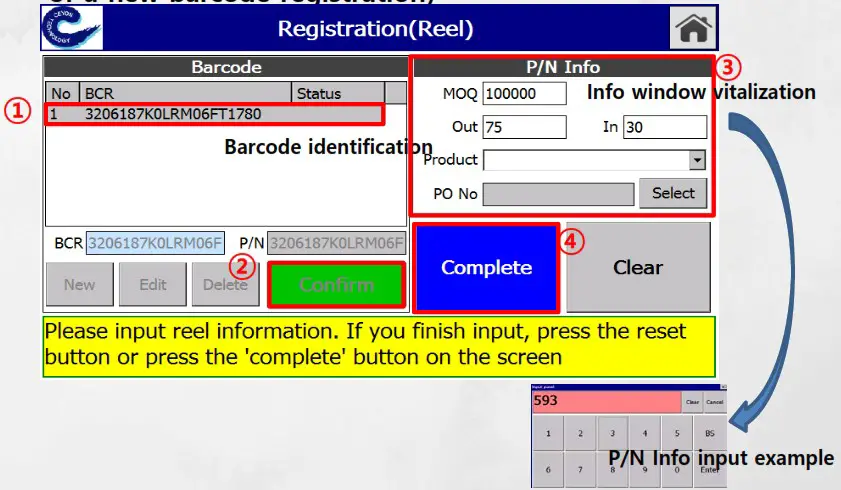
a. When registering a new barcode
→ After clicking on “Confirm”, P/N Info display will be vitalized. Put in MOQ and select product item, and when you click on “Complete”, registration is completed.
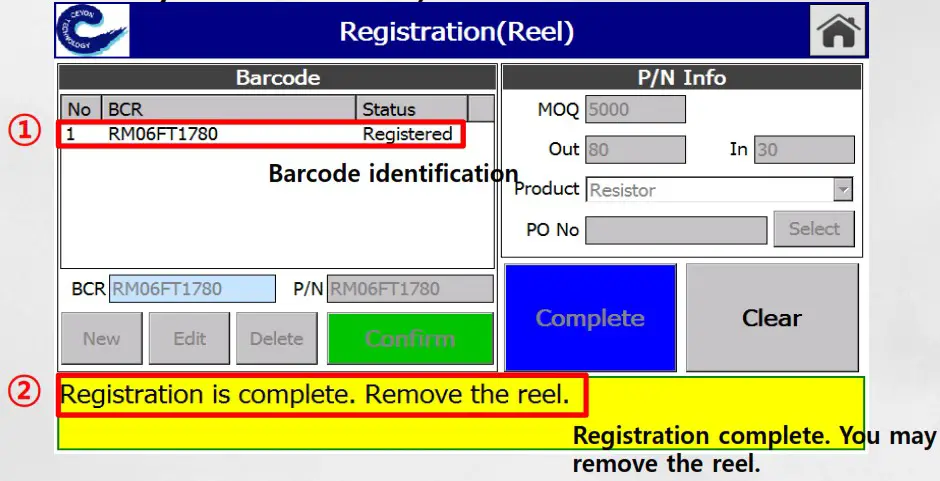
b. When a barcode is already registered
→ It will show as “Registered” on status, and after measuring, the barcode’s information will be automatically saved. - When “Remove” message appears, remove the reel and you may measure by inserting the other reel.
- You may go back to the main display by clicking on home button.
▪ Reel information registration(example display of a new barcode registration)
▪ Reel information registration (example display of a registered barcode )
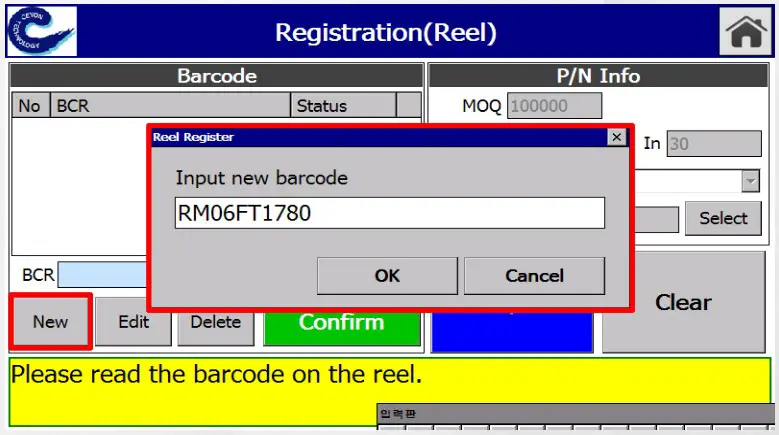
Reel Information Registration Exceptions When barcode is damaged and incapable of auto Registeration
When barcode is not attached
Register by manually entering the barcode information. On registration display, touch on “NEW” for manual input and you may also modify or delete the barcode information. (Reattaching barcode is highly recommended.)
When a reel with a registered tag is on
A message saying “This tag is already registered” will appear. (Refer to Manual 5.7 for tag reuse (initialization))
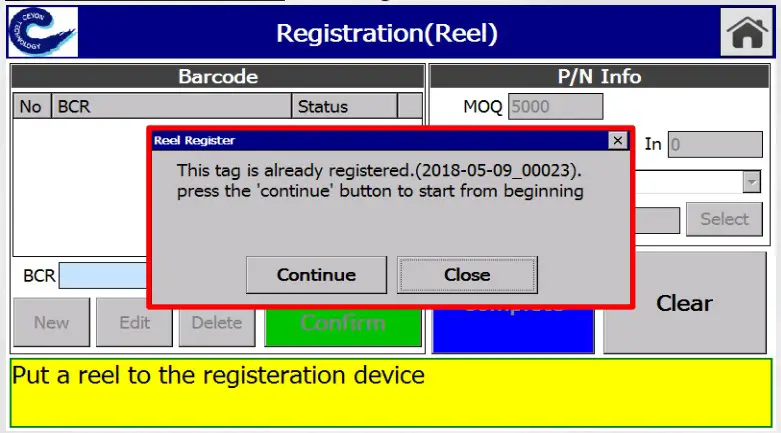
Reel Information Registration Exceptions
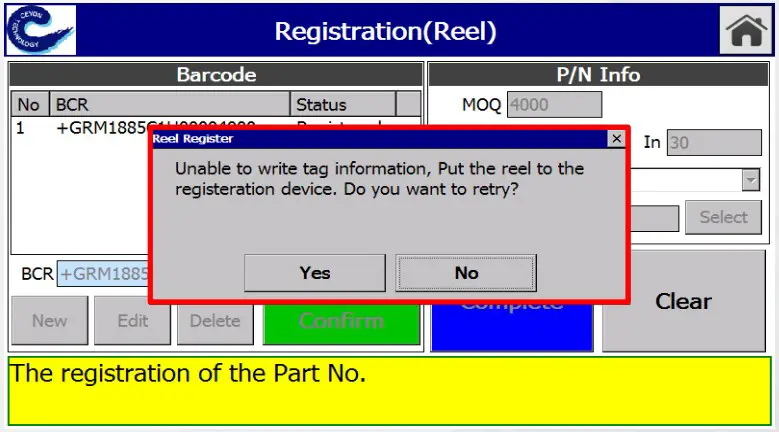
III. When tag reading is failed
This is a display when it fails to read the tag.
a. Remove reel from the registration device and plug back in.
b. When the error continues after procedure I, attach a new tag and try again.
When registering reel, select manufacturer P/N barcode
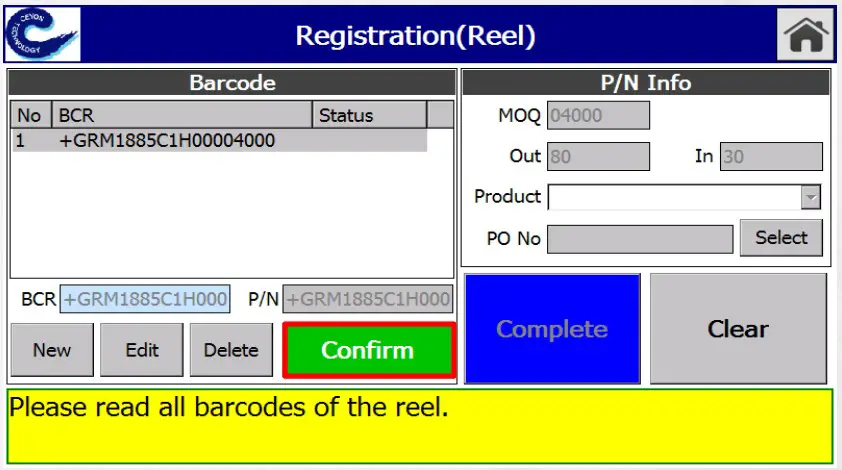
I. When there is only one barcode information registered, It is set as a main P/N barcode.
II. When there is multiple barcodes information registered, After selecting manufacturer P/N barcode, Click on “Confirm” and P/N Info window will be vitalized
After insert MOQ and selecting product, click on “Complete” and barcode information registration is completed.
When registering reel, P/N’s initial information insertion and saving
➢ Tools when registering new manufacturer P/N
(Registered manufacturer P/N will appear as “Registered” on status, but new manufacturer ’s P/N barcode will appear as blank o n status.)
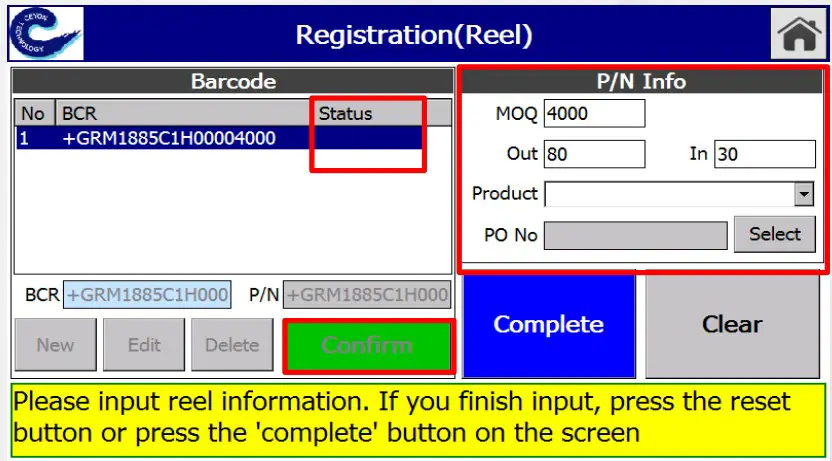
▪ How to insert and save P/N Info
- Plug in an initialized tag into a reel, and put in a registration device.
- After identifying the barcode, its information will be displayed.
- New P/N will appear as black on Status, and after checking the barcode number, click on “Confirm.”
- P/N Info will be vitalized. Insert MOQ and select product.
- Click on “Complete” and product registration is completed.
Remaining Amount Measurement
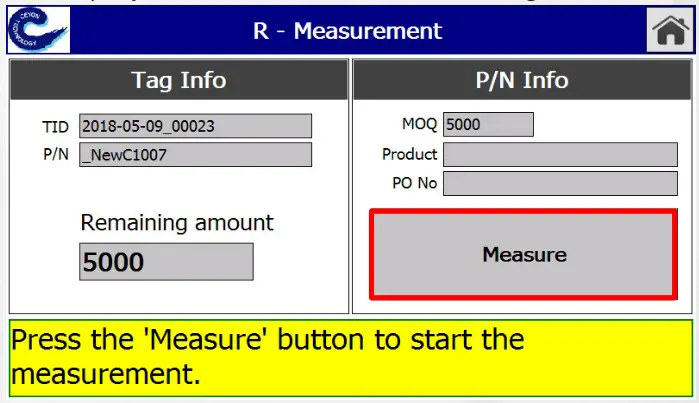
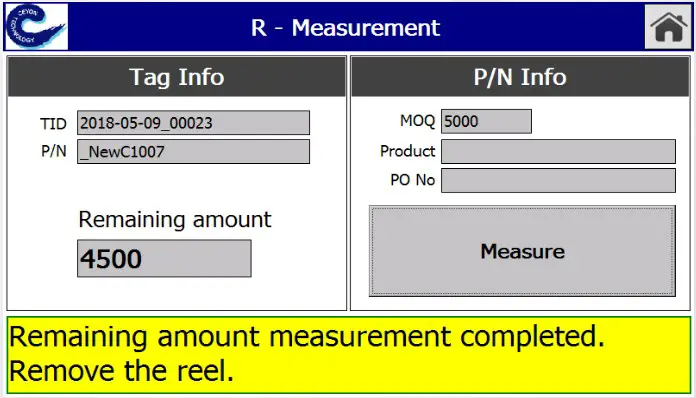
This is a display to measure reel’s remaining amount.
▪ How to measure remaining amount of the reel
- When you put a reel on a registration device, its information will be displayed on screen.
- By pressing on “Measure”(or green button), you can measure reel’s remaining amount.
- After remaining measurement is completed, when “Remove” message pops up, you may removed the reel.
- You may go back to the main display by clicking on home button.
Remaining Amount Measurement Exceptions
This is a display when it cannot read a tag while measuring reel’s remaining amount.
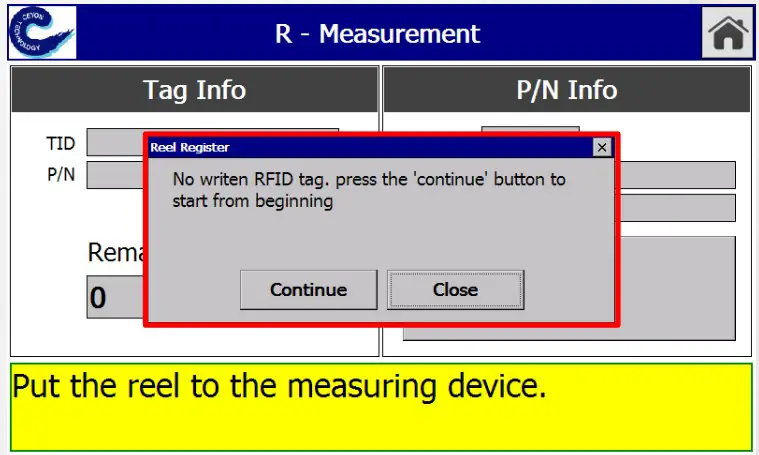
- After checking tag’s location, click on “Measure” again.
- When the measurement works successfully, “Tag Info” will be displayed.
- You may go back to the main display by clicking on home button
Tag Reuse
This is a display of initializing a registered tag. (Capable up to maximum 8 simultaneously)
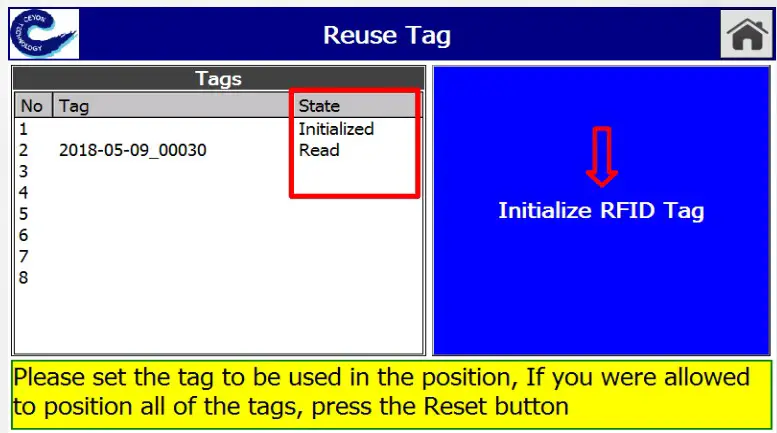
- When you put on a tag you wish to reuse, the reader will read the tag.
I. When it’s a new or initialized tag It appears as “Initialized” on “State.”
II. When it’s a registered tag
When it appears as “Read” on “State”,
Click on “Initialize RFID Tag.” When initialization is completed, it will change to “Initialized.” - When it shows “Completed” message on bottom of the page, remove tag.
- You may go back to main display by clicking on home button
- Initialized: when it’s initialized
- Read: when the tag is read
- Fail: when it failed to initialized the tag
Tag Reuse Exceptions
This is a display when tag initialization was not successful.
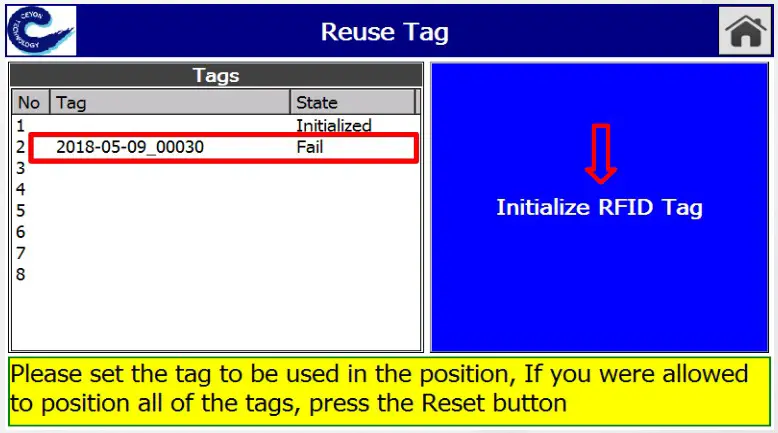
- After checking tag’s location, click on “Initialize RFID Tag” again.
- When re- initialization is successful, it will appear as “Initialized” on State” and tag initialization will be successfully completed.
- You may go back to main display by clicking on the home button.
- Initialized: when it’s initialized
- Read: when the tag is read
- Fail: when it failed to initialize the tag
B. When managing its own P/N codes
Registration Device (B)
Registration Device Practice
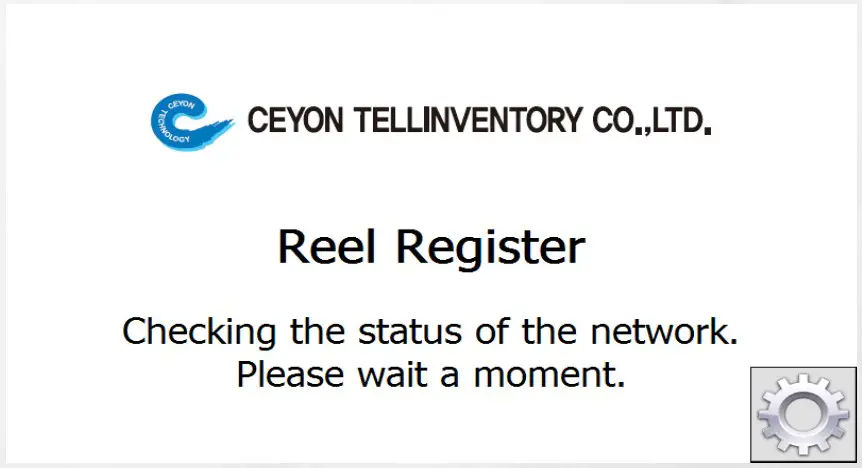
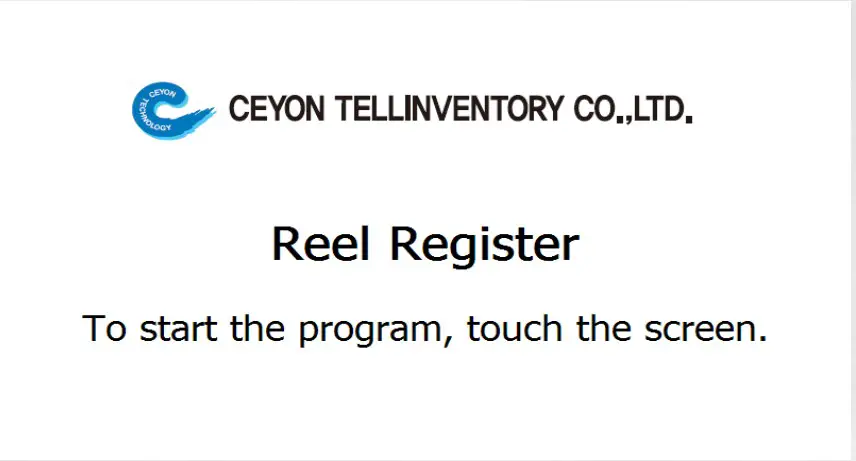
When registration device program is on, following display appears. After network check, when you click on the following display, it proceeds to registration device’s main display.
Main Display
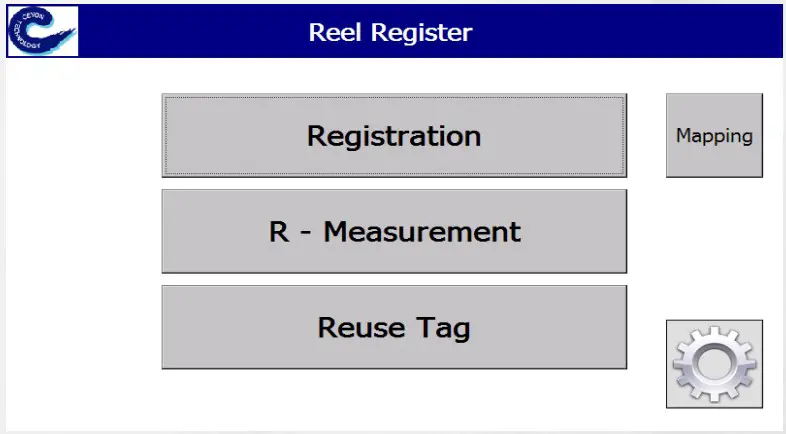
This is a registration device’s main display when managing its P/N code.
When you touch the Manu box you wish to proceed, it moves to the next screen accordingly.
※ Configuration precautions – After minimum set up is completed, you may use without further change.
- Mapping: when the user manages its own userP/N
- Registration: when registering information of stick or reel
- R-Measurement: when measuring reel’s residual quantity
- Reuse Tag: when initializing published tags
- Configuration: communication setting of registration device program
Main Display
After touching “Registration”, select the reel type of your choice and its material registration screen will appear. (Proceed mapping first.)
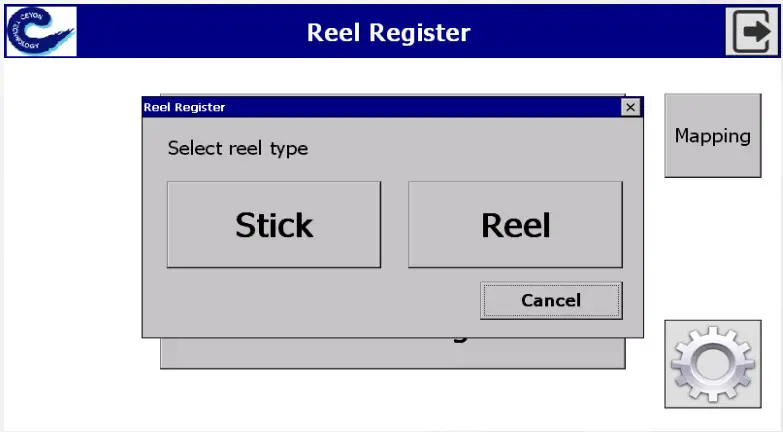
- Stick: material is in stick shape
- Reel: material is in reel shape
- Cancel: Go to main display
Mapping
II. When the user manages its own userP/N, it applies as options. According to the following, user 1)manually registers, 2)registered on Microsoft Excel in a lump.(Refer to Manual 4 10.1)
III. Multiple parts can be registered under one USERPN(1:N)
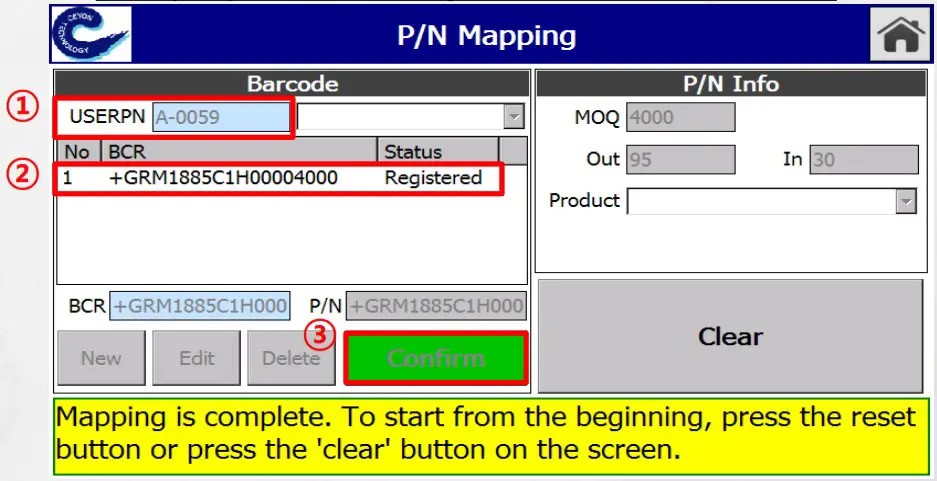
- How to map
Plug in an initialized tag into a stick or a reel, and lay on a registration device.
1) After identifying USERPN barcode, identify original P /N barcode.
I. For initial mapping
There is a blank under “Status”, and when you press on “Confirm”, a message appears saying that mapping is complete.
II. When mapping is already complete It appears as “Registered” under “Status, and shows a message saying “Already mapped.”
3) You can start a new mapping by clicking on “Clear.” You may go back to main display by clicking on home button.
Stick Information Registration
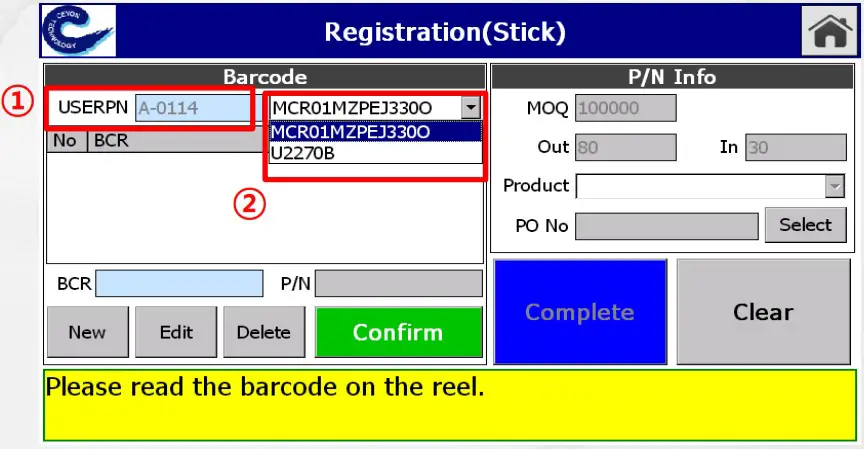
- Plug in an initialized tag into a stick, and insert in a registration device.
- After identifying USERPN barcode, P/N barcode list mapped on its USERPN will appear on the side.

- After selecting a P/N barcode, when you identify the original barcode, a window to insert the remaining amount will appear.
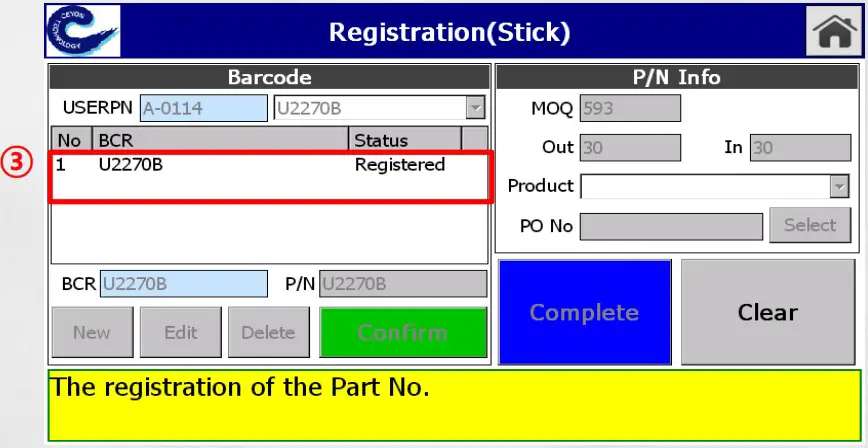
Stick Information Registration
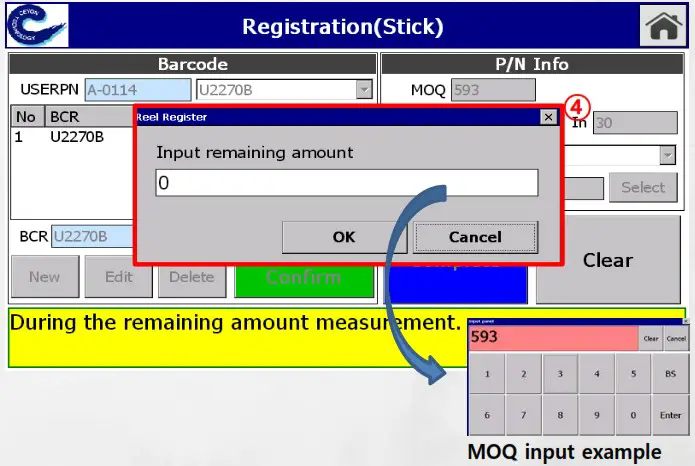
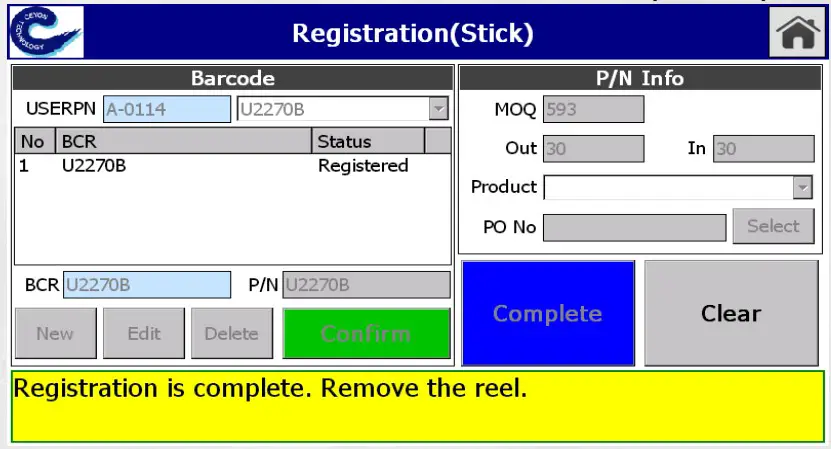
4. After remaining amount input, if you click on “Enter ” and “OK” in order, registration will be completed.
When “Complete” message shows up, you may remove the stick.
Stick Information Registration
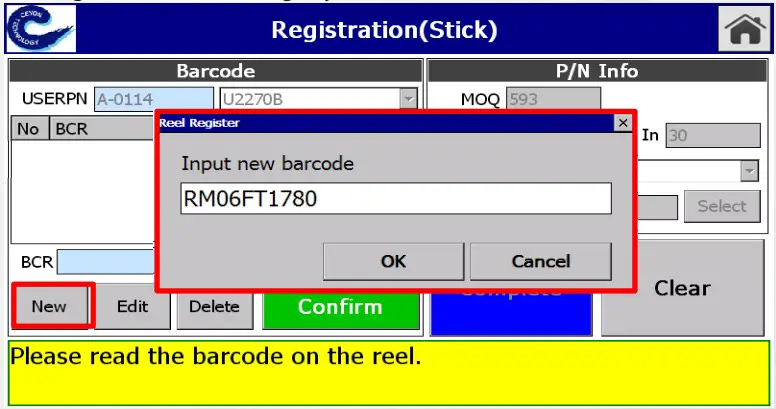
I. When barcode is not attached
Register by manually entering the barcode information. On registration display, touch on “NEW” for manual input and you may also modify or delete the barcode information. (Reattaching barcode is highly recommended.)
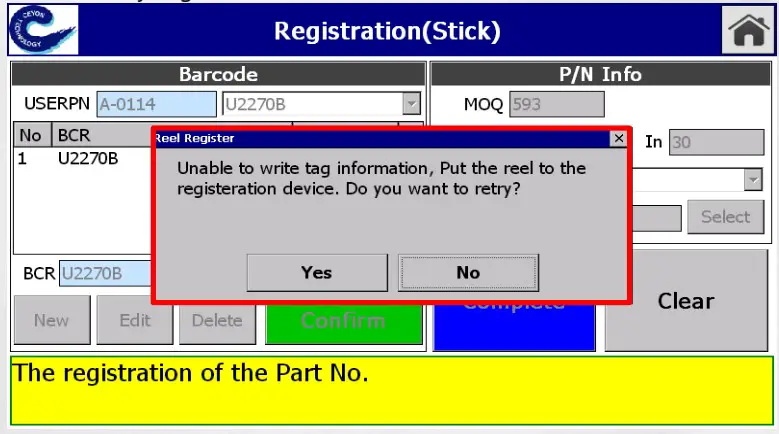
II. When tag reading is failed
This is a display when it fails to read the tag.
a. Remove reel from the registration device and plug back in.
b. When the error continues after procedure I, attach a new tag and try again.
Stick Information Registration Exceptions
III. When a reel with a registered tag is on
A message saying “This tag is already registered” will appear. ( Refer to Manual 5.7 for tag reuse (initialization))
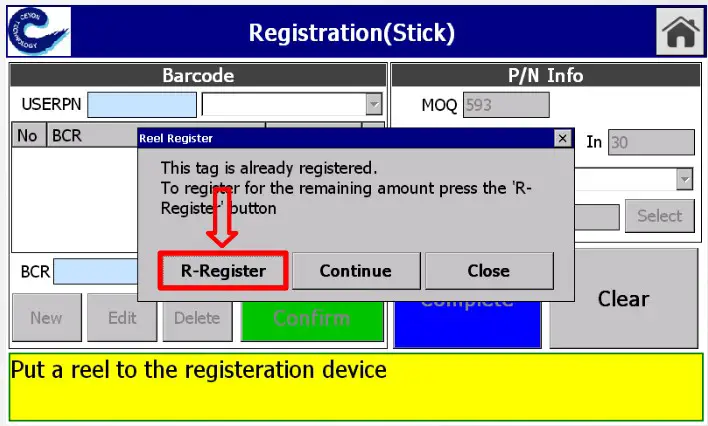
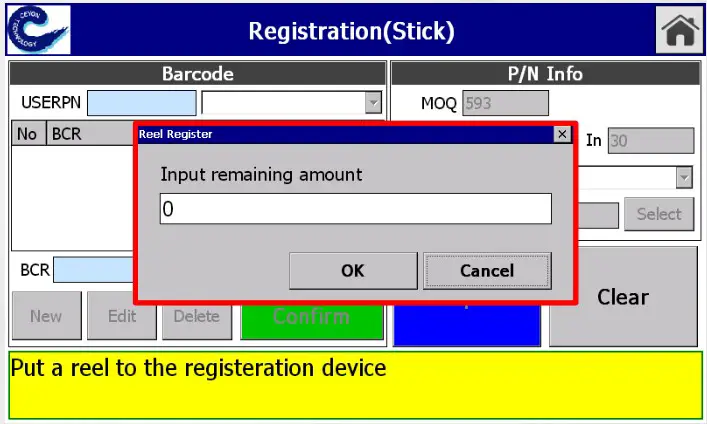
➢ When you click on “R-Register ”, a pop that allows manual input of remaining amount will appear and it will also update entered remaining amount.
➢ Even after touching on “Continue”, unless a new tag is plugged in or/and R-Registered, an error pop will keep appearing.
Reel Information Registration Exceptions
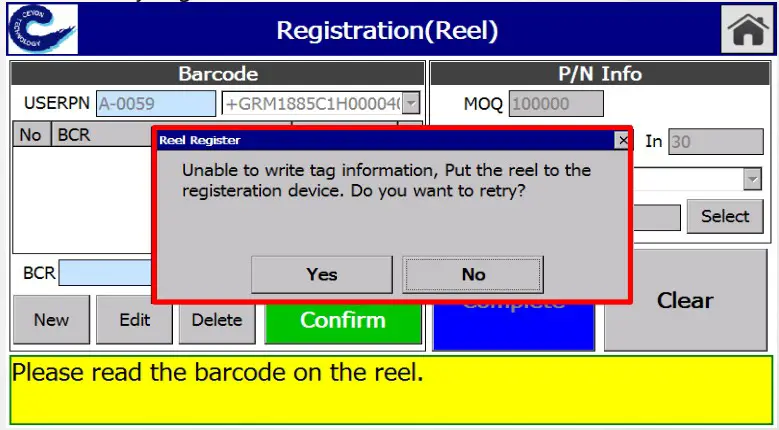
III. When tag reading is failed
This is a display when it fails to read the tag.
a. Remove reel from the registration device and plug back in.
b. When the error continues after procedure I, attach a new tag and try again.
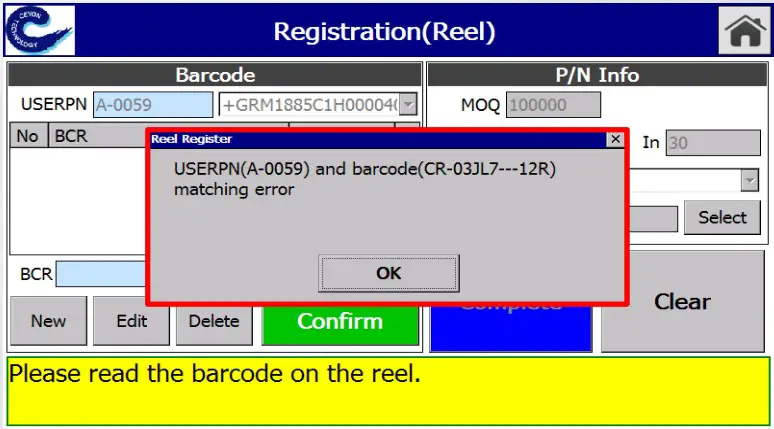
IV. When a barcode is not mapped
New P/N is required to do mapping first. (Refer to manual 3)
Remaining Amount Measurement
This is a display to measure reel’s remaining amount.
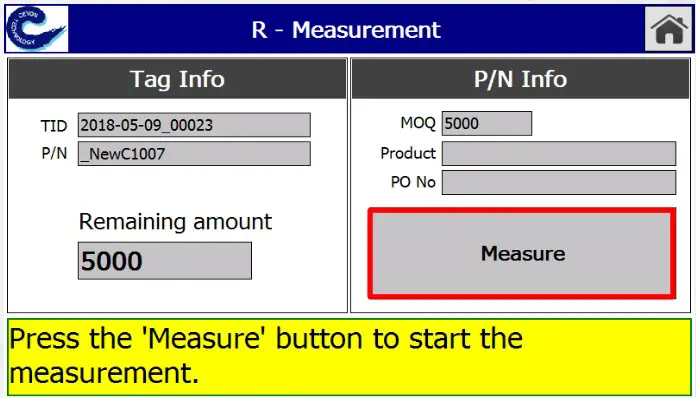
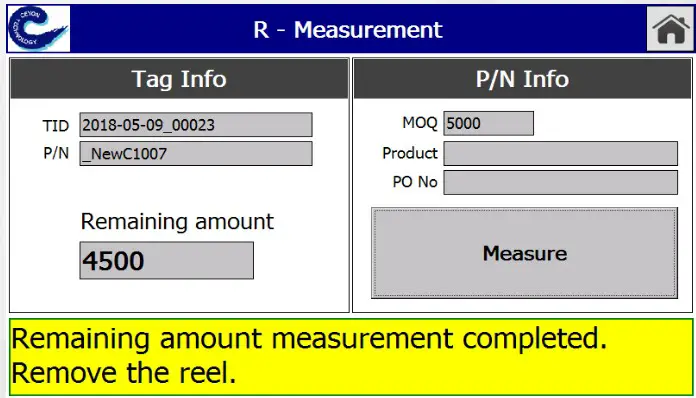
▪ How to measure remaining amount of the reel
- When you put a reel on a registration device, its information will be displayed on screen.
- By pressing on “Measure”(or green button), you can measure reel’s remaining amount.
- After remaining measurement is completed, when “Re move” message pops up, you may removed the reel.
- You may go back to the main display by clicking on home button.
Remaining Amount Measurement Exceptions
This is a display when it cannot read a tag while measuring reel’s remaining amount.
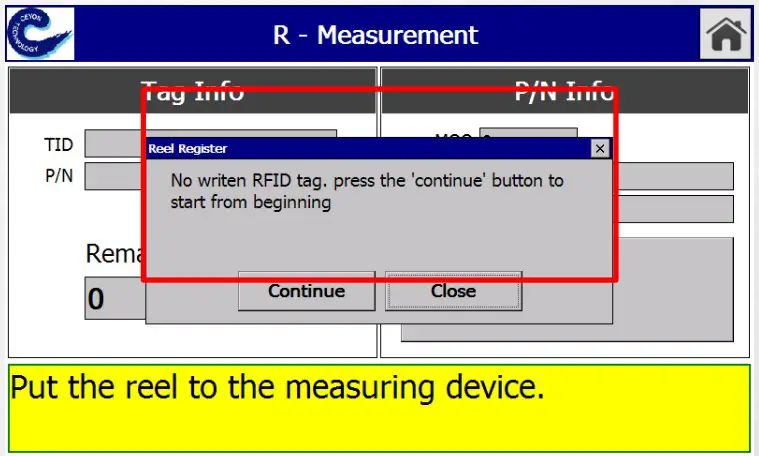
- After checking tag’s location, click on “Measure” again.
- When the measurement works successfully, “Tag Info” will be displayed.
- You may go back to the main display by clicking on home button.
Tag Reuse
This is a display of initializing a registered tag. (Capable up to maximum 8 simultaneously)
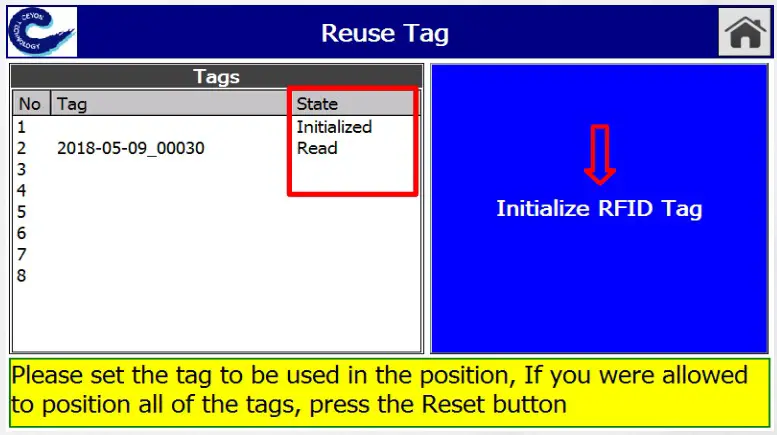
- When you put on a tag you wish to reuse, the reader will read the tag.
I. When it’s a new or initialized tag It appears as “Initialized” on “State.”
II. When it’s a registered tag When it appears as “Read” on “State”, Click on “Initialize RFID Tag.” When initialization is completed, it will change to “Initialized.” - When it shows “Completed” message on bottom of the page, remove tag.
- You may go back to main display by clicking on home button.
• Initialized: when it’s initialized
• Read: when the tag is read
• Fail: when it failed to initialized the tag
FCC Instructions
FCC Compliance Statement(Part 15.19 (3))
This device complies with part 15 of the FCC rules. Operation is subject to the following two conditions: (1) This device may not cause harmful interference, and (2)2) this devi must accept any interference received, including interference that may cause undesired operation.
FCC Interference Statement(Part 15.105)
This equipment has been tested and found to comply with the limits for a Class A digital device, pursuant to part 15 of the FCC Rules. These limits are designed to provide reasonable protection against harmful interference when the equipment is operated in a commercial environment. This equipment generates, uses, and can radiate radio frequency energy and, if not installed and used in accordance with the instruction manual, may cause harmful interference to radio communications. Operation of this equipment in a residential area is likely to cause harmful interference in which case the user will be required to correct the interference at his own expense.
FCC Caution
Any changes or modifications not expressly approved by the party responsible for compliance could void the user’s authority to operate this equipment. This transmitter must not be co-located or operating in conjunction with any other antenna or transmitter.
CEYON TELLINVENTORY CO.,LTD.