Smart Lock User Manual
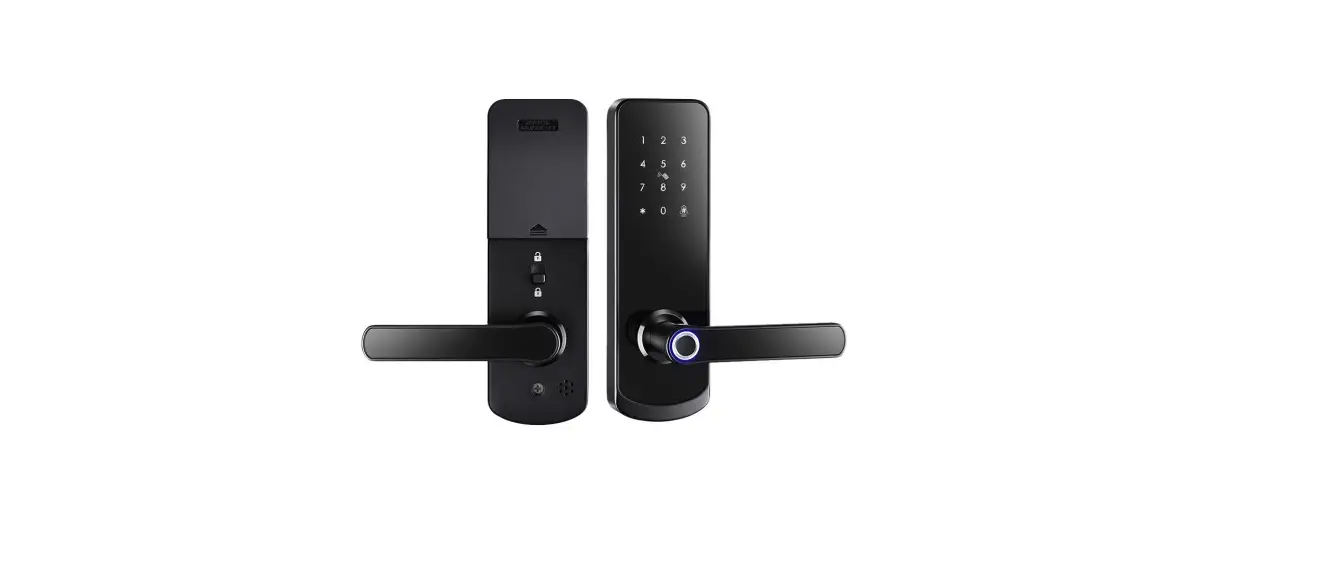
H31B Series
Special Attention:
- Mechanical keys please keep outdoor, just in case keys lock indoors.
- Please charge for the battery when low wattage alarm.
- Read this manual carefully before installation and keep it for future reference.
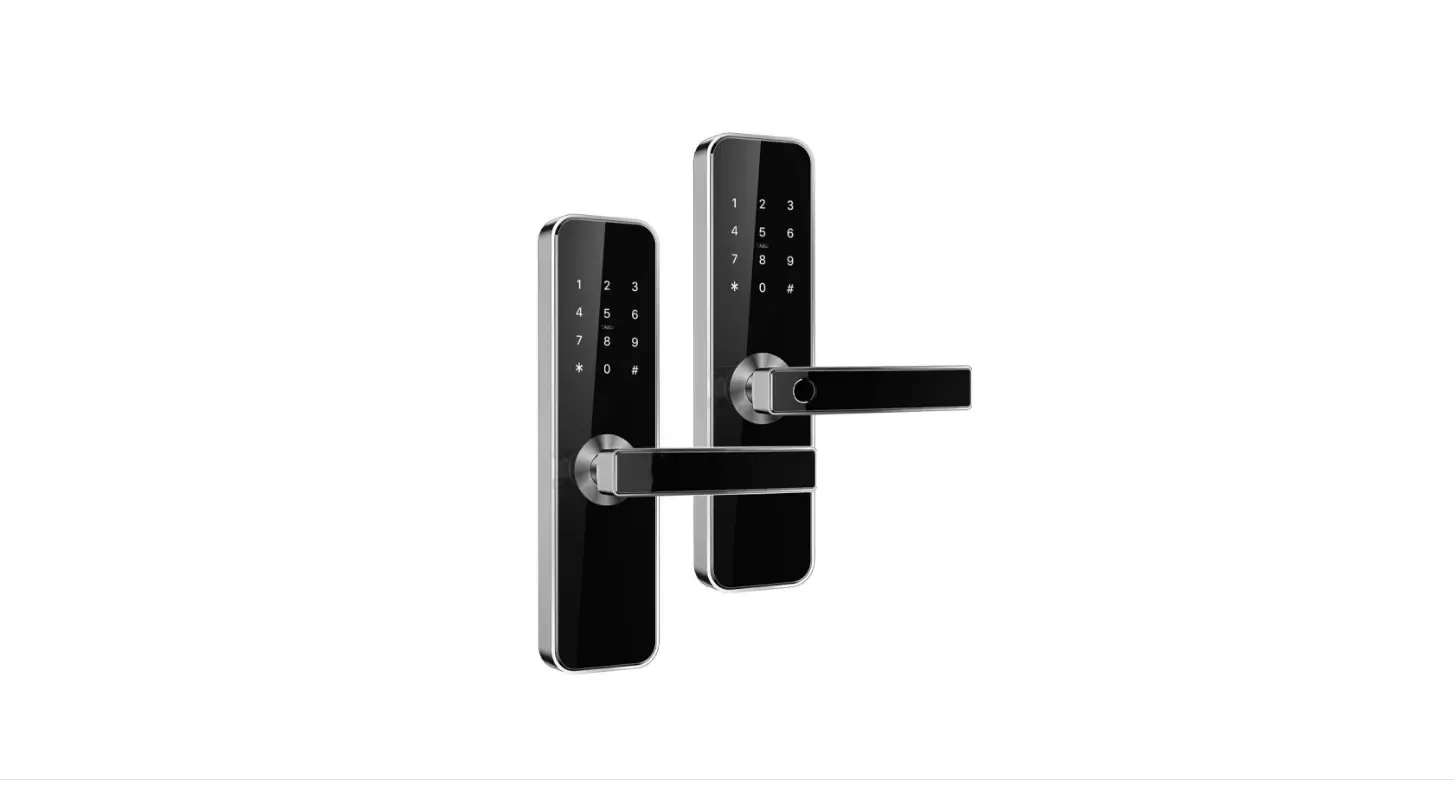
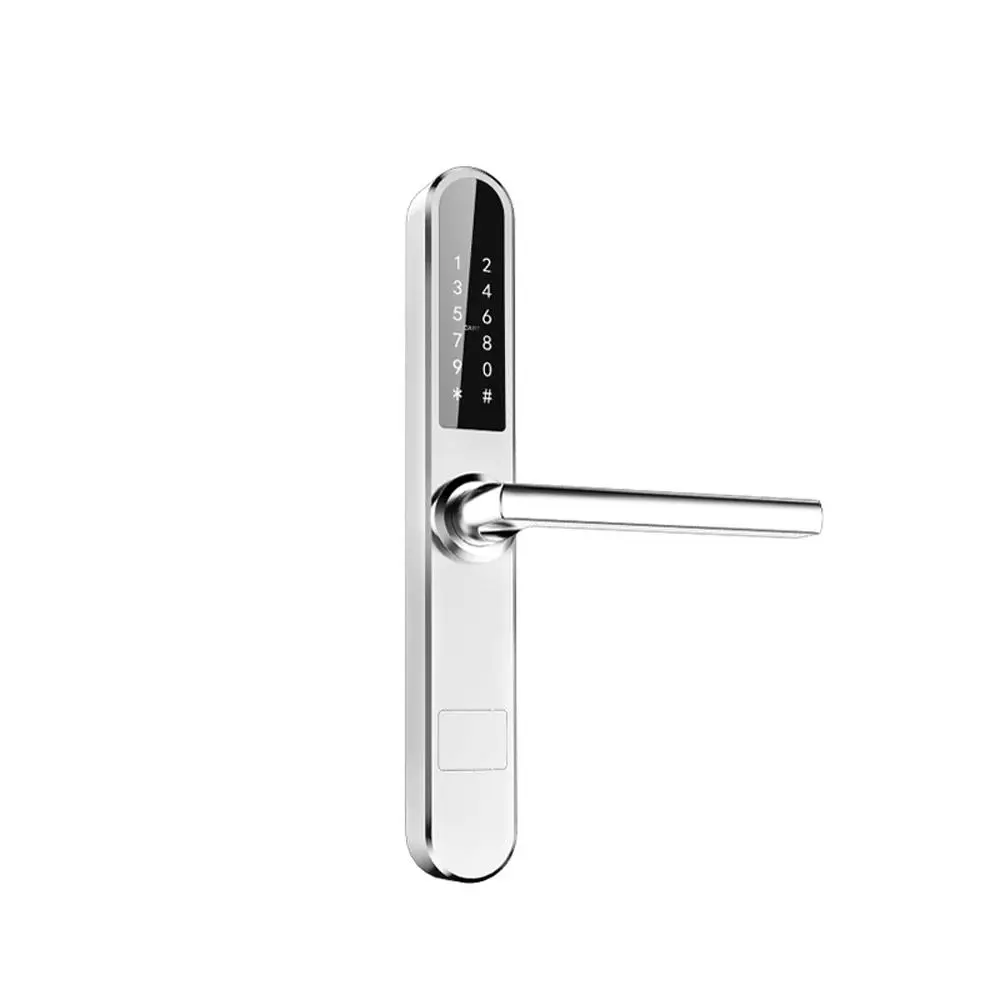
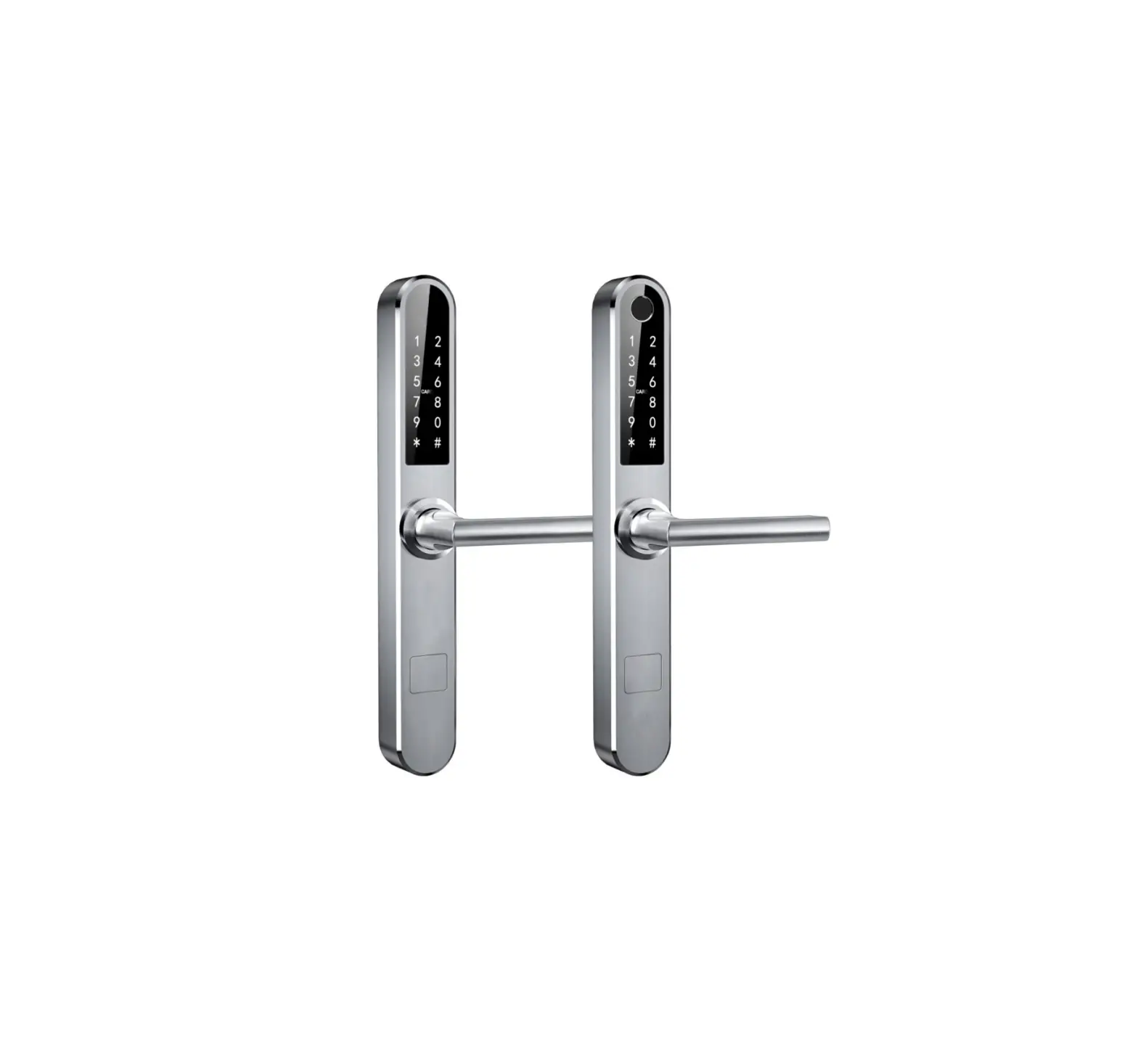
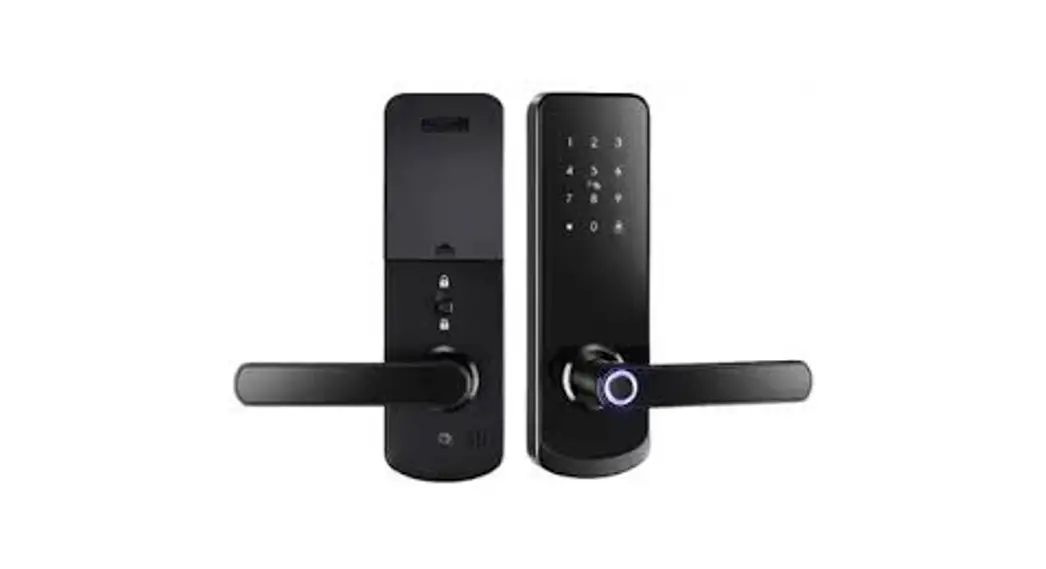
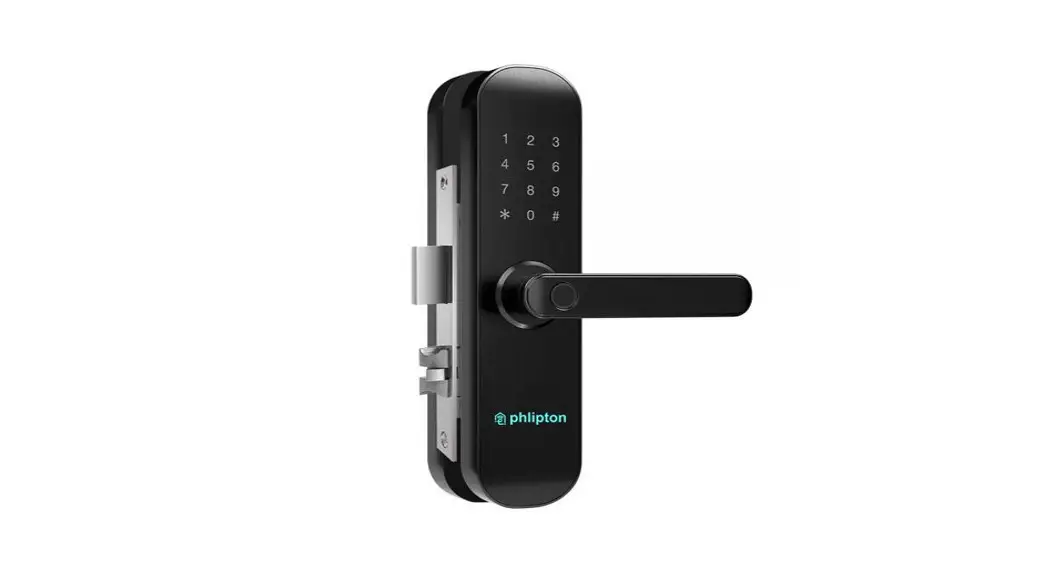
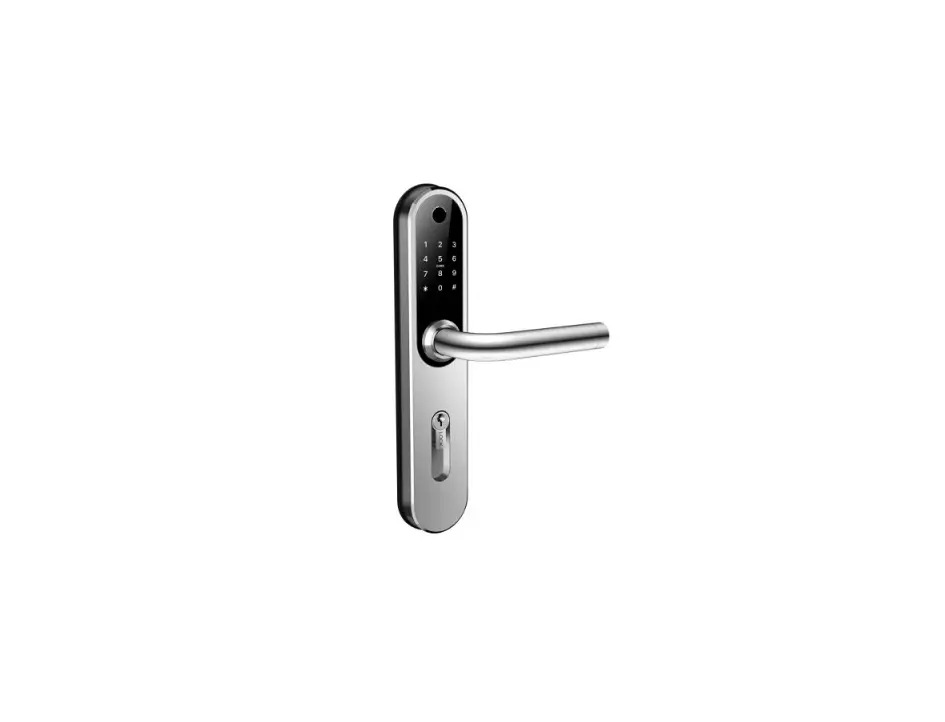
Lock Structure
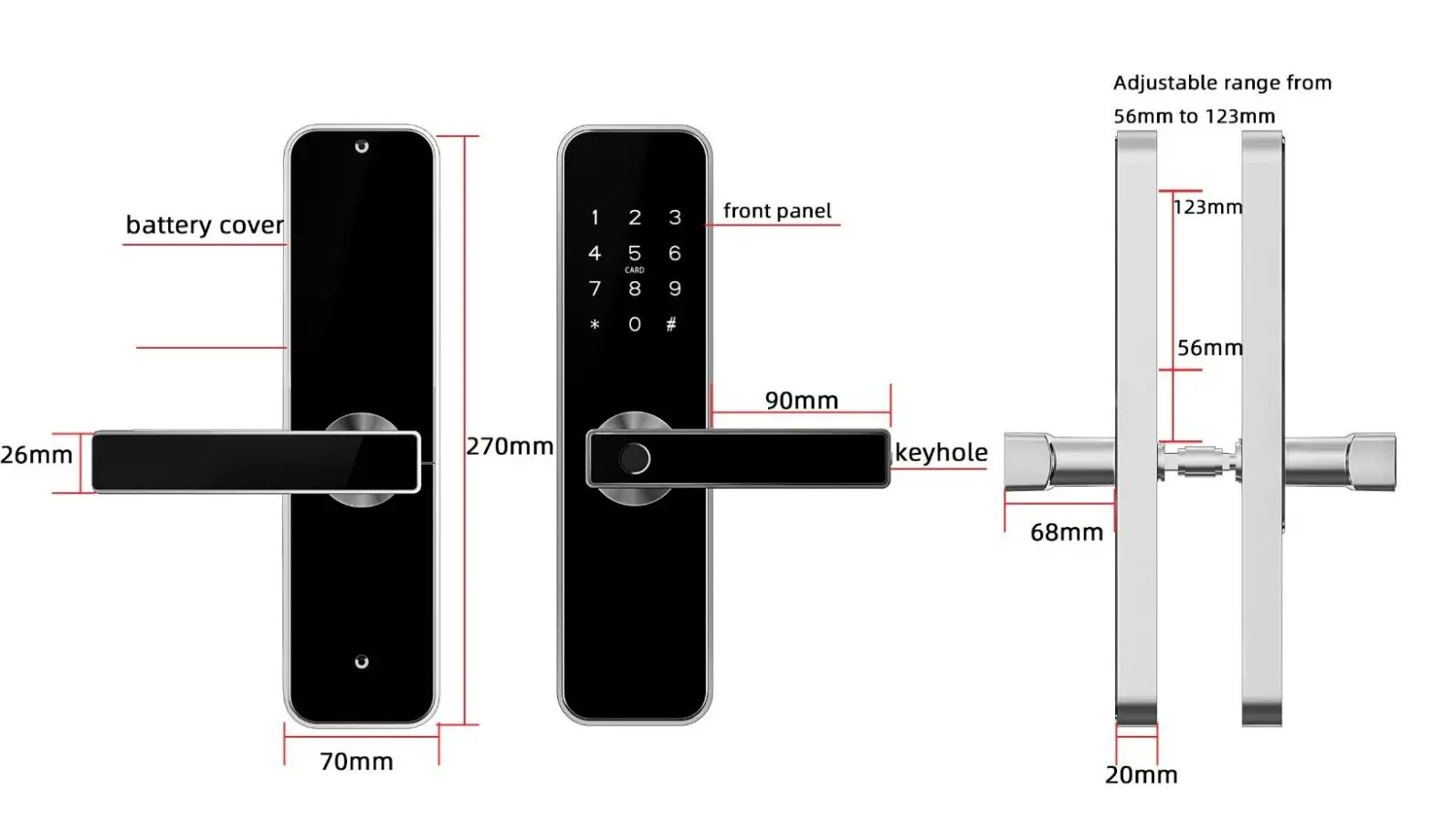
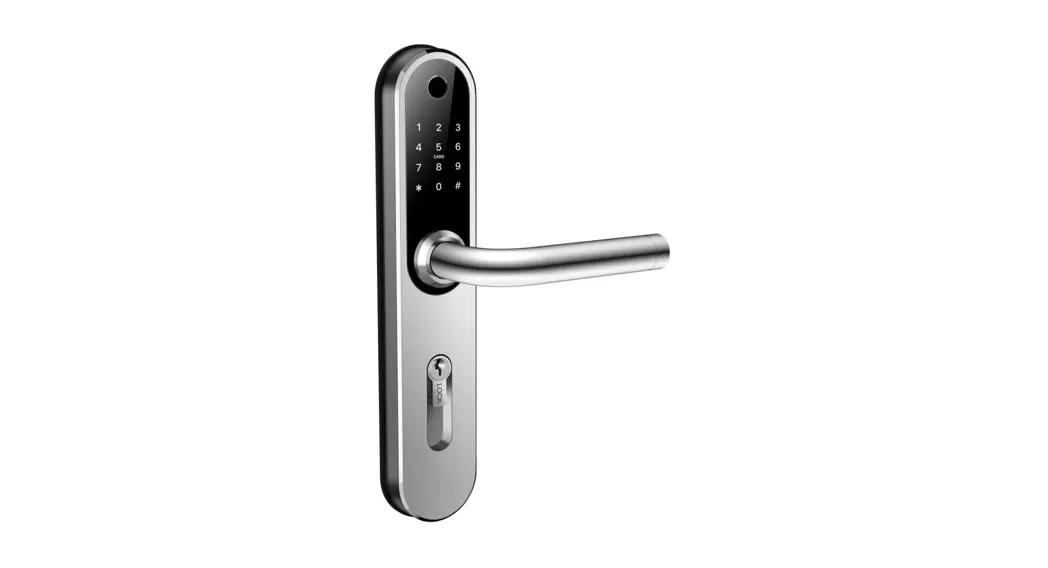
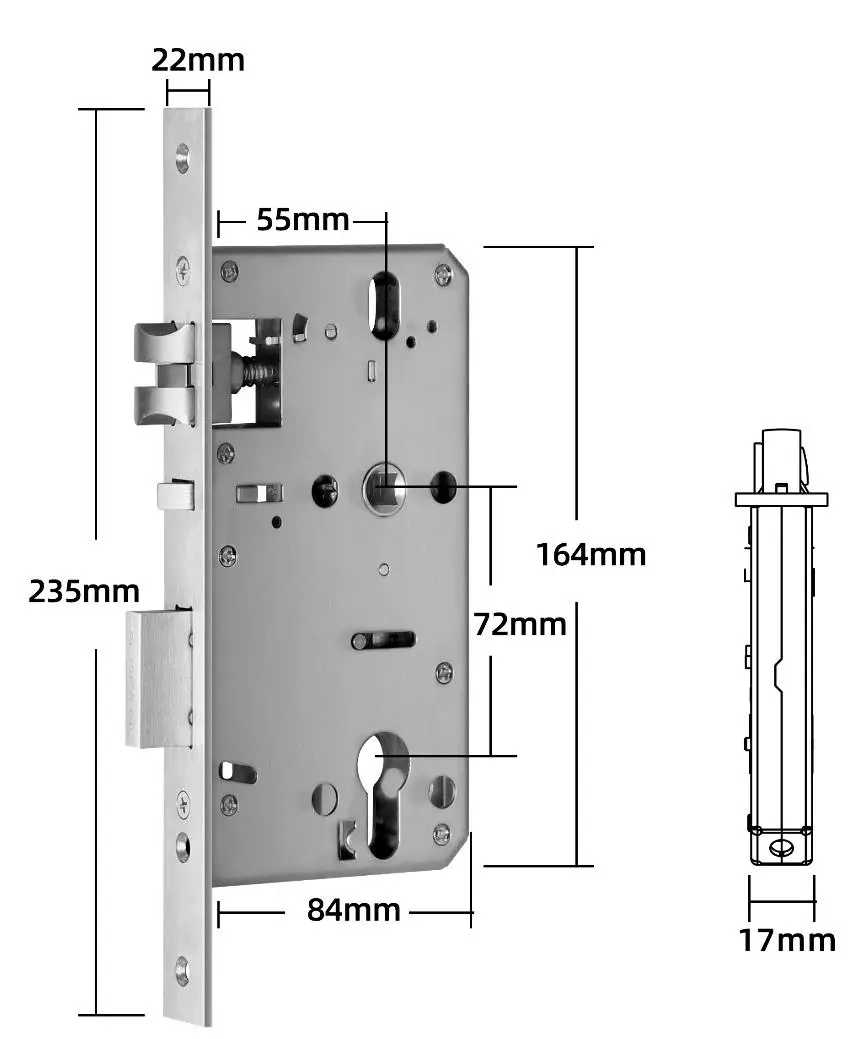
Mortise
Installation
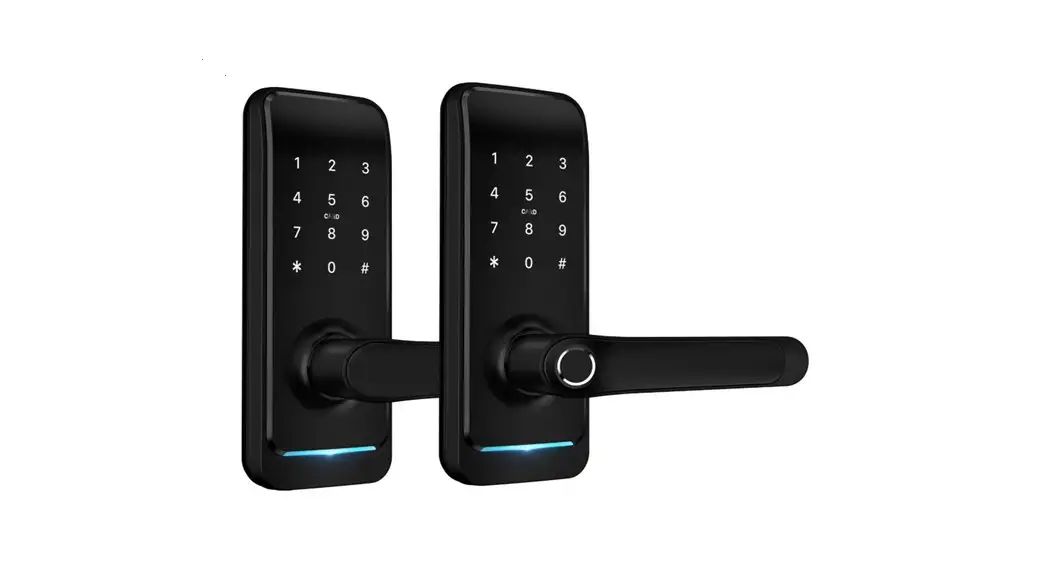
Turn the handle
Notice: Adjust the handle according to the direction you open the door
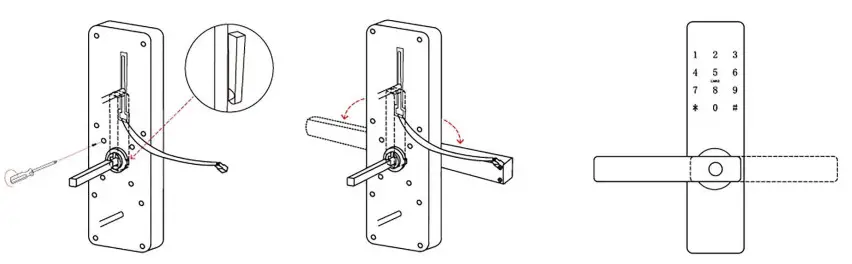
- Loose Four Screws
- Left Open the Handle Toward the Left; Right Open the Handle Toward the Right.
- Reinstall the Screw After Adjusting the Direction
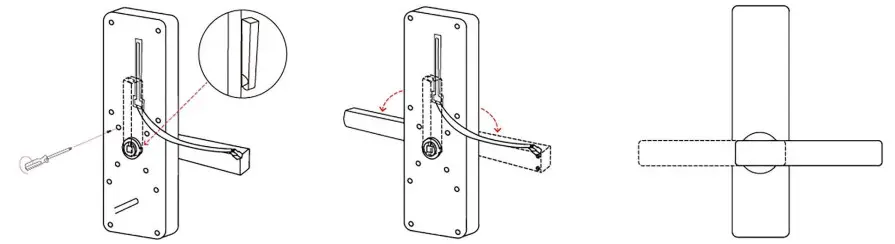
- Loose Four Screws
- Left Open the Handle Toward the Left; Right Open the Handle Toward the Right.
- Reinstall the Screw After Adjusting the Direction
Installation Diagram
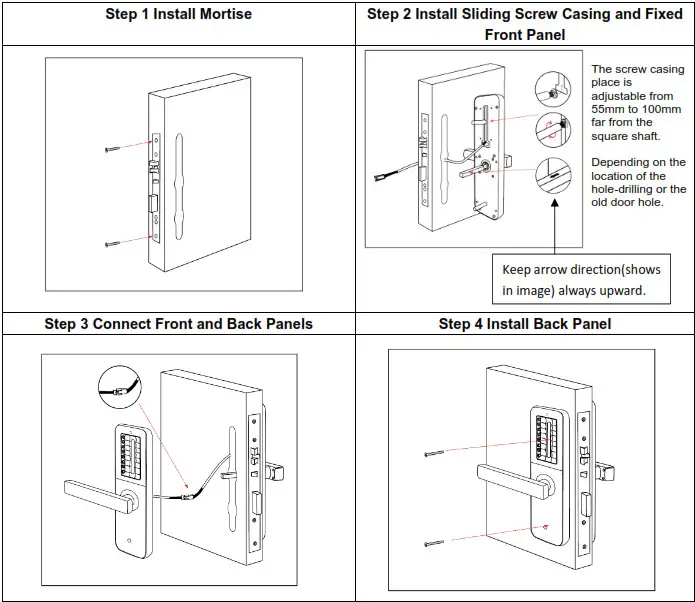
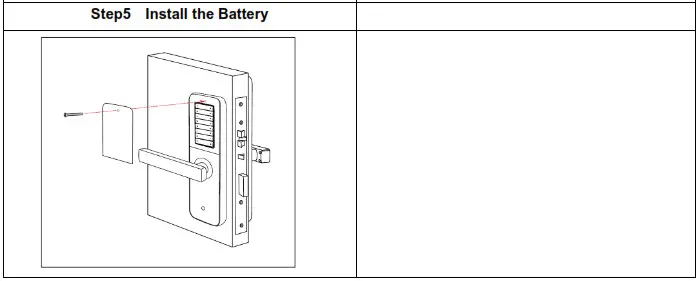
Specifications
| Suitable for Models | H31B |
| Materials | Zinc Alloy |
| Front Panel Lock Size | 270*70*20mm |
| Back Panel Lock Size | 270*70*20mm |
| Lock Weight | 3KG |
| Unlocking way | Bluetooth Gateway(option) Fingerprint Password Card Mechanical key |
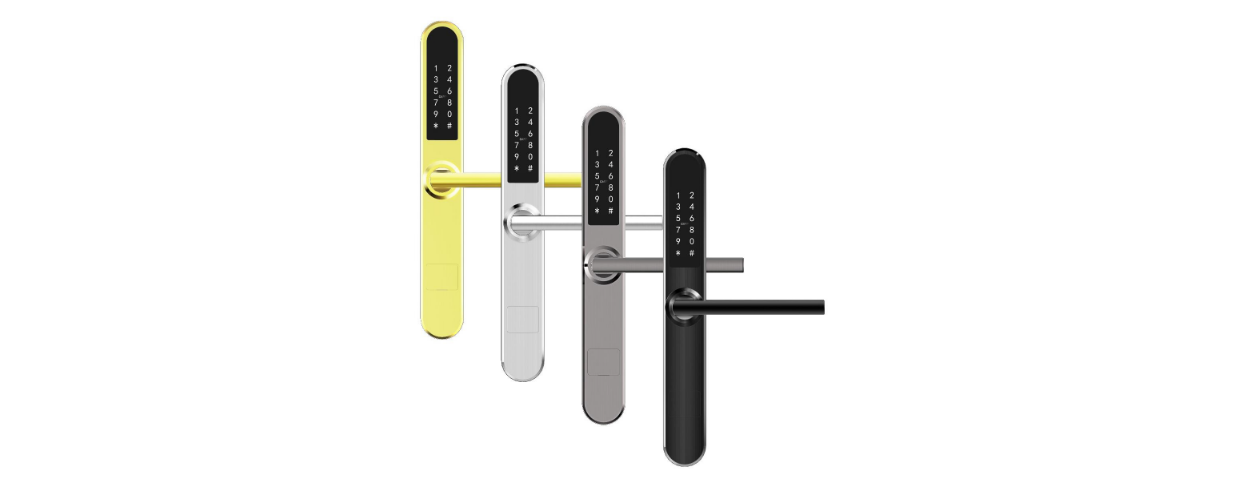
| Colour | Silver Black |
| Doors Applicable | Aluminum door Wooden door Sliding door Swing door |
| Working Voltage | 6V/8x AM Batteries |
| Door Thickness to Fit | 30-80mm |
| Data Capacity | 500 Password 500 Card |
| Working Temperature | -25°C-60°C |
| Working Humidity | 20%-90% |
| Low Wattage Alarm | Less than 4.5V |
System Initialization
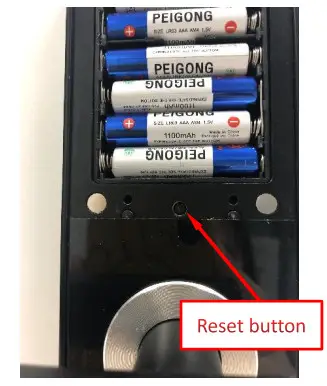
Open the cover plate of the back panel,long-press the “Reset” button on the back panel for 5s, press “000#”, and the initialization is complete
Registration
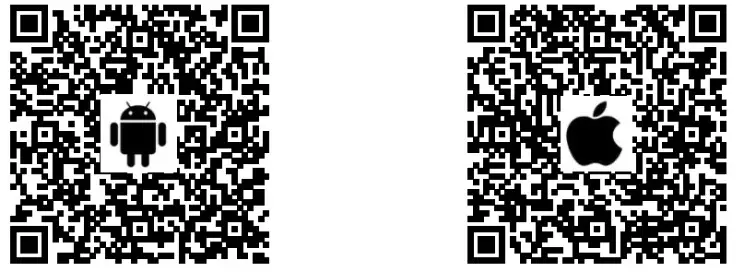
https://play.google.com/store/apps/details?id=com.tongtongsuo.app
https://itunes.apple.com/cn/app/%E9%80%9A%E9%80%9A%E9%94%81/id1033046018?mt=8
Connect lock to the phone
- Android mobile phone, please scan the left QR code as above
- Apple mobile phone, please scan the right QR code as above
- You can also search for TTLock in the APP store for download
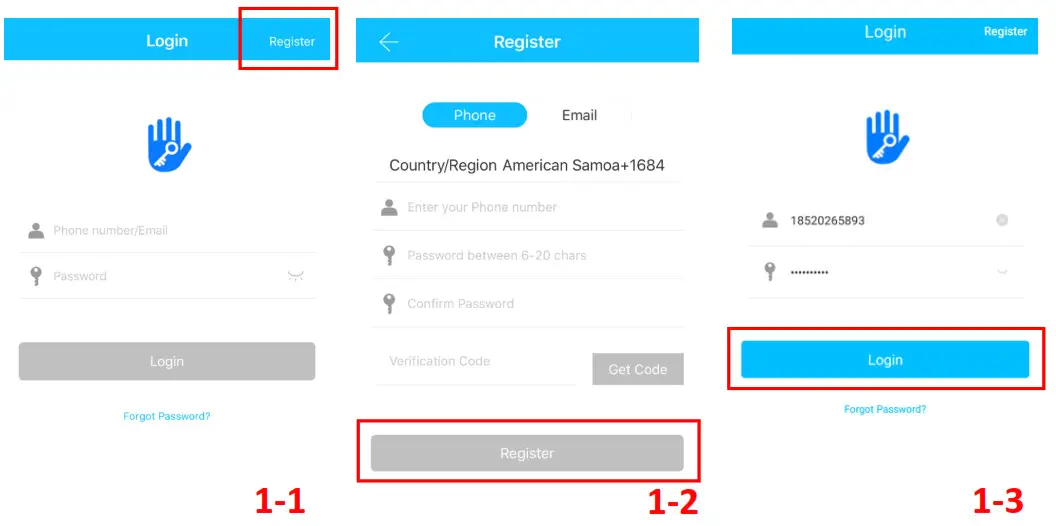
- Register a new account (phone number or email) or log in with an existing account.
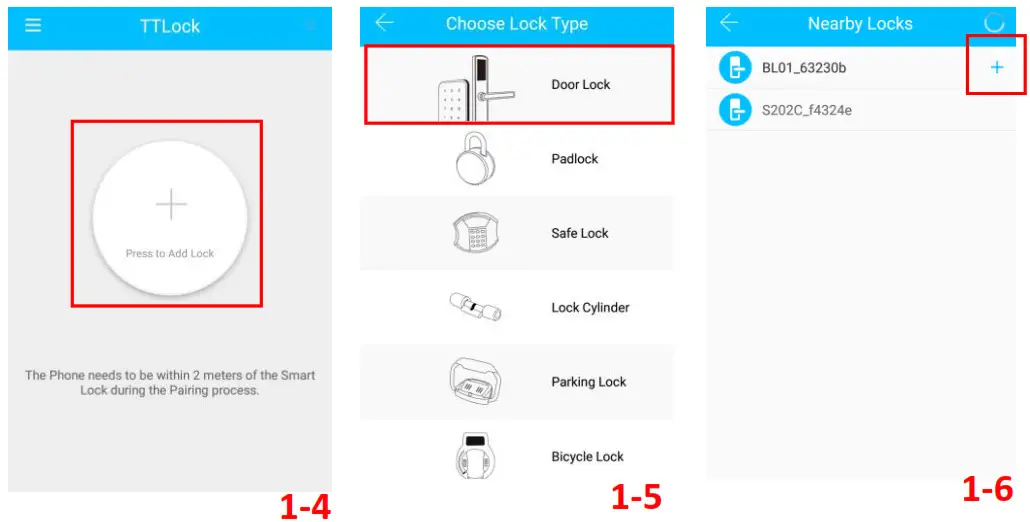
- Touch the lock screen to light, click “+ Add Lock”
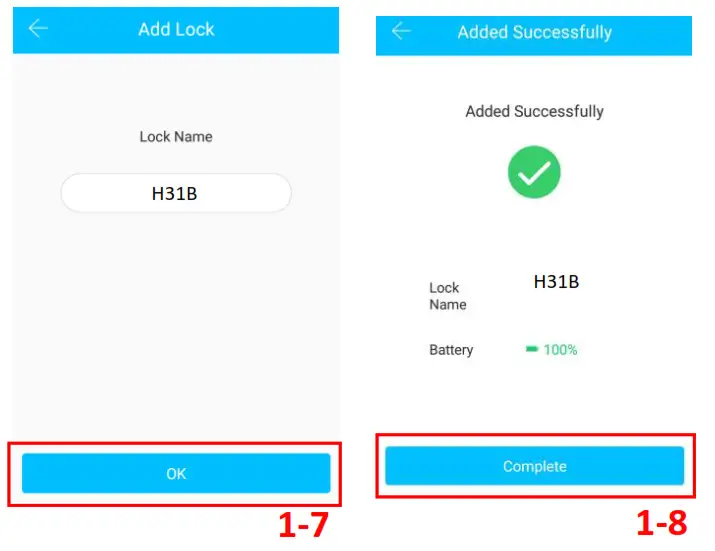
- The lock nearby will appear on the phone screen, Click “+”
- Re-name the lock
- The lock was added successfully
User Management
- Bluetooth management
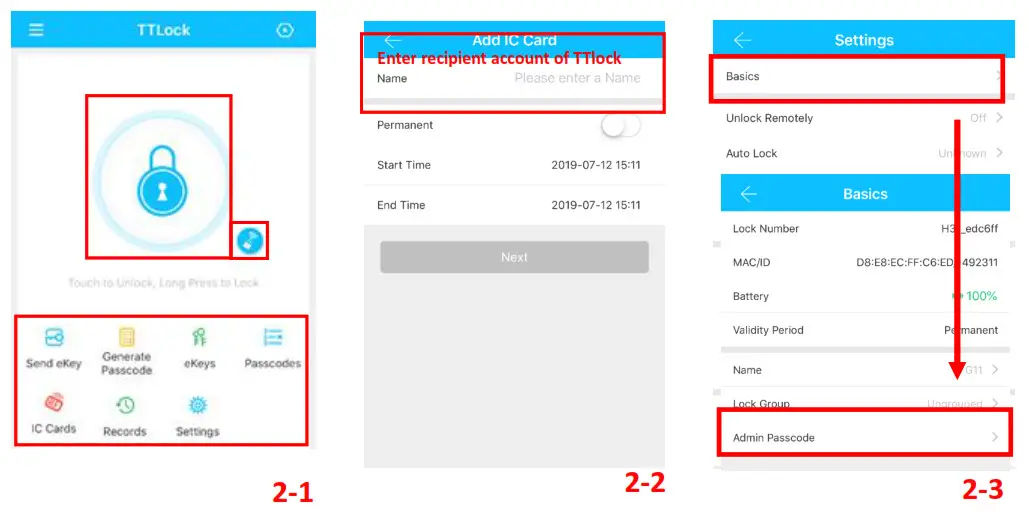
After the mobile phone and door lock are connected, Click “ ” as shown in figure2-1 to unlock. (the phone is within 5meters from the door lock)
 - Remote control management (Option)
After confirming that your phone and door lock are connected to the gateway, click ” ” as shown in figure 2-1 to unlock.
You can unlock it anywhere you have a network. (How to set up the gateway to connect to your phone refer to step 5.3) - e-Key management
Click on the “ ” as shown in figure 2-1, you can send the eKey to other users of TTlock to authorize the unlock(the receiver must download the APP and register an account) → Enter recipient’s account of Turlock, set the name, and effective time of the key as shown in figure 2-2→Send→The recipient’s account has Bluetooth unlock permission.
 - The Admin password management
Click ” “as shown in figure 2-1→See Basic →Admin Passcode as shown in finger2-3→input Passcode on the keypad of lock → “#” to unlock.
 - Dynamic password management
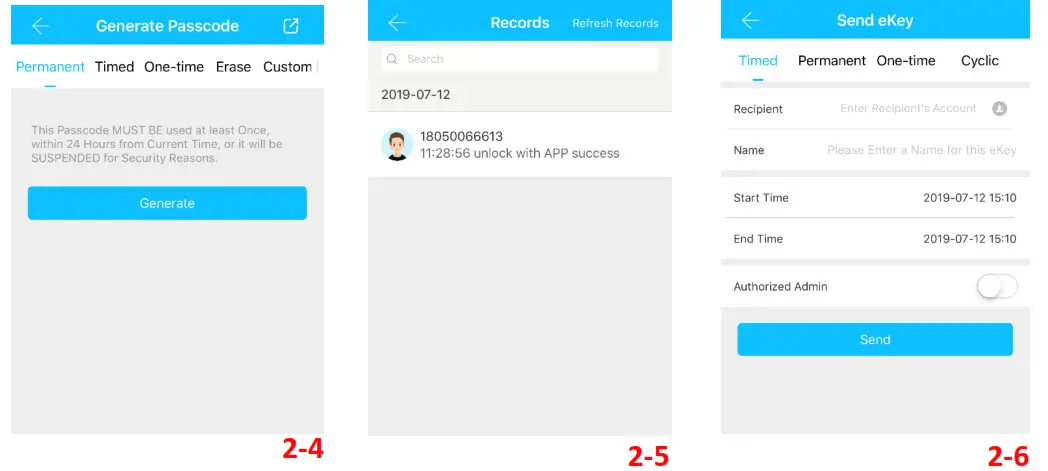
Click “ “as shown in finger 2-1→finger 2-4 You can set the effective time and an effective number of passwords→Generate password→Input password to unlock.
 - Unlock records
Click “ “as shown in finger 2-1→you can query your unlock record as shown in finger 2-5
 - IC Cards management
 ” as shown in figure2-1 to unlock. (the phone is within 5meters from the door lock)
 ” as shown in figure 2-1 to unlock.
 ” as shown in figure 2-1, you can send the eKey to other users of TTlock to authorize the unlock(the receiver must download the APP and register an account) → Enter recipient’s account of Turlock, set the name, and effective time of the key as shown in figure 2-2→Send→The recipient’s account has Bluetooth unlock permission.
 “as shown in figure 2-1→See Basic →Admin Passcode as shown in finger2-3→input Passcode on the keypad of lock → “#” to unlock.

Click “ ” as shown in finger 2-1→Click “
 “→Add IC Cards as finger 2-6
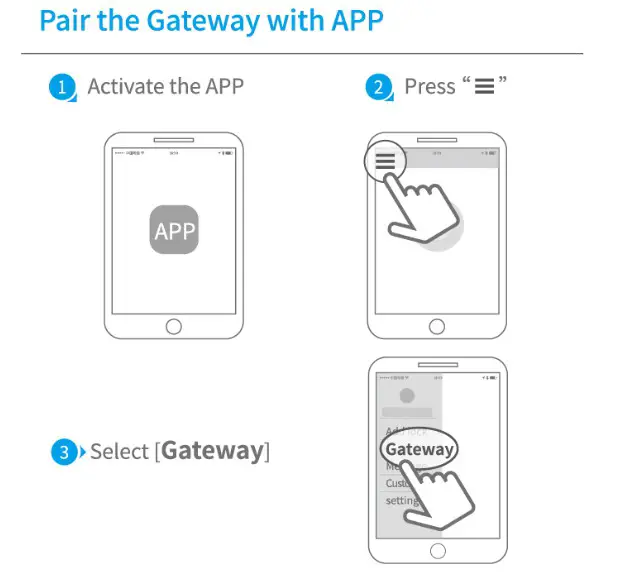
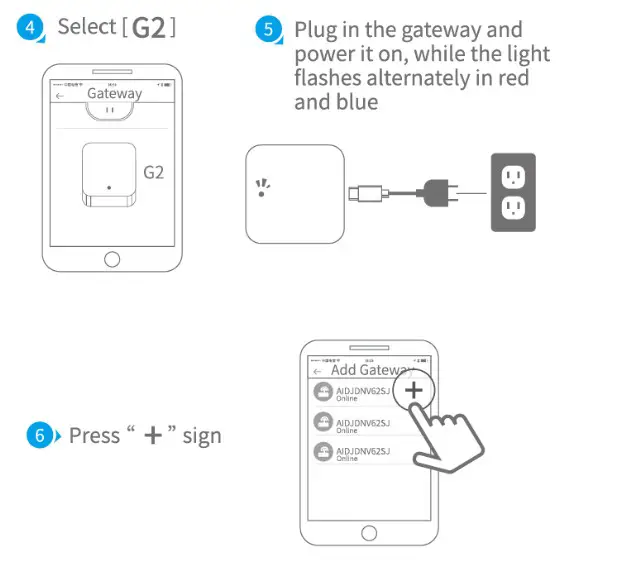
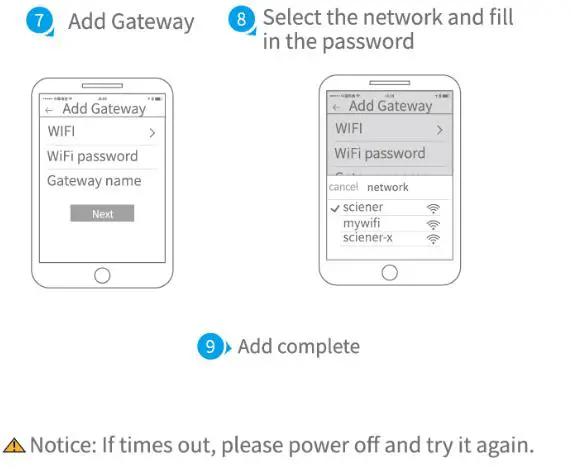
Add Gateway – optional and not included, will be purchased separately
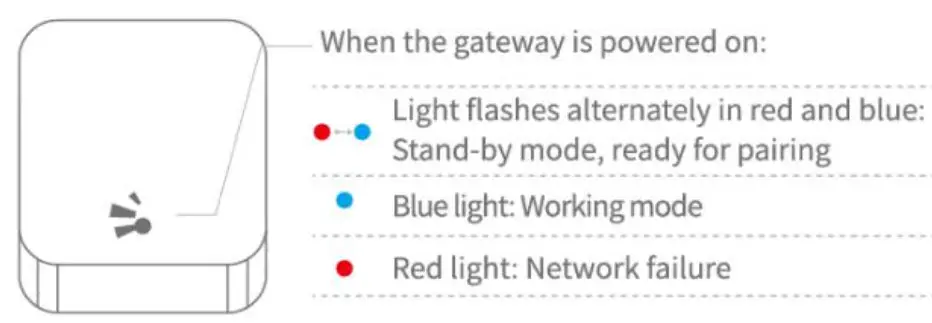
Light Status
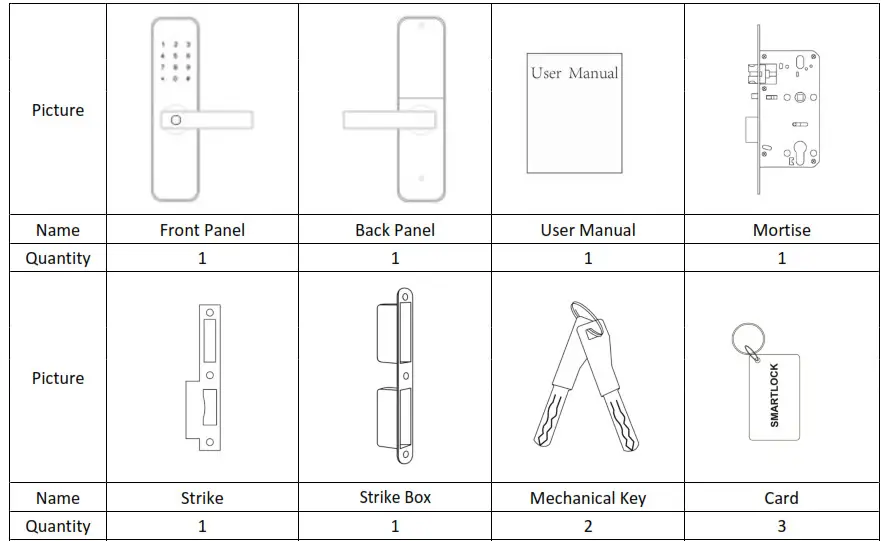
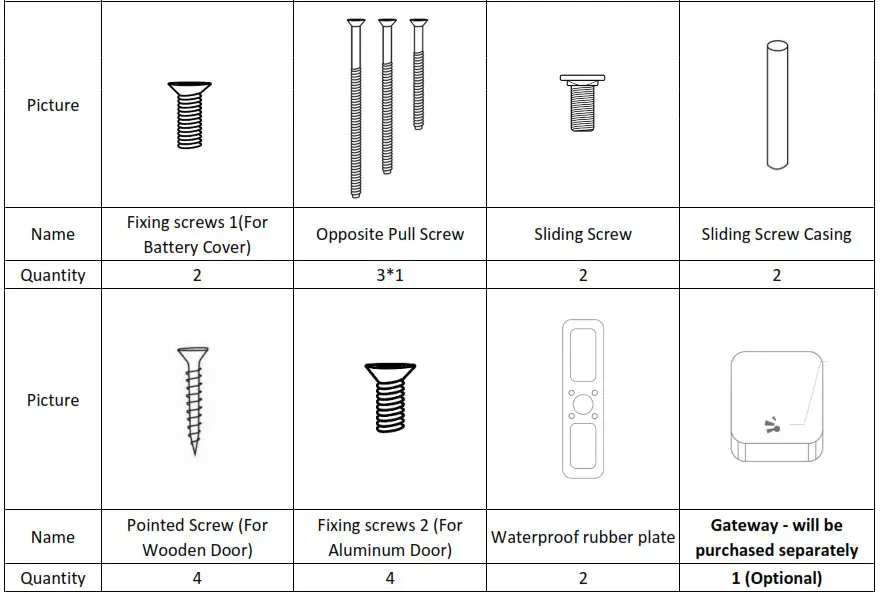
Packing List