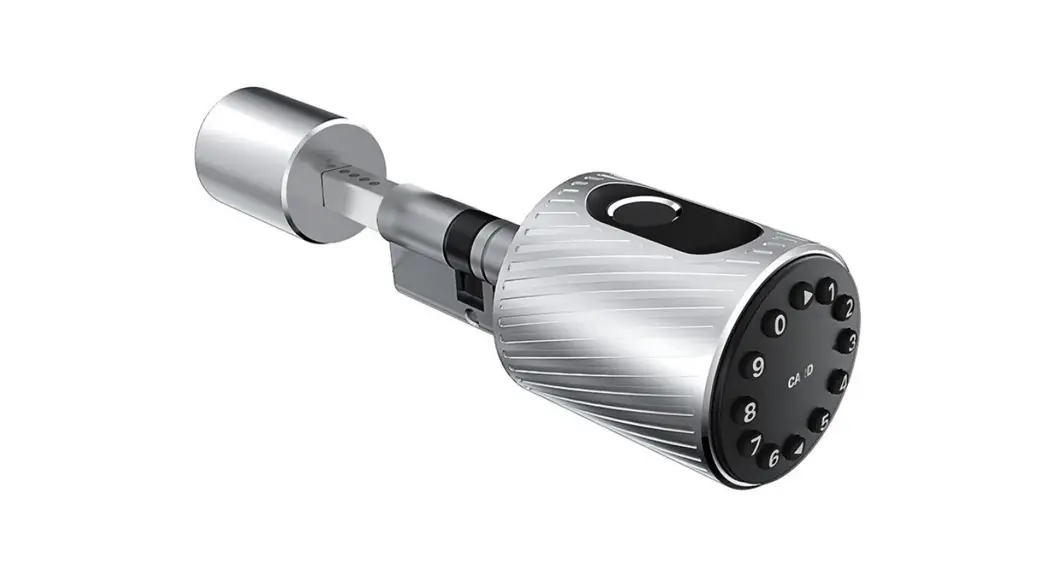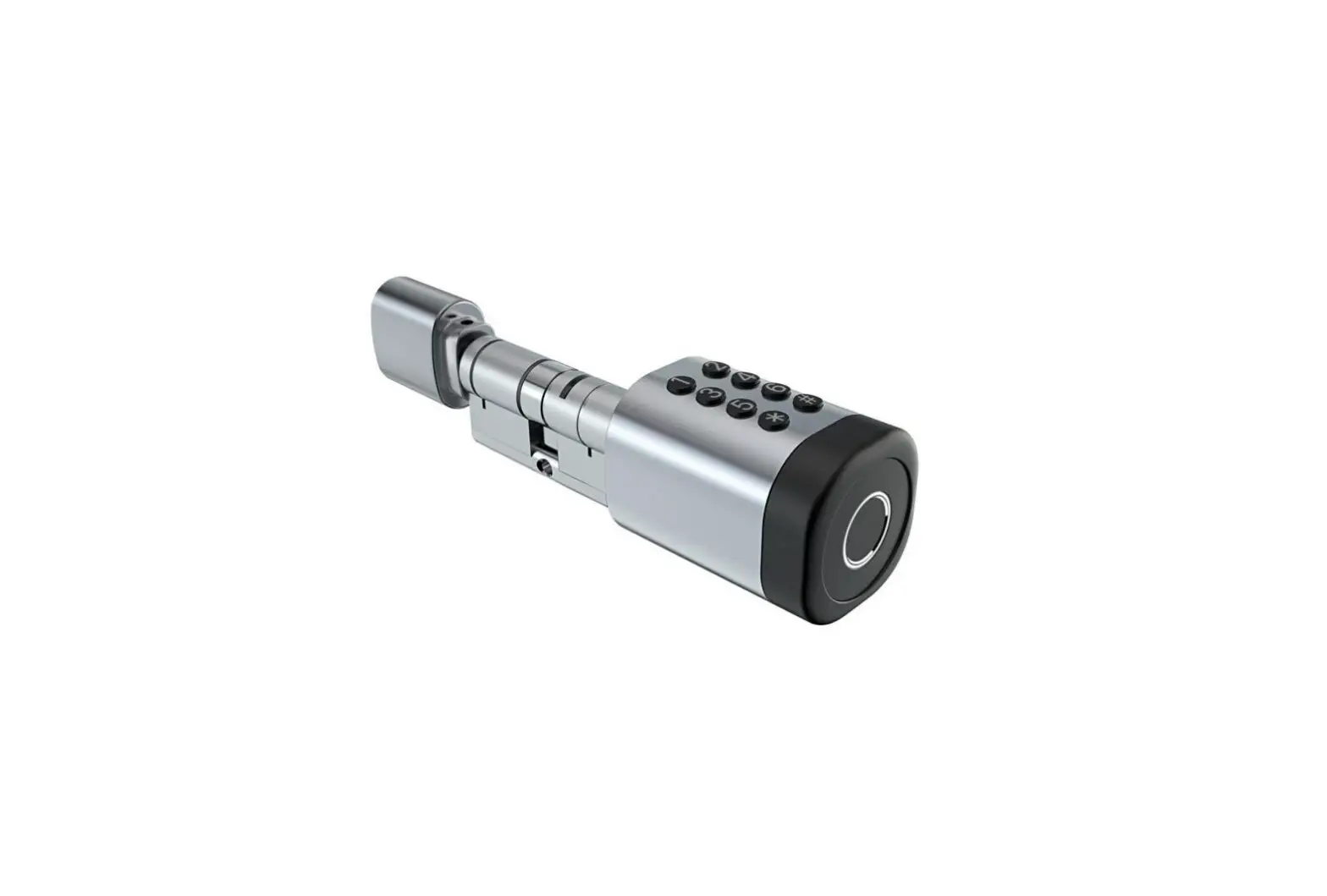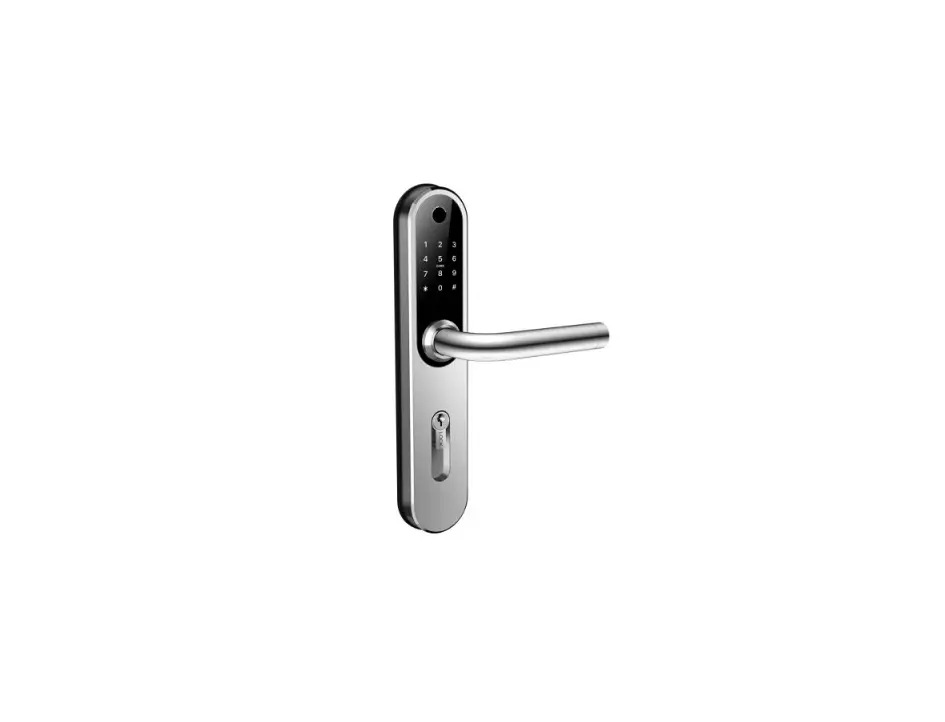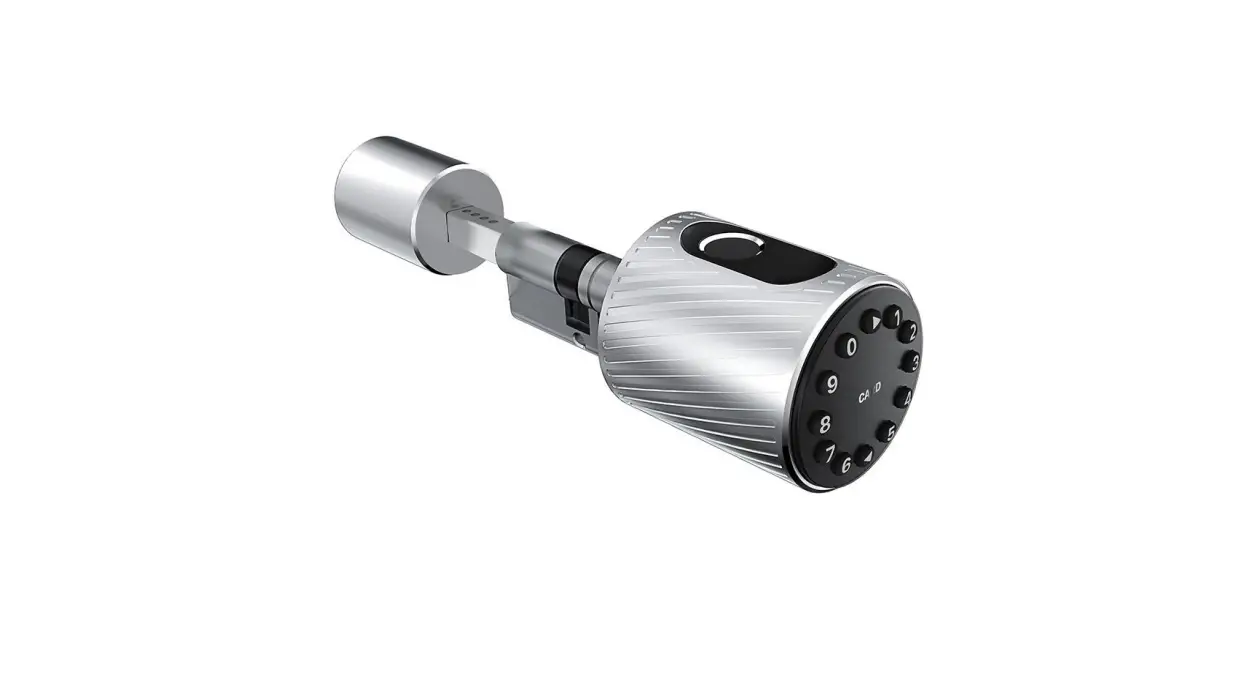

Smart Lock
User Manual
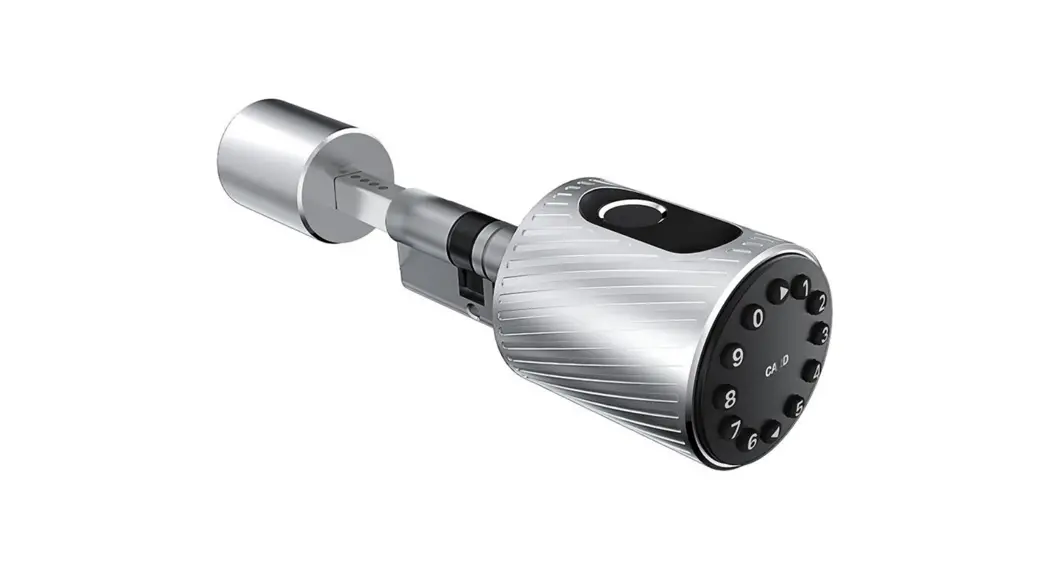
C11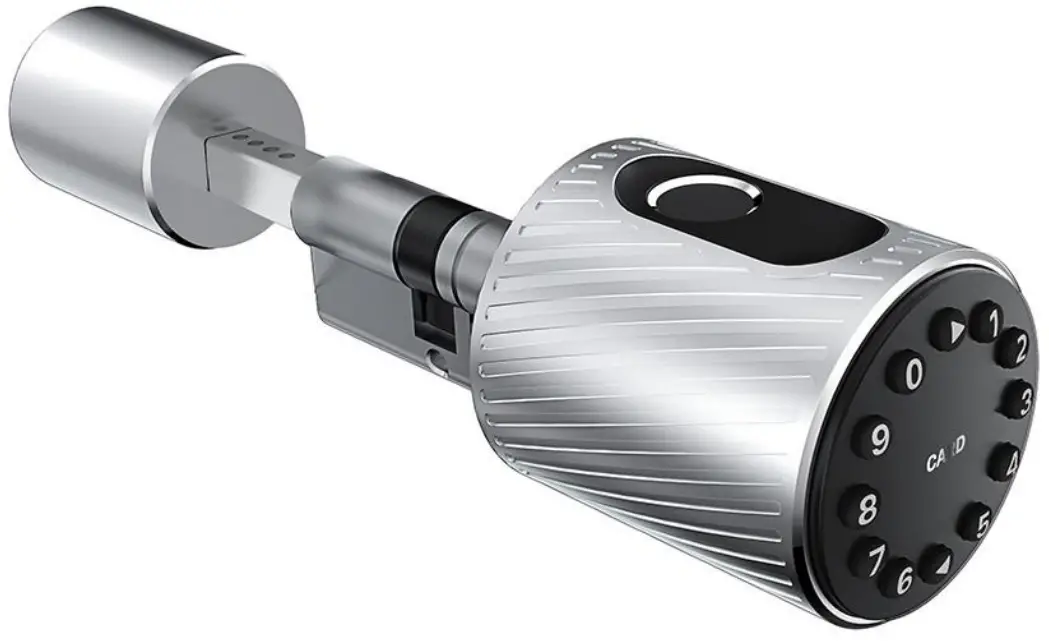
Special Attention:
- Mechanical keys please keep outdoor, just in case keys lock indoors.
- Please replace the battery when a low wattage alarm.
- Read this manual carefully before installation, and keep it for future reference.
Introduction
1.1.Adjust the cylinder to perfectly matches your door and escutcheon.
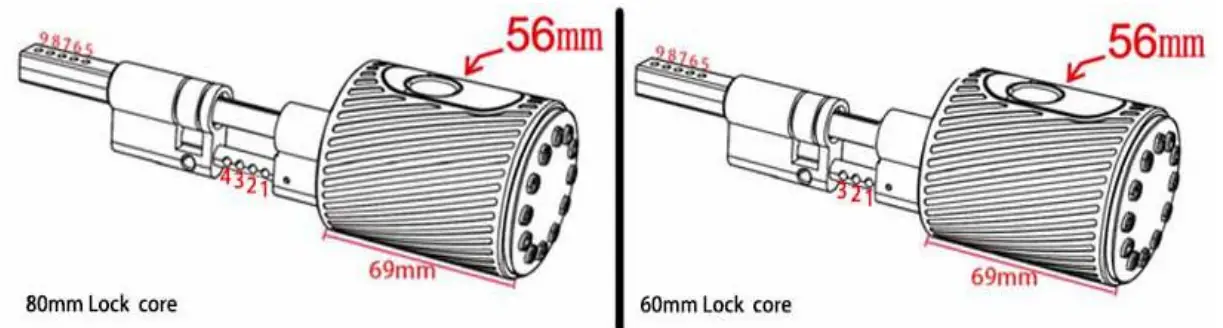
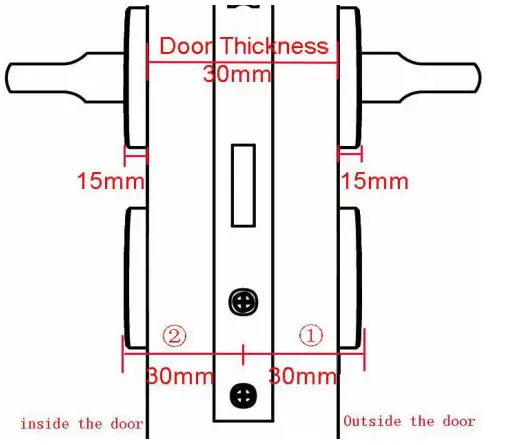 As shown in the figure: the door thickness is 30mm, and the panel thickness is 15mm, The distance of each compartment on the lock core is 5mm
: Total thickness(distance from cylinder hole center to front panel)
: Total thickness(distance from cylinder hole center to back panel)
| ① | Outdoor Cylinder length | ② | Indoor Cylinder length | |
| 30mm | 1 | 30mm | 5 | 60mm |
| 35mm | 2 | 35mm | 6 | |
| 40mm | 3 | 40mm | 7 | |
| 45mm | / | 45mm | 8 | |
| 40mm | 1 | 40mm | 5 | 80mm |
| 45mm | 2 | 45mm | 6 | |
| 50mm | 3 | 50mm | 7 | |
| 55mm | 4 | 55mm | 8 |
1.2.Packing List Check the following drawing to check whether the package contains all the parts
| NO | Name | Qty |
| 1 | Front Pane | 1 |
| 2 | Back Panel | 1 |
| 3 | Chuck | 1 |
| 4 | Card | 3 |
| 5 | Mechanical Key | 2 |
| 6 | User Manual | 1 |
| 7 | Screw for Cylinder M5*50 | 1 |
| 8 | Screw for Cylinder M5*70 | 1 |
| 9 | Hexagon socket screw M1.5*5mm | 2 |
| 10 | Hexagon socket screw M1.5*10mm | 2 |
| 11 | Hexagonal screwdriver | 1 |
1.3.Specifications
| Suitable for Models | C11 | Doors Applicable | Aluminum door Wooden door |
| Materials | Aluminum alloy | Working Voltage | 6V/4x AAA Batteries |
| Lock weight | 2KG | The thickness of door frames and panels | 30-110MM |
| Unlocking Way | Bluetooth Fingerprint(option) Password Card Mechanical key Gateway(option) | Data Capacity | Fingerprint: 200 Password: 150 Card: 200 |
| Color | Silver Black | Working Temperature | -10 C-551: |
| Low Wattage | Alarm Less than 4.8V | Working Humidity | 0-95% |
System Initialization
Open the cover plate of the front panel,long-press the “Reset” button on the back panel for 5s, press “000#”, and the initialization is complete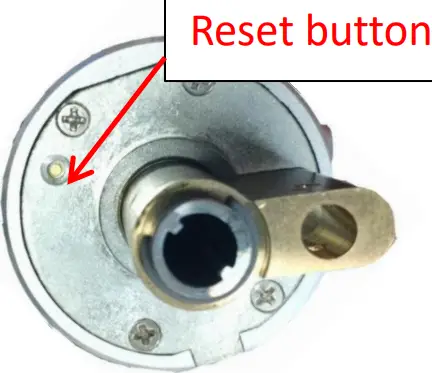
Installation Diagram
| Step 1 Adjust the cylinder | Step 2 Install Screw for Cylinder |
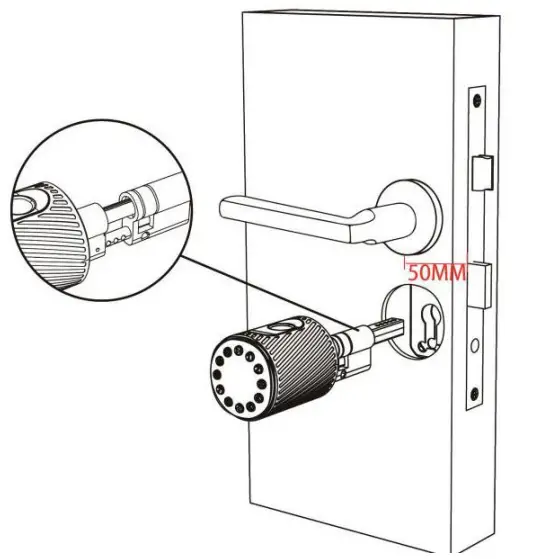 | 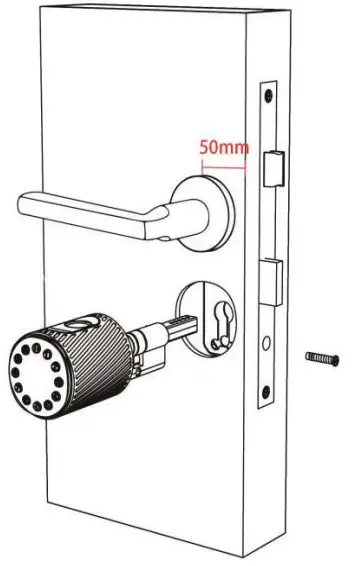 An old lock was installed at a distance greater than An old lock was installed at a distance greater than50MM from the square shaft to the door |
| Step 3 Install Indoor knob | Step 4 Installation completed |
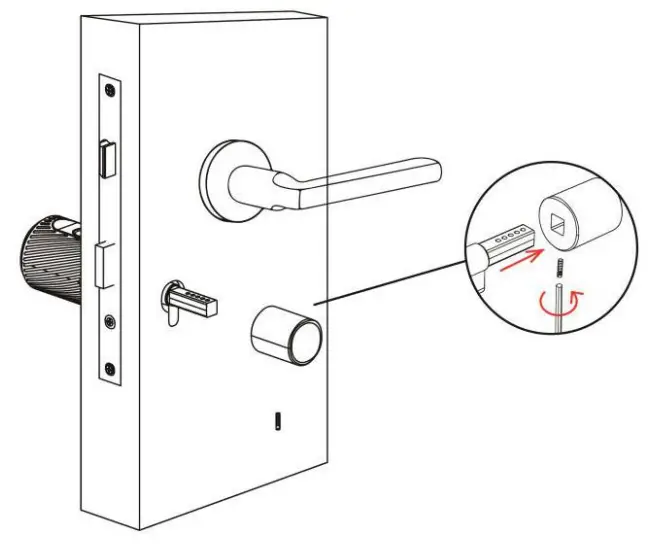 | 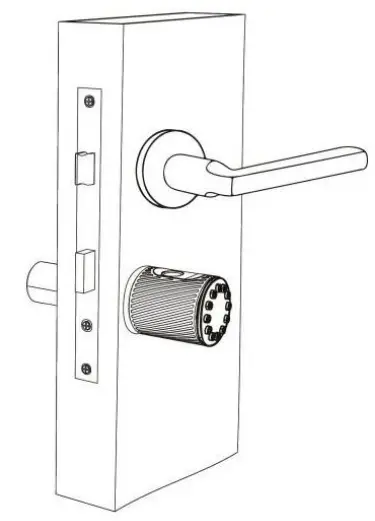 |
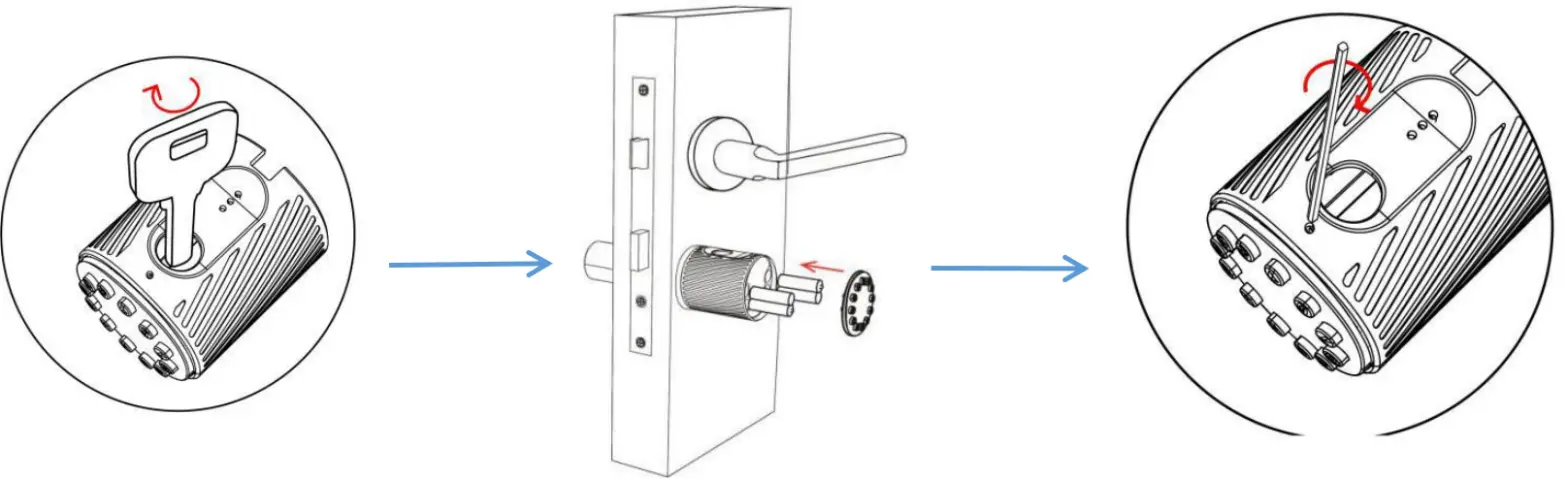
Step 5 Install the battery
- Insert the key and rotate counterclockwise to unlock
- Remove the digital button panel
- Install batteries
- Take the M1.5*5mm hex screw out of the fitting bag and tighten it clockwise
(The first installation does not require removal of panel screws)
 Operation
 Operation
3.1.Registration
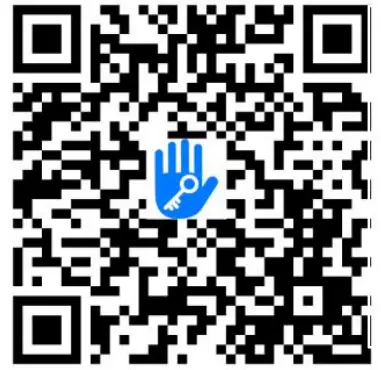
http://a.app.qq.com/o/simple.jsp?pkgname=com.tongtongsuo.app&fromcase=40003
The software (iOS version) can be downloaded from the app store, and the Android version can be downloaded from the application store of Google play, Yingyongbao, Baidu, Ali, 360, Huawei, and Xiaomi.
3.2. Connect lock to the phone
- please scan the QR code to download the app
- You can also search for TTLock in the APP store(Google Play)to download
- Register a new account (phone number or email) or login with an existing account.
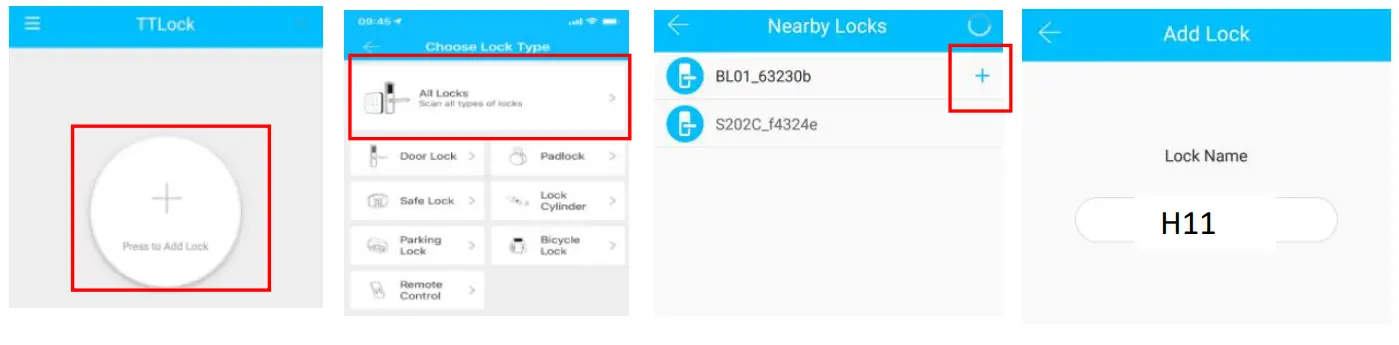
- Touch the lock screen to light, click “+ Add Lock”
- The lock nearby will appear on the phone screen, Click “+”
- Re-name the lock
- The lock was added successfully

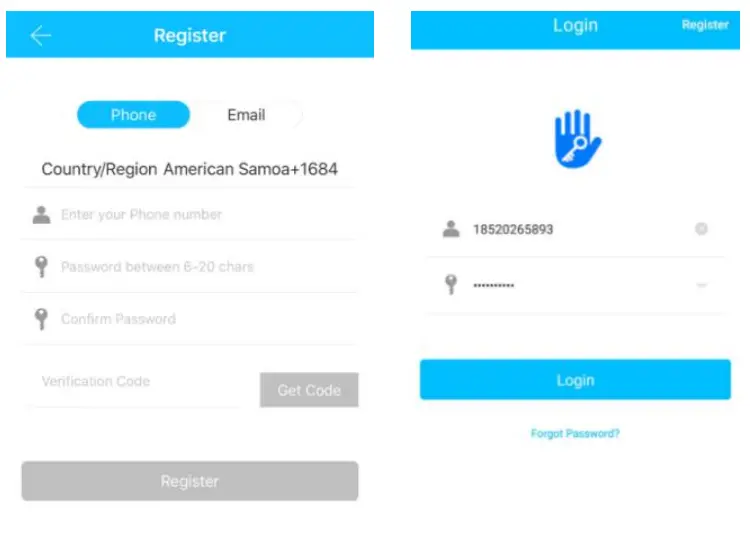
Turlock users can register their account by mobile phone and Email which currently support 200 countries and regions in the world. The verification code will be sent to the user’s mobile phone or email, and the registration will be successful after the verification.
3.3.Add locks
TTLock supports multiple types of lock devices. The lock needs to be added by the app after entering the add mode. Generally, a lock that has not been added, as long as the locking keyboard is touched, it will enter the add mode. The default password is 123456 if not added by the phone
3.4.User Management
3.4.1. Bluetooth management
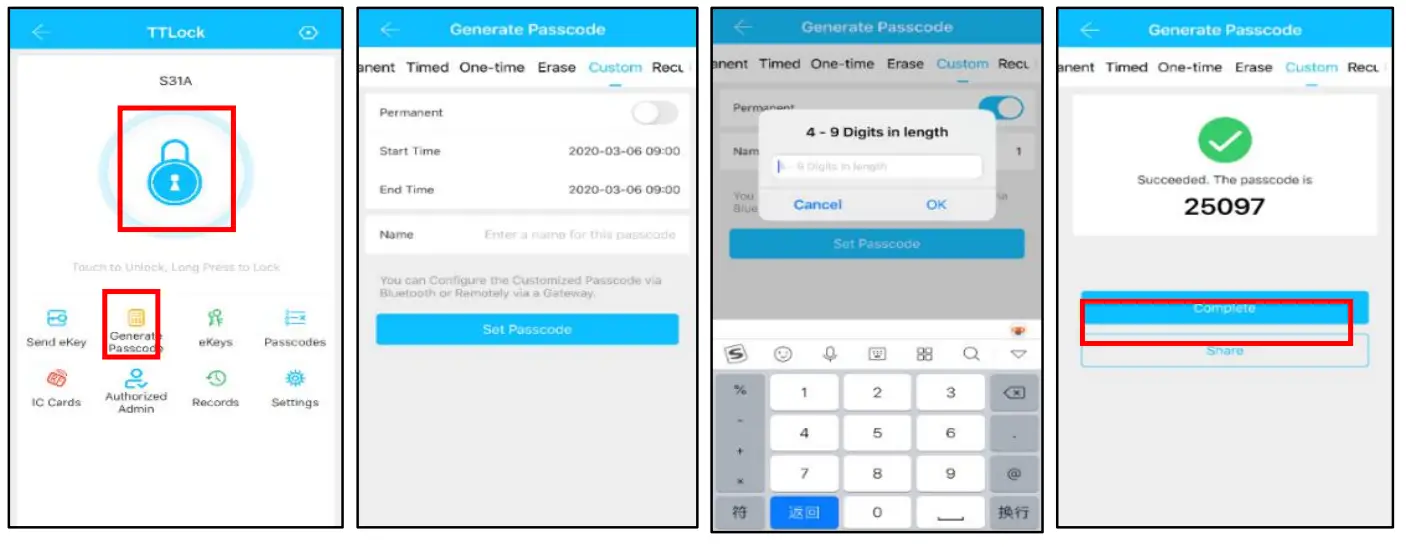
Make sure there is no problem with Bluetooth communication. After connecting the phone to the door lock as above, Click “ to unlock.(the phone is within 5meters from the door lock)
3.4.2. Setting Passcode
Passcodes are also a way to unlock. After entering the passcode on the locked keyboard, press the unlock button in the lower right corner to unlock. Passcodes are divided into
permanent, time-limited, single, clear, cycle, and custom.(You can share the Passcode to another user via WeChat、SMS、Email、Messenger、WhatsApp)
3.4.3. Send e-Key
Click on the ”  ” as shown in the figure, you can send the eKey to other users of TTlock to authorize the unlock(the receiver must download the APP and set up an account)→ Select the e-key format (Timed, permanent, One-time, Recurring) → Enter recipient’s account of TTlock, set the name and effective time of the key, Can choose to allow remote unlocking or disallowing, authorized administrator or not authorized, as shown in figure →Send→The recipient’s account has Bluetooth unlock permission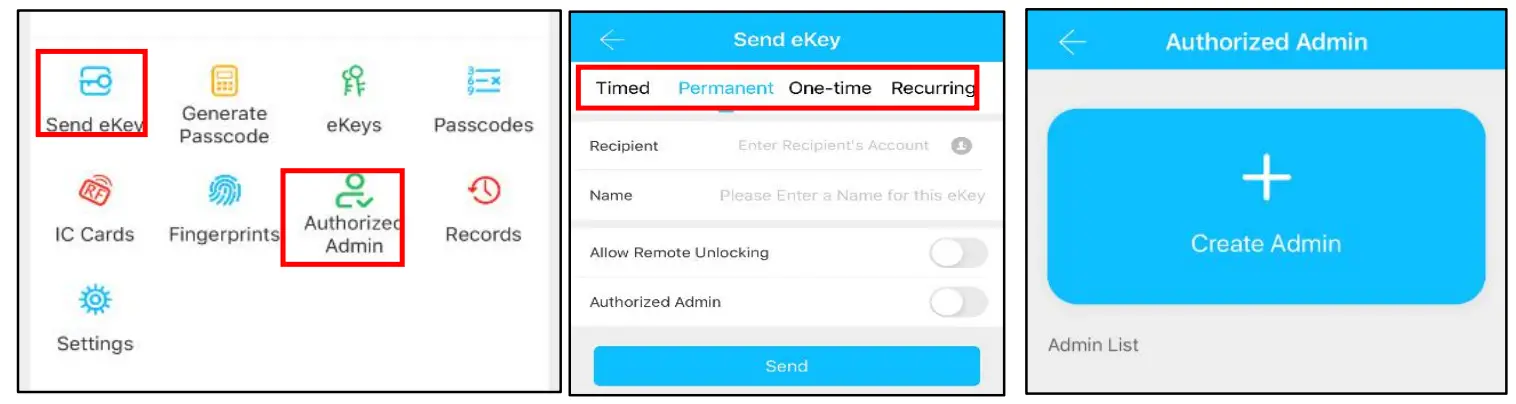
3.4.4.Add card
Supports opening doors through various IC cards. Before an IC card is used to open the door, it needs to be added first. The adding process needs to be performed by the app besides the lock. The validity period of the IC can be set, it can be permanent, or it can be limited in time.

3.4.5. Add fingerprint
The premise that a fingerprint can be used to open a door is that it needs to be added first. The adding process needs to be performed by the APP beside the lock. The fingerprint expiration date can be set, it can be permanent, or it can be limited. After setting, you can modify its validity period.

3.4.6. e-Key management
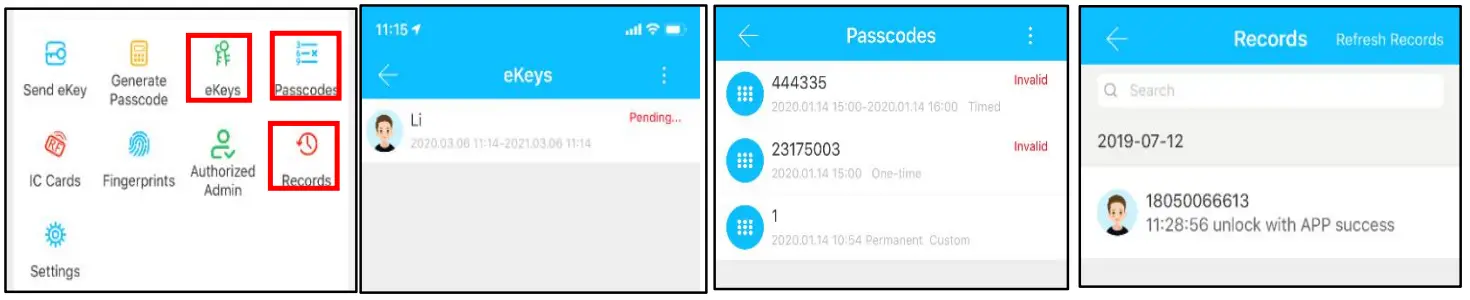
Click “  “ The manager can delete key, reset key, send and adjust the key, meanwhile he can search the lock record.
3.4.7. Passcode management
Click “ “.All generated passwords can be viewed and managed in the password management module. This includes a password change, password deletion, password reset, and password unlock the record.
3.4.8.Unlock records
Click “ “you can query your unlock record as shown in figure
3.5. Gateway management(Optional)
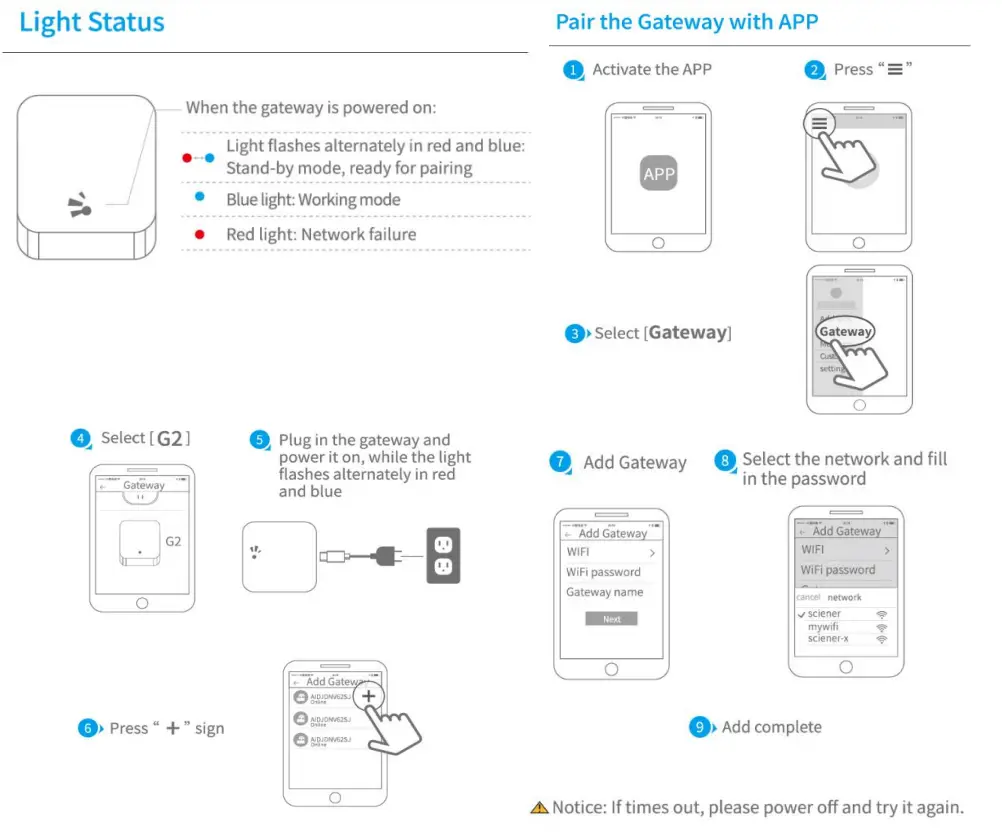
The TT lock is directly connected via Bluetooth, that is why it is not attacked by the network. The gateway is a bridge between smart locks and home WIFI networks. Through the gateway, the user can remotely view and calibrate the lock clock, read the unlock record. Meanwhile, it can remotely delete and modify the password.
3.5.1. Add Gateway
3.5.2. Manual
After a short period of time, you can see which locks are in their coverage in the app. Once the lock is bound to the gateway, the lock can be managed through the gateway
FAQ
| 1)How to read operation records? | In the Records of the main interface.. |
| 2)Why can’t I unlock it after opening the passage mode | You need to perform an unlock verification in any method than the passage mode will take effect. |
| 3)What is the purpose of Auto-Lock | You can set how long to lock after unlocking |
| 4)After installation, touch sensing keyboard, screen no respond | a)In this case, first check that the positive and negative electrodes of the battery have been installed upside down, whether the battery has enough power b)Remove the back panel and see if it’s connected. c)To eliminate the above situation, you need to remove the lock, check whether the wires of the lock body are squeezed, and re-wire. |
| 5 ) Unable to register fingerprint | Check the fingers for dirt or wear, check the fingerprint head on the lock for dirt and oil stains, etc. Check to see if the fingerprint is working properly(Press to see if there is any response. |
| 6) What is the reason why the smart lock consumes fast power? | a)Large standby power consumption b)Short circuit |
| 7) There is no response to pressing the handle on outside the door, and there is unlock normally on inside the door, but the verification is normal, and the motor is normal. | It may be the triangle direction on the Clutch was an error, please check the correction. |
| 8) How many times will the passcode be locked? How long is it locked? | Enter the wrong password more than 5 times in a row, the keyboard is locked for 5 mins, Other ways to can open the door |
Guarantee
Customer Name:
Customer Calls :
Purchase Date :
Product Name :
Product Model :
Note:
- Please keep this card so that you can use it when you need warranty service.
- We provide you with a one-year warranty from the date of purchase.
- This warranty service is valid for customers in any country in the world.
FCC Caution
This device complies with part 15 of the FCC Rules. Operation is subject to the following two conditions: (1) This device may not cause harmful interference, and (2) this device must accept any interference received, including interference that may cause undesired operation.
Any changes or modifications not expressly approved by the party responsible for compliance could void the user’s authority to operate the equipment.
Note: This equipment has been tested and found to comply with the limits for a Class B digital device, pursuant to part 15 of the FCC Rules. These limits are designed to provide reasonable protection against harmful interference in a residential installation. This equipment generates uses and can radiate radio frequency energy and, if not installed and used in accordance with the instructions, may cause harmful interference to radio communications. However, there is no guarantee that interference will not occur in a particular installation. If this equipment does cause harmful interference to radio or television reception, which can be determined by turning the equipment off and on, the user is encouraged to try to correct the interference by one or more of the following measures:
-Reorient or relocate the receiving antenna.
-Increase the separation between the equipment and receiver.
-Connect the equipment into an outlet on a circuit different from that to which the receiver is connected.
-Consult the dealer or an experienced radio/TV technician for help.
This equipment complies with FCC radiation exposure limits set forth for an uncontrolled environment.