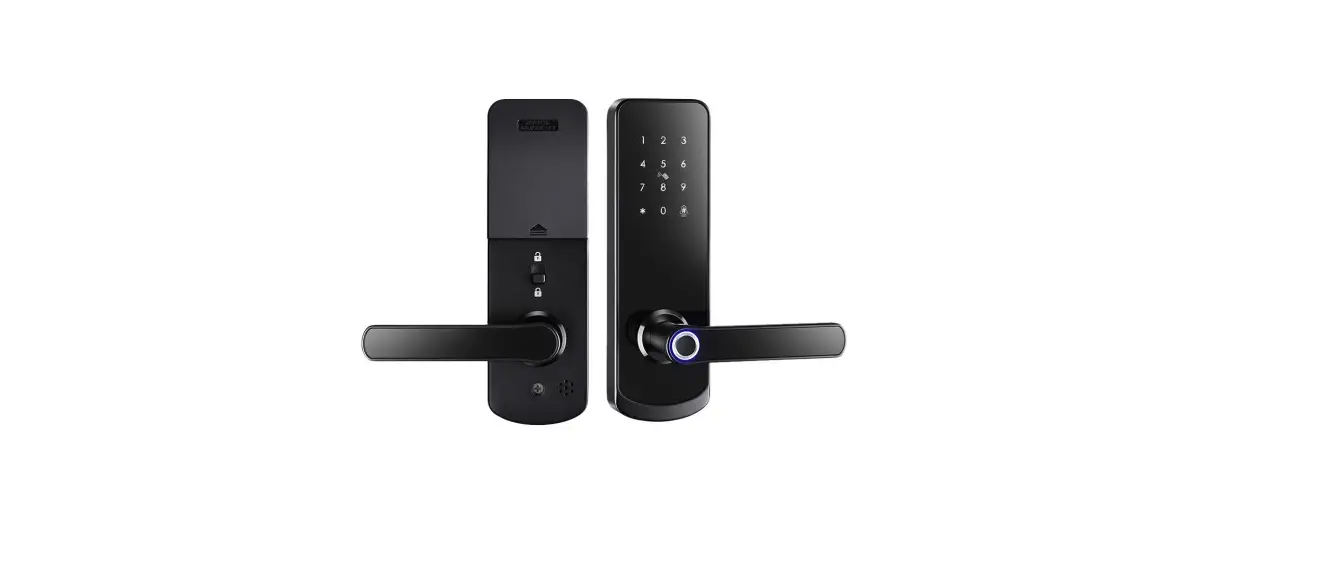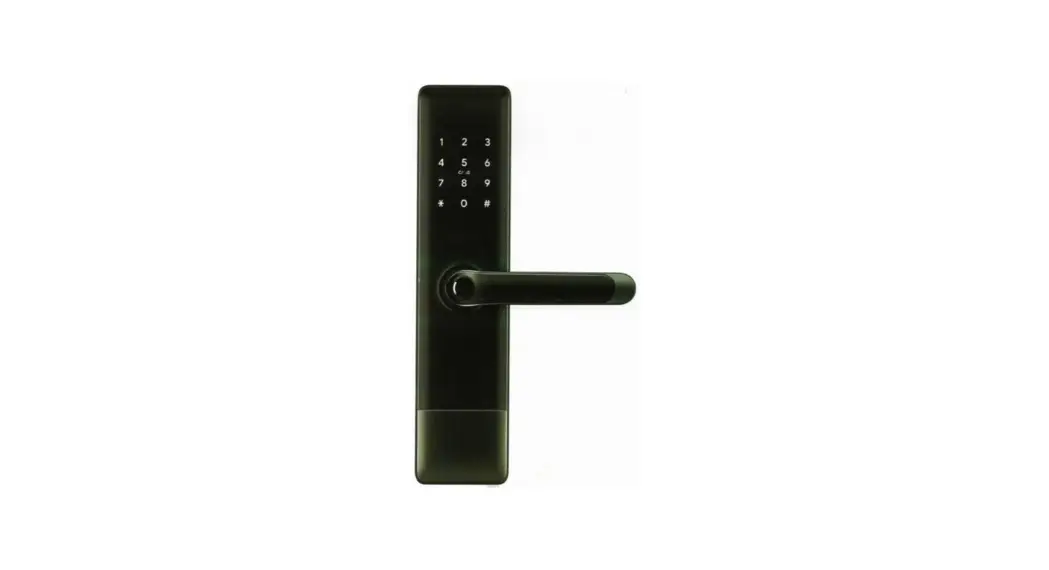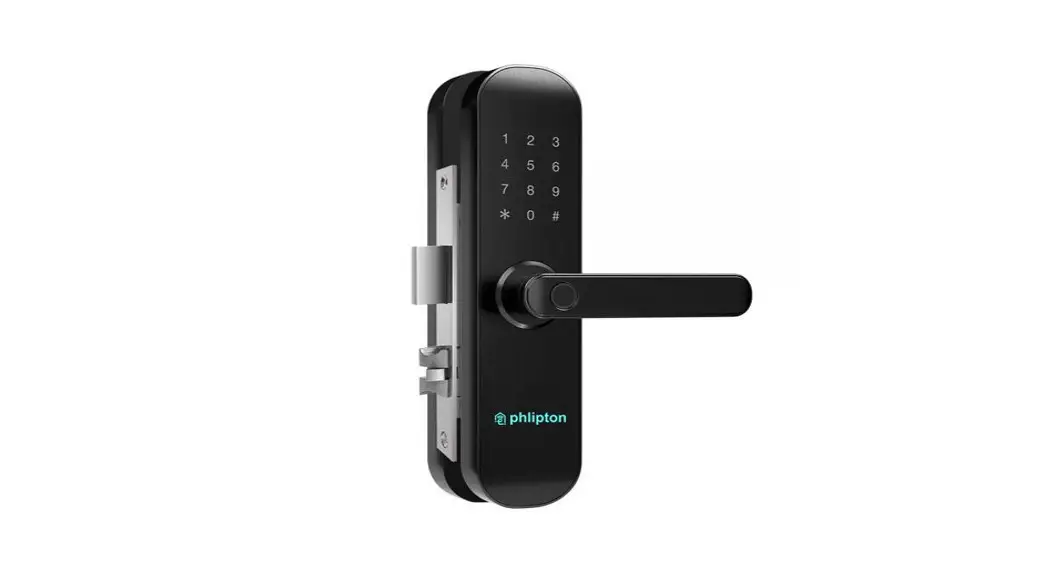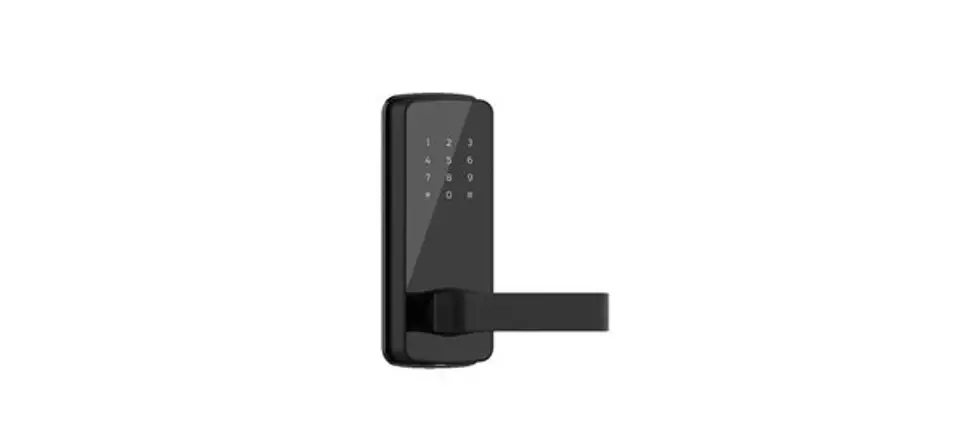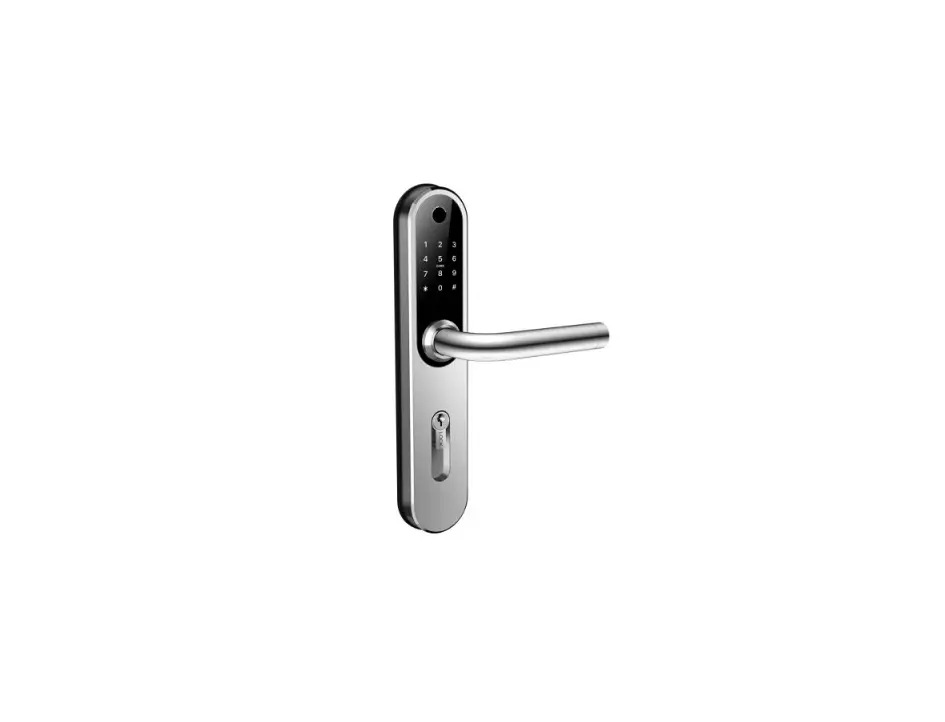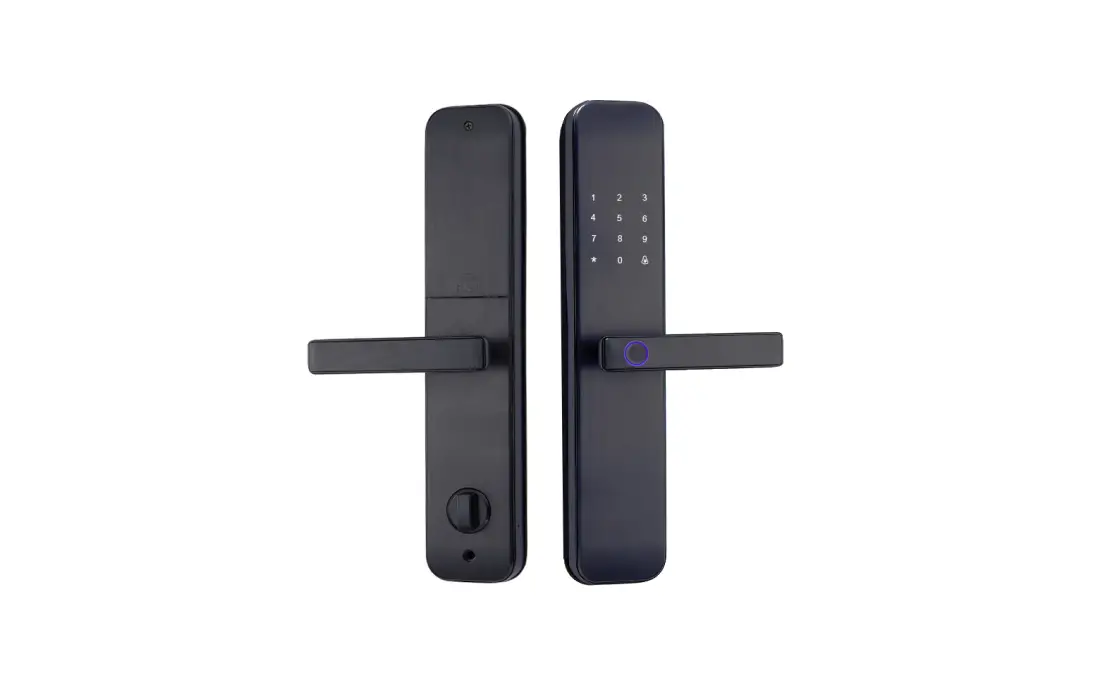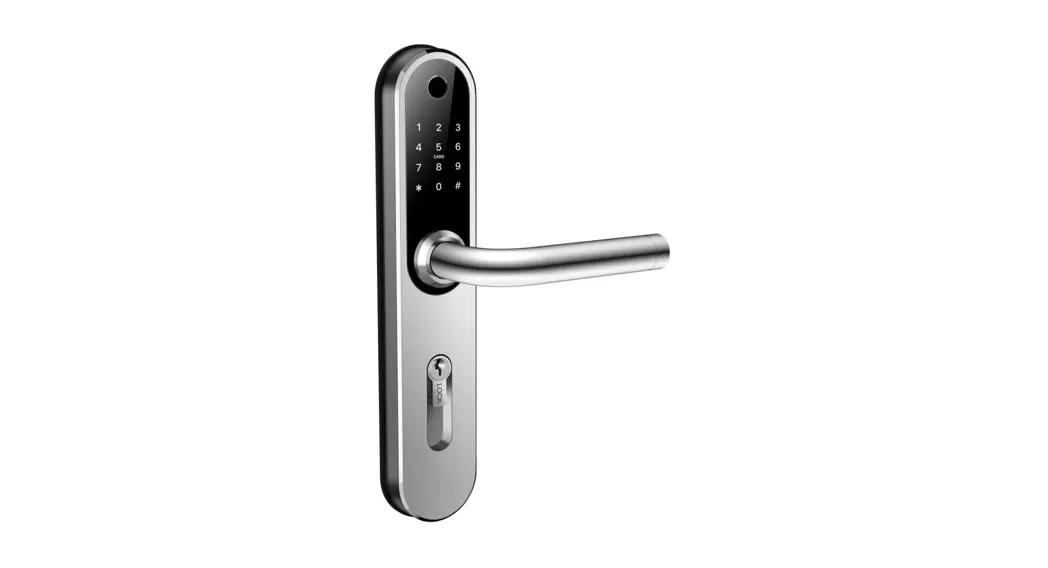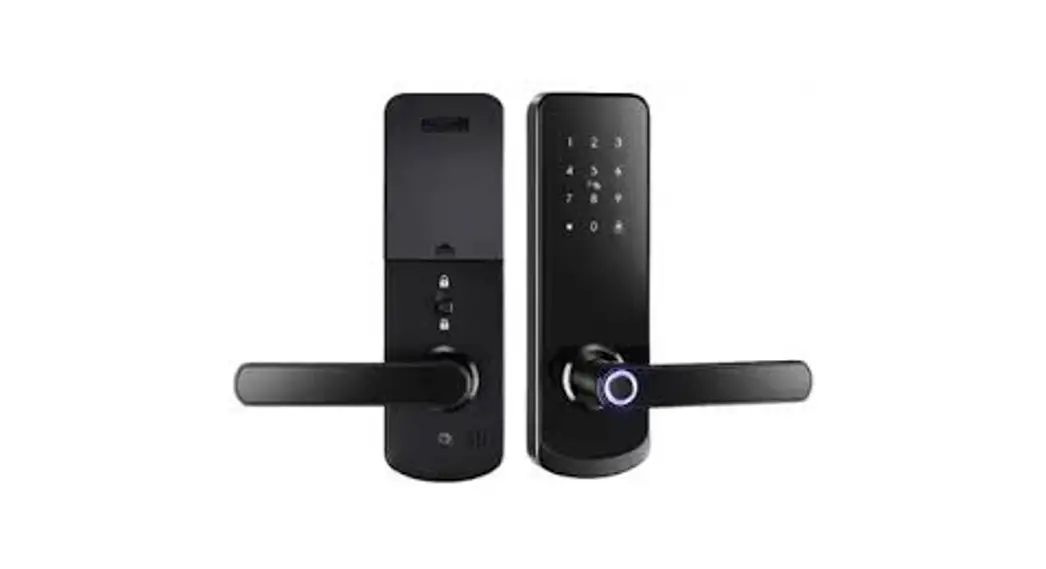

H5-YW Smart Lock
User Manual
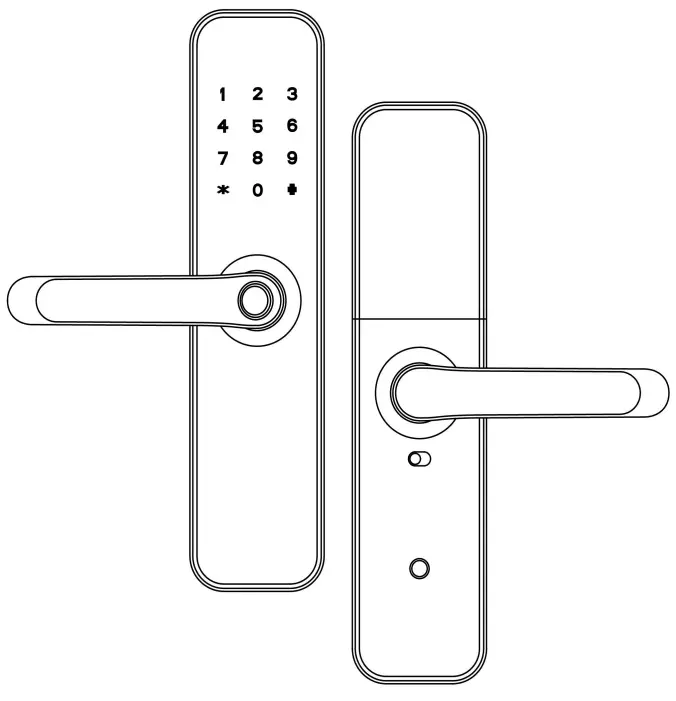
H5 YW Smart Lock
Special Attention:
- Mechanical keys please keep outdoor, just in case keys lock in doors.
- Please replace for the battery when low wattage alarm.
- Reading this manual carefully before installation, and keep it for future reference.
Introduction
1.1.Lock structure
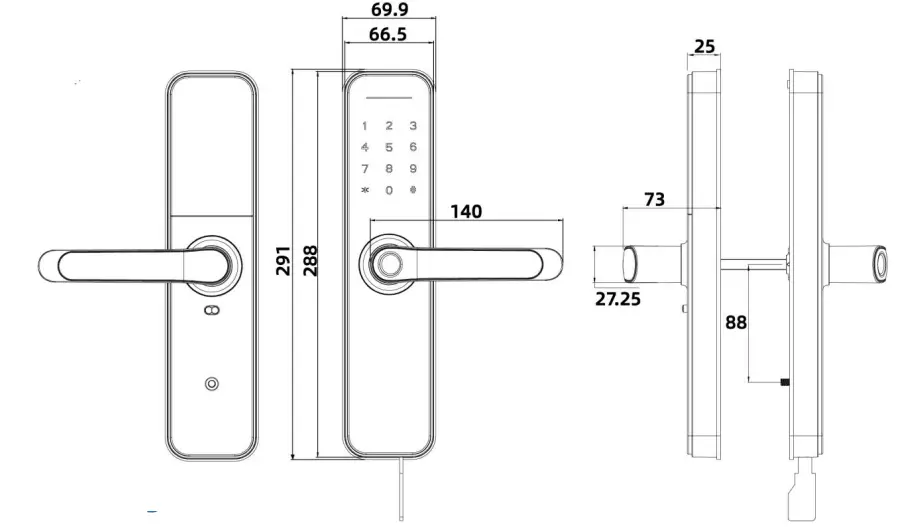
1.2.Packing List Check the following drawing to check whether the package contains all the parts
| NO | Name | Qty | NO. | Name | Qty | |
| 1 | Front Panel | 1 | 10 | Mortise Screws:M5*10mm (For Aluminum Door) | 4 | |
| 2 | Back Panel | 1 | 11 | Mortise Screws:M4*20mm (For Wooden Door) | 5 | |
| 3 | Mortise | 1 | 12 | 60mm Square shaft | 1 | |
| 4 | Card | 3 | 13 | 80mm Square shaft | 1 | |
| 5 | Mechanical Key | 2 | 14 | M5*25mm Screw | 1 | |
| 6 | Waterproof Rubber Plate | 2 | 15 | M5*40mm Screw | 1 | |
| 7 | Screw Stubs:M5*35mm | 2 | 16 | M5*50mm Screw | 1 | |
| 8 | Strike & Strike Box | 1+1 | 17 | User Manual | 1 | |
| 9 | Sliding Screws:M5*11mm | 1 | 18 | U-Clip | 1 |
1.3.Specifications
| Suitable for Models | H5-YW | Doors Applicable | Aluminum door Wooden door |
| Materials | Aluminum alloy | Working Voltage | 6V/4x AA Batteries |
| Lock Weight | 3KG | Door Thickness to Fit | 35-65mm |
| Unlocking Way | WIFI Fingerprint(option) Password Card Mechanical key | Data Capacity | Admin:9 User:291 (Card+Password+Fingerprint:≤ 300,Fingerprint≤100 ) |
| Color | Silver Black | Working Temperature | -10℃-55℃ |
| Low Wattage Alarm | Less than 4.8V | Working Humidity | 0-95% |
Features:
- Semiconductor fingerprint sensor(508dpi)
- Passage mode function
- Voice guided operation
- Auto secure & break-in alarm
- Voice setting function
- Auto locking time setting function
- Privacy locking
- Anti-theft Password
- Emergency power supply through USB
Installation
2.1.Turn the handle
Notice: Adjust the handle according to the direction you open the door.
For Pront Panel
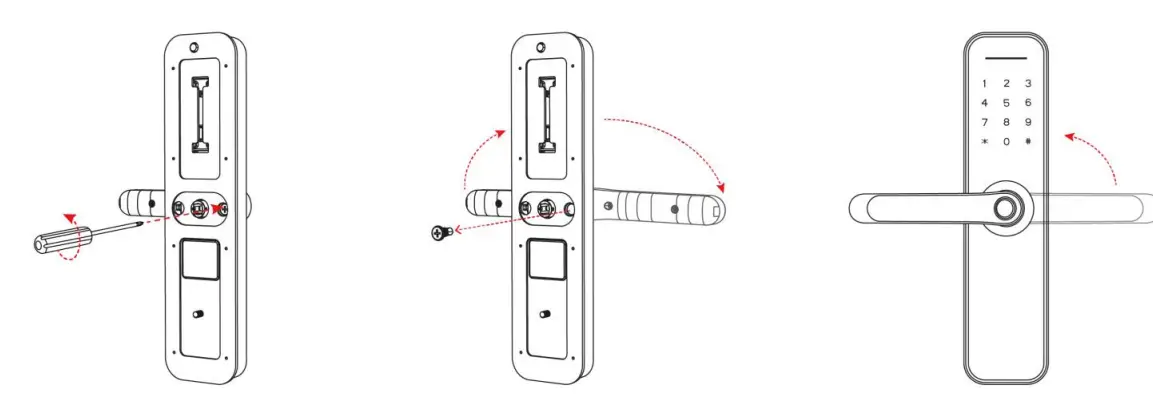 | ||
| 1. Loosen the four screws | 2.Left Open the Handle Toward the Left; Right Open the Handle Toward the Right. | 3.Reinstall the Screw After Adjusting the Direction |
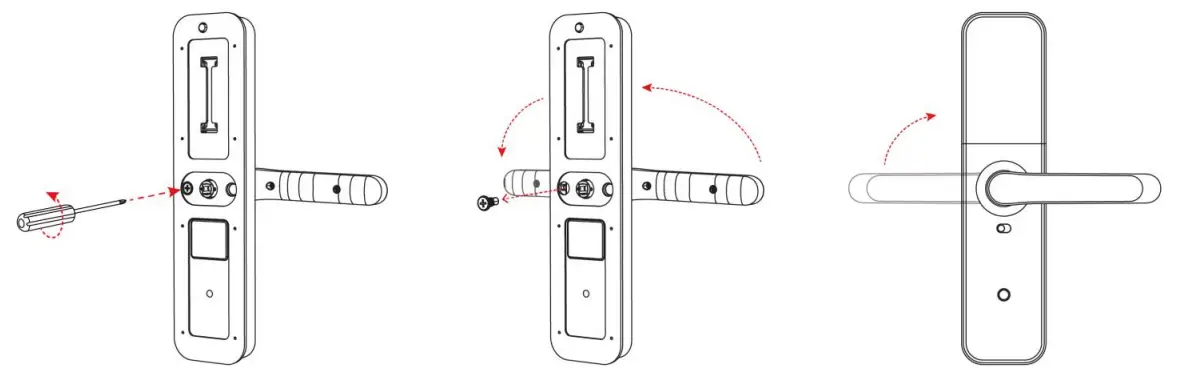 | ||
| 1. Loosen screws | 2.Left Open the Handle Toword the Right ; Right Open the Handle Toword the Left. | 3.Reinstall the Screw After Adjusting the Direection |
2.2. Installation Diagram(For 5572)
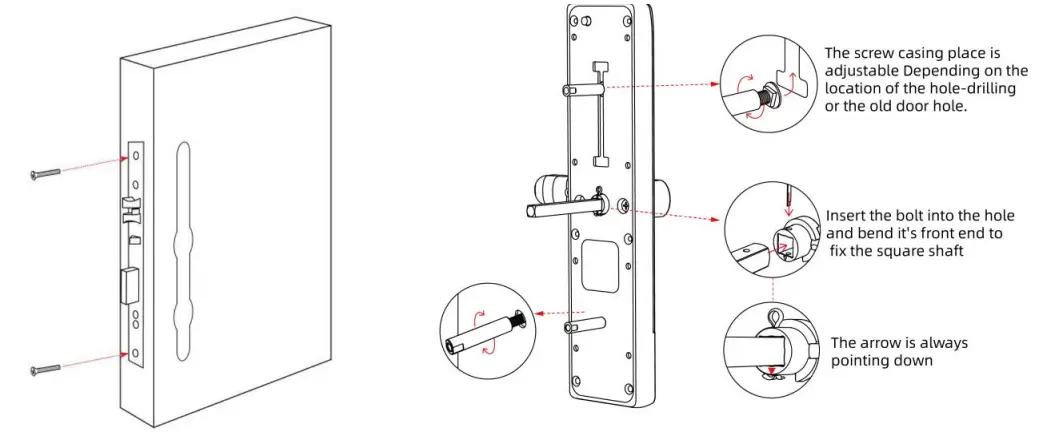 | |
| Step 1 Install Mortise | Step 2 Install Sliding Screw Casing |
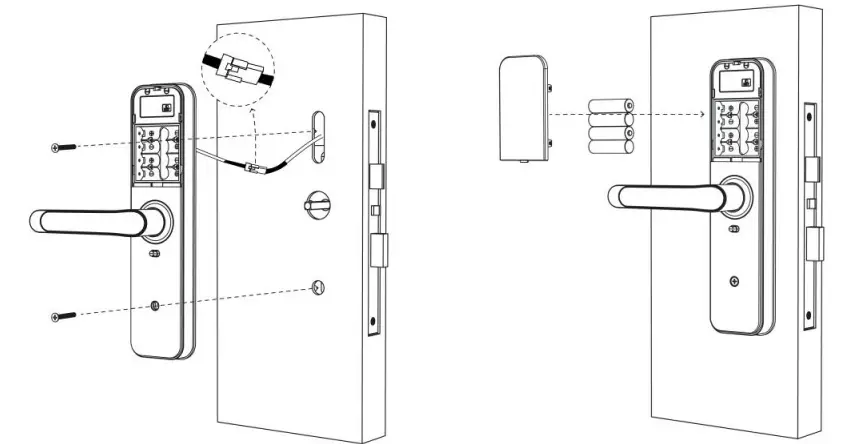 | |
| Step 3 Install Back Panel and link wire | Step 4 Install fixing screws |
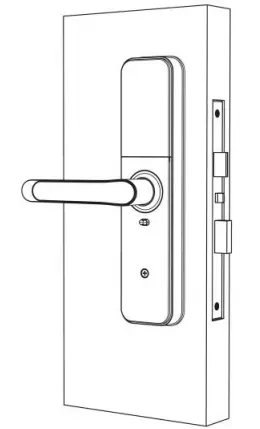 | |
| Step 5 installation complete |
Operation
3.1.Number Pad
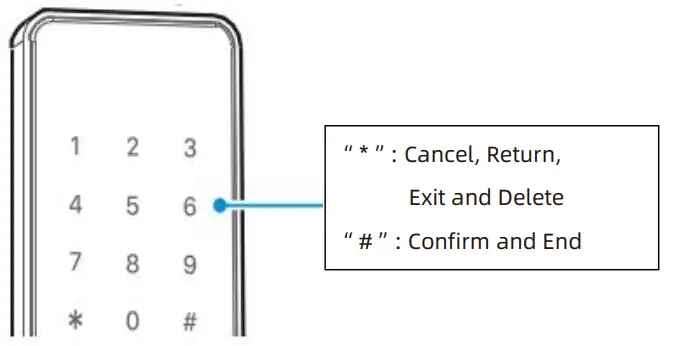
Passage mode :After verifying unlocking, press and hold “0” for 3 seconds and then prompt “the door is passage mode”
3.2.1.Setting Guide
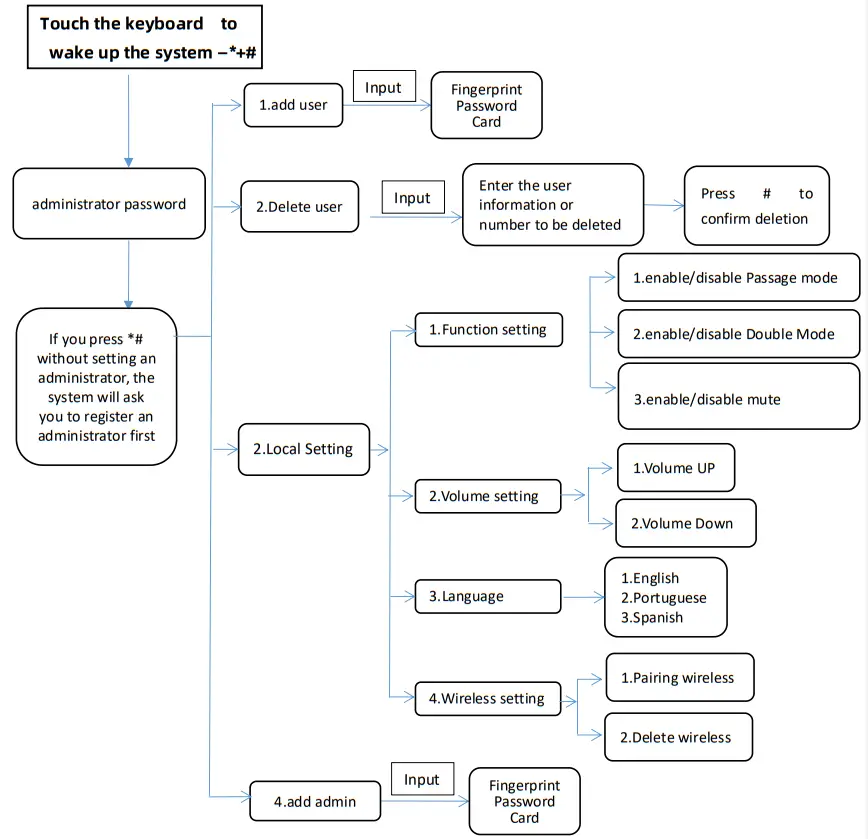
3.2.2.Initialization Mode
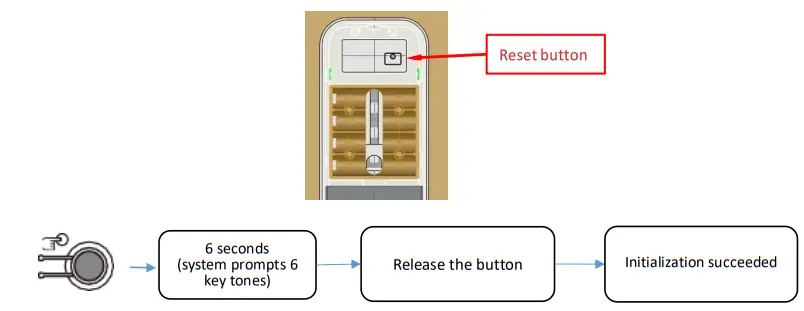
Note:
- Delete by type cannot delete management user information, management user can only be deleted by code.
- Dual user authentication mode requires authentication of two ordinary users. The administrator is not affected by this and can directly unlock the lock. The dual user authentication will not be effective when in initial state.
- The lock can be opened using default code 123456 followed by # in trial mode
- When the voltage is lower than 4.8V, the lock will automatically alarm every time. After the alarm, the lock can be unlocked for 200 times. After the number of times, the delay time of each lock opening will be 2 seconds.
- Keep the lock as close as possible to the wifi router
3.3.Setup code
- How to set Passage Mode(the lock always on “unlock” condition, no need verification. press “0 ” + “#” +Administrator password, Prompt operation succeeded, then Passage Mode come into effect.
- How to set Auto Lock(can be setted by 5S, 10S, 15S, 20S)
press“1” + “#” +Administrator password, then Auto Lock by 5S come into effect.
press“2” + “#” +Administrator password, then Auto Lock by 10S come into effect.
press“3” + “#” +Administrator password, then Auto Lock by 15S come into effect.
press“4” + “#” +Administrator password, then Auto Lock by 20S come into effect.
But if you NOT want Passage Mode, then pls set Auto Lock like above steps.
App operation
4.1.Download

You can search for [ Smart life in various app stores or scan the QR code above to download.
4.2.Register
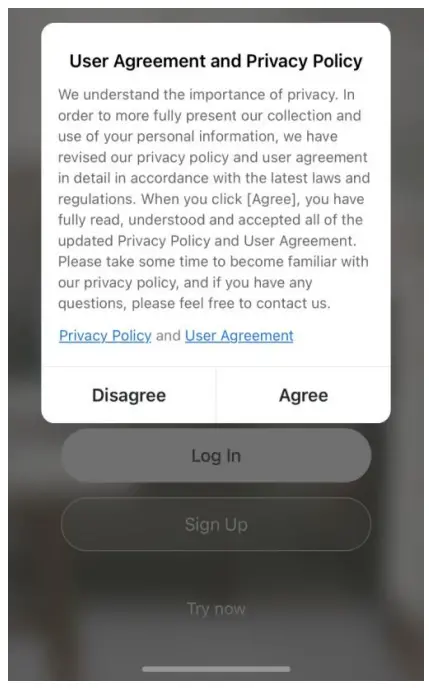
- Click “Sign Up”and read the Privacy Policy after it pops up. Click “Agree” and enter the registeration page.
- You can use email or mobile number as your account to register. The country/region of the APP will be the same as the phone’s. You can also change it by yourself when registering.(You cannot change the country/region after the registeration). Enter mobile number/email and click”Get Verification Code”;
- Enter the verification code and turn to the password setting page. Set your password as required and click “Done”.
4.3.Log in
If you already have an account,choose “Register with Existing Account”and enter the log in page.
- The system will automatically locate the current country/region you are in. Or you can choose the country/region by yourself.
- Enter mobile number/ email and password.
-Thirdy-party Social Account Log in.
If you have downloaded We chat or QQ on your phone, you can click the Wechat/QQ icon in the log in page. You can log in using your wechat/QQ account after authorizing it.If you are using iPhone,you can also log in with Apple ID.
4.4.Using the APP
4.4.1. Add Lock
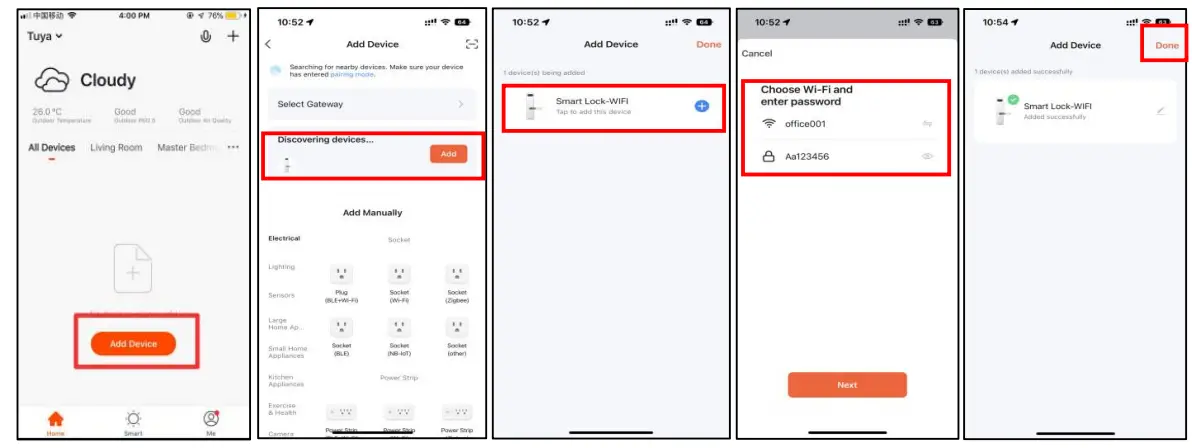
- Tap Add Device on the Home page or + in the upper right corner of the page to go to the Add Device page. Currently, you can manually add devices or search for devices to add to the app.
Attention:You should be add admin first!!!
- :After pressing “*” + “#” to verify the administrator, enter the Network config , The numbers starts flashing
- As shown in the figure, the mobile app connects the lock. Select the wifi door lock, enter the wifi password and connect the door lock(It can only connect to 2.4G WiFi)
- Adding success: the voice prompt “successful”
- Adding Failure: The keyboard light No. 5 on the keyboard is not lit, and the timeout voice prompt “failed”
4.4.2.Remote unlock
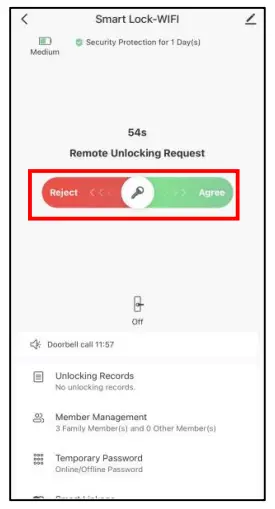
- Click on the APP homepage to enter the corresponding door lock page
- Door lock keyboard press “ # ” Request remote unlock picking
- The mobile APP will receive the application information, and Slide to unlock
4.4.3.Online Password Function
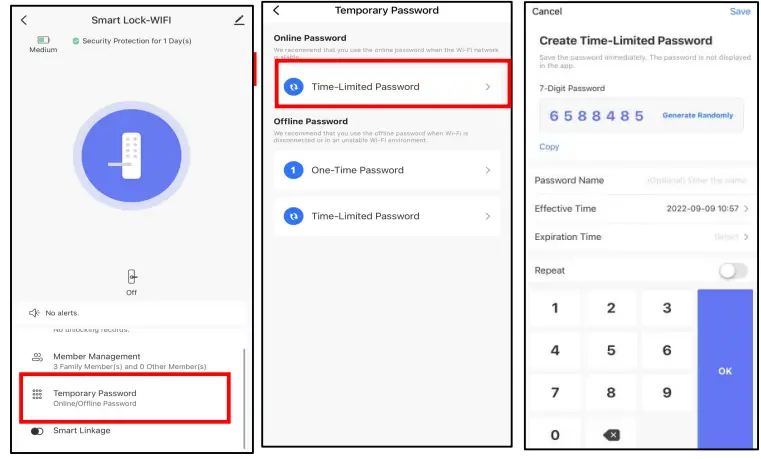
When the visitor visit your office or home, you can generate the temporary password with valid time period, refer the below operation step. Also you can check the unlock record in the APP window.
4.4.4.Offline Password Function
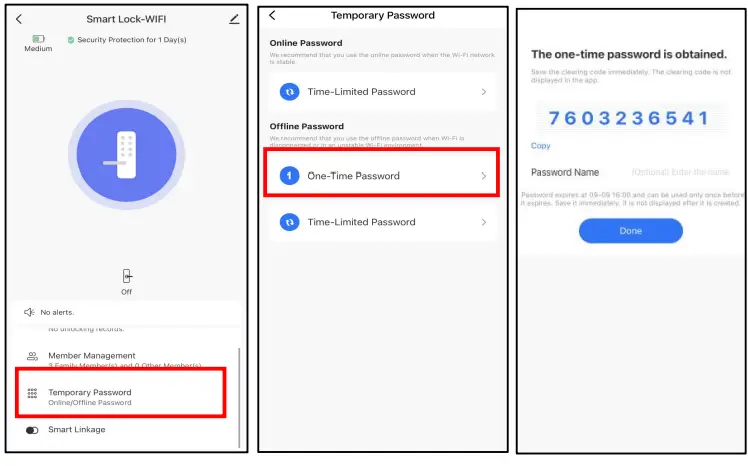
There is one-time password and time-limited password for offline type passwords.
you can choose to generate the one-time password like below,.
it is only valid for 6 hours, and time-limited password within 24 hours before it expires.
please use this password on the lock before it expires.
4.4.5.Alarm
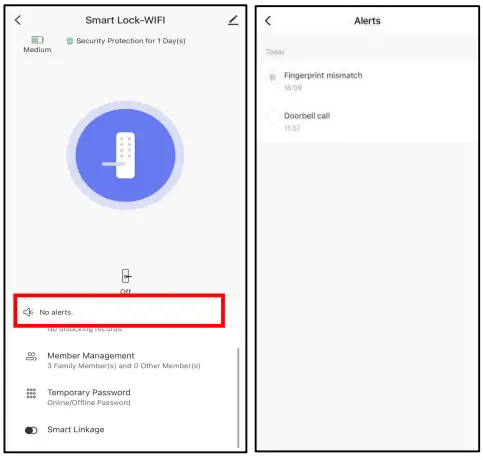
Automatically report after an alarm occurs. The report types include: doorbell call, tamper-proof alarm, low-voltage alarm,and Validation error alert
4.4.6.User Management
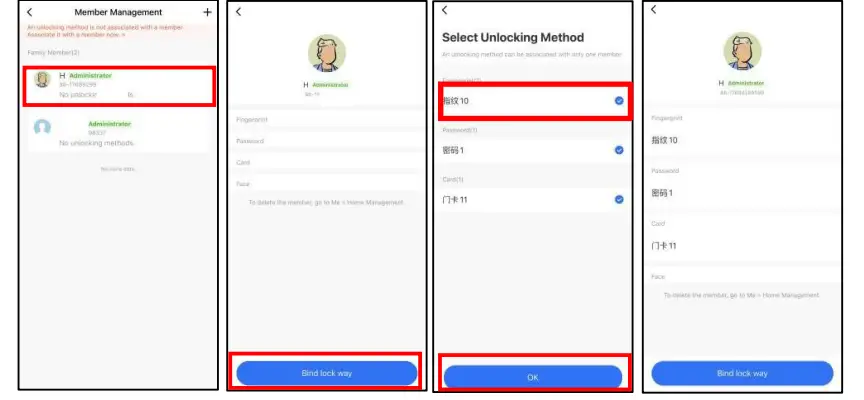
- Click on the added user, you can edit the corresponding user opening information of a user
- The lock and the app are synchronized through cloud information: Select the lock opening information that has been synchronized to the cloud and bind it to the user name. When you open the lock in this way later, the lock opening record of the APP will show the lock opening of this user, But if the user information is deleted on the APP, the user can still open the door, and it must be deleted on the lock to be effective
4.5.Electronic Locking Button
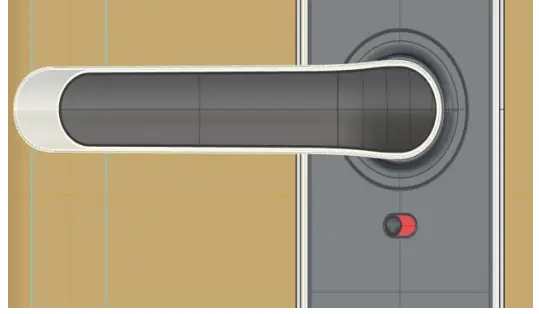
When you pull the button to “red” status, the lock was on “Locked” status. And it can be opened from outside, only by Master Admin . Other unlock ways, when you try to unlock, it will voice out ” the lock was locked”. To disable this function, you need pull the button to “green” status, to release the “Locked” status.
FAQ
– In the Records of the main interface. .
– You need to perform an unlock verification in any method, than the passage mode will take effect.
– You can set how long to lock after unlocking
– a) In this case, first check that the positive and negative electrodes of the battery have been installed upside down, whether the battery has enough power
b) Remove the back panel and see if it’s connected.
c) To eliminate the above situation, you need to remove the lock ,check whether the wires of the lock body are squeezed, and the re-wire.
– Check the fingers for dirt or wear, check the fingerprint head on the lock for dirt and oil stains, etc. Check to see if the fingerprint is working properly(Press to see if there is any responds.
– a) Large standby power consumption
b) Short circuit
– It may be the triangle direction on the clutch was error, please check correction.
– Enter the wrong password more than 5 times in a row, the keyboard is locked for 90 seconds
Guarantee
Customer Name :……………….
Customer Calls :……………….
Purchase Date :……………….
Product Name :……………….
Product Model :……………….
Note:
- Please keep this card so that you can use it when you need warranty service.
- We provide you with a one-year warranty from the date of purchase.
- This warranty service is valid for customers in any country in the world.