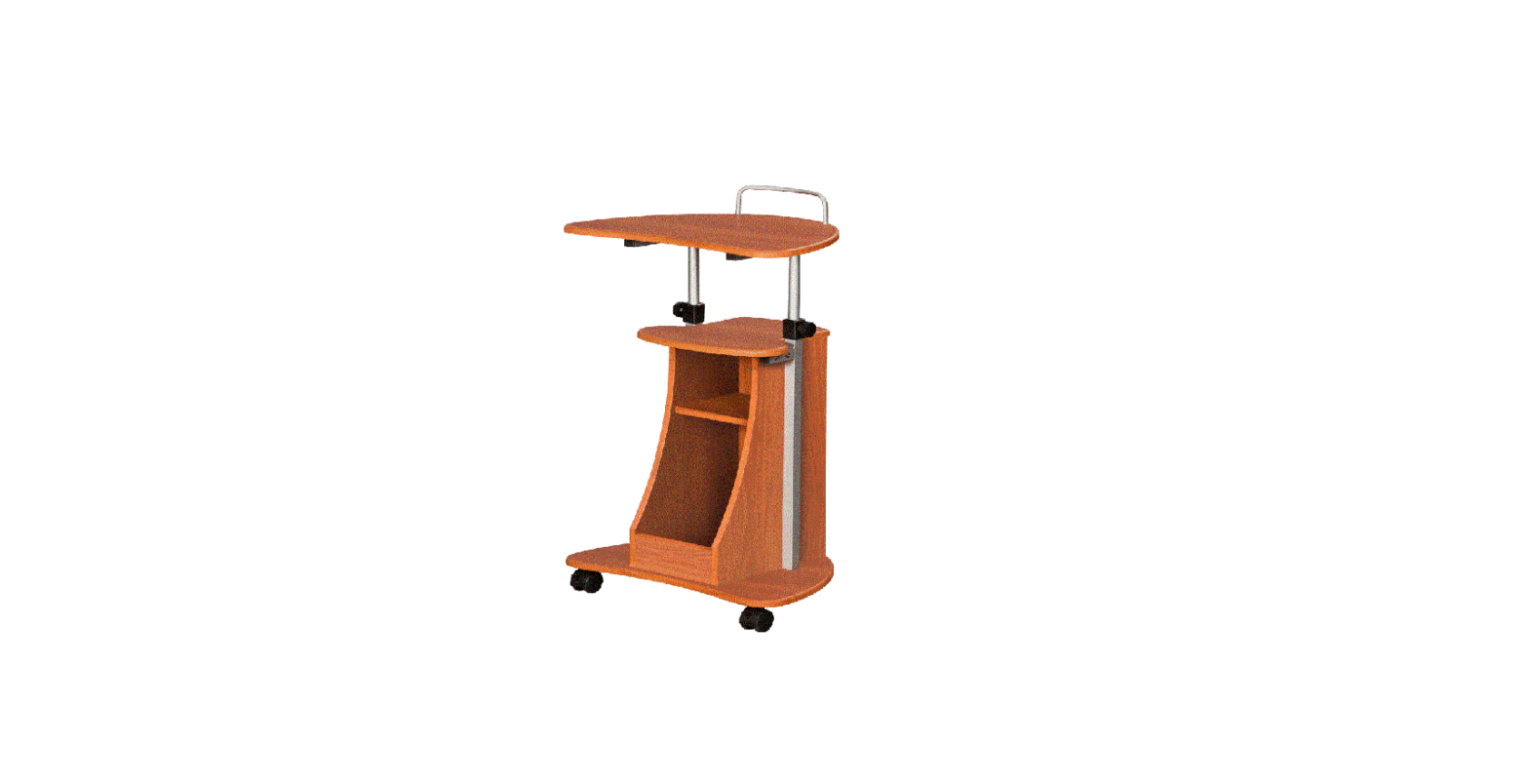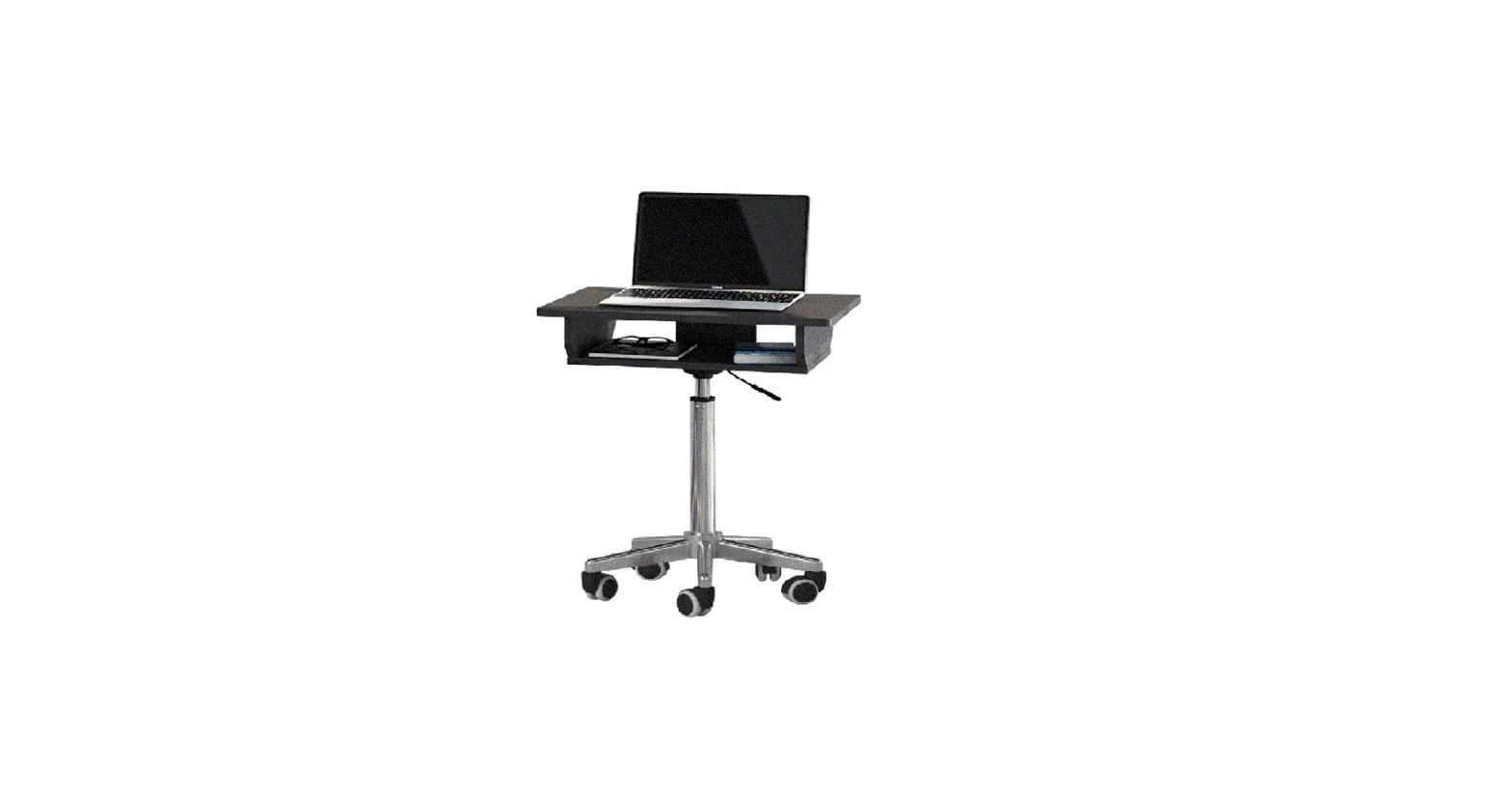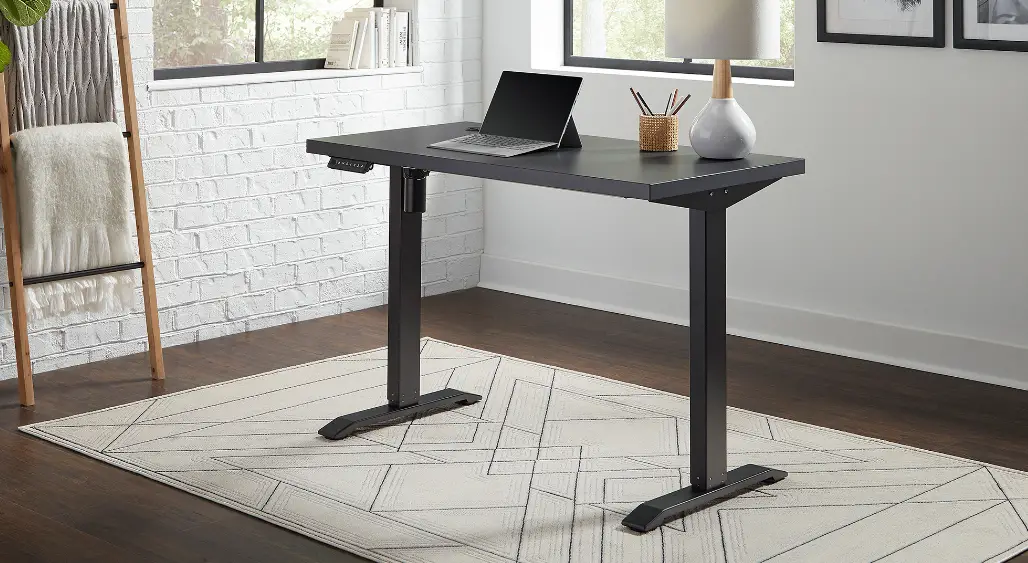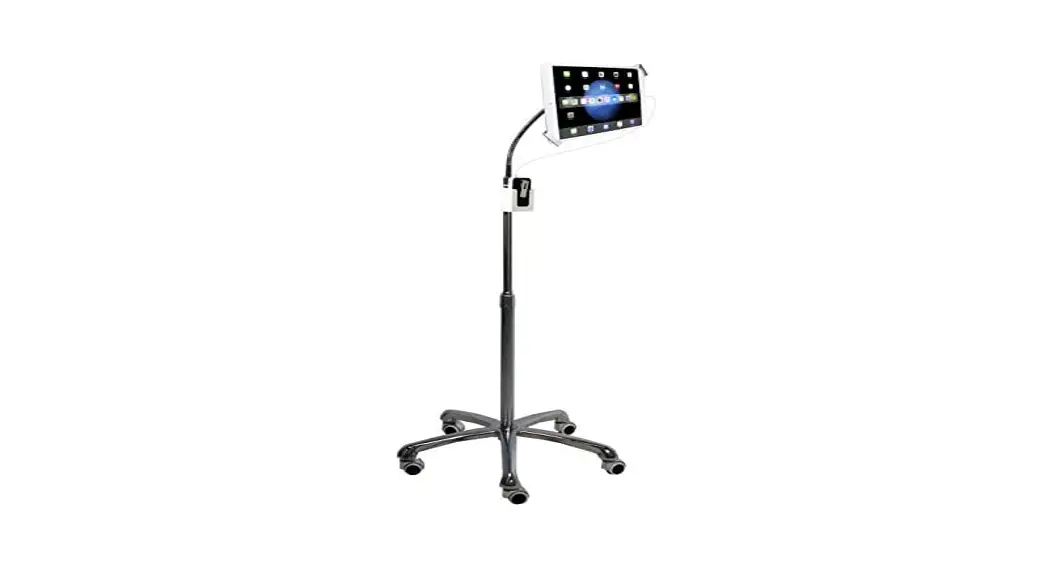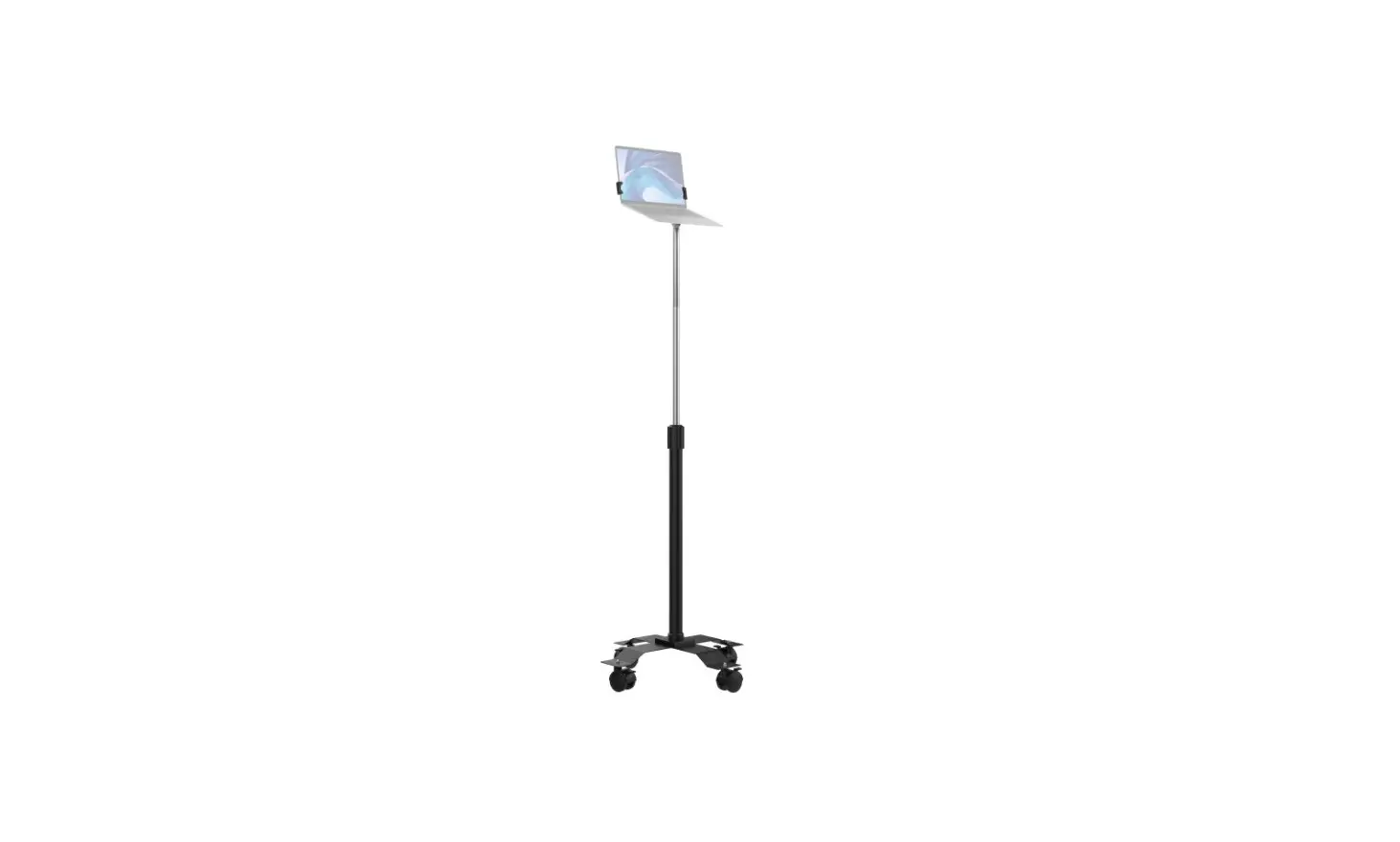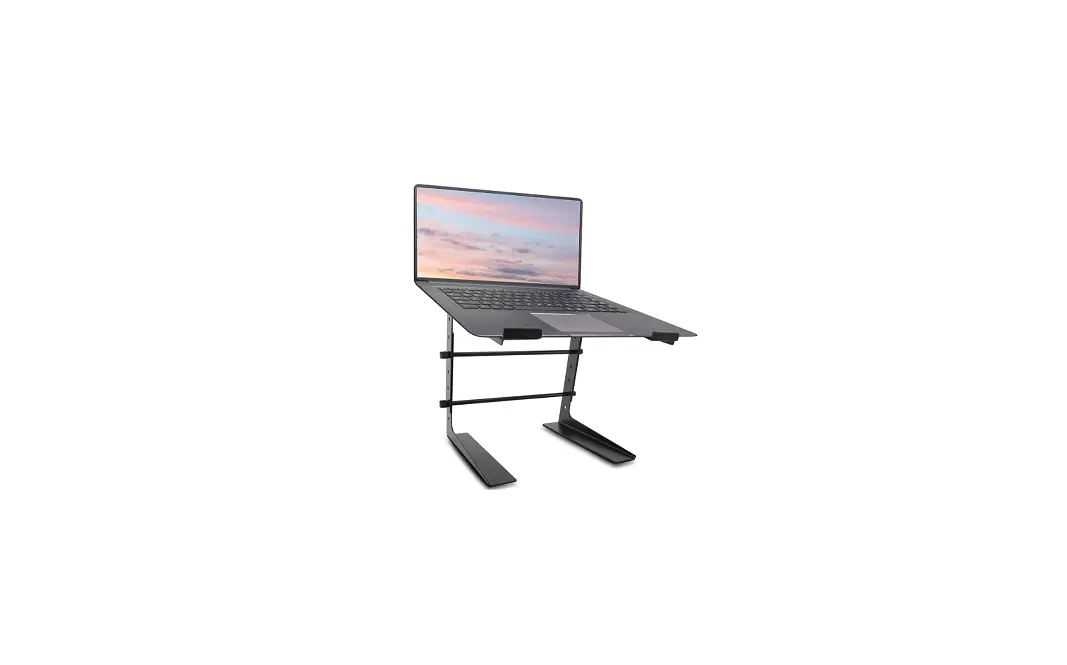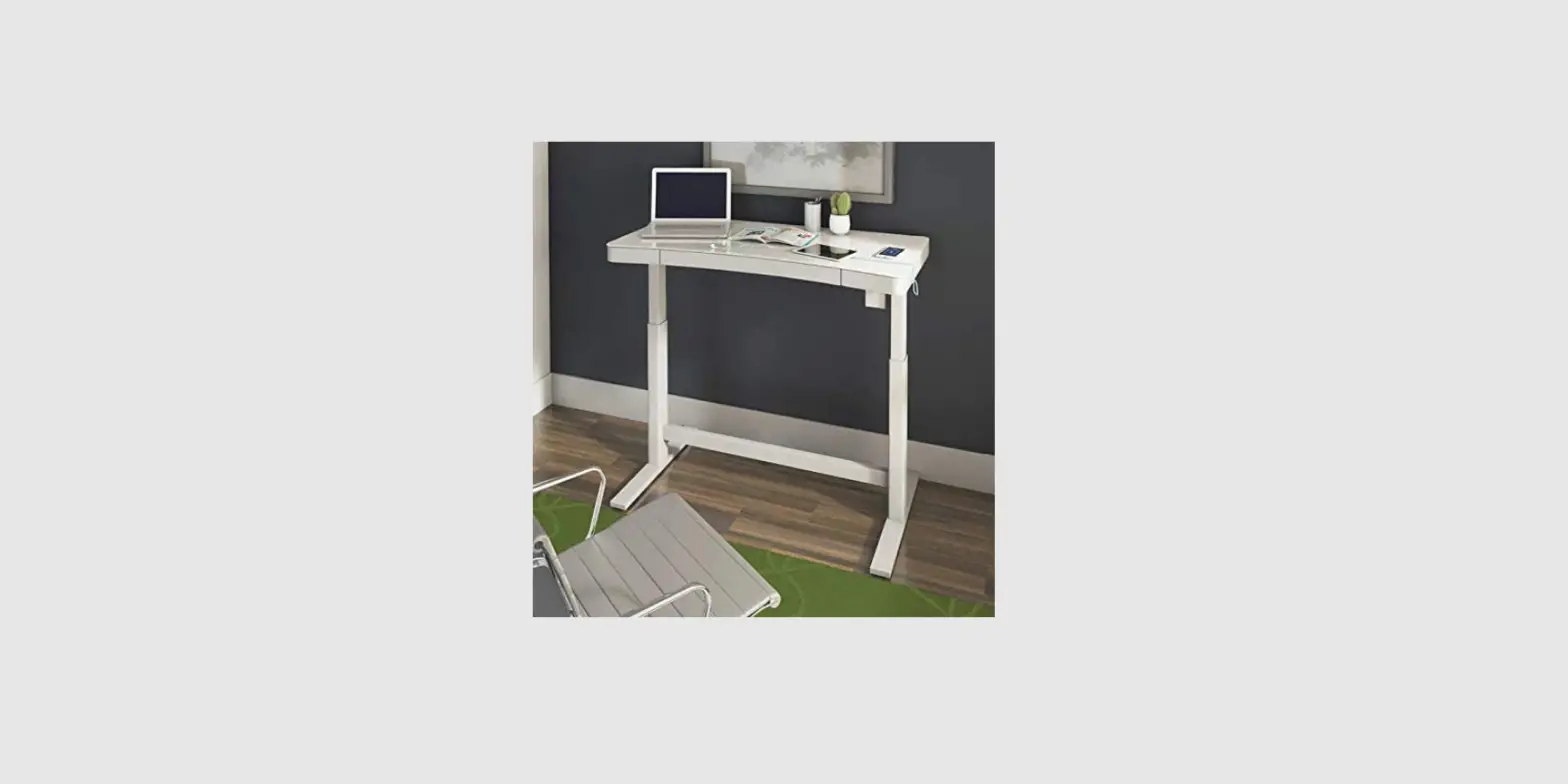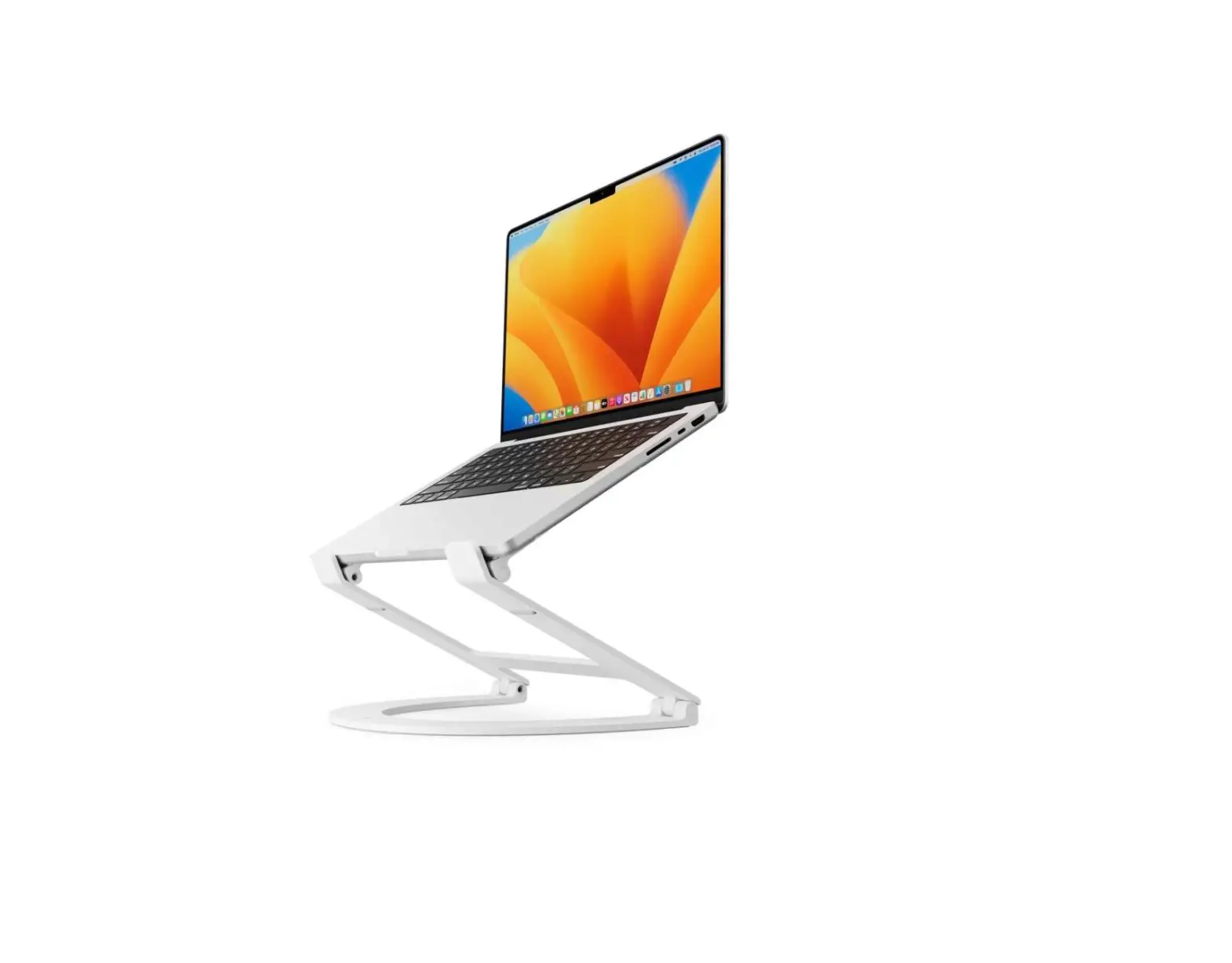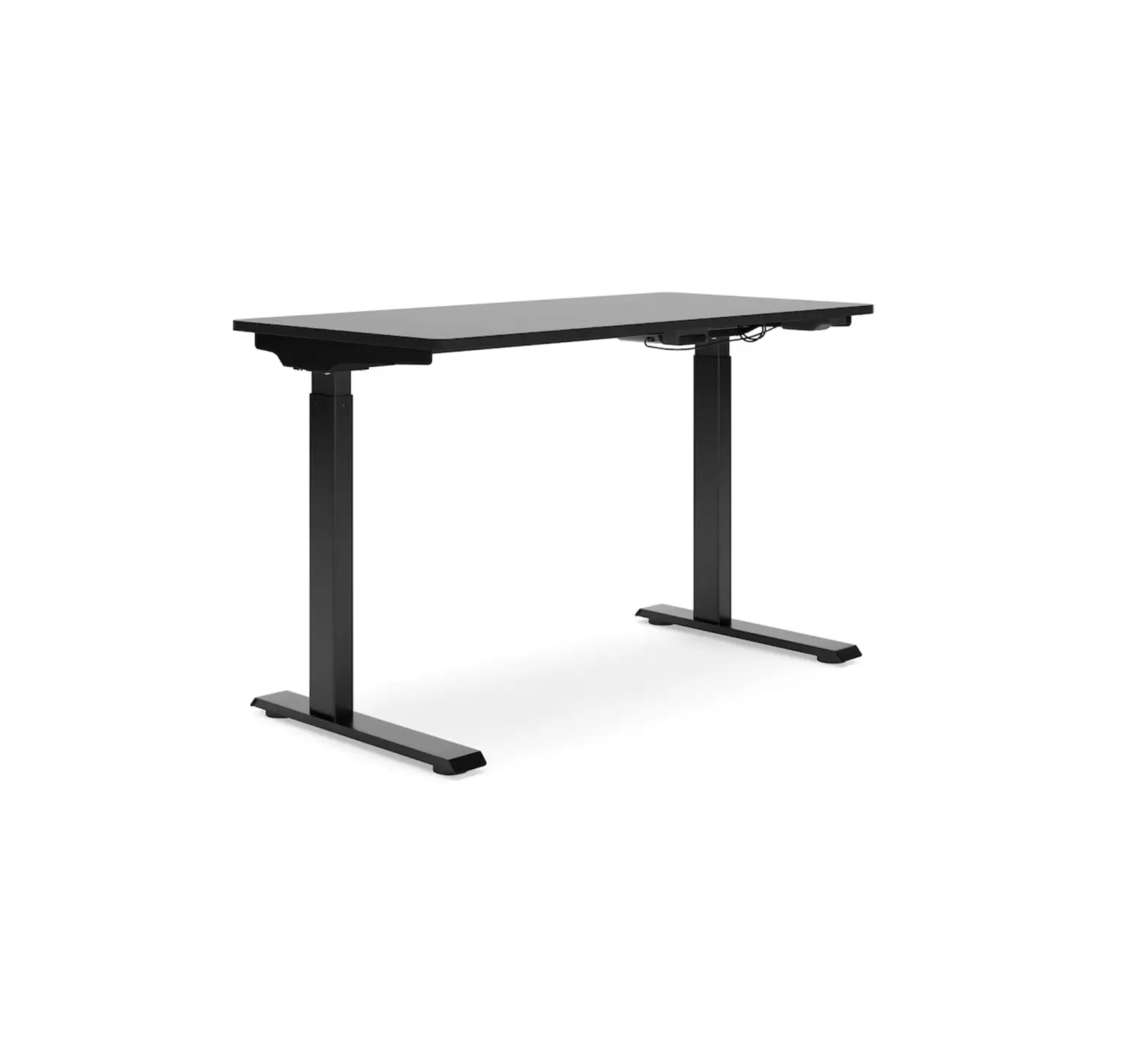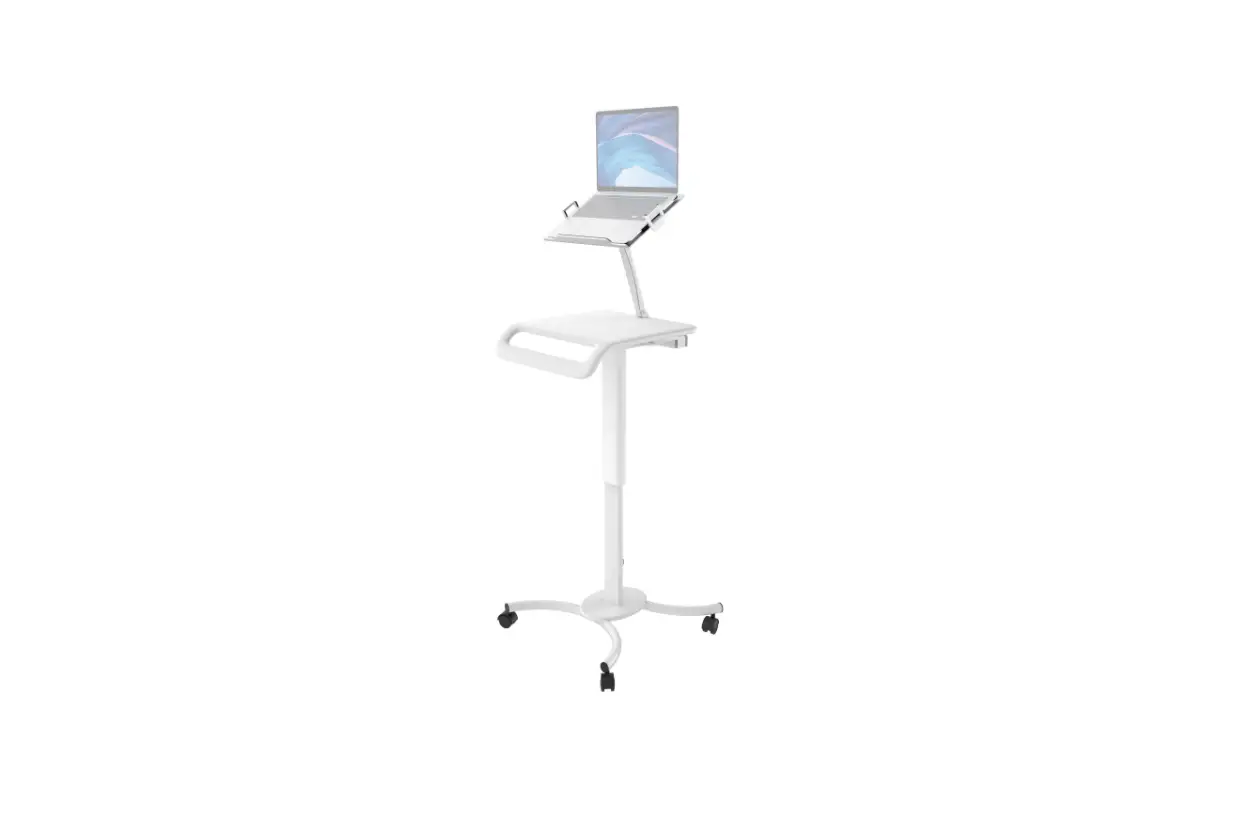
 CTA QPAD-HRSWLT Height Adjustable Rolling Workstation Cart with Laptop Holder
 CTA QPAD-HRSWLT Height Adjustable Rolling Workstation Cart with Laptop Holder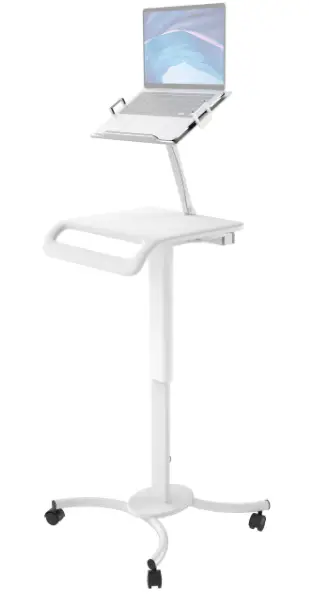
Product Information
Height-Adjustable Rolling Workstation Cart with Laptop Holder
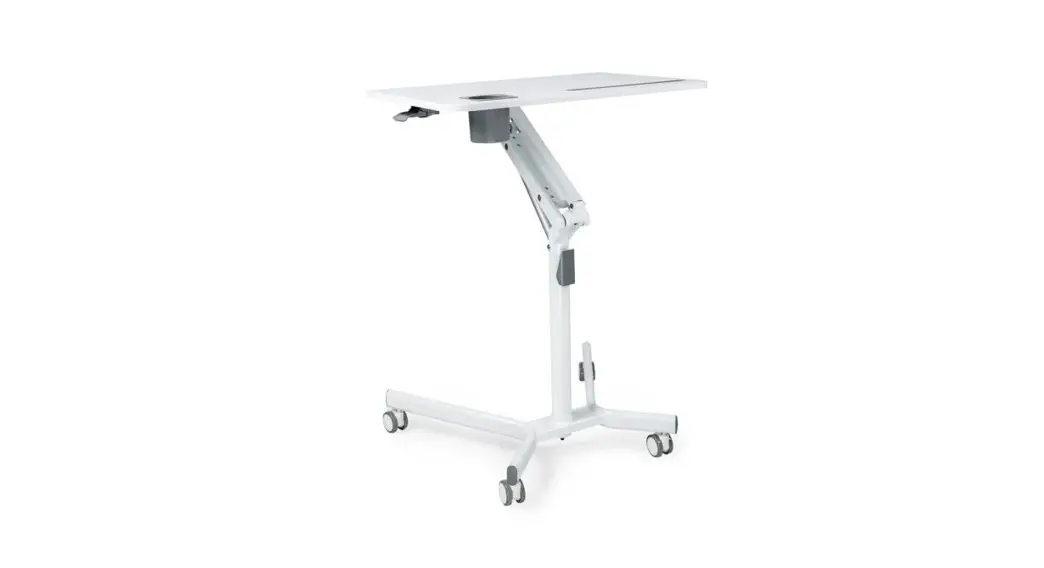
The Height-Adjustable Rolling Workstation Cart with Laptop Holder is a portable workstation that allows you to work while standing or sitting. It is equipped with wheels for easy mobility and an adjustable arm that holds your laptop securely in place. The cart also has a cable routing system to keep your cables organized and out of the way.
Package Contents
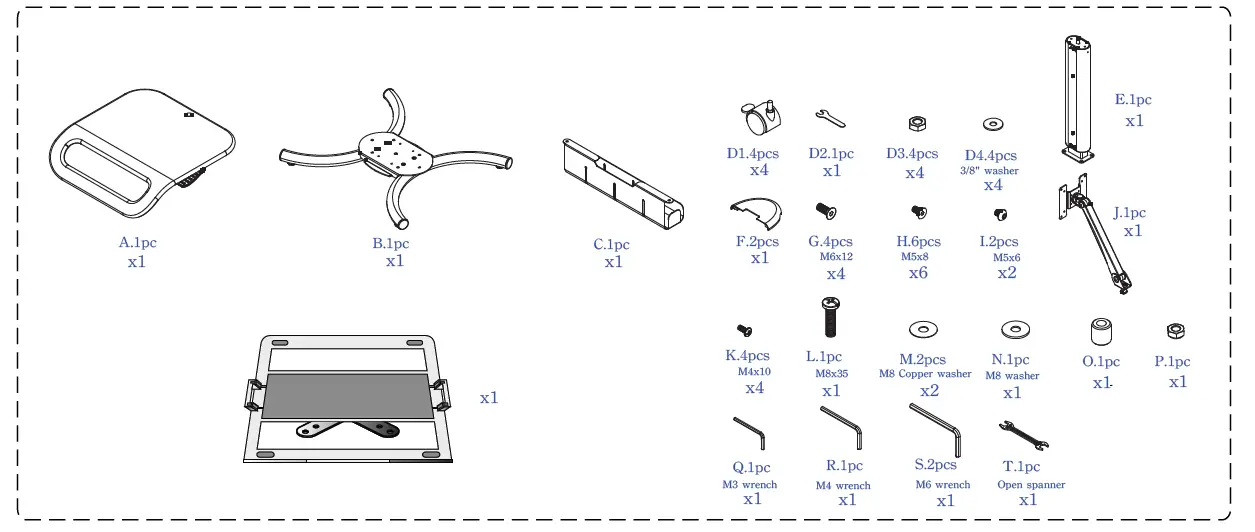
- A – Floor Stand (1pc)
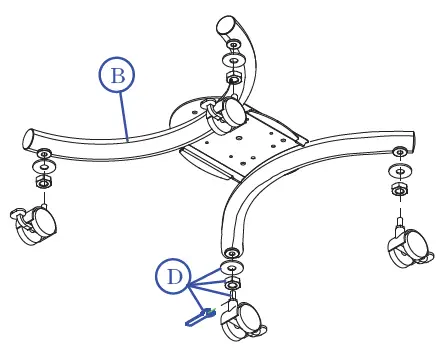
- B – Wheels (1pc)
- C – Base Cover (1pc)
- D1 – Screws (4pcs)
- D2 – Accessories Holder (1pc)
- D3 – Washers (4pcs)
- D4 – 3/8 Washer (4pcs)
- E – Table Arm (1pc)
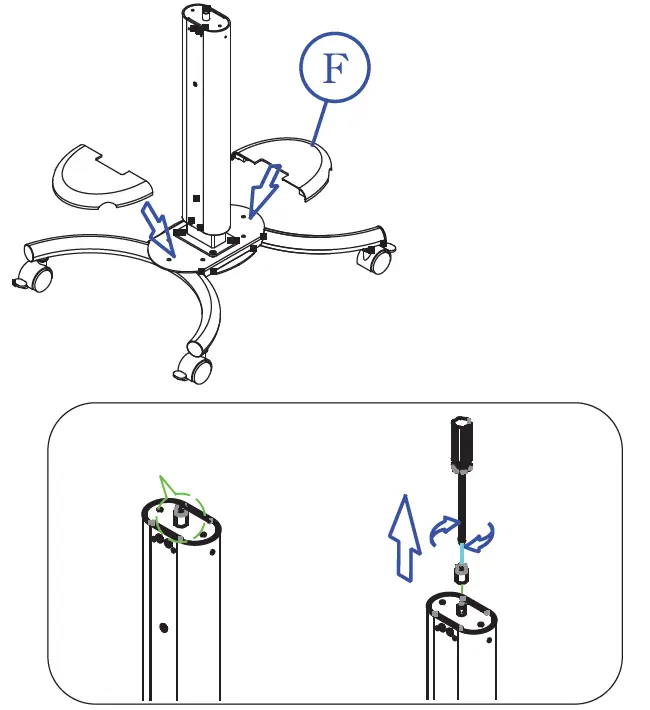
- F – Laptop Holder (2pcs)
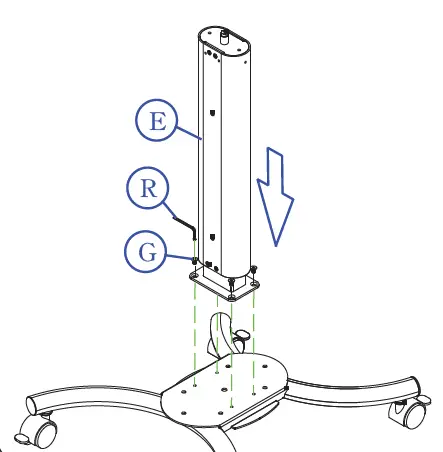
- G – M6x12 Screws (4pcs)
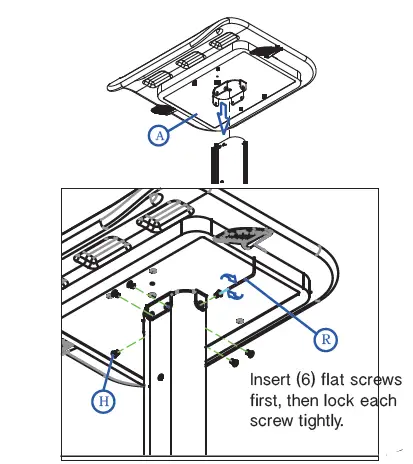
- H – M5x8 Screws (6pcs)
- I – M5x6 Screws (2pcs)
- J – M4x10 Screws (4pcs)
- K – M8x35 Screw (1pc)
- L – M8 Copper Washer (1pc)
- M – M8 Washer (2pcs)
- N – M3 Wrench (1pc)
- O – M4 Wrench (1pc)
- P – M6 Wrench (2pcs)
- Q – Open Spanner (1pc)
Product Usage
Setting up the Floor Stand:
- Insert and tighten the wheels.

- Line up and screw in the body using D1 screws.

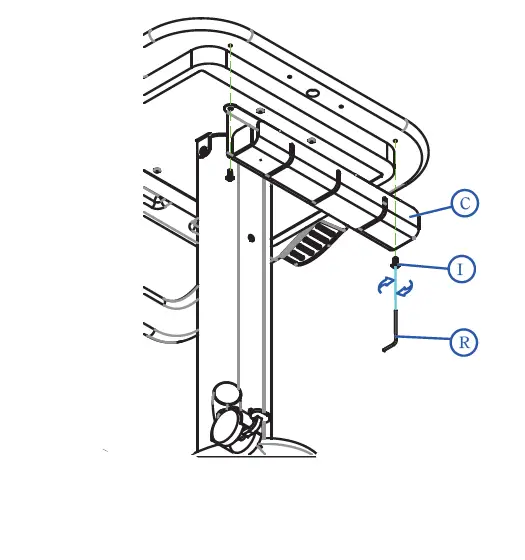
- Attach the base cover using D3 washers and D4 3/8 washers. If necessary, add nuts and washers to level the base.

- Line up the tray with the body
- Insert and tighten screws using H screws.

- Screw in the accessories holder using J screws.

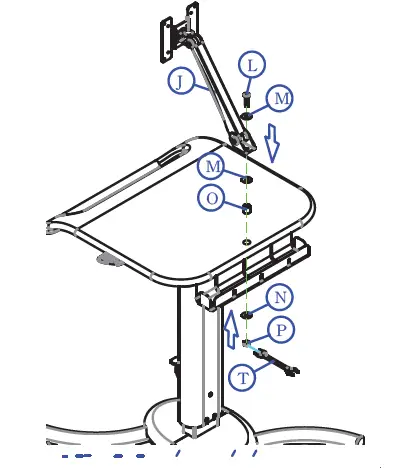
- Install the arm, screws, washers, and accessories as shown using L, M, N, O, P, and Q screws.

Attaching Holder to VESA
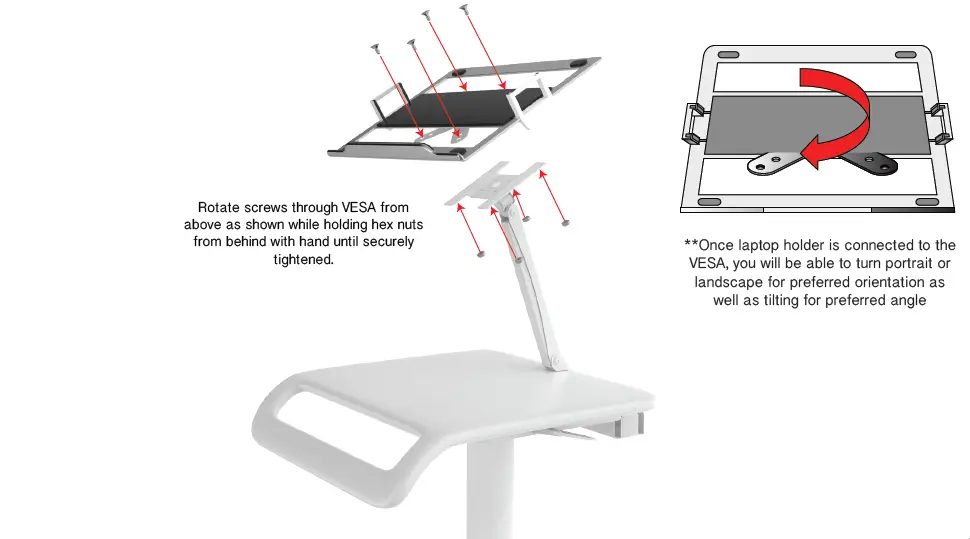
Rotate screws through VESA from above as shown while holding hex nuts from behind with your hand until securely tightened.
Once the laptop holder is connected to the VESA, you will be able to turn portrait or landscape for the preferred orientation as well as tilt for the preferred angle.
Adjusting Floor Stand Height: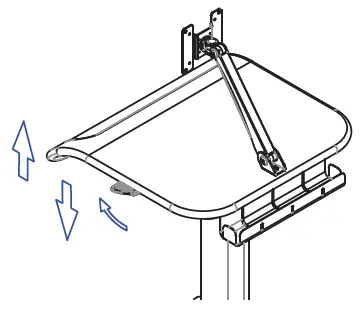
Press the lever to adjust the height of the floor stand according to your preference.
Cable Routing
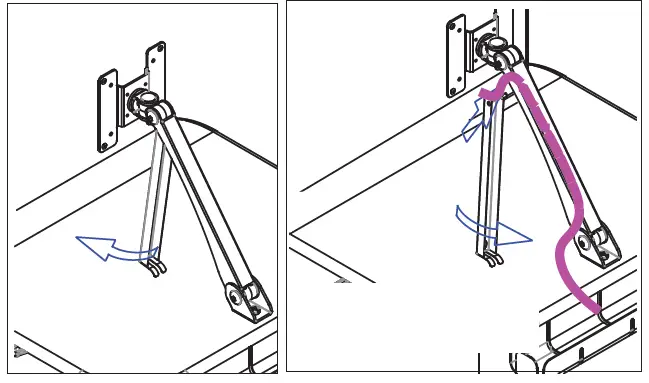
To route, the cables, detach the cable tray cover. Align the cable to the device and along the neck down to power surge. Replace the cable tray cover as shown.
Adjusting Table Arm
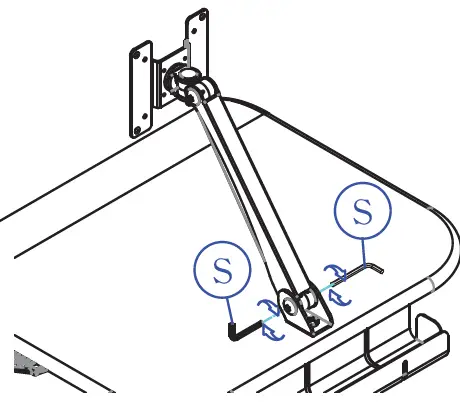
Using the provided tool, loosen the joint as shown to adjust the arm. Rotate opposite direction to tighten once the arm is adjusted to the preferred position.
Inserting Laptop
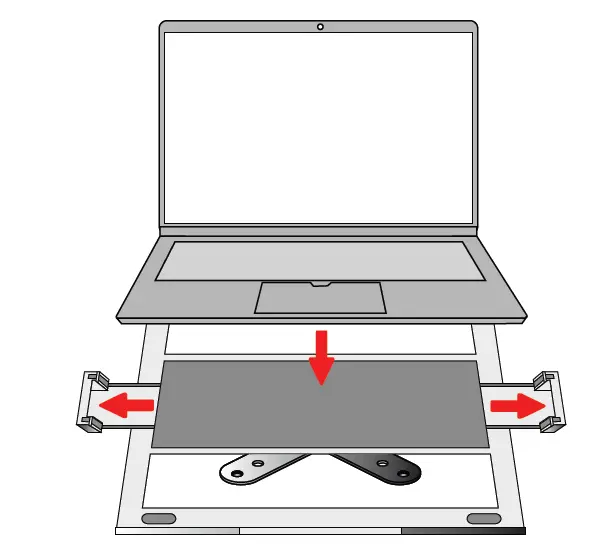
Sliding open the arms of the plate, place the laptop in position then release the holders to grip the laptop in place.
36 Taatte Place Brooklyn, NY 11205
[email protected] www.ctadigital.com