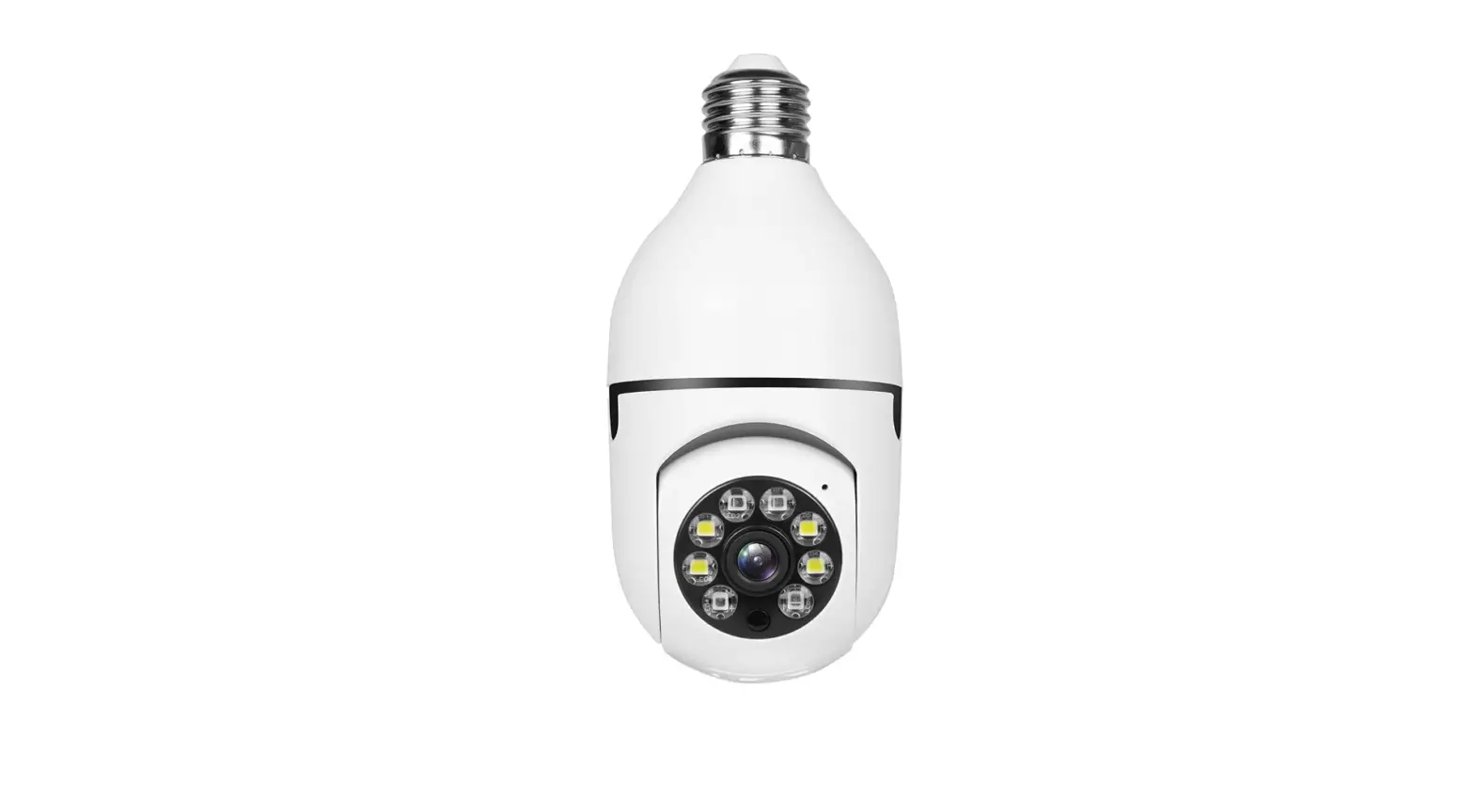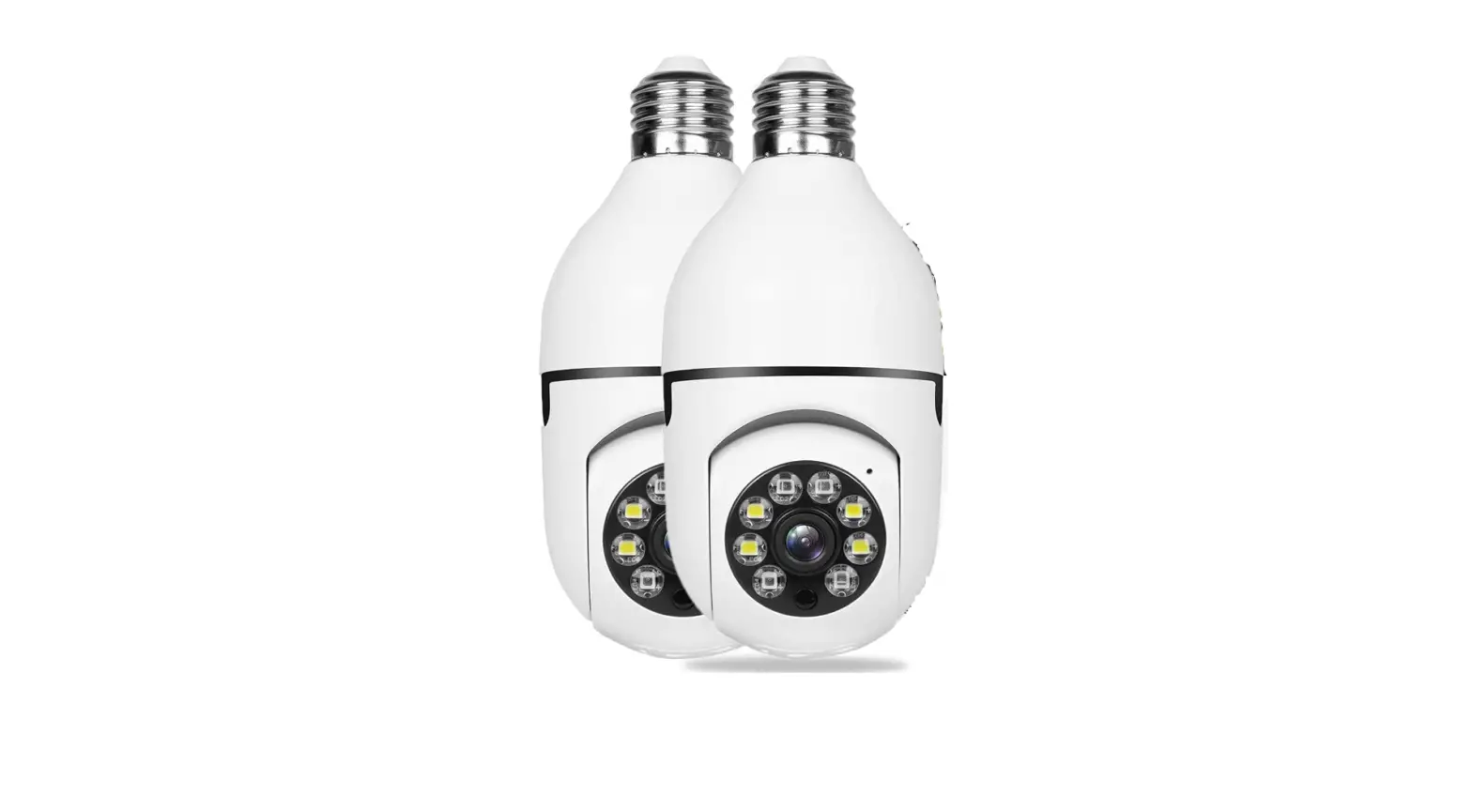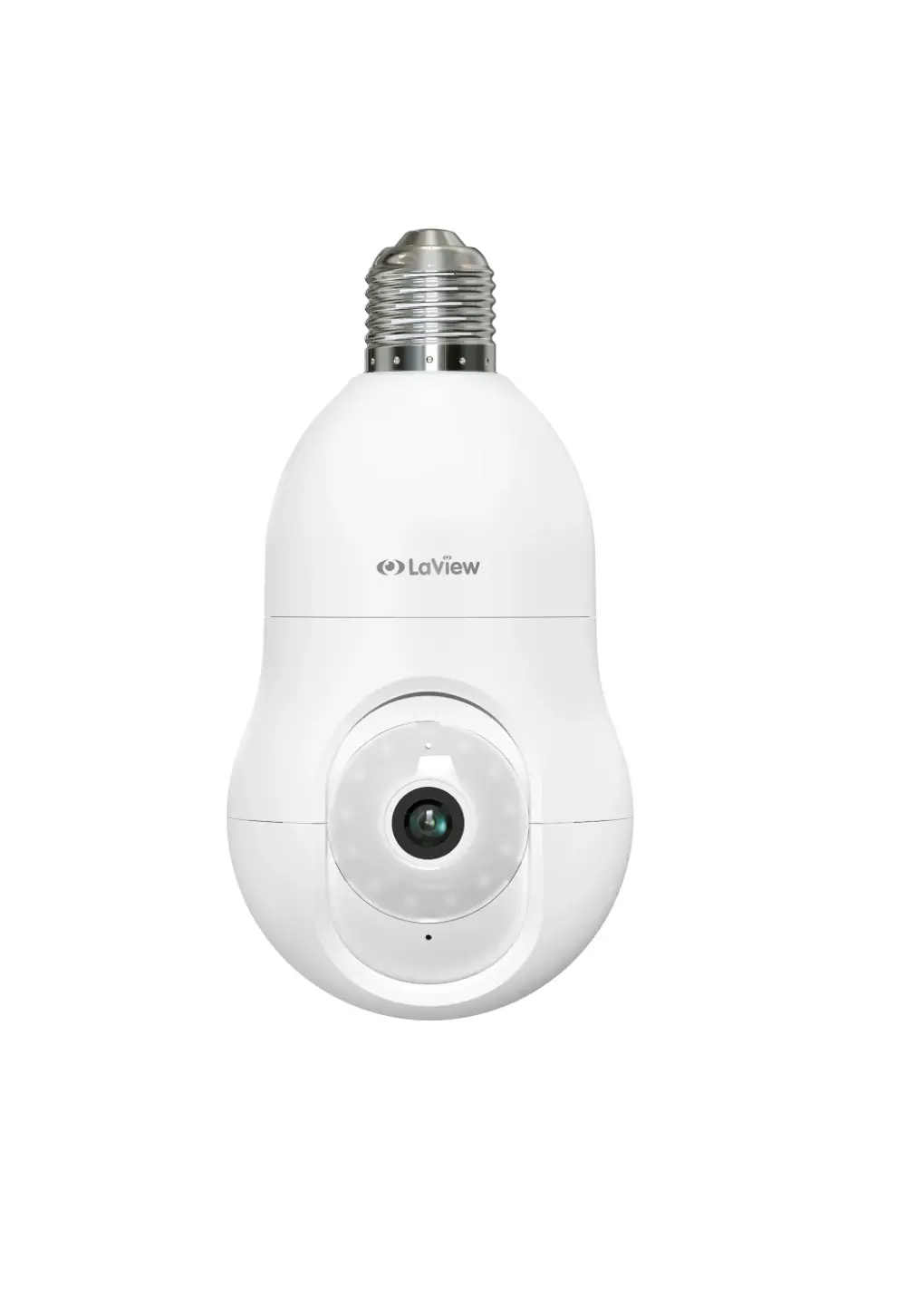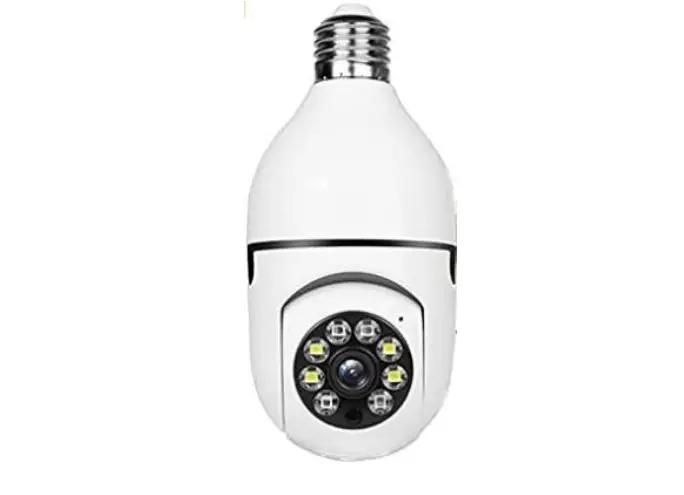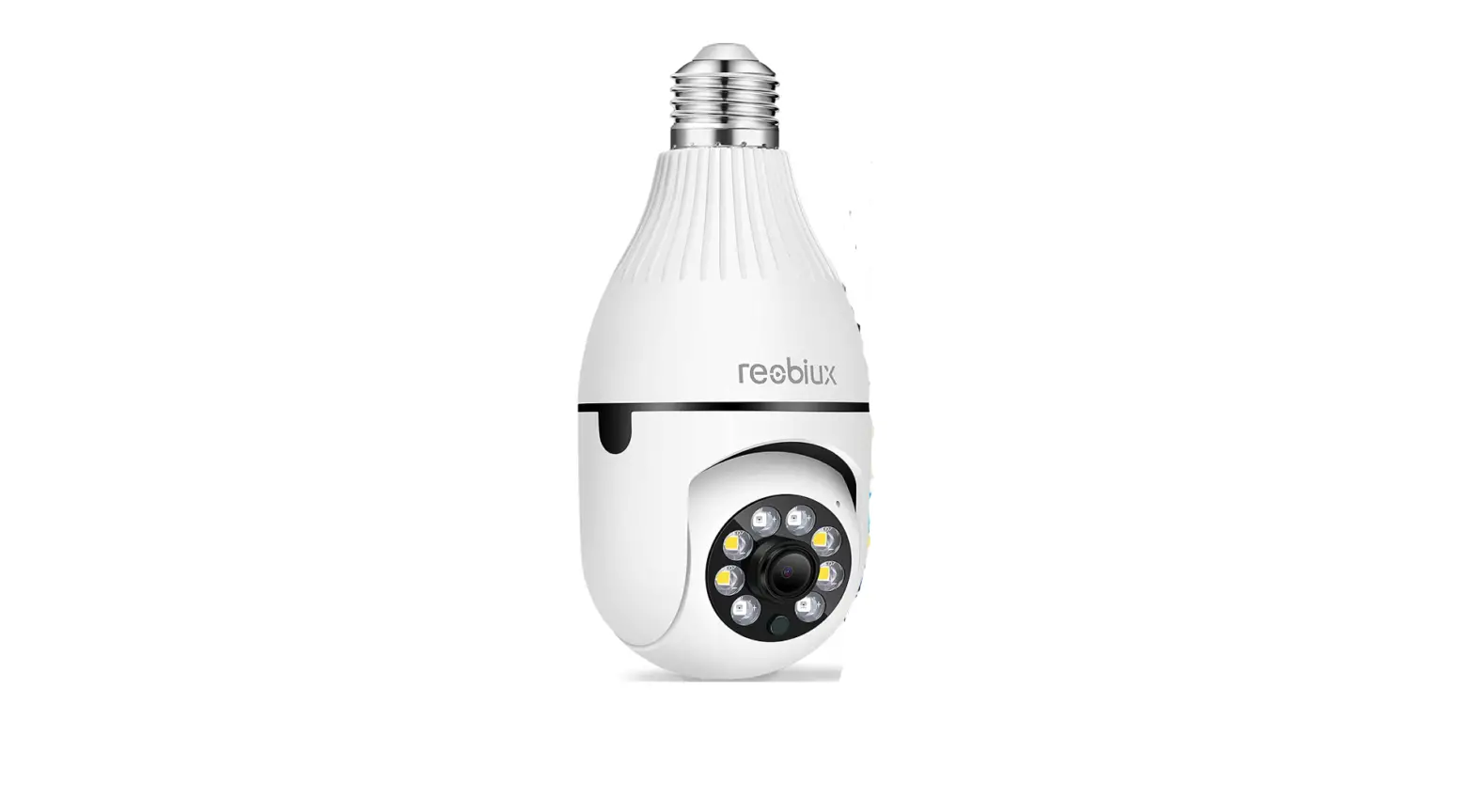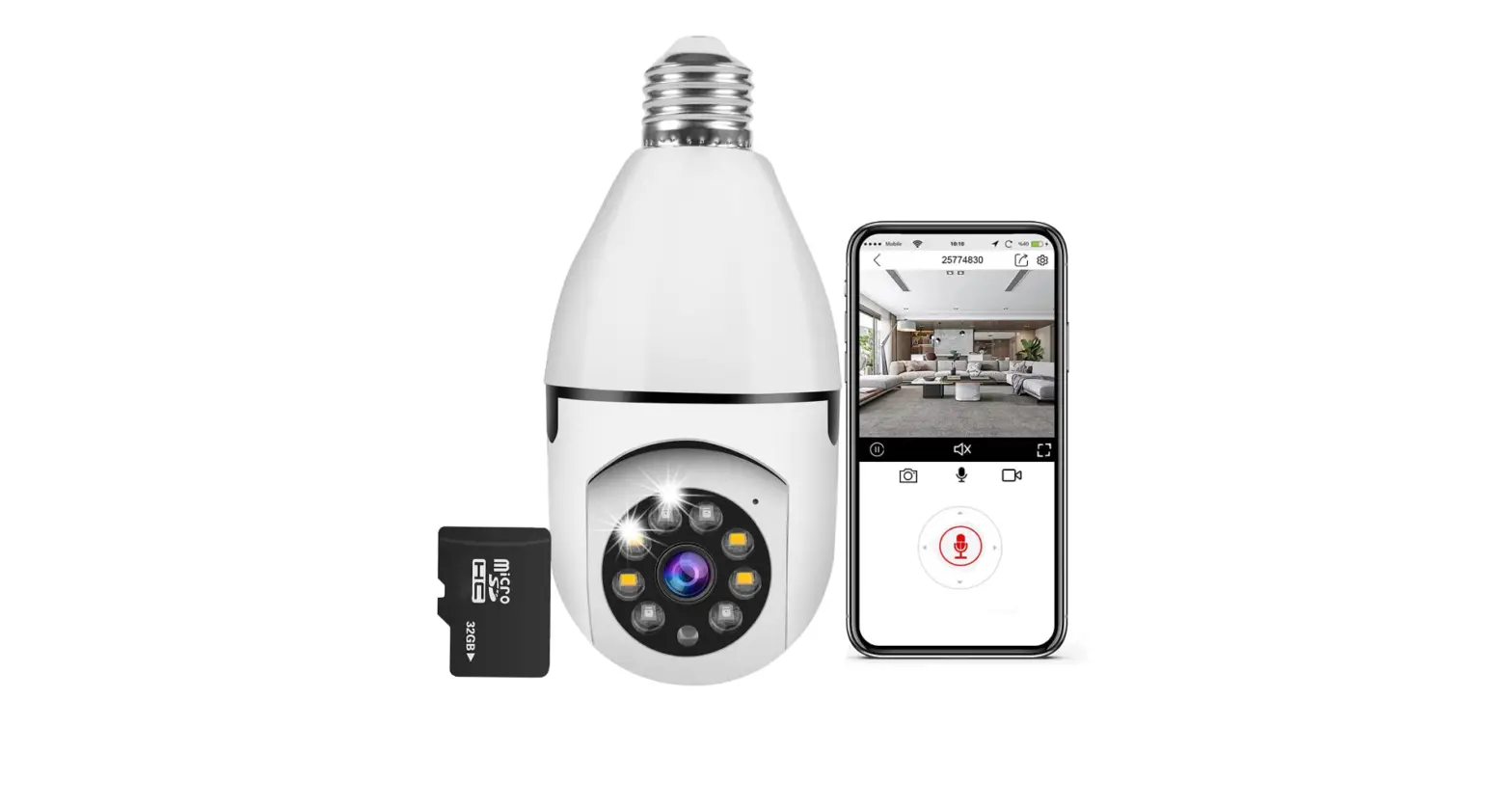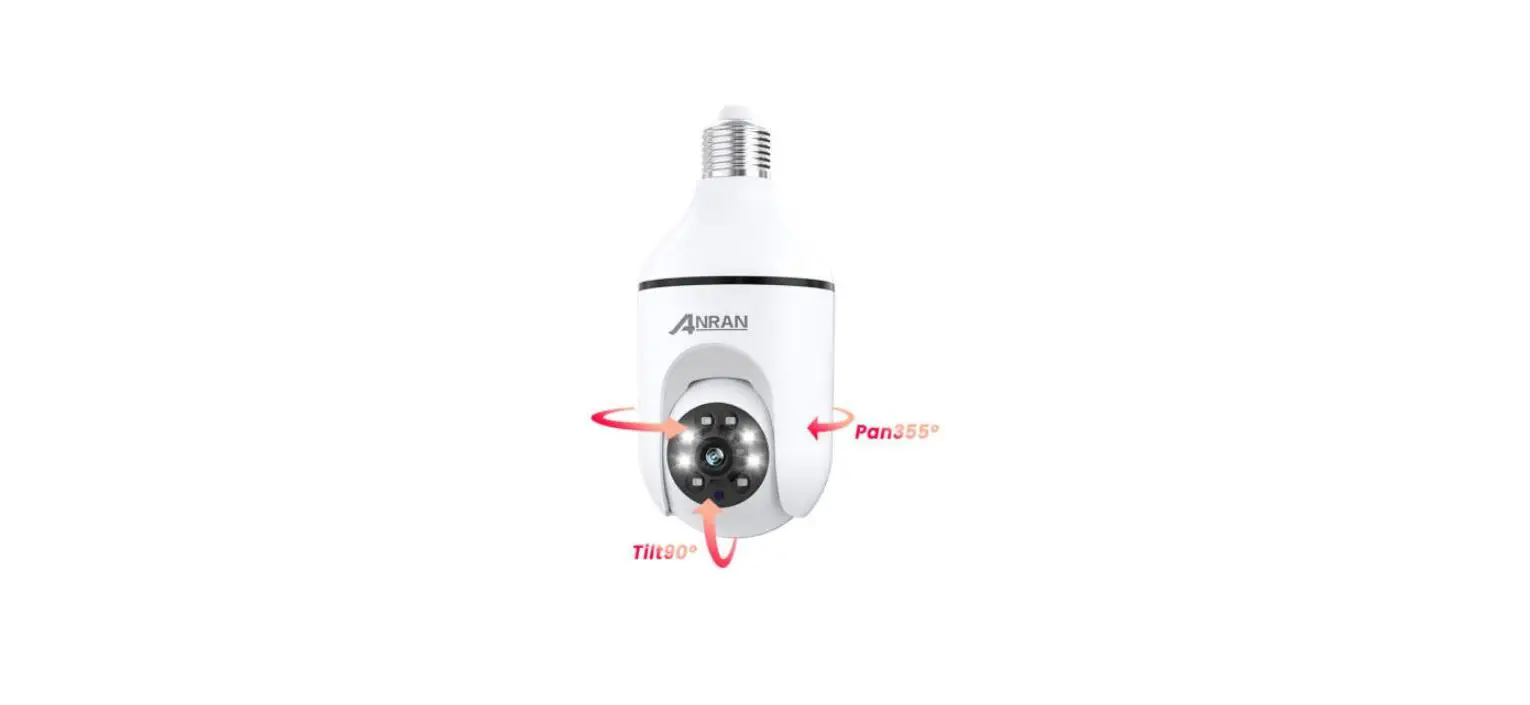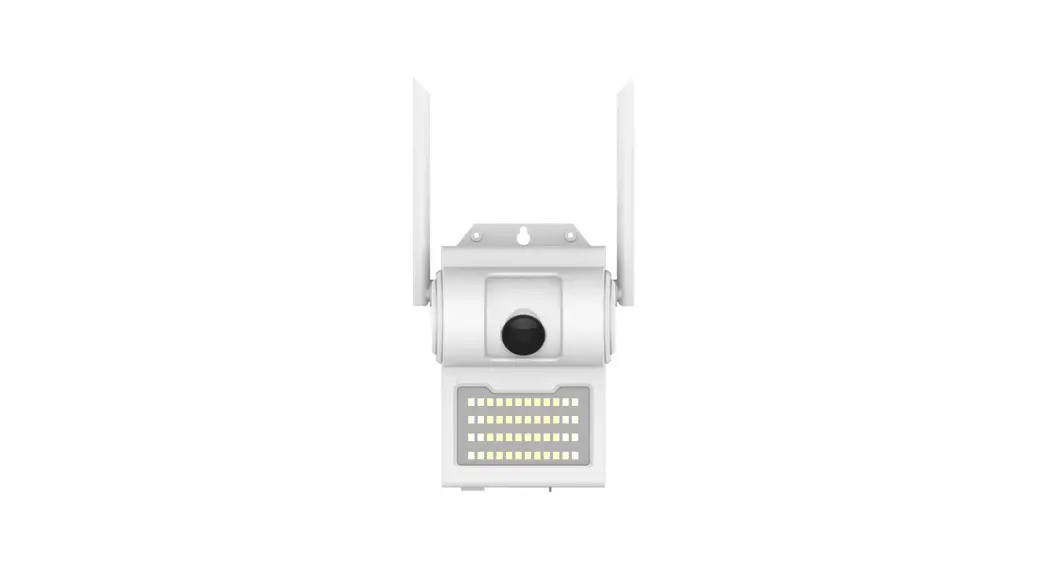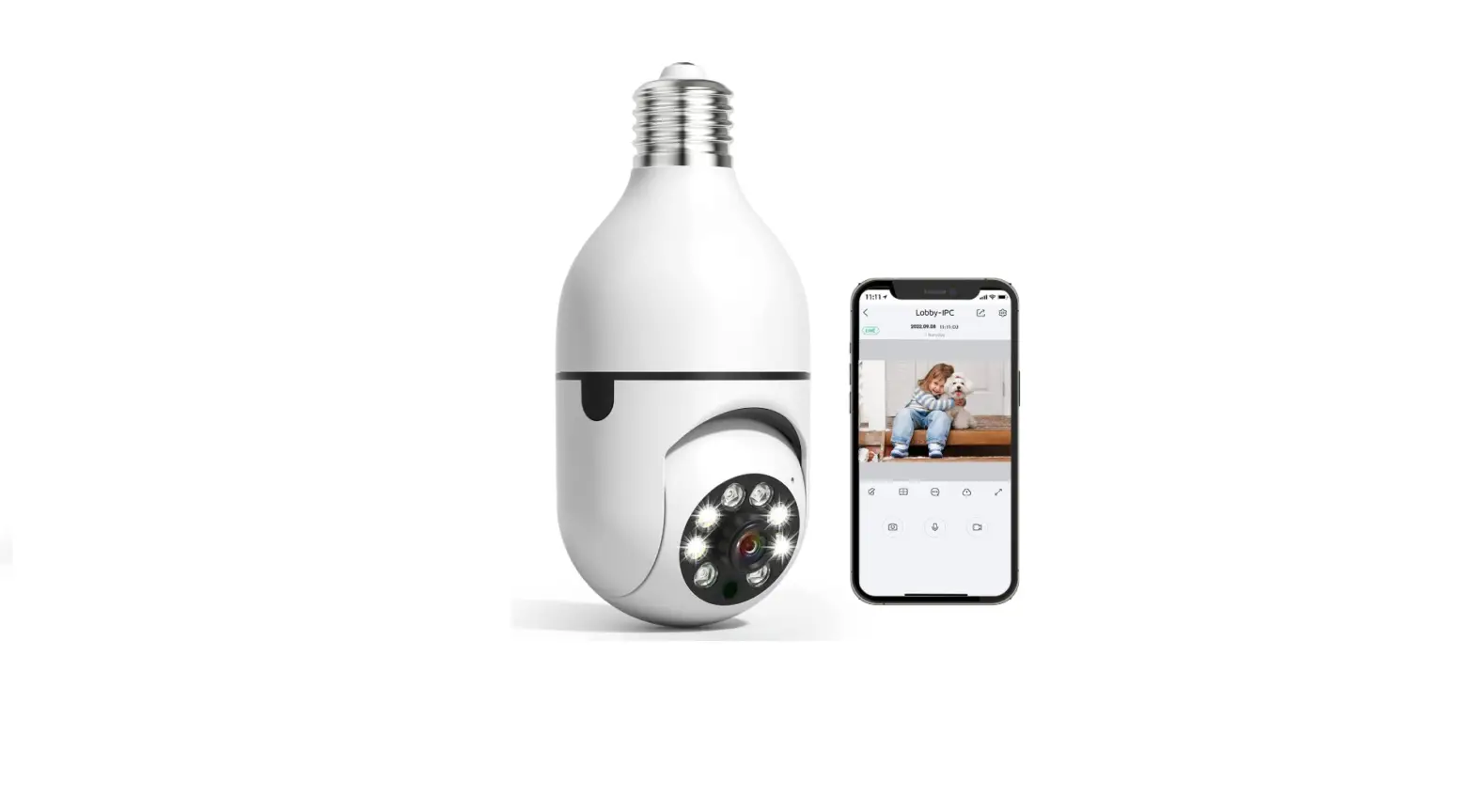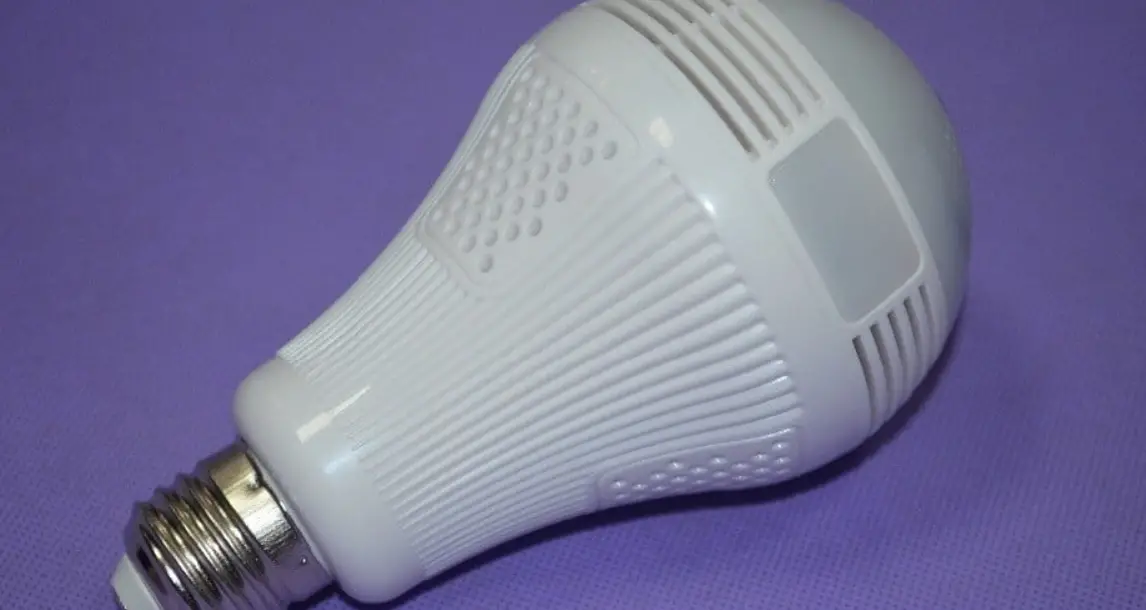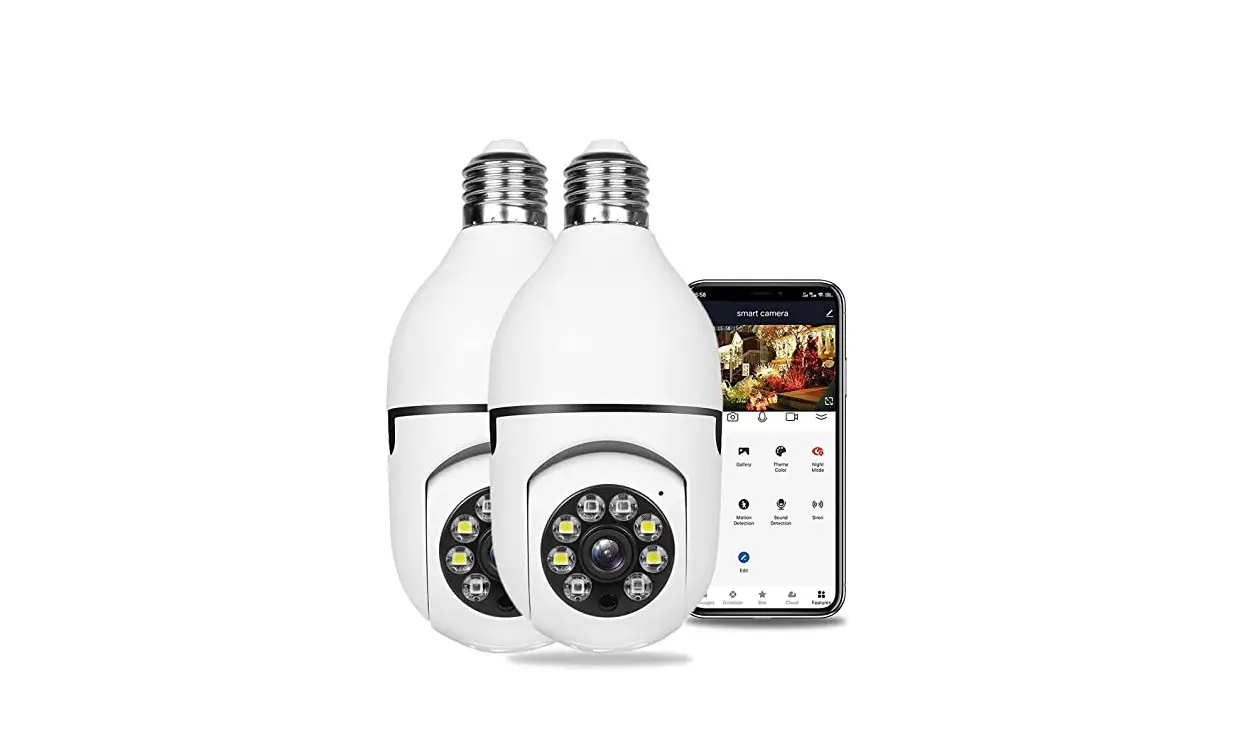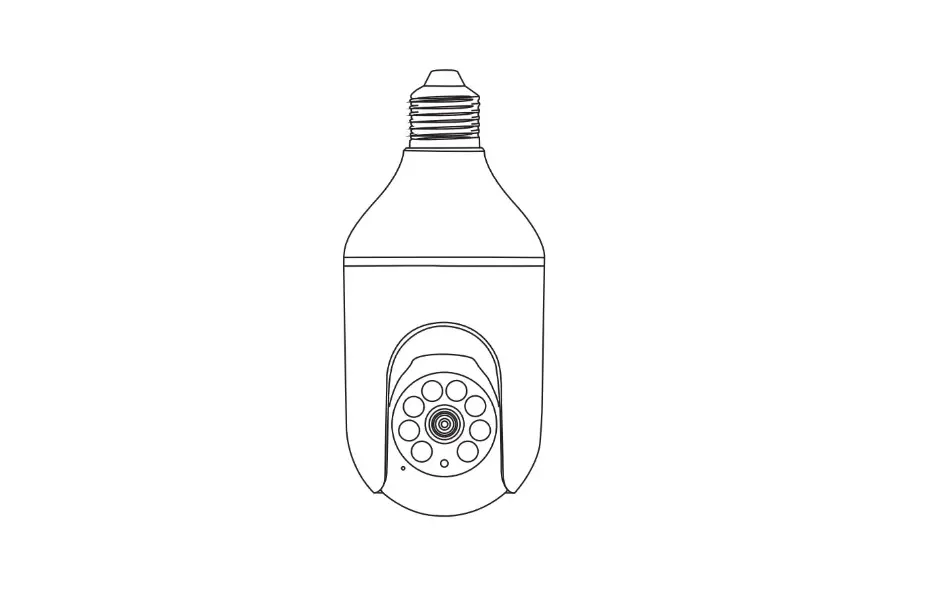

Light Bulb Camera
Quick Start Guide L1
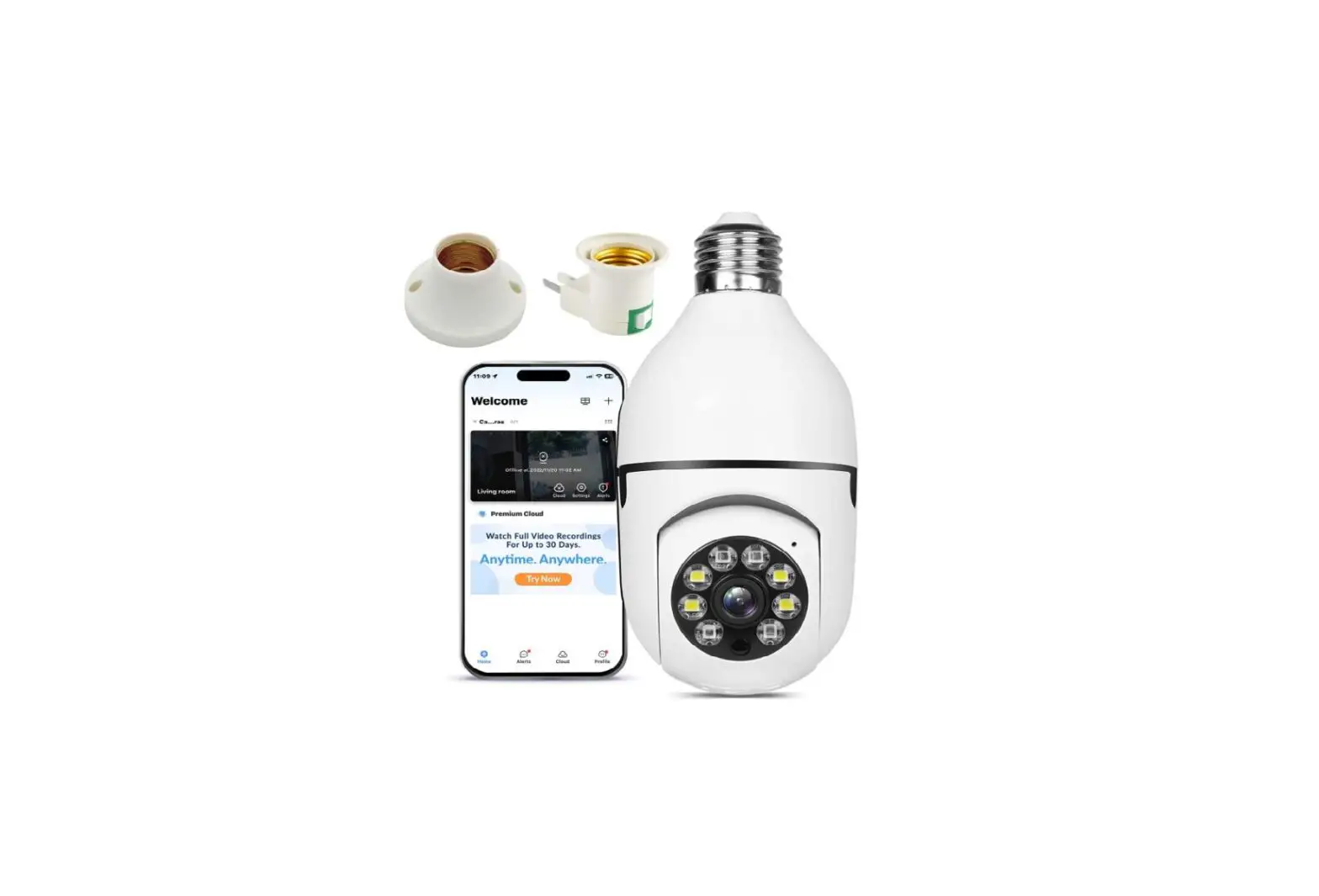
What’s Included
Camera User Manual
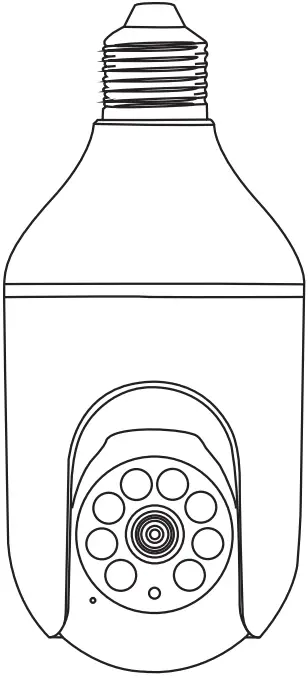
Product overview
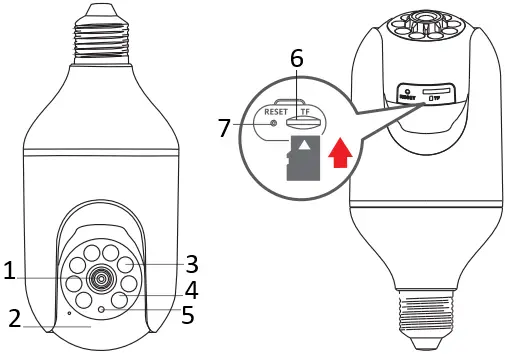
- Lens
- Microphone
- Spotlights
- Infrared LEDs
- Ambient Light Sensor
- Micro SD Card Slot
- Reset
CAUTION: Please insert the Micro SD Card according to the direction shown in the diagram. Micro SD Card might JAM if inserted incorrectly and device could be damaged.
SD Card Port: Support micro SD card for local storage (Max 128GB).
Reset button: Used to restore the camera to factory settings (Press and hold on 5-8s).
Card capacity requirements: 8-128GB.
Read and write speed requirements: class l0 level.
File format: FAT32.
CloudEdge App installation and Setup
Search ” CloudEdge” on apple store or google play to download the app.
- from Google Play
- from Apple Store
- or Scan the following QR code

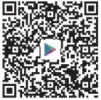
Download App(IOS & android)
Register an account
- Open the APP to sign up an account. Go to the login interface, and click “Sign Up”.
- Sign up with your email address, and click “Next”.
- Set up an “Nickname” and “Password” for your APP, click “Done” to complete.
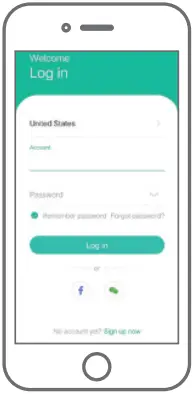
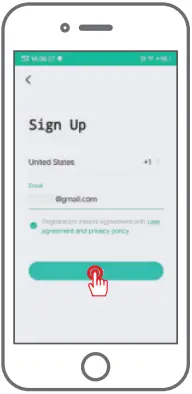
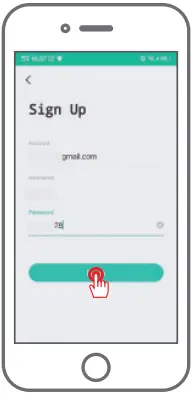
1 2 3
Set up WiFi for the camera
1. Put both of your mobile phone and camera near the router-land the distance should be Within a 5 meters distance.
Note: WiFi camera can only connect to 2.4 GHz WiFi signal, Do not support 5GHz WiFi.
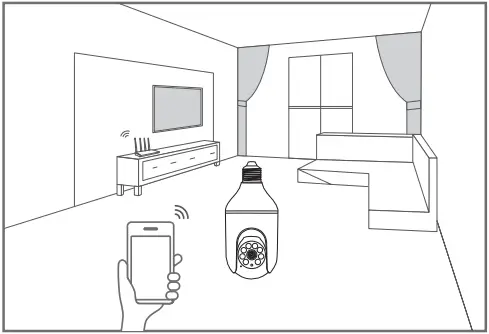
2. Log in to APP: “CloudEdge”, then tap the “+” icon in the center. Tap “Smart Camera” to add device.
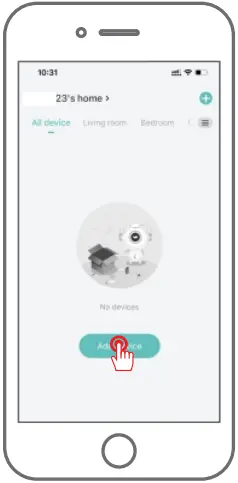
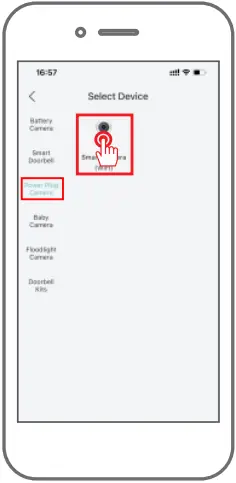
2-1 2-2
3. Reset the device and wait for a flashing RED indicator light, then tap “Next”.
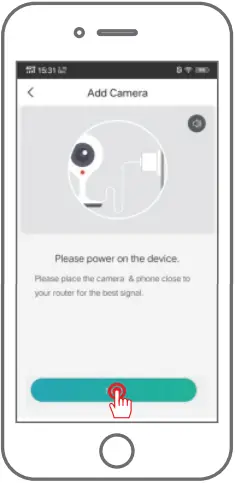
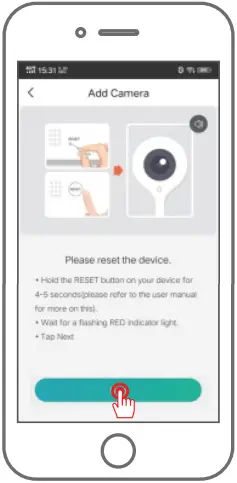
3-1 3-2
4. Selecting your family Wi-Fi and input the password, then click next.
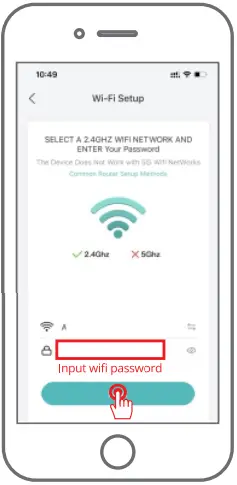
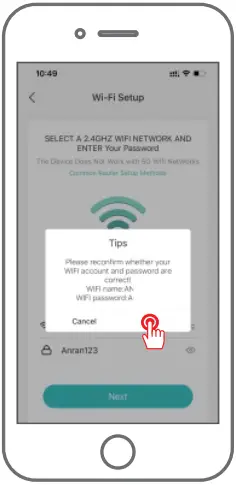
4-1 4-2
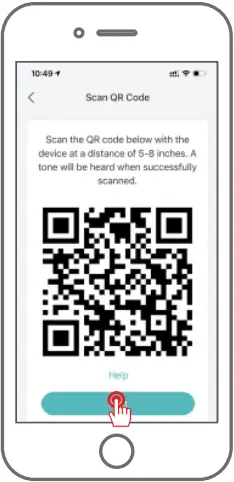
5. Using the device to scan the QR code on the mobile phone according to the operation the figure shows, then proceed to the next step after hearing the prompt tone.
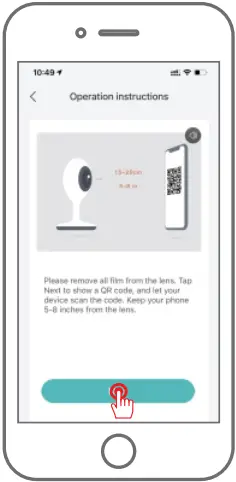
5-1 5-2
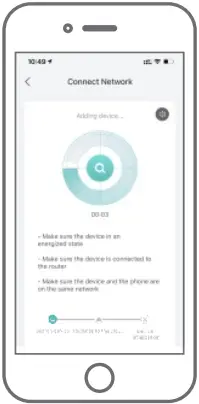
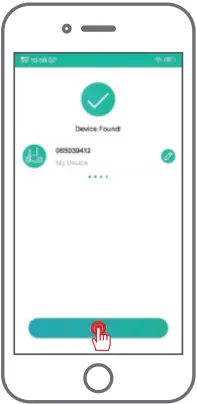
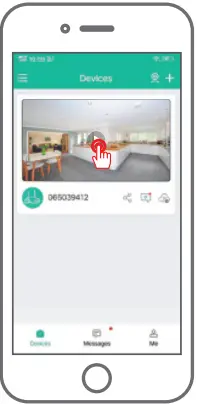
6. After the network configuration is successful, set the name and password for the device to add successfully; then you can view the camera screen in real time.
6-1 6-2 6-3
FAQ
A:
• Check whether the equipment is in the power-on state.
• Check whether the Wi-Fi network is in good condition and restart the router.
• If the device is located far away from the router, which results in the inability to obtain a good Wi-Fi signal, it is recommended to move the router to a closer place or add a Wi-Fi amplifier to improve the Wi-Fi performance of the home.
• Delete the camera from your CloudEdge account and add it again after resetting the device.
• Check whether the device firmware and application program are the latest version.
A: The reset device only resets the network configuration of the camera, but cannot change the configuration on the App, remove the camera, and must be deleted by the App.
A: First remove and reset the device on the App and then configure the device again by the App.
A: It is recommended to plug in SD card after power cut. Confirm whether the SD card is normally available and the format is FAT32. And the TF card can’t be identified when the internet environment is not good.
A: Please confirm that the App has been running on the phone, and the relevant reminder function has been opened; Message notification and authority confirmation in the mobile phone system have been opened.
Note: Won’t suggest put the camera in the lampshade at night, the night vision feature would not work normally because the glass.
Notification of Compliance
FCC Compliance Statement
FCC WARNING:
Any Changes or modifications not expressly approved by the party responsible for compliance could void the user’s authority to operate the equipment. This device complies with part 15 of the FCC Rules. Operation is subject to the following two conditions: (1) This device may not cause harmful interference, and (2) this device must accept any interference received, including interference that may cause undesired operation.
FCC RADIATION EXPOSURE STATEMENT:
This equipment complies with FCC radiation exposure limits set forth for an uncontrolled environment. This equipment should be installed and operated with minimum distance 20cm between the radiator & your body. This transmitter must not be co-located or operating in conjunction with any other antenna or transmitter. FCC ID:2AZUX-L1
 CE Simplified EU Declaration of Conformity
That this device is in compliance with the essential requirements and other relevant provisions of Directive 2014/53/EU.
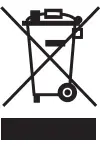 Correct Disposal of This Product
This symbol means the product must not be discarded as household waste and should be delivered to an appropriate collection facility for recycling. Proper disposal and recycling help protect natural resources, human health, and the environment. For more information on the disposal and recycling of this product, contact your local municipality, disposal service, or the shop where you bought this product.