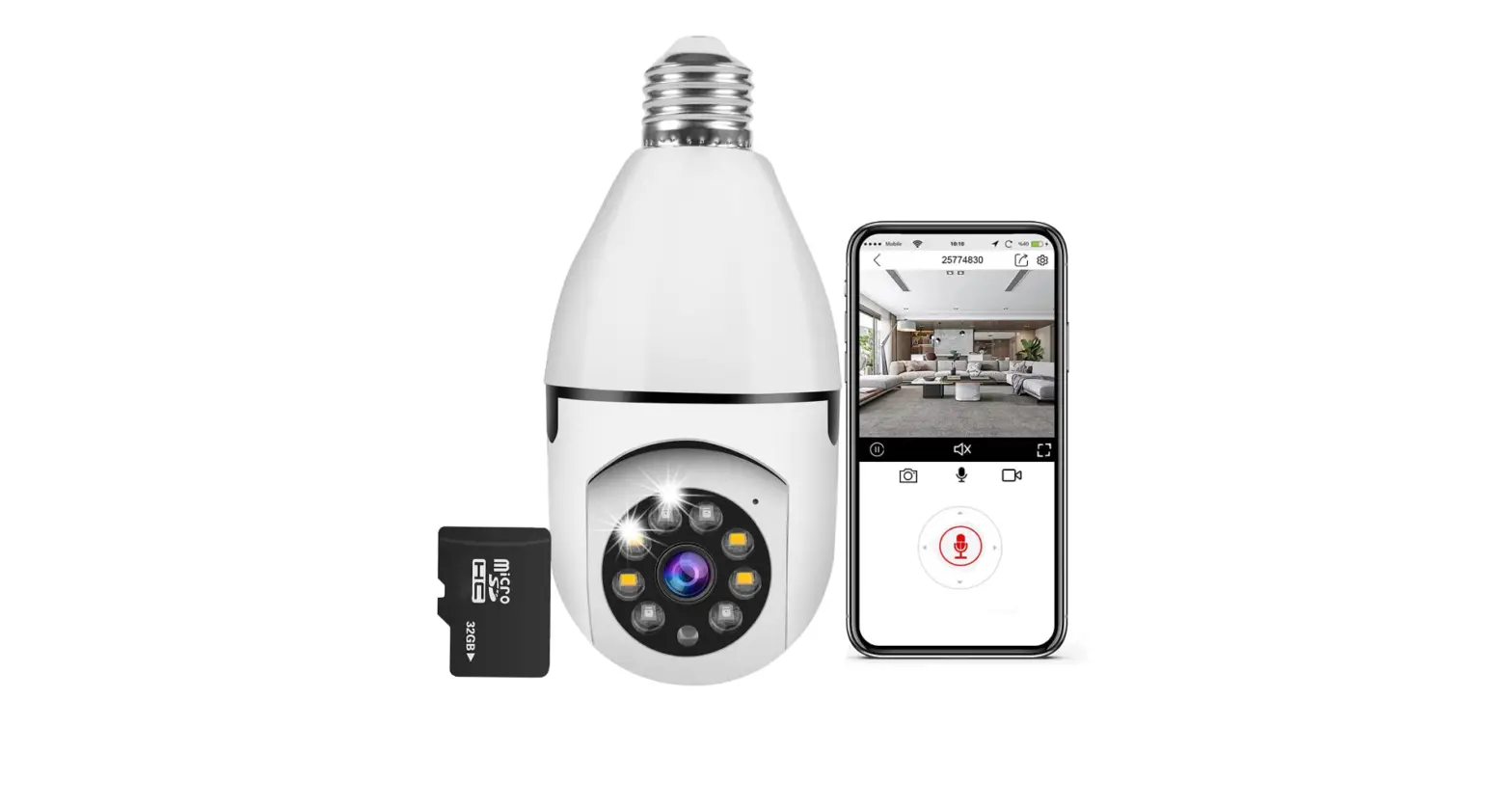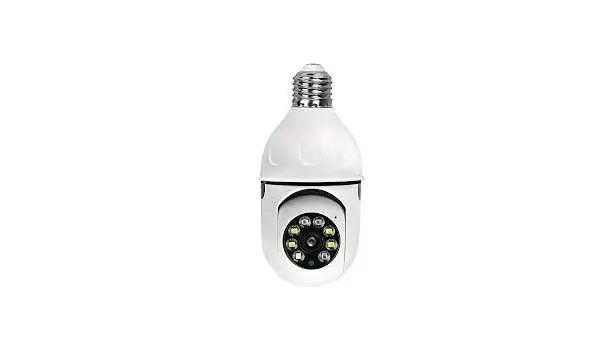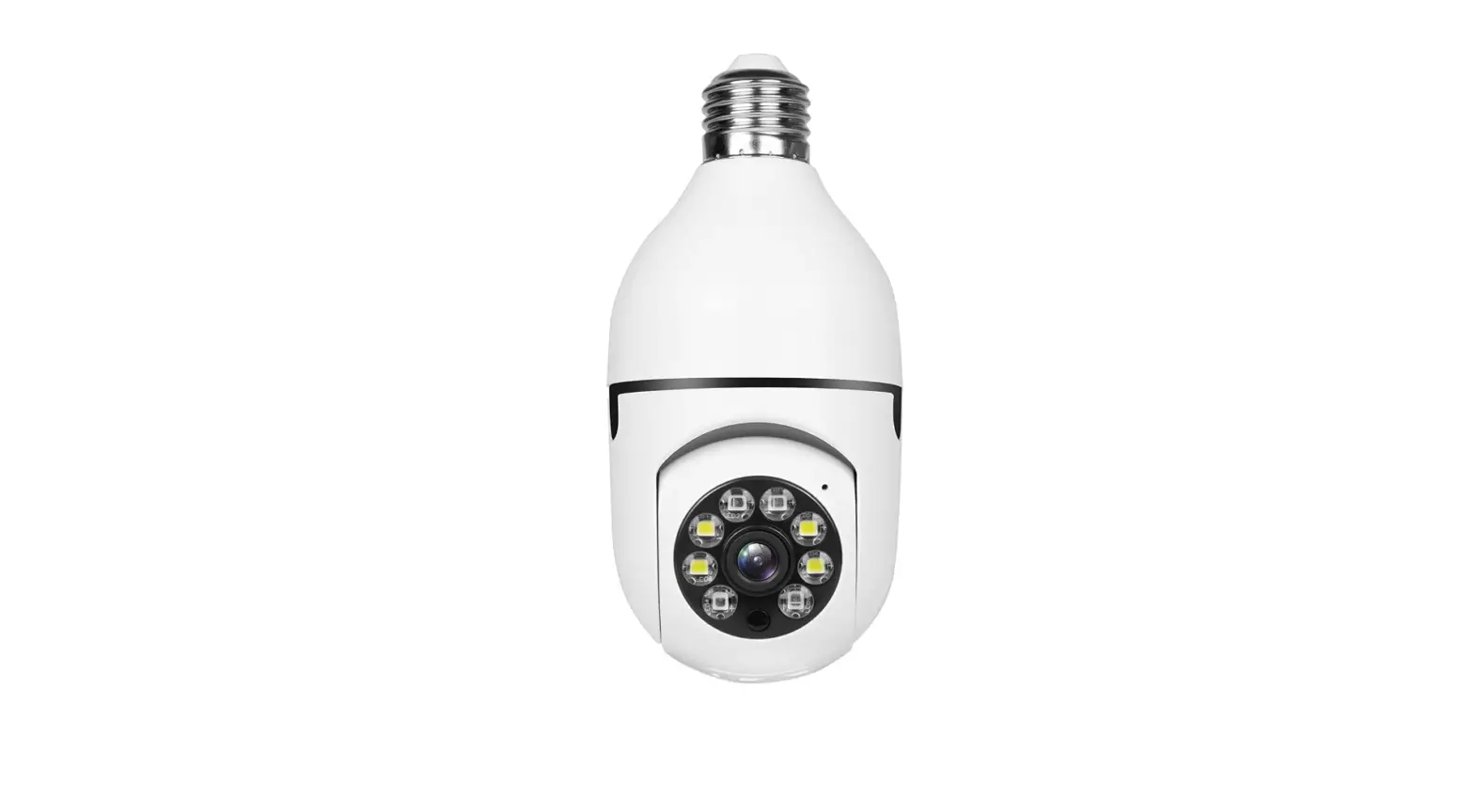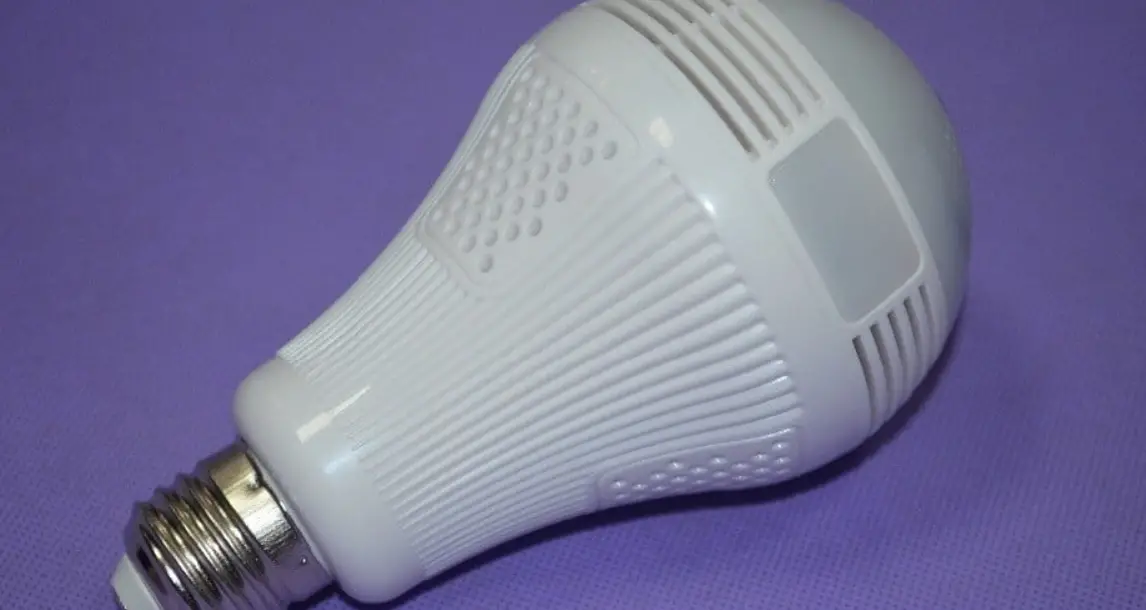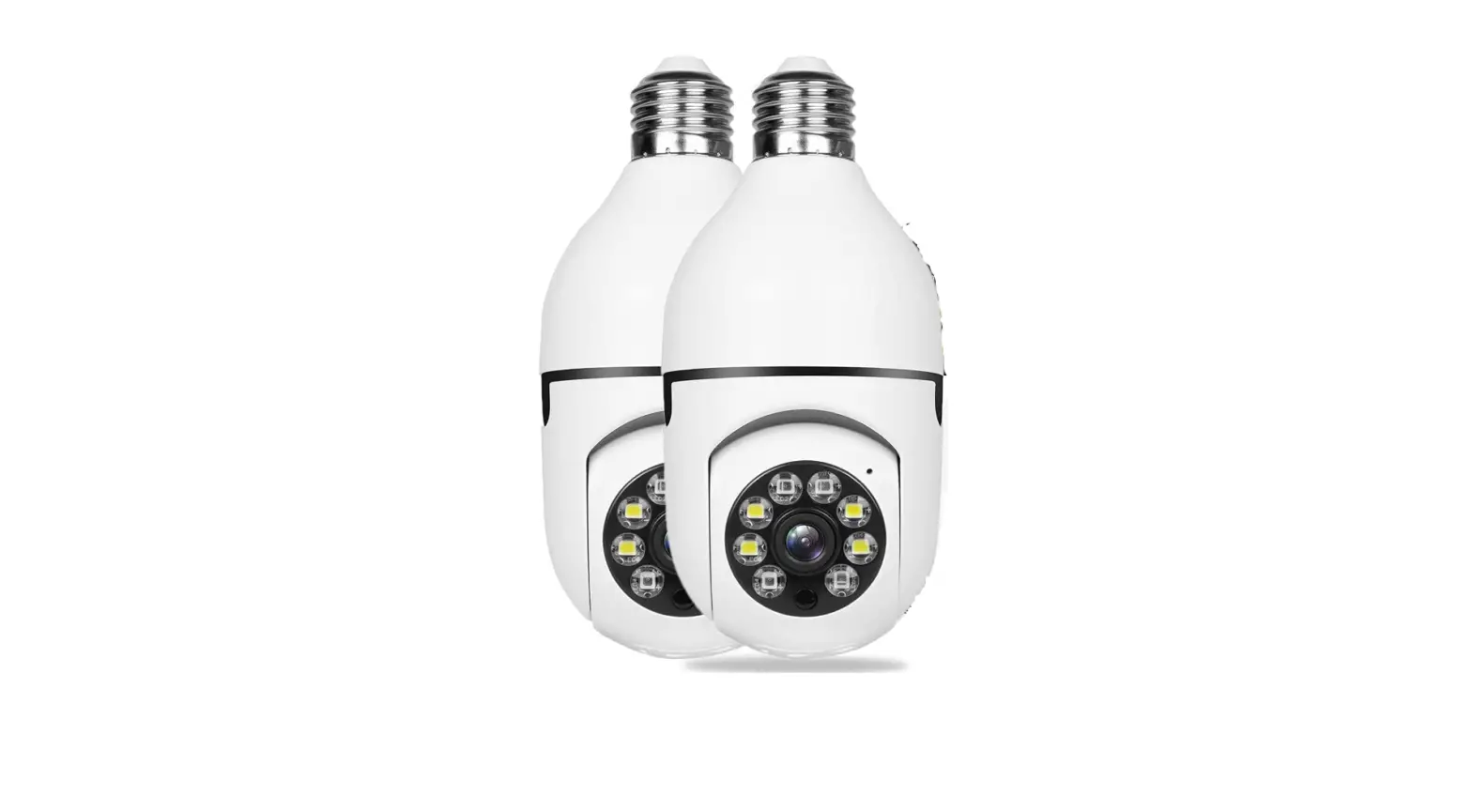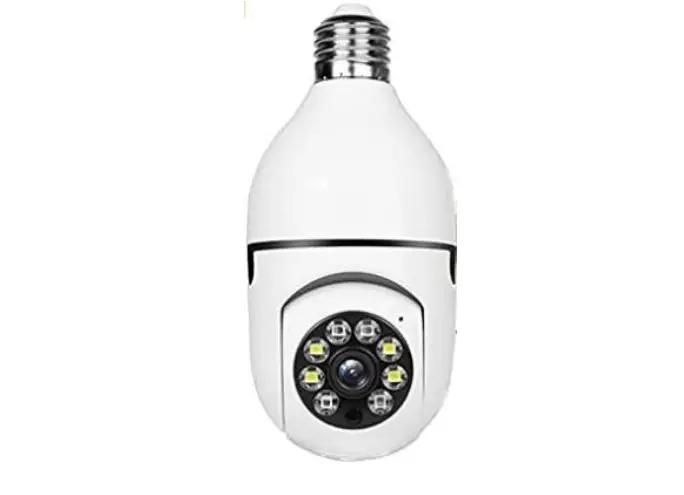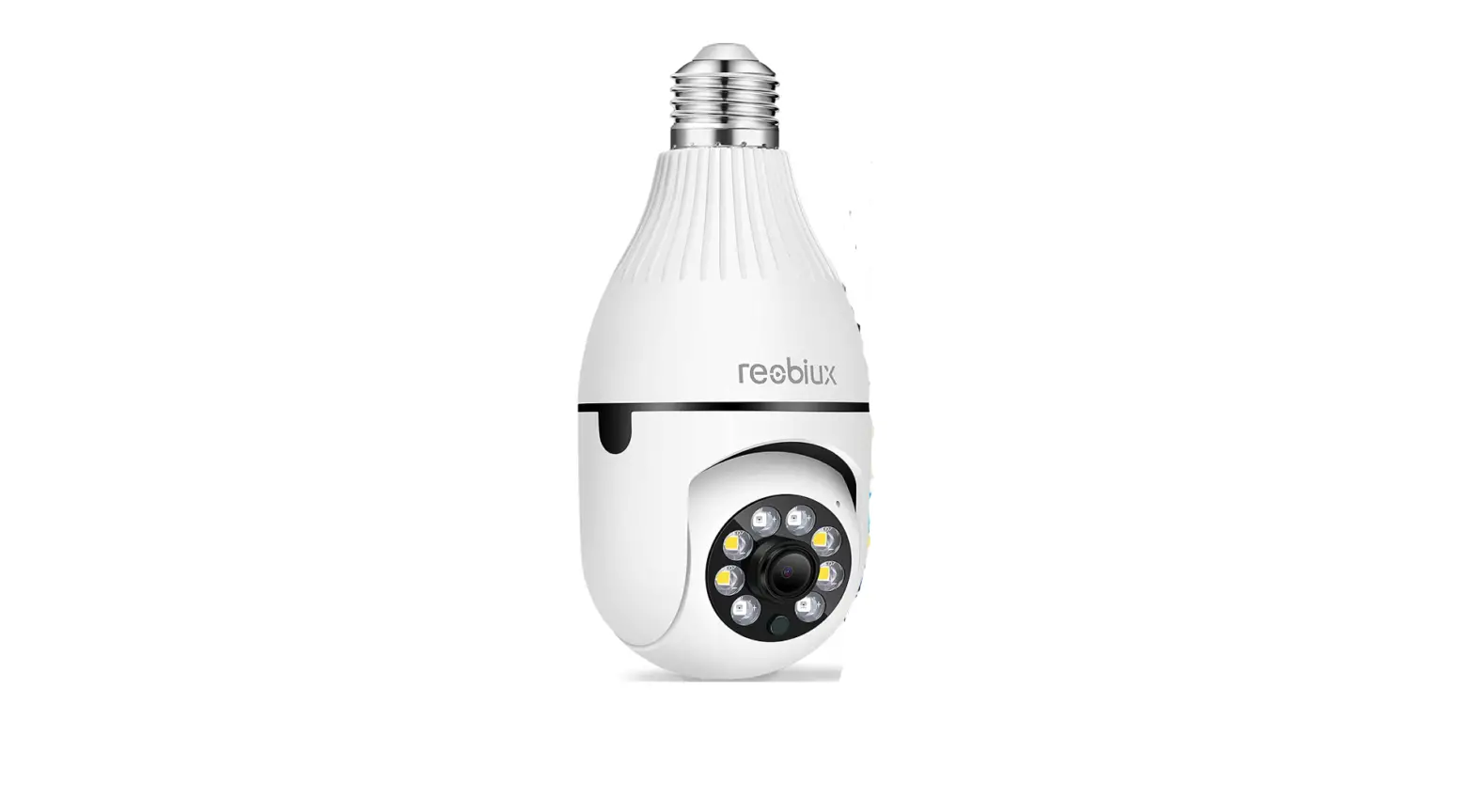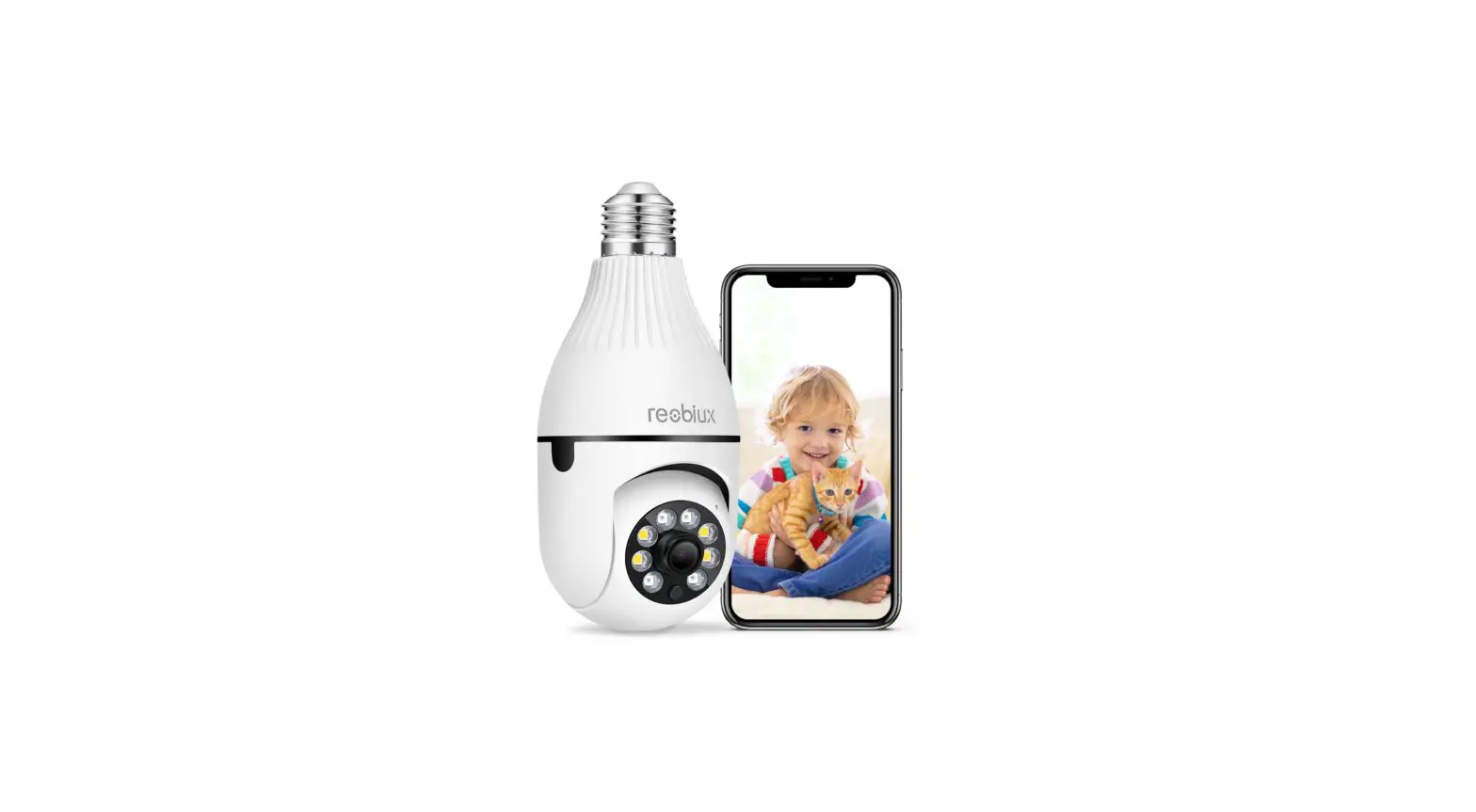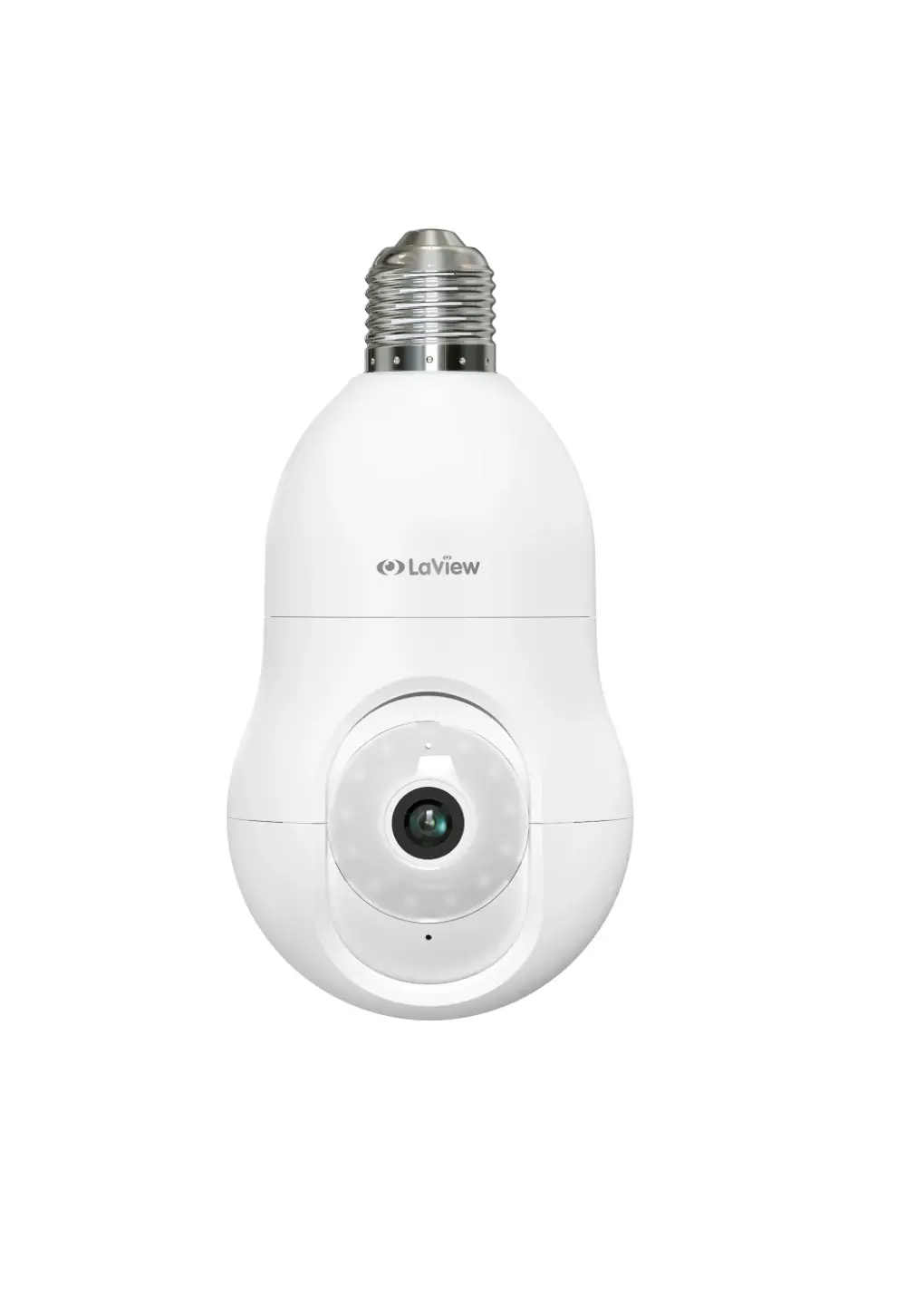
LaView L2 Light Bulb Camera
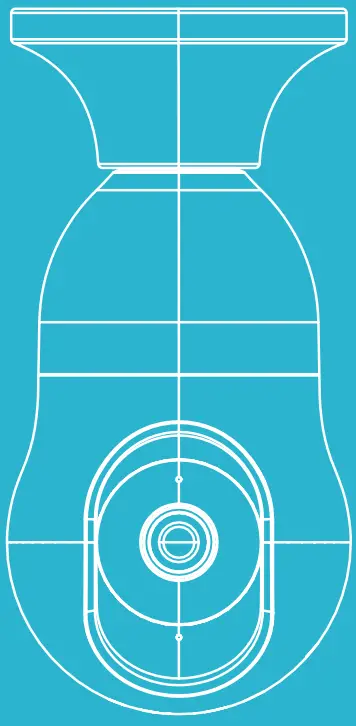
APP SETUP
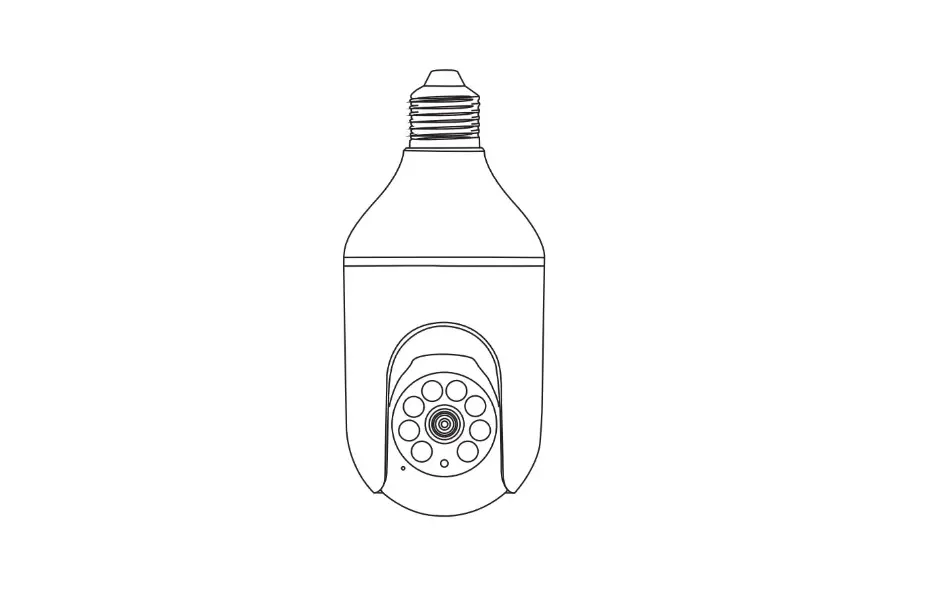
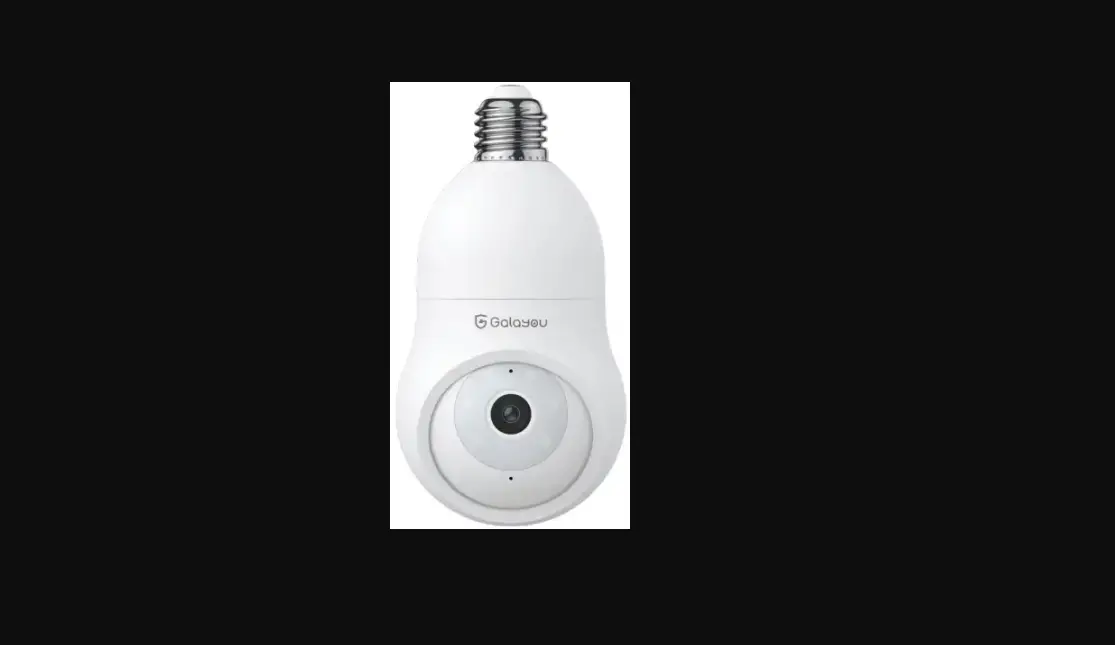
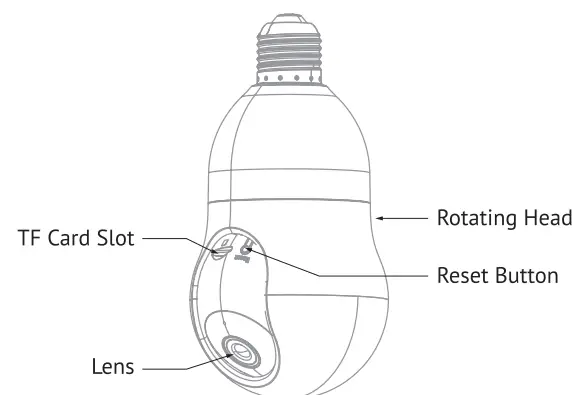
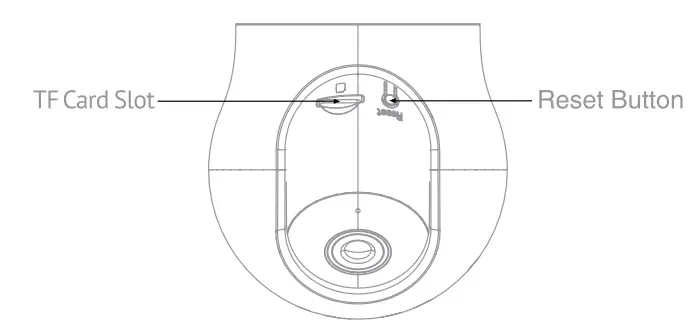
- Connect the camera to power via included bulb base (If you are not setting up the camera for the very first time, press the Reset button instead for 5 seconds until you hear a beep.

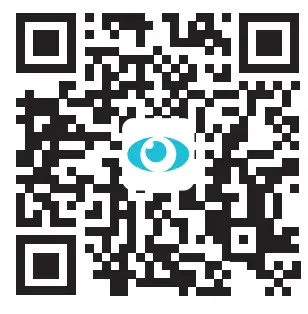
- Please download the LaView APP from the App Store or Scan the QR Code below. LaView APP is avail.able for both iOS and Android OS. Search the name ‘L.aView’ in APP Store or Google Play. ( The other La½e.v apps, such as La½e.v Connect, La½e.v ONE, L.aView Life do NOT support L2 camera)


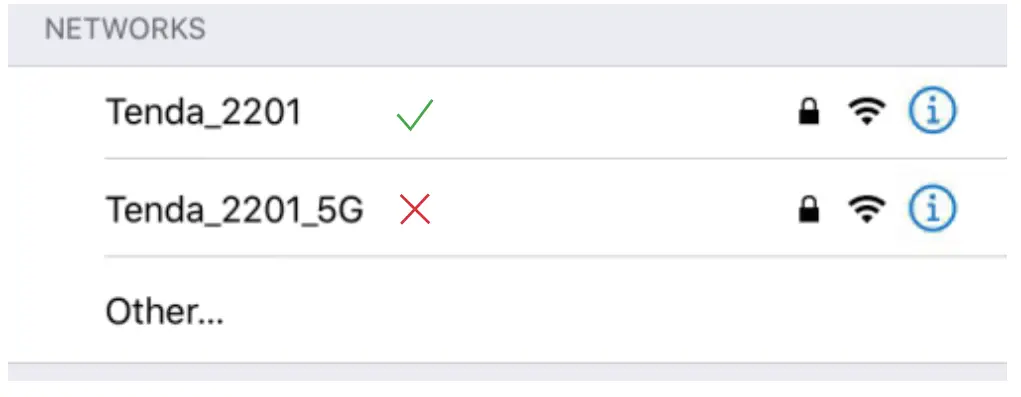
- Make sure your phone is connected to a 2.4GHz Wi-Fi network

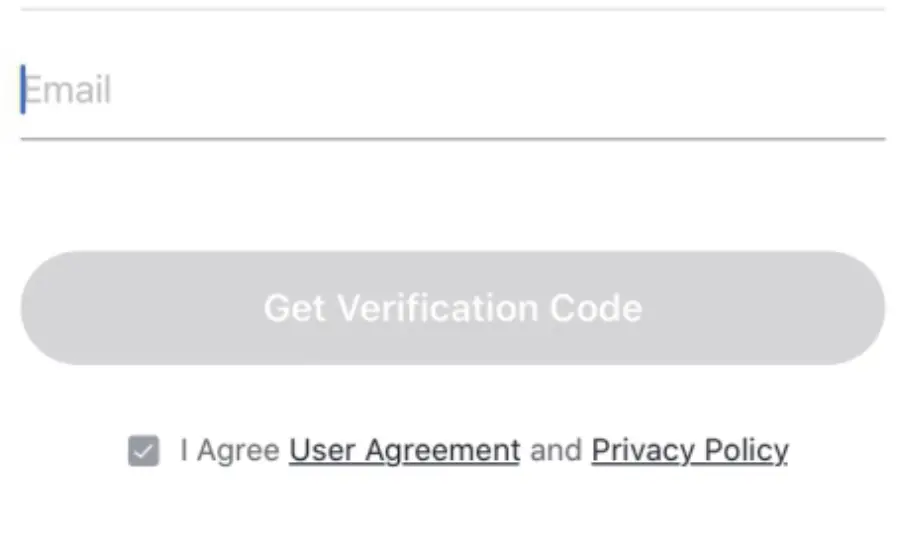
- Complete the app registration process
Register
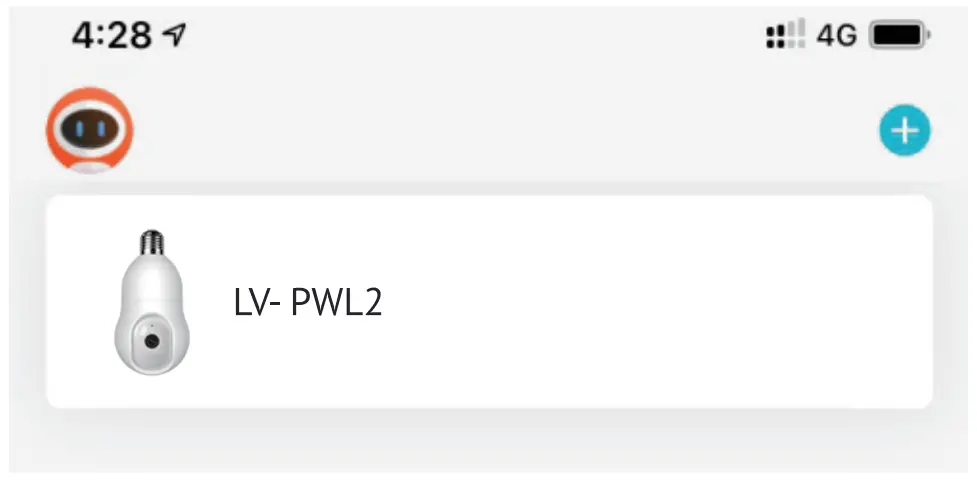
- Click on the ‘+’ sign to add the camera. Continue to click ‘Video Surveillance” > “Smalt Camera’.

- Wait until the camera is beeping every 15 seconds which means the camera is ready for pairing. If the camera is not beeping, press and hold the reset button for 5 sec to reset it.

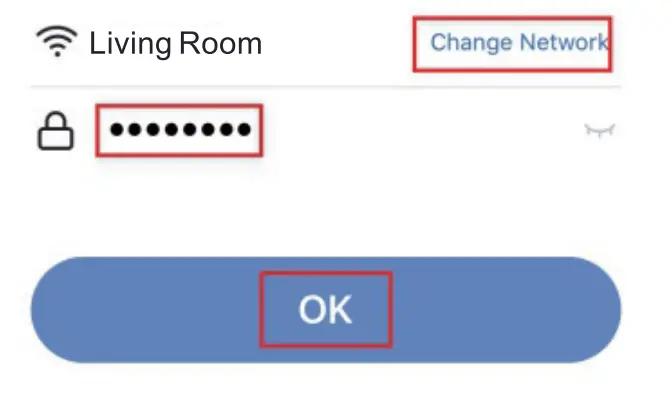
- Enter the Wi-Fi Password to generate a QR code that carries your Wi-Fi information

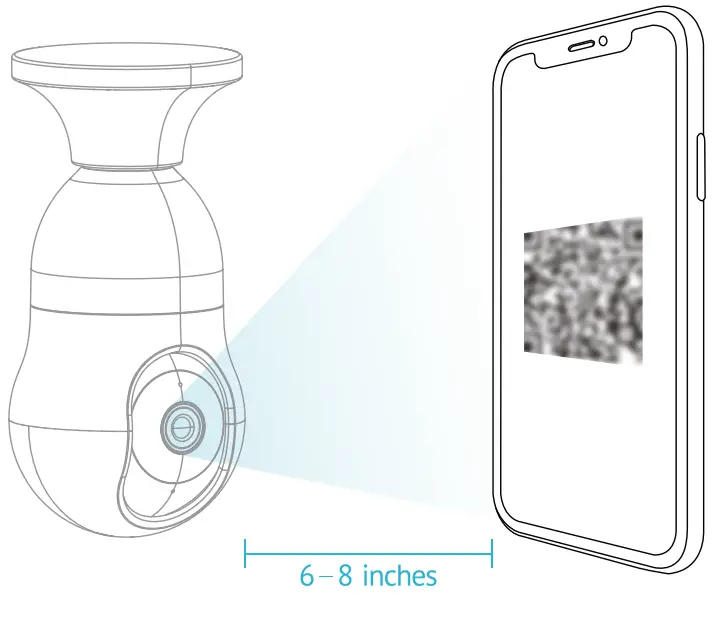
- Use the camera to scan the QR axle on the phone ( keep the camera 6-8 inches away from the phone)

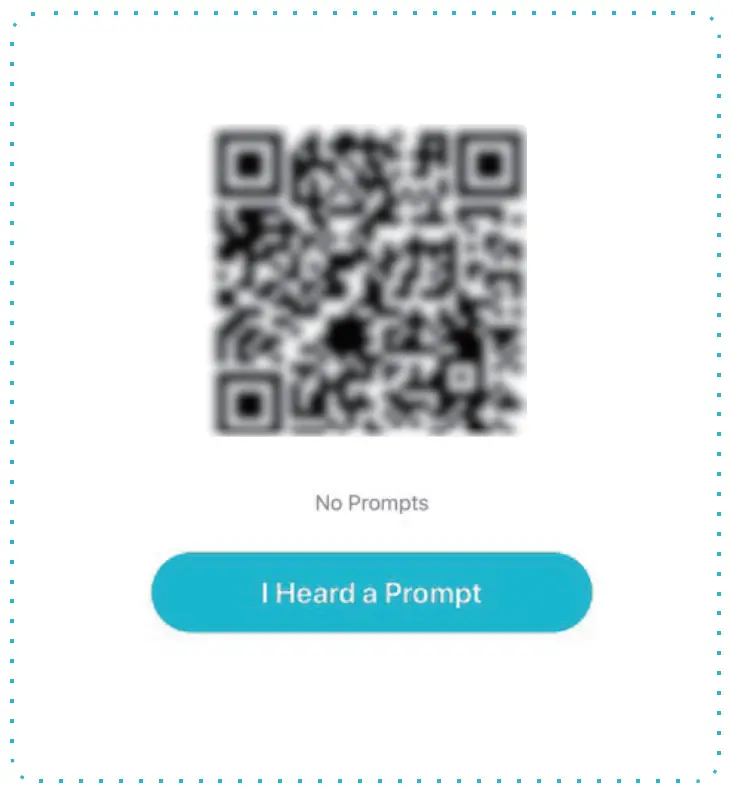
- The camera will beep when it receives the QR code. Press ‘I Heard a Prompt’ then. The camera will start pairing when connecting, you should make sure your router, mobile phone, and camera are as close as possible

- Wait until the camera is connected online and finish set up If the pairing is not successful press the Reset button for 5 seconds until you hear a beep and start again. Or check the FAQ section in the User Manual for more troubleshooting steps.

Connecting …


LIVE VIEW & PLAYBACK
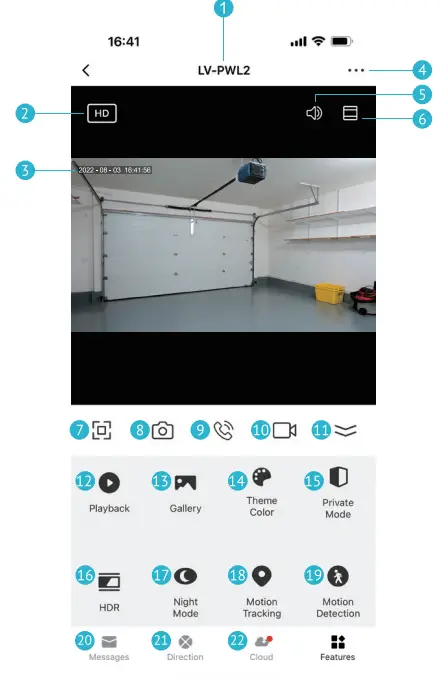
- Camera Name
- Switch Video Quality HD/SD
- Time Stamp
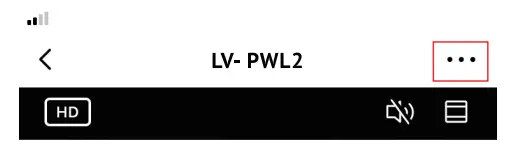
- Edit Camera Settings
- Sound Switch
- Zoom in
- Full-Screen Mode
- Screenshot: Take a screenshot and save it to gallery
- Two-Way Audio: Press to talk
- Record a video clip and save it to gallery
- Fold/Unfold the function bar
- Playback:Watch the videos saved on the microSD card
- Gallery: The folder where screenshots and videos are saved
- Theme Color: Switch theme color
- Private Mode: Enable/disable sleep mode
- HDR: Switch High-Dynamic Range
- Night Mode: Switch IR night vision mode
- Motion Tracking: Automatically tracks when motion is detected
- Motion Detection; Receive push notification when motion is detected
- Messages: Alarm notifications
- Direction: Pan-tilt control
- Cloud: Cloud Storage Seivice
ALEXA SET UP (Optional)
- BEFORE YOU START
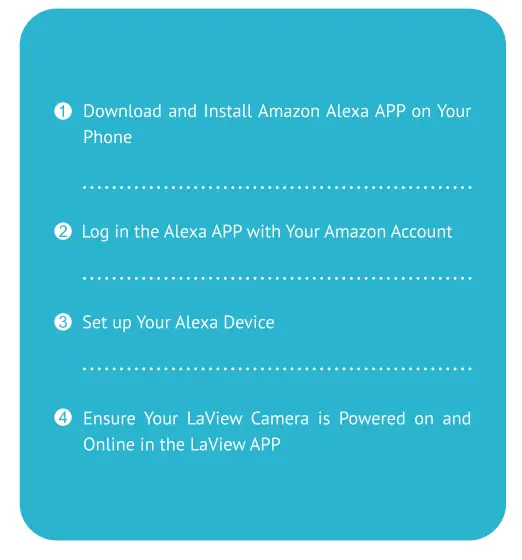
- In the LaView APP, go to the camera you are setting up, and tap the ‘Edit’ button to enter the camera menu.

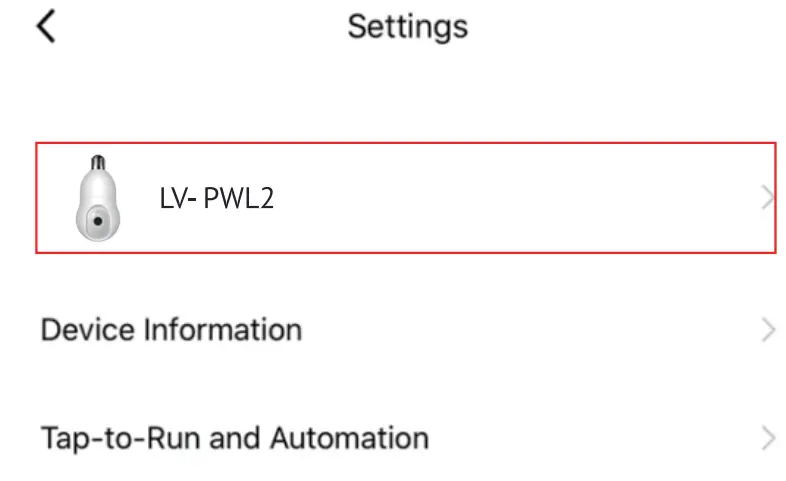
- Tap the camera model number or camera name

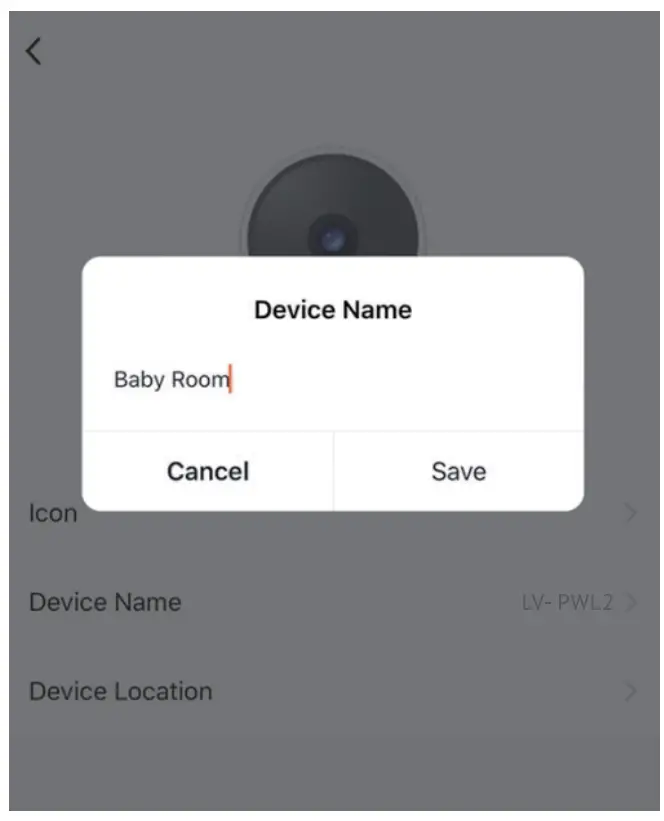
- Edit the camera name to one that is easy to pronounce such as ‘Baby Room: ‘Front Door Camera: ‘Living Room’ etc.

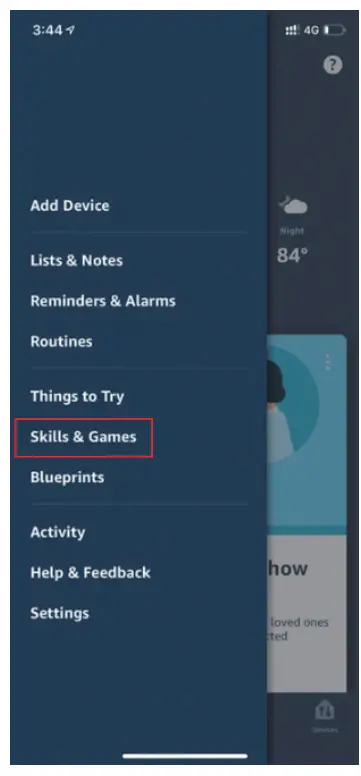
- Tap the Menu icon
 and choose ‘Skills & Games’ in the Alexa APP.
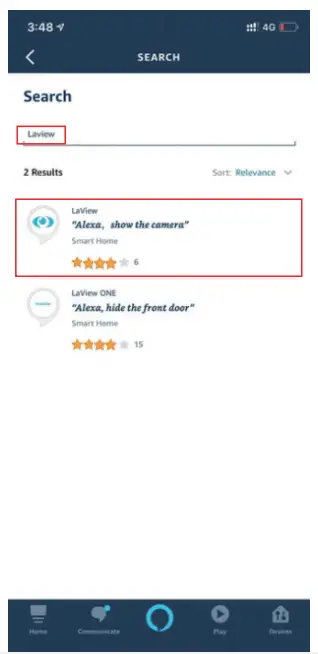
- Search ‘La½ew’ and choose the ‘LaView’ skill (Not La½ew ONE)

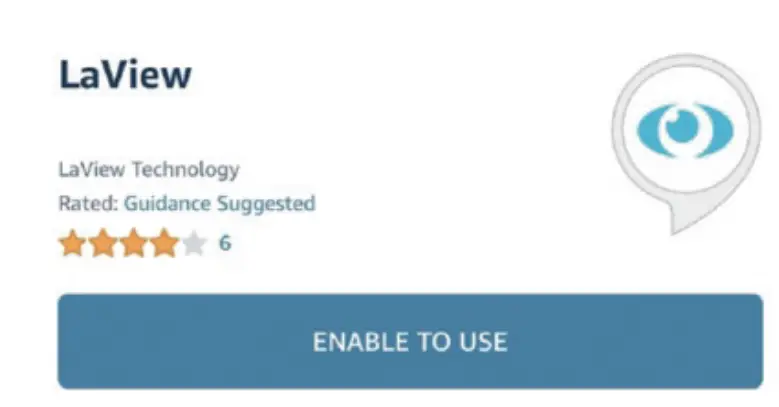
- Tap ‘ENABLE TO USE’

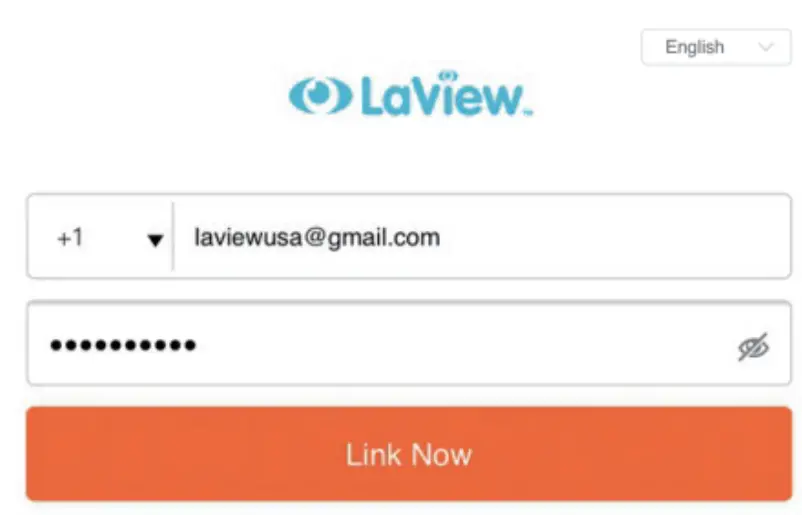
- Log in to your LaView APP account and tap ‘Link Now’

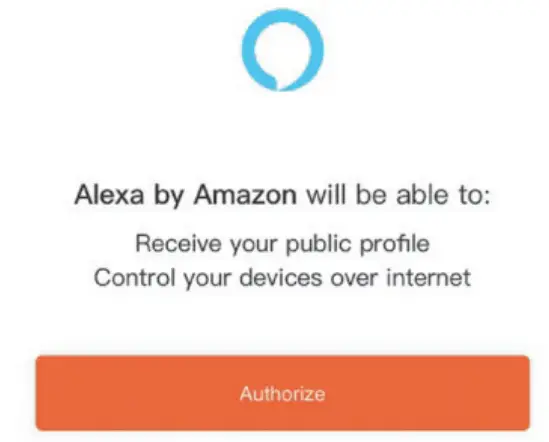
- Tap ‘Authorize’

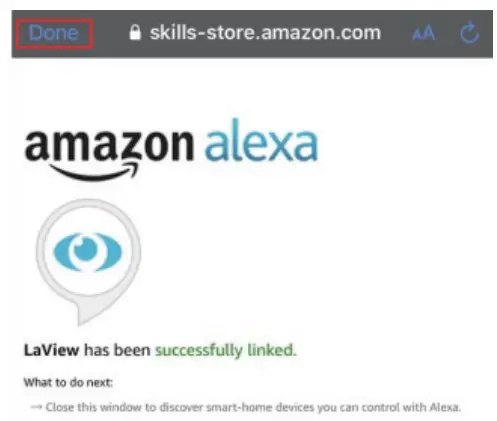
- Tap ‘Done’ after the LaView APP is linked to the LaView Skill.

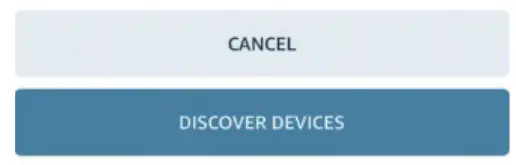
- Tap ‘DISCOVER DEVICES’

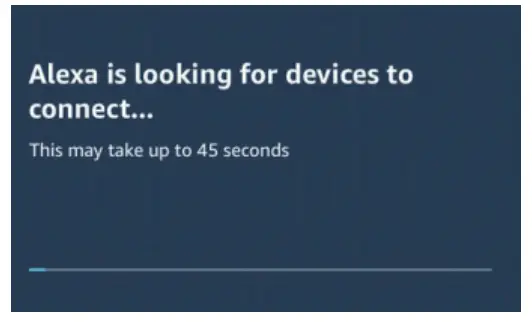
- Wait until the Alexa APP discovers the LaView camera. Check the following if Alexa repeatedly fails to discover the camera.
A. Ensure the LaView camera, the Alexa device and your phone are connected in the same Wi-Fi network.
B. Ensure the LaView camera is powered on and set up in the LaView APP.
C. Ensure the Alexa device, such as Echo Show, is set up and connected.
D. Ensure the camera is added to the LaView account that is linked to the LaView Skill in the Alexa APP
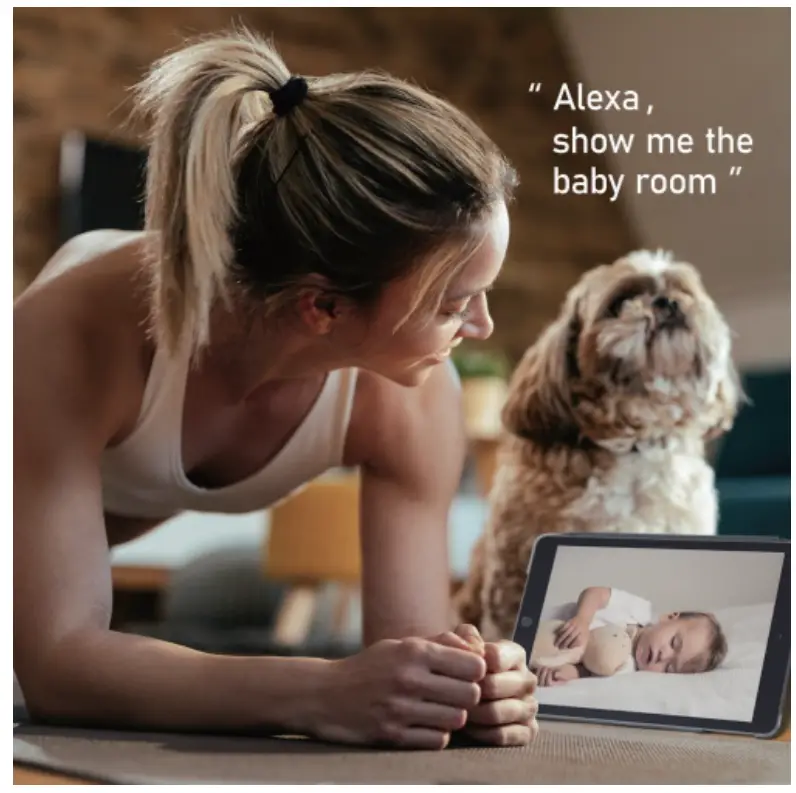
- You can now tell your Echo device to show the camera feed by calling Alexa, Show Baby Room’. You can change and update the camera name in the LaView APP camera menu. (Refer to Step 3)

 and choose ‘Skills & Games’ in the Alexa APP.