 2K
2K
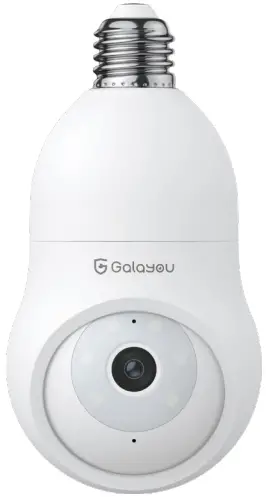
G6 Quick Installation Guide
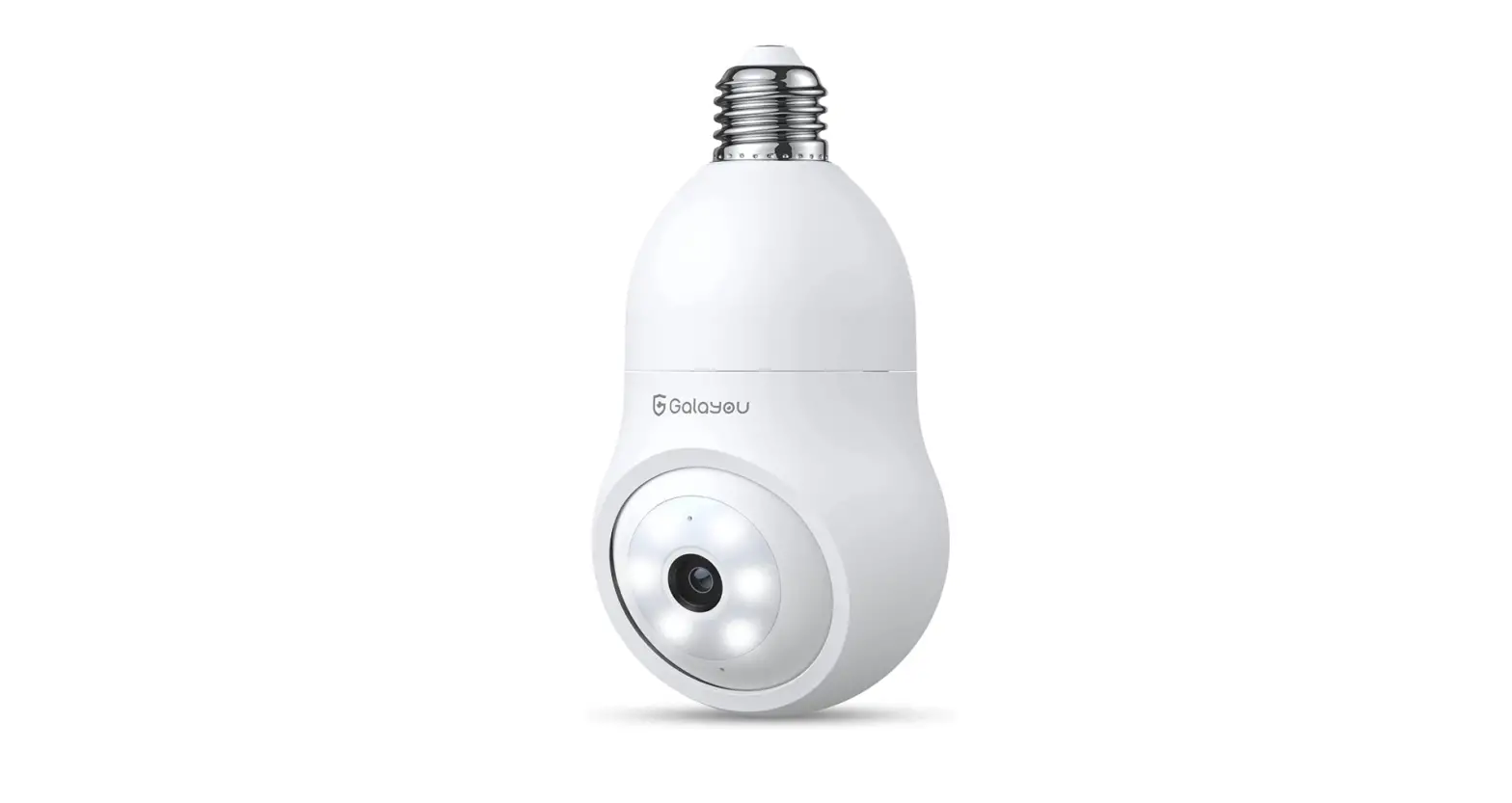
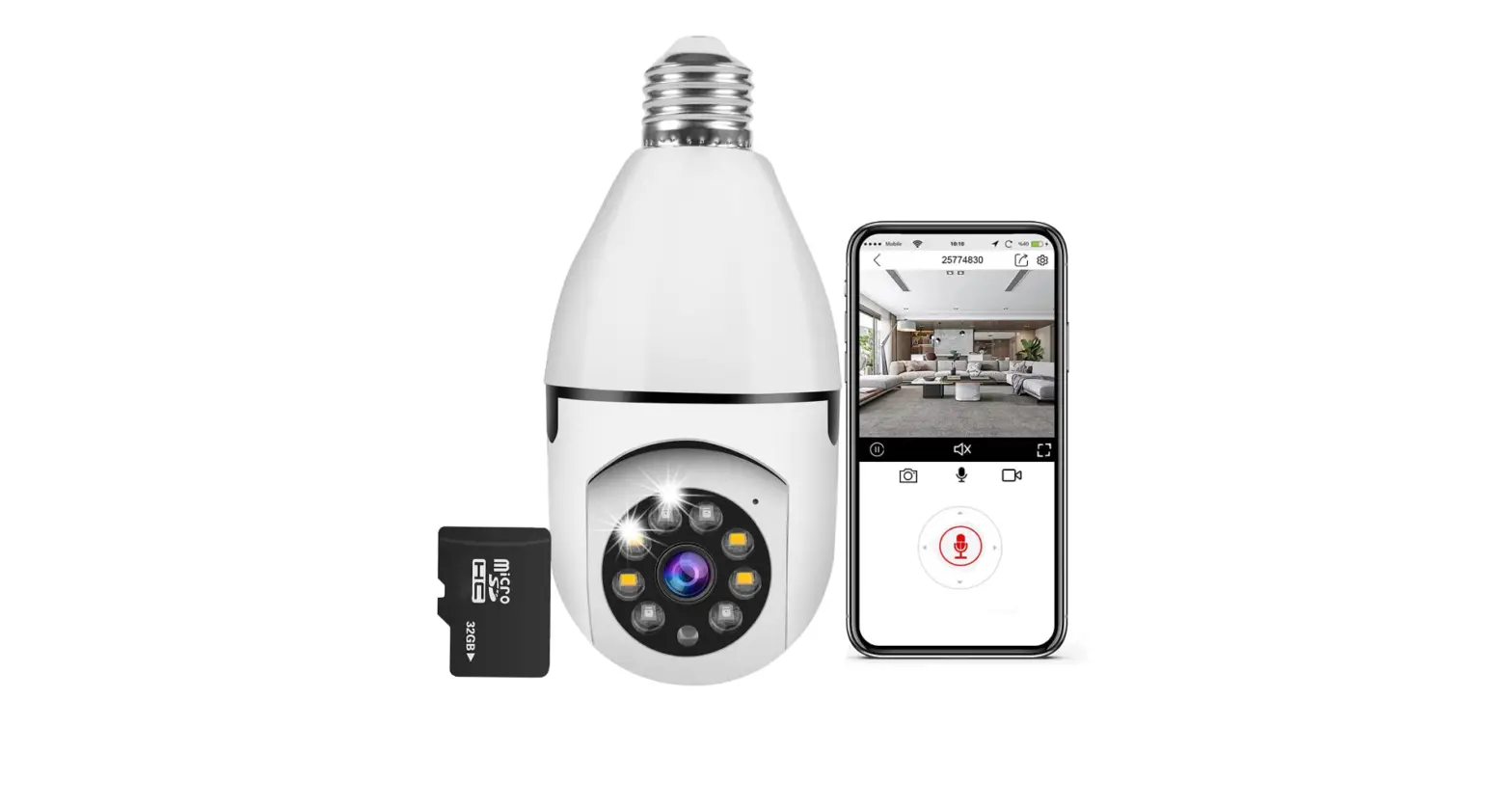
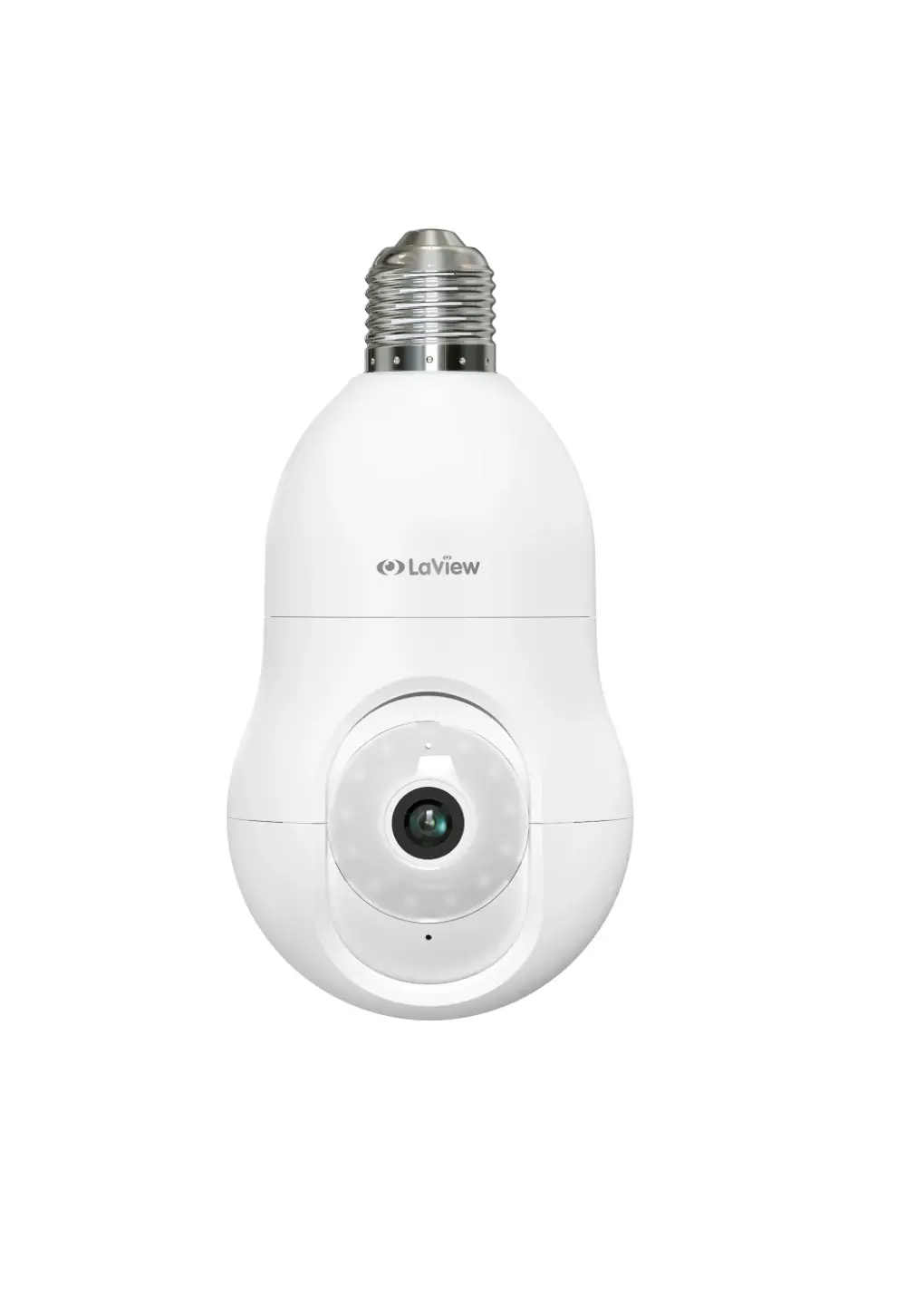
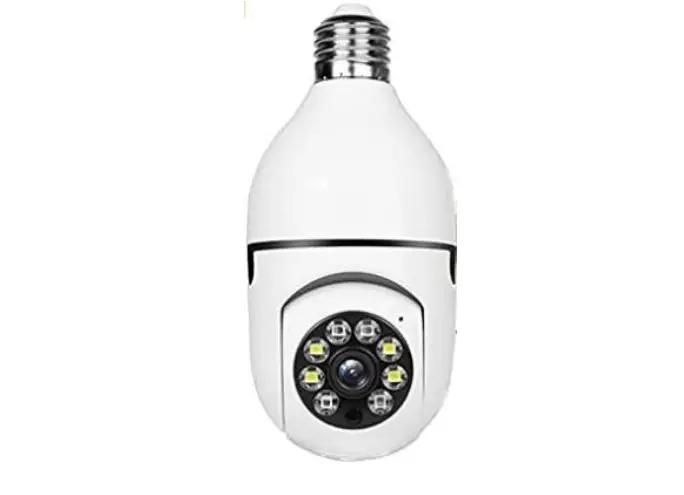
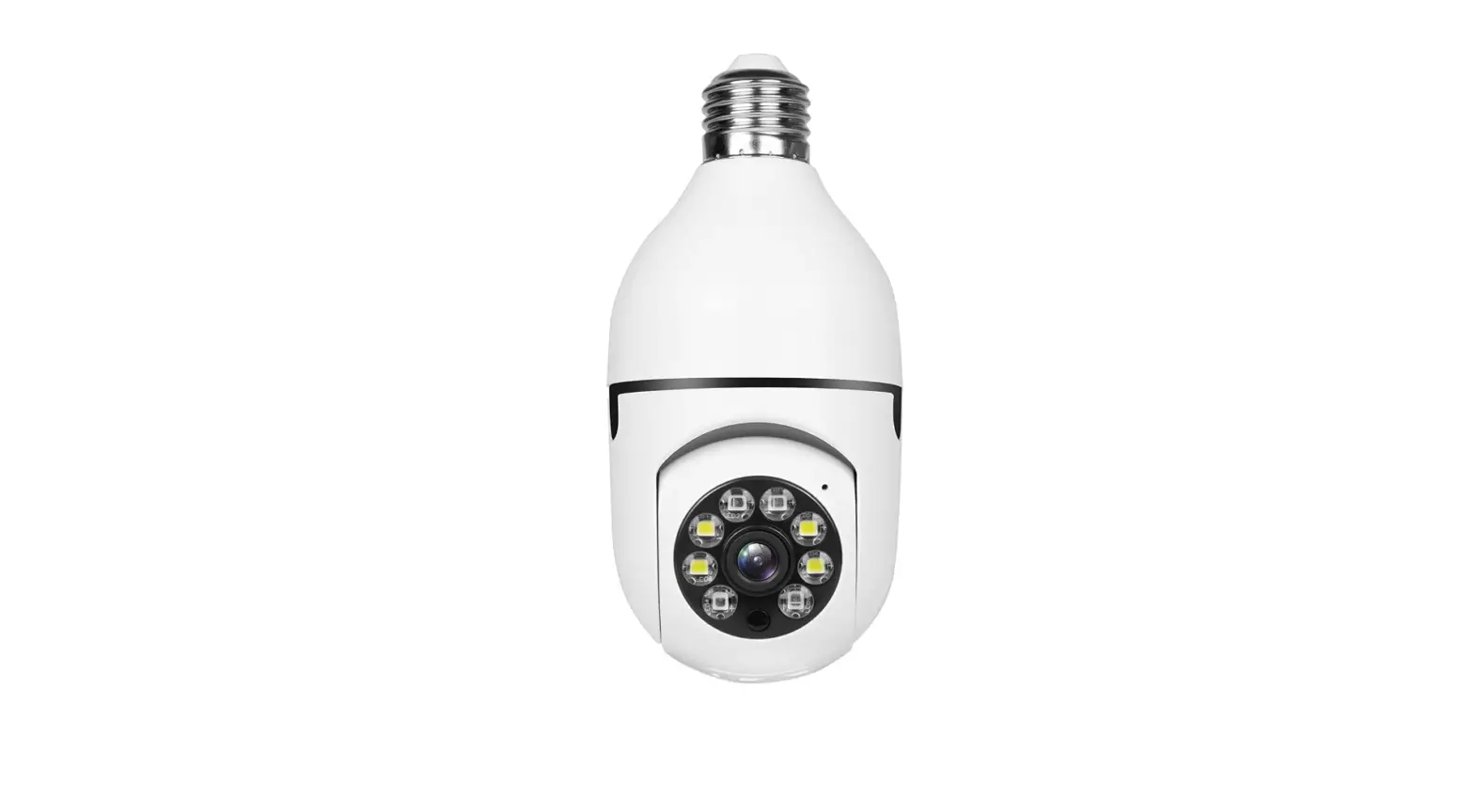
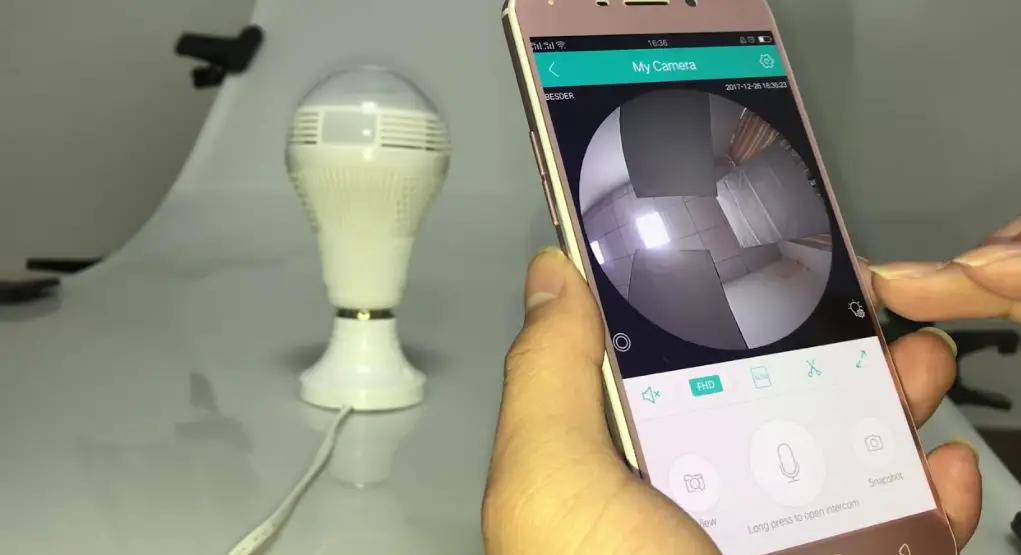
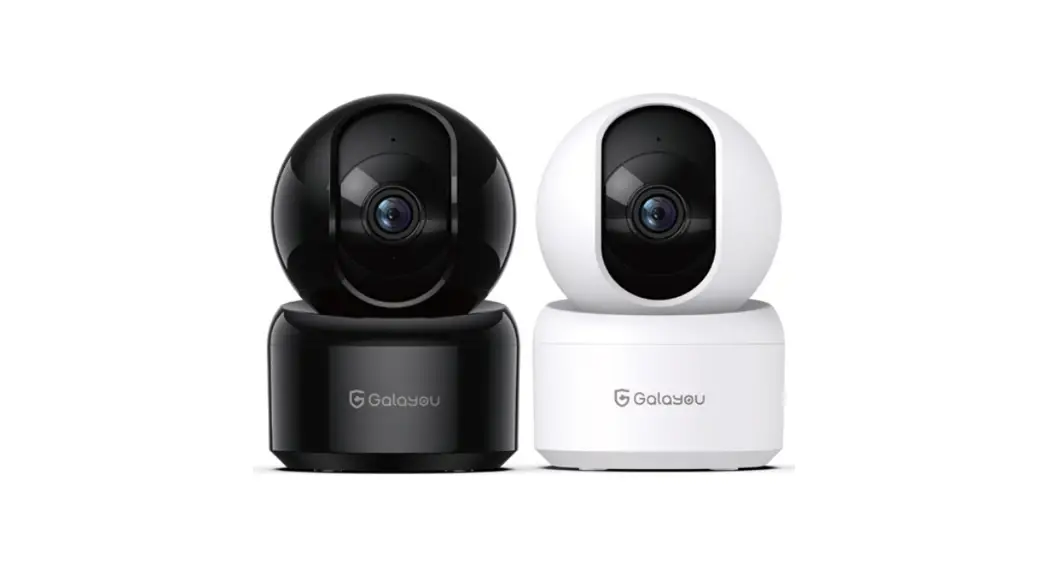
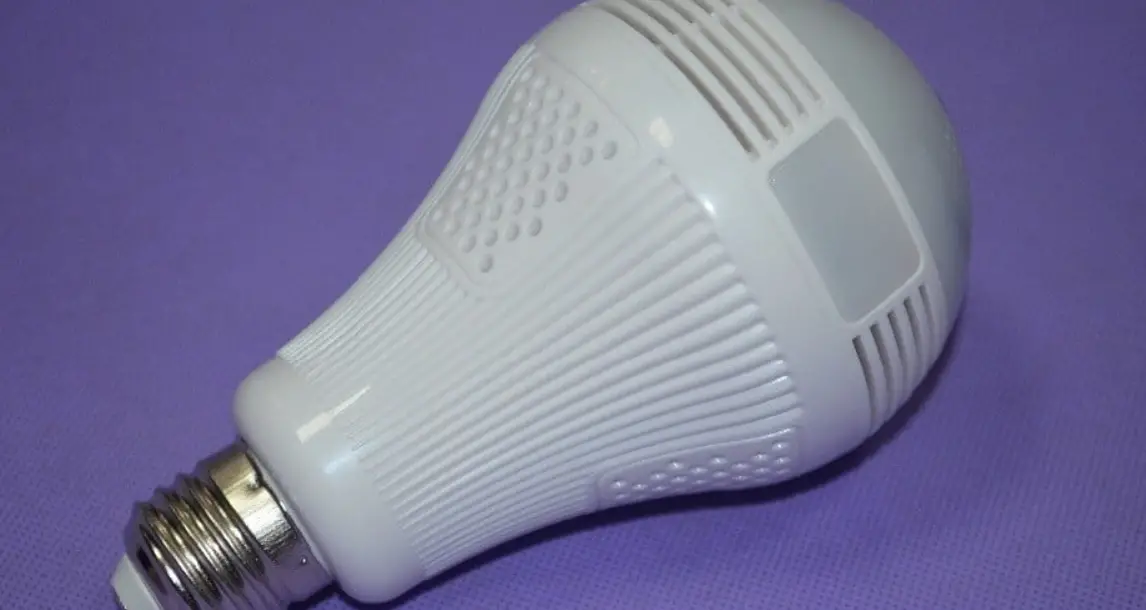
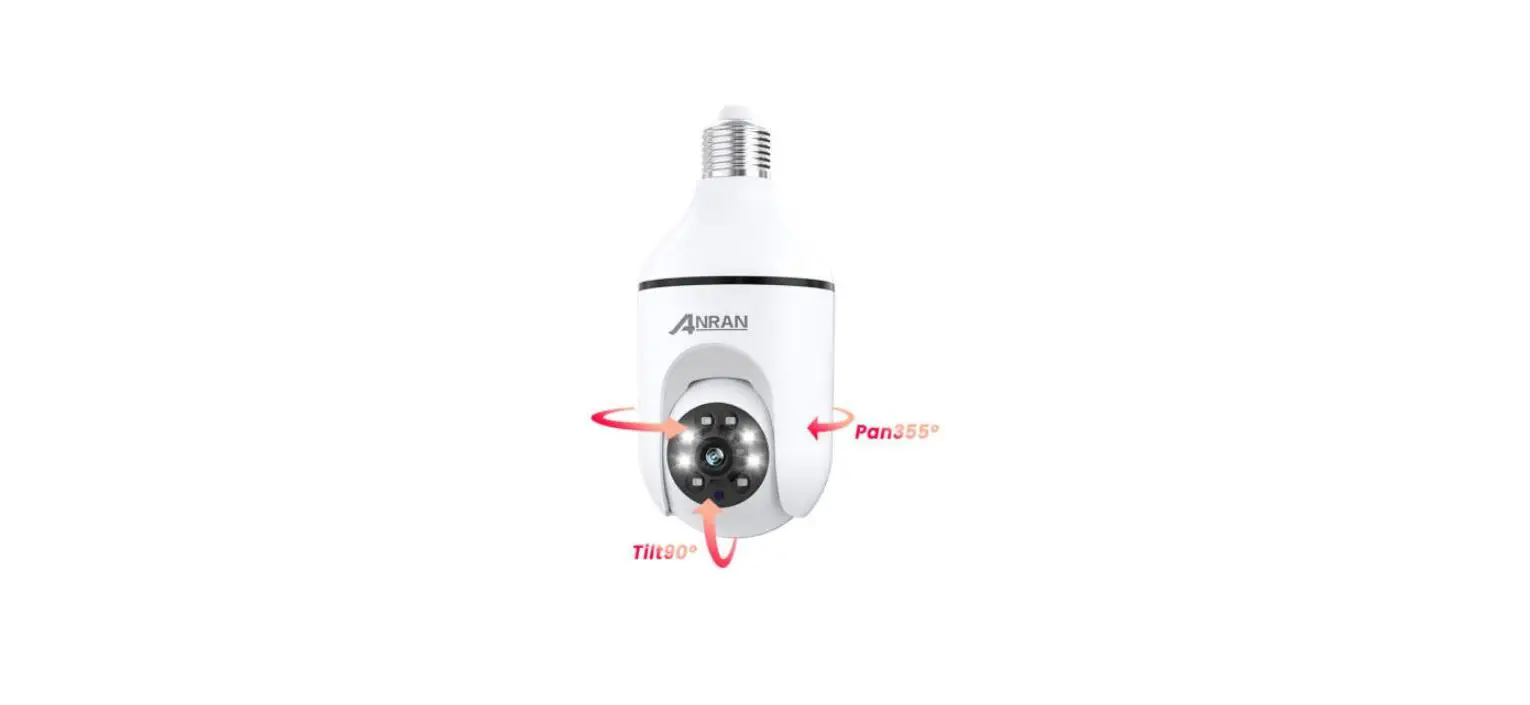
Light Bulb Camera
Product Diagram
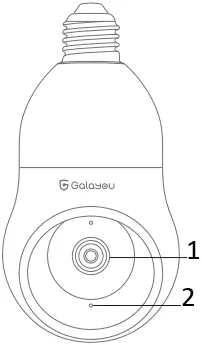
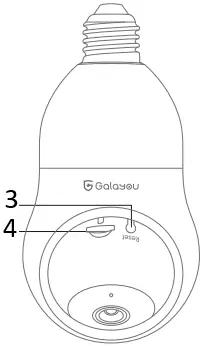
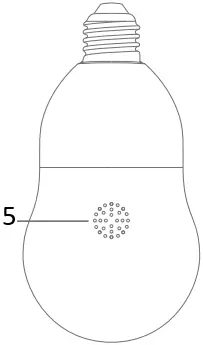
- Lens
- Microphone
- Reset Button
- Micro SD Card Slot
- Speaker
Indicator Lights Status
| Light Status | Camera Status |
| White light on | Camera is powered on |
| White light flashing | Connecting to Wi-Fi |
| White light solid | WiFi connection succeeds |
| White light quickly flashing |
|
Warm note: Please make sure your router is connected to Internet.
User’s Guide
1. Download and Install
Go to the App Store or Google Play to search and download the “Wansview Cloud” APP on your smartphone. Or scan below QR code to get the APR.



2. Register Account
Open the “Wansview Cloud” APP and register an account with your email and activate it.
Tips: Your password must be 8-16 characters, and contains at least the following three categories: numbers, uppercase letters, lowercase letters, or special characters.
3. Screw the light bulb camera into the bulb socket to make sure the camera is powered on.
4. Add G6
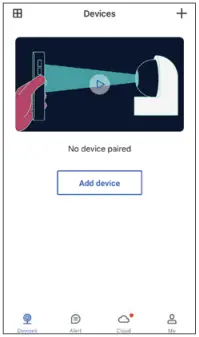
1 Click “Add device” or “+”
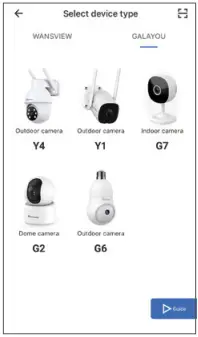
2 Select Galayou– Model G6
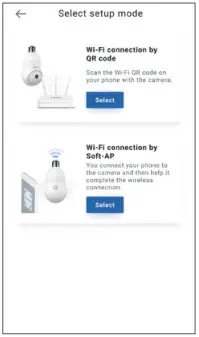
3 Select a connection method
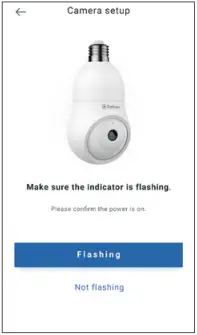
4 Device Power On
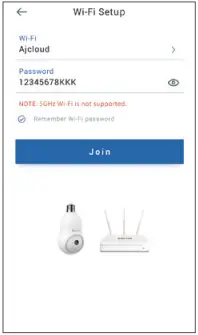
5 Wi-Fi Setup
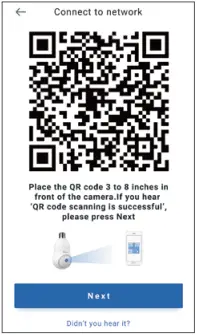
6 Scan the QR Code
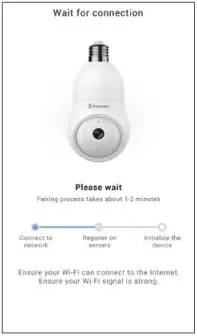
7 Wait for Connection
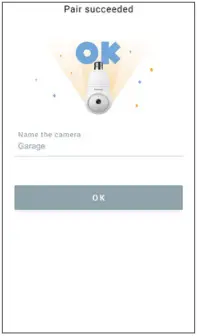
8 Pair succeeds
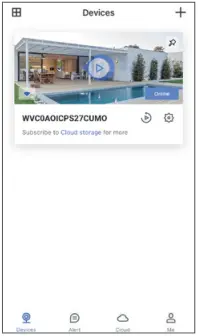
9 The camera is online
Tips:
- This Light Bulb Camera only works with 2.4GHz Wi-Fi, 5GHz Wi-Fi is not supported!
- Please put the camera near to the router during setting up the camera, after connection succeeds, you can place the camera in another place.
Note: Put the camera close to the router(3 feet) during setting up the camera.
FAQ
Please press the reset button on the camera for 5 seconds until the white light flashes quickly and the camera says “reset is successful”, Please wait for about one minute, then the camera will flash white light slowly and you can reconnect it now.
Please try to reset the camera(Process: keep the camera powered on for more than 1 minute, then press and hold the “Reset” button until the LED starts flashing.)
1. The invited member should download the Wansview Cloud app, and register a new account first.
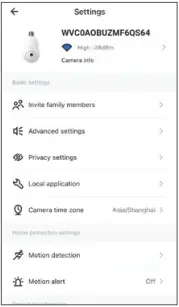
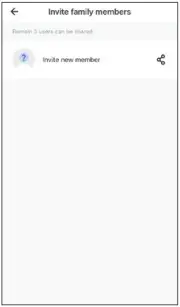
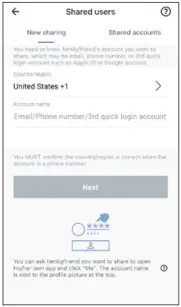
2. The main account should open the Wansview cloud app, tap “Settings-invite family members”– press  –choose Country and then enter the invited member’s account.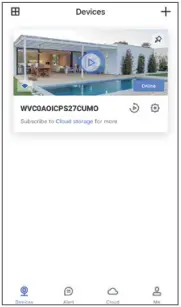
3. The invited member needs to open the Wansview cloud app and then click “Receive”. If he/she doesn’t receive the invitation, please close the APP, reopen and refresh the APP page.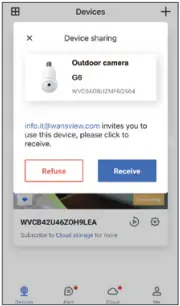
Please kindly rotate the camera head upwards, then you will see the micro SD card slot(Capacity 8GB-128GB)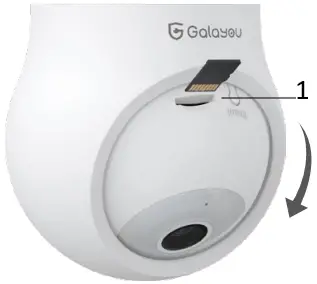
1. Micro SD Card Slot
Manufacturer:Shenzhen Golden Vision Technology Development Co., Ltd
Address: No.6 BaoFu Road, Shangmugu community, PingHu town, Longang, Shenzhen, China
After-service:
US [email protected]
UK [email protected] 1-323-686-3288 (US only)
Made in China