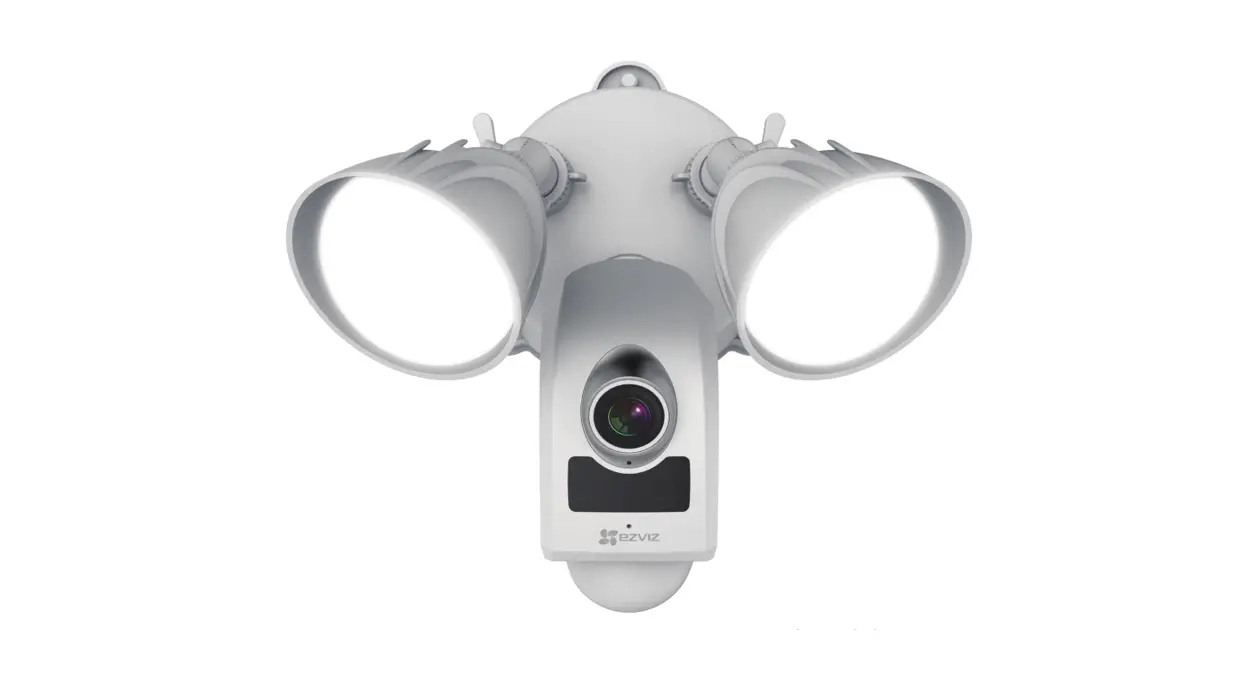
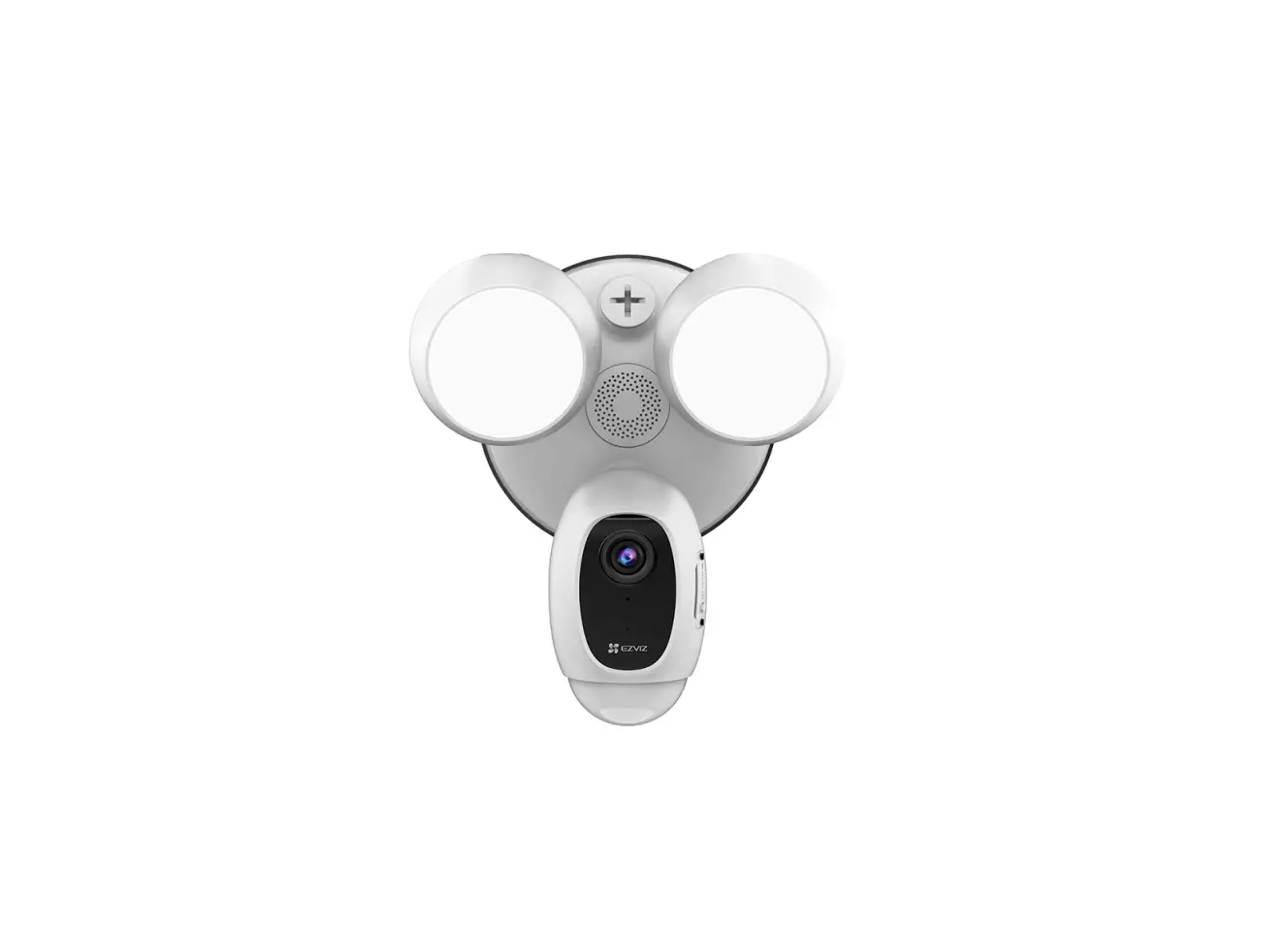
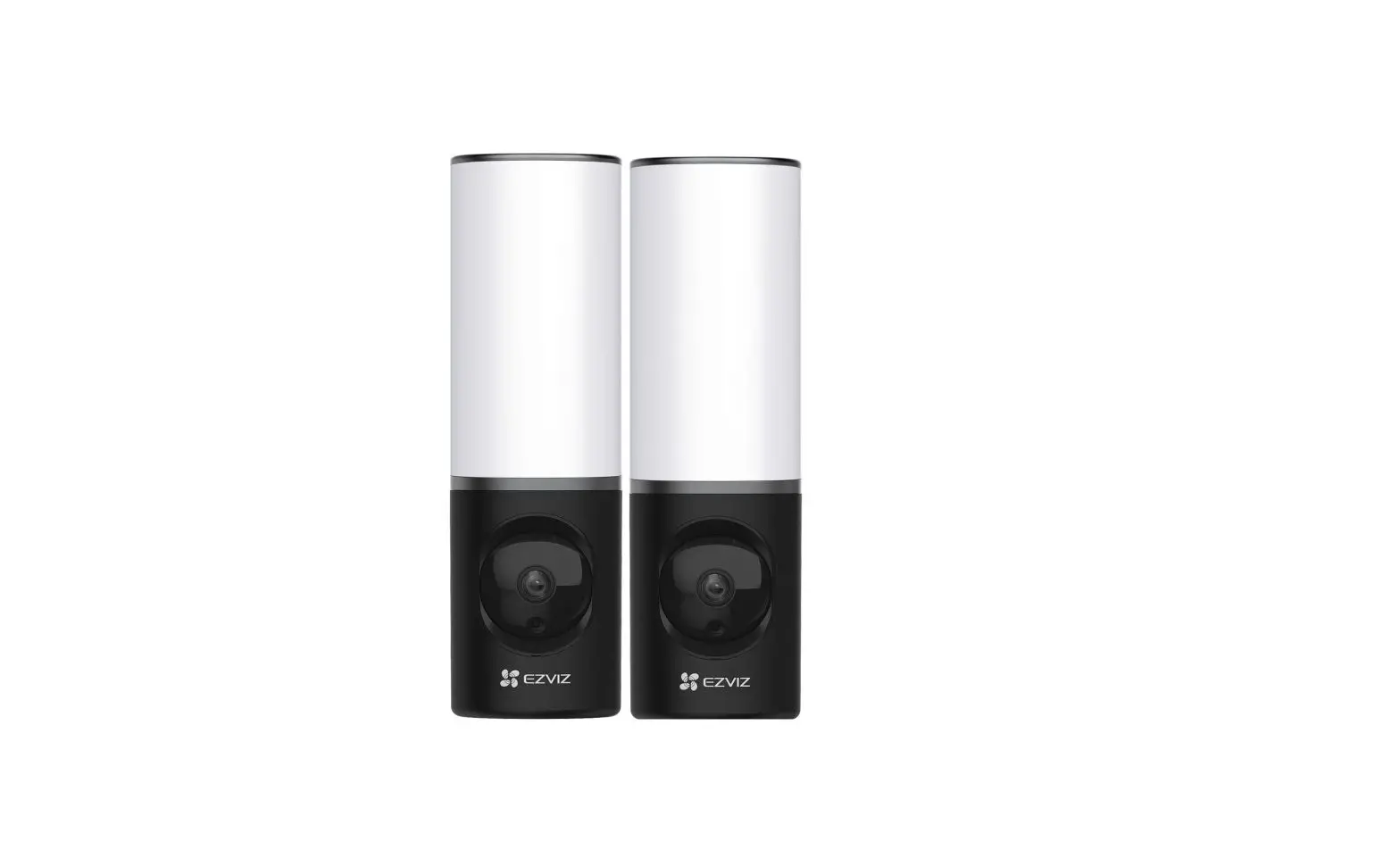
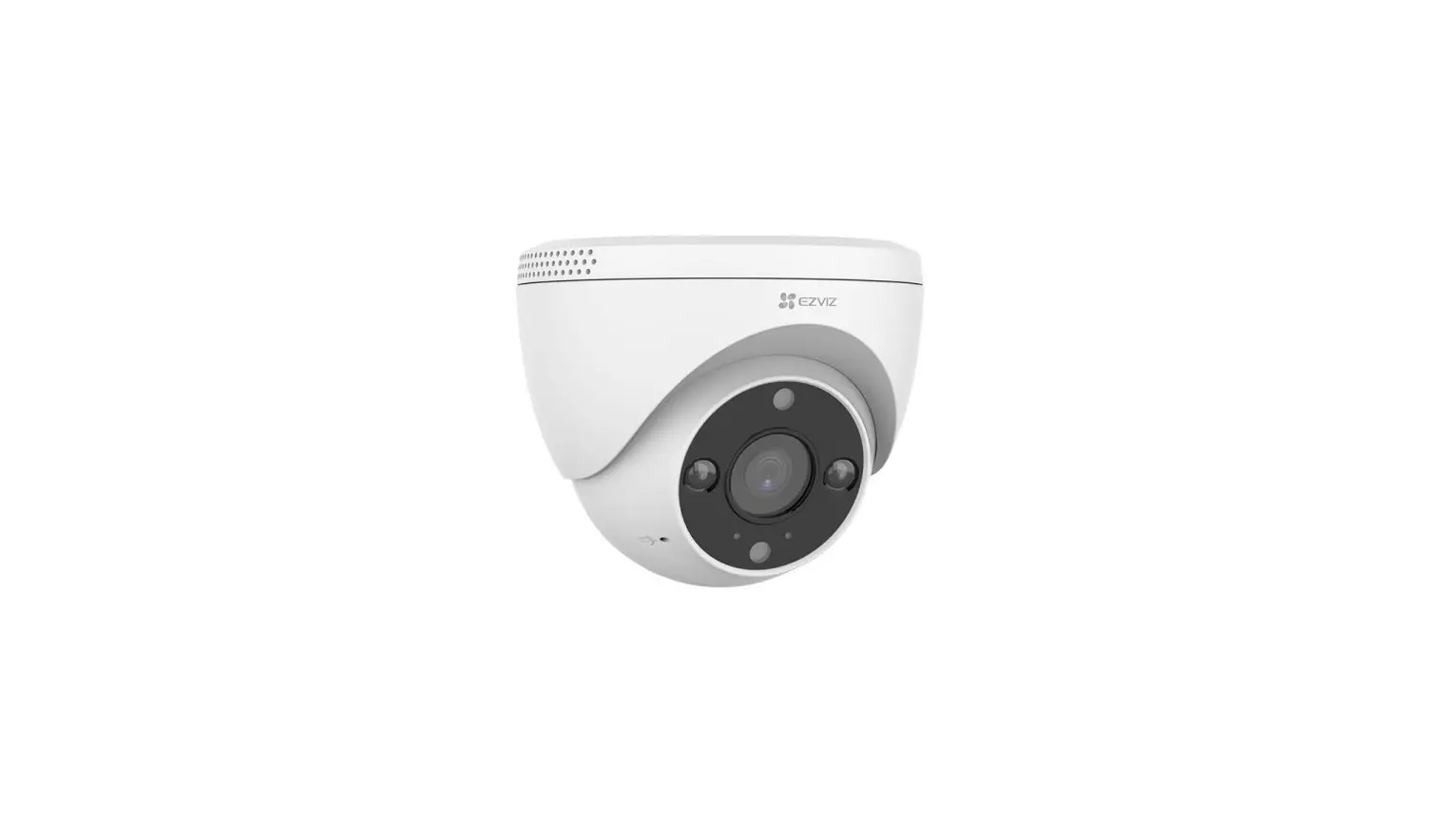
LC1C Security Light Camera
Product Information:
- Product Name: Security Light Camera
- Included Items: Security Light Camera, Screw Kit, Quick Start
Guide - Features:
- Lens Micro SD Card Slot (Behind the Cover)
- Reset Button PIR
- Camera Adjustment Collar
- Base Screw Cap
- Light Adjustment Knob (Tilt)
- Light Adjustment Collar (Rotation)
- Micro SD Card: Sold separately
Product Usage Instructions:
1. Get the EZVIZ app
- Connect your mobile phone to Wi-Fi using your 2.4GHz
network. - Search for EZVIZ in App Store or Google PlayTM.
- Download and install the EZVIZ app.
- Launch the app, and register an EZVIZ user account.
2. Installation
Step 1: Shut off the electricity
Turn off the electricity at the breaker that controls the
security light’s circuit.
Step 2: Install Micro SD Card (Optional)
- Remove the cover on the side of the camera.
- Insert a micro SD card (sold separately) into the slot until it
clicks. - Place the cover back on.
Note: After installing the micro SD card, you should initialize
the card in the EZVIZ app before using it.
Step 3: Separate the mounting bracket
- Unscrew the 2 base screw caps.
- Pull the security light camera off the mounting bracket and
unplug the wire connector from the bracket.
Step 4: Install the mounting bracket
The security light camera can be mounted on the wall or ceiling.
Here we take wall mounting as an example.
- Pick a clean and flat surface.
- Drill two holes on the wall and insert anchors.
- Take the wires from the wall through the rubber of the mounting
bracket. - Fix the mounting bracket to the wall with mounting screws.
Step 5: Connect the wires
Follow the steps to connect the wires from your wall to the
wires on your security camera:
- Attach the ground (or yellow-green) wire from your wall to the
yellow-green wire on your security light camera. - Attach the hot (or brown) and neutral (or blue) wires from your
wall to the brown and blue wires on your security light camera
respectively. - Secure them using a screwdriver (sold separately).
Step 6: Snap the wire connector into place
After securing the wires, snap the wire connector into the base
of the mounting bracket.
Step 7: Place security light camera on the bracket
Align the mounting posts with the holes on the security light
camera and press together, securing the base screw caps.
Step 8: Restore power at the breaker
Turn on power to your security light’s circuit.
What’s in the Box
Security Light Camera
Screw Kit
Quick Start Guide
Security Light Camera
Lens Micro SD Card Slot (Behind the Cover)
Reset Button PIR
Camera Adjustment Collar
Base Screw Cap
Security Light
Light Adjustment Knob (Tilt) Light Adjustment Collar (Rotation)
Name Light Adjustment Knob (Tilt)
Light Adjustment Collar (Rotation)
Camera Adjustment Collar
Micro SD Card (sold separately) Reset Button PIR
Description
Loosen the adjustment knob and tilt the light up to 180°. Tighten the adjustment knob when you have the light in the position you want.
Loosen the adjustment collar and rotate the light up to 360°. Tighten the adjustment collar when you have the light in the position you want.
Loosen the adjustment collar and rotate the camera up to 360°. Tighten the adjustment collar when you have the camera in the position you want.
Initialize the card in the EZVIZ app before using it.
Hold for 5 seconds to restart and reset all parameters to default.
With the PIR (Passive Infrared), the device can detect a human body, animals, or other objects.
1
Get the EZVIZ app
1. Connect your mobile phone to Wi-Fi using your 2.4GHz network. 2. Search for “EZVIZ” in App Store or Google PlayTM. 3. Download and install the EZVIZ app. 4. Launch the app, and register an EZVIZ user account.
Installation
· Installation height affects motion detection, security light camera recommended installation height: 3 m (10 feet) above the ground. · Camera recommended setting angle: 22 degree as shown below.
22°
Step 1 Shut off the electricity at the breaker that controls security light’s circuit.
· If you don’t know where your breaker is or how to turn off power to your floodlight circuit, consult with a licensed electrician. · Keep the breaker off at any time during the installation process.
Step 2 Install Micro SD Card (Optional).
1. Remove the cover on the side of the camera. 2. Insert a micro SD card (sold separately) into the slot until a click. 3. Place the cover back on.
After installing the micro SD card, you should initialize the card in the EZVIZ app before using it. For detailed operation, refer to page 5: Initialize
Micro SD Card.
2
Step 3 Separate the mounting bracket from the security light camera.
1. Unscrew the 2 base screw caps. 2. Pull the security light camera off the mounting bracket, and
unplug the wire connector from the bracket.
Mounting Bracket Base Screw Cap
3. After separating the mounting bracket from the camera, the resulting picture is shown as below.
Mounting Posts
Wire Connector
Keep the mounting posts stay in the bracket.
Step 4 Install the mounting bracket.
· When installing the mounting bracket, make sure the logo (UP) faces upward. · Make sure the wall/ceiling is strong enough to withstand three times the weight of the security light camera.
The security light camera can be mounted on the wall or ceiling. Here we take wall mounting as an example. 1. Pick a clean and flat surface. 2. Drill two holes on the wall and insert anchors. 3. Take the wires from the wall through the rubber of the mounting bracket. 4. Fix the mounting bracket to the wall with mounting screws.
UP
Anchor
Mounting screw
Step 5 Connect the wires.
Follow the steps to connect the wires from your wall to the wires on your security camera, as shown in the figure below. 1. Attach the ground (or yellow-green) wire from your wall to the yellow-green wire on your security light camera. 2. Attach the hot (or brown) and neutral (or blue) wires from your wall to the brown and blue wires on your security light camera respectively. 3. Secure them using screwdriver (sold separately).
3
Figure: Connect the Wires
Wires from your wall Yellow-green-Ground Brown-Hot Blue-Neutral
Connect to Matching Wire on Camera Yellow-green Brown Blue
Step 6 Snap the wire connector into place.
After securing the wires, snap the wire connector into the base of the mounting bracket. Mounting Bracket
UP
Wire Connector
Step 7 Place security light camera on the bracket.
Step 8 Restore power at the breaker.
Align the mounting posts with the holes on security light camera and press together, securing the base screw caps.
Turn on power to your security light’s circuit.
Base Screw Cap
4
Step 9 Confirm the security light camera has power
1. After restoring power, the security light camera will be ready for setup when the lights are on and the LED indicator on the front of the camera fast flashes blue.
LED Indicator Red
Status
· Solid Red: Camera is starting up. · Slow-flashing Red: Wi-Fi connection has failed. · Fast-flashing Red: Camera exception (e.g. Micro
SD card error).
LED Indicator
Blue
· Solid Blue: Video is being viewed or played back in EZVIZ App.
· Slow-flashing Blue: Camera is running properly. · Fast-flashing Blue: Camera is ready for Wi-Fi
connection.
Add a security light camera to EZVIZ
1. Log in the EZVIZ app. 2. From the EZVIZ app Home screen, tap “+” on the upper-right hand corner to go to the scan QR code interface.
3. Scan the QR Code on the security light camera. 4. Follow the EZVIZ app wizard to finish Wi-Fi configuration.
· If you want to change your security light camera’s Wi-Fi, press and hold the reset button for 5s and repeat this part. · The security light camera works with 2.4GHz Wi-Fi signals. If you have a dual-band router with separate 2.4GHz and 5GHz networks,
make sure your phone is connected to the 2.4GHz one. · If your Wi-Fi network signal is less than 50% where you want to install the security light camera, a Wi-Fi signal extender is recommended
to boost the signal at the installation point.
Initialize Micro SD Card
5. In the EZVIZ app, check the memory card status by tapping on the Storage Status in the Device Settings interface.
6. If the memory card status displays as Uninitialized, tap to initialize it. The status will then change to Normal.
For detailed information, please visit www.ezviz.com/eu.
5
INFORMATION FOR PRIVATE HOUSEHOLDS
1. Separate collection of waste equipment: Electrical and electronic equipment that has become waste is referred to as waste equipment. Owners of waste equipment must dispose of it separately from unsorted municipal waste. In particular, waste equipment does not belong in household waste, but in special collection and return systems. 2. Batteries and rechargeable batteries as well as lamps: Owners of waste equipment shall, as a rule, separate waste batteries and rechargeable batteries that are not enclosed in the waste equipment, which can be removed from the waste equipment without being destroyed, from the waste equipment before handing them in at a collection point. This does not apply if waste equipment is prepared for reuse with the participation of a public waste management authority. 3. Options for returning waste equipment: Owners of waste equipment from private households can return it free of charge to the collection points of the public waste management authorities or to the take-back points set up by manufacturers or distributors within the meaning of the Electrical and Electronics Equipment Law. Stores with a sales area of at least 400 m² for electrical and electronic equipment and those grocery stores with a total sales area of at least 800 m² that offer electrical and electronic equipment several times a year or on a permanent basis and make it available in the market are required to take it back. This also applies in the case of distribution using means of distance communication, if the storage and shipping areas for electrical and electronic equipment are at least 400 m² or the total storage and shipping areas are at least 800 m². Distributors shall, in principle, ensure take-back by providing suitable return facilities at a reasonable distance from the respective end user. The possibility of returning waste equipment free of charge exists for distributors who are obliged to take it back, among other things, if a new similar device that essentially fulfills the same functions is delivered to an end user. 4. Privacy Notice: Waste equipment often contains sensitive personal data. This applies in particular to devices of information and telecommunications technology such as computers and smartphones. In your own interest, please note that each end user is responsible for deleting the data on the waste equipment to be disposed of. 5. Meaning of the symbol “crossed-out wheelie bin”: The symbol of a crossed-out wheelie bin regularly depicted on electrical and electronic equipment indicates that the respective device is to be collected separately from unsorted municipal waste at the end of its service life.
6
 EZVIZ - Creating Easy Smart Homes