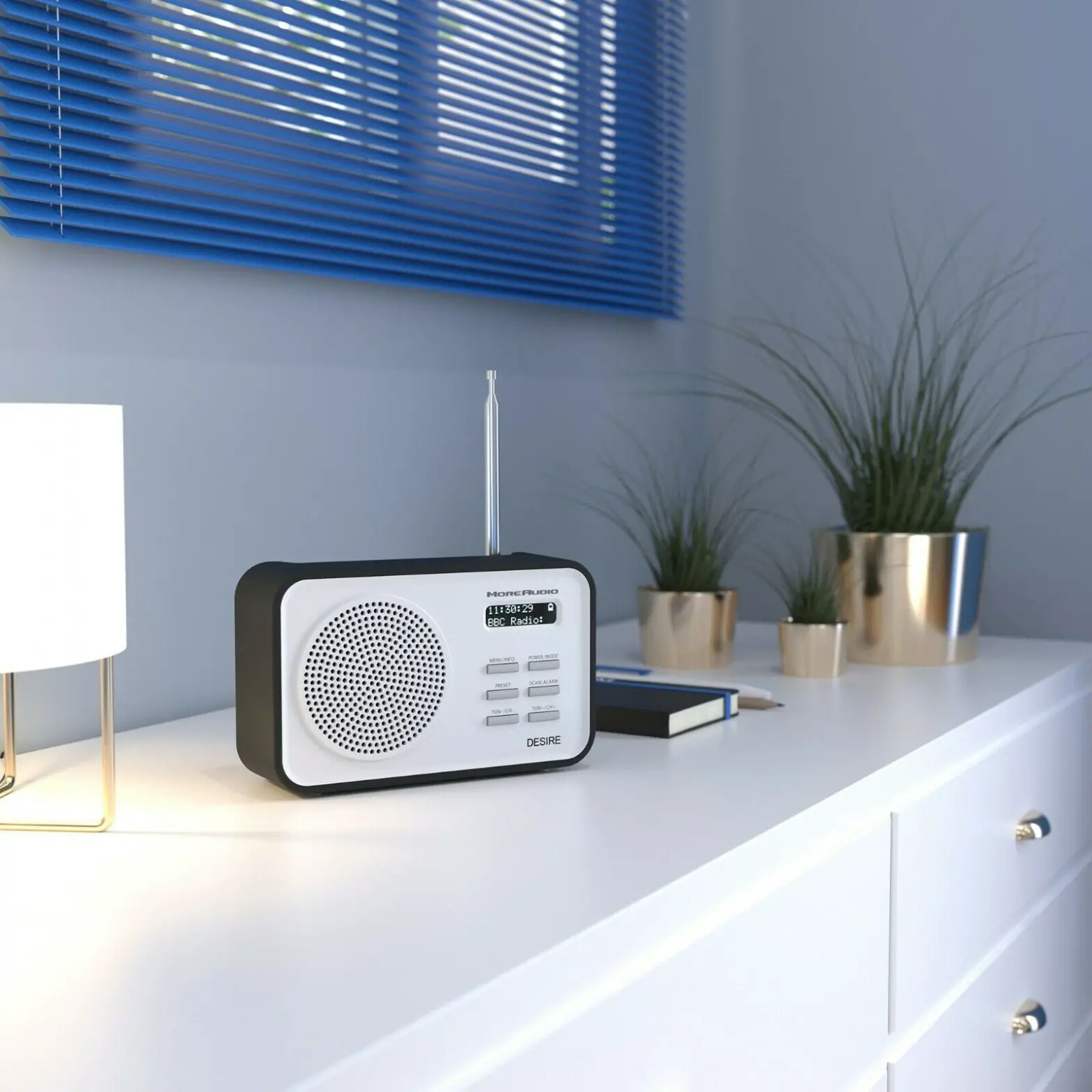
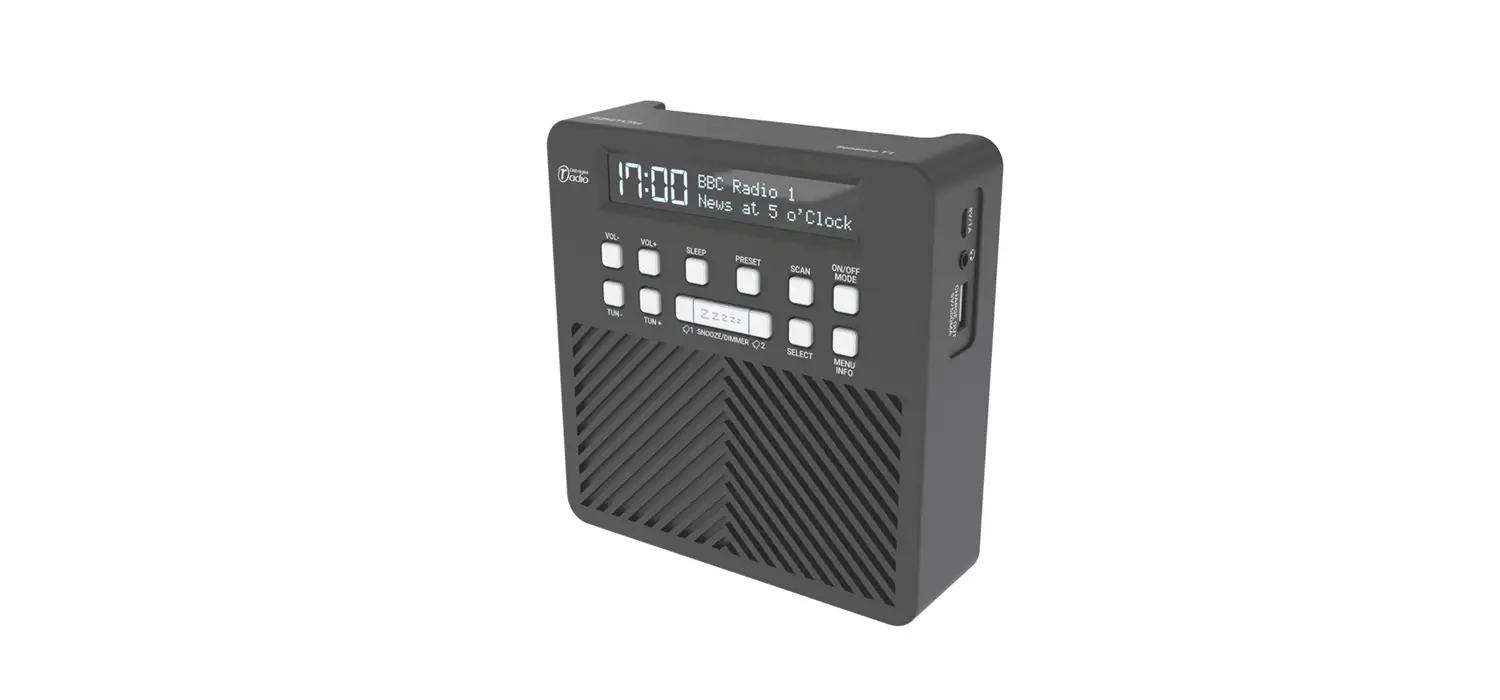
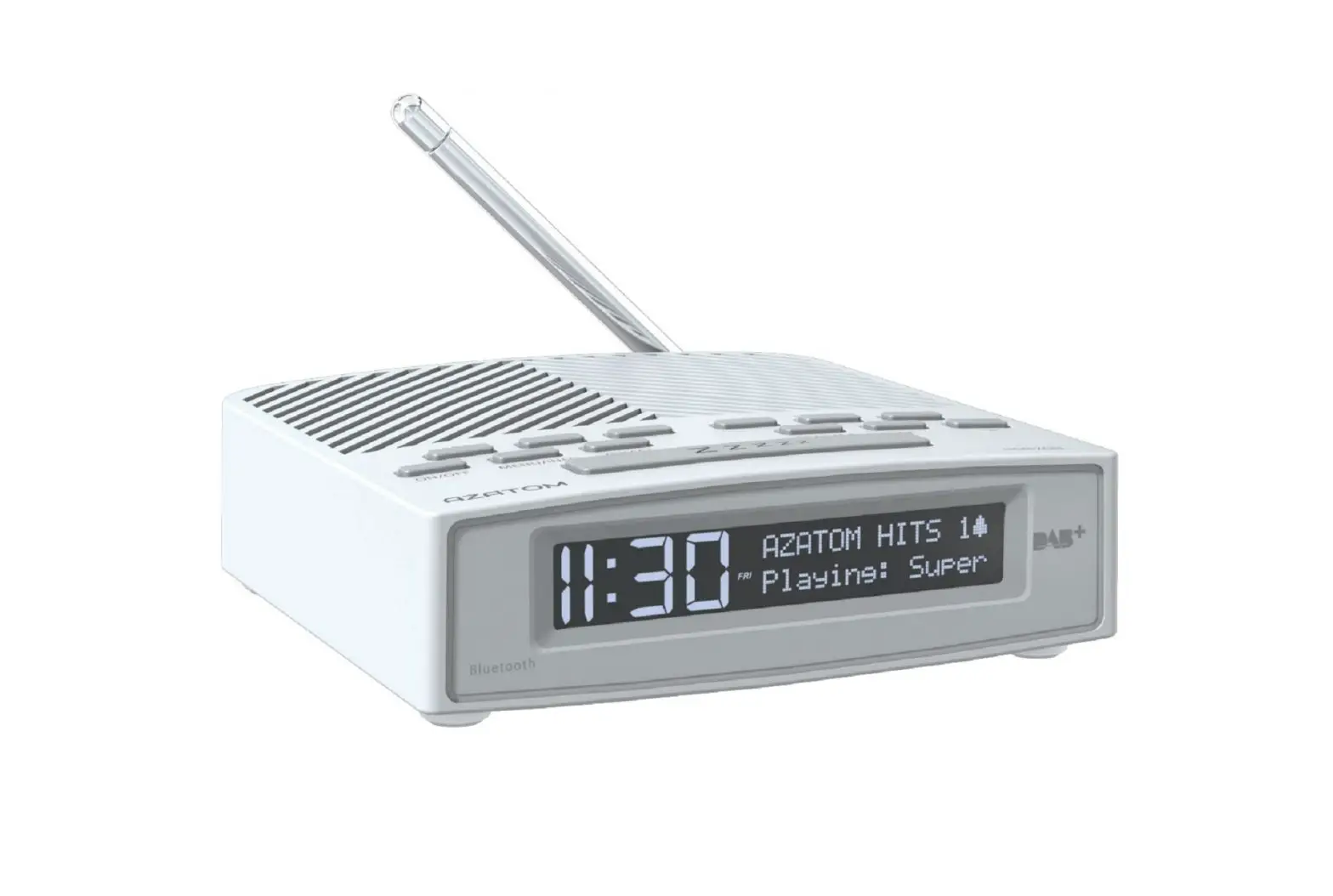
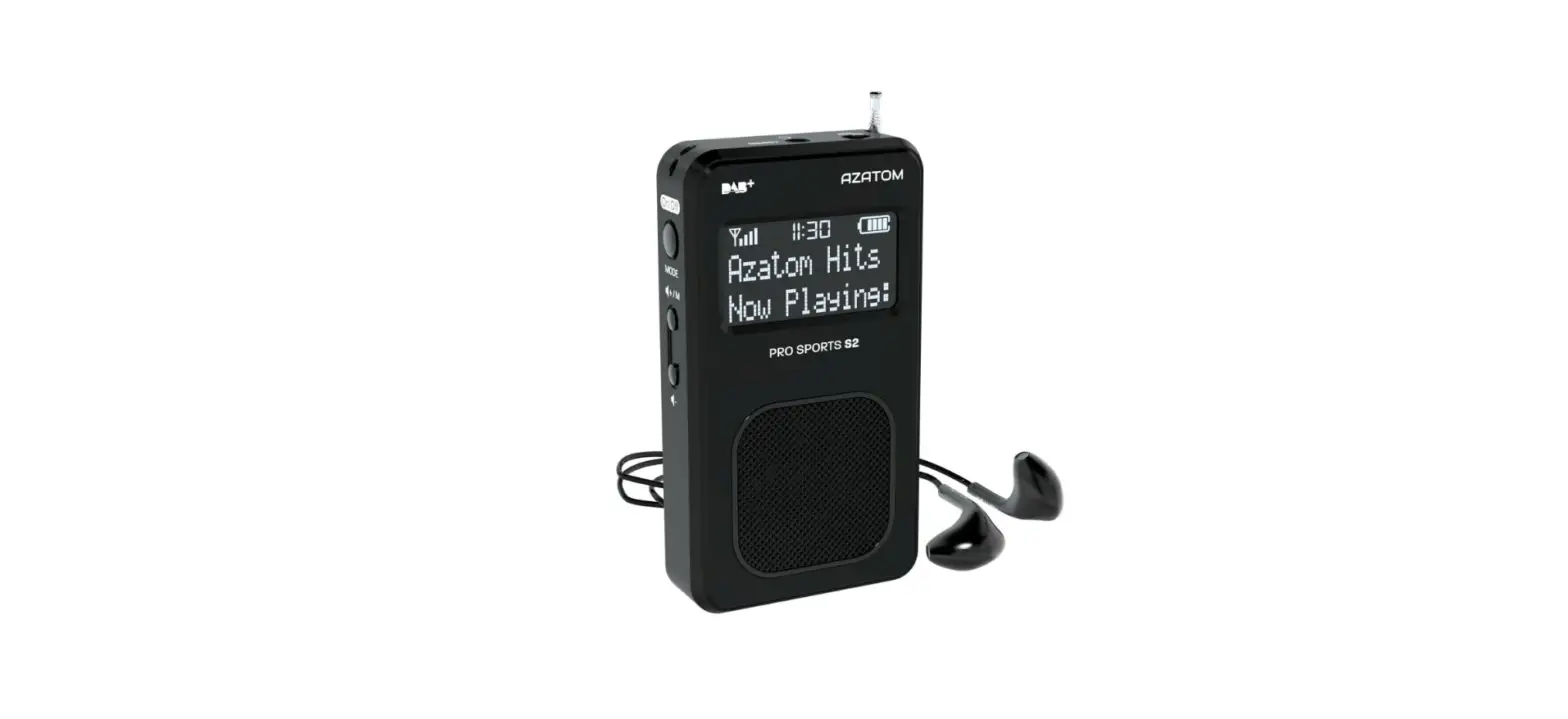
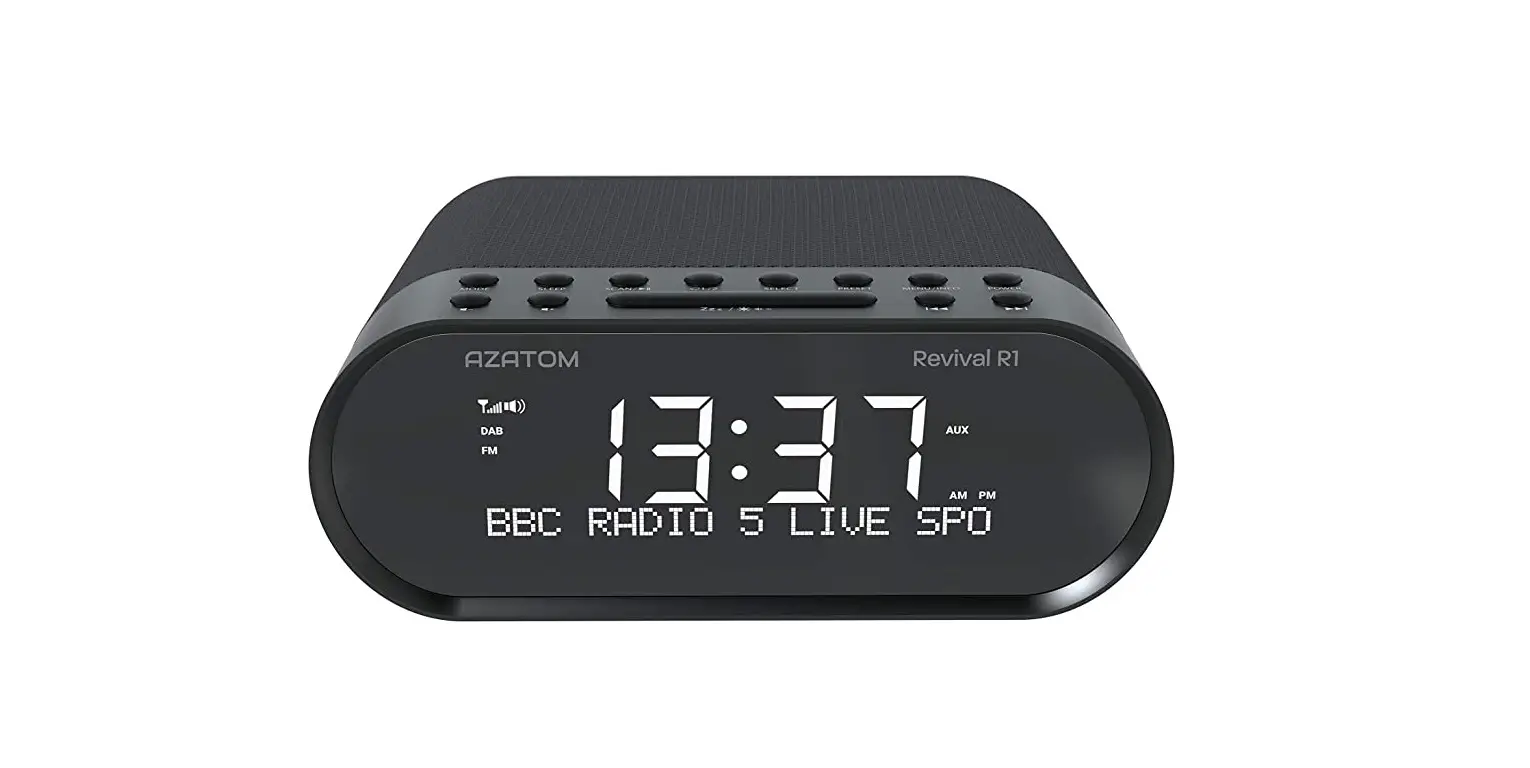
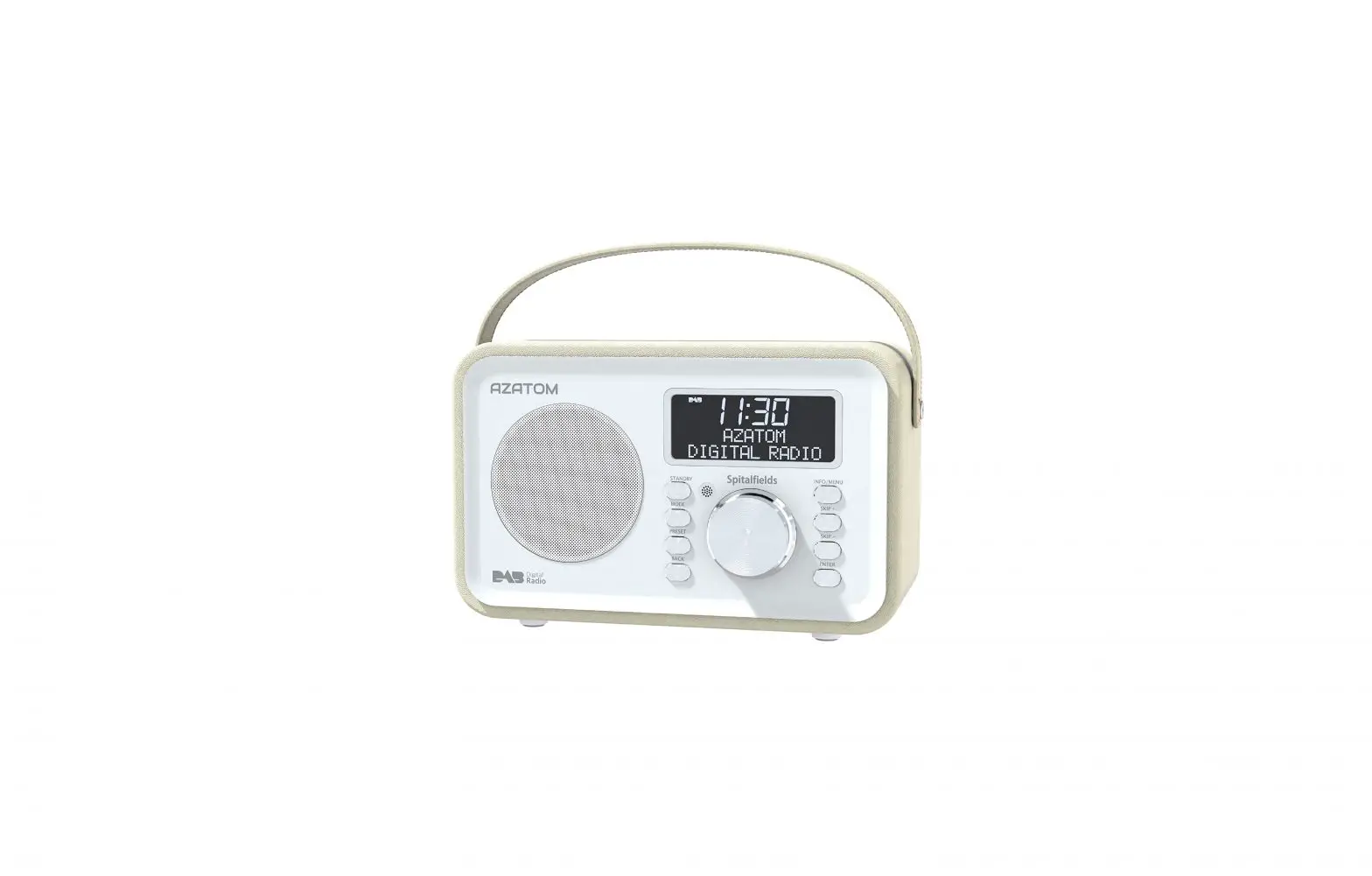
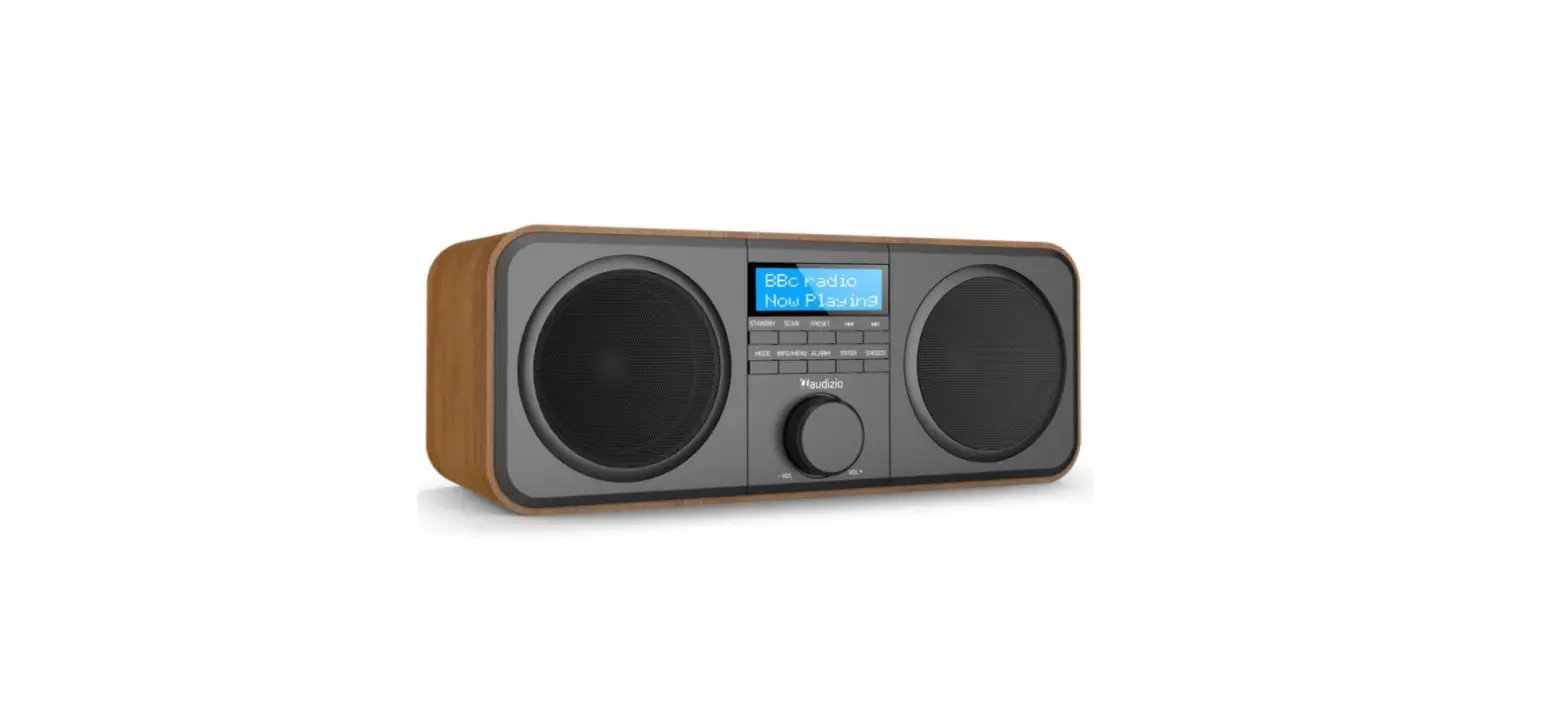
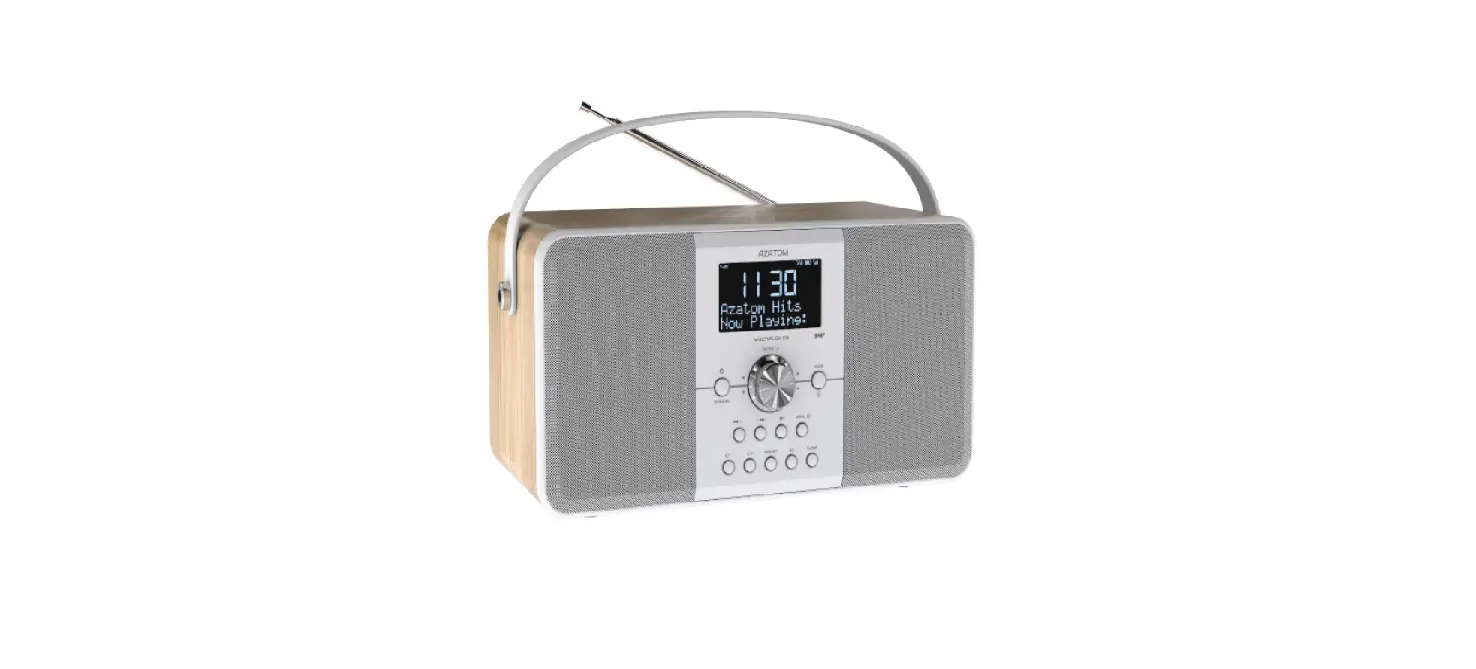
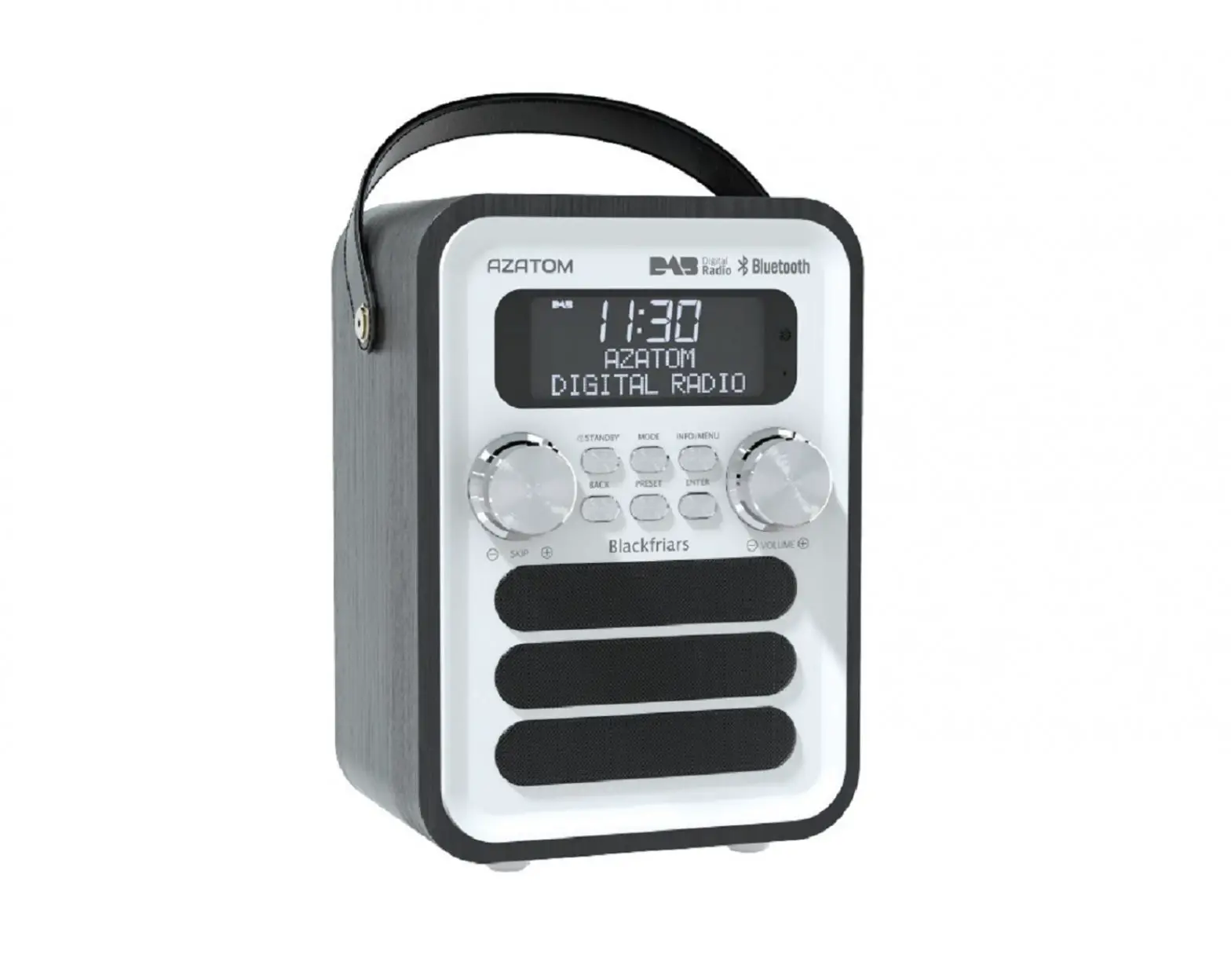
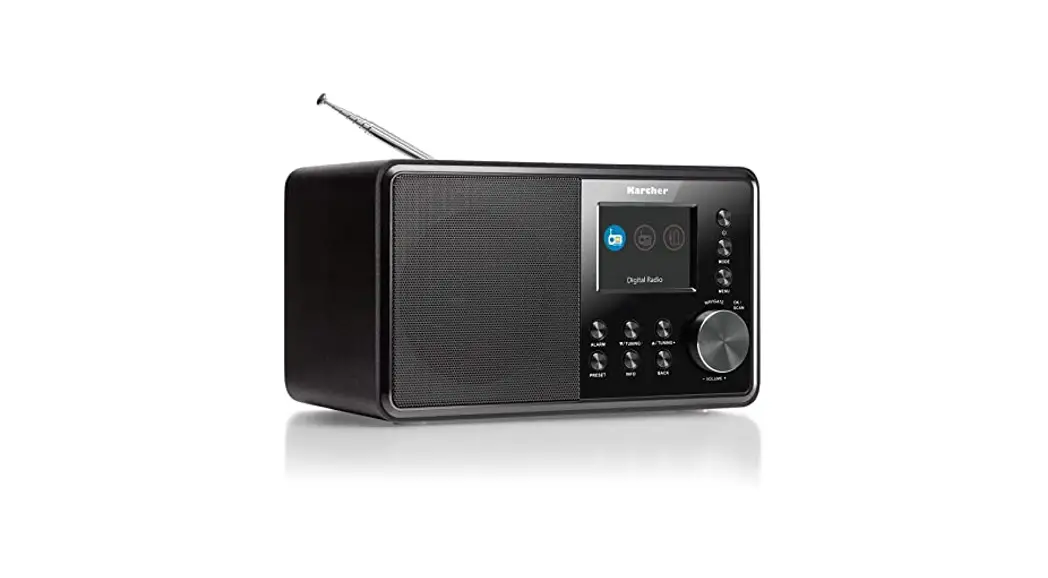
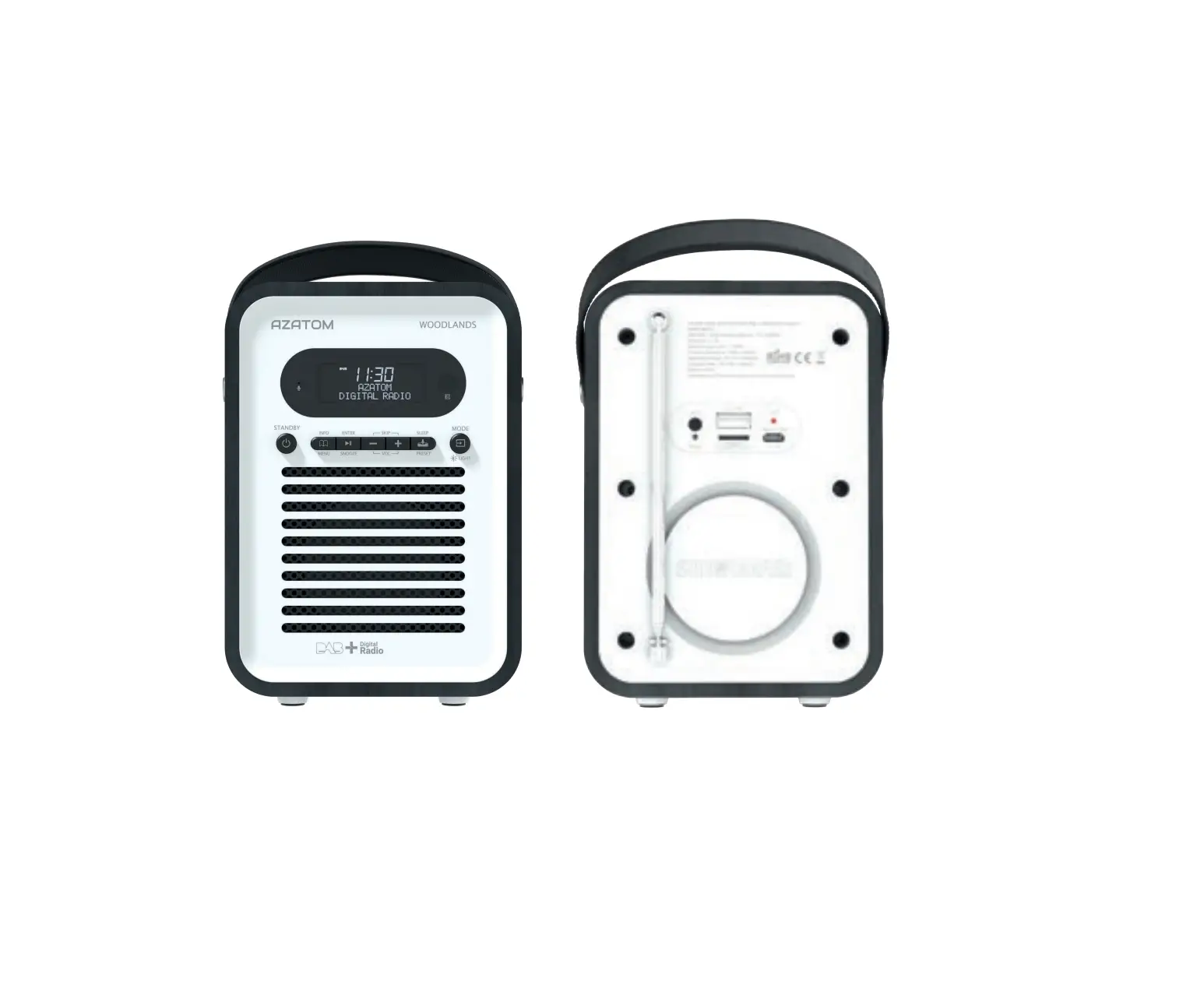
Sonance T4 DAB Digital and FM Radio
Sonance T4 User Manual
Product Information
The Sonance T4 is a digital radio designed for home use. It
features DAB and FM radio, Bluetooth connectivity, and a range of
customizable settings. The package includes the Sonance T4 radio, a
USB Type C power adapter, user manual, and warranty card. The radio
is equipped with a telescopic aerial, DC input socket, headphone
port, and USB charge port.
Usage Instructions
Package Contents
Remove all items from the packaging and retain it. The package
includes the Sonance T4 radio, a USB Type C power adapter, user
manual, and warranty card. Before operating the device, read the
manual thoroughly. Only use the supplied power adapter for this
device.
Controls & Interface
The Sonance T4 features various controls and interfaces to
operate the device. These controls include volume buttons, sleep,
display, preset, mode, on/off, rewind, fast forward, alarm buttons,
snooze/dimmer, enter/play/pause, menu, DC input socket, headphone
port, USB charge port, and telescopic aerial. Refer to the user
manual for more information on each control.
Operating Your Radio
- Extend the telescopic aerial.
- Press the POWER button to switch on your radio. The display
will show Azatom – Digital Radio. - If this is the first time using the unit, it will go into DAB
Mode.
DAB Radio
Selecting a Station
- With your radio powered on, carefully extend the telescopic
aerial fully. - Press MODE to enter DAB mode.
- Press the or buttons to cycle through the list of stations and
press the ENTER button to confirm and play.
Auto Scan
- Press and hold the SCAN button when in DAB mode to
automatically scan and store stations. - Or press MENU, then press or to highlight Full Scan and press
ENTER. - The display will show Scanning… and your radio will perform a
scan of the Band III DAB channels.
Secondary Services – DAB
- If a radio station has a secondary service associated with it,
the display will show >> next to the station name on the
station list. The secondary service will then appear immediately
after the primary services as you push the or buttons. - Press ENTER to confirm the station selection.
- When the secondary service shuts down, your radio will
automatically switch back to the main radio station if it is
available.
DAB Manual Tuning
Manual tuning allows you to tune to the various DAB Band III
channels. UK DAB stations are located in the range 11B to 12D. This
function is mainly used to assist the positioning of the aerial or
the radio to optimize reception for a specific channel or
frequency. Refer to the user manual for more information on manual
tuning.
Thank you for purchasing the Sonance T4. For additional
information and troubleshooting, refer to the user manual.
Sonance T4
USER MANUAL
AZATOM
NEXT GENERATION SOUND
1
2
Contents
Package Contents
4
Controls & Interface
5
Operating your radio
6
DAB Radio
7
Dynamic Range Control & Prune
9
FM Radio
10
Display Settings
11
Using Presets
12
Bluetooth & Aux In
14
Sleep Timer & Time & Date Settings
15
Alarm Settings
16
Snooze, USB Charge & Languages
17
Earphones
18
Factory Reset
19
Important Safety Information
20
Specifications
21
Thank You for purchasing the Sonance T4 for your home.
To make the most of its features, we suggest reading the instruction manual thoroughly, which includes hints and tips to assist in resolving any problems. Please go through all the safety guidelines before using it and keep this manual for future reference.
3
Package Contents
Remove all items from the packaging. Retain the packaging. If you dispose of it please do so according to local regulations. The following items are included: 1. Sonance T4 Radio 2. USB Type C Power Adapter 3. User Manual 4. Warranty Card
Please read the manual throughly before operating the device Caution: Only use the supplied power adapter for this device. Do not use for other devices
4
Controls & Interface
1. 2. 3. 4. 5. 6. 7.
15. 16. 17.
8.
14.
9.
13.
10.
12.
11.
18.
1. Vol 2. Vol + 3. Sleep 4. Display 5. Preset 6. Mode 7. On/Off 8. Rewind 9. Fastforward 10. Alarm 1
11. Snooze/Dimmer 12. Alarm 2 13. Enter/Play/Pause 14. Menu 15. DC Input Socket 16. Headphone Port 17. USB Charge Port 18. Telescopic Aerial
5
Operating Your Radio
1. Extend the Telescopic Aerial. 2. Press the POWER button to switch on your radio. The display will
show “Azatom – Digital Radio.” 3. If this is the first time using the unit, it will go into DAB Mode
and automatically start an `Auto Scan’ to search for available stations. (If DAB Mode has been previously utilized, the radio will automatically choose the most recently played station when it is switched back on after being powered off.) 4. Pressing SCAN at any time will automatically scan and store stations. (During the scanning process, the lower line of the display shows a bar graph indicating progress of the scan.) 5. When the scan is complete the first station (in alphanumeric order) will be selected. The clock will automatically set to the current time. 6. If the station list is still empty after the scan your radio will display “Service Not Available”. 7. If no stations are found, please ensure the aerial is extended and test the reception by doing another auto scan in a different location.
6
DAB Radio
Selecting a Station
With your radio powered on, carefully extend the telescopic aerial fully. 1. Press MODE to enter “DAB” mode. 2. Press the or buttons to cycle through the list of stations
and press the ENTER button to confirm and play.
Auto Scan
To find new stations you can auto scan as follows. 1. Pressing and holding the SCAN button when in DAB mode will
automatically scan and store stations. 2. Or Press MENU, then press or to highlight “Full Scan” and
press ENTER. 3. The display will show “Scanning…” and your radio will perform a
scan of the Band III DAB channels.
As new radio stations are found the station counter on the right-hand side of the display will increase and the radio stations will be added to the list stored in the radio.
Continued on Next Page
7
Secondary Services – DAB
1. Some radio stations have additional secondary services associated with them. If a radio station has a secondary service associated with it the display will show “>>” next to the station name on the station list. The secondary service will then appear immediately after the primary services as you push the or buttons.
2. Press ENTER to confirm the station selection. 3. When the secondary service shuts down, your radio will
automatically switch back to the main radio station if it is available.
DAB Manual Tuning
Manual tuning allows you to tune to the various DAB Band III channels. UK DAB stations located in the range 11B to 12D. This function is mainly used to assist the positioning of the aerial or the radio to optimise reception for a specific channel or frequency.
1. Press MENU, then press theggg or ggggbuttons to highlight “Manual Tune” and press ENTER.
2. Highlight your desired channel frequency with theggg or ggggbuttons and press ENTER.
3. The graph will indicate the signal strength, and the upper line will show the name of the DAB multiplex (group of radio stations).
4. Press ENTER to return to the normal radio mode.
8
Dynamic Range Control (DRC)
Dynamic Range Control (also known as DRC) can make quieter sounds easier to hear when your radio is used in a noisy environment.
1. Press MODE to enter “DAB” mode.
2. Press MENU then press the
or buttons until the display
shows “DRC”. Press ENTER to enter the settings menu.
3. Press the
or buttons to select the required DRC setting
(the default is OFF).
DRC OFF – DRC is switched off, broadcast DRC will be ignored. DRC LOW – DRC level is set to 1/2 that sent by broadcaster. DRC HIGH – DRC level is sued as sent by broadcaster.
4. Press ENTER to confirm the setting. The display will return to the previous display.
Note: Not all DAB broadcasts are able to use the DRC function. If the broadcaster does not support DRC, then the DRC setting in the radio will have no effect.
Prune
Prune : (To remove stations which are listed but unavailable).
1. In DAB mode, press MENU, then press the or buttons until “Prune” is highlighted on the display then press ENTER.
2. Highlight “YES” then press the ENTER button to confirm the prune.
Note: this removes all the invalid stations indicated in the station list with a “?” in front of the station name.
9
FM Radio
Selecting a Station
With your radio powered on, carefully extend the telescopic aerial fully.
1. Press MODE to enter “FM” mode.
2. The frequency of the radio station is displayed in the top left corner of the display.
3. Press and hold the available FM station.
orTUN buttons to search to the next
4. Press the orTUN buttons once to cycle through the list of stations and fine tune the FM frequencey by 0.05mHz.
Full Scan
1. Press MODE to enter “FM” mode.
2. Press the orTUN buttons and hold for 2 seconds. Your radio will auto search and stop automatically when it finds the next available station and will play it.
3. You can long press again to fast search the next available station. Continue this until you find the station you require.
10
Display Settings
Backlight Auto Setting:
You can set the device to dim the screen after a set amount of time to save battery, or for your desired preference.
1. Press MENU and press the orTUN buttons until “Settings” is highlighted on the display then press ENTER.
2. Press the orTUN buttons until “Backlight” is highlighted on the display then press ENTER.
3. Press the orTUN buttons until “Backlight Auto” is highlighted on the display then press ENTER.
4. Choose between 10, 20, 30, 45, 60, 90, 120, 180 seconds, or Off. Press ENTER to set.
Set Brightness:
Press the Dimmer/Snooze button for four levels of brightness: High, Medium, Low and Sleep.
1. Press MENU and press the orTUN buttons until “Settings” is highlighted on the display then press ENTER.
2. Press the orTUN buttons until “Backlight” is highlighted on the display then press ENTER.
3. Press the orTUN buttons until “Backlight Set” is highlighted on the display then press ENTER.
4. Press the orTUN buttons to choose between High, Medium, Low, or Sleep Low. Then press ENTER to set.
11
Using Presets
You can save your preferred DAB and FM radio stations to the preset station memories. Your radio has a total of 80 memory presets, with 40 allocated for DAB and 40 for FM. The steps to store presets are the same for both DAB and FM modes. 1. With the radio powered on, Press MODE button to choose “DAB”
or “FM” mode. 2. IMPORTANT: Make sure the station you want to preset is actually
playing. 3. Press and hold the PRESET button until you see “Preset store”
hightlighted at top of the screen (not “Preset Recall”) 4. Press the orTUN buttons to scroll to the desired preset number
that you wish to store the station to and press ENTER. 5. Once correctly stored, “Preset 1 Stored” will display on the screen.
The station will be stored under the chosen preset. Repeat this process for any other stations you wish to save. Note: Stations which have been stored in a preset slot may be overwritten by following the above procedure and selecting a already used slot.
Continued on Next Page
12
Recalling Presets:
1. With the radio powered on, Press MODE button to choose “DAB” or “FM” mode.
2. Press the PRESET button to see “Preset Recall” not “Preset Store” 3. Press the orTUN buttons, scroll along to the desired preset
number that you wish to play and press ENTER. Note: If you have not previously stored a preset station and the preset button is pressed “Empty preset” will be displayed.
13
Bluetooth
To pair your device via Bluetooth for the first time: 1. Press MODE until “BT ” is highlighted on the display then press
ENTER. 2. After a few seconds, the speaker will automatically go into paring
mode. 3. On your Bluetooth device (such as mobile phone) do a search and
once available please select “Azatom T4”. 4. Once connected, the screen will say “Bluetooth connected”. 5. You can press the dial on the front of the Sonance T4 to play and
pause your music.
Aux – In
Aux-In mode plays audio from an external source such as a smart phone. 1. Plug one end of a 3.5mm audio cable (excluded) into the headphone
or line out jack on your player or device, plug the other end of the cable into the unit Aux-In port. 2. Turn on the external audio source and play your device. 3. Press MODE button to “Aux Input” mode. 4. The volume level can be now controlled through the main unit. Please ensure the cable is disconnected to listen to the radio in other modes such as DAB and FM.
14
Sleep Timer
Your radio can be set to turn off after a preset time period has elapsed. The sleep setting can be adjusted from 15 minutes to 2 hours. 1. Press SLEEP until “Set Sleep Time” is highlighted on the display. 2. Press SLEEP continuously to set 15, 30, 45, 60 and 90 Minutes or
Sleep Off which will cancel the sleep function. 3. Press ENTER to confirm the setting. The sleep timer indicator ” ”
will show on the display. Your radio will switch off after the pre-set sleep time has elapsed.
Time & Date Settings
If there is no DAB/FM signal is available, you will need to set the time and date manually when turned on for the first time. 1. Press MENU and press the orTUN buttons until “Settings” is
highlighted on the display then press ENTER.
2. Press the orTUN buttons until “Time/Date” is highlighted on the display then press ENTER.
3. Press the orTUN buttons and select “Set Time/Date” then press ENTER. You can also select the Set Hour System, Set Date Format, Clock Style and Auto Update.
4. Press the orTUN buttons to set the correct time and date and press ENTER to confirm.
15
Alarm Settings
NOTE: PLEASE SELECT A RADIO STATION BEFORE SETTING THE ALARM. You will be given the option to choose from last station used or one of your favourite preset channels (For DAB & FM Source only).
Note: Press MENU at any time whilst setting alarm to go back to previous setting.
1. Press ALARM1 or ALARM 2 to enter the setting menu.
2. Press the orTUN buttons to set the correct time and press ENTER to confirm.
3. Press the orTUN buttons to set the duration of 15, 30, 45, 60, 75 or 90 minutes and press ENTER to confirm.
4. Press the orTUN buttons to choose between FM, DAB or Buzzer. Press ENTER to confirm the source.
5. Press the
orTUN buttons choose between Once, Daily,
Weekends and Workdays. Press ENTER to confirm.
6. Press the orTUN buttons to set the volume to your desired level and press ENTER to confirm.
7. Press the orTUN buttons to set the alarm as ON or OFF and press ENTER to save the alarm settings. The display will then return to the regular radio screen. The alarm icon will be visible in the bottom left of screen indicating that there is an alarm set up.
Important Note: To enable and disable the alarms you can press and hold either alarm button to see the alarm turn Off or On.
16
Snooze
1. When the alarm sounds, pressing the SNOOZE button will temporarily silence the alarm, continue pressing the SNOOZE button to set the time from 5, 10, 15 or 30 minutes.
2. The snooze function has a countdown to see how long before the alarm re-sounds.
3. When the alarm is sounding you can press the POWER or ALARM button once to stop the alarm sound. The radio will then return to Standby mode.
USB Charging
You can connect your mobile phone to the USB Type A charger port to recharge your mobile phone at any time. Have the radio connected to the mains at the same time to get the full benefits of charging both devices at same time.
Languages
1. Press MENU and use the dial until “Language ” is highlighted on the display then press ENTER.
2. Use the dial to cycle through the multiple languages and press ENTER to choose the language that you desire.
17
Earphones
Note: Earphones are not included with the Sonance T4 Radio 1. Plug the earphones into the Earphone socket on the rear of your
radio. 2. Check that the Volume level is not too loud before placing the
ear-pieces into your ears. FM Stereo/Mono (Earphones only) Use this if a FM station being received has a weak signal and some distortion is audible (especially when listening using earphones). 1. Press MENU and press the orTUN buttons until “Audio Setting”
is highlighted on the display then press ENTER. 2. Turn dial until “Forced Mono” is highlighted on the display then
press ENTER. 3. To return to stereo mode, press the orTUN buttons until “Audio
Setting” is highlighted then press ENTER. 4. Using the dial to highlight “Stereo Allowed” and press ENTER. Your
radio will switch to stereo mode. Note: Stereo listening is only available when listening via earphones.
18
Factory Reset
If your radio fails to operate correctly, or some digits on the display are missing or incomplete, it may be possible to restore normal operation by carrying out a system reset. This will restore the radio’s settings to their factory defaults. If you have moved to a different part of the country and you wish to erase local DAB radio stations that are no longer available from the stored list, then you may carry out this procedure.
Note: All your presets will be erased throughout this procedure
1. Press MENU and press the orTUN buttons until “Settings” is highlighted on the display then press ENTER.
2. Press the orTUN buttons until “Factory Reset ” is highlighted on the display then press ENTER.
3. If you wish to perform the reset operation, highlight “YES” on the display and press ENTER. A full reset of your radio will be performed, All preset stations & station lists will be erased.
If you do not wish to reset your radio highlight “NO” and press ENTER to confirm. Your radio will return to the previous menu. 4. After a system reset a scan of the DAB band will be automatically performed.
Note: If your radio locks at any time you can use the RESET button inside the Headphone port the rear of the radio. Just press is once and it will reboot.
19
Important Safety Information
1.
Read these instructions.
ADDITIONAL WARNINGS
2. Keep these instructions. Instructions
The apparatus shall not be exposed to dripping
are also available for download at www.
or splashing and no objects filled with liquid,
azatom.com
such as vases, shall be placed on apparatus.
3. Heed all Warnings.
4. Follow all instructions.
5. Do not clean the apparatus near or with water.
6. Clean only with a Dry Cloth.
Main plug is used to disconnect device and it should remain readily operable during intended use. In order to disconnect the apparatus from the main mains completely, the mains plug should be disconnected from the main socket outlet completely.
7.
Do not block any ventilation openings.
Install in accordance with the
manufacturer’s instructions.
If any battery is included it shall not be exposed to excessive heat such as sunshine, fire or the like.W
RECYCLING ELECTRICAL PRODUCTS
8. Do not install near any heat sources such
as radiators, heat registers, stoves, or
You should now recycle your waste electrical
other apparatus (including amplifiers) that goods and in doing so help the environment.
produce heat.
9. Protect the power cord from being walked on or pinched particularly at plugs, conveience receptacles, and the point where they exit from the apparatus.
10. Only use attachments/accessories specified by the manufacturer.
11. Unplug this apparatus during light storms or when unused for long periods of time.
12. Refer all servicing to qualified service personnel. (Servicing is required when the apparatus has been damaged in any way, such as power supply cord or plug is damaged, liquid has been spilled or objects have fallen into the apparatus, the apparatus has been exposed to rain or moisture, does not operate normally or has been dropped.)
13. No naked flame sources, such as lit candles, should be placed on the apparatus.
14. Dispose of used electrical products and batteries safely according to your local authorty and regulations.
This symbol means an electrical product should not be disposed of with normal household waste. Please ensure it is taken to a suitable facility for disposal when finished with.
IMPORTANT: Please read all instructions carefully before use and keep for future reference
· Risk of electric shock. Do not open
· Read all instructions carefully before use and keep for future reference.
· When servicing, use only identical replacement parts.
20
Specifications
Power Requirement Mains (via adaptor) AC 100-240V, 50/60Hz, DC 5V1A Battery: 3.7V / 2000mAh Battery. Frequency Coverage FM: 87.5-108MHz DAB: 174.928 – 239.200MHz Circuit Features Loudspeaker: 3.0 inch Output power: 3W RMS (speaker) Earphone socket: 3.5mm dia. stereo Aerial system: FM: Telescopic Aerial DAB: Telescopic Aerial
21
@AZATOM
This manual is available to download online at www.azatom.com
AZATOM© 2020 ALL RIGHTS RESERVED. AZATOM® IS PART OF AZATOM GROUP LIMITED. SEE SITE FOR SAFETY INFORMATION. AZATOM® RESERVE THE RIGHT TO WITHDRAW ANY AND ALL PROMOTIONS WITHOUT NOTICE. FOR FULL WARRANTY, EXTENDED WARRANTY AND PROMOTIONAL OFFER TERMS & CONDITIONS PLEASE VISIT WWW.AZATOM.COM/
TERMS-CONDITIONS
22
 AZATOM | Best of British Audio Electronics
 AZATOM | Best of British Audio Electronics