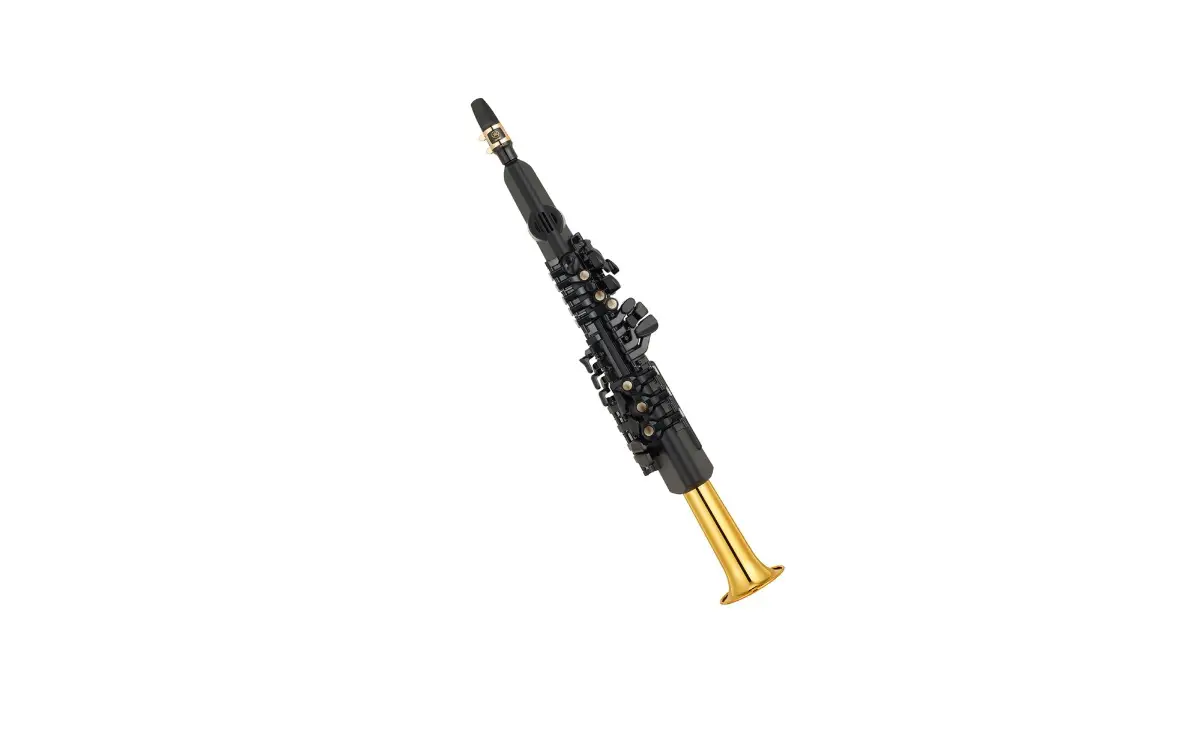
Classic Gold Digital Saxophone
Product Information:
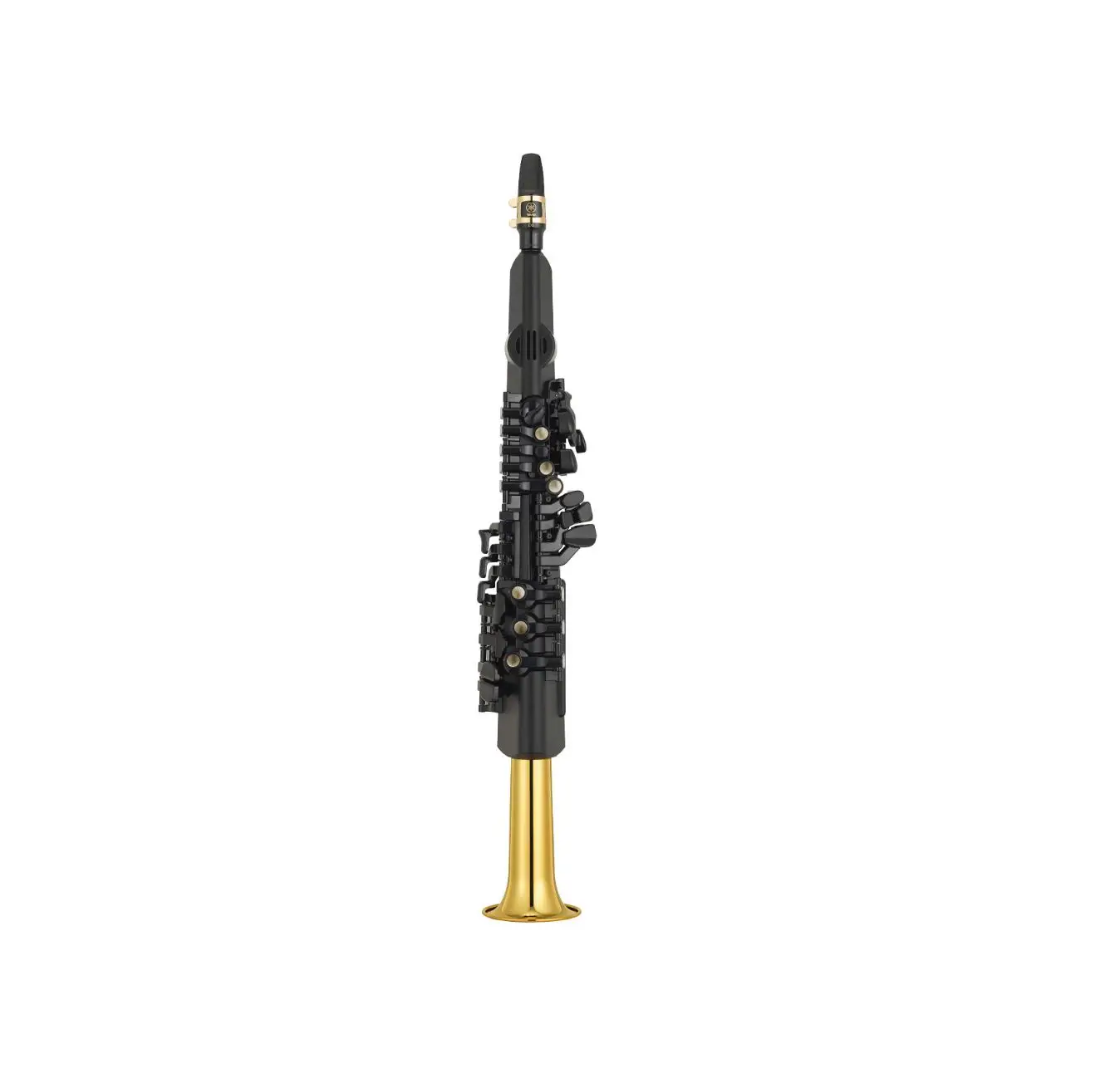
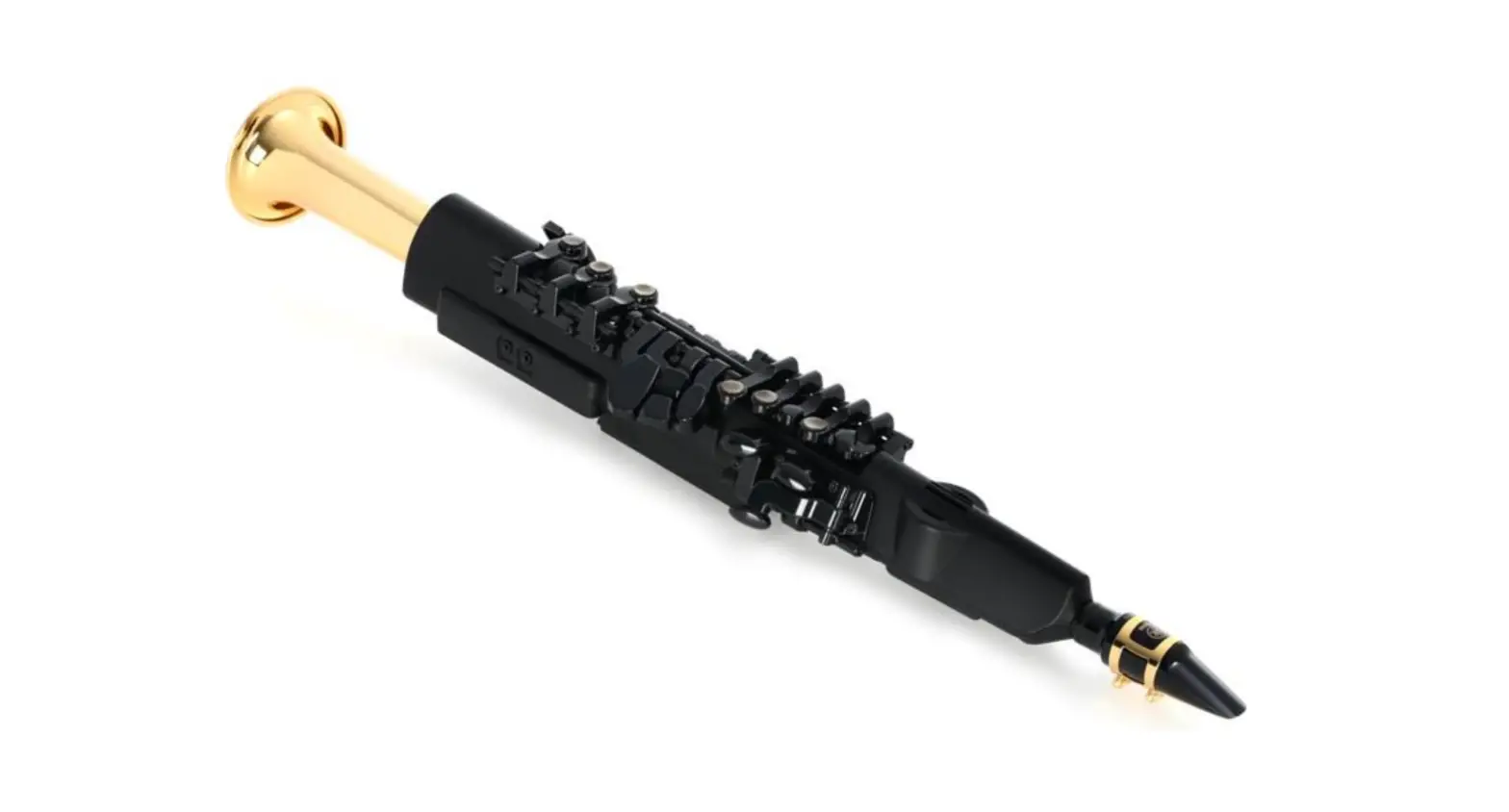
The Emeo is a digital practice horn designed for saxophone players.
It is a MIDI wind controller that closely mimics a conventional
saxophone, allowing users to advance their playing without
limitations. The Emeo does not have onboard sounds and must be used
with a DAW application called Respiro, which is included with the
Emeo. This instruction manual provides guidance on how to use the
Emeo effectively and offers tips for care and troubleshooting. The
Emeo undergoes rigorous quality control, including calibration and
testing, before shipping. It is a professional instrument and
should be kept away from children. Technical support is available
via email at [email protected]. The Emeo is guaranteed for one
year from the date of delivery, covering repairs due to
malfunctioning (excluding physical damage or improper usage). The
battery life of the Emeo is expected to be 3-5 years, and battery
replacement should be done by contacting [email protected].
Firmware updates for the internal computer are available for free
through the Emeo website.
Product Usage Instructions:
- Introduction:
- Welcome to the Emeo, a digital practice horn designed for
saxophone players. - The Emeo does not have onboard sounds and requires the use of
the Respiro DAW application. - This instruction manual provides information on using the Emeo
effectively and caring for it. - Regularly check for updated versions of the instruction manual
on the Emeo website.
- If you encounter any issues with your Emeo, refer to the
troubleshooting guide provided. - If the troubleshooting guide does not solve the problem,
contact [email protected] for assistance. - The Emeo is guaranteed for one year from the date of delivery,
covering repairs due to malfunctioning (excluding physical or
improper damage). - Do not tamper with any part of the Emeo’s mechanism or attempt
to replace the battery yourself. - Contact [email protected] for battery replacement.
- Firmware updates for the Emeo’s internal computer are available
for free through the Emeo website.
- The Emeo comes with the following:
Instruction Manual
Version 1.8
Emeo Instructional Video: https://www.youtube.com/watch?v=_QWwZDaAu7E
Index
Introduction 1.1 1.2 1.3 Instructions for use 2.1
2.2 2.3 2.4 2.5
2.6 2.7 2.8 2.9 2.10 2.11 2.12
2.13 2.14 2.15 2.16 2.17
Using Respiro Sounds 3.1 3.2
Troubleshooting 4.1 4.2 Caring for your Emeo 5.1 5.2
Welcome Technical Support and Guarantee Unpacking the Emeo
Diagram A – Bottom Cap Diagram B – Necks and Mouthpieces Diagram C – Top of Emeo Diagram D- Front of the Emeo Diagram E – Rear of the Emeo Getting Started Powering on the Emeo Connect the Emeo via data cable Connect the Emeo via MIDI-BLE (Bluetooth) Playing with different mouthpieces Changing necks Saliva and moisture Controlling the Emeo Changing Key Changing Range Changing the Resistance of the Wind Controller Playing without blowing Switching MIDI channels Switching off the Emeo Battery Indication Resetting the wind controller sensor
About Respiro sounds How to install and use Respiro
Performing a hard reset Solving other issues
How to look after your Emeo How to lay your Emeo down
Introduction
1.1 Welcome
[index]The Emeo is a digital practice horn for saxophone players, designed by a team of professional musicians and technical experts. It is a MIDI wind controller intended to be as close as possible to a conventional saxophone, allowing you to advance your playing without limitations.
The Emeo does not have onboard sounds, you must use it with a DAW application, such as Imoxplus’ Respiro, which is included with the Emeo.
This instruction manual explains how to use the Emeo and how to get the best out of it. It also explains how to care for your Emeo and what to do in the unlikely event that something goes wrong.
We will regularly update this instruction manual. You can download the latest version on https://www.emeomusic.com.
The accompanying video to this document can be found here: https://www.youtube.com/watch?v=_QWwZDaAu7E
1.2 Technical Support and Guarantee Your satisfaction with the Emeo is of utmost importance to us.
[index]We perform careful quality control, including calibration and testing of all the Emeo’s mechanics and electronics before shipping.
Your Emeo is a professional instrument, please keep it away from children.
In the unlikely event you encounter a problem with your Emeo, please refer in the first instance to our troubleshooting guide.
If this does not solve your problem, you can contact us at [email protected].
Your Emeo is guaranteed for one year from the date of delivery. The guarantee covers all repairs due to malfunctioning of the unit, excluding physical damage, or other damage due to wrong usage.
Do not remove either the upper cap which is sealed with the Allen screw (see diagram C, no.3) nor the lower cap (see Diagram A) nor in any way alter any part of the mechanism of the Emeo as this will interfere with the functioning of the instrument.
The expected lifetime of the Emeo’s battery is 3 – 5 years. In cases where the rechargeable battery needs to be replaced, please contact us at [email protected]. Do not try to change the battery yourself.
In cases where an instrument is faulty, we will arrange the pick-up and return to us. The costs will be covered by Emeo. We will provide an estimated repair time and do our best to return your Emeo to you in full working condition. In such cases, the guarantee period will be restarted after successful repair or replacement.
Your Emeo has an internal computer which runs on firmware. Any updates to the firmware will be free and announced via our newsletter and downloadable via our website www.emeomusic.com.
1.3 Unpacking the Emeo
[index]Your Emeo comes with the following:
Protective case, with single and double shoulder straps. USB type C cable for USB – MIDI connection and charging. Neck strap Flexible, antibacterial mouthpiece* Straight neck (installed) Curved neck Cleaning cloth Small screwdriver
Please check that all these items are present.
*The purpose of the flexible, antibacterial mouthpiece is to protect teeth while playing in moving vehicles, buses, trains, and airplanes.
Instructions for use
2.1 Diagrams
Diagram A
[index]Diagram B
[index]Diagram C
[index] [index] Diagram D=
Diagram E
[index]2.2 Getting started Link to Video: https://youtu.be/_QWwZDaAu7E?t=33
[index]Please be sure to read the following instructions before using the Emeo.
Your Emeo comes with the battery partly charged. We suggest that in the first instance you charge it up fully, until the Power Button flashes green (Diagram A, No.1). You can of course play the Emeo while it is charging.
You can connect the Emeo to iOS mobile devices, Windows and Macintosh computers.
If the Emeo is your first experience playing a MIDI wind controller, we strongly recommend using the Respiro software included with the Emeo. Respiro works on desktop or laptop computers. Read more about Respiro.
2.3 Powering on the Emeo
Link to Video: https://youtu.be/_QWwZDaAu7E?t=91
You will notice that the Emeo has only one button called the Power Button. The power button is an LED, which is able to change colour, from Green to Red and also to flash. See Diagram A, No.1 for the location of the Power Button. Also see entry regarding battery indication, to understand the meaning of each signal.
The Emeo also has three small `Traffic Light’ LEDs next to the main button, which indicate various functions, such as which key you are playing in, what is the state of the battery, and if you are connected via data cable. For location of the Traffic Lights see diagram A, No. 4.
To power on the Emeo, press and hold the Power Button for four seconds and then release it. We made the Emeo function this way, so that you do not accidentally turn the instrument on.
Note that if you connect the Emeo to your device via the USB Type C data cable, it turns on automatically.
When you connect to your device via data cable, the traffic lights will show red, amber and green, three times to indicate the connection is made. Please wait five seconds, until the traffic lights have finished making their indication before beginning to play.
2.4 Connect the Emeo via data cable. Link to video: https://youtu.be/_QWwZDaAu7E?t=113
[index]Use the included USB Type C data cable to connect your device with the Emeo.
Doing so will automatically turn on the Emeo.
When you connect via data cable, the connection name on your device will be Arduino. (The Emeo uses Arduino Power.)
Using your chosen DAW application, select the Emeo (remembering that it will be labelled Arduino) as your MIDI instrument.
Note that if you first connect to your device via Bluetooth and subsequently connect via the data cable, the Emeo will continue to play via Bluetooth, because Bluetooth is the default connection.
2.5 Connect the Emeo via MIDI-BLE (Bluetooth)
[index]
Link to video: https://youtu.be/_QWwZDaAu7E?t=142
You can connect the Emeo to desktop computers, laptops, tablets and smartphones via Bluetooth. * Bluetooth Midi Connection is not supported yet on Windows operating system
First check that the Bluetooth radio on your device is switched on.
When the Emeo is switched on, its Bluetooth radio is always on.
The Emeo connects to your device using the MIDI-BLE protocol.
This means you either need to download and activate an additional free application such as MIDI BLE from the Apple Store. Respiro has a built in BLE MIDI. Alternatively, you can also use a DAW app, such as Garage Band for Apple and others, which allow you to use MIDI-Bluetooth without the need for additional software.
When you open any MIDI-Bluetooth connection app or DAW app, you will see the Emeo in the list of available devices. When you connect via Bluetooth, the connection name on your device will be Emeo.
To pair the Emeo with your device, blow through the Emeo and while doing so, select the Emeo where it appears in the list of available Bluetooth-MIDI instruments. You will then be able to play.
2.6 Playing with different mouthpieces
[index]Link to video: https://youtu.be/_QWwZDaAu7E?t=192
The Emeo comes with both a standard alto mouthpiece and a special flexible, antibacterial mouthpiece. (See Diagram B, Nos. 3 and 4.)
According to your preference, you can play the Emeo with either of the included mouthpieces, with your own alto mouthpiece and also without any mouthpiece at all, by blowing directly into the top of the instrument.
You can attach and remove mouthpieces in exactly the same way as with a conventional saxophone.
The Emeo is constructed so that a conventional mouthpiece will not make a noise of its own when you play.
We suggest that when playing the Emeo in a moving vehicle, you should use the flexible mouthpiece, to keep your teeth safe. (See Diagram B No. 3.)
2.7 Changing necks Link to video: https://youtu.be/_QWwZDaAu7E?t=230
[index]The Emeo comes with a straight neck and a curved neck. (See Diagram B, Nos. 1 and 2.) You can switch these according to your preference. In order to change necks, grip the neck and apply gentle pressure, while turning it, until it pops out. To apply the other neck, gently push it in, while turning it.
2.8 Saliva and Moisture
[index]The Emeo has a siphon which causes all saliva and moisture to run down a pipe inside the instrument and to drip out of the Moisture Outlet in the bottom cap. (See Diagram A, No. 2.) This means all the Emeo’s electronics are kept totally safe.
2.9 Controlling the Emeo Link to video: https://youtu.be/_QWwZDaAu7E?t=262
[index]The Emeo has two modes: Play Mode and Command Mode.
You control the Emeo’s functions, by entering Command Mode and pressing various combinations of keys on the instrument. For each action you perform, you need to enter Command Mode again.
To enter Command Mode – press both the D#/Eb and low C keys together with your right hand and blow through the instrument. (See Diagram D, No.1.)
Note that none of the traffic lights are lit when you are in Command Mode.
Note also that when you are in Command Mode and you accidentally press on the wrong key, you will need to re-enter command mode to perform the desired function.
2.10 Changing Key. Link to video: https://youtu.be/_QWwZDaAu7E?t=320
[index]The Emeo allows you to change between the keys of C, Bb and Eb, using your right hand. (See Diagram D, No.2)
To change key, first enter Command Mode.
To choose the key of Eb, press the high E key. When you do this, the green `traffic light’ will become lit. The instrument will then be ready to play.
To change to the key of Bb, enter Command Mode, and press the Bb key. When you do this, the red `traffic light’ will become lit.
To change to the key of C, enter Command Mode and press the central C button. When you do this, the amber traffic light will become lit.
Every time you power on the Emeo it will be in the key of C as default.
2.11 Changing Range Link to video: https://youtu.be/_QWwZDaAu7E?t=440
[index]The range of the Emeo is similar to a conventional saxophone, except that you can also play low A on the Emeo, as with a baritone saxophone.
The Emeo also allows you to raise or lower the entire range by one octave. To do so, fist enter Command Mode.
Press and hold the Octave Key with your left thumb and while doing so choose your desired range. (See Diagram E, No.1.)
To shift the entire range one octave up, press the E key. (See Diagram D, No.2)
To shift the entire range down by one octave, press the Bb key. (See Diagram D, No.2)
To move the range back to default range, enter Command Mode once again, press and hold the octave key, while pressing the C key. (See Diagram D, No.2)
Every time you power on the Emeo it will be in normal range as default.
2.12 Changing the Resistance of the Wind Controller Link to video: https://youtu.be/_QWwZDaAu7E?t=523
[index]The Emeo has three possible settings: soft, medium and hard.
You can make your choice, depending upon how sensitive you wish the Emeo to be to how hard you are blowing.
To change the resistance, enter Command Mode.
With your left hand press one button of either
D:
soft
Eb/D#
medium
F:
hard.
(See Diagram D, No.3)
Every time you turn on the Emeo it will be in the soft setting as default.
2.13 Playing without blowing.
[index]Link to video: https://youtu.be/_QWwZDaAu7E?t=574
There are two ways to play the Emeo without blowing. The first allows you to add dynamics and tongue control, if you do choose to blow.
The second option will make the Emeo play on full volume and there will be no option to add dynamic control and tongue control.
To play without blowing, but still have the option to add dynamic control and tongue control: enter Command Mode, then suck on the emeo and while doing so, choose which key you wish the emeo to play in -either C, Bb or Eb. (See Diagram D No.2.) The instrument will then play without blowing, but will accept dynamic control and tongue control when you do choose to blow.
To play without blowing, without the option of adding dynamic control and tongue control: enter Command Mode, blow into the Emeo and choose which key you want to play in either C,Bb or Eb.(See Diagram D No.2.)
To exit this mode, enter Command Mode (even without blowing) and perform any function.
2.14 Switching MIDI channels
[index]Link to video: https://youtu.be/_QWwZDaAu7E?t=678
You can choose between 6 MIDI channels. To switch MIDI channels, enter Command Mode, and then press one of the following buttons: B for Channel no.1 C for Channel no. 2 G for Channel no. 3
F for Channel no. 4 E/F# for Channel no. 5 D for Channel no.6
Note: press only one button – do not press all the buttons as you would when you are playing the saxophone. (See Diagram D, No. 4.)
2.15 Switching off the Emeo
[index]
Link to video: https://youtu.be/_QWwZDaAu7E?t=718
Enter Command Mode, and then press the additional F# button. (See Diagram D, No.5.)
When you do this, you will notice that the light on the Main Button goes off. (See Diagram A, No.1.) We made the Emeo this way to avoid accidentally turning it off during play.
Alternatively, after 20 minutes without playing the Emeo, the unit will power itself off.
2.16 Battery indication.
[index]When you power on the Emeo,, the Traffic Lights show for three seconds revealing the status of the battery.
3 lights show the battery is full (red, amber and green) 2 lights show the battery is half full (red and amber) 1 light shows the battery is low (red) For location of Traffic Lights see Diagram A, No.4.
While playing, you can also check the status of the battery by looking at the colour of the Power Button. For location of Power Button see Diagram A, No.1.
When the battery is fully charged you will have approximately six hours playing time (via Bluetooth) and the Power Button will be green.
When the Power Button begins to slowly flash red, you have one hour battery left.
When charging the Emeo – the Main Button will be red. When the Emeo is fully charged it will slowly flash green.
It takes approximately three hours to charge the Emeo from empty until full, depending what type of power supply you are using.
Note that when you play via data cable your Emeo will also charge from your host device. In this case the Emeo will take longer to charge, than if it is connected to a charging unit.
2.17 Reset the Wind controller sensor.
[index]The Wind Control sensor inside the Emeo is sensitive to changes in surrounding air pressure.
If while playing, you notice a change in the responsiveness of the Emeo when blowing, it might be due to a change in air pressure. If this is the case, enter Command Mode and perform any function to reset the wind control sensor. (See Diagram D, No.1.)
Using Respiro Sounds
3.1 – About Respiro sounds
[index]We have teamed up with Imoxplus, the creators of Respiro. Resiro is a sound generator designed to respond optimally to the Emeo. It offers a sophisticated, sonic palette of uniquely adjustable timbres, which give an organic and responsive feel.
Note that we did not put a saxophone sound in the collection – we did this on purpose, to emphasise that we are not trying to make the Emeo sound like a conventional saxophone.
Please also note, you are allowed to install Respiro on all your computers as long as you are the single person using these computers. Imoxplus will keep track of the amount of installed Respiro licenses. The Emeo Respiro license is not transferable and cannot be resold. Respiro is not yet available on iPad.
It is recommended to subscribe to the Imoxplus newsletter to stay informed about new Respiro updates. As an Emeo customer, you are entitled to a 24% discount to cross-upgrade to the full version of Respiro. Contact [email protected] to obtain your discount coupon. This coupon is not transferable. Contact [email protected] for help on how to use Respiro features.
3.2 How to Install and use Respiro
[index]For full instructions about the installation and use of Respiro, please check: https://www.imoxplus.com/site/images/headers/RespiroManual01.pdf
Troubleshooting
[index]
If your Emeo is not operating as it should, turn it off, wait five seconds, and turn it back on. If this does not fix the problem, perform a hard reset.
4.1 Performing a hard reset
[index]Link to video: https://youtu.be/_QWwZDaAu7E?t=752
Use the screw driver provided to give a short press of the reset button. (See Diagram A, no. 5)
Note that if you accidentally press the reset button twice, you will put the Emeo into Boot Mode, which is used in maintenance. (If the Emeo is in Boot Mode, the amber light on the traffic lights will flash.) To exit Boot Mode, give the reset button one more short press.
4.2 Solving other issues
My Emeo won’t turn on
If your Emeo won’t turn on, first check if it is correctly plugged in or charged. See 2.16 for details about battery indication.
My Emeo isn’t responding normally.
Enter Command Mode by pressing both the D#/Eb and low C keys together with your right hand and blow through the instrument, then perform any function. (See Diagram D, No.1.)
If your problem persists, perform a hard reset.
If after performing a hard reset, your Emeo is still not performing as it is meant to, please write to us at [email protected].
Caring for your Emeo
5.1 How to look after your Emeo
[index]Looking after your Emeo is similar to looking after a conventional saxophone. Obviously, do not throw it or drop it, do not leave it lying in the sun nor expose it to cold temperatures for long periods. Also, keep it away from water and excess humidity.
The Emeo has a siphon which makes sure that moisture does not get inside the unit.
Before playing the Emeo however, avoid eating and drinking anything which might lead to bits of food or drink getting stuck in the siphon.
After playing the Emeo, it is advisable to blow through the instrument so that droplets of moisture present within the instrument drip out of the siphon exit.
You can clean the outside of the Emeo with the cloth provided.
5.2 How to lay it down.
When you are not using your Emeo, we recommend placing it in its case. If you wish to lay the Emeo down, place it face down on a flat surface as this will protect the mechanism.
 Emeo Digital Saxophones | Emeo Music