Furuno Printer App Instructions

Furuno Printer App Instructions

FURUNO Printer App Instructions

** MUST BE ON AGENT WIFI * *

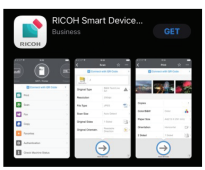
  1. Download app: RICOH Smart Device Connecter
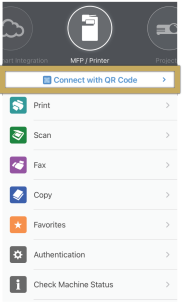
    Printer App Instruction Figure 1
  2. Skip through tutorial then select blue bar at top
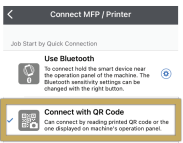
    Printer App Instruction Figure 2
  3. Select Connect with QR Code
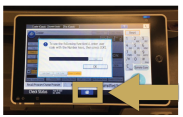
    Printer App Instruction Figure 3
  4. Select the Home button at the bottom of the printer display
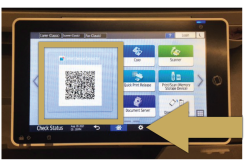
    Printer App Instruction Figure 4
  5. Scan QR Code
    Printer App Instruction Figure 5
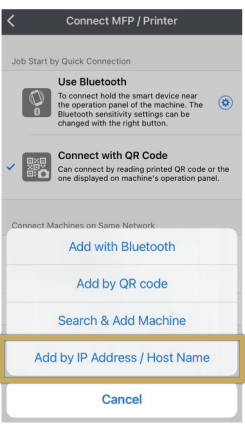
  6. Select “Add by IP Address/Host Name”
    Printer App Instruction Figure 6
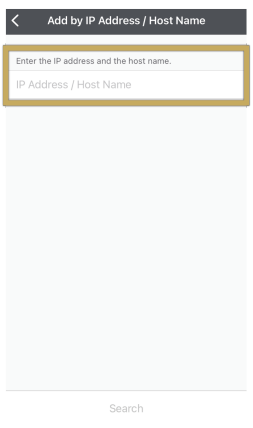
  7. Enter IP Address and click Search
    Printer App Instruction Figure 7
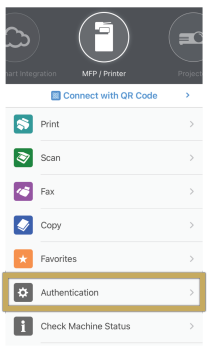
  8. Go back to main menu and select Authentication
    Printer App Instruction Figure 8
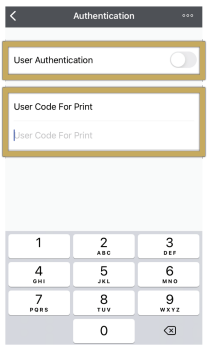
  9. Add your User Code (4 digits)
    DO NOT TURN USER AUTHENTICATION ON
    Printer App Instruction Figure 9

Realty One Logo

Documents / Resouces

Download manual
Here you can download full pdf version of manual, it may contain additional safety instructions, warranty information, FCC rules, etc.


Related Manuals