 User’s Guide
Accurio C3080/C3060P/C83hc/C3070/C3070P/C73hc Accurio C3070L
HOME > Copy > Copy > Operations Basic > Copy Procedure
Basic Copy Procedure
Follow the procedure below to make a basic copy.
The following describes the basic procedure. It is not always applicable to the operations of set copy conditions. When using a specific function, be sure to follow the procedure described in each section.
Position the original.
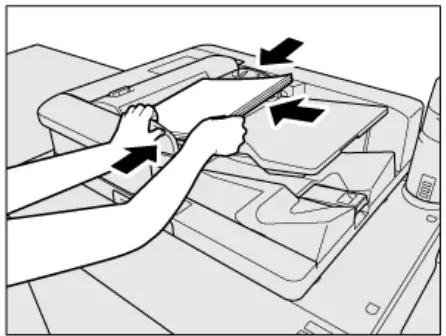 | 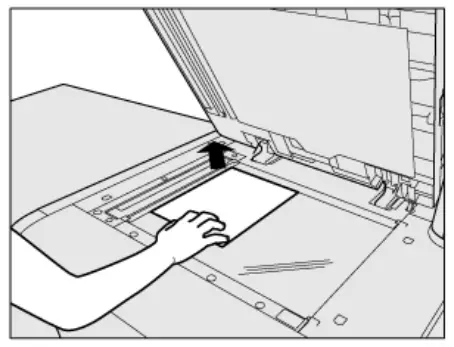 |
Press the [COPY] tab to display the [COPY] screen.
The [MACHINE] screen shows up first at the default setting. To display the [COPY] screen, press the [COPY] tab on the [MACHINE] screen.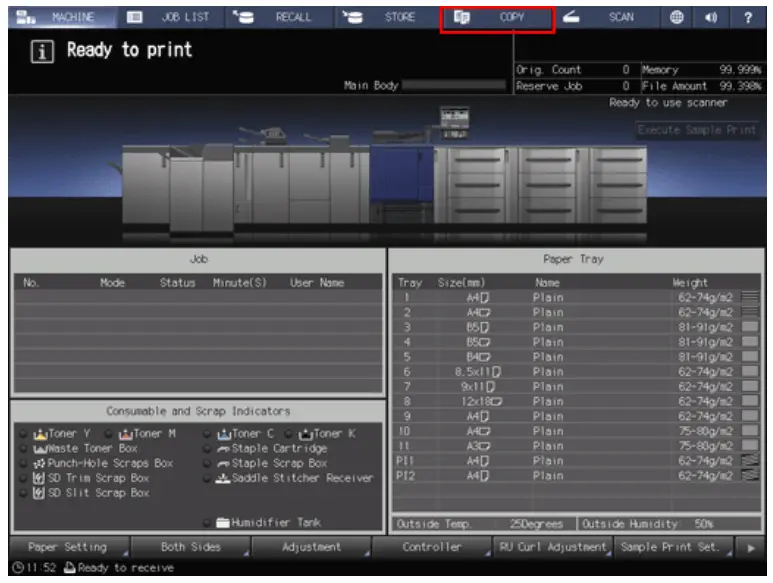
[Default Screen Setting] can be set to the [Hold Job] screen of the [JOB LIST] screen or the [Reserved Job] screen of the [JOB LIST] screen. To display the [COPY] screen, press the [COPY] tab in both cases.
For [Default Screen Setting], refer to Default Screen Setting.
Set copy conditions as desired.
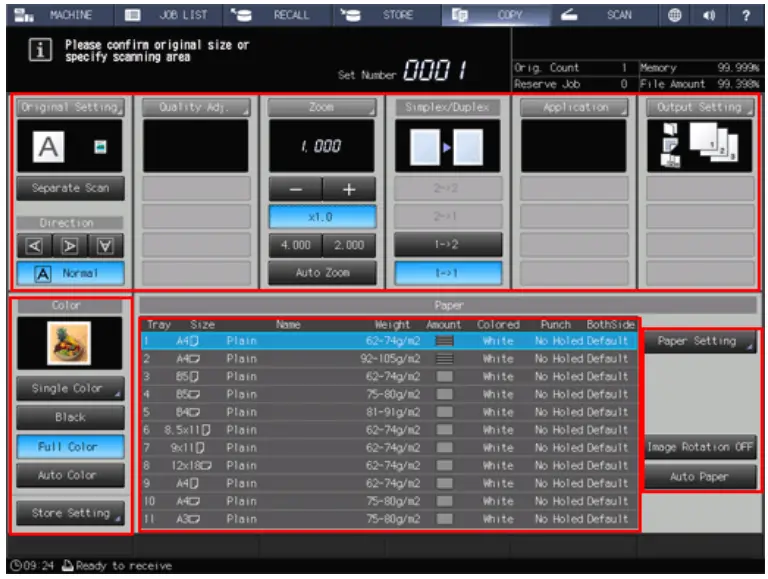
The following settings are available from the [COPY] screen.
[Original Setting]: Refer to Original Setting: Setting the Original.
[Separate Scan]: Refer to Copy|Separate Scan: Handling Scanned Original as Single Job.
[Quality Adj.]: Refer to Copy|Overview of Quality Adjustment.
[Zoom]: Refer to Zoom : Setting Copy Zoom.
[Simplex/Duplex]: Refer to Simplex/Duplex: 1-Sided Copy and 2-Sided Copy Settings.
[Application]: Refer to Copy|Overview of Application.
[Output Setting]: Refer to Copy|To Display the Output Setting Screen.
[Color] : Refer to Copy|Color: Selecting Color Mode.
[Store Setting]: Refer to. Copy|Store Setting: Holding the Scanned Copy Job on this Machine or Saving it on the HDD
[Paper Setting]: Refer to Paper Information.
[Image Rotation OFF]: Refer to . Copy|Image Rotation OFF: Prohibits image rotation to suit the orientation.
[Auto Paper]: Refer to Copy|Auto Paper: Selecting Paper Size Automatically.
Enter the desired print quantity from the keypad on the control panel.
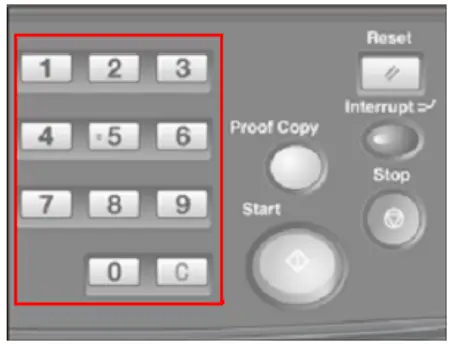
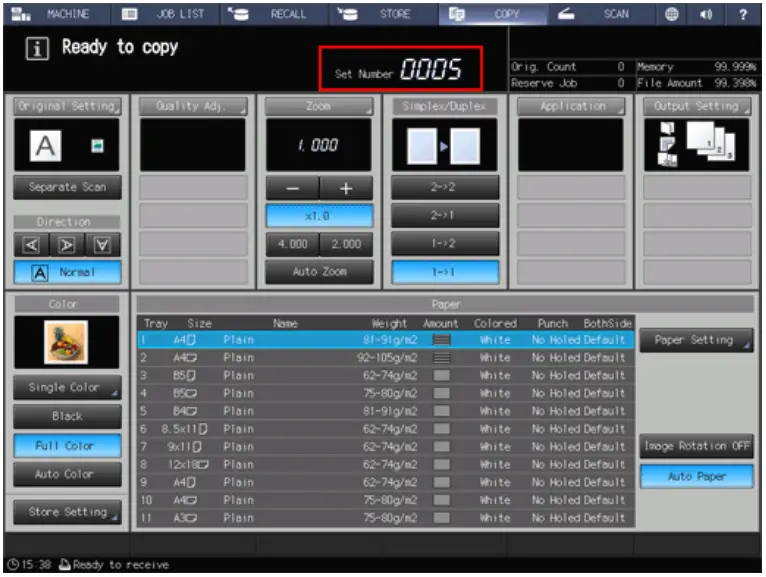
Entered quantity is displayed.
For details about how to enter the number of copies, refer to Setting Print Quantity
Press Start Start on the control panel.
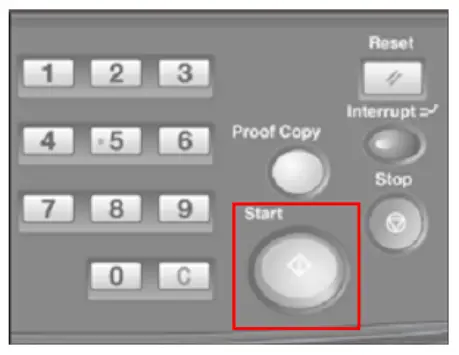
In order to start copying, make sure to display the [COPY] screen. If you press Start with any other screen displayed, you cannot start copy operations.
If you print from the [Hold Job] screen or the [RECALL] screen, the [COPY] screen does not have to be returned.
When scanning the original for the job is started, a dialog is displayed on the [COPY] screen.
Press either [Yes] or [No] on the dialog.
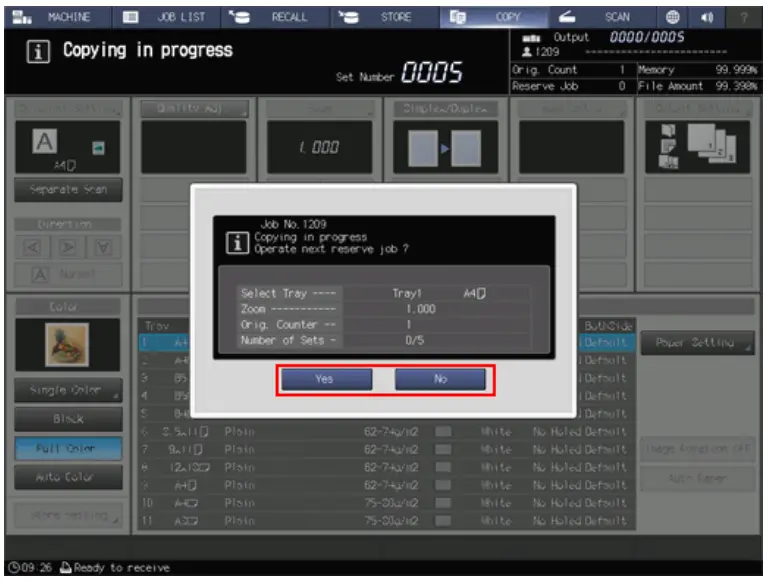
To return to the [COPY] screen, press [Yes].
You are now ready to set reserve a job.
To return to the screen set in [Default Screen Setting], press [No].
The count and set quantities are displayed in the upper right corner of both screens.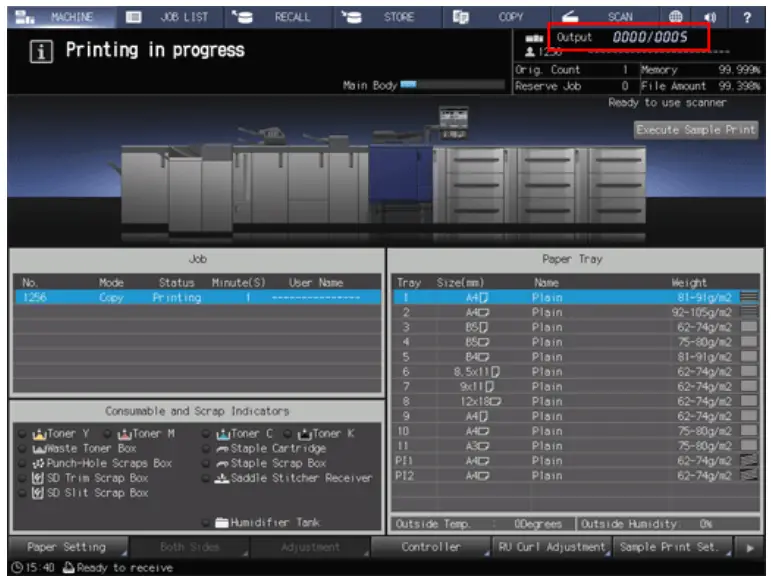
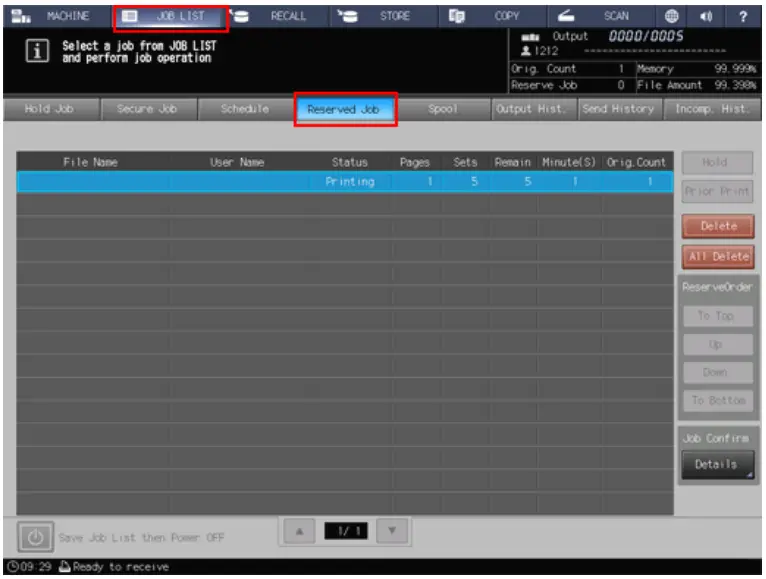
The current job is displayed in the job list in the [Reserved Job] screen of the [JOB LIST] screen.
Reference
- For details about how to select the default screen which is displayed when turning on the power, refer to Utility/Counter|Default Screen Setting.
- You can change the operation order of reserved jobs or cancel reserved jobs in the [JOB LIST] screen. For details, refer to Job Management|JOB LIST Screen.
References
 Setting Print Quantity
-
Original Setting: Setting the Original
-
Copy|Separate Scan: Handling Scanned Original as Single Job
-
Copy|Overview of Quality Adjustment
-
Zoom : Setting Copy Zoom
-
Copy|Color: Selecting Color Mode
-
Copy|Overview of Application
-
Paper Information
-
Copy|Auto Paper: Selecting Paper Size Automatically
-
Copy|Image Rotation OFF: Prohibits image rotation to suit the orientation.
-
Copy|Overview of Copy Function
-
Simplex/Duplex: 1-Sided Copy and 2-Sided Copy Settings
-
Copy|To Display the Output Setting Screen
-
Copy|Store Setting: Holding the Scanned Copy Job on this Machine or Saving it on the HDD
-
Job Management|JOB LIST Screen
-
Utility/Counter|Default Screen Setting
-
User's Guide
 Setting Print Quantity