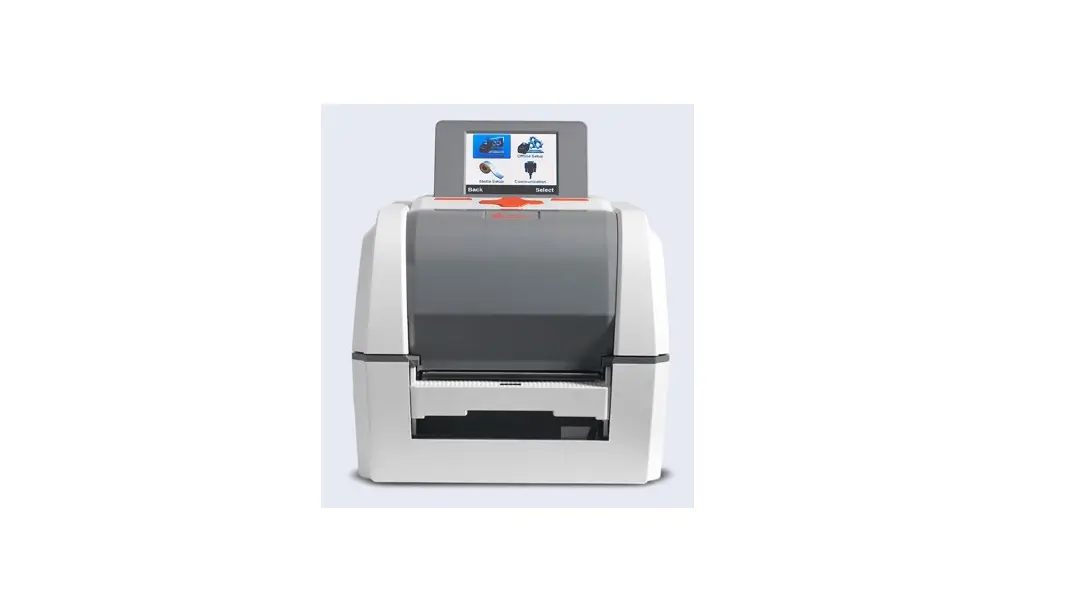
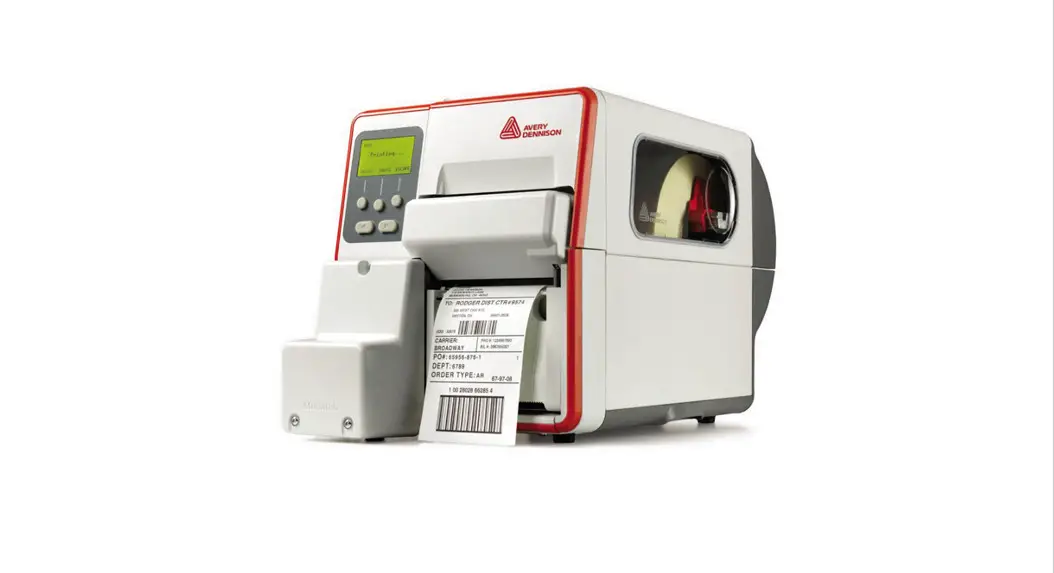
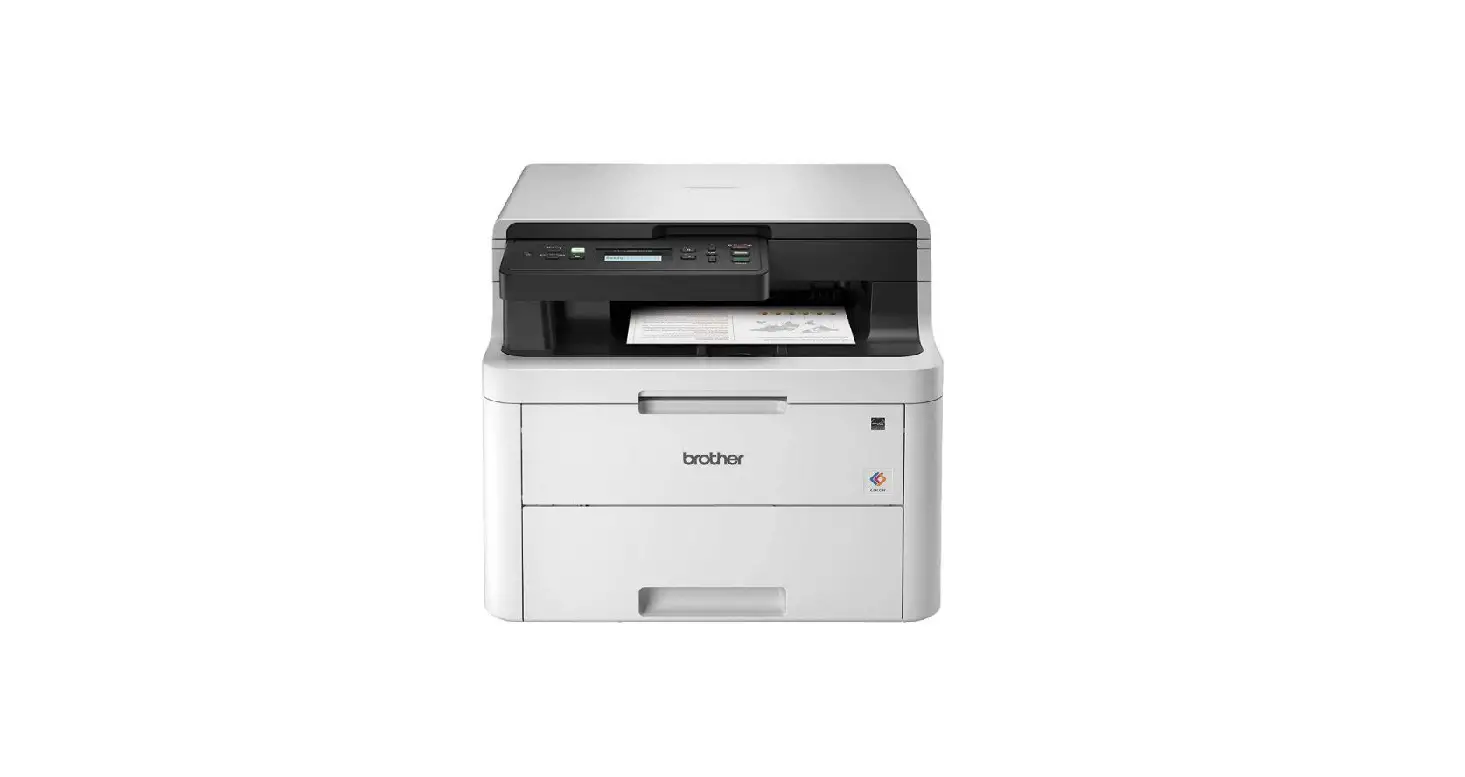
ADTP2 Monarch EcoCut Tabletop Printer
Product Information: – The EcoCut supplies are continuous
and do not have black marks or die cuts. – The printer’s Supply
Type should be set to continuous. – The printer’s Feed Mode can be
set to continuous (non-peel), on-demand (peel) mode, or liner
take-up (peel with liner take-up) mode. – The printer comes with a
peel chute installed for peel mode, where the printer separates the
label from the liner and the liner feeds out the front of the
printer. – To operate in peel mode with liner take-up, the peel
chute should be removed. The printer will separate the label from
the liner, and the liner will be collected on a take-up reel near
the supply roll. – To operate in continuous (non-peel) mode, the
tear edge should be installed. – The feed length for each print job
may vary, depending on the length set in the format or at the
printer’s menu. – Dotted lines indicate where the label is cut. The
liner is not cut. – Information in this document supersedes
information in previous versions. Check the website
(www.printers.averydennison.com) for any updates. – CAUTION: Do not
place your fingers or any other objects into the cutter. – The
EcoCut printer is only warranted with use of Avery
Dennison-approved supplies. Standard die-cut supplies (non-EcoCut)
may be used with this printer, but the cutter cartridge may need to
be removed. Product Usage Instructions: 1. Setting Supply
Options: – Before loading supply/ribbon and sending print jobs,
set the printer for the expected operation. – Set the Supply Type
to Continuous by default. – Set the Ribbon according to whether
thermal direct or thermal transfer supplies are being used. – Set
the Feed Mode to Continuous (non-peel), On-Demand (peel) mode, or
Liner Take-up (peel with liner take-up) mode. 2. Using the Peel
Mode: – The printer comes with a peel chute installed for peel
mode. – In peel mode, the printer separates the label from the
liner, and the liner feeds out the front of the printer. – When
removing printed labels in peel mode, always lift up using the
cutter cover as a guide. Do not pull the label to remove to avoid
tearing or losing registration. – With 6.0 inch (or longer) labels
in on-demand mode, static build-up may cause the label to stick to
the printer’s peel door. Keep a finger below the printed label and
lift up to remove, using the cutter cover as a guide. 3. Using
Liner Take-up Mode: – To operate in peel mode with liner
take-up, remove the peel chute. – In liner take-up mode, the
printer separates the label from the liner, and the liner is
collected on a take-up reel near the supply roll. 4. Using
Continuous (Non-Peel) Mode: – Install the tear edge to operate
in continuous (non-peel) mode. – In continuous mode, the label and
liner are not separated. 5. Additional Tips: – Follow the
cleaning instructions provided in the document for optimal
performance. – Use only Avery Dennison-approved supplies with the
EcoCut printer. – Standard die-cut supplies (non-EcoCut) can be
used, but you may need to remove the cutter cartridge. Note: Please
refer to the user manual or visit the website for more detailed
instructions and information.
MONARCH® ADTP2 ECOCUTTM INSTRUCTIONS
Use these instructions for the Avery Dennison® Monarch® EcoCutTM Tabletop Printer 2. EcoCut is designed to cut through the label material, but not the liner.
EcoCut supplies are continuous, they do not have black marks or die cuts;
set the printer’s Supply Type to continuous. Set the printer’s Feed
Mode to continuous (non-peel), on-demand (peel) mode, or liner take-
F
up (peel with liner take-up) mode.
E
E
The peel chute is already installed to operate in peel mode. The
D
printer separates the label from the liner and the liner feeds out the
front of the printer.
Remove the peel chute to operate in peel mode with liner take-up. The printer separates the label from the liner and the liner is collected on a take-up reel near the supply roll.
Install the tear edge to operate in continuous (non-peel) mode.
The feed length for each print job may vary, depending on the length set in the format or at the printer’s menu. See “Setting Supply Options” for more information.
The dotted lines indicate where the label is cut. The liner is not cut.
Information in this document supersedes information in previous versions. Check our Web site (www.printers.averydennison.com) for any updates.
CAUTION: Do not place your fingers or any other objects into the cutter.
EcoCut Tips
When removing printed labels, always lift up, using the cutter cover as a guide. Do not pull the label to remove; doing so may cause the label to tear or the printer to lose registration.
Peel Door
With 6.0 inch (or longer) labels in on-demand mode, static build-up may cause the label to stick to the printer’s peel door. Keep a finger below the printed label and lift up to remove, using the cutter cover as a guide.
Follow the cleaning instructions provided in this document for optimal performance. The EcoCut printer is only warranted with use of Avery Dennison-approved supplies. Standard die cut supplies (non-EcoCut) may be used with this printer, but you may need to
remove the cutter cartridge. See “Removing the Cutter Cartridge” for more information.
EcoCut is a trademark of Avery Dennison Corporation. Classification: Avery Dennison – Public TCADTP2ECOI Rev. AH 5/21 ©2018 Avery Dennison Corporation. All Rights Reserved.
Overview
1
Cutter Cover
2
Motor Cover
1
Cutter Cartridge Release
2
Cutter `Home’ Position Screw
3
Cutter Cartridge (dark gray)
4
Cut Depth Dial (red)
2 Classification: Avery Dennison – Public
Setting Supply Options
Set the printer for the expected operation before loading supply/ribbon and sending print jobs.
Option Supply Type Ribbon Feed Mode Cut Mode Non Indexed Length
Batch Feed
Choices Continuous/C Aperture/C Die Cut No/Yes/High Energy Continuous/On-Demand/Liner Takeup Disabled/Cut Each Tag Use Fmt Length/Use Image Len.
Manual/Auto
Recommendation Continuous See below. On-Demand Cut Each Tag Use Fmt Length
Auto
Setting the Supply Type
Set the supply type to match the loaded supply. Continuous is the default setting for EcoCut supply. Using any other setting causes improper operation and/or supply faults.
Setting the Ribbon
For thermal direct supplies, no ribbon is required. For thermal transfer supplies, load a ribbon. See “Loading a Ribbon” for more information.
Setting the Feed Mode
Feed mode sets the operation for printed supply as continuous, on-demand, or liner take-up. On-Demand (peel mode) is the default setting, see “Loading Supply for On-Demand (Peel) Mode.” To use Continuous (non-peel) mode, see “Loading Supply for Continuous (Non-Peel) Mode.” To use Liner Take-up mode, remove the peel chute, see “Loading Supply for Liner Takeup (Peel with Liner Take-Up) Mode.”
Setting the Cut Mode
Set how the printer cuts supply. This printer has a rotary (pizza cutter) blade. For information about cutter maintenance, see “Cleaning Adhesive from the Supply Path.” The printer does not have a cut button select the appropriate cut mode for your application.
Select Disabled Cut each tag
To Do not cut. Cut after each tag in the batch. This is the default setting.
Setting the Non-Indexed Length
The supply is cut based on the feed length in the format header’s length parameter or on the last printed image length.
Select
Use Fmt Len. (Use format length)
Use Image Len. (Use image length)
To
Uses the length specified in the format header to determine where to cut the supply. Refer to “Defining the Format Header” in the Packet Reference Manual for more information.
Uses the last printed actual image length to determine where to cut the supply. For example, if the last printed image was 375 dots long, the cut is made at 395 dots. This option removes any blank lines before and after the image.
Classification: Avery Dennison – Public 3
Setting the Batch Feed Mode
Batch feed mode sets the operation of printed batches as automatic or manual. Only set batch feed mode for EcoCut printers using Continuous feed mode and cutting each tag.
Select Auto
Manual
To
Batch feed mode feeds and cuts a blank label after batches finish printing for easy removal. This is the default setting. If multiple batches are sent at once, a blank label feeds only after the last batch prints. If batches are sent one at time, a blank label feeds after each batch.
The user must press Feed to manually advance the printed and cut batch for easy removal. Recommended for 1.2-inch long cut lengths.
Loading Supply for On-Demand (Peel) Mode
Set the printer for the expected operation before loading supply/ribbon and sending print jobs. See “Setting Supply Options” for more information. Standard die cut supplies (non-EcoCut) may be used with this printer, but you may need to remove the cutter cartridge. See “Removing the Cutter Cartridge” for more information.
1. Open the cover. 2. Turn the printhead latch to unlock the printhead. 3. Lift the printhead assembly until it locks into place. 4. Adjust the roll guides to fit your supply roll. The supply roll must move freely. 5. Place rolled supply on the supply holder. Continuous supply unrolls from the top. 6. Turn the supply lever to unlock the supply guides. 7. Feed the supply through the supply path and cutter. Tuck the supply under the nibs and die
cut sensor.
Printhead Assembly
Roll Guides
Printhead Latch Supply Lever
Supply Guides
8. Adjust the supply guides so they barely touch the supply. Turn the supply lever up to lock it in place.
4 Classification: Avery Dennison – Public
9. Using your fingers/thumbs, press the peel door tabs to open the printer’s peel door.
10. Feed the supply through the opening at the bottom of the peel door.
Printhead Release
11. Close the peel door. 12. Push the printhead release. 13. Close the printhead assembly until you
hear it click into place. 14. Press FEED to position the supply under
the printhead. When removing printed labels, always lift up, using the cutter cover as a guide. Do not pull the label to remove; doing so may cause the label to tear or the printer to lose registration.
Liner
Classification: Avery Dennison – Public 5
Loading Supply for Continuous (Non-Peel) Mode
Install the tear edge to use non-peel mode. Set the printer’s feed mode to Continuous and the cut mode to Cut each tag. Batch separators are not supported.
How does the printer operate in non-peel mode?
The printer cuts the supply in between each label and after the last label in the batch.
When no more print jobs are in queue, the printer feeds the supply out for removal. Tear the supply (label and liner) down and across the tear edge.
Installing the Tear Edge
The tear edge is included with the printer’s manual. The attached supply exit guide prevents supply curling.
1. Partially open the peel door by using your fingers/thumbs to press the peel door tabs.
Tear Edge with the Supply Exit Guide attached
2. With teeth facing up, hook the back of the tear edge into the peel door. 3. Rotate the tear edge down and snap the support clips into place.
6 Classification: Avery Dennison – Public
4. Close the peel door.
5. Follow steps 1 through 8 from “Loading Supply for On-Demand Mode (Peel Mode).” 6. Load the supply in between the supply exit guide and the tear edge as shown.
7. Push the printhead release. 8. Close the printhead assembly until you hear it click into place. 9. Press FEED to position the supply under the printhead. 10. Remove the strip of printed labels by tearing down and across the tear edge.
Classification: Avery Dennison – Public 7
Attaching the Supply Exit Guide If the supply exit guide is not attached to the tear edge: 1. Slide the supply exit guide onto the tear edge as shown.
2. Make sure the circular tabs on the supply exit guide fit into the grooves on the tear edge.
Removing the Peel Chute for Liner Take-Up
To use Internal Liner Take Up, remove the Peel Chute. The peel chute is installed for use with peel mode. It guides the liner out the bottom of the exit door. For internal liner take up, the liner needs to pass under the peel roller. The peel chute blocks this opening. 1. Using your fingers/thumbs,
press the peel door tabs to open the printer’s peel door. 2. Press in on the peel door hinges to remove it. DO NOT detach the cable. 3. Use your fingernail or flat head screwdriver to push in on the right side of the peel chute. Slide that end out and remove the chute.
8 Classification: Avery Dennison – Public
4. Reattach the peel door.
Remove the Peel Chute Pinch Roller
Classification: Avery Dennison – Public 9
Loading Supply for Liner Take-up (Peel with Liner Take-Up) Mode
Remove the peel chute (if installed). See “Removing the Peel Chute for Liner Take-Up” for more information. Set the printer for the expected operation before loading supply/ribbon and sending print jobs. See “Setting Supply Options” for more information. Load supplies for peel mode, leaving at least 18 inches of supply extending past the printhead. 1. Unlock and lift the printhead
assembly until it locks into place. 2. Feed the supply under the peel
roller. 3. Remove the bail. 4. Wrap the supply around the take-
up reel in a counter-clockwise direction. 5. Hold the supply while placing one end of the bail in a groove in the liner take-up reel. Gently rotate the bail counter-clockwise until the other end snaps into the corresponding groove.
10 Classification: Avery Dennison – Public
6. Gently slide the bail all the way onto the reel.
7. Turn the reel counter-clockwise to remove any slack in the liner.
8. Close the printhead assembly until you hear it click in to place.
9. Close the peel door. 10. Press FEED to position the supply under the
printhead. When removing printed labels, always lift up, using the cutter cover as a guide. Removing a Full Liner Take-Up Roll The printer alerts you when the liner take-up reel is full. The liner take-up reel holds approximately half of a roll of liner. Note: The liner can be removed before the take-up reel is full. 1. Open the cover. 2. Turn the printhead latch to unlock the printhead. Lift the printhead assembly until it locks
into place. 3. Open the peel door. 4. Gently pull the liner take-up bail off the liner take-up reel. 5. Use scissors to cut the liner in front of the take-up reel. 6. Remove the liner from the take-up reel. 7. Reload supply and continue printing.
Classification: Avery Dennison – Public 11
Loading a Ribbon
Note the ribbon loading as shown. Rotate the take-up reel until any wrinkles are past the printhead. The ribbon must be straight and centered throughout the path.
Take-up Reel
Moving the Cutter to the Home Position
Check to see if the cutter is at the “home” position (near the printhead latch). If it is not, there are two ways to move it to the “home” position: Close the printhead (with supply loaded)
and press FEED. The cutter moves to the home position. Using a small flat-head screwdriver, turn the cutter home position screw clockwise until it stops. The cutter cartridge moves slightly as the screw turns until it stops at home. If the cutter cannot be moved, contact Technical Support.
Turn the screw
12 Classification: Avery Dennison – Public
Clearing a Cutter Jam
If supply jams in the cutter, the display turns red and you see error 759.
1. Press Escape to clear the error. If supply is jammed under the cutter cartridge, manually move the cutter: Using a small flat-head screwdriver, turn the cutter cartridge’s screw clockwise or counter-clockwise until it is away from the jammed supply.
2. Clear the supply path to remove jammed supply out of the cutter. Caution: Do not place your fingers near the cutter’s blade. 3. Clean the supply path if you notice adhesive build-up. See “Cleaning Adhesive from the
Supply Path” for more information.
Cleaning Adhesive from the Supply Path
Clean the printer’s supply path regularly (approximately every 60,000 inches) or whenever adhesive build-up is present. The printer prompts every 60,000 inches as a reminder to clean the supply path. Only clean the cutter while the printer is idle (no active print jobs).
Adhesive build-up occurs on the
edges of the inner supply guides
sensors
peel bar/cutting anvil
bottom of the ribbon deflector.
cutter blade and depth control roller
To clean the printer’s supply path:
1. Open and remove the adhesive remover wand (132839) from the package. Do not touch the foam end of the wand.
2. Use the foam end of the wand to dampen the inner edges of the supply guides, sensor, and underneath the ribbon deflector.
Adhesive build-up area
Classification: Avery Dennison – Public 13
3. Use the plastic end of the adhesive remover wand to scrape off the loosened adhesive. Collect the adhesive with a cotton cloth and discard.
4. Let the printer dry and reload supplies. Cleaning the Anvil Use the foam end of the adhesive wand to dampen the outer edges of the anvil. Make sure the entire anvil is clean. Using a small flat-head screwdriver, turn the cutter cartridge’s screw clockwise or counter-clockwise to move the cutter cartridge out of the way and clean the anvil’s other side.
Turn the screw
14 Classification: Avery Dennison – Public
Removing the Cutter Cartridge
To remove the cutter cartridge:
1. Open the printer’s cover.
Press cartridge release
2. Make sure the cutter is at the home button
position. If it is not, see “Moving the
Cutter to the Home Position,” for
more information.
3. Turn the printhead latch to unlock the printhead.
4. Lift the printhead assembly until it locks into place.
5. Press and hold the cartridge release button while pulling out the cutter cartridge.
Cleaning the Cutter’s Blade and Depth Roller
Adhesive build-up (shown in brown) may occur between the cutter’s blade (shown in white) and depth roller (shown in light gray). Label fragments (shown in brown) may stick to the depth roller and may cause uneven cuts or skips in the cut. Clean the cutter’s blade and depth roller when prompted to clean the sensor.
Remove the cutter cartridge to clean the cutter’s blade and depth roller. See “Removing the Cutter Cartridge” for more information.
Use isopropyl alcohol on a cotton swab to clean any adhesive on the cutter’s blade, depth roller, and in between the blade and depth roller. Carefully turn the blade and depth roller with your finger to make sure they are clean all the way around.
Adhesive Build-up and Label Fragments
After Cleaning
Depth Roller
Cutter Blade Label Fragments Adhesive Build-up
Depth Roller Cutter Blade
Classification: Avery Dennison – Public 15
Adjusting the Cut Depth
If the cutter is cutting too deep or not deep enough, adjust the cut depth. Adjust for clean cuts without cutting into or through the liner. Make small adjustments, then print and cut a few labels. If the cutter cuts through the liner, make further adjustments.
1. Open the printer’s cover.
2. Check to see if the cutter is at the home position. If it is not, see “Moving the Cutter to the Home Position,” for more information.
3. Turn the printhead latch to unlock the printhead.
4. Lift the printhead assembly until it locks into place.
5. Use a flat-head screwdriver to adjust the cut depth dial:
Turn the dial counterclockwise to decrease the cut depth.
Turn the dial clockwise to increase the cut depth.
6. Adjust one “click” at a time and test the cut. Make further adjustments if necessary.
Replacing the Cutter Cartridge
When the cutter is not getting a clean cut or is not cutting deep enough it may need to be replaced. Before replacing, review the recommended cleaning procedures and/or adjust the cut depth. If those solutions do not solve the problem, replace the cutter cartridge (part number 132643).
We recommend replacing the cutter cartridge every one million cuts. Contact your Avery Dennison Representative to purchase a new cutter cartridge.
To replace the cutter’s cartridge:
1. Open the printer’s cover.
2. Check to see if the cutter is at the home position. If it is not, see “Moving the Cutter to the Home Position,” for more information.
Press cartridge release button
3. Turn the printhead latch to unlock the printhead.
4. Lift the printhead assembly until it locks into place.
5. Press and hold the cartridge release button while pulling out the cutter cartridge.
To insert a new cutter cartridge:
Press and hold the cartridge release button while inserting the cutter cartridge.
16 Classification: Avery Dennison – Public
Troubleshooting
Contact your System Administrator if you cannot clear an error.
Error 758
759 760 785
Action
Check for a label jam, clear the supply path, or reload supplies. This error may occur if you remove a label too quickly in the on-demand mode. The on-demand sensor may not be connected or needs to be replaced. Call Technical Support.
Cutter is not moving. Call Technical Support.
Check cutter. Call Technical Support.
The internal liner take-up reel is full. Remove the liner take-up reel and dispose of the liner. Reload supplies and press ENTER to continue printing.
Supply Specifications
The limited warranty on the cutter cartridge is one (1) year from the date of shipment or one million cuts, whichever occurs first. The 1,000,000 cuts is only warranted with use of Avery Dennison-approved supplies. Contact your Avery Dennison Representative for more information about EcoCut supplies.
Supply Widths: Cut Lengths: Supply Thickness:
1.0 inches (25 mm) minimum 4.0 inches (101.6 mm) maximum
1.20 inch (30.5 mm) minimum 6.0 inches (152 mm) maximum
Liner: 1.5 mils to 2.5 mils Label: 2.0 mils to 3.5 mils
Classification: Avery Dennison – Public 17
18 Classification: Avery Dennison – Public