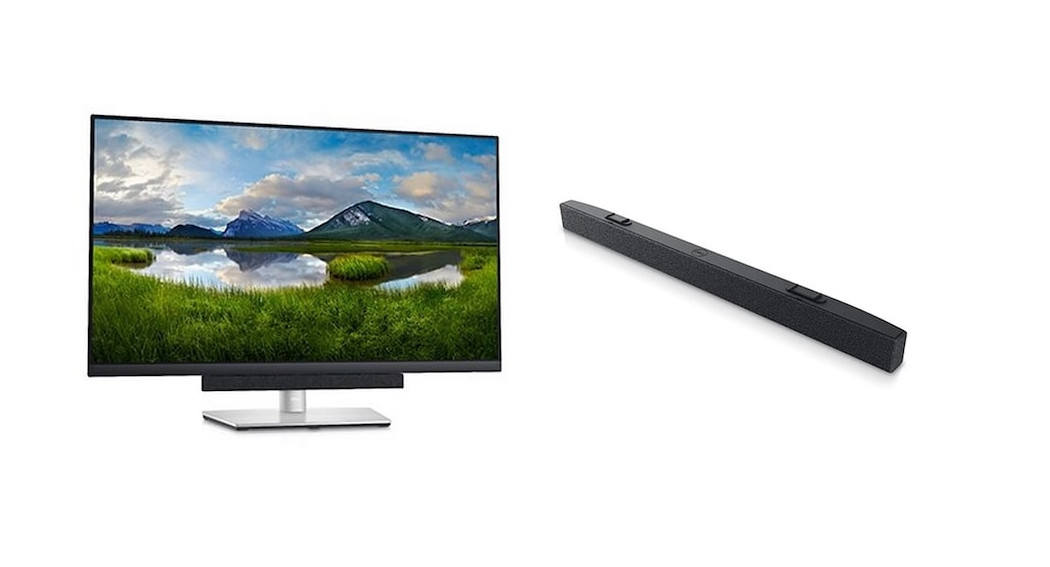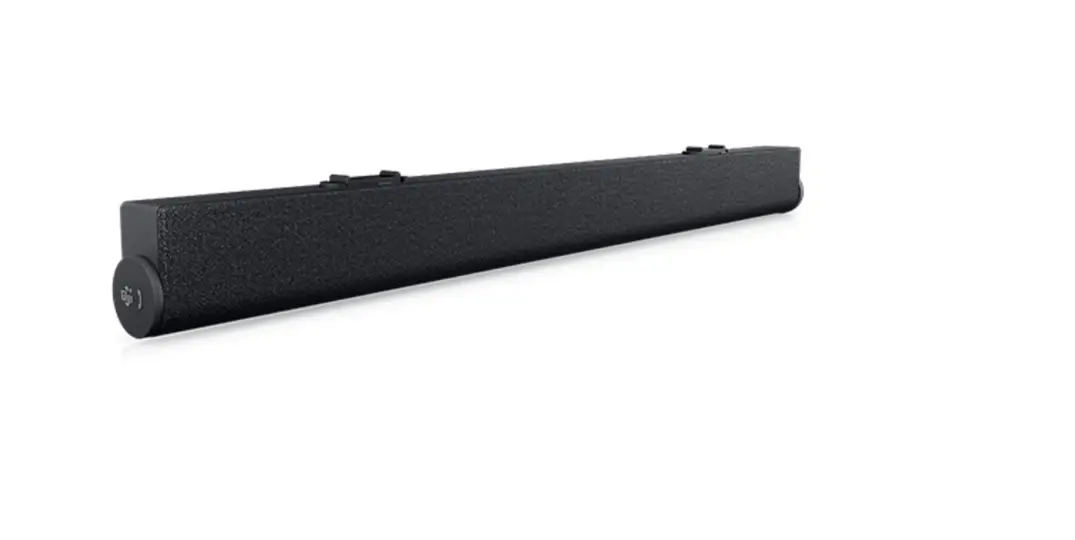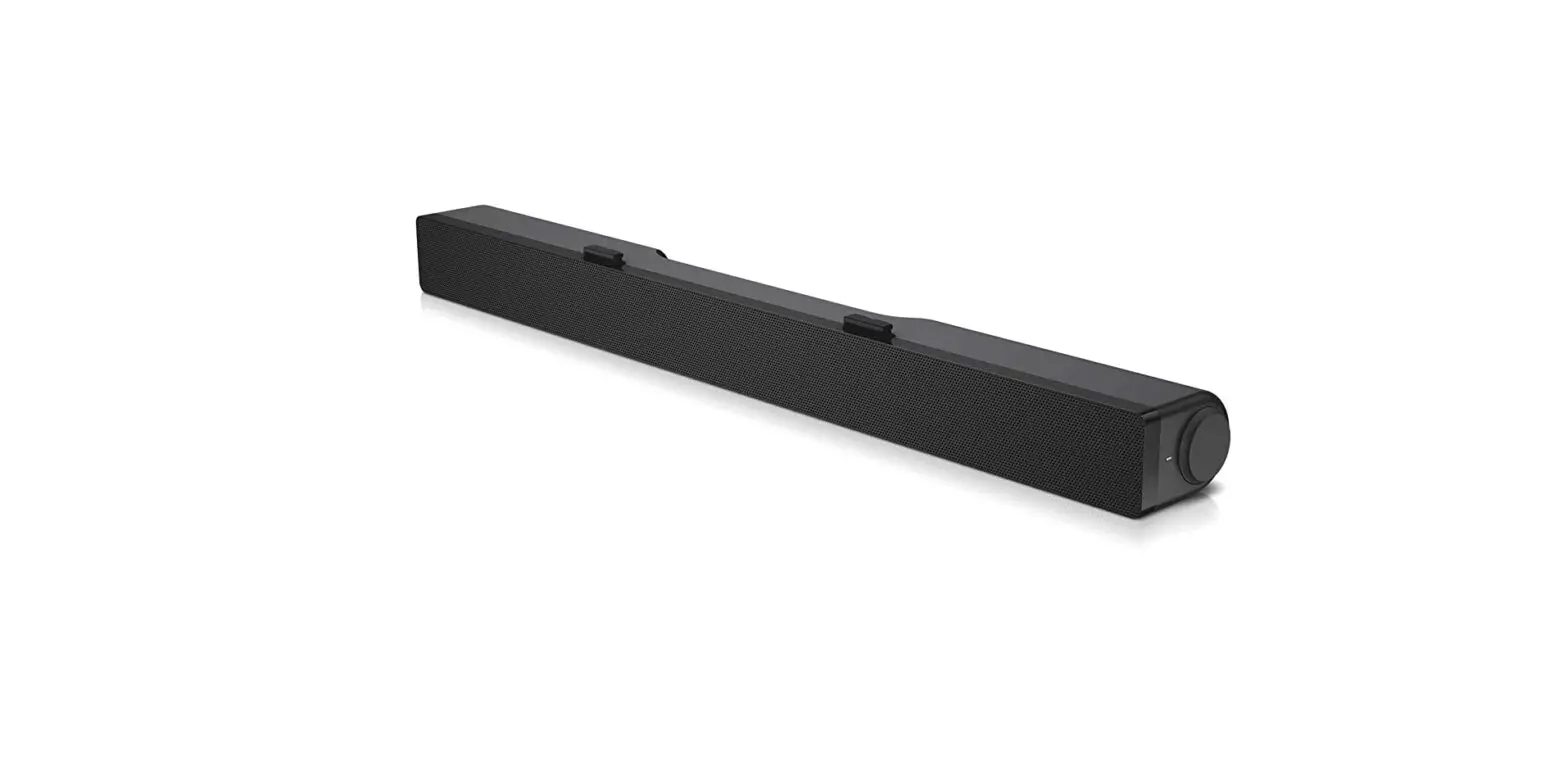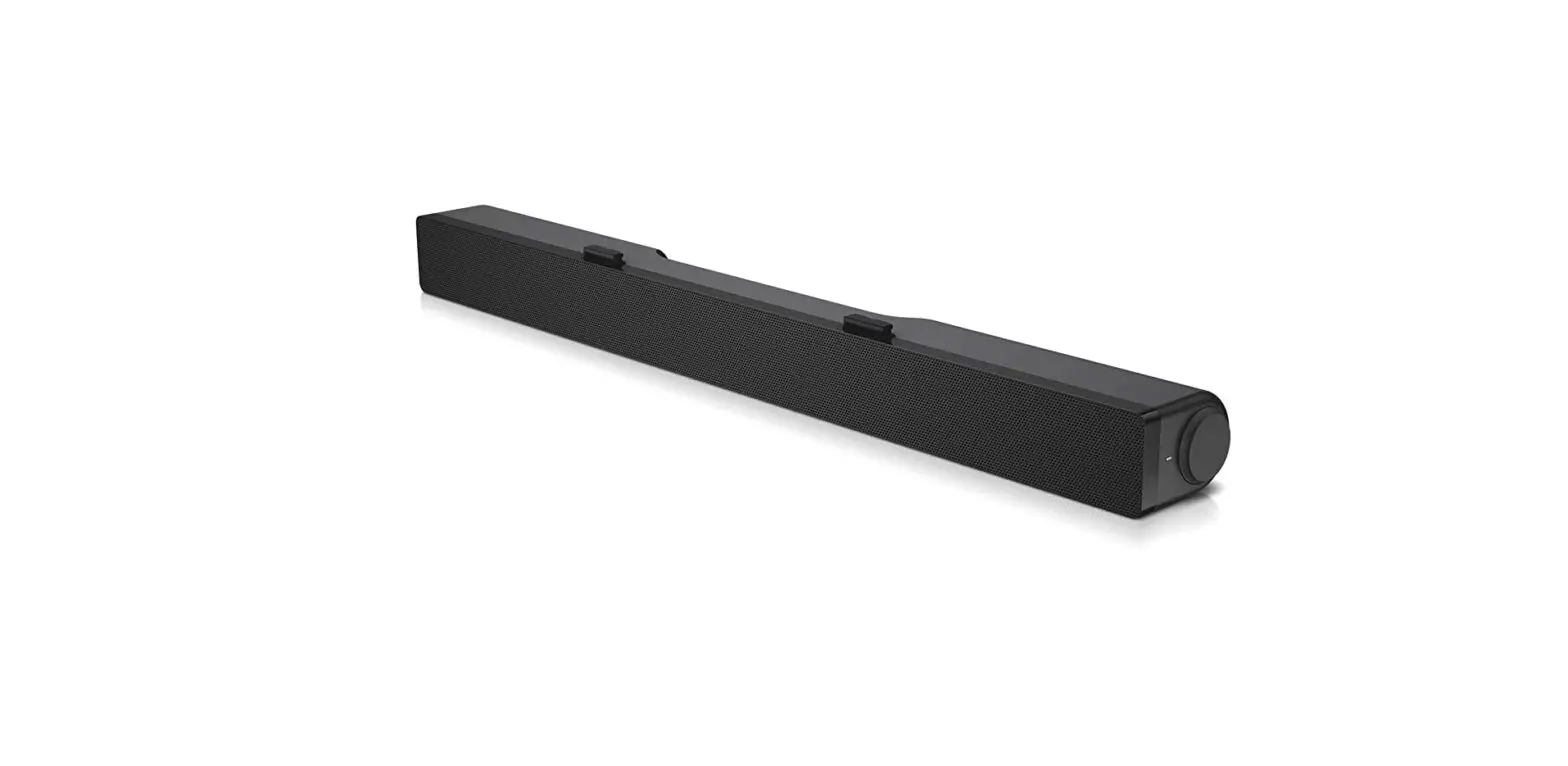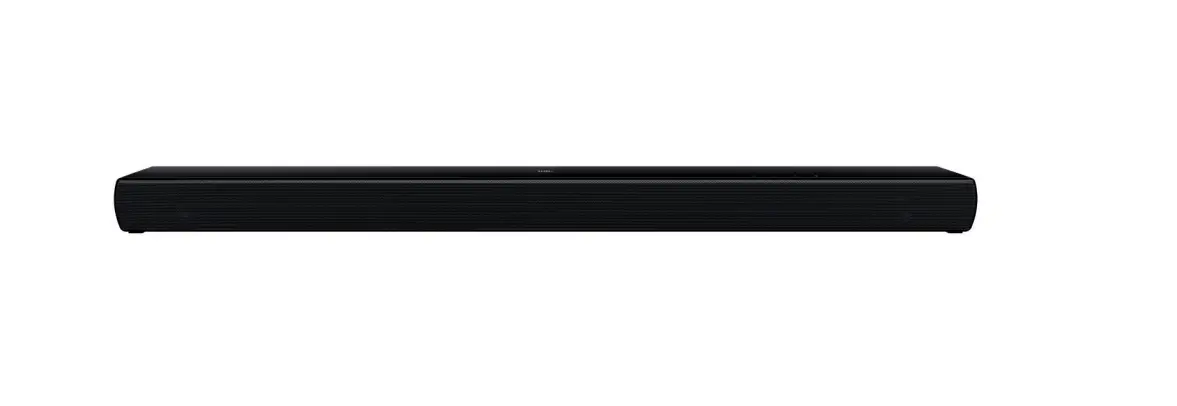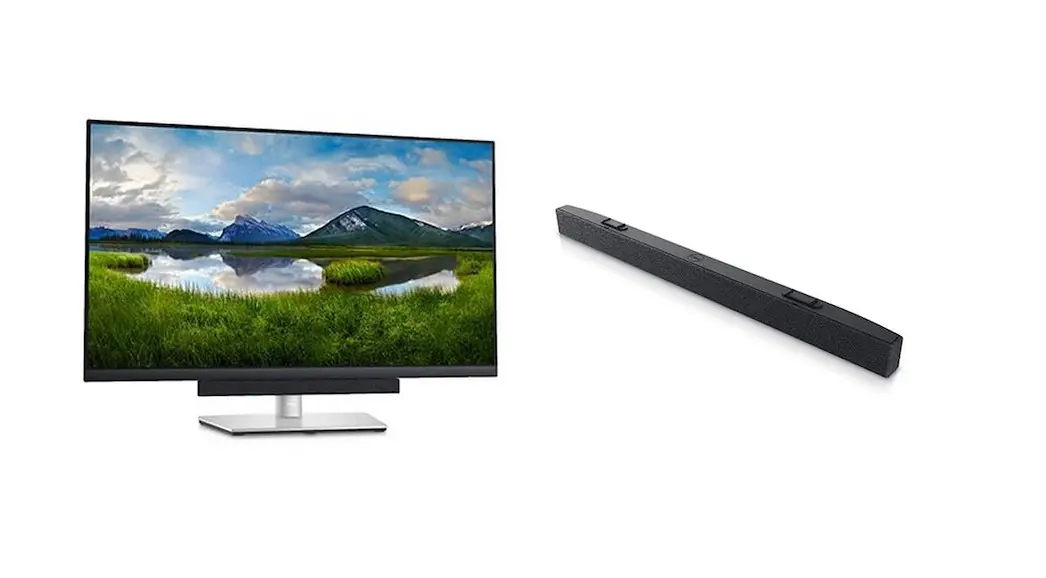

Dell Slim Soundbar
SB521A
User’s Guide
Soundbar Model: SB521A
Regulatory Model: SB521A
Note, Caution, and warnings NOTE: A NOTE indicates important information that helps you make better use of your computer.
 CAUTION: A CAUTION indicates potential damage to hardware or loss of data if instructions are not followed.
 WARNING: A WARNING indicates a potential for property damage, personal injury, or death.
Copyright © 2020 Dell Inc. or its subsidiaries. All rights reserved. Dell, EMC, and other trademarks are trademarks of Dell Inc. or its subsidiaries. Other trademarks may be trademarks of their respective owners.
2020 – 08
Rev. A00
What’s in the box
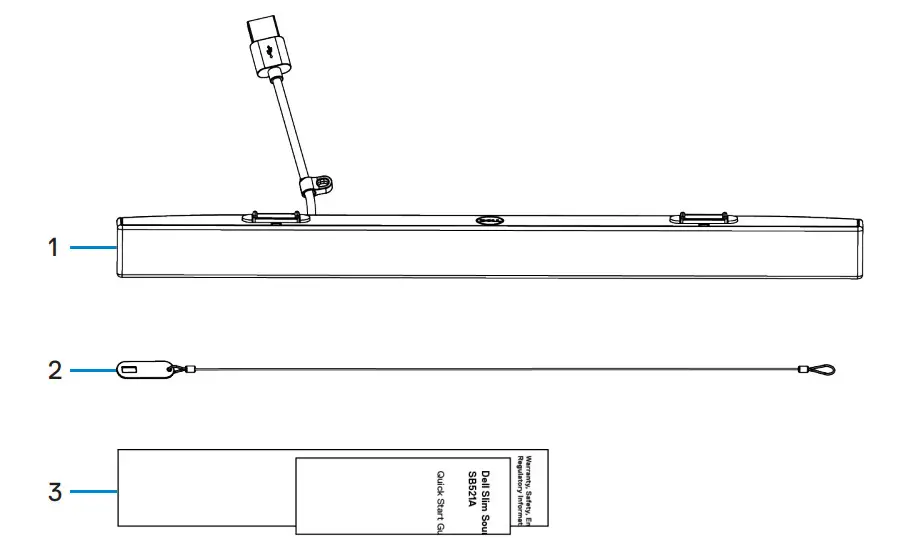
- Dell Slim Soundbar
- Security chain
- Documents
NOTE: The documents shipped with the soundbar may vary based on your region.
Features
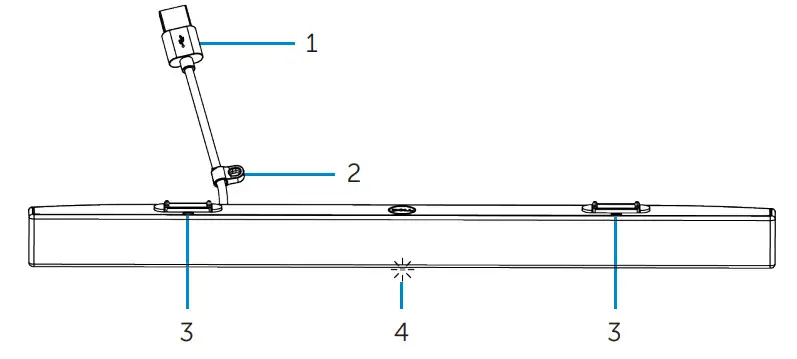
- USB cable
- Security loop
- Magnetic tabs (2)
- Power indicator
Setting up your Dell Slim Soundbar
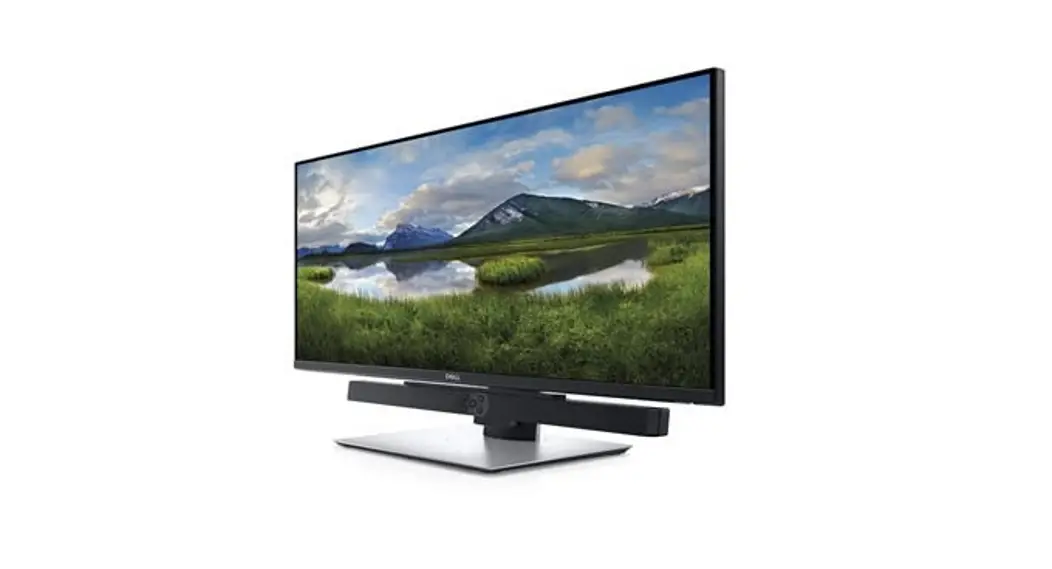
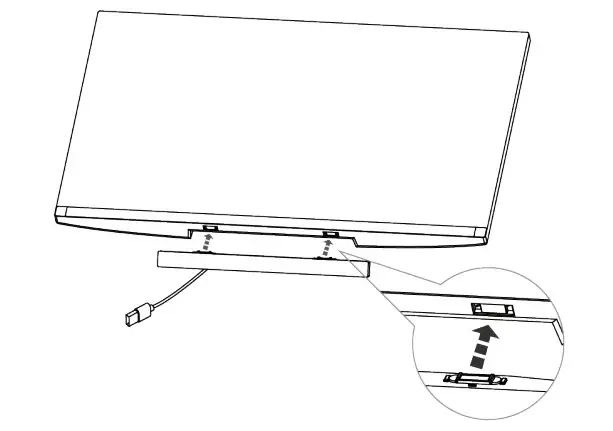
- Align the magnetic tabs on the soundbar with the slots on the Dell monitor to secure the soundbar to the monitor’s base.

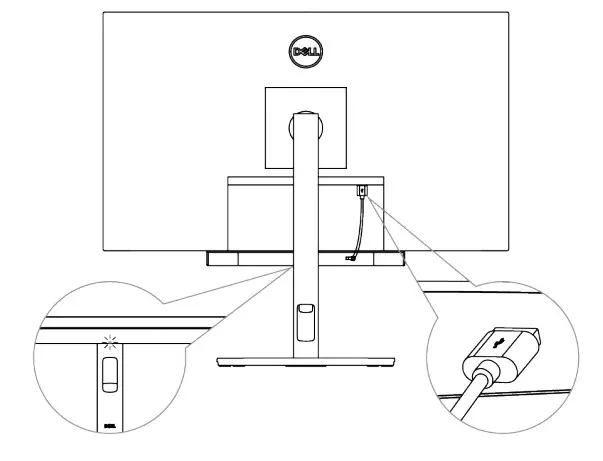
- Connect the USB cable of the soundbar to the USB port of the Dell monitor. In cases where you connect your monitor using HDMI or DP cable, ensure to connect the upstream USB cable that comes with your monitor to your computer for the soundbar to work.
NOTE: The power indicator on the soundbar turns on indicating that the soundbar is turned on.
- Install the security chain and security lock, if required.
Specifications
| General | |
| Model number | SB521A |
| Connection type | USB |
| Supported operating systems | Windows 7 Windows 8 Windows 10 Chrome Mac Linux ThinOS |
| Electrical | |
| Operating voltage | 5 V |
| Audio input | USB Digital Audio Input |
| Output power | USB 2.0: ≥ 1 W x 2 at THD ≤ 1% USB 3.0: ≥ 1.8 W x 2 at THD ≤ 1% where THD refers to Total Harmonic Distortion |
| Physical | |
| Height (including magnetic tabs) | 298.21±0.5 mm (11.74±0.02 in.) |
| Length | 24.20±0.5 mm (0.95±0.02 in.) |
| Width | 17.50±0.5 mm (0.69±0.02 in.) |
| Weight | 0.114±0.005 kg (0.25±0.01 lb) |
| Environmental | |
| Operating temperature | 0°C to 40°C (0°F to 104°F) |
| Storage temperature | -40°C to 65°C (-40°F to 149°F) |
| Operating humidity | 90% maximum relative humidity, non-condensing |
| Storage humidity | 90% maximum relative humidity, non-condensing |
Troubleshooting
| Problems | Possible causes | Possible solutions |
| Soundbar is not functioning properly | The soundbar is not detected or synchronized |
|
| No sound even though the power indicator is on | Volume might be low or Dell Slim Soundbar SB521A might not be set as the default playback device. |
|
| No sound | No sound from USB audio source |
|
| Distorted sound | Computer’s sound the card is used as the audio source |
|
| Distorted sound | Other audio source is used |
|
| Unbalanced sound output | Sound is coming from only one side of the soundbar |
|
| Low volume | Volume is too low |
|
| Buzzing noise | Noise from the soundbar |
|
| The soundbar cannot be mounted on the monitor | Magnetic tabs on the soundbar are missing, damaged, or broken. |
|
Statutory information
Warranty
Limited warranty and return policies
Dell-branded products carry a three-year limited hardware warranty.
For U.S. customers:
This purchase and your use of this product are subject to Dell’s end-user agreement, which you can find at https://www.dell.com/terms. This document contains a binding arbitration clause.
For European, Middle Eastern and African customers:
Dell-branded products that are sold and used are subject to applicable national consumer legal rights, the terms of any retailer sale agreement that you have entered into (which will apply between you and the retailer), and Dell’s end-user contract terms.
Dell may also provide an additional hardware warranty—full details of the Dell end-user contract and warranty terms can be found by going to https://www.dell.com/terms, selecting your country from the list at the bottom of the “home” page and then clicking the “terms and conditions” link for the end-user terms or the “support” link for the warranty terms.
For non-U.S. customers: Dell-branded products that are sold and used are subject to applicable national consumer legal rights, the terms of any retailer sale agreement that you have entered into (which will apply between you and the retailer) and Dell’s warranty terms. Dell may also provide an additional hardware warranty —full details of Dell’s warranty terms can be found by going to https://www.dell.com/terms, selecting your country from the list at the bottom of the “home” page and then clicking the “terms and conditions” link or the “support” link for the warranty terms.
 Regulatory Compliance | Dell