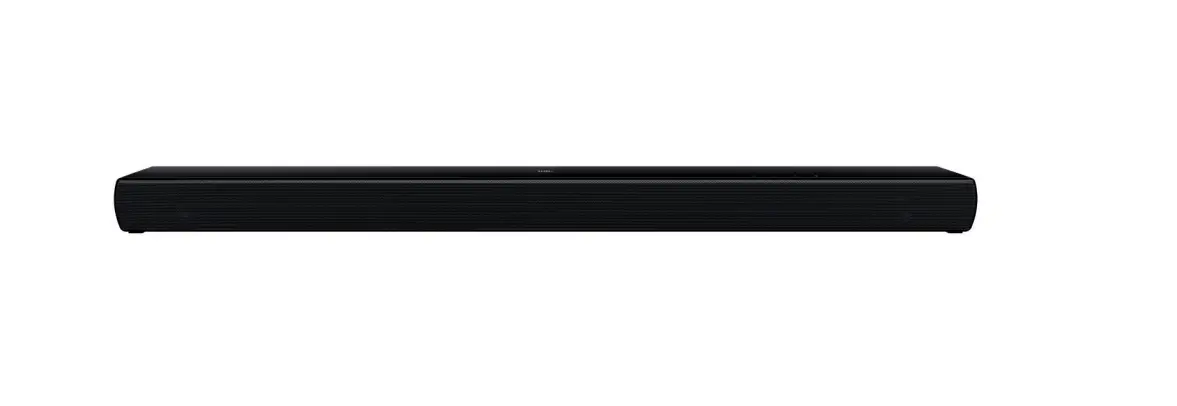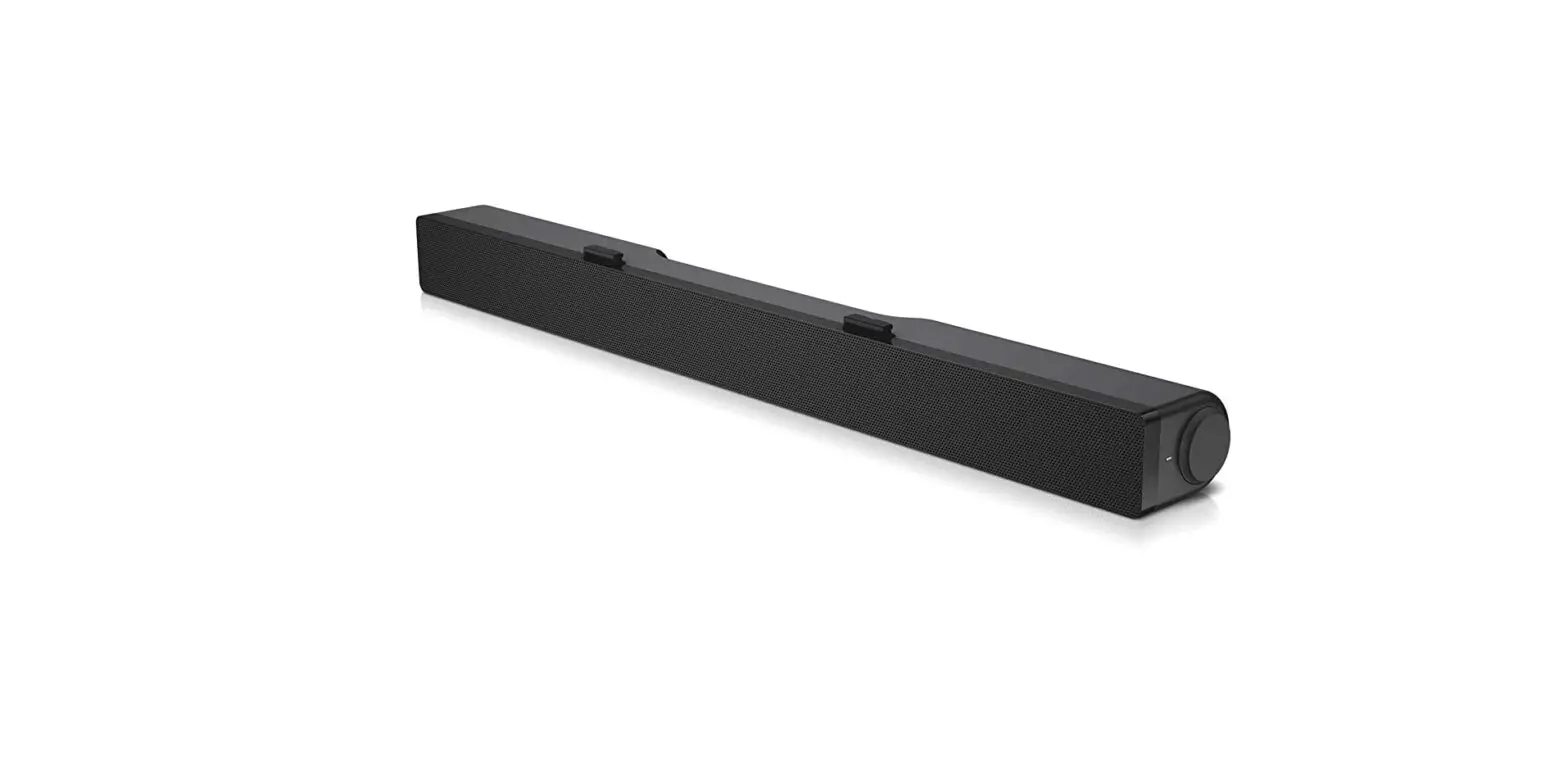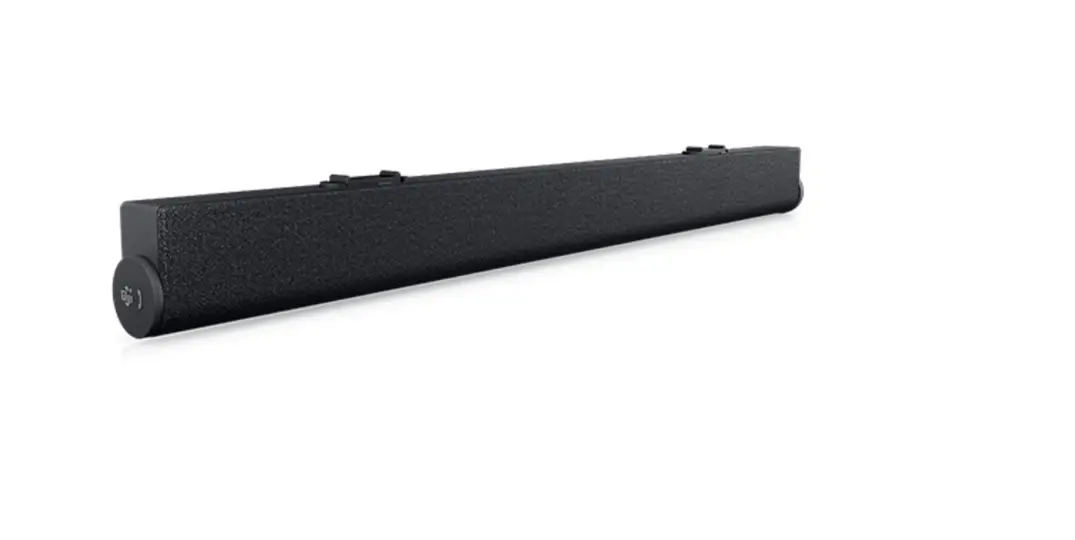
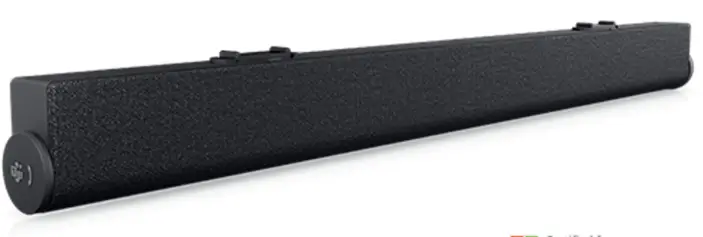
DELL SB522A Slim Conferencing Soundbar
Notes, Cautions, and Warnings
NOTE: NOTE indicates important information that helps you make better use of your computer.
CAUTION: CAUTION indicates either potential damage to hardware or loss of data and tells you how to avoid the problem.
WARNING: WARNING indicates a potential for property damage, personal injury, or death.
What’s in the box
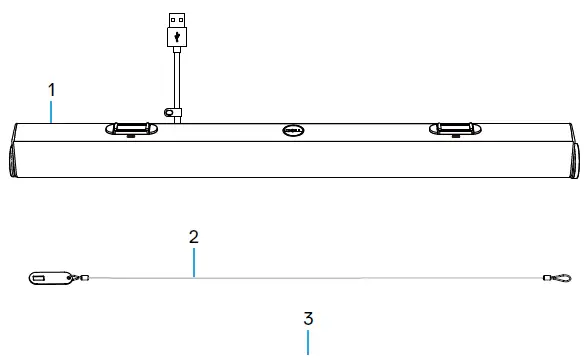
- Dell slim soundbar
- Security chain
- User Documentations
NOTE: The documents shipped with the soundbar may vary based on your region.
Views
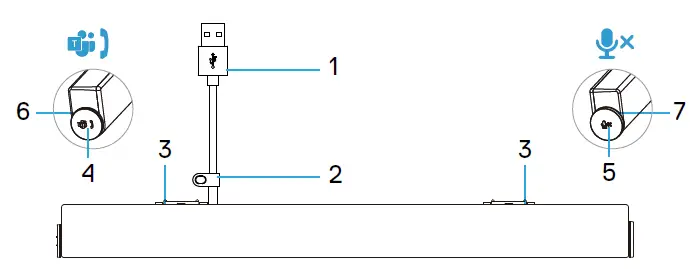
- USB-A cable
- Security loop
- Magnetic tabs x2
- Microsoft Teams and answer call button
- Volume knob and mic control button
- LED (White/Green)
- LED (Red)
Setting up your soundbar with a Dell monitor
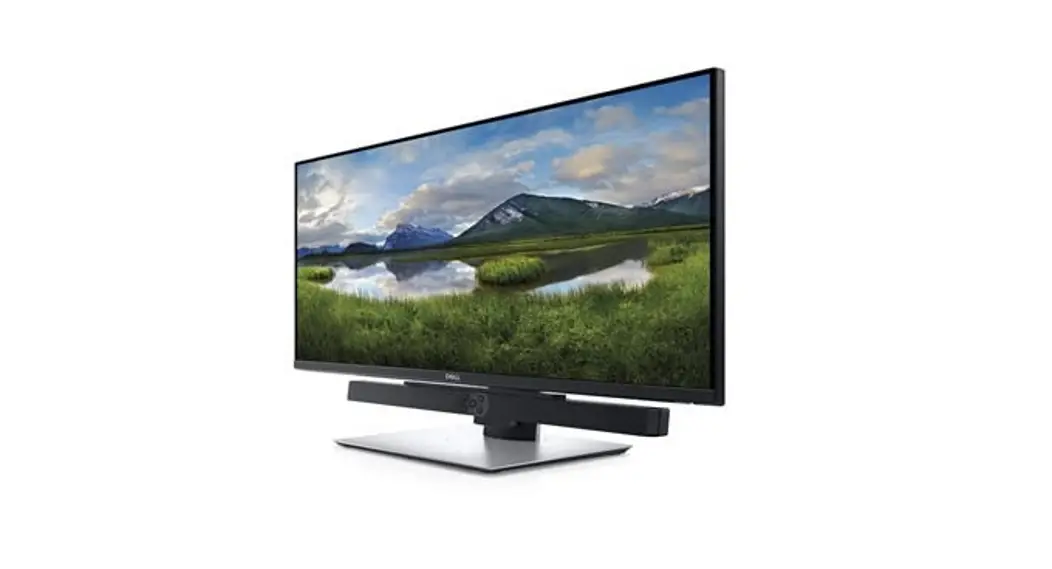
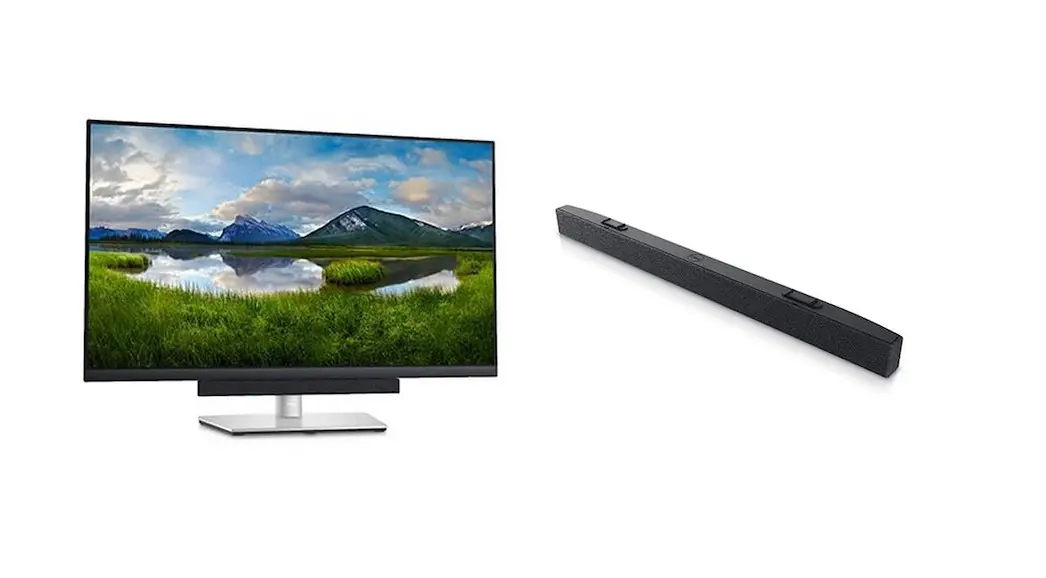
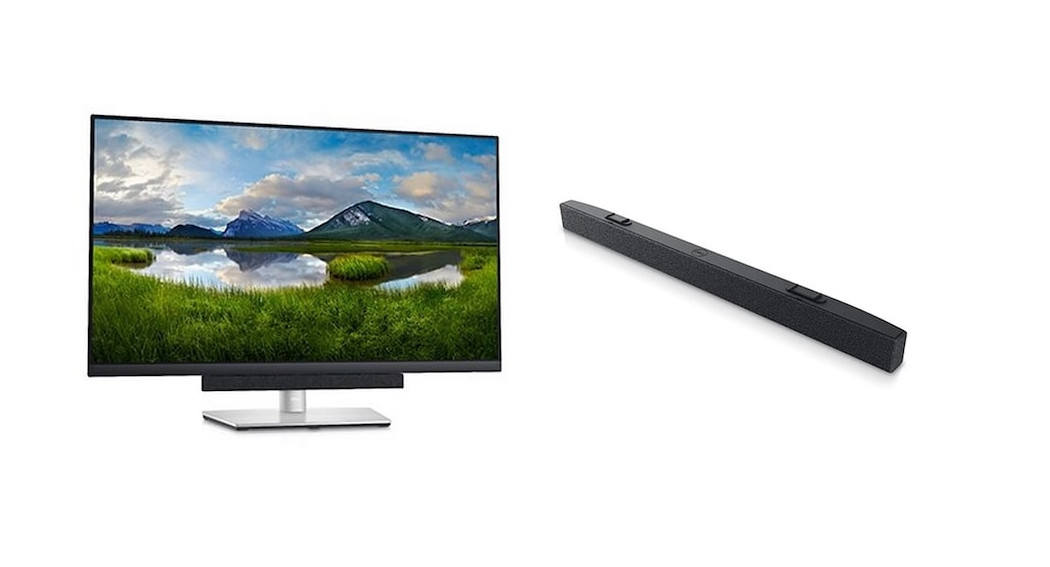
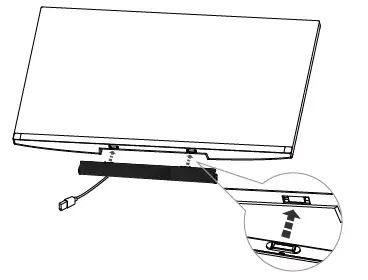
- 1. Align the magnetic tabs on the soundbar with the slots on the Dell monitor to secure the soundbar to the monitor’s base.

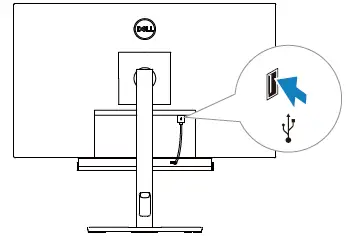
- Connect the USB-A cable from the soundbar to the USB-A port on the Dell monitor.
- Connect the USB upstream cable from the computer to the Dell monitor.

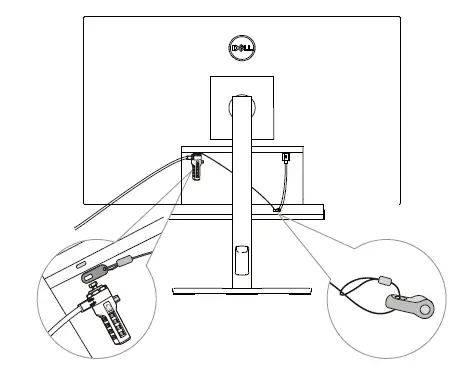
NOTE: For computers that use HDMI or DisplayPort cables to connect to the monitor, the USB upstream cable must be connected to the monitor to ensure the Soundbar works. - Install the security chain and security lock, if required.

Operation behavior in Teams
- Power On/Plugged in
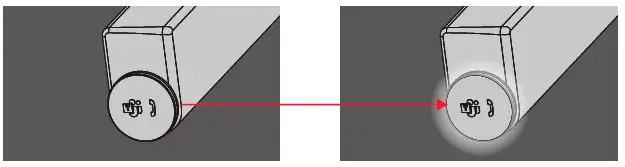
- Single short click on Teams button, the LED °ashes white 3 times.
- Log in to Teams
- Left LED stays white when logged in to Teams.
- Single short click on Teams button to launch Teams on the main screen and open Teams notiÿcation.

- Teams notiÿcation
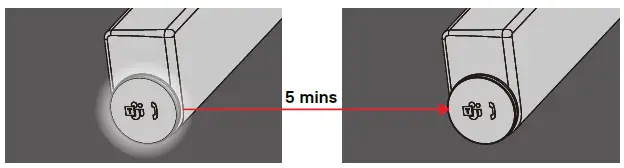
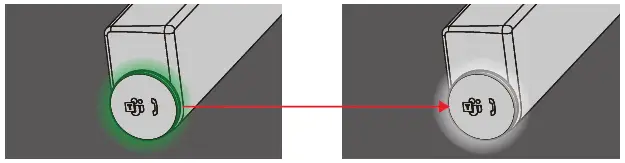
- Left LED pulses in white for 5 mins (unless there is action being taken).

- Left LED pulses in white for 5 mins (unless there is action being taken).
- Teams incoming call
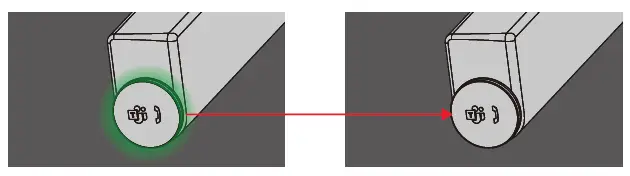
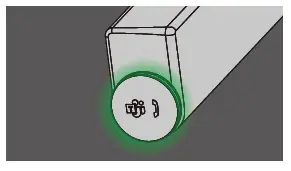
- Left LED blinks green.

- Left LED blinks green.
- Answer incoming Teams call
- Short press Teams button to answer incoming Teams call.
- Left LED stays green during call.

- Reject incoming Teams call
- Long press Teams button to reject incoming Teams call.
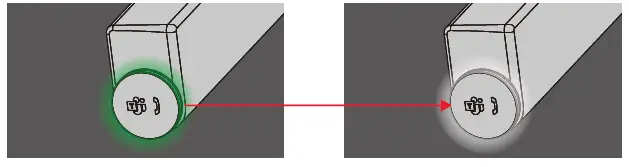
- Left LED turns back to static white.

- End incoming Teams call
- Short press Teams button to end call during Teams call.
- Left LED turns back to static white.
- Mic. Muted
- Click on the right knob during Teams call.
- Right LED lights up red.
- Teams call will be muted as well.

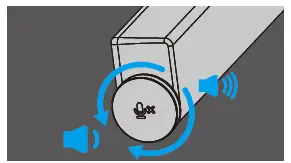
- Volume Up/Down
- Rotate knob clockwise to turn volume up.
- Rotate knob counterclockwise to turn volume down.

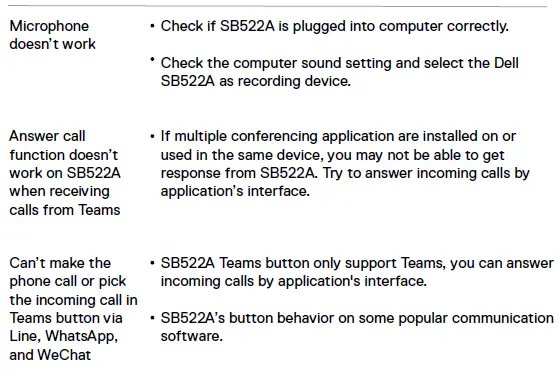
SB522A’s button behavior on some popular communication software
Dell SB522A is designed for easy accessibility to Microsoft Teams.
The table below provides details on the behavior of the sound bar on popular communication platforms:
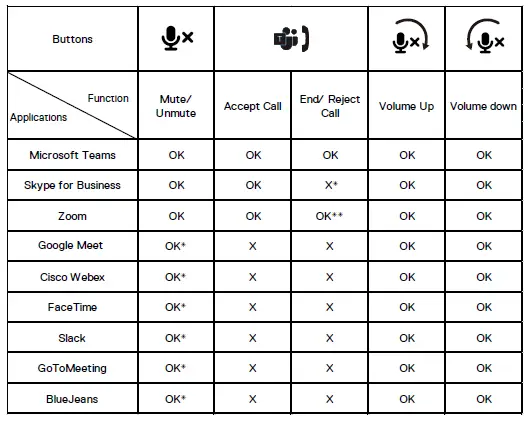
NOTE: OK* Mic. control button functions on the applications but may not sync with the app UI
NOTE: OK** Answer/ End call button has 2 different states:
- Reject call – Long press Answer/ End call button for one second on speakerphone
- End an ongoing call via Zoom App
NOTE: X* End call by short pressing the Answer/ End call button, user cannot reject a call
Specification
General
- Model number SB522A
- Connection type USB
- Supported operating systems Windows 10
Windows 11
Power ratings
- Operating voltage 5V
- Output power USB 2.0: ˛ 1 W x 2 at THD ˝ 1%
USB 3.0: ˛ 1.8 W x 2 at THD ˝ 1% where THD refers to Total Harmonic Distortion
Dimensions and weight
- Height 27.5 mm
- Length 301.4 mm
- Width 17.5 mm
- Weight 0.14 kg
Environmental
- Operating temperature 0°C to 40°C (0°F to 104°F)
- Storage temperature -40°C to 65°C (-40°F to 149°F)
- Operating humidity 90% maximum relative humidity,Storage humidity
- Storage humidity 90% maximum relative humidity, Storage humidity
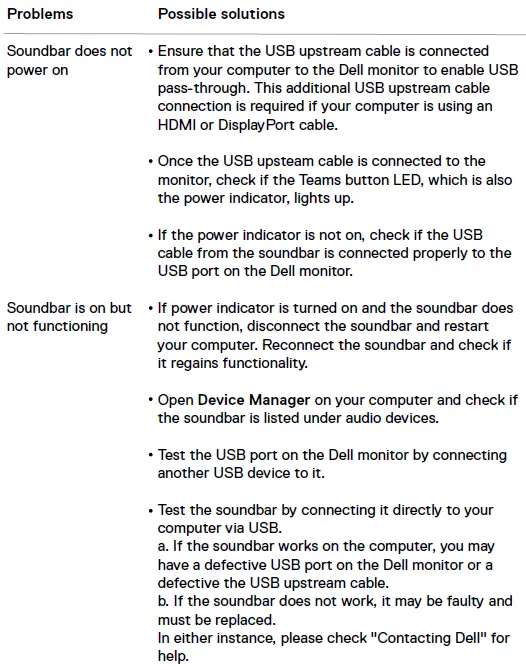
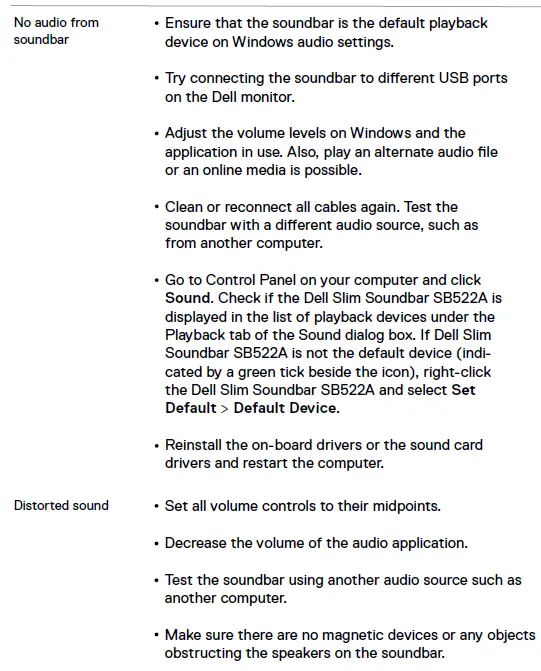
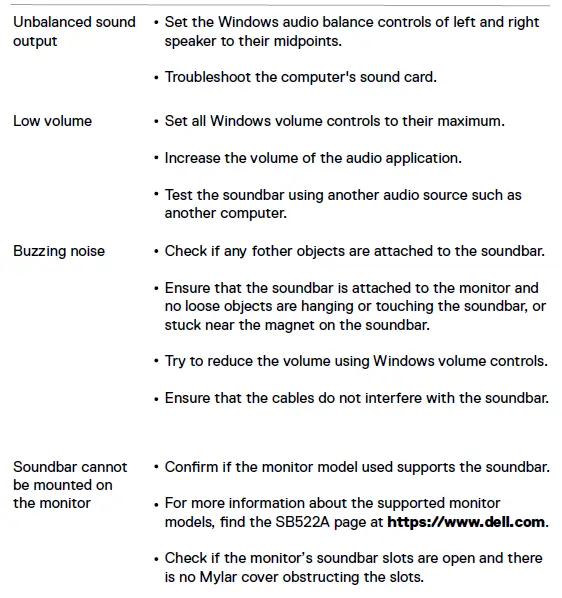
Troubleshooting
Statutory information
Warranty
Limited warranty and return policies:
Dell-branded products carry a 3-year limited hardware warranty.
For U.S. customers:
This purchase and your use of this product are subject to Dell’s end user agreement, which you can ÿnd at https://www.dell.com/terms. This document contains a binding arbitration clause.
For European, Middle Eastern and African customers:
Dell-branded products that are sold and used are subject to applicable national consumer legal rights, the terms of any retailer sale agreement that you have entered into (which will apply between you and the retailer) and Dell’s end user contract terms.
Dell may also provide an additional hardware warranty—full details of the Dell end user contract and warranty terms can be found by going to https://www.dell.com/terms, selecting your country from the list at the bottom of the “home” page and then clicking the “terms and conditions” link for the end user terms or the “support” link for the warranty terms.
For non-U.S. customers:
Dell-branded products that are sold and used are subject to applicable national consumer legal rights, the terms of any retailer sale agreement that you have entered into (which will apply between you and the retailer) and Dell’s warranty terms. Dell may also provide an additional hardware warranty—full details of Dell’s warranty terms can be found by going to https://www.dell.com/terms, selecting your country from the list at the bottom of the “home” page and then clicking the“terms and conditions” link or the “support” link for the warranty terms.
GETTING HELP
Contact Dell:
Dell provides several online and telephone-based support and service options.
Availability varies by country and product, and some services may not be available in your area. To contact Dell for sales, technical support, or customer service issues:
- Go to www.dell.com/support.
- Select your support category.
- Verify your country or region in the Choose a Country/Region drop-down list at the bottom of the page.
- Select the appropriate service or support link based on your need.
NOTE: If you do not have an active Internet connection, you can find contact information on your purchase invoice, packing slip, bill, or Dell product catalog.
 Contact Support | Dell US