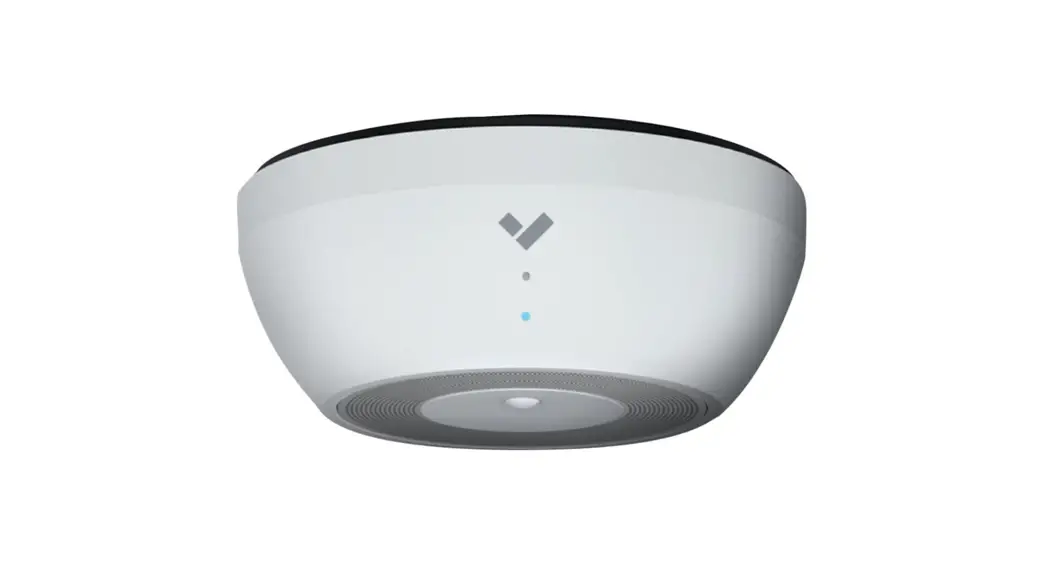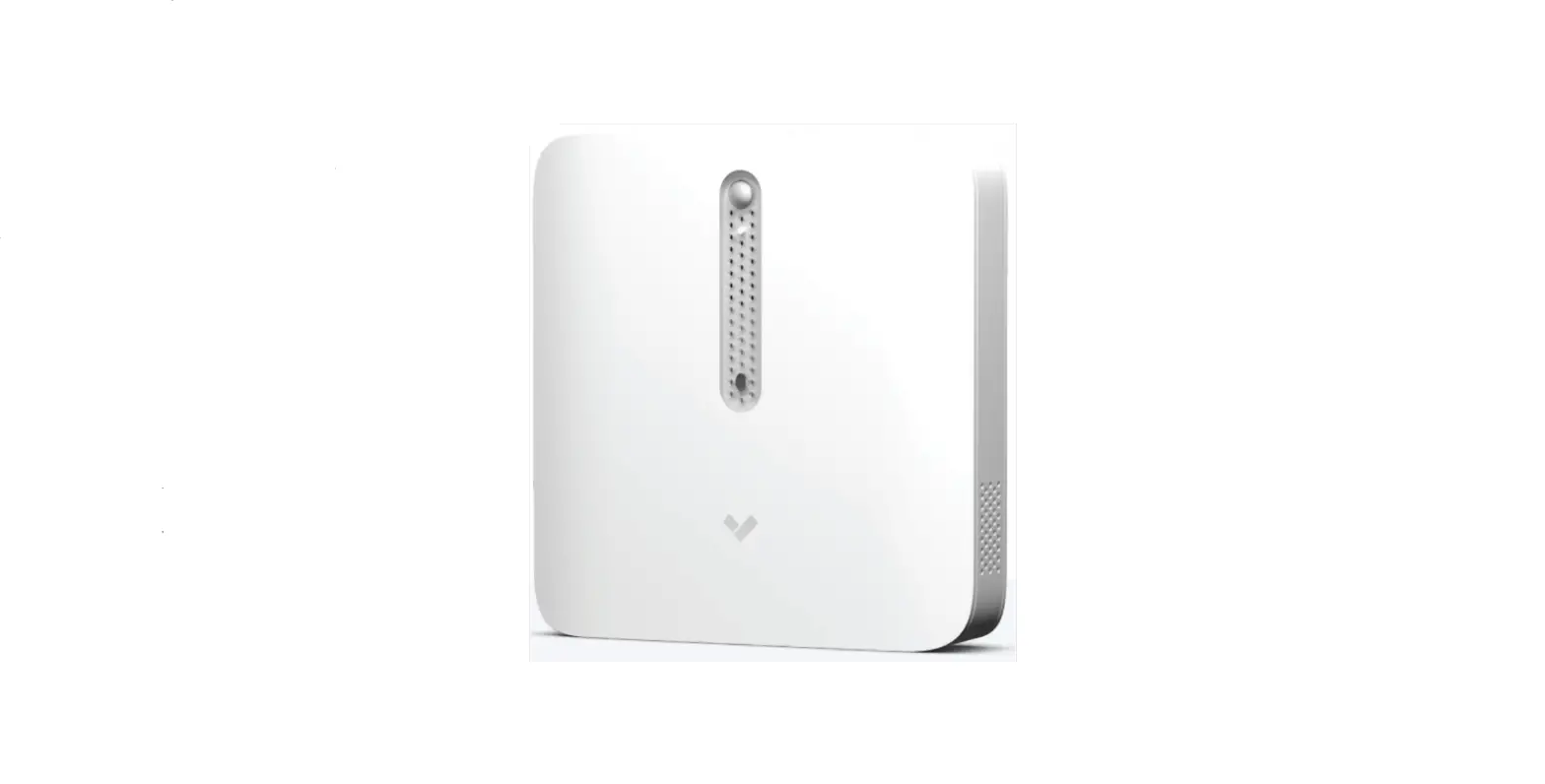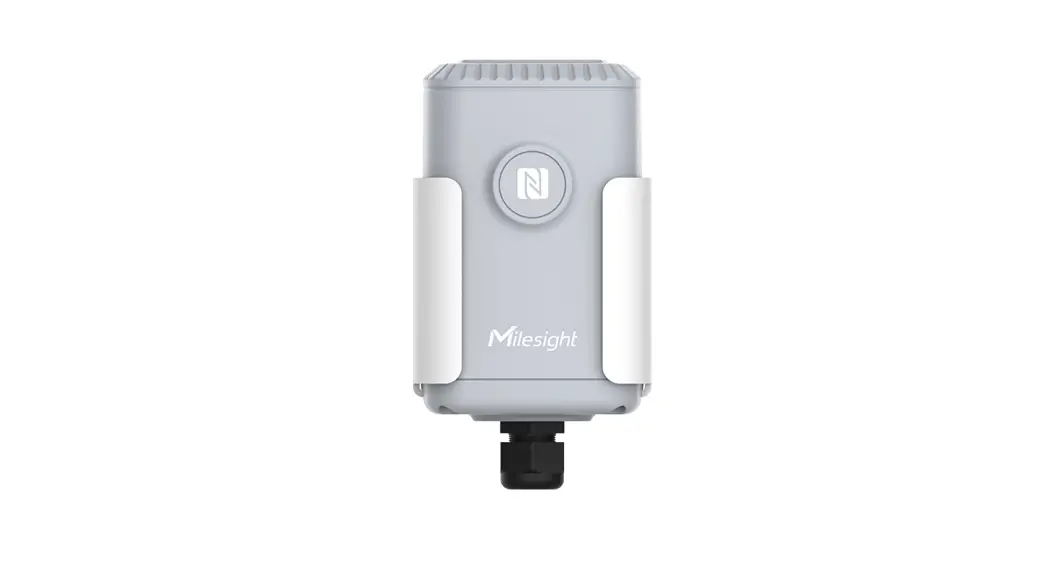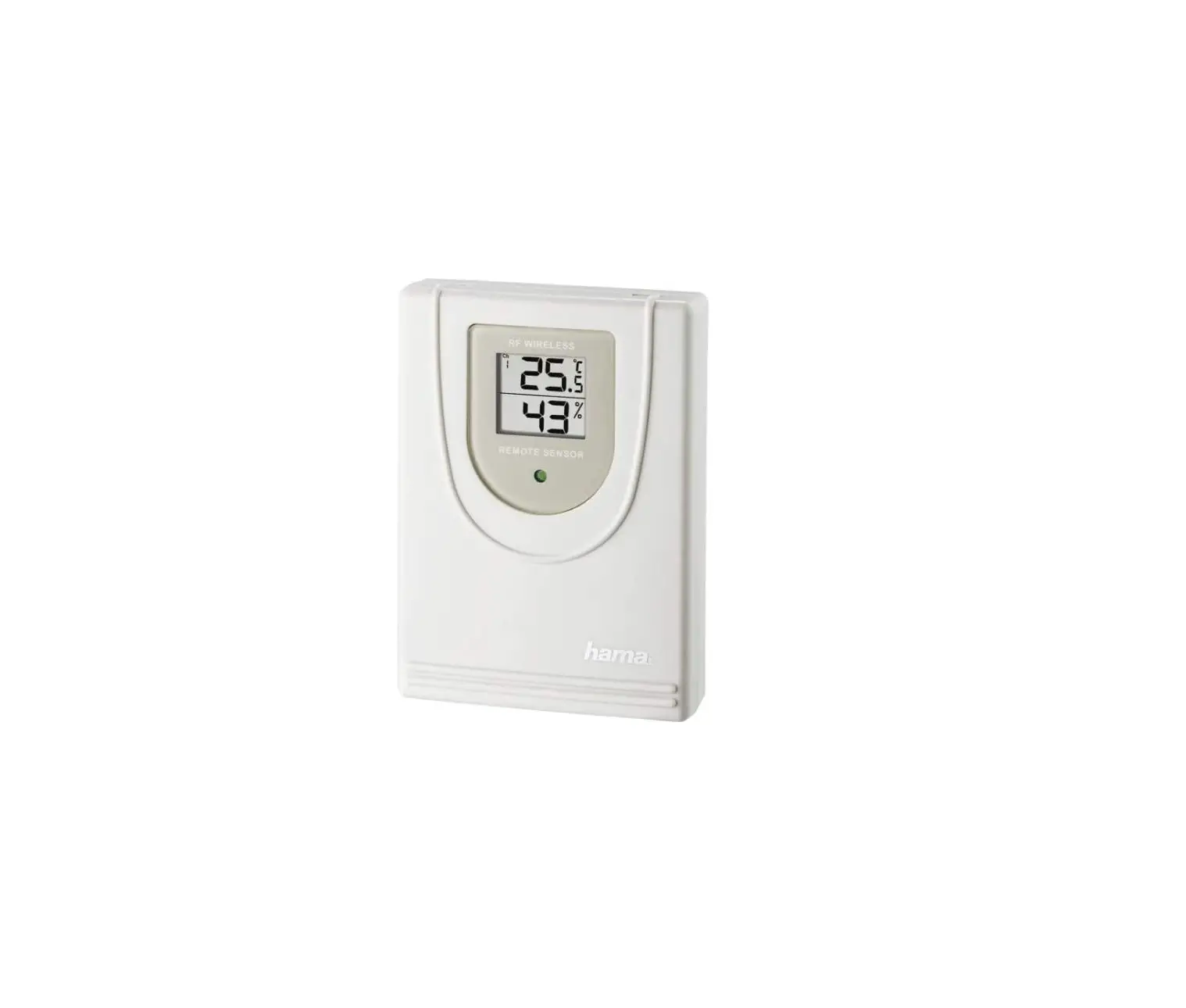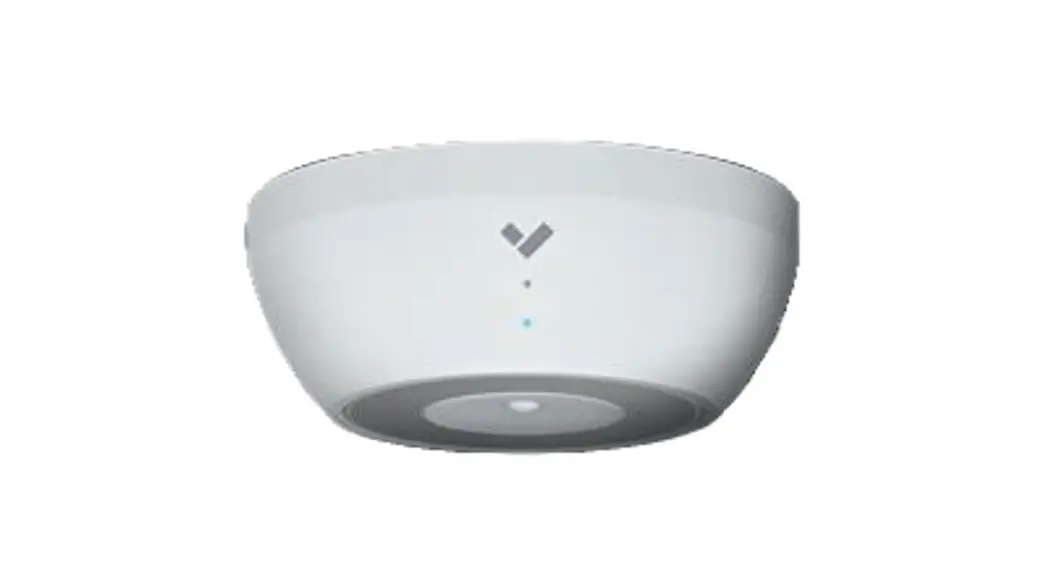

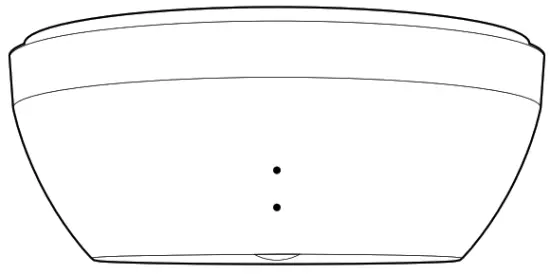
SV11 Environmental Sensor
What’s in the box

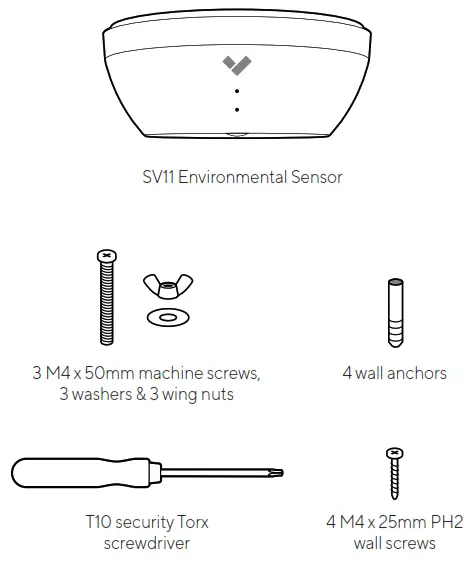
What you’ll need
- A working internet connection
- A smartphone or laptop
- A #2 Phillips screwdriver or power drill with a #2 Phillips driver bit
- …⁄‡ inch (6.5mm) drill bit for wall anchors
- …⁄Ž inch (3mm) drill bit for pilot holes
- A shielded Cat5 or Cat6 ethernet cable with a .2-.25” outside diameter (5-6.5mm)
Please note:
To reduce potential safety issues, only use the PoE adapter provided with the product, a replacement PoE adapter provided by Verkada, or a PoE adapter purchased as an accessory from Verkada.
SV11 LED Behavior
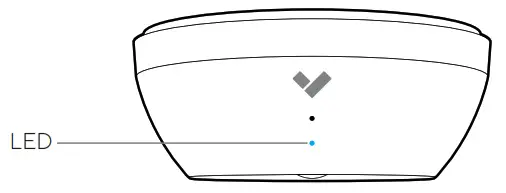
 | Solid Orange This indicates that the sensor is on and booting up. |
 | Flashing Orange This indicates that the sensor is updating firmware. |
 | Flashing Blue This indicates that the sensor is recording data, but cannot reach the server. |
 | Solid Blue This indicates that the sensor is running, connected, and recording data. |
SV11 Connect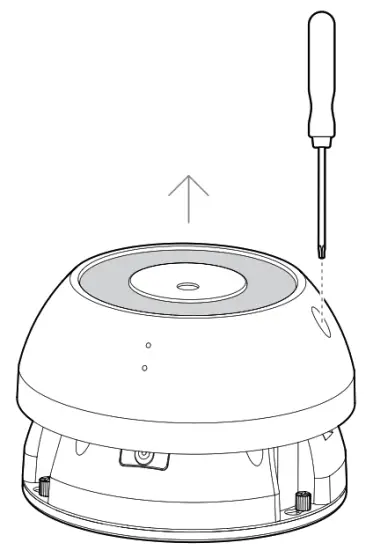
Use the provided T10 security torx screwdriver to loosen the screws and lift the cover.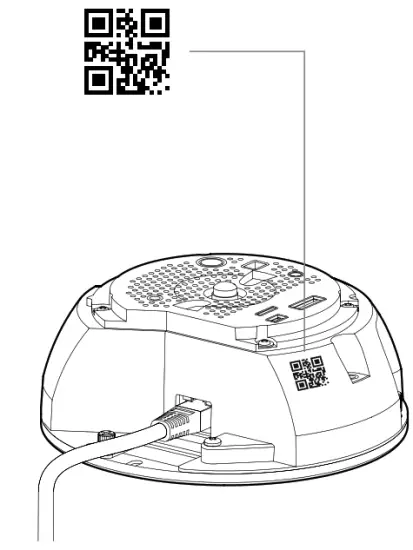
Insert the ethernet cable into the ethernet port. Scan the QR code for easy sensor registration and setup, or proceed to:
www.verkada.com/start.
SV11 Mount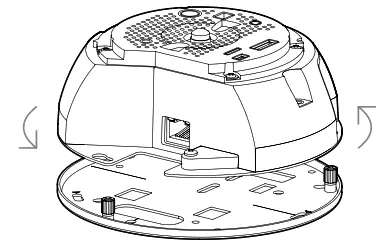
- To remove the mounting plate, loosen the mount plate screws and twist the sensor housing counter-clockwise. Lift the sensor housing vertically o¢ the base plate and set aside.

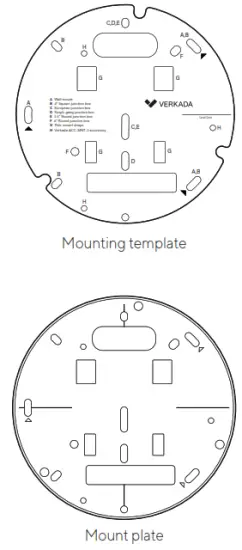
- Use the provided mounting template to mark wall mount holes. For a junction box mount, use the mounting template to determine the correct hole pattern.
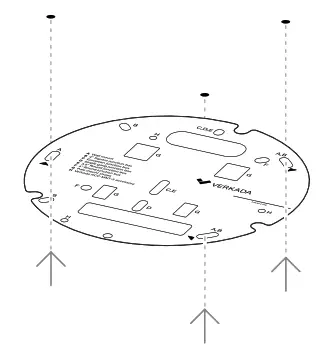
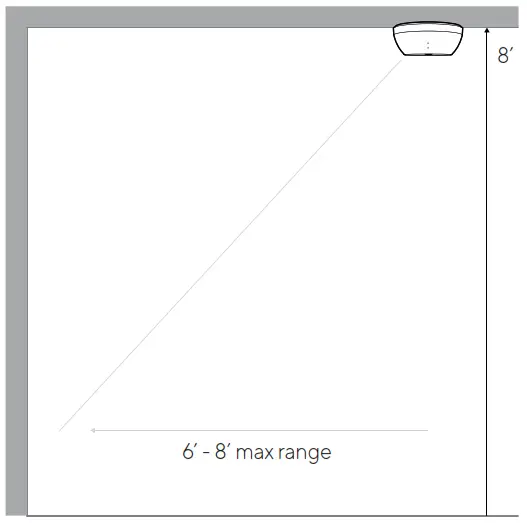
For best performance, mount the sensor on a ceiling, 8 ft above the ground.
Avoid windows, vents, and other sources of accelerated air circulation. The maximum detection range for air quality is 6 to 8 ft from the sensor.
SV11 Mount Cont.
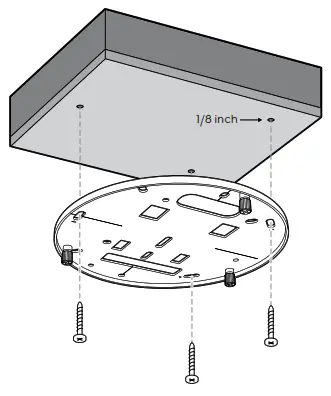 3 Solid Wall For a solid material like wood or metal, drill 1⁄ 8 inch pilot holes. Drive mounting screws directly into the pilot holes.
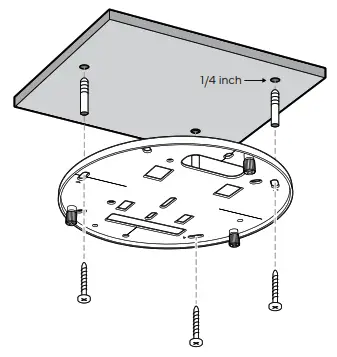 Drywall
For drywall, drill 1⁄4 inch holes. Insert plastic anchors into holes and drive mounting screws into anchors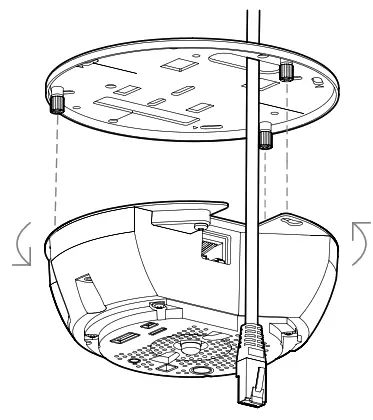 4 To secure the sensor housing, place it over the mount plate screws and twist counter-clockwise. Tighten the mount plate screws with a Phillips screwdriver.
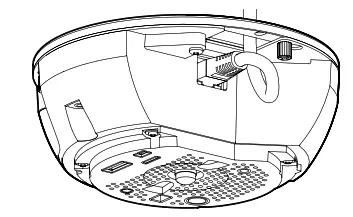
5 Plug in the sensor. The status LED will turn orange to indicate the sensor has power. The LED will turn blue to indicate the sensor is active.
See additional LED states and donations on the SV11 LED behavior page.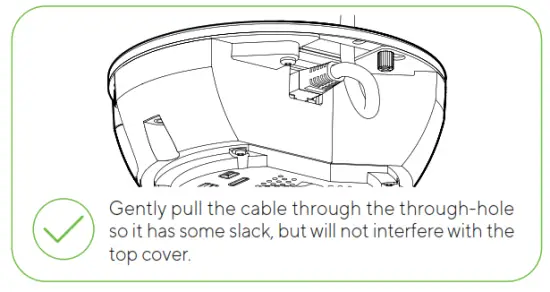
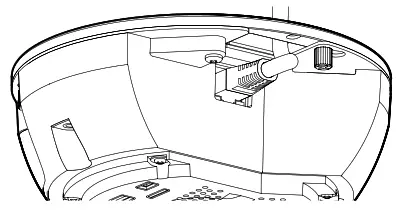
 Pulling the ethernet cable too tight will strain the cable which may impact data performance.
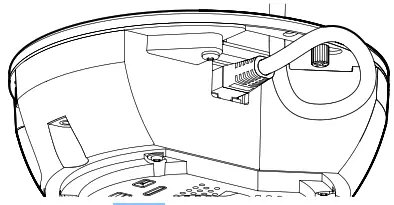
Too much slack in the ethernet cable may create top cover installation issues.
SV11 Secure
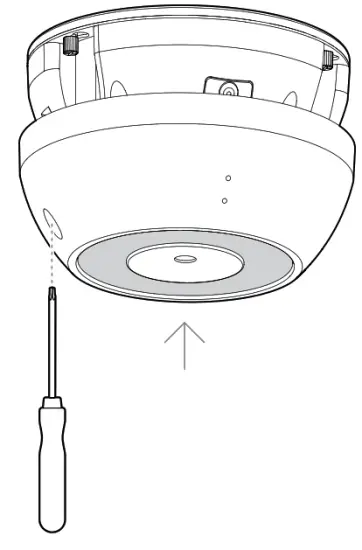
To secure the sensor, align the top shell security holes with the baseplate and place the top shell back into its original position. Tighten the security screws using the provided T10 security torx screwdriver.
Support
Thank you for purchasing a Verkada sensor.
If for any reason things don’t work right or you
need assistance, please contact us immediately.
Sincerely,
The Verkada Team
www.verkada.com/support
+1 (650) 514-2500
[email protected]
www.verkada.com/support
 Verkada