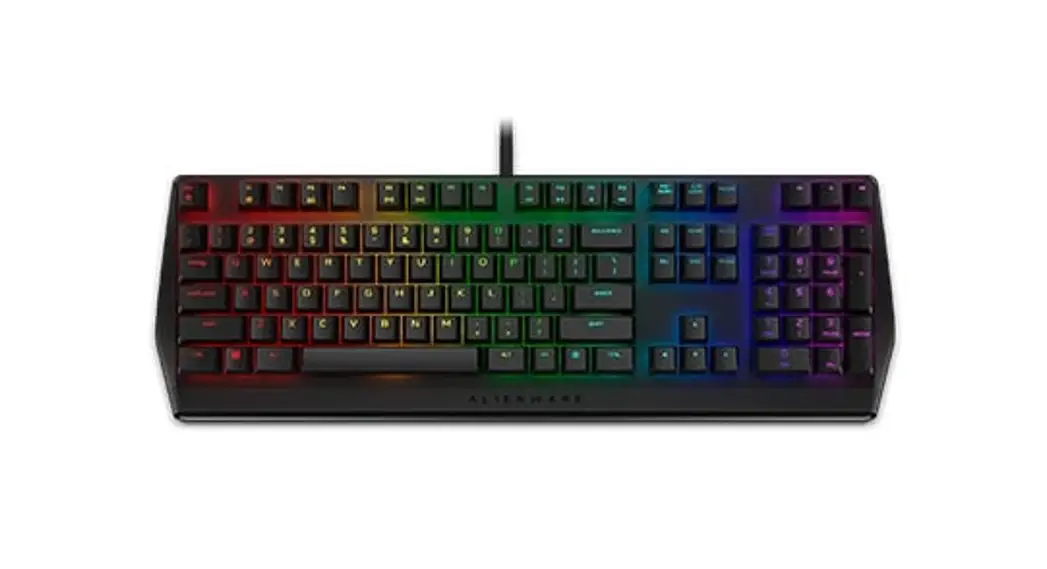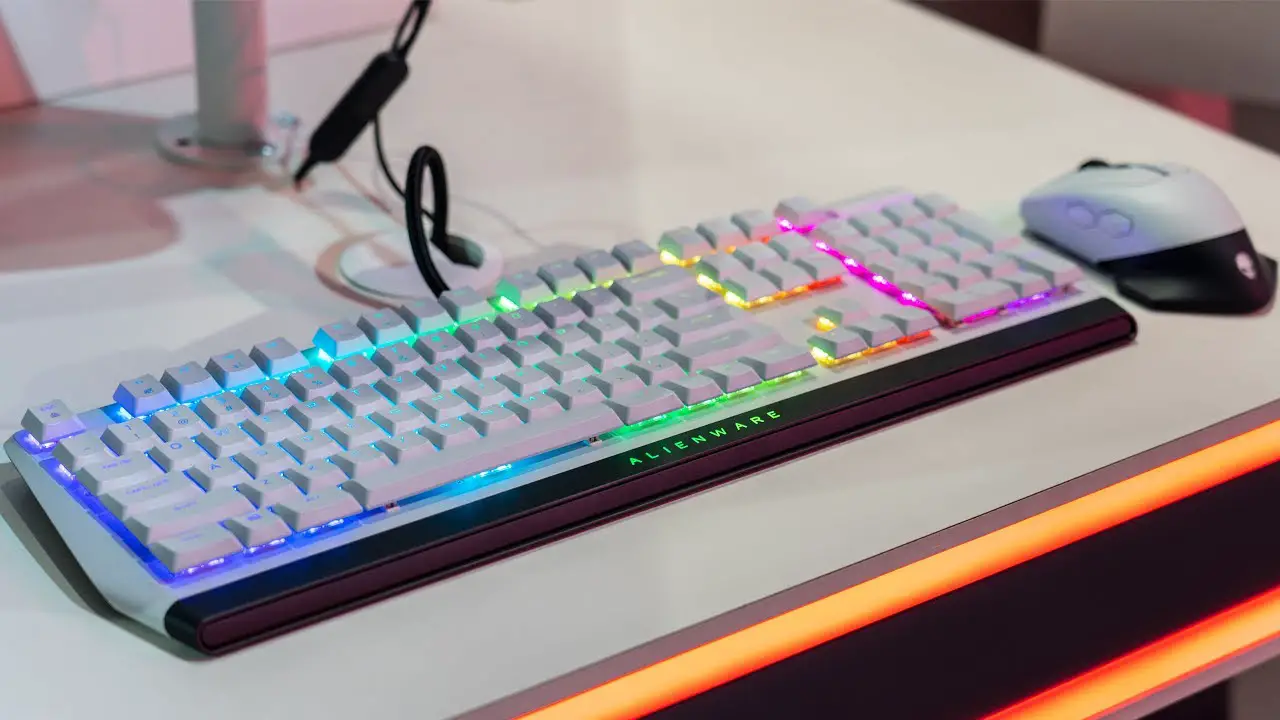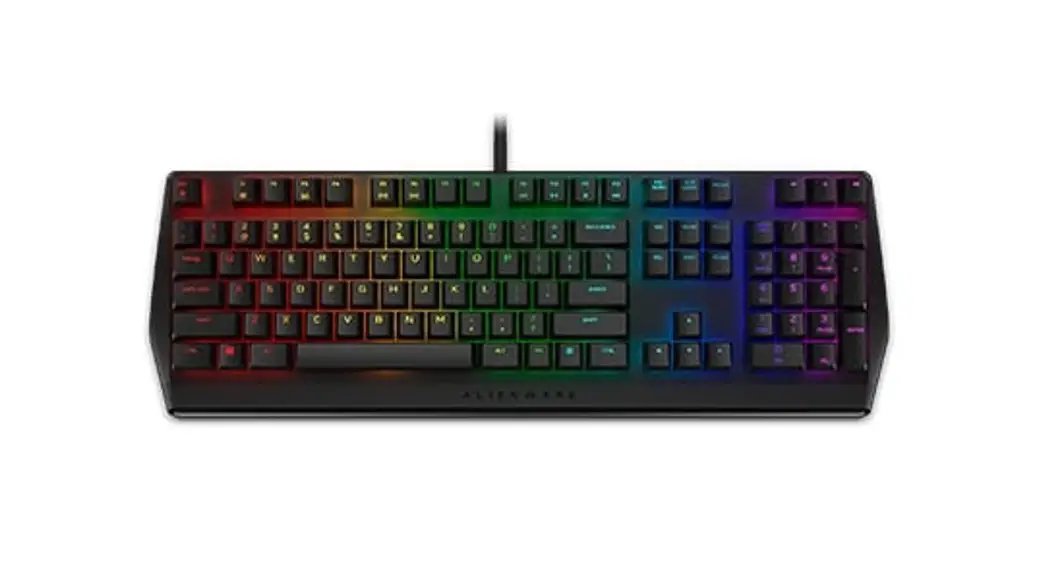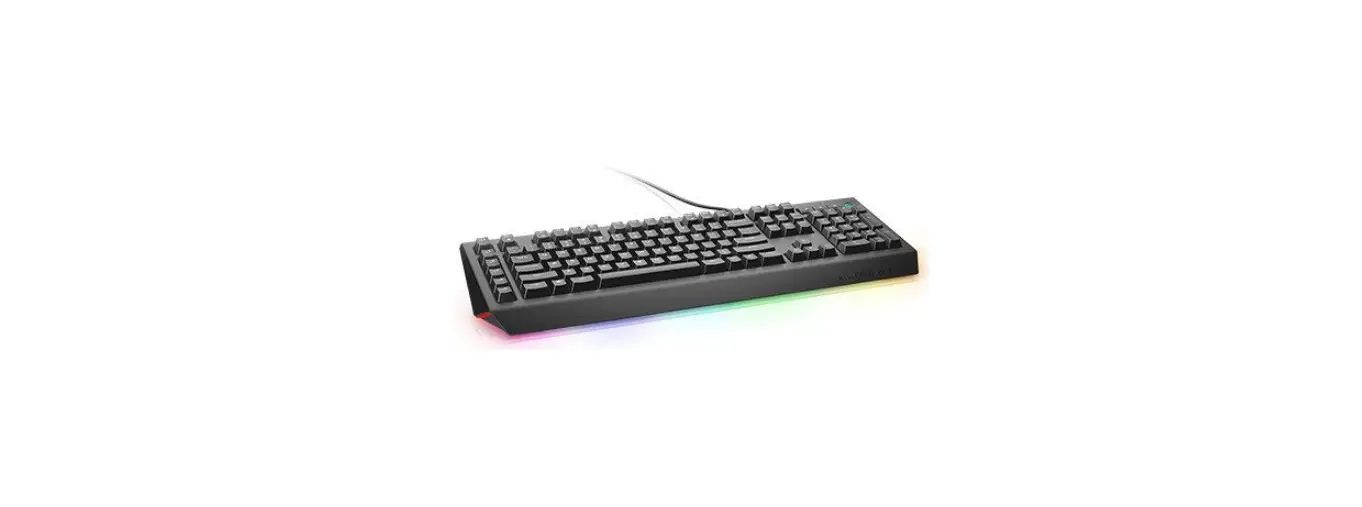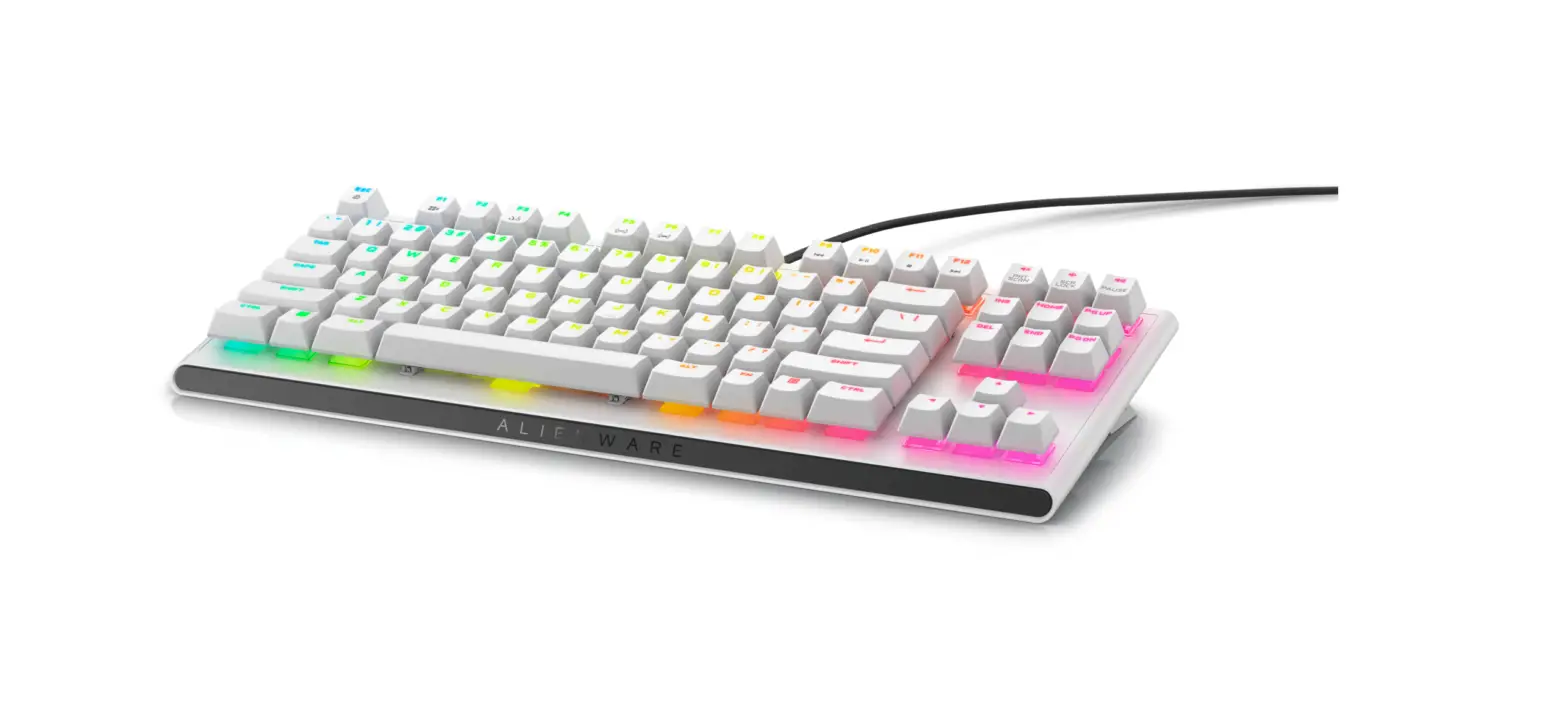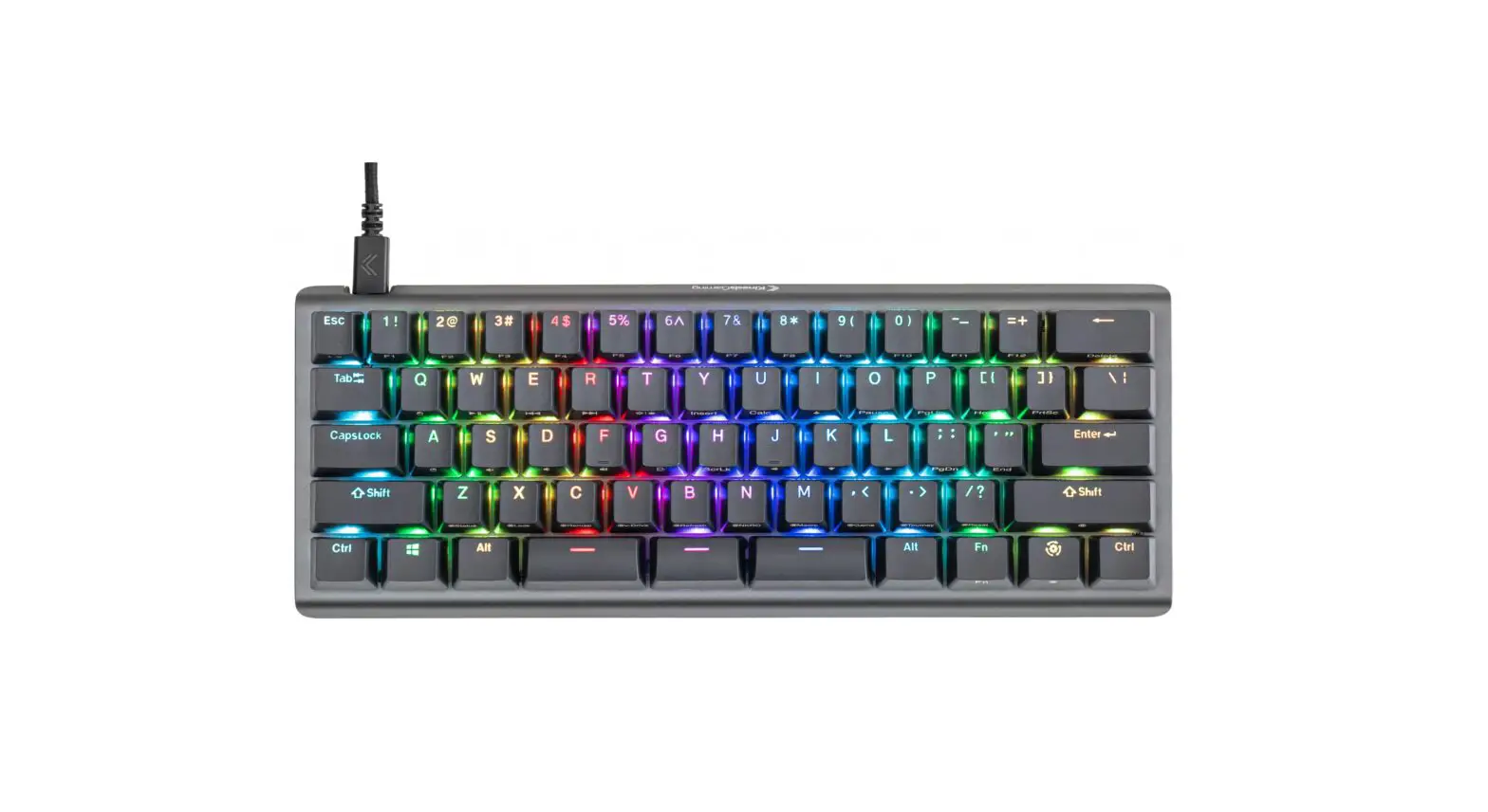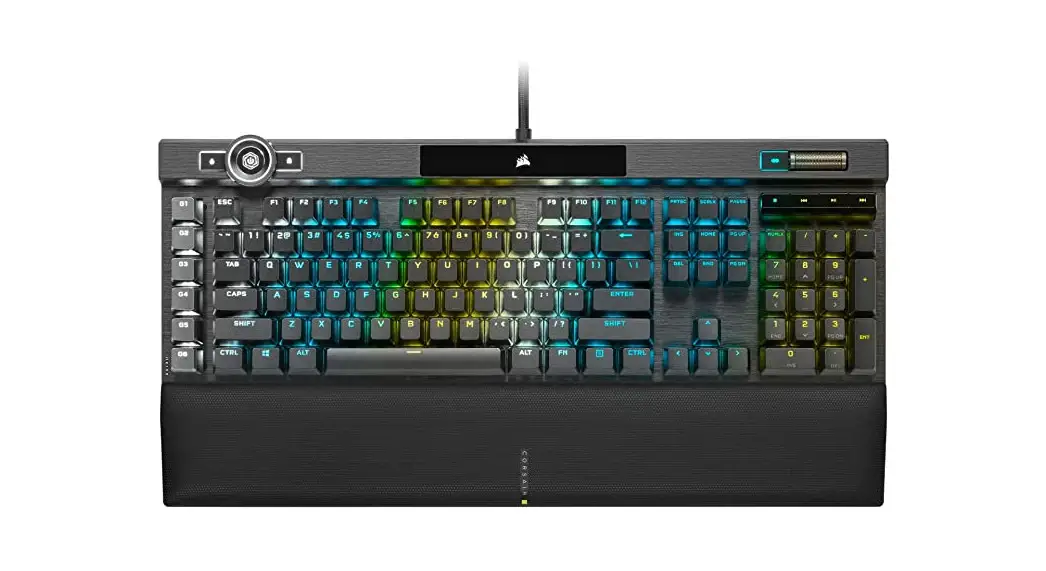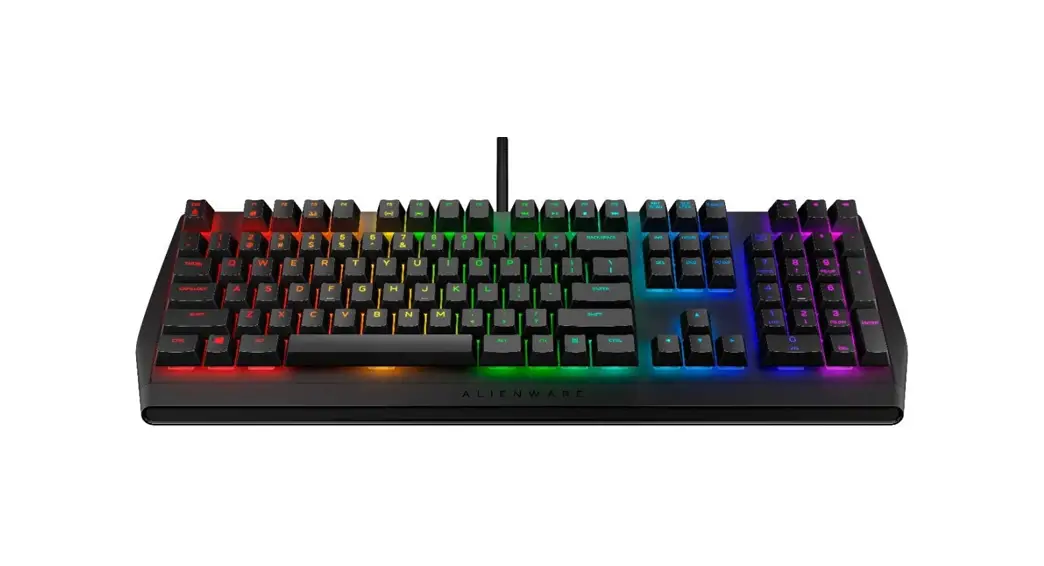

410K RGB Mechanical Gaming Keyboard
User Guide
410K RGB Mechanical Gaming Keyboard
Notes, Caution, and Warnings NOTE: A NOTE indicates important information that helps you make better use of your computer.
 CAUTION: A CAUTION indicates potential damage to hardware or loss of data if instructions are not followed.
 WARNING: A WARNING indicates a potential for property damage, personal injury, or death.
Copyright © 2020-2022 Dell Inc. All rights reserved. Dell, EMC, and other trademarks are trademarks of Dell Inc. or its subsidiaries. Other trademarks may be trademarks of their respective owners. 2022 – 06 Rev. A02
What’s in the box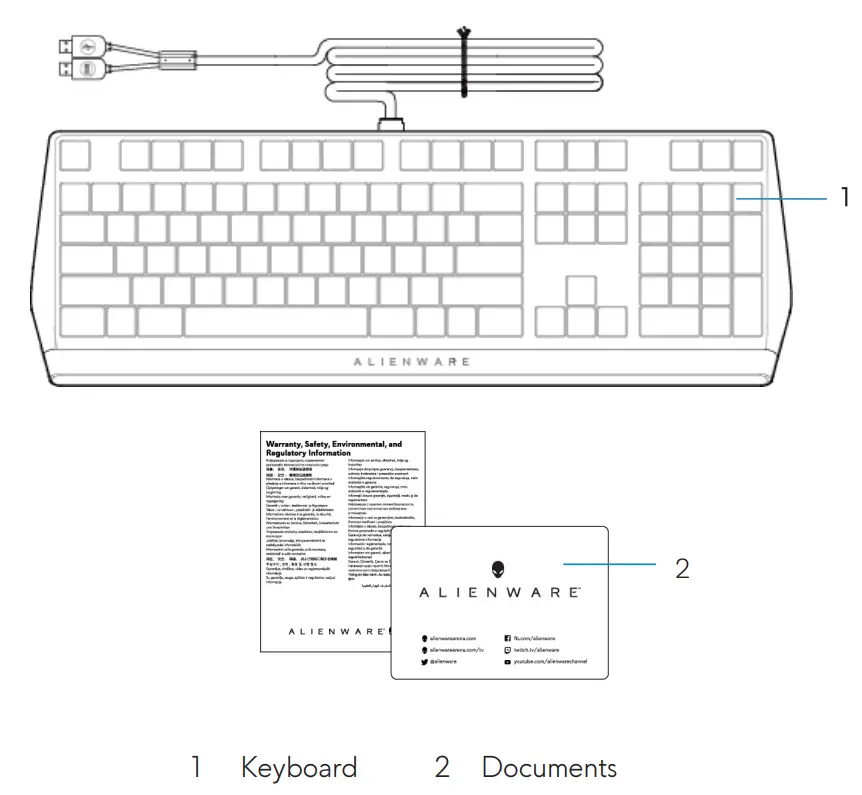 NOTE: The documents shipped with your keyboard may vary depending on the region.
Features
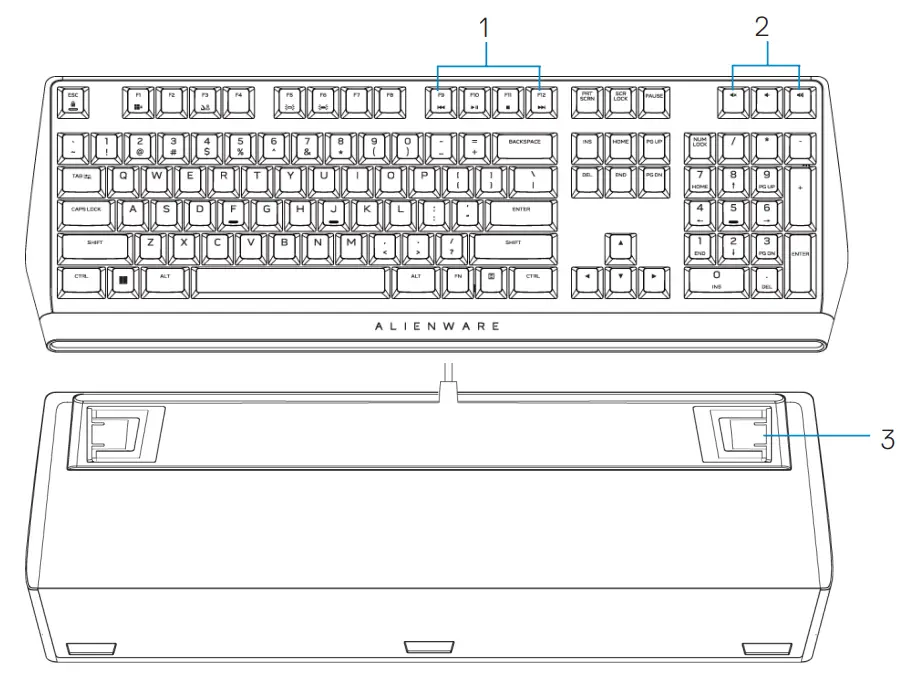
| Callout | Features | Description |
| 1 | Mutimedia key | Enables you to forward/play/stop/ backward the movie and music |
| 2 | Volume control | • Press  to mute the speaker. to mute the speaker.• Press  to increase volume. to increase volume.• Press  to decrease volume. to decrease volume. |
| 3 | Three-angle adjustable feet | Enables you to adjust the keyboard feet tilts in three different angles |
The Alienware 410K RGB Mechanical Gaming Keyboard also offers the following features.
Increased control and accuracy
- Fully programmable keys with anti-ghosting and N-key rollover
- Onboard memory for effortless control
- Dedicated audio control allows for distraction free gaming
- 4.0 mm total travel distance
- 1000 Hz (1 ms) polling rate
- Five-profile onboard memory
Robust and wear resistant
- AlienFX – 16.8M colors per-key RGB lighting
- Cherry MX brown mechanical switches with 100 million keystroke lifespan
- 5000 series aluminum top plate for long term durability
- Passthrough allowing user to connect USB peripherals with ease
- Braided cable
Iconic Alienware design
- Slick profile with compact footprint
- Customizable RGB per-key backlighting
- Compact floating key architecture design
Setting up your gaming keyboard
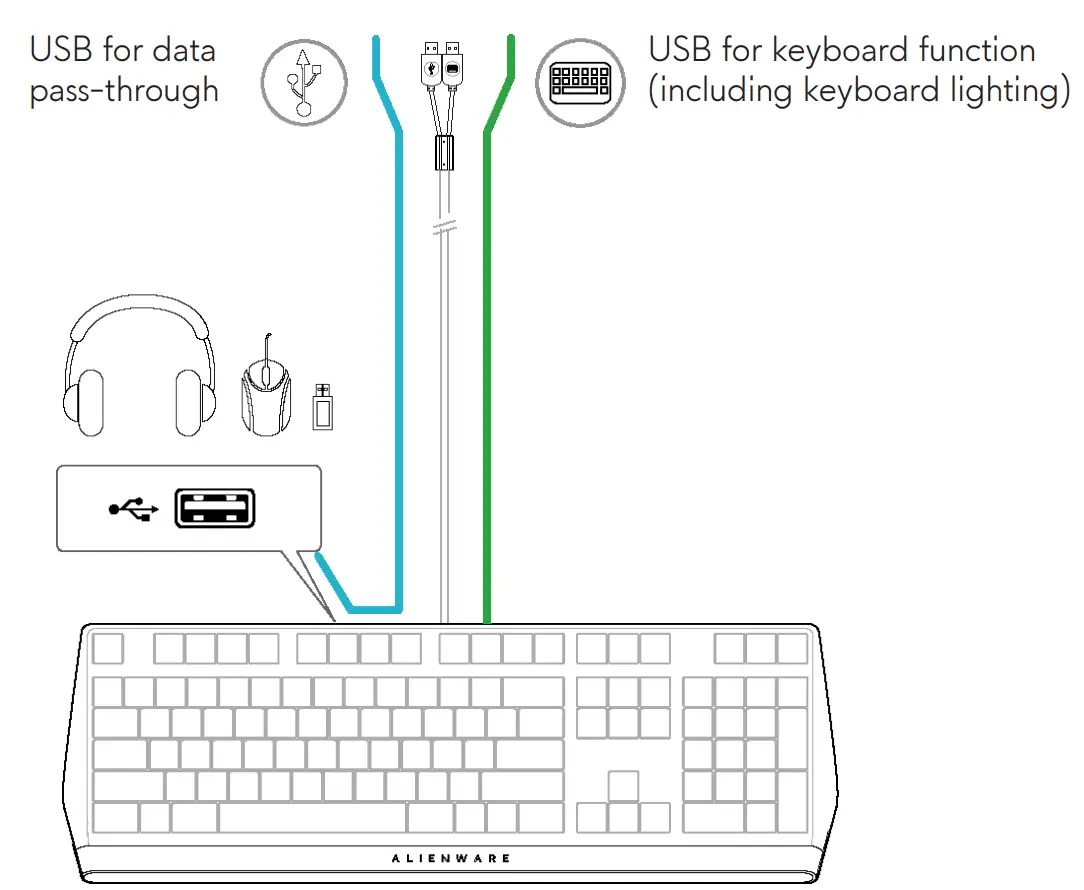
- Connect the USB cable of your gaming keyboard to the USB port on your computer.
• USB for data pass-through: Connect the USB data pass-through cable when your device has female USB ports to connect to devices such as mouse, headset, or thumb drive.
• USB for keyboard function: Connect the USB for keyboard function cable for accessing the keyboard functions such as typing, macro, or lighting animation.
- Download and install the Alienware Command Center (AWCC).
NOTE: You can use your gaming keyboard as a normal keyboard even without installing the Alienware Command Center. We recommend you to download the Alienware Command Center for an enhanced gaming experience.
Using your gaming keyboard
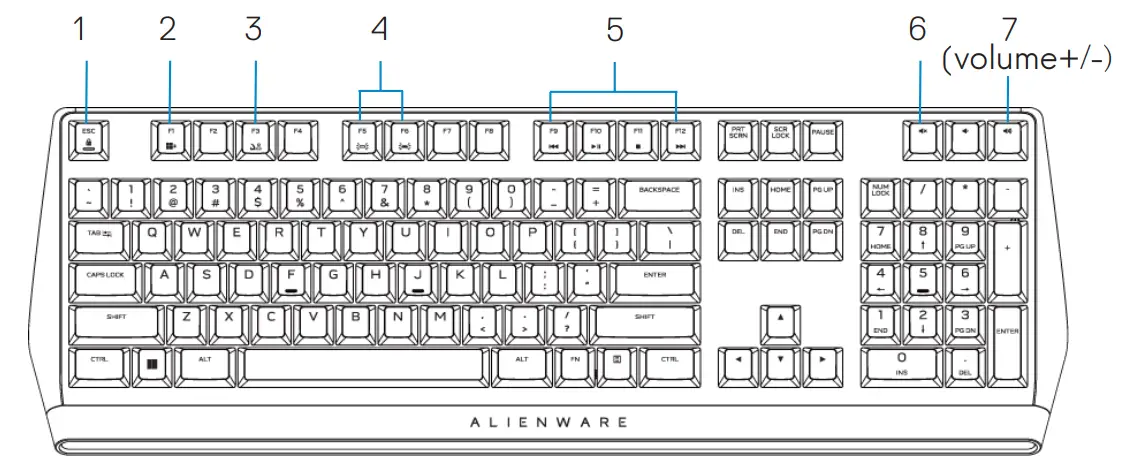
| Callout | Function | Function keys | Keyboard behavior |
| 1 | Fn Lock |  Esc to toggle Esc to toggle | Locks the F1 to F12 media-control functions |
| 2 | Win Lock | 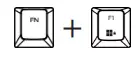 (Fn+F1) (Fn+F1) | Disables the Windows key function |
| 3 | Profile switch | (Fn+F3) (press once to cycle) | Enables you to switch between profiles stored onboard |
| 4 | Brightness control | (Fn+F5) (Fn+F6) | Decreases the keyboard- backlight intensity Increases the keyboard- backlight intensity |
NOTE: Default keyboard-backlight is at maximum intensity
| 5 | 5 Media playback | • Press(Fn+F9) • Press (Fn+F10)• Press (Fn+F11)• Press (Fn+F12) | Fast backward Play/Pause Stop Fast forward |
| 6 | Mute | The mute key | Mutes the speaker |
| 7 | Volume control (system) | • Press to increase • Press to decrease | Increases system volume; Decreases system volume |
Alienware Command Center
Installing AWCC through Windows Update
- Navigate to the program folder to ensure that the AWCC installation is complete.
- Launch AWCC and perform the following steps to download the additional software components:
– In the Settings window, click Windows Update, and then click
– Check for updates to check the Alienware driver update progress.
– If the driver update is not responding in your computer, install AWCC
– from the Dell Support website.
Installing AWCC from the Dell Support website
- Download the latest version of the following applications at www.dell.com/support/drivers.
- Navigate to the folder where you saved the setup files.
- Double-click the setup file and follow the on-screen instructions to install the application.

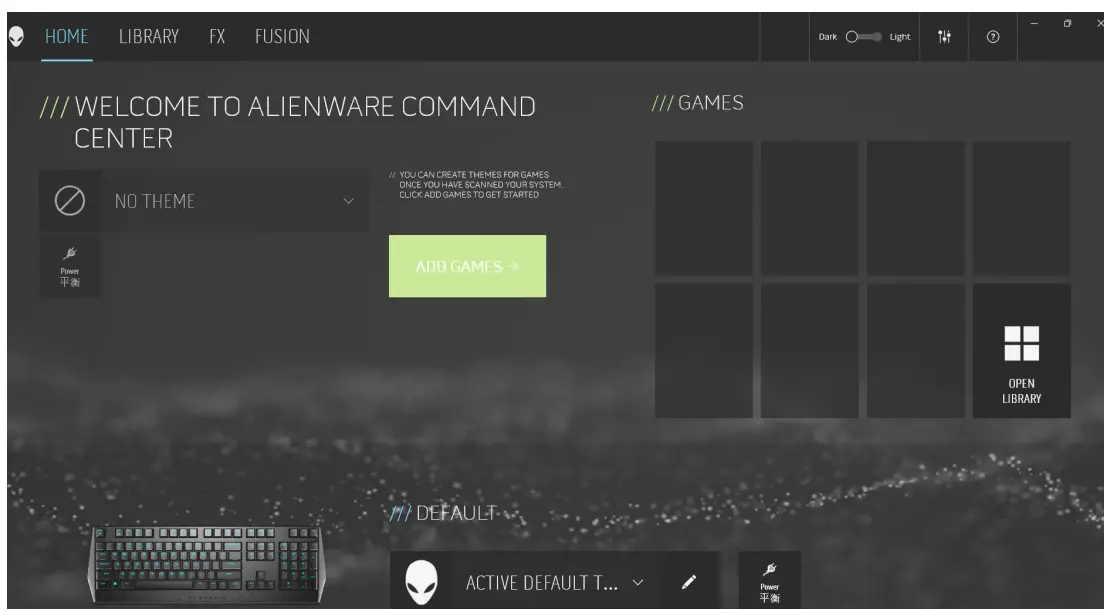
Using Alienware Command Center
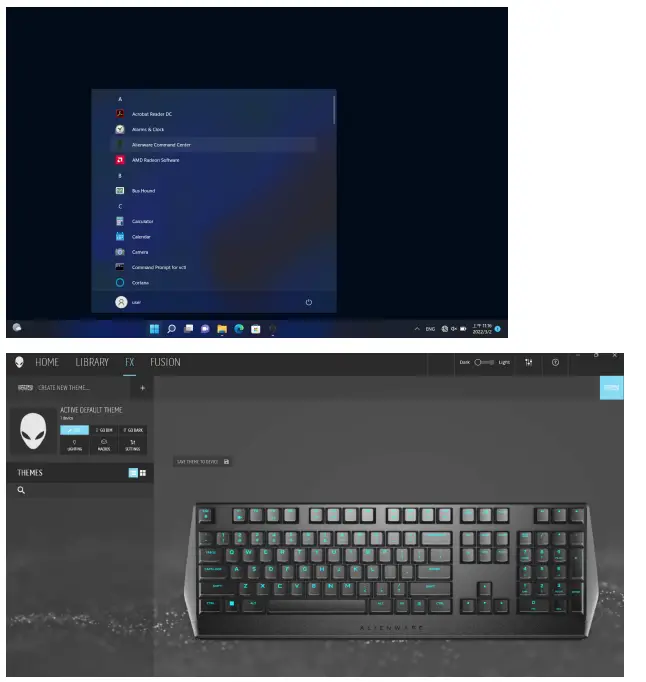
Keyboard basic color function
- Launch Alienware Command Center application from the start menu.
- Select FX and edit Lighting.
- Select Effect from the drop-down list.
- Define the effect of the keyboard LEDs.
- Adjust the brightness.
Setting up lighting and animation on AWCC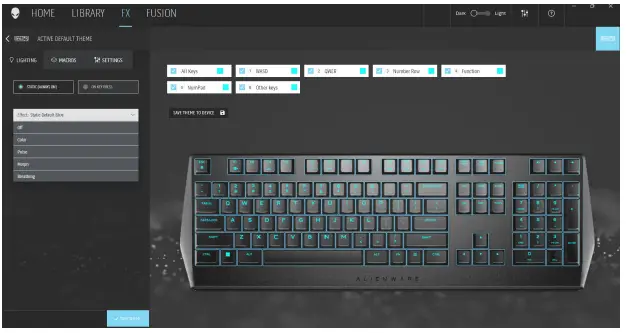
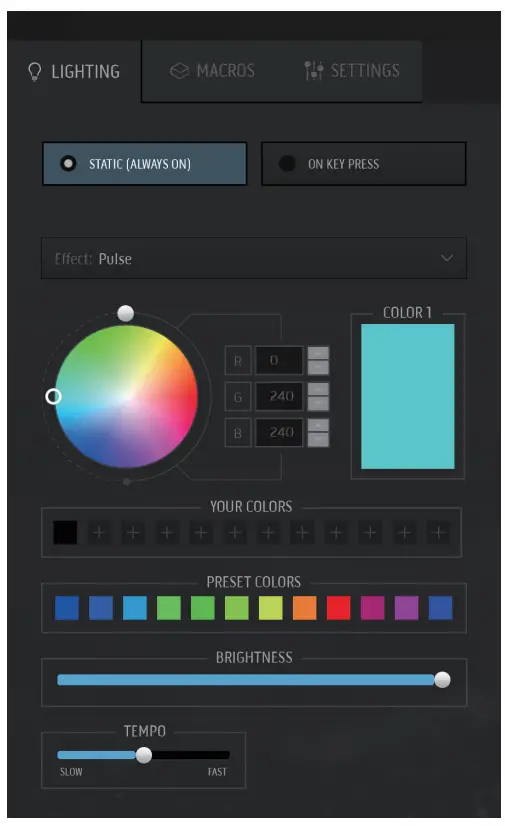
- Select Effect from the dropdown list for Static or On Key Press modes.
- Select Standard key groupings.
- From the menu of supported animations: Color, Pulse, Breathing, Morph, Spectrum, Single Color Wave, Scanner, Rainbow Wave, and Static Default Blue.
- Adjust the tempo of the animation effect.
- Choose color using the color wheel bubble.
- Define the color of the keyboard animation effect.
- Adjust the brightness.
Setting up setting on AWCC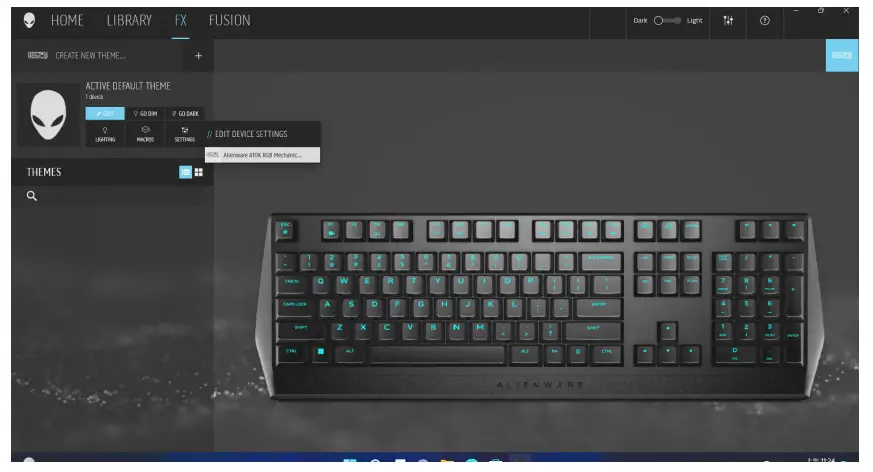
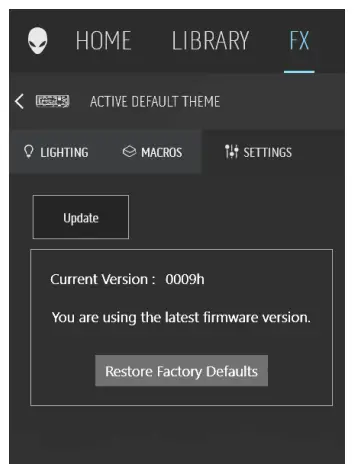
- Click FX menu and select Settings tab, then choose the AW410K keyboard device.
- Click Update to view the firmware version and check if any new firmware is available. or you can click Restore Factory Defaults button to reset the device to the manufacturing state.
 Disabling the modified keys temporarily
| Query | Solution |
| Working behavior of modified keys | When a key is programmed with macro, it will continue to send macro commands during normal usage. |
| Disabling the modified keys | Press Fn + any key (except Function keys). Example: Q key was programmed to “ABCD” and in order for Q key to output “Q”, press Fn + Q |
| Using modified keys | Password entry for log in. |
Troubleshooting
| Problems | Possible solution |
| Keyboard is not functioning | • Disconnect the keyboard and connect it back in to the USB port on your computer. • Connect the keyboard to another USB port. • Restart the computer. |
| Keyboard lighting is off | • Make sure the light is not dimmed off, press FN+F6 to light up the keyboard • Disconnect the keyboard and connect it back in to the USB port on your computer. • Connect the keyboard to another USB port. • Restart the computer. • Adjust keyboard brightness by AWCC (Alienware Command Center). |
| For more information about the Alienware Command Center features | • Open the Alienware Command Center • Click the Help icon. The Alienware Command Center Online Help appears. • Click the Contents tabs. • From the Contents tabs, click the required topic to find more details on Alienware Command Center features. |
| The selected configuration is not working in Alienware Command Center. | • Ensure that the Alienware Command Center is running on your computer. • Open the Alienware Command Center and ensure that the configuration for your gaming keyboard is set properly and saved. |
Statutory information
Warranty
Limited warranty and return polices
Dell-branded products carry a two-year limited hardware warranty. If purchased together with a Dell system, it will follow the system warranty.
For U.S. customers:
This purchase and your use of this product are subject to Dell’s end user agreement, which you can find at www.dell.com/terms. This document contains a binding arbitration clause.
For European, Middle Eastern, and African customers:
Dell-branded products that are sold and used are subject to applicable national consumer legal rights, the terms of any retailer sale agreement that you have entered into (which will apply between you and the retailer) and Dell’s end user contract terms.
Dell may also provide an additional hardware warranty—full details of the Dell end user contract and warranty terms can be found by going to www.dell.com, selecting your country from the list at the bottom of the “home” page and then clicking the “terms and conditions” link for the end user terms or the “support” link for the warranty terms.
For non-U.S. customers:
Dell-branded products that are sold and used are subject to applicable national consumer legal rights, the terms of any retailer sale agreement that you have entered into (which will apply between you and the retailer) and Dell’s warranty terms. Dell may also provide an additional hardware warranty—full details of Dell’s warranty terms can be found by going to www.dell.com/terms, selecting your country from the list at the bottom of the “home” page and then clicking the “terms and conditions” link or the “support” link for the warranty terms.
 Computers, Monitors & Technology Solutions | Dell USA