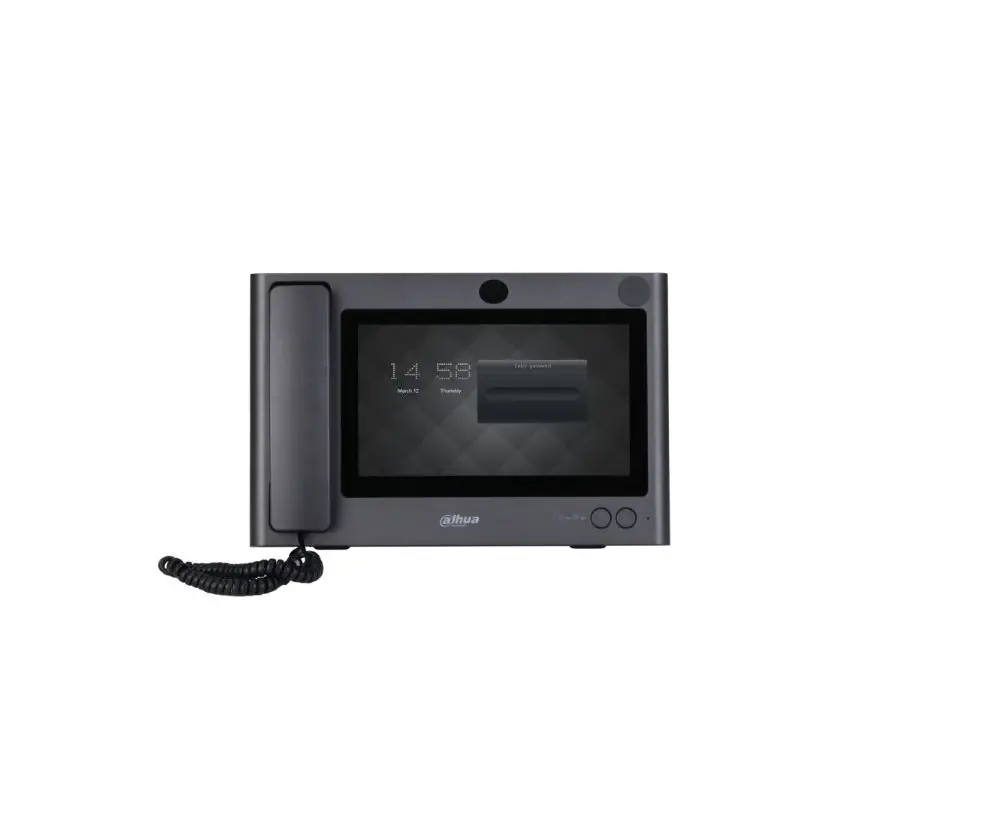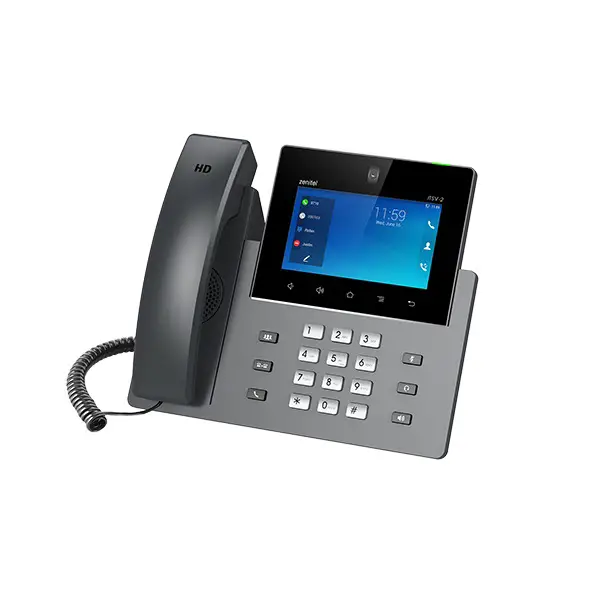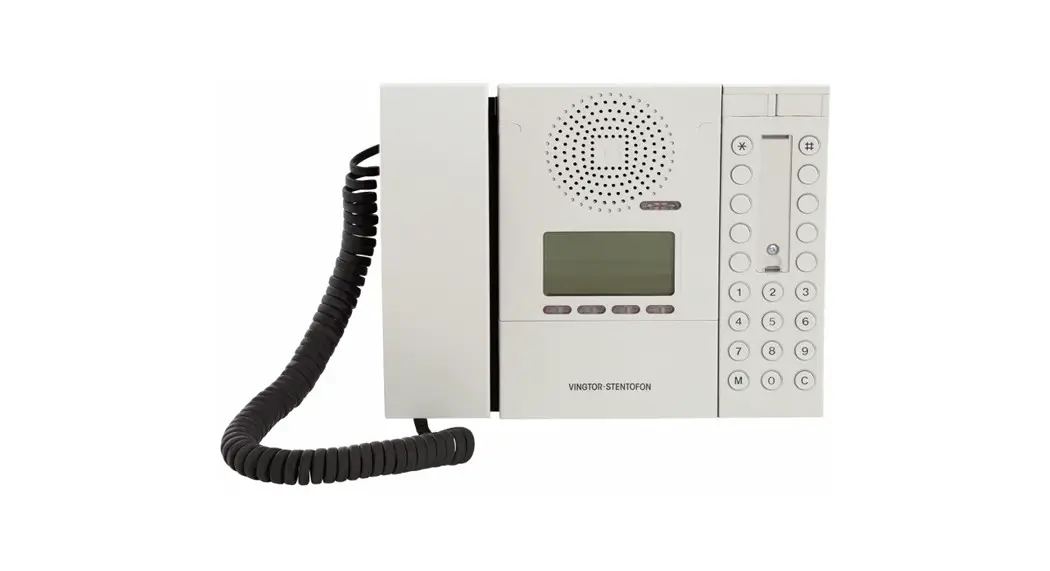
 IP Desk Master Stations
Getting Started Guide
A100K12187 IP Desk Master Stations
About
This document serves as a quick configuration guide for the IP Desk Master Stations.
The information in this document pertains to following IP Stations:
| Item Number | Item Name | Description |
| 1008400090 | IPDM-V2_P | IP Desk Master V2_P |
| 1008401090 | IPDMH-V2_P | IP Desk Master with Handset V2_P |
| 1008401190 | IPDMHB-V2_P | IP Desk Master with Handset (black)-V2_P |
For more information and instructions on configuration of the IPDM-V2_P please go to https://wiki.zenitel.com/wiki/IP_Desk_Master_-V2-P.
For more information and instructions on configuration of the IPDMH-V2_P and IPDMHB-V2_P please go to
https://wiki.zenitel.com/wiki/IP_Desk_Master_-V2-P_w/handset.
Installation
Network Connection & Power Supply
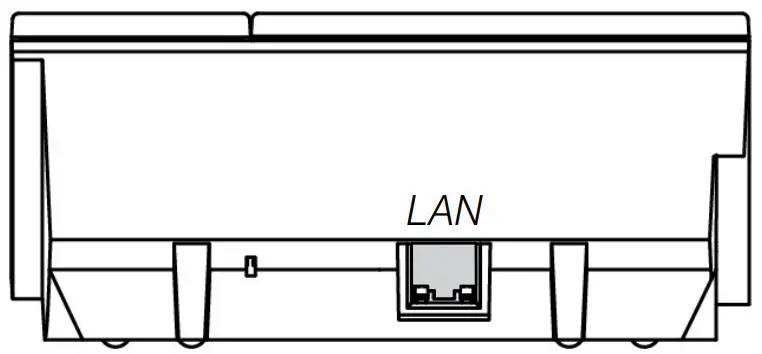
There is one RJ45 port on the IP Desk Master Station. (10/100 Mbps RJ45 port for LAN (uplink) connection). The LAN port serves as both network and Power over Ethernet (PoE) connection.
The IP Station must be connected to a switch/hub which supports PoE.
Configuration
The station can operate in different modes: ICX-AlphaCom, Edge and SIP.
The default mode is Edge. The description in the rest of this document uses the ICX-AlphaCom mode as an example.
There are two ways of configuring the IP Desk Master Station, either via the station keypad or via a web browser.
For ICX-AlphaCom configuration, there are essentially three parameters set:
- ICX-AlphaCom IP address
- Station directory number
- Station IP address
Configuration via Station Keypad
When the IP Desk Master Station is not connected to the ICX-AlphaCom server, an offline menu is displayed. The offline menu can be used to configure the station and is navigated with the 4 keys below the display.
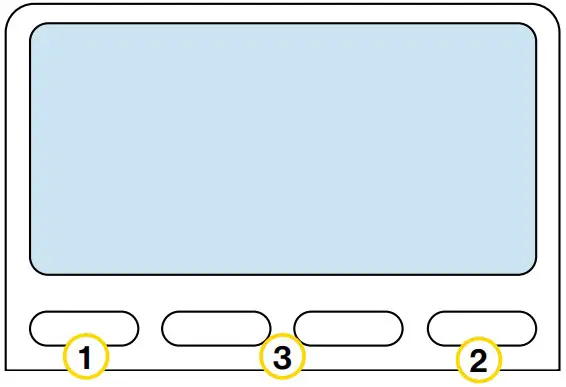
- The left key is used as a Setup, Select or OK key.
- The right key is used as a Esc or Back key.
- The middle keys are used to navigate according to the arrows on the display.
The Main Menu
To enter the setup menu: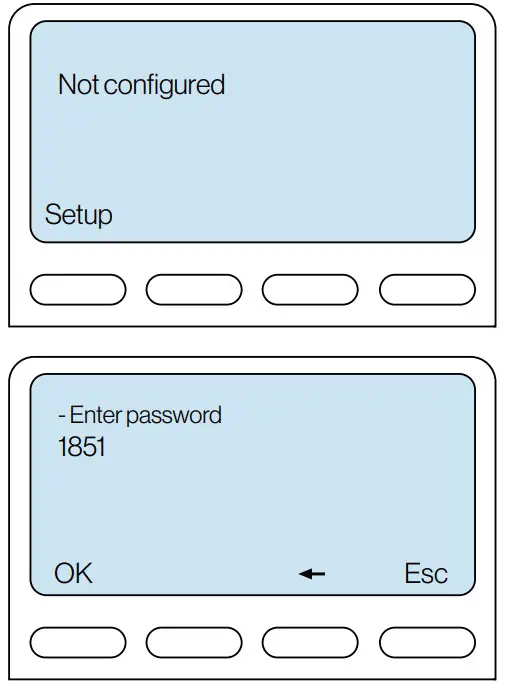
- Press the Setup key
- Enter the default password 1851 by using the station keypad
- Press the OK key
A menu with six options will be displayed. Use the two arrow keys in the middle to navigate through the menu options. Press the Sel key to select the menu option and the OK key to confirm data entered. When entering data the left arrow is used for deleting characters.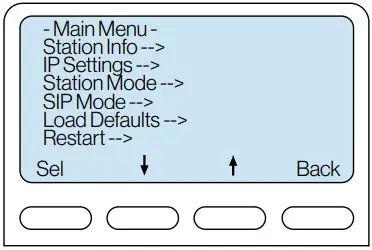
Station Info
This shows the station MAC and IP addresses, the configured ICXAlphaCom address and software version.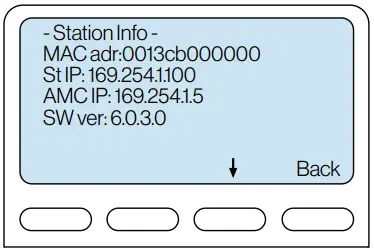
IP Settings
Choose between DHCP and STATIC IP address. If STATIC IP is chosen, it is possible to configure the IP address, mask and gateway.
Station Mode
Select Station Mode followed by ICXAlphaCom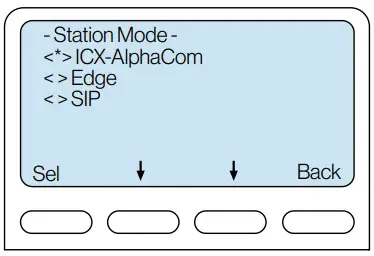
ICX Settings
Set the IP address of ICX-AlphaCom that the station shall connect to, and the directory number of the station. Id A directory number is not entered the station will register with its MAC address.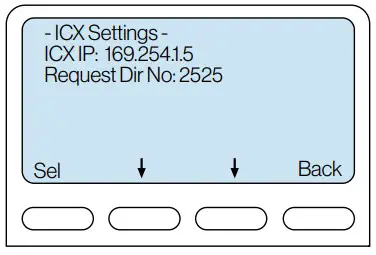
Load Defaults
This will load the factory default settings.
Press Sel key to load the default settings.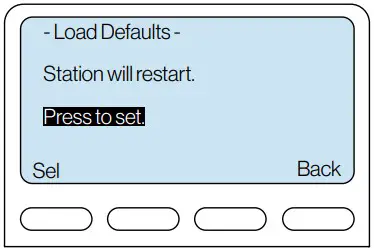
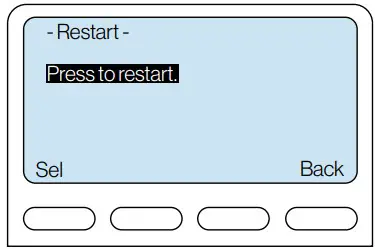
Restart
This will restart the station. Press Sel tore start the station. Restarting the station will apply the new settings.
Configuration via Web Browser
IP Desk Master Station Web Interface
The IP Desk Master Station features an embedded web server, which allows users to login via a standard web browser. At commissioning, the IP station needs to be configured to enable it to subscribe to an ICXAlphaCom server. Connect a PC to the IP station via a PoE switch by using network cables.
By default, the station is set to DHCP an will thus obtain an IP address from a DHCP server. Obtain the actual IP address of the station by performing the method described in the previous section under the heading Station Info.
After the IP properties have been updated, access the station by logging into the web interface using a standard web browser:
- Open a web browser
- In the browser’s address bar, type IP address as listed in the Station Info screen. The station login page will be displayed.

- Log into the station by clicking Login. Default username/password: admin/alphaadmin.

The Station Information page will now be displayed, showing the IP station configuration.
Station Main Settings
- Click Station Main > Main Settings to access the page for configuring station mode and IP parameters.

- Under Mode, select ICX-AlphaCom.
- Registration Settings. Enter the IP address of the ICX-AlphaCom server in which the IP station is to be a subscriber in the ICX-AlphaCom IP-addresses field. Then enter the directory of the station in the Directory Number field.
If a directory number is not entered, the station will register with its MAC address. The MAC address is found on the Station Information page and needs to be entered into the AlphaPro programming tool. - IP Settings:
• DHCP – Use this option if the station shall obtain an IP address from a DHCP server.
• Static IP – Use this option if the IP station shall use a static IP address. Enter values for IP-address, Subnet-mask, Gateway.
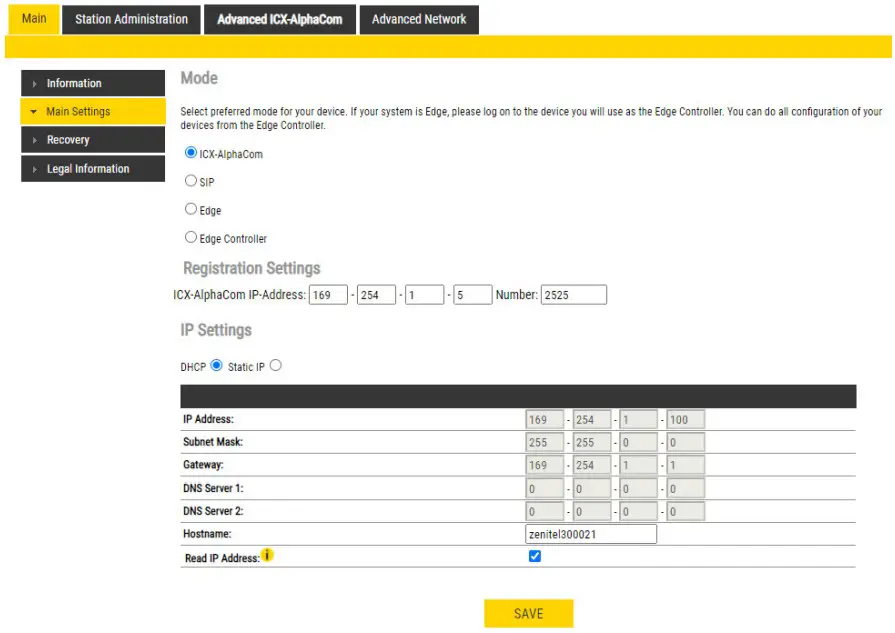
Click Save followed by Apply to apply the new configuration settings.
Go to https://wiki.zenitel.com/wiki/IP_Desk_Master_-V2-P, or scan the QR-code below for more instructions on how to set up and configure the IPDM-V2_P. Go to https://wiki.zenitel.com/wiki/IP_Desk_Master_-V2-P_w/handset, or scan the QR-code below for more instructions on how to set up and configure the IP Desk Master with Handset V2_P.
 The WEEE Directive does not legislate that Zenitel, as a ‘producer’, shall collect ‘end of life’ WEEE.
This ‘end of life’ WEEE should be recycled appropriately by the owner who should use proper treatment and recycling measures. It should not be disposed to landfill. Many electrical items that we throw away can be repaired or recycled. Recycling items helps to save our natural finite resources and also reduces the environmental and health risks associated with sending electrical goods to landfill.
Under the WEEE Regulations, all new electrical goods should now be marked with the crossed out wheeled bin symbol shown.
Goods are marked with this symbol to show that they were produced after 13th August 2005, and should be disposed of separately from normal household waste so that they can be recycled.
because communication is critical
Hear, be heard, and be understood
– every time and everywhere
DOC. NO.
A100K12187
Zenitel and its subsidiaries assume no responsibility for any errors that may appear in this publication, or for damages arising from the information therein. Zenitel, Vingtor Stanton and Phonetic products are developed and marketed by Zenitel. The company’s Quality Assurance System is certified to meet the requirements in NS-EN ISO 9001. Zenitel reserves the right to modify designs and alter specifications without notice. ZENITEL PROPRIETARY. This document and its supplementing elements contain Zenitel or third-party information which is proprietary and confidential. Any disclosure, copying, distribution or use is prohibited, if not otherwise explicitly agreed in writing with Zenitel. Any authorized reproduction, in part or in whole, must include this legend: Zenitel – All rights reserved.

 IP Desk Master -V2-P - Zenitel Wiki