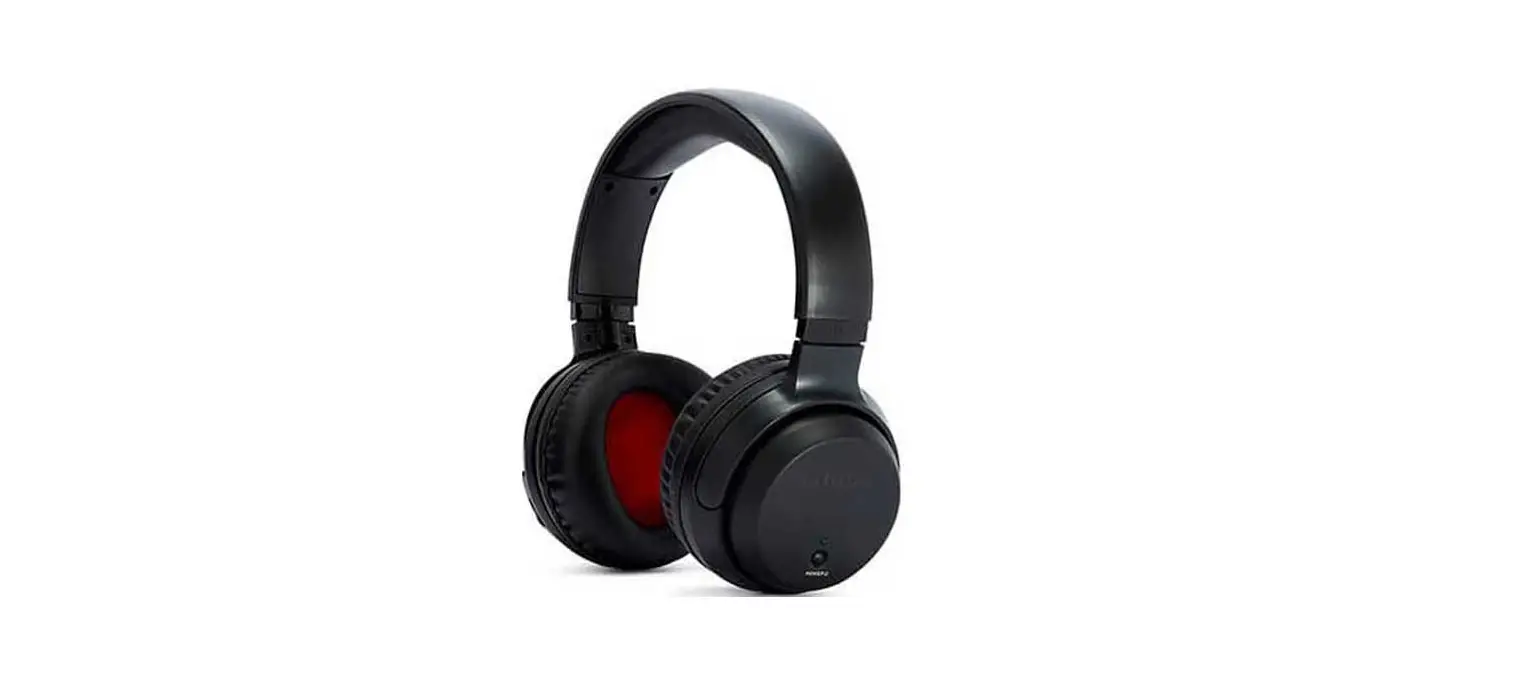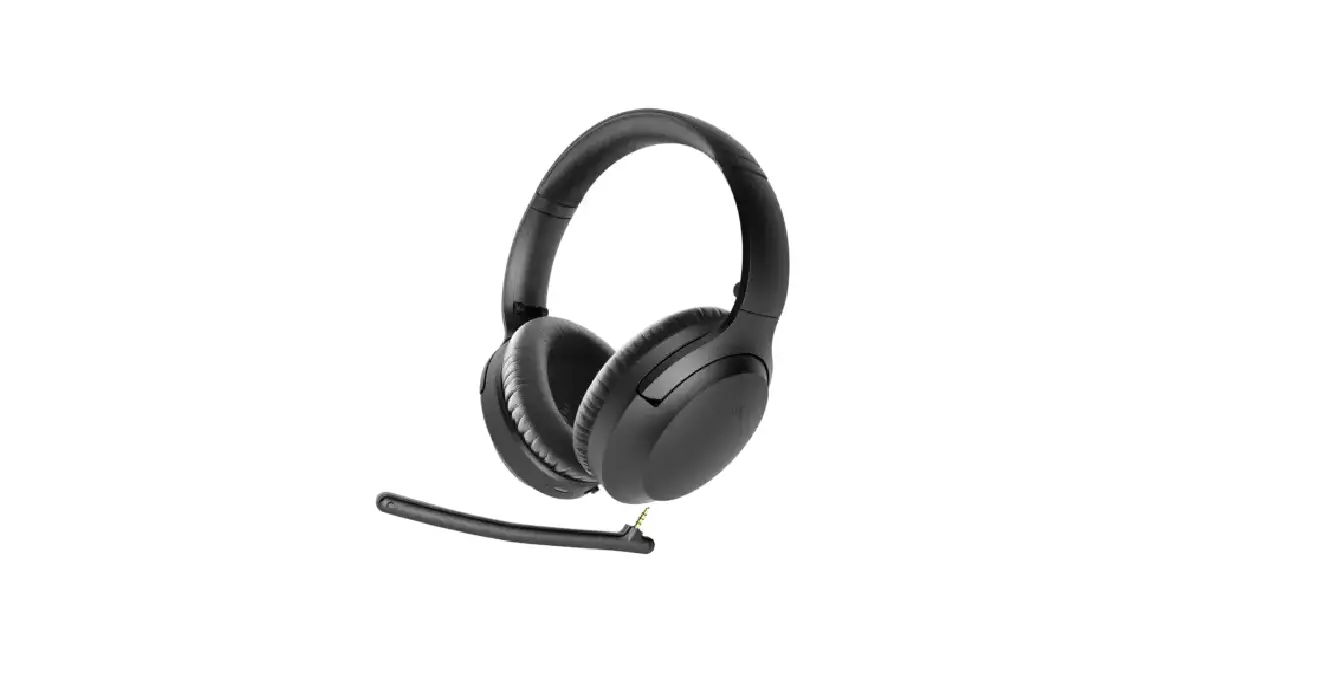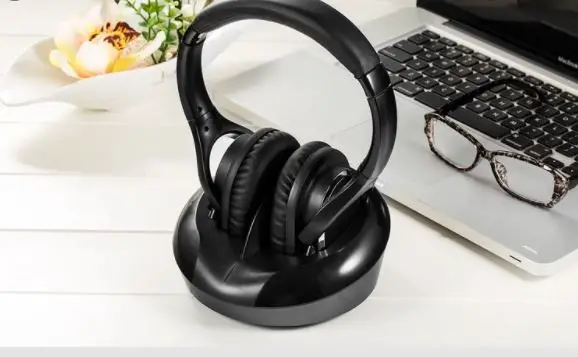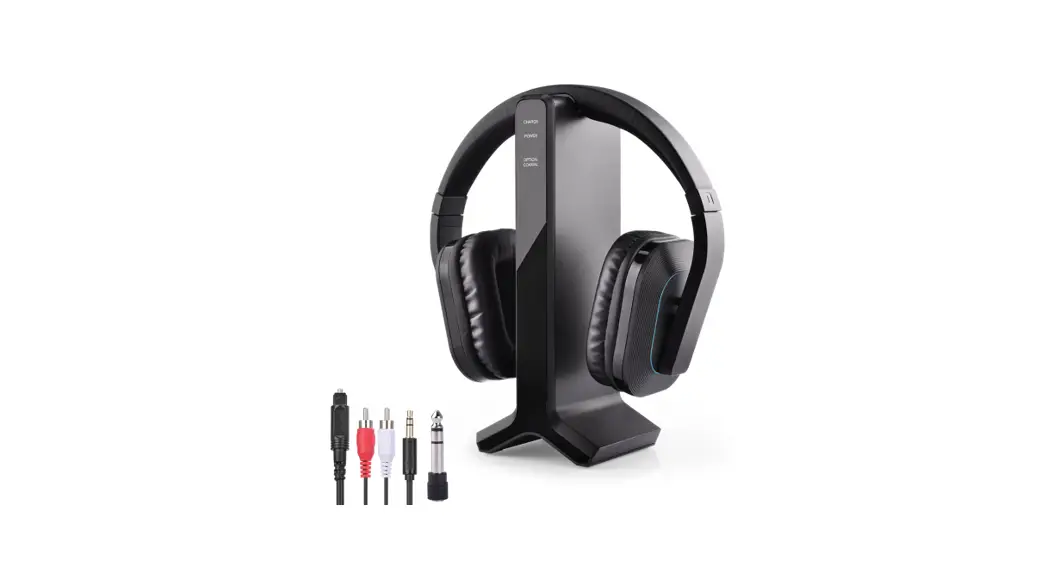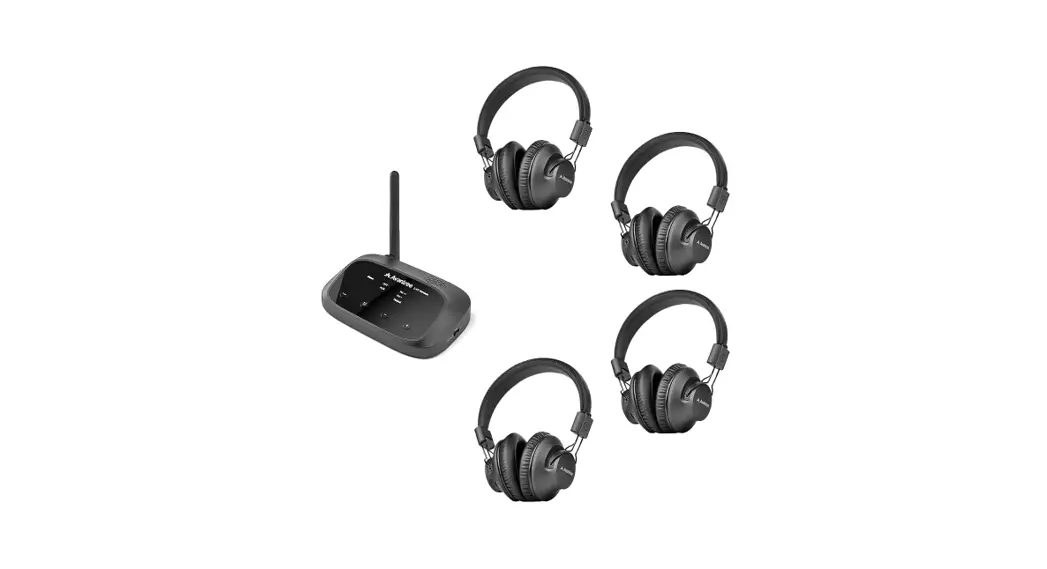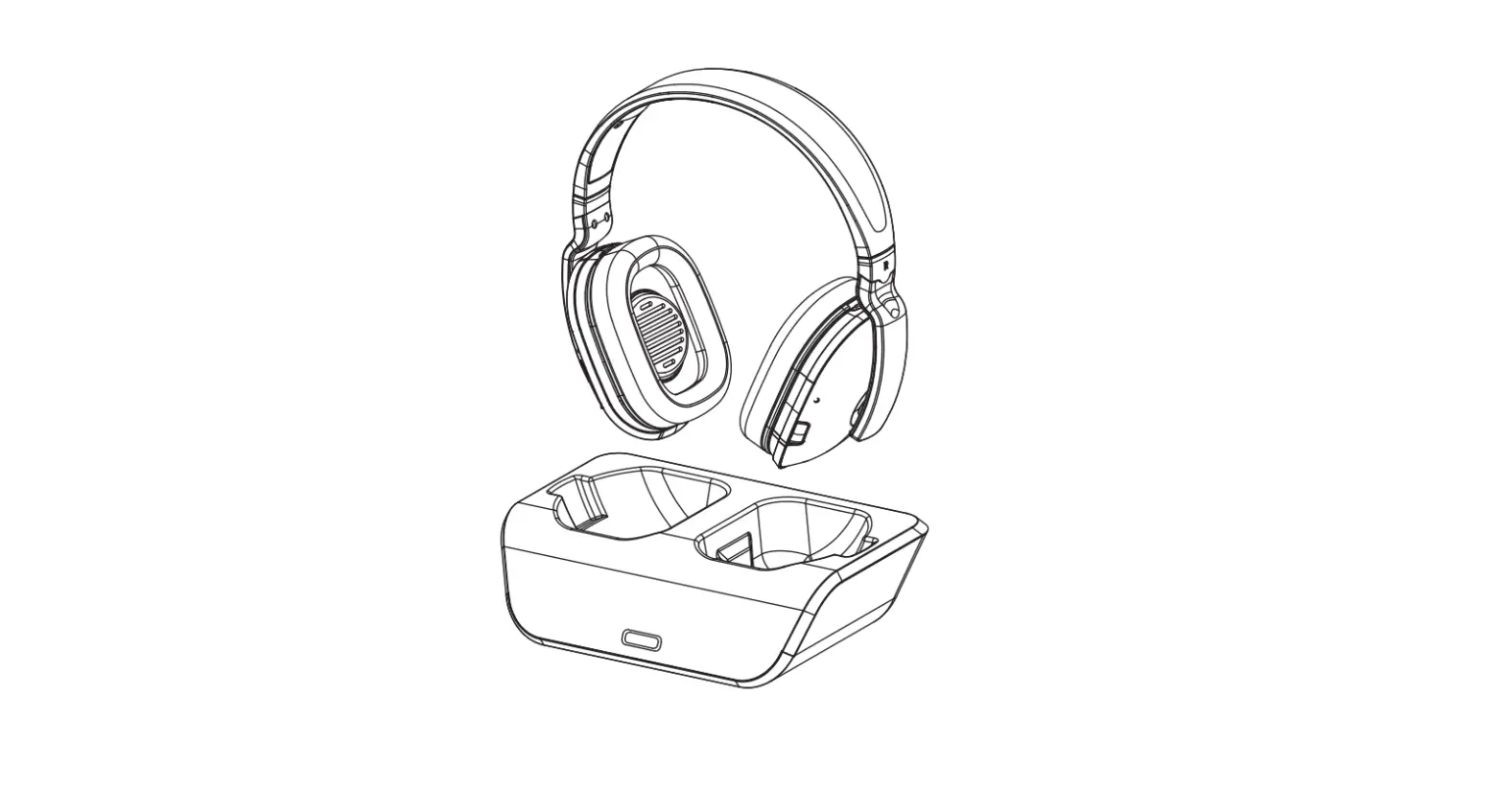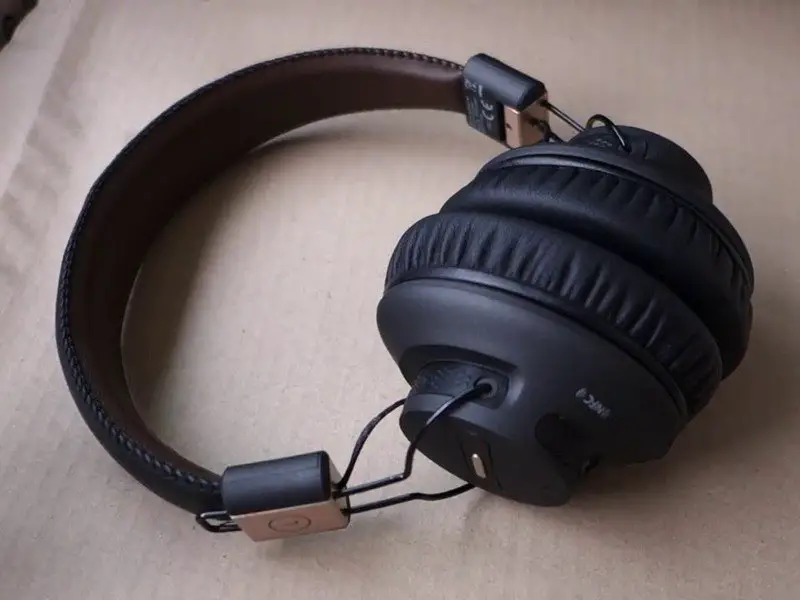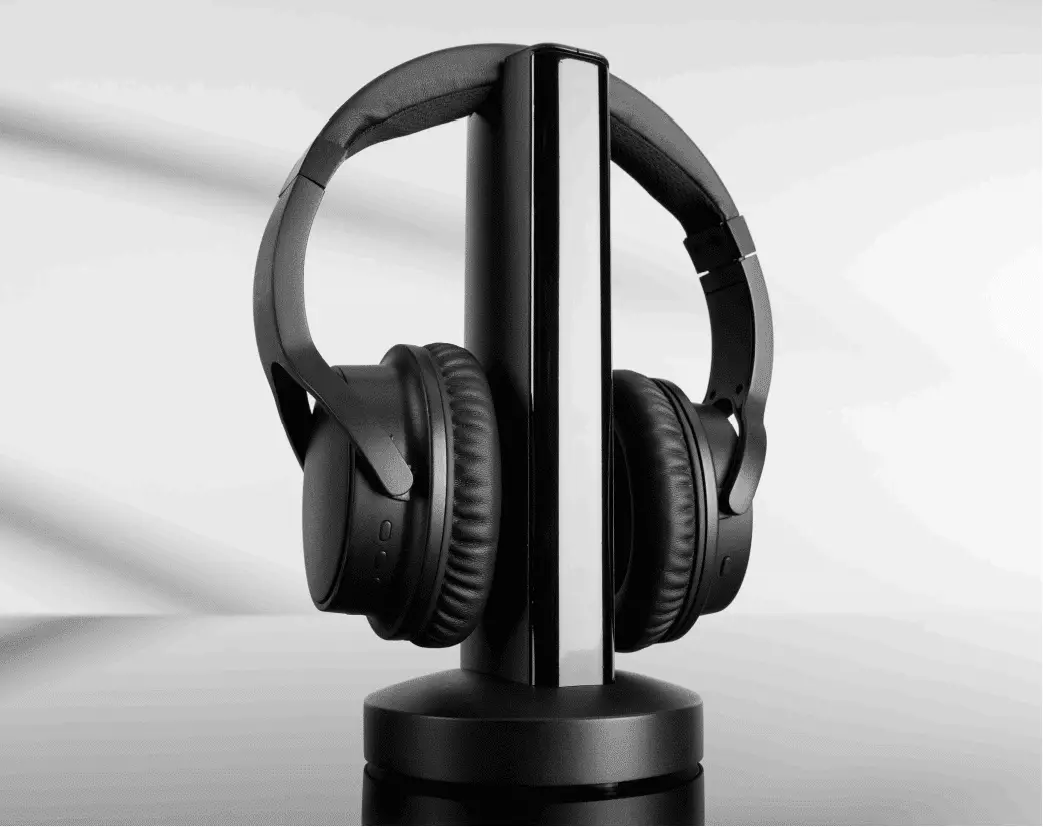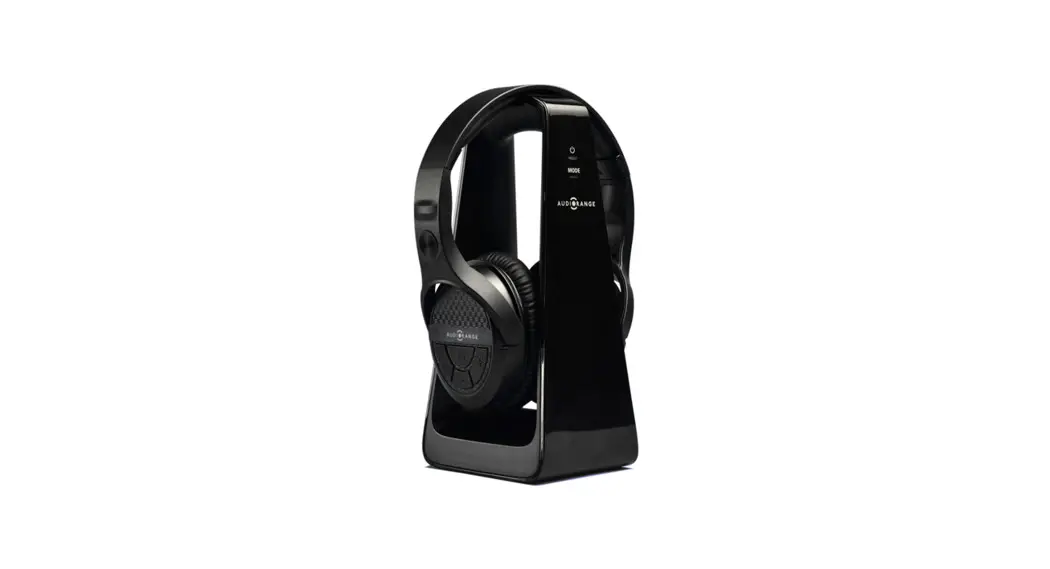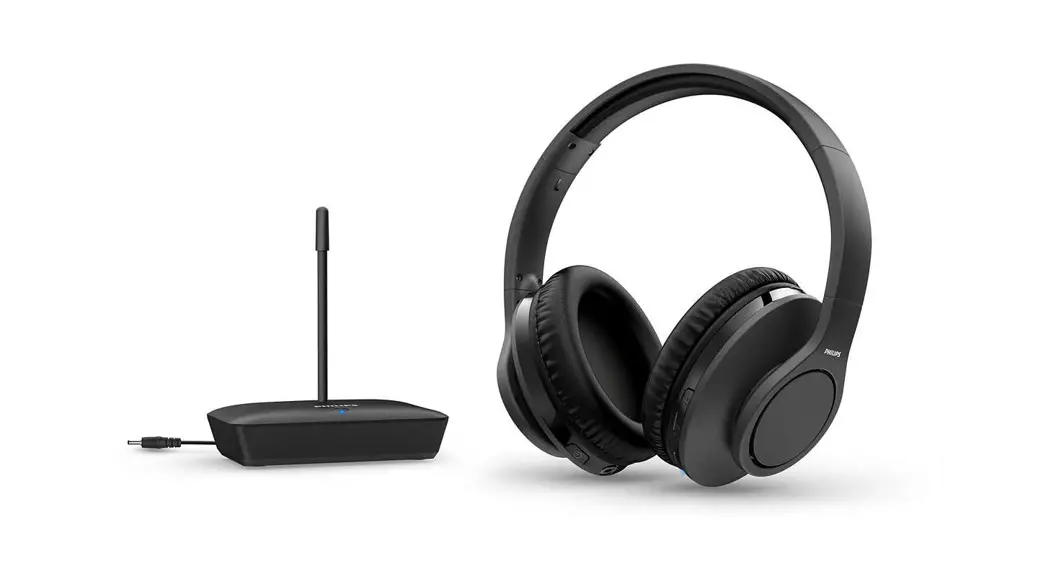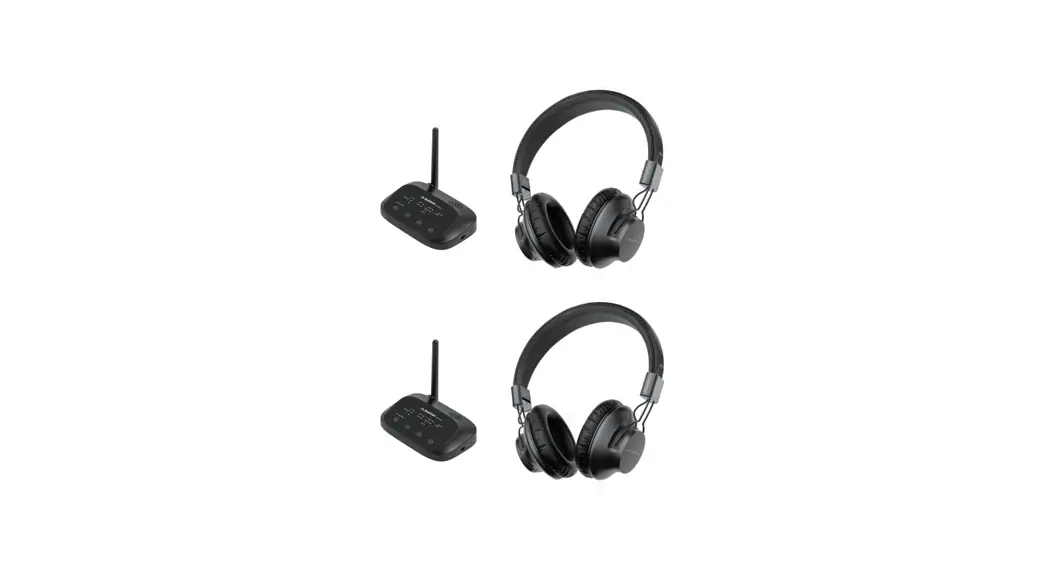

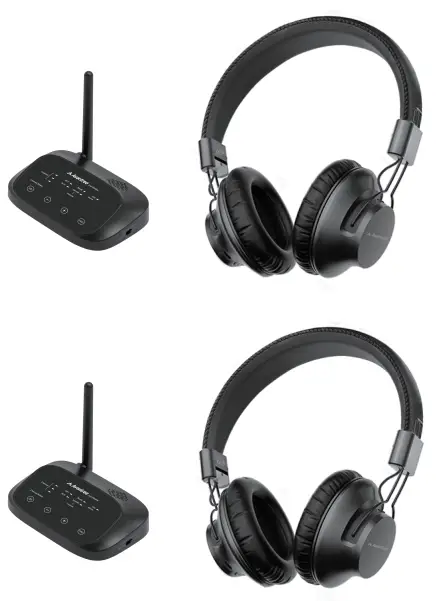
Avantree Shift
USER MANUALModel No.: WSHT-5599
User Manual
Video Guide
Prefer to watch a video tutorial? Scan the QR code below or visit avantree.com/shift/video for a step-by-step guide.

http://avantree.com/shift/video
Book an Appointment
You can also book a 1-on-1 setup appointment with one of our support agents at avantree.com/book-a-call
Box Contents
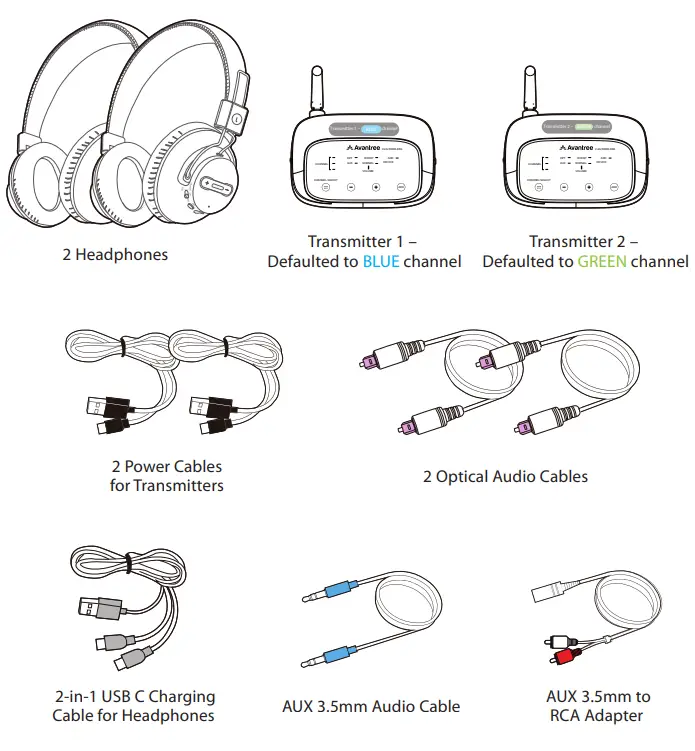
To view and purchase Shift accessories, please visit avantree.com/shift/accessories
Product Introduction (Headphones)
Product Overview
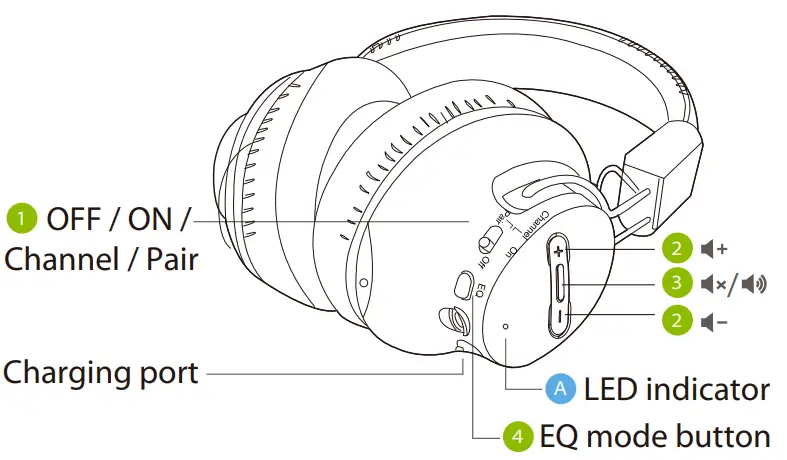
Button Functions
| No. | Button | Function |
| 1 | 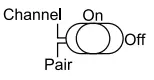
| Switch to turn the headphones on / off |
| Switch to “CHANNEL” position once to swap between channels | ||
| Hold in “PAIR” position for 5 seconds to enter pairing mode | ||
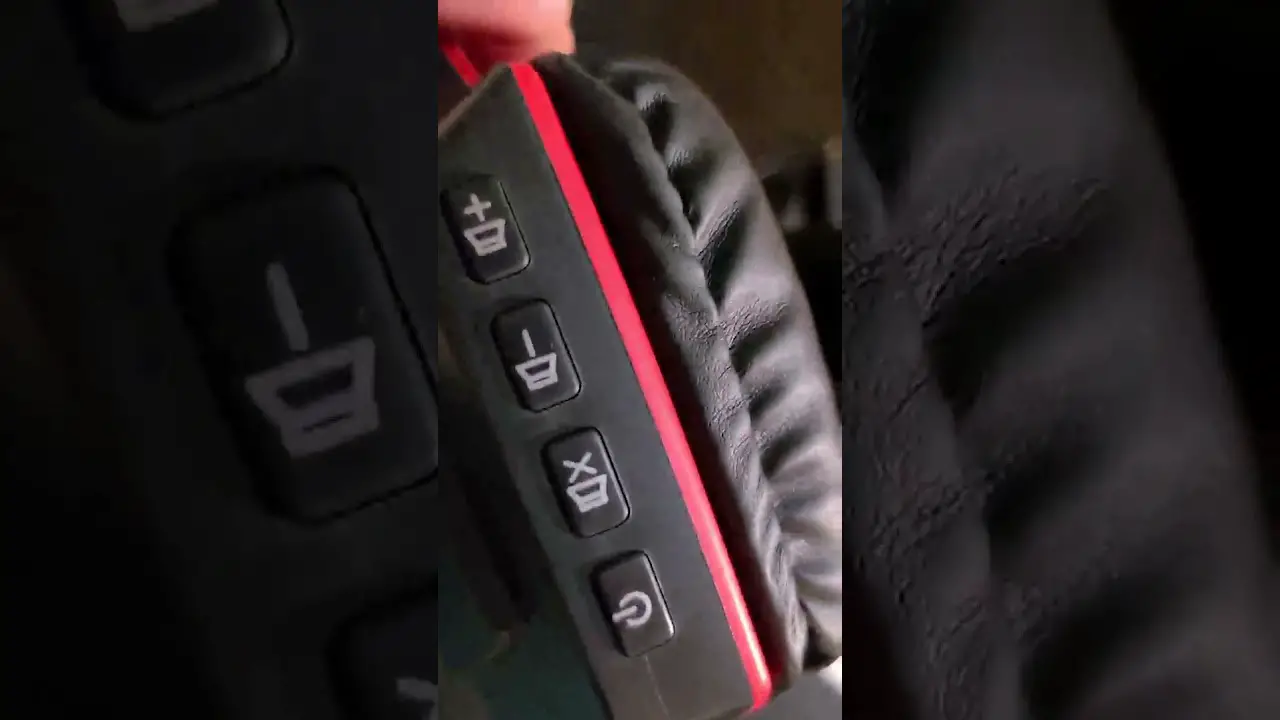
| 2 | 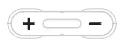 | Click or hold to adjust volume |
| 3 | 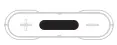 | Press once to mute / unmute the speaker |
| 4 |  | Press once to switch between balanced and clear voice modes |
LED IndicatorsNo. Indicator Status A Flashing blue / green / white Entering blue / green / white channel (the white channel only activates after pairing to a third Shift transmitter) Solid blue / green / white light Connected to blue / green / white channel Flashing blue light Pairing
Product Introduction (Transmitters)
Product Overview
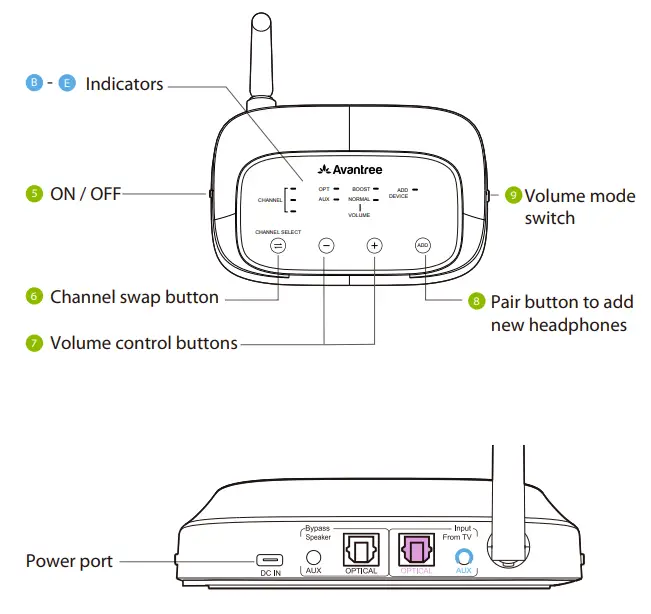
Button Functions
| No. | Button | Function |
| 5 |  | Switch to turn the transmitter on / off |
| 6 | Channel Select | Press once to swap between 3 channels |
| 7 |  | Press once to adjust volume |
| 8 |  | Press & hold for 5 seconds to add more Shift-Extra headphones |
| 9 | Volume Setting Normal  Boost Boost | Switch between normal and boosted volume modes |
LED Indicators
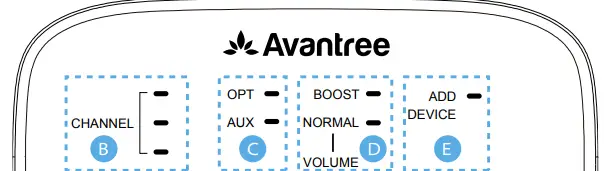 | ||
| No. | Indicator | Status |
| B | Blue / green / white light | Current channel – blue / green / white |
| C | Solid white light | Valid audio signal |
| Flashing white light | Invalid audio signal | |
| D | Solid white light | Volume mode – boosted / normal |
| E | Flashing white light | Pairing |
Setup
The Shift comes with 2 transmitters: Transmitter 1 is set to the BLUE channel by default, while Transmitter 2 is set to the GREEN channel by default. They must both be connected to a power source via the provided power cables in order to function.
Connecting Transmitter 1 to Your TV
Plug Transmitter 1 into either:
- A TV’s USB power port (we recommend this so that they auto power ON /OFF in tandem with your TV), OR
- A nearby wall outlet – 5V/500mA-2A rated USB charger (any phone charger should work. Please contact [email protected] if you’d like us to send you a free adapter)
You can then connect the transmitter to your TV’s audio ports. You can choose one of 3 different ways to do this:
OPTION 1 – Optical port (recommended)
Plug the provided optical audio cable into the TV’s optical OUT or OPT OUT port, then plug the other end into the transmitter’s optical port in the “INPUT FROM TV” section.
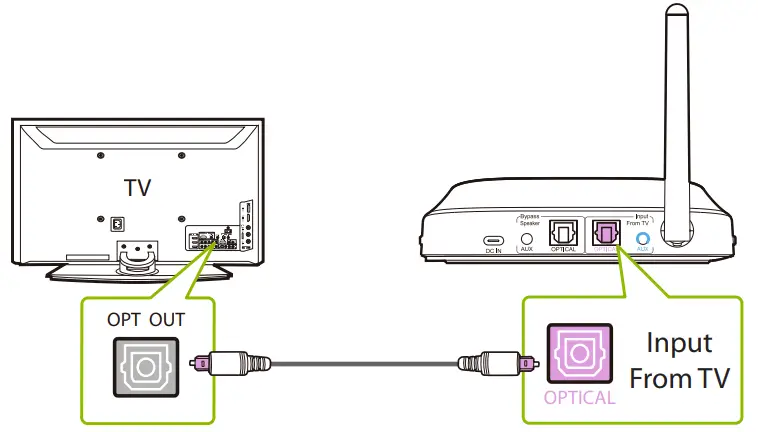
NOTE: Most TVs support audio output through only one digital output port at a time, so if your TV’s HDMI ARC port is in use, the optical port may be disabled. You can either unplug the HDMI ARC, or try connecting the transmitter via RCA / AUX.
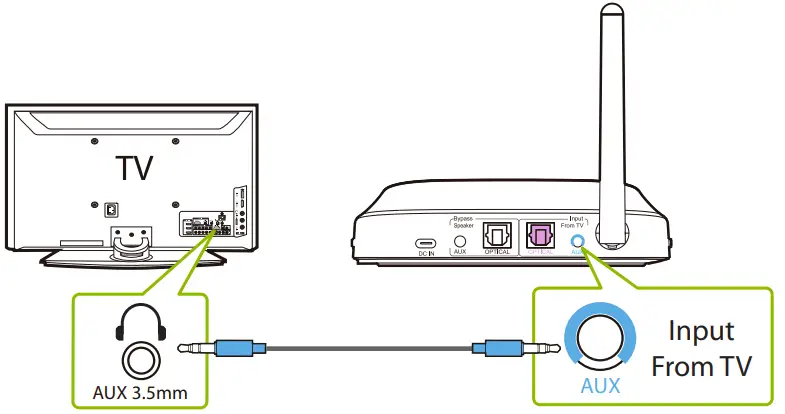
OPTION 2 – AUX 3.5mm port
Plug the provided AUX 3.5mm audio cable into the TV’s AUX 3.5mm output port, then plug the other end into the transmitter’s AUX 3.5mm port in the “INPUT FROM TV” section.
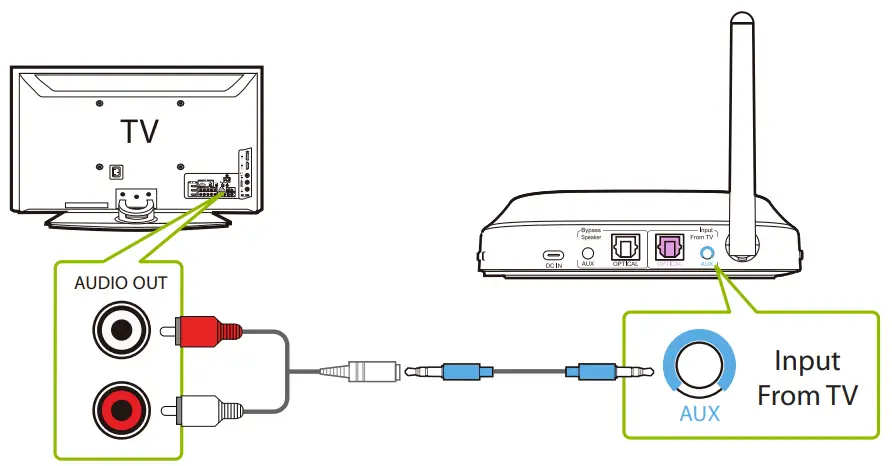
OPTION 3 – RCA port
Connect the provided RCA adapter to the AUX 3.5mm audio cable. Plug the red & white RCA connectors into the TV’s “AUDIO OUT” ports, then plug the other end into the transmitter’s AUX 3.5mm port in the “INPUT FROM TV” section.
Connecting Transmitter 2 to Your TV
Repeat the steps above to connect Transmitter 2 to another TV.
Connecting the Headphones to Transmitters
Shift headphones and transmitters connect via 3 different channels (blue /green / white — the white channel will only activate after pairing to a third Shift transmitter). Swap the headphones’ channel to match the transmitter’s channel in order for them to connect.
If using both transmitters in the same room, we recommend swapping the transmitters to two different channels to avoid any interference (Transmitter 1 defaults to the BLUE channel, Transmitter 2 defaults to the GREEN channel).
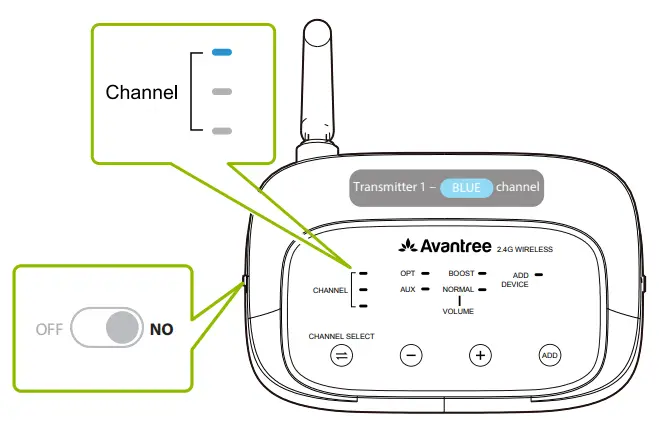
STEP 1
Power Transmitter 1 on by sliding the switch to the ON position. The channel indicator should light up BLUE. If not, tap the  button to switch to the blue channel.
STEP 2
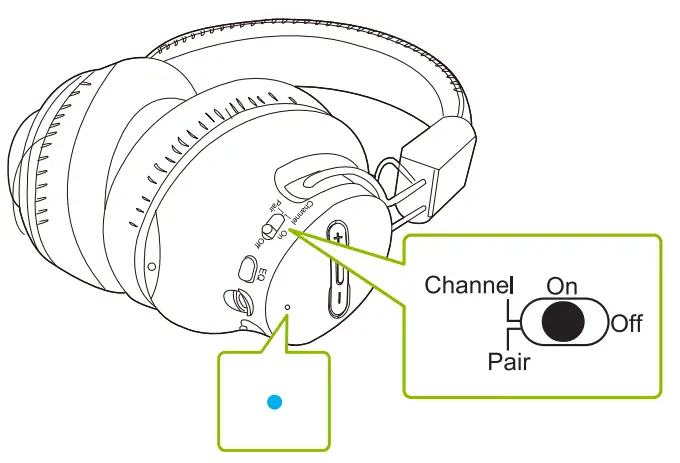
On your headphones, slide the switch to the ON position. The channel indicator should flash BLUE. If not, slide the switch to the CHANNEL position once or twice to switch to the blue channel. Once both the headphones & transmitter are on the same channel, they will automatically connect, and both channel indicators will turn solid BLUE.
STEP 3
Power Transmitter 2 on by sliding the switch to the ON position. The channel indicator should light up GREEN. If not, tap the button to switch to the green channel.
STEP 4
Slide one or both headphones’ switch to the CHANNEL position once to swap to the GREEN channel. The headphones will automatically connect to Transmitter 2, and both channel indicators will turn solid GREEN.
For subsequent use, turn on all devices, keep them close to each other, and swap them to the same channel. They will automatically connect.
Setting Up Your TV (For optical connections only)
If you connected to your TV via the optical OUT or “OPT OUT” port, you’ll need to configure your TV settings before you’ll receive audio.
STEP 1
Using your TV’s remote control, press the SETTINGS button and navigate to the AUDIO tab within the settings menu. (Please note that there may be differences in the setting names depending on your brand of TV).
STEP 2
Proceed to AUDIO OUTPUT and select “OPTICAL OUT / DIGITAL OUT”.
Many TVs will do this automatically; skip this step as needed.
STEP 3
Set Audio Output format to “PCM / STEREO” ON or “DOLBY ”OFF.
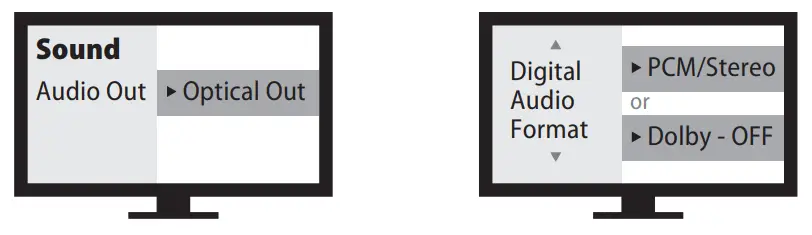
If you’re having trouble finding these settings, you can scan the QR code correlating to your TV’s brand OR visit
avantree.com/shift/tv-audio-settings for a more detailed guide.
NOTE 1: Smart TVs automatically reset their settings after system updates. Make sure your audio output / input format is set to “PCM” and NOT “AUTO” or “Dolby.”
NOTE 2: When using Netfix or Amazon Prime, you may need to start the movie / show before changing the audio settings to “PCM.”
Advanced Features
Listening with a Soundbar
The Shift’s pass-through function allows you to listen through both the headphones and an external soundbar / stereo AVR simultaneously.
STEP 1
Plug an additional optical, 3.5mm AUX, or RCA audio cable into the correlating audio port in the transmitter’s “BYPASS / SPEAKER” section.
STEP 2
Plug the other end into your external sound system, then you’re good to go.
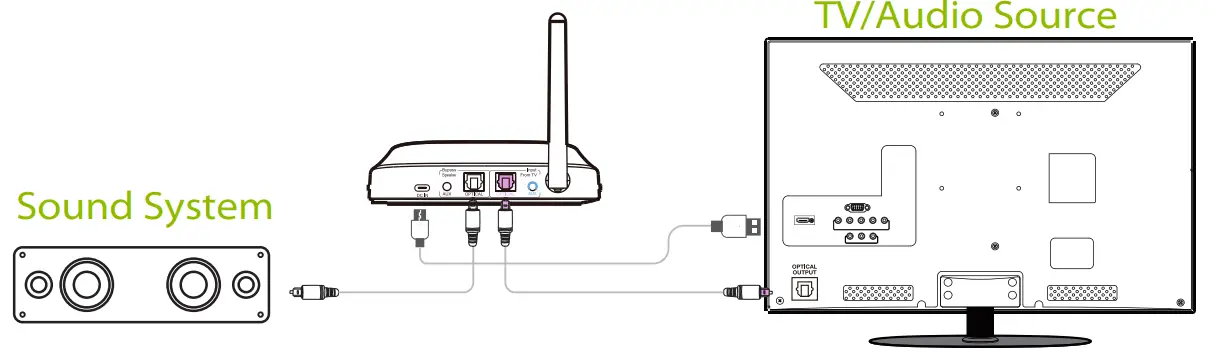
NOTE: Bypass only works with the same type of input / output, i.e. if you connect to your TV via OPT, you’ll need to connect to your speaker via OPT as well.
Adding More Headphones
You can add up to 100 Shift-Extra headphones to your setup.
STEP 1
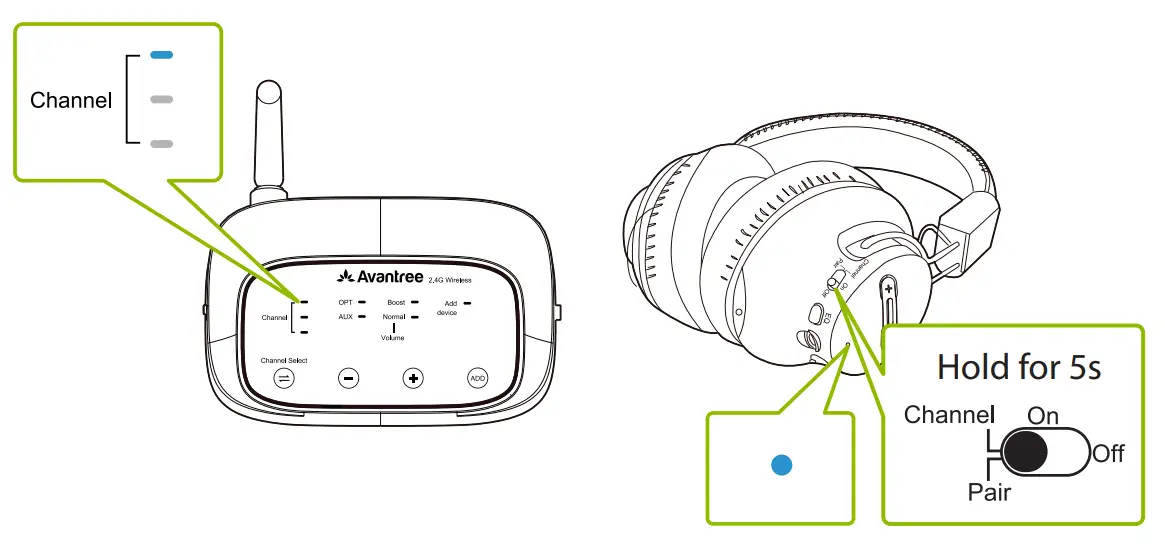
Press & hold the button on your transmitter for 5 seconds. The “ADD DEVICE” LED indicator will flash BLUE.
STEP 2
Turn on your pair of Shift-Extra headphones, then slide & hold the switch to the “PAIR” position for 5 seconds. The LED indicator will quickly flash BLUE.
Keep them close and wait for 2 seconds. Once connected, the channel indicators on both the transmitter and the headphones will turn solid BLUE.
NOTE: Any new Shift-Extra headphones should be paired and connected via the BLUE channel. Once connected to the system, they can freely swap to other channels.
STEP 3
Switch the channel on both the transmitter and Shift-Extra headphones to the channel you used before.
Repeat these steps to add more headphones if needed.
To purchase extra Shift headphones, scan the QR code.
http://avantree.com/shift/video
Adding a Third Transmitter
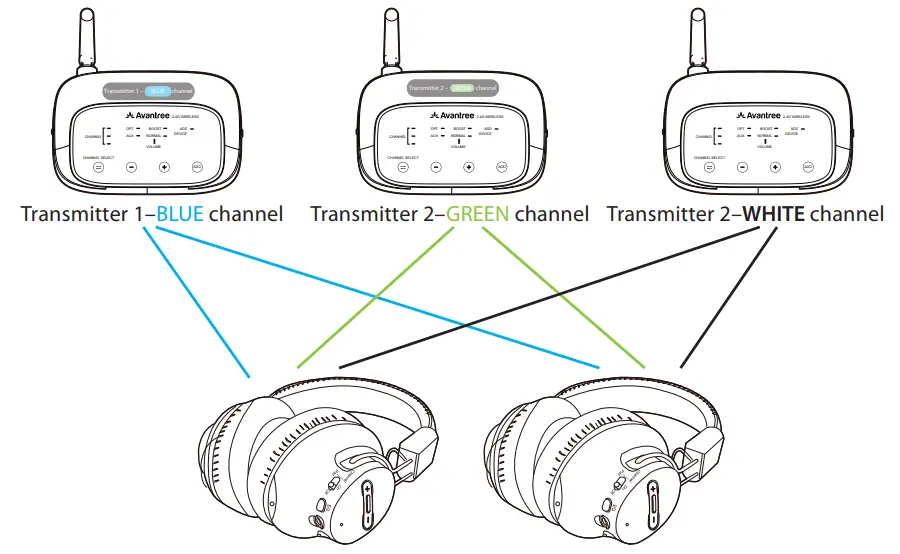
You can add a third Shift transmitter to your setup if you have an additional TV.
STEPS 1-3
Please reference page 15.
STEP 4
Switch the channel on both the third transmitter and the headphones to the WHITE channel. They will automatically connect, and the channel indicators on both the transmitter and headphones will turn solid WHITE.
Repeat the steps above to pair any other headphones to the third transmitter.
To purchase a third transmitter, scan the QR code below.
http://avantree.com/shift/video
Charging the Headphones
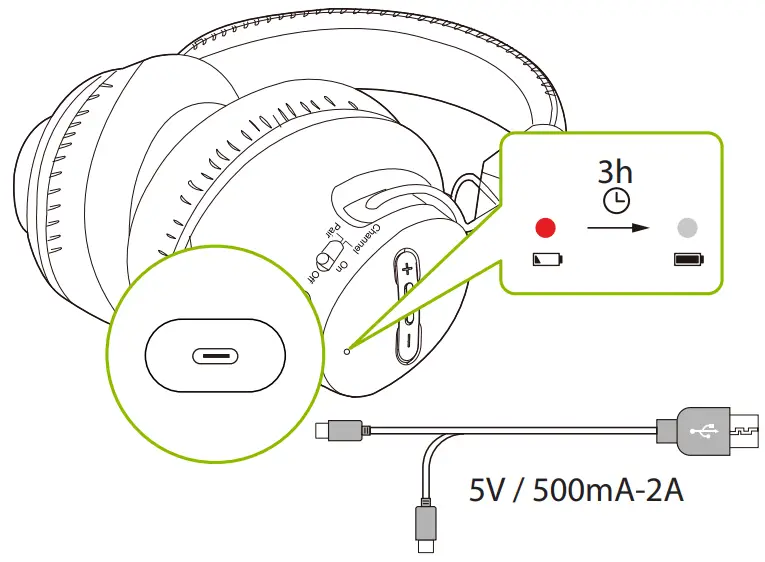
Charge the headphones using the provided USB C charging cable and a 5V/500mA-2A rated USB adapter (your phone charger or similar should work).
A solid red light indicates that charging is in progress; once the light turns off, your headphones will be at full battery.
Specifications
Transmitters & Headphones
| Carrier frequency | 2.4GHz |
| Frequency response | 20Hz – 20KHz |
| Operating range | Up to 100ft / 30m |
HeadphonesBattery life Up to 20 hours Time to full charge 3 hours Distortion 0.5% Signal to noise ratio 85dB Headphones net weight 200g
FAQ
– This completely depends on whether or not your TV supports the ability to output audio to 2 sources simultaneously. You can try a few different methods to test if your TV is capable of this or not — please refer to avantree.com/shift/sound for more details.
– Yes, you can have 3 transmitters in the same room with no interference as long as they stay at least 3 feet apart from each other.
– It’s best to keep your transmitter at least 3ft / 1m away from Wi-Fi routers in order to avoid interference.
Why aren’t my headphones connecting to the transmitter?
– For answers to questions like these and for a full FAQ list, you can visit avantree.com/support/shift, or you can contact us directly for additional assistance.
Below are some of the most common questions people have during setup.
Contact Us
 Support Tickets avantree.com/submit-a-ticket
 Support Email [email protected]
 USA / CA +1800 232 2078 (9am-6pm PST, Mon-Fri )
UK +44 20 8068 2023 (9am-6pm, GMT, Mon-Sat)
DE +49 32221097297 (11am-9pm, CET, Mon-Sat )
FR + 33 176340312 (11am-9pm, CET, Mon-Sat )
IT +39 06 9480 3330 (9am-6pm, CET, Mon-Sat )
ES + 34 931786261 (9am-6pm, CET, Mon-Sat )
AU + 61 2 8310 9897 (11am-7pm, AEST, Mon-Fri) FAQ avantree.com/support/oasis plus
 Video Guide avantree.com/oasis plus/video
 Product Registration avantree.com/product-registration
Manufacturer: Avantronics Limited
Address: Luohu District, Shenzhen 518000 China
US Importer:
Avantree Corporation
San Jose, California 95119 USA
UK Importer:
Avantree Limited
Watford, WD180 0HQ UK

Servicer in Europe:
Gizmex GmbH,
Sternstr. 67, 40479 Dusseldorf, Germany
Tel: 01–408 334 8648 [email protected]


Model No:WSHT-5599
Dispose of the packaging and this product in accordance with the latest provisions.
Z-PKQG-HT5599-V0
 Avantree - Book a Call