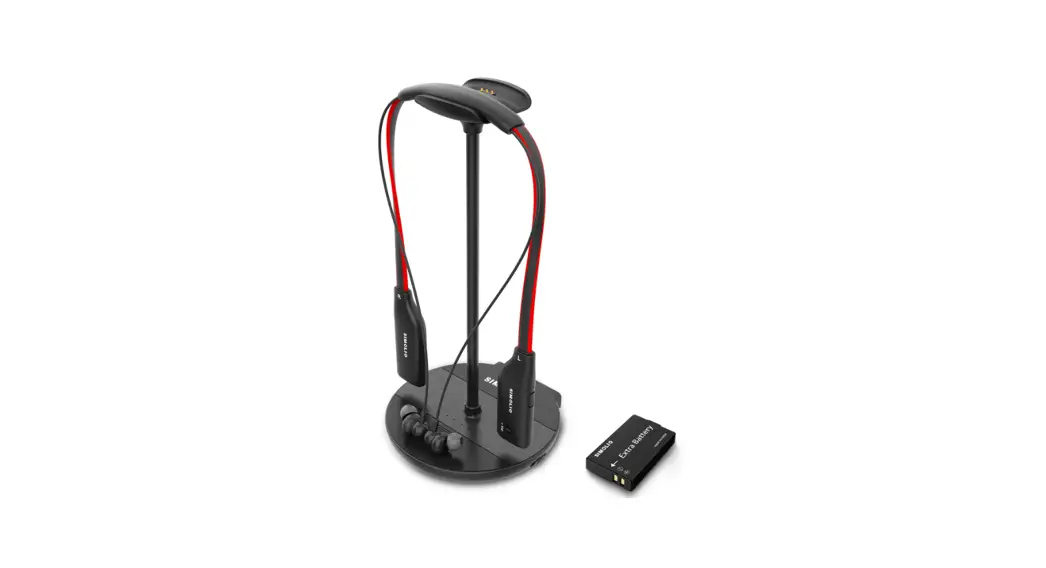
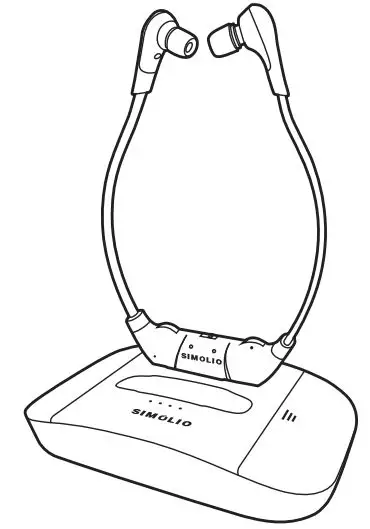
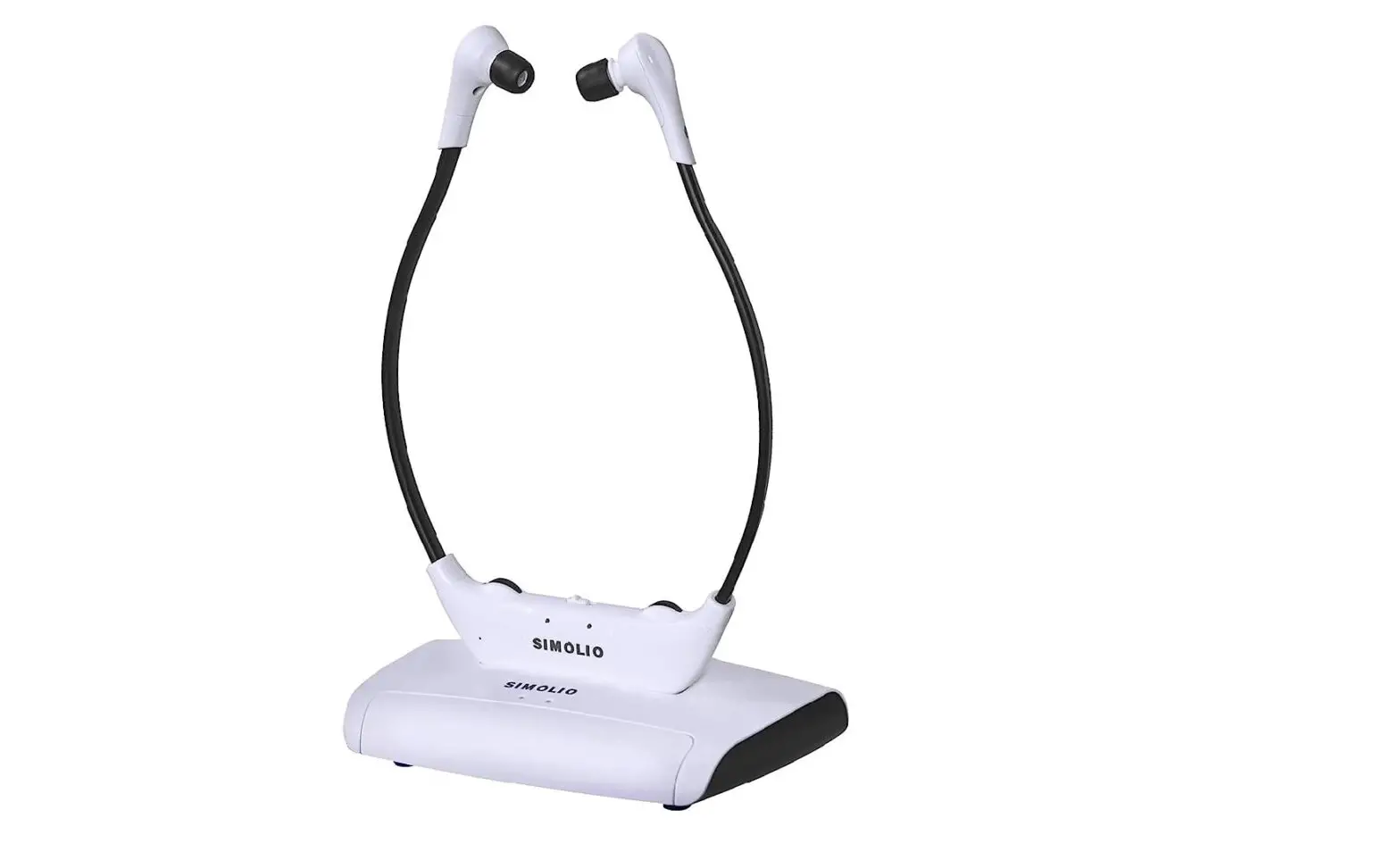
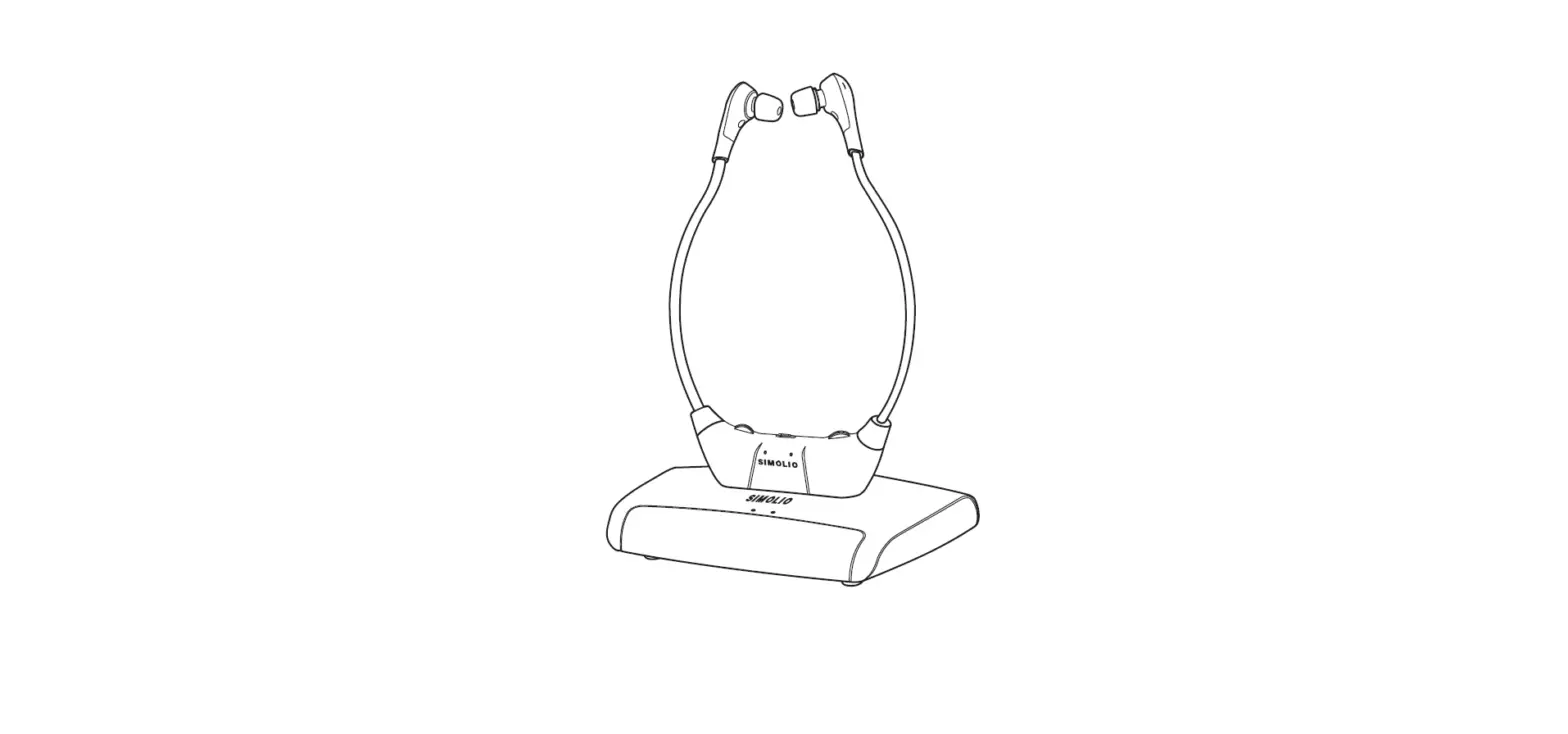
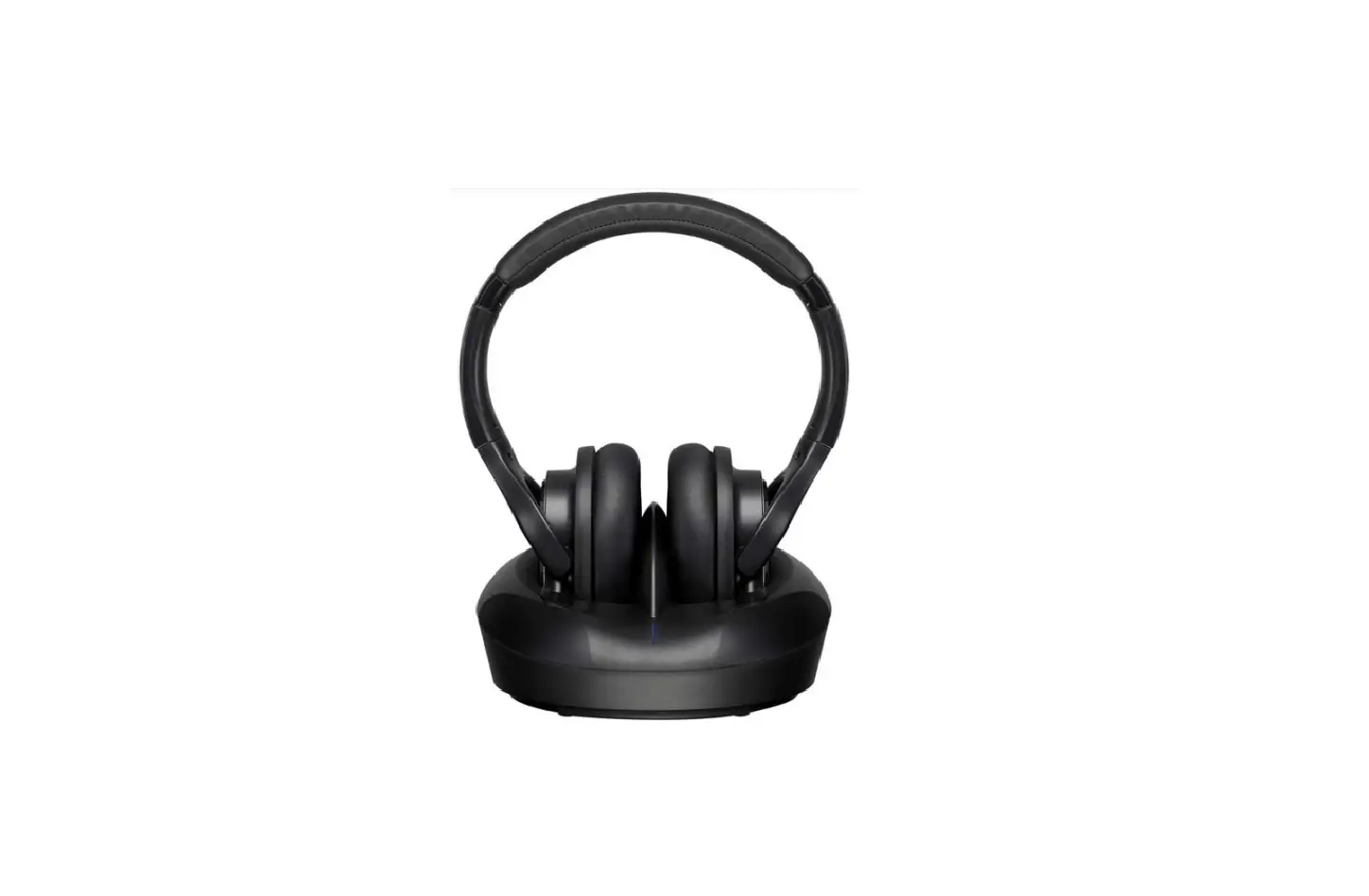
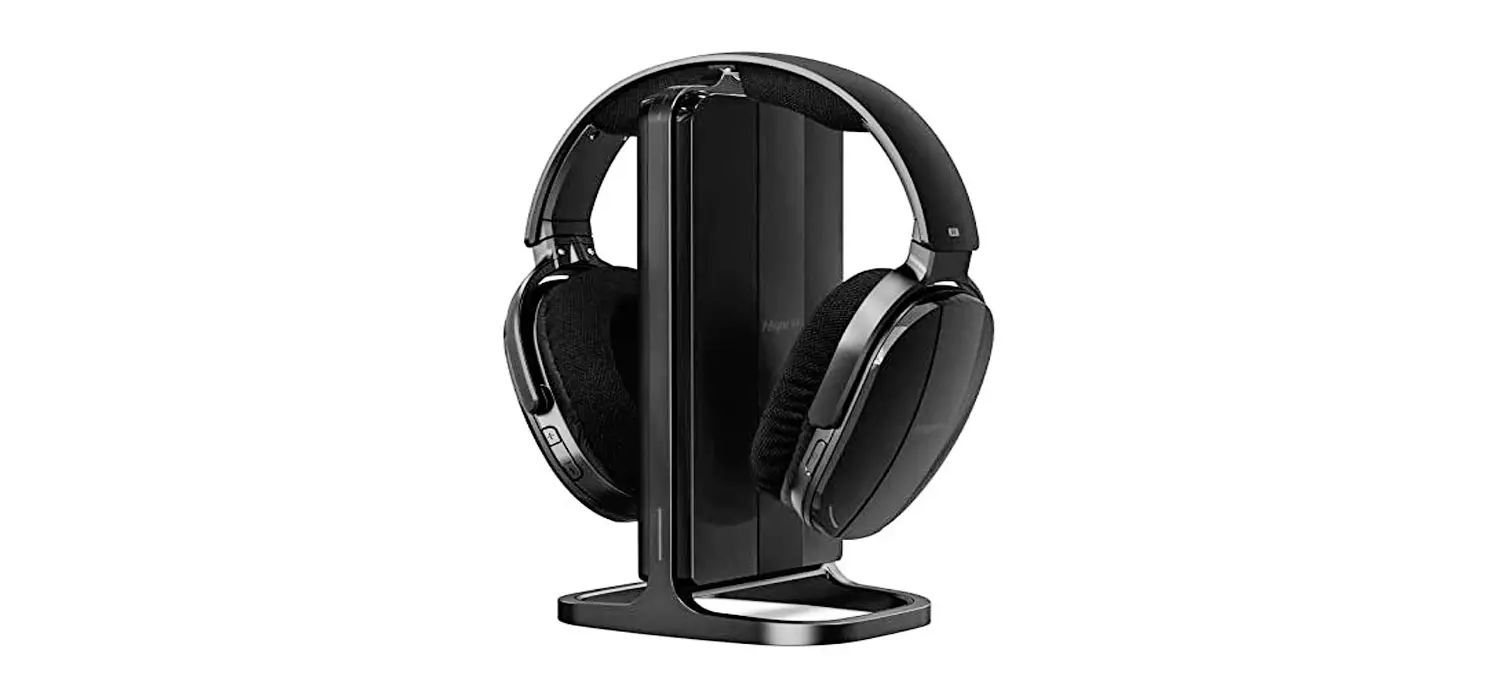
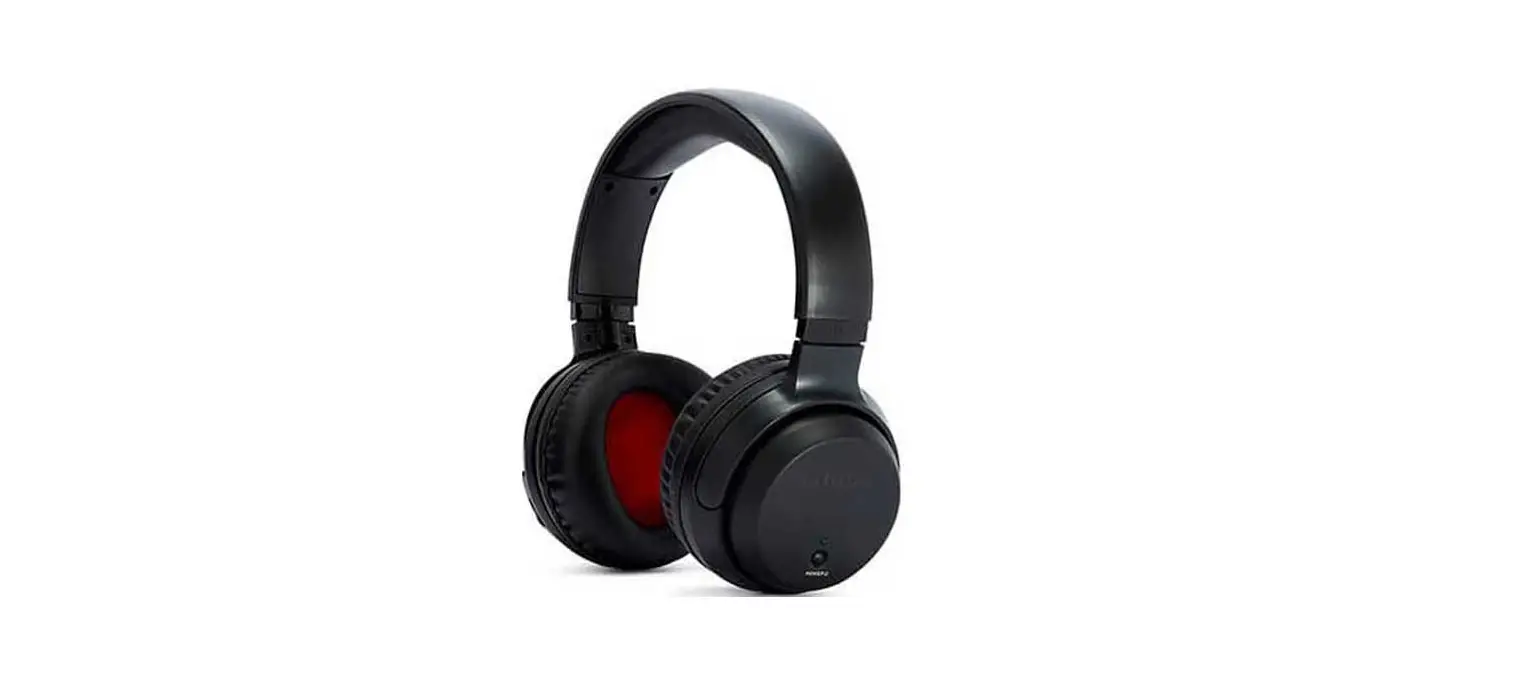
SM-8245 Digital 2.4GHz Dual Wireless TV Headphones
Product Information
Digital 2.4GHz Dual Wireless TV Headphones – SM-8245
The SIMOLIO SM-8245 dual 2.4G digital Wireless TV headphones are
designed to provide crystal-clear sound for television viewing
without disturbing others. They are especially helpful for
hearing-impaired individuals, as they overcome the weaknesses of
regular hearing aids and normal wireless headphones for TV
watching.
Features:
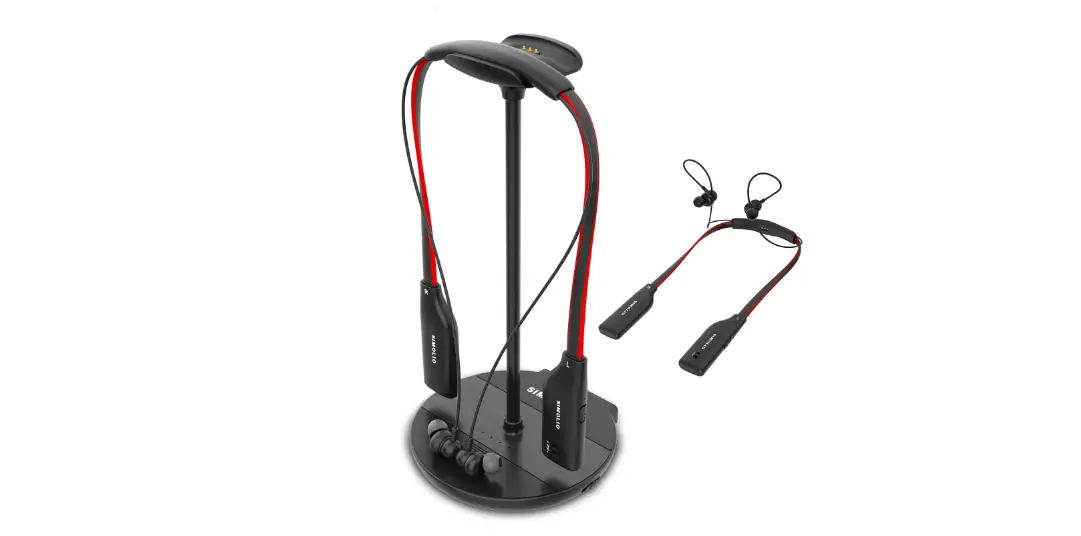
- Dual 2.4G Digital Wireless TV Hearing Assistance and Hearing
Protecting Headphones: The package includes two styles of
headphones – over-ear and under-chin. They can be used alternately
as needed or by two people watching TV together. - Personal Sound Amplifier: The headphones feature a unique MIC
button that allows you to temporarily hear what people are talking
to you without taking off the headphones. - Long Distance Transmission: With the latest technology, these
headphones offer wireless freedom and crystal clear voice within a
range of up to 100 feet. - Voice Highlighting Tech: Background voices in TV are reduced to
highlight dialogues, making it easier to understand television
dialogues. - Noise Cancelling Tech (NCT): Ambient noise is reduced to help
users focus on listening to dialogues in TV.
Product Usage Instructions
- Read the instruction manual carefully and completely before
using the product. Keep the manual easily accessible at all
times. - Keep the product dry and avoid exposing it to extreme
temperatures. - The receiver volume should be kept at the minimum before
switching the unit on. - Pacemaker Safety: Consult your physician or the manufacturer of
your pacemaker or other medical device before using this product
with a pacemaker or other medical device. - Connect the headphones to the digital or analog audio output
ports of your TV or set-top box. - Choose between the over-ear and under-chin style headphones
according to your preference or the needs of multiple users. - Use the MIC button to temporarily amplify nearby conversations
without removing the headphones. - Enjoy wireless freedom and crystal clear voice within a range
of up to 100 feet. - Experience reduced background voices and ambient noise for
improved dialogue clarity.
Digital 2.4GHz Dual Wireless TV Headphones
SM-8245
R
1
2
Sales & Support Email: [email protected] (for NA/AU) [email protected] (for UK)
User Manual
Sales & Support Email: [email protected] (for NA/AU) [email protected] (for UK)
SM-8245
Thank you for choosing the SIMOLIO SM-8245 dual 2.4G digital Wireless TV headphones. Please read this guide carefully and keep it in a safe place for future reference. If you need any further assistance, please contact our customer support team at: [email protected] (NA/AU) [email protected] (UK) Response Time: 2-24h, excl. Holidays
Welcome to subscribe to our YouTube channel – “Simolio Direct” for more product information.
Table of Contents
Important Safety Instructions ………………………………………….. 01 Overview ……………………………………………………………………… 02 Features ……………………………………………………………………….. 02 Product Diagram ……………………………………………………………. 04 Package Contents …………………………………………………………… 05 LED Indication ……………………………………………………………… 05 How to Use …………………………………………………………………….. 06 1. Check Your TV/Audio Source Output Options before the Set up … 06 2. Turn on the Transmitter and Headphones …………………………….. 07
2.1 Power the Transmitter ……………………………………………….. 07 2.2 Turn on the Transmitter ……………………………………………… 07 2.3 Turn on the Headphones ……………………………………………. 08 3. Connect the Transmitter to Your TV/Audio Source ………………… 08 3.1 Digital Optical Connection …………………………………………. 08 3.2 RCA Analog Connection …………………………………………….. 10 3.3 3.5mm/AUX Analog Connection ………………………………….. 12 3.4 Other Connections in Special Cases ………………………………. 13 4. Use Two Sets of SIMOLIO 2.4GHz Wireless TV Headphones ………… Simultaneously in the Same House ……………………………………. 16 5. Charge the Headphones …………………………………………………. 16 6. Customizing your SM-8245 …………………………………………… 18 Troubleshooting …………………………………………………………….. 21 Limited warranty …………………………………………………………… 23 Technical Specifications ………………………………………………….. 24
SM-8245
IMPORTANT SAFETY INSTRUCTIONS
1. Please read this instruction manual carefully and completely before using the products. Keep this manual easily accessible at all times.
2. Always keep the product dry, and do not expose them to extreme temperatures. 3. The receiver must keep the minimum volume before switching the unit on.
High volume may cause hearing damage to persons with normal hearing, especially to children. 4. Keep devices away from liquid. Before cleaning the product and its accessories, disconnect the transmitter from the power adapter, and use only a slightly damp cloth to clean the devices. 5. Use only the supplied power adapter. 6. Use the products with care and set them up on a stable surface of a clean, dust-free environment. 7. The unit may get hot during use. Ensure the unit has adequate ventilation. 8. Please put the product far away from microwave oven, mobile phones, WiFi router etc. to avoid unnecessary electronic wave interference. 9. Please switch off the transmitter and receiver after use, and pull out the power adapter from the wall socket when not using for a long time. 10. Only qualified person can provide services! Do not attempt to open the unit!
Pacemaker Safety: CAUTION!
Before using this product with a pacemaker or other medical device, consult your physician or the manufacturer of your pacemaker or other medical device.
01
SM-8245
OVERVIEW
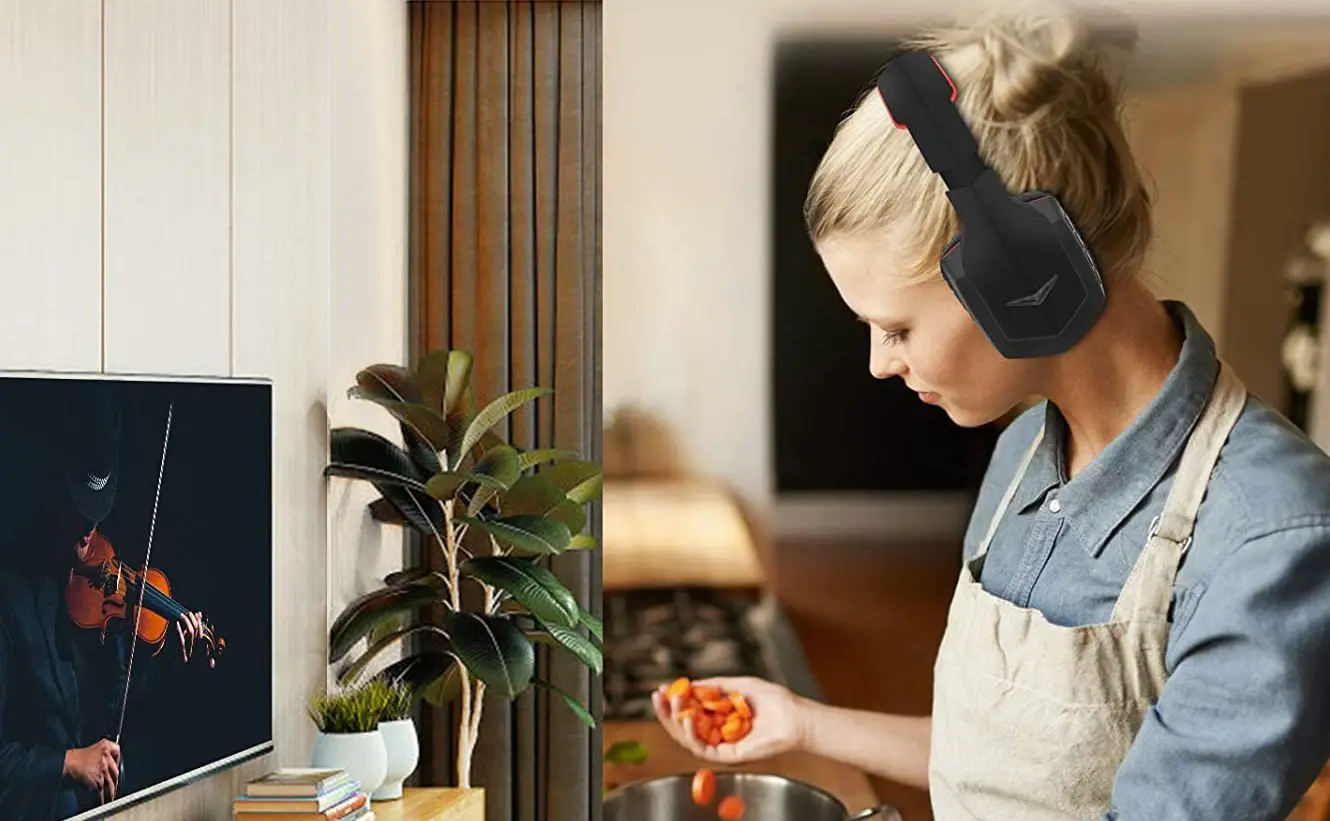
Would you like to watch television with crystal-clear sound that won’t disturb others in your family? Do you want to avoid hearing damage that could be caused by wearing normal wireless headphones for a long time? SIMOLIO SM-8245 wireless TV hearing assistance and protecting headphone are just made for you.
Apply with the latest 2.4GHz Digital Automatic Frequency-Hopping Spread Spectrum (FHSS) technology, it gives you crystal-clear sound with the freedom of a wireless connection – up to 100 feet without obstacles. You can customize your listening at a most comfortable volume level, via balance and tone controls. Our voice highlighting and noise cancelling technology dynamically reduce TV background sounds and make TV dialogues stand out. At last you can easily understand the TV dialogues at a healthy volume without worrying about your hearing being damaged.
The SIMOLIO SM-8245 is especially helpful for hearing-impaired people. It overcomes the weakness of regular hearing aids, which amplify both speech and environmental background at the same time. Normal wireless headphones for TV watching don’t help either, they also amplify everything together. Also, over time you’ll keep turning the volume up and up, and that can make your hearing worse and worse. Our hearing protecting headphone solves these problems.
The unique “one-button push” sound amplifier function allows you to hear clearly what people are talking nearby without taking off the headphones.
It’s compatible with both digital and analog audio output ports and suitable for almost all TVs and the set-top boxes on the market.
FEATURES
(1) Dual 2.4G Digital Wireless TV Hearing Assistance and Hearing Protecting Headphones Two styles of headphones one is an over-ear style and the other is an under- chin style. You can use the two headphones alternately as needed, or two people use them to watch TV together.
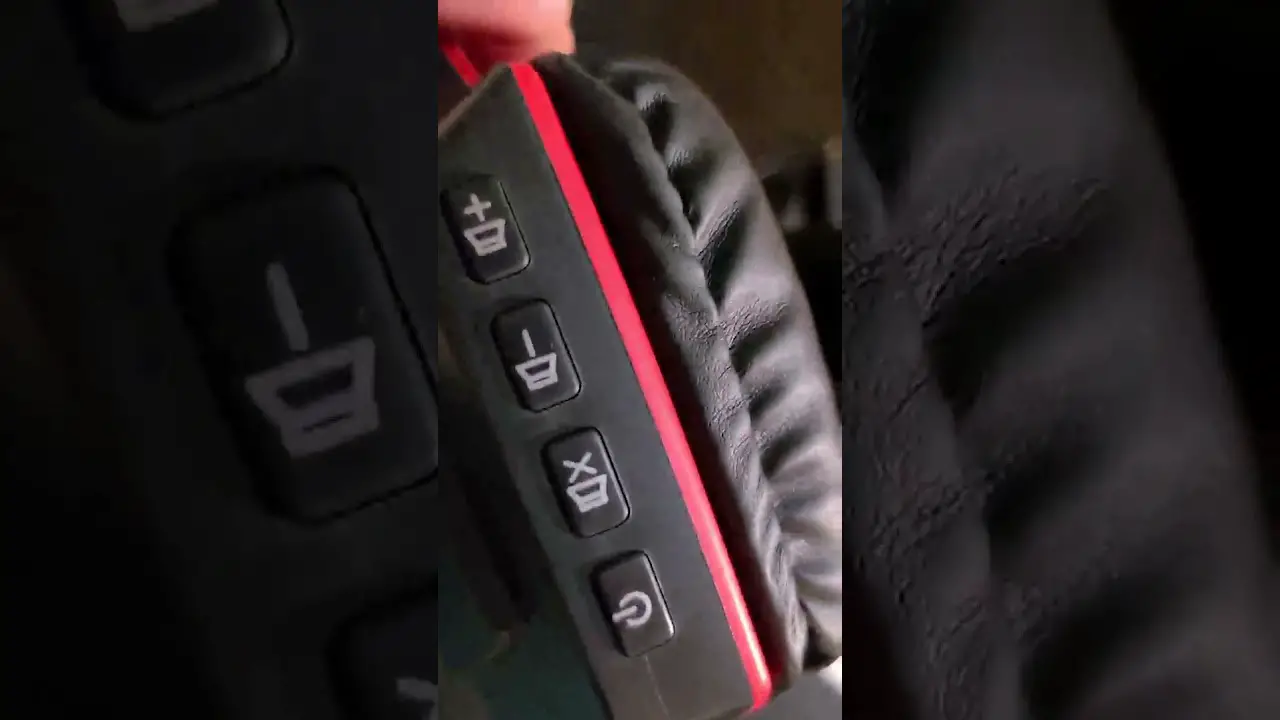
(2) Personal Sound Amplifier A MIC button is designed as an additional & unique feature to help you to temporarily hear what people are talking to you when watching TV without taking off the headphone.
02
SM-8245
(3) Long Distance Transmission Supported with the latest technology, you can have wireless freedom and crystal clear voice within a range of up to 100 feet.
(4) Voice Highlighting Tech Reduce background voice in TV to highlight the dialogues, so that words hard to hear can easily stand out, making television dialogues to be understood easily.
(5) Noise Cancelling Tech (NCT) Reduce the ambient noise to help the users to focus on listening to the dialogues in TV.
(6) Automatic Signal Control (ASC) Our special circuit design can adjust the sudden volume change and make the output volume stable. It will avoid strong signal hurting the users’ hearing.
(7) BALANCE Control The balance control allows for right/left volume adjustment. Adjust the balance so that you hear equally well with both ears.
(8) TONE Control It is specially designed for people who have different sound frequency sensitiveness. They can select TONE (Treble/Normal/Bass) to find the optimum parameters, and hear the target audio source clearly.
(9) MONO/STEREO Optional You can switch to STEREO for enjoying Hi-Fi sound quality music or select MONO for enjoying more clear TV dialogues.
(10) Headphone Designed with Auto Power Off Function for Power Saving When no signal is received for 10 minutes, the headphone will be powered off automatically.
(11) One Transmitter Can Support Multiple Headphones Additional SIMOLIO 2.4GHz wireless headphone receivers can be added to the SM-8245 system, allowing multiple listeners to enjoy the same audio source.
(12) Good Compatibility Compatible with any brand of TV/Smart TV box/ Cable TV box/Set-top box/DVD/ other audio device that has a Digital Optical, RCA or 3.5mm AUDIO OUT port(s).
(13) Max Comfort The headphone comes with super-soft memory foam ear tips which can reduce earphone irritation and fatigue, but we strongly suggest that you change your ear
03
SM-8245
tips every 30 to 60 days, this will ensure comfort and cleanliness.
The headphone comes with ergonomic designed protein earmuffs and retractable soft-padded headband providing lasting comfort. Full-sealed ear pads effectively reduce the outside noise and let you understand your TV dialogues with lower volume.
(14) Multiple Charging Methods You can plug the headphone into either of the main charging slots on the base for recharging. There is a spare battery always ready in the battery charging compartment on the transmitter for sustained enjoyment.
The headphone is recharged by the supplied USB Type-C cable into a compatible USB charger (PC or TV USB port). It is ok to use most mobile phone chargers on market.
PRODUCT DIAGRAM
Headphone 1
Transmitter
Power & Working Indicator (Green)
Charging
Battery
Indicator 3 2 1 (Red)
Charging
Compartment 3
Main Charging Slot 1 Main Charging Slot 2
built-in Li -ion battery
Battery Cover
Power ON/OFF Balance Volume Control Control
spare Li -ion battery
OFF/ON OFF MONO STEREO
OFF/ON (OFF/MONO/STEREO)
H R
LBAL
ON OFF
L
VOL
Personal Sound Amplifier Button
POWER IN
POWER IN
TO N E
DC 5V
OPTICAL IN
AUDIO IN
TREBLENORMALBASS
TONE (TREBLE/ NORMAL/ BASS)
Battery Compartment
Charging Socket
OPTICAL IN
AUDIO IN
Headphone 2
Built-in Mic
Wireless Receiving Indicator ( LED 1) / Personal Sound Amplifier Indicator (LED 1)
R
BALANCE (Left / Right)
R
VOLUME Power ON/OFF
L
R
Audio In Personal Sound Amplifier Button
Charging Indicator ( LED 2)
Li-battery
L
Battery
Compartment
USB Type-C Charging Socket
04
SM-8245
PACKAGE CONTENTS
1. Headphones
2. Transmitter
Headphone
Headphone
3. Optical Fiber 4. Ø3.5mm- RCA
Cable
Audio Cable
A Spare Li-ion battery included (for headphone )
5. Ø3.5mm
6. USB Type-C
Audio Cable Charging Cable
7. Power Adapter
US
UK
or
(for headphone 2) 8. User Manual 9. Quick Guide
Digital 2.4GHz Dual Wireless TV Headphones SM-8245
R
1
2
User Manual
Sales & Support Email: [email protected] (for USA) [email protected] (for Europe)
QUICK GUIDE for SM-823D, SM-824D & SM-825D IMPORTANT:
1. The unit will not work with the optical audio if the optical cable is carrying a
Dolby Digital or DTS signal.
In this case, set the Audio Out Format of your TV and TV related AV devices (e.g., cable box/DVD etc) to
PCM to get the unit to work.
2. Three different audio cords: digital optical cord, RCA cord and 3.5mm cord. In the end, only one of these cords is needed to complete the installation.
3. This device is a wireless TV headset as well as a personal sound amplifier. You can find a
MIC ON/OFF
button at the rear of headset. It is designed for hearing impaired people to clearly hear what people’s
talking to him/her nearby when watching TV. Just press MIC ON/OFF button , you can turn this headset to
a personal sound amplifier which could amplify the people’s voice around. When you want to back to
watching TV, just press the MIC button again. When use it as a wireless TV headset, the green working
indicator is on. As a personal sound amplifier, the red MIC indicator is on.
4. We suggest to hook up the transmitter base to the Optical Audio Out port of your TV/Smart TV box/ Cable TV box/Set-top box/DVD/other audio device in priority, for enjoying the super sound quality.
For streaming media watching (Netflix, Amazon Prime Video, etc.), place the transmitter base at least 4 feet away from your smart WiFi TV/WiFi TV box/TV sticks to avoid interference.
TV or Cable BoxFigure 1
Optical Audio Out
DC 5V
TONE OFF MONO STEREO TREBLE NORMAL BASS
OPTICAL
AUDIO IN
Transmitter
Optical Audio In
TV Rear
If you has a sound bar/HiFi need to be connected with, we suggest to buy an optical splitter, so you can connect your sound bar/HiFi and the transmitter to your TV at the same time, shown as figure 2.
Figure 2
SM-825D
TV or Cable Box
OFF/ON
POWER OUT
Optical Audio Out
OFF MONO STEREO
DC 5V/500mA
POWER IN
DC 5V
OPTICAL IN
TONE
AUDIO IN
TREBLE NORMAL BASS
SM-824D
TV Rear
OFF/ON OFF MONO STEREO
POWER IN
DC 5V
OPTICAL IN
TONE
AUDIO IN
TREBLE NORMAL BASS
Optical Splitter Optical In
SM-823D
Sound Bar
Optical Out
DC 5V
TONE OFF MONO STEREO TREBLE NORMAL BASS
OPTICAL
AUDIO IN
Optical Transmitter Audio In
5. If no Optical Audio Out port available, we suggest to connect the transmitter base to the red and white RCA ports which labeled as AUDIO OUT of your TV. If the RCA AUDIO OUT port of your TV is unavailable, you can connect the transmitter base to your Smart TV box/Cable TV box/Set-top box/DVD/other audio device which is hooked up with your TV.
Figure 3
TV or Cable Box
Figure 4
AUDIO OUT
COMPONENT
AUDIO IN
IN
Audio Out
RCA
VIDEO IN
RCA
TV Rear
L
R
DC 5V
TONE OFF MONO STEREO TREBLE NORMAL BASS
OPTICAL
AUDIO IN
Transmitter
3.5mm Audio In
SEVEN FREQUENCY ASKED QUESTIONS (FAQ) from marketing statistical analysis:
1.Outside noise overpowers the TV voice.
It is possible that the MIC ON/OFF button at the rear of headset is pressed on inadvertently, in this case the
MIC
indicator is solid red . To back to watching TV, just press the MIC ON/OFF button again or switch off the headset
and then restart with the red MIC indicator off and the green TV receiving indicator on.
2.The connections are correct and in place, but no TV sound is heard or sound cuts in and out.
1) It is possible that the volume of the audio source is set too low. If you connect
STB/Cable box/DVD etc to the
TV to watch programs, then the audio source is the STB/Cable box/DVD etc. Please use the audio source’s
remote control to set its volume to a sufficient level to ensure a steady sound signal. If you want to mute the TV
sound and only hear from this headset, please use your TV remote control to click
MUTE menu. (For most TVs,
the TV’s speakers are separately controlled from the TV’s audio out).
2) When do connection with the optical cable, set the Audio Out Format of your TV and TV related AV devices
(e.g., cable box/DVD etc ) to PCM to get the unit to work. ( Settings > Sound > Digital Audio Out Format >
Page 1
LED INDICATION
LED Indicators of the Transmitter
LED Status
Transmitter Status
Green LED flashes slowly
Dark green LED lighting steadily
Bright green LED lighting steadily Red LED / lighting steadily Red LED lighting steadily
No audio signal in within 5 minutes In standby mode (no audio signal in for more than 5 minutes) Wireless working mode Headphone charging
Spare battery charging
Red LED // off
Battery charging completed/no charging
05
SM-8245
LED Indicators of the Headphone
LED Status
Headphone Status
Green LED flashes slowly
No signal received
Green LED flashes quickly and headphone beeps every minute
Low power indication
Green LED lighting steadily
Wireless working mode
Red LED lighting steadily
Built-in MIC working mode
Red LED off
Built-in MIC off
LED Indicators of the Headphone LED Status
Green LED flashes slowly (LED 1)
Headphone Status No signal received
Green LED flashes quickly and headphone beeps every minute (LED 1) Green LED lighting steadily (LED 1)
LED flashing red and green alternately (LED 1)
Red LED on (LED 2)
Low power indication
Wireless working mode Built-in MIC working mode Headphone charging
Red LED off (LED 2)
Headphone charging completed
Note: · The transmitters will automatically enter standby mode within 5 minutes of no signal input, and it will automatically restart when there is an audio signal input.
· The headphones will power off automatically after 10 minutes of no audio signal in. Using them again, you need to slide ON/OFF switch to “OFF” position, then slide to “ON”. Be aware, the headphones will not automatically power off in the personal sound amplifier mode unless the batteries are dead.
HOW TO USE
1. Check Your TV/Audio Source Output Options before the Set up
SM-8245 is compatible with OPTICAL output, AUX 3.5mm output, and RCA (labeled “AUDIO OUT”)
06
SM-8245
Jack Options
Digital Optical AUDIO OUT
RCA jacks labeled
AUDIO OUT
OPTICAL AUDIO OUT
AUDIO OUT
L
R
Other RCA jacks(usually AUX/3.5mm audio in)
AUDIO IN
L
R
6.35mm Digital Coaxial Phone jack AUDIO OUT
PHONE
COAXIAL
Natively supported?
Please refer
3.1
to Point
3.2
N/A
3.3
(need extra 6.35mm (need extra digital to to 3.5mm adapter, analog converter, purchase separately) purchase separately)
3.4
3.4
Fig 1-1
Note: · Three different audio cables included: digital optical cable, RCA cable and 3.5mm cable. In the end, only one of these cables is needed to complete the installation.
· If your audio source device has an optical audio out port, please connect SIMOLIO to this port preferentially. If not, you can also connect SIMOLIO to the RCA or AUX/3.5mm or other audio out port of the audio source device.
2. Turn on the Transmitter and Headphones
2.1 Power the Transmitter (Ref. Fig 2-1)
Plug the supplied AC adapter into a standard electrical outlet, plug the other end of the AC adapter into the port labeled “DC 5V” on the back of the transmitter.
OFF/ON OFF MONO STEREO
Fig 2-2
OFF/ON OFF MONO STEREO
POWER IN
DC 5V
OPTICAL IN
TO N E
AUDIO IN
TREBLE NORMAL BASS
Transmitter
Power in
POWER IN
DC 5V
Power adapter Fig 2-1
2.2 Turn on the Transmitter (Ref. Fig 2-2)
Slide OFF/MONO/STEREO switch to “MONO” or “STEREO” position.
07
SM-8245
2.3 Turn on the Headphones
Slide ON/OFF switch to “ON” position.
ON OFF
H R
LBAL
ON OFF
L
VOL
R
Headphone 1
Fig 2-3
Headphone 2
3. Connect the Transmitter to Your TV/Audio Source
Set the volume of the audio source to a level sufficient for people with normal hearing to clearly listen to the TV to ensure stable audio output. i.e. set the TV box VOL 30 % (Ref. Fig 3-1) & TV VOL 40% (Ref. Fig 3-2)
For watching TV quietly without disturbing others, the right way is: Mute your TV by pressing the MUTE button on the remote control or choose any speaker option other than TV Speaker in the TV Sound Output settings.(Ref. Fig 3-3)
· The above settings may differ from various TVs.
Fig 3-1 TV box VOL 30 %
Fig 3-2 TV VOL 40 %
Mute Fig 3-3
3.1 Digital Optical Connection
This part will instruct you on how to connect the SIMOLIO SM-8245 transmitter to your television, satellite, or cable box using an optical digital audio cable.
· If you cannot get to the back of your TV and you only watch the programs through a fixed TV box (cable/satellite box/DVD etc.), you can also use these instructions to install the system to your TV box.
08
SM-8245
· Be aware that the base should be placed at least 4 feet away from your Router/ smart WiFi TV/Roku/WiFi TV box to avoid interference.
Step 1. Hook up SIMOLIO to the Optical Audio Out Port of the TV/other Audio Device
Fig 3-4
CAP
Remove the protective plastic caps from both ends of the optical digital audio cable.
Plug either end of the optical audio cable into the “Digital Audio Out (Optical)” port on the back of the TV. Plug the other end of the optical digital audio cable into the port on the back of the transmitter labeled “OPTICAL IN”. (Ref. Fig 3-5)
OPTICAL IN
Digital Audio Out (Optical)
OFF/ON OFF MONO STEREO
POWER IN
DC 5V
OPTICAL IN
TONE
AUDIO IN
TREBLE NORMAL BASS
Optical Audio Cable
Settings
PCM
Audio Format
Dolby Digital DTS
DTS Neo 2:5
Fig 3-5
Fig 3-6
Step 2. TV Audio Format and Speaker Setting (use TV remote control) If you can not hear sound from your headphones after connecting:
· Ensure TV Audio Format is set to “PCM” or “Dolby/DTS” is OFF (This is IMPORTANT, Ref. Fig 3-6)
PS: for certain smart Samsung models, the TV is retaining separate settings for regular TV and internet TV setup. When you turn to the Smart Hub for Internet source, please use the TV remote to go to Settings > Sound > Expert Settings > Audio Format or Digital Output Audio Format, then select PCM.
Speakers Internal speakers External speakers Headset
· Ensure your TV speaker is set to “External Speakers”. (Ref. Fig 3-7)
Fig 3-7
Notes: If your TV only supports single sound out, the TV’s speakers will be either automatically muted when you plug something into an audio out port (Optical/ AUX/RCA, etc.) or they become disabled once you choose “External Speakers” as your TV’s audio output. It depends on TV circuit design.
09
SM-8245
For most TVs, the TV’s internal speakers and an external audio device can work simultaneously. Such as, for some newer LG TVs, when do optical audio connection, you can set the “Sound Out” to “Internal TV Speaker + Audio Out (optical)”. And for some newer Samsung TVs, you can enable this feature by selecting “TV Speaker” from the TV Sound Output lists.
* Setting menu may be different depending on different TV brands and models.
3.2 RCA Analog Connection
This Part is an alternative to 3.1 on page 8-9. This part will explain how to connect the SIMOLIO SM-8245 transmitter to your television, satellite, or cable box using an RCA analog audio cable.
· If you cannot get to the back of your TV and you only watch the programs through a fixed TV box (cable/satellite box/DVD etc.), you can also use these instructions to install the system to your TV box.
· Be aware that the base should be placed at least 4 feet away from your Router/ smart WiFi TV/Roku/WiFi TV box to avoid interference.
Step 1. Hook up SIMOLIO to the RCA Audio Out Port of the TV/other Audio Device
Plug the red and white ends of the audio cable into the analog RCA Audio Out ports (red and white ports labeled “AUDIO OUT”) on the back of the TV. Plug the single end of the audio cable into the port labeled “AUDIO IN” on the back of the transmitter.
TV REAR
R AUDIO OUT L
AUDIO IN
OFF /ON OFF MON O STE REO
POWER IN
DC 5V
OPTICAL IN
TO N E
AUDIO IN
TR EBLE NORMAL BASS
RCA Audio Cable Fig 3-8
Step 2. TV Audio Out Checking and TV Speaker Setting (use TV remote control) If you can not hear sound from your headphones after connecting:
10
SM-8245
· Ensure use TV Red/White ports labeled “AUDIO OUT” or “OUTPUT”, other Red/ White ports are incorrect. (Ref. Fig 3-9)
· Ensure your TV speaker is set to “External Speakers”. (Ref. Fig 3-10
· Use the RCA cable to plug the headphone into the RCA output of the TV to test if you can hear the TV sound. (Ref. Fig 3-11)
TV REAR
AUDIO OUT
R
L
COMPONENT IN VIDEO IN
Fig 3-9
Speakers Internal speakers External speakers Headset
Headphone 2
R
R AUDIO OUT L
RCA Audio Cable
Fig 3-10
Fig 3-11
Notes: * If your TV only supports single sound out, the TV’s speakers will be either automatically muted when you plug something into an audio out port (Optical/ AUX/RCA, etc.) or they become disabled once you choose “External Speakers” as your TV’s audio output. It depends on TV circuit design.
For most TVs, the TV’s internal speakers and an external audio device can work simultaneously. Such as, for some newer LG TVs, when do analog RCA audio connection, you can set the “Sound Out” to “Internal TV Speaker + Headphones”. And for some newer Samsung TVs, you can enable this feature by selecting “TV Speakers” from the TV Sound Output lists.
* Your TV’s analog audio settings may be set to “Variable” or “Fixed”. If you want to be able to control your TV volume level separate from your SIMOLIO SM-8245 volume level, you will need to make sure your TV is set to “Fixed”. Contact your TV manufacturer for assistance. (Ref. Fig 3-12)
SETTINGS
SOUND / AUDIO
ANALOG AUDIO OUT
FIXED VARIABLE
*Setting menu may be different depending on different TV brands and models.
Fig 3-12
11
SM-8245
3.3 3.5mm/AUX Analog Connection
This part is an alternative to 3.1 and 3.2 on page 8-11. This part will explain how to connect the SIMOLIO SM-8245 transmitter to your television, satellite, or cable box using a 3.5mm/AUX analog audio cable.
· If you cannot get to the back of your TV and you only watch the programs through a fixed TV box (cable/satellite box/DVD etc.), you can also use these instructions to install the system to your TV box.
· If you connect the 3.5mm audio cable to the 3.5mm Audio Out port which is usually a Headphone port on your TV, your SIMOLIO SM-8245 will still function properly, but the sound to your TV internal speakers will be muted. The port is usually labeled with an headphone icon.
· Be aware that the base should be placed at least 4 feet away from your Router/ smart WiFi TV/TV sticks/WiFi TV box to avoid interference.
Step 1. Hook up SIMOLIO to the 3.5mm Audio Out Port of the TV/other Audio Device
Plug one end of the 3.5mm audio cable into the “Audio Out” port on the back of the TV. Plug the other end of the audio cable into the port labeled “AUDIO IN” on the back of the transmitter.
AUDIO IN
H/P or Audio Out
OF F/O N OFF MONO STE REO
POW ER IN
DC 5V
OPTICAL IN
TO N E
AUDIO IN
TR EBLE NOR MAL BASS
AUX/3.5mm Audio Cable
Fig 3-13
Step 2. TV Audio Out / TV Speaker Setting (use TV remote control) If you can not hear sound from your headphones after connecting:
· Ensure your TV speaker is set to “Headset”. (Ref. Fig 3-14)
Speakers
Headphone 2
Internal speakers External speakers
H/P or Audio Out
R
Headset
3.5mm Audio Cable
Fig 3-14
12
Fig 3-15
SM-8245
·Use the AUX/3.5mm cable to plug the headphone into the headphone/3.5mm audio output of the TV to test if you can hear the TV sound. (Ref. Fig 3-15)
Notes: * Your TV’s audio settings may be set to “Variable” or “Fixed”. We recommend that you set your audio settings to “Fixed” for better audio quality when using this installation option. If you want to be able to control your TV volume level separate from your SIMOLIO SM-8245 volume level, you will need to make sure your TV is set to “Fixed”. Contact your TV manufacturer for assistance. (Ref. Fig 3-16)
SETTINGS
SOUND / AUDIO
ANALOG AUDIO OUT
FIXED VARIABLE
Fig 3-16
* Setting menu may be different depending on different TV brands and models.
3.4 Other Connections in Special Cases 1) TV/Audio Source only has Digital Coaxial Audio Out port
Step 1. Purchase a Digital to Analog Converter and Set up as Shown in Fig 3-17 If your TV/Audio Source only has a digital coaxial audio out port, you will need a digital to analog converter (DAC) for installation.
Digital Out Coaxial
Digital to Analog Converter COAXIAL IN
AUDIO IN
R L
RCA OUT
OF F/O N OFF MONO STE REO
POW ER IN
DC 5V
OP TICAL IN
TO N E
AUDIO IN
TR EBLE NORMAL BASS
wireless transmitter
Fig 3-17
Step 2. TV Audio Format and Speaker Setting (use TV remote control) If you can not hear sound from your headphones after connecting: · Ensure TV Audio Format is set to “PCM” or “Dolby/DTS” is OFF (This is IMPORTANT, Ref. Fig 3-18)
13
Settings
Audio Format
PCM Dolby Digital DTS DTS Neo 2:5
Fig 3-18
SM-8245
PS: for certain smart Samsung models, the TV is retaining separate settings for regular TV and internet TV setup. When you turn to the Smart Hub for Internet source, please use the TV remote to go to Settings > Sound > Expert Settings > Audio Format or Digital Output Audio Format, then select PCM.
· Ensure your TV speaker is set to “External Speakers”. (Ref. Fig 3-19)
· Take turns to test RCA connection and 3.5mm headphone connection.
Speakers Internal speakers External speakers Headset
· Use the AUX/RCA cable to plug the headphone into the H/P port or RCA output of the DAC to test if you can hear the TV sound. (Ref. Fig 3-20)
Fig 3-19
Note: Setting menu may be different depending on different TV brands and models.
Headphone 2
Headphone 2
COAXIAL IN
Connect TV/ Cable box/ STB etc.
R L
RCA
OUT
RCA Audio Cable
COAXIAL IN
R
or Connect TV/ Cable box/ STB etc.
R R
L
H/P 3.5mm Audio Cable
Fig 3-20
2) If your TV/Audio Source’s Digital Optical Audio Out port is occupied by soundbar, you will need an optical splitter for installation.
Step 1. Purchase an Optical Splitter and Set up as Shown in Fig 3-21
Digital Optical Audio Out
Optical Splitter
Optical Fiber Cable
Optical Fiber Cable
Headphone 2
R
Sound Bar Fig 3-21
SM-8245 (Transmitter)
14
SM-8245
Step 2. If you can not hear sound from your headphones after connecting, follow the part of 3.1 on page 8-9 to check your settings.
3) Connect SIMOLIO SM-8245 to your AV Receiver with 6.35mm PHONE jack
Step 1. Purchase a 6.35mm to 3.5mm Adapter and Set up as Shown in Fig 3-22 SM-8245 is not compatible with ANY RCA(L/R) ports on your AV Receiver, ONLY use the BIG 6.35mm PHONE OUT on front side of your AV Receiver with the 6.35mm to 3.5mm adapter (purchase separately).
AV Receiver
AUDIO IN
OFF/ ON OFF MON O STE REO
POWER IN
DC 5V
OPTI CAL IN
TO N E
AUDIO IN
TR EBLE NORMAL BASS
Phones
6.35mm Audio adapter (purchase separately)
6.35mm Phone jack
3.5mm Audio Cable
Fig 3-22
Step 2. Check the Performance of the AV Receiver’s Audio Output as Shown in Fig 3-23
If you can not hear sound from your headphones after connecting:
· Use the AUX cable and 6.35 to 3.5mm converter to plug the headphone into the port on AV receiver to check whether the sound is normal.
Headphone 2
AV Receiver
Phones
R
6.35mm Audio adapter (purchase separately)
6.35mm Phone jack
Fig 3-23
3.5mm Audio Cable
15
SM-8245
4. Use Two Sets of SIMOLIO 2.4GHz Wireless TV Headphones Simultaneously in the Same House
· The two sets of SIMOLIO 2.4GHz units should be put at least 10 meters away from each other when using them simultaneously.
room 1
room 2
SM-8245 (Transmitter 1)
SM-8245 (Transmitter 2)
Distance >10M (at least)
Fig 4-1
·Take the headphones close to the transmitter, then turn on the transmitter and headphones and make sure the green LED indicators are facing towards each other for about 5 seconds.
Wireless Receiving Indicator (Green)
Power &Working
R
Indicator (Green)
OFF/ON
MONO OFF
STEREO
Headphone 2
POWER IN
DC 5V
AUDIO IN OPTICAL IN
TONE
TREBLE NORMAL BASS
(Transmitter)
Fig 4-2
Note: If two headphones are used on the same TV, only one transmitter needs to be connected, because one transmitter supports multiple headphones to work simultaneously.
5. Charge the Headphones
(1)Headphone 1
A: Through the main charging slots on the base · Connect the original power adapter with the transmitter and an electrical outlet, slide the OFF/MONO/STEREO switch to MONO or STEREO to power on the transmitter. · Slide the ON/OFF switch of the headphone to “OFF”. Put the headphone into the charging slot of the transmitter vertically and carefully and be sure the front of the headphone with the logo of “SIMOLIO” is facing towards the
16
MIC ON/OFF
Battery
L
SM-8245
front of the transmitter with the logo of “SIMOLIO”. The red charging indicator on the transmitter lights up and the headphone starts charging. If not, please check and make sure the charging pins are fully inserted.
B: Through the battery charging compartment in the base
A spare battery in the battery charging compartment at the side of the transmitter is always ready. When the headphone battery is low power, pull the spare battery out of the battery charging compartment for replacement, and the discharged battery can be put into the compartment for recharging.
Two Main Charging Slots
Extra Battery Charging Slot
Spare Battery ( included)
Rechargeable & Replaceable Battery
(included)
H R
LBAL
ON OFF
VOL
PUSH battery
(2) Headphone 2
Fig 5-1
Through the universal USB charger/outlet
You can charge your headphone conveniently by plugging the USB Type-C
power cable into a phone charger (5V/500mA-2A output), PC USB port, TV USB
port or any other USB outlet.
(phone charger / PC USB port/
TV USB port or any other USB outlet)
Headphone 2
USB Type-C charging cable
Fig 5-2
Notes: The charging time is approx. 3 hours. The LED will turn RED during charging and turn off once charging is completed. The headphone will last approx 5~7 hours on a full charge and the headphone will last approx 10 hours, but they will last a lesser or greater amount of time depending on the average volume level of the headphones. Before using the spare battery for the first time, charge it for at least 3 hours.
17
SM-8245
6. Customizing your SM-8245
1) Please make sure the headphones are being worn properly Each side of the headphones has a letter to guide the wearer: “L” for left and “R” for right. The arms of headphone incorporate memory stainless steel strips which can be adjusted to a more comfortable wearing shape.The retractable headband of headphone can be adjusted to fit you better.
·Hold each side of the headphone arms and evenly bend inwards to adjust the arms into a more comfortable shape.
·Repeat this process as necessary.
9
10
11 12
9
10
11
R
12
12 level adjustable
Headphone 1
Headphone 2
Fig 6-1
2) Hanger Loops Installation(if necessary) You can attach the hanger loops (purchase separately) to the headphone to help you better adapt to the weight of the under-chin headphone. · Hook the decompression hanger loops on each side of the headphone . · Put the hanger loops on the ears, rotate them to best fit yourself.
Hanger loops
Fig 6-2
3) Balance Control If the hearing abilities of two ears are not the same, you can rotate the BAL dial on the headphones for right/left volume adjustment so that you hear equally well with both ears. Note: for headphone , open the decorative cover on the right side of the headphone to adjust the BAL.(Ref. Fig 6-3)
18
SM-8245
LBAL
H R
R
() R
BALANCE (Left / Right)
LBAL
ON OFF
L
VOL
L
R
L
R
Headphone 1
Headphone 2
Fig 6-3
4) Tone Control
Select the TONE (TREBLE/NORMAL/BASS) at the rear of transmitter to find the
best feature, make sure you can hear the TV voice clearly.
(Ref. Fig 6-4)
(Transmitter) TONE
OFF/ON OFF MONO STEREO
POWER IN
DC 5V
OPTICAL IN
TO N E
AUDIO IN
TREBLE NORMAL BASS
AUDIO IN TREBLENORMALBASS
TONE TREBLE/NORMAL/BASS
Fig 6-4
5) Mono/Stereo option You can switch to STEREO for enjoying Hi-Fi sound quality music or select MONO for enjoying more clear TV dialogues. If, despite a correct balance adjustment, you can hear the sound only with one ear: Set the STEREO/MONO switch on the transmitter to MONO.(Ref. Fig 6-5)
OFF/ON
OFF MONO STEREO
OFF/ON OFF/MONO/STEREO
Fig 6-5
(Transmitter)
OFF/ON OFF MONO STEREO
POWER IN
DC 5V
OPTICAL IN
TO N E
AUDIO IN
TREBLE NORMAL BASS
6) Personal Sound Amplifier Function Personal Sound Amplifier Function: while listening wirelessly, press the MIC ON/OFF buttons once on the headphones, you can clearly hear what people are talking to you nearby. Press the MIC buttons again or switch off the headphones and then on, they will be back to wireless listening mode. But if you press the MIC ON/OFF buttons by chance when listening wirelessly, the volume will be low with the ambient noise will be occurred.
19
SM-8245
H R
LBAL
ON OFF
L
VOL
Personal Sound Amplifier Indicator ( Red LED Lighting steadily)
Personal Sound Amplifier Button
(MIC ON/OFF)
Headphone 1
(R)
R
Personal Sound Amplifier Button
( MIC ON/OFF)
Personal Sound Amplifier Indicator (LED flashing red and green alternately)
L
R
R
Headphone 2 Fig 6-6
7) Ear tips Replacement as shown in Fig 6-7.
Fig 6-7
20
SM-8245
TROUBLESHOOTING
Part 1
Phenomena
Causes
Solutions
The transmitter is not powered on.
Switch to MONO or STEREO to power the transmitter on.
The transmitter is not connected well.
The analog audio cable is plugged into the AUDIO IN jack of the transmitter when connecting with the optical cable.
The connection between the transmitter and the audio source is wrong.
The audio sources (TV and TV related AV devices) are not turned on or their volume are set too low.
Headphones TV audio output is disabled or don’t work, not activated. or no voice received The audio out format of TV and TV
related AV devices (e.g., Cable box, STB, DirecTV, etc.) is not set to PCM.
The headphones are powered off automatically.
The battery isn’t inserted properly into the battery chamber or the battery is run out.
The audio out port of the connected audio device is defective (no signal out ).
TV volume is turned down to ZERO.
Make sure the AC adapter and the audio cable of the transmitter are plugged in place.
Unplug the analog audio cable from the transmitter.
Make sure the connection is correct and in place between the transmitter and the audio source.
Turn on the audio source, and adjust its volume to a sufficient level.
Follow the instructions in your TV user manual to change the TV’s AUDIO OUT setting to “External TV Speakers”. Set it to PCM. For example: Settings > Sound > Digital Audio Out Format> Dolby/DTS/PCM, menu depends on TVs.
Switch the headphones off, then on.
Insert the battery properly, or charge the battery fully.
Connect to another audio out port .
Adjust the TV volume to a sufficient level. If you want to mute the TV, please click the MUTE key on the TV remote control or go to TV settings to OFF the Internal TV speaker.
The headphones are out of the transmitting range.
Move the headphones closer to the transmitter.
21
SM-8245
Part 2
Phenomena
Causes
Solutions
Sound cuts in and out
or some noise is occurred
The audio source’s volume is set too low.
The headphones are working on “personal sound amplifier” mode.
The battery’s power is too low.
Adjust its volume properly.
Press the MIC ON/OFF button on the headphones again or switch off the headphones then restart to return to the wireless tv listening mode. Charge the battery fully.
The transmitter is placed too close to metalworks or other electromagnetic wave objects.
Put the transmitter far away from the interference sources.
The connection between the transmitter and the audio source is not in place.
Make sure the connection is firm between the transmitter and the audio source.
The audio out function of the connected audio device is defective (poor signal out).
The headphones are used for listening to streaming media (Netflix, Amazon Prime Video etc).
Connect to another audio out port . Place the transmitter base at least 4 feet away from smart WiFi TV/WiFi TV box/ TV sticks to avoid interference.
The balance is not adjusted properly.
Adjust the balance control properly.
The audio out signal of audio source is mono, but the transmitter Switch the transmitter to MONO. is switched to STEREO.
The voice is heard only with one ear
If you are using RCA connection, the RCA audio cable connecting the transmitter and your TV/audio source is NOT FULLY plugged at BOTH ends.
Try to wiggle the audio cable or unplug and plug the audio cable from both the ends on TV/audio source and the transmitter .
Faulty cable/audio out port issue.
Try another audio cable or another audio device.
The transmitter is not switched on. Switch on the transmitter when charging .
Headphone
can not be The headphone is not put into the
charged
charging slot properly or firmly.
successfully
Make sure the headphones is put into the charging slot correctly and firmly, the front of the headphone is facing towards the front of the transmitter.
SM-8245
Part 3
Phenomena
Causes
Solutions
Headphone can not be charged successfully
The battery is not inserted into the battery compartment in the correct way resulting in the battery contacts distorted.
One of the charging slots is defective.
Replace with a new headset.(damage due to misuse, not covered by warranty)
Put the battery in the battery charging compartment of the base or change another charging slot for recharging.
Headphone can not be charged successfully
Faulty USB Type-C charging cable.
Faulty Power source.
Please change another workable USB Type-C charging cable to see if it works.
Please change another power source like PC USB port, socket, different USB charger(5V/500mA-2A).
LIMITED WARRANTY
12 months limited warranty: The 12 months warranty will cover defects in manufacturing and product failure for a period of 12 months from the original date of purchase. The warranty period is not extended if we repair or replace a warranted product.
This warranty is provided at the discretion of Simolio Ltd. And does not cover appearance or damage due to acts of nature, accident, misuse, abuse, negligence, commercial use, or modification of or to any part of the product. Accessories such as audio cables, power adapter and perishable items such as ear tips and batteries are not covered under this warranty.
Please contact: [email protected] (for NA/AU) or [email protected] (for UK) and provide your Amazon order ID to register the warranty.
22
23
SM-8245
TECHINICAL SPECIFICATIONS
Transmission mode Carrier frequency
Automatic Frequency-Hopping Spread Spectrum 2.4GHz ISM BAND
Transmitter
output: DC 5V, 1A input: 100~240V plug of power cable: 4.0*1.7mm
Power Supply Headphone built-in 350mAh Li-ion Battery
Headphone built-in 500mAh Li-ion Battery USB Type-C charging cable
Frequency response
20 Hz 20 KHz
Distortion Signal-to-noise ratio
Range
1%
70dB Up to 100 feet (without obstacles)
Working time
Headphone Headphone
approx 5~7 hours under wireless hearing mode
approx 10 hours under wireless hearing mode
Charging time
3 hours
24