 For a Better Experience
Avantree® Q5049
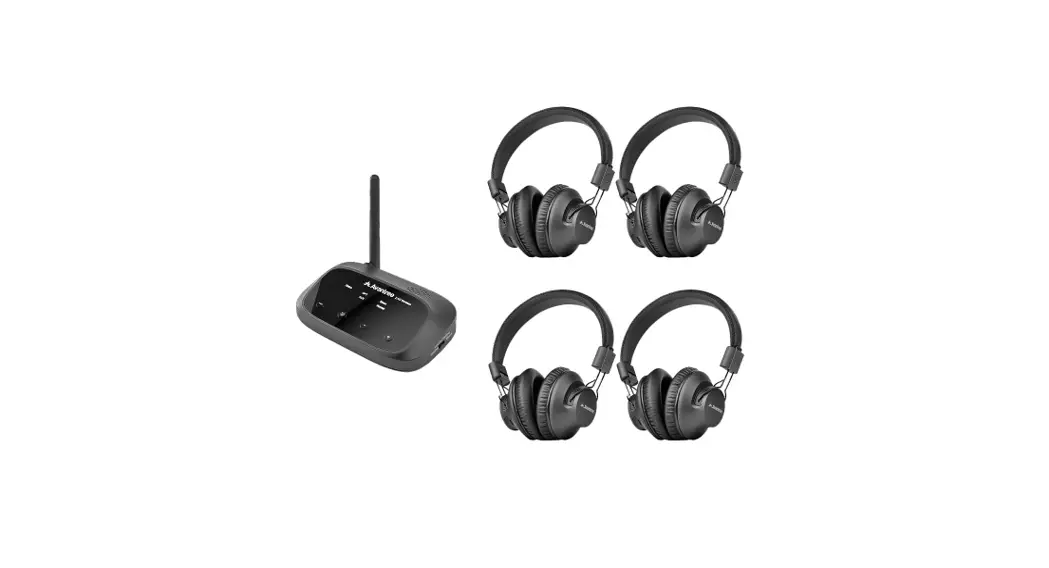
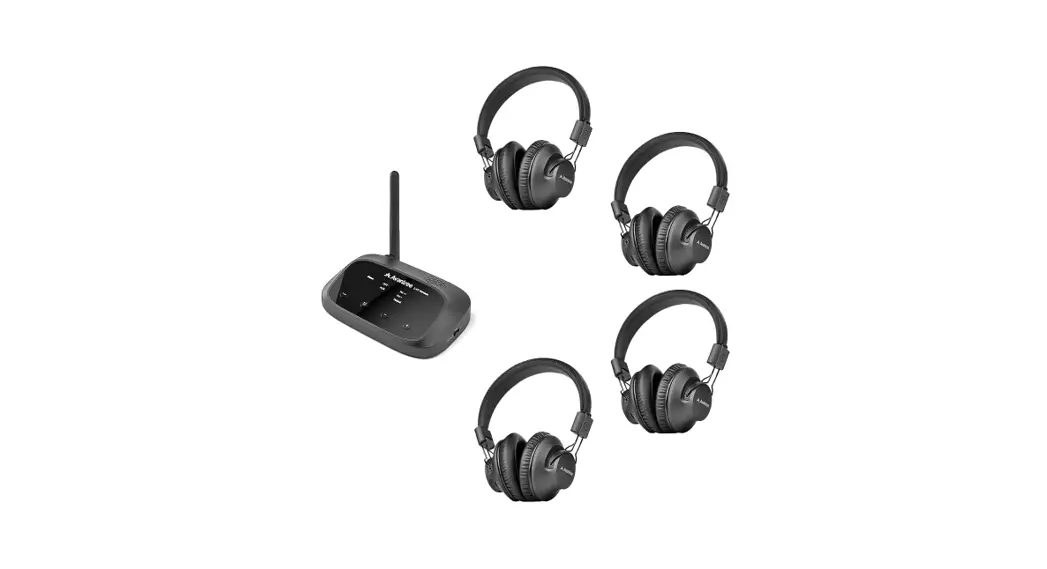
4 HEADPHONES 1 TRANSMITTER WIRELESS AUDIO SYSTEM
Model No.: WSHT-5049
User Manual
Please visit www.avantree.com/product-support/q5049
for detailed step-by-step setup guide
Box Contents
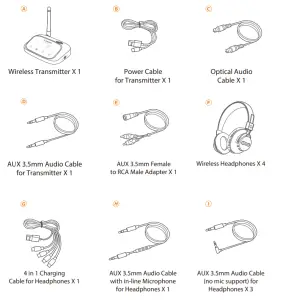
Product Overview
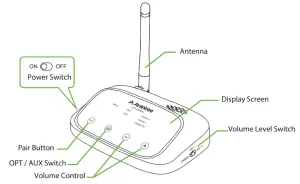 | 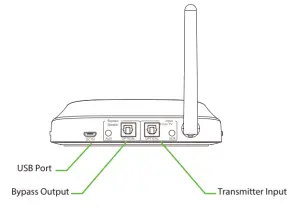 |
 | Power on / off | Slide the power switch to ONOFF |
 | Pairing mode | Press and hold for 3s until the “Status” indicator starts flashing WHITE rapidly |
 | Volume mode adjust | Toggle the volume switch to change between “default mode” / “Vol+” (loud mode) / “Vol++” (extra loud mode) |
 | Volume adjust | Single press volume up or volume down until the desired volume |
 | Audio input adjust | Press once to toggle the audio input mode “AUX”/“OPT” |
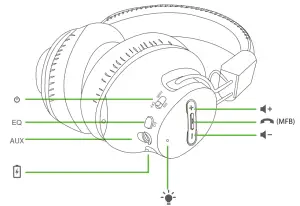
 | Power on / off | Slide the power switch to ON /OFF /OFF |
| Pairing mode | From Power ON status, slide the power switch to PAIR and hold for 3s until the LED flashes BLUE quickly ON PAIR OFF until the LED flashes BLUE quickly ON PAIR OFF | |
 | Volume up / down | Press once once |
| Single side volume adjusts | Hold for 2s until you hear “Left volume to adjust” / “Right volume adjust”, then pressonce to adjust the volume separately. for 2s until you hear “Left volume to adjust” / “Right volume adjust”, then pressonce to adjust the volume separately.Hold for 2s until you hear “Stereo mode” to exit single side volume adjust. | |
| Headphone mute/unmute | Press once to mute/unmute headphones speakers | |
 v v | Music (balanced mode) Dialogue (clear voice) Dialogue (clear voice) | Press EQ button once to toggle EQ modes to toggle EQ modes |
Turn On & Connect the Transmitter and Headphones
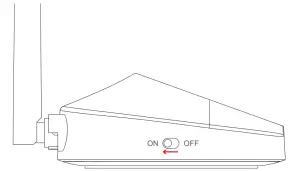
- Power up the transmitter – Connect the transmitter to your TV’s USB port or any other power source that supports 5V/500mA-2A via the provided USB cable.
Turn on the transmitter by sliding the power switch to the “ON” position.
- Turn on the headphone – Slide the power switch to “ON”
- Wait for a few seconds until they automatically reconnect. Once connected the headphones LED will show solid BLUE
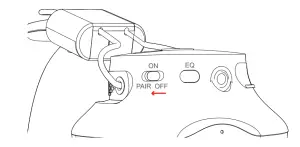
Note: The four headphones and the transmitter of Q5049 are factory pre-paired.
For future use, all the devices will auto-reconnect once they are powered on.
Connect the Transmitter to your TV or another audio source
Check your audio source output options before connecting
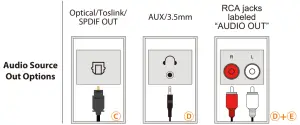
If your TV has Optical Out>
- Please use the Optical cable Ⓒ to connect the transmitter and TV. Ensure the “OPT” LED on the transmitter is lit. If not, please press
 once.
once. - Go to your TV’s SOUND settings, make sure that the AUDIO OUTPUT has been set to “External Speaker” or “Optical Out”.
Note: SomeTVs automatically adjust this step for you while others do not. - Set your TV’s Audio Format / Digital Sound Out to “PCM”(or STEREO) and set the Dolby / DTS Digital to “OFF”. Now you can stream audio from your TV.
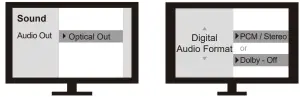
NOTE: If you do not know how to change the settings on your TV, or if you cannot hear anything through your headphones after changing the settings, please contact your TV manufacturer for support.
If your TV has Headphone (3.5mm) Out>
Please use the AUX cable Ⓓ to connect the transmitter and TV. Now you can stream audio from your TV.
If there is no sound playing from the headphone, please set the Sound Out/Speaker setting on your TV to “Wired headphones” or “Headset”.
If your TV has Red / White Audio Out (RCA – only for TV)>
Please use the AUX cable Ⓓ and RCA cable Ⓔ to connect the transmitter and TV. Now you can stream audio from your TV.
If there is no sound playing from the headphone, please set the Sound Out /Speaker setting on your TV to “External Speaker”.
Ensure you are using the TV Red / White ports labeled “AUDIO OUT” as the other Red/White ports are incorrect.
To “Bypass” the Q5049
If you want to use your sound system for TV watching, you can connect your sound system to the “Bypass / Speaker” port of the Q5049 transmitter.
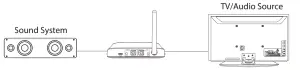
- If you are using an AUX/RCA cable with your TV, please use an AUX /RCA cable to connect the Q5049 transmitter to your sound system.
- If you are using an OPTICAL cable with your TV, please use an OPTICAL or AUX / RCA cable to connect the Q5049 transmitter to your sound system.
Add the 5th or more headphones
- Turn on the Q5049 transmitter, set it into PAIRING MODE manually –Press and hold
 for 2 seconds until the “Status” LED starts flashing WHITE quickly.
 - Set the headphones into Bluetooth PAIRING MODE (From power ON status, slide the power switch to PAIR and hold for 3s
 , LED flash BLUE quickly).
 - Keep the devices close to each other and wait. Once connected, the“Status” led on the transmitter will show solid WHITE, and the headphones LED will show solid BLUE.
Note:
- The Q5049 4 headphones are factory pre-paired, normally there is no need to pair them. If a connection issue occurs, please repeat the above steps to reconnect the headphones with the transmitter.
- When you add more headphones with the Q5049 transmitter, the audio will be paused in the previously connected headphones and resume as soon as the pairing headphones are connected successfully.
Using the Headphones as a wired mode
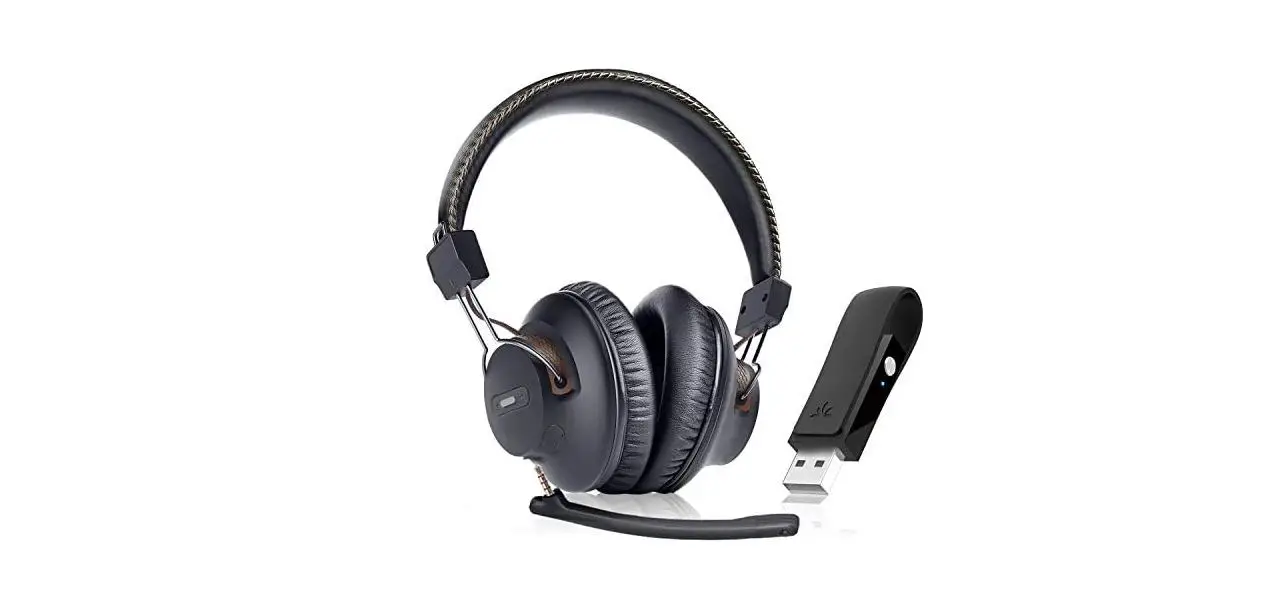
Please use the provided audio cables Ⓗ / Ⓘ with the headphones as the wired mode, you can use the headphones to make phone calls with the line-in microphone audio cable Ⓘ.
Charging headphones
Please charge the headphones if the LED of the headphones flashes RED. You can charge using a phone charger (5V/500mA-2A output), PC USB port, TV USB port or any other USB outlet using the included USB cable. It takes about 3.5 hours to fully charge the headphones. The LED will turn RED during charging and automatically turn off once charging is complete.
 Dispose of the packaging and this product in accordance with the latest provisions.