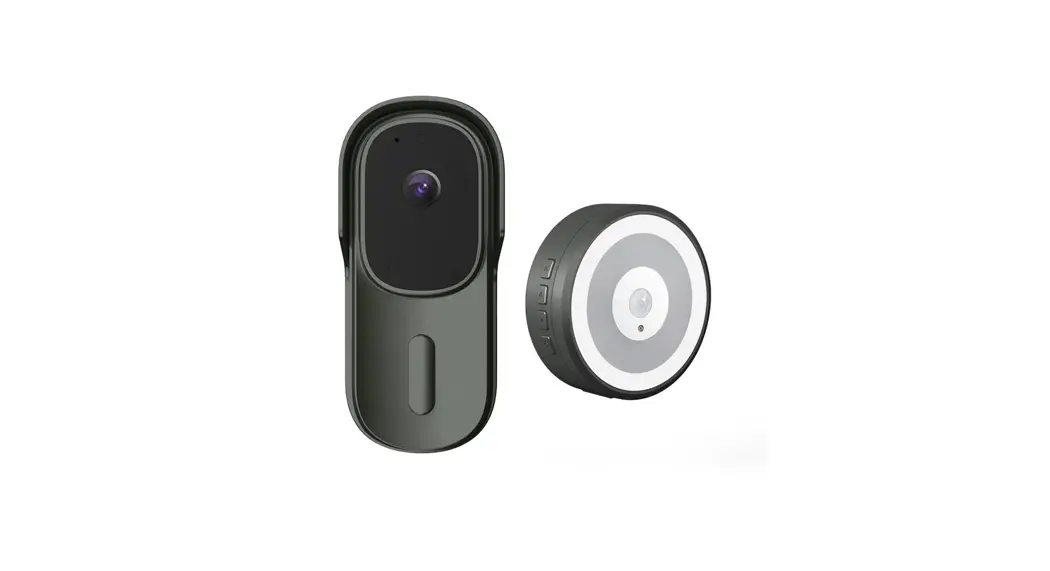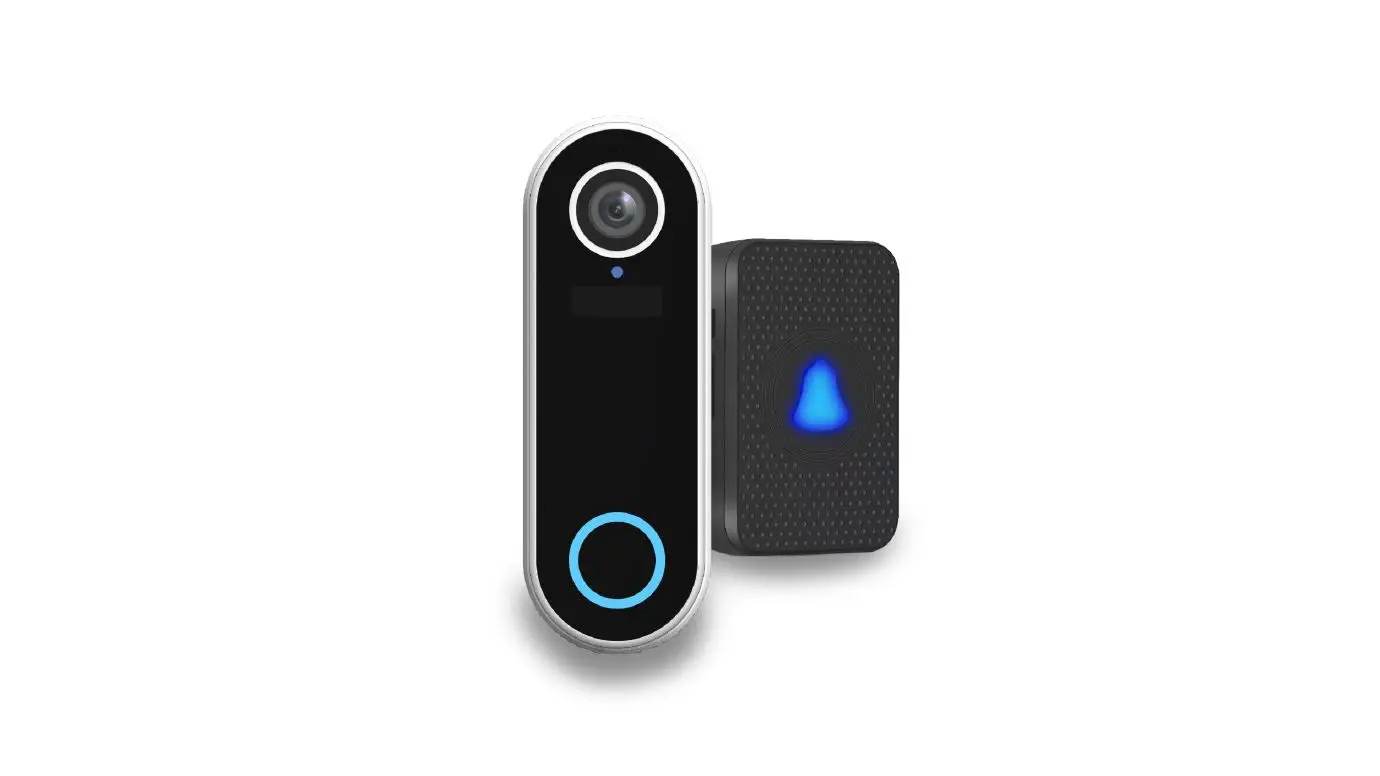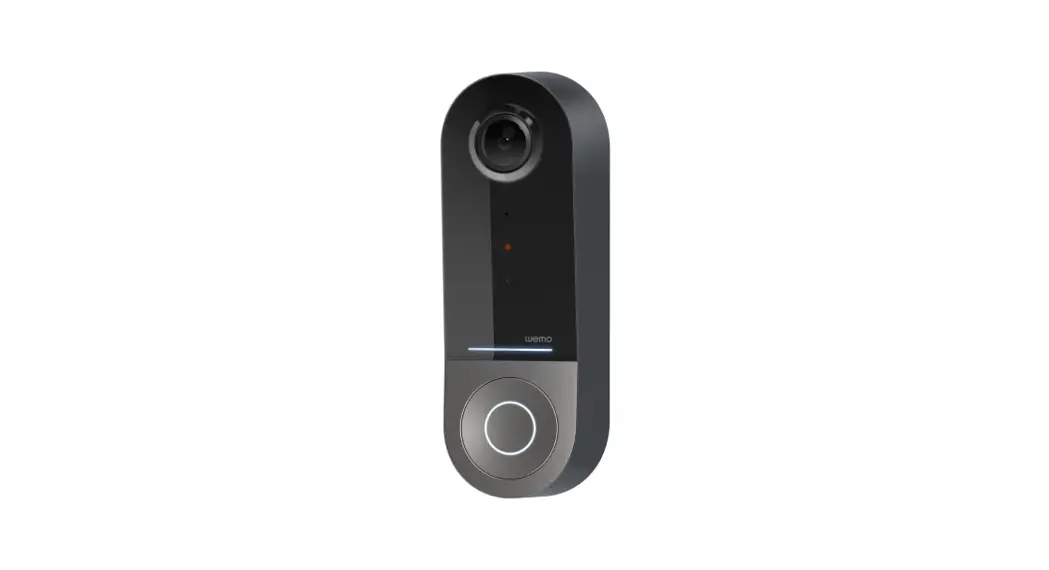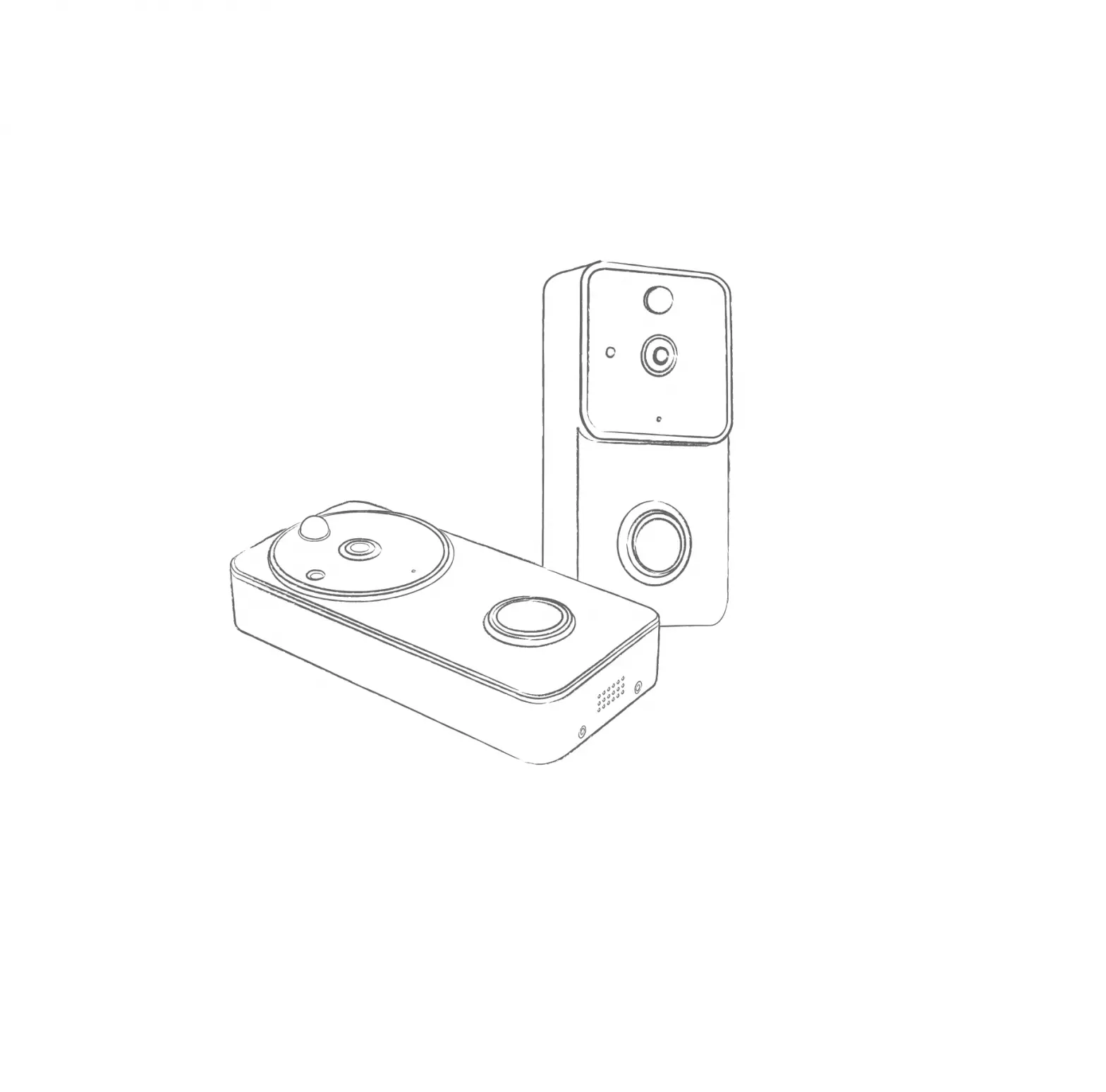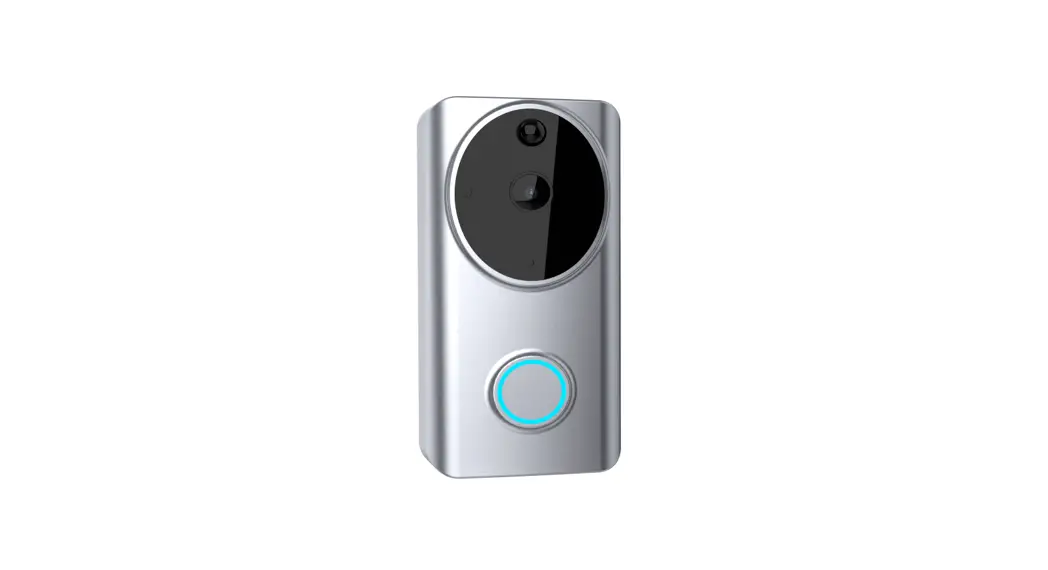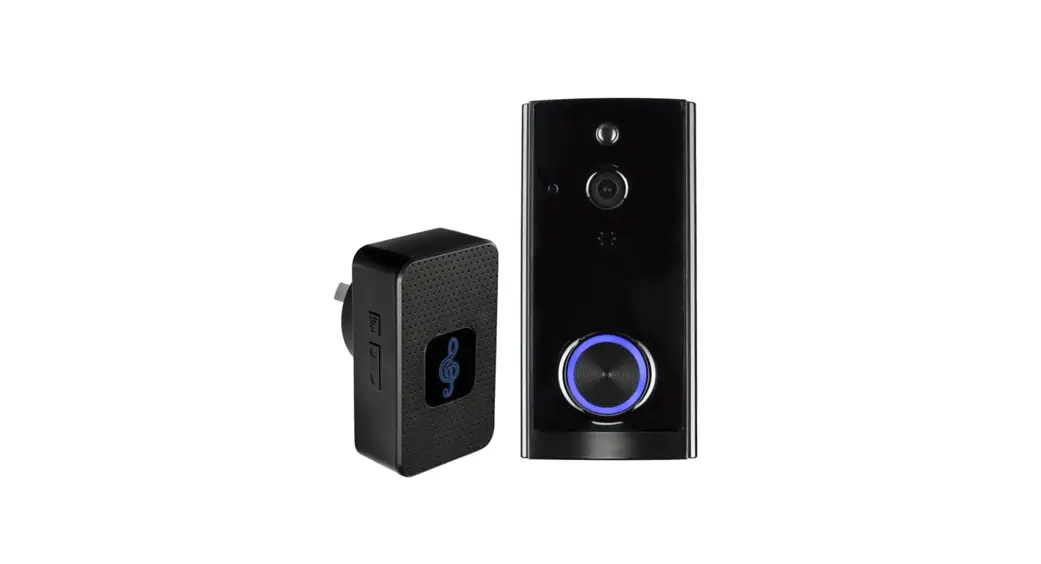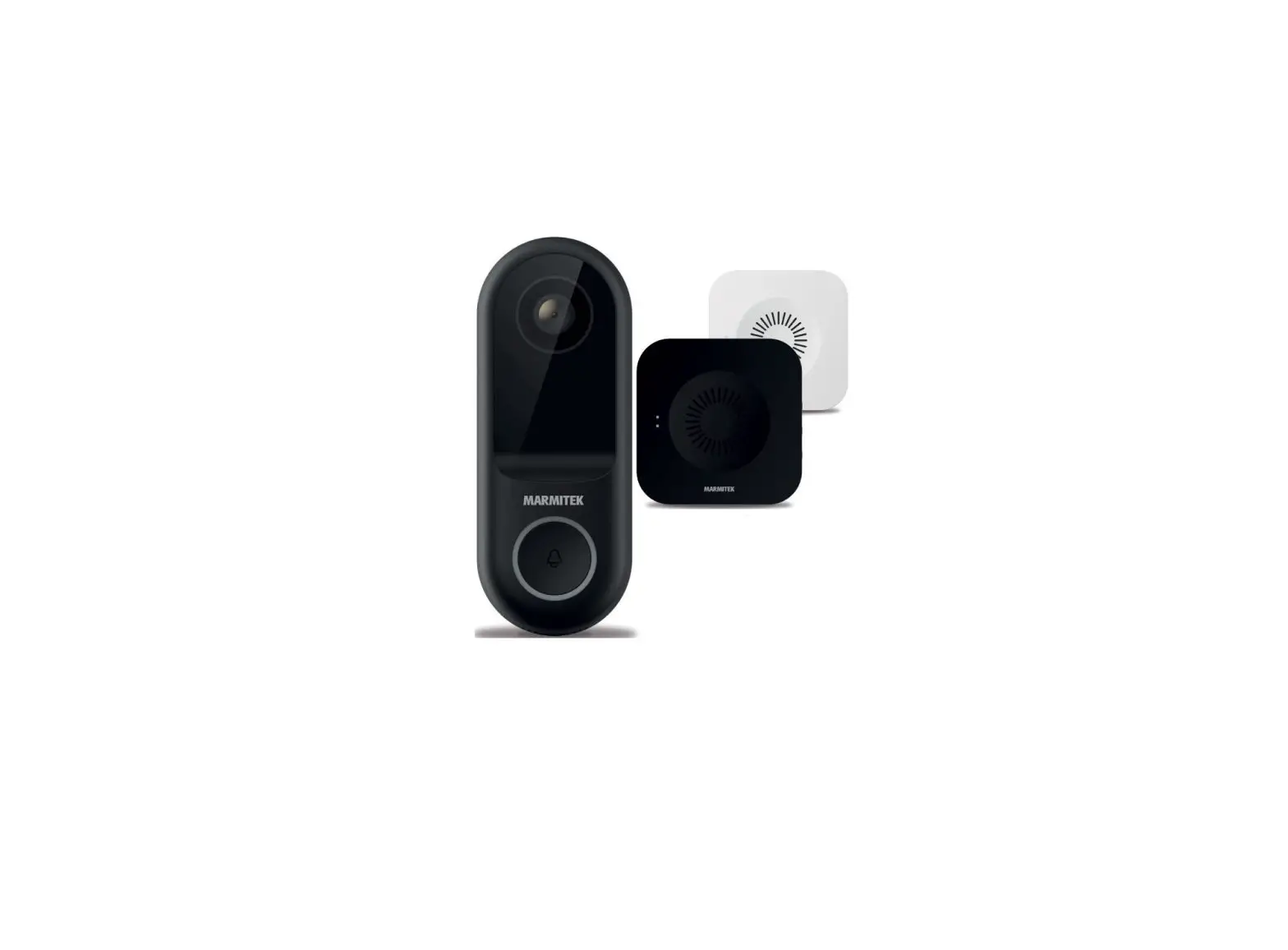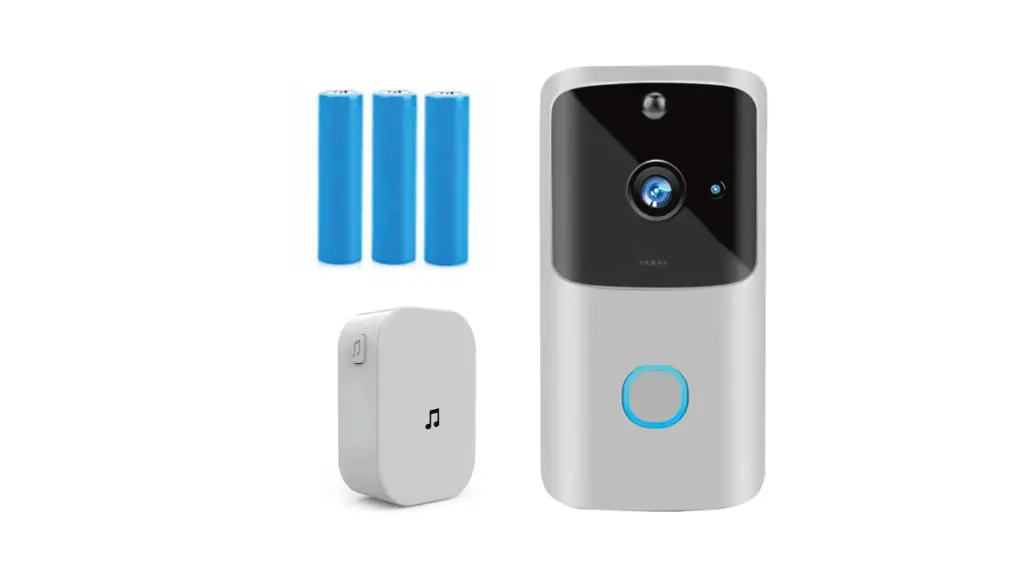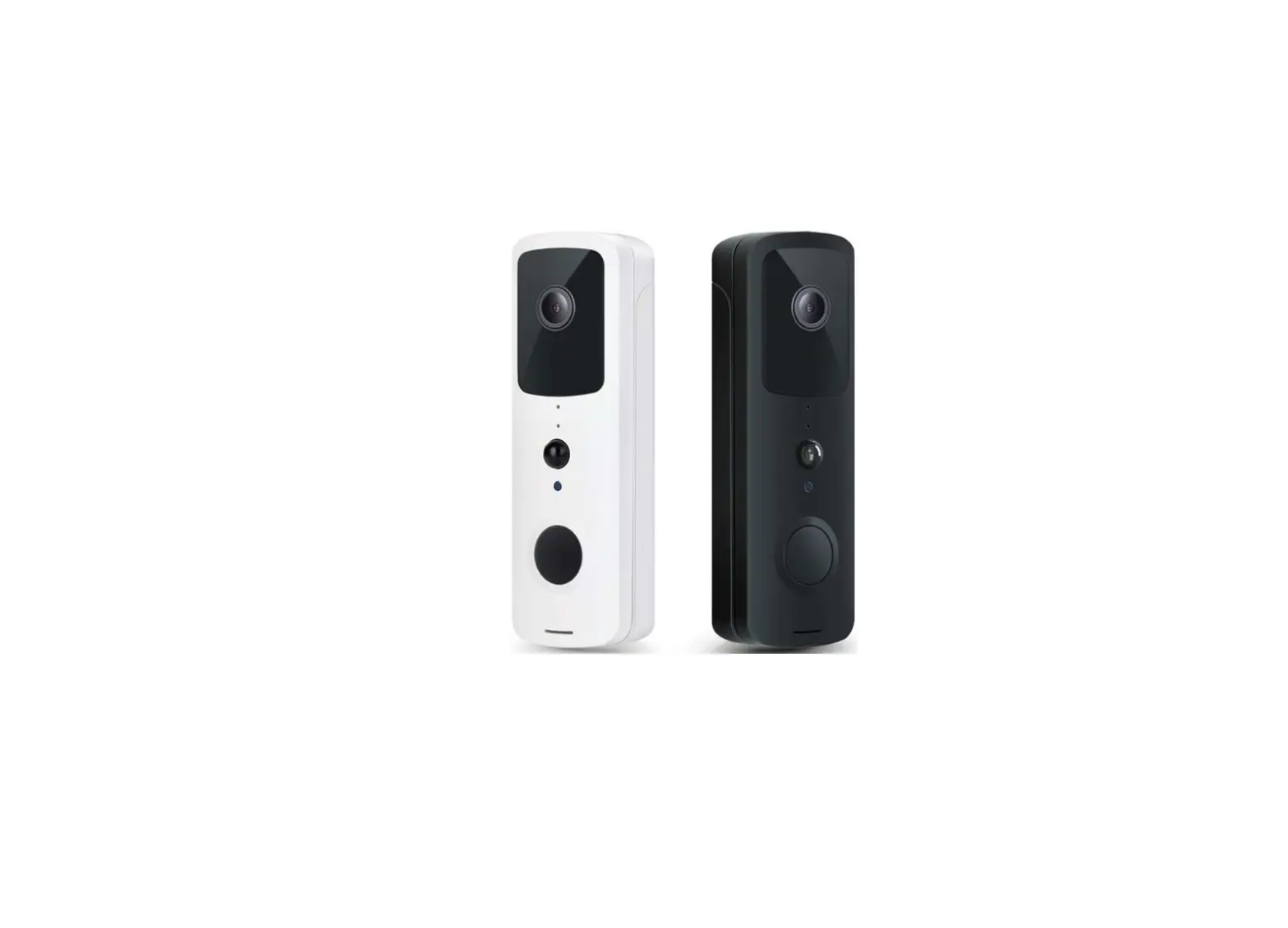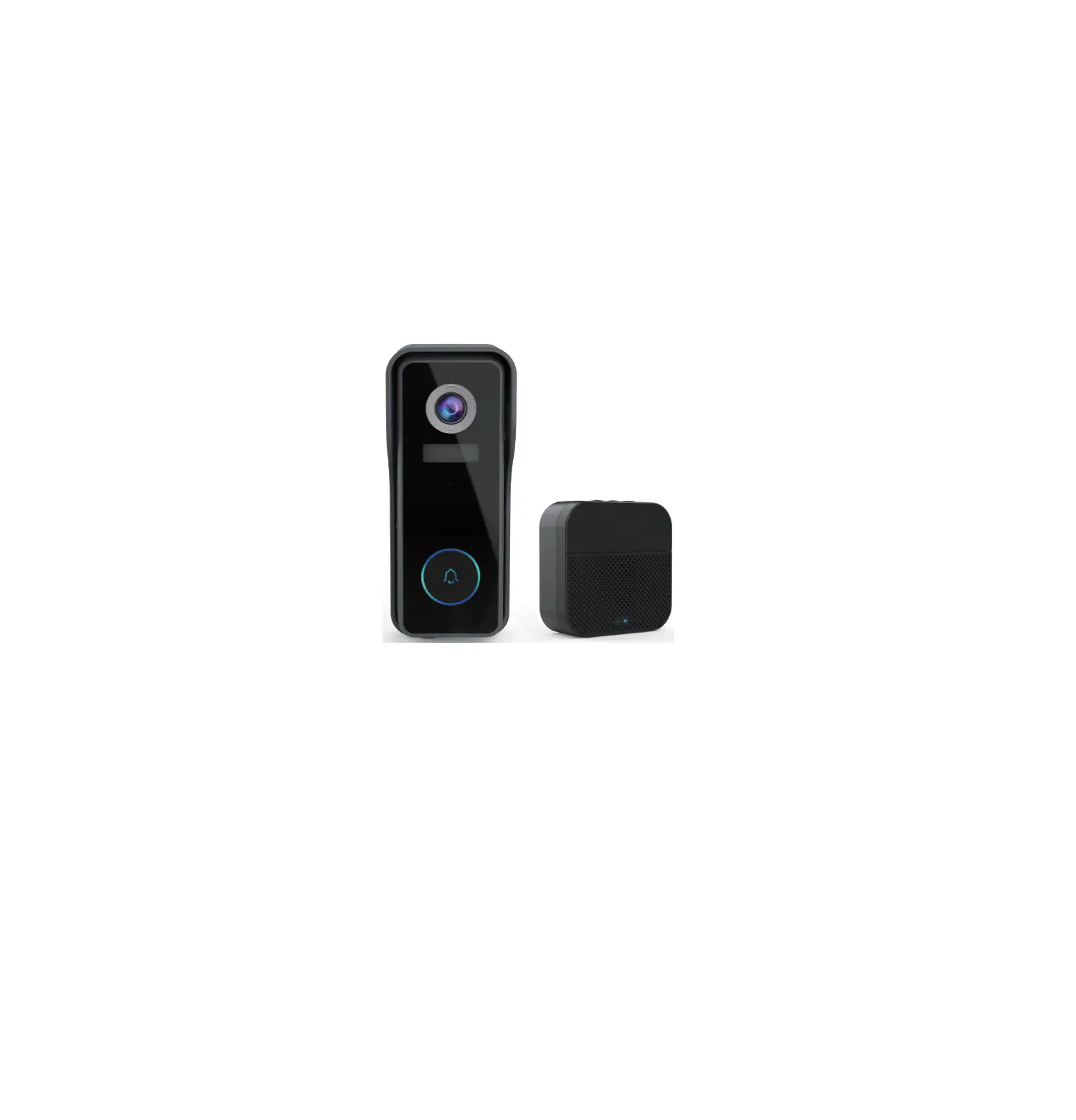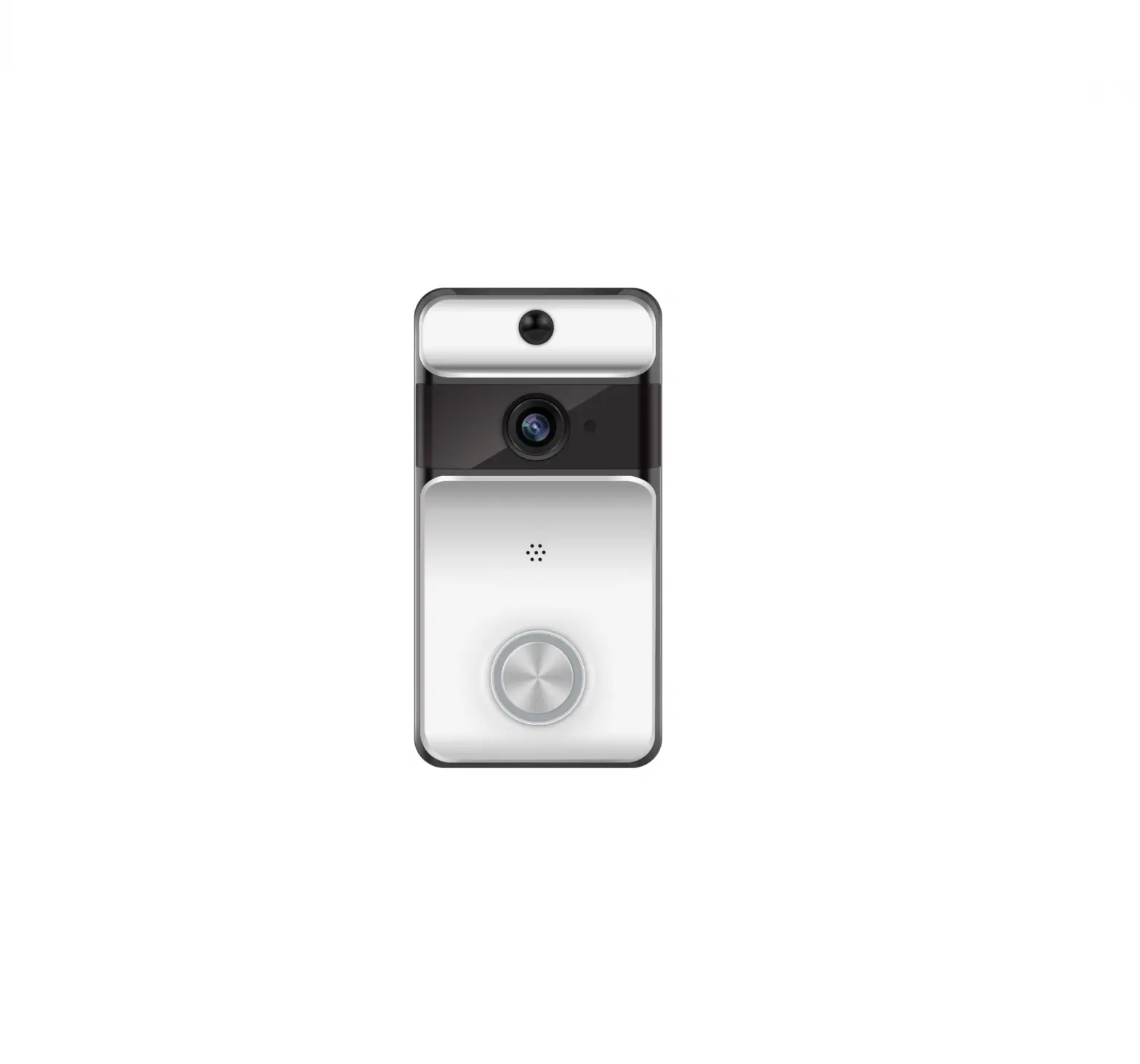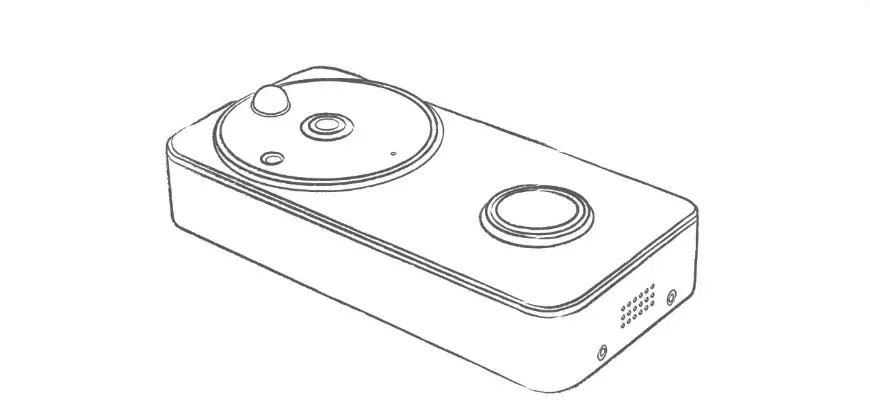
 Kogan SmarterHome Wireless Smart Video Doorbell
with Chime
KASHSDRBELA
Quick Start Guide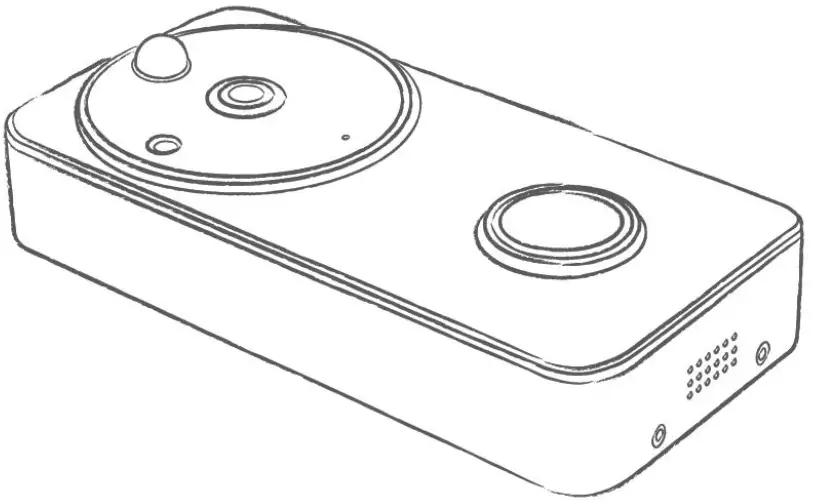
Contents hide
Overview
Product Drawing

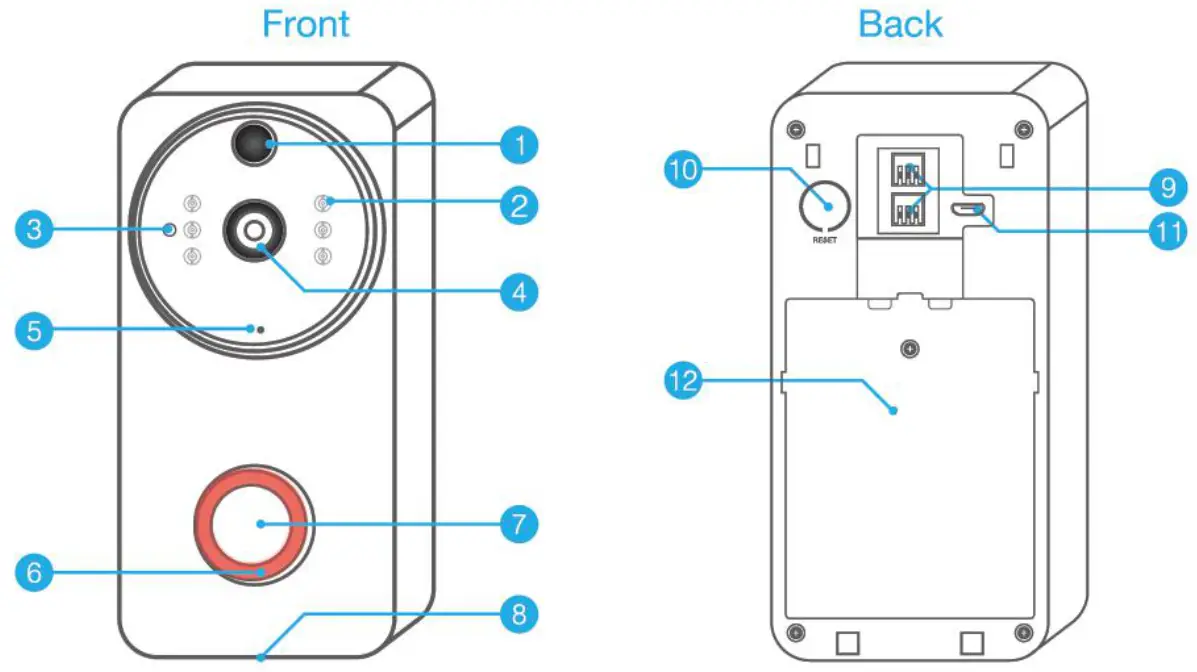
| 1 | PIR Motion Sensor | 5 | Microphone | 9 | 8V-24V AC Power Port |
| 2 | Infrared LED x 6 | 6 | Indicator | 10 | Reset Button |
| 3 | Light Sensor | 7 | Push Button | 11 | Micro USB Port |
| 4 | 166° HD Camera | 8 | Speaker | 12 | Battery compartment cover |
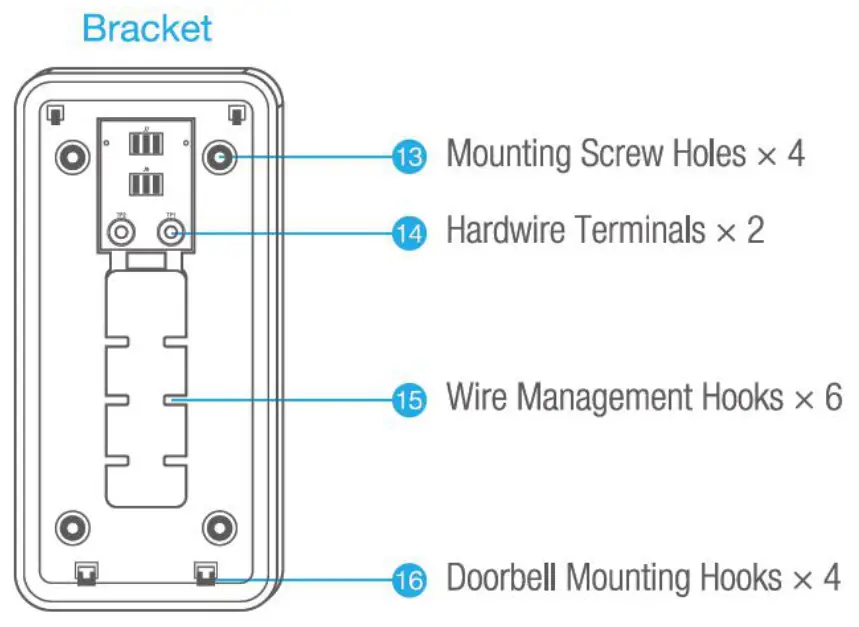
Power Supply
Hardwire Power Source

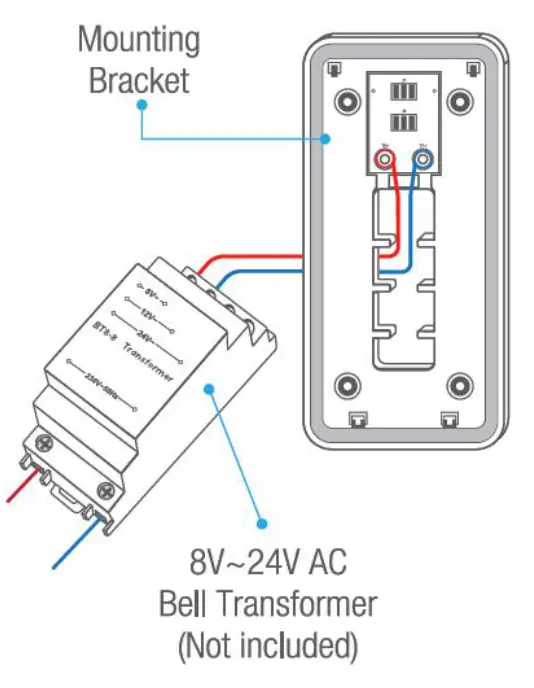
Notice:
Bell transformer is not included.
Please operate under the direction of a professional.
Powered by Battery

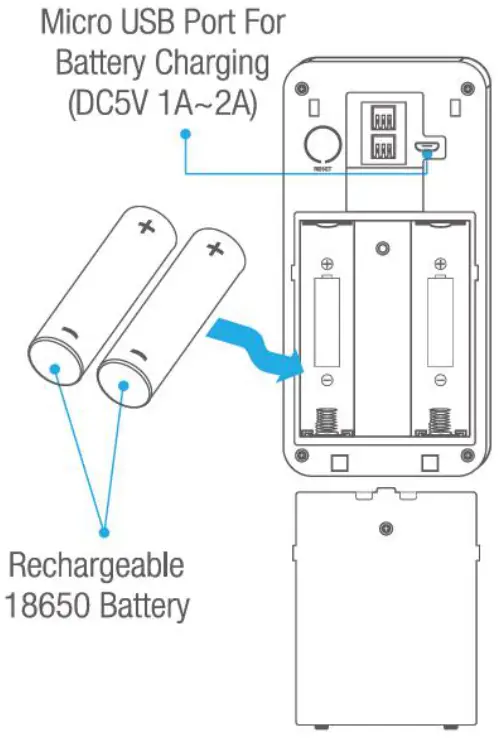
Warning:
- Please note the battery polarities. Insert the 2 batteries with positive sides upwards.
- Incorrect battery installation can damage the device and may cause a fire.
Application Guide
Download the “Kogan Smarter Home” app from the Play Store (Android) or App Store (iOS).
Register SmarterHome Account
If you do not have a Kogan Smarter Home account, register or sign in with a verification code sent by SMS.
To register:
- Tap to enter the registration page
- The system automatically recognizes your country/area. You can also select your country code manually. Enter your mobile phone number/ email address and tap “Next”.
If you choose the mobile phone number option, then enter the verification code in the message sent to you by SMS. Set a password as prompted and press “Confirm” to finish your registration.
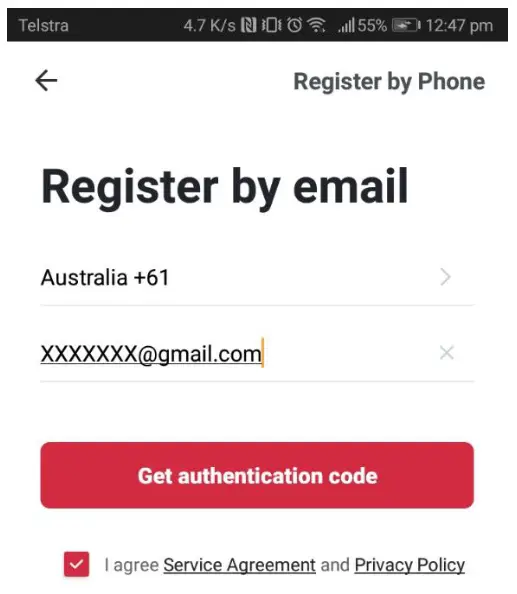
Create a profile on the next page to define your location and room.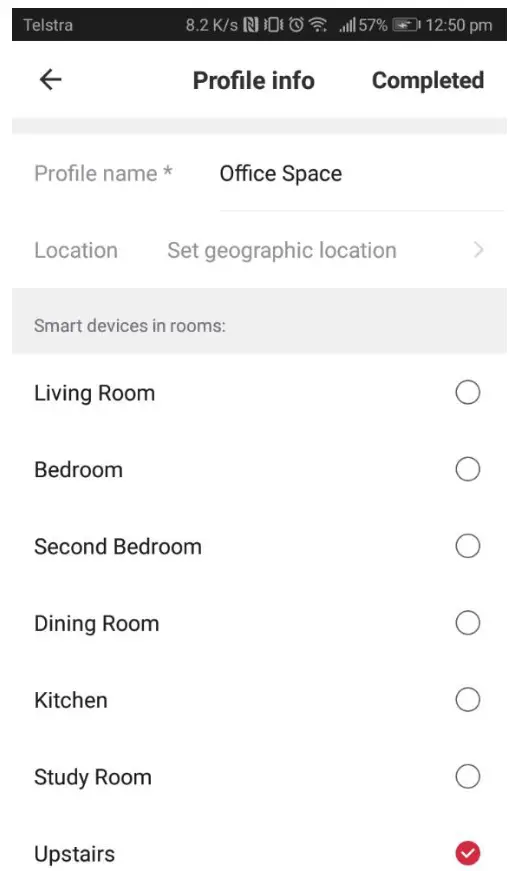
Add Device Through Network
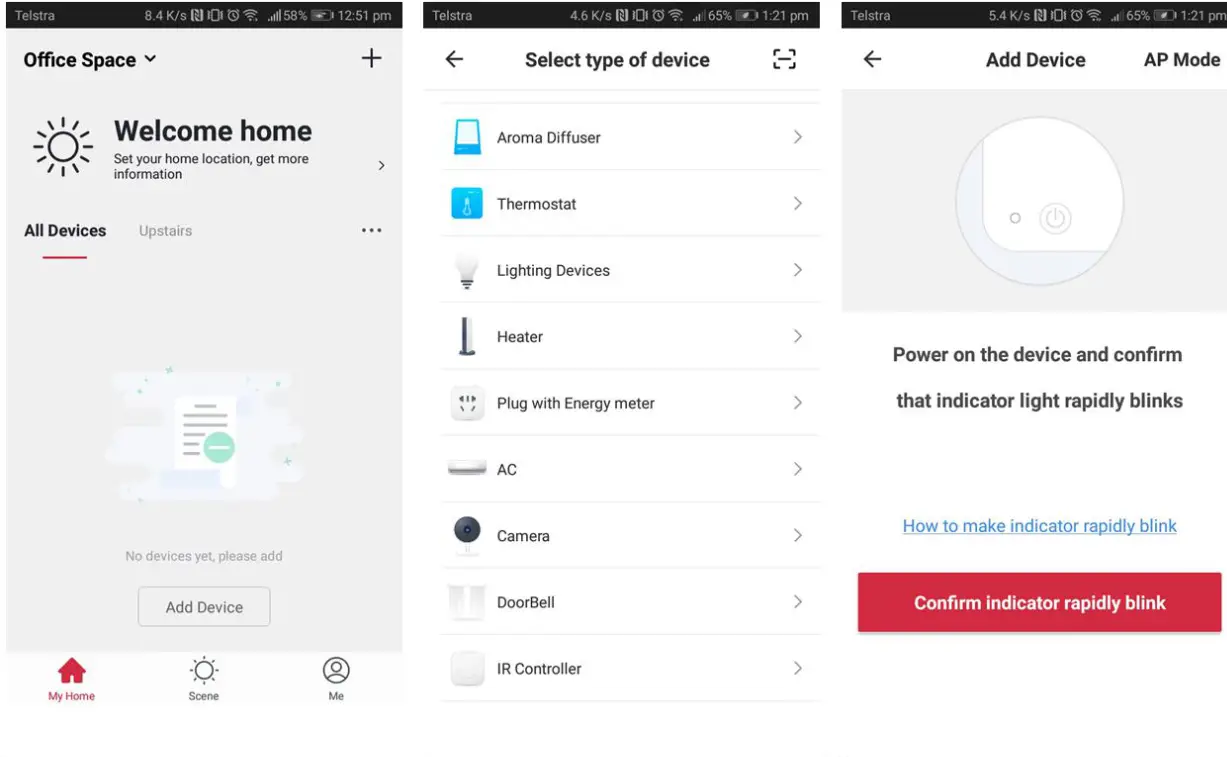
- Power the SmarterHome device on and follow the product-specific instructions to enter the Wificonnect mode.
- Open the Kogan SmarterHome app and tap “+” in the upper right to add a new device through the network.
- Select the type of device you want to connect to on the next screen.
- Ensure the device’s indicator light rapidly flashes and tap “Confirm light is rapidly flashing”.
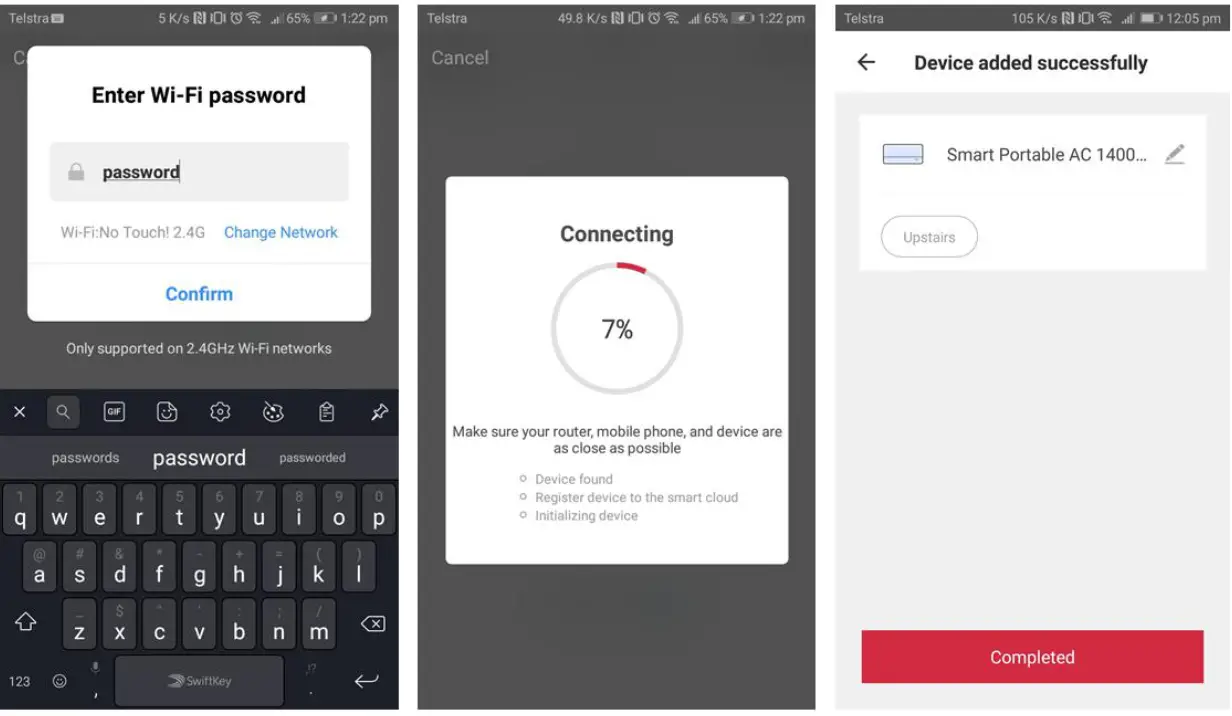
- Select Wi-Fi network (note: network must be 2.4Ghz band) and enter the password.
The device will commence the pairing process and connect to the app.

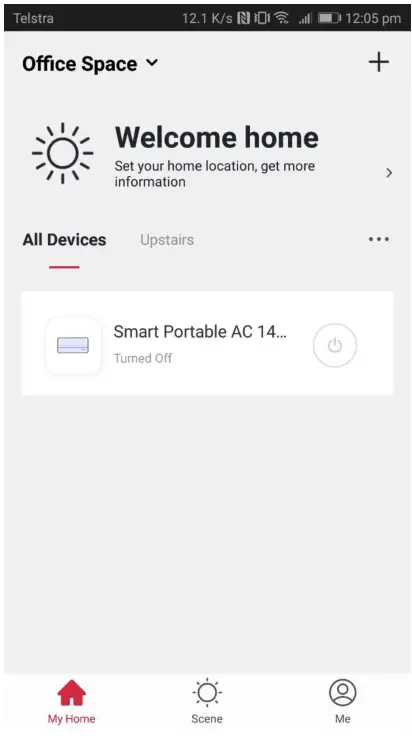
- After successfully configuring the devices, the device will be shown on the home page. Tap to enter its control page.

Installation
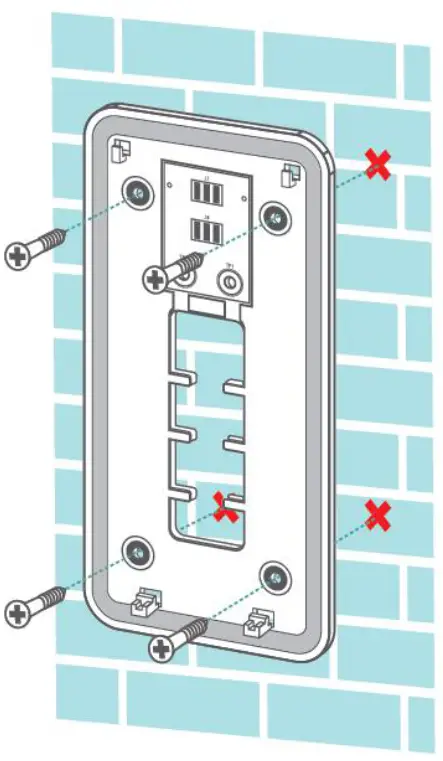
- Positioning the mounting bracket.

- Install the mounting bracket.

- Place the device on the bracket

- Tighten the security screw.

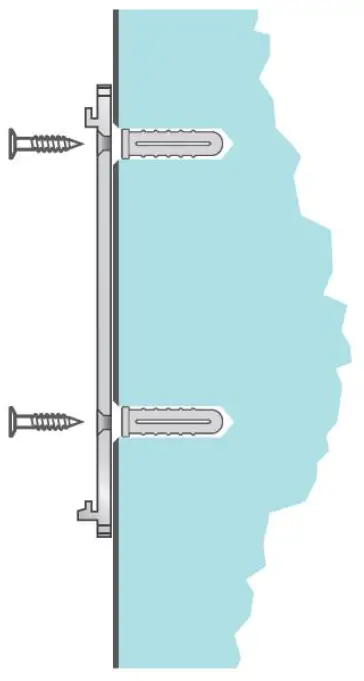
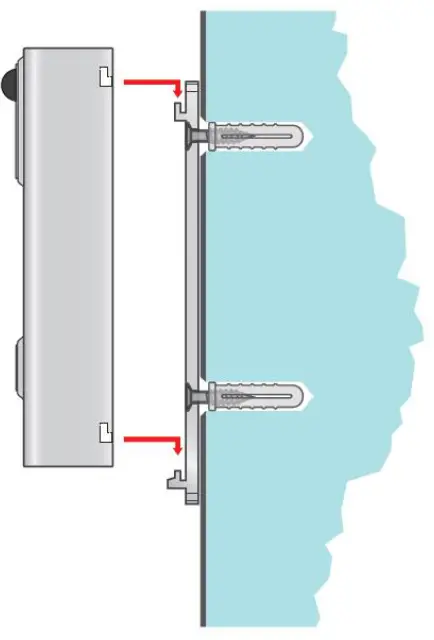
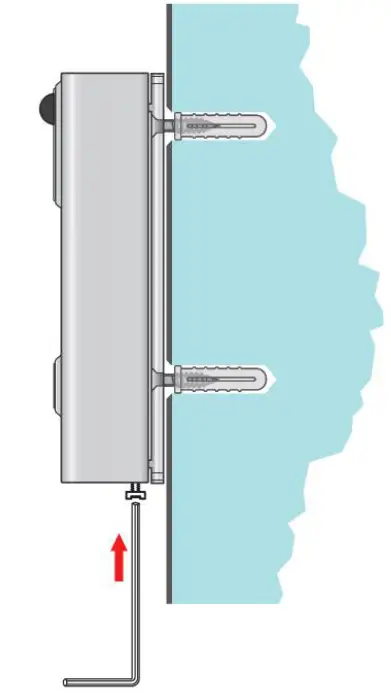
Specifications
| Video & Audio | |
| Image Sensor | 1/4″ CMOS OV9732 |
| Resolution | 720P |
| Effective Pixels | 1280x720px |
| Frame Rate | 1 ~25 FPS |
| Infrared LED | 6 pcs IR LED, IR range: 6m |
| Lens | 1,7mm/F2.0 |
| Scene Angle | 166° |
| Min. Illuminance | Color: 0.01 Lux: B&W: 0.001 Lux |
| Image Setting | BLC, Infrared, HLC, Motion Compensation, WDR |
| Audio | Two-way audio intercom with noise cancellation |
| Storage | |
| Storage Type | Micro SD Card (Max 32G) |
| Video Length | 15s/30s/45s Settable |
| Recording | Triggered by push button or PIR motion sensor |
| Network | |
| Wi-Fi Frequency | 2.4GHz |
| Standards | IEEE 802.11 b/g/n |
| Live View Speed | within 3 ~4 Sec |
| Application | |
| App Name | SmarterHome |
| OS | iOS android |
| Remote View | Within 2 sec |
| Notification | Notification push within 2 sec |
| Other | |
| Working Temp & Humidity | -20°C ~+50°C: <90% (No condensation) |
| Power | 18650 Battery x 2 or by hardwire power 8V-24V AC |
| Standby Current | 170M |
| Working Current | 200mA |
| Standby Time | 6 ~8 Months |
| Working Time | 4~6 Months (10 times wake up per day) |
| Battery | Rechargeable 18650 Battery |
| Device Sharing | Up to 5 users, (support 3 user live view simultaneously) |
| Size (mm) | 67 x 38 x 136 |
| Weight (g) | 300 |
Chime
Product Drawing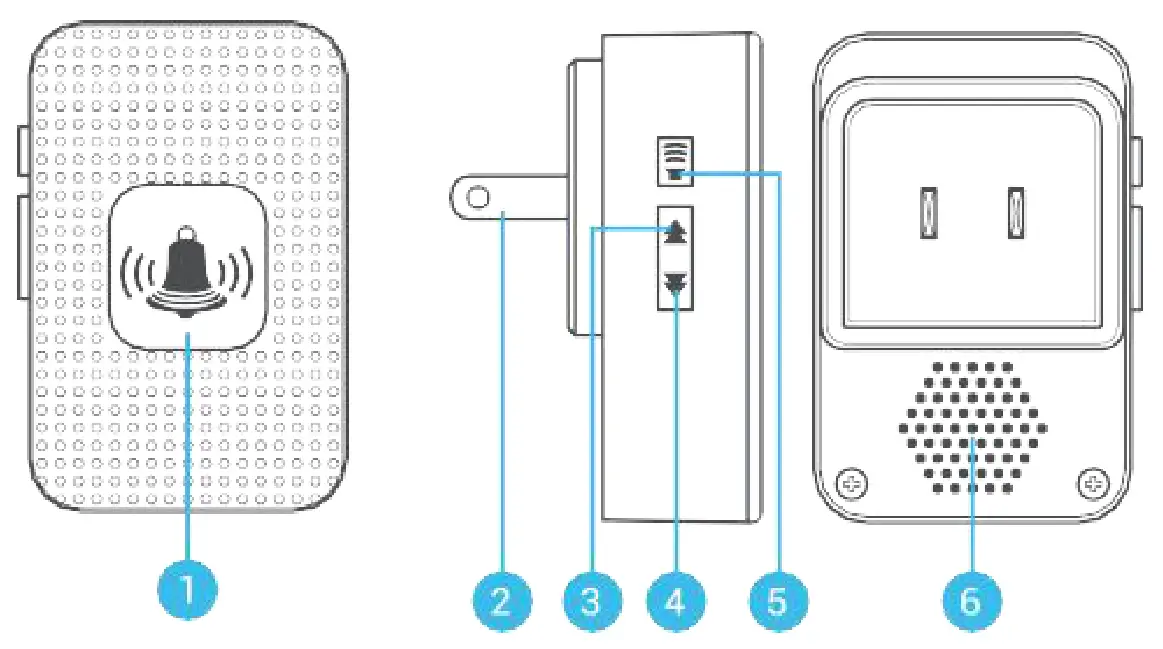
| 1 | LED Indicator | 4 | Next Ringtone |
| 2 | Power plug | 5 | Volume Control Button |
| 3 | Previous Ringtone | 6 | Speakers |
Features
- Plug & Play, easy to install and use.
- Five Levels Volume Control, max volume: 110 decibels.
- 40 Ringtones, with LED indicator.
- 650ft/200m Wireless Working Range in Open Area.
- No batteries, small in size, low power consumption.
- Wireless connection with video doorbells; Support “one-to-many” and “many-to-one” paring.
First Time Use
- Plug the chime into an outlet. The default ringtone “Ding-dong” will be played at volume level 5, with the LED indicator blinking.
- A short press on the volume control button to adjust the volume. Level 1: mute (only the indicator flashes). Level 2 ~ 5: the volume gradually increases.
- Ringtone selection:
Press on “previous/ next button” to select ringtone.
Press and hold “volume control” for 5 sec to use the selected ringtone.
Chime Pairing
- Select your favorite ringtone, press and hold the volume control button for 5 seconds till you heard a “ding” sound. The chime will be in pairing mode for 8 seconds.
- Press the call button 1-2 times on a video doorbell nearby, and a “ding-ding” alert sound will be heard from the chime. Pairing succeeds.
Note: The chimes and doorbells support “one-to-many” & “many-to-one” pairing. - Press again the call button on video doorbell, and the indoor chime will alert with the selected ringtone, LED indicator blinking.
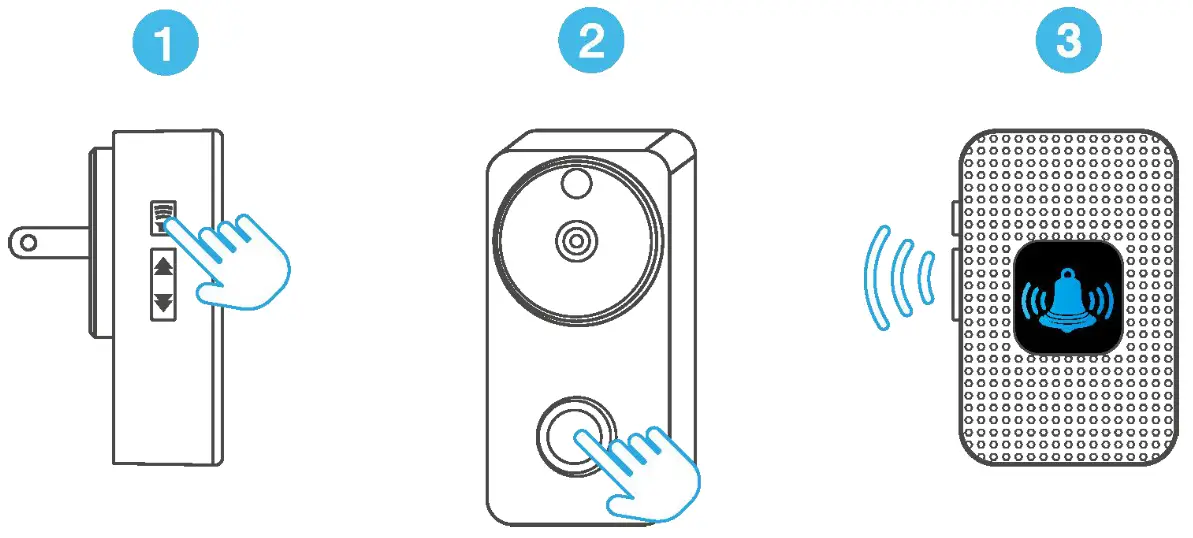
Clear Connection
- Press & hold the next button for 5 seconds till you hear a “ding”.
- The indoor chime will be restored to factory default.
Chime Specifications
| Speaker | 5 levels volume control |
| Mute | Support |
| Ringtone | 40 ringtones |
| Max Volume | 110 dB |
| Power Type | AC power plug |
| Input Voltage | 110V-260V AC (50-60Hz) |
| Consumption | 0.2W |
| Frequency | 433.92MHz ± 280KHz |
| Range | 650ft / 200m ( in open area) |
| Ingress Protection | IP55, indoor use |
| Working Temp. | -30℃~ 70℃ |
| Humidity | <90% (No condensation) |
| Size (mm) | 71×46×28 (Not including plug) |
| Weight | 78 |
Troubleshooting
| Problem | Solution |
| 1. How do you add another user on a different cell phone? | The owner can share the device to 5 other users in app and maximum 3 users can view live video simultaneously. |
| 2. The doorbell cannot be connected. | a). The device works with 2.4GHz Wi-Fi only, but not support 5GHz Wi-Fi. b). Wi-Fi network is not good, try to keep the doorbell near the Wi-Fi router when setting up. O. The Wi-Fi password is wrong. Please check if there are special characters in the password or the network is specially encrypted. |
| 3. How do I know if I have 2.4G or 5G Wi-Fi? | Please check the user manual of your Router or call the network operator for help. |
| 4. It has to be on same Wi-Fi to see its video or is it over internet from anywhere? | You can access to the device anywhere, if it is connected to the internet. |
| 5. Do any of the recordings get saved to the cloud? Or it is mainly saved in the built-in SD card? | It is mainly saved in the built-in SD card. |
| 6. Can you have two units ringing same chime & also work on one app. | Yes, the video doorbell and its indoor chime support “one-to-many” and “many-to-one” wireless connection. |
| 7. What type of smartphone is needed for this device? | iOS and Android smartphones are supported. |
| 8. How can the doorbell be linked to two different phones? | You can log in one device and share it with your family in setting menu. |
| 9. How long does it take to charge the batteries? | About 10 hours. |
| 10. What happens when the SD card is full? Will the doorbell automatically erase oldest footage for new ones? | When the memory card is full, the doorbell automatically erases the oldest footage. |
| 11. Does it work with Google Home? | No, it does not work with Google Home. |
| 12. Why does it lose connection to Wi-Fi? | Please check the network connection of your phone and the Wi-Fi router. If the network signal is not good, device may not be connected. |
| 13. Can the motion detection be disabled, and can it be set to record automatically with motion detection? | Yes. Recording is triggered by detected motion. And users can disable motion detection in app setting menu. |
| 14. Does it come with charger for the batteries? | Battery charger is not included. However, you can charge the batteries with DC 5V 1A-2A power adapters (same as the charger for most Android smartphones). |
| 15. Can you have 2 doorbells (front & back) at same residence?” | Yes, you can add as many as you like to your device list. |
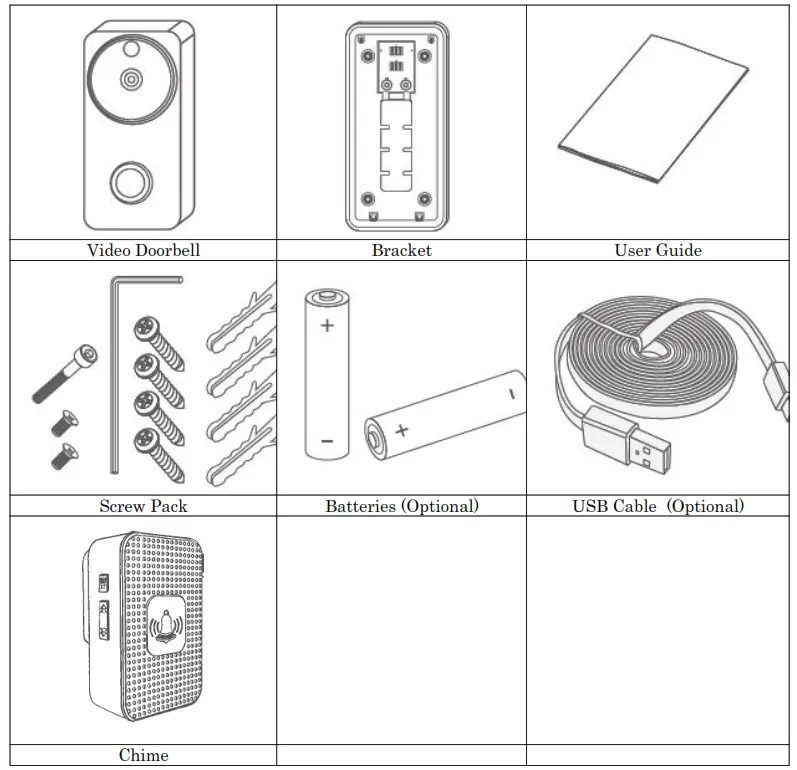
In the Box

User manual is subject to change without notice. For the latest version of your user manual, please visit https://www.kogan.com/usermanuals/