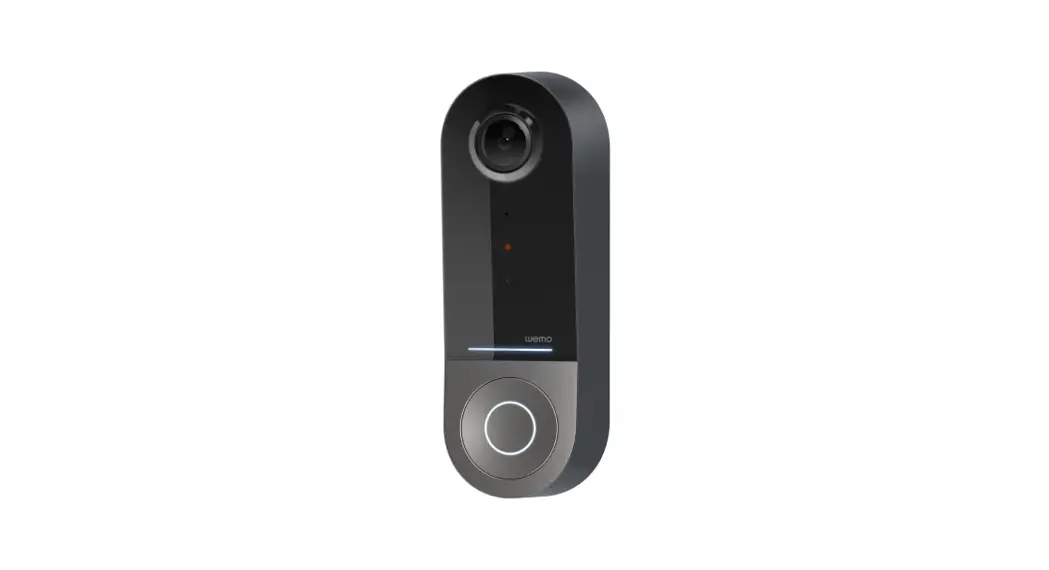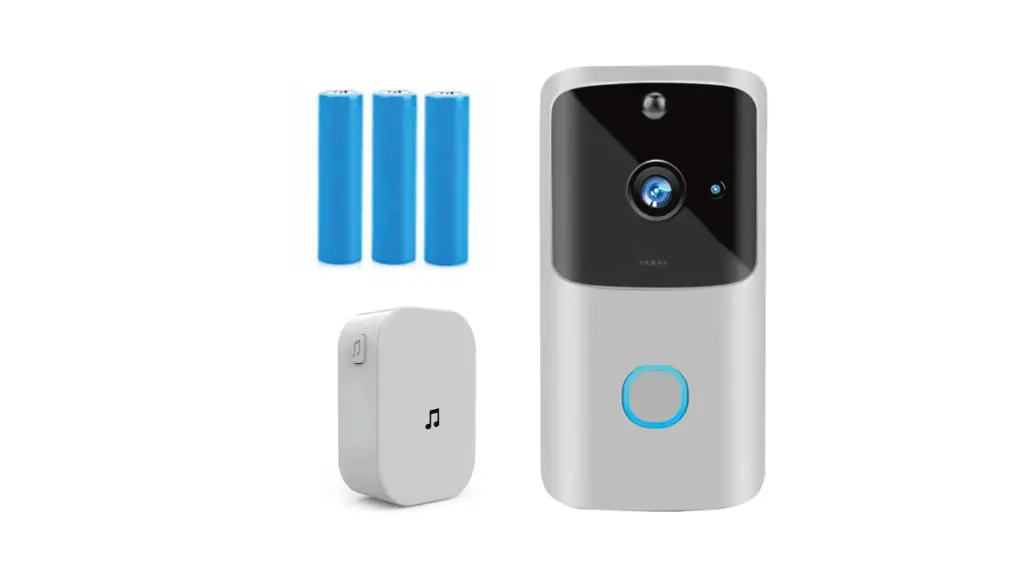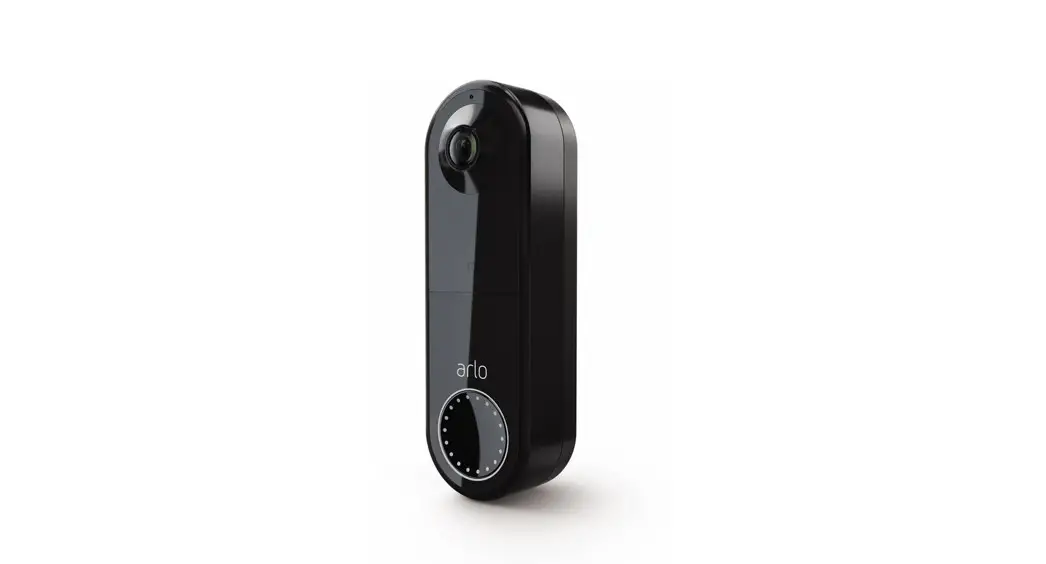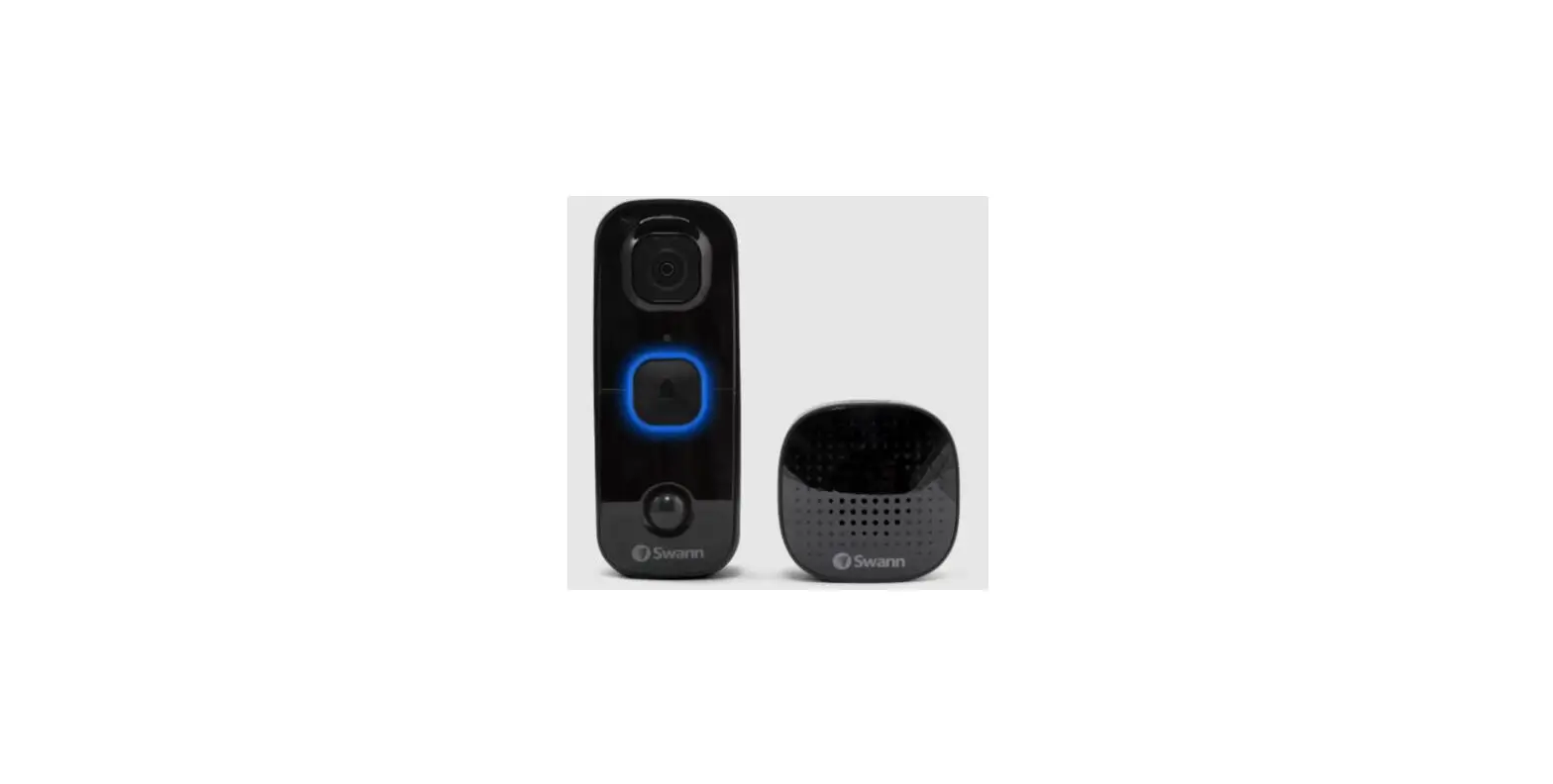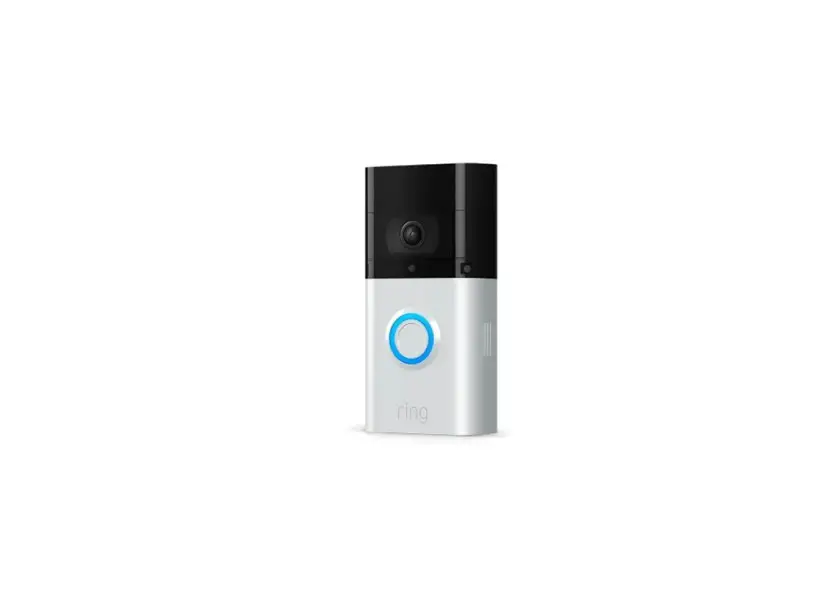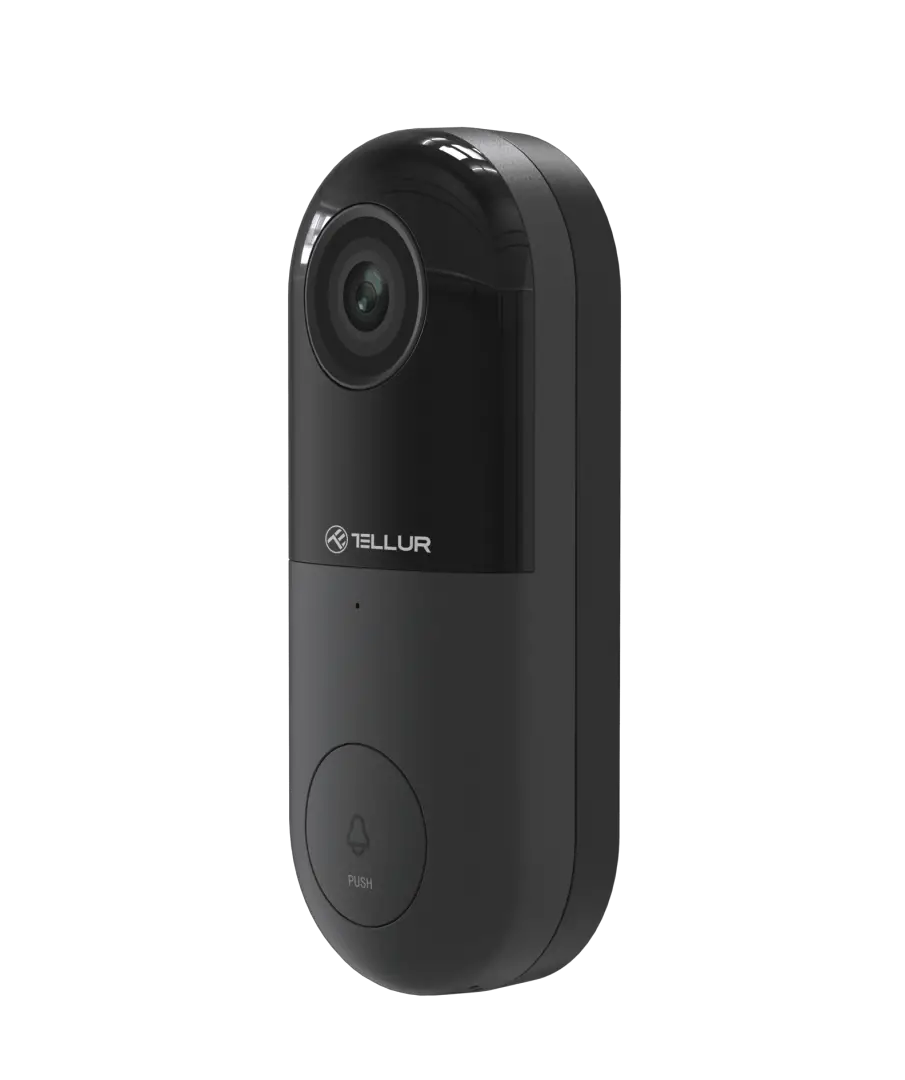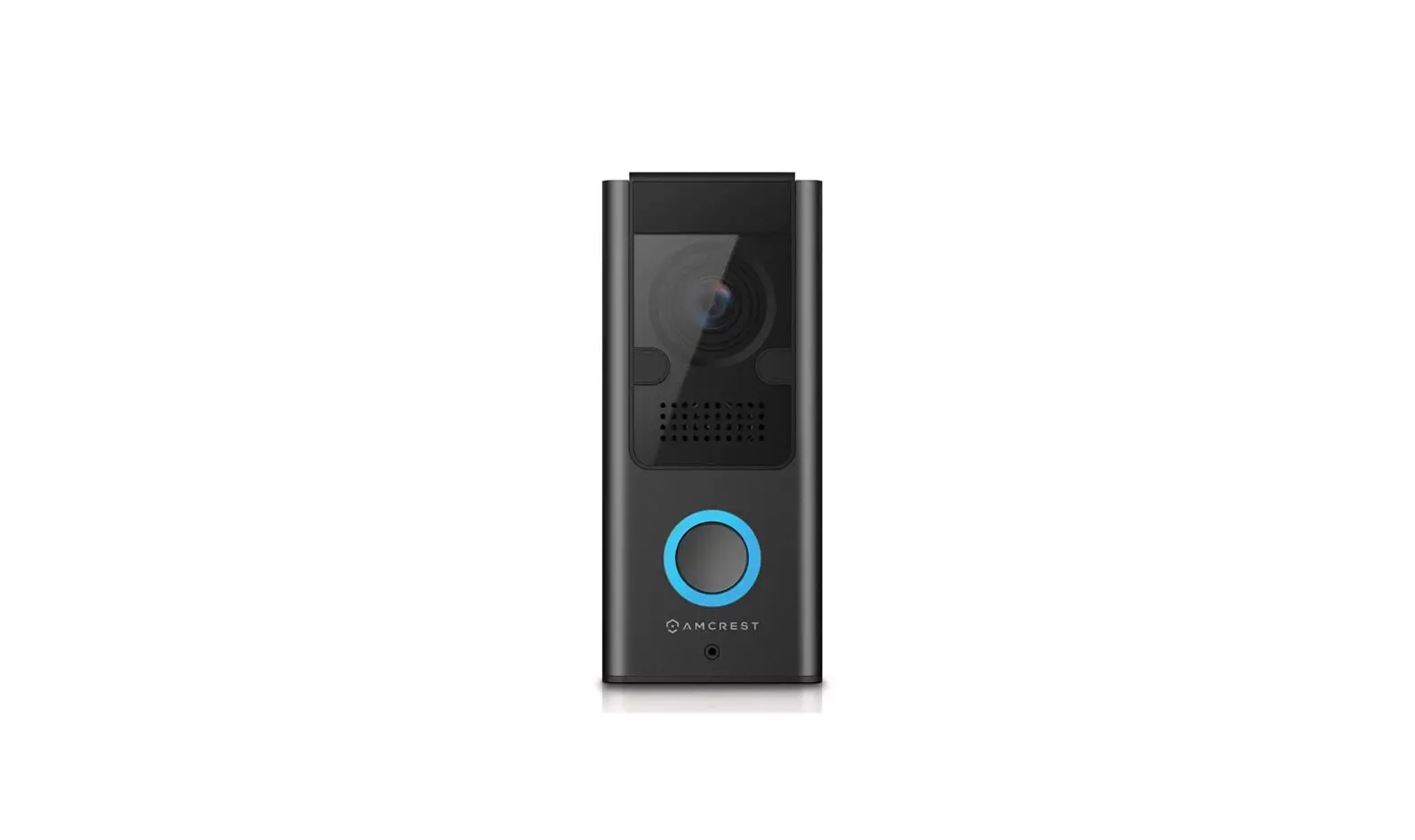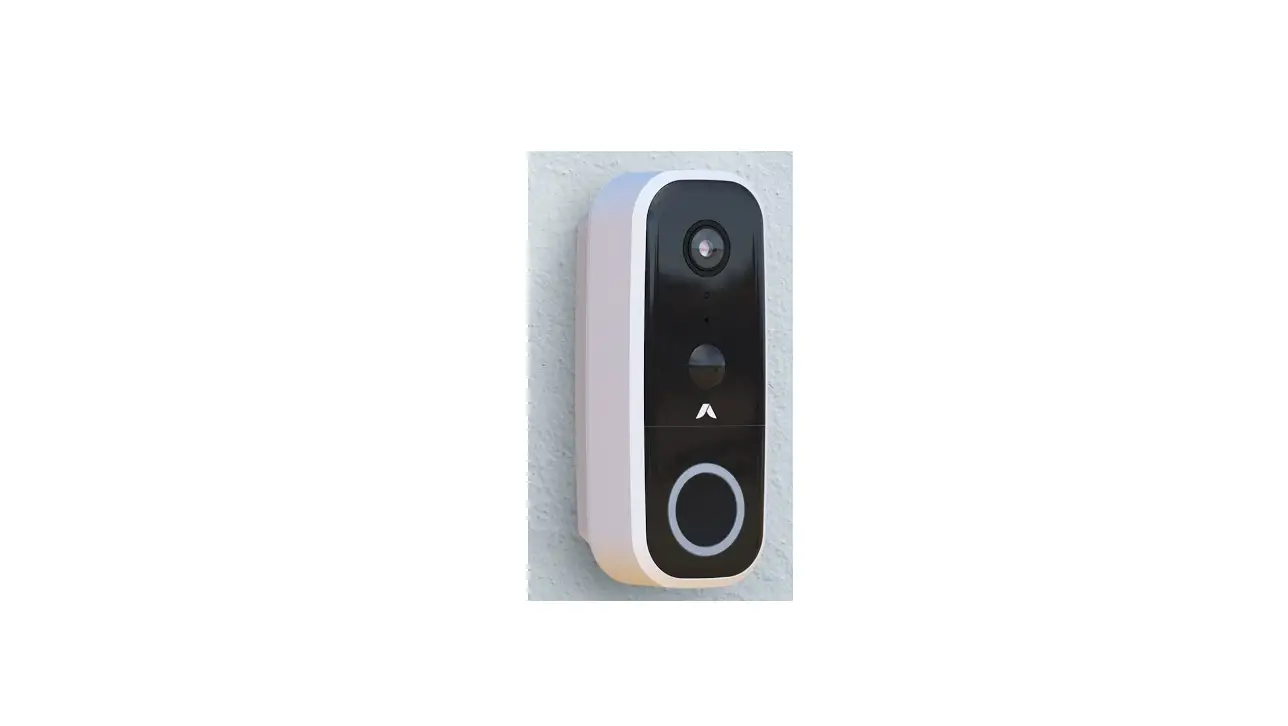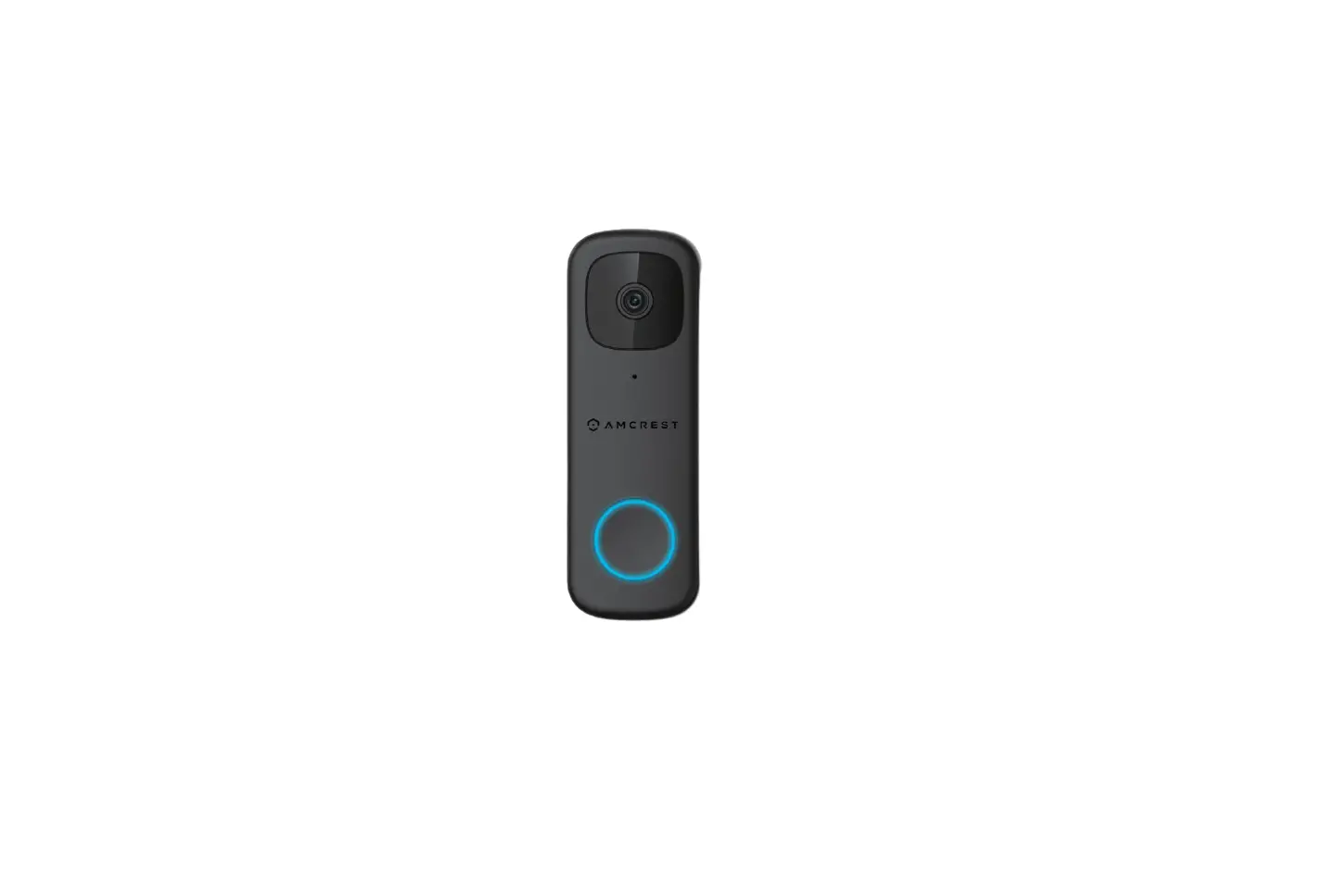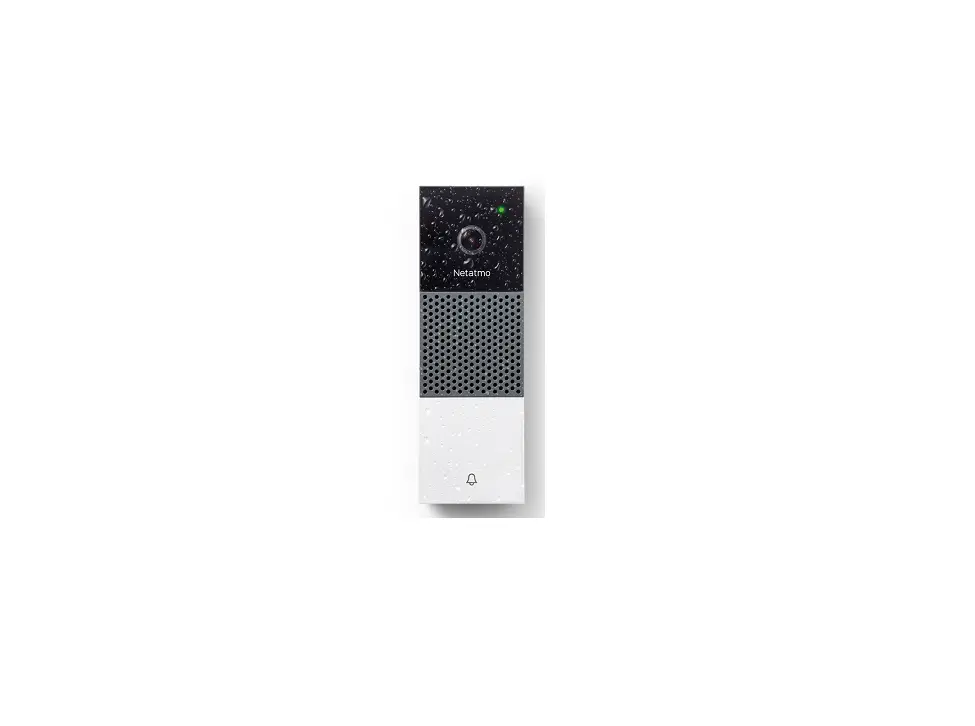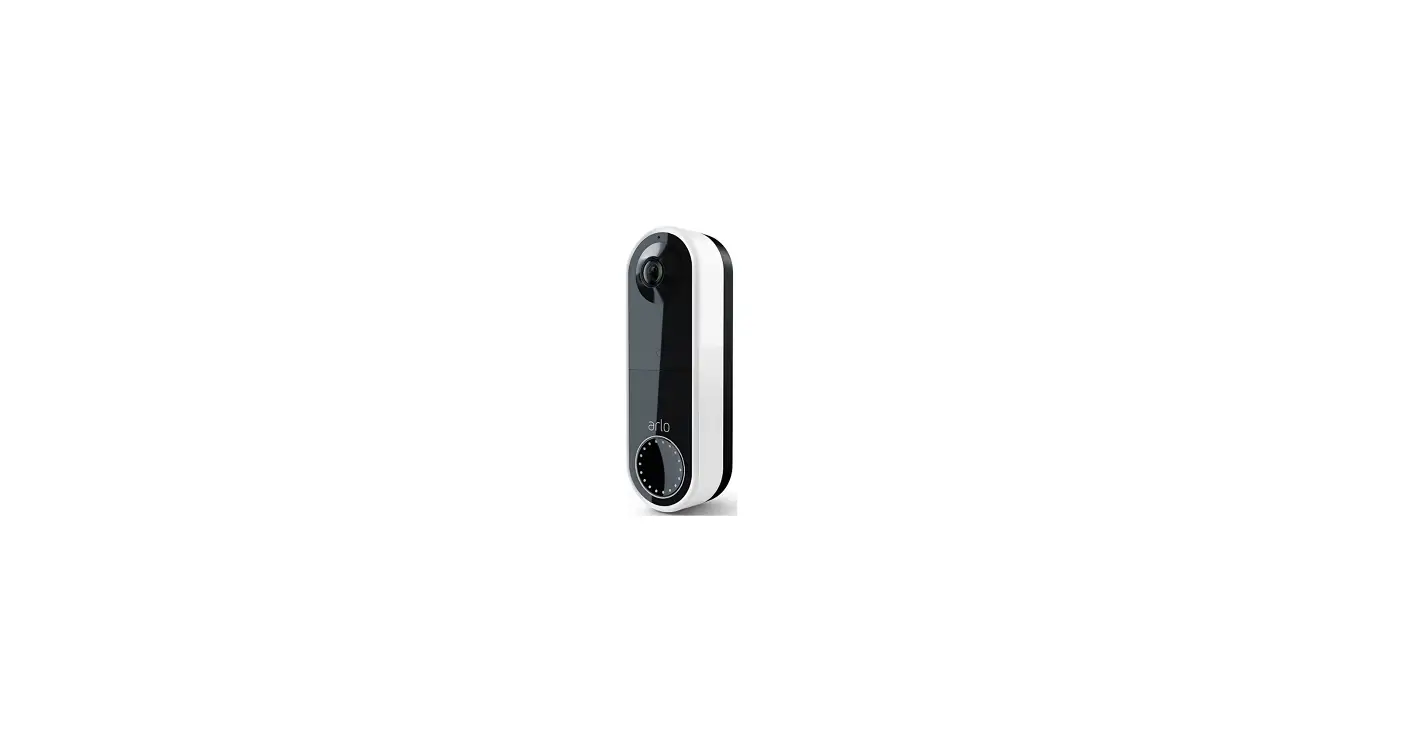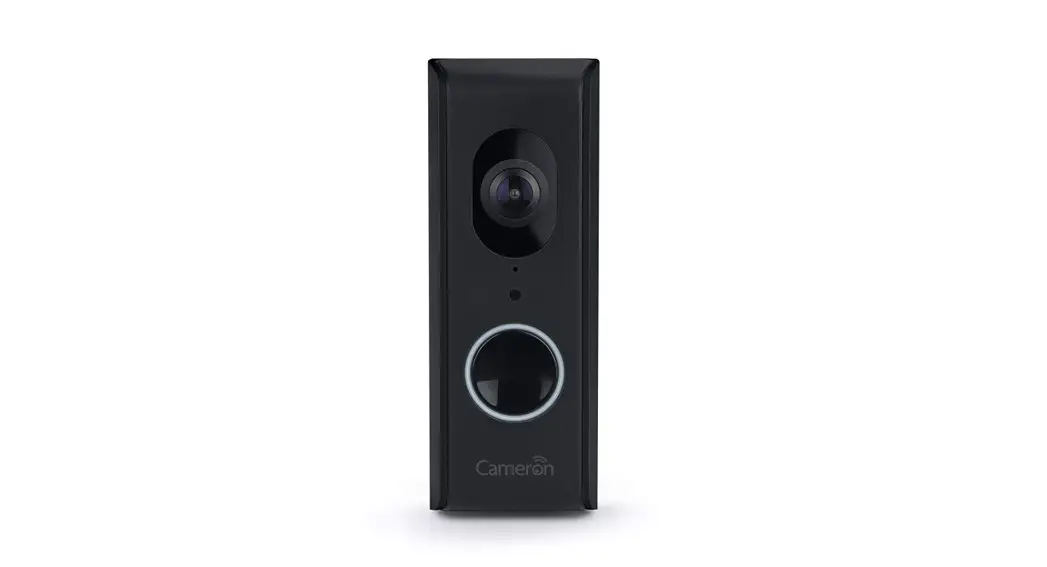

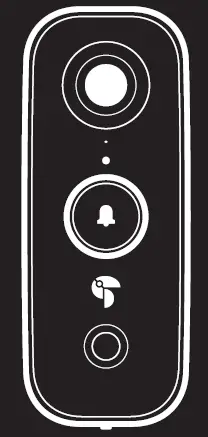
Toucan TVD200WUC Wireless Video Doorbell
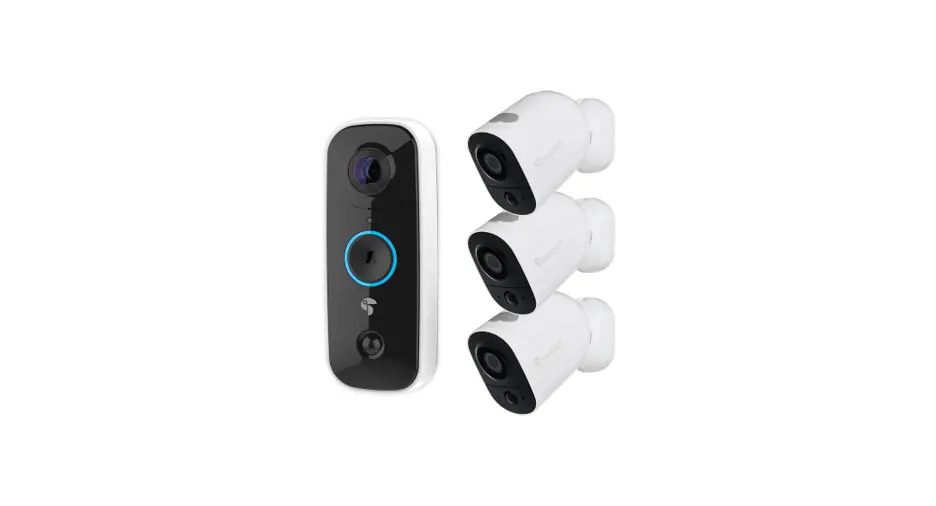
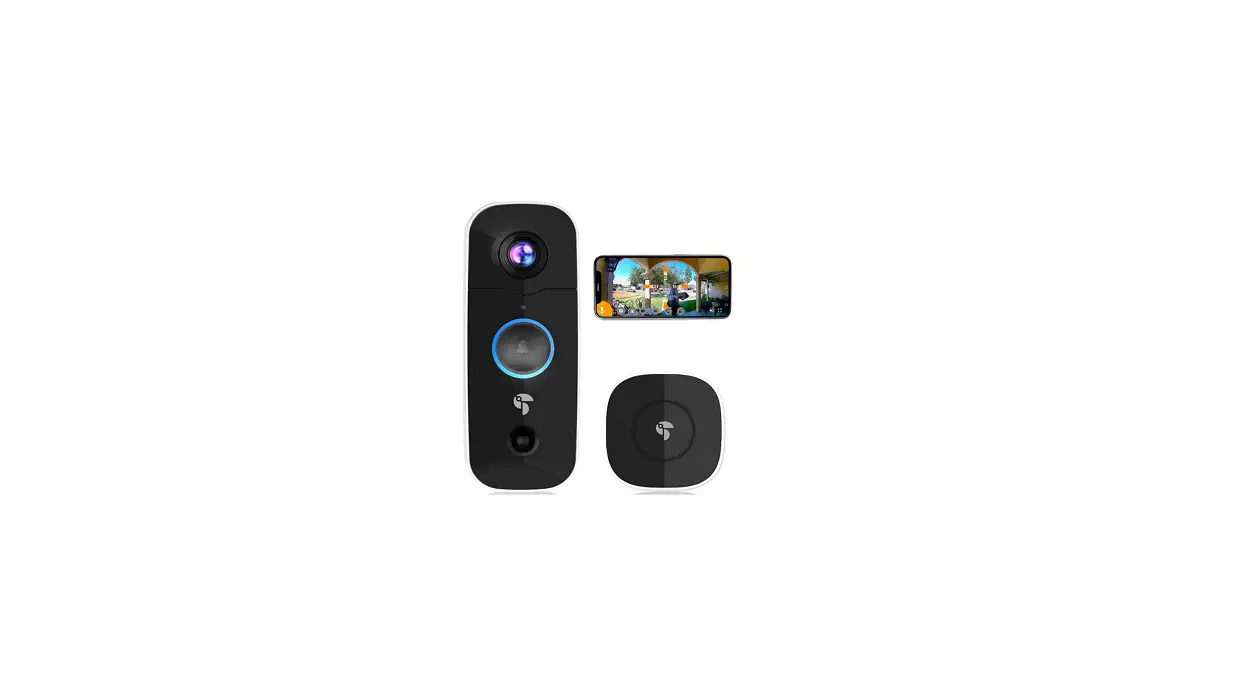
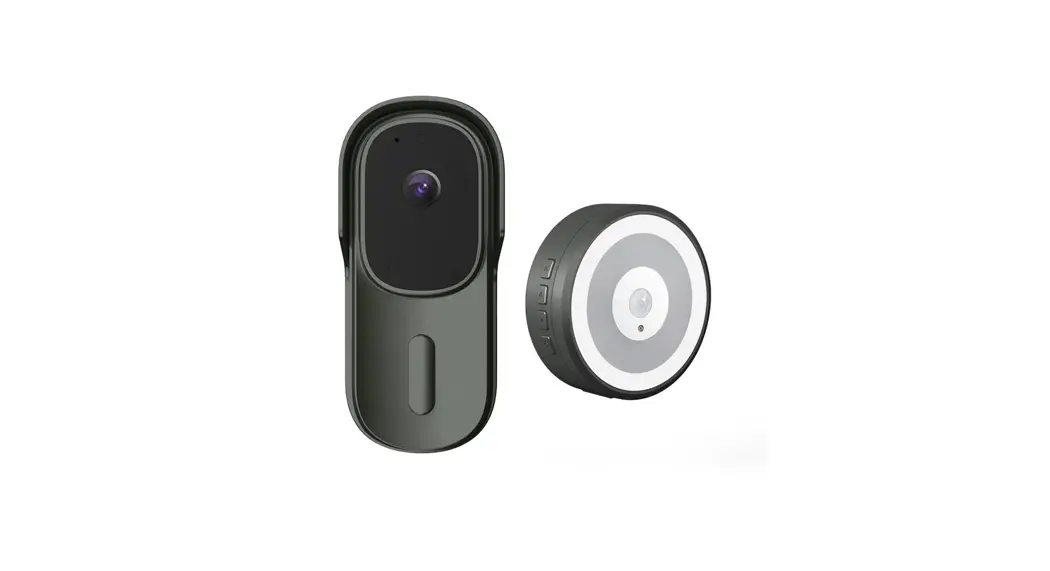
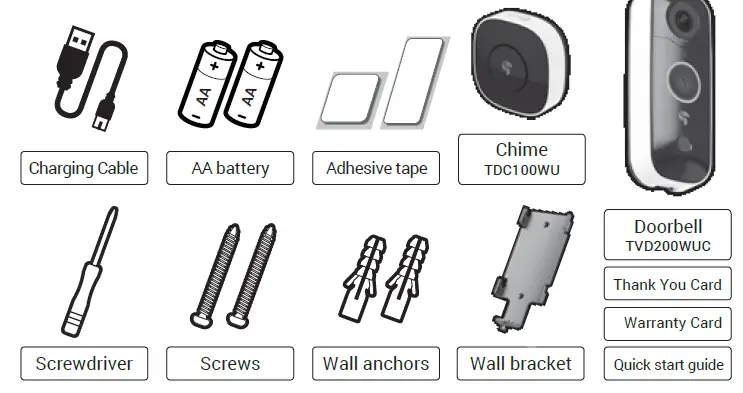
Items Included
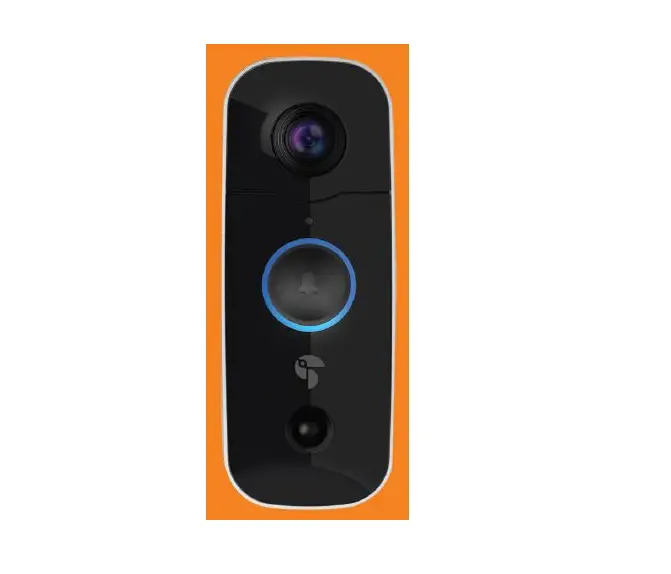
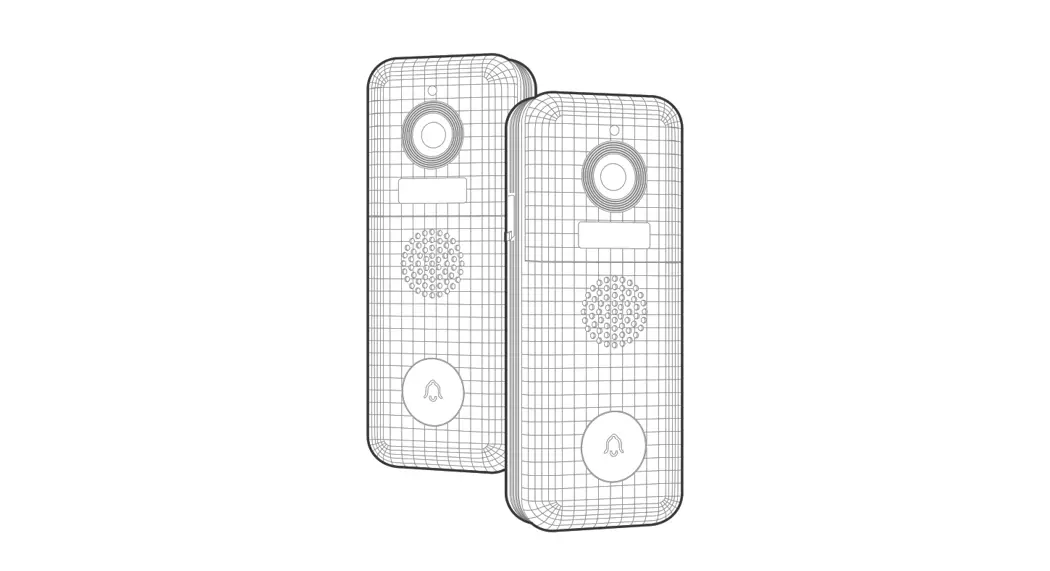
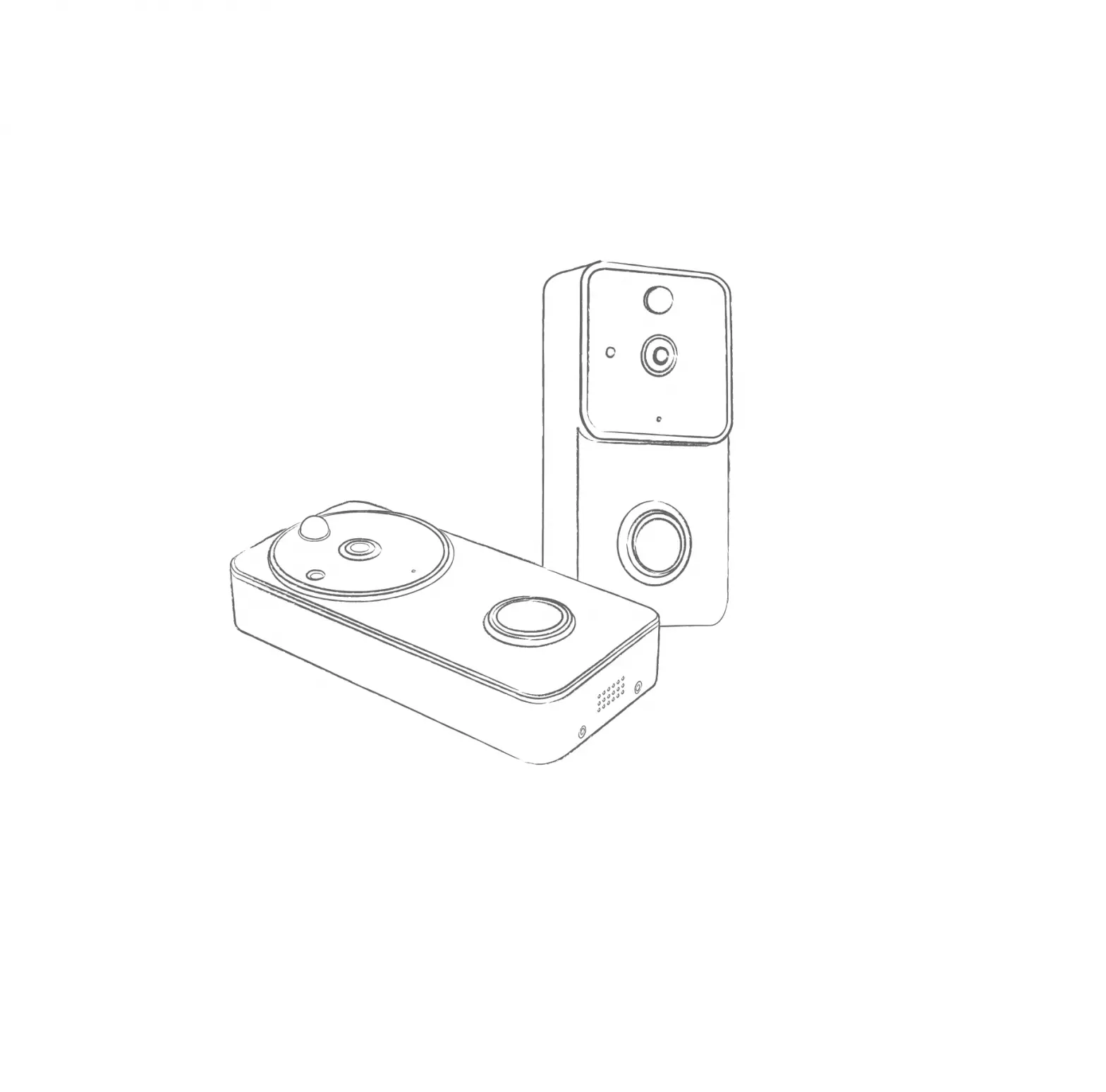
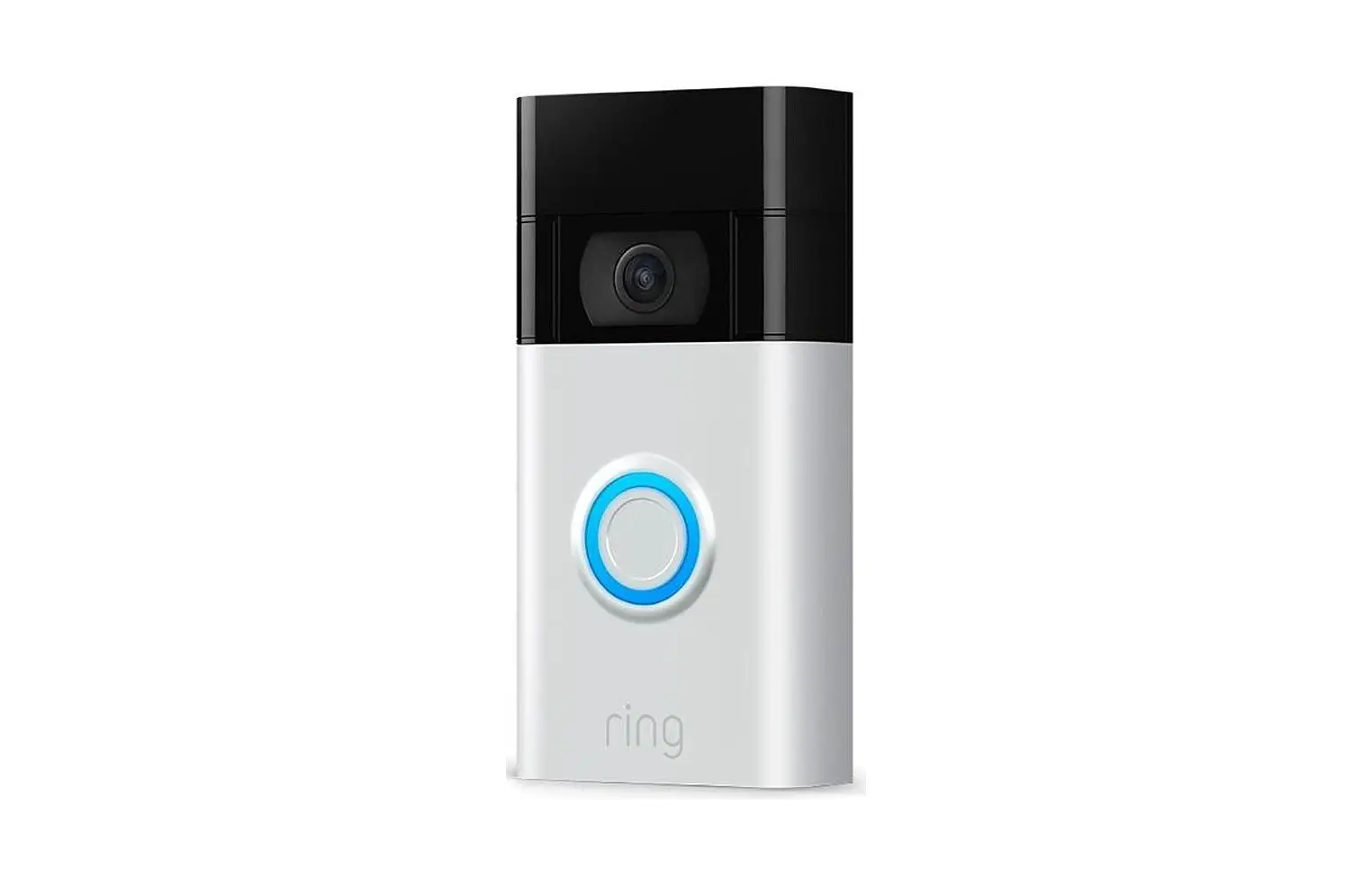
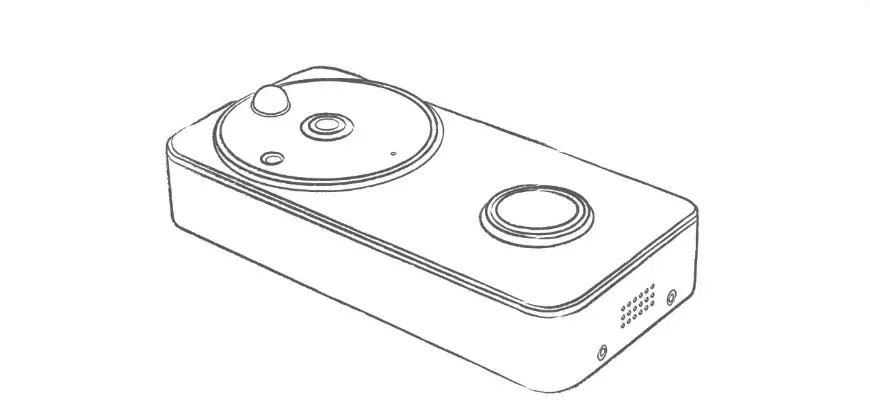
Get to know your video doorbell and chime
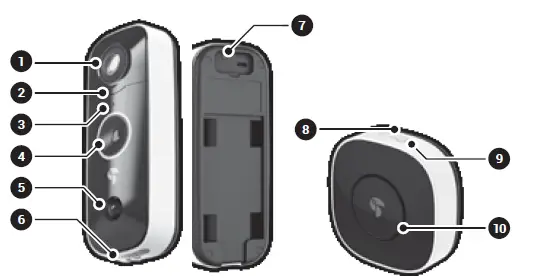
- Camera lens
- Microphone
- Light sensor
- Doorbell
- Motion sensor
- Speaker
- SET button
- LED indicator
- SET button
- Speaker
Charge your video doorbell
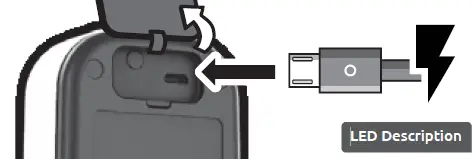
Open the back cover, plug in micro usb cable to charge the video doorbell. Recommend to fully charge the device before 1st use.
Setup your video doorbell
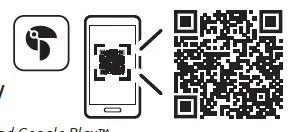
Download Toucan app Scan QR code or visit www.toucansmarthome.com/ pages/smarthomeapp Available at Apple© App Store© and Google Play™
Open the app to add camera.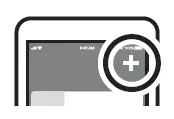
Press and hold the SET button until LED light blinks to enter the setup mode.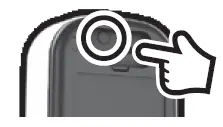
Follow the camera voice navigation to complete setup.
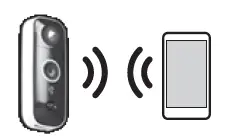
After setup and pairing, you can change the language of your app within the settings section
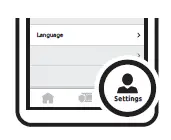
LED Description
- Flashing BLUE: Setup Mode
- Flashing PURPLE: Connecting to cloud server
- Flashing RED: Connection Failed
Pairing your chime with your video doorbell
The chime included in the package is already paired with your doorbell.

Press and HOLD the Set button until LED light blinks
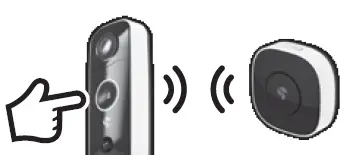
Press and HOLD doorbell button to pair with chime
Chime LED Description
- Flashing BLUE: Pairing Mode
- BLUE Flashes Once: Select Next Chime Sound
Install your video doorbell and chime
- Drill holes for wall anchor placements

- Insert wall anchors
- Mount wall bracket with screws

- Place the doorbell on bracket

- Tighten the lock screw with cross screw driver

- Place the adhesive tape to the back of the chime and stick to the wall in a suitable location inside your home*
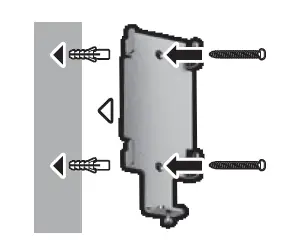
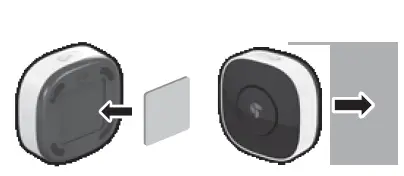
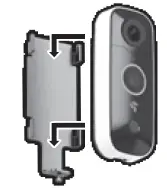
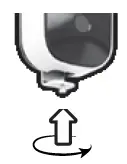
- If using the adhesive to mount the doorbell, please adhere to the surface and wait 24-48 hours to enable maximum bond strength before adding the doorbell. Apply 3M adhesive to dry surfaces only.
- You can mount the doorbell using just the adhesive on UPVC, wooden or smooth surface door frames (not suitable for brick or stone)
- Chime supports >50m of SUB-1G connection distance with video doorbell
Regulations & compliance
FCC Statement
Warning: Changes or modifications to this unit not expressly approved by the party responsible for compliance could void the user’s authority to operate the equipment.
NOTE: This equipemnt has been tested and found to comply with the limits for a Class B digital device, pursuant to Part 15 of the FCC Rules. These limits are designed to provide reasonable protection against harmful interference in a residential installation. This equipment generates, uses and can radiate radio frequency energy and, if not installed and used in accordance with the instructions, may cause harmful interference to radio communications. However, there is no guarantee that interference will not occur in a particular installaction. If this equipment does cause harmful interference to radio or television reception, which can be determined by turning the equipment off and on, the user is encouraged to try to correct the interference by one or more of the following measures:
- Reorient or relocate the receiving antenna.
- Increase the separation between the equipment and receiver.
- Connect the equipment into an outlet on a circuit different from that to which the receiver is connected.
- Consult the dealer or an experienced radio/TV technician for help.
This device complies with Part 15 of the FCC Rules. Operation is subject to the following two conditions:
- This device may not cause harmful interference.
- This device must accept any interference received, including intereference that may cause undesired operation.
VuPoint Solutions, Inc. (USA):
710 Nogales Street, City of Industry, CA 91748
VuPoint (Europe) Company Limited:
Innovation Center, Longbridge Technology Park, Longbridge, Birmingham B31 2TS
Follow us for the latest updates:
Facebook.com/toucansmarthomeeu
YouTube.com/toucansmarthome
Instagram.com/toucansmarthomeeu
For Europe and UK region, please visit www.toucansmarthome.co.uk For North and South America, please visit www.toucansmarthome.com
 Toucan Smart Home Solutions – Toucan Smart Home UK
 Wireless Doorbell Camera | Wireless Outdoor Security Camera | Toucan – Toucan Smart Home