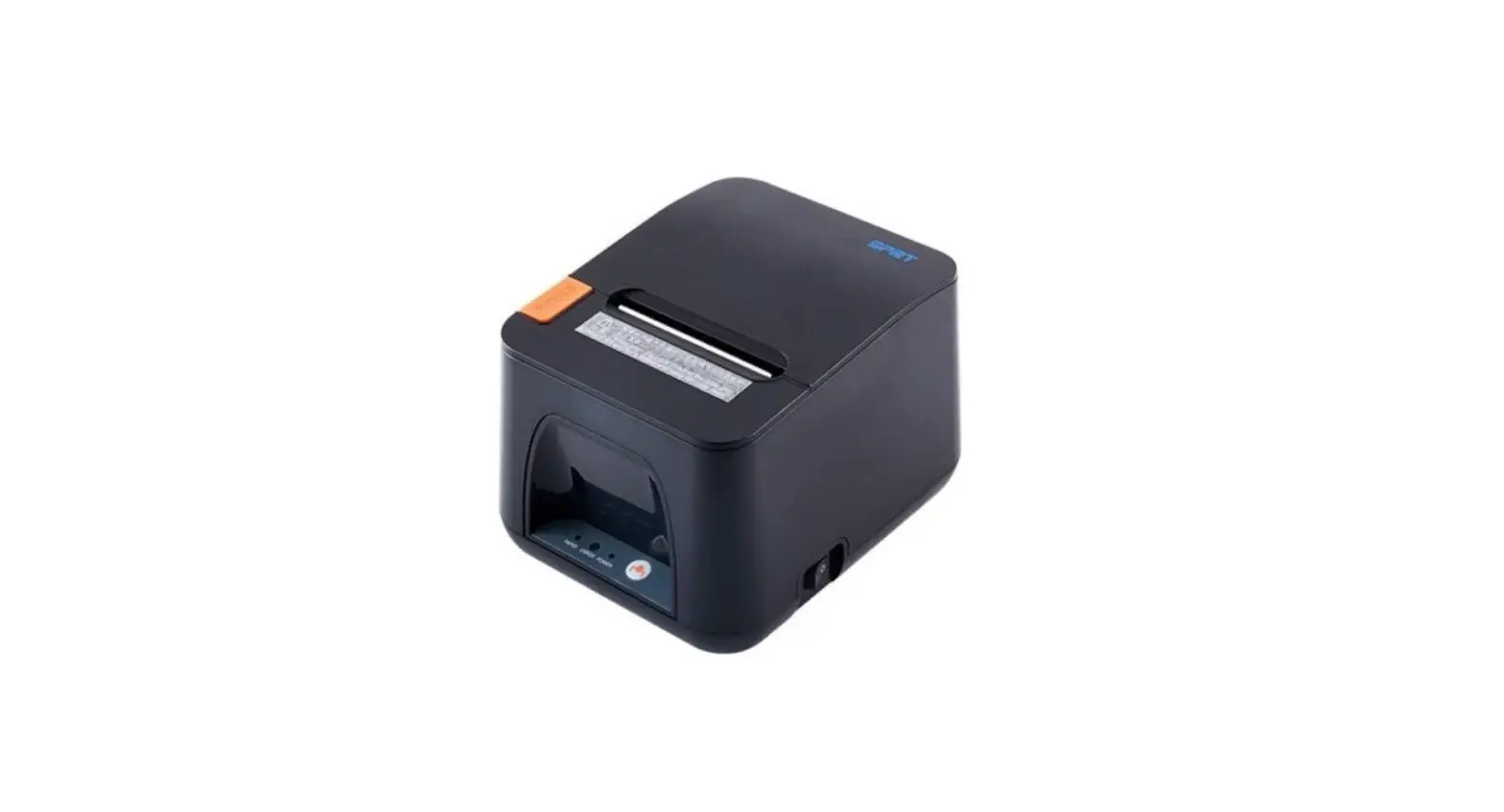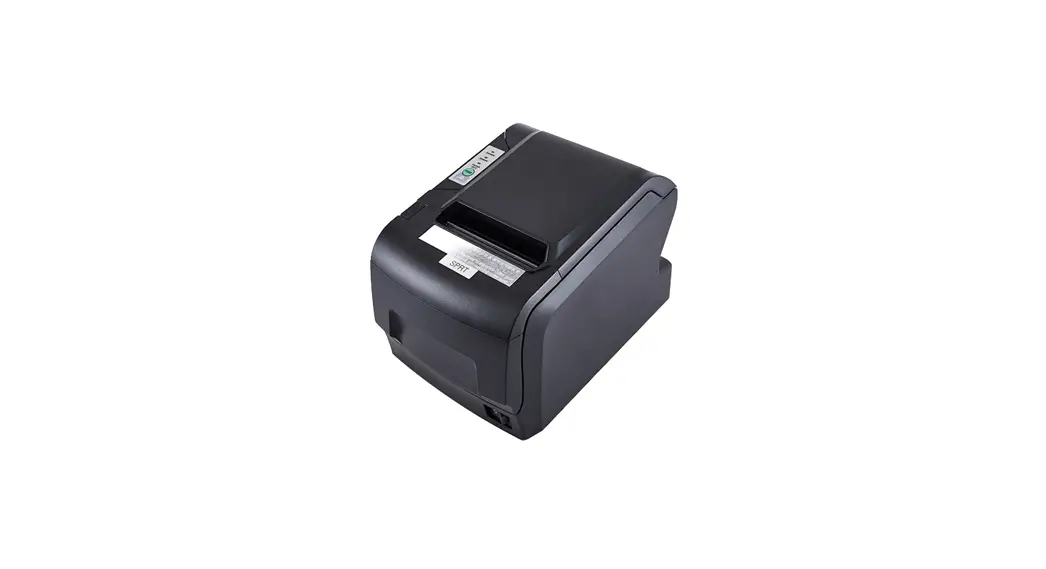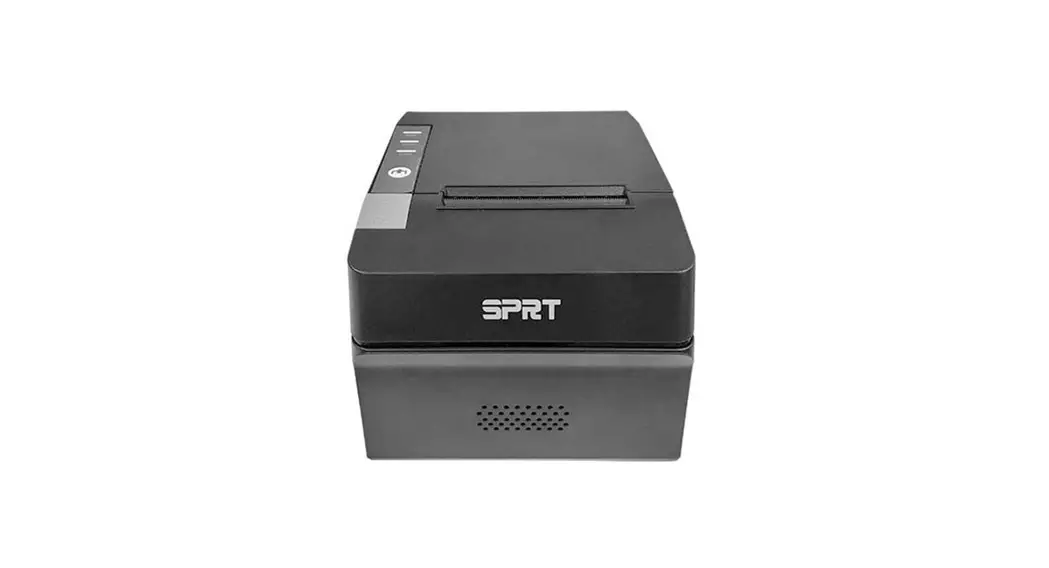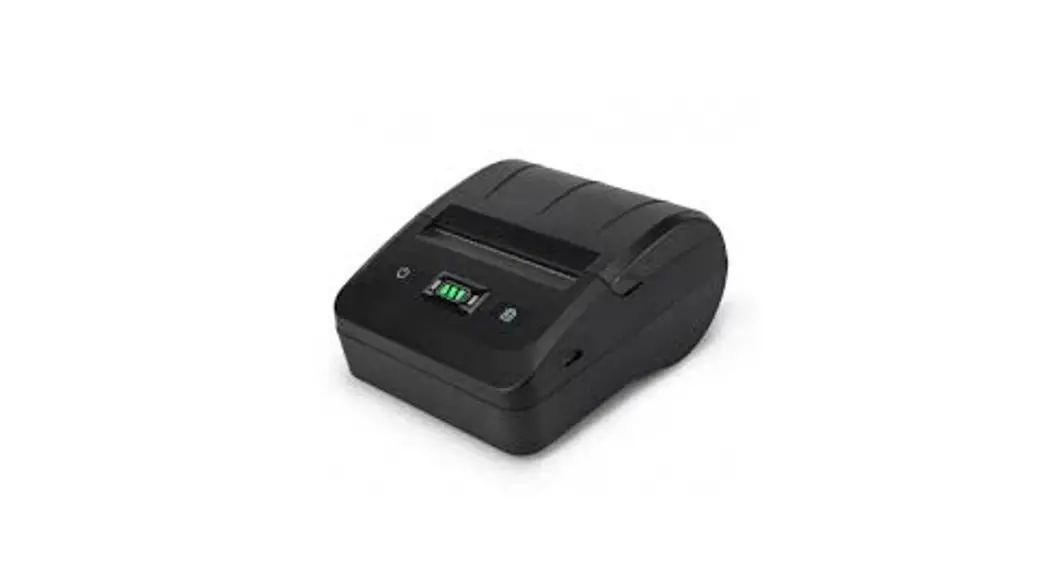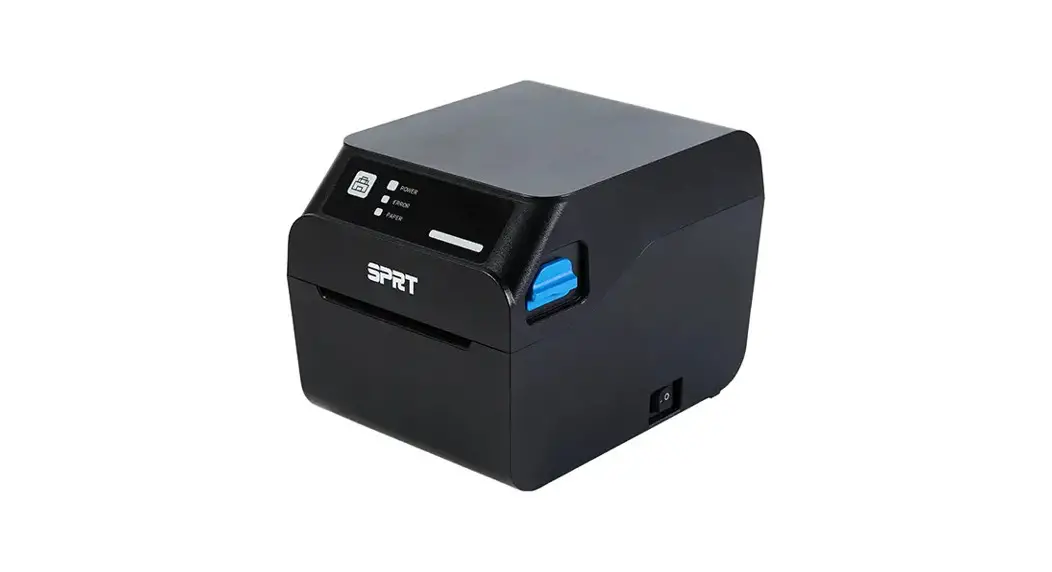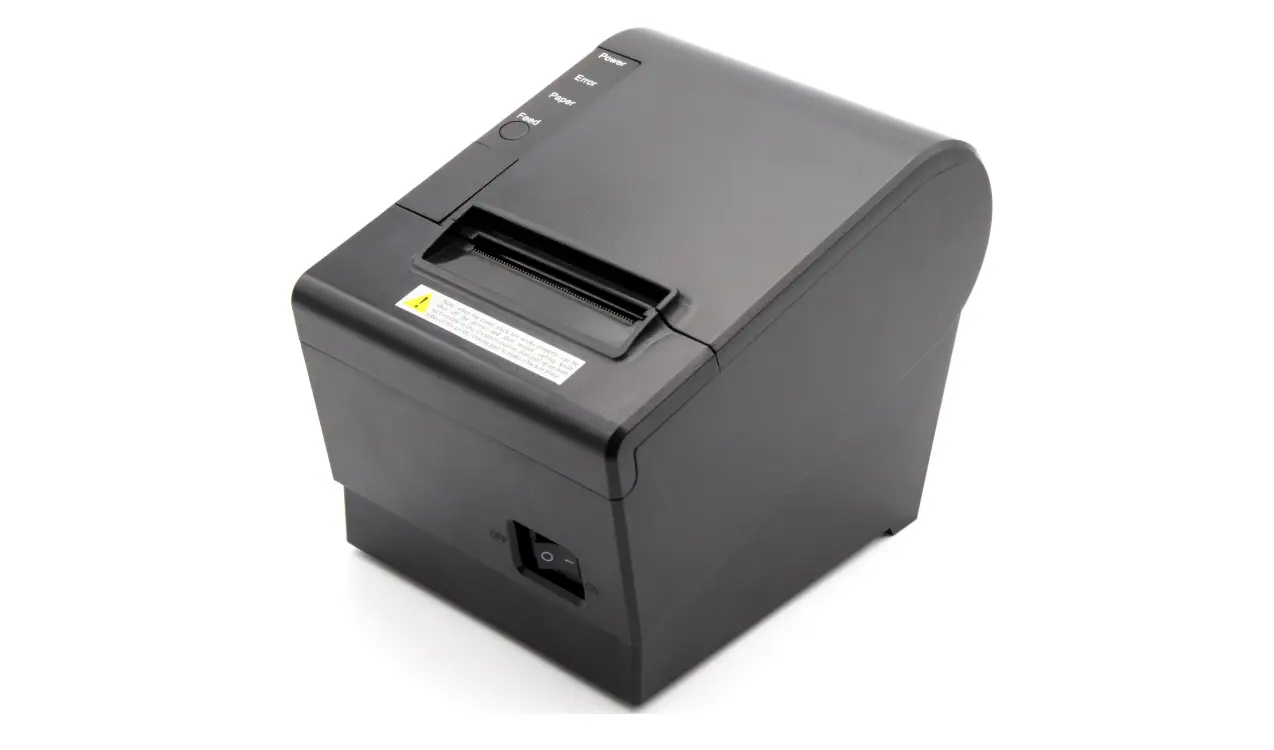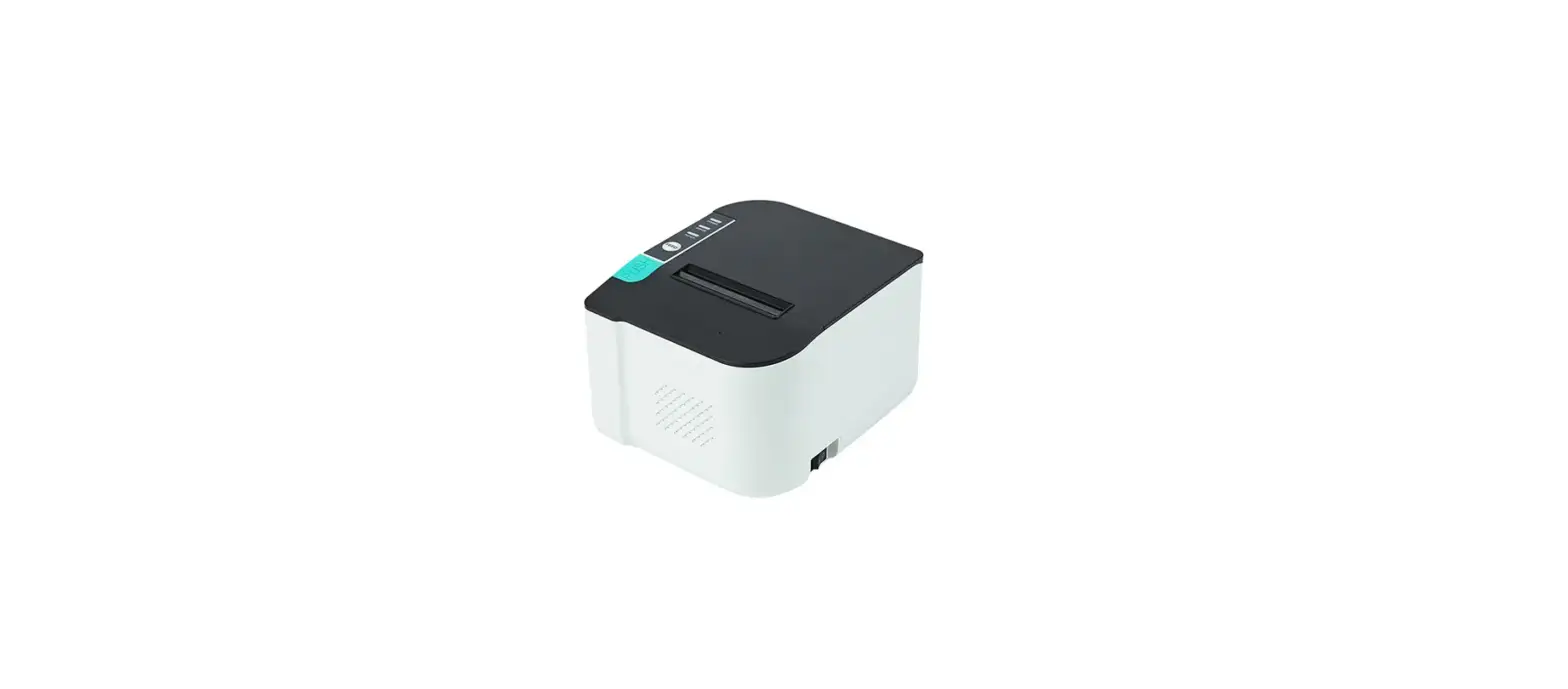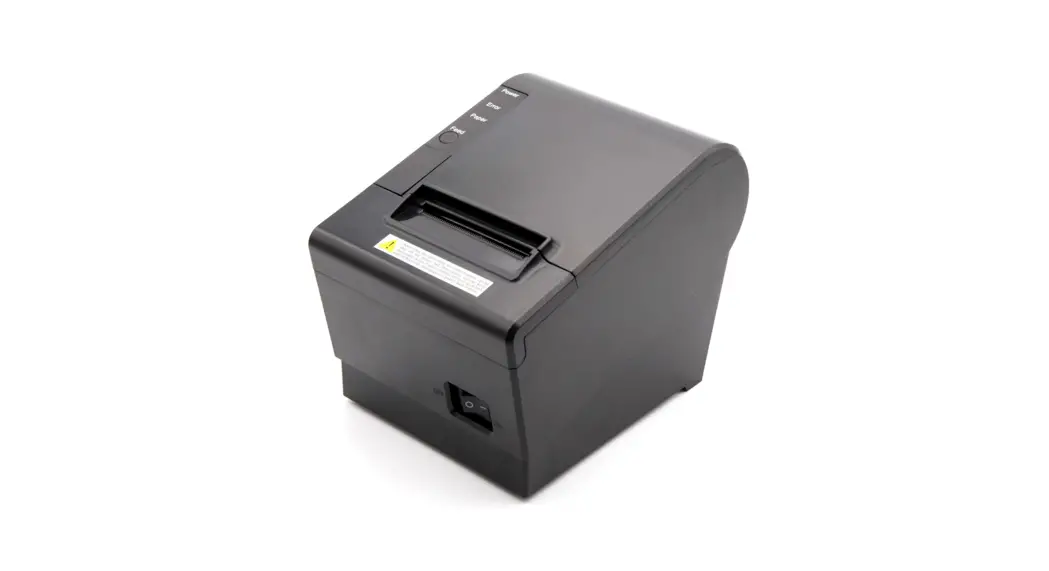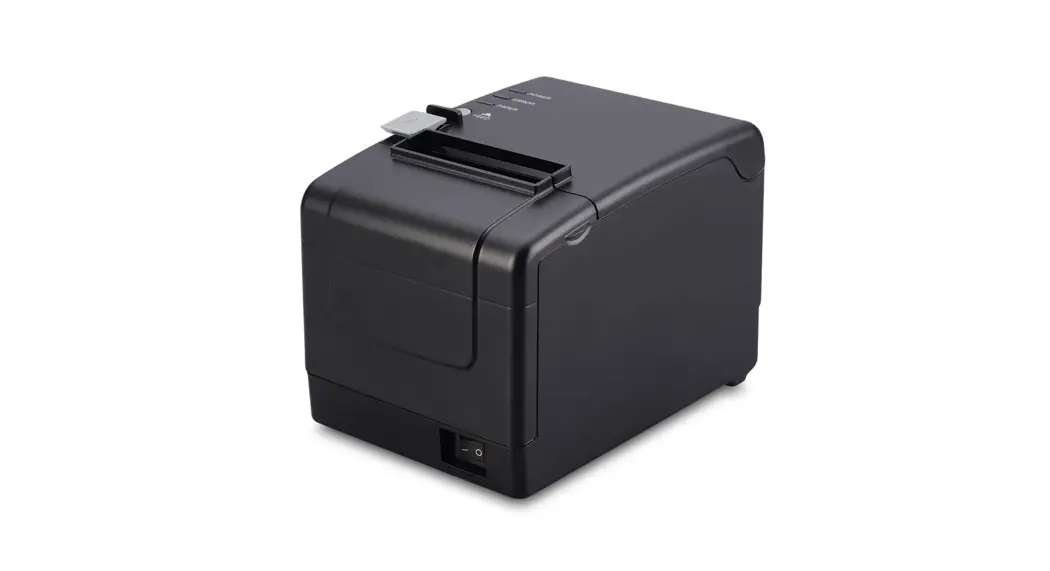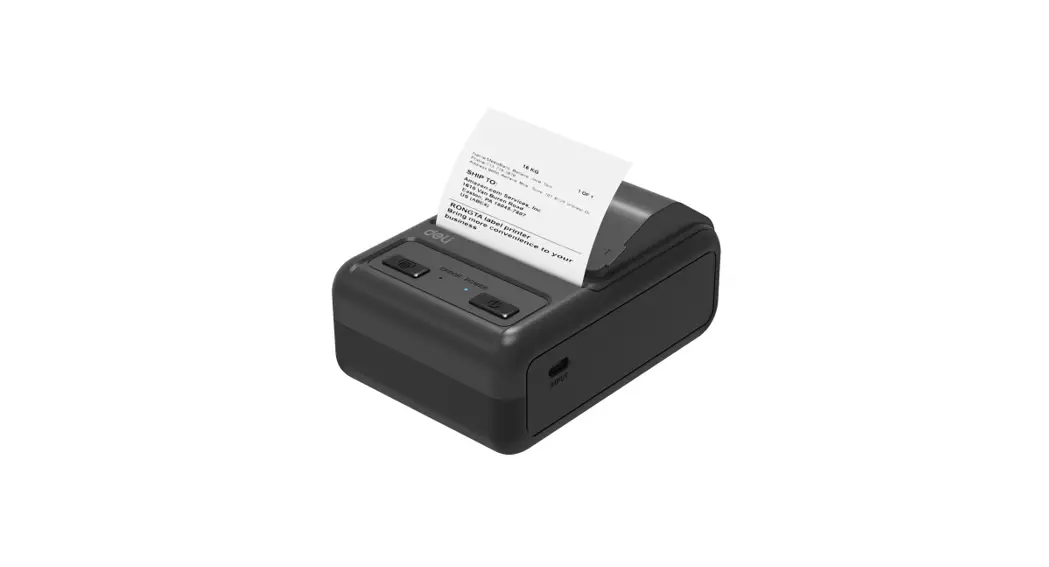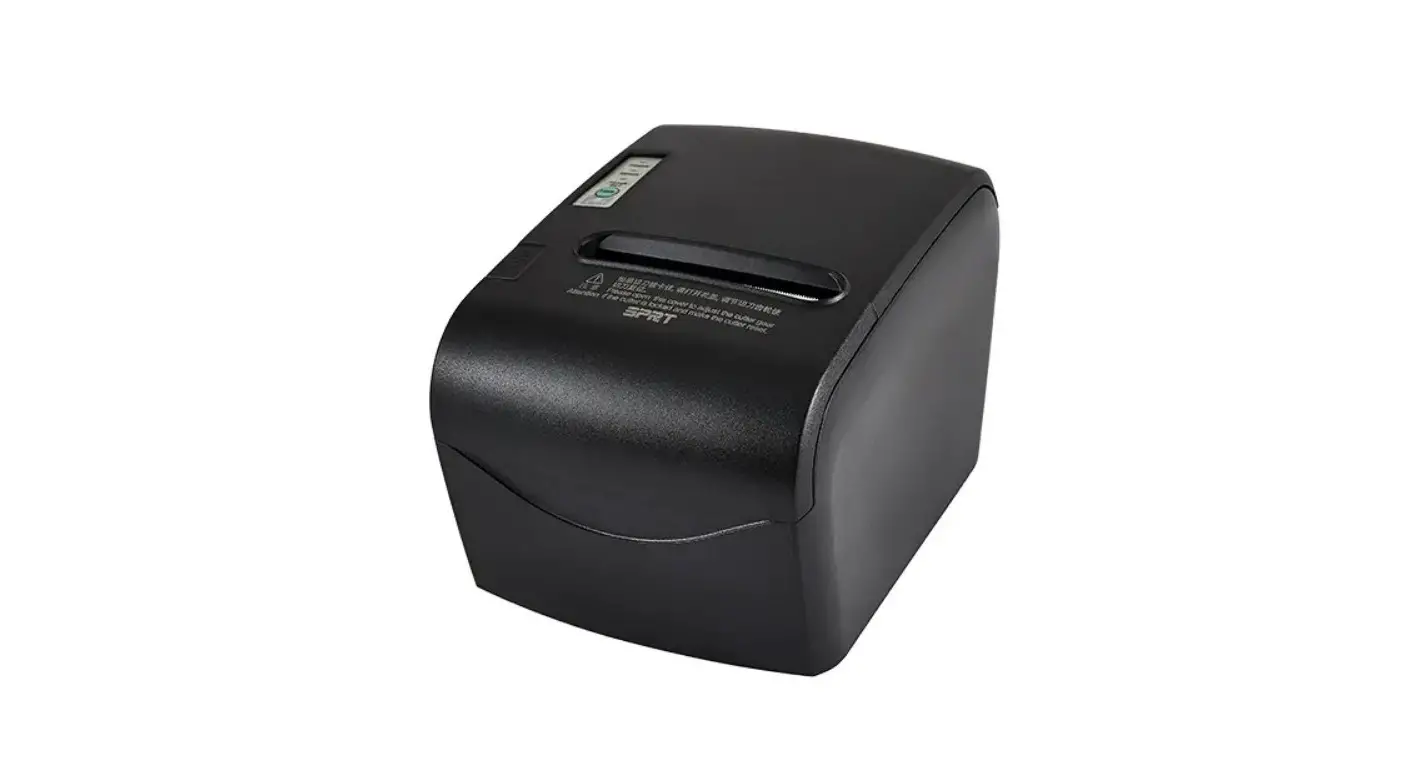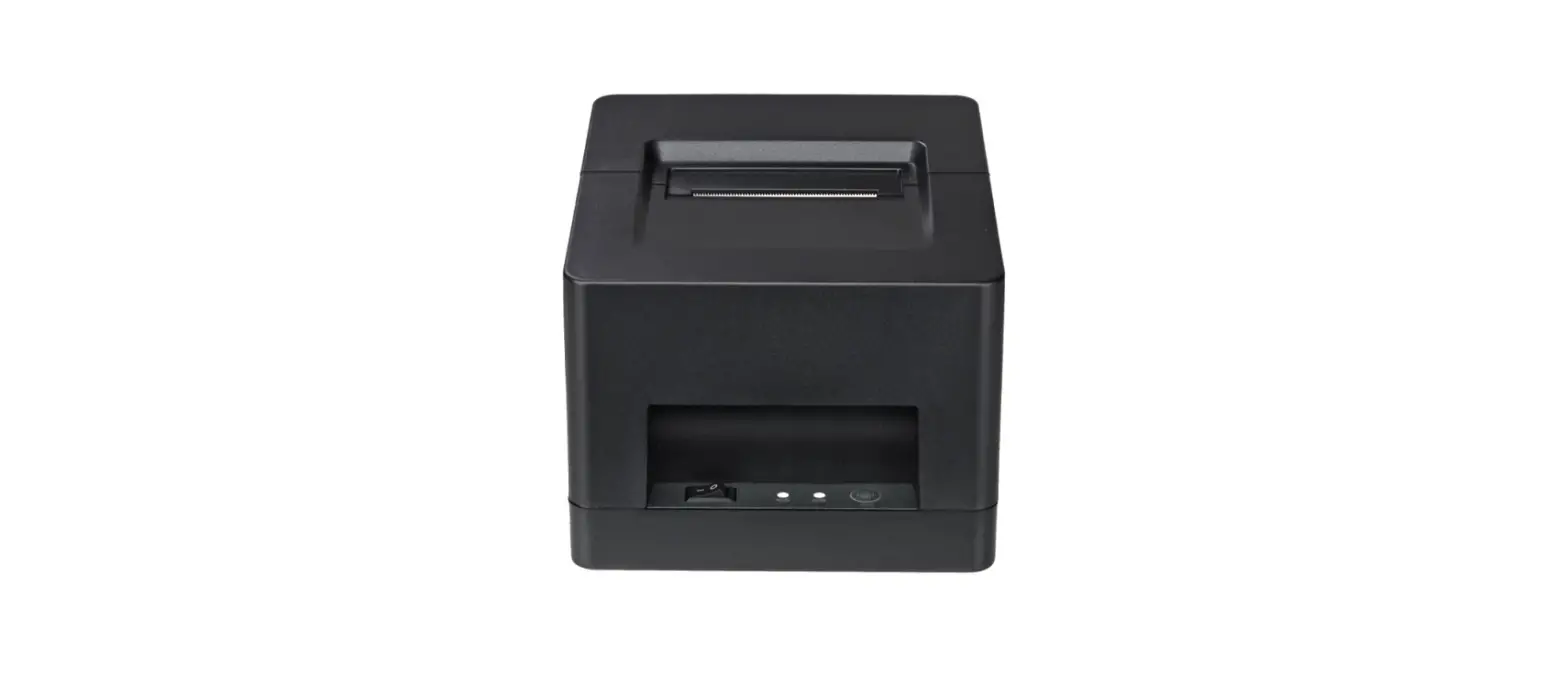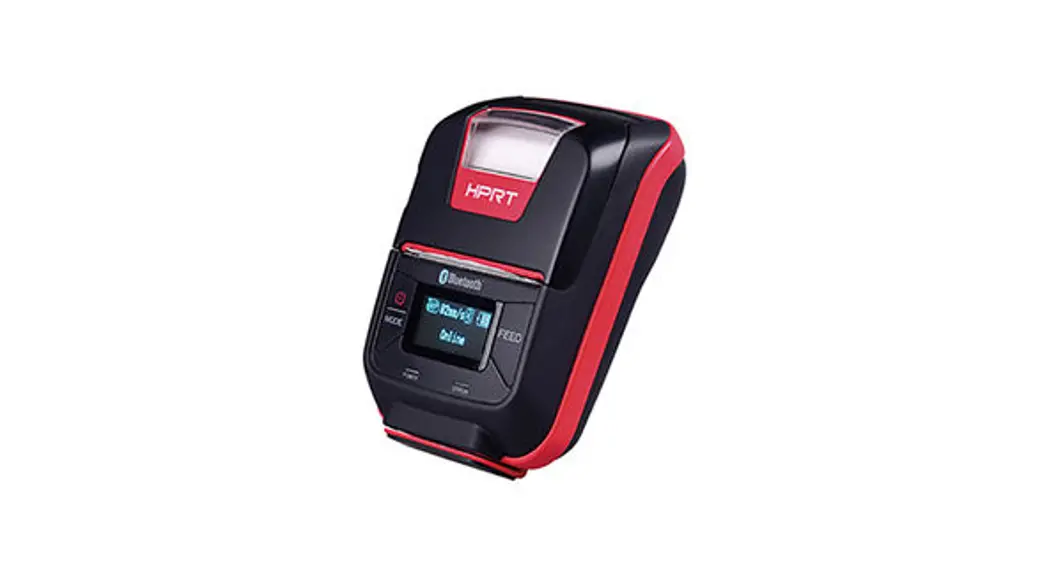

Thermal Receipt Printer
User Guide SP900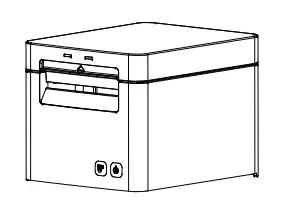
Packing List

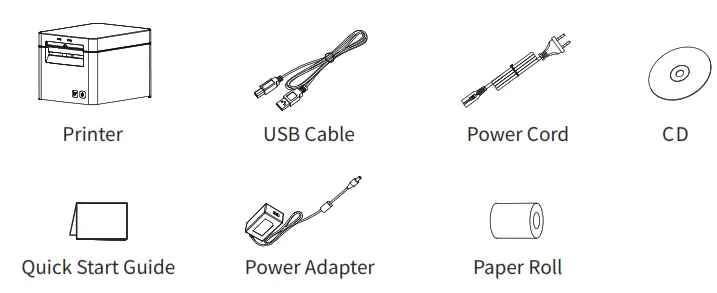
Notes:
1. The items in the package depend on the actual order.
2. The power cord varies by country or region.
Appearance and Components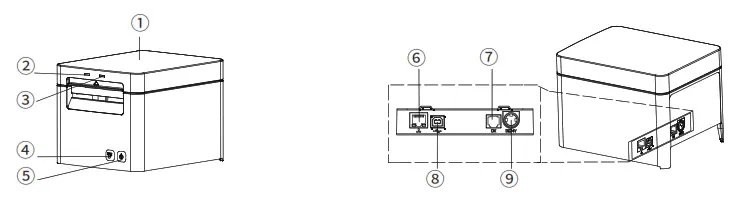
| 1. Printer Cover 2. Error LED Indicator 3. Power LED Indicator 4. Feed Button 5. Power Button | 6. Ethernet Interface 7. Cash Drawer Interface 8. USB Interface 9. Power Supply Interface |
Paper Loading
1. Open the printer cover.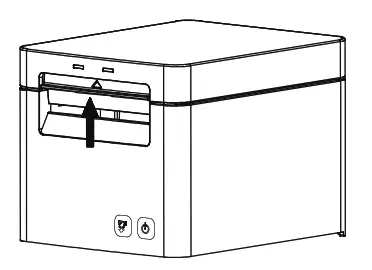 2. When the paper width is 82.5mm, take out the paper guides on both sides; when the paper width is 57.5mm or 79.5mm, insert the paper guides into the correct paper guide slots (at the center position), as shown below.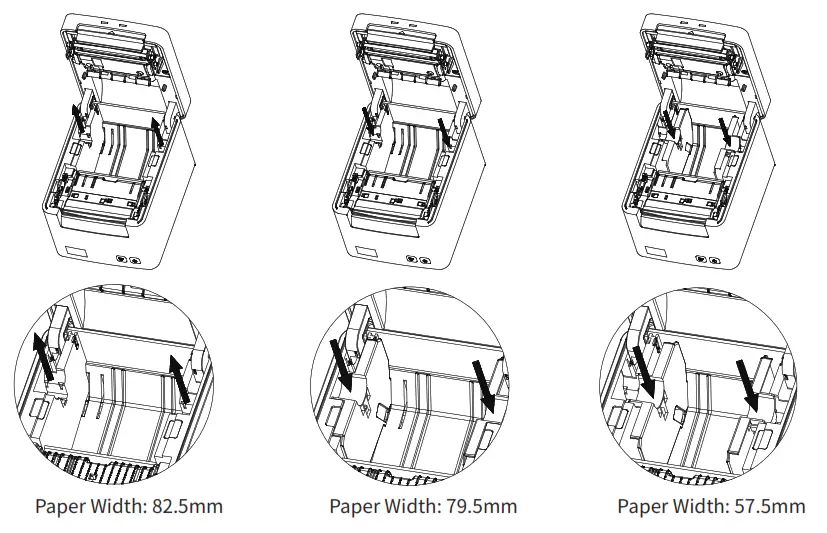
3. Load the paper roll in the correct direction as shown below. Pull out some paper, and close the printer cover.
4. Tear off the extra paper in the direction as shown below. 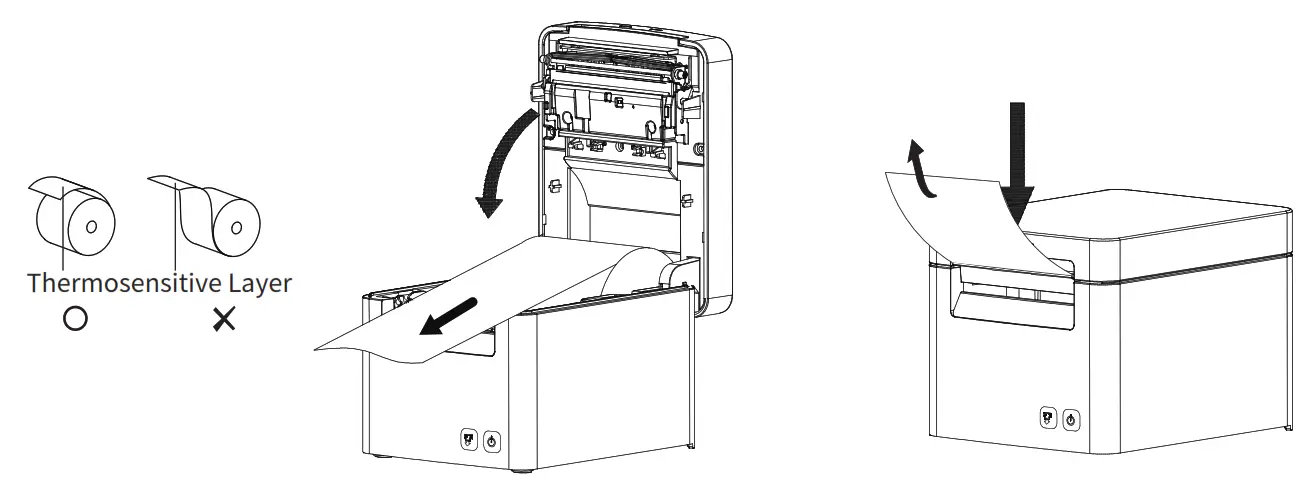
Power Supply
- Connect the power adapter with the printer.
- Connect power adapter with power cord.
- Plug the other side of the power cord into the socket outlet.
Note: the power cord varies by country or region.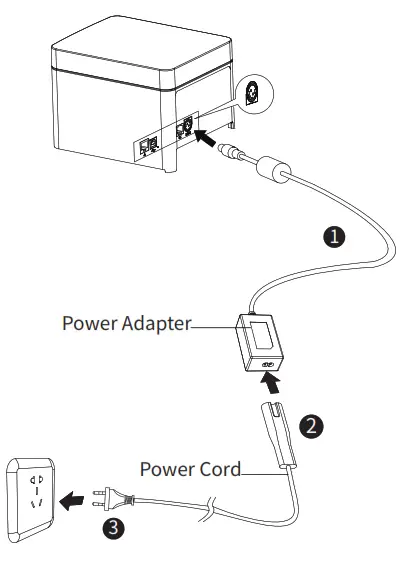
Caution: This is a Class A product. In a domestic environment, this product may cause radio interference in which the user may be required to take adequate measures.
Interface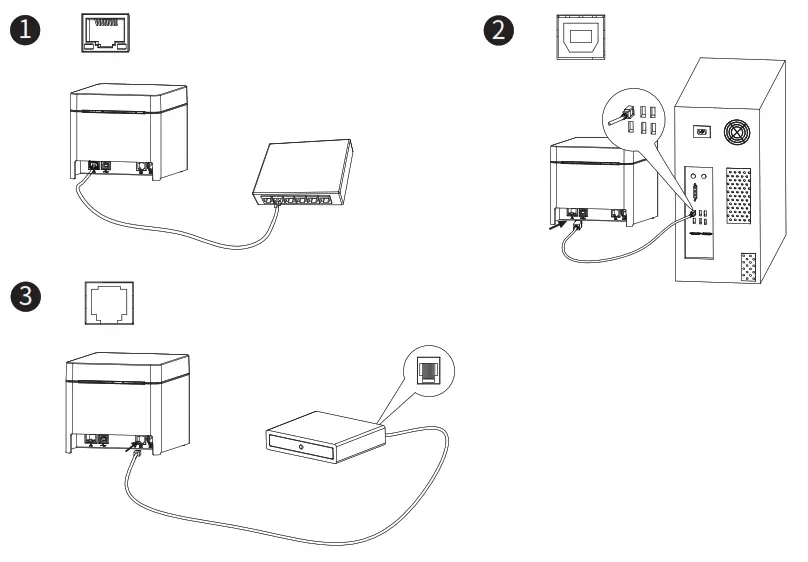
Button Function
Turn on/off the printer
Press the power button and hold for 2-3 seconds to turn on/off the printer
Feed the paper
When the printer is powered on, press the feed button once to feed one line of paper; press and hold the feed button to feed a long distance of paper. The maximum paper feeding distance is about 25cm each time.
Print the self-test page
When the printer is powered off, press the paper feed and power button simultaneously to turn on the printer, and the printer would print out the self-test page.
-Ite Windows Windows Driver Instruction:tings to activate Windows.
Windows Driver Instruction
• Driver Preparation for windows Download the Windows
Driver application program from the enclosed CD or http://www.idprt.com/downloads.html.
• Driver Installation for windows
(Take Windows 7 as an example.)
- Double click Windows Driver, and choose the language.
- Choose “I accept the agreement” and click “Next” -> “Next”.
- Choose the matched type and port (USBxxx is for the USB port, COMx is for serial port, LPTx is for parallel port). Choose the printer model (such as SP900), and click “Next”.
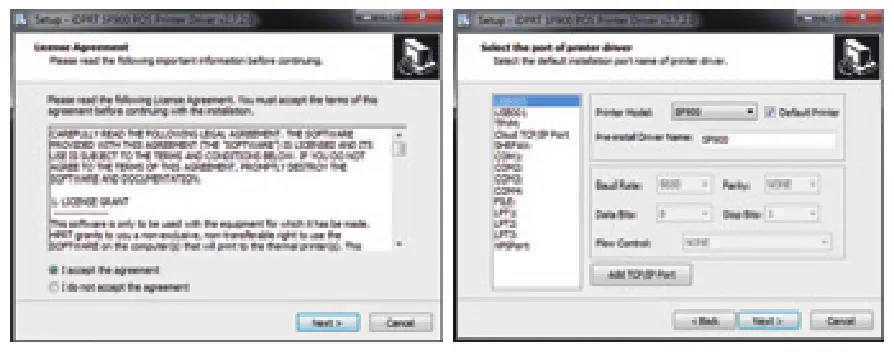
 Note: If the printer is already connected to the computer by a USB port, it only needs to click “Install”, then it will be installed automatically. Otherwise, proceed to the next step.
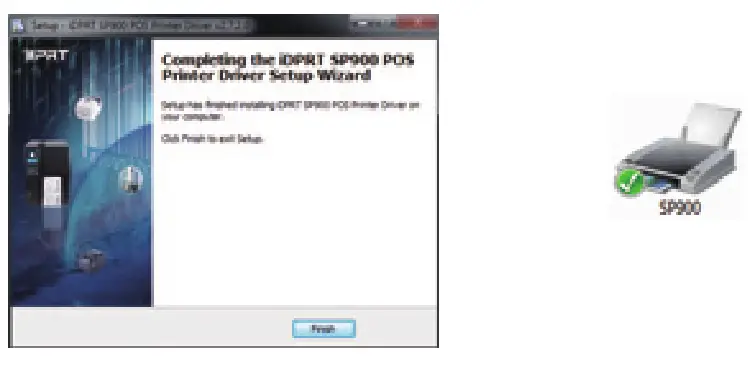
4. Click “Finish”. POS printer driver is installed successfully.
5. After installation, the icon will be found in “Start” —> “Devices and Printers”.
 Windows Driver Setting
Printing Preference
- Right-click the icon “SP900” and choose “Printing Preference”.
- According to the different needs, choose “Paper\Offset\Rotate\Effect\Copies” in “Page”.

- Click “Manager” to add or delete paper.
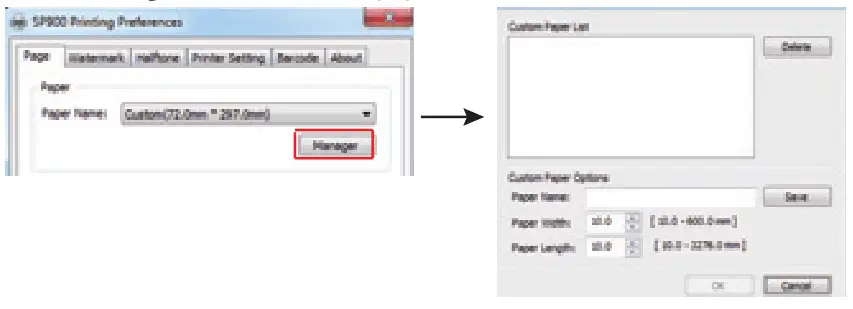
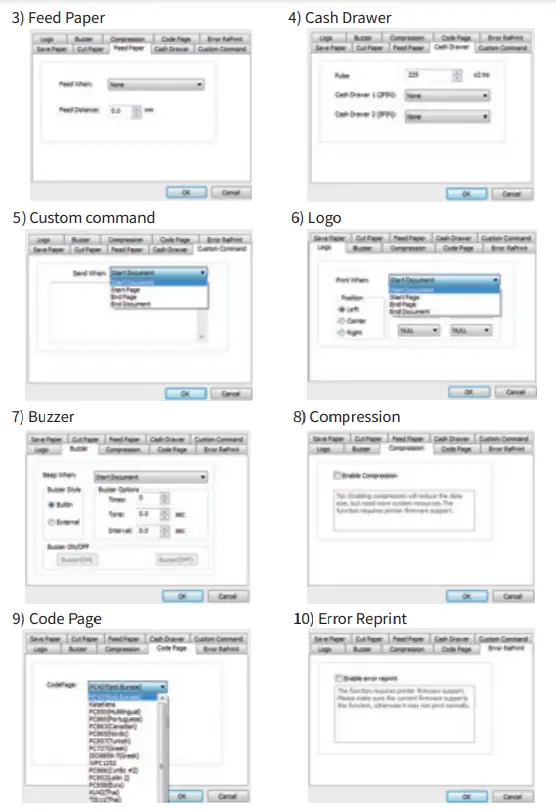
4. Click “Advanced” to set “Save Paper/Cut Paper/Feed Paper/Cash Drawer/ Custom Command/Logo/Buzzer/Compression/Code Page/Error Reprint” 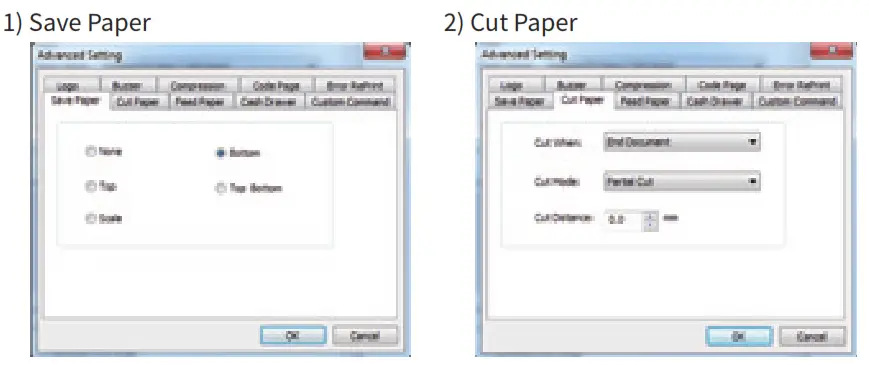
5. Click -Watermark” and set the watermark to print (Only BMP file can be selected).
6. Click -Halftone to set the halftone.
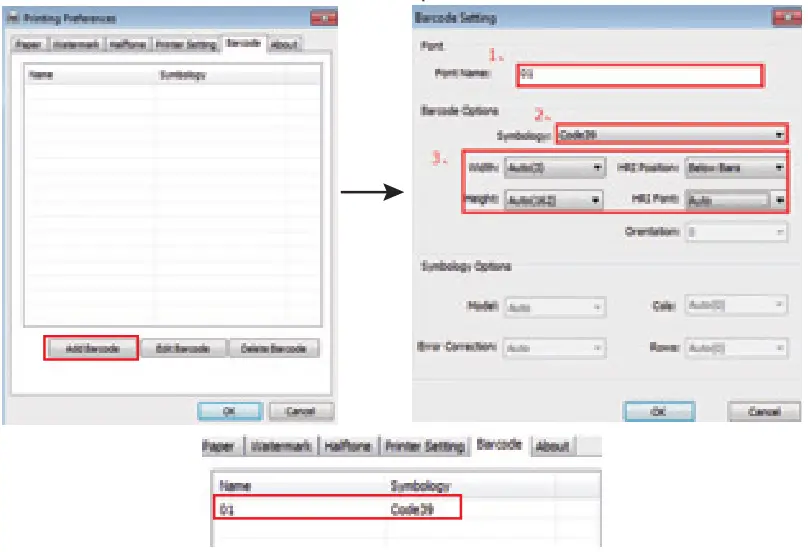
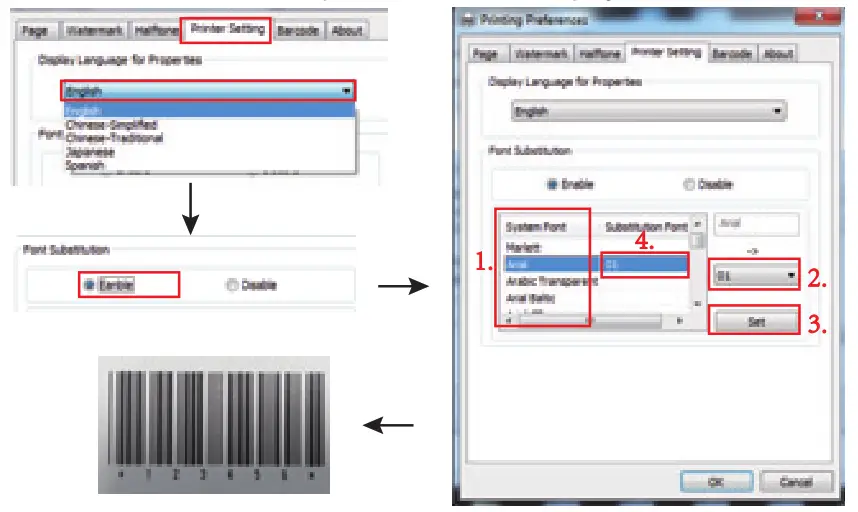
7. Set up the “Barcode” . Assuming the font type of the main document is Italics if you want to convert the data 123456 to the barcode printing, the steps are as follows: Sets the data 123456 font type to a different font from the main document. Such as: Arial.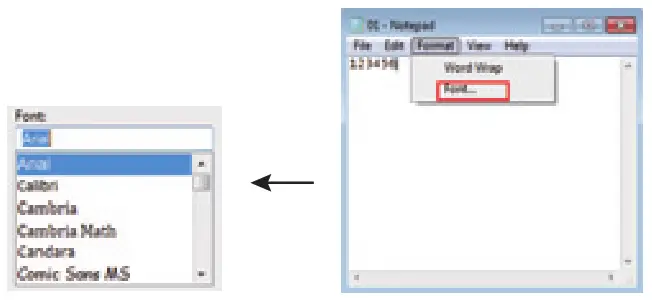 (2l Open the Preference by clicking -File-Print-Preferences”.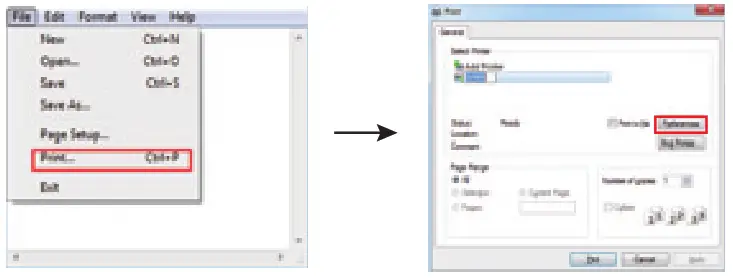
• Add Barcode firstly.
• Set the “Font Name” and the “Barcode Option-.
3. Click “Printer Setting-.
Choose “Display Language for Properties”.
• Turn on “Font Substitution”, select the system font which needs to be replaced (for example, Arial), and then select the font you want to replace (for example, 01) and click “Set”, and the replacement font will display “01”.
Printer Properties
1. Click “Starr “Devices and Printers-. Right-click “SP900- and choose “Printer properties”.
2. Choose “General”, click on -Print Test Page”, then it will print the current settings.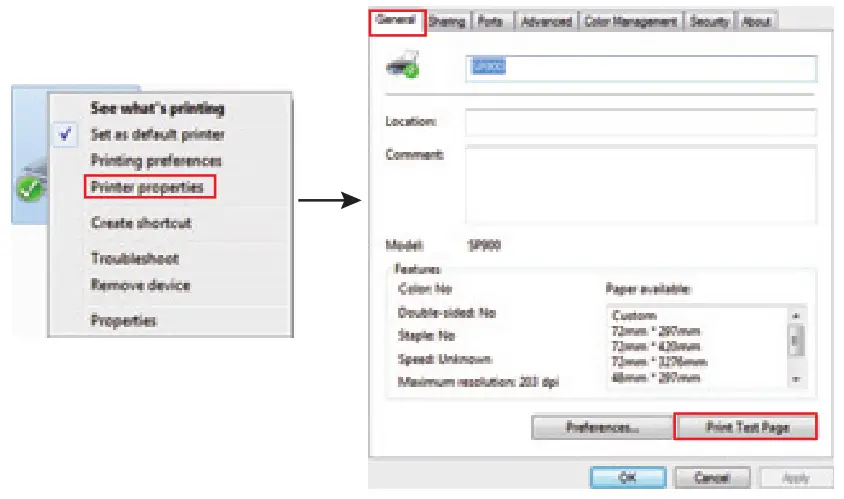 3. Click “Porr to change the other connecting port.
4. Click “Advanced^ to set the available time for use.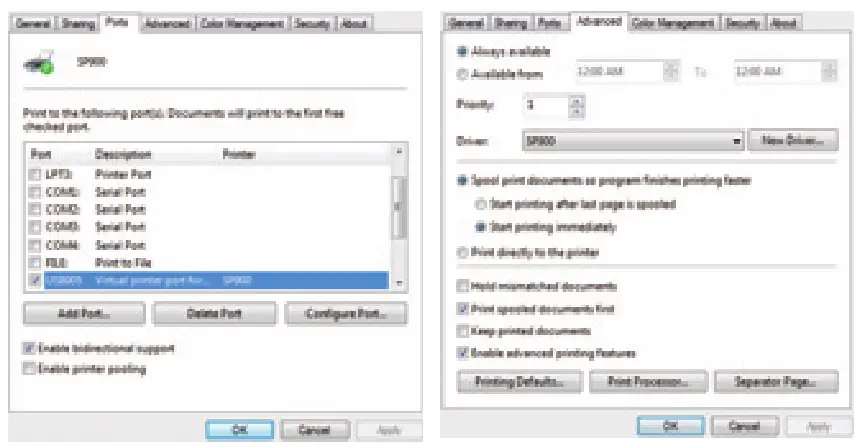 Uninstall Windows Driver
3. Choose ^SP900″, then click ^Next”. 4. Then it is complete to uninstall.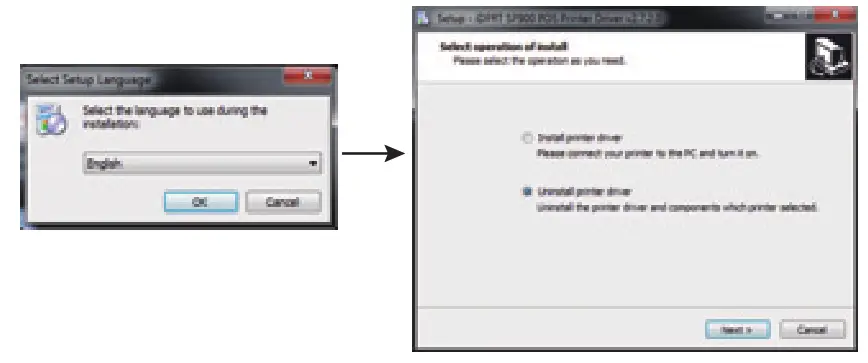 1. Double click Windows Driver, and then click “OK”.
2. Choose “Uninstall printer driver, then click “Next”.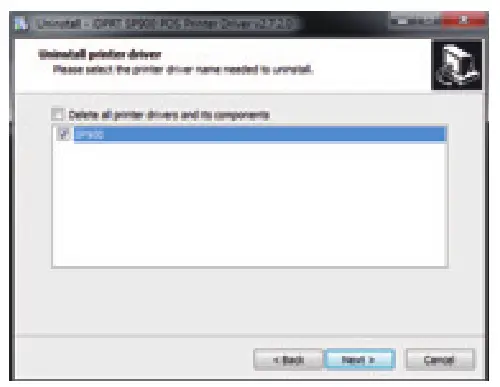
Mac Driver Instruction
• Driver Preparation for macOS
Download the MAC Driver application program from the enclosed CD, or http://www.idprt.com/downloads.html.
• Driver Installation for macOS
(Take macOS 10.11 as an example.)
1. Double click the Driver, click -Continue- -> “Continue.
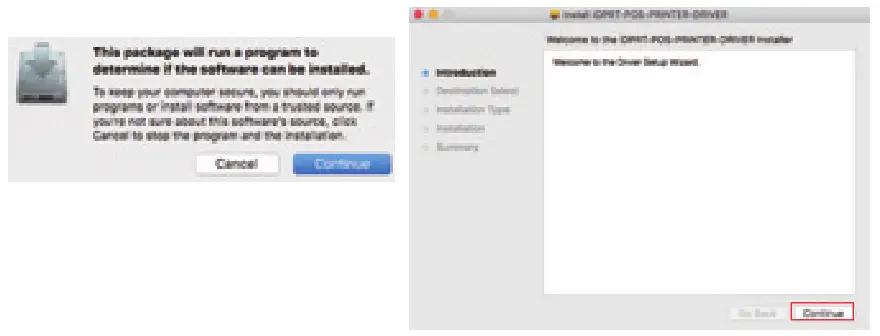 2. Select a destination and click “Continue.
3. Choose “Installation Type and click “Continue -> -Installs.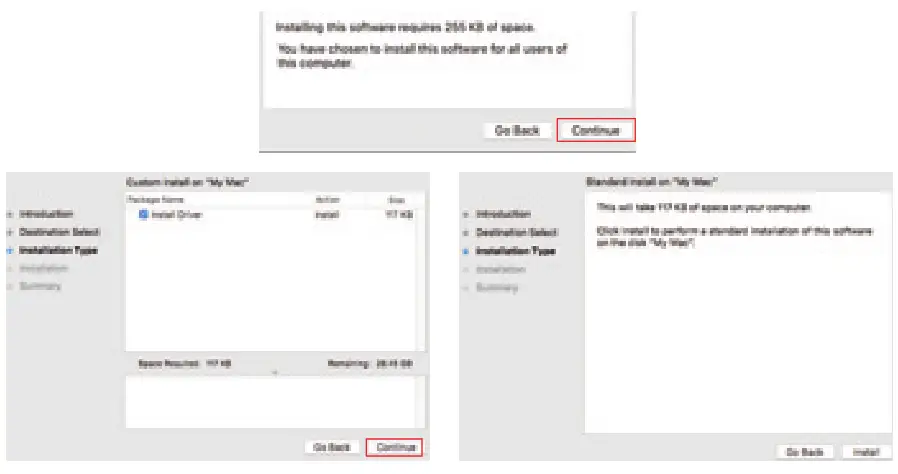 4. Type in the password of your computer, and click -Install Software.
5. The installation was successful.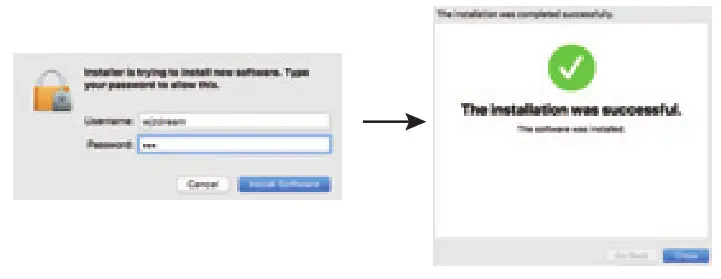
6. Turn on the printer (for example: SP900) and connect it to your computer (for example: via USB cable).
7. Click: Launchpad -> System Preferences -> Printers & Scanners.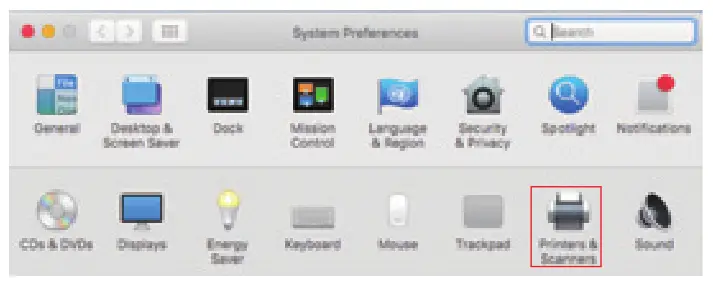 8. Under -Printer & Scanner, printer SP900 is available.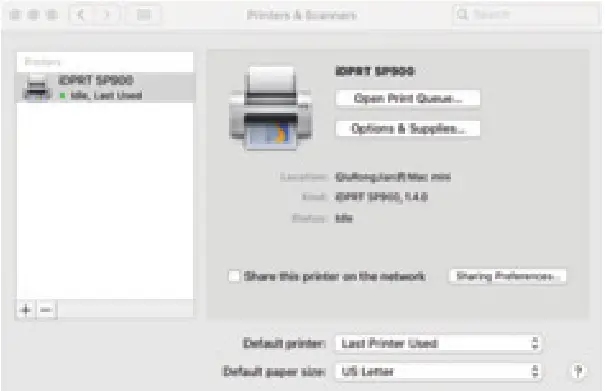
TROUBLESHOOTING
Your printer is very reliable, but occasionally problems may occur. This part provides information on some common problems you may encounter and how to solve them. If you encounter problems that you can not resolve, contact your dealer for assistance.
1. Printer Doesn’t Work
| Problem Description | Probable Reason | Solution |
| LED indicator is off, the printer is not working | The printer has no power | Connect to the power supply |
| The printer is not turned on | Turn on the printer | |
| The Circuit board is broken | Contact with the dealer |
2. LED Indicator and Beeper
| Problem Description | Probable Reason | Solution | ||
| LED | Beeper | |||
| Power | Error | |||
| On | On | beep beep, beep beep | Cover open error | Close the printer cover |
| On | Flashing interval: is | Beep beep beep beep, beep beep beep beep | Paper end error | Load a new paper roll |
| On | Flashing interval: 0.12s | Beep beep beep-, Beep beep beep- | Cutter error | Restart the printer. If problem remains, contact your dealer |
| Flashing interval: is | Off | Silent | Print head over-temperature | The printer recovers automatically when the thermal head cools |
| On | Flashing interval: 2s | Silent | Paper near-end | The printer can work normally |
| Off | Flashing interval: 2s | Silent | Over/Low Voltage | Print with the specified voltage |
3. Problems During Printing
| Problem Description | Probable Reason | Solution |
| Blurred printing or spot | Incorrect paper roll loading | Check the paper roll loading |
| Unqualified paper | Use recommended thermal paper | |
| Dirty thermal head or print roller | Clean the thermal head or print roller | |
| Low print density | Increase the print density level | |
| Paper is not feeding normally | Paper jam | Open the printer cover, check the paper path and remove jammed paper |
| Vertical print words are missing | Dirty thermal head or print roller | Clean the thermal head or print roller |
| The thermal head is damaged | Contact your dealer for assistance |
4. Problems During Paper Cutting
| Problem Description | Probable Reason | Solution |
| Cutter jam: the movable cutter cannot get back to place | Cutter abrasion, insufficient cutting | Replace the cutter |
| Worm gear and worm wheel abrasion | Replace the worm gear and worm wheel | |
| Motor is burnt | Replace the motor | |
| Paper scraps | Clean the paper scraps on the transmission system | |
| Insufficient cutting | Cutter edge abrasion, paper is too thick | Replace the cutter |
| Vertical print words are missing | The thermal print head is over-heated | Reduce the density of printing |
| Driving is too fast | Reduce the printer speed to the limit of the thermal printer head | |
| Wrong paper feeding position | Put the paper parallel with the paper mount and insert it into the space between the platen roller and the thermal printer head |
FCC WARNING
This device complies with part 15 of the FCC Rules. Operation is subject to the following two conditions: (1) this device may not cause harmful interference, and (2) this device must accept any interference received, including interference that may cause undesired operation. Any changes or modifications not expressly approved by the party responsible for compliance could void the user’s authority to operate the equipment.
NOTE: This equipment has been tested and found to comply with the limits for a Class A digital device, pursuant to part 15 of the FCC Rules. These limits are designed to provide reasonable protection against harmful interference when the equipment is operated in a commercial environment. This equipment generates, uses, and can radiate radio frequency energy and, if not installed and used in accordance with the instruction manual, may cause harmful interference to radio communications. Operation of this equipment in a residential area is likely to cause harmful interference in which case the user will be required to correct the interference at his own expense.
To maintain compliance with FCC’s RF exposure guidelines, this equipment should be installed and operated with a minimum distance of 20cm the radiator your body: Use only the supplied antenna.