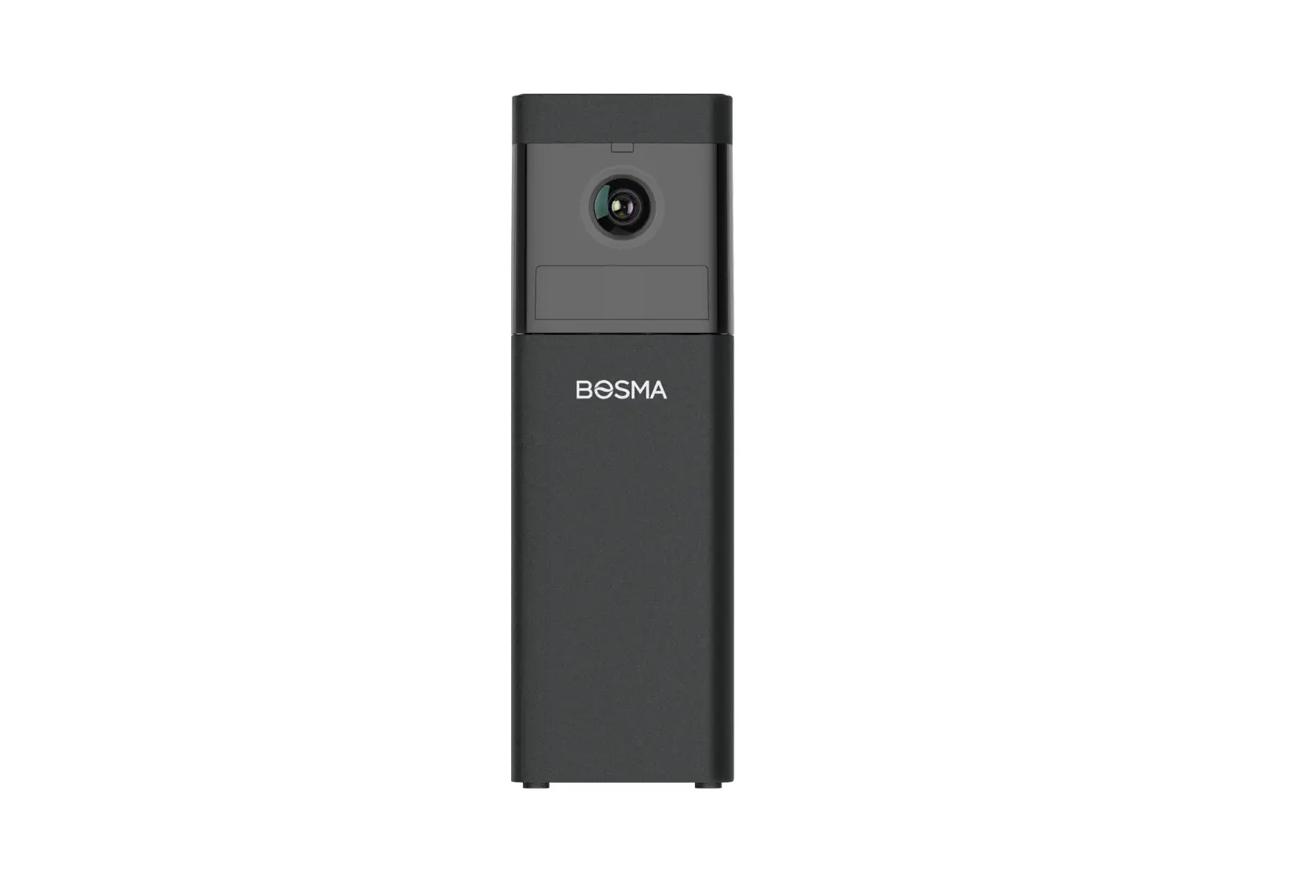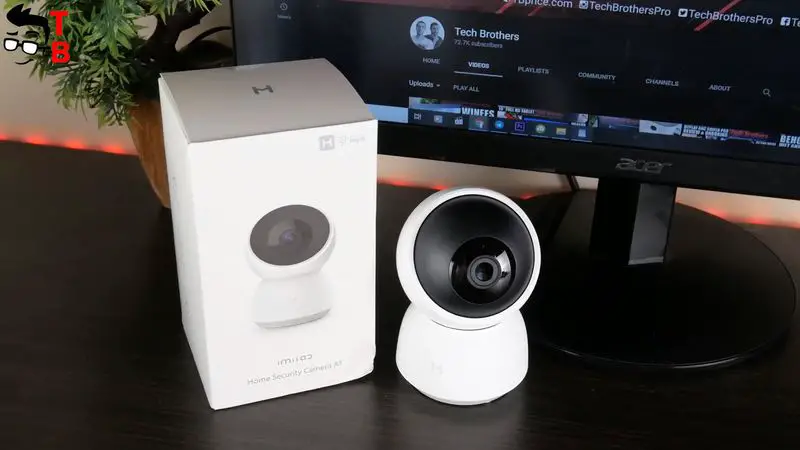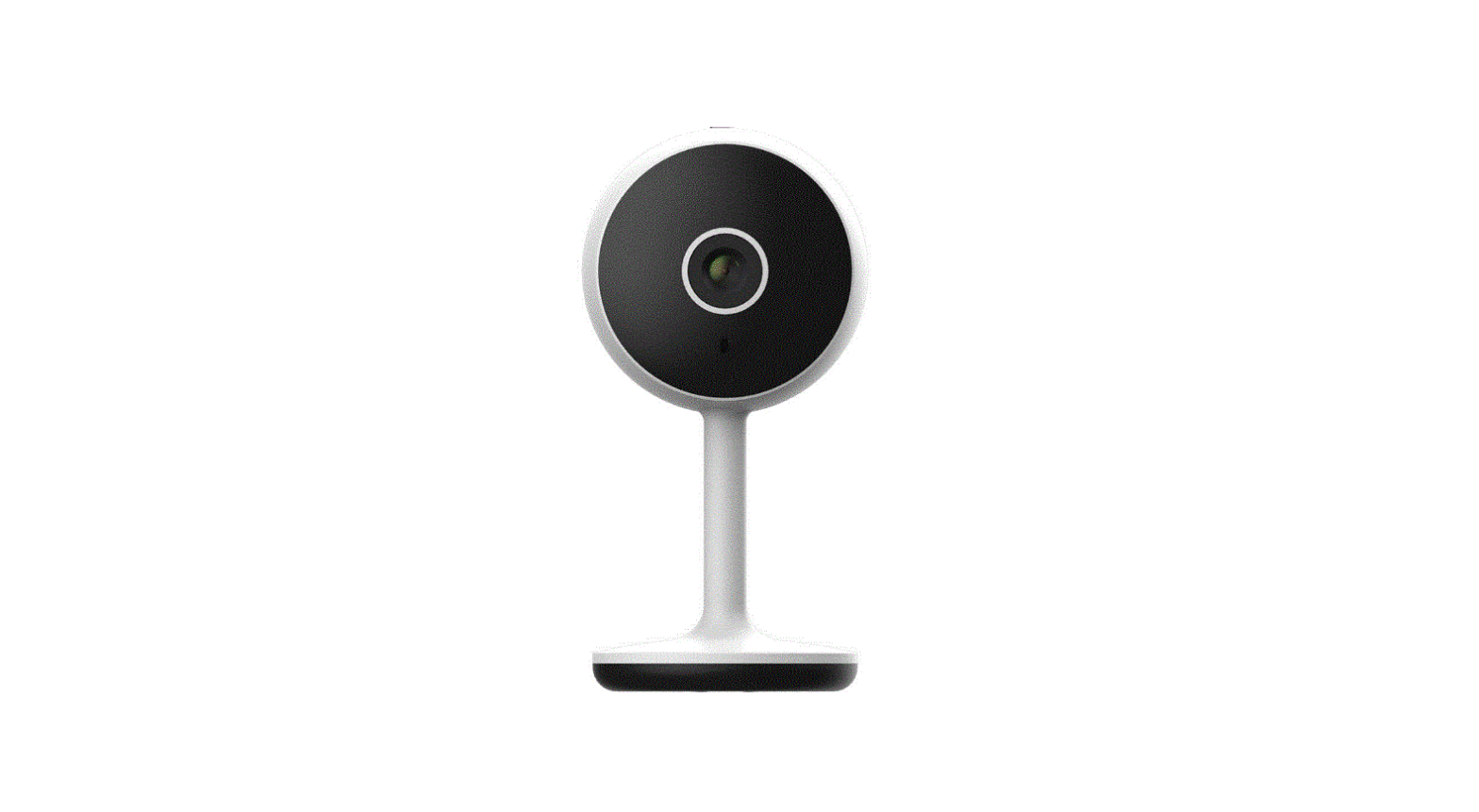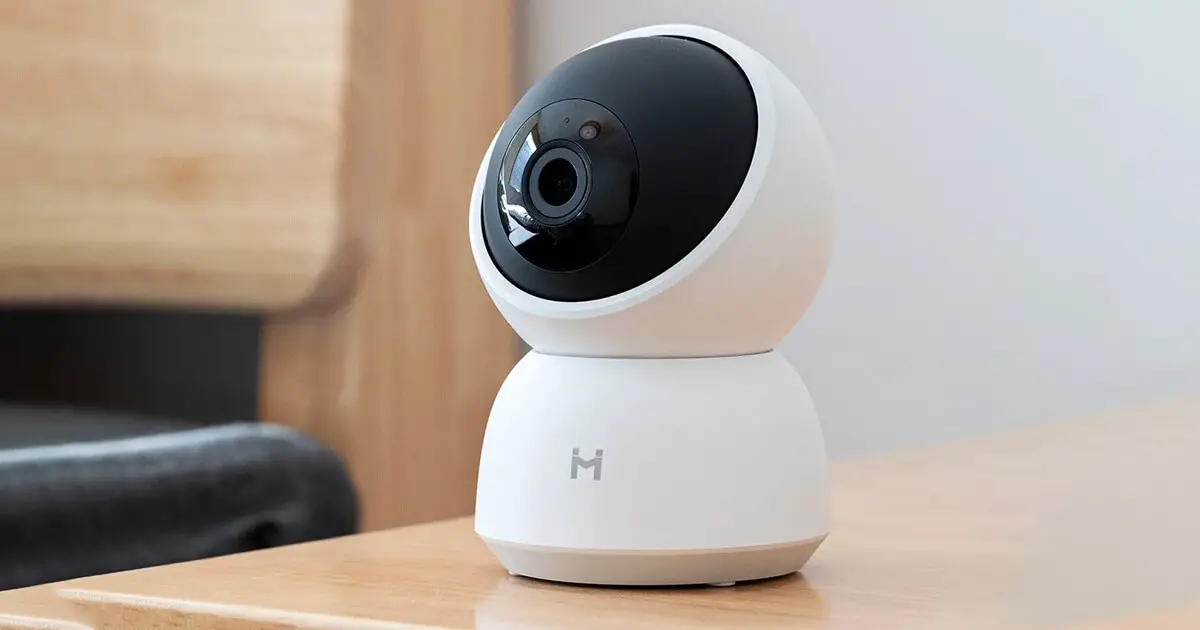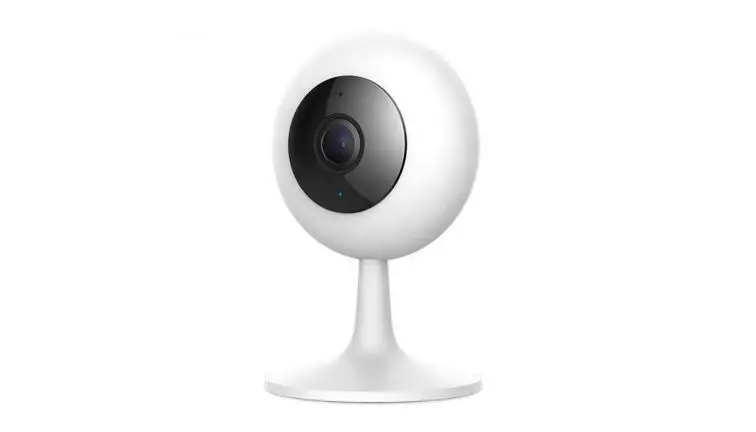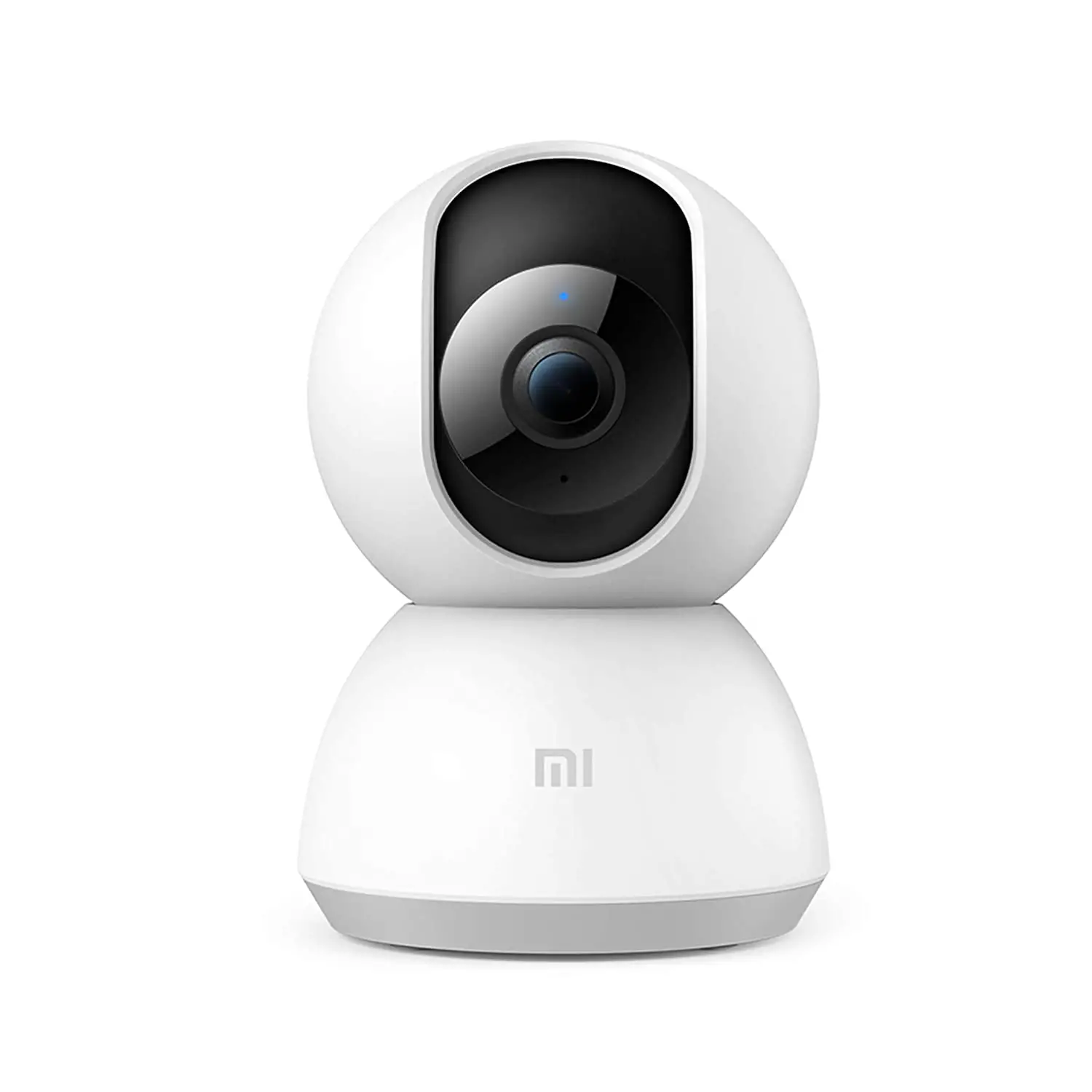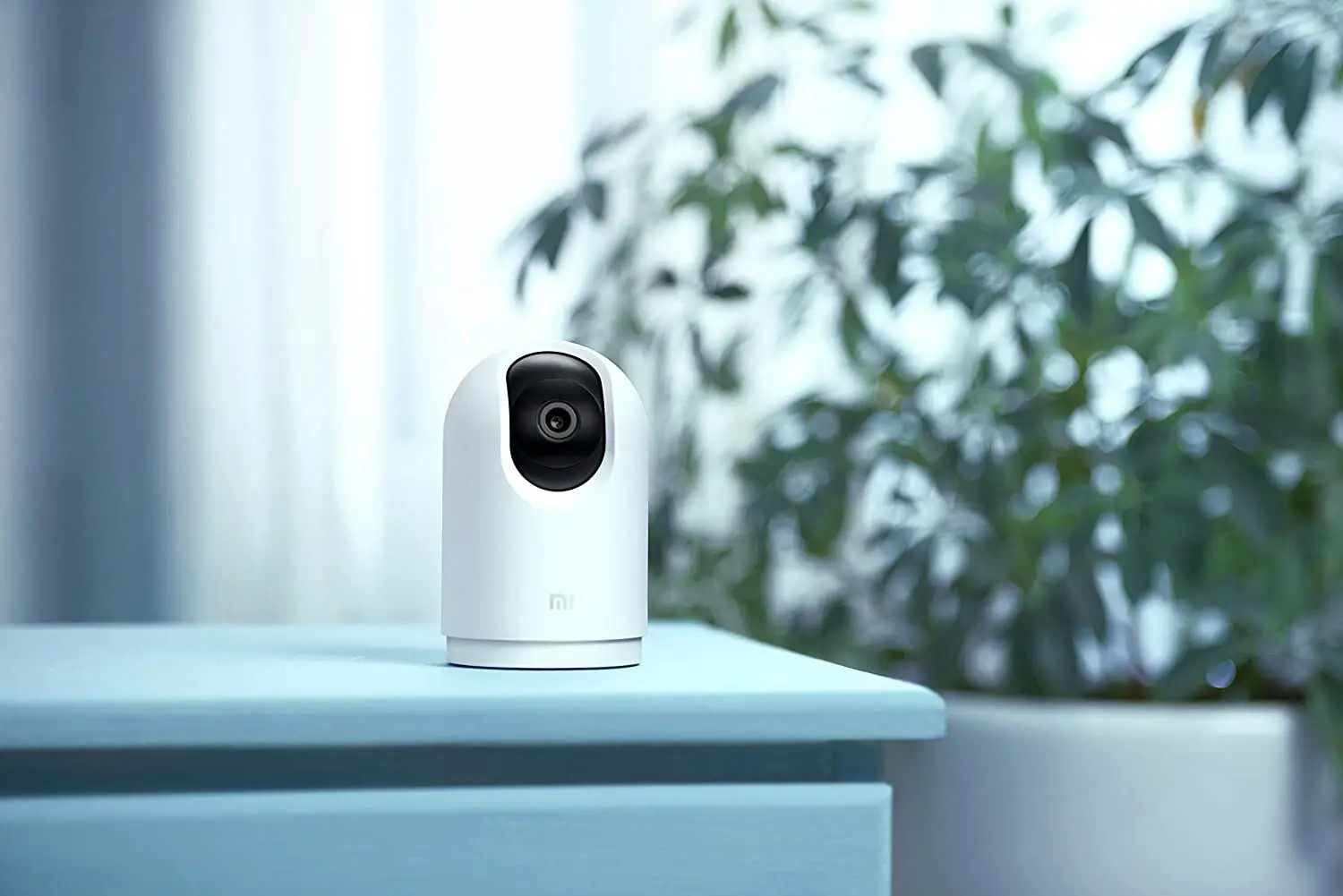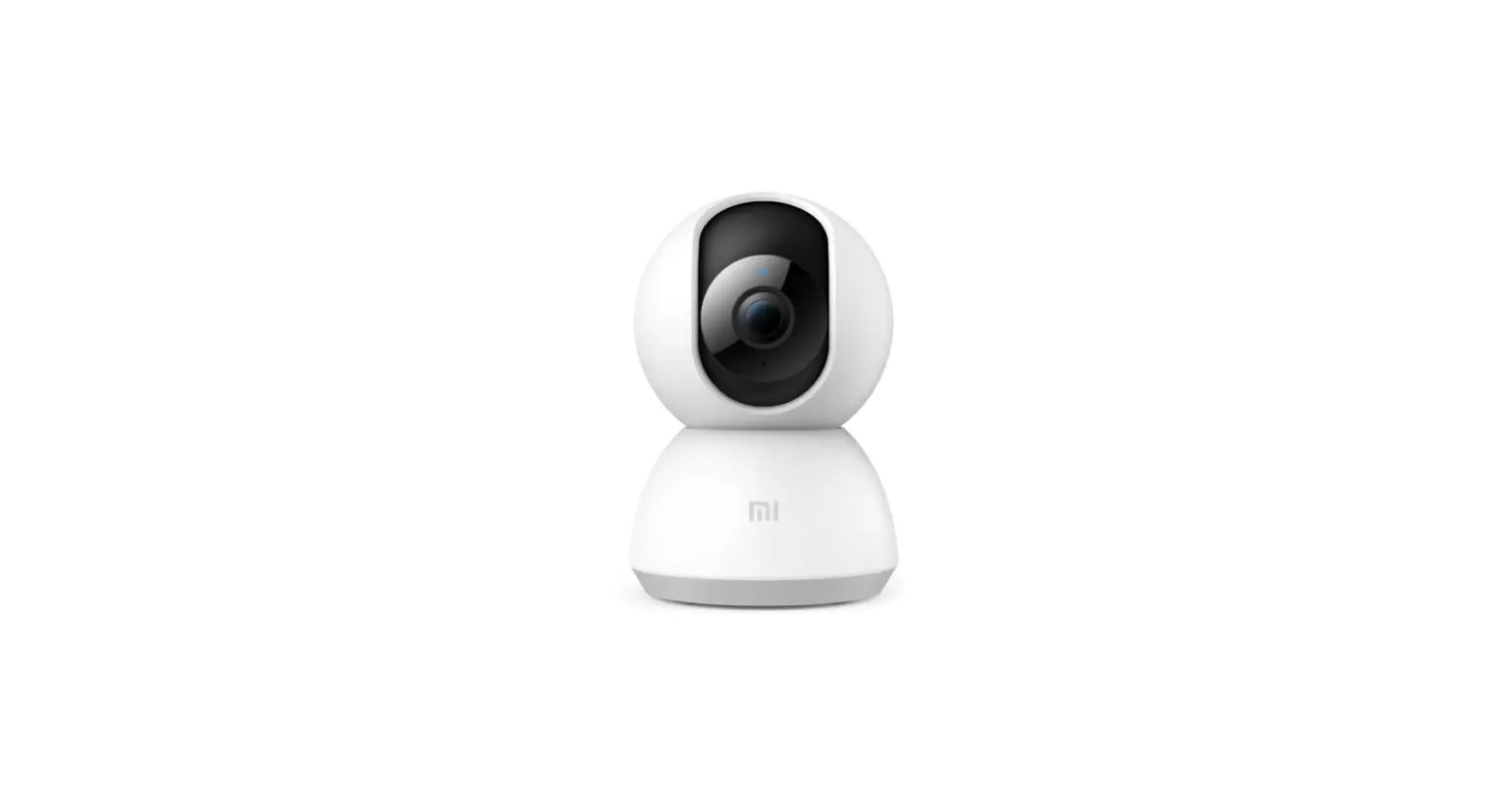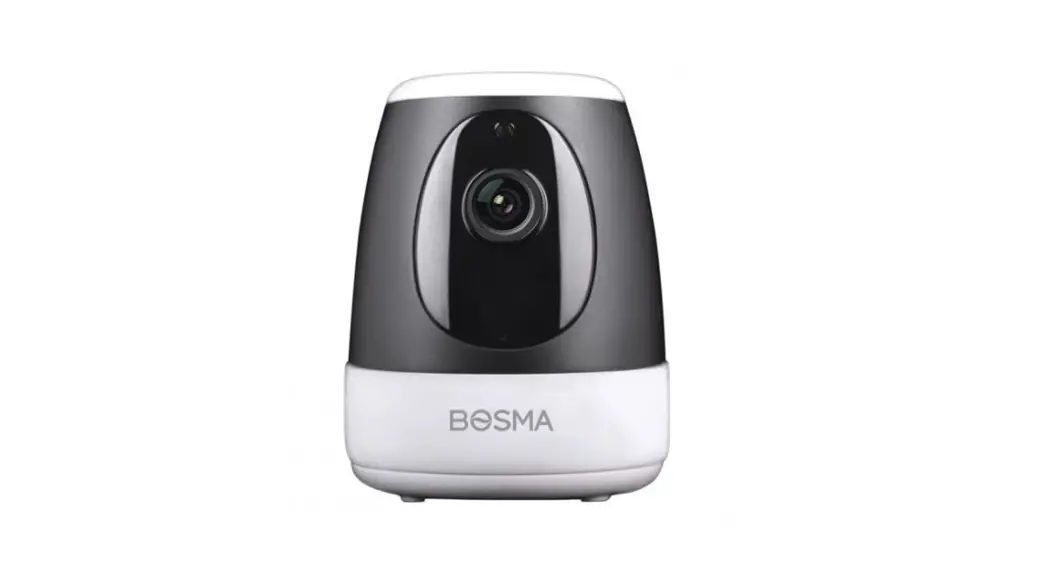
BOSMA XC Security Camera
User Manual
PRODUCT OVERVIEW
The BOSMA XC camera enables you to connect with your loved ones anytime and anywhere. Keep an eye on what matters the most to you, even when you are away. With its integrated hub (available on XC Connect), the XC can also work with peripheral sensors such as the door/window sensor to provide additional security and convenience.
FEATURES
| 1080p Video with 138° Super Wide Angle Leave no blind spot in your home with XC’s super-wide-angle lens and 360° panning. | Motion & Sound Detections Keen motion and sound detections in any environment provided by the motion and sound detectors. |
| Infrared Night Vision High-quality night vision allows you to see everything clearly even at zero lighting conditions. | Built-in Siren A loud 100dB siren can be manually or automatically triggered to scare off intruders. |
| Two-way Audio Communication Communicate with your loved ones at home, anytime, anywhere. | Local Storage Local Storage with a micro SD card up to 128GB. Micro SD card sold separately. |
| Built-in Smart Hub (available on XC Connect) Work with other BOSMA peripheral devices, such as door sensors, motion sensors, night light, etc. | |
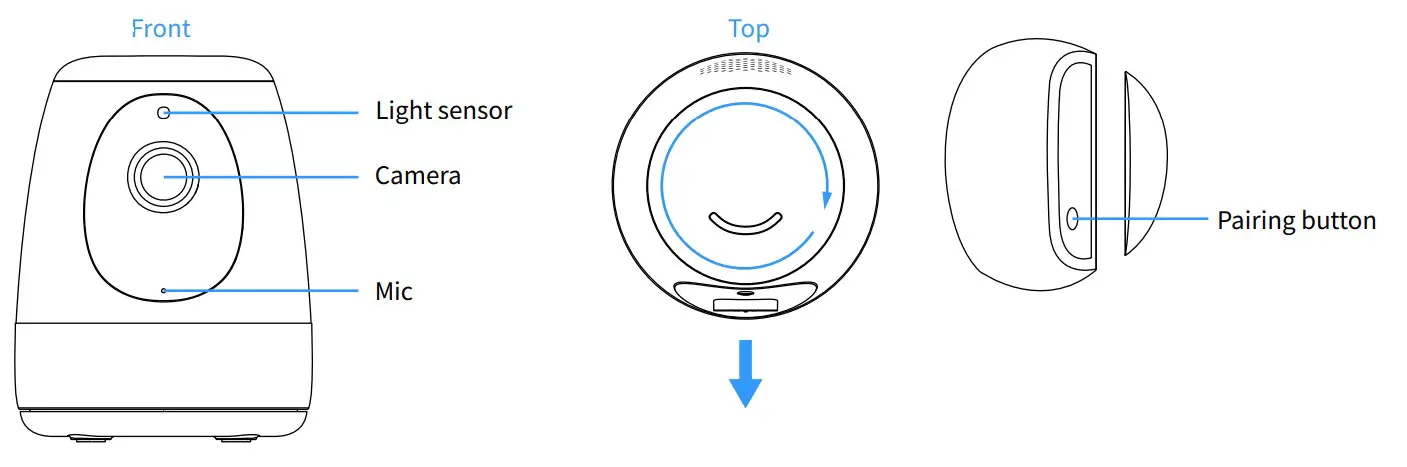
PRODUCT DESCRIPTION
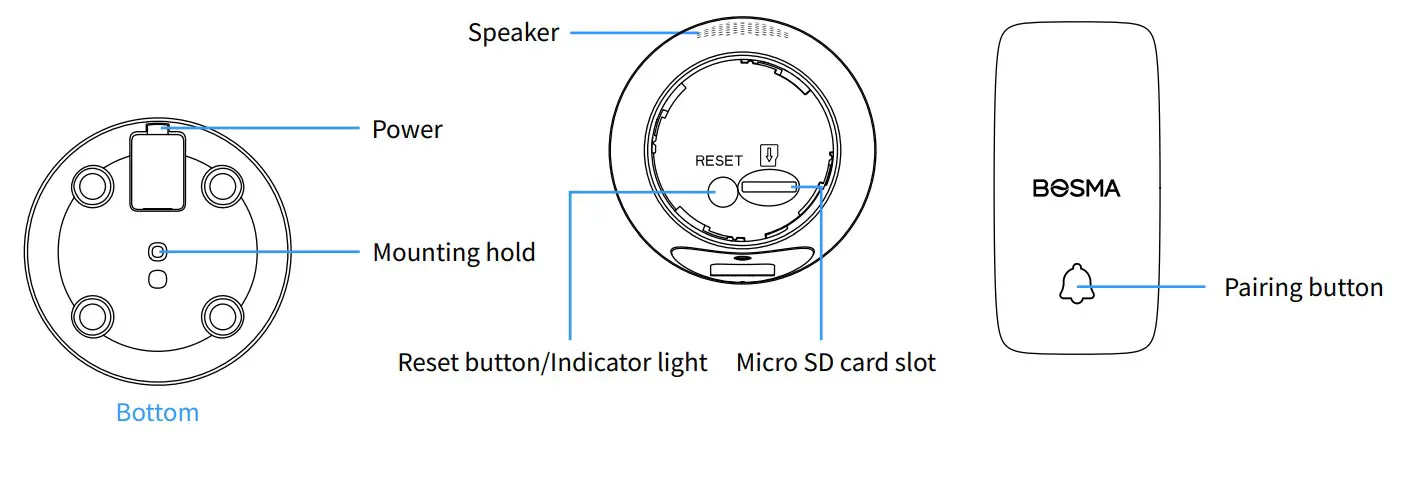
GETTING STARTED
- Step 1: Download the “BOSMA” app
 from App Store or Google Play. Create a new account or log in with an existing account.
 - Step 2: Tap the “+” button at the top right corner.
 from App Store or Google Play. Create a new account or log in with an existing account.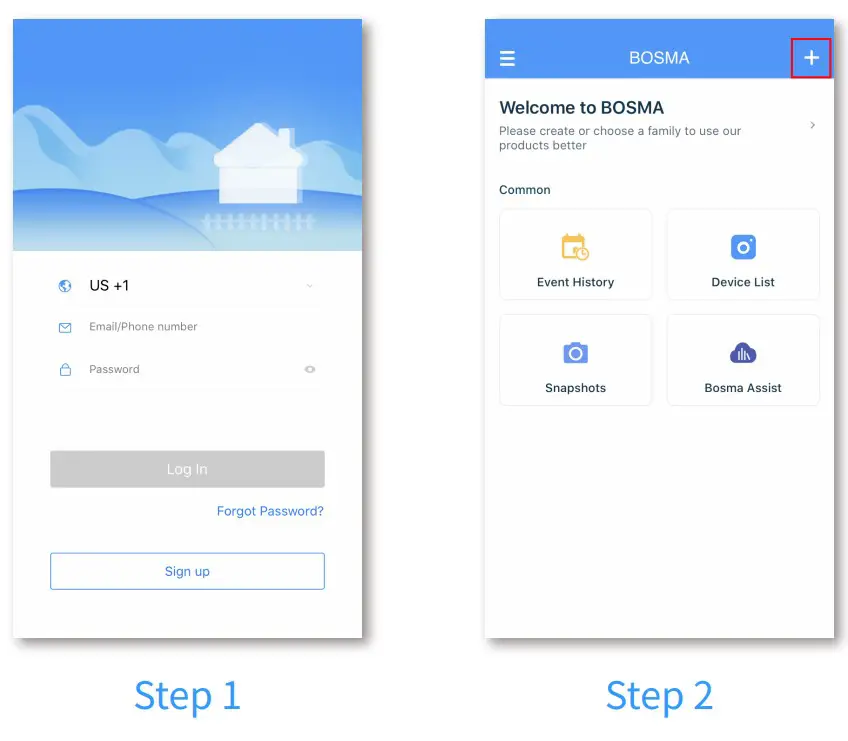
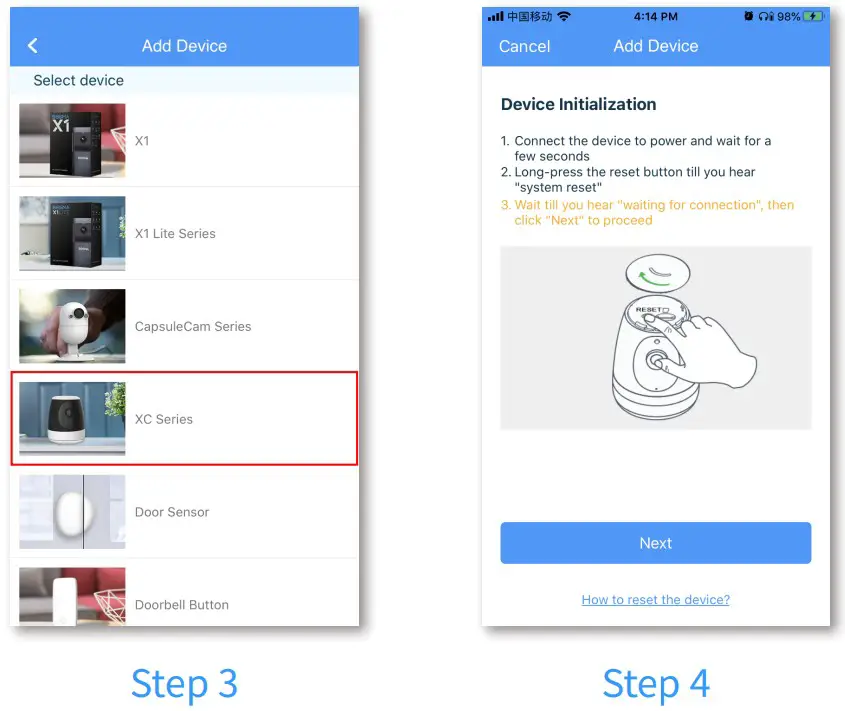
- Step 3: Tap “XC Series” in the list.
- Step 4: Connect the XC to power and wait for it to power up. After you hear “system startup” and “waiting for connection”, tap “Next”. If you did not hear either message, long press the reset button until you hear “system reset” to reset the camera.
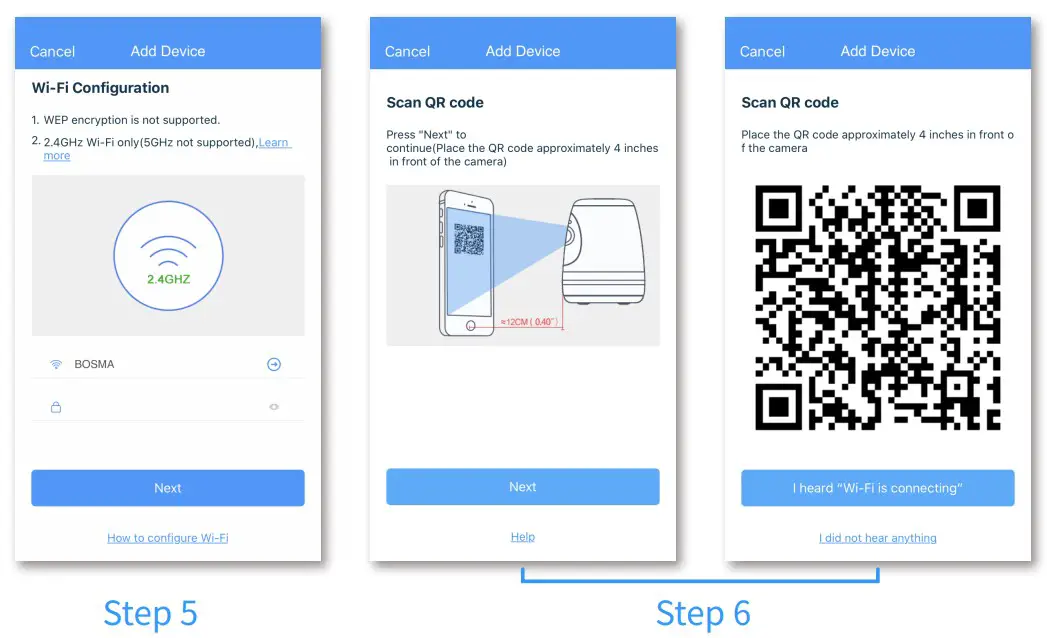
- Step 5: Select the WiFi you want the XC to connect to and enter its password. Note that only 2.4Ghz WiFi is supported.
- Step 6: A QR code will be generated. Place the QR code roughly 3-4 inches in front of the camera till you hear “Wi-Fi is connecting”. Then tap “I heard-Fi is connecting”
to continue.
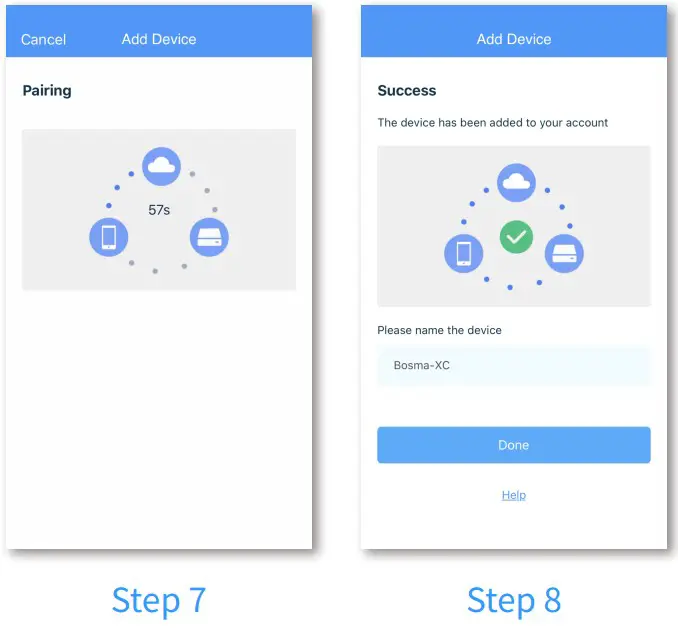
- Step 7: Wait for the XC camera to connect.
- Step 8: Once the device has been added successfully, you can edit the device name.
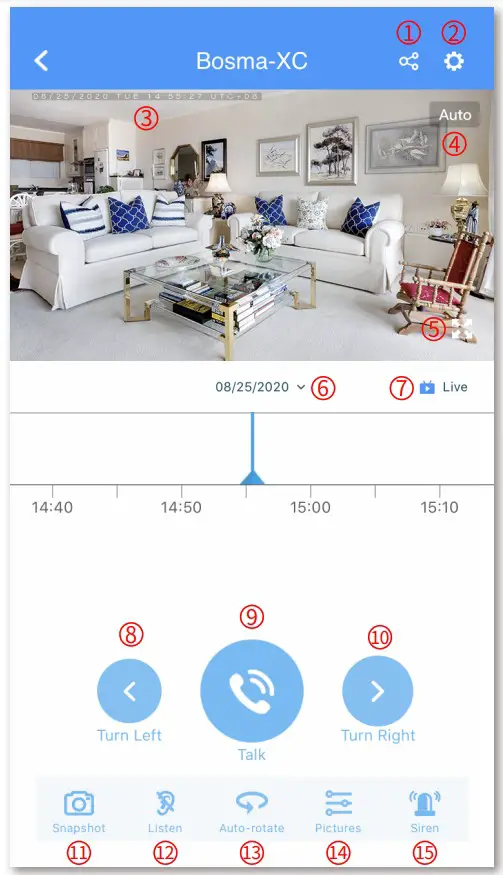 | 1. Share the device with another person. This method is being deprecated. Please instead use Family Management for sharing. 2. Device settings 3. Date and time display 4. Change video quality 5. Full-screen switch 6. Change timeline date 7. Live or playback indicator 8. Turn the left button 9. Talk button 10. Turn the right button 11. Screen snapshot 12. Listen button (tap to listen to the camera) 13. Auto-rotate switch 14. Adjust image parameters 15. Trigger alarm siren manually |
DEVICE SETTINGS | |
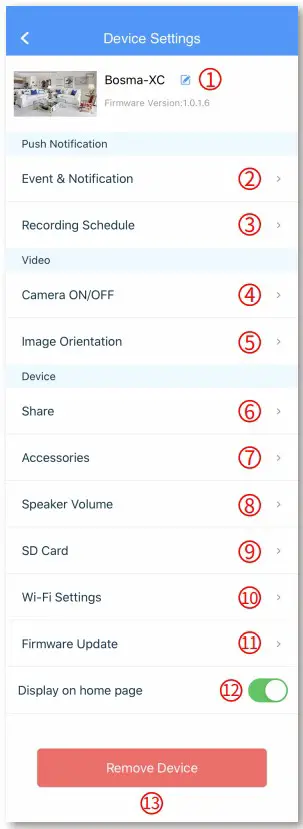 | 1. Change the device’s name 2. Motion/Sound detection and notification settings 3. Manage recording schedule 4. Camera on/off switch 5. Image orientation settings 6. Manage device sharing. This method is being deprecated. Please instead use Family Management for sharing 7. Manage paired peripheral sensors/accessory devices 8. Adjust speaker volume 9. SD card settings 10. Manage Wi-Fi network of the device 11. Check firmware update and turn on / off auto-update 12. Home page display switch 13. Remove device |
ADDING ACCESSORY DEVICES (for XC Connect)
Step 1: Enter device settings -> Accessories. Tap the “+” button at the top right corner.
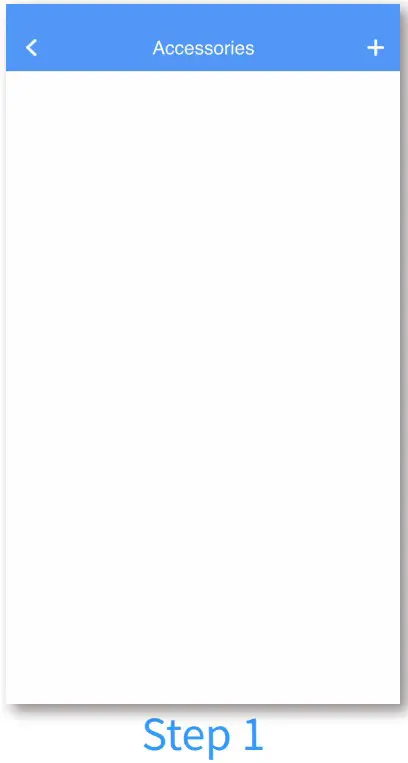
Step 2: Select the device you want to add
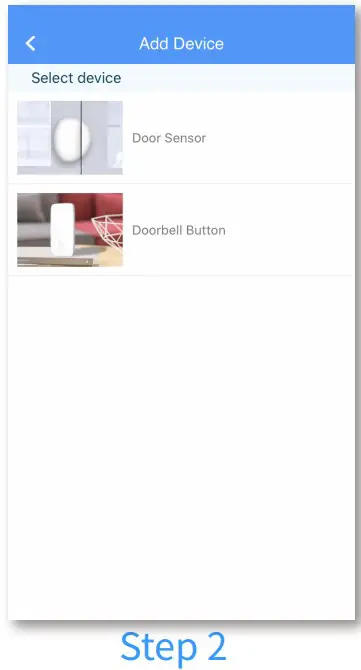
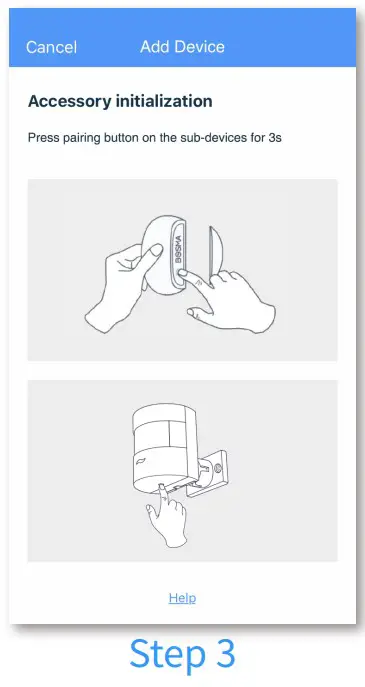
Step 3: Long-press the pairing button of the accessory device for about 3 seconds.
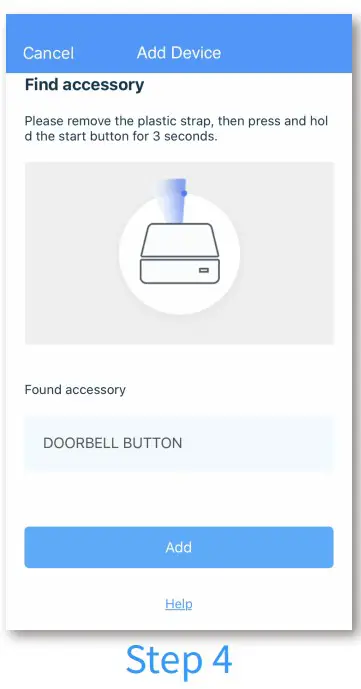
Step 4: After the accessory device is found, rename the device if needed and tap “Add” to proceed.
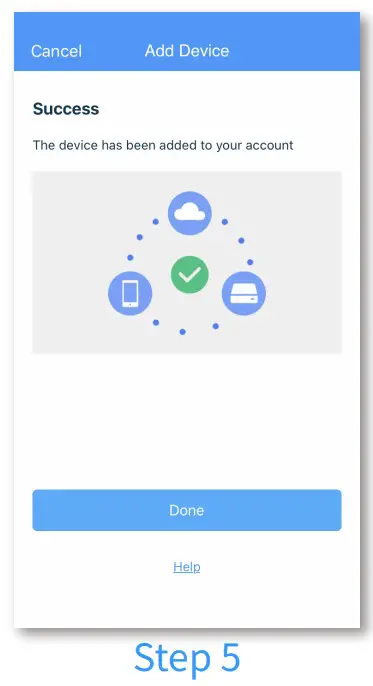
Step 5: Tap “Done” after the accessory device is successfully added.
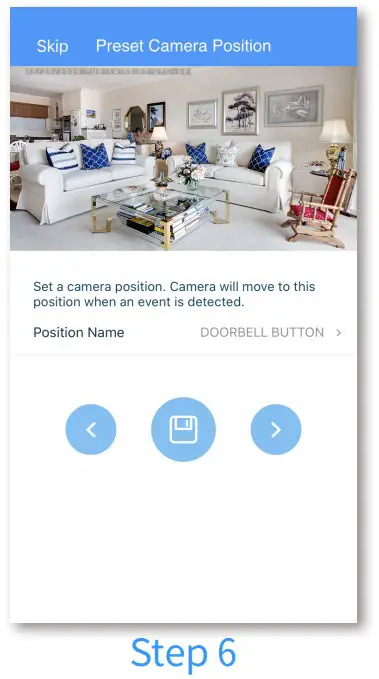
Step 6: Set a Preset Camera Position for this accessory device. The XC will rotate to this position when an event is triggered by this accessory device.
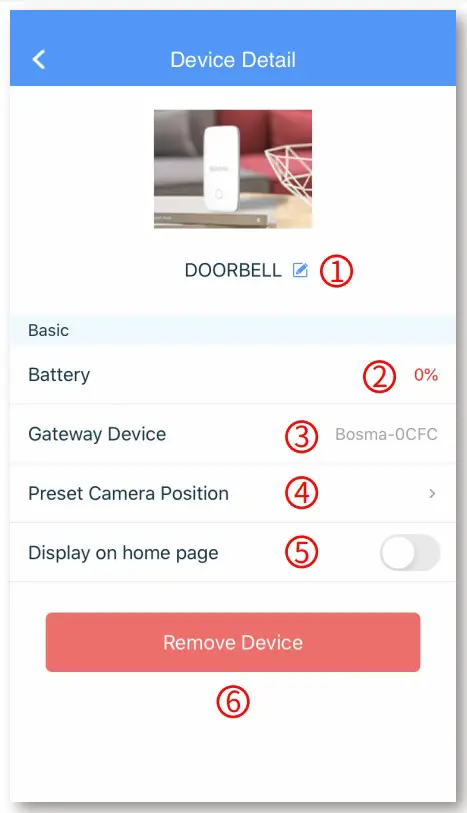 | 1. Rename the device 2. Battery level 3. Paired gateway device inf 4. Manage the Preset Camer 5. Home page display switch 6. Remove device |
DOOR/WINDOW SENSOR | |
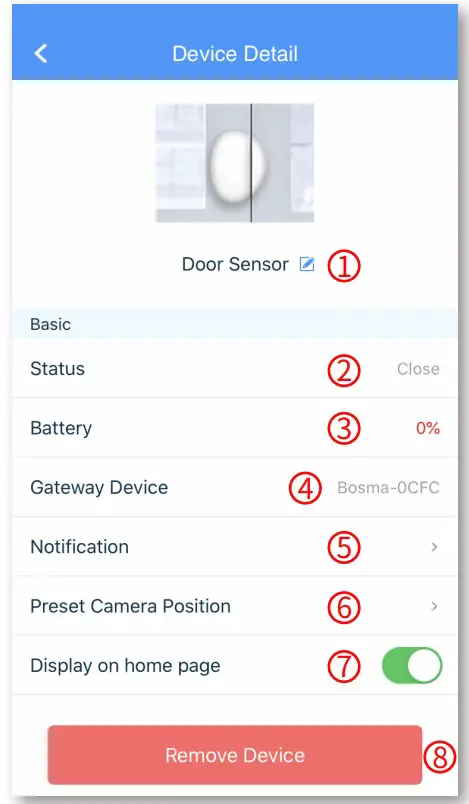 | 1. Rename the device 2. Current status display 3. Battery level 4. Paired gateway device inf 5. Notifications settings 6. Manage the Preset Camer 7. Home page display switch 8. Remove device |
SPECIFICATIONS | |
Resolution | 1920 * 1080 |
| Field of View | 138° Diagonal |
| Night Vision | Infrared Night Vision w/ 4 IR-LEDs |
| Audio | 2-way audio communication |
| Siren: | 100 dB alarm siren |
| Power | DC 5V, 2A, 10W |
| Hub | 915MHz, up to 650ft range |
| Storage | Local: micro SD up to 128GB (micro SD card sold separately) |
| Wireless | 802.11 b/g/n 2.4GHz (does not support 5GHz) WPA, WPA2 encryption minimum 2Mbps upload speed required |
| Weight | 7.41 oz 210g |
| Dimensions | 3.03″(L) x 3.03″(W) x 3.94″(H) 77mm x 77mm x 100mm |
| Operating Temper | 14°F ~ 122°F -10℃ ~ 50℃ |
| Color | Black & White |
| Material | ABS & Rubber |
| Warranty | 1-year limited warranty |
| Certifications | CE, FCC, RoHS |
| App | Free “BOSMA” app available on Google Play and App Store |
SAFETY INSTRUCTIONS
- Do not disassemble or repair the device yourself. In the event of a malfunction, contact the service center.
- Keep the device away from open flame in order to avoid an explosion or fire.
- Do not expose the device to extremely high or low temperatures. Avoid contact with water.
- Avoid dropping the device or hitting it with hard objects. Do not expose the device to strong mechanical stress.
- The manufacturer is not responsible for any damage caused by the user.
- Keep the device away from the sources of electromagnetic radiation, such as microwave, refrigerator, etc.
- Do not use chemicals or detergents to clean the device, always turn off the device before cleaning.