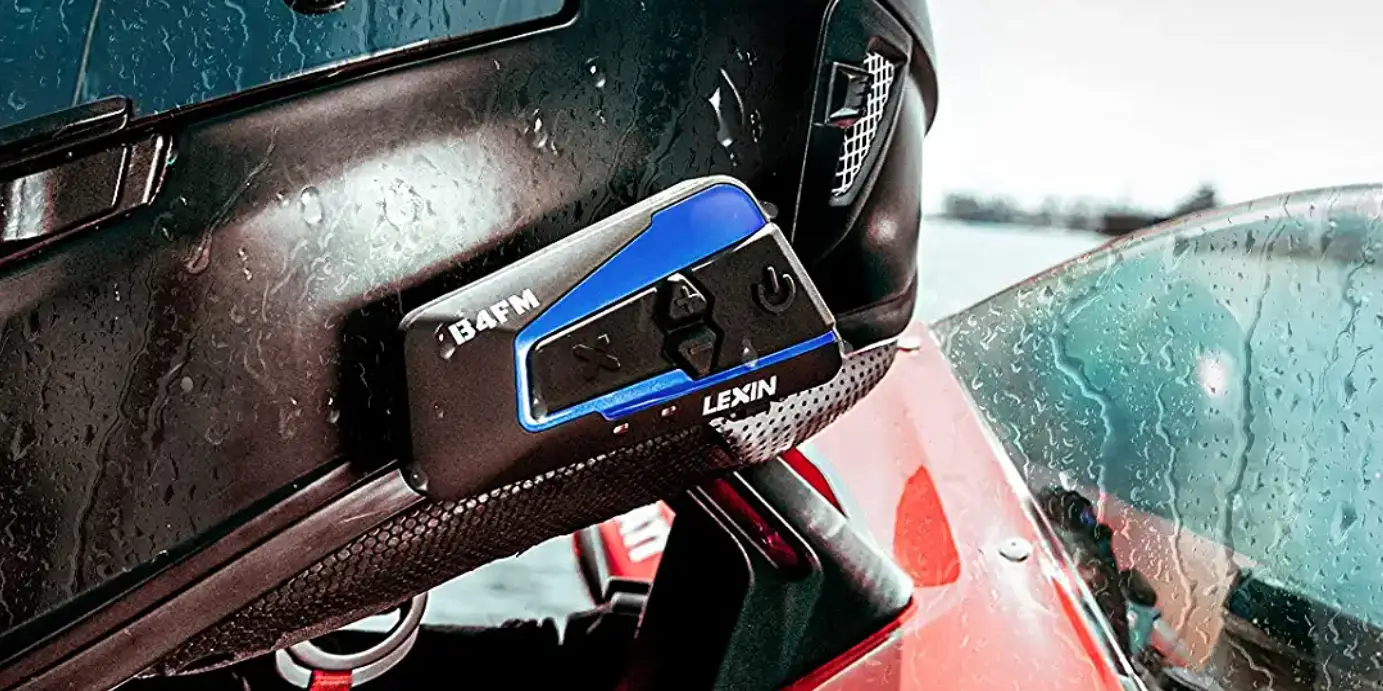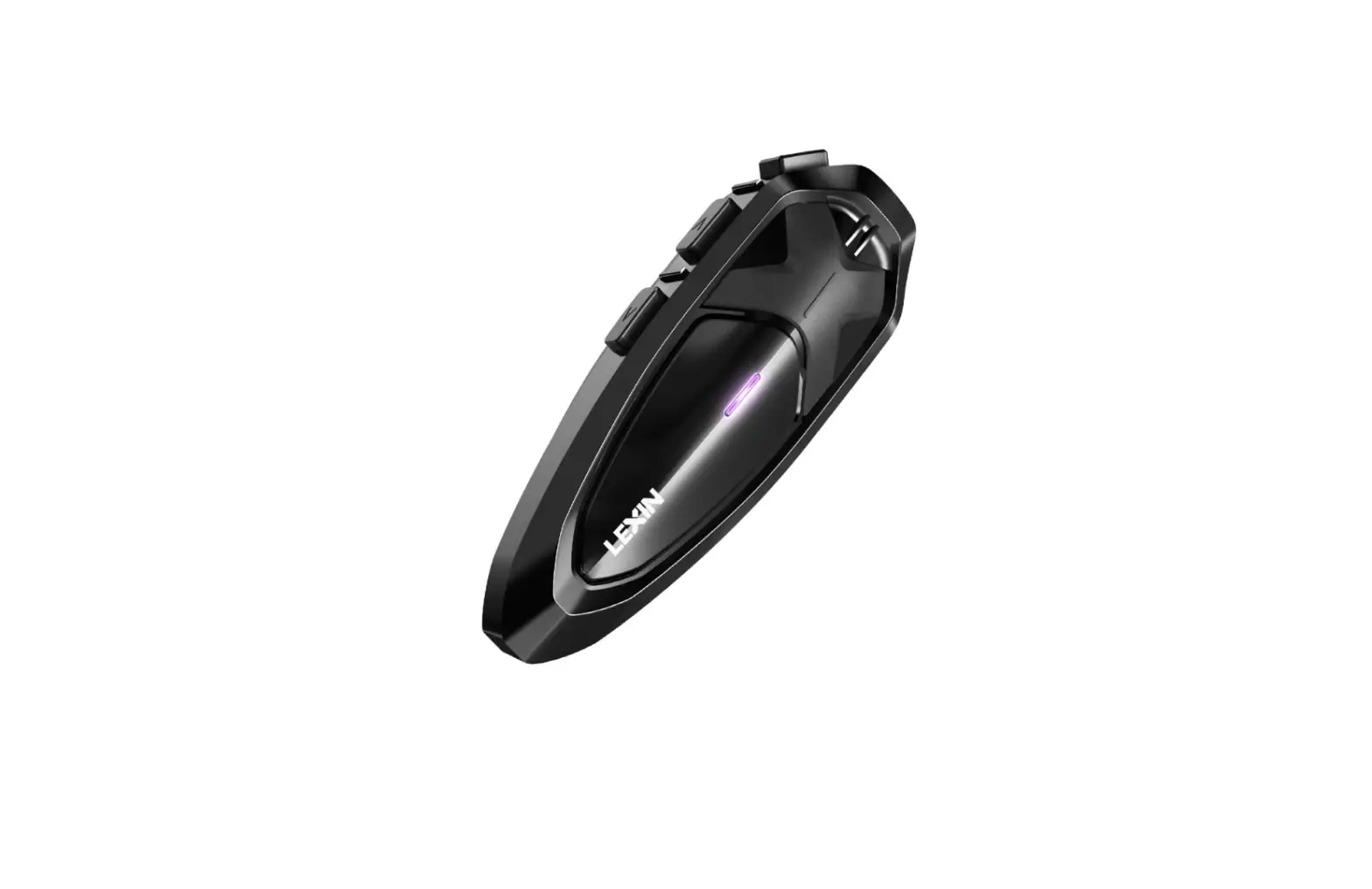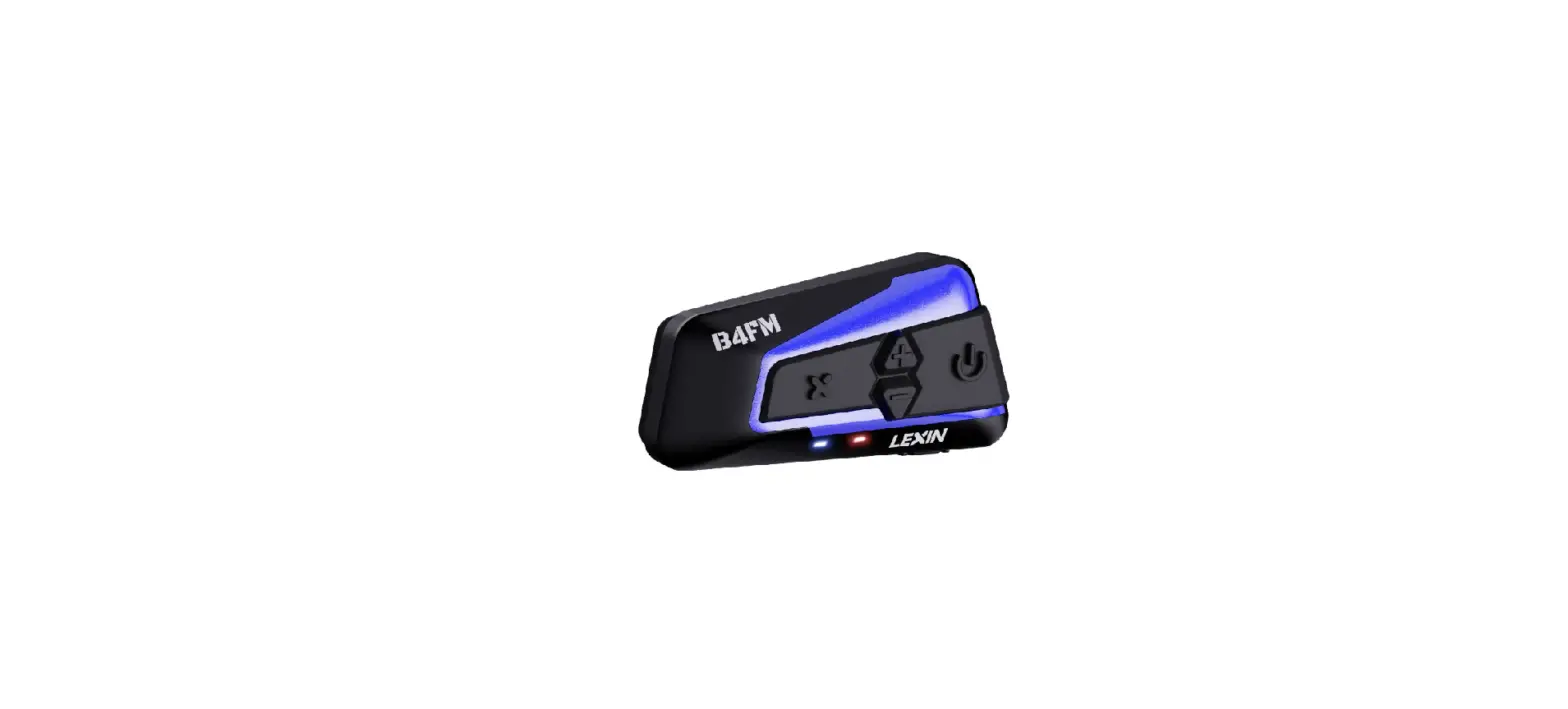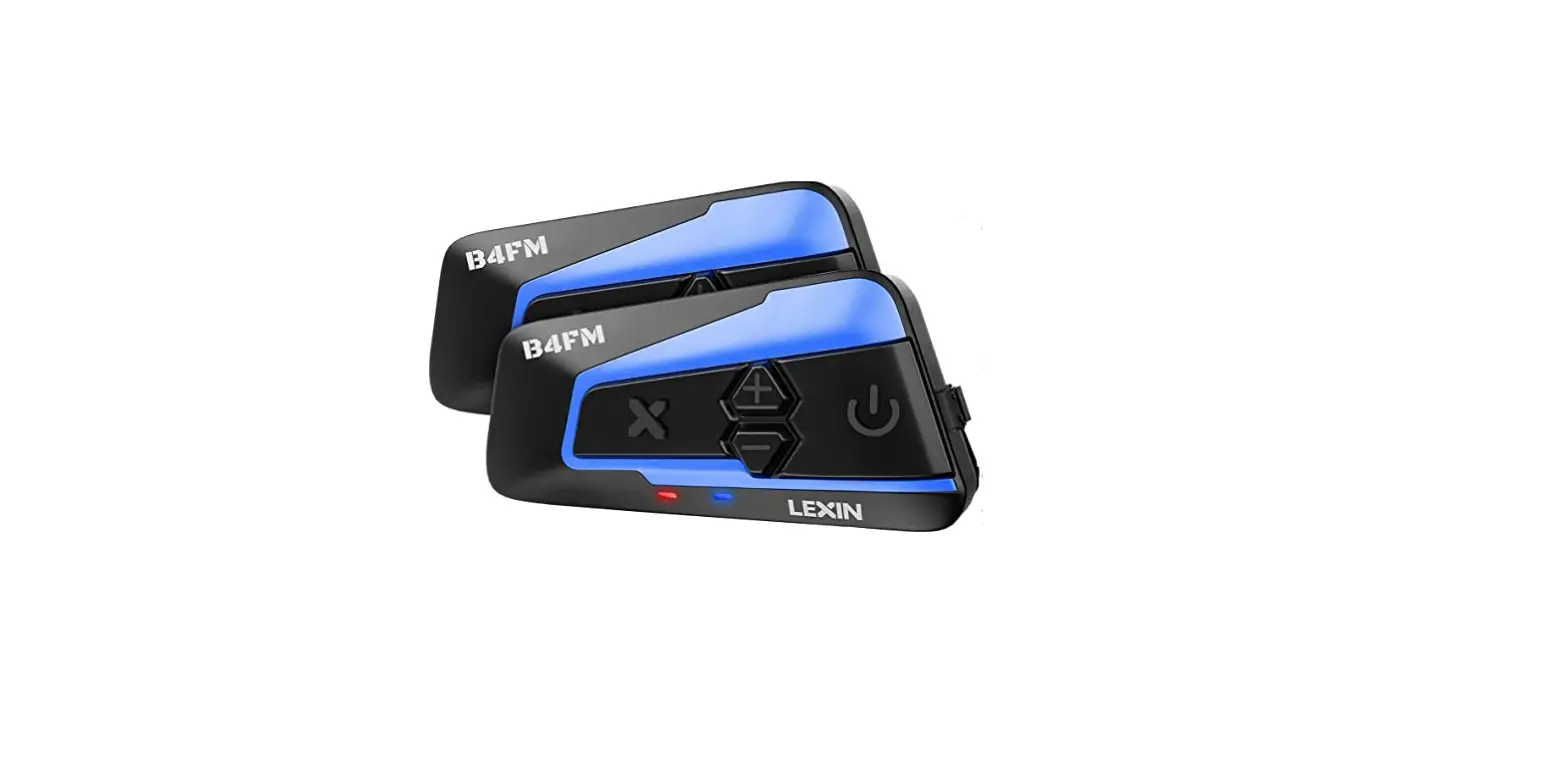
 LEXIN B4FM Motorcycle Bluetooth Headset
 LEXIN B4FM Motorcycle Bluetooth Headset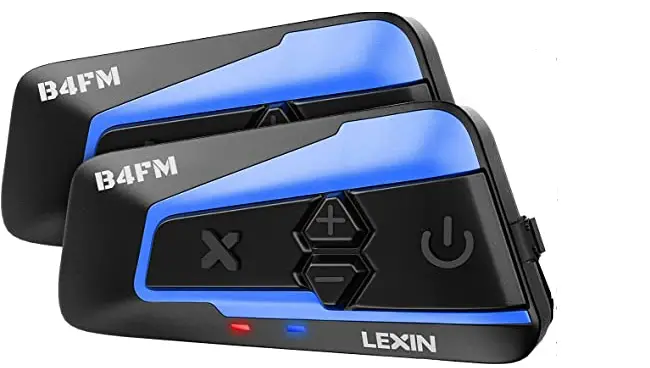
Function Introduction
Thank you for choosing the B4FM Motorcycle 10-Way Bluetooth Conference Intercom.
- Bluetooth 5.0
- Hands-free calling
- Built-in CVC/DSP noise reduction
- USB-C quick charge equipped
- Support voice prompts, power voice announcement
- Support Siri and other voice assistants
- Support universal pairing with most Bluetooth Intercom
- Support 1-10 B4FM devices connection, the longest intercom distance is 2Km/l.2miles.
- Connect to GPS Navigation
- Plays music and FM Radio
- Support Music Sharing
The B4FM is compliant with Bluetooth Specification vs. supporting the following profiles:
Headset Profile (HSP), Hands-Free Profile (HFP), and Advanced Audio Distribution Profile (A2DP). It supports universal pairing with almost all Bluetooth headsets on the market.
Battery
The B4FM features an 800 mAh battery which can provide the intercom device with 15 hours of music or 15 hours of intercom talk with over one week of standby time.
Function Priority: (The B4FM operates in the following order of priority)
- Mobile phone
- intercom Talk
- Music/FM Radio/GPS
Note: A lower-priority function is always interrupted by a higher-priority function. For example, stereo music can be interrupted by an intercom call, intercom talk can be interrupted by an incoming phone call.
WARNING
PLEASE CHECK ALL LOCAL LAWS AND REGULATIONS REGARDING THE USE OF IN-HELMET S P MAKERS WHILE OPERATING
Package Contents
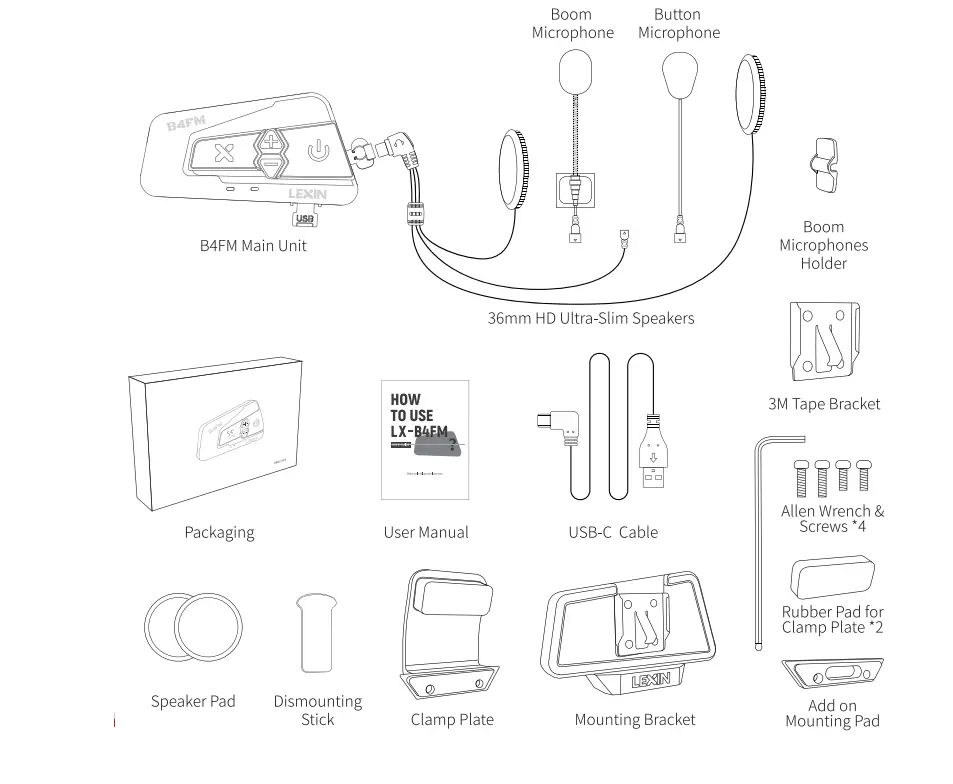
- B4FM Main Unit
- 36mm HD Ultra-Slim Speakers
- Boom/Button Microphones
- Boom Microphone Holder
- Mounting Bracket
- Clamp Plate
- Add on Mounting Pad
- 3M Tape Bracket
- User Manual/Quick Start Guide
- USB-C Cable
- Speaker Pad
- Allen Wrench & Screws •4
- Rubber Pad for Clamp Plate •2
- Dismounting Stick
Installation Instructions
Installing Bracket for B4FM to Helmet
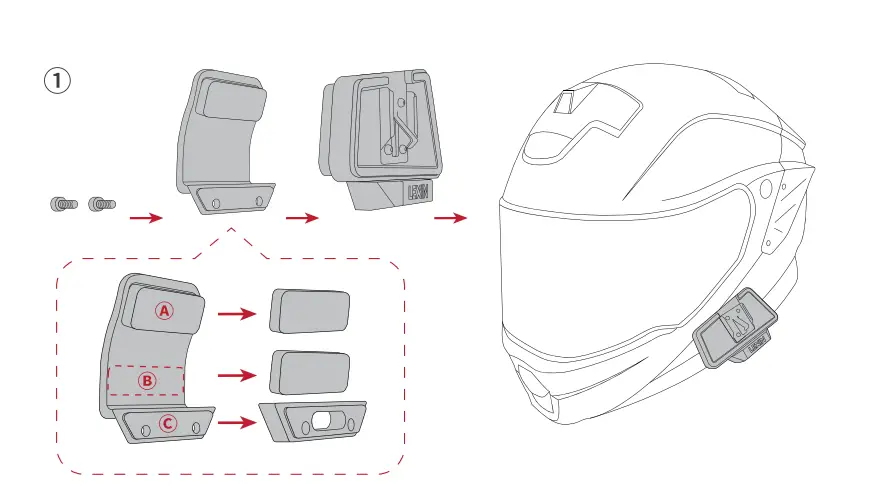
- With Screws
Mount the bracket between the internal padding and the external shell of the helmet. Tighten the two screws between the bracket and Mounting Pad by using the included Allen wrench.
Note: According to the thickness of your helmet shell add 0-2pcs rubber pads on the recommended position ®and®. If you need to add the plastic mounting pad
on position© and please use the two -longer screws, if not, please use two shorter screws.
- With Adhesive Pad
If you don’t want to use the clamp plate mounting bracket or you have some problems with using it, you can use the 3M tape bracket to adhere it onto the helmet. Just peel off the protective backing sheet of the 3M tape bracket and adhere the bracket onto the helmet. Press for 15s and to allow the glue 24hou rs to dry.
Note: Even though the 3M Tape bracket is provided for convenience, LEXIN recommends using the bracket mounting. The 3M Tape bracket is offered as an option that you may use at your own risk and responsibility, LEXIN does not assume any responsibility for use of it.
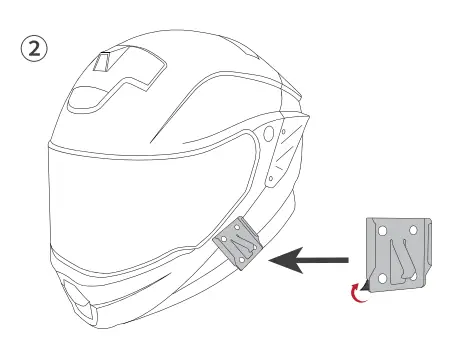
Mount the B4FM unit the bracket

Mount the B4FM main unit on the bracket. Slide the main unit down onto the bracket until it clicks firmly into the bottom portion of the bracket.
To remove the main unit from the bracket, use the Dismounting Stick to insert it between the B4FM unit and the mounting bracket, then push the B4FM main unit up from the bracket.
Installing Speakers
Note: The speaker with the shorter wire is for the left ear and the speaker with the longer wire is for the right ear, this will enhance the FM radio reception as well.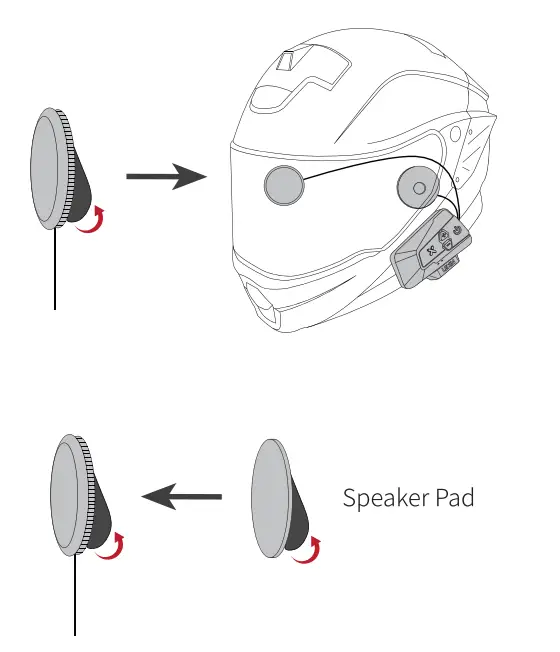
- Step 1: Place one-half of the speaker’s velcro pad into the helmet’s inner padding.
- Step 2: Push the speakers firmly against the velcro pads. If the helmet has deep ear pockets, you can use the provided spacers to place the speakers closer.
- Step 3: Hide the wires between the helmet liner and shell.
Note: For helmets with deep ear pockets, you can use the included speaker pads to increase the thickness of the speakers.
Installing Microphone
Note: The button microphone and boom microphone can be interchanged between full-face or open-face helmets. Choosing between the two is based on your preference and what fits best in the helmet(s).
Full Face Helmet/Button Microphone
- Step 1: Locate an area in the center of the mouth section of the helmet to install and adhere half of the microphone velcro pad.
- Step 2: Attach the button microphone to the attached velcro.
- Step 3: Connect it to the headphone connector from the left.

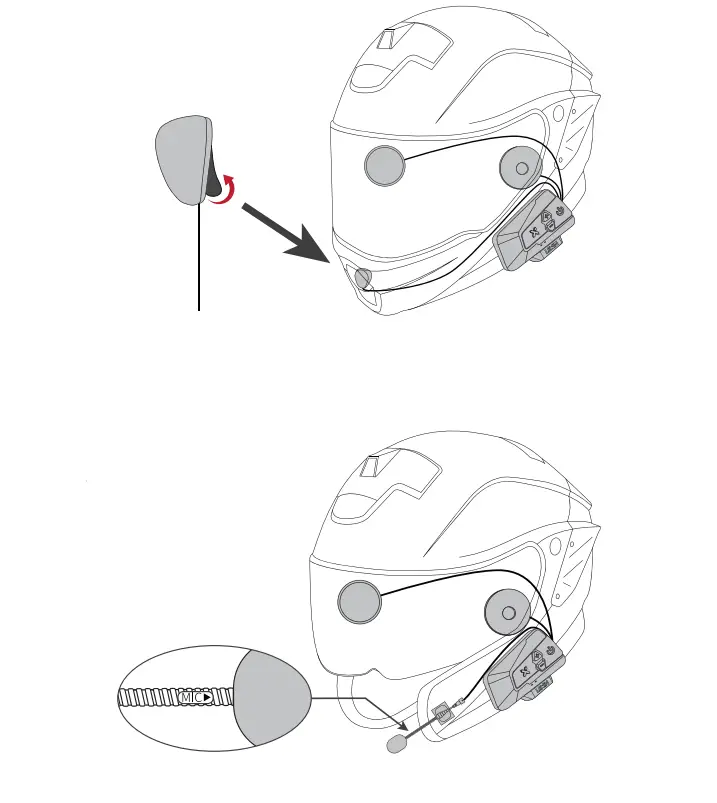
Open Face Helmet/Boom Microphone
- Step 1: Adhere one half of the velcro pad to the base of the microphone and the other half to the inside of the helmet under padding.
- Step 2: Adjust the direction of the microphone so that the triangular mark on the microphone is pointing towards your mouth.
- Step 3: Use the boom microphone holder for additional support to the microphone if necessary.
General Operation Instructions 
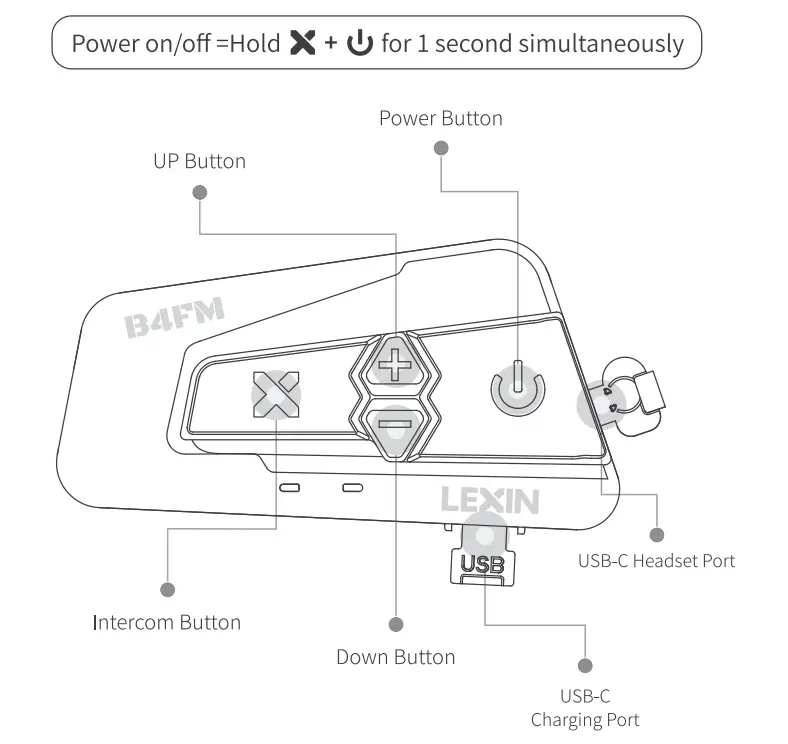
Powering On/Off
- Power On: Long press the Power Button and Intercom Button for about 1 second to power on. The LED will blink blue only. The speaker will report “power on”and the current battery level.
- Power Off: Long press the Power Button and Intercom Button for about 1 second to power off. The LED will blink red only. The speaker will report “power off”.
BATTERY
- Charging: Plug the USB-C cable into the USB-C port of the main unit and plug the USB into the USB port on any DC SV power supply to charge, such as mobile phone charger, computer, laptop or power bank, Etc. The LED turns red while charging and then turns blue when the main unit is fully charged. It takes about3 hours to be completely charged.
- Low Battery Alert: The device will notify you when the battery life drops low (below 30%). It will remind you every 5 minutes with a voice alert until the device powers off. This indicates around 1-1. Sh of use remains. It will automatically shut down when the battery is below 20%.
- Battery Life Prompt: Every time you turn on the unit, it will automatically report the current battery life.
While in standby mode, long press the Down Button for about 1 second and the B4FM device will prompt the current battery life.
Note: It will report one of five levels: 100%, 80%, 50%, 30%, or LOW.
Pairing B4FM with Bluetooth Devices
Note: In the group intercom mode, one LX-B4FM device can connect up to two
LX-B4FM devices and one mobile phone at the same time. It can automatically connect to your last paired device as long as Bluetooth is enabled or when the device is not connected and is in standby mode, click the Power Button to connect to the Bluetooth device.
Pairing Phone
- Step 1: While Powered off, long press the Power Button ( \!J) for about 5 seconds until the LED light flash blue and red alternately to enter pairing mode;
Note: Please do not use the Intercom Button instead of Power Button to pair your phone and GPS devices. - Step 2: Go to Bluetooth settings on your phone. Select “LX-B4FM”, Some mobile phone may need PIN. Enter “0000” for the PIN if needed;
- Step 3: Please confirm your phone if the pairing is completed;
Note: The LED will blink blue on B4FM device which indicates the connection is completed.
Pairing Bluetooth GPS Navigation
- Step 1: While powered off, long press the Power Button for about 5 seconds until the LED light flash blue and red alternately to enter pairing mode;
- Step 2: Follow pairing instructions for your specific GPS Navigation to connect to B4FM;
Note: You will be able to listen to Bluetooth voice instructions from Bluetooth GPS navigation once paired.
Phone cell
- Answer Call: Click the Power Button to answer when a phone call is coming.
- Auto Answer: Incoming calls will automatically be answered after 12 seconds.
- Preset On/Off Automatic Answering: With a power-on state, long press the Up Button for about 5 seconds, the blue light quick flashes 3 times, indicating that automatic answering is on, or long-press the Up Button for about seconds the red light quick flashes 3 times, indicating that automatic answering is off.
- End Call: Click the Power Button to end the call.
- Decline Call: Double-click the Power Button to reject the call.
- Redial: When in standby mode, double click the Up Button, the last phone call will redial.
- Voice Dial: While the device was paired with your phone, double-click the Down Button to activate Siri or S-Voice. Simply speak the name from your phone list to dial.
Volume and Music Controls
Volume Up/Down: Long Press the Volume Up or Down Button, and it will prompt both when the volume is maximum and minimum.
Note:
- Only when in the music playing mode/FM Radio Mode/Intercom Mode/Phone Call status that you can adjust the volume.
- When listen to the audio sources from your phone, you have to adjust the volume on your phone to get louder volumes.
- Please single click the volume button to adjust the volume gradually, and long press the volume button to adjust the volume continuously.
Pause/Play: Click the Power Button to pause a song, click the Power Button again to resume playing.
Change Song: Double click the Up Button for next song, and double click the Volume Down Button for the previous song.
Music Sharing: A B4FM device (A) that is playing music can share music to another B4FM device (B). When device A is playing music, double click Power Button on device A to enter music sharing mode. Then make sure device Bis in the standby state, double click Power Button on device B to search and connect device A, it will play the same music automatically once connected.
Stop Music Sharing: To quit music sharing mode, double click Power Button on either B4FM device.
Intercom Connection
The B4FM Bluetooth headsets use full-duplex Bluetooth intercom talk, pairing group internal intercom, divided into 4-way intercom mode and multi-way intercom mode, multi-way intercom mode can achieve up to 10 riders to be connected.
Note: Prior to pairing B4FM units for communications and riding, we strongly suggest that existing connections be cleared from unit. To clear existing connections, long
Press the Up and Down Button together for about 1 second until the red LED flashes quickly, all previous connections will be cleared from the unit.
Every time you turn on the B4FM device, the default is 4-way intercom mode, to switch into the multi-way intercom mode which is for more than 5 riders (including 5 riders), in the standby state, you need to long-press Power Button for about 8 seconds on all units, there will be a beep sound and the indicator light quick flashes red at the same time. There is no memory function for this operation, so you have to switch it every time when connects over 5 units.
Bluetooth Intercom Pairing & Connection
Step 1
(2-Way Pairing): Press the Intercom Button to pair2 B4FM devices
Power on two B4FM units. Long press the Intercom Button on both two units for about 1 second. LED of both two units will flash red and blue alternately which indicate they enter pairing mode.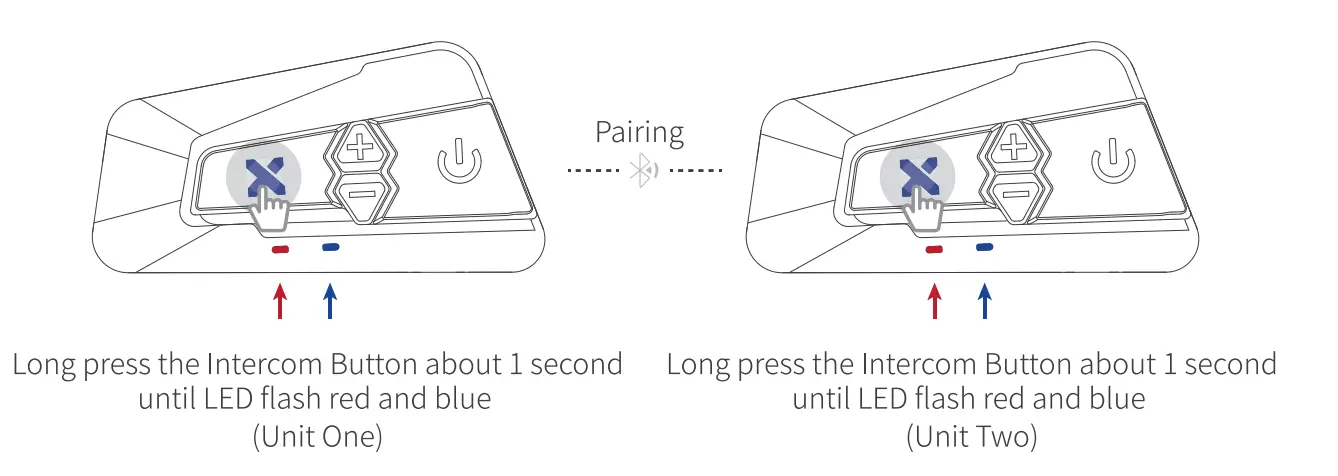
Click the Intercom Button on either unit to search and pair the other unit, the LED light flash blue quickly. Once pairing is completed, the LED will blink blue slowly on both two units. 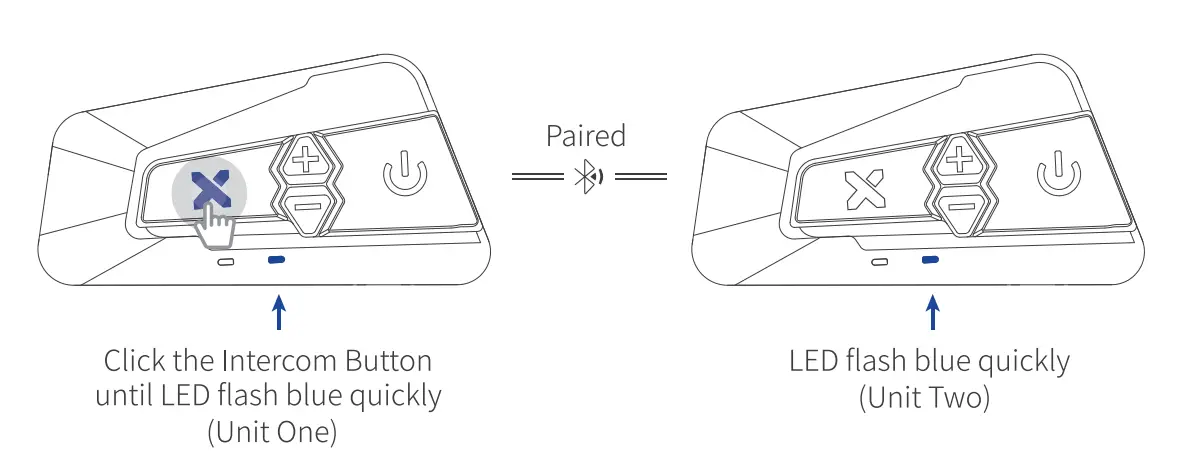
After pairing is completed, the LED of both two units will flash blue slowly, and voice prompt pairing successful.
Note: If you only need to pair two B4FM devices, you only need to complete Step G), and then start the intercom talk.
Start the intercom talk: Once the pairing is successful, click the intercom button on any one of these units to start an intercom talk. When in intercom mode, the LED light will blink blue and red simultaneously. Click the Power Button on any one of these units to make the device temporarily disconnect the current intercom; Click the Intercom Button on any one of these units again to resume the intercom talk.
Step2
(3-Way Pairing): While completed Step CD, units 1&2 are paired, press the Intercom Button and down button to pair the second and third B4FM devices. Power on both the second B4FM unit and the third B4FM unit. Long press the Intercom Button and Down Button on both two units about 1 second. The LED of both two units will flash red and blue alternately which indicate they enter pairing mode.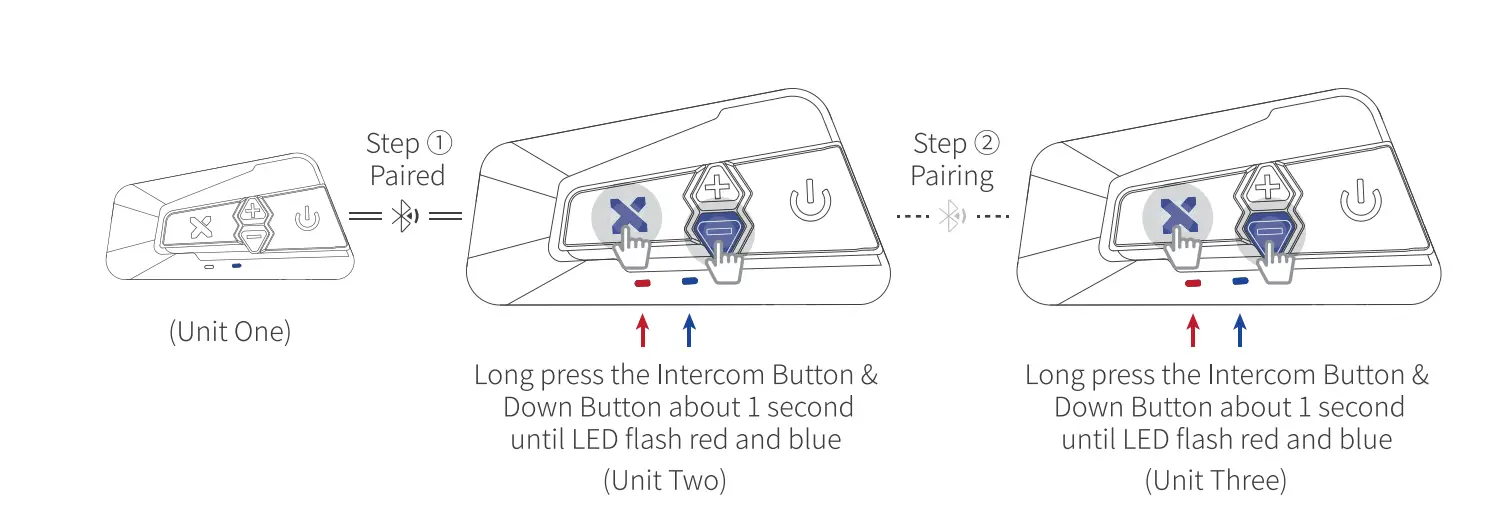
Click the Intercom Button on either unit to search and pair the other unit, the LED light flash blue quickly. Once pairing is completed, the LED will blink blue slowly on these three units. 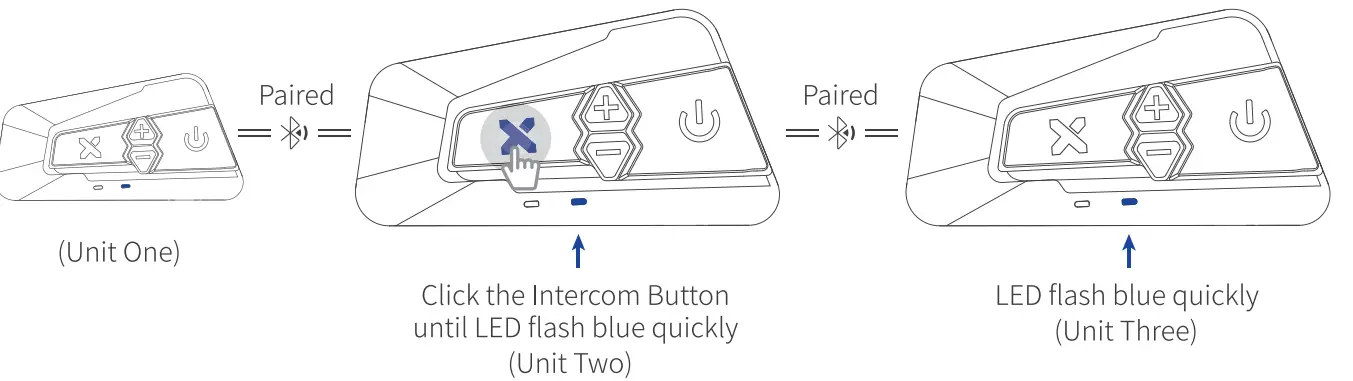
After pairing is completed, the voice LED prompt of these pairing three units is completed.
Note:
- If you only need to pair three B4FM devices, you only need to complete Step2, and then start the intercom talk.
- If the second device is disconnected, other devices will also be disconnected.
Start the intercom talk: Once the pairing is successful, click the intercom button on any one of these units to start an intercom talk. When in intercom mode, the LED light will blink blue and red simultaneously. Click the Power Button on any one of these units to make the device temporarily disconnect the current intercom; Click the Intercom Button on any one of these units again to resume the intercom talk.
Four-way Pairing: While completing Step 1 and Step2, units 1&2&3 are paired, press the Intercom Button to pair the third and fourth B4FM devices.
On the standby mode, long press the Intercom Button on the third and the fourth units for about one second, the voice will prompt “pairing”, then the LED light on both two units will flash red and blue alternately which indicates enter pairing mode.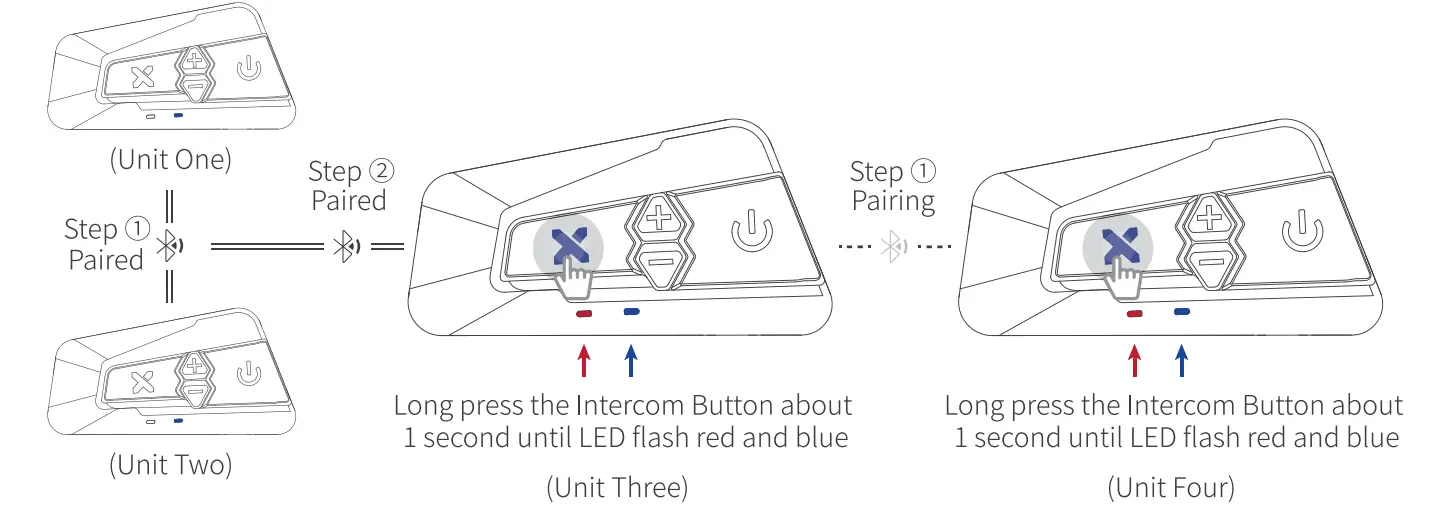
Click the Intercom Button on either unit to search and pair the other unit, the LED light flash blue quickly. Once pairing is completed, the LED will blink blue slowly on these four units.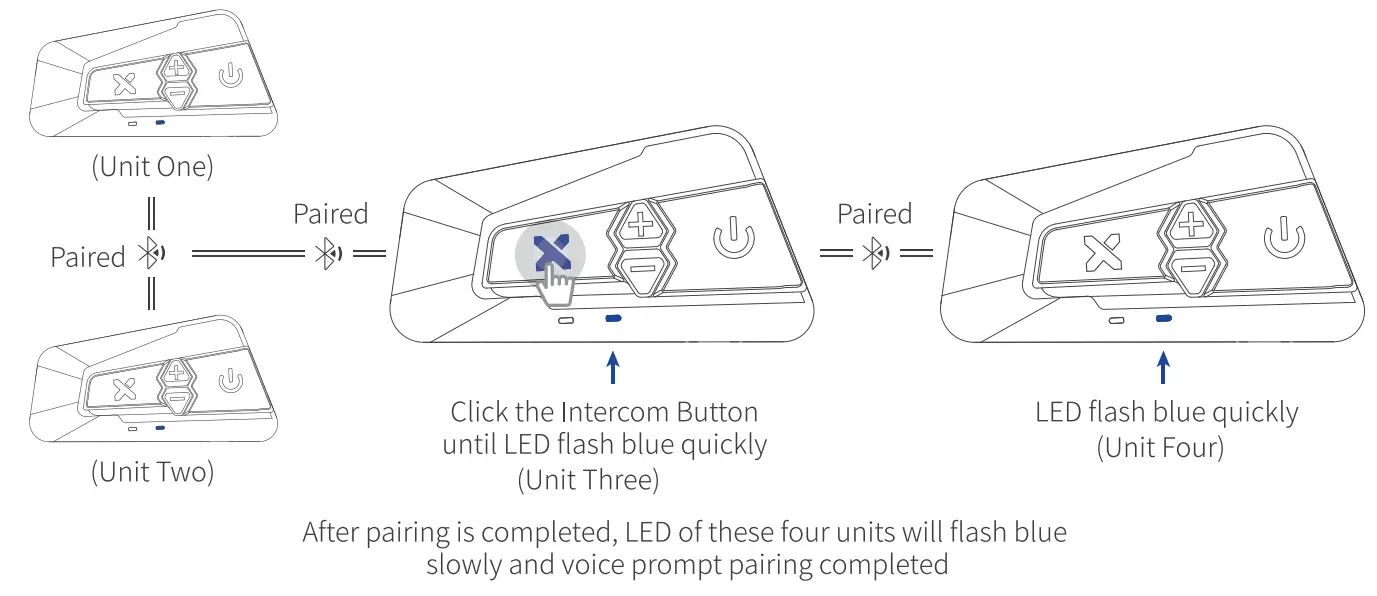
Start the intercom talk: Once the pairing is successful, click the intercom button on any one of these units to start an intercom talk. When in intercom mode, the LED light will blink blue and red simultaneously. Click the Power Button on any one of these units to make the device temporarily disconnect the current intercom; Click the Intercom Button on any one of these units again to resume the intercom talk.
Note: When one of the devices disconnects, the intercom group will be divided into two separate groups from the unit. Click the intercom button again to re-establish the intercom, the two independent intercom groups will be reconnected.
Multi-way group intercom
Every time you turn on the B4FM device, the default is 4-way intercom mode, and to switch into the multi-way intercom mode which is for more than five riders
(including five riders), in the standby state, you need to long press the Power Button for about 8 seconds on all units, there will be a beep and the indicator light flashes red quickly at the same time. There is no memory function for this operation, the default 4-way intercom mode is used every time you turn on the device, so you need to long press the Power Button for about 8 seconds on all units to switch it into multi-way intercom mode every time when you need it.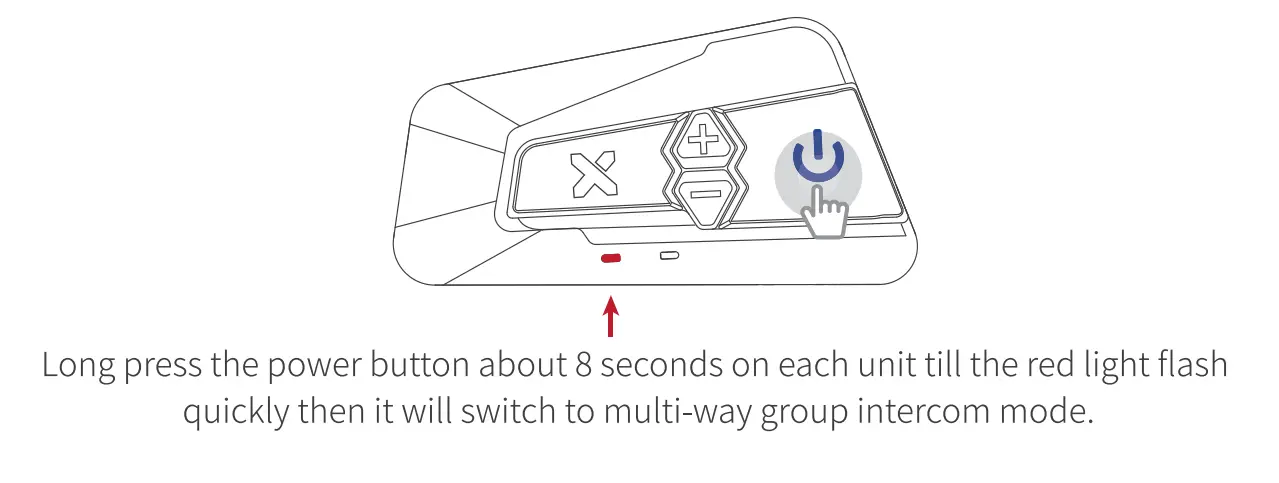
Group Pairing: Please refer to the picture below and repeat the following steps to pair with more than five B4FM devices.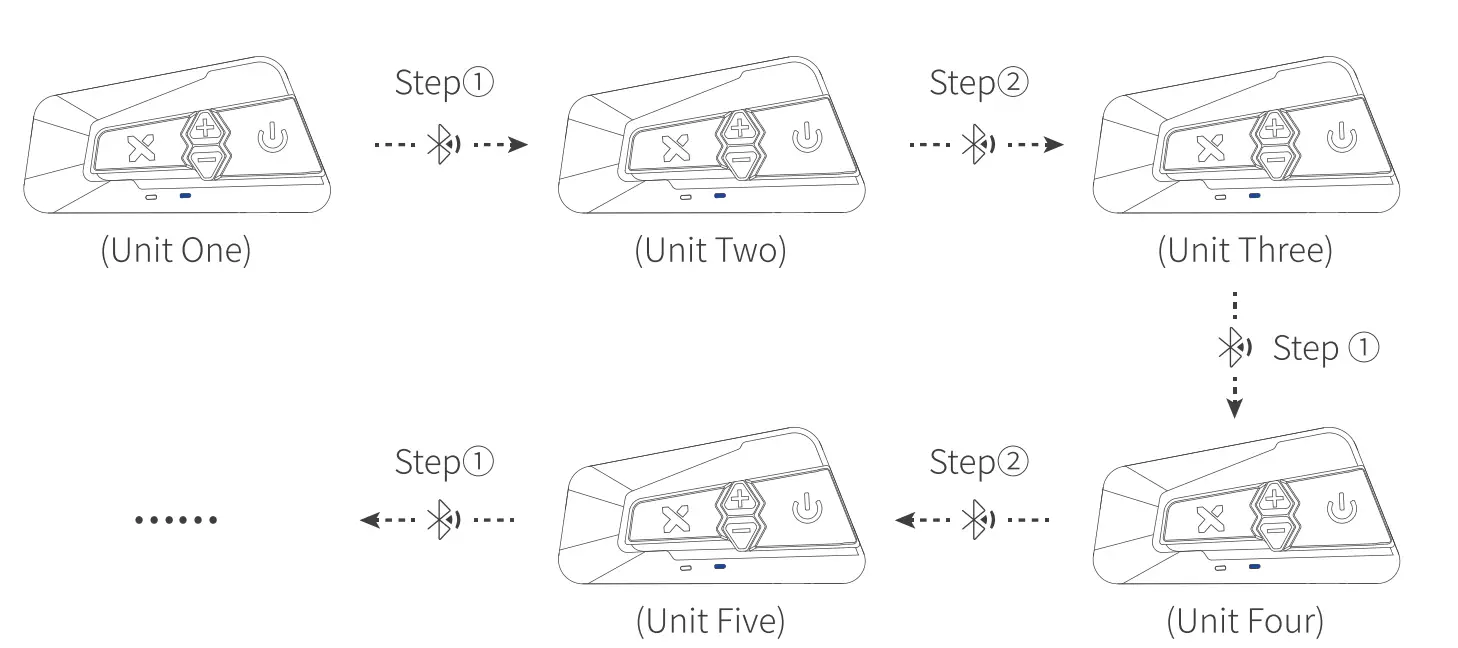
Note: Each B4FM device can only be paired with two other B4FM devices at the same time, that means, we pair the unit one after another in series to realize multiple group connections. For example, if unit three is paired with unit two and unit four, it will not be able to pair with other devices.
Start the intercom talk: Once the pairing is successful, click the intercom button on any one of these units to start an intercom talk. When in intercom mode, the LED light will blink blue and red simultaneously. Click the Power Button on any one of these units to make the device temporarily disconnect the current intercom; Click the Intercom Button on any one of these units again to resume the intercom talk.
Note: The intercom talk in the group will be divided into 2 separate intercom groups from the disconnected unit. Click the intercom button again to re-establish the intercom, the two independent intercom groups will be reconnected.
Clear The Pairing: Long press the Up and Down Button at the same time for about 1 second to clear the pairing, the red light will flash quickly.
Universal Pairing
To enter pairing mode
- Step 1: With power-on state, long press the Intercom Button for about 1 second until the LED begins flashing blue and red alternately;
- Step 2: Follow your other Bluetooth device pairing instructions to enter pairing mode;
- Step 3: Click the Intercom Button on B4FM to search the other device and the LED light will flash blue and red quickly. After the pairing is completed, the LED light returns to the blue light flashing slowly;
- Step 4: To initiate universal intercom, click the Up Button and Down Button together to initiate intercom talk;
- Step 5: Click the Power Button to end the intercom talk.
FM RADIO
On/Off:
- Turn On FM Radio: Long press the Power Button for about 1 second to enter radio function.
- Turn Off FM Radio: When the radio is on, Long press the Power Button for about 1 second to end radio function.
FM Radio Station Search:
Turn up: Double click the Down Button, the voice will prompt to adjust the radio station upwards.
Turn down: Double click the Up Button, and the voice will prompt to adjust the radio station downward.
Store up to 6 FM Radio Stations: In FM radio mode, when a favorite station is found, double click the Power Button to save it and there will be a tone to prompt. Support storing up to 6 FM radio stations. Once 6 stations have been saved, saving a new station will overwrite the oldest saved station. Click the Power Button to cycle through the saved station.
Maintenance & Certification
Maintenance and Care
The B4FM should be treated with care and the following suggestions will help maintain your Warranty:
- Do not use or store the device in dusty or dirty environments. Moving parts and electronic components can be damaged.
- Do not store the device in high-heat areas. High temperatures can shorten the life of electronic devices, damage batteries, and warp or melt certain plastics.
- Do not store the device in cold-temperature areas. When the device returns to its normal temperature, moisture can form inside the device and damage electronic circuit boards.
- Do not attempt to open the B4FM case.
- do not drop or knock the device. Rough handling can break internal circuit boards and fine mechanics.
- Do not use harsh chemicals, cleaning solvents, or strong detergents to clean the device.
- Do not paint the device. Paint can clog the moving parts and prevent proper operation. These suggestions apply equally to the headset main unit, speaker-microphone clamp unit, and power charger.
Warranty
LEXIN warrants that this product shall conform to and perform in accordance with published technical specifications and the accompanying written materials, and shall be free of defects in materials and workmanship, for a period of one year from the date of purchase by the first consumer purchaser of the Product. The limited warranty extends only to the original consumer purchaser of the Product and is not assignable
or transferable to any subsequent purchaser/end-user.
This warranty is limited to the repair or replacement, at LEXIN’s discretion, of defective or non-conforming Product, and LEXIN shall not be responsible for the failure of the Product to perform specified functions, or any other non-conformance caused by or attributable to (a) any misapplication or misuse of the Product; (b) failure of Customer to adhere to any of LEXIN’ s specifications or instructions; (c) neglect of, abuse of, or accident to, the Product; or (d) any associated or complementary equipment or software not furnished by LEXIN. Limited warranty service may be obtained by delivering the Product to LEXIN or to the international distributor it was purchased through and providing proof of purchase or receipt date. The customer agrees to insure the Product or assume the risk of loss or damage in transit, to prepay shipping charges to LEXIN, and to use the original shipping container or equivalent.
Waivers and General Release
By using the Product, you will waive substantial legal rights including, the right to use. Please read the following carefully before using the device. By using the Product, you agree to this agreement and forfeit the right to pursue legal action.
By using the Product, you are irrevocably releasing, indemnifying from any liability, loss, claim and expense (including attorney’s fees) and holding LEXIN harmless for any bodily injuries, harm or death as well as losses or damages in goods, to any vehicles including your own, or to any property or asset that belong to you or to third parties, any of which may result from using the Product under any circumstances or conditions and irrespective of jurisdiction.
You, your heirs, legal representatives, successors or assigns, hereby voluntarily and forever release, discharge, indemnify and hold harmless LEXIN from any and all litigation, claims, debts, demands, actions, and liability that may arise, directly or indirectly, from using the Product for any distress, pain, suffering, discomfort, loss, injury, death, damages to or in respect to any person or property however caused, WHETHER ARISING FROM THE NEGLIGENCE OR OTHERWISE, and which may hereafter accrue to you on some future date as a result of said use, to the fullest extent permitted by law.
You fully understand and assume the risks in using the Product, including the risk of negligent acts or omissions by others. All risks for operating the Product are assumed solely by the user of the Product.
You confirm that you are physically capable to use the Product and that you have no medical conditions or needs that may infringe upon your abilities to do so in a safe manner. You confirm that you are at least eighteen (18) years of age and that you have been advised of the risks associated with the use of the Product. You further confirm that you will not consume any alcohol that may affect your alertness or any mind-altering substance, and will not carry, use or consume these substances before or during the use of the Product.
You fully acknowledge our warnings and understand that:
- Risks and dangers exist in using the Product while in traffic, including but not limited to injury or illness, strains, fractures, partial and/or total paralysis, death or other ailments that could cause serious disability;
- These risks and dangers may be caused by the negligence of the manufacturers or its agents or any third party involved in designing or manufacturing the Product;
- These risks and dangers may arise from foreseeable or unforeseeable causes.
You hereby assume all risks and dangers and all responsibility for any losses and/ or damages, whether caused in whole or in part by the negligence or other conduct of others, including LEXIN.
By using the Product, you confirm that you have read this release of liability and fully understand and accept its terms and conditions.
RF Exposure Information
This equipment complies with FCC radiation exposure limits set forth for an uncontrolled environment. End users must follow the specific operating instructions for satisfying RF exposure compliance. The antenna used for this transmitter must not transmit simultaneously with any other antenna or transmitter, except in accordance with FCC multi-transmitter product procedures. This product is compliant with FCC RF Exposure requirements and refers to the FCC website.
https://apps.fee.gov/etc/eas/reports/GeneriSearch.com search for FCC ID: 2ARGO-LXB4FM
This device complies with Industry Canada licence-exempt RSS standard(s). Operation is subject to the following two conditions: (l)this device may not cause interference, and(2) this device must accept any interference, including interference that may cause undesired operation of the device
This EUT is compliant with SAR for general population/uncontrolled exposure limits in IC RSS-102 and had been tested in accordance with the measurement methods and procedures specified in IEEE 1528 and IEC 62209. This equipment should be installed and operated with a minimum distance of 1cm between the radiator and your body. This device and its antenna(s)must not be co-located or operating in conjunction with any other antenna or transmitter.
FAQS
The sound is clear and loud. Make sure you really push the speaker plug all the way in. When I first set mine up, the sound quality was awful and the volume was low. I thought the unit was defective. Although the speaker connector looked like it was plugged all the way in, it wasn’t. I tried the more expensive Cardo PackTalk before going with the Lexin. The sound quality of the Lexin is much better IMO.
The person calling interrupts the radio to the receiving person. Or if you are the caller, your music stops and it stops the receiver’s music. To restart the music, turn the intercom off. It will not continue at a lower volume. If you want to call, hit the front intercom button.
Yes indeed.
FM, no static at all.
Yes.
If the adapter can’t work, you can connect B4FM with GoPro via Bluetooth, the same as connecting B4FM with your phone via Bluetooth.
The earphone pieces have to be placed over your ears inside the helmet. Most new motorcycle helmets have a recess area in the padding for the earphone pieces to fit inside. Since bicycle helmets don’t cover your ears, they wouldn’t work. There are no headbands like stereo headphones might have.
Even the seller gave garbage info to answer the question. If your helmet does not have the pocket or cutouts in the foam liner to install these, you will have a hard time installing and wearing the helmet. Helmets fit tight and without pockets, in the helmet, this will be very uncomfortable if not make it impossible to put the helmet on. Removing or altering the foam from your helmet will RUIN the integrity of the helmet and technically render it potentially unsafe. This item works great, but don;t risk your safety or comfort to install this. As much as it is a PIA and will cost you, best to get a new helmet with the pockets molded in.
Yes you can it works with your phone’s Bluetooth and it will be as if you had headphones on. You can hear notifications and other apps playing in the background.
It’s 2 headsets, each one a complete unit, ready to pair together or use separately. Each one has its own speakers and choice of Mic. They are amazing devices by the way. Really love mine. Hope this answers your question.
Yes, this motorcycle intercom can link with any other brand system.
Any product problem can be free to contact us via [email protected]
this motorcycle Bluetooth system is one year warranty
Yes, it can support 3 or 4 riders all talking at the same time. And B4FM helmet intercom can support up to 10 riders to talk at the same time.
Yes, it comes with 2 different mikes so you can either install them in a 3/4 helmet or a full-face helmet. Also comes with 2 speakers, one for each ear.
No. Just push it. It will prompt you to talk and then push it again when your conversation has been completed.
Yes, four B4FM intercoms can connect and talk at one time.
No, they don’t have Mesh technology. The music quality is great so is the intercom.