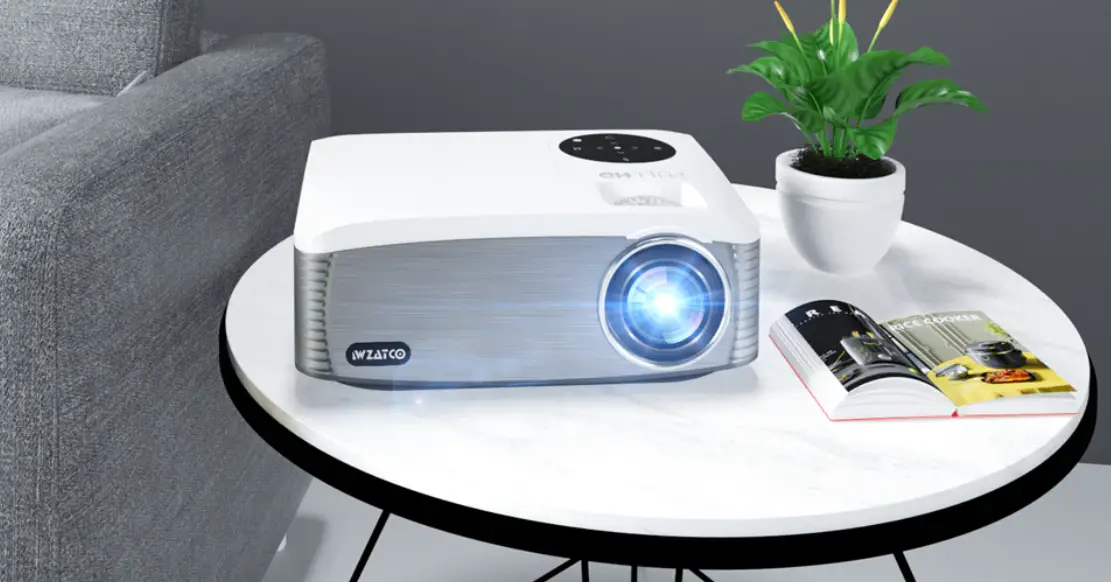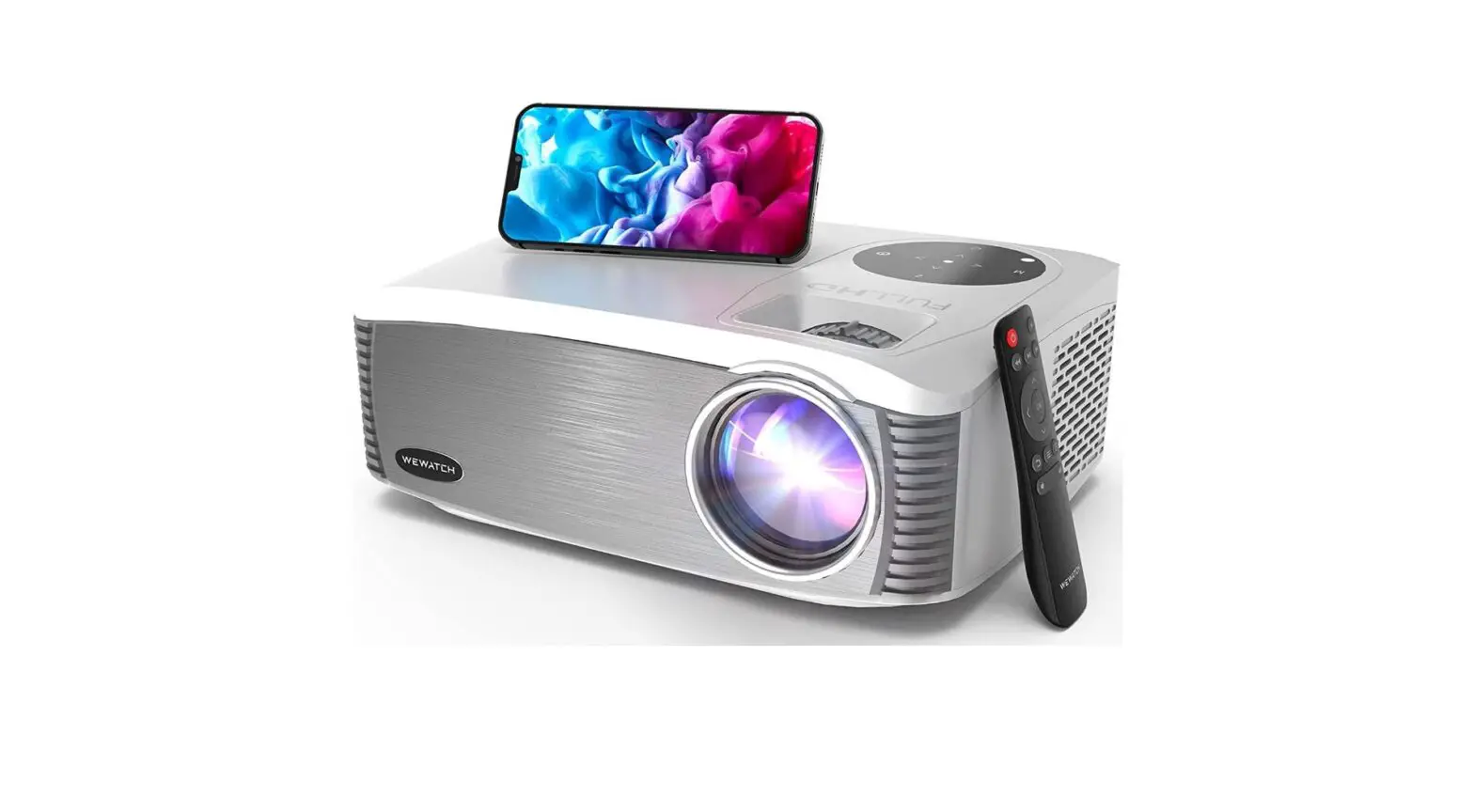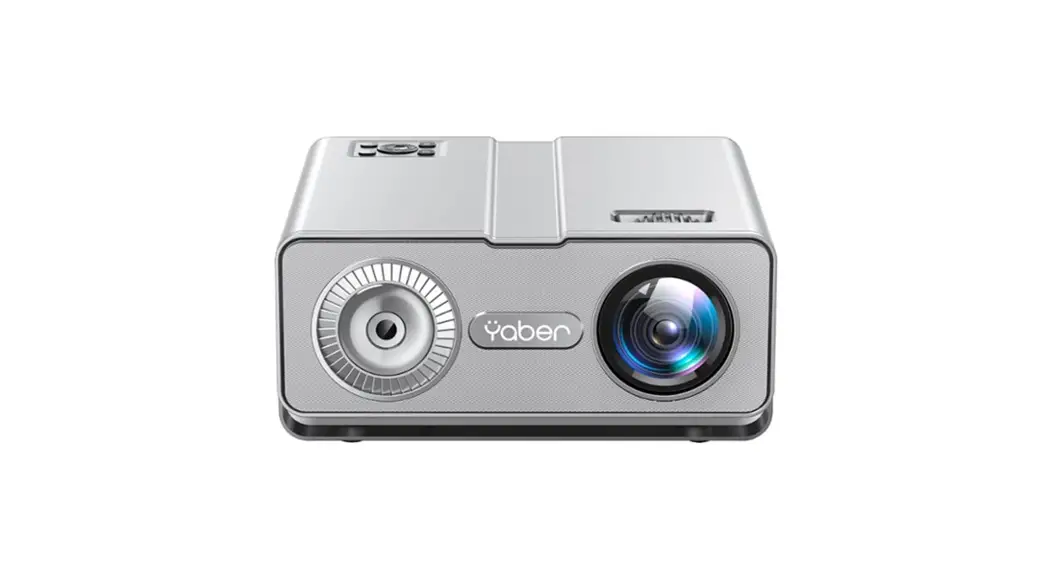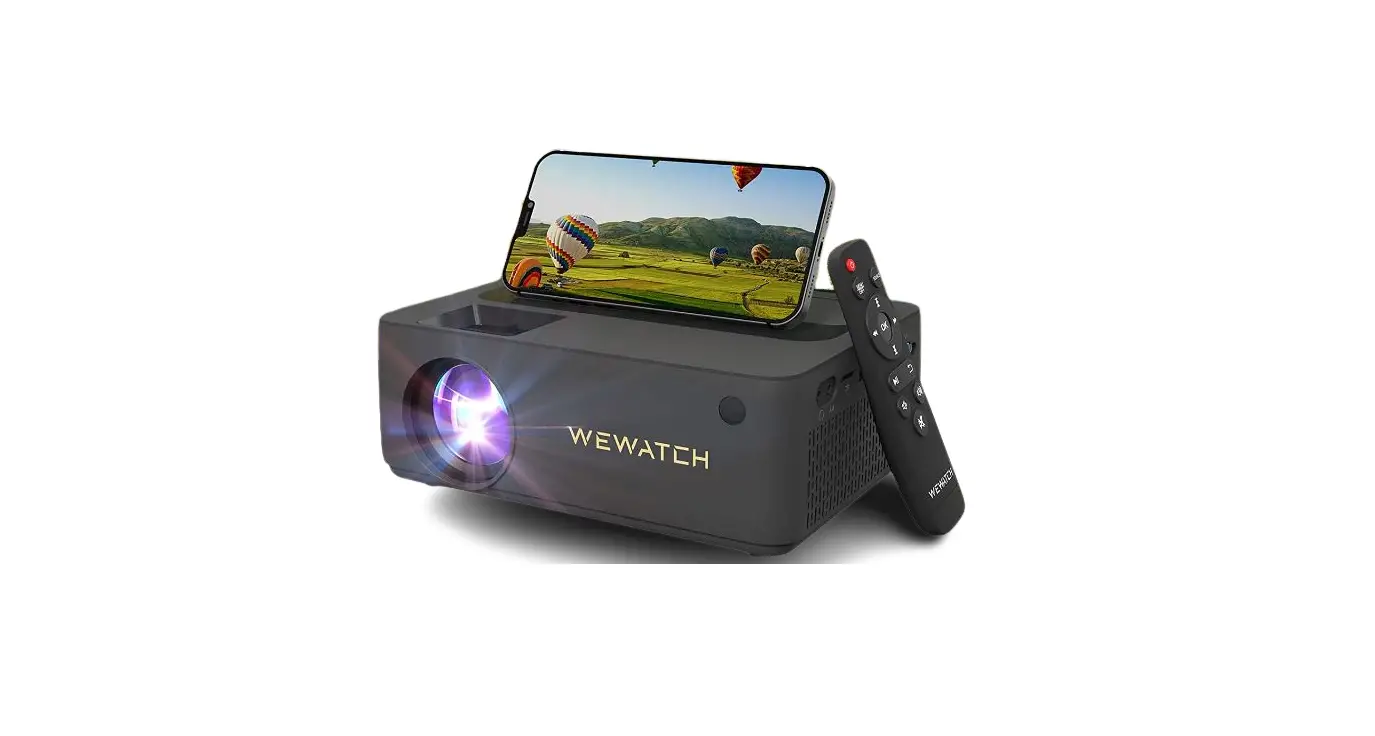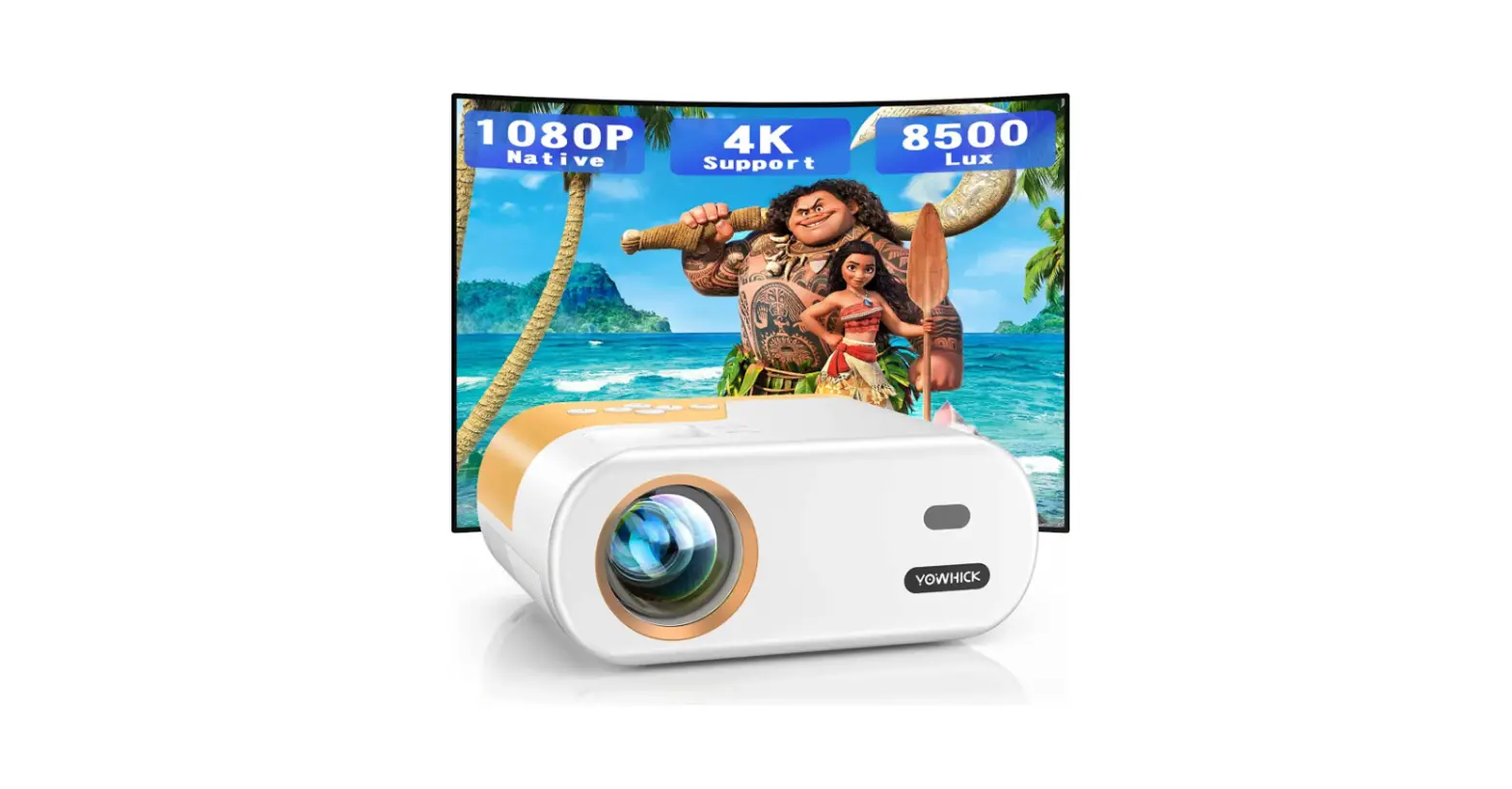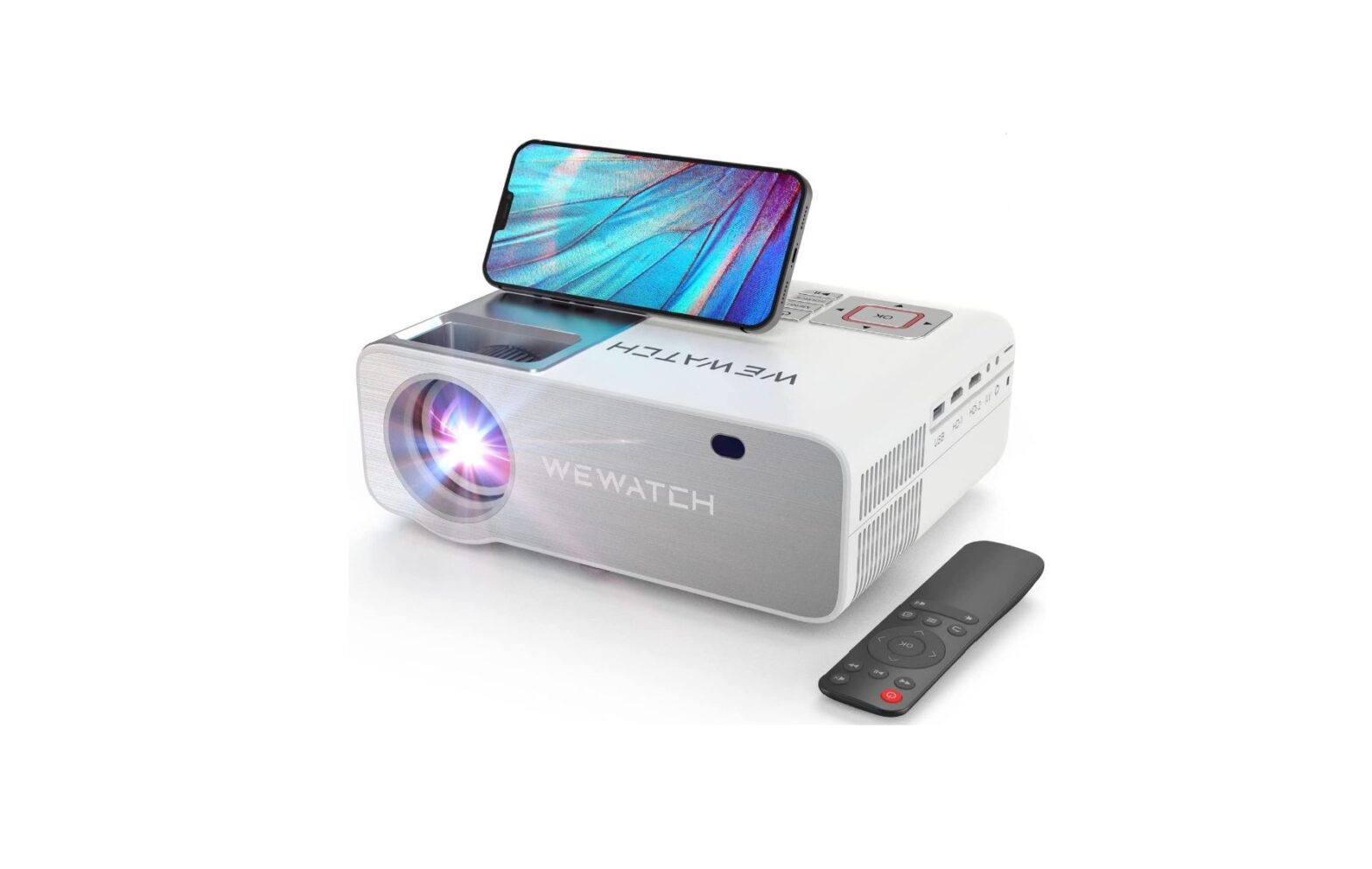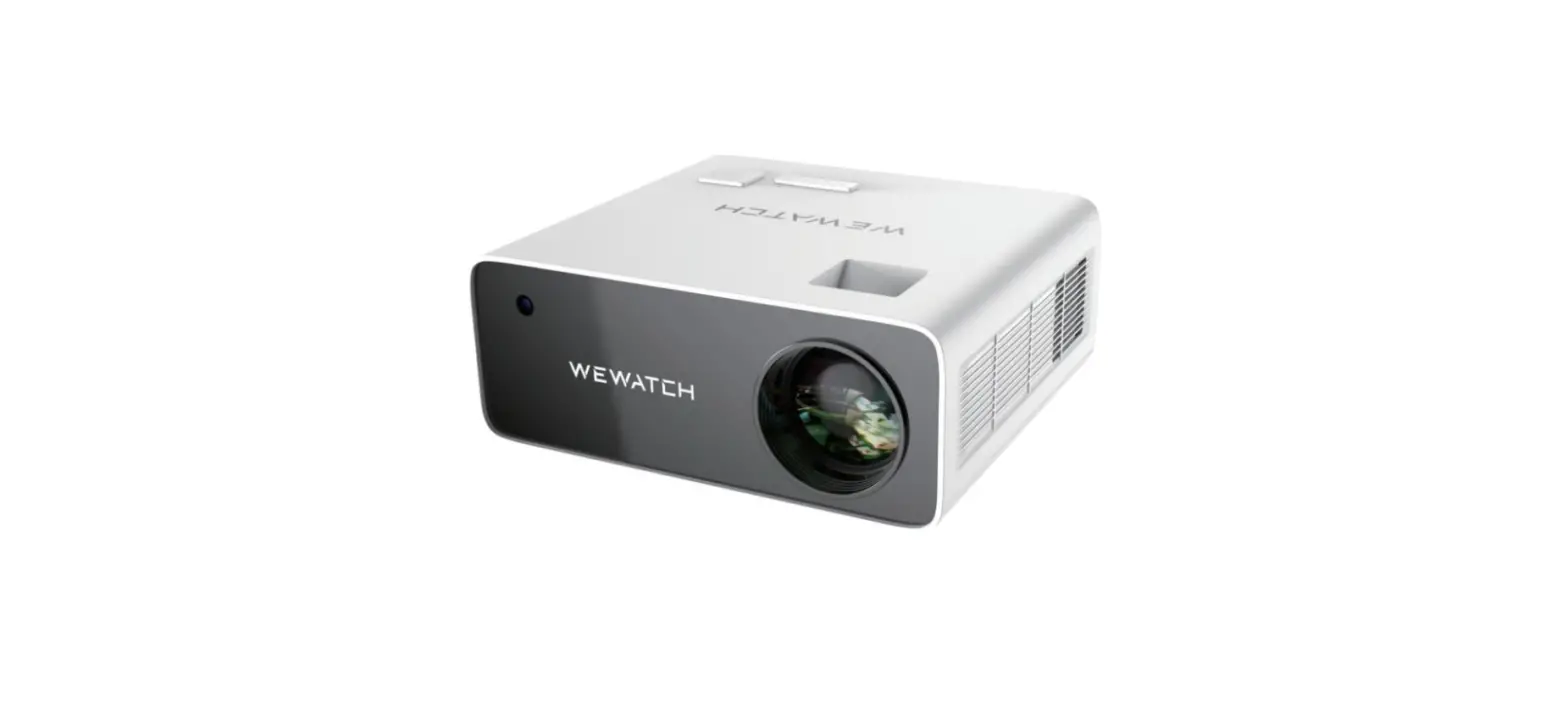
 WEWATCH 1 Native 1080P Video Projector
 WEWATCH 1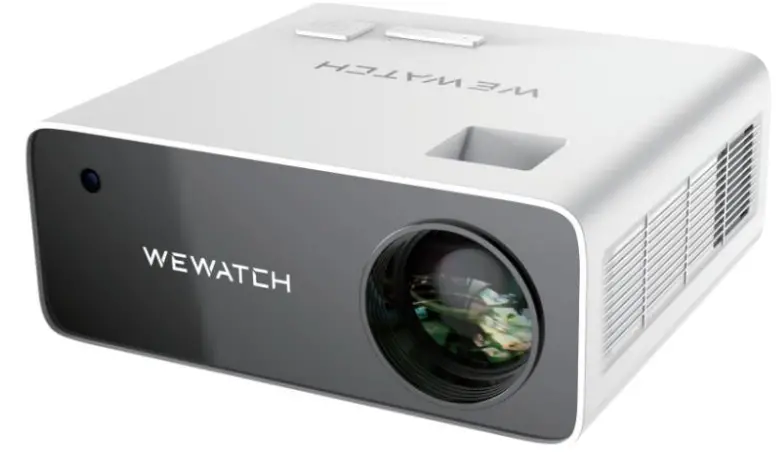
Thank you for purchasing this product. To ensure proper use and trouble-free operation, please read this manual carefully and store it in a safe place for future reference.
Warning
How to use the projector correctly
- Do not look directly at the lens when the projector is working, the strong light will hurt your eyes.
- Do not block the air outlet, so as not to damage the cooling function of the internal electronic equipment.
- Do not use chemicals, detergents or water to clean, and avoid rain, moisture and colorless liquids from corroding the circuit board.
- Please place the projector and accessories out of the reach of children.
- Please keep the working environment of the projector dry and ventilated.
- Do not place the projector in an environment that is too hot or too cold. High or low temperature will shorten the service life of the device. The best temperature is 5C~35 °C.
- do not use heating equipment to dehumidify including but not limited to dryers and microwave ovens.
- Do not press hard or place heavy objects on the projector to prevent damage.
- Do not throw, hit, or shake the projector to prevent damage to the internal wiring.
- If you have any questions, please contact the after-sales service, do not disassemble by yourself.
- Do not repair the projector by yourself. If the projector does not work normally, please contact the after-sales service for repair.
Projector Overview & Functions
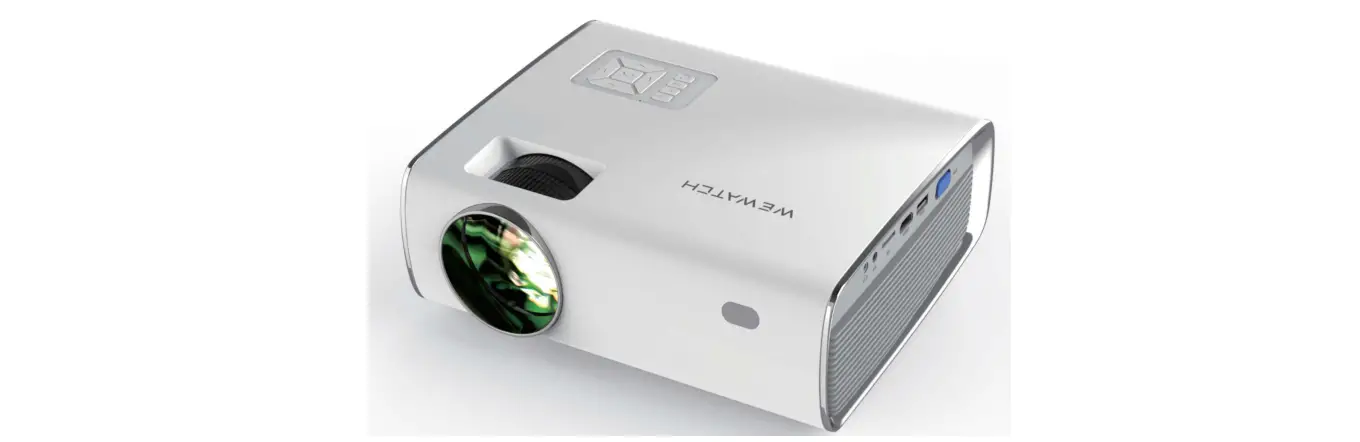
- Projector lens:The location where the image is projected.
- Front IR window: Infrared remote control receiver.
- Focus: Focus screen.
- Power indicator: When the power Is connected, the light Is red. When turning on the device, the light Is green.
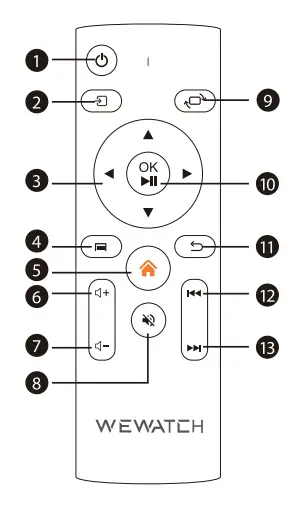
- arrow keys: Up, down, left, and right.
- OK: Confirmation.
- Power key: Turn on/off the device.
- Menu: Press this button to enter the setting interface.
- Back: On the media player screen and menu setting screen, return to the previous state. 10: Source: Press this button to enter the signal source selection interface.
- Air Inlet
- Air Outlet
- Power button: The power control switch is turned on when in use and turned off when not in use.
- Power code port: 110V-240V power supply.
- Rear IR window: Infrared remote control receiver.
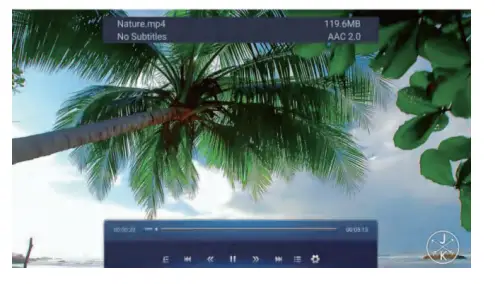
- USB Port: Insert the USB disk and select the multimedia function on the homepage screen. It can support hard disks up to 1TB.
- AV Port: Connect with AV cable.
- HDMI: Connect with HDMI cable.
- Audio output: 3.5mm audio output jack.
- VGA: VGA input connector
- Horn hole: Outer sound cavity, where the sound is emitted.
- Dust-proof mesh slot: Filter foreign matter; needs to be cleaned regularly.
- Riser: Adjust the projection image angle.
- Dust removal cover: Open this cover; you can clean the foreign objects in the machine.
- Lifting bracket nut: Used to hang a fixed position
Remote Control
Home page home Page
Move the cursor through the remote control or the navigation buttons of this machine, select the desired function, and press OK to confirm.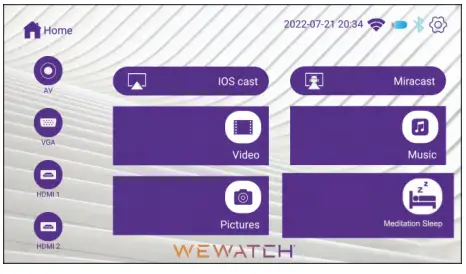
Video Picture
 Music
Music  Mediation Sleep
 Picture
 Music
Music 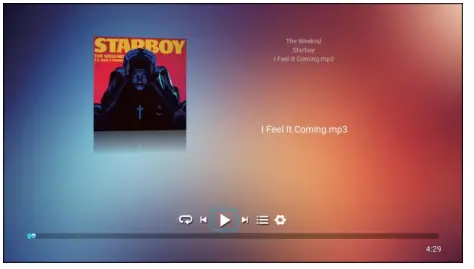 Mediation Sleep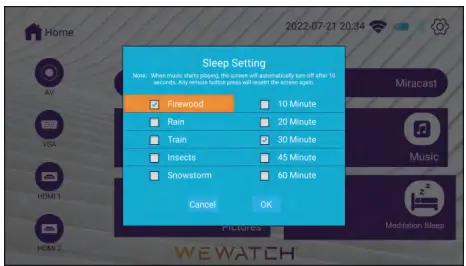
Choose your preferred sound and time setting.
AV VGA
VGA HDMI
HDMI  HDMI2
HDMI2 
 VGA
VGA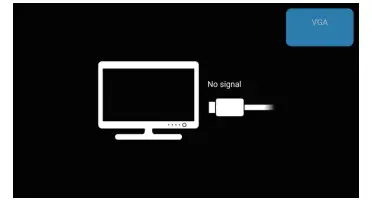 HDMI
HDMI 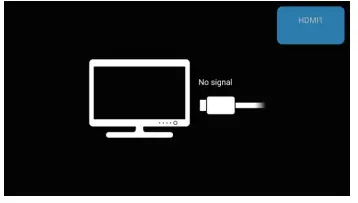 HDMI2
HDMI2 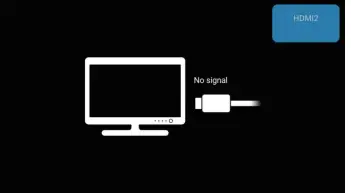
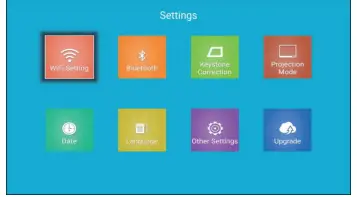
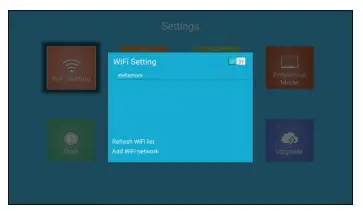
SETTING WiFi Setting
  WiFi Connection
  Keystone Correction
 WiFi Setting
 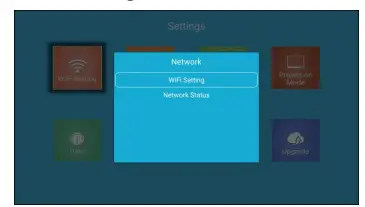 WiFi Connection
  Keystone Correction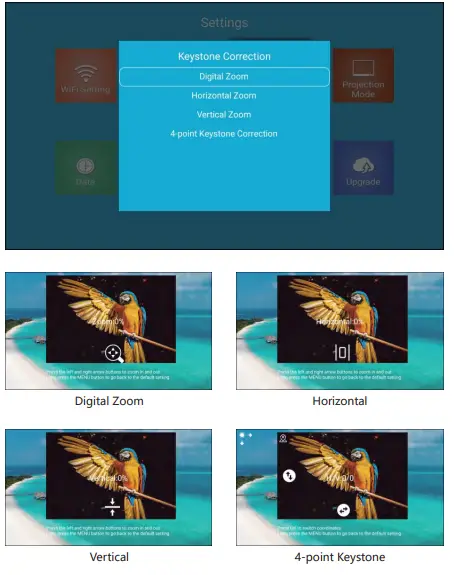
Digital Zoom/Horizontal/Vertical/4-point Keystone
Bluetooth
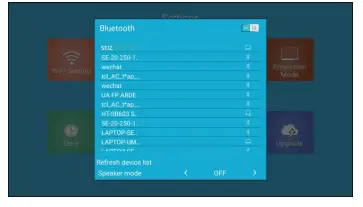
Projection Mode
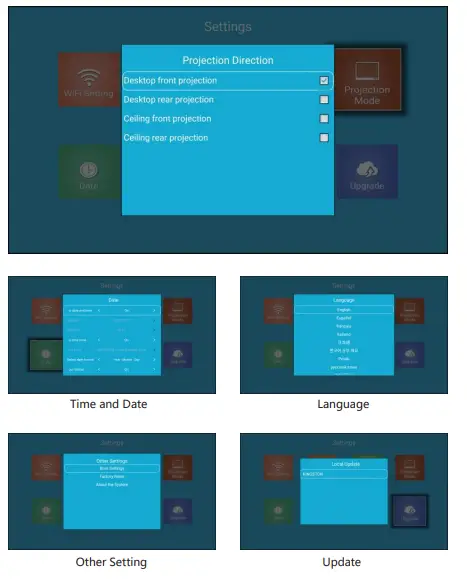
Time and Date/Language/Other Setting/Update
Mirror Screen Setting
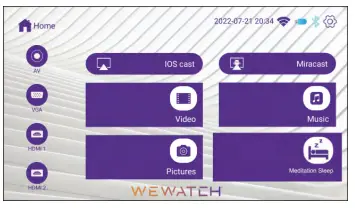
Note: IOS device requires lOS 7 and above; Android device requires Android 10.0 and above. When running the device for the first time, please make sure that the client and the projection are on the same network.
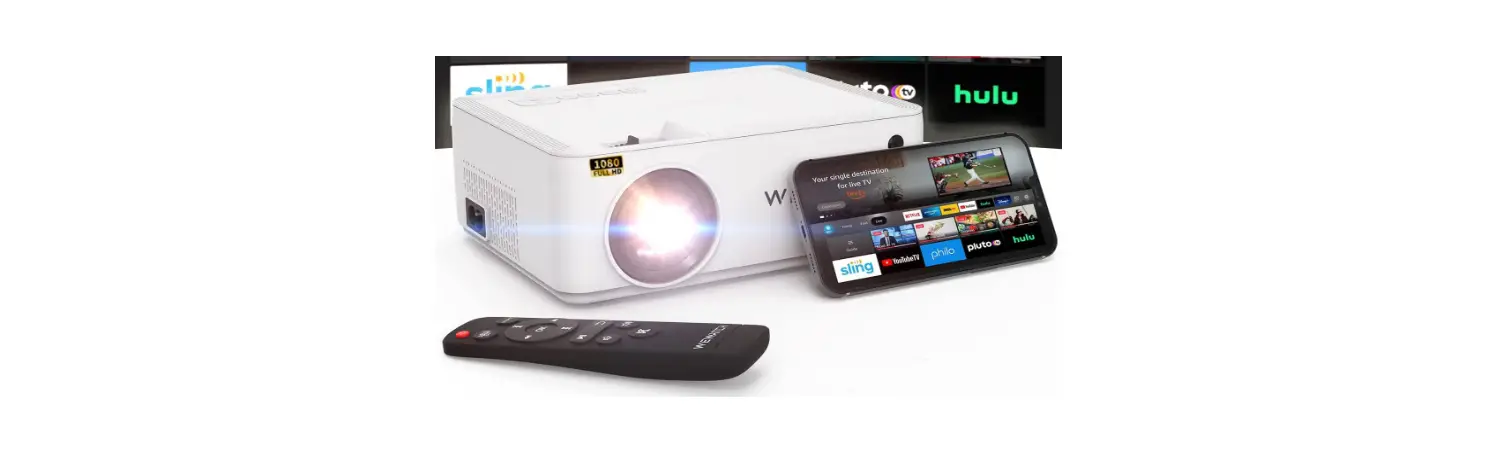
Due to the HDCP copyright, all the LCD projectors don’t support protected videos when “Mirroring” with smartphones, such as “Netflix, Amazon Prime Video and Hulu”. You can play Netflix app or Prime video directly when connected with a laptop, MacBook, amazon Fire TV stick and the other TV box!
IOS Cast
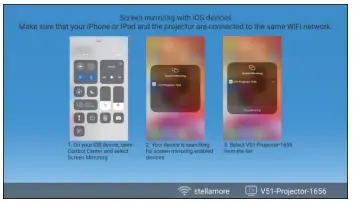
WiFi connection to the projector
- Go to the homepage-select the menu-select the [WiFi settings] menu-turn on the WiFi function-select your home WiFi function from the list-connect the v51 projector to your home WiFi.
- Return to the homepage-select the [iOS Cast] menu-press the OK button to enter the [iOSCast] menu.
- Select the [Settings] menu on the iOS device-turn on the [Wi-Fi] function-connect the iOS device to the same home network as the projector.
- Open the [Control Center] on the iOS device-select the [Screen mirroring] function-select and connect the name [V51-iOs-Cast-xxxx]
- The screen of the iOS device will be displayed on the projection screen after 3 seconds.
Miracast
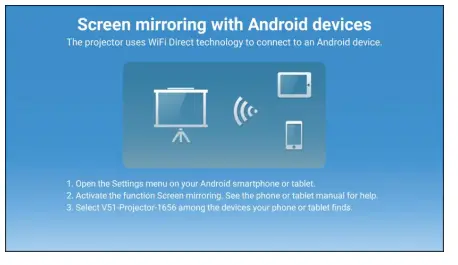
WiFi connection to the projector
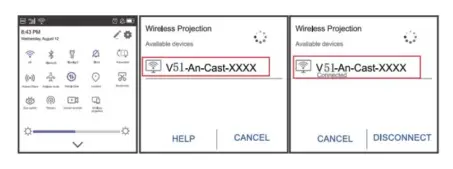
- In the main interface, select the “Miracast” menu and press the “OK” button to enter the “Miracast” interface.
- Select the [Settings] menu on the Android device, select the [Screen mirroring] function, and select the receiver named [V51-An-Cast-XXXX], and the screen of your Android device will be displayed on the projector after 3 seconds on the screen.
- On your Android device, click Settings -WLAN -to turn on Wi-Fi, connect to your home WiFi, so that you can use the screen projection function.

Tips:
- Different brands of Android phones have different operations for selecting the screen mirroring display, please refer to your phone manual.[Multi-screen, wireless display, WLAN display, screen mirroring, wireless project, smart view, etc.
- Not all Android phones support this function, please confirm whether it supports it before use.
Projector Specifications
| Model | V51 | ||
| Native Resolution | 1920*1080P | Keystone Correction | Manual Vertical &
Horizontal |
| Display Technology | LCD | Light Source | LED |
| Color Gamut | 16.7M full | Aspect Ratio | 4:3/16:9 |
| Recommend projection distance | 1.8m-2.7m (6ft-9ft) | Minimum Projection
Distance | 1.4m (4.5ft) |
| Power voltage | AC 100-240V | Projector weight | 2.2kg(4.8lb) |
| Picture file | JPG/JPEG/BMP/PNG | Interfaces | HDMIx2/USBx2/ 3.5mm headphone
jack/AV/VGA |
| Projection method | Front/Rear on Desk, Front/ Rear on Ceiling | ||
| Video file | AVI/.MP4/.MKV/.FLV/.MOV/.3GP/.MPEG1/.MPEG2/H.264/.XVID | ||
| Audio file | MP2/MP3/PCM/FLAC | ||
Precautions for the maintenance and safe use of the projector
Smart projectors are high-tech products that integrate precision optics, electronics, and machinery. Improper maintenance of the projector in daily use will affect its life and effect. For maintenance, you should pay attention to:
- Dustproof: Excessive dust will affect the environment and affect the heat dissipation of the projector. According to the actual environment, it is recommended to clean the dust filter once a month and a half.
- Ventilation: Since the projector is integrated with sound and light, the light source will generate heat during operation. Therefore, during installation and use, ensure that the projector’s inlet and outlet are not blocked by surrounding objects, because its heat dissipation method relies on cold air convection to improve its working stability and service life.
- Lens maintenance: The lens is the core component of the projector, which is directly related to the clarity and effect of the picture. Excessive dust will affect the image quality. The dirty lens should be wiped with a soft cotton cloth on the surface of the glass lens. Do not use hard cloth or abrasives.
- Cleaning: Excessive dust on the surface of the projector affects heat dissipation, so it should be cleaned up in time.
- V51 Projector
- Moisture-proof: The projector is easily affected by humid air. Its working humidity is about45%-60%. Too humid air will affect its working stability.
- Anti-vibration: Strictly protect the projector from strong impact, extrusion and vibration. When the projector is operating normally, try not to move or knock the projector to avoid causing internal circuit failure.
- The projector must not be installed on an unstable, shaking, or uneven desktop.
- The container with liquid must not be placed on or beside the projector.
- When not in use, cut off the power supply or unplug the power cord.
Contact the US
If you have any problems concerning the product, please contact us via [email protected]. We will respond to you as soon as possible.
FAQS
I believe this WEWATCH V51 WiFi 1080p video projector can meet your needs very well, as long as it can be provided with the right power supply (Good News, It is designed to work in 100V-240V voltage universal input power supply range. Please refer to the manual for detailed technical information) It can play Full HD 1080P high-definition video quality indoors or outdoors and supports UHD 4K video playback.
So please just take it to your camp, and enjoy your movie.
Yes, the bulb is replaceable. The bulb can last for up to 30000 hours.
the shipping weight is about 4.85 lbs.
it can work with both wifi and mobile network.
tripod?
The 4 foot pads at the bottom of this projector have screw holes for ceiling mounting, and the screw thread size is M4-0.7 (metric)
First while ANSI lumens are accepted as the international standard, many manufacturers still go by LED lumens. This compact little device is specified at 18500 lumens. While we have checked out the unit ourselves previously, we have never tried to push its limits to see how far it can clearly project and measured how bright it really is. All I can say, is that we had no complaints and the ones we have supplied have never come back to us.
Yes
We are not the original manufacturer of the product and there are other sellers like us using the same marketing materials supplied by the manufacturer. The manufacturer has many positive reviews. We have no reason to doubt the 18500 claims.
First while ANSI lumens are accepted as the international standard, many manufacturers still go by LED lumens. This compact little device is specified at 18500 lumens. While we have checked out the unit ourselves previously, we have never tried to push its limits to see how far it can clearly project and measured how bright it really is. All I can say, is that we had no complaints and the ones we have supplied have never come back to us.