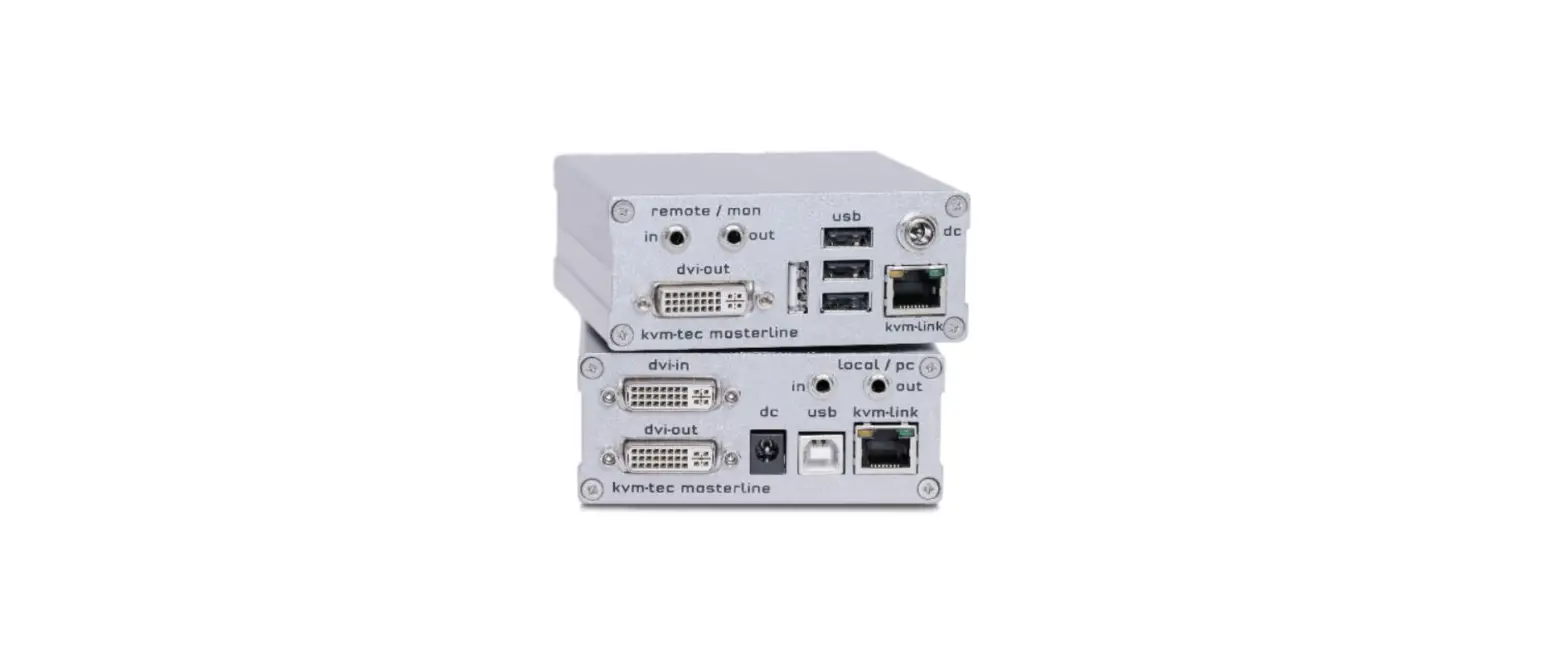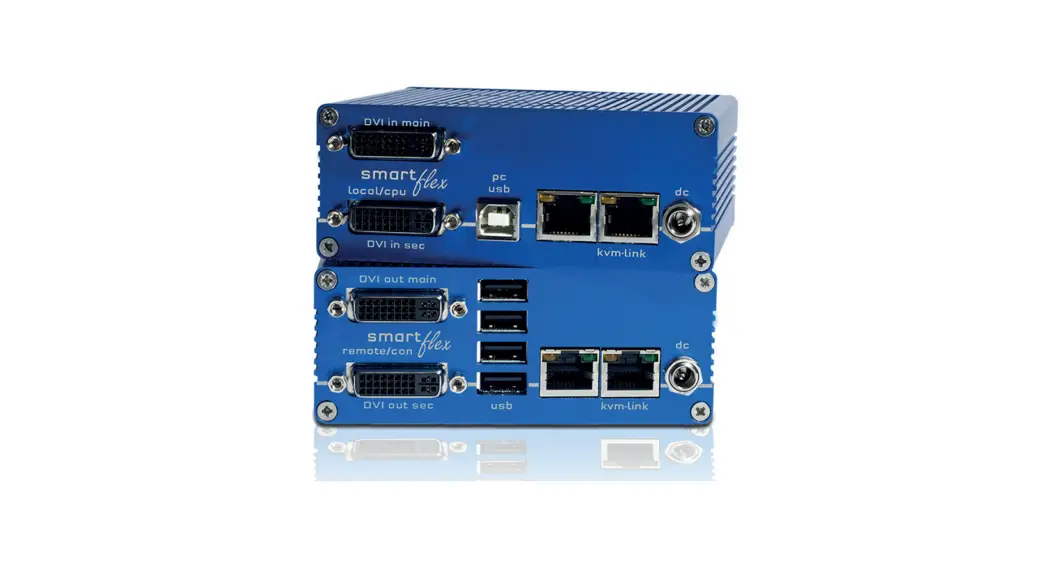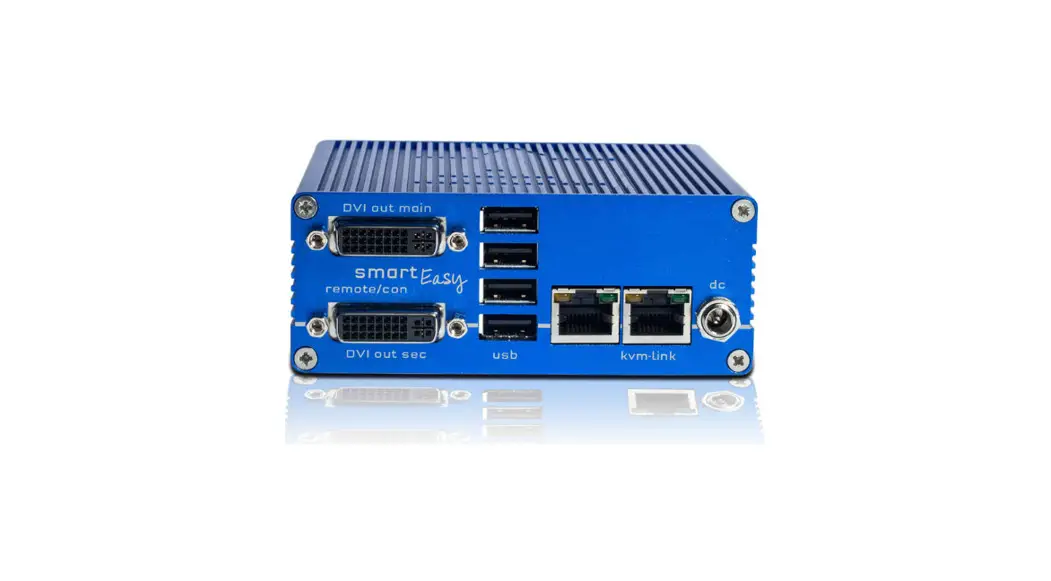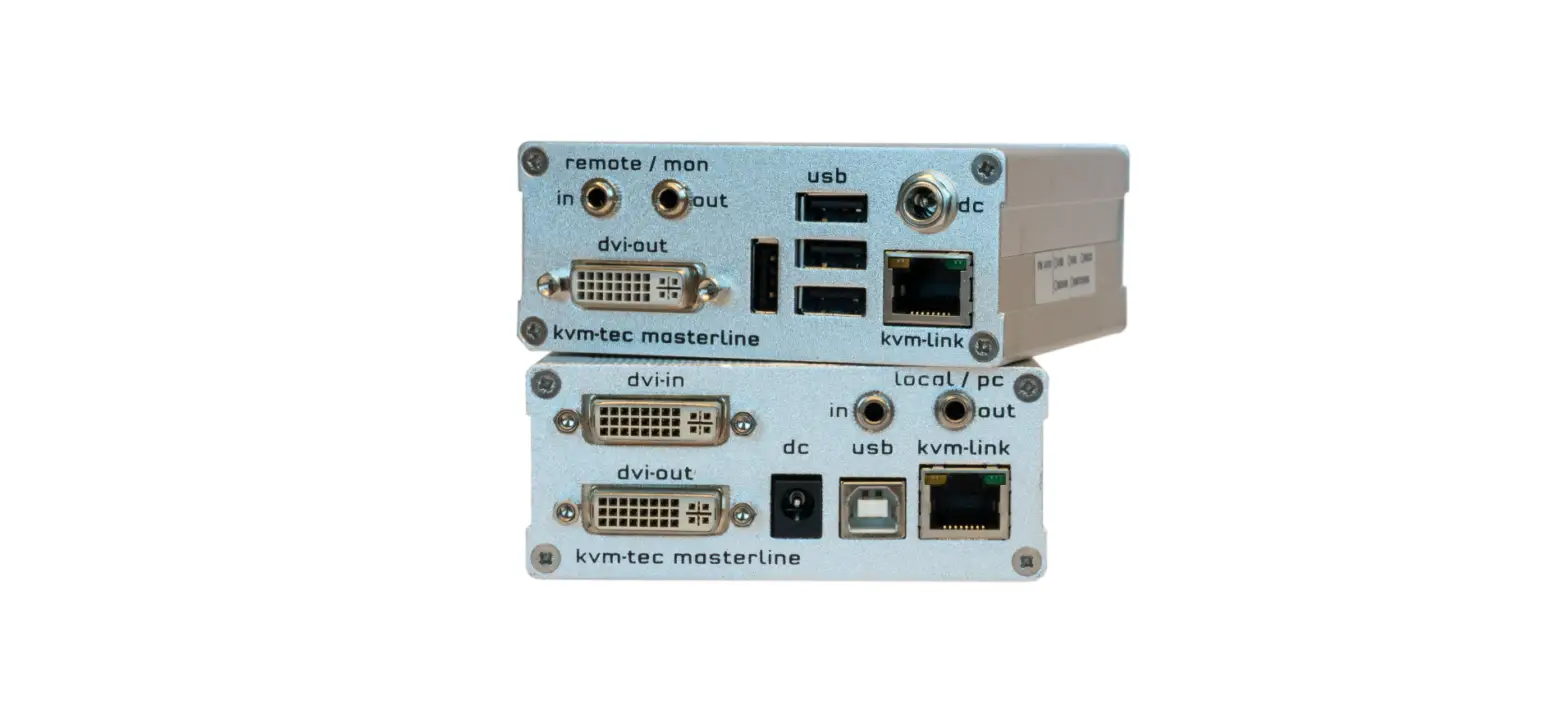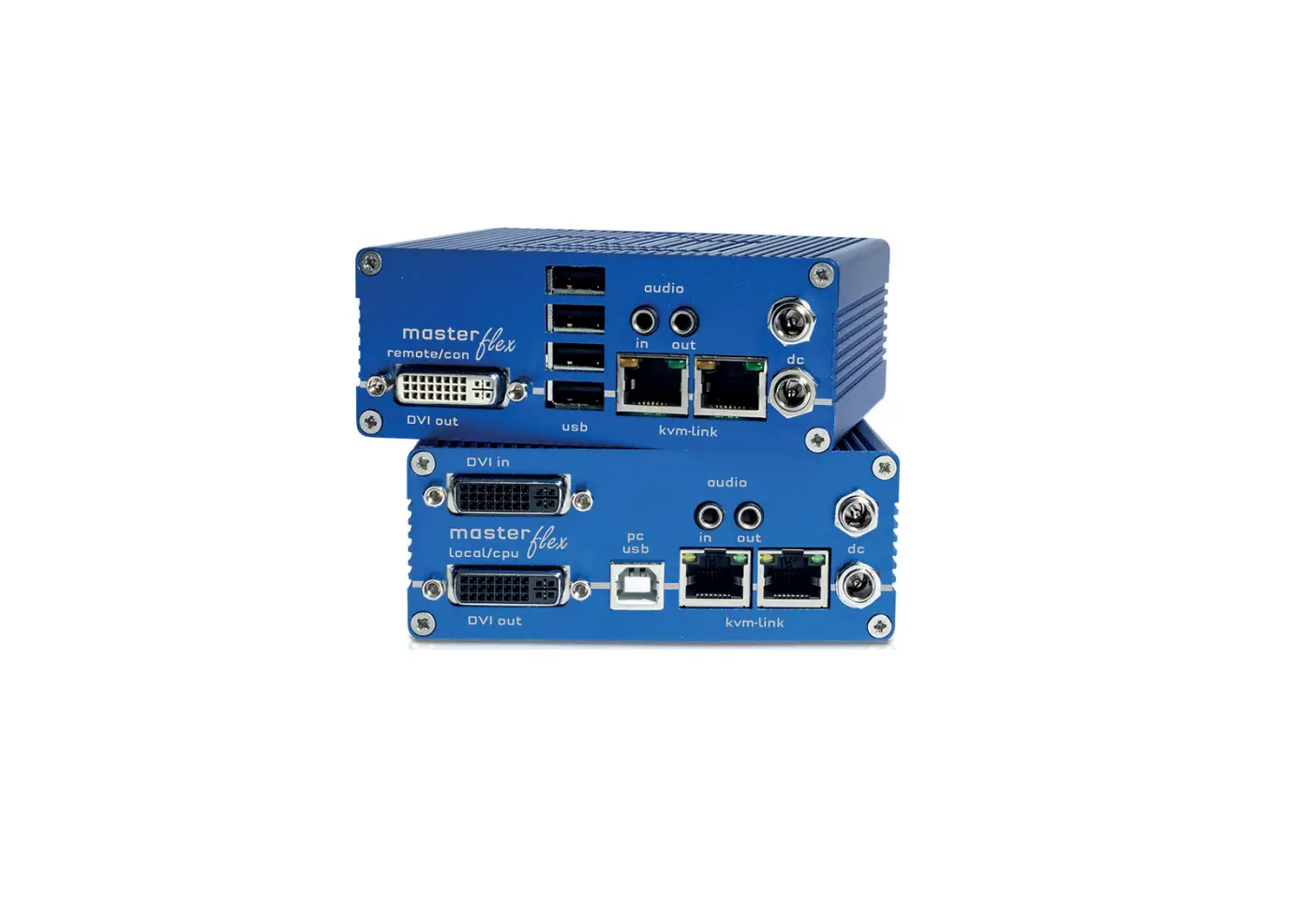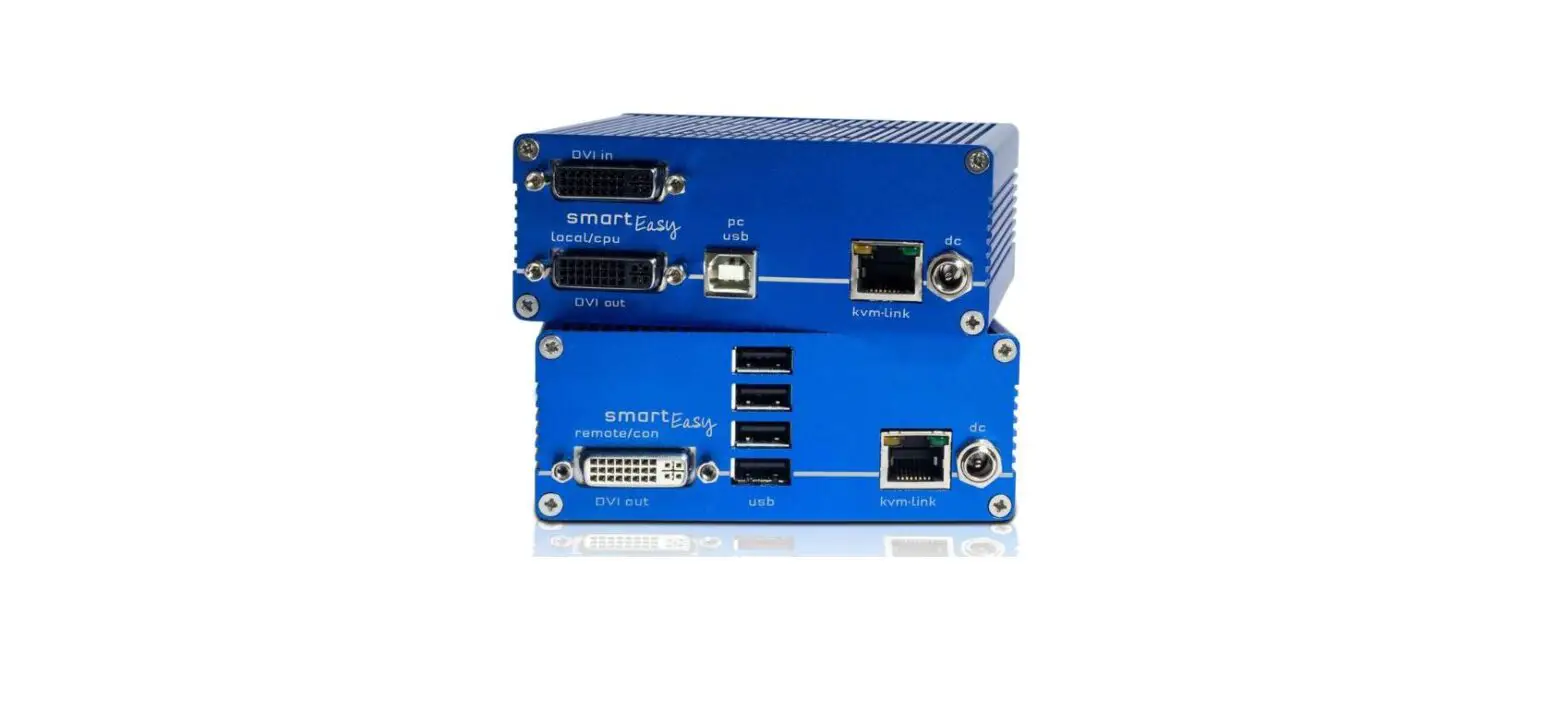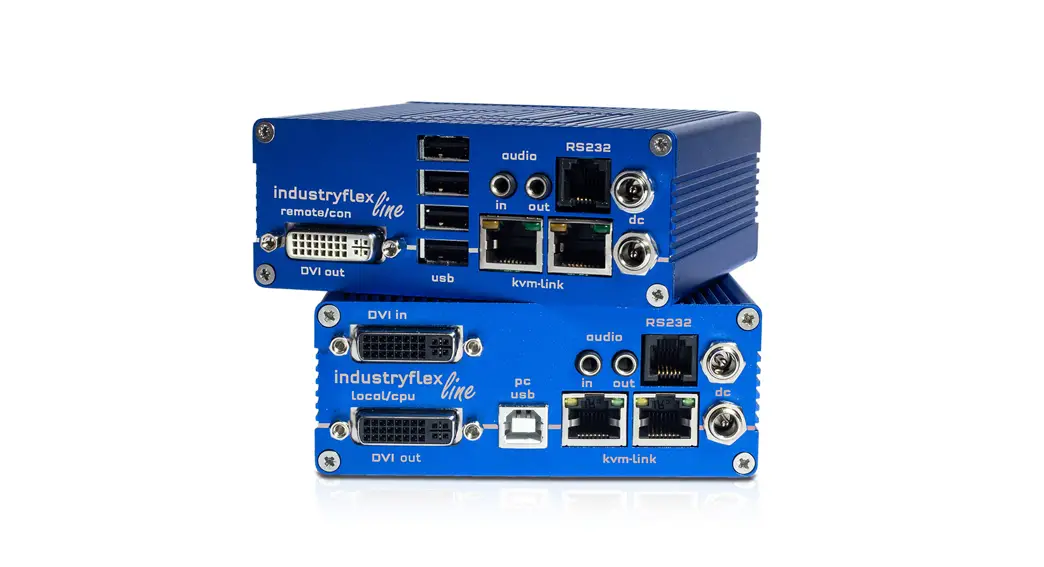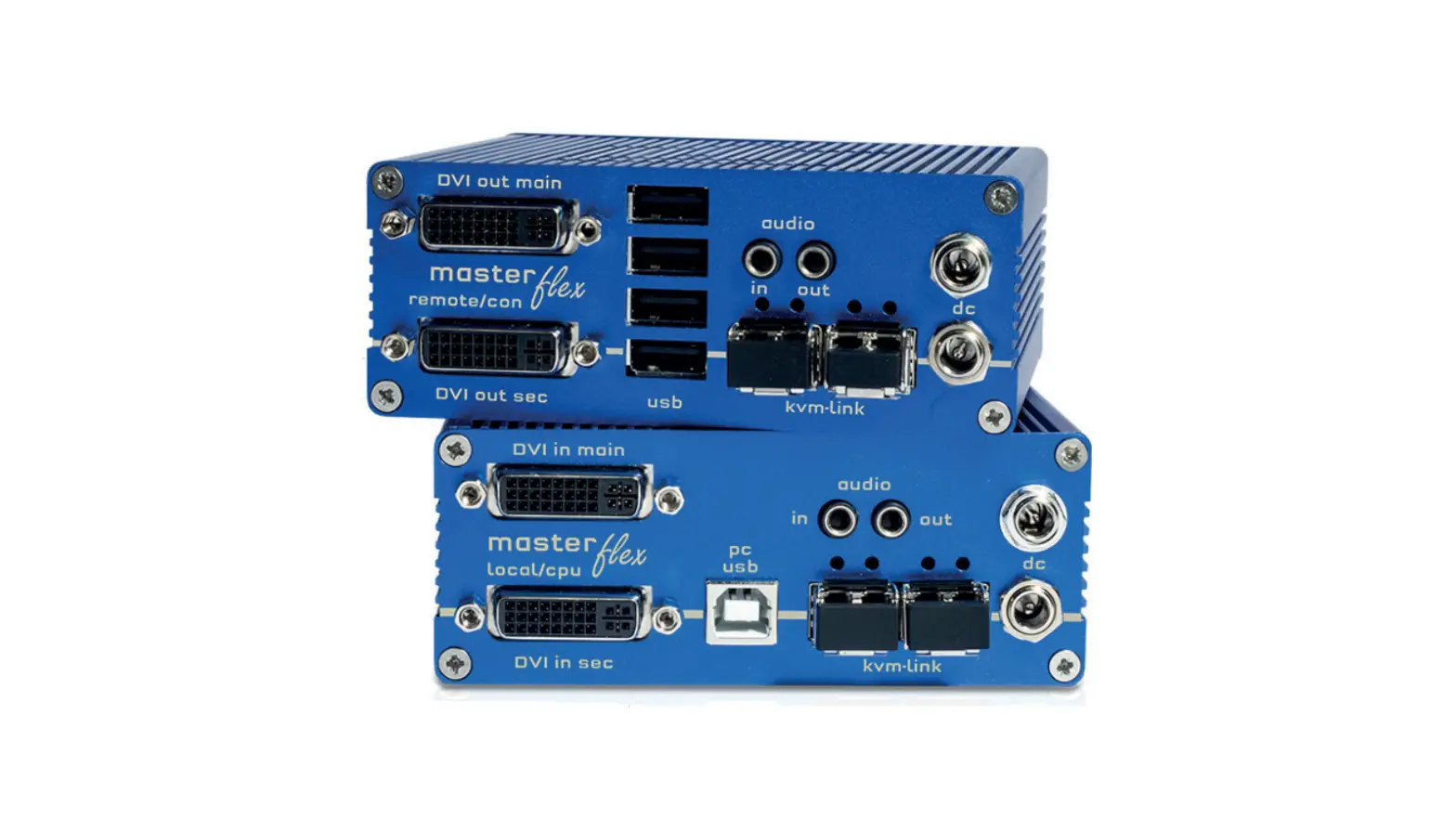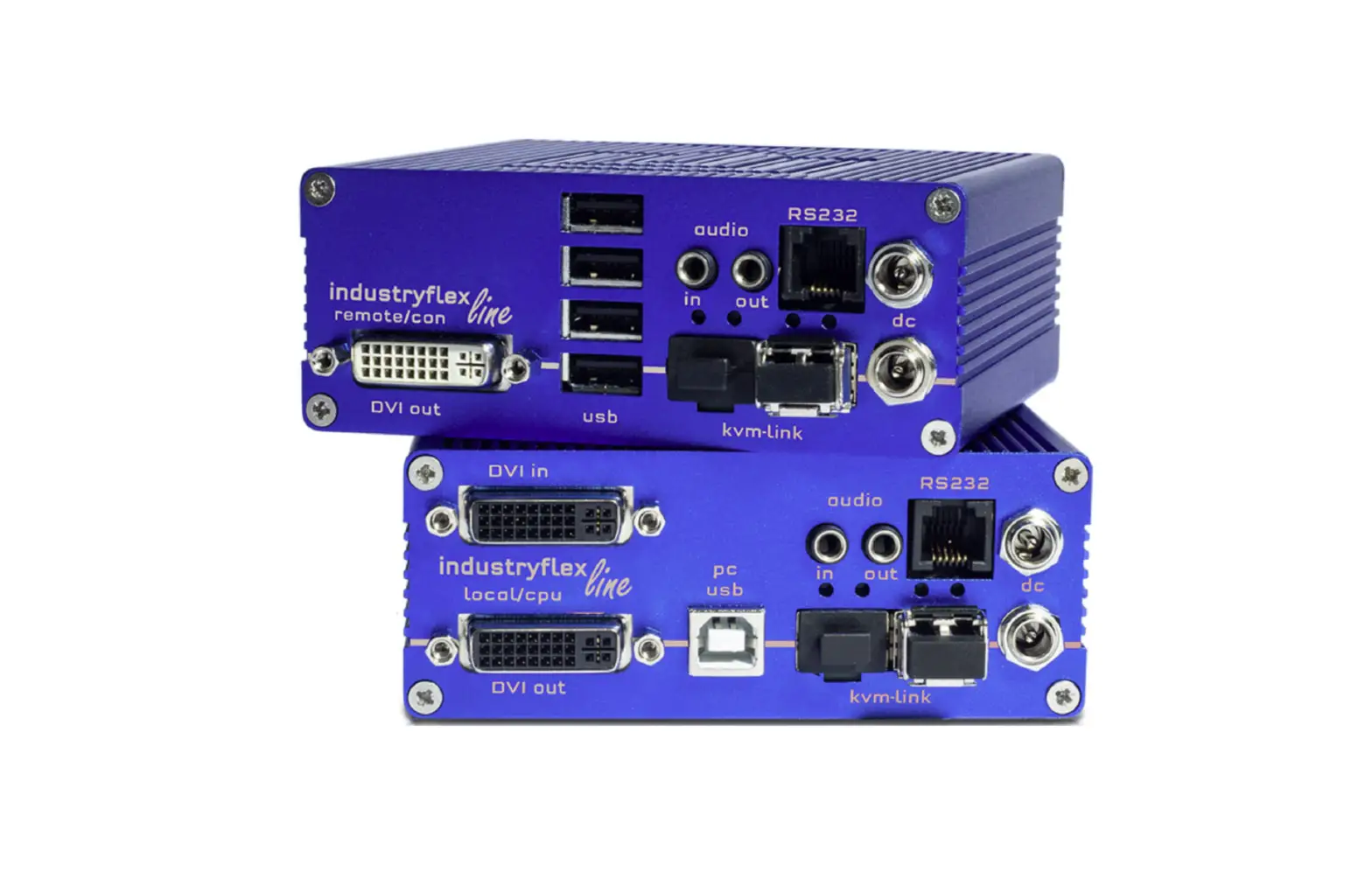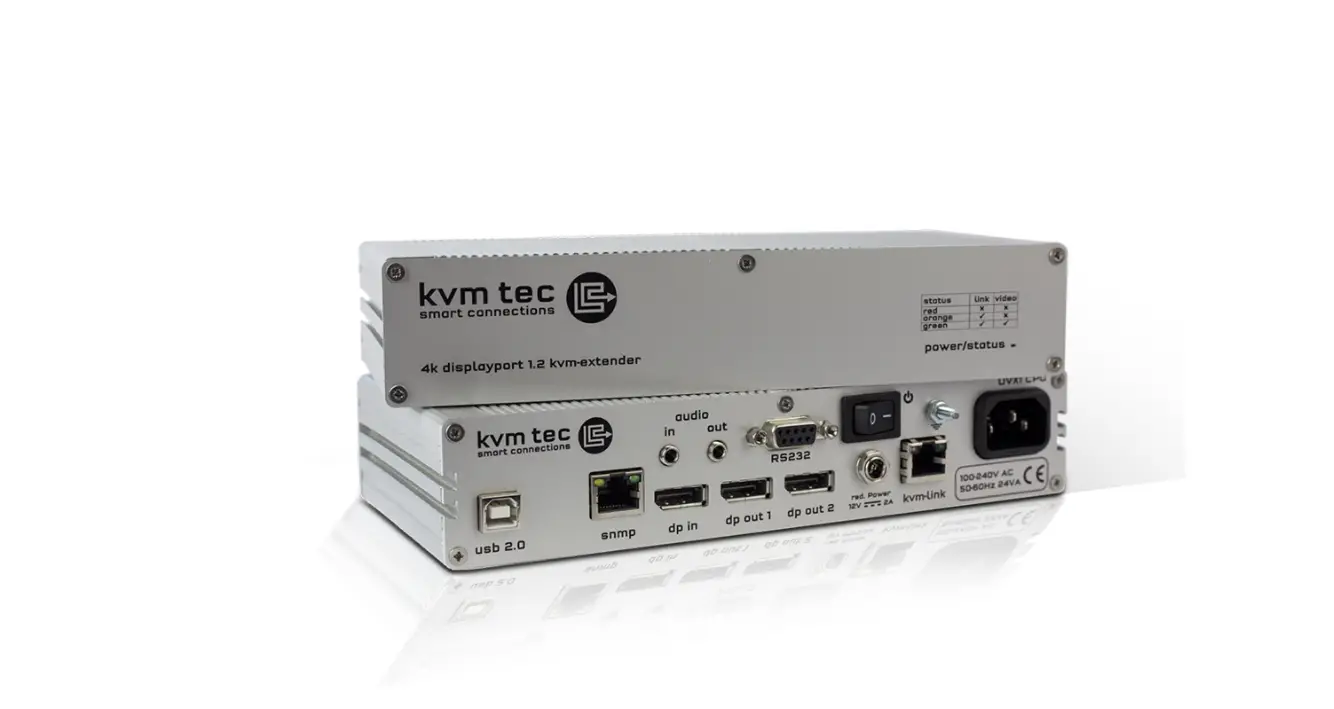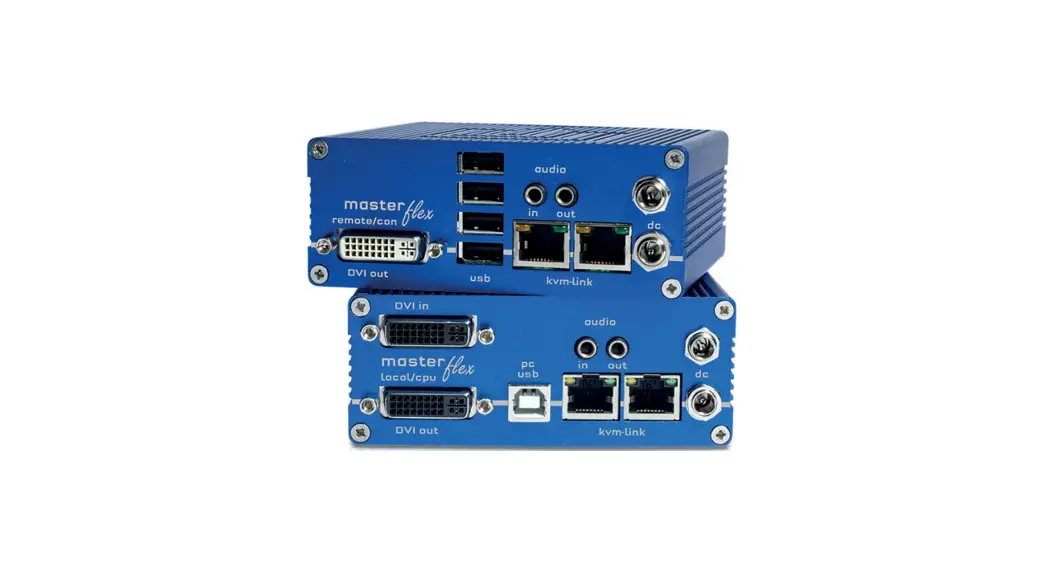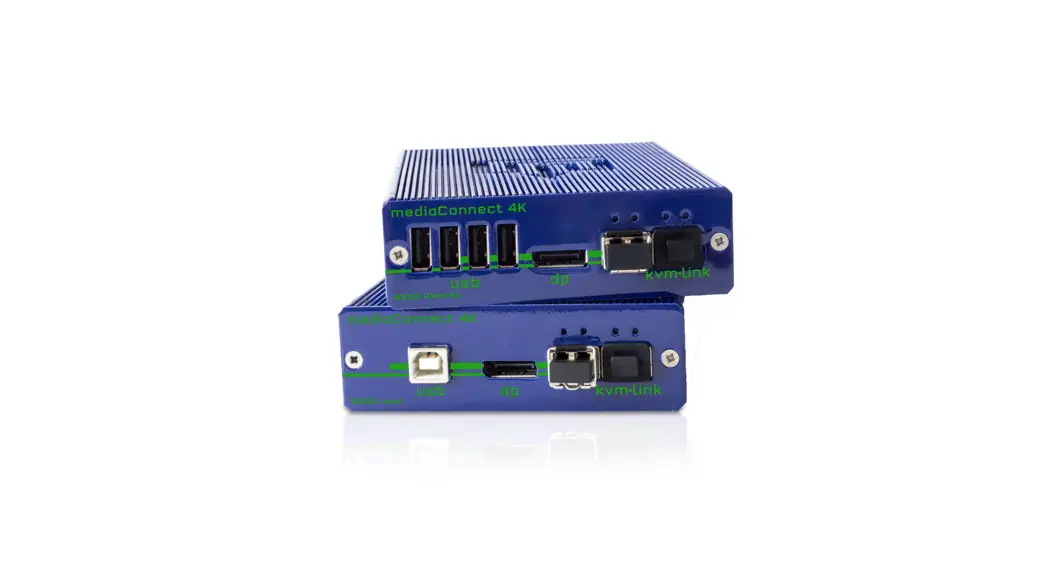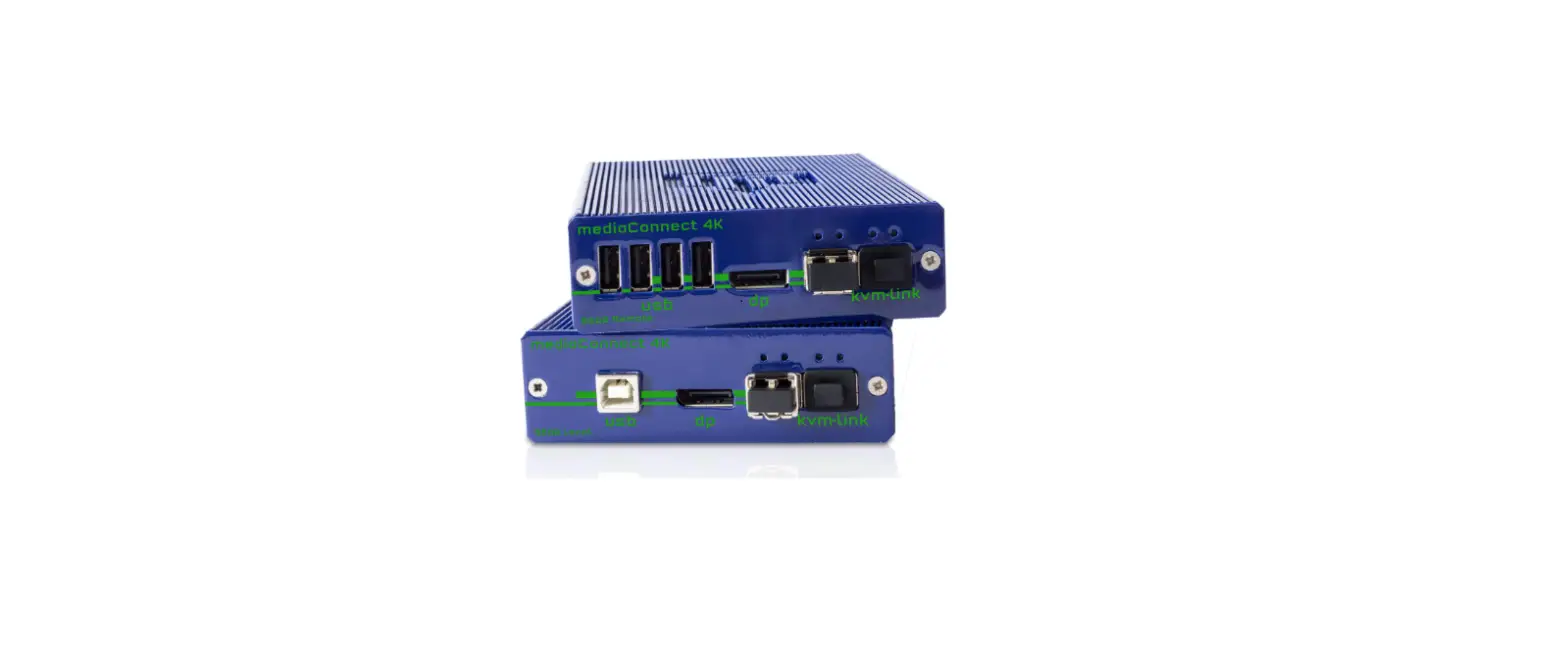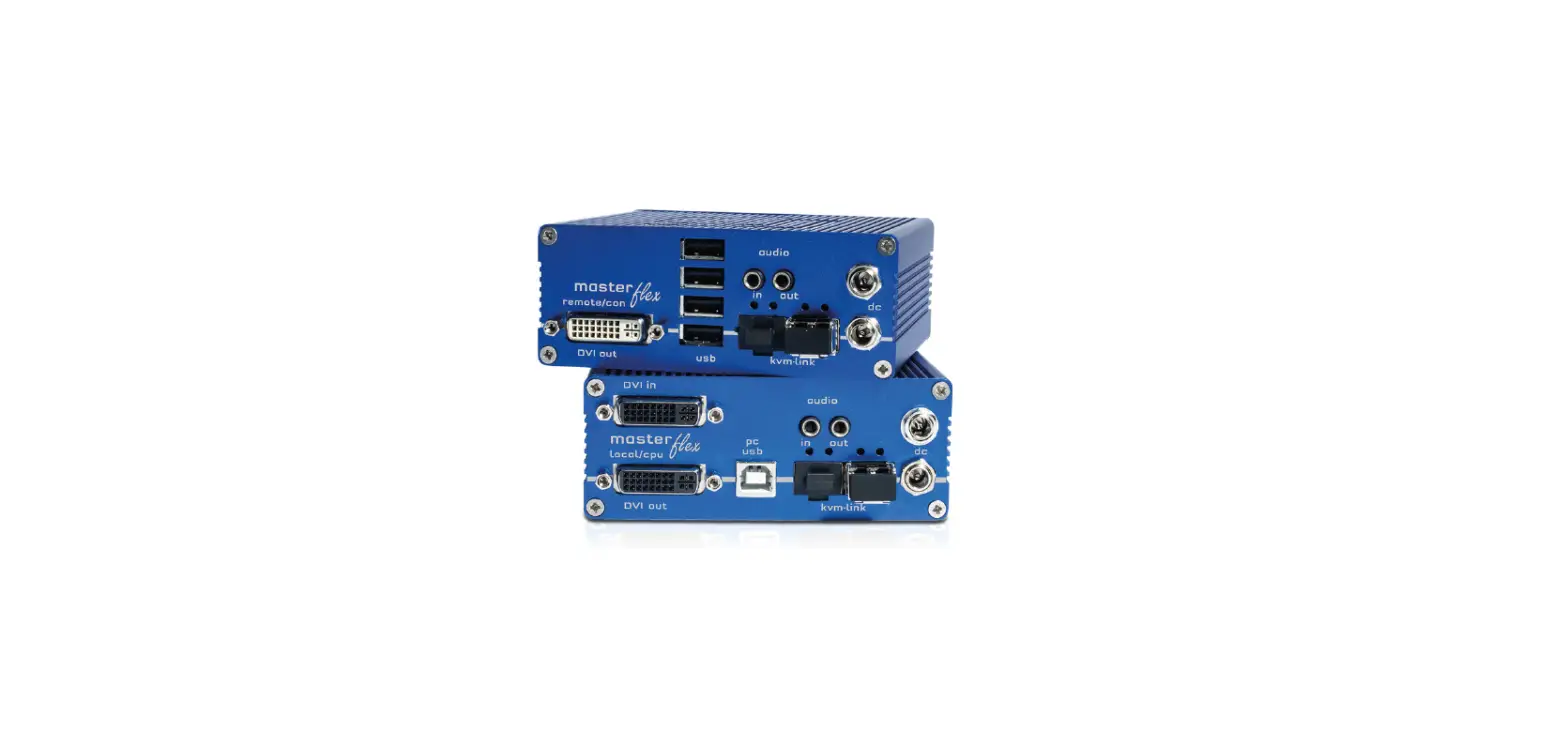
kvm-tec Industryline 24V Smart Connections 6701i Set Industryline MVXi In Copper Installation Guide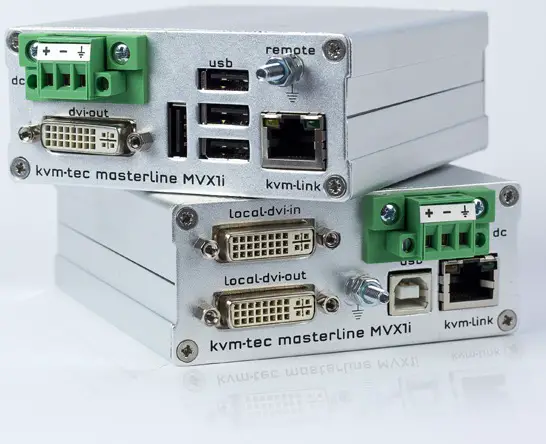
Delivery Content
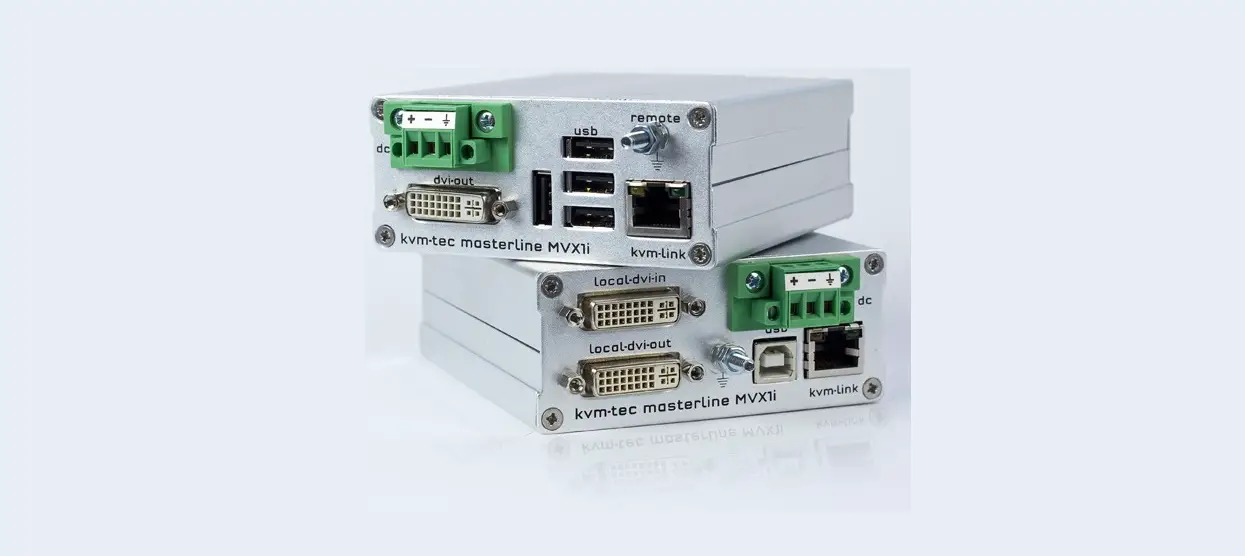
LOCAL/CPU Unit
- 1 x MVX1i local (CPU) without power supply
- 1 x Power Connector
- 1 x DVI – DVI cable 1,8m/5,9ft
- 1 x USB cable 1,8m/5,9ft
- 1 x VGA -DVi cable ,8m/5,9ft (opt)
- 4 x rubber feet
REMOTE/CON Unit
- 1 x MVX1i remote (CON) without power supply
- 1 x Power Connector
- 4 x rubber feet
kvm-tec upgrades included
- Matrix Switching System up to 48 endpoints
- USB Memory,
- Analogue VGA-transmitted as DVI
Quick Installation
INDUSTRYLINE MVXi local / CPU – remote/ CON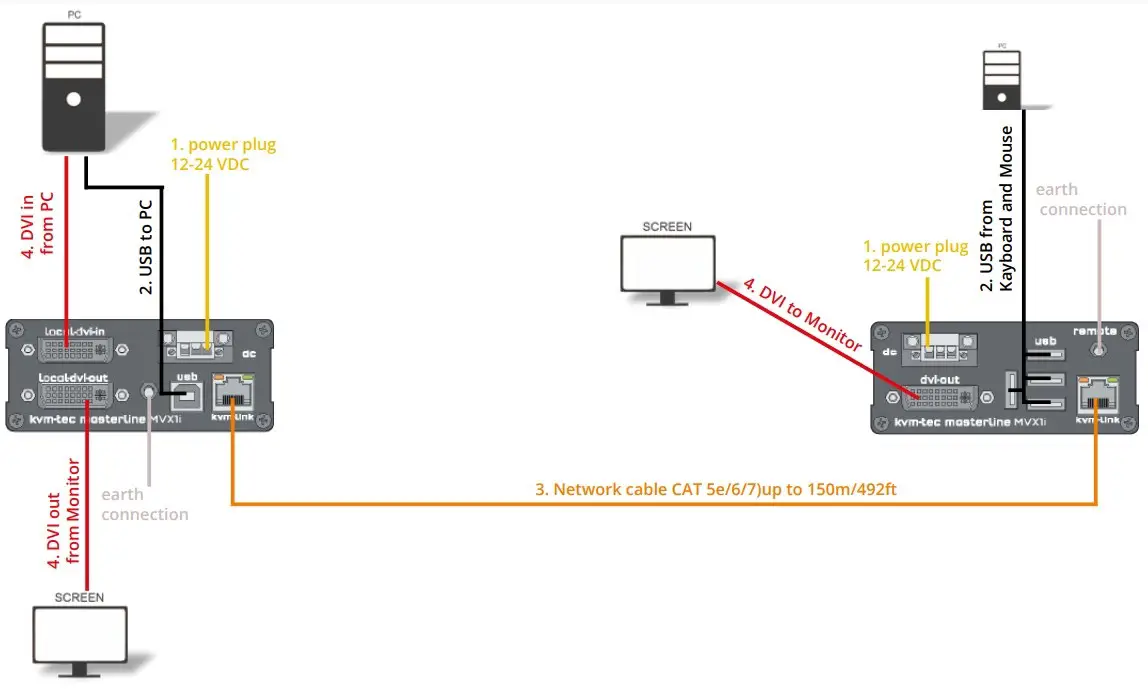
- Connect the CON / Remote and the CPU / Local Unit to the included 12V 1A power supply.
- Now connect the USB cable to a USB port on your PC and connect the other end of the USB cable to the CPU / Local Unit. Connect keyboard and mouse to the CON / Remote Unit.
- Connect the CPU / Local and the CON / Remote Unit with a network cable.
- Now connect the HDMI-DVI cable to the DVI socket of the PC and the other end to the HDMI socket of the CPU / Local Unit (PC-in). Then connect the monitor with the HDMI-DVI cable to the CON / Remote Unit.
HAVE FUN – your kvm-tec Extender is now in use for many years ( MTBF approx 10 years)
| No Power (No LED) | USB is not working | No Video | Video error (stripes in the picture) |
| Check the powerplug | Are the USB Devices plugged in correctly? | Check if all cables are plugged in correctly | Check if all cables are plugged in correctly |
| Is the power supply ok? Try another Unit. | Is the USB cable on the Local side plugged into the PC? | Check if the PC is sending a Image by plugging in a monitor on the local out of the local Unit | Check if the PC is sending a Image by plugging in a monitor on the local out of the local Unit |
| Try reprogramming the Unit by using a JTAG programmer | Are the USB Devices working directly on the PC? | Check if the DDC is set correctly (in menu under point „O“) | Check if the DDC is set correctly (in the menu under point „o“) |
| Contact kvm-tec support | Replace the USB cable from PC to the Local Extender | Check if both Units have the correct firmware | Check if local and remote Unit have the correct firmware |
| Check if local and remote Unit have the same firmware | Contact kvm-tec support | Check if the network switch is setup correctly and has enough bandwidth | |
| Check if the local or the remote Unit is causing the problem by swaping first the local and than the remote Unit to another Unit | Check if other units have the same behaviour | ||
| Contact kvm-tec suppor | Contact kvm-tec support |
kvm-tec Support
Check out our Installation Channel:
[email protected]
Phone: +43 2253 81912 – 30
We are here for you to answer your questions about installation?
Manual download www.kvm-tec.com or kvm-tec Installationchannel on our homepage personally +43 2253 81912

 Kvm-tec.com: KVM Extender over IP - Matrix Switching Systeme