 TAG-N-TRAC:
MERAKI INTEGRATION GUIDE
SUPPLY CHAIN VISIBILITY SOLUTIONS
Please follow the following steps for integration using your Meraki dashboard:
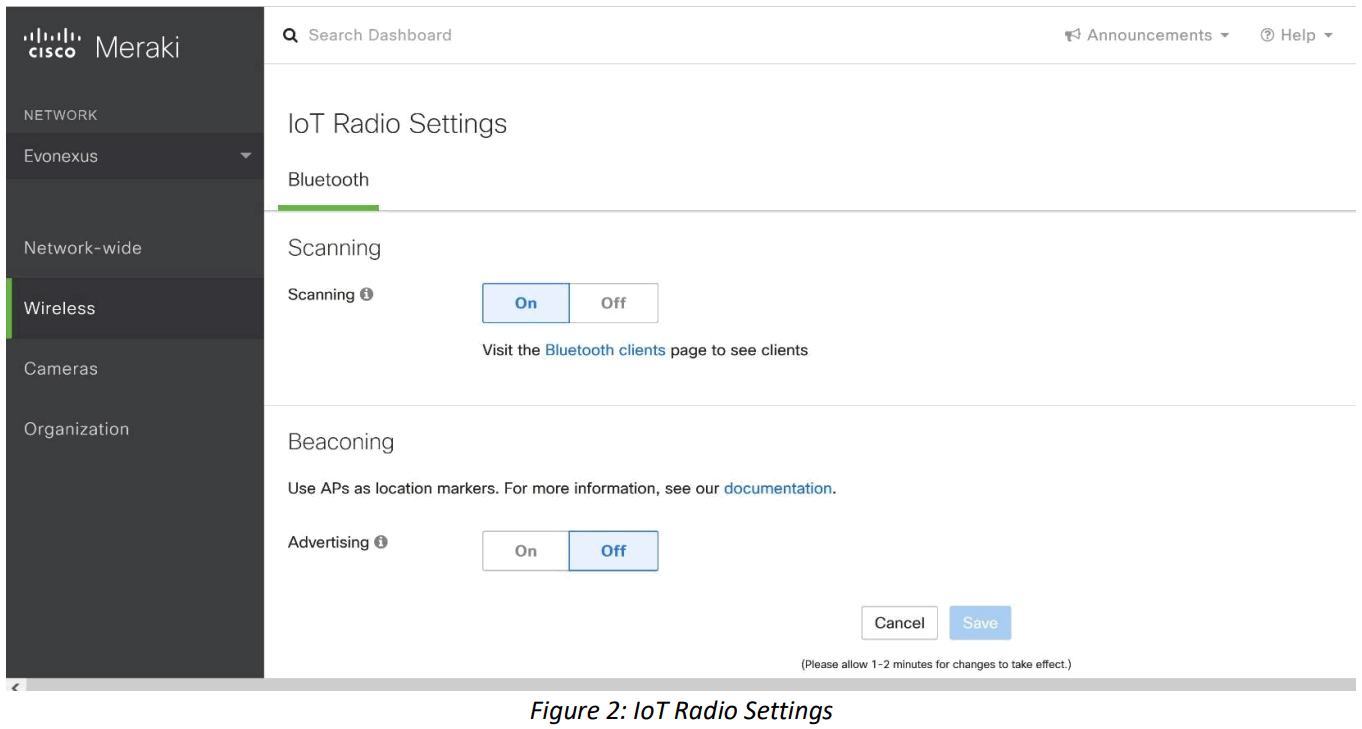
- Enable Bluetooth radio scanning (see Image A screenshot below)
a. Select “Wireless” → “IOT Radio Settings” → Bluetooth Scanning → ON - Configure webhook.
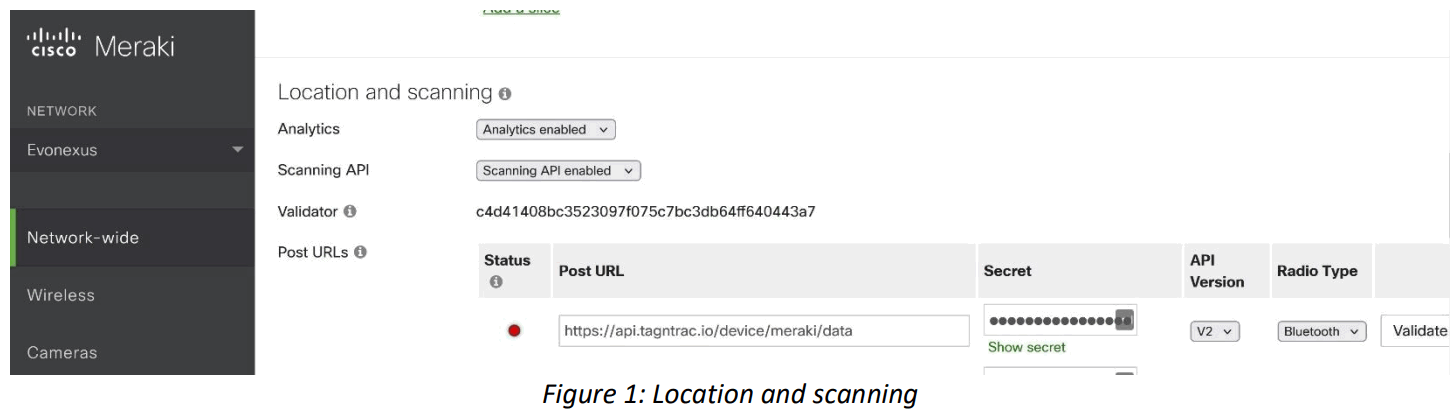
a. Go to section “Location and scanning” (select “Network-wide” → “General” → scroll down)
b. Select “Scanning API” →enabled
c. Configure POST URL
i. URL should be set to https://api.tagntrac.io/device/meraki/data
ii. Secret should be set to your ORG key (from Tag-N-Trac dashboard settings)
iii. API version = v2
iv. Radio type = Bluetooth
d. Provide your Tag-N-Trac support rep with your “validator” code (currently you must provide this via email.) This needs to be configured on the Tag-N-Trac account, so we can respond correctly to the Meraki authentication challenge.
e. After we confirm the validator string has been configured, press the “validate” button. The status icon should change to show validation successful. - Tag-N-Trac Bluetooth devices that are in range of any of your Meraki devices can now be seen on the Tag-N-Trac dashboard.
REFERENCE FIGURES:
 api.tagntrac.io/device/meraki/data