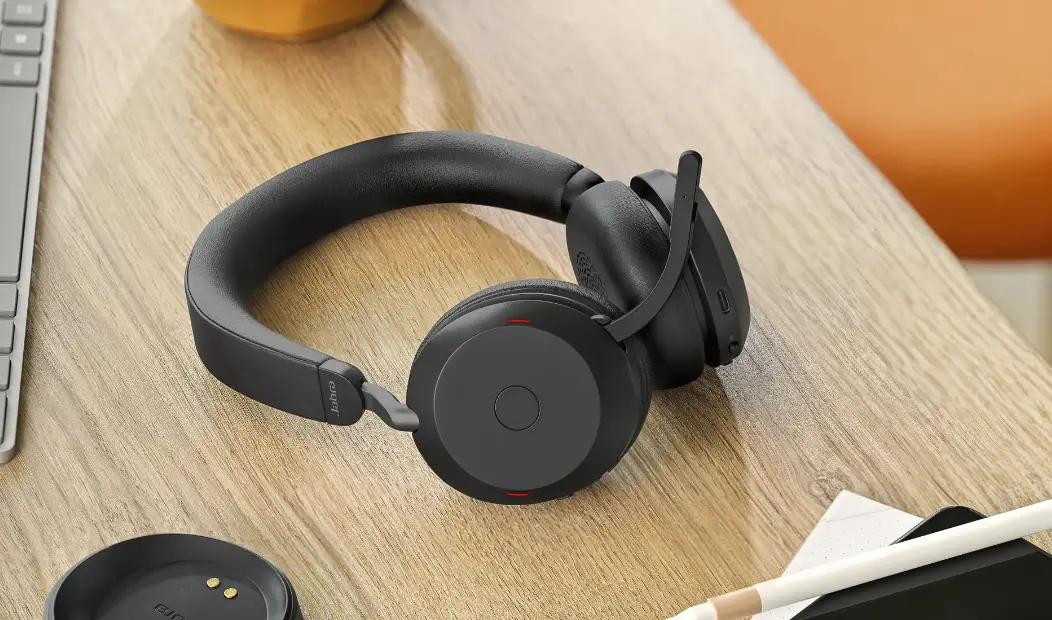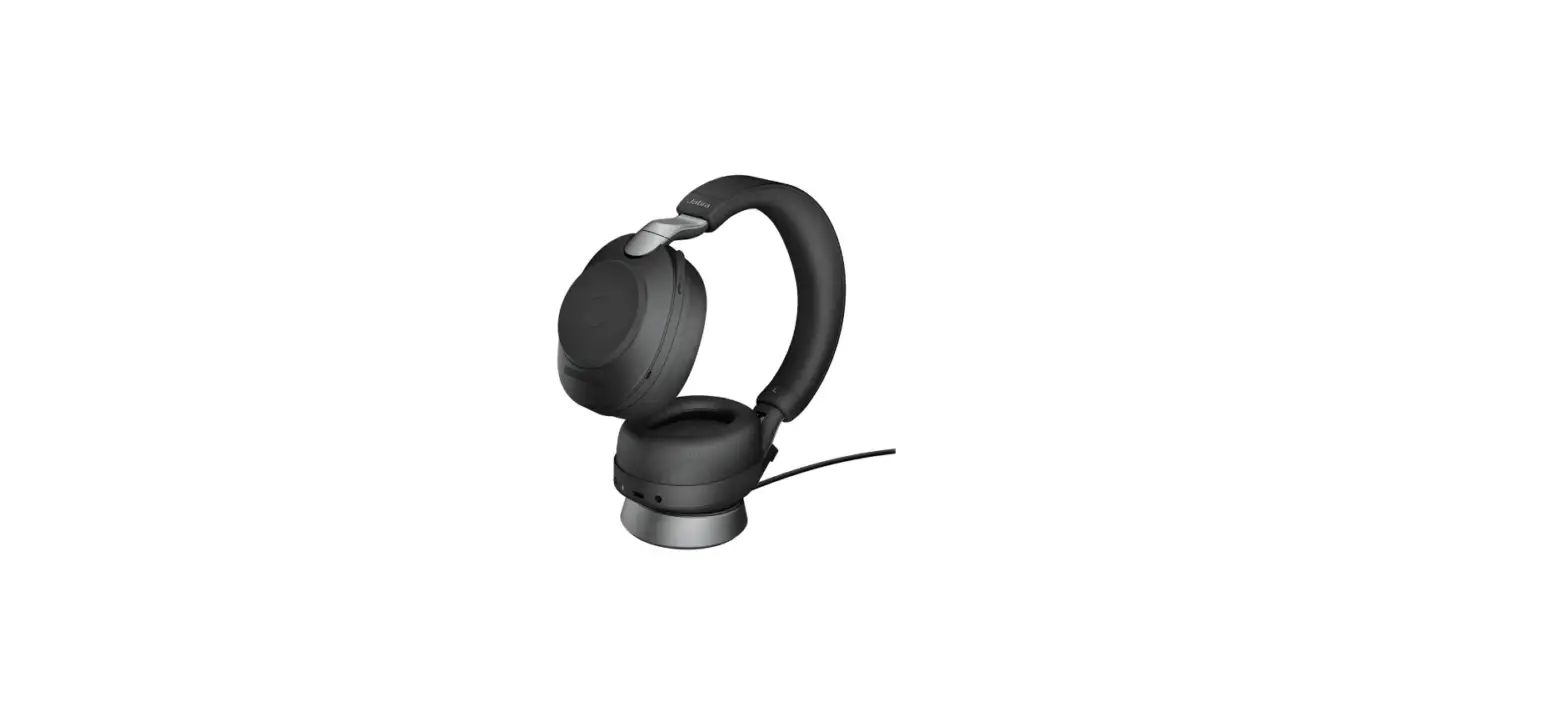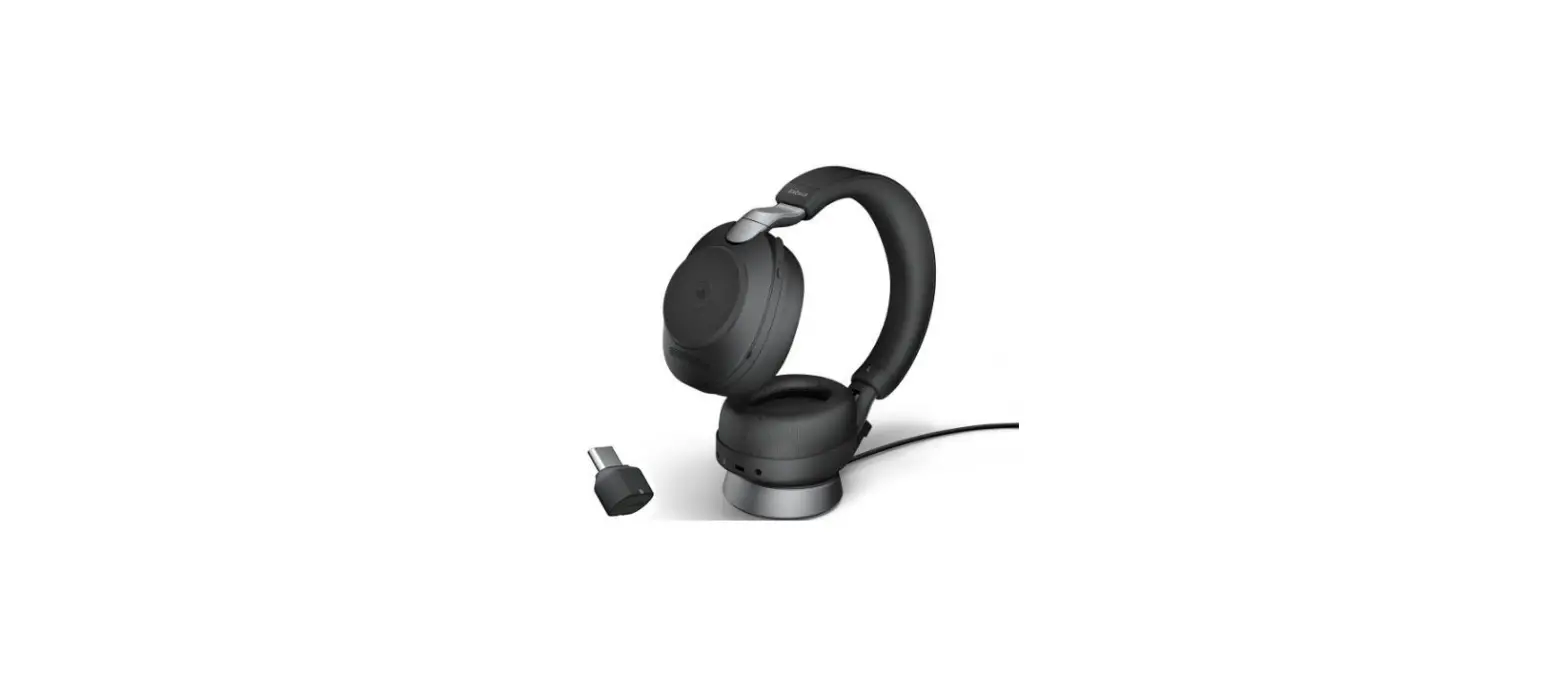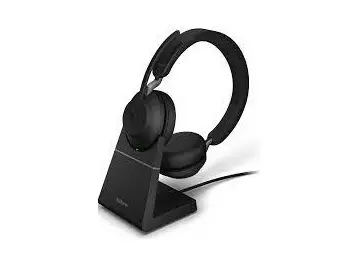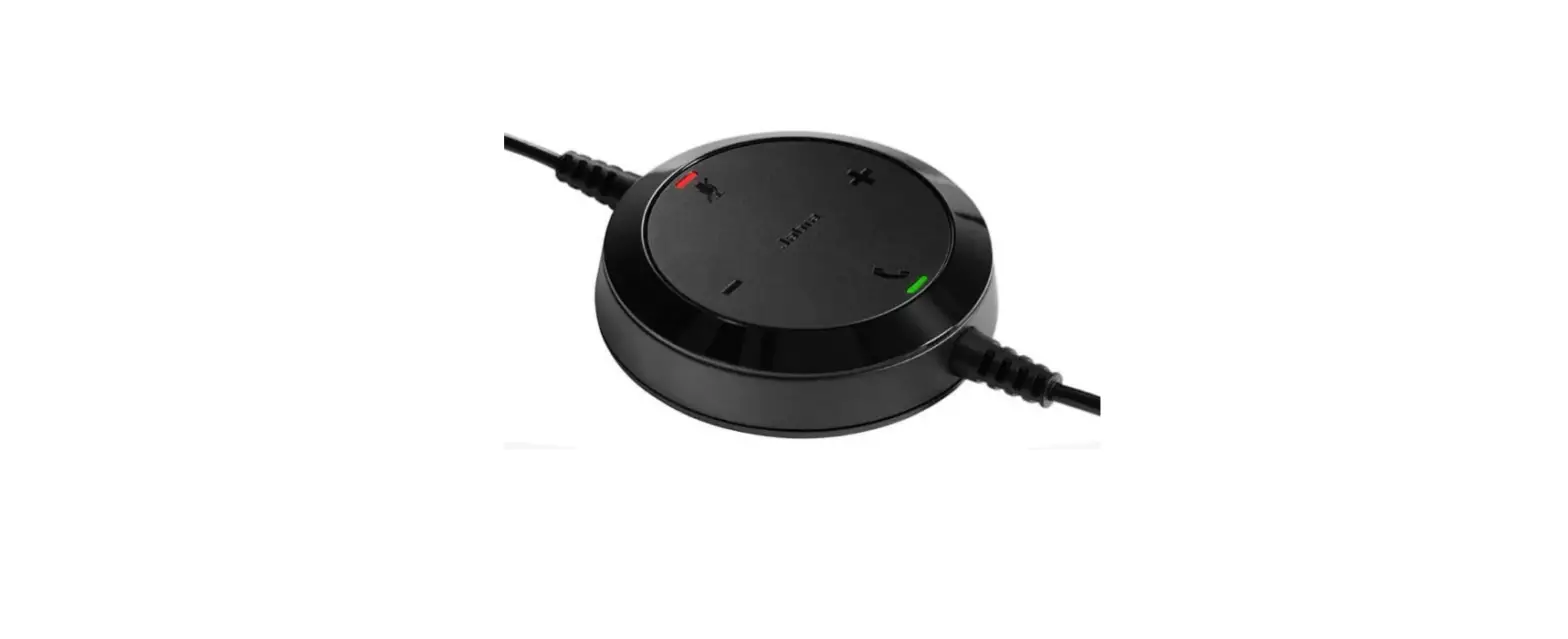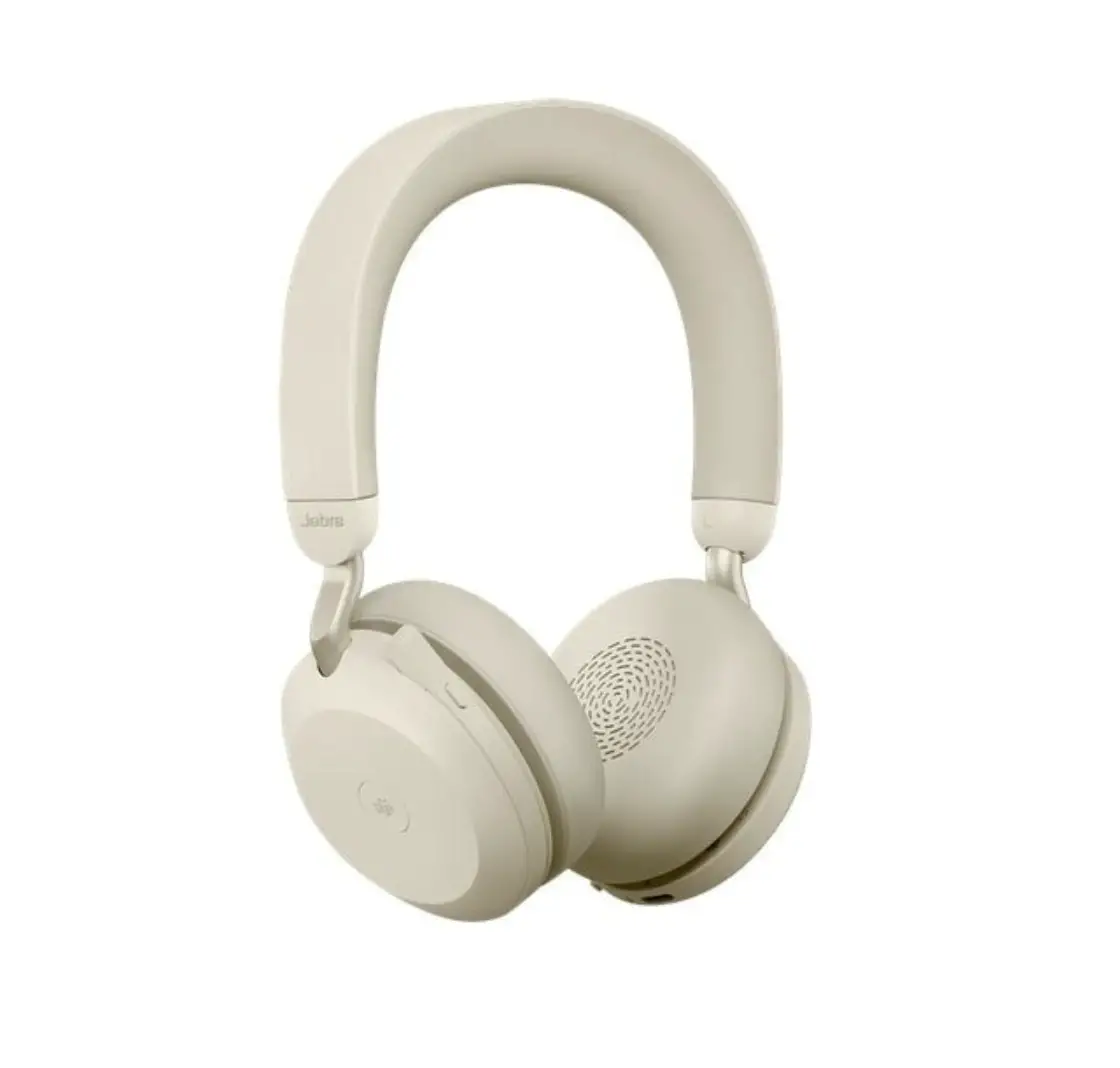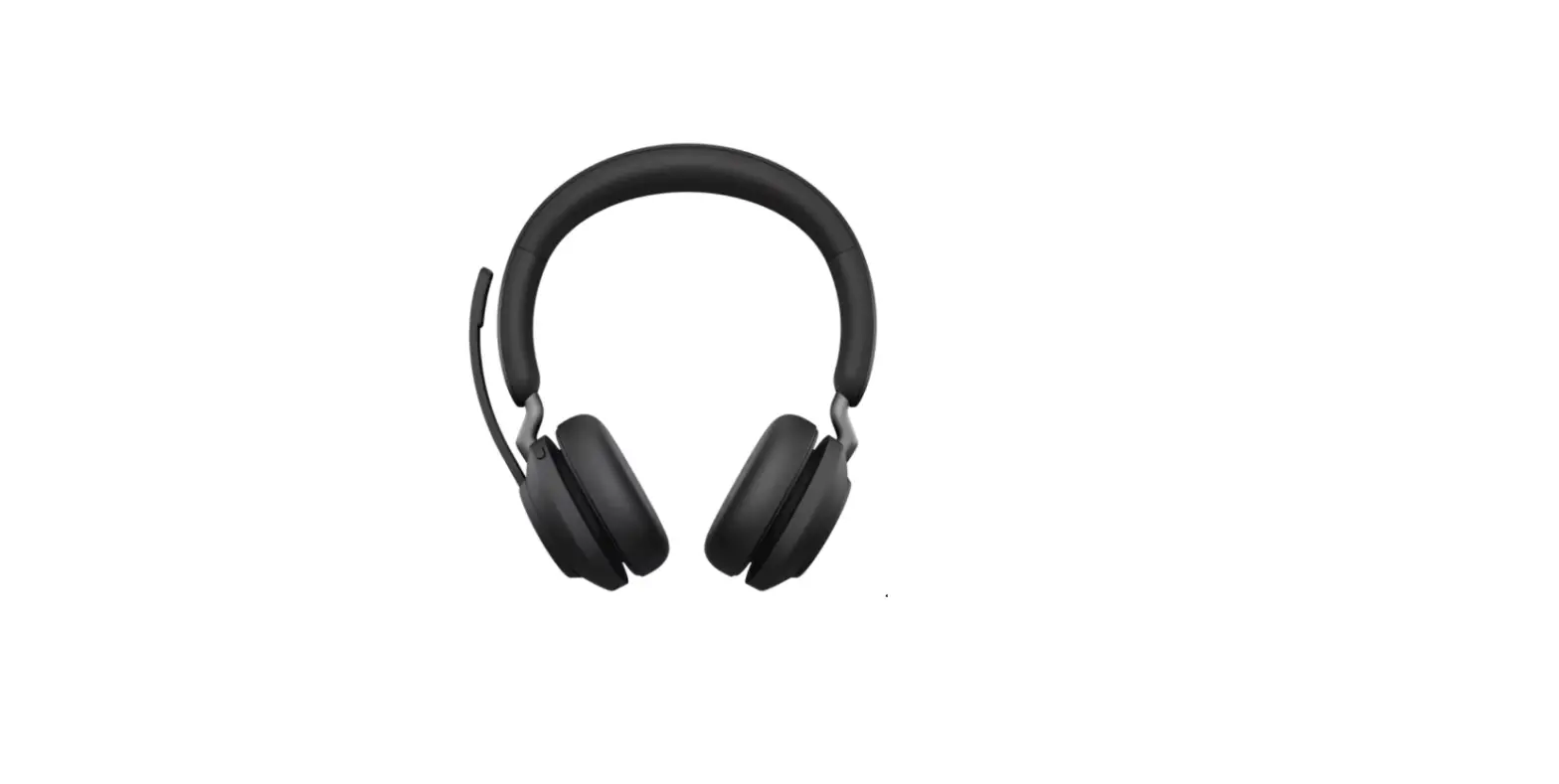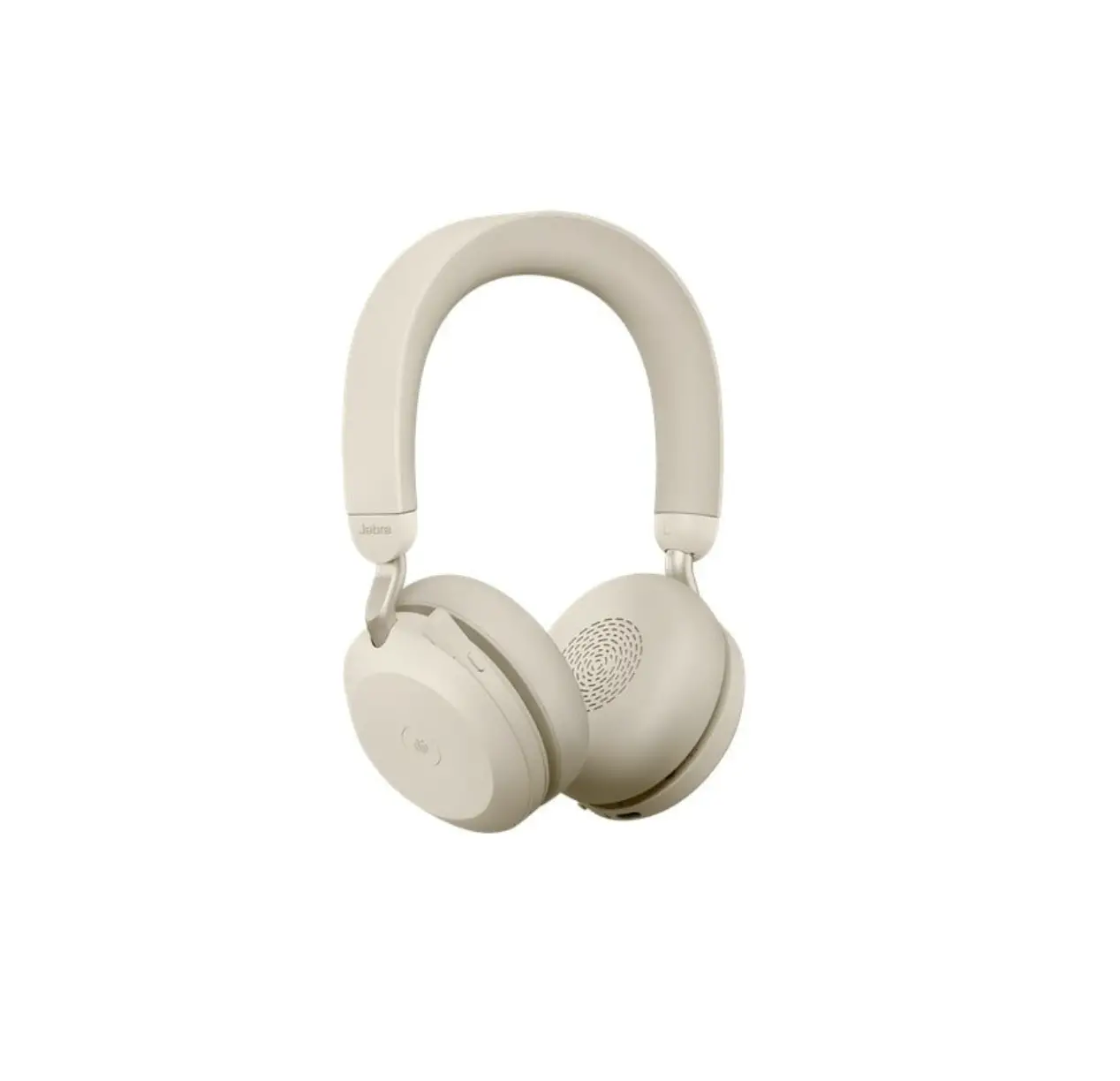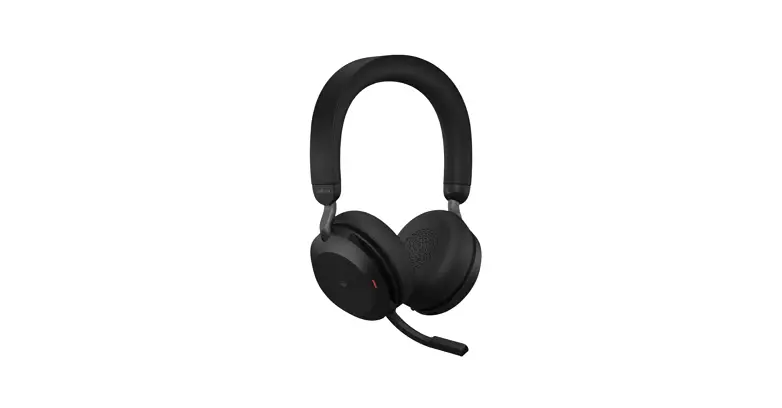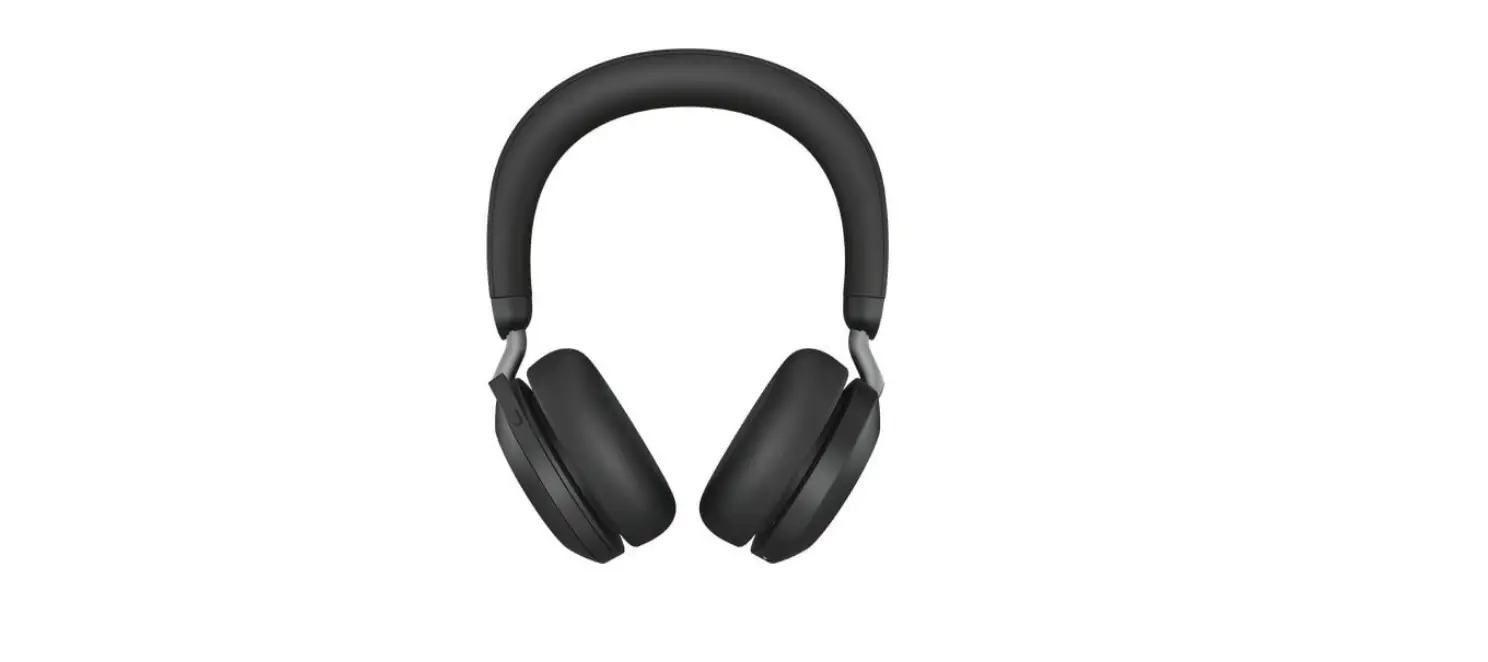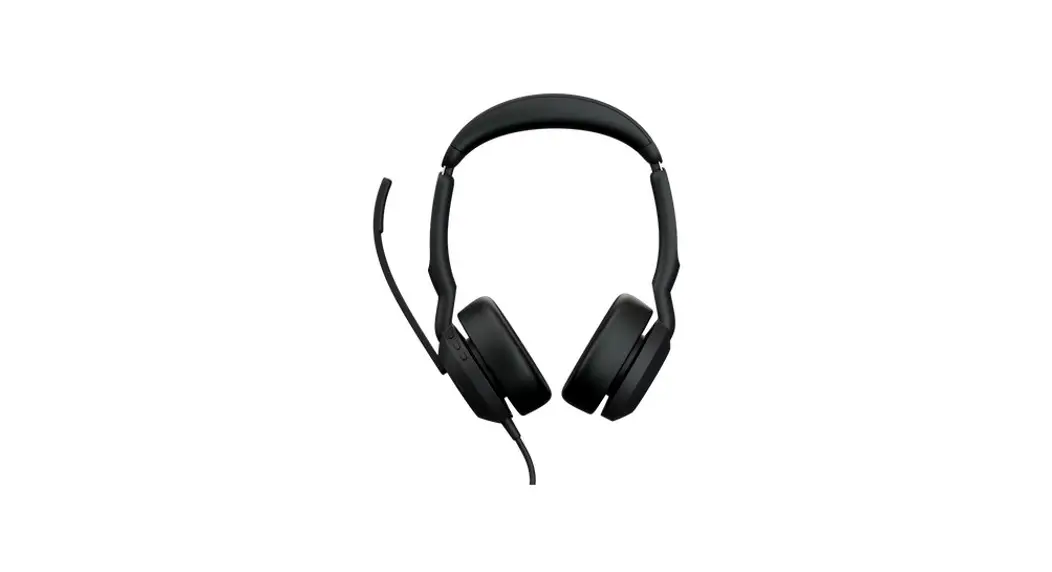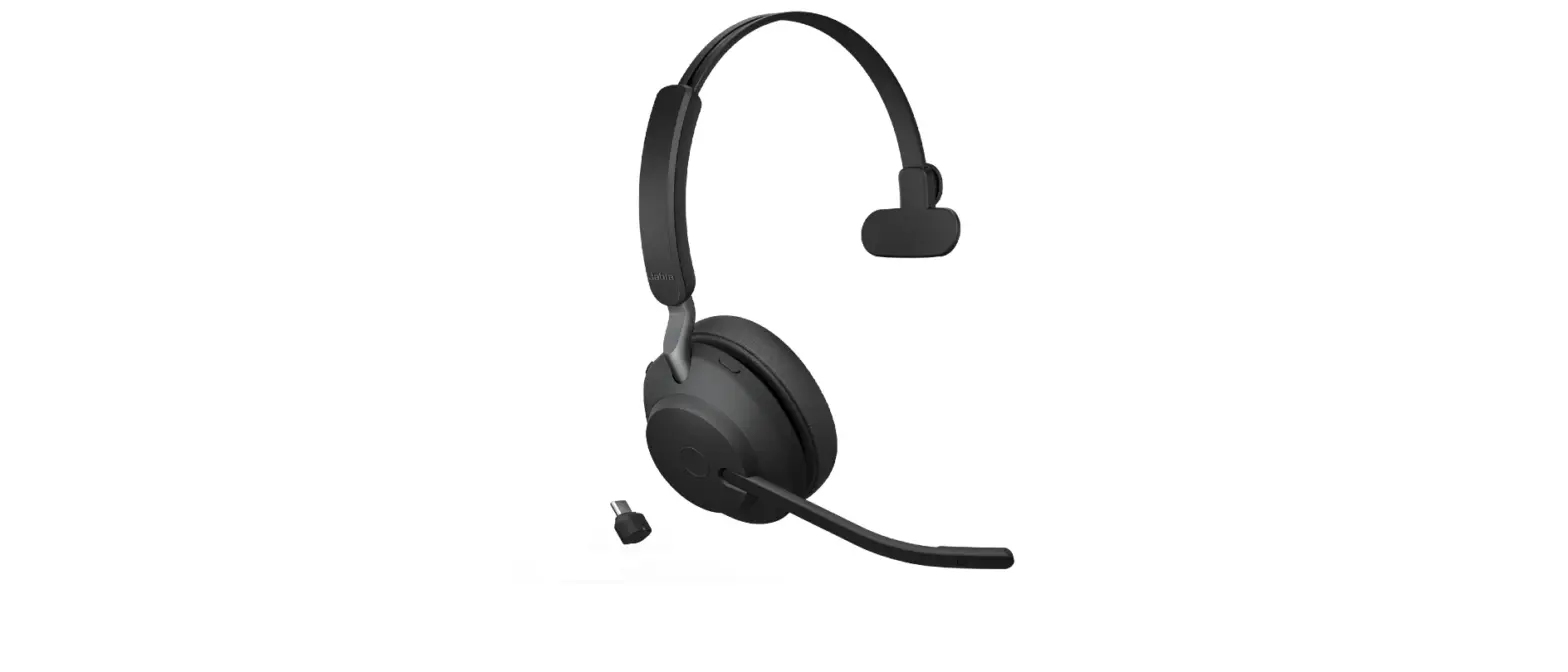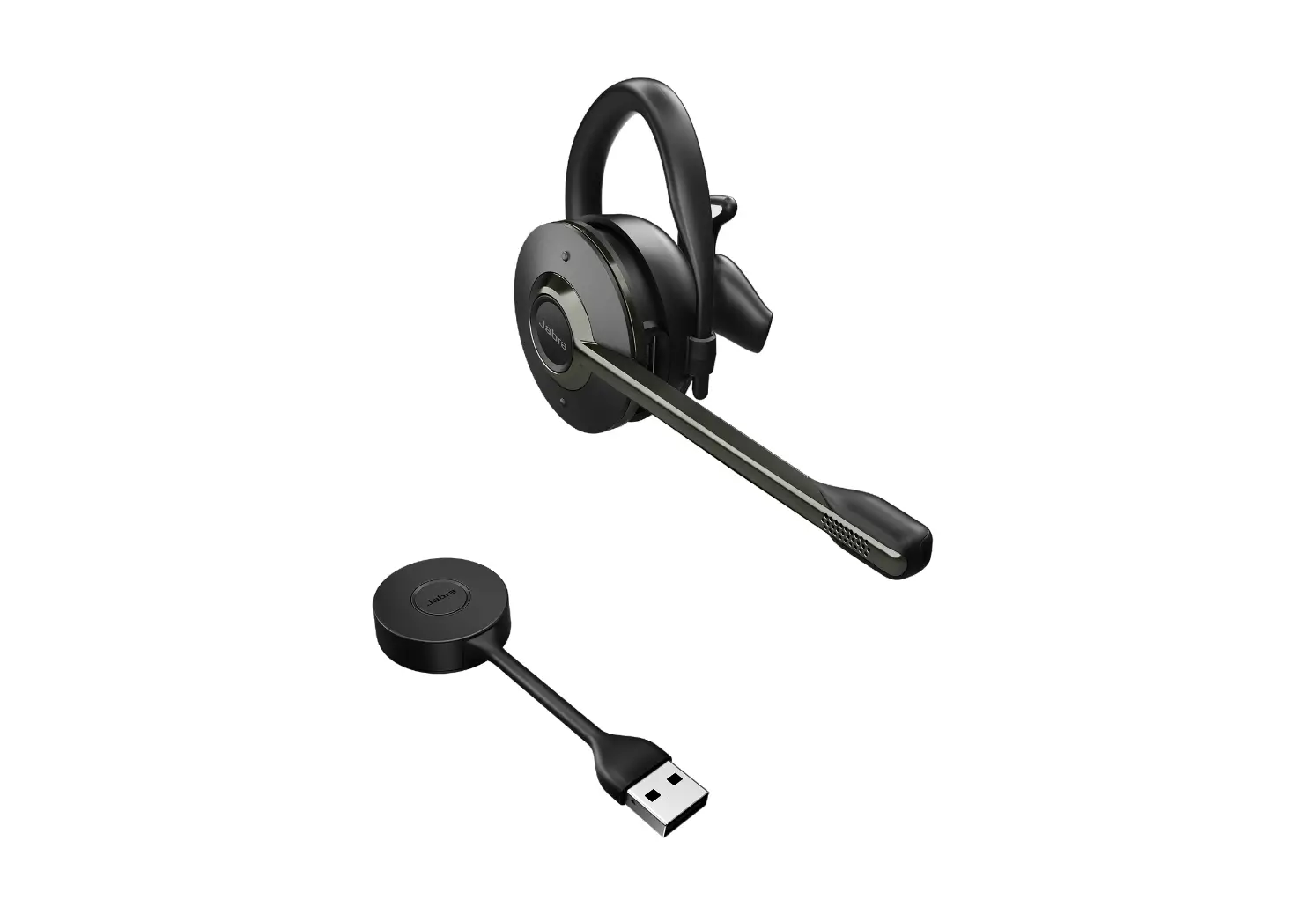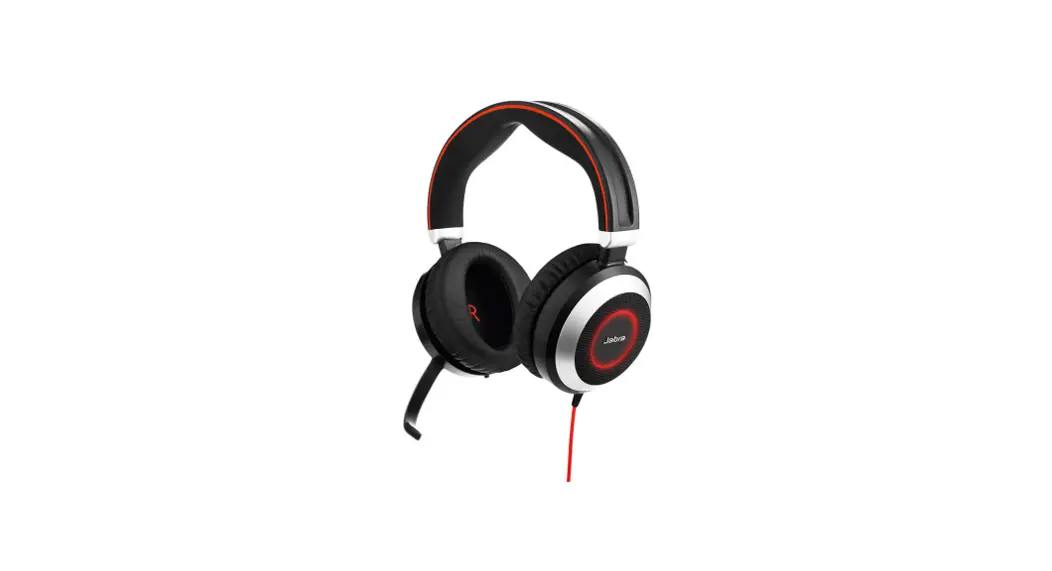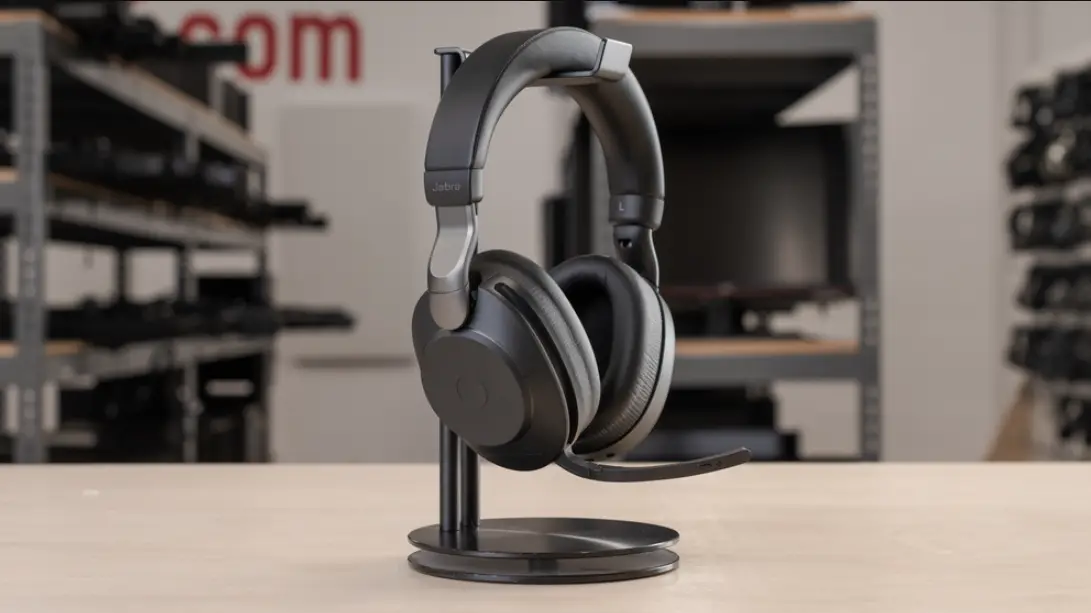

Jabra Evolve2 85 USB-A MS Teams Stereo Wireless Headset
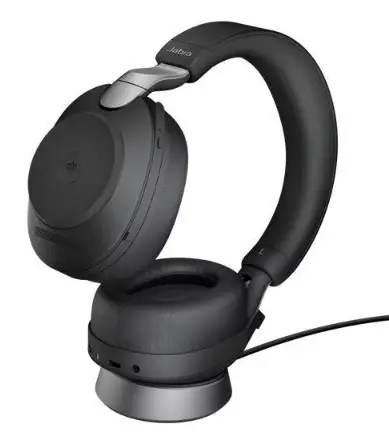
Jabra Evolve2 85 – USB-A MS Teams Stereo with Charging Stand – Black
How do I set a preferred softphone in Jabra Direct?
Prerequisites
- Jabra Direct – latest version
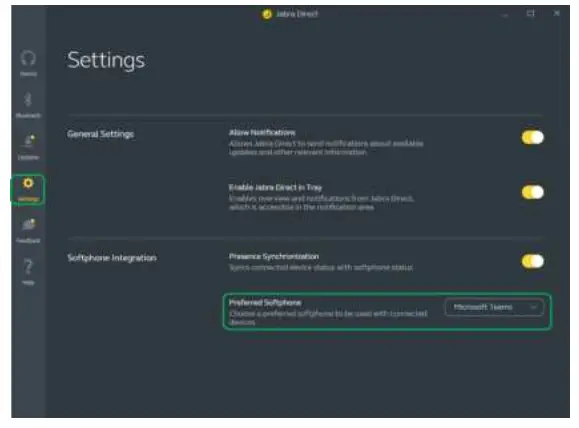
If you have multiple softphones installed, you can select a preferred softphone. Follow these steps.
- Open Jabra Direct.
- On the left menu, click Settings.

- In Softphone Integration > Preferred Softphone, select your preference.
If your organisation has decided to manage the setting centrally, this will be indicated by a Lock icon.
Note
Images and text are for guidance purposes only. Actual images and text may vary depending on the device connected and updates to the software.
References
 Jabra Direct - Engineered to optimize and personalize your headset
-
[FAQTitle] | Jabra Evolve2 85 - USB-A MS Teams Stereo with Charging Stand - Black | FAQ | Jabra Support
-
How do I set a preferred softphone in Jabra Direct? | Jabra Evolve2 85 - USB-A MS Teams Stereo with Charging Stand - Black | FAQ | Jabra Support
 Jabra Direct - Engineered to optimize and personalize your headset
 [FAQTitle] | Jabra Evolve2 85 - USB-A MS Teams Stereo with Charging Stand - Black | FAQ | Jabra Support