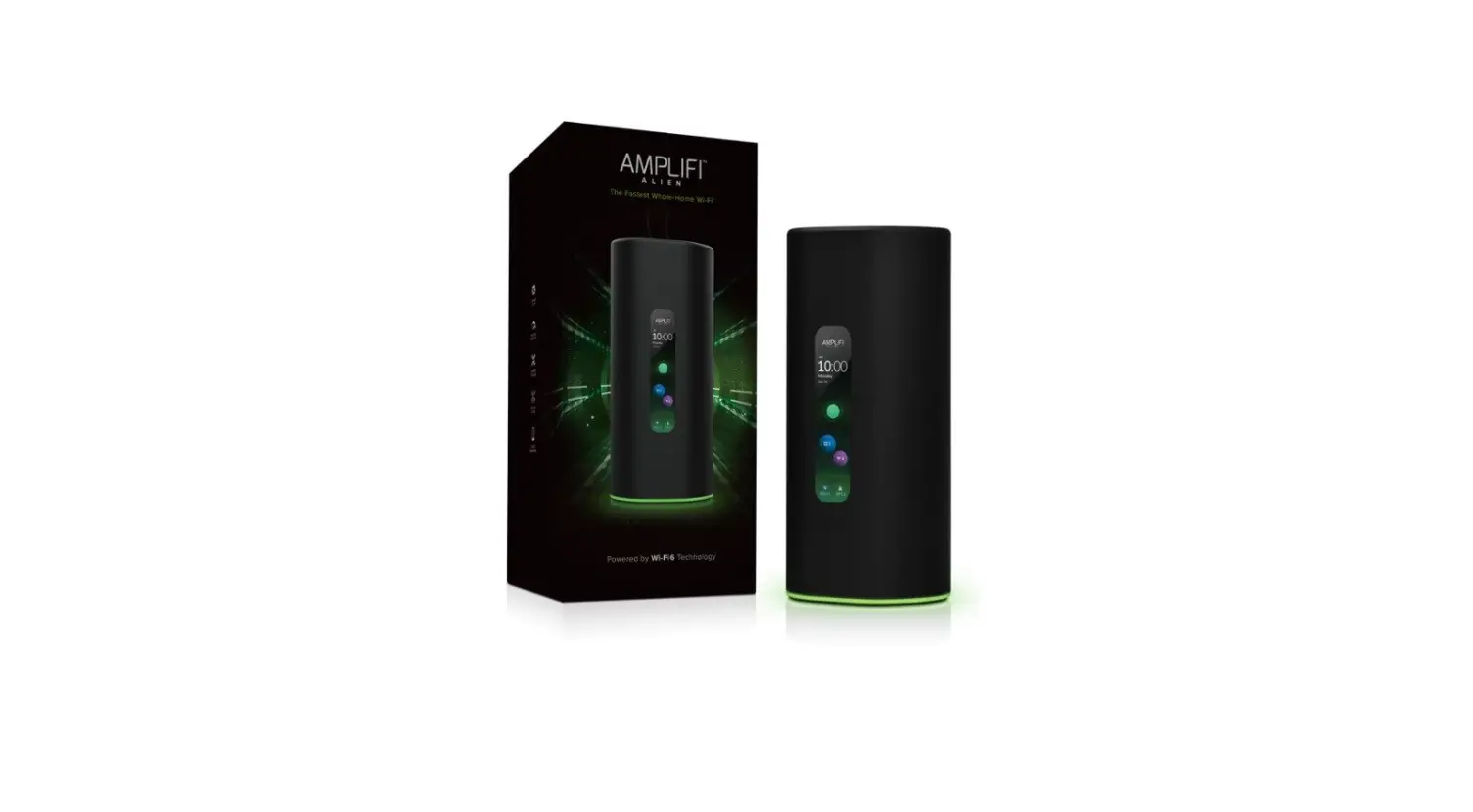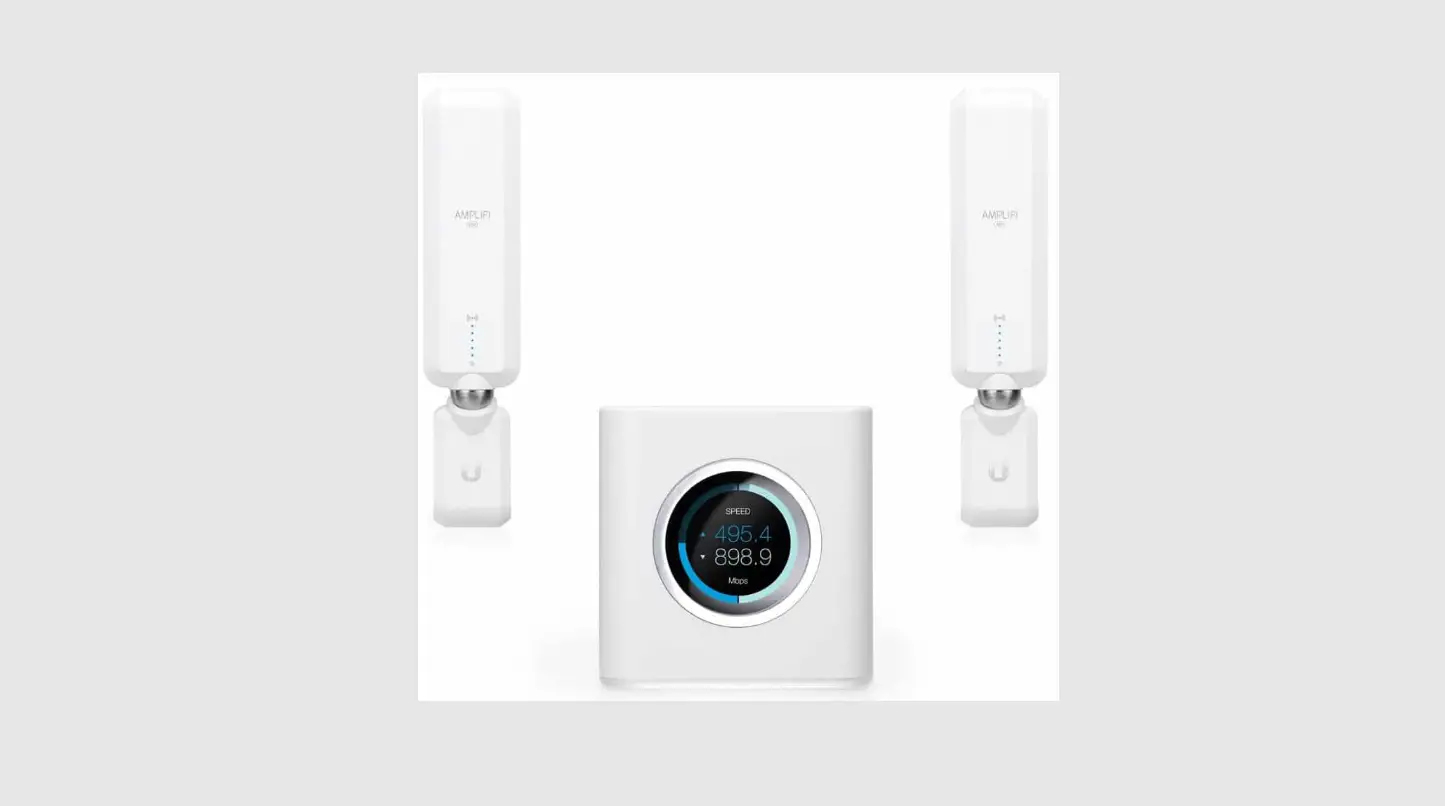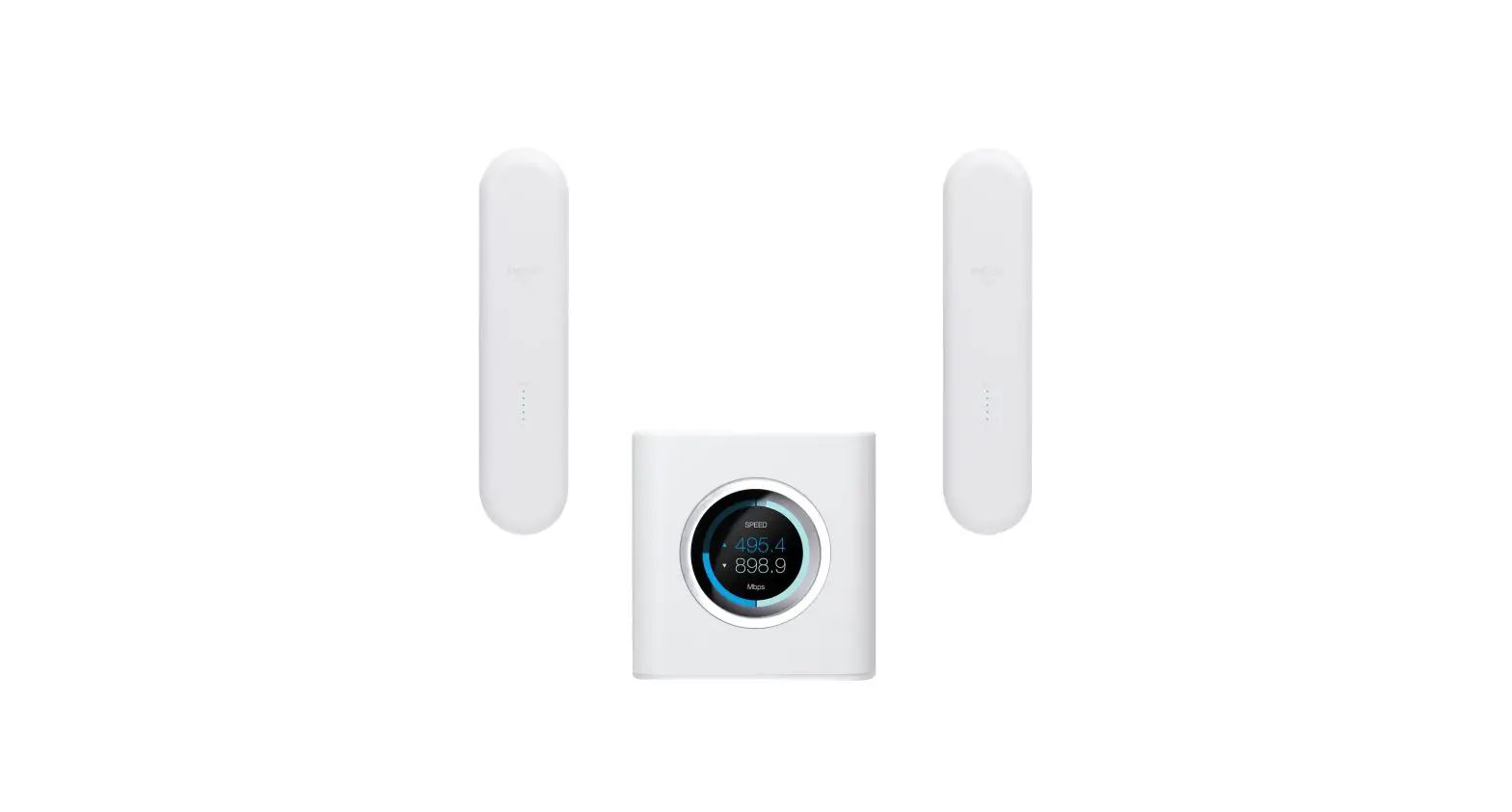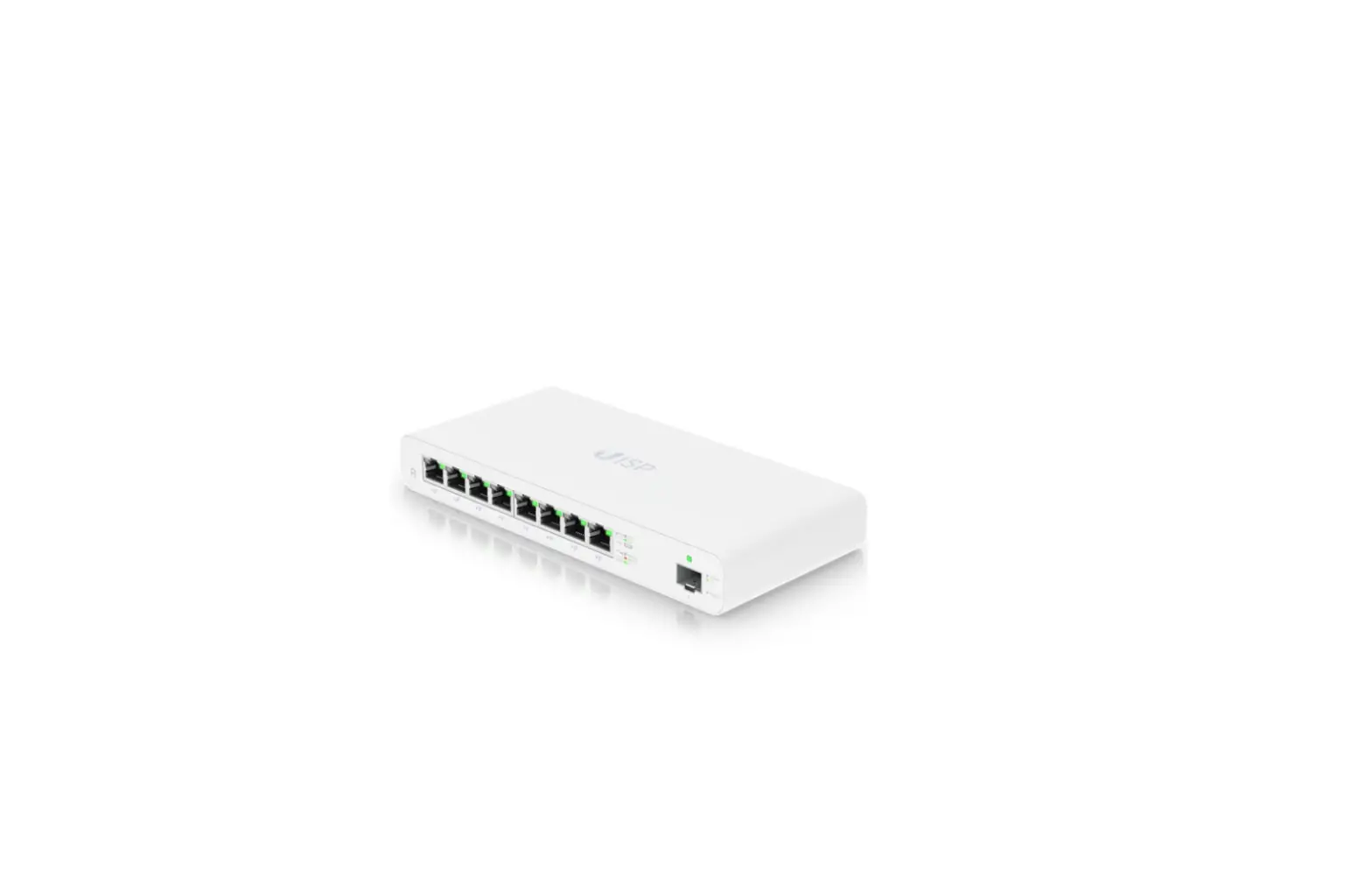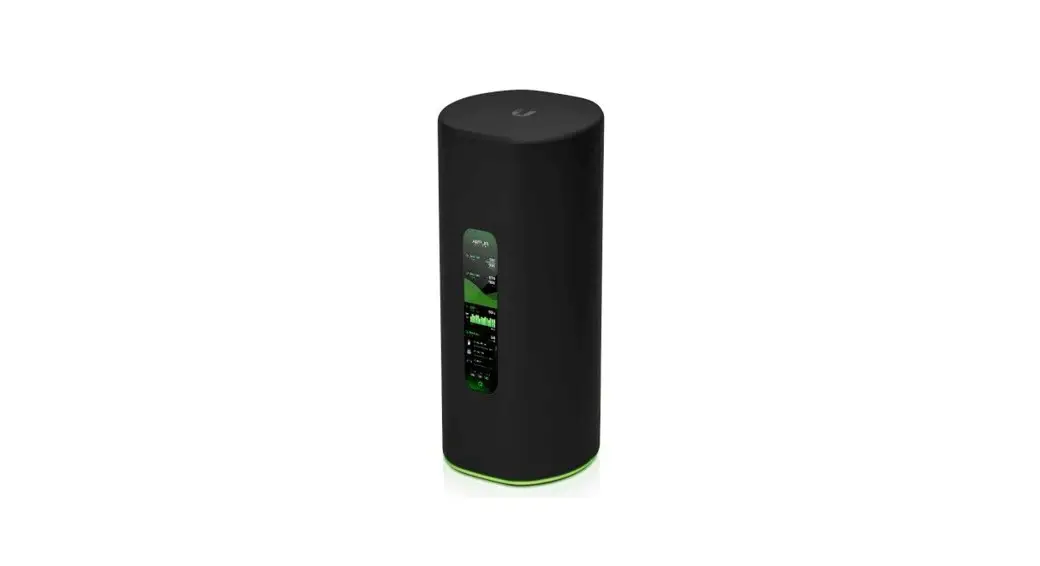
 AFI-ALN-R AmpliFi Router
User Guide
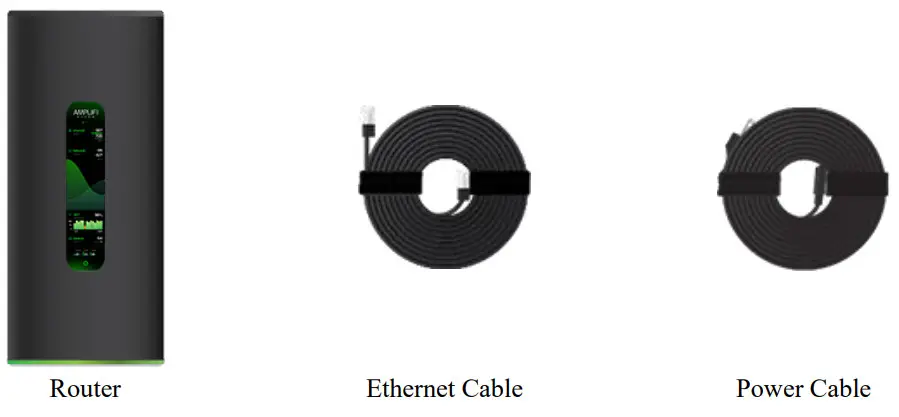
Package Contents
Hardware Overview
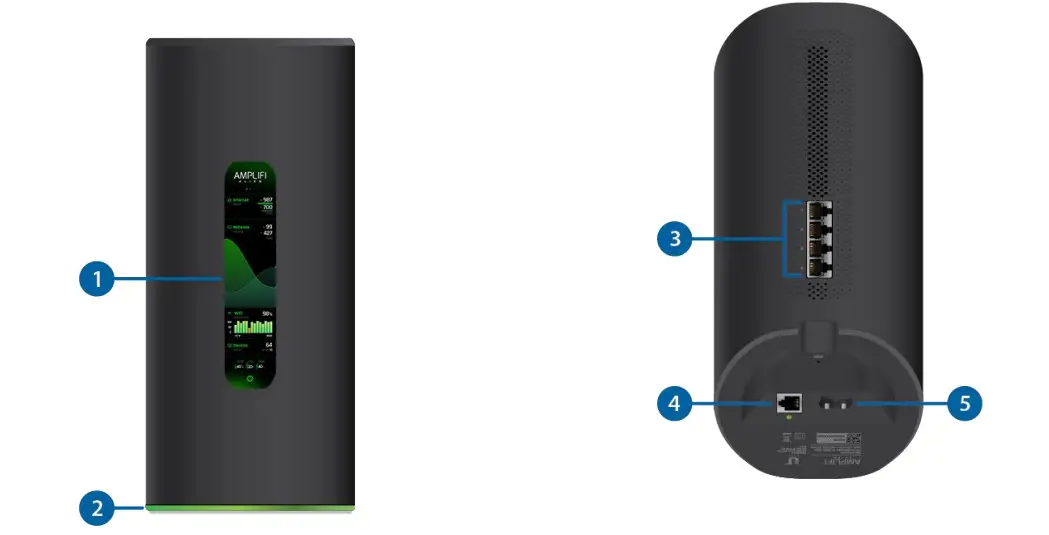
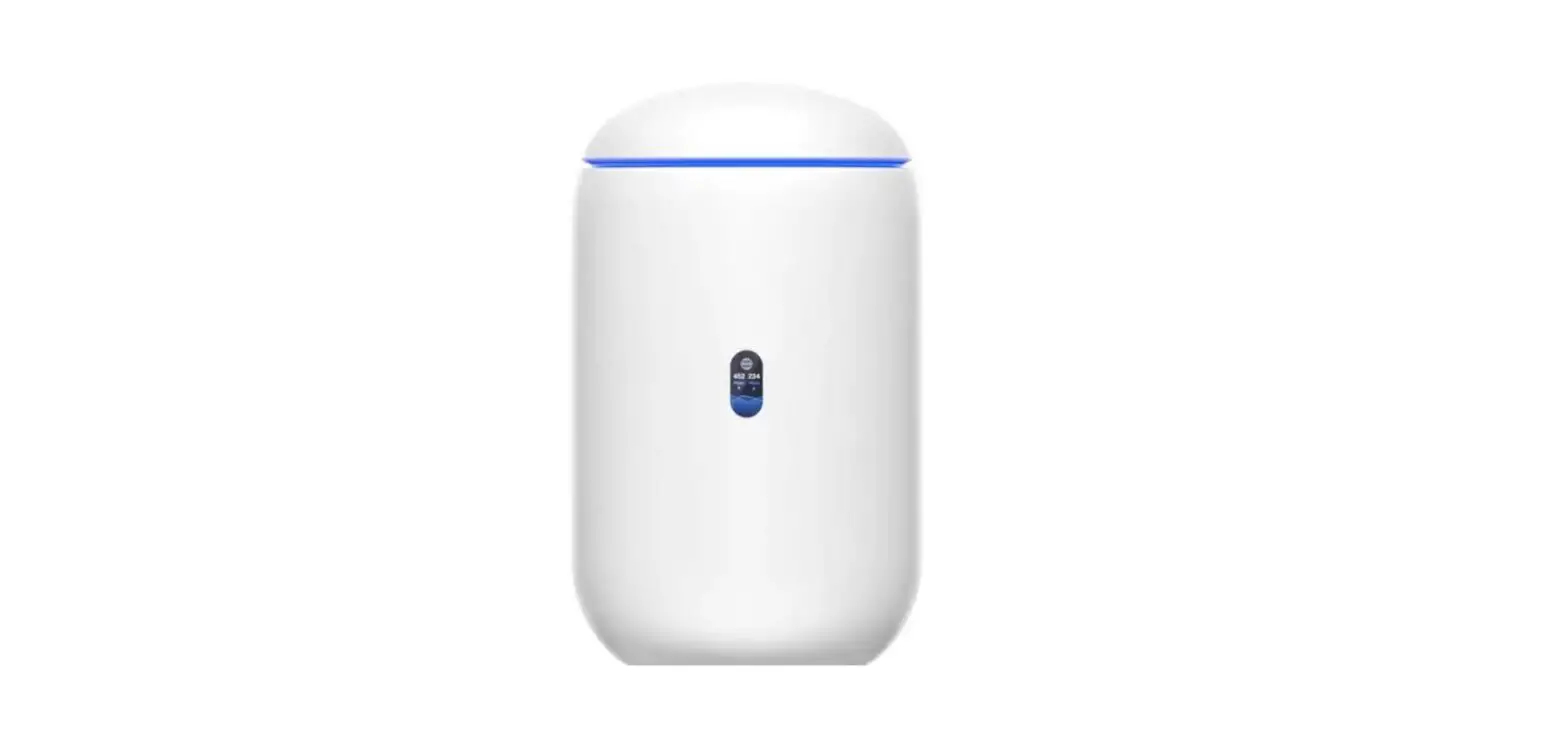
- Touchscreen Display
The front of the AmpliFi Router features a touchscreen display. - Adjustable LED
The bottom of the AmpliFi Router features an adjustable LED that is fully lit by default when the Router is configured and ready for use.
The brightness settings of the touchscreen and LED are configurable using the AmpliFi app. - Ethernet Ports
(4) Gigabit Ethernet ports available to connect 10/100/1000 Mbps wired network devices to the internet. - WAN Port
Connects to the broadband modem provided by your ISP (Internet Service Provider). - Power Port
The Power Cable connects to this port.
Installation
The AmpliFi Router can be installed using one of the following methods:
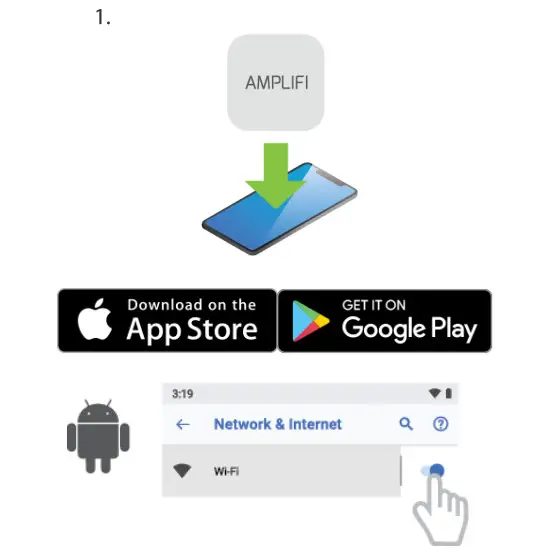
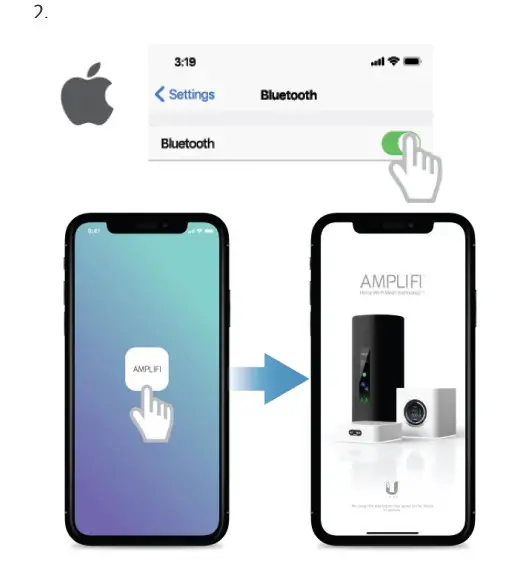
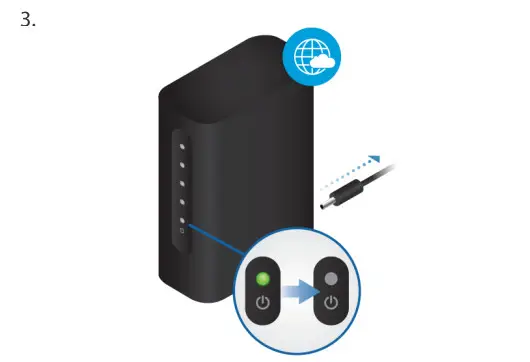
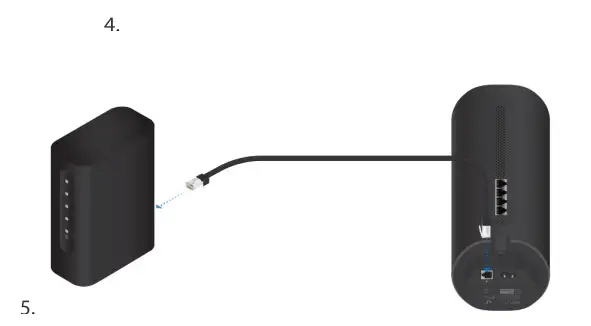
- App Users AmpliFi app for iPhone or Android”
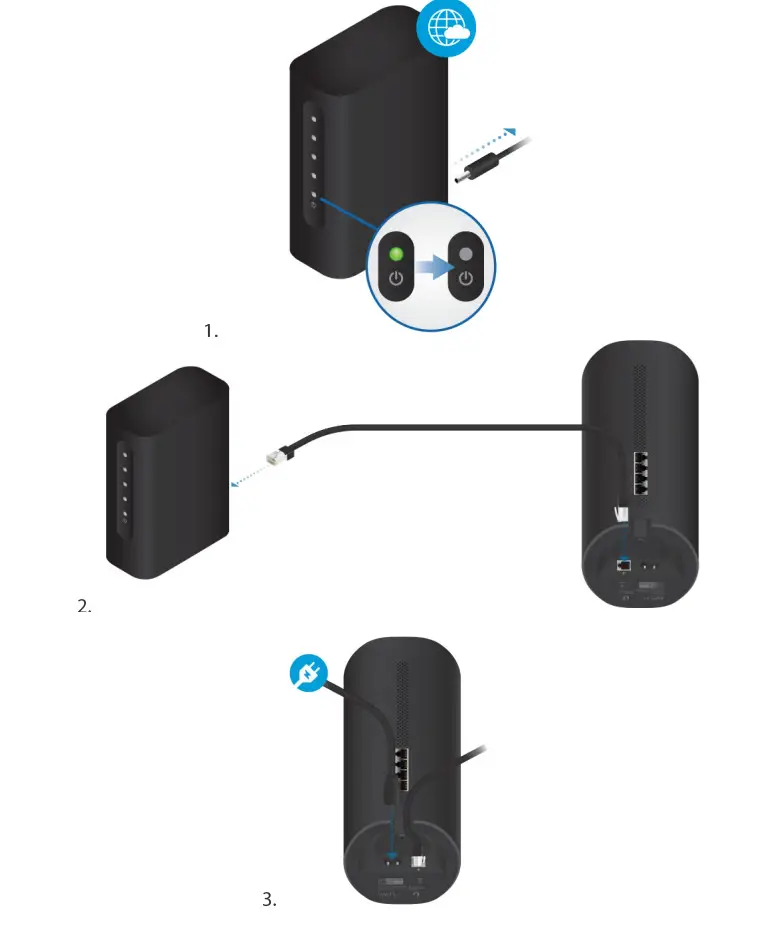
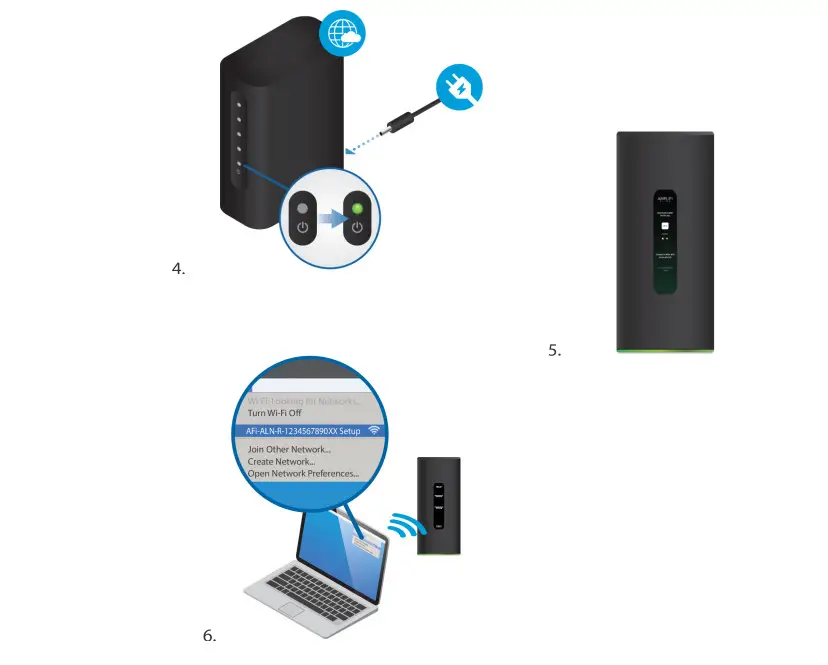
- Non-App Users Connect to the default AmpliFi wireless network (551D) from a computer or tablet.
App Users
 |  |
 |  |
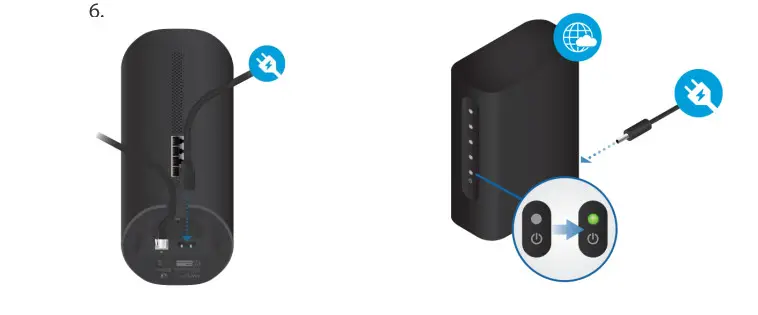 | 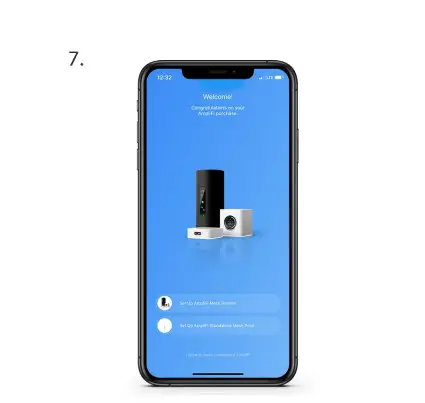 |
Follow the on-screen instructions to configure your AmpliFi Router.
Non-App Users
 |  |
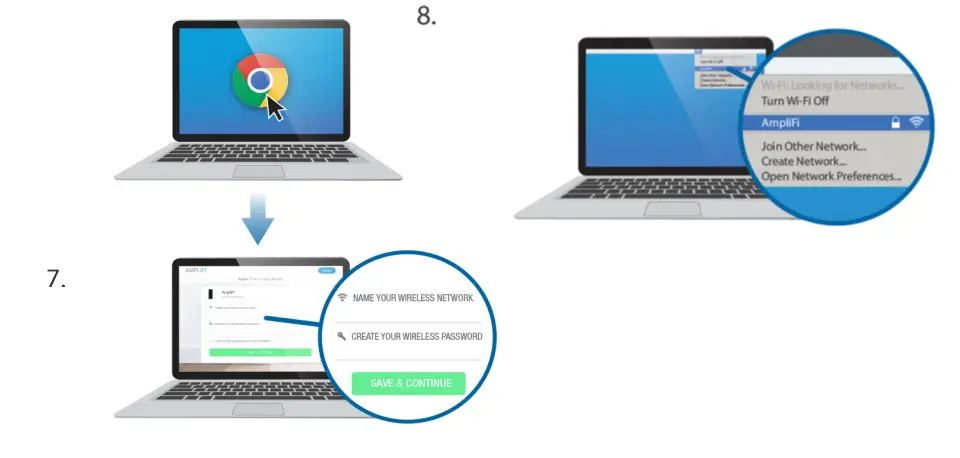 | |
App Features
 | The system dashboard is displayed in the System window. It provides an overview of the AmpliFi Wi-Fi system including network status, number of connected clients, and active download/upload speeds. Tap devices to display/edit settings. |
 | Tap Start Test on the Performance screen to run a speed test that will provide your download speed, upload speed, and connection ping time. Swipe left on the throughput section to view additional data. A history of recent tests is displayed at the bottom. |
 | To provide guest access, determine the number of guests, select a time limit for their access, and tap Start. Guests simply connect to your wireless network name with the -guest label. No password is required. As guests connect, the number of users connected will be displayed in the app. Tap Stop at any time to turn off the guest network. |
 | The Family Profiles feature allows you to create profiles for family members, groups, or areas of your home. Assign devices to the profile, schedule quiet time (when the internet is not accessible), and pause the internet at any time. |
 | The Diagnose option will check your WAN link, IP settings, internet connection, and MeshPoint status. |
Side Menu – 24/7 Live Chat Support
Tap in the upper left of the app to access the side menu. Tap Live Support for 24/7 live chat support.
Remote Access can also be enabled from this menu. 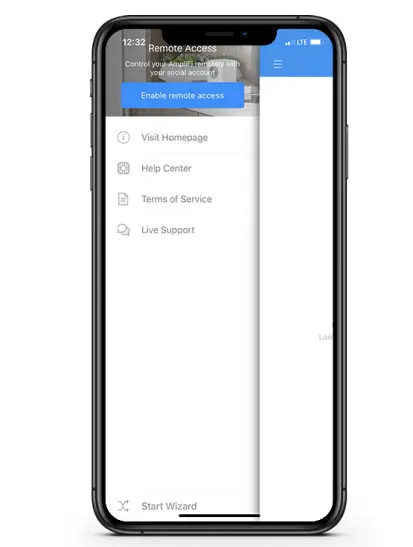
Resetting to Factory Defaults
If the AmpliFi Router administration password is lost, factory default settings can be restored. 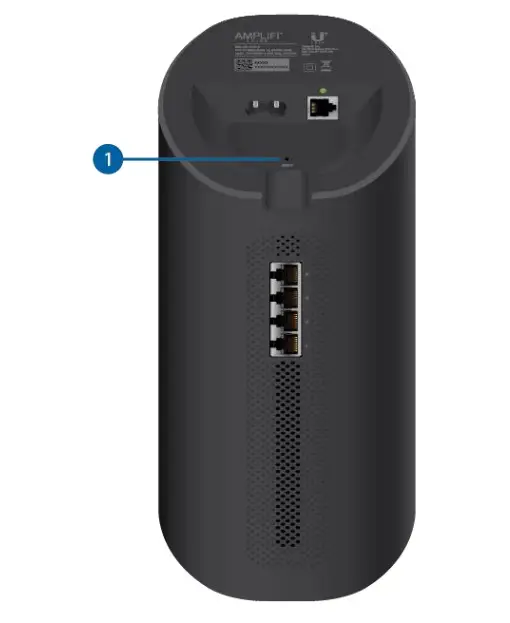
Router Reset
Use an object such as a straightened paper clip to press Reset located on the bottom of the AmpliFi Router for approximately 10 seconds until the LED turns off.
Safety Notices
- Read, follow and keep these instructions.
- Heed all warnings.
- Only use attachments/accessories specified by the manufacturer.
 WARNING: Do not use this product in a location that can be submerged in water.WARNING: Avoid using this product during an electrical storm. There may be a remote risk of electric shock from lightning.
Limited Warranty
ui.com/support/warranty
The limited warranty requires the use of arbitration to resolve disputes on an individual basis, and, where applicable, specify arbitration instead of jury trials or class actions.
Compliance
FCC
Changes or modifications not expressly approved by the party responsible for compliance could void the user’s authority to operate the equipment.
This device complies with Part 15 of the FCC Rules. Operation is subject to the following two conditions.
- This device may not cause harmful interference, and
- This device must accept any interference received, including interference that may cause undesired operation.
This equipment has been tested and found to comply with the limits for a Class B digital device, pursuant to Part 15 of the FCC Rules. These limits are designed to provide reasonable protection against harmful interference in a residential installation. This equipment generates, uses, and can radiate radio frequency energy and, if not installed and used in accordance with the instructions, may cause harmful interference to radio communications. However, there is no guarantee that interference will not occur in a particular installation. If this equipment does cause harmful interference to radio or television reception, which can be determined by turning the equipment off and on, the user is encouraged to try to correct the interference by one or more of the following measures:
- Reorient or relocate the receiving antenna.
- Increase the separation between the equipment and receiver.
- Connect the equipment to an outlet on a circuit different from that to which the receiver is connected.
- Consult the dealer or an experienced radio/TV technician for help.
The AmpliFi Router has been approved by FCC under FCC ID: SWX-AFAR.
ISED Canada
CAN ICES-3(B)/NMB-3(B)
This device complies with ISED Canada licence-exempt RSS standard(s). Operation is subject to the following two conditions:
- This device may not cause interference, and
- This device must accept any interference, including interference that may cause undesired operation of the device.
The AmpliFi Router has been approved by ISED Canada under IC: 6545A-AFAR.
The device for operation in the band 5150-5250 MHz is only for indoor use to reduce the potential for harmful interference to co-channel mobile satellite systems.
IMPORTANT NOTE:
Radiation Exposure Statement:
- This equipment complies with radiation exposure limits set forth for an uncontrolled environment,
- This equipment should be installed and operated with a minimum distance of 42 cm between the radiator and your body.
- This transmitter must not be co-located or operating in conjunction with any other antenna or transmitter.
CE Marking
CE marking on this product represents the product is in compliance with all directives that are applicable to it.

Country List
| AT | BE | BG | CY | CZ | DE | DK | EE | EL | ES | FI | FR | HR | HU |
| IE | IT | LV | LT | LU | MT | NL | PL | PT | RO | SE | SI | SK | UK |
 Note: This device meets Max. TX power limit per ETSI regulations.
The following applies to products that operate in the S GHz frequency range:Note: This device is restricted to indoor use only when operating in the 5150 – 5350 MHz frequency range within all member states.Note: Operation in the 5.8 GHz frequency band is prohibited in BFWA member states. Other countries listed may use the 5.8 GHz, frequency band.
WEEE Compliance Statement Declaration of Conformity Online Resources

 AFi-ALN-R Quick Start Guide
 AmpliFi Community
 WEEE Compliance Statement
 AmpliFi WiFi on the App Store
 Ubiquiti - Compliance